


How to Send Email in Microsoft Visual Studio 2010




| No. | Sending Email in Visual Studio 2010 |
|---|---|
| Give Your Suggestions !!! | |
| 1. | Part 1 |
| 2. | Part 2 |
Hello friends, first of all I am really bad in designing stuff. Although I have tried to design the top image for this post but I know its not much cool well try to bear it .... :))
After the Microsoft Visual Studio 2010 - COM Port and Creating a Database in Microsoft Visual Studio 2010 tutorial, here's my next tutorial on VB.net. As the name suggests, this tutorial is about sending an Email through Visual Studio. Again I will use Microsoft Visual Studio 2010 and the language will be Visual Basic for this tutorial.
Usually Sending an Email through software seems quite a difficult task but in actual its really a very easy task. So at the end of this short and quick tutorial, you will be able to develop a software which will send email on your click. I have divided this tutorial into two sections. Today we will just create a simple app which will send emails on just one click and later on we will add few features in it and make it able to send emails through multiple accounts with log in capability. Two parts of this tutorial are as follows:
Steps to Follow
- First of all create a new project in Microsoft Visual Studio as shown in figure below:
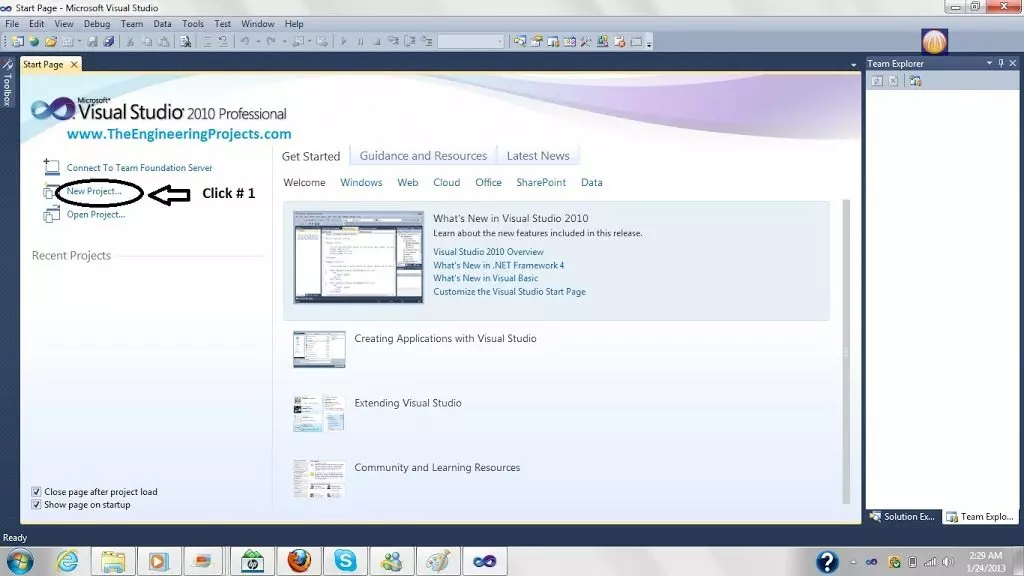
- Now select Visual Basic from the Installed Templates and then Windows Form Applications.
- Give your project some name and then click on OK.

- Now it will redirect you to your form. Add one button in your form and rename it to Send Email and change the Name of the button to SendEmail.
- Now move into the code section of your application and remove everything and paste the below code into it.
Imports System.Net.Mail Public Class Form1 Private Sub SendEmail_Click(ByVal sender As System.Object, ByVal e As System.EventArgs) Handles SendEmail.Click Dim Mail As New MailMessage Mail.Subject = "First Email" Mail.To.Add("Email1") Mail.From = New MailAddress("Email2") Mail.Body = "First Email Through VB.net --- www.TheEngineeringProjects.com" Dim smtp As New SmtpClient("smtp.gmail.com") smtp.EnableSsl = True smtp.Credentials = New System.Net.NetworkCredential("Email2", "Password") smtp.Port = "587" smtp.Send(Mail) End Sub End Class
- Now make few changes in it.
- Email1 is the email whom you wanna send the email.
- Email2 is your email from which the mail will be sent.
- Password is the password of your email i.e. email2.
- SmtpClient and SmtpPort are different for different email providers.The above mentioned are only for Gmail.If you search a little you can easily find these for Hotmail and yahoo etc.
- If someone needs this software along with complete code, kindly subscribe to our newsletter and post your email in the comments.


