


| No. | Sending Email in Visual Studio 2010 |
|---|---|
| Give Your Suggestions !!! | |
| 1. | Part 1 |
| 2. | Part 2 |
Hello friends, today's tutorial is about adding functionality in Microsoft Visual Studio 2010 basic email form. In the previous part of this tutorial How to Send Email in Microsoft Visual Studio 2010, we have seen a basic email form which just sends email to constant email address which is specified in the coding.
Today we will make this email form a bit flexible and will be able to send the emails to any email id we want. If you have read the previous part of this tutorial, then this article will be nothing for you, you will got it just like a piece of cake instantly.
So, I suppose that you have read the previous tutorial and you have the knowledge of smtp etc so I am not gonna explain it further, so i suggest again to read it first if you have any doubt in configuration part, lets come to this part.
Steps to follow:
- First of all create a new project in your Microsoft Visual Studio 2010 and if you have already created it in the previous part then don't need to create it again, just open that project.
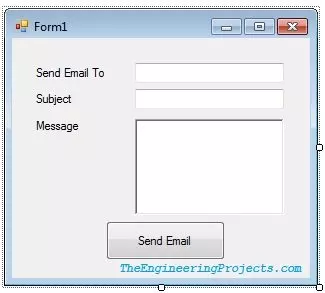
- Now in your main form add one button, three labels, two text boxes and one rich text box.
- Change the Name and texts of all these controls from their properties as i specified below and be careful in doing this part and its better if you simple copy paste them.
- Change Label1 text to Send Email To.
- Change Label2 text to Subject.
- Change Label3 text to Mesage.
- Change TextBox1 name to txtSend and place it after Label1.
- Change TextBox2 name to txtSubject and place it after Label2.
- Change RichTextBox name to rtbMessage and place it under the Label3.
- Now at the end change the Button1 text to Send Email and name to SendEmail.
- Place them as shown in the image below or you can also change their positions as well. Anyways your final software will look like this :
- Now the last part is adding code so go into your code editor and remove all the previous code and place this code in it.
Imports System.Net.Mail Public Class Form1 Private Sub SendEmail_Click(ByVal sender As System.Object, ByVal e As System.EventArgs) Handles SendEmail.Click Dim Mail As New MailMessage Mail.Subject = txtSubject.Text Mail.To.Add(txtSend.Text) Mail.From = New MailAddress("email@gmail.com") Mail.Body = rtbMessage.Text Dim smtp As New SmtpClient("smtp.gmail.com") smtp.EnableSsl = True smtp.Credentials = New System.Net.NetworkCredential("email@gmail.com", "password") smtp.Port = "587" smtp.Send(Mail) End Sub End Class
- Change email@gmail.com with your email address and password with your password.
- Now if you compare it with the code in the previous part, you will see there's just a slightest change.
- In the previous software, we were adding the subject and email id to which we have to send email and the email body in the code section but in this software we have created text boxes and in the code we are getting these things from those text boxes, quite a simple thing.
Things to Notice:
- One thing you have observed that this software lack the functionality of login so its not kind of a messenger on which we just login with any id and send the email to your recipient.
- The reason is we haven't yet covered the login form. In my next article on visual studio, i will cover the login form.
- By the way you can add a simple login form by yourself, just add two text boxes and in the code, get data from them where we are using our email id and password.
- This sotware along with code has been sent to all the subscribed members already.
- In order to get the complete code and software, kindly Subscribe to our Newsletter and post your subscribed email address in the comments and I will send them to you.
I will recommend you guys to must read these two tutorial on Microsoft Visual Studio as well:
That's all for today guys, if someone having any kind of trouble in any part, ask in comments and help me to help you ..... Take care ..... ALLAH HAFIZ :))

