Hello friends! In this tutorial, we will enlarge an image using bilinear interpolation in MATLAB. We will first calculate one interpolated value by hand, then build a function that applies the same idea across a grayscale or RGB image.
Enlarging an image creates more output pixels, but it does not recover detail that the original image never recorded. Interpolation estimates values between existing samples. Bilinear interpolation is useful because its four-neighbor calculation is straightforward and produces smoother transitions than simply repeating the nearest pixel.
The original example image, formula illustrations, download and video remain attached. The revised implementation makes the coordinate mapping, data type and image boundaries explicit, including the final row and column that the earlier loop did not fully process.
What Is Bilinear Interpolation?
Linear interpolation estimates a value between two known samples along one direction. Bilinear interpolation performs that operation in two directions. For an image, we combine values from the four pixels surrounding a position between rows and columns.
Let the surrounding values be Q00, Q01, Q10 and Q11, where the first index represents the row and the second represents the column. Let a be the fractional distance down from the upper row and b the fractional distance right from the left column.
Value = (1-a)(1-b)Q00 + (1-a)bQ01 + a(1-b)Q10 + abQ11
Inside the cell, a and b lie between zero and one. The four weights are nonnegative and sum to one. The result therefore remains between the minimum and maximum of the four contributing values, apart from any later conversion or rounding.
We can also calculate the upper-row interpolation and lower-row interpolation first, then interpolate between those two results. The original formula images illustrate this two-stage view.
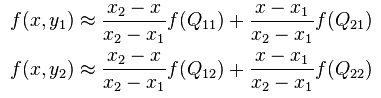

For a numerical example, use upper-row values 10 and 20 and lower-row values 30 and 40. At a = 0.25 and b = 0.75, the upper interpolation is 17.5 and the lower interpolation is 37.5. Interpolating one-quarter of the way down gives 17.5 + 0.25 × (37.5 - 17.5) = 22.5.
The result is not a new measured brightness. It is the value predicted by the bilinear surface defined by those four samples. That distinction matters when enlarged images are used for measurement rather than merely presentation.
Rows, Columns and Image Coordinates
MATLAB indexes an image as row, column and, for a color image, channel. Horizontal position corresponds to columns, while vertical position corresponds to rows. Confusing those directions can transpose an image or apply the wrong interpolation weights.
The MathWorks interp2 documentation describes interpolation on a two-dimensional sample grid. Its default grid uses columns as x positions and rows as y positions. Our manual implementation follows the same row/column distinction while making the image-resizing coordinate map explicit.
For an RGB image, each pixel has three values. We apply the same spatial weights separately to red, green and blue. We do not average the three channels together, because that would discard color information.
Choose a Coordinate-Mapping Convention
There is more than one way to define where output pixel centers fall relative to the input. An endpoint-aligned grid preserves the locations of the first and last input centers. A pixel-center mapping treats pixels as samples located at the centers of equal-sized cells.
This tutorial uses pixel-center mapping. For an input with H rows and an output with Hout rows, output row r maps to:
sourceRow = (r - 0.5) × H / Hout + 0.5
The corresponding column equation uses the input and output widths. We calculate output dimensions by rounding the requested scaled dimensions, then use the actual chosen dimensions in the map. This keeps the mapping consistent when a noninteger scale produces rounded dimensions.
Some mapped positions near the outer edges lie slightly beyond the first or last sample center. Our example clamps them to the nearest valid center, effectively extending the edge value. A different boundary rule can produce different border pixels even when the interior bilinear formula is identical.
Read the Image and Preserve Its Meaning
The original tutorial uses an image from our 555 timer project. Place your input image in the working folder or provide its full path. The revised function accepts a filename, so the image no longer has to be called TEP.jpg unless you use the default argument.
Integer image values should be converted to floating point before interpolation. Otherwise, intermediate products and differences can be rounded or constrained by integer arithmetic. We will convert to double for the calculation and convert back to the original class afterward.
Converting an eight-bit image with double preserves its 0-to-255 numerical range. It does not normalize it to zero through one. This matters when displaying a floating-point image or comparing it with code that uses an image-normalization function.
An indexed image contains palette indices rather than direct intensities. Interpolating those indices as if they were brightness values is incorrect. The example rejects indexed images and asks you to convert them to RGB first.
Complete Bilinear Zoom Function
Save the following function in a file named bilinear_zoom.m. It supports grayscale and three-channel RGB images and accepts an enlargement factor of one or greater. The loops are intentionally explicit so that you can follow the four-neighbor calculation.
function J = bilinear_zoom(scale, filename)
if nargin < 2
    filename = 'TEP.jpg';
end
validateattributes(scale, {'numeric'}, ...
    {'scalar','real','finite','>=',1});

[I, map] = imread(filename);
if ~isempty(map)
    error('Convert the indexed image to RGB before resizing.');
end
if ndims(I) > 3 || ~(size(I,3) == 1 || size(I,3) == 3)
    error('Use a grayscale or RGB image.');
end

originalClass = class(I);
A = double(I);
[rows, cols, channels] = size(A);
outRows = max(1, round(rows * scale));
outCols = max(1, round(cols * scale));
B = zeros(outRows, outCols, channels);

for r = 1:outRows
    sr = (r - 0.5) * rows / outRows + 0.5;
    sr = min(max(sr, 1), rows);
    r0 = floor(sr);
    r1 = min(r0 + 1, rows);
    a = sr - r0;

    for c = 1:outCols
        sc = (c - 0.5) * cols / outCols + 0.5;
        sc = min(max(sc, 1), cols);
        c0 = floor(sc);
        c1 = min(c0 + 1, cols);
        b = sc - c0;

        B(r,c,:) = (1-a)*(1-b).*A(r0,c0,:) ...
                 + (1-a)*b.*A(r0,c1,:) ...
                 + a*(1-b).*A(r1,c0,:) ...
                 + a*b.*A(r1,c1,:);
    end
end

J = cast(B, originalClass);
figure;
subplot(1,2,1); imshow(I); title('Original');
subplot(1,2,2); imshow(J); title('Bilinear enlargement');
imwrite(J, 'zoomed_pic.png');
end
Run bilinear_zoom(2, 'TEP.jpg') to request twice the row count and twice the column count. A 300-by-400 image then becomes 600 by 800, containing four times as many pixels rather than twice as many.
The function writes a PNG result so that JPEG compression does not introduce another source of change when you inspect the interpolation. If you intentionally save JPEG, remember that its compression can alter pixel values independently of the resizing calculation.
The original code download is retained below for comparison. Its forward placement of source pixels and subsequent gap filling use a different grid construction. The revised function instead visits every output location and calculates where it belongs in the source image.
Download MATLAB Code for Image ZoomingUnderstand the Implementation
For each output row, we calculate its source row once. The lower neighboring row is the floor of that coordinate, and the upper neighbor is the next row, limited to the image height. The fraction a describes how far the query lies between them.
We repeat the same process for columns to obtain c0, c1 and b. The four weighted source values then produce the output pixel. The colon in the channel position applies the same operation to every channel at that location.
At the last row or column, the two neighboring indices can become equal. That is intentional: the clamped edge value is reused rather than accessing memory outside the image. A one-row or one-column input follows the same rule and does not require a nonexistent second row or column.
The output array is allocated before the loops. Growing an array one pixel at a time can require repeated allocation and copying. Preallocation also makes the intended output dimensions visible before any interpolation begins.
Display calls occur after the calculation rather than inside the row loop. Repainting a figure repeatedly is unnecessary for the final result and can dominate the time spent in a small educational algorithm.
Compare the Result with MATLAB's Resizing Function
For routine image work, MATLAB provides imresize with a bilinear option. The MathWorks imresize reference documents interpolation and antialiasing choices. Check availability in your installed products before using it as a comparison.
I = imread('TEP.jpg');
outSize = [round(size(I,1)*2), round(size(I,2)*2)];
reference = imresize(I, outSize, 'bilinear');
imshow(reference);
Use the same output dimensions before comparing results. Then examine coordinate mapping, boundary extension, arithmetic precision and final data type. Two implementations can both be bilinear while differing because one aligns endpoints and the other aligns pixel centers.
Do not demand a byte-for-byte match without first establishing those conventions. For an educational comparison, inspect a small numerical image and calculate selected interior and edge pixels by hand. This explains a difference more clearly than comparing two large photographs visually.
The archived result illustrates the enlarged appearance of the original example. Bilinear interpolation smooths transitions, so enlarged text and sharp schematic lines can look softer. It creates estimated intermediate values rather than preserving the original sharpness at a higher native resolution.
Useful Numerical Checks
| Input | Expected property |
|---|---|
| Constant grayscale image | All output values remain constant |
| Scale factor of one | Output matches the input grid |
| Small two-by-two array | Interior values follow the four weights |
| Image with one row | No invalid second-row access |
| RGB image with one constant channel | That channel remains constant |
| Bright border around a dark interior | Boundary behavior is easy to inspect |
A constant image is especially useful because the sum of the four weights should equal one. If a constant image develops darker bands or bright patches, inspect the weights, unfilled output locations and boundary handling before using a more complicated input.
A scale factor of one checks the coordinate convention. The formula maps each output center directly to the corresponding input center, making the fractions zero. An unexpected shift at this scale usually reveals an off-by-one or half-pixel mistake.
Nearest Neighbor, Bilinear and Bicubic
Nearest-neighbor resizing selects one input value for each output pixel. It preserves the set of original values but can produce blocky edges. That behavior is often desirable for label masks or pixel art, where introducing intermediate class values would be meaningless.
Bilinear interpolation blends four surrounding values. It produces smoother transitions at modest computational cost, but can blur fine structure. It is a useful teaching method and a reasonable choice when smoothness matters more than preserving hard pixel boundaries.
Bicubic methods use a larger neighborhood and a different interpolation kernel. They can preserve apparent detail more strongly, but their behavior depends on the kernel and can include overshoot near sharp transitions. Choose a method according to the data and purpose rather than assuming that a more complex name is always better.
Why Reduction Needs Additional Care
The manual function intentionally accepts enlargement only. When reducing an image, multiple fine input variations can fall within one output sample. Without suitable low-pass filtering, those variations can become false patterns through aliasing.
A pointwise bilinear sample alone is not a complete antialiasing strategy for arbitrary reduction. Use a resizing implementation with an appropriate antialiasing option when shrinking photographs or measurement images, and examine the behavior for the requested scale.
This also explains why repeatedly shrinking and enlarging an image is not reversible. Information discarded during reduction cannot be reconstructed by simply increasing the number of pixels afterward.
Performance and Memory Considerations
Doubling both dimensions multiplies the pixel count by four. A 4000-by-3000 RGB image contains 36 million channel values; storing them as double requires approximately 288 million bytes before counting the output and temporary arrays. Large enlargements can therefore become memory-limited quickly.
The explicit loops prioritize clarity. For repeated production work, use an optimized library function or carefully vectorize the calculation. Avoid creating several full-size coordinate and weight arrays without considering their combined memory cost.
If you need only a small enlarged region, crop the intended source region first with a clearly defined coordinate mapping. Processing the whole image and discarding most of the result wastes memory and time.
Inspect Special Image Types Before Resizing
A color photograph is often stored with a nonlinear encoding such as sRGB. Interpolating its stored channel values is a common image-processing operation, but it is not identical to averaging physical light intensity. If the application requires physically meaningful blending, convert through the appropriate color-transfer function before interpolation and convert back afterward.
That additional step is separate from converting an integer array to double. Changing the numeric class only changes how the numbers are represented; it does not automatically linearize their color encoding. Keep those two operations distinct in a color-managed workflow.
Transparency needs similar care. A PNG can have an alpha channel returned separately by imread. The example above does not preserve that separate transparency array. For an image with transparency, read the alpha data explicitly and decide how colors and alpha should be resampled together rather than silently writing an opaque replacement.
In a compositing workflow, premultiplied color can avoid dark or colored fringes around transparent edges. That is an extension beyond this basic RGB example, but it illustrates why a generic resize function needs an explicit policy for more than three visible color channels.
Compare values before comparing appearance
Two figures can look identical while containing slightly different pixel values, and two figures can look different because their display scaling differs. Start a numerical comparison by checking size and class. Then convert both results to a common floating-point representation and inspect a difference array.
For integer output, a small difference may come from rounding at the final cast. Compare the floating-point intermediate values if you want to study the interpolation itself. For a manual implementation with a deliberately different boundary rule, inspect interior and border regions separately instead of reporting one unexplained maximum error.
Do not interpret a small numerical difference as a quality ranking by itself. A different kernel or coordinate convention can change values while still being appropriate for its intended use. The important question is whether the output follows the documented method and preserves the information needed by the next processing stage.
Keep original data for later processing
Save the enlarged result as a new file and retain the source image. Repeatedly resizing an already interpolated image compounds smoothing and makes it difficult to trace a measurement back to the original samples. When you need several output sizes, generate them from the same original rather than from one another.
Record the requested scale, resulting dimensions, interpolation method and edge rule alongside an exported result used in a technical report. These settings explain how the displayed image was produced and allow another reader to reproduce it without guessing from its appearance.
For a final visual inspection, include a region containing text or a sharp diagonal as well as a smooth photographic region. Different structures reveal different interpolation effects, and a method that looks acceptable on a smooth gradient may soften a thin circuit trace noticeably.
Review and Frequently Asked Questions
The elementwise multiplication in the example applies each scalar weight to every color channel independently.
Bilinear interpolation is a useful bridge between a simple mathematical formula and a complete image-processing operation. The formula is only part of the implementation: coordinate mapping, boundaries, data types and output dimensions determine how the method behaves on a real image.
The original video below remains available as a visual walkthrough. Use the revised code and calculations when checking the last row, last column and the difference between enlargement and new image detail.
Does enlarging an image improve its true resolution?
It increases the output pixel count, but the added values are estimates. Detail absent from the source is not recovered by bilinear interpolation.
Why convert to double first?
Interpolation uses fractional weights. Floating-point arithmetic preserves those intermediate values until the final conversion back to the image's storage class.
Why are the outer pixels clamped?
The chosen center mapping can query beyond the outer sample centers. Clamping defines a predictable edge extension and prevents invalid indices.
Can I use bilinear interpolation on a segmentation mask?
Usually use nearest-neighbor sampling for categorical labels. Blending label numbers creates values that do not represent valid classes.
Why does another bilinear implementation differ?
Compare its output dimensions, pixel-center convention, edge rule and rounding. The same interpolation name does not guarantee that those implementation choices match.