Hello friends, I hope you all are doing great. Today, I am going to share the LD2410 Radar Room Monitor with ESP32 - Proteus Simulation, the seventy-seventh project of our IoT Projects series. If you have searched for an LD2410 with an ESP32, a 24 GHz mmWave presence sensor, how a radar sees a person who is sitting still, or an inactivity alert for someone living alone, here is a complete one. A PIR motion sensor only sees movement: sit still to read a book and the light goes out. A millimetre-wave radar is different. It feels the tiny movement of breathing, so it knows a person is still in the room even when they do not move at all.
This ESP32 turns an HLK-LD2410 radar into a room monitor. The lamp follows the person in and out. And if they stop moving for too long, perhaps after a fall or a faint, the monitor raises an alert on a laptop or a phone, so a carer can call or come round. In this tutorial, we will go through the circuit, how a 24 GHz radar measures distance and tells moving from still, the distance gates and their energies, the LD2410's serial protocol and its engineering mode, the inactivity timer, the walking speed, and the lamp's fade. Then we run a whole visit in the simulation: someone walks in, sits down, stays still too long, moves again, and leaves. At the end, you can download the project with the sketch and every library file.
NOTICE: Our team has put a lot of effort into this project: the circuit, the code and every part in the simulation are our own work, and you get them all free. Your feedback is the fuel that keeps us going, so please tell us what you think in the comments below. And if our free projects help you, you can buy us a coffee. So, let's get started with the LD2410 radar room monitor with ESP32 in Proteus simulation:
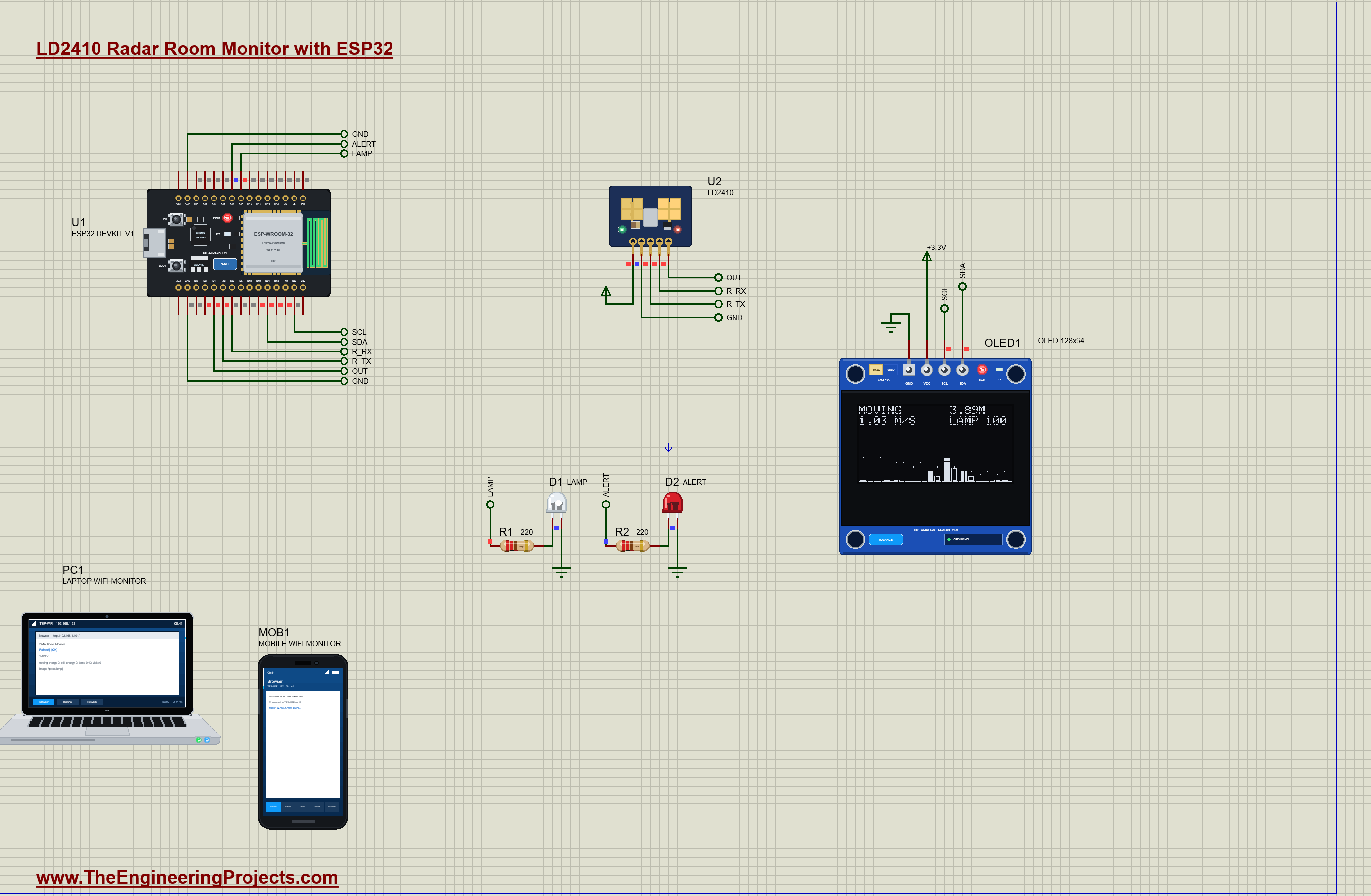
What Does This Radar Room Monitor Do?
- Feels presence, not just motion: an HLK-LD2410 24 GHz radar on the ESP32's second UART reports moving and still people up to about 6 m.
- Reads every gate: in engineering mode each report carries the moving and the still energy of nine 0.75 m distance gates.
- Lights the room: a lamp fades up when someone is there and down after they leave.
- Watches for stillness: a person who stays still too long raises an ALERT; moving again, or OK on the dashboard, clears it.
- Measures the walk: the walking speed from the moving target's distance, and the number of visits.
- Shows it all: the state and the nine gates on a 0.96" OLED, and a dashboard with the same bars on a laptop or a phone.
It is a great project for learning a binary serial protocol, a radar's view of the world and a little state-machine logic in one go. In the simulation, the LD2410's pop-up shows the room from above with the person, each gate's energy against its sensitivity and buttons that walk a person in, sit them down and walk them out, so every decision the ESP32 makes can be checked against what the radar saw.
Components Used in the Proteus Simulation
All the parts come from our Proteus libraries, each with its own tutorial. The project zip at the end includes every LIB and DLL file.
| Part | Proteus device | Library post | Connection |
|---|---|---|---|
| ESP32 DevKit V1 | ESP32 DEVKIT V1 | ESP32 DevKit V1 Library for Proteus | U1, ESP32_Radar_Room_Monitor.hex, TEP-WiFi 192.168.1.101 |
| HLK-LD2410 radar | LD2410TEP | LD2410 Radar Sensor Library for Proteus | U2 on UART2 (RX2 / TX2), OUT to D4 |
| SSD1306 OLED 0.96" 128x64 | OLED12864WHITEADVTEP | OLED SSD1306 Library for Proteus | OLED1, I2C at 0x3C |
| White 5 mm LED | LED5MMWHITETEP | 5mm LED Library for Proteus | D1, the lamp, D25 (PWM) |
| Red 5 mm LED | LED5MMREDTEP | 5mm LED Library for Proteus | D2, the alert, D26 |
| Resistors 220 ohm | RESISTOR4BANDTEP | Resistor Library for Proteus | R1, R2, one per LED |
| Laptop WiFi Monitor | LAPTOP WIFI MONITOR | Laptop WiFi Monitor | PC1 |
| Mobile WiFi Monitor | MOBILE WIFI MONITOR | Mobile WiFi Monitor | MOB1 |
Proteus Simulation of the Radar Room Monitor: the Circuit
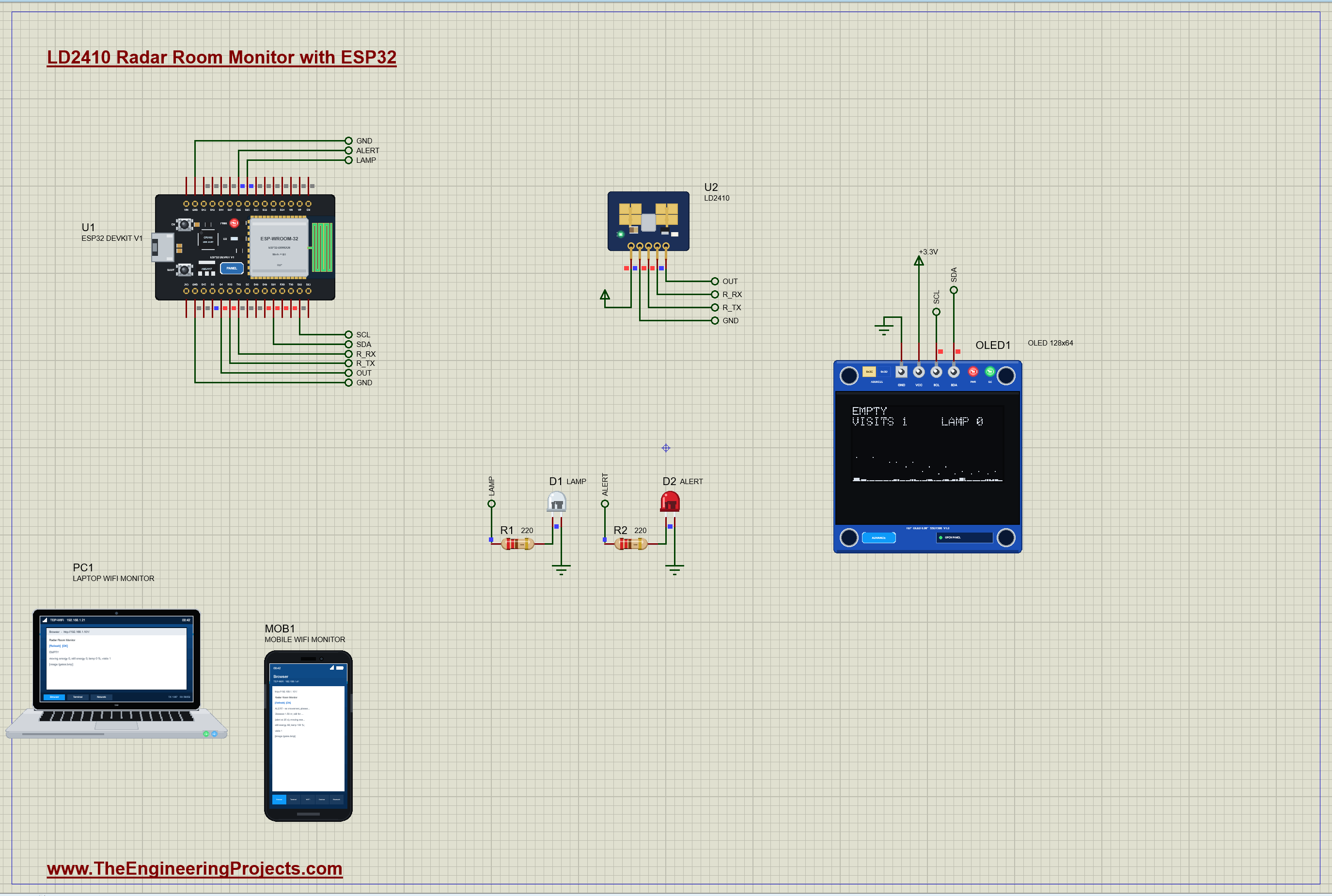
| LD2410 pin | ESP32 | Signal |
|---|---|---|
| TX | RX2 (GPIO16) | the reports and the ACKs, 115200 baud |
| RX | TX2 (GPIO17) | the commands |
| OUT | D4 (GPIO4) | HIGH while someone is there |
| VCC / GND | 5 V / GND | the module makes its own 3.3 V |
The radar talks to the ESP32 over a plain UART, its TX to the ESP32's RX2 and the other way round. The ESP32 has three hardware UARTs: UART0 goes to the USB port and the serial monitor, so UART2 on GPIO16 and GPIO17 is free for the radar. The LD2410 needs 5 V on VCC, and its signals are 3.3 V, right for the ESP32. OUT is a simple presence output, high while the radar sees someone. The lamp is a white LED on a PWM pin so that it can fade; a red LED is the local alert. The OLED shares the I2C bus on D21 and D22.
How the Radar Room Monitor Works
How a 24 GHz Radar Sees a Person
The LD2410 sends out a 24 GHz radio wave, 12.5 mm long, from four small patch antennas and listens for its echo on four more. It sweeps its frequency up in a ramp (FMCW, frequency-modulated continuous wave): the echo of something farther away comes back later, so it has drifted further from the frequency now being sent, and that difference tells the distance. Something moving changes the echo's phase from one sweep to the next. A walking person changes it a lot. A person sitting still changes it only a little, as the chest rises and falls about 5 mm with each breath, but at a 12.5 mm wavelength that is a large part of a wave, and the radar can see it. That is why it can tell a moving person from a still one, and a still person from an empty chair.
Radar, PIR or Camera?
| Sensor | Sees a still person | Distance | Privacy | Typical use |
|---|---|---|---|---|
| PIR (passive infrared) | no, only movement | no | good | corridor lights, alarms |
| 24 GHz mmWave radar | yes, by breathing | yes, in 0.75 m gates | good: no picture | presence, occupancy, wellbeing |
| Camera | yes | with processing | poor: a picture of the room | security, counting |
For a room monitor in someone's home, the radar is the natural choice. A PIR sensor cannot tell a person reading quietly from an empty room, so it would turn the light off and could never notice stillness at all. A camera can see everything, but few people want one watching their bedroom or bathroom, and it struggles in the dark. The radar sees in the dark and through thin fabric, knows how far away the person is, and never makes a picture: all it reports is a state, two distances and some energies. That is also why its alerts are cautious: it knows that someone is there and how much they move, not what they are doing, so a long stillness is a reason to check, not proof of a fall.
Distance Gates and Energies
The radar splits the room into gates of 0.75 m: gate 0 from 0 to 0.75 m, gate 1 from 0.75 to 1.5 m and so on up to gate 8 at 6 m. For each gate it measures two energies from 0 to 100: a moving energy and a stationary (still) energy. Each gate has its own sensitivity for each energy, a threshold: an energy above it means a target in that gate. Worked example: a person sitting 2 m away is in gate 2 (1.5 to 2.25 m); if their still energy there is 75 against a sensitivity of 40, the radar reports a still target at about 2 m. The near gates have higher thresholds because walls, furniture and the radar's own housing reflect strongly up close.
The LD2410's Serial Protocol
The radar reports by itself about ten times a second in frames: the header F4 F3 F2 F1, a two-byte length, the data and the tail F8 F7 F6 F5. The data starts with the type (0x02 basic, 0x01 engineering) and 0xAA, then the target state (0 nobody, 1 moving, 2 still, 3 both), the moving target's distance in cm and its energy, the still target's distance and energy, and the detection distance. In engineering mode it adds the nine moving and nine still gate energies. Commands go the other way in frames with the header FD FC FB FA and the tail 04 03 02 01: the length, a two-byte command word and its value. Every command gets an ACK with the command word plus 0x0100 and a status, 0 for success. Most commands need configuration mode first (0x00FF), and the reports stop until it ends (0x00FE).
The Room's States and the Inactivity Timer
| State | The radar says | The lamp | The alert |
|---|---|---|---|
| EMPTY | no target | fades down | off |
| MOVING | a moving target | on | off; the timer restarts |
| STILL | only a still target | on | the timer runs |
| ALERT | still for 25 s or more | on | the red LED, the dashboard |
The inactivity timer is the heart of the monitor. Every report with a moving target restarts it; while the radar sees only a still target, it runs. In a real home an hour or two of complete stillness in the day is worth a call; in this project it is 25 s, only to keep the simulation short. Moving again clears the alert by itself; OK on the dashboard clears it too and starts the timer again, for a carer who has phoned and heard that all is well. An empty room clears it as well, since nobody is there to help.
Walking Speed and the Lamp
While someone walks, the moving target's distance changes report by report. The change divided by the time between reports is a speed: worked example, from 4.20 m to 4.12 m in 100 ms is 8 cm in 0.1 s, 0.8 m/s toward the radar. The radar gives the distance in steps, so the sketch smooths the speed with a simple filter that moves 30 % of the way toward each new value. Walking speed is a well-known health sign: a slowing walk over weeks is worth noticing. The lamp follows the radar's OUT pin: the sketch raises its PWM by 3 steps every 10 ms (about 0.85 s to full) and lowers it by 1 step (about 2.5 s to dark), so it comes on quickly and goes out gently.
The Arduino Code Explained
The sketch is ESP32_Radar_Room_Monitor.ino, written in the Arduino IDE for the ESP32 DevKit V1. It uses Adafruit SSD1306 for the OLED and WiFi and WebServer for the dashboard; the radar needs no library. The radar on UART2:
Serial2.begin(115200, SERIAL_8N1, RADAR_RX, RADAR_TX);At start the sketch configures the radar and turns engineering mode on:
if (command(0x0062, nullptr, 0)) Serial.println(F("Engineering mode on: the energy of every gate"));The gate sensitivities come back in the ACK of 0x0061, nine for moving and nine for still:
memcpy(sensM, ackData + 6, 9); memcpy(sensS, ackData + 15, 9);The byte stream is cut into frames by their headers and their length field:
if (fn == 6) { fneed = 6 + (fb[4] | (uint16_t)fb[5] << 8) + 4; if (fneed > sizeof fb) fn = 0; return; }An engineering report carries the nine gate energies:
if (fb[6] == 0x01) { memcpy(gm, fb + 19, 9); memcpy(gs, fb + 28, 9); } // engineering: the energy of every gateThe inactivity timer and the ALERT:
const unsigned long INACTIVE_MS = 25000; // still this long = ALERT (25 s for the demo) else r = (room == ALERT || now - lastMove >= INACTIVE_MS) ? ALERT : STILL;OK on the dashboard clears it and restarts the timer:
lastMove = millis(); room = STILL;The walking speed from two distances and the time between them, smoothed:
float v = ((float)prevDist - movDist) * 1000.0 / (now - prevAt); speed += 0.3 * (v - speed); // (smoothed: the distance moves in steps)The lamp follows the radar's OUT pin, quickly up and gently down:
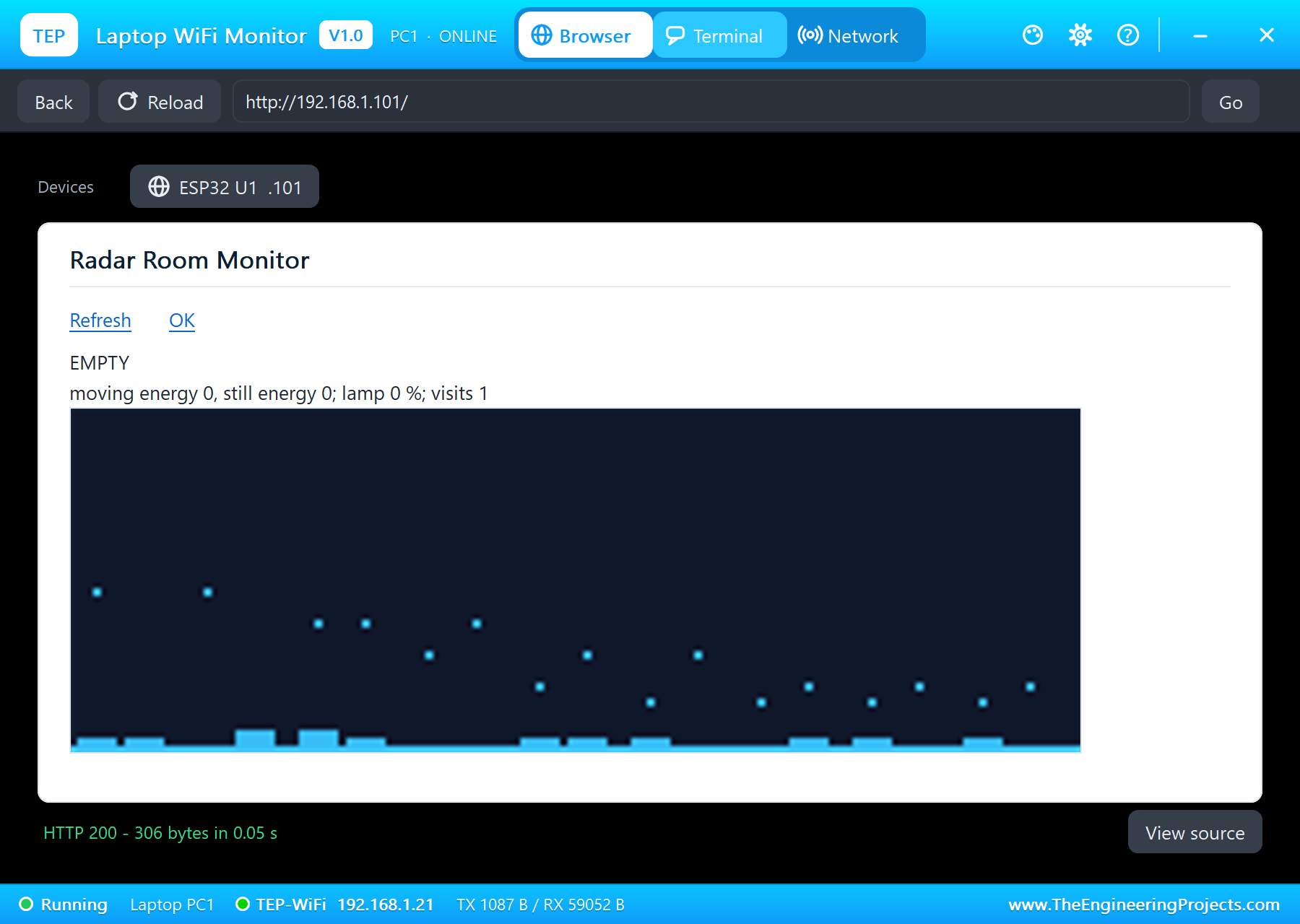
const int want = digitalRead(PIN_OUT) ? 255 : 0; if (lamp < want) lamp = min(want, lamp + 3); // (+3 every 10 ms: 0.85 s up)The OLED shows the state, the distance and the timer or the speed, and below them a pair of bars for each of the nine gates: the moving energy solid, the still energy as an outline, and a dot at each gate's sensitivity. The dashboard's links are Refresh and OK, and its pages are / (the dashboard), /gates.bmp (the OLED's bars, twice as big) and /data (JSON).
How to Run the Proteus Simulation
- Download the project zip below and install the library files (the steps are under the download button).
- Open ESP32-Radar-Room-Monitor.pdsprj from the Proteus Simulation folder. Keep the HEX file and the DLL files next to it.
- Press Play. Click U2 for the radar's pop-up.
- Open the Laptop or the Mobile WiFi Monitor and press Go. On the radar's pop-up press Walk in, then Sit still, and wait for the ALERT.
- Press Walk in to move again, or click OK on the dashboard; press Walk out to leave the room.
Simulation Results: the Radar Room Monitor in Proteus
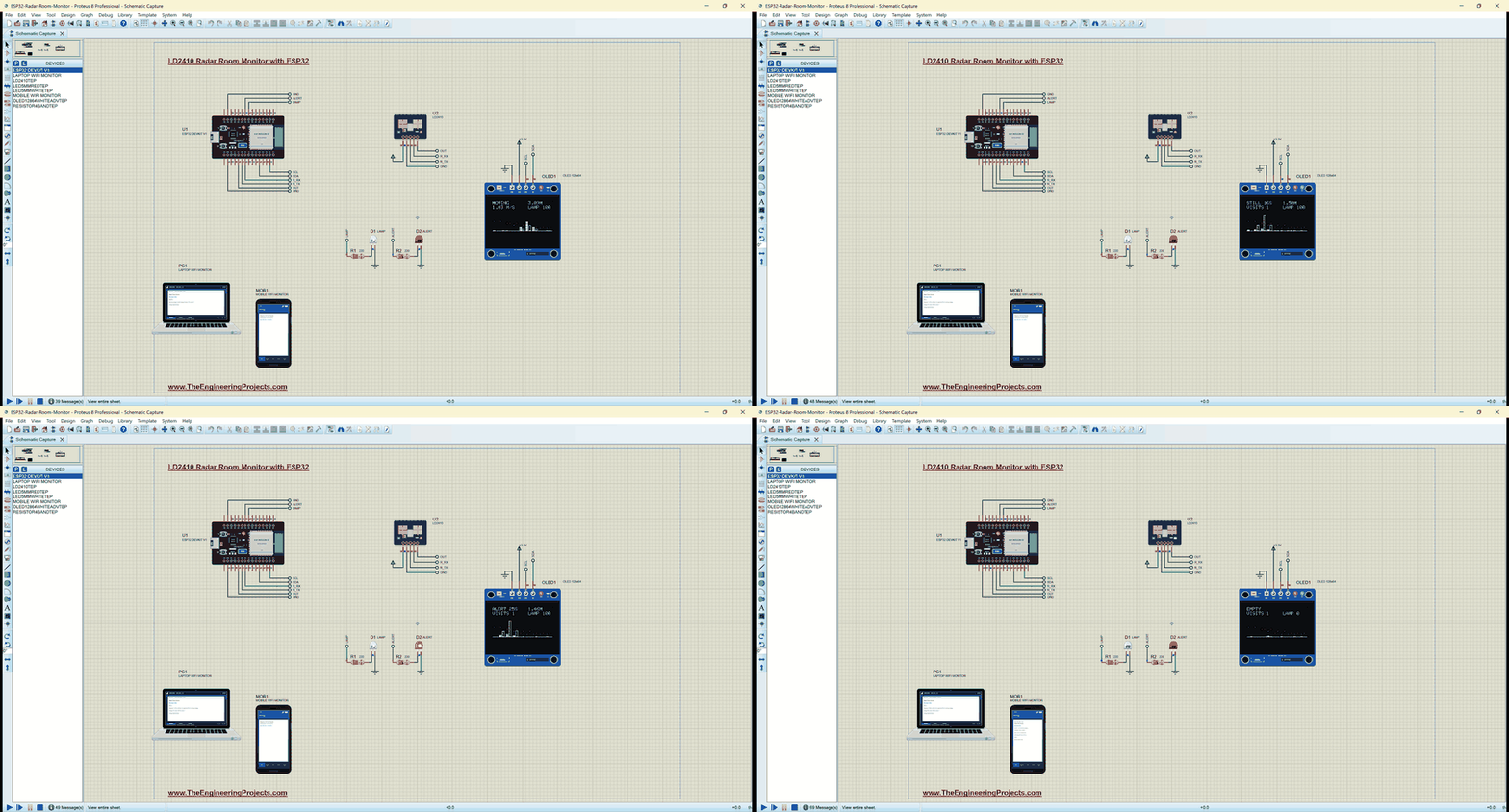
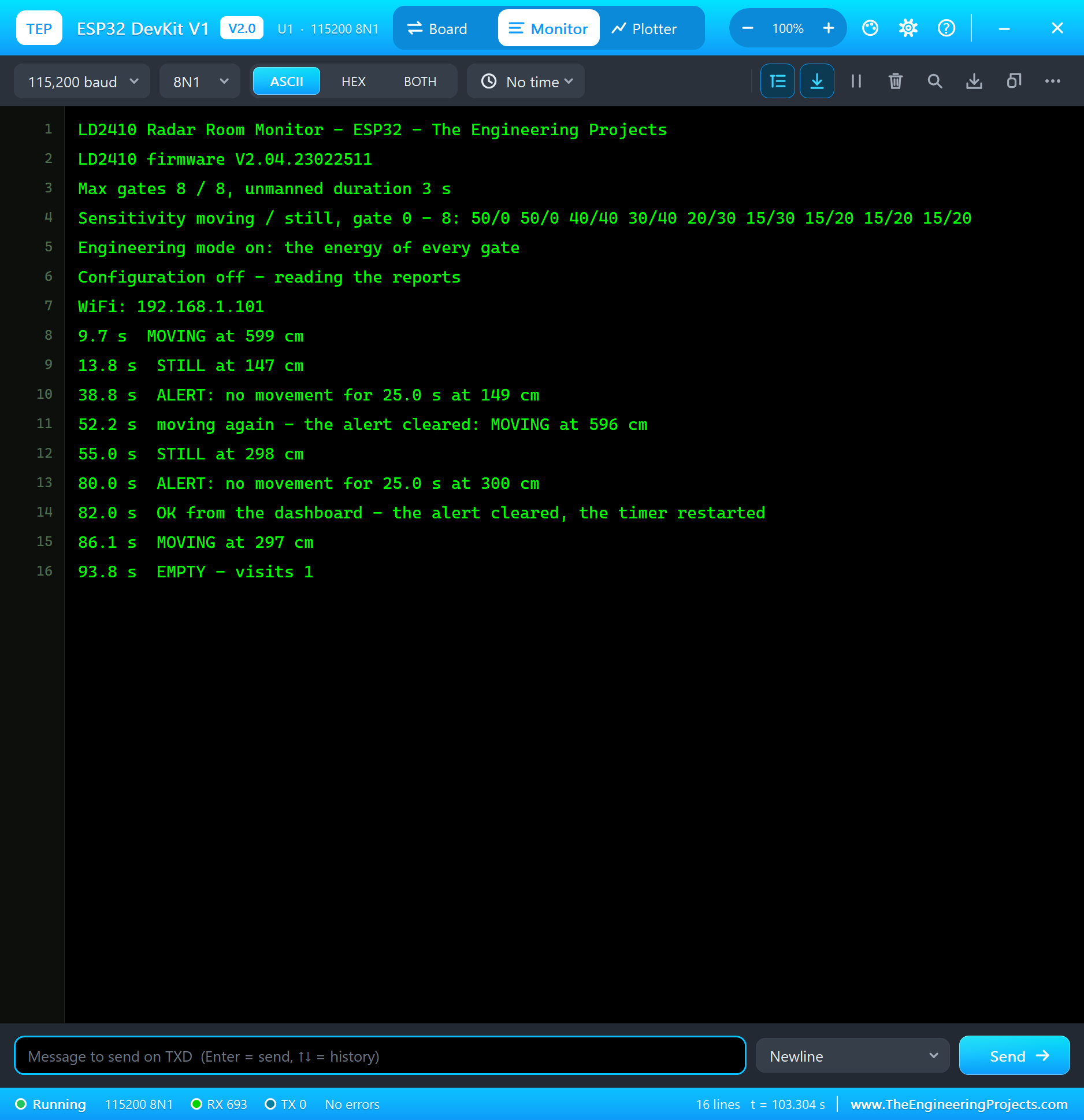
We ran a whole visit in one simulation, driving the person with the radar's pop-up and reading the serial monitor, the OLED, the dashboard and the radar's own pop-up along the way. At start the sketch set the radar up, and every command got its ACK:
LD2410 firmware V2.04.23022511
Max gates 8 / 8, unmanned duration 3 s
Sensitivity moving / still, gate 0 - 8: 50/0 50/0 40/40 30/40 20/30 15/30 15/20 15/20 15/20
Engineering mode on: the energy of every gate
Configuration off - reading the reports
The sensitivities read back are the radar's defaults: high thresholds near the radar, lower ones far away. The still sensitivity of gates 0 and 1 reads 0 because the LD2410 does not look for still targets that close.
1. Someone Walks In
9.7 s MOVING at 599 cm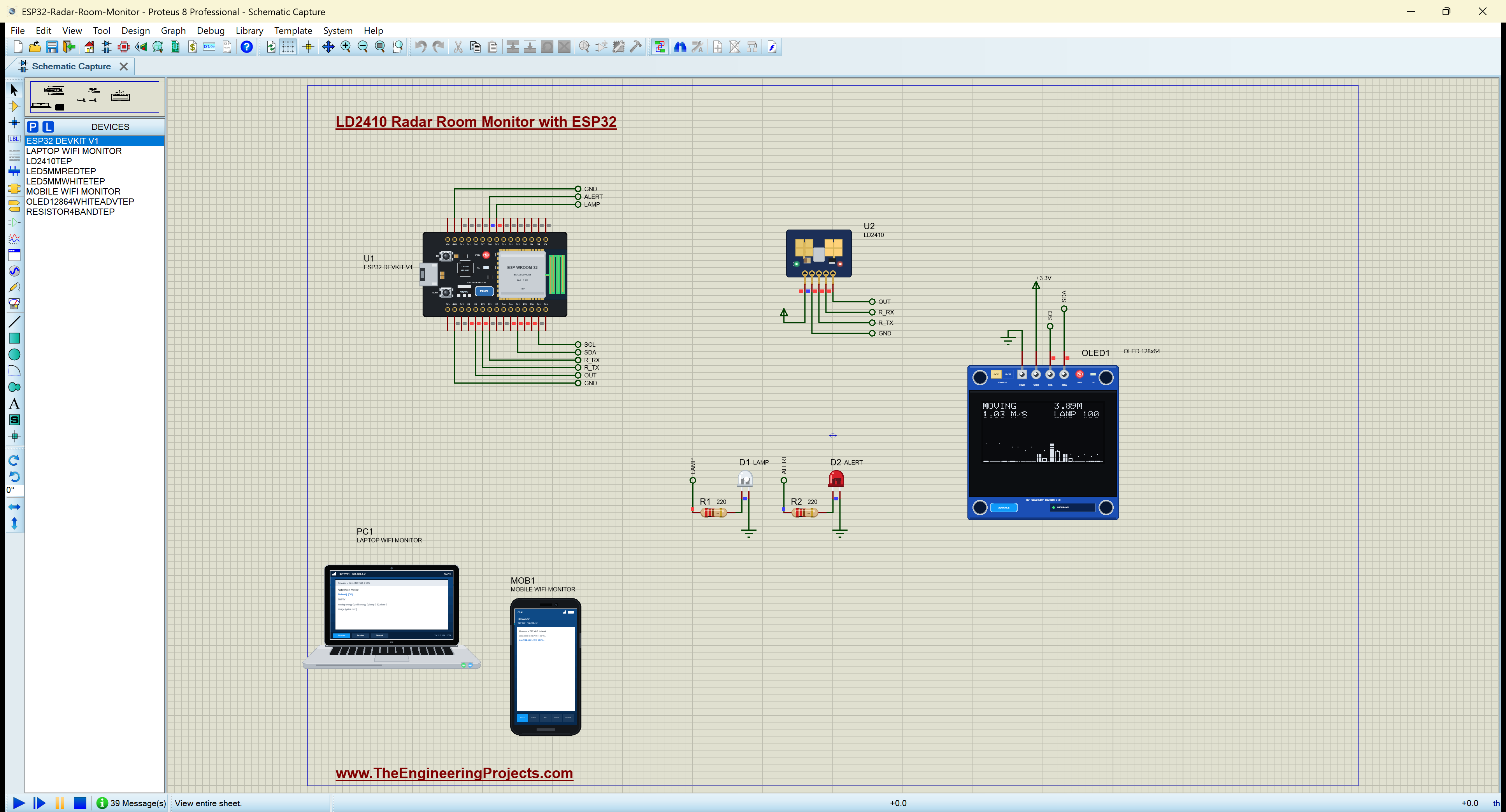
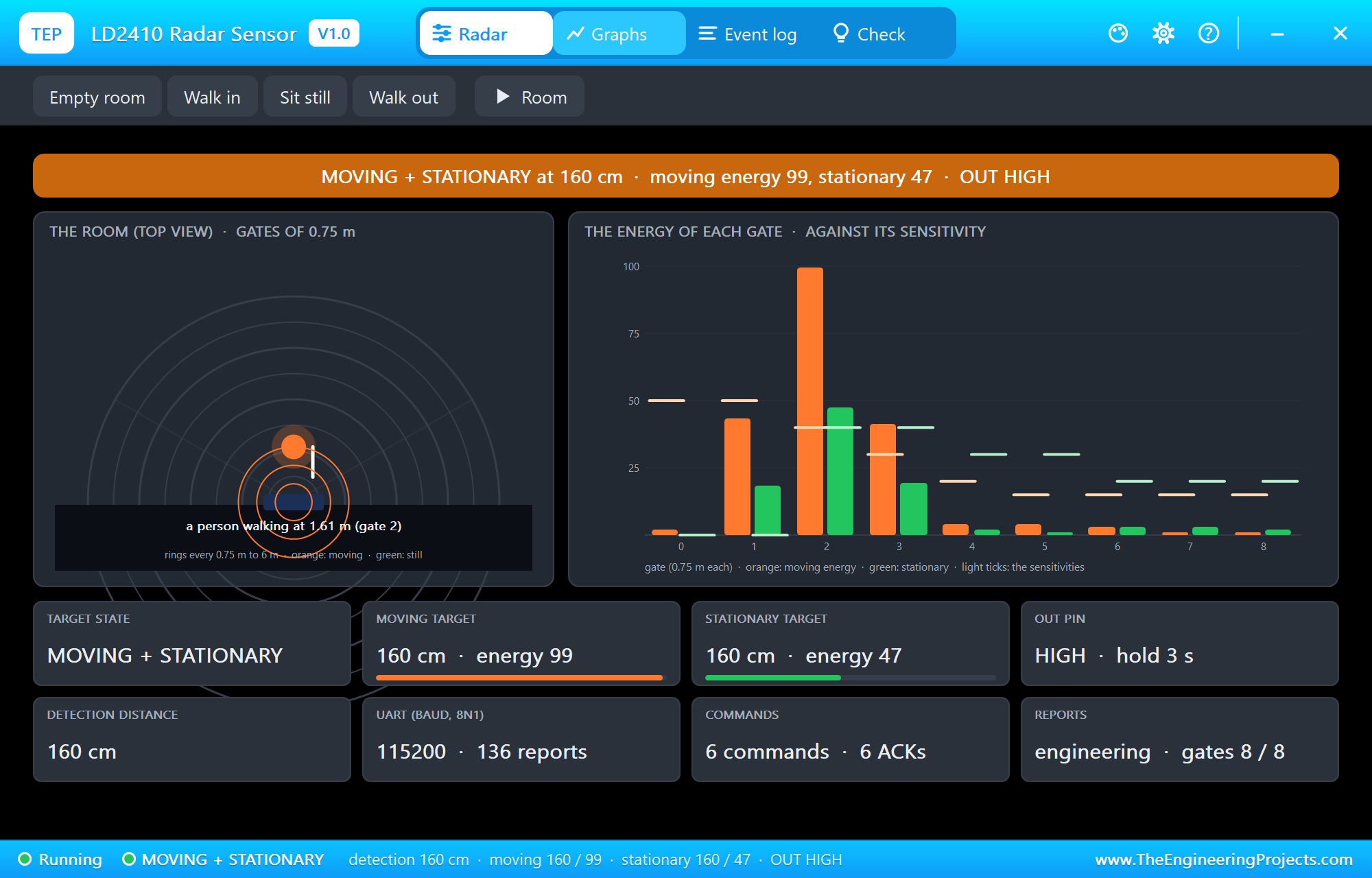
The radar picked the person up at the far edge of its range, 5.99 m, and followed them in. The OLED showed the walk at 1.03 m/s toward the radar; the model walks its person from 6 m to 1.5 m in 4 s, 1.125 m/s, so the smoothed estimate is close. The radar's pop-up shows the person in gate 2 with a moving energy of 99, far above that gate's sensitivity, and OUT high, so the lamp faded up.
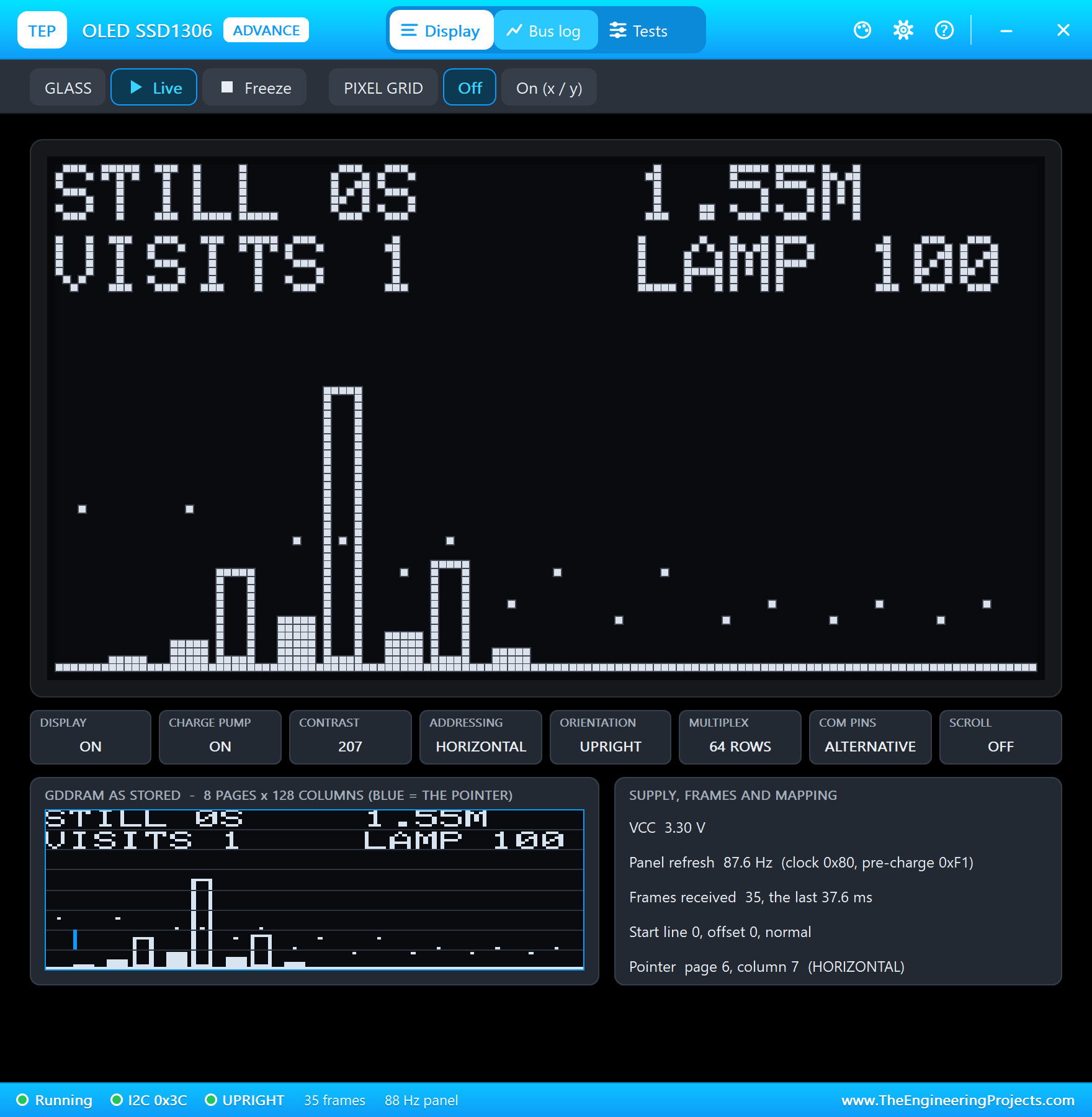
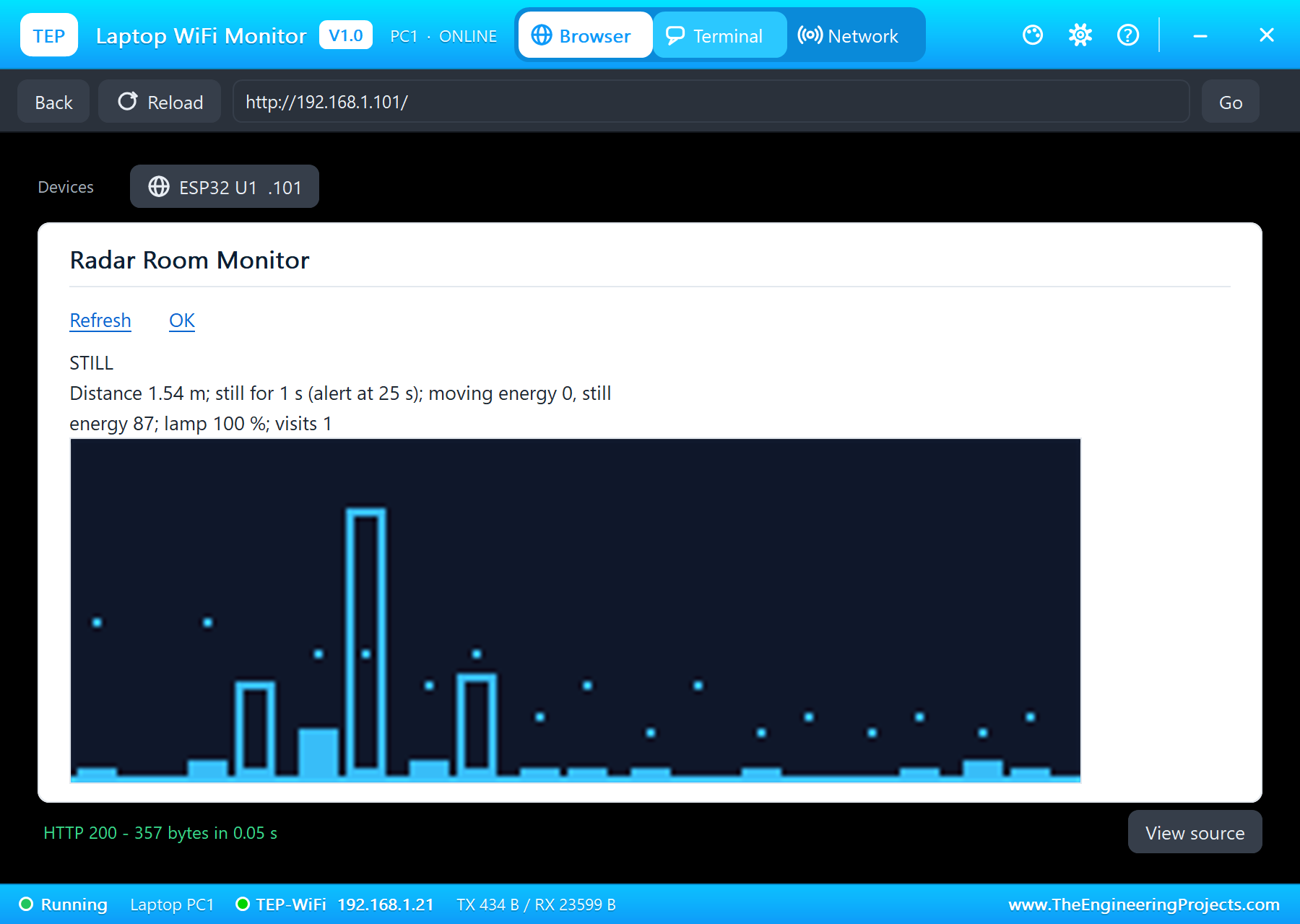
Four seconds later they stopped at 1.5 m and the moving target vanished; only the still target remained: STILL, and the inactivity timer started from 0. The dashboard shows the same gate bars as the OLED, twice as big.
2. Still Too Long: the ALERT
13.8 s  STILL at 147 cm
38.8 s  ALERT: no movement for 25.0 s at 149 cm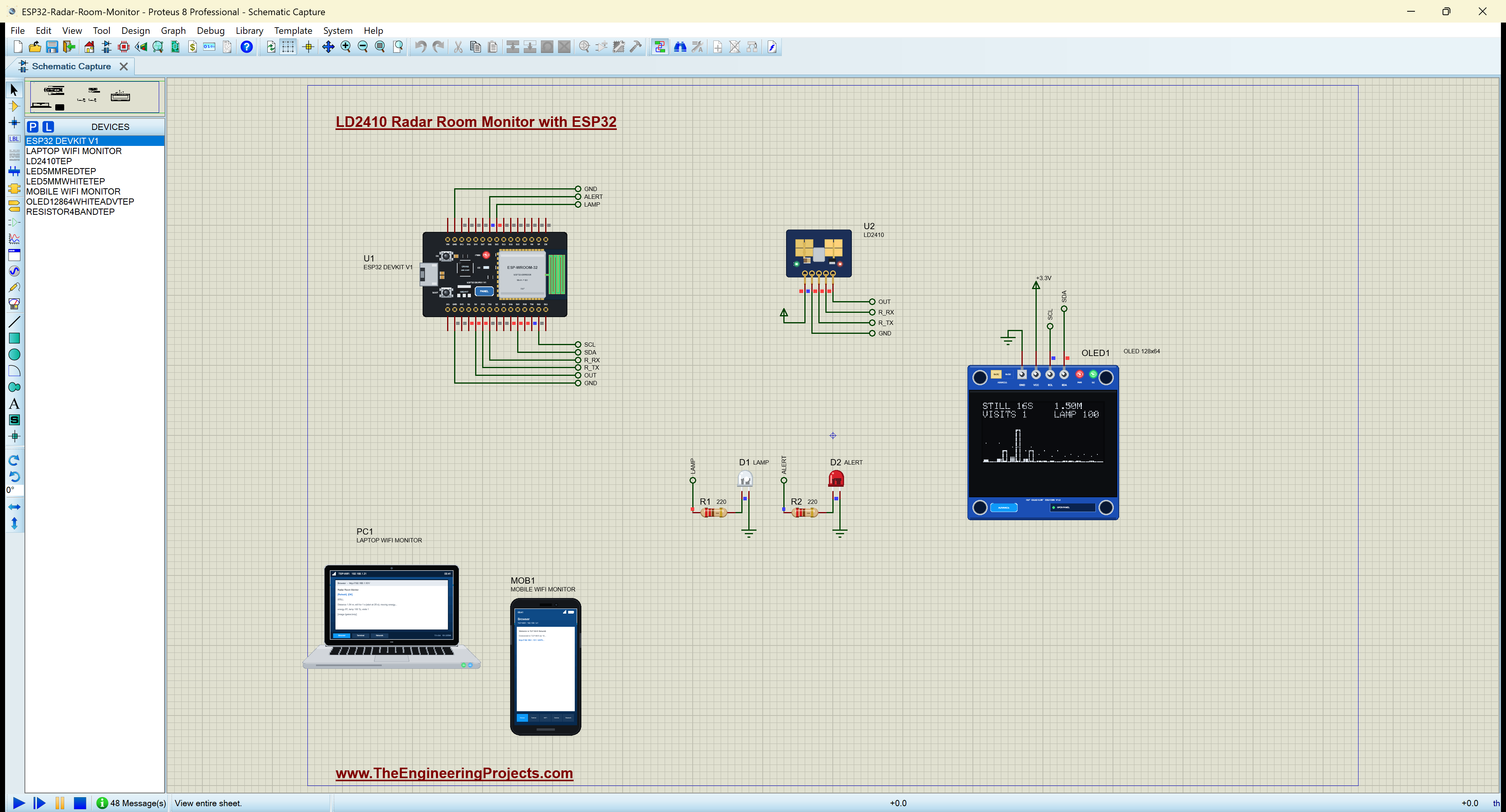
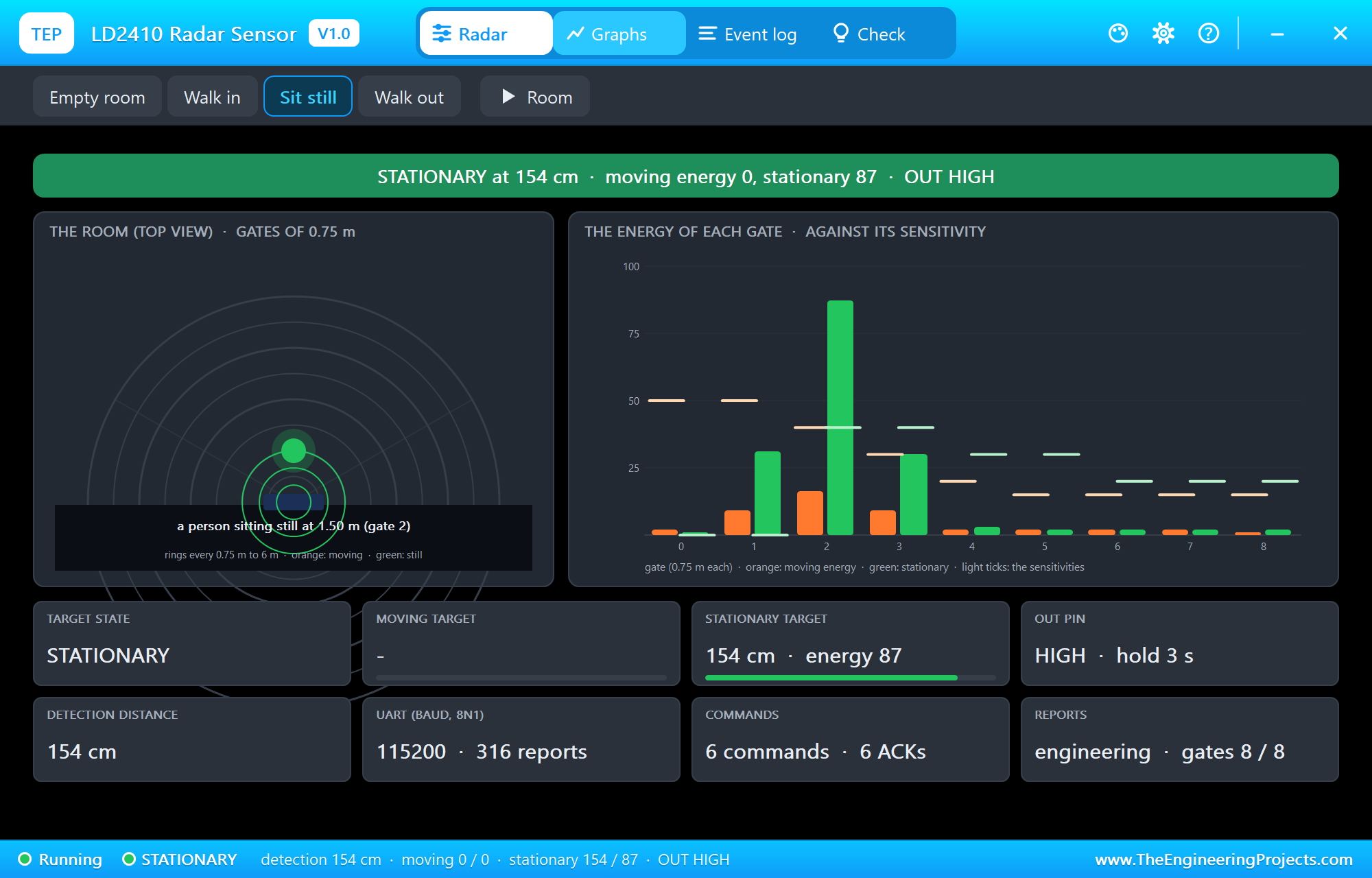
While the person sits still, the radar's moving energy falls to 0 and only the stationary energy stays, 87 in gate 2: the radar sees them by their breathing. A PIR sensor would have switched the lamp off by now.
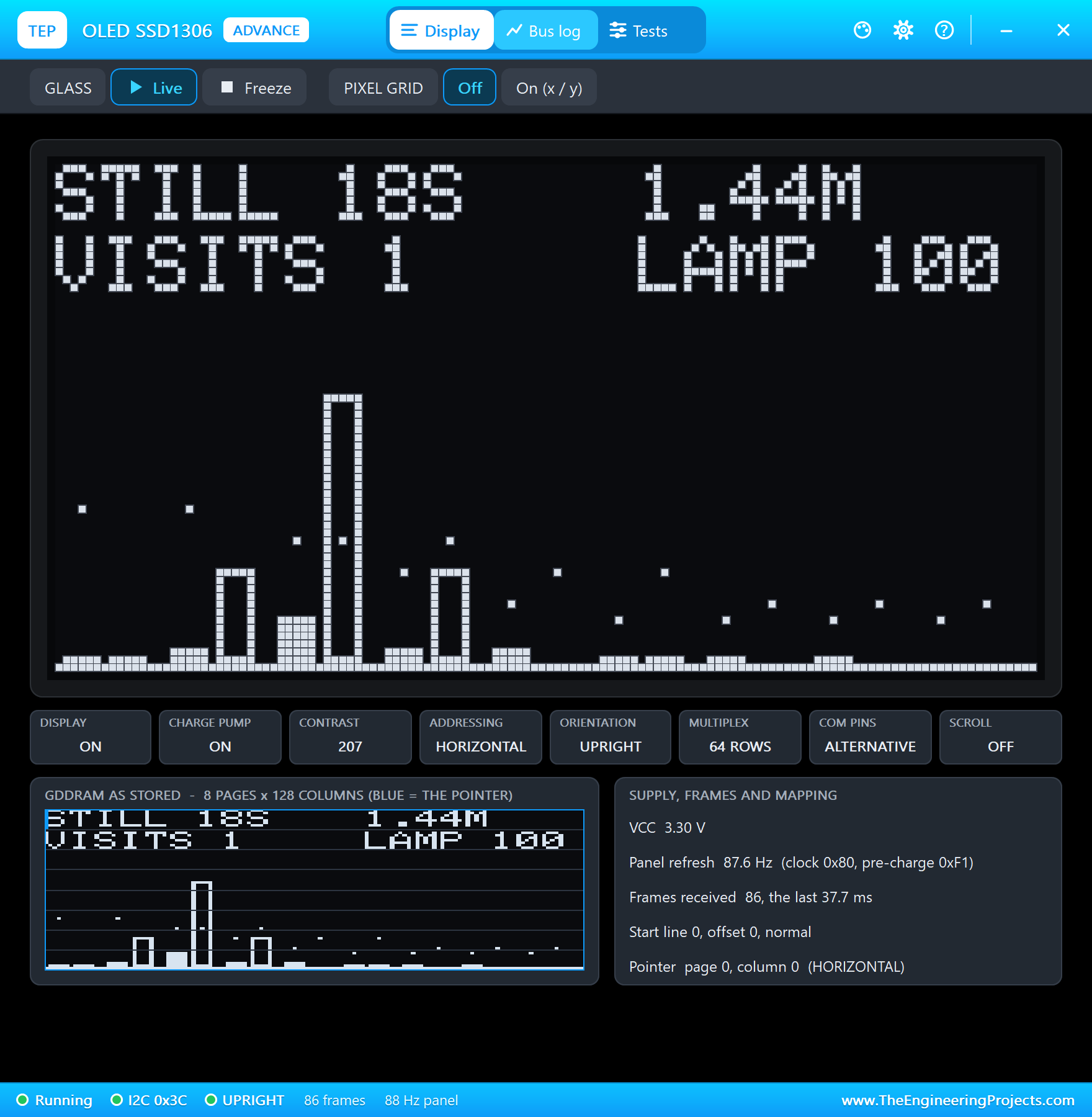
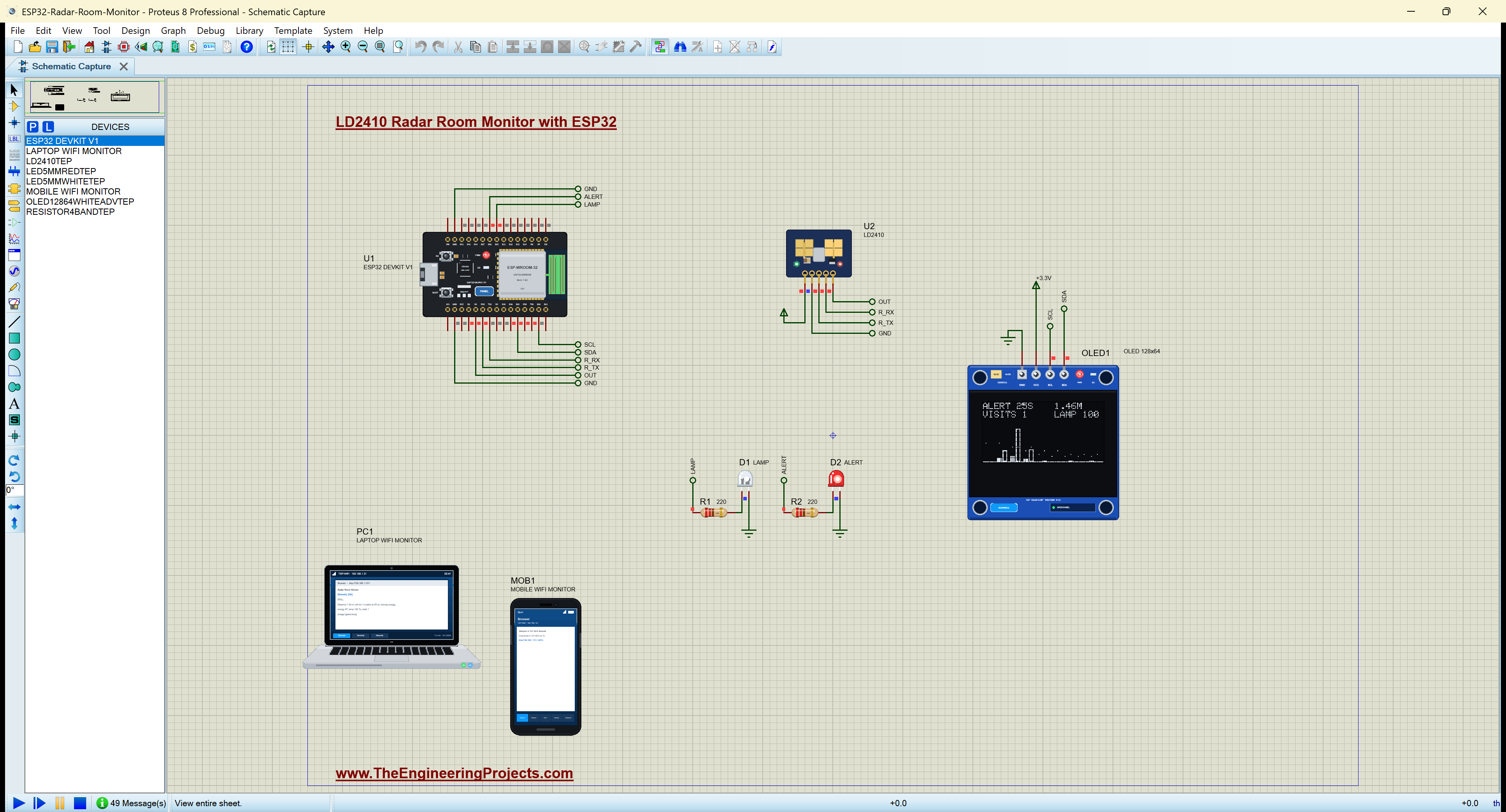
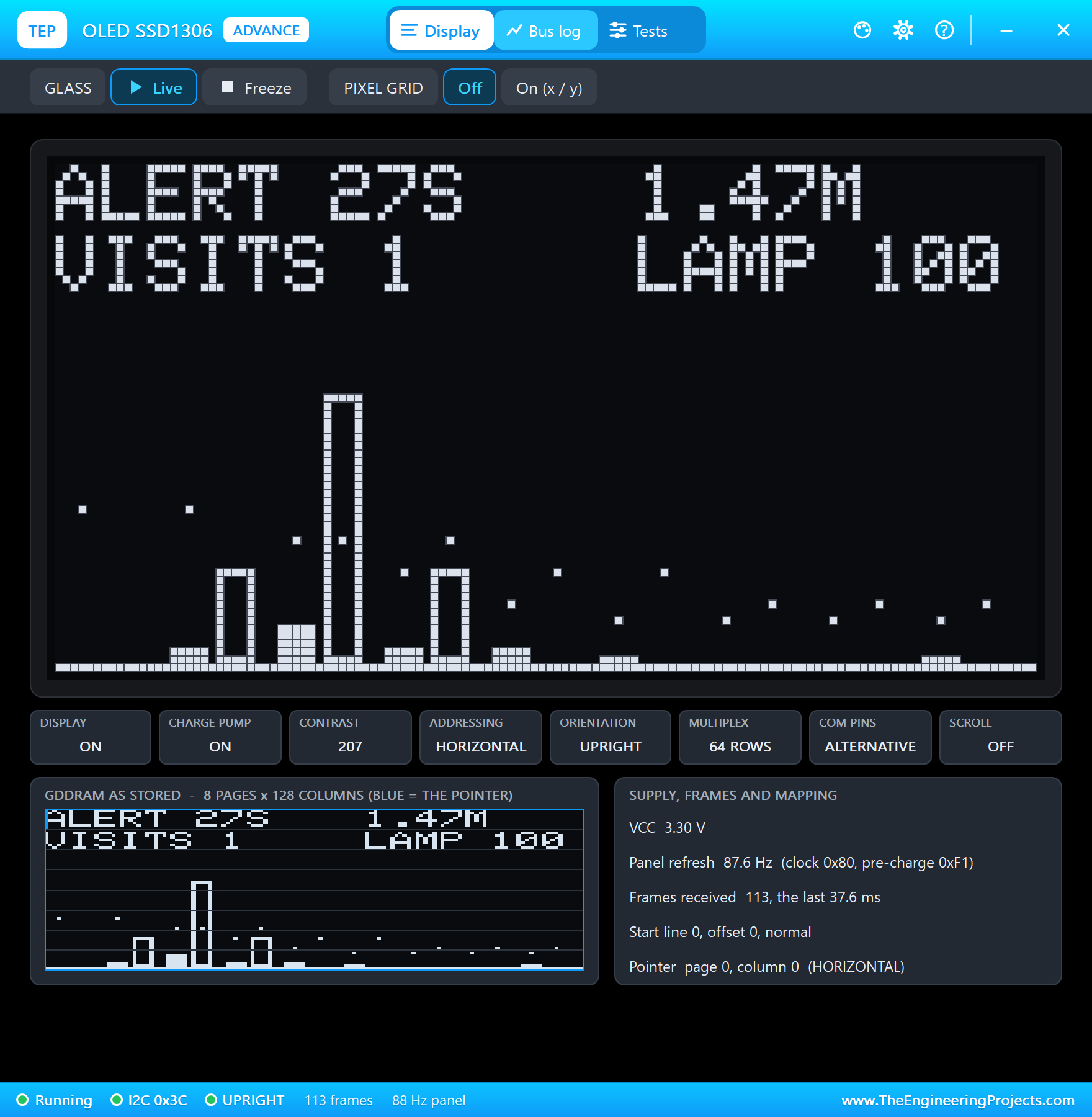
Exactly 25.0 s after the last movement the monitor raised the ALERT: the red LED came on and the OLED switched to ALERT with the seconds still counting.
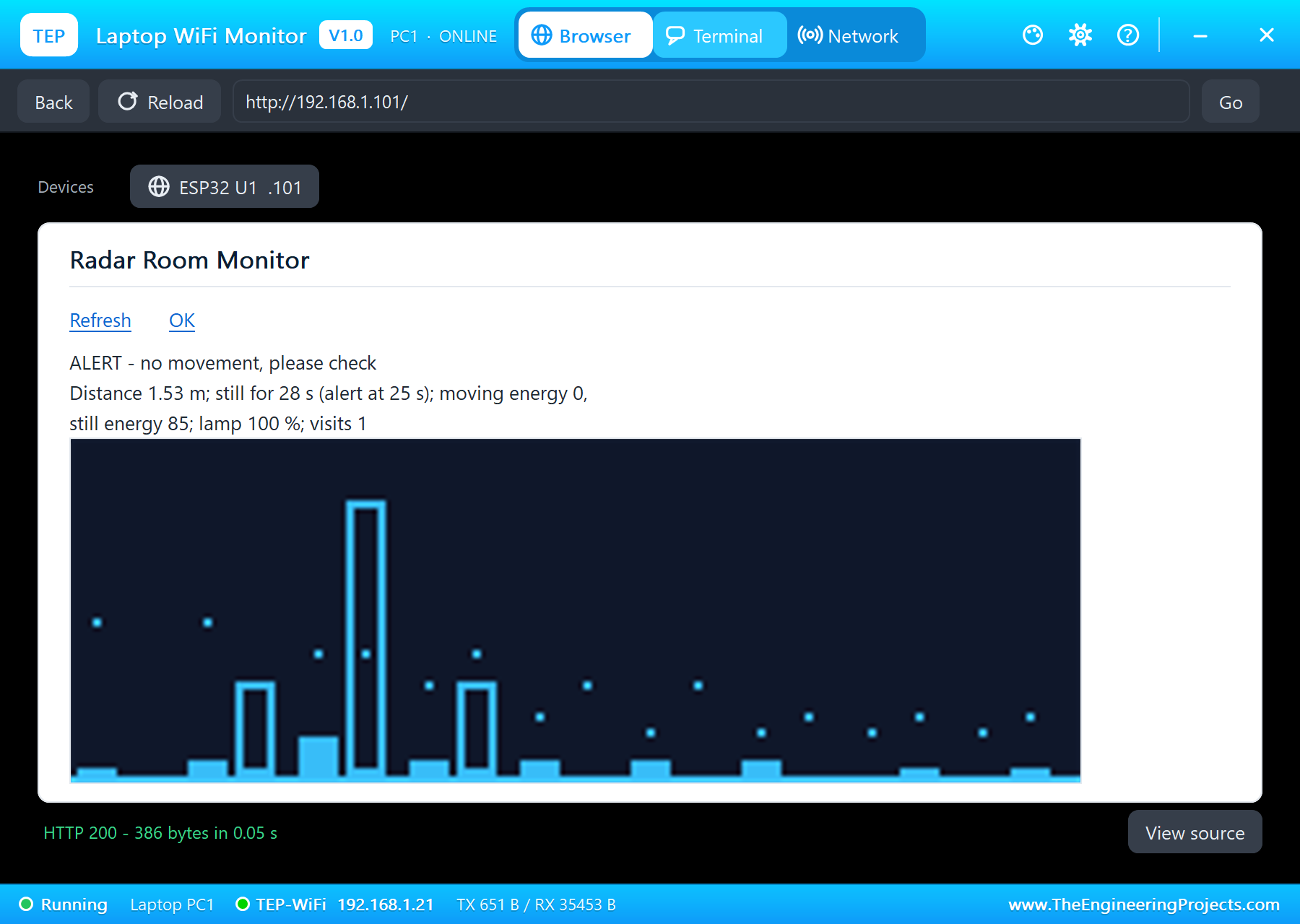
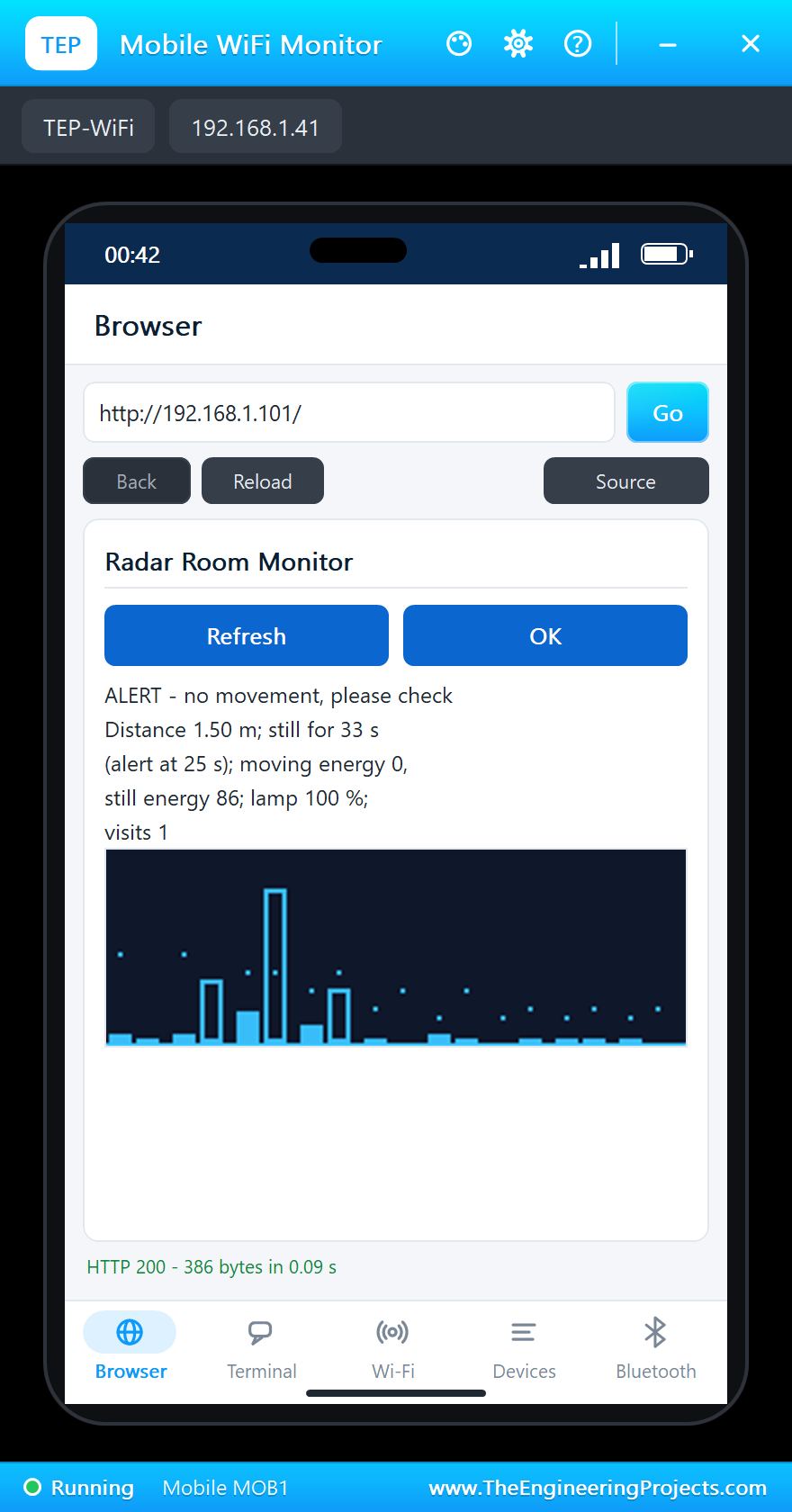
On the laptop and on the phone the carer sees ALERT - no movement, please check, with the distance, the time and the still energy that shows the person is still there.
3. Moving Again Clears It
52.2 s  moving again - the alert cleared: MOVING at 596 cm
55.0 s  STILL at 298 cm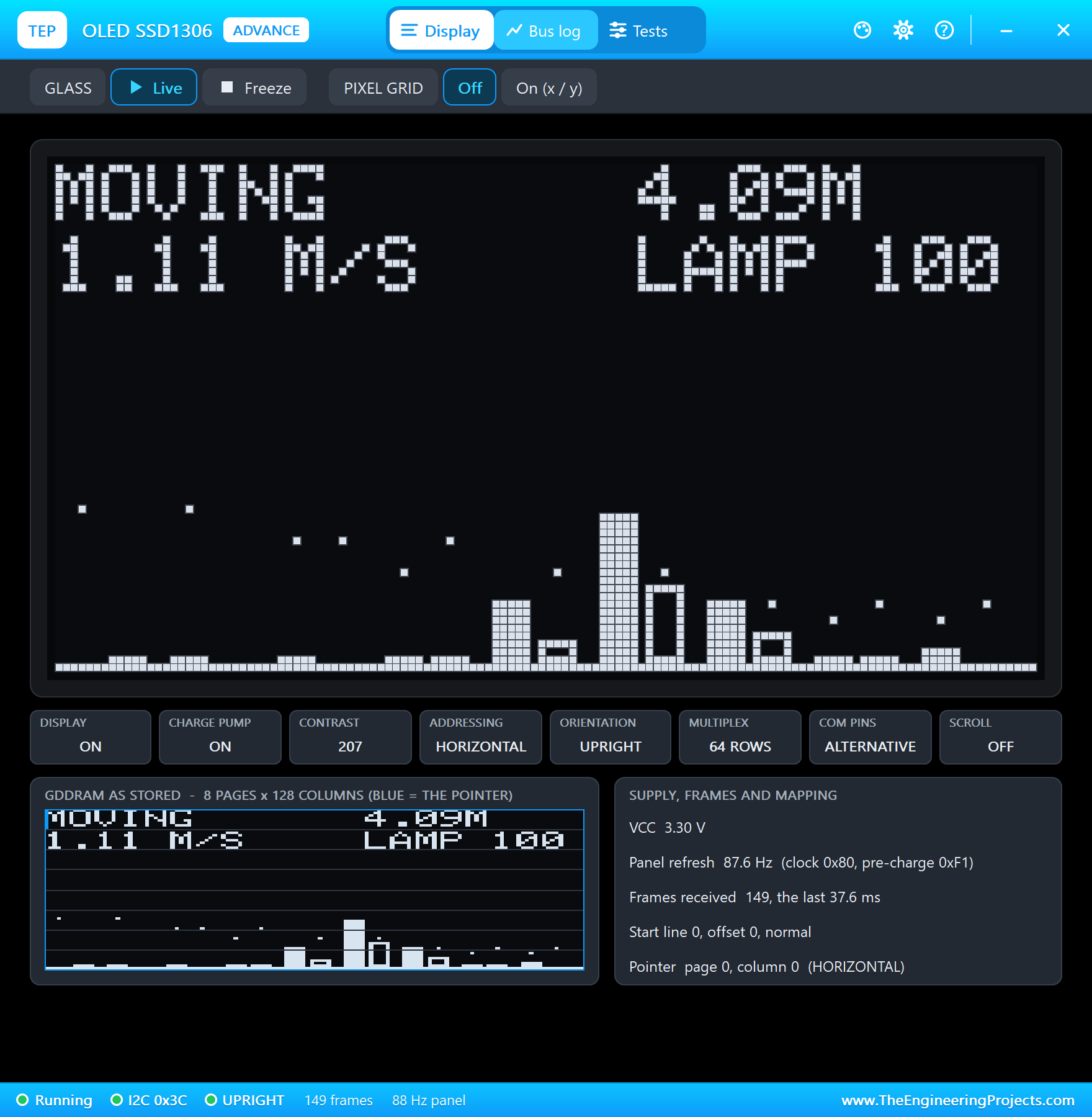
We pressed Walk in again, and the first moving target cleared the alert on its own: the person is clearly fine. The OLED now read 1.11 m/s at 4.09 m. This time they sat down at about 3 m, and the timer started again.
4. OK From the Dashboard
80.0 s  ALERT: no movement for 25.0 s at 300 cm
82.0 s  OK from the dashboard - the alert cleared, the timer restarted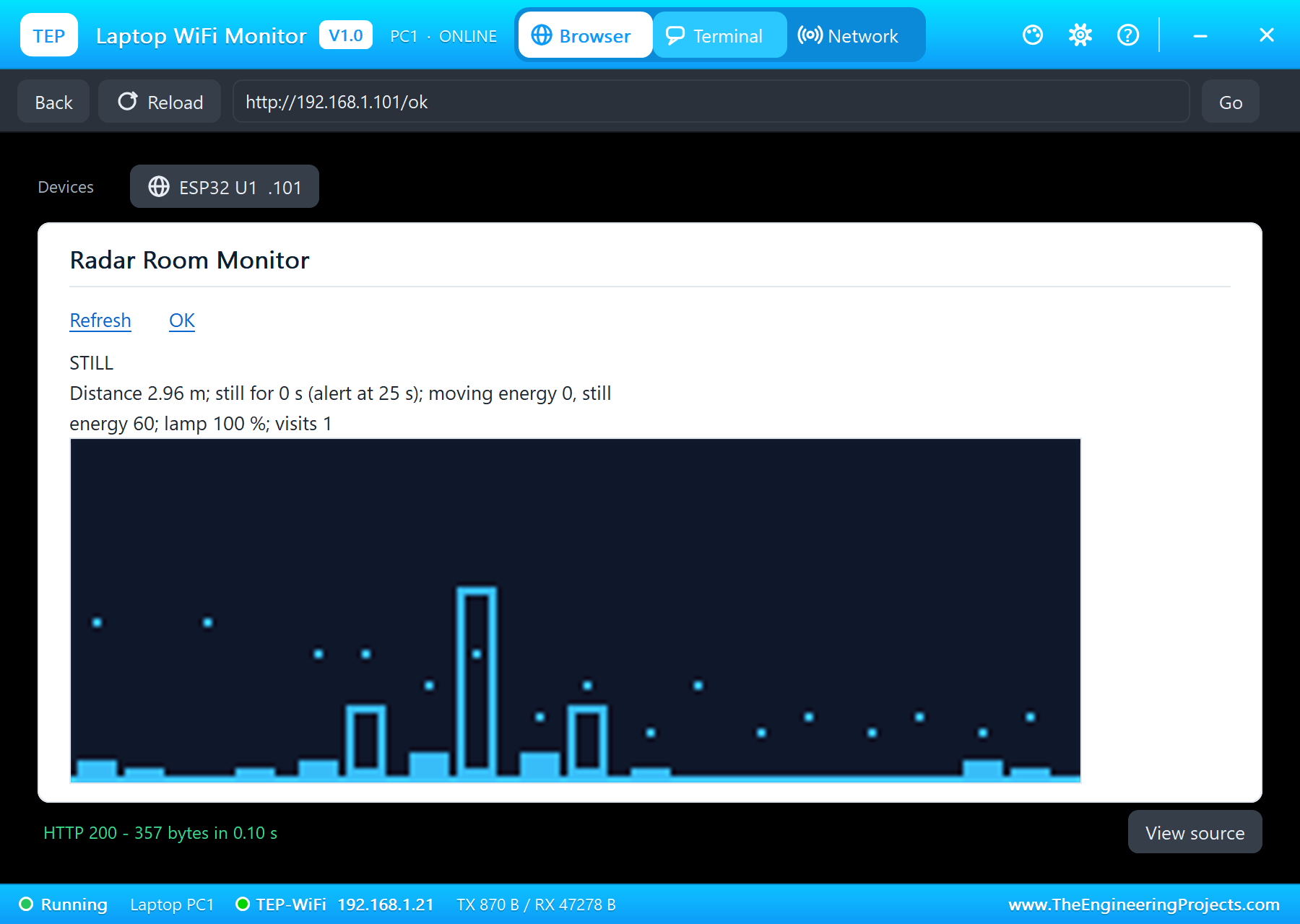
The second ALERT came after another 25.0 s. This time we clicked OK on the dashboard, as a carer would after a reassuring phone call: the alert cleared and the timer started again from 0, with the person still sitting there.
5. They Walk Out
86.1 s  MOVING at 297 cm
93.8 s  EMPTY - visits 1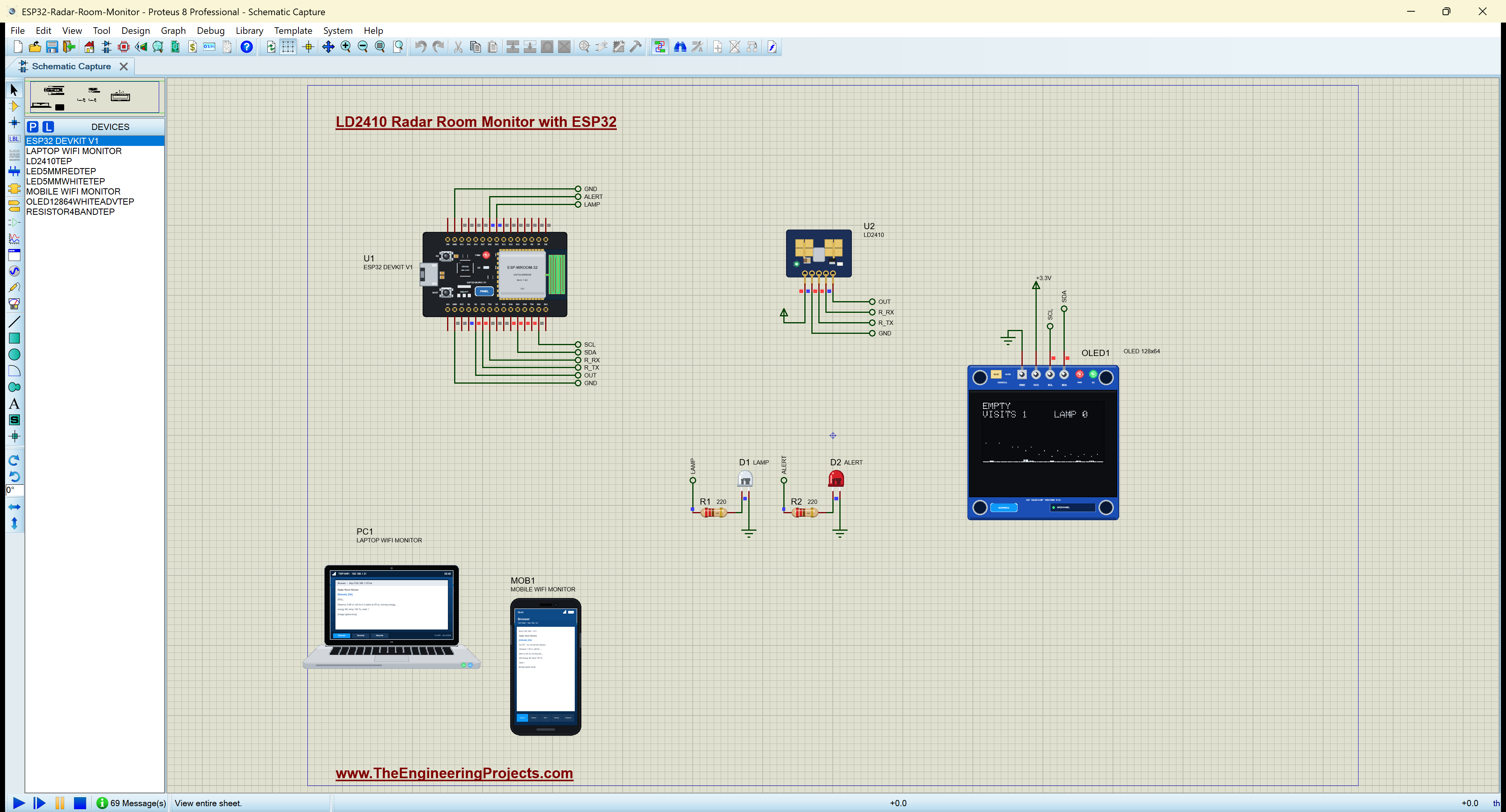
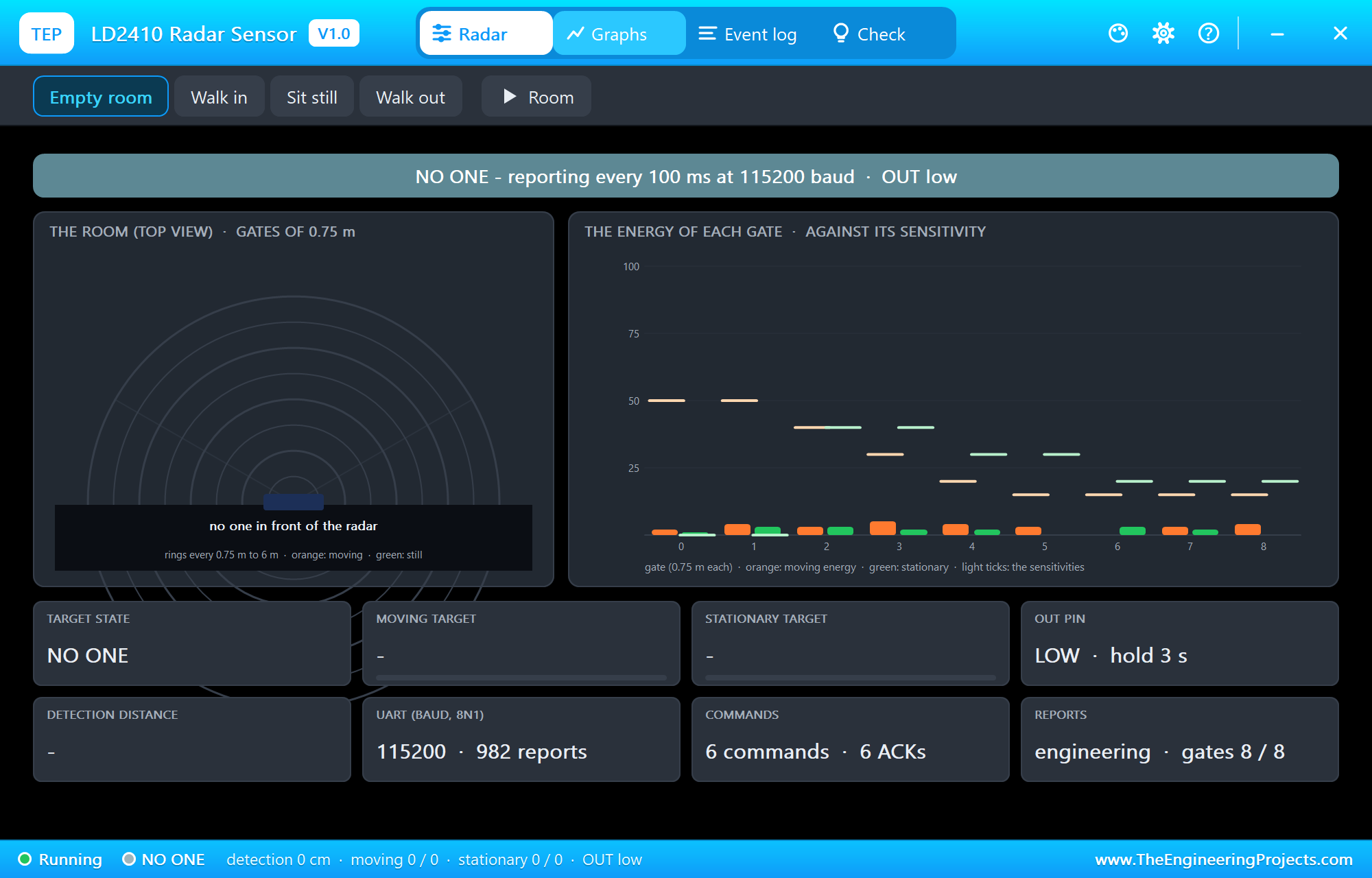
When the person walked out of range, the radar held its last target for the 3 s unmanned duration, then reported nobody and dropped OUT; one second later the monitor called the room EMPTY and counted the visit. The lamp faded out over about 2.5 s. The radar's pop-up counts 982 reports and 6 commands with 6 ACKs over the run.
| Event | The sketch's time | What the monitor did |
|---|---|---|
| walked in | 9.7 s | MOVING, the lamp up |
| stopped at 1.5 m | 13.8 s | STILL, the timer from 0 |
| still for 25 s | 38.8 s | ALERT: red LED, dashboard, phone |
| moved again | 52.2 s | the alert cleared |
| still for 25 s again | 80.0 s | ALERT |
| OK on the dashboard | 82.0 s | the alert cleared, the timer restarted |
| walked out | 93.8 s | EMPTY, the lamp down, 1 visit |
The run covered 104 seconds of simulation in about 8 minutes on our PC. The radar's own pop-up is an independent judge of every decision: it shows where the person really was, how they moved and what each gate saw.
Download the Project Files
Click the button below to download LD2410-Radar-Room-Monitor-ESP32-Proteus-Simulation-v1.0.zip (about 4.1 MB, without the source code of the models):
LD2410 Radar Room Monitor with ESP32 - Proteus Simulation V1.0- Proteus Simulation: ESP32-Radar-Room-Monitor.pdsprj, ESP32_Radar_Room_Monitor.hex and copies of the models.
- Arduino Code: ESP32_Radar_Room_Monitor.ino, the sketch.
- Proteus Library Files: the LIB files of the ESP32 DevKit V1, the LD2410, the OLED, the LEDs, the resistors and the two WiFi Monitors.
- Proteus Model Files: the DLL models.
- README.txt: the installation steps, the properties, the test results and the links to every library post.
No Proteus yet? Read How to Download and Install Proteus 7 and 8. New to libraries? Follow How to Install a New Library in Proteus.
How to Install the Project Files
- Close Proteus and extract the whole zip file, for example to your Desktop.
- Copy the files from Proteus Library Files into the LIBRARY folder of Proteus.
- Copy the files from Proteus Model Files into the MODELS folder.
- Start Proteus and open the project from the Proteus Simulation folder.
Changing the Code
Open ESP32_Radar_Room_Monitor.ino in the Arduino IDE with the TEP boards for Proteus installed, compile it, export the compiled binary and set U1's PROGRAM property to the new HEX file. The inactivity time (INACTIVE_MS) and the pins are at the top. A real LD2410 leaves the factory at 256000 baud: set it once to 115200 with command 0x00A1 and a restart, or change the Serial2.begin line to 256000.
Ideas to Extend the Project
- Learn the empty room: record each gate's energies for a minute with nobody there and set the sensitivities just above them with command 0x0064.
- Use different inactivity times for day and night, from an RTC or the internet time.
- Keep a daily log of the time spent moving, still and away, and the average walking speed.
- Send the alert as a message to a phone, and repeat it if nobody answers with OK.
- Add a second radar in the bathroom, where falls are most likely.
- Dim the lamp to a night light when the person has been still in bed for a while.
From Simulation to a Real Home
- Mind the walls: 24 GHz passes through thin walls and doors; lower the far gates' sensitivities so that the next room does not count.
- Mount it well: at chest height or on the ceiling, facing the area where the person sits or lies.
- Fans and curtains move too: a ceiling fan or a moving curtain can look like a person; raise the sensitivity of the gates they are in.
- Power it properly: the module wants a clean 5 V; its signals are 3.3 V.
- It is not a medical device: this project is for learning; a real social alarm must meet its own standards.
Troubleshooting
- No ACK from the radar: the baud rates differ (BAUD 115200 here), or TX and RX are swapped.
- Nobody is ever seen: the radar's VCC must be on 5 V; check the gate sensitivities printed on the serial monitor.
- The ALERT never comes: only a still target runs the timer; any movement restarts it.
- The lamp never fades: D25 must be a PWM pin and the LED needs its 220 ohm resistor.
- The OLED stays blank: SDA and SCL on D21 and D22, address 0x3C, VCC on 3.3 V.
Limitations of the Simulation
- The radar is our library's model: the person, their walk, their breathing and the gate energies are drawn from a simple scene, not measured from real echoes.
- The inactivity time is 25 s instead of an hour or two, so that the whole story fits in a couple of minutes of simulation.
- The network to the laptop and the phone is simulated inside Proteus.
- ESP32 is a product of Espressif Systems and HLK-LD2410 of Hi-Link; this project is not made or endorsed by them or by Labcenter.
So, that was all about the LD2410 Radar Room Monitor with ESP32 - Proteus Simulation. I hope it helps you understand how a 24 GHz radar sees a person who is not moving, how its gates and energies work, how to talk to the LD2410 in its own protocol, and how a simple inactivity timer can look after someone living alone, all tested in a simulation before you build one for a real home. More projects with the ESP32 and the Raspberry Pi 5 are coming. If you have any questions, ask in the comments and I will help you out. Till the next tutorial, take care and have fun!