Hello friends! Today we will design a custom component in Proteus ISIS. This is useful when you need to document a circuit but cannot find the exact module, connector, or device in your installed library. We will draw a simple four-pin symbol, define its connections, and save it so that it can be placed like other library parts.
The original purpose of this tutorial is schematic presentation, and we will keep that approach. A clear custom symbol helps another person understand how your project is connected. We will also discuss the extra information required before the same part can be used for PCB layout or electrical simulation.
Our example is a fictional device named Test Device with VCC, GND, OUTPUT, and SIGNAL connections. These names let us practise the workflow without claiming to reproduce a particular sensor. When creating a real part, replace the example information with the pinout and package details from its manufacturer's documentation.
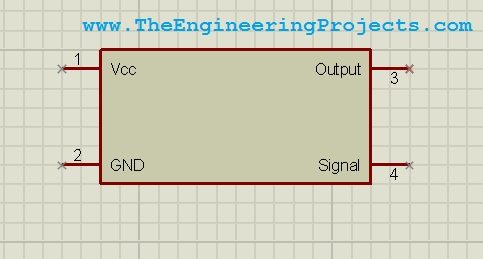
What Are We Actually Creating?
A library component can bring together several different kinds of information. The schematic symbol is the shape and the connection points you see on the circuit drawing. The PCB footprint describes pads, holes, and physical outlines on a board. A simulation model describes how the device behaves electrically or functionally. Creating one of these does not automatically create the others.
| Item | What it represents | What must be checked |
|---|---|---|
| Schematic symbol | Logical connections and readable pin names | Electrical endpoints, numbering, types, and orientation |
| PCB footprint | Physical pads and mechanical geometry | Dimensions, pitch, holes, orientation, and pad mapping |
| Simulation model | Behaviour used by the simulator | Supported functions, parameters, and model-to-pin mapping |
| Device properties | Identification and purchasing information | Part number, description, reference prefix, and relevant ratings |
The four-pin component we draw here is a schematic device. It will not start measuring a physical quantity simply because we name one pin OUTPUT. A real sensor model needs equations, a supported behavioural model, or another simulation implementation that matches that sensor. A photograph or attractive outline is not a substitute for that behaviour.
Before drawing a real component, search by both its part number and its function. Labcenter documents the available Proteus library and import facilities, including third-party library sources. An imported part can save time, but you should still check its pinout and footprint. Do not assume that an imported PCB part also includes a VSM simulation model.
Plan the Four-Pin Device First
Write a small pin table before opening the drawing tools. The table becomes your reference when adding the pins and checking the finished component. For our fictional device, we will use the following assignment. It is an example definition, not a pinout for any commercial module.
| Number | Name | Intended meaning | Suggested electrical role |
|---|---|---|---|
| 1 | VCC | Positive supply | Power input |
| 2 | GND | Supply reference | Power connection |
| 3 | OUTPUT | Signal produced by the device | Output |
| 4 | SIGNAL | Control signal received by the device | Input |
A pin name explains the signal to the reader; its number identifies the connection that can later map to a physical pad. Keeping those concepts separate prevents a common error: assigning convenient drawing numbers that disagree with the actual package. For a real device, the datasheet's pin number wins even if a different order would look tidier.
Choose a readable arrangement. Power and ground can be placed above and below the body, inputs on the left, and outputs on the right where that suits the circuit. A schematic symbol does not need to copy the physical package outline. Its first job is to make connections understandable while preserving the correct identities.
Draw the Component Body
Open a schematic workspace and select the 2D Graphics Box tool. The original screenshot below identifies the tool in the older ISIS interface. In another release, look for the equivalent schematic graphics mode; the purpose is to draw the body outline, not a wire or a PCB board edge.
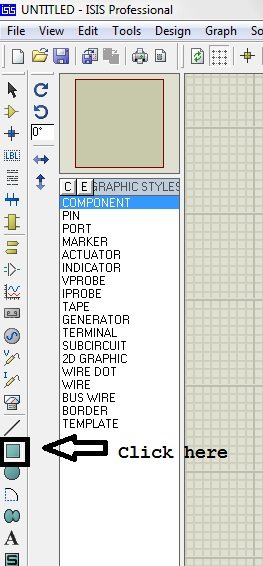
Click and drag to create a rectangle large enough for four pins and their labels. Leave room for the device reference and value. Start with a simple shape: decorative details can make a symbol harder to read without improving its electrical meaning.
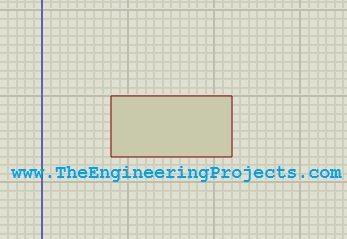
Keep the drawing on the schematic grid. If you use a very fine grid to place the body, restore a suitable connection grid before positioning the pins. A pin can appear to touch a wire while its electrical endpoint is actually between grid locations. That small geometric mistake can be difficult to notice in a screenshot.
The rectangle is only graphical information. It does not conduct, create a ground connection, or define which wires belong together. Electrical connections come from the device pins and the schematic nets you attach to them. This is why drawing four short lines around a box is not equivalent to creating a four-pin component.
Add Real Device Pins
Select Device Pins mode and place the first pin next to the body. Rotate or mirror the pin as necessary so that its body end meets the rectangle and its connection end faces outward. The original illustration shows the small connection marker at the end intended for wiring.
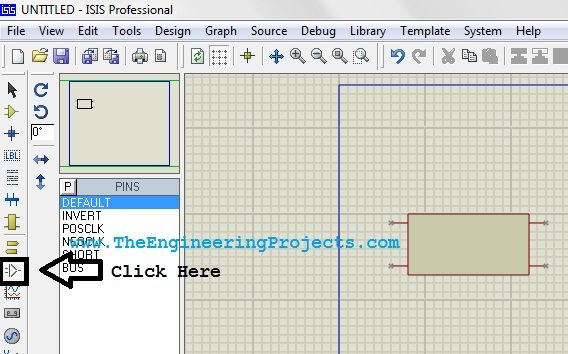
Do not bury the wire connection end inside the body. Place the other three pins using the same grid and check their orientation individually. The symbol should allow a wire to leave each endpoint without passing through the body or overlapping a label.
Now open a pin's properties. Give it the name and default pin number from your table. In the older dialog shown below, Next moves through the pins so you can edit them in sequence. If your version uses a different editing workflow, the required information is still the same.
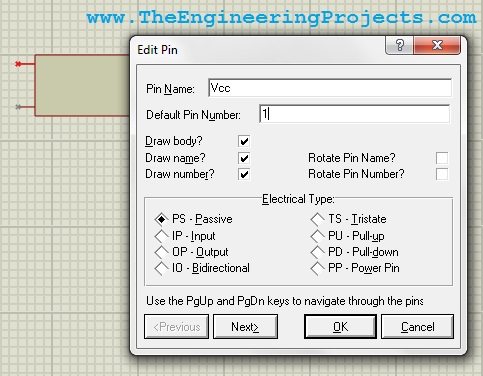
Enter VCC as pin 1, GND as pin 2, OUTPUT as pin 3, and SIGNAL as pin 4. Set each electrical type to match the intended function where the editor provides that option. Do not label every pin passive merely to silence electrical-rule messages: correct types help identify mistakes later.
Check for duplicated numbers and missing pins before closing the dialog. Two pins can have similar names in a real device, but their package numbers generally need distinct identities unless the library deliberately models an internally connected arrangement. This tutorial needs four unique numbers.
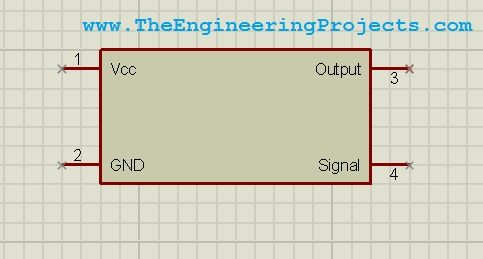
The completed drawing should now show the four named connections. Compare it with the planning table instead of trusting memory. Inspect the symbol at the scale you normally use for a complete schematic, because text that looks good when zoomed in may become crowded at a practical reading size.
Turn the Drawing into a Library Device
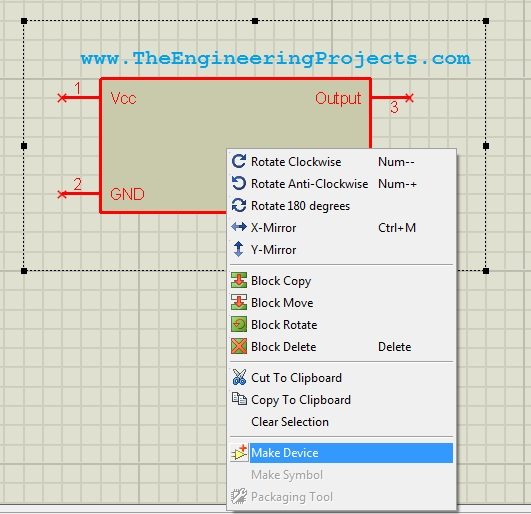
Select the body and all four pins together. Include any labels intended to be part of the symbol, but avoid selecting unrelated wires or neighbouring components. Right-click the selection and choose Make Device, as illustrated in the original workflow.
The device-creation dialog asks for identification information. Use a clear device name, a suitable reference prefix, and a description that explains its purpose. For this exercise, Test Device is sufficient. For a real library, choose a more specific name that includes the actual part number or module variant.
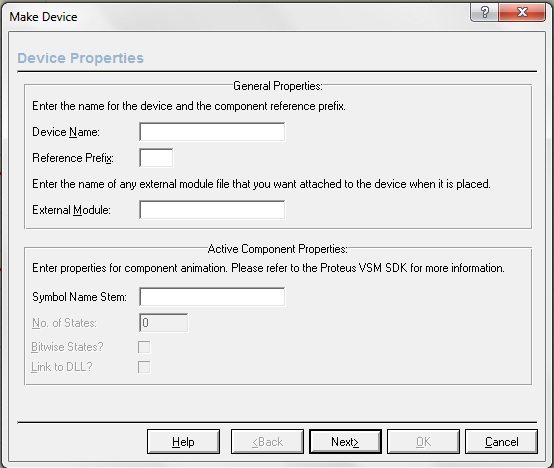
A useful description might state that a part is a four-pin interface module and identify whether it is schematic-only. This prevents someone else from assuming that the device has already been prepared for PCB manufacture or simulation. Avoid naming your new device identically to a supplied component unless you intentionally manage it as a replacement.
Proceed through the wizard deliberately. The original tutorial clicked through several pages because it was creating a presentation symbol. When making a real device, read pages relating to packaging, properties, and modelling. Empty settings on those pages represent missing capabilities, not features that Proteus will automatically infer.
Choose the Destination Library and Category
Save the component in a writable user library and assign a sensible category or subcategory. The screenshot below shows the older categorization page. Prefer a dedicated custom library so that your own parts are easy to find, back up, and distribute with your projects.
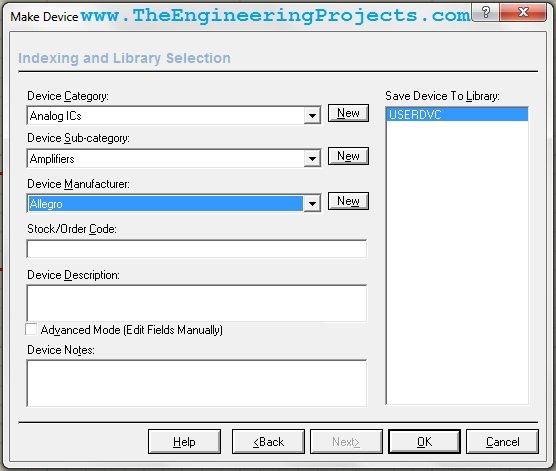
Keep vendor-supplied libraries intact. A software update can replace supplied files, and mixing custom parts into them makes it harder to identify what you changed. A user library also lets you keep experimental parts separate from components that have been reviewed for production use.
Finish the wizard, reopen the component picker, and search for the device name. Place a fresh instance in a blank area of the schematic. The original search result is shown below. Finding the part in the library is the first check; it does not yet prove its connections are correct.
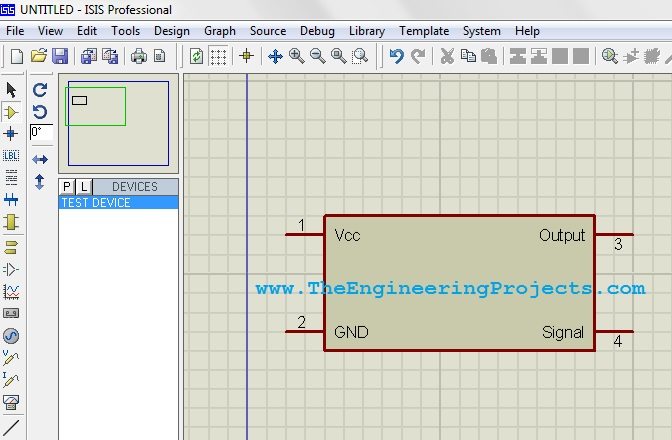
Check the New Symbol with a Small Test Circuit
- Place a new instance from the saved library rather than continuing to use the original drawing.
- Connect a short wire to each of the four pin endpoints.
- Give the four wires distinct net labels so that you can inspect them separately.
- Rotate the component and confirm that pins and labels remain readable and connectable.
- Check the netlist or design explorer against the pin table.
- Save and reopen the test project to confirm that the library can be found in the intended working environment.
For example, a net named CONTROL should connect to SIGNAL, pin 4, while a net named RESULT should connect to OUTPUT, pin 3. If those nets attach to the opposite numbers, the drawing may still look convincing but the device definition is wrong. Fix the library part before using it repeatedly.
Electrical-rule checking is helpful when pin types are meaningful. An output-to-output connection deserves investigation, while an unconnected input may be intentional or may indicate a missing wire. Review the reason for a warning instead of clearing it by changing every pin type to something less restrictive.
Add a PCB Footprint Only When You Have the Dimensions
If the component will appear on a board, select or create a footprint that matches the actual hardware. For a simple connector, verify pin pitch, hole diameter, row spacing, body clearance, and numbering. For an integrated circuit, check the exact package suffix; devices with the same electrical function can have very different physical packages.
As an example of unit conversion, a 0.1 inch connector pitch equals 0.1 × 25.4 = 2.54 mm. Confusing 2.54 mm with 2.50 mm gives a 0.04 mm error per interval. Across nine intervals, the accumulated difference is 0.36 mm. That can matter even though the individual difference looks small on a zoomed schematic.
The schematic drawing is not a mechanical drawing and should not be used to estimate these dimensions. A symbol that is ten times larger on screen can still map to the same footprint. Obtain dimensions from the package drawing and keep all footprint measurements in a consistent unit system.
Map each schematic pin to the correct footprint pad. A neat one-to-one numbering scheme is convenient, but verify it against the package's viewing direction. Top-view and bottom-view illustrations can be mirror images. Pay particular attention to pin 1, connector keying, and whether the board is viewed from the component side or solder side.
Before manufacturing, print the footprint at actual scale or compare it using reliable dimensional tools. A 3D model can help with enclosure clearance, but a visually plausible model does not verify copper-pad dimensions or the electrical pin mapping.
What About a Working Simulation Model?
A custom symbol can document a circuit even when its behaviour cannot be simulated. If you need simulation, decide what level of behaviour matters. An analog device might use an appropriate SPICE model; a digital peripheral might need a supported digital or VSM model. A module containing firmware can require substantially more than a few equations.
Associate a model only when its terminals and functions match the device. Renaming an existing part does not transform its behaviour into that of another sensor. A model that produces the right output at one operating point can still be wrong over the rest of the intended range.
For board-level modules, the distinction is especially useful. Our Arduino library tutorial discusses a separate library package. The four-pin drawing exercise here does not itself implement an Arduino processor or execute sketches.
Maintain the Library as Your Project Develops
Record the source datasheet and the revision used to create a real component. If the footprint or pin mapping changes later, give the library revision a clear identity and review existing projects that use it. A part update can affect a board that previously passed its checks.
Keep a small test project with each important custom component. It can show the expected pin mapping, an example placement, and any known modelling limitations. When sharing a project, include the required custom libraries and explain where they should be installed for the recipient's Proteus version.
Labcenter's schematic capture documentation describes tools for inspecting component and net information. Use these alongside the visual schematic: a drawing review catches readability problems, while a connection review catches mistakes that remain invisible in a polished illustration.
Troubleshooting and Review
| Problem | Likely area to inspect |
|---|---|
| Wire seems to touch but is not connected | Pin endpoint orientation and grid alignment |
| Part cannot be found after saving | Destination library, search name, and configured library access |
| PCB connection goes to the wrong pad | Schematic pin numbers and package mapping |
| Part cannot simulate | Presence and suitability of a simulation model |
| Labels overlap after rotation | Pin text placement and symbol spacing |
| A shared project reports a missing part | Distribution and installation of its custom library dependencies |
This workflow gives you a reusable schematic component with intentional connections. Its value comes from the pin definition and the checks around it, not simply from the shape. Once that foundation is correct, you can add a reviewed footprint or a suitable model without confusing those separate tasks.
Frequently Asked Questions
Can I use this method for a component missing from Proteus?
Yes, for creating its schematic representation. You must still supply accurate pins, and add packaging or modelling information if the project requires those capabilities.
Does drawing a sensor make it respond to temperature or light?
No. The symbol identifies connections. A separate simulation implementation must define how inputs and operating conditions affect its outputs.
Should the symbol look exactly like the physical module?
Only when that improves readability. A clear logical arrangement is often easier to follow. Preserve the real pin identities regardless of the chosen appearance.
Can I reuse an existing footprint?
Yes, after checking every relevant dimension and the pin mapping against the exact package. A similar name or outline alone is insufficient.
What should I do next?
Continue with PCB designing in Proteus ARES. You will see how schematic connectivity becomes physical pad placement and copper routing on a board.