


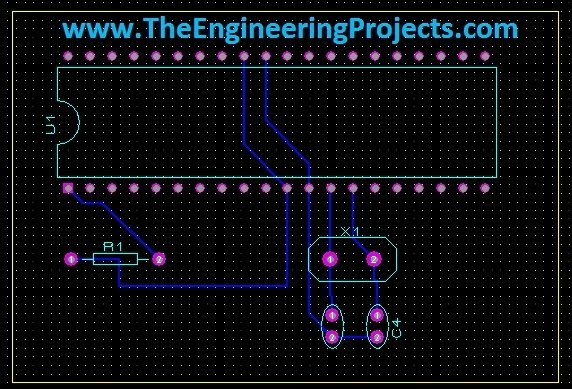
PCB Designing in Proteus ARES


Hello friends! Today we will move from a circuit diagram to a printed circuit board using Proteus ARES. We will use a small PIC16F877A circuit so that placement, connectivity, and routing remain easy to follow. The same sequence of decisions applies when you later design a larger board.
Proteus schematic capture describes which component pins belong to each electrical net. PCB layout turns those connections into physical pads and copper tracks. A completed route is useful only when the footprint, pin mapping, power connections, and manufacturing rules are also correct.
We will follow the original illustrated workflow: prepare the schematic, transfer its connectivity, define the board edge, place components, and route the board. We will then add the checks needed before sending a design for manufacture. The older screenshots remain helpful even when your Proteus version uses different menu names or an integrated project interface.
Understand the Schematic-to-PCB Workflow
In the older Proteus interface, ISIS is used for schematic capture and ARES for board layout. Current editions integrate these activities within the design suite. Labcenter's PCB design overview explains their relationship. The essential idea is unchanged: the schematic supplies the intended connectivity, while the layout supplies the physical implementation.
You can draw a board without a schematic, but that removes a useful independent reference for checking connections. For this tutorial, begin with a schematic and update the layout through the supported project or netlist workflow. Do not maintain two unrelated designs by manually guessing which PCB pads should connect.
| Stage | Main information | Typical mistake to avoid |
|---|---|---|
| Schematic | Components, values, and electrical nets | Missing power pins or unintended net labels |
| Packaging | Physical footprint and pin-to-pad mapping | Choosing a similar-looking but incorrect package |
| Placement | Board positions and orientations | Leaving connectors or mounting features until the end |
| Routing | Copper connections and return paths | Treating every net as equally tolerant of long routes |
| Output | Files used for fabrication and assembly | Exporting outdated or incomplete layers |
Prepare the PIC16F877A Schematic
The original circuit contains a PIC16F877A, a 16 MHz crystal, two crystal capacitors, and a 10 kΩ reset pull-up. This is a compact example for learning the layout tools. The screenshot below is retained as the starting schematic, but it should not be treated as a complete ready-to-manufacture controller board.
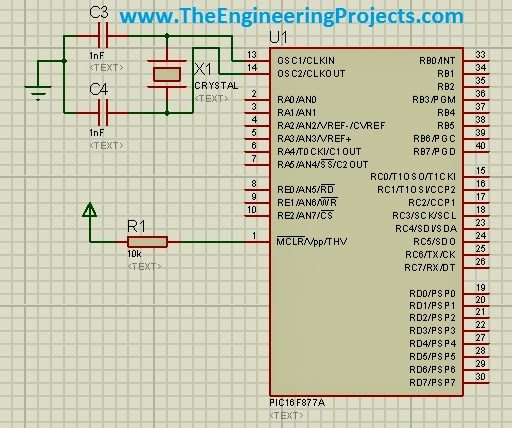
Before layout, add the practical connections your board requires. These normally include a power connector, decoupling capacitors, access to signals used by the application, and a programming connection if the PIC will be programmed in circuit. Components that exist only as simulation instruments do not automatically become physical board components.
For the 40-pin DIP PIC16F877A, both VDD pins, 11 and 32, need the supply connection, and both VSS pins, 12 and 31, need ground. Check the Microchip device datasheet rather than relying on hidden schematic power pins. A power net that looks present on the drawing can still be incomplete in the netlist if it was named incorrectly.
The crystal connects to OSC1 and OSC2. Choose its capacitors from the crystal load requirement and oscillator guidance instead of copying a value from a screenshot. In a simplified model, CL ≈ C1C2/(C1 + C2) + Cstray. For equal capacitors, this becomes CL ≈ C/2 + Cstray. The board's stray capacitance is part of that calculation, so layout and component selection are related.
As an illustrative calculation, a crystal requiring 18 pF load with an assumed 5 pF stray contribution gives C ≈ 2 × (18 - 5) = 26 pF. This is an estimate for those assumptions, not a universal capacitor recommendation. Confirm the selected crystal, oscillator mode, and physical implementation.
Assign a Real Footprint to Every Physical Part
Open each component's packaging information. A PIC16F877A exists in more than one package, so choose the footprint matching the actual part you will buy. For a DIP device or socket, check pin pitch, row spacing, hole sizes, and pin-1 orientation. A simulation model's name alone does not establish the package.
Check resistor lead spacing, capacitor style and polarity, crystal dimensions, and connector orientation too. If a component has no footprint, resolve that before transfer. The preceding custom component tutorial explains why a schematic symbol and a PCB footprint are separate definitions.
Transfer the Circuit to ARES
In the older workflow, choose Tools and then Netlist to ARES. The original screenshot shows that command. In an integrated Proteus project, use the equivalent PCB-layout or update operation provided by your installed version. Preserve the link between the schematic and its board.
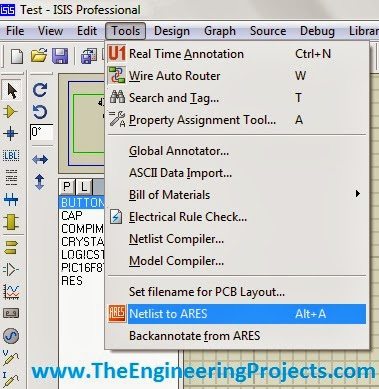
Read transfer messages before continuing. Missing packages, duplicate references, and invalid pin mappings should be resolved in the source definition. If a resistor labelled R1 in the schematic becomes an unrelated object in layout, later updates will be difficult to review.
Save the project with a clear name and keep a revision copy before major layout changes. A useful record includes the schematic, PCB file, custom libraries, and notes describing any unresolved assumptions. An exported board image alone cannot preserve the electrical design.
Define the Board Outline
Select the appropriate drawing tool and choose the Board Edge layer. In the older ARES interface, the layer selector is shown near the lower part of the toolbar. Make sure you are drawing on the actual board-edge layer rather than on copper or silkscreen.
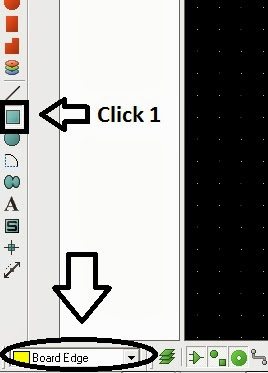
Draw a closed outline and set its dimensions deliberately. The rectangle in this example is easy to understand, but a production board should fit its enclosure and mounting arrangement. Measure connector positions and required clearances before optimizing the board's size.
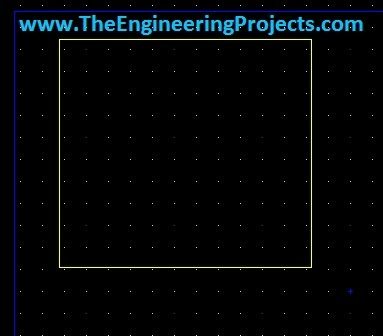
A closed outline defines the intended boundary. Gaps, doubled lines, or overlapping outlines can create ambiguity in manufacturing output. If your board needs slots or cutouts, represent them using the supported mechanical conventions and confirm how the board manufacturer expects those features to be supplied.
Keep copper and components far enough from edges and mounting holes for the selected process. These distances are not arbitrary cosmetic margins: they account for fabrication tolerances, assembly access, and mechanical hardware. Obtain the actual minimums from the manufacturer rather than assuming a tutorial's settings apply everywhere.
Place Components Before Routing
Select component placement mode to see the parts transferred from the schematic. Place them inside the board outline one at a time. The original screenshot below shows the component list used by the early ARES interface.
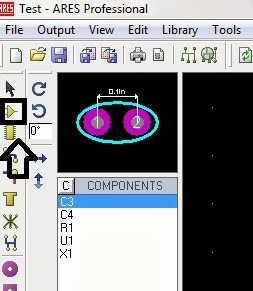
Place mechanically constrained parts first, particularly connectors, mounting holes, switches, and displays. Next place the PIC, its decoupling capacitors, and the crystal network. Position the reset circuit and programming connection so that their routes remain understandable and accessible.
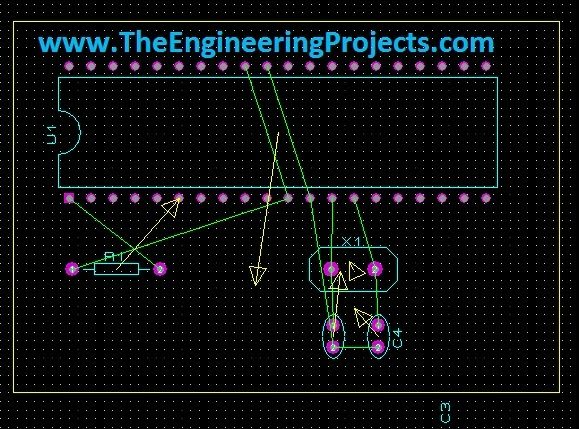
The thin connection lines between pads are often called a ratsnest or airwires. They describe required electrical connections; they are not copper tracks and are not a guaranteed optimal routing plan. Moving or rotating a component changes the geometry of these lines without changing which pins belong to the same net.
Use the ratsnest to improve placement. A connector placed on the wrong side of the PIC can force several signals to cross the entire board. Rotating a passive component may remove a crossing. A few minutes spent arranging parts can save much more time during routing.
Keep Local Current Loops Small
Place a decoupling capacitor close to the supply pins it supports, with a short return to ground. The capacitor is most effective when the high-frequency current loop is compact. A capacitor connected through a long narrow route may be present electrically but less useful during fast switching events.
Keep the crystal and its load components near the oscillator pins. Avoid routing unrelated switching signals through that area. If the board later includes motors, relays, or other substantial loads, plan their supply and return paths so that their current does not unnecessarily share sensitive signal-return segments.
Set Design Rules Before Drawing Copper
Choose the intended layer count, copper thickness, track widths, clearances, via sizes, and drill limits before routing. These settings must fit the board manufacturer's capabilities and the circuit's electrical requirements. Labcenter's PCB layout documentation describes the available rule and verification tools.
A digital signal trace and a supply trace may need different widths. Current, allowable temperature rise, voltage drop, copper thickness, and thermal environment all matter. Do not treat a single width as appropriate for every net merely because the autorouter accepts it.
For a basic voltage-drop estimate, copper resistance is R = ρL/(wt). Taking an illustrative 50 mm route, 0.5 mm width, 35 µm thickness, and copper resistivity of approximately 1.72 × 10⁻⁸ Ωm gives about 0.049 Ω. At 0.5 A, the estimated drop is about 24.5 mV and dissipation about 12.3 mW.
This calculation is not a trace-current rating. It omits temperature rise, nearby copper, vias, connectors, and the return path. Use an appropriate thermal design method and the actual fabrication stackup for current-carrying traces. The example simply shows why length and cross-sectional area affect resistance.
Route the Board Manually or with the Autorouter
The original workflow opens Tools and Auto Router, configures routing options, and starts the router. The screenshot below shows the older settings dialog. Choose only layers that will actually be manufactured and apply the intended rules before starting.
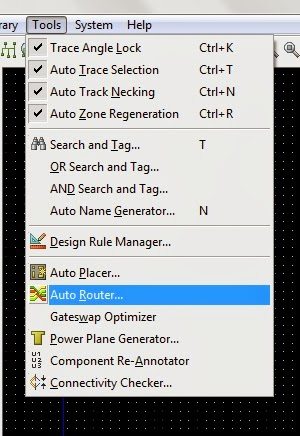
An autorouter can create many legal connections quickly, but it works within the information you supply. It does not know that a connector must remain accessible or that a particular return path is important unless the placement and constraints reflect those needs. Review the result instead of treating completion as automatic design approval.
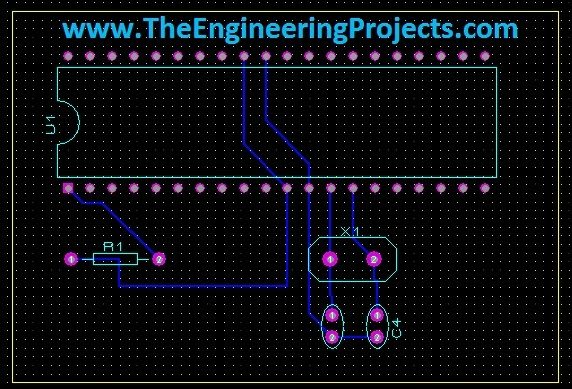
For a small controller board, manual routing is also a useful learning exercise. Select track placement mode, choose the correct copper layer and width, and route between pads belonging to the same net. The original toolbar screenshot below identifies the manual-routing tool.
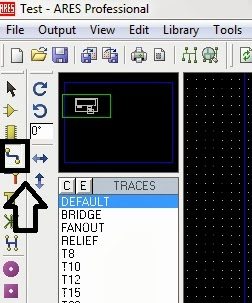
Route critical local connections first, then power distribution and the remaining signals. Keep routes purposeful and avoid unnecessary changes of layer. When a via is required, check that its drill and annular ring meet the selected process. A via is a manufactured connection, not simply a visual crossing marker.
On a two-layer board, a ground copper pour can support a useful return structure, but it must be connected and reviewed. Isolated islands do not provide a return path. Narrow necks and splits can force current to take a longer route than the schematic suggests. Refill the pour after layout changes and inspect the resulting copper.
Check the Board Before Exporting
- Confirm that every intended electrical connection has been routed.
- Run design-rule checks with the final manufacturing settings.
- Inspect pin-1 orientation, polarized components, and connector labels.
- Check supply continuity and access to programming or test connections.
- Review board edges, holes, component clearances, and enclosure fit.
- Inspect silkscreen so that labels remain readable and avoid exposed pads.
- Compare the final layout with the schematic after the last update.
Zero unrouted connections and a clean rule report are necessary checks, but they do not prove that the circuit meets its intended function. A perfectly routed wrong pinout is still wrong. Similarly, a legal track width may be inadequate if the current requirement was never included in the design assumptions.
A 3D view helps inspect component orientation and mechanical relationships. Use it together with dimensions and footprint checks. A model that looks correct on screen can still contain an incorrect hole size or pin-to-pad mapping.
Generate and Review Manufacturing Files
Export the fabrication format agreed with your board manufacturer, commonly Gerber layer files and drill data. Include the board outline, required copper layers, solder mask, and appropriate silkscreen. If assembly is included, prepare the requested bill of materials and placement information as separate deliverables.
Open the exported files in a viewer and inspect those actual outputs. Check the outline, layer alignment, drill locations, solder-mask openings, and board dimensions. Reviewing only the ARES workspace misses mistakes introduced by selecting the wrong export layers or units.
Keep one clearly labelled output folder for the released revision. Remove obsolete files from the package you send rather than leaving the manufacturer to choose between multiple outlines or drill sets. The schematic, layout, and manufacturing outputs should identify the same revision.
Troubleshooting and Review
Make the Board Easy to Assemble and Diagnose
Think about the person assembling the board while you can still move components easily. Leave enough space to reach connector screws, insert a programming plug, and replace a socketed PIC. A connector that technically fits inside the outline may still be unusable if its cable collides with a nearby capacitor or enclosure wall.
Provide labelled test points for important supplies and signals. A ground test point near the area under investigation makes oscilloscope measurements easier and reduces the need to attach a long ground lead across the board. Test access is particularly valuable when a pin becomes hidden beneath a socket or module after assembly.
Review the bill of materials against the layout. A footprint sized for a radial capacitor does not tell the assembler its capacitance, voltage rating, or polarity. Include the actual values and sufficient part identification to distinguish components that share an outline but have different electrical specifications.
For an unpowered assembled board, begin with visual inspection and basic continuity checks before loading firmware. Check the supply input for an unintended short and confirm that polarized parts face the intended direction. Initial powered checks should establish correct supply and reset conditions before you interpret application behaviour.
If the oscillator or programming connection fails, keep the investigation focused. Confirm the physical part and its pin numbering, then inspect the local connections and configuration. Changing firmware repeatedly cannot repair a swapped footprint pad or a missing ground connection. Recording the observed symptom and the measurement that supports it makes the next revision much easier to improve.
| Problem | What to inspect |
|---|---|
| A component is absent from layout | Its footprint assignment and whether it is a simulation-only item |
| Airwires remain after routing | Unconnected pads, wrong-layer segments, or incomplete net connections |
| Autorouting stops before completion | Placement congestion, layer restrictions, and design-rule conflicts |
| Physical component does not fit | Exact package dimensions, pitch, hole size, and viewing orientation |
| Board outline is missing from export | Board-edge layer assignment and output configuration |
| PIC behaves differently from simulation | Power, reset, oscillator, programming settings, and physical signal integrity |
The main lesson is that PCB design begins before the first track is drawn. Accurate library parts, complete power connections, good placement, and suitable rules make routing simpler and the resulting board easier to assemble and diagnose.
Frequently Asked Questions
Are the green connection lines already copper tracks?
No. They show required connectivity. You must route physical copper or create another valid connection before the board is electrically complete.
Can I manufacture the original example exactly as shown?
Use it as a layout exercise. Complete the power, decoupling, programming, and application connections, and review all packages and manufacturing rules before ordering a board.
Does the autorouter guarantee a working circuit?
No. It routes according to the available netlist and constraints. It cannot repair an incorrect schematic, footprint, or unstated electrical requirement.
Where can I practise a larger design?
Continue with the Arduino UNO PCB design example, or review the broader Proteus ISIS and ARES tutorial series. Apply the same schematic, package, placement, routing, and output checks as complexity increases.

Tags


the teaching was very good, could u be having the programming codes used for programming smart electricity meter and u kindly send me on my email. i will be very greatifull. thanks
got detailed explanation,but it will be more usful if u share how to animate the circuits with simple example and 3D format...
please explain to download proteus8 with ares.like ckick here to download proteus8 with ares.regards/ krishnamoorthy.
in proteus software how to design of op amp.how give negative voltage.and osc output wave shape if you knowing to me it is very helpfull to me
Hi
After selecting the Netlist to ARES option in ISIS, the opened ARES sheet does not show the components in the component list.
What could be the possible reason?
I want to write the circuit name on pcb.There is one problem how to delete the particular part of ground area for write the name on it
1 reply
Simply click on the part that you want to delete and then hit the delete button
Dear Shah Sb,AOA, kindly arrange some advance tutorials on pcb making like foot printing,pads and measurements etc.thanks
I so much appreciate ur effort on these tutorials, thank you very much for sharing your knowledge free. Which ebook can I read to help me learn C for PIC microcontrollers? Pls
Hi sir,
In response to you tutorial on PCB layout using ARES software,I have a doubt in that topic.
After completion of layout,in the print out (hard copy) of the design the packages are not with actual dimensions.All the component foot prints are being shrinked (reduced dimensions).Please help me in this issue like should I change any printer settings or how?
Thanks in advance..!
how to draw a schematic pcb layout
in proteus
fire alarm system using gsm
-arduino uno
- gsm a900
-buzzer
-led
-lcd 16x2
if know help me
1 reply
Hi,
Add me on Skype and I will help you out. My Skype id is theenggprojects.
Thanks.
I do wish Labcenter would provide liccenses for older versions such as V7 or similar - I absolutely hate V8.upwards I would upgrade from Ares Lite, therefore I refuse to pay for such.
thankyou for the topic but i have a Q...
if the component is exist in isis &has package also but its not exist in ares like motor
whats the problem??
hi,
can we design rigid flex pcb using Proteus?
Comments
17