


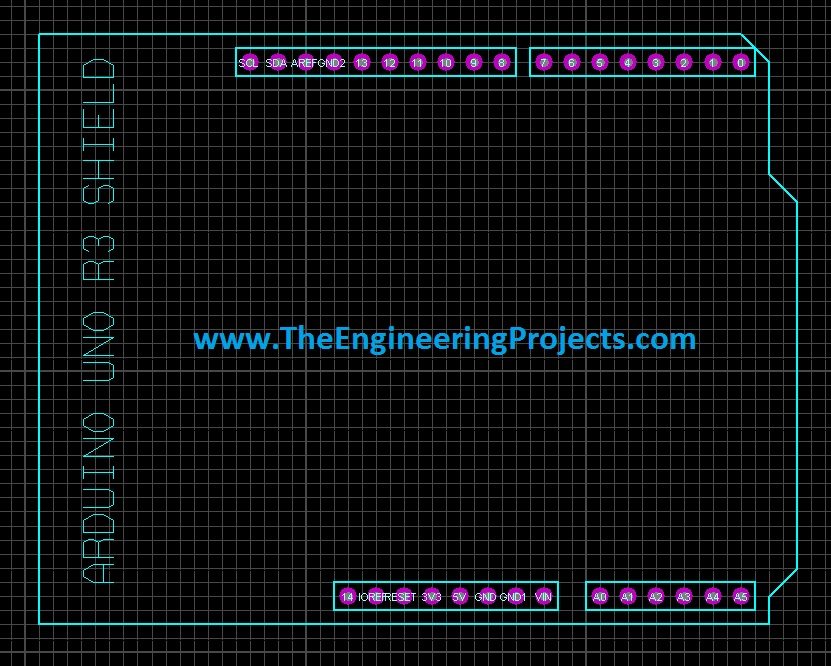
Arduino UNO PCB Design for Proteus ARES


Hello friends! Today we will use an Arduino Uno footprint in Proteus ARES and turn it into a reusable package for our own PCB projects. This is useful when you want a removable Uno to plug into a larger board containing sensors, connectors or interface circuits.
Arduino UNO Simulation Libraries
Latest library: Arduino UNO Library for Proteus V4.0 (October 2026): working LEDs, a RESET button and a built-in serial monitor
Helping Tools
- Serial Monitor Advance: a serial terminal window for the UART of your board
- Serial Monitor Expert: the serial monitor with extra debugging tools
- LCD Library for Proteus V3.0: 16x2, 20x4 and I2C LCDs to show your readings
The download in this tutorial contains the original header-layout design. It is a starting point for an Uno carrier or shield connection, not a complete replacement for the Uno's processor, USB interface and power circuitry. Keeping that distinction clear makes the rest of the design much easier to understand.
We will first open the layout, examine its connector positions and save the package. Then we will map the electrical pins, plan the mounting arrangement and check the design before producing manufacturing files. A footprint that looks correct on screen still needs both electrical and mechanical review.
What Does This Arduino PCB Design Contain?
The retained layout shows the Uno header groups and a board-shaped outline. It allows a larger project PCB to connect to the Uno's external pins. You still use a separate, working Arduino board as the controller.
There are two related mounting arrangements. A shield normally plugs into headers on top of the Uno. A carrier can support the Uno in another orientation, including the inverted arrangement described in the original project. These are mechanically different assemblies even if they use the same named signals.
| Design type | What it provides | Additional work required |
|---|---|---|
| Uno header footprint | Pad positions and connection locations | Verify dimensions, pad numbering and mounting orientation |
| Custom shield or carrier | A PCB connecting the Uno to project circuitry | Schematic, routing, power design and mechanical integration |
| Complete Uno-compatible controller | Processor and its supporting electronics | Full controller schematic, clock, reset, programming and power circuitry |
If you need the third option, use the official board documentation and a complete controller-design workflow. Merely drawing an Uno outline and adding headers does not recreate the Uno electronics.
Proteus Schematic Capture and ARES Layout
Proteus separates the electrical schematic from the physical PCB layout. Older tutorials often call these environments ISIS and ARES. Current installations may expose them as tabs within one project rather than requiring you to launch two independent programs.
The schematic describes which pins belong to each net. The PCB package describes where the corresponding pads are physically located. A package assignment connects these two representations.
Our PCB designing in Proteus ARES tutorial introduces the general workflow. The Arduino Uno Library for Proteus covers the related simulation model, but simulation support and a correct manufacturable footprint are separate properties.
A simulated component can behave correctly while having no PCB package assigned. Conversely, a perfectly valid connector footprint does not need a processor simulation model. For a carrier board, clearly named connectors in the schematic can be easier to audit than a complex graphical Arduino symbol.
Download and Open the Original Layout
Download the original archive below and extract it into a dedicated project folder. Keep an untouched copy so you can compare your edited package with the starting design.
- Extract the archive rather than editing files inside it.
- Open the supplied PCB layout using a compatible Proteus installation.
- If conversion is required, save the converted project under a new name.
- Confirm the units used for coordinates, pad sizes and drill sizes.
- Inspect the header groups and their pad properties.
- Compare the design with the actual Uno revision you intend to mount.
The screenshot is useful for understanding the layout, but it is not a dimensioned manufacturing drawing. Do not measure pixels in the image and treat the result as a reliable connector coordinate. Use actual CAD dimensions and the board manufacturer's mechanical information.
The download is retained as a legacy project resource. Opening it successfully does not establish that it has been fabrication-tested for your particular board, connector or assembly direction. Those checks belong to the project you are now creating.
Check the Uno Revision and Header Geometry
Use the official Uno R3 documentation to obtain its pinout, schematic and CAD resources. Check those against your physical board, especially when using a compatible board with different connectors or component heights.
Individual header positions commonly use a 2.54 mm pitch, but the complete Uno header arrangement is not simply a rectangular grid of equally spaced rows. In particular, the spacing between the digital-header groups must be reproduced accurately. Rounding that offset to a convenient grid can make a rigid shield impossible to insert.
The nominal board length and width alone do not define the footprint. You also need the coordinates of every header, the mounting holes, the board-edge profile and the space occupied by protruding connectors. Arduino's Uno R3 datasheet includes pinout and mechanical-information sections.
Build a coordinate table using one stated origin and viewing direction. If you change units while editing, verify a known distance afterward. One inch is 25.4 mm, so a 0.1-inch connector pitch is 2.54 mm, not 2.5 mm.
A 0.04 mm pitch error appears small, but over nine intervals it becomes 0.36 mm. Across several rigid connector rows, accumulated errors can force the board into a stressed fit. Correct coordinates are preferable to bending header pins during assembly.
Decide Which Side of the Board Will Face You
The original project proposes mounting the Uno upside down on the carrier. Before reusing that idea, draw a side view of the assembly: carrier PCB, connector body, mating pins and Uno PCB. Mark which component side faces the carrier.
Turning a board over changes the apparent left-to-right ordering of its pins. Rotating a footprint in the same plane is not equivalent to flipping it through the board. Confusing these operations can place 5 V where you expected ground even when the connector outlines appear to align.
Check the intended connector genders as well. The ordinary Uno uses female header sockets, so the mating assembly needs appropriate male pins or a deliberately chosen adapter arrangement. An inverted board requires enough separation to avoid contact with the USB shell, barrel connector and other tall components.
Do not mirror the package merely because the board is described as upside down. Determine the actual assembly transformation, then check named signal positions on the final top and bottom views. An independent pin-by-pin comparison is much safer than relying on the outline's familiar shape.
Save the Layout as a Reusable Package
Once the geometry is understood, select the pads and relevant package graphics. Avoid accidentally including unrelated text, project tracks or an entire carrier board outline in the component definition.
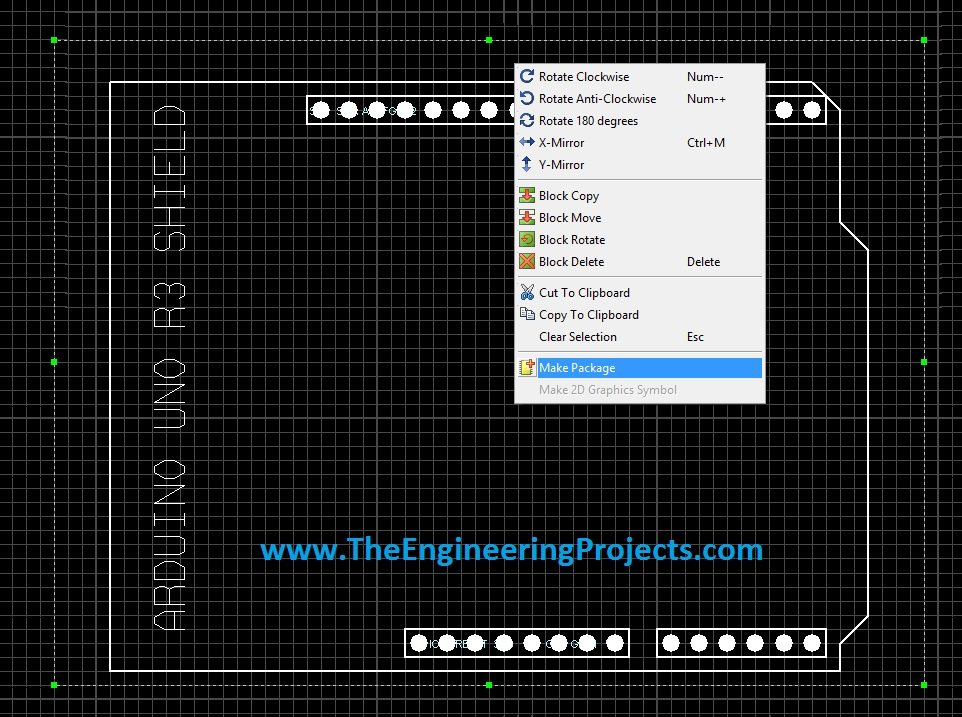
Use the Make Package operation available in your Proteus version. The original screenshot accesses it through the selection's context menu; Labcenter's Getting Started Guide also demonstrates the Library menu workflow.
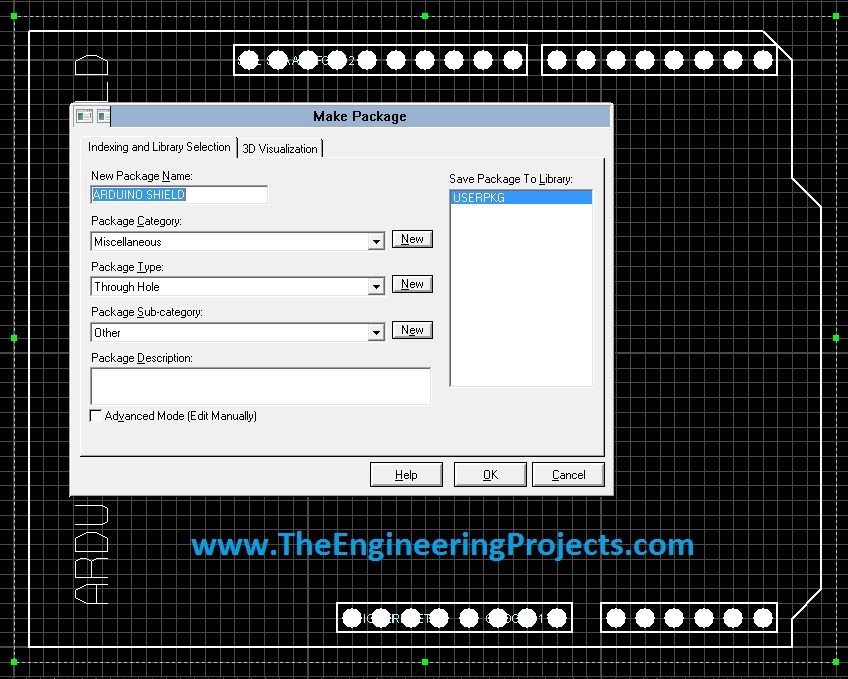
- Choose a descriptive package name that identifies Uno revision and mounting arrangement.
- Add a description explaining the viewing direction and connector type.
- Select a user library, such as USERPKG, rather than modifying a supplied vendor library.
- Set a deliberate origin, such as a documented reference pad.
- Check the reference-label position and package graphics.
- Save the package and place a fresh instance in a test layout.
A name such as UNO_R3_CARRIER_REV_A is more informative than Arduino Shield when several variants exist. Include the revision in your project records, and keep incompatible mechanical variants as separate packages.
Labcenter's library facilities documentation explains the relationship between schematic devices, footprint pads and optional 3D models. A 3D model helps inspect an assembly, but only if its position and dimensions match the actual component.
Map Schematic Pins to Physical Pads
This is the most important electrical step. A printed label beside a pad does not necessarily define that pad's identifier. Open the pad properties and compare them with the schematic package mapping.
Create a mapping table that records the schematic pin name, package pad identifier and physical Uno signal. Use explicit entries for each power pin and each repeated ground connection. Do not assume a package editor automatically understands labels such as A0 or SCL.
| Signal group | Checks to make |
|---|---|
| D0 and D1 | UART receive and transmit are not interchanged |
| D10 to D13 | SPI-related signals match the selected Uno pinout |
| A0 to A5 | Analog labels correspond to the correct physical header pads |
| SDA and SCL | Understand their duplication with A4 and A5 on the classic Uno |
| 5 V, 3.3 V and VIN | Keep distinct rails separate |
| RESET and AREF | Do not confuse control/reference signals with supply outputs |
| IOREF and reserved positions | Follow the actual board revision and leave reserved connections as specified |
The duplicated I2C header signals are not additional independent microcontroller pins. Likewise, the existence of several ground pads does not justify accidentally mapping one of them to a positive rail.
For a carrier schematic, separate connector symbols are a reasonable alternative to one large Arduino device. Label every net clearly and associate each connector with its matching physical header. Choose the representation that makes an independent review easiest.
Choose Pads and Drill Sizes from the Connectors
A header footprint needs a hole that accepts the actual pin, a surrounding copper annulus and enough spacing for soldering. Do not assume the supplied pad dimensions are suitable for every brand of connector.
For a square pin with side length s, the diagonal is s x sqrt(2). A hypothetical 0.64 mm square pin therefore has a diagonal of about 0.91 mm. A round hole must accommodate that geometry plus the connector and PCB manufacturing tolerances.
This calculation is an initial geometric check, not a universal drill recommendation. Consult the connector's recommended hole size and the fabricator's finished-hole specification. Plating and drilling tolerances affect the final fit.
The nominal annular ring is half the difference between pad diameter and hole diameter. For example, a 1.8 mm pad around a 1.0 mm hole gives (1.8 - 1.0) / 2 = 0.4 mm before manufacturing tolerances. Compare the worst remaining ring with the fabricator's requirements.
Keep the terms drill diameter and finished plated-hole diameter distinct when ordering. If the fabricator asks for finished dimensions, do not apply a second guessed plating allowance on top of a process it already compensates.
Place the Uno and Route the Project Circuit
Place the Uno assembly before routing the surrounding circuit. Leave access to the USB connector, power connector and reset button. Think about inserting and removing cables after the PCB is installed in its enclosure.
Reserve enough space underneath the mounted board for solder joints and component bodies. Tall electrolytic capacitors, terminal blocks or screw heads can collide with the Uno even if their copper pads do not overlap.
Mounting holes need mechanical clearance around both the screw shaft and its head or washer. The original header screenshot does not provide a complete mounting-hole solution. Add verified holes and keepouts appropriate to your enclosure and standoffs.
Route power according to the actual load current and copper construction. A convenient header pin does not imply unlimited current capacity. Keep high-current load paths away from sensitive analog return paths, and use a ground arrangement appropriate to the whole circuit.
If the carrier can supply power to the Uno, document the selected entry point and how USB power interacts with it. VIN, the regulated 5 V rail and the 3.3 V output are different nodes. Do not join them because they all appear in the power-header group.
Run Electrical and Mechanical Checks
Start with schematic electrical checks, then inspect the transferred netlist. Highlight several important nets in the layout and verify that they reach the intended pads. Give particular attention to power, ground, reset and external connectors.
Run the PCB design-rule checks using values your fabricator supports. Review unconnected nets, clearance violations, drill sizes and copper near board edges. A clean report means the design satisfies the configured rules; it cannot prove that the rules or footprint mapping are correct.
Print the footprint at actual size with scaling disabled. Include a dimensioned calibration line, measure that line on paper and place the real headers against the print. Printer drivers sometimes apply fit-to-page scaling even when the drawing itself is correct.
A paper fit check helps reveal spacing and orientation errors, but it does not confirm electrical connectivity or connector height. Combine it with the mapping table and a side-view check of the assembly.
- Verify the physical header centres and mounting holes.
- Confirm the board side and pin-order orientation.
- Compare pad identifiers with every schematic connection.
- Inspect clearance beneath the Uno and around its connectors.
- Check the manufacturing rules and remaining unrouted nets.
- Record the exact package revision used in the project.
Prepare Manufacturing Files and Assemble Carefully
Generate the copper, solder mask, silkscreen, board outline and drill outputs required by the fabricator. Open the generated files in a viewer rather than relying only on the live layout screen. Check that the outline is closed and that holes appear at the intended coordinates.
Confirm plated and non-plated holes are represented as intended. Inspect top and bottom layer orientation, and make sure silkscreen labels do not cover solder pads. Include an assembly drawing that states how the Uno is mounted.
Before inserting the Arduino into a new carrier, inspect the bare PCB and measure for unintended shorts between power and ground. Check connector continuity against the schematic. Solder one header pin first, confirm alignment, then complete the remaining joints without forcing the headers sideways.
For the first powered check, use a suitable current-limited supply arrangement and start without external loads. Confirm the rails and orientation before adding the Uno or peripherals as appropriate to your assembly. A low-voltage logic design can still damage a board if a supply pin is mapped incorrectly.
Common Problems and Review
| Problem | Likely cause | Correction |
|---|---|---|
| Headers almost fit but require force | Rounded spacing, wrong pitch or connector mismatch | Recheck measured coordinates and connector drawings |
| Footprint is missing in another project | User library was not transferred or configured | Include the package library in the project handover |
| Signals appear reversed | Incorrect viewing direction or pin mapping | Audit named pins in the final mounting orientation |
| 3D view looks correct but board does not fit | Model alignment or dimensions are inaccurate | Use physical measurements and the mechanical drawing |
| Uno cannot be removed after assembly | Connector or enclosure access was not planned | Provide insertion clearance and service access |
| Design checks pass but wiring is wrong | Wrong mapping was accepted as the intended netlist | Review schematic signals against physical pad identities |
The useful part of this workflow is a reusable package whose geometry, pin mapping and assembly direction are documented. Once that package is established, future carriers become easier to build and review without repeating the same header-positioning work.
Frequently Asked Questions
Does this download let me manufacture a complete Arduino Uno?
No. It supplies the original header-layout resource for a shield or carrier arrangement. A complete controller requires its own electronic design.
Can I use the package with every Uno-shaped board?
Only after checking the actual revision, connector geometry, signal compatibility and component clearances. A familiar outline is not proof of complete compatibility.
Must the Arduino be mounted upside down?
No. That was the original project's chosen arrangement. Choose the orientation that suits your enclosure, connector access and circuit, then verify its pin mapping.
Does assigning a simulation model automatically assign the correct PCB package?
No. Check the package association and its pin-to-pad mapping explicitly. Simulation behavior cannot establish physical connector alignment.
Should I save custom packages into the standard Proteus libraries?
Use a user library and retain a project copy. This keeps your custom package identifiable and avoids depending on files that a software update may replace.

Tags


Hello , Thanks for your help in adding Arduino ISIS & ARES packages for Proteus , I'm using version 8 professional and having some problem after adding the ARES package for Arduino .
Actually it's been added successfully but when I try to use it Layout for Arduino it says as message " One or more pin-names did not match the component on the schematic " , and refused to be added .
So is there any kind of solution for this issue ?
Thanks again .
Sincerely ,
Yaser AlAzem
I don't know pin Arduino mega 2560
connect to 6 stepperMotor
Thanks Bro, I need this Arduino PCB design for my semester project and I was thinking of designing it on my own.
& the thought came to my mind to give it a search and it was right there. Thanks man for sharing !!!
Comments
8