


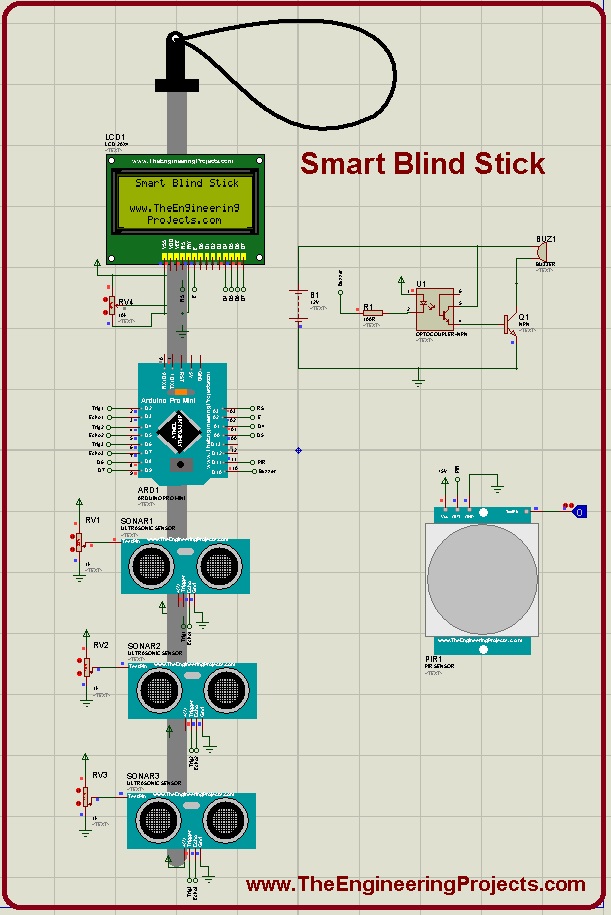
Smart Blind Stick using Arduino in Proteus


Libraries used in this project
Arduino Library for Proteus: V1.0 (2015, used in this project) · latest version: V4.0 (October 2026)
Ultrasonic Sensor Library for Proteus: V1.0 (2015, used in this project) · latest version: V2.0 (October 2026)
PIR Sensor Library for Proteus: V1.0 (2016, used in this project) · latest version: V4.0 (October 2026)
LCD Library for Proteus: V1.0 (2016, used in this project) · latest version: V3.0 (October 2026)
Helping Tools
- Serial Monitor Advance: a serial terminal window for the UART of your board
- Serial Monitor Expert: the serial monitor with extra debugging tools
Hello everyone, I hope you all are doing great. Today, I am going to share a new Project which is Smart Blind Stick using Arduino in Proteus ISIS. I have designed its complete Simulation which I am gonna share today. We have designed this Proteus simulation off Smart Blind Stick after quite a lot of effort that's why its not free. We have placed a small amount on it and you can buy it from our shop via PayPal. You need to click on above button in order to buy this project's code and Simulation. If you have any problem in understanding this project, then you can ask in comments and I will try my best to resolve your issues.
Smart Blind Stick project is designed quite a lot in engineering universities. That's why, I thought of sharing this simulation. Although its a Proteus Simulation but if you wanna design it on hardware then this code will work perfectly fine as I have tested it on hardware. If you got into any trouble in running this simulation then you can also send me message via Contact Form and I will surely help you out. So, let's get started with Smart Blind Stick using Arduino in Proteus ISIS:
Smart Blind Stick using Arduino in Proteus
- In this Smart Blind Stick, I have used:
- Ultrasonic Sensors. ( You should download Ultrasonic Sensor Library for Proteus. )
- PIR Sensor . ( You should download PIR Sensor Library for Proteus. )
- Arduino Pro Mini. ( You should download Arduino Library for Proteus. )
- Buzzer. ( You should read Simulation of Buzzer in Proteus. )
- LCD 20 x 4. ( You should download LCD Library for Proteus. )
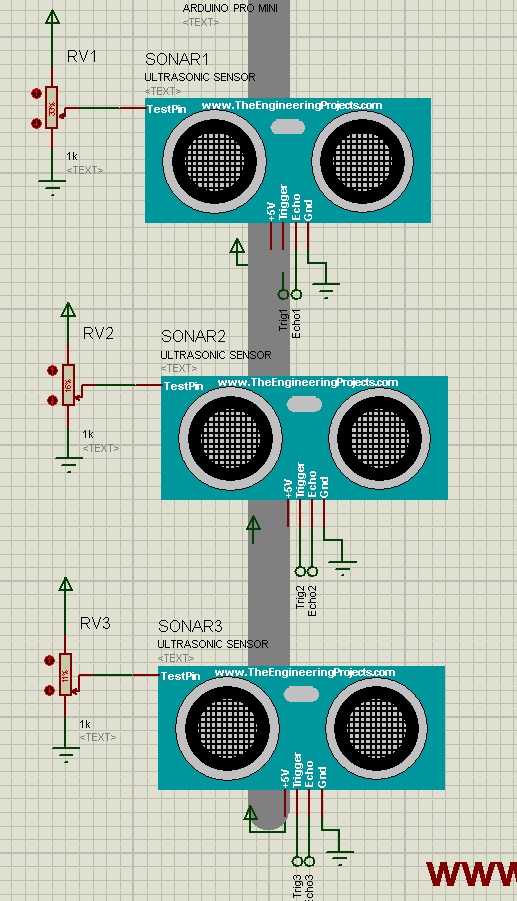
- Three Ultrasonic Sensors are placed in Front, Left and Right Directions.
- Ultrasonic Sensors on blind stick are used for detection of any hurdle or intruder in the passage of blind person.
- Once it detects the hurdle, then the buzzer will go ON and alert the blind person.
- Similarly I have also placed a PIR sensor which is detecting the presence of any other person, so when you place it on the blind stick then make sure that it is placed on front side so that it won't detect the blind person.
- Although blind persons can't read the values on LCd but still I have placed an LCD just to display all the values.
- I have used Arduino Pro Mini because its smaller in size and can easily be placed on a blind
- Here's a screenshot of Smart Blind Stick using Arduino in Proteus ISIS:
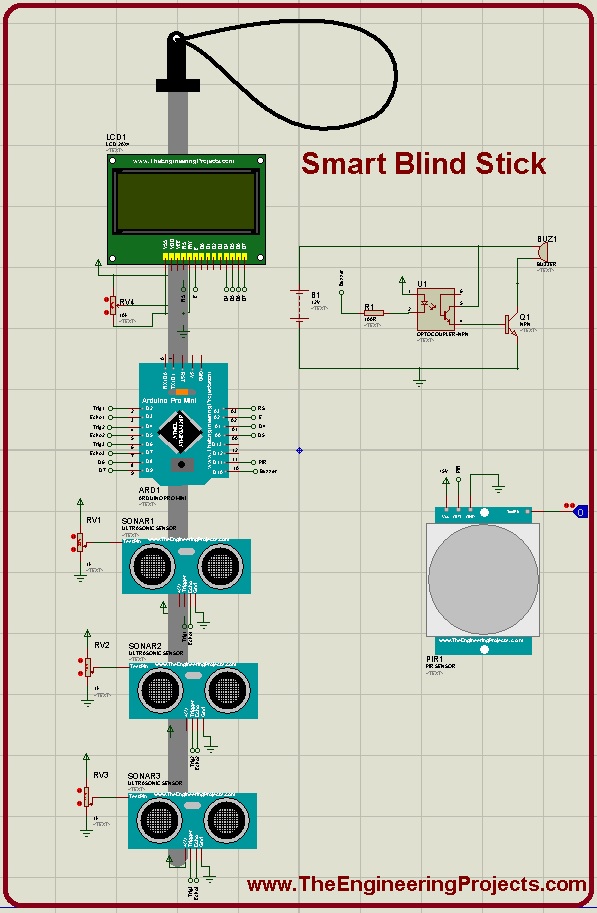
- Because the simulation was big in size that's why these sensors are looking so small, you need to zoom in to get all the details.
- It's got lengthy because I have designed a stick in Proteus and I have placed all the sensors on that stick except PIR sensor because that was quite big.
- It's looking quite cool because of the stick simulation. :)
- Here's a screen shot of zoomed in Ultrasonic Sensors:
- Now when you buy this Project, then you will get all these Library files in the folder along with complete Arduino code and Proteus Simulation.
- I have also designed a video which is given at the end of this tutorial, if you wanna buy this project, then must watch that video as I have shown the working of this Proteus Simulation in that video.
- Now, Get the Hex File from Arduino Softwre and upload it in the Arduino Pro Mini.
- Once you are done, run your Proteus Simulation of Smart Blind Stick and if everything goes fine then you will get the first screen as shown in below figure:
- This first screen is displaying the name of Project as well as our website in LCD.
- After 5 sec, it will change and will start displaying sensors' values, as shown in below figure:
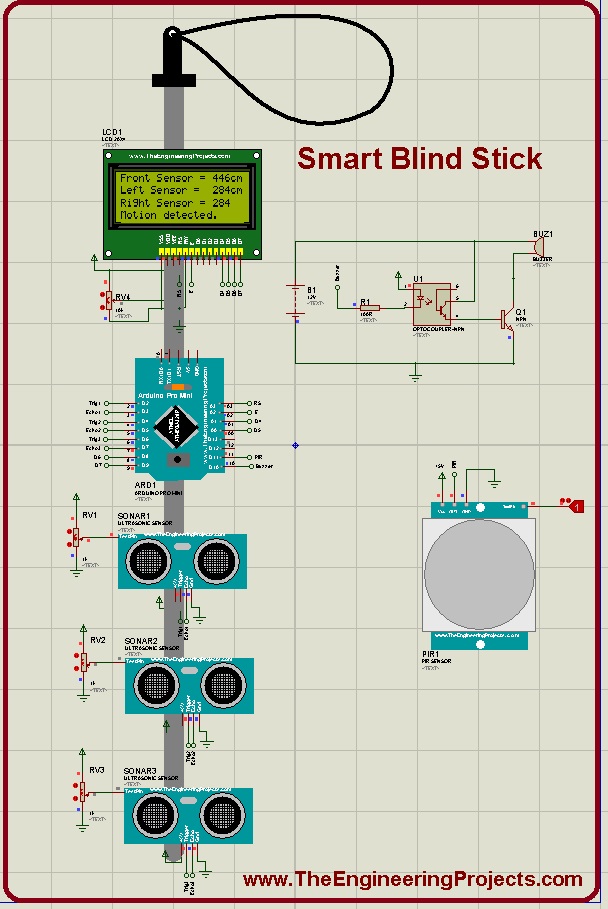
- You can see in above figure that LCD is displaying values of all ultrasonic sensors, along with the Motion detection.
- Because PIR Sensor's TestPin is HIGH that's why its showing that Motion Detected and at this time the buzzer is also ON, which you can't hear in the image. :P
- Here's a detailed video, in which I have shown the functionality of this Smart Blind Stick Proteus Simulation:
If you want to buy this project then, you must first watch this video, so that you got the idea of what you are buying. That's all for today. I hope you have enjoyed this Smart Blind Stick. Till next tutorial, take care and have fun !!! :)

Tags


Project idea is good. If you add APR9600 Voice Recording and Playback Module to this it will become more effective project.
Comments
3