


Getting Started with Pixy Camera


Hello friends! Today we will get started with the Pixy camera and understand how it can add colour-based vision to a microcontroller project. Before connecting it to a robot, we will identify the board, choose the correct cables and establish what information the camera can actually provide.
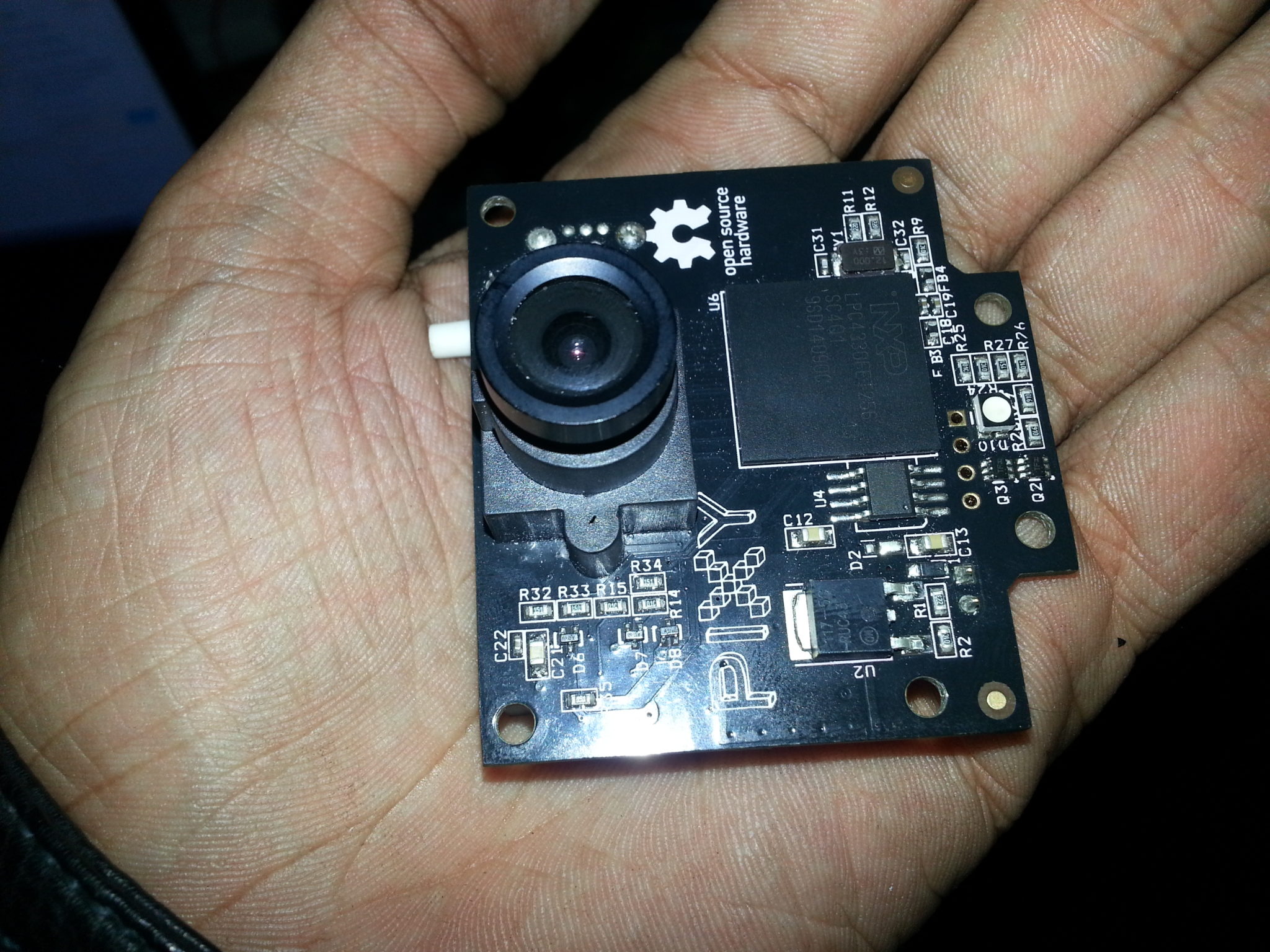
The board in this tutorial is the original Pixy CMUcam5, often called Pixy1. Its software, firmware and Arduino library belong to that product generation. If you have Pixy2, use its own documentation and downloads; similar names do not make the two software packages interchangeable.
Our first objective is simple: connect the original camera to a computer, view a useful scene, and prepare it to recognize a coloured target. Once that works, we can pass compact detection results to Arduino and decide how our project should respond.
What Is the Pixy Camera?
Pixy combines an image sensor with onboard processing. Instead of asking a small microcontroller to process every pixel from a conventional camera, we let Pixy perform its supported detection work and send the resulting object information to the controller.
This division of work is the main reason it fits beginner robotics projects. Arduino can handle decisions, buttons, indicators and actuators while the camera handles the image analysis needed for its colour signatures. Adding Pixy does not turn Arduino into a general-purpose computer-vision workstation.
A trained colour signature describes a colour class. When a suitable region appears in the scene, Pixy can report a block around it. That is different from understanding that the object is a cup, a tool or a particular person. Two objects with similar colours may both satisfy the same signature.
For example, a red marker on a moving platform can be a useful target against a neutral background. A red marker in front of red shelves is harder to isolate. The surrounding scene is part of the design, not an afterthought to be fixed entirely in software.
Identify the Hardware Before Downloading Anything
Look at the board markings and compare the connectors with the manufacturer's documentation. The original board and cable photographs below establish the hardware used in this series. Do not select a firmware package simply because its filename contains the word Pixy.
The official original-Pixy downloads page separates its software from Pixy2 and explicitly states that the original downloads are not for Pixy2. Use that product-specific page as the starting point for PixyMon and firmware selection.
Three software items have different jobs. PixyMon runs on the computer and provides a viewing and configuration interface. Firmware runs on the camera board. An Arduino library runs as part of the controller sketch and handles communication with the camera.
| Item | Runs on | Purpose |
|---|---|---|
| PixyMon | Computer | View the camera and configure detection |
| Pixy firmware | Camera board | Operate the camera and implement its features |
| Pixy Arduino library | Arduino | Read detection information through the selected interface |
| Your application sketch | Arduino | Decide what to do with a detection |
Keeping these roles separate makes troubleshooting easier. A missing Arduino header is not repaired by flashing camera firmware, and a USB connection problem does not automatically mean the colour signature is wrong.
Prepare the Camera and Cables
The original package shown here included the camera and an Arduino connection cable. Package contents can vary, particularly for second-hand boards, so inspect what you actually received instead of assuming that every required cable is included.
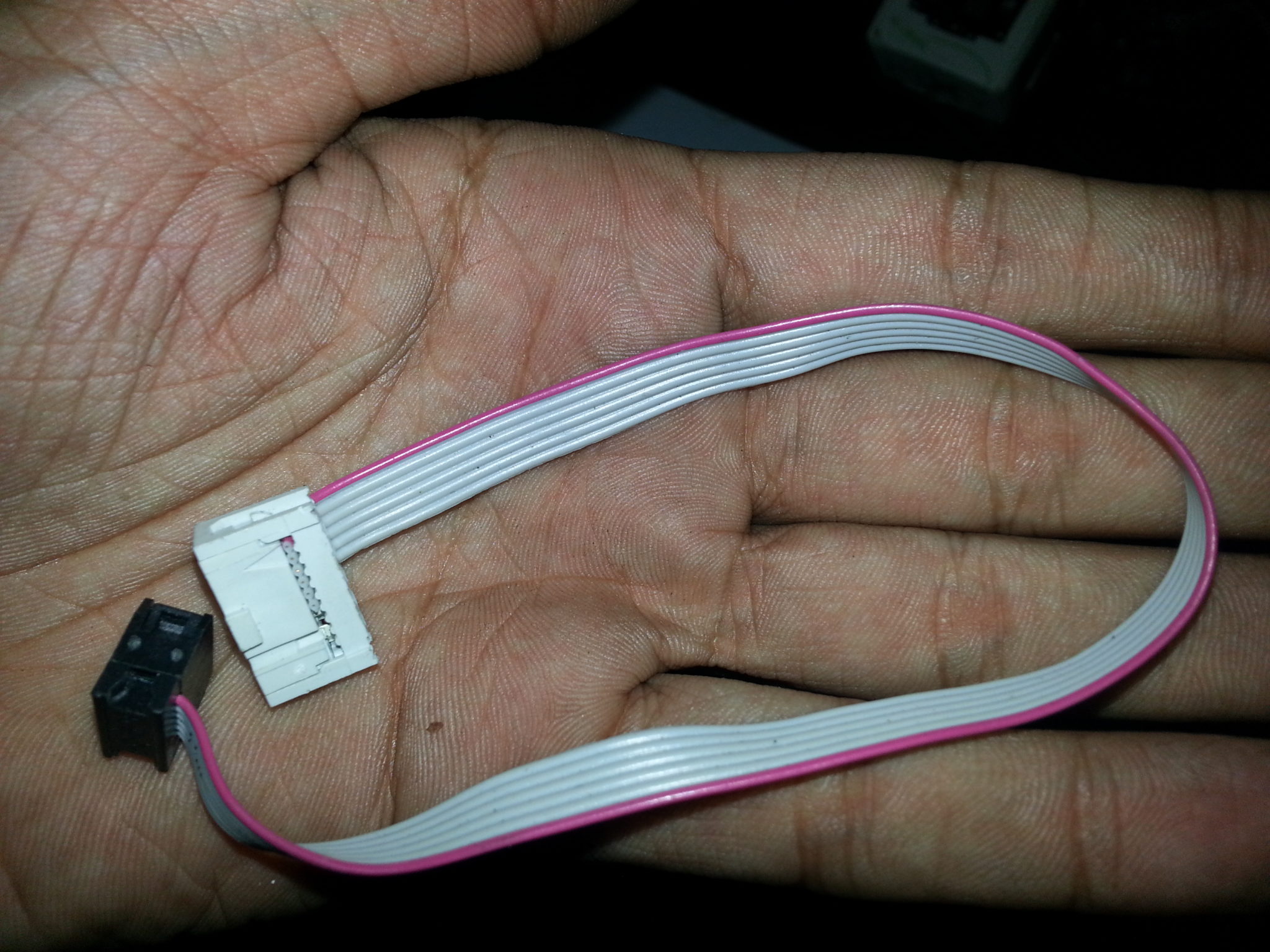
The supplied controller cable connects the Pixy I/O header to the Arduino ICSP header for the standard connection. It is not a general-purpose USB cable, and it should not be described as a separate serial-to-SPI converter. Cable orientation matters because signal and supply connections occupy specific header positions.
Use the original Pixy interface guide when checking pin positions or making a replacement lead. The I/O header has ten positions arranged in two rows. A photograph showing only some visible contacts is not a reliable basis for counting the connector.
For the first computer connection, you also need a USB data cable with the correct Mini-USB connector for this board. Check the connector shape rather than forcing a Micro-USB plug into a different socket.
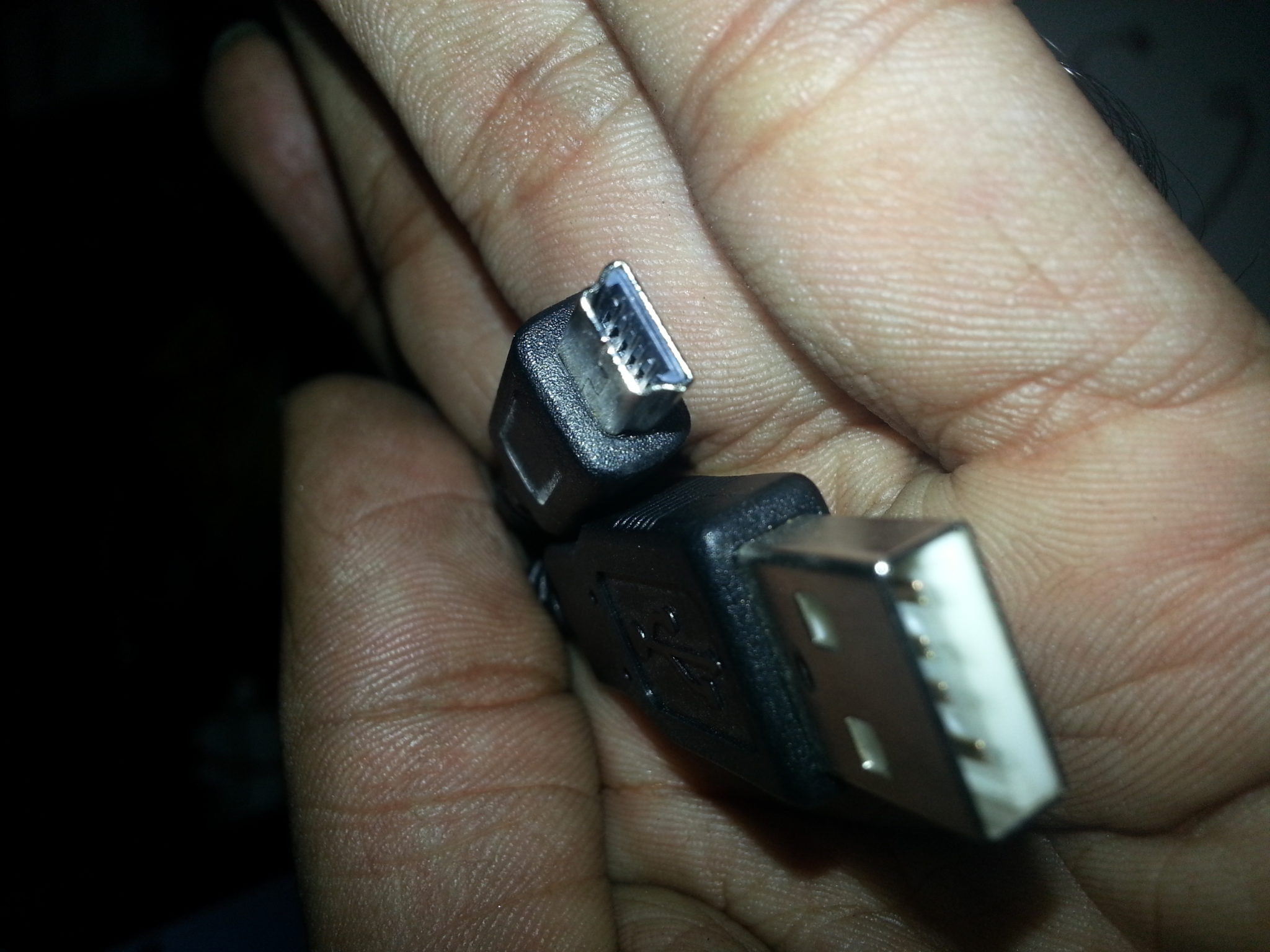
A cable can supply power without carrying usable data. If the board lights up but the computer never detects it, try a known working data cable before changing software settings. Also support the board so the cable does not pull on its connector.
Begin with the camera and computer only. Leave motors, servos and the controller cable disconnected until basic USB operation is established. This reduces the number of variables when you are learning which indications belong to normal startup.
Install PixyMon and Establish the First Connection
The manufacturer's original-Pixy quick-start guide places computer setup before object teaching and microcontroller integration. We will follow that progression because each stage gives us evidence that the previous stage works.
- Download PixyMon for the original Pixy and your operating system.
- Follow the corresponding installation instructions, including the supported USB driver process.
- Connect the camera using the Mini-USB data cable.
- Open the matching PixyMon application.
- Read the console messages and wait for device initialization.
- Confirm that the displayed scene changes when you move a target in front of the lens.
The screenshots in this series come from an older Windows setup. Their purpose is to explain the workflow, not to promise that every modern operating system displays identical dialogs. We cover the installer separately in installing PixyMon.
A live image is a useful first milestone. It establishes more than an illuminated power LED: the computer and camera are communicating well enough to display image data. It does not yet establish that a colour signature is trained or that a connected Arduino receives blocks.
Set Up a Scene That Is Easy to Understand
Choose one clearly coloured target and a background that differs from it. A large matte object is easier to begin with than a tiny reflective object. Position it so it occupies a visible part of the frame without filling the entire image.
Use steady lighting and avoid a bright lamp reflected directly into the lens. Move the camera or lamp until you can see the target's colour across a useful surface area. A white glare patch is not a reliable sample of the material beneath it.
Keep the camera still while you learn the controls. If the view moves at the same time as the target, it becomes harder to tell whether a changing block size comes from target movement, camera movement or a detection problem.
Check focus at the intended working distance. A blurred edge can mix the target with the background and make a small object difficult to isolate. Do not adjust the lens unnecessarily when the image is already suitable.
Understand Colour Signatures Before Training
Teaching a signature tells the camera which colour distribution you want it to find. It is not a recording of the object's complete identity. If you teach a bright orange ball, another orange surface may also match.
That limitation is useful when understood correctly. You can deliberately attach a coloured marker to a mechanism, then detect the marker rather than trying to identify the entire mechanism. Choose the marker and background together so the visual distinction is clear.
Start with one signature and test it before adding more. Otherwise, when several boxes appear, you may not know which training operation produced each one. Give your project notes a simple mapping such as signature 1 for the orange target and signature 2 for the blue target.
Test absence as well as presence. Remove the intended target and inspect whether unrelated regions are still detected. A system that always reports a match can look convincing in a demonstration where the target is never removed.
What Information Will Arduino Receive?
The original Pixy Arduino guide documents block fields including signature, centre coordinates, width and height. For normal signatures, the identifier is in the range 1 through 7; the original coordinate ranges are x = 0 to 319 and y = 0 to 199.
| Field | Meaning for your application |
|---|---|
| Signature | Which trained colour class matched |
| x and y | Where the block centre appears in the image |
| Width and height | The block's extent in image coordinates |
| Number of blocks | How many detections were returned |
These values are image measurements. An x coordinate of 200 is not a distance of 200 millimetres, and a block width is not automatically the object's physical width. Calibration and geometric assumptions are needed before converting image measurements to real-world dimensions.
The camera can report several regions with the same signature. Your application must decide which one is relevant. Selecting the largest may be adequate for a simple demonstration, but it can switch targets when another matching region becomes larger.
A Simple Position Calculation
Suppose we want to know whether a target lies left or right of the image centre. For coordinates spanning 0 through 319, the horizontal midpoint is 159.5. Define horizontal error e = x - 159.5.
If the reported centre is x = 230, the error is +70.5 pixels. If it is x = 90, the error is -69.5 pixels. The sign indicates the side of the image; it does not by itself establish which direction a motor must turn.
A normalized error can be calculated as en = (x - 159.5)/159.5. This produces values near -1 at one edge and +1 at the other, making a later control calculation easier to interpret.
Add a small deadband when a target near the centre should not cause constant corrections. For example, treat errors between -8 and +8 pixels as centred. That is a design choice for an experiment, not a manufacturer-specified accuracy figure.
Before attaching a motor, print the error and move the target by hand. Confirm the sign, centre behaviour and absence handling. A mistaken sign in a moving system can drive the camera away from its target.
Plan for Missing and Ambiguous Targets
A practical program needs more than a reaction to successful detection. Decide what should happen when no matching block is returned, when several blocks match, or when a previously selected target leaves the frame.
For a bench indicator, no detection might simply turn an LED off. For a moving platform, you might stop movement after a short interval without fresh observations. The appropriate response depends on the mechanism and should be explicit in the program.
Do not keep using the last position indefinitely without marking it as stale. A coordinate from several seconds ago may describe an object that is no longer present. Store the time of the last accepted observation and compare it with the current time.
For example, if your application chooses a 200-millisecond observation timeout, a detection older than that threshold should no longer be treated as current. Select the timeout from the expected update behaviour and motion speed, then test the consequences rather than assuming a convenient number is suitable.
Connect Arduino After the Camera Works
With a useful signature established, connect the supplied controller cable using the orientation shown in the manufacturer's board-specific guide. Install the original Pixy Arduino library and begin with its supplied hello_world example.
The original guide explains that the example reports blocks when the camera runs its default program and a matching object is visible. A blank serial display can therefore have several causes: no target, no trained signature, the wrong camera program, the wrong cable connection or a communication problem.
Check these conditions separately. First confirm the target is detected in PixyMon, then inspect controller communication. This gives a much clearer diagnosis than repeatedly changing both the signature and the sketch.
Once the supplied example works, add one application decision at a time. A target-present indicator is a good first extension. A centre-error calculation can follow. Motor control belongs after you can explain the observations that will drive it.
Review a Small Vision Project
Consider a camera that checks for a coloured marker on a tray. The initial requirement might be to report marker presence in a particular part of the scene. We can evaluate that requirement without adding a robot, a wireless link or a complicated user interface.
- Place the tray at its intended working distance.
- Teach the marker under representative lighting.
- Move the marker around the allowed region and record detections.
- Remove it and introduce similarly coloured background objects.
- Define acceptable position and size limits.
- Record false detections and missed detections separately.
If the marker is found in 18 of 20 intended presentations, the observed detection rate for that small test is 90 percent. That does not establish performance under every lighting condition. Repeat the experiment with the variations your application will actually encounter.
Keep the test conditions with the results: camera position, target size, lighting and signature settings. This turns a successful demonstration into a repeatable experiment and makes later changes easier to assess.
Troubleshooting the First Setup
Also consider the time between an observation and the response it triggers. Camera processing, data transfer, controller scheduling and actuator movement all contribute to that delay. A high camera update rate cannot compensate for a sketch that spends a long time inside blocking delays before reading the next result.
As a simple design exercise, a target moving at 0.5 metres per second travels 25 millimetres during a 50-millisecond delay. This is an illustrative calculation, not a measured Pixy latency. It explains why an application should be tested at its intended movement speed rather than only with a stationary target. Begin slowly, measure the complete response, and decide whether the resulting positional error is acceptable for your mechanism.
| Observation | Useful next check |
|---|---|
| Power indication but no USB detection | Data cable, USB port and device driver |
| Application reports incompatible hardware | Original Pixy versus Pixy2 software selection |
| Live image but no target box | Signature training and active camera program |
| Many unrelated boxes | Background colours and signature selection |
| Computer detection works but Arduino does not | Controller cable, library and selected interface |
| Detection changes with every movement | Lighting, reflections, focus and target size |
Read the actual error message before reinstalling everything. A connection failure, an empty detection result and an incorrect application response are different faults. Work from the earliest stage that has not yet been demonstrated to function.
Frequently Asked Questions
Does Pixy need a computer permanently connected?
No. The computer is useful for configuration and inspection. The camera can provide detection results to a controller in a standalone project once it is configured and powered appropriately.
Can Pixy recognize any object?
No. This tutorial uses its colour-signature workflow. A matching colour region is not proof of a unique object identity.
Is the controller cable a USB adapter?
No. The supplied Arduino cable connects the camera's I/O interface to the controller header. The computer connection uses a separate USB data cable.
Can I follow these steps with Pixy2?
The general learning sequence is useful, but use Pixy2's own software, firmware, library and hardware instructions.
What comes next in this series?
Continue with the PixyMon installation tutorial, then check firmware compatibility and train a target. Each step builds on a working result from the previous one.

Tags


Hello Syed Zain Nasir,
I am a Ph.d student of biomedical engineering.
I want to use this camera for one of my project to track a mice in the cage. I will need to track the mice inside the cage with a height of 16 cm and the surface of the cage is 30 cm * 30 cm. As I calculated I will need a camera with a field of view of 110 degree. this camera ( Pixy CMU-cam) is suitable for my measurement but I don't know which lenses should I use on it?
maybe you have some suggestion about the lens which be able to give me a view of 30 cm * 30 cm in the height of some thing around 12 cm.
It would be nice if I can be in contact with you by Email.
Thanks.
Comments
1