


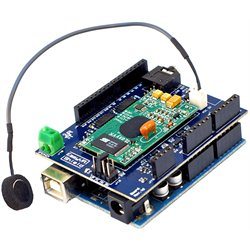
Voice Recognition using EasyVR Shield


Hello friends! In this tutorial, we will look at voice recognition using the EasyVR Shield and plan a small Arduino project that responds to spoken commands. The idea is straightforward: we say a command such as FORWARD, the speech module identifies it, and our program decides what should happen next. Before connecting a robot, however, we need to understand what the module actually returns and how those results become reliable control decisions.
This article introduces the voice-controlled robot project that started this series. We will keep its five commands, explain the hardware and training workflow, and build a clear plan for testing. The detailed training procedure is covered in Getting Started with EasyVR Commander, followed by the practical program in Interfacing of EasyVR with Arduino.
You do not need to develop a speech-recognition algorithm from scratch to follow this project. You do need to train the commands carefully, keep the command numbers consistent, and make sure that a recognition error cannot leave an output in an unintended state. We will work through those responsibilities one at a time.
What Is the EasyVR Shield?
The EasyVR Shield brings a dedicated speech-recognition module into an Arduino shield format. The microphone captures sound, the speech module processes the spoken command, and Arduino communicates with that module through a serial connection. Arduino is responsible for the application: indicator lights, menu navigation, or requests to a separate motor controller.
That separation is useful because speech recognition and robot control are different jobs. Recognizing LEFT does not tell a motor driver which inputs to use, how fast to turn, or when to stop. Those decisions belong in the controller program. Keeping the two jobs separate also makes faults easier to isolate: first confirm the recognized command, then inspect the output action.
The original project uses an older EasyVR Shield with an Arduino Uno. Later EasyVR 3 and 3 Plus products have additional capabilities and hardware differences. Check the model printed on your own board before applying specifications from a newer manual. For version-specific features, use the manufacturer's EasyVR 3 feature list; this project does not depend on its advanced grammar or recording functions.
Voice Commands and Speech Transcription
Our application works with a small, predefined command vocabulary. We are not asking the shield to transcribe arbitrary conversation or interpret a sentence such as “please drive around the chair.” The program expects one of the commands that we prepared for it. This gives a beginner a manageable interface with a visible input and a specific result.
The custom commands in this series are trained with the intended user's voice. A successful training session with one person does not establish that every other person will obtain the same result. If several people will operate the project, test them individually and choose a recognition approach supported by your exact module. Do not describe a single-user demonstration as universal speech recognition.
How the Voice-Controlled Project Works
Imagine a simple test bench with an Arduino Uno, the shield, its microphone, and a set of indicator LEDs. When we say FORWARD, Arduino receives a recognized command index and lights the corresponding indicator. When we say STOP, the program clears the direction indicators. This first demonstration lets us examine the speech interface without involving moving machinery.
Once the indication stage behaves correctly, its command decisions can be passed to a motor controller. The original project also included other control features, but they are outside this voice-recognition tutorial. We will concentrate on the part that can be understood and tested independently: spoken commands, recognition results, and deliberate output selection.
- Prepare a small command list and assign each command a documented number.
- Train and test that list using EasyVR Commander.
- Configure the Arduino program to listen to the same group.
- Read the result when recognition finishes.
- Validate the result before selecting an output.
- Return to the listening state and handle timeouts or errors explicitly.
Notice that an unsuccessful recognition attempt is also a result we must handle. Silence, an unfamiliar word, and a communication problem must not be treated as FORWARD simply because a variable happened to contain zero. The application should distinguish a valid command from the absence of one.
Hardware and Software Required
| Item | Purpose | What to check |
|---|---|---|
| Arduino Uno | Runs the application program | Correct board selection and working USB connection |
| EasyVR Shield | Processes the spoken commands | Hardware revision and operating-mode jumper |
| Compatible microphone | Provides the audio input | Correct microphone connector and secure connection |
| USB cable | Programming and initial bench power | A data-capable cable |
| EasyVR Commander | Creates and trains the command group | Release compatible with the module |
| Arduino IDE and EasyVR library | Build the controller sketch | Library examples compatible with the selected board |
| LEDs and series resistors | Show command decisions during testing | One resistor per LED and suitable output current |
A motor driver, motors, and a suitable motor supply belong to a later integration stage. The shield does not replace those parts, and an Arduino digital output is not a motor-power connection. Select a driver from the motor voltage and current requirements, including the starting or stalled current, rather than from the fact that its connector happens to fit.
For the software, begin with the manufacturer's EasyVR Arduino library and its supplied examples. Older web sketches may contain compatibility branches for very old Arduino releases. A compile error in one of those branches does not automatically mean that the speech module has failed.
Choose the Commands Before Training
We will use FORWARD, REVERSE, LEFT, RIGHT, and STOP. These words describe the intended project actions, but the electrical implementation is still our responsibility. In a two-wheel robot, for example, LEFT might mean a gentle steering correction or a turn on the spot. Decide which behavior you mean before writing the motor-control code.
| Group | Index | Command | Initial bench result |
|---|---|---|---|
| 1 | 0 | FORWARD | Select forward indicator |
| 1 | 1 | REVERSE | Select reverse indicator |
| 1 | 2 | LEFT | Select left indicator |
| 1 | 3 | RIGHT | Select right indicator |
| 1 | 4 | STOP | Clear direction indicators and show stop |
Group and index are separate values. Index zero in Group 1 is not automatically the same instruction as index zero in another group. Write the group number next to the command list in your project notes. If you rearrange the commands later, update the Arduino mapping at the same time.
The old Commander screenshots in the next tutorial include a Group 2 demonstration. They remain useful for explaining the interface, but our working command map uses Group 1. You may use another group if you prefer; the important requirement is that the training software and controller agree. Copying a screenshot's group number and a different sketch's constants is a common source of confusing results.
Use Distinct and Repeatable Words
Start with words that are easy for you to pronounce consistently. Avoid a command list that differs only by a faint final sound. If two commands are repeatedly confused, changing the vocabulary can be more productive than continually changing recognition settings. The goal is dependable operation, not proving that an awkward pair of words can sometimes be distinguished.
Speak naturally during training. If you train by shouting and later operate the system quietly, you have changed the input conditions. Keep the microphone position reasonably consistent, wait for the listening prompt, and avoid touching the microphone cable while speaking. Mechanical noise can become part of the sound presented to the recognizer.
Prepare the Shield and Serial Connection
Disconnect power before stacking the shield or changing its jumper. Align all headers carefully; a shield displaced by one socket position can connect signals incorrectly. Attach the microphone to its designated input, then inspect the assembly before reconnecting USB.
On the older board used in this series, J12 selects between PC communication and Arduino operation. PC mode provides the path used for direct Commander access; SW mode is used by our Arduino sketch with software serial on pins 12 and 13. Later shield revisions should be checked against their own pin assignments and mode settings.
Keep a small connection note beside the project: board revision, jumper position, serial pins, and configured baud rate. This is particularly helpful when returning to the project after several days. A circuit that worked during training may appear unresponsive simply because it remains in the mode intended for the PC.
Only one desktop application should own the relevant serial port at a time. Close Arduino Serial Monitor before connecting Commander, and disconnect Commander before using Serial Monitor again. If the port changes after reconnecting USB, select the actual port assigned to the board instead of copying a port number from a tutorial image.
Train the Commands and Confirm the Results
Open Commander, connect to the module, and create the agreed command list. Complete the guided training for each entry, then use the group's recognition test to check the results. The official Commander instructions explain the training interface and its conflict messages. Our companion tutorial walks through the original screenshots in sequence.
Do not stop after one successful recognition. Say each command several times with short pauses between attempts, then deliberately say a word that is not in your list. Record what happens in both cases. A system that accepts the intended words but also accepts unrelated speech needs further work before those results control an actuator.
If a particular word fails repeatedly, investigate that word before retraining everything. Check its recorded index, review any conflict indication, and repeat its training with a consistent microphone position. For additional background, see our existing guide to EasyVR training and recognition errors.
Turn Recognition into an Application State
A useful program has explicit states such as IDLE, LISTENING, COMMAND_RECEIVED, and ERROR. These names describe what the application is doing, rather than merely which line of code is running. A command is acted upon only after recognition completes and the returned index passes the range check.
For the LED demonstration, selecting a new direction should first clear the old direction indicators. Otherwise FORWARD followed by REVERSE can leave both outputs active. STOP should also clear all direction requests. The same principle matters when the outputs are eventually connected to a driver, although the exact braking and direction-change procedure must follow that driver's design.
A recognition timeout and a movement timeout solve different problems. The first limits how long the module listens for speech. The second limits how long the application permits a motion request to remain active. A five-second listening period does not automatically stop a motor after five seconds; the controller must implement that behavior separately.
Estimate the Consequences of Response Delay
Suppose a demonstration robot travels at 0.20 metres per second, and the total delay between the beginning of a stop instruction and a controller decision is 1.5 seconds. Ignoring braking distance, the robot can travel:
distance during delay = speed × delay = 0.20 × 1.5 = 0.30 m
These are illustrative design values, not measured EasyVR performance. The example shows why a spoken STOP command should not be the only way to stop a moving project. Braking distance, obstacles, and recognition failures add further uncertainty. Begin with LEDs, then test a robot with its wheels raised and a separate physical stop mechanism.
Measure Recognition Quality
A simple test sheet is more informative than saying the project “works perfectly.” For each command, count the number of attempts, correct recognitions, wrong recognitions, and missed recognitions. Keep wrong results separate from missing results because their consequences differ.
correct-recognition percentage = correct results ÷ attempted commands × 100
If FORWARD is correctly identified in 18 of 20 trials, its observed success rate for that small test is 90 percent. That is an example calculation, not a result measured for this article. Twenty trials also do not establish a guaranteed performance figure for different rooms, speakers, or microphone positions.
Repeat the test after changing one condition at a time: speaker distance, room noise, microphone mounting, or motor operation. Record the changed condition beside the results. If recognition becomes worse only when the motors run, investigate acoustic vibration and the electrical supply instead of assuming that the command vocabulary is the only problem.
Common Problems and Practical Checks
| Symptom | First checks | Useful next step |
|---|---|---|
| Commander cannot connect | Power, USB port, jumper, another open serial application | Establish communication before attempting training |
| Training repeatedly fails | Microphone connection, prompt timing, background noise | Train one distinct word under repeatable conditions |
| Commander works but the sketch does not | Operating mode, serial pins, baud rate, group number | Print detection and recognition status |
| The wrong output activates | Command order and index mapping | Compare the returned number with the documented table |
| Several direction indicators stay on | Output-clearing logic | Clear previous requests before selecting a new state |
| Performance changes when motors start | Supply disturbances, wiring, vibration, microphone location | Compare powered and unpowered motor tests |
Project Review and Next Steps
The strength of this arrangement is its clear division of work: Commander prepares the vocabulary, EasyVR recognizes a command, and Arduino applies the control rules. Its limitation is equally clear: the quality of the spoken interface depends on training and operating conditions, while the safety and behavior of the controlled device depend on our application.
For a first project, keep the vocabulary small and make every result visible in Serial Monitor. Complete the Commander training tutorial next, then continue to the Arduino interfacing tutorial. Once the five commands and their indicators behave consistently, you have a useful foundation for a more capable controller.
Frequently Asked Questions
Does the project need a computer while recognizing commands?
The computer is used for training, programming, and initial diagnostics. The intended application runs on Arduino and the connected EasyVR module. A standalone installation still needs a suitable power supply and a program that handles startup and errors without relying on Serial Monitor.
Can I use different words for the same five actions?
Yes. Train the words you want and keep their group and index mapping consistent with the sketch. A command label is a convenient project identifier; the application acts on the returned index. Retrain and retest when changing the spoken vocabulary.
Can I connect motors directly to the shield outputs?
No. Recognition and logic outputs provide control information. Motors require a suitable power stage, current handling, and protection. Verify the motor driver's input truth table and stopping behavior before connecting the controller.
Why does the same word work for me but fail for someone else?
The custom training in this project is based on the intended speaker's examples. Another person's pronunciation, pitch, and speaking rhythm can differ. Test each intended operator and use the recognition features supported by your module rather than assuming identical results.
Should I add every possible command to the first version?
Start with the five-command demonstration. A smaller list makes it easier to inspect training, index mapping, and error handling. Add one feature at a time after the existing commands have a documented test result.

Comments
0