


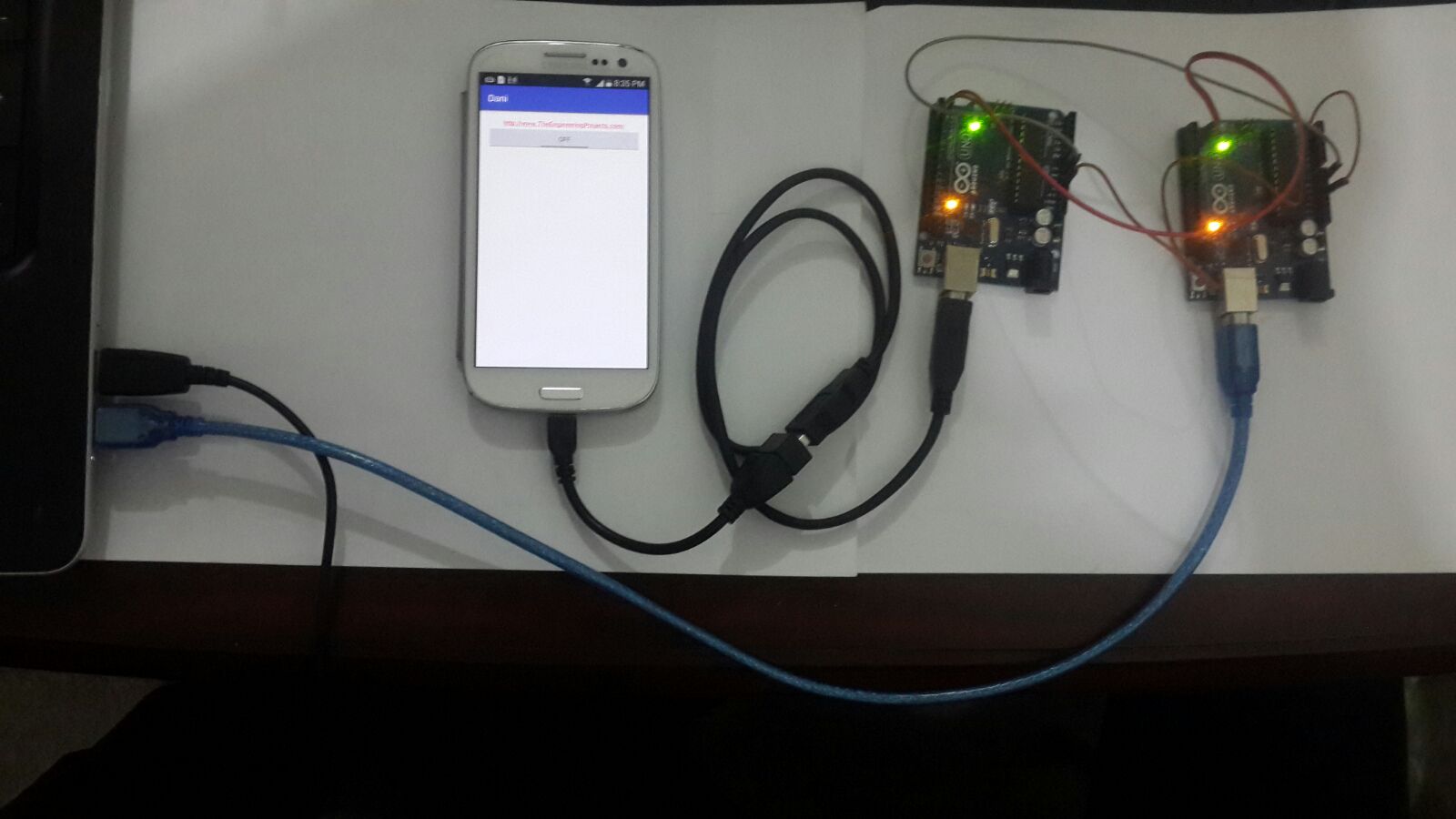
USB Communication between Android and Arduino


Hello friends! Today we will connect an Android phone to an Arduino through USB and exchange commands in both directions. This is useful when you want a wired control panel, a portable instrument display or a direct connection without configuring Bluetooth or Wi-Fi.
We will start with one classic Arduino Uno and a small LED-control sketch. After that, we will revisit the original two-Arduino arrangement, which lets a computer monitor the bytes travelling through the phone connection. The second board is a debugging aid, not a requirement for Android communication.
The important details are the phone's USB host support, the board's USB interface, permission to open the device and a clearly defined message format. Once these are understood, we can build a useful connection without treating USB as a mysterious pair of wires.
How Android and Arduino Communicate over USB
In this arrangement, the Android device acts as the USB host and the Arduino appears as a USB device. The host discovers the connected device and manages communication. A classic Uno uses a separate USB-to-serial interface to carry the sketch's Serial data between USB and the ATmega328P UART.
This is why we do not need an Arduino USB Host Shield for this tutorial. A host shield belongs to a different arrangement in which the Arduino must control a USB peripheral. Here, the phone already performs that host role.
The original Uno R3 uses an ATmega16U2 interface, while compatible boards may use CH340, CP210x or another bridge. Their connectors can look similar even though their USB protocols differ. The Android application needs a compatible driver, not merely permission to access any bulk endpoint.
Android documents discovery, permission requests and device communication in its USB host guide. Host support is not guaranteed on every Android device. Check the phone's capabilities before spending time debugging the Arduino sketch.
Parts and Software Required
| Item | Purpose |
|---|---|
| Android phone or tablet with USB host support | Runs the control or terminal application |
| Compatible host adapter or data cable | Connects the phone to the Arduino USB connector |
| Classic Arduino Uno | Receives commands and returns acknowledgements |
| Arduino IDE | Compiles and uploads the sketch |
| USB serial terminal application | Checks the connection before custom app development |
| Optional second Uno and jumper wires | Monitors data on a computer |
The older photographs use a micro-USB OTG adapter and an Arduino USB cable. A newer phone may require USB-C instead. Choose an adapter that supports the host role and data transfer; a charging-only cable cannot carry the messages.
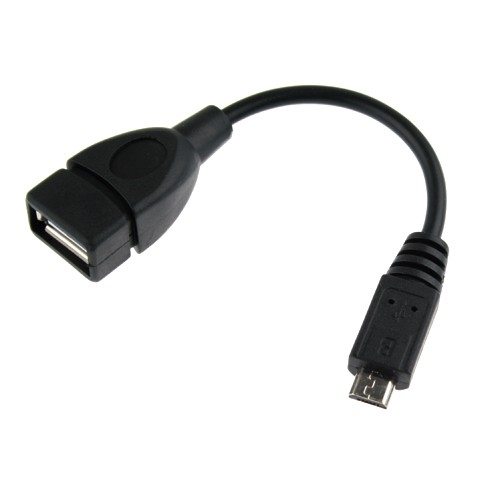
Do not identify a connector solely from a photograph or call every small USB plug “mini USB.” Match the connector to your actual phone. Avoid forcing a plug that appears similar but has a different shape.
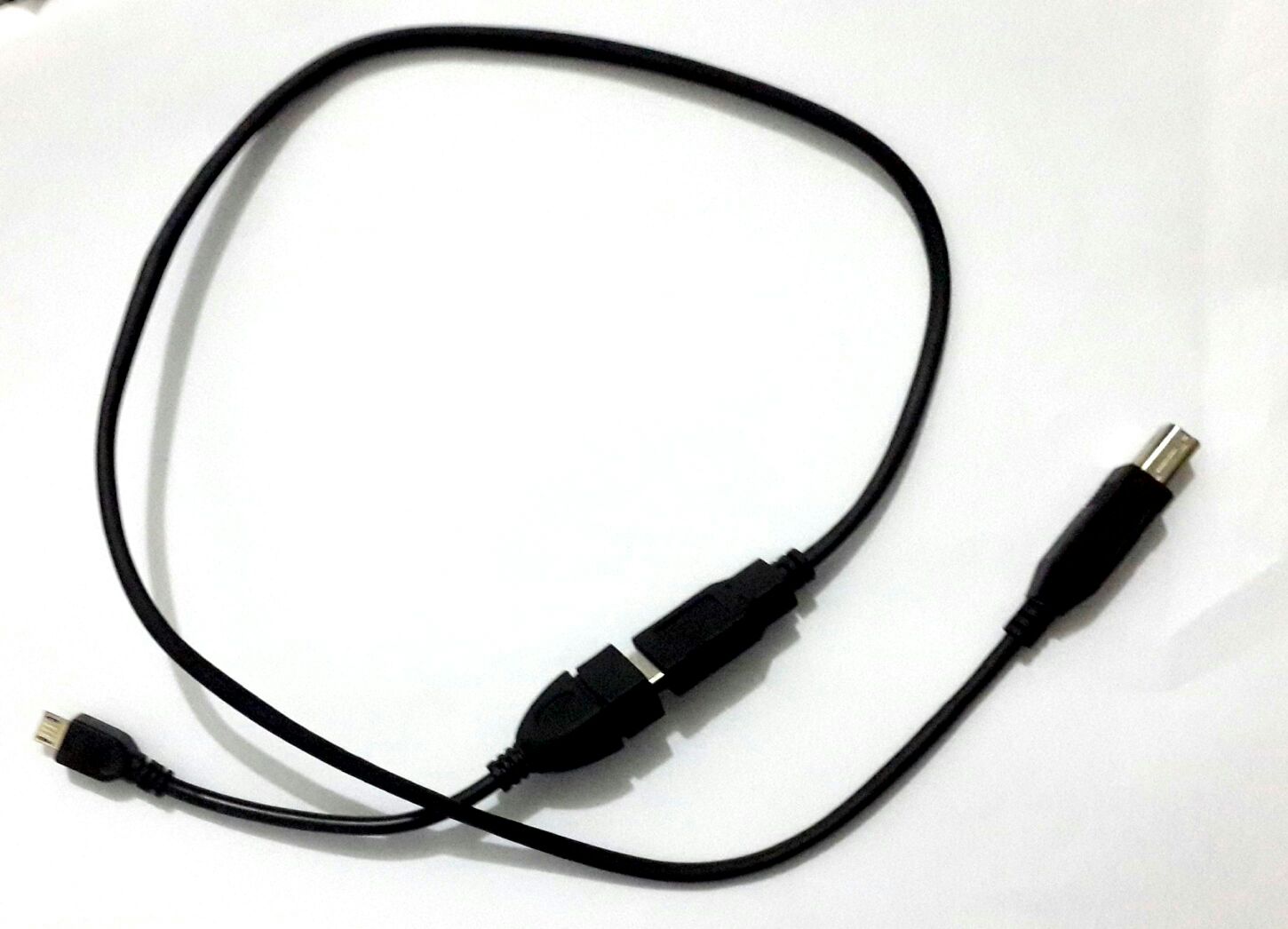
Begin with the bare Uno and its built-in LED. Motors, relay coils and other loads can exceed what the phone or adapter can supply. If a powered hub or external board supply becomes necessary, use hardware designed for that arrangement and avoid improvised connections between independent 5 V sources.
Define the Commands Before Writing the App
We will keep the original tutorial's character commands: the character 1 switches the built-in LED off, and the character 2 switches it on. A question mark asks for the current state. Every accepted command receives a short text reply.
| Character sent | Byte value | Meaning | Example reply |
|---|---|---|---|
| 1 | 49 decimal, 0x31 hexadecimal | LED off | LED=0 |
| 2 | 50 decimal, 0x32 hexadecimal | LED on | LED=1 |
| ? | 63 decimal, 0x3F hexadecimal | Read current state | LED=0 or LED=1 |
The character '1' is not the same byte as the numeric value 1. This distinction matters when an app offers both text and hexadecimal send modes. In text mode, enter 1 or 2. In hexadecimal mode, send 31 or 32 for the same commands.
The commands set an absolute state instead of toggling the previous state. Sending 2 twice therefore leaves the LED on. This makes retries easier to reason about: a duplicated message does not unexpectedly undo the first command.
Upload the Arduino Command-and-Reply Sketch
Connect the Uno to your computer, select its board and port, and upload the following sketch. It uses the built-in LED, so no external LED resistor or breadboard wiring is required for this first experiment.
bool ledOn = false;

void reportState() {
  Serial.print(F("LED="));
  Serial.println(ledOn ? 1 : 0);
}

void setup() {
  digitalWrite(LED_BUILTIN, LOW);
  pinMode(LED_BUILTIN, OUTPUT);
  Serial.begin(9600);
  Serial.println(F("READY: 1=OFF 2=ON ?=STATE"));
}

void loop() {
  while (Serial.available() > 0) {
    const int command = Serial.read();
    if (command == '1' || command == '2') {
      ledOn = (command == '2');
      digitalWrite(LED_BUILTIN, ledOn ? HIGH : LOW);
      reportState();
    } else if (command == '?') {
      reportState();
    } else if (command != '\r' && command != '\n') {
      Serial.println(F("ERR: use 1 2 or ?"));
    }
  }
}
First check it with the computer's Serial Monitor at 9600 baud. Send 2, check the LED, send 1 and check it again. The sketch ignores carriage return and line feed, so the terminal's line-ending setting does not accidentally generate error replies.
The state acknowledgement confirms that the sketch processed a command. It is stronger evidence than a phone button changing its appearance. For a real actuator, however, a software acknowledgement still does not prove physical movement; that requires appropriate feedback from the controlled equipment.
Establish the First Phone Connection
- Disconnect the Uno from the computer after uploading.
- Connect it to the phone through the compatible host adapter.
- Open a USB serial terminal that supports the board's USB interface.
- Select the detected device and allow the requested USB access.
- Set 9600 baud, eight data bits, no parity and one stop bit.
- Open the port, allow the board to finish any automatic reset, then send a question mark.
- Send 2 and 1 and compare the replies with the LED state.
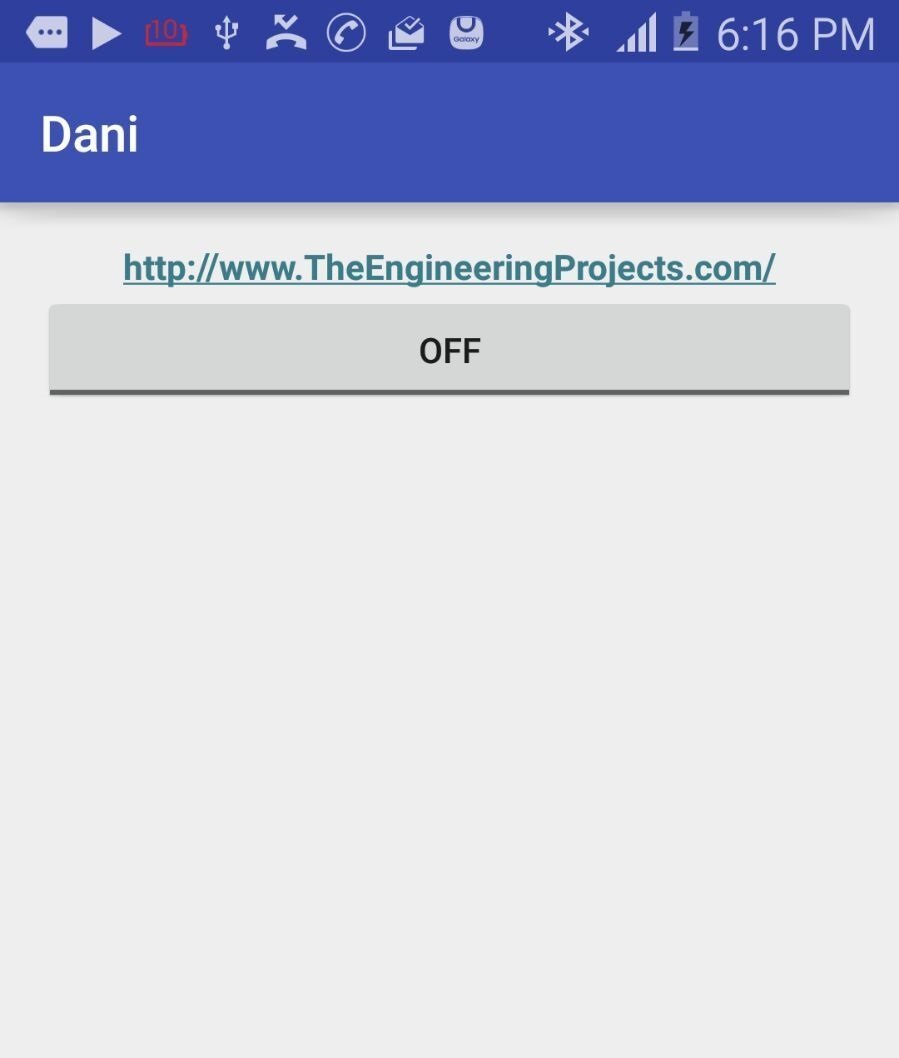
The open-source SimpleUsbTerminal project provides a practical reference application and source code. Use its documented installation or build workflow. Its interface may differ from the old toggle-button screenshot retained later in this tutorial.
Opening a serial connection can change control signals and reset some Arduino boards. The startup banner may arrive before the app begins displaying received bytes. Sending ? after connection gives us a repeatable check even if that banner was missed.
If the app requires a control-line setting for your board, follow its driver documentation. Do not repeatedly reconnect the port for every button press. Maintain one connection while the device is in use and close it when the session ends.
Why the Old Raw-USB Approach Needed Updating
Finding one input endpoint and one output endpoint is not enough to implement every USB serial device. A serial bridge also needs its device-specific configuration. Simply sending bytes to an arbitrary interface can fail even when the cable and Arduino code are correct.
The maintained usb-serial-for-android library supplies drivers for supported USB serial hardware and exposes serial-port operations. Its examples show discovery, opening a port, setting parameters, reading and writing. Use those supported interfaces rather than assuming all Uno-compatible boards share one USB implementation.
The original Android listing also used an obsolete activity class and referenced a receive widget that was never initialized. Reusing that listing unchanged would mix communication faults with application crashes. Start from a current Android project or the maintained terminal example, then add the control screen.
Build the Custom Android Control Screen
You can keep the original simple interface: a connection indicator, an On button, an Off button and a received-message area. Disable the command buttons until the port is open. Distinguish “command sent” from “state confirmed” so the display does not claim a result before the acknowledgement arrives.
For background preparation, our Android Studio installation tutorial and Getting Started with Android introduce the development environment. Follow current Android tooling for project templates and SDK configuration; the historical screenshots are not a fixed specification.
Add the USB serial library according to its repository instructions and pin the version used by your project. Do not copy a random dependency version from an old article and assume that its API matches a newer example.
The application manifest should declare USB host use. This declaration describes a hardware feature; it does not grant access to every connected device. If you use automatic attachment handling, provide an appropriate device-filter resource and keep it consistent with the manifest reference.
<uses-feature
    android:name="android.hardware.usb.host"
    android:required="true" />
Place that declaration inside the manifest element, outside the application element. A product that can operate without USB may instead make the feature optional and check availability at runtime. For this dedicated USB experiment, requiring the feature communicates the intended hardware dependency.
Follow the connection lifecycle
- Enumerate the attached devices and present the supported choices.
- Check permission for the selected device.
- Request access when needed and wait for the permission result.
- Open the matching driver and serial port on a worker thread.
- Configure the serial parameters and start receiving.
- Enable controls only after initialization succeeds.
- Stop receiving and close the port on disconnect or session shutdown.
A permission request is asynchronous. Do not call it and immediately assume permission has been granted. The user may deny access, disconnect the board or connect another device while the dialog is open. Check the returned device and current connection state before proceeding.
Use the Android USB host documentation for the permission receiver and PendingIntent pattern, and the current SDK guidance for receiver registration. Do not treat USB access as an ordinary manifest permission that can be permanently enabled by adding a single line.
Send the same bytes as the Arduino expects
For an already opened UsbSerialPort from the library, the following Java helper expresses our command mapping. Call it from the application's serialized I/O worker. It is an integration fragment, not a complete Activity or a replacement for permission and lifecycle handling.
import java.io.IOException;
import com.hoho.android.usbserial.driver.UsbSerialPort;

static void writeLedCommand(UsbSerialPort port, boolean on)
        throws IOException {
    byte[] command = { (byte) (on ? '2' : '1') };
    port.write(command, 1000);
}
A finite timeout prevents a disconnected device from holding a write indefinitely. Handle the exception by reporting the connection failure and disabling controls. Do not silently convert every failure into a successful button state.
Keep USB operations off the UI thread and marshal display changes back to the main thread. The library's FAQ discusses common connection and data-handling issues. Its complete example is the appropriate starting point for connection persistence across screen rotation.
Receive Complete Messages, Not Assumed Packets
Serial communication is a byte stream. One callback might contain half a reply, several replies or a reply together with part of the next one. USB transfer boundaries do not define application messages.
For our replies, accumulate bytes until a line-feed character arrives, remove an optional preceding carriage return, then interpret the completed line. Limit the accumulator length, for example to 64 bytes for this small protocol, and discard an overlong line until its terminator arrives.
A reply such as LED=1 can therefore be delivered as LE followed by D=1 and a line ending without being an error. Conversely, LED=1 followed immediately by LED=0 represents two state reports, not one unusually long state value.
For a larger project, add command identifiers so acknowledgements can be matched to requests. A bounded retry policy and a visible disconnected state are more useful than repeatedly sending commands forever. Never retain an old “connected” indication after the cable has been removed.
Monitor the Link with a Second Arduino
The original experiment forwarded phone traffic through a second Uno to a computer. This is still a useful way to observe bytes independently of the Android screen. Replace the LED sketch with the bridge below on both boards when performing this separate experiment.
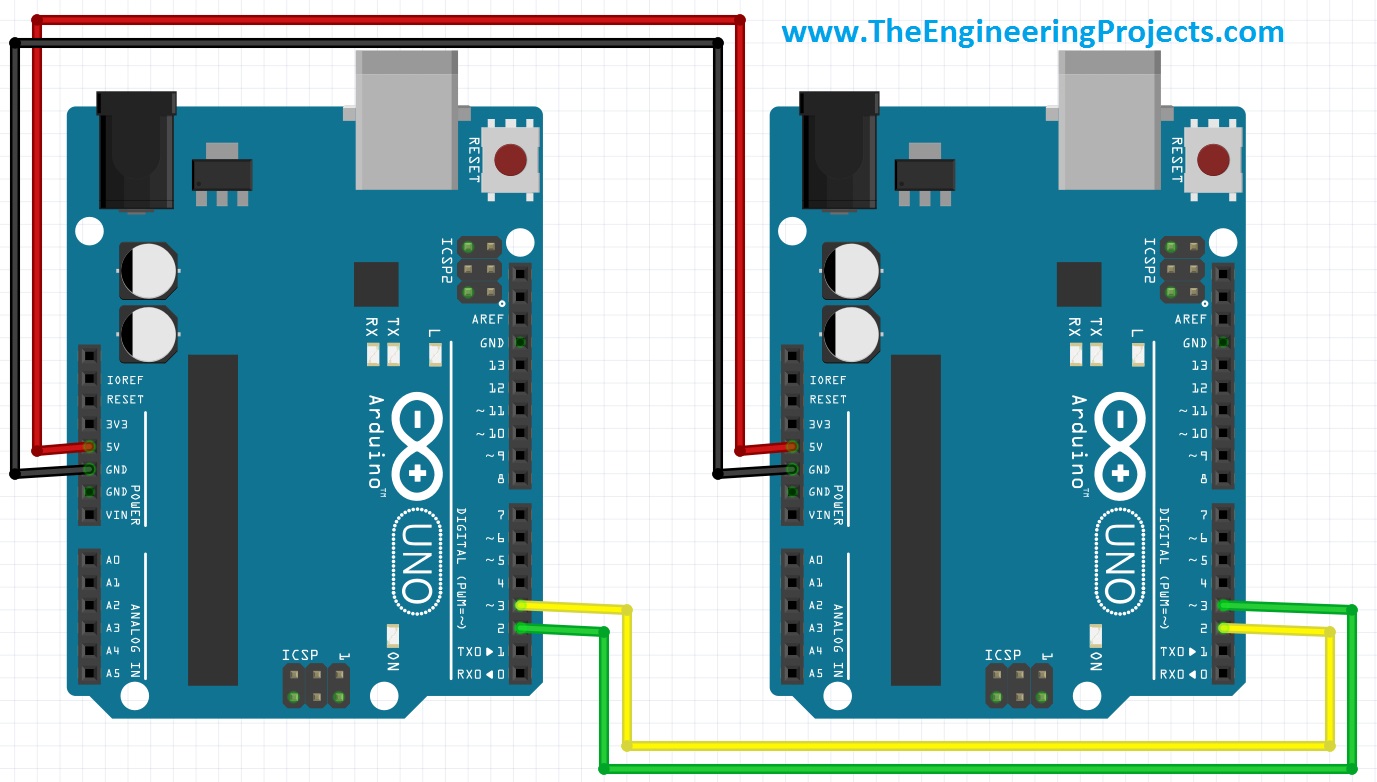
| Phone-connected Uno | Computer-connected Uno |
|---|---|
| D3, software transmit | D2, software receive |
| D2, software receive | D3, software transmit |
| GND | GND |
The boards share a signal ground, but leave their 5 V pins unconnected when each board is already powered by its own USB connection. These connections are intended for two compatible 5 V Uno boards; use suitable level translation when connecting devices with different logic-voltage limits.
#include <SoftwareSerial.h>

SoftwareSerial monitorLink(2, 3); // RX, TX

void setup() {
  Serial.begin(9600);
  monitorLink.begin(9600);
}

void loop() {
  if (Serial.available() > 0) {
    monitorLink.write((uint8_t)Serial.read());
  }
  if (monitorLink.available() > 0) {
    Serial.write((uint8_t)monitorLink.read());
  }
}
The write method forwards a byte without changing its meaning. The earlier expression read() - 48 assumed every byte was an ASCII digit, while println added line endings. That transformed the traffic instead of transparently monitoring it.
Keep messages short and send them slowly for this SoftwareSerial demonstration. It is not a lossless high-throughput USB analyzer. Software timing, receive buffering and simultaneous activity can lose data; use hardware UARTs or an appropriate analyzer for demanding measurements. Arduino's SoftwareSerial documentation describes the library's constraints.
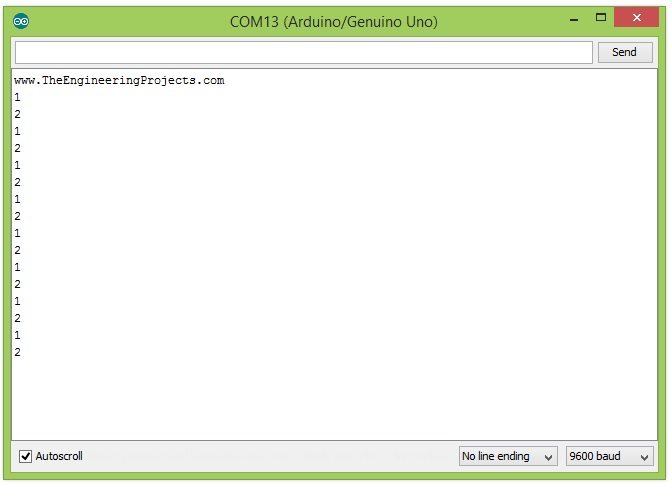
The retained terminal screenshot belongs to the original experiment. With the corrected byte-preserving bridge, repeated text characters may appear adjacent because the bridge no longer inserts a new line after every byte. That difference is expected.
Estimate the Available Data Rate
At 9600 baud with eight data bits, no parity and one stop bit, each UART byte normally occupies ten transmitted bits: one start bit, eight data bits and one stop bit. The ideal UART payload ceiling is therefore 9600 / 10 = 960 bytes per second.
A 24-byte report needs about 24 x 10 / 9600 = 0.025 seconds of UART transmission time. USB scheduling, driver buffering, application processing and software serial can add latency. This estimate is a starting point, not a promise that the phone receives each report exactly 25 milliseconds later.
Keep periodic reporting below the link's sustainable capacity. Faster reporting can fill buffers even though an individual command is only one byte. Measure the complete message stream, including labels and line endings, when choosing a reporting interval.
Troubleshooting and Practical Review
Before adding more controls, try a short acceptance sequence. Send 2 twice and confirm two LED=1 replies without an unwanted toggle. Send an unsupported character such as X and confirm the error message without a state change. Disconnect the cable while the app is waiting for a reply and check that it reports the lost connection. Reconnect, obtain permission when requested and query the actual state again.
Also test a screen rotation and an app return from the background. Decide whether your application deliberately closes the session or keeps it in a service; either behavior needs a clear status display. Reconnection should never depend on an old UsbDeviceConnection object remaining valid.
| Symptom | First checks |
|---|---|
| No USB device appears | Host support, host adapter, data cable and available power |
| Device appears but cannot open | Permission result, supported driver and another app holding the port |
| Replies are unreadable | Matching baud rate and framing settings |
| Phone button changes but LED does not | Actual transmitted character, open port and Arduino acknowledgement |
| First command disappears | Automatic reset and startup readiness |
| Data stops after rotating the screen | Connection ownership and lifecycle cleanup |
| Two-board monitor changes the data | Use write rather than numeric conversion or println |
Work through the link in stages: verify the Arduino sketch on the computer, prove the phone connection with a terminal, then add the custom Android interface. This separates electrical, driver, protocol and screen problems so each observation tells us something useful.
Frequently Asked Questions
Does this need Bluetooth or an internet connection?
No. The command data travels through the USB connection. Downloading development tools is a separate activity.
Do I need root access on Android?
The supported USB host and user-space serial-driver approach does not require rooting the phone. It does require compatible hardware and device-access permission.
Can I send sensor values back to the phone?
Yes. Replace or extend the state report with bounded messages containing named values and units. Keep the receive parser aware that messages can arrive in fragments.
Why does the board reset when I connect?
Some boards couple serial control-line changes to reset. Allow startup to complete and query readiness instead of assuming the first write will reach the running sketch.
Can the second Arduino be removed?
Yes. It exists only for the separate monitoring experiment. The LED-control sketch and Android terminal communicate directly using one board.

Tags


helloo hope ur fine. its realy awesome communication :) but its a 1 way communication can u send a code which allow arduino sensor data to display on android device plx
Can you provide me the arduino-android communication. So how to read data from arduino in android? I'm trying it out and I'm stuck. Is for an univseristy project.
Thanks
sir , i want to send hex file to arduino through usb .is it posible?
1 reply
Yes it is possible but its quite complicated and the hex file won't be sent to Arduino but instead you can send it to Atmega but you will also need the programmer to program your hex file.
Hi,
Here you didn't use any usb codes for first Arduino, instead of this you just use serial codes. So i think your cable was a usb to serial (uart) converter. So all complex interactions between the Android and Arduino was done by the converter, not Arduino.
My question is , is it possible to communicate an Android device (host) with any Microcontroller (client) via a cable(cable available with the phone charger) with mini male usb on Android side and normal male usb on Microcontroller side.
hoe to connect the android with arduino with description with detailed video description
Comments
11