


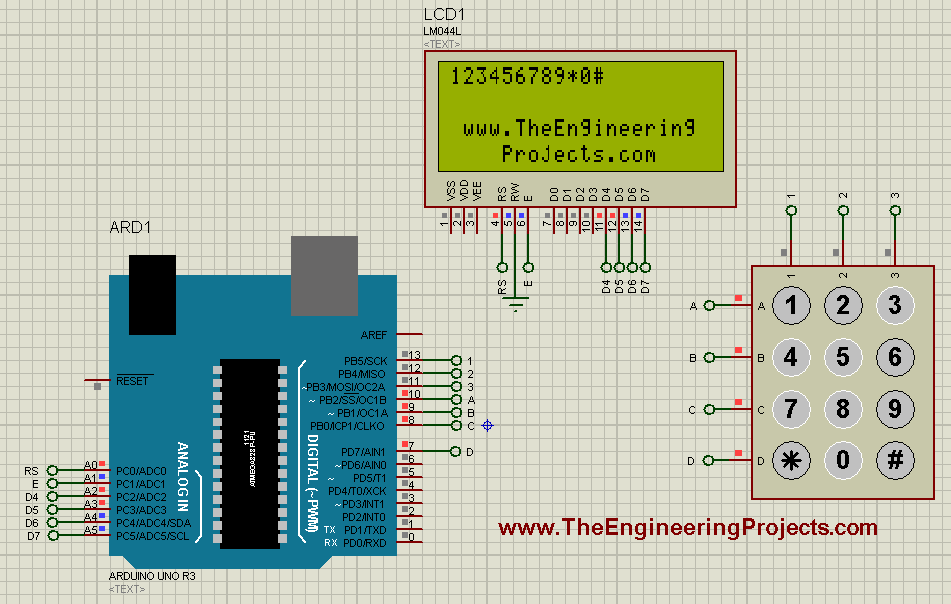
Interfacing of Keypad with Arduino


Hello friends! In this tutorial, we will interface a matrix keypad with Arduino Uno and show each pressed key on a 20x4 LCD in Proteus. We will begin with the keypad's internal connections, then build the circuit and write a sketch that keeps the displayed text within a defined area.
A keypad is useful when a project needs several related buttons, such as digits for a calculator or commands for a menu. A matrix arrangement reduces the number of controller connections compared with giving every button its own dedicated input.
Our example uses twelve keys arranged in four rows and three columns. We will preserve the original circuit's pin assignments, explain how the Keypad library scans them, and check common mistakes such as reversed connector order, repeated characters and LCD overflow.
How a Matrix Keypad Works
A passive matrix keypad consists of switches located at row-column intersections. Pressing a key closes the connection between one row and one column. The controller identifies that intersection and translates it into a character.
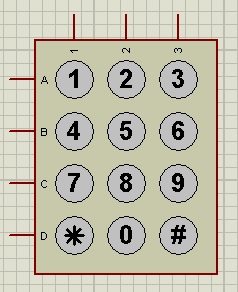
For R rows and C columns, the matrix contains R x C keys and uses R + C matrix connections. Our 4x3 keypad therefore provides 4 x 3 = 12 keys through 4 + 3 = 7 connections.
Compared with twelve individually wired input signals, that saves five signal pins. A 4x4 matrix provides sixteen keys using eight matrix connections. The saving comes from sharing conductors, which also means that the software must scan the matrix rather than treating each conductor as one independent button.
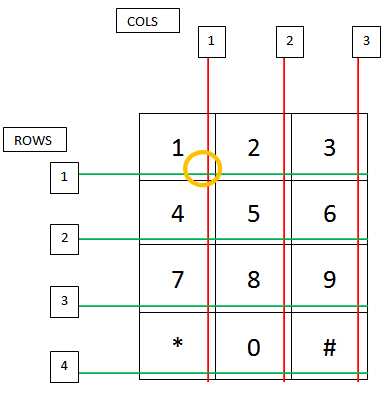
In the usual telephone-style layout, key 1 joins the first row and first column, while key 8 joins the third row and second column. The row and column numbers describe electrical positions; the printed character is assigned by our keymap.
The keypad does not inherently know that a particular intersection means 8. We could assign a different character to that position in software. This is useful for custom control panels, but it also means a wrong keymap can produce incorrect characters even when every switch works electrically.
Scanning and Debouncing
The Keypad library implementation configures row inputs with pull-ups and activates columns in turn. A pressed switch allows the active column state to be observed on the corresponding row.
Mechanical contacts can bounce briefly as they close or open. The library maintains key states and uses a configurable debounce interval so the application can work with key events rather than reacting directly to every electrical transition.
Our sketch uses getKey(), which reports a new press through the single-key interface. It does not intentionally print an endless stream of the same character while a key remains held. Applications that need multiple simultaneous keys or hold events should use the appropriate library state handling.
Keep the main loop responsive. A keypad cannot be scanned while your program is spending a long time in unrelated blocking work. Debouncing does not compensate for a program that looks at the inputs too infrequently.
Identify the Keypad Connector
The seven conductors of a passive 4x3 keypad represent four rows and three columns. Their order on a physical ribbon connector is not universal. Use the keypad documentation or determine the switch connections with a continuity test while the keypad is disconnected from power.
For example, identify the pair of conductors joined by key 1, then compare keys 2 and 3 to find the shared row. Continue with the remaining rows and record the mapping. Do not assume that the leftmost ribbon contact must be row 1.
A module with an encoder or I/O expander is a different product. It may expose supply and communication pins instead of the raw matrix lines. The seven-wire circuit in this article is for a passive matrix keypad.
Build the Proteus Circuit
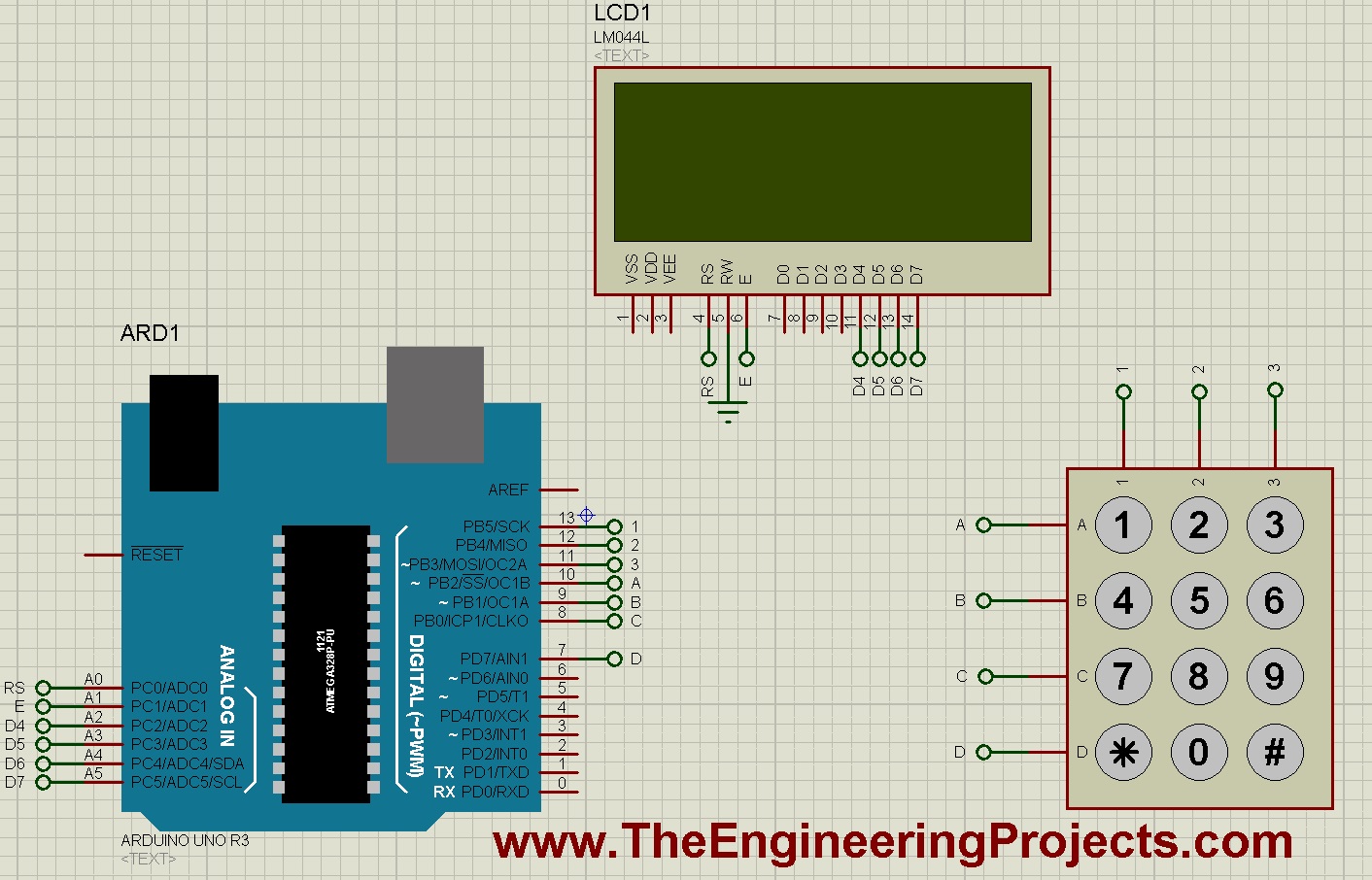
Place an Arduino Uno, a 4x3 keypad and a parallel 20x4 character LCD. The original schematic is shown below.
| Keypad line | Arduino pin | Keys associated with the line |
|---|---|---|
| Row 1 | D10 | 1, 2, 3 |
| Row 2 | D9 | 4, 5, 6 |
| Row 3 | D8 | 7, 8, 9 |
| Row 4 | D7 | *, 0, # |
| Column 1 | D13 | 1, 4, 7, * |
| Column 2 | D12 | 2, 5, 8, 0 |
| Column 3 | D11 | 3, 6, 9, # |
Match the ordering of the rowPins and colPins arrays to this table. A connector that is physically reversed can still respond to presses, but the resulting row-column combinations will no longer correspond to the intended labels.
The passive matrix does not need a separate supply pin in this arrangement. Its contacts connect the scanned Arduino lines. Do not attach a supply voltage to a row merely because you expected every component to have a VCC terminal.
Connect the LCD
We will use the Uno's A0 through A5 pins as digital outputs for the parallel display. The constructor assigns them in the order RS, Enable, D4, D5, D6 and D7.
| LCD connection | Arduino connection |
|---|---|
| RS | A0 |
| Enable | A1 |
| LCD D4 | A2 |
| LCD D5 | A3 |
| LCD D6 | A4 |
| LCD D7 | A5 |
| R/W | Ground |
Power the LCD according to its module requirements, connect a common ground and set the contrast using the appropriate potentiometer arrangement. A powered display showing solid blocks may still have an initialization, contrast or signal-wiring problem.
A4 and A5 are occupied by this parallel LCD mapping. If you later add an I2C device using those pins on the Uno, revise the allocation instead of connecting two unrelated functions to the same signals.
Our LCD and Arduino tutorial explains the display connection separately. Establishing a simple fixed text display first is a useful way to isolate LCD faults from keypad faults.
Install the Libraries
Use the Keypad library by Mark Stanley and Alexander Brevig, available through the Keypad project, and Arduino's LiquidCrystal library for the parallel display.
Check the selected library names when compiling. A similarly named I2C LCD library is not a drop-in replacement for the parallel constructor used here. If the IDE reports multiple matching libraries, inspect the chosen path before adding more copies.
We will keep the two tasks separate in the sketch: the keypad produces a character event, and the display routine decides where that character belongs. That separation makes later changes to the user interface easier.
Arduino Code for Keypad and LCD
The first two LCD rows form a forty-character display area. After it fills, the next key begins a fresh area. The lower rows retain the project label, so input does not accidentally overwrite it.
#include <Keypad.h>
#include <LiquidCrystal.h>

const byte ROWS = 4;
const byte COLS = 3;
char keys[ROWS][COLS] = {
  {'1', '2', '3'},
  {'4', '5', '6'},
  {'7', '8', '9'},
  {'*', '0', '#'}
};
byte rowPins[ROWS] = {10, 9, 8, 7};
byte colPins[COLS] = {13, 12, 11};
Keypad keypad(makeKeymap(keys), rowPins, colPins, ROWS, COLS);
LiquidCrystal lcd(A0, A1, A2, A3, A4, A5);
byte nextCell = 0;

void clearInputArea() {
  for (byte row = 0; row < 2; ++row) {
    lcd.setCursor(0, row);
    lcd.print("                    ");
  }
  nextCell = 0;
}

void setup() {
  Serial.begin(9600);
  lcd.begin(20, 4);
  keypad.setDebounceTime(25);
  clearInputArea();
  lcd.setCursor(0, 2);
  lcd.print("The Engineering");
  lcd.setCursor(0, 3);
  lcd.print("Projects: keypad");
}

void loop() {
  const char key = keypad.getKey();
  if (key == NO_KEY) {
    return;
  }
  if (nextCell >= 40) {
    clearInputArea();
  }
  lcd.setCursor(nextCell % 20, nextCell / 20);
  lcd.print(key);
  ++nextCell;
  Serial.print("Key: ");
  Serial.println(key);
}
The keymap is a two-dimensional character array. The first index selects the row and the second selects the column. Its dimensions must agree with ROWS, COLS and the numbers of entries in the pin arrays.
NO_KEY means that no new key event is available. Returning from loop() in this case does not stop Arduino; the framework calls loop() again, allowing repeated scans without a long delay.
The expression nextCell % 20 gives the column, while integer division nextCell / 20 gives row 0 or 1. For example, cell 23 is column 3 of row 1. Both LCD coordinates are zero-based.
The fortieth character remains visible until another key arrives. Only then do we clear the two input rows and start again. This avoids erasing the last character immediately after displaying it.
The asterisk and hash are printed like other keys in this demonstration. They do not secretly mean clear or enter. We can assign those functions later when we build an input interface.
Compile and Run the Simulation
- Select Arduino Uno in the Arduino IDE.
- Compile the sketch with the two libraries available.
- Export the compiled application HEX file.
- Set the Arduino model's program property to that file.
- Check the model clock against the Uno target, normally 16 MHz.
- Start the simulation and confirm the fixed LCD text.
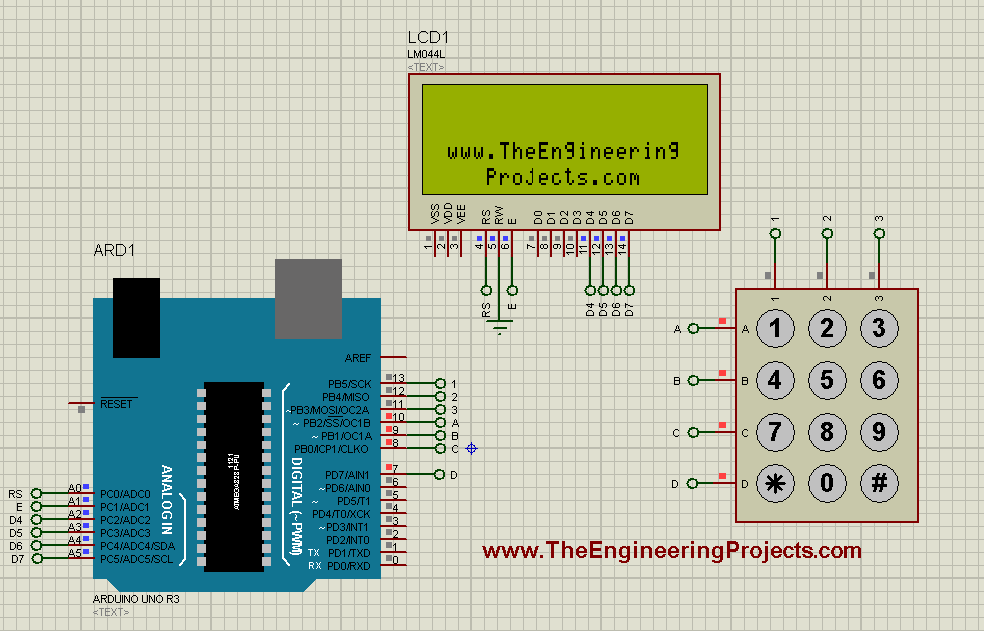
The original screenshot shows the earlier startup layout. The revised sketch keeps a dedicated label area but gives the input region explicit boundaries. If the fixed text is missing, check the LCD independently before investigating keypad scanning.
Our Arduino HEX-file guide explains how the compiled program reaches Proteus. Editing a sketch without rebuilding it does not change the code already selected by the simulation model.
Test Every Key
Press and release the keys in a known sequence, such as 1 through 9 followed by asterisk, zero and hash. Compare the displayed characters with the physical labels.
The retained result illustrates the original keypad-to-LCD behaviour. Test one key at a time first. This gives a direct check of the wiring and keymap without introducing simultaneous-key ambiguity.
Next hold one key down. The simple event-based sketch should not intentionally repeat the character continuously. Release it fully and press again to produce another event.
Finally, enter more than forty characters to exercise the defined display boundary. The next key after the full area should clear only the upper two rows and appear at the first position.
Diagnose Wrong Characters Systematically
If every key in one row is shifted to another row, inspect the row-array order and physical row connections. If the left and right columns are swapped, inspect the column order. These patterns are more informative than randomly exchanging wires.
A whole row or column that never responds often points to one missing conductor. A single key that fails while its row and column work elsewhere may indicate that switch or its local connection.
Use the serial output as a second observation path. If serial shows the correct key but the LCD is wrong, focus on the display code and wiring. If both show the wrong character, focus on the matrix mapping or input interpretation.
From Characters to a Numeric Entry
A calculator or menu needs an input rule in addition to a keypad scanner. Decide which keys are digits, which key confirms an entry, which clears it, and how many digits are allowed.
A common design uses hash to confirm and asterisk to clear. For an eight-digit entry, reserve nine character positions in a C-style buffer: eight for the digits and one for the terminating null character.
Before appending a digit, check that the current length is below the limit. After appending, write the terminator at the new end. If the entry is full, reject the additional digit with a clear indication instead of writing past the buffer.
Keep entry text separate from the numeric value when leading zeroes matter. The sequence 0012 can be a four-character identifier even though its numerical value is twelve. Converting it too early loses that distinction.
For numerical accumulation, the next value is 10 x current value + new digit. Entering 3, 7 and 2 therefore produces 3, then 37, then 372. Check the destination type's range before multiplying and adding.
For a nonnegative maximum M and next digit d, an overflow check can use current value greater than (M - d)/10, with integer division and suitable unsigned types. This prevents an oversized entry from wrapping into a smaller apparently valid number.
Handle Simultaneous Keys Deliberately
Basic matrix keypads without isolation diodes can exhibit ghosting for certain combinations of simultaneous presses. Electrical paths through several closed switches can make another intersection appear active.
The presence of a library with multi-key support does not automatically remove that hardware ambiguity. A numerical-entry interface can require one key at a time; an application that needs chords should choose suitable hardware and handle key states explicitly.
Do not use this display demonstration as evidence that a finished access-control system is secure. It demonstrates input scanning and presentation. Authentication, storage, lockout behaviour and actuator control are separate design tasks.
Keep the Main Loop Responsive
Imagine adding a one-second delay after every key. A quick second press during that interval may be missed because the keypad is not being scanned. The screen may look tidy while the interaction feels unreliable.
Use elapsed-time scheduling for later tasks such as blinking a cursor or clearing a temporary message. Keep keypad polling frequent and let each task perform a small amount of work before returning.
The selected debounce setting is a starting point for this example, not a guarantee for every switch and wiring arrangement. Check the real keypad under ordinary press speeds, long holds and rapid repeated presses.
For a physical build, secure the ribbon cable and provide strain relief where necessary. An intermittent connector can imitate software bounce, but increasing the debounce interval will not repair a loose conductor.
Review the Pin Budget
The keypad uses seven signals and the four-bit parallel LCD uses six, for thirteen Arduino signal connections. The matrix saves pins compared with twelve separate buttons, but the complete interface still occupies a substantial portion of the Uno's available I/O.
Before adding another module, list the existing assignments. In this circuit, D10 through D13 are already used by the keypad, while A4 and A5 are used by the LCD. A later SPI or I2C addition may therefore require a different allocation or interface arrangement.
That planning step is easier than debugging two devices that independently work but conflict when combined. A pin can have several possible functions, but your circuit cannot assume that unrelated functions are available on it simultaneously.
Troubleshooting
Keep a small test record when moving from Proteus to hardware. For each physical key, note the expected character, the character actually received and whether one press produced exactly one event. Repeat the sequence after gently repositioning the cable to reveal intermittent connections.
Also test the display boundary separately from the keypad mapping. A sequence that works for twelve characters can still fail when the cursor reaches the end of a row. Check the twentieth, twenty-first, fortieth and forty-first characters explicitly because they exercise the transitions in this sketch.
If you later change the display dimensions, recalculate these boundaries rather than changing only lcd.begin(). The number of columns, the number of reserved input rows and the clearing routine must describe the same layout. A correct keypad event can still be lost from view when those display assumptions disagree.
| Symptom | Check first |
|---|---|
| No keys detected | Matrix connections, library selection and loaded HEX file |
| Wrong character for every key in a row | Row pin order |
| Left and right keys exchanged | Column pin order |
| Correct serial output but bad LCD output | LCD mapping, contrast and cursor handling |
| Quick presses missed | Blocking delays and polling frequency |
| Unexpected multi-key results | Ghosting and unsupported simultaneous-input assumptions |
Frequently Asked Questions
Can I use a 4x4 keypad?
Yes. Add the fourth column connection, update COLS, the keymap and the column-pin array, and check that the new pin does not conflict with another device.
Why are A0 through A5 used for the LCD?
On the Uno, these pins can serve as digital I/O. Here they provide the six signals needed by the parallel LCD interface.
Why is a held key printed only once?
The sketch responds to a new press event. Deliberate repeat-on-hold behaviour would require an additional application rule.
Does hash automatically mean enter?
No. The keypad returns a character. Your program decides whether that character is displayed or used as a command.
What is a useful next project?
Add bounded numeric entry with clear and confirm actions. Keep the scanning, input validation and display routines separate so each behaviour remains easy to understand.

Tags


why in my aduino software not found keypad.h?
1 reply
You may not have the keypad library in your PC installed ..... Just download it from net zip file and add zip files in your arduino software
This code is not working in my software
Thanks for such a great project. It worked 100% perfect.
For all those who are facing error r=in keypad.h please import the keypad library in your arduino first
http://playground.arduino.cc/Code/Keypad
And those who are facing error /302
please do not copy paste this code, type the code your self especially the main and void functions
PLEASE I WANT THE CODE IN ASSEMBLY LANGUAGE MICROCHIP STUDIO
Comments
6