


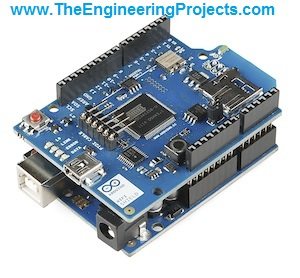
Getting Data From Webserver using Arduino Wifi


Hello friends! In this tutorial, we will learn how to get data from a web server using an Arduino UNO and the original Arduino WiFi Shield. We will use that data to switch two LEDs, so you can see how a command stored on a server becomes an action on a microcontroller.
There are two parts to this project: a web page that changes a command file, and an Arduino client that reads the file periodically. We will discuss both parts in the same order as the original project, with clearer wiring, a defined response format and checks that prevent an incomplete response from becoming an LED command.
This is a legacy-shield tutorial. The WiFi library and pin assignments described here belong to the original shield, not every board with WiFi in its name. We will first run the demonstration on a trusted local network; using it across the public internet requires a secure gateway or a suitable modern networking implementation.
How the Web-Controlled LED Project Works
The Arduino acts as a client. It opens a connection to a server, requests a small resource and reads the response. The server does not need a direct incoming connection to the Arduino. This polling arrangement is useful when the board is behind a home router, although it introduces a delay between clicking a button and seeing the result.
Our original interface had four buttons: LED 1 ON, LED 1 OFF, LED 2 ON and LED 2 OFF. Each button saved a command in a text file. The Arduino then translated that command into a digital output. We will preserve this simple command mapping while defining exactly which bytes the client expects.
| Server body | Action |
|---|---|
| 1* | Turn LED 1 on |
| 2* | Turn LED 1 off |
| 3* | Turn LED 2 on |
| 4* | Turn LED 2 off |
Each body contains exactly two ASCII bytes, with no extra newline or HTML. The asterisk is a terminator. It is not an instruction to search the entire HTTP response for any preceding digit. Status lines and headers must be handled before we interpret the body.
Components and Software
- Arduino UNO with its USB cable.
- The original Arduino WiFi Shield and its compatible firmware.
- Two LEDs and two series resistors, such as 680 ohms.
- A breadboard and connecting wires.
- Arduino IDE with the legacy WiFi library.
- A local web server accessible from the same network.
Check the exact shield before installing a library. The official Arduino WiFi library targets the original Arduino WiFi Shield. WiFi101, WiFiNINA and libraries supplied with other WiFi boards are different implementations. Similar function names do not make their hardware interchangeable.
Run the library's connection example before adding our LED logic. Confirm that the shield is detected, that it joins the intended network and that it receives an IP address. This separates a network setup problem from a problem in our HTTP parser.
Connect the LEDs Without Conflicting With the Shield
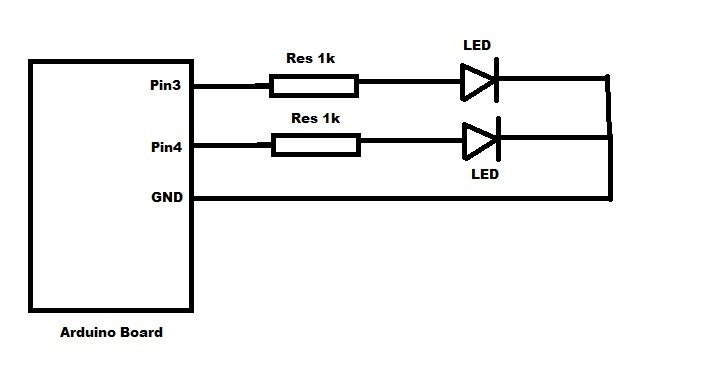
Switch off power before fitting the shield on the UNO. Align the headers carefully and check that no pin has moved outside its socket. Once the shield is fitted, use a breadboard for the LEDs so the wiring remains easy to inspect.
The original project used digital pins 3 and 4 for the LEDs. We will use pins 3 and 5 instead. On the original shield, pin 4 selects the SD card, so using it as an LED output creates an avoidable conflict. Keep the SD card deselected when it is not used.
| Connection | Destination |
|---|---|
| UNO digital pin 3 | 680-ohm resistor, then LED 1 anode |
| UNO digital pin 5 | 680-ohm resistor, then LED 2 anode |
| Both LED cathodes | UNO ground |
| UNO digital pin 4 | Reserved for SD selection; hold HIGH when unused |
| Shield communication pins | Leave available to the shield |
Arduino's WiFi library notes identify the UNO SPI pins as 11, 12 and 13, with pin 10 used for selection and pin 7 for the handshake. Do not attach these demonstration LEDs to those pins.
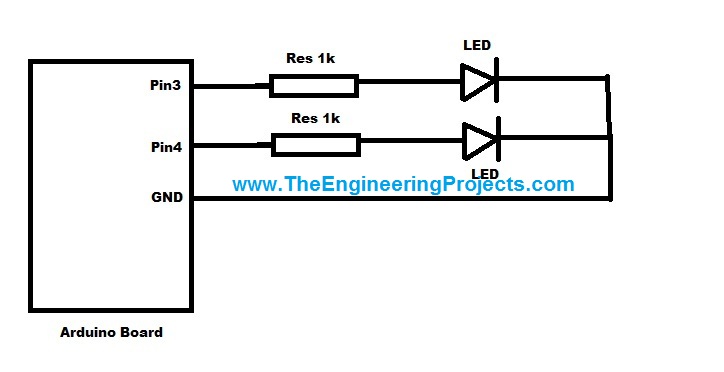
The next two original illustrations are retained for reference. Their earlier pin-4 connection is superseded by the table and sketch in this tutorial. Follow the updated wiring when assembling the circuit.
Calculate the LED Resistor
The resistor limits LED current; it is not a pull-down resistor. A first estimate is R = (Voutput - VLED)/I. For an approximately 5 V output, a red LED with a 2 V forward drop and a desired 5 mA current, R = (5 - 2)/0.005 = 600 ohms.
A 680-ohm standard value gives approximately 4.4 mA under those assumptions. Actual current depends on the LED and output voltage. A 10-kilohm resistor, as listed in the old project, would produce only about 0.3 mA with the same assumptions and may give a very dim indication. Never omit the series resistor.
Prepare the Web Server
Create a folder for the demonstration and place a file named data.txt inside it. Start with the exact contents 2* so the first accepted command turns LED 1 off. Open that resource from another device on the same network and check that it returns the two characters rather than a login page, error page or file-management screen.
The server must return HTTP status 200, a Content-Length of 2 and an uncompressed, non-chunked body. This deliberately small response contract keeps the UNO example understandable. Disable caching for the command resource, or ensure that each request receives the current contents. A web page showing a changed file is not sufficient evidence that an intermediary is serving the latest version.
The original project used a PHP control page to write the file when a button was pressed. Its project information remains linked from the Arduino WiFi web-server project page. The historical price and automatic mailing-list delivery are not assumed here. You can understand and test the client by editing data.txt manually before connecting a button interface.
When implementing that interface, allow only the four defined commands. The server should validate input, write the complete new value and report success only after the write succeeds. Use an atomic replacement or an appropriate locking strategy so a reader does not observe an empty file during an update.
Do not solve a file-permission failure by making the whole website writable. Grant only the necessary access to the intended application data location. For a deployed interface, authenticate users, protect state-changing requests and keep credentials out of public files. The LED demonstration does not supply a production authentication system.
Understand the HTTP Response Before Reading Commands
HTTP places metadata before the body. A blank line ends the header section. A response can also indicate redirection, an error or a different transfer encoding. The HTTP/1.1 message specification explains this framing. A digit found somewhere in a response is not automatically application data.
The sketch below accepts one deliberately restricted server response: HTTP/1.0 or HTTP/1.1 status 200, exactly one Content-Length field equal to 2, no Transfer-Encoding or Content-Encoding field, and a two-byte command body. Unsupported responses are rejected. It is a teaching client for your controlled endpoint, not a general-purpose HTTP library.
A small line buffer limits memory use, a header counter limits how many lines are accepted and a response deadline prevents waiting indefinitely for missing data after connection. Connection setup itself still depends on the legacy networking library's own timeout behaviour.
Arduino Sketch for Reading the Command
Replace the network name, password and server address with your own local settings. The example address is a placeholder for a server on your LAN. Do not use localhost: from the Arduino's point of view, localhost refers to the Arduino itself, not your computer.
#include <SPI.h>
#include <WiFi.h>
#include <string.h>
#include <strings.h>

char ssid[] = "YOUR_WIFI_SSID";
char pass[] = "YOUR_WIFI_PASSWORD";
char host[] = "192.168.1.50";
const char path[] = "/arduino/data.txt";
const byte led1 = 3, led2 = 5;
WiFiClient client;
unsigned long started;

int nextByte() {
  while (millis() - started < 5000UL) {
    if (client.available()) return client.read();
    if (!client.connected()) return -1;
    delay(1);
  }
  return -1;
}

bool readLine(char *line, size_t capacity) {
  size_t n = 0;
  for (;;) {
    int c = nextByte();
    if (c < 0) return false;
    if (c == '\n') {
      if (n && line[n - 1] == '\r') --n;
      line[n] = '\0';
      return true;
    }
    if (c == 0 || n + 1 >= capacity) return false;
    line[n++] = (char)c;
  }
}

bool readCommand(char &command) {
  char line[128];
  if (!readLine(line, sizeof(line))) return false;
  if (strncmp(line, "HTTP/1.1 200 ", 13) != 0 &&
      strncmp(line, "HTTP/1.0 200 ", 13) != 0) return false;
  bool hasLength = false, ended = false;
  for (byte i = 0; i < 24; ++i) {
    if (!readLine(line, sizeof(line))) return false;
    if (line[0] == '\0') { ended = true; break; }
    if (line[0] == ' ' || line[0] == '\t') return false;
    char *colon = strchr(line, ':');
    if (!colon) return false;
    *colon = '\0';
    char *value = colon + 1;
    while (*value == ' ' || *value == '\t') ++value;
    size_t len = strlen(value);
    while (len && (value[len - 1] == ' ' || value[len - 1] == '\t'))
      value[--len] = '\0';
    if (strcasecmp(line, "Transfer-Encoding") == 0 ||
        strcasecmp(line, "Content-Encoding") == 0) return false;
    if (strcasecmp(line, "Content-Length") == 0) {
      if (hasLength || strcmp(value, "2") != 0) return false;
      hasLength = true;
    }
  }
  if (!ended || !hasLength) return false;
  int first = nextByte(), second = nextByte();
  if (first < '1' || first > '4' || second != '*') return false;
  command = (char)first;
  return true;
}

void applyCommand(char c) {
  switch (c) {
    case '1': digitalWrite(led1, HIGH); break;
    case '2': digitalWrite(led1, LOW); break;
    case '3': digitalWrite(led2, HIGH); break;
    case '4': digitalWrite(led2, LOW); break;
  }
}

void setup() {
  pinMode(led1, OUTPUT); pinMode(led2, OUTPUT);
  digitalWrite(led1, LOW); digitalWrite(led2, LOW);
  pinMode(4, OUTPUT); digitalWrite(4, HIGH);
  Serial.begin(9600);
  if (WiFi.status() == WL_NO_SHIELD) {
    Serial.println(F("WiFi shield not detected"));
    while (true) delay(1000);
  }
}

void loop() {
  if (WiFi.status() != WL_CONNECTED) {
    WiFi.begin(ssid, pass);
    delay(10000);
    return;
  }
  if (client.connect(host, 80)) {
    client.print(F("GET ")); client.print(path);
    client.println(F(" HTTP/1.1"));
    client.print(F("Host: ")); client.println(host);
    client.println(F("Connection: close"));
    client.println(F("Cache-Control: no-cache"));
    client.println();
    started = millis();
    char command;
    if (readCommand(command)) {
      applyCommand(command);
      Serial.print(F("Accepted command: ")); Serial.println(command);
    } else {
      Serial.println(F("Response rejected or timed out"));
    }
  } else {
    Serial.println(F("Server connection failed"));
  }
  client.stop();
  delay(2000);
}
Run the Project in Stages
- Confirm that each LED works with a simple local output sketch.
- Run the official shield connection example and check the assigned address.
- Prepare data.txt and inspect the response headers and exact body on your computer.
- Upload the client sketch with your network and server settings.
- Open Serial Monitor at 9600 baud and wait for an accepted command.
- Change the file to each remaining command and observe the corresponding LED.
- Only then connect the four-button web interface.
The revised sketch is provided as an implementation example; a fresh compile or physical-shield test is not claimed here. Firmware and library compatibility must be checked with your installed legacy hardware. Start with LEDs rather than appliances so a debugging mistake remains easy to recognize.
Test Invalid Responses Too
Rename the resource temporarily so the server returns an error. Then restore it and try an invalid body such as 9*. Neither response should change an LED. Also test a missing terminator, a response with an extra newline and a disconnected server. These exercises verify the failure path, not merely the successful demonstration.
In this example, a rejected response leaves the previous LED state unchanged. After an Arduino reset, both outputs start off. Those are deliberate demonstration choices. A different application may require a communication timeout to switch outputs to a defined state, but that policy must be designed around the actual load.
Polling Delay and Missed Commands
The two-second pause does not guarantee an exact two-second reaction time. Connection setup, server processing and response reading also take time. If a click occurs immediately after a request, the Arduino will normally wait until a later request before seeing it.
A single command file stores only the latest command. If LED 1 ON is quickly followed by LED 2 ON before the next poll, the first command can be overwritten. Increasing the polling frequency reduces the opportunity for this problem but does not remove it.
For persistent control, a better protocol returns the complete desired state of both LEDs, perhaps together with a revision number. The client can then restore both outputs after reconnection. If every event must be processed, use a queue and acknowledgements. A latest-state resource and an event queue solve different problems.
The four commands here are idempotent: applying LED 1 ON twice still leaves it on. Avoid changing them to toggle commands without a message identifier, because repeated polls could then reverse the state repeatedly. The current protocol intentionally demonstrates setting outputs rather than counting events.
Troubleshooting the Arduino Web Client
| Symptom | Check first |
|---|---|
| Shield is not detected | Header alignment, board selection, library and shield firmware |
| WiFi connection fails | Network credentials and security compatibility with the legacy shield |
| Server connection fails | LAN address, listening port and computer firewall |
| Response is rejected | Status code, length, transfer encoding and exact two-byte body |
| Only one LED responds | Pin 3/pin 5 wiring, polarity and resistor connections |
| Old commands reappear | Server file location, caching and stale browser updates |
Do not assume that a successful WiFi connection proves internet access, DNS resolution or server availability. Each is a separate stage. An IP-address test can help isolate DNS, but the Host field must still match a virtual-hosted server's configuration. Our simple LAN server avoids that additional complication initially.
Separate the Host, Port and Resource Path
These three settings are easy to confuse. The host identifies the server computer, the port identifies its listening service and the resource path identifies the requested file. In our example, 192.168.1.50 is the host, 80 is the port and /arduino/data.txt is the path. None of those values is a Windows filesystem path.
If your server stores the file inside a folder on drive C, that local folder name does not necessarily appear in its public URL. The server configuration maps a URL to a resource. First obtain a working browser URL, then separate it into the fields needed by the Arduino. Keep the leading slash on the request path.
A redirect is another common source of confusion. A browser may silently follow a redirect to a login page or HTTPS location and still display something useful. Our small client rejects that response instead. Inspect the initial status code rather than assuming that whatever the browser eventually displays came from the first request.
Plan Recovery After a Reset
Consider this sequence: both LEDs are on, the last stored command is LED 2 ON, and the Arduino resets. The sketch starts with both outputs off, then restores only LED 2 because the file contains no information about LED 1. This demonstrates the limitation of storing one command rather than the complete desired state.
When extending the protocol, define a startup policy and a maximum acceptable age for a command. A revision number can distinguish new state from a duplicate response, while a server timestamp requires a reliable time reference before the device can judge age. Do not add a timestamp merely for appearance if the board cannot interpret it.
Also decide how the interface reports a disconnected board. A successful file write means the server accepted the request, not that the Arduino received it. To show confirmed delivery, add a separate acknowledgement from the device and display its most recent update time.
Review and Further Improvements
This project teaches a useful sequence: join a network, request a resource, validate a message and apply a command. The original UNO provides limited RAM, so bounded buffers and small responses matter. Storing an entire web page just to extract one character wastes memory and makes failures harder to diagnose.
For remote use, do not transmit login credentials or control tokens through this plaintext HTTP example. A TLS-capable gateway can expose an authenticated remote interface while keeping the old shield on a controlled local network. Alternatively, select hardware and a library that support the required secure connection directly.
A final design should also record the last successful contact, show its connection state and distinguish a requested output from confirmed hardware behaviour. Reading back an output variable proves what the firmware commanded; it does not prove that a lamp, relay or motor actually operated.
Frequently Asked Questions
Should I request the PHP page or data.txt?
Request the machine-readable resource that returns the agreed command body. The button page may contain HTML, forms and other digits that are not commands.
Can I use pin 4 for the second LED?
Use pin 5 in this project. Pin 4 is reserved for the original shield's SD-card selection, and avoiding that conflict makes the circuit easier to maintain.
Why does an HTTPS URL fail?
This sketch opens a plaintext connection on port 80. Changing the URL or port alone does not implement TLS. Use the appropriate secure client or gateway for the hardware.
Can I replace the LEDs with relays?
The networking concept can be reused, but relay drivers, power supplies, isolation and loss-of-communication behaviour require a separate design. A microcontroller output must not directly power a relay coil.
Do I need a paid domain for the first test?
No. A web server on your local network is enough to learn the request-and-response process. Start there before adding remote hosting and authentication.

Tags


Hey,
In Project Description, using 2 x 10Kohm resistors and on Circuit-Diagram.jpg, it is 2 x 1kohm...
What is the right?
Happy nex year 2015...
Hi I tried using the arduino code, but the ide displays a ton of errors could you possibly upload the code to github or email it to me? I am subscribed to the mailing list but haven't received the product details
Hi , I just wanted to know how how to send the bssid and signal strength of the wifi connected to to the central server from arduno uno & WiFi shield ?
1 reply
Hi,
Add me on skype and I'll check it out.
Thanks.
1 reply
i have a error like follow, can you give me some advices,thank
Hello,
I put the sketch in the editor and I changed
char ssid[] = “EvoWingle-12F3“; // your network SSID (name)
char pass[] = “093B3453“; // your network password (use for WPA, or use as key for WEP)
After proceeding the verification I got many errors messages
Arduino: 1.6.7 (Windows 7), Board: "Arduino/Genuino Uno"
sketch_WIFI_control:5: error: stray '\342' in program
char ssid[] = XXXXXXXXXXXX; // your network SSID (name)
^
sketch_WIFI_control:5: error: stray '\200' in program
sketch_WIFI_control:5: error: stray '\234' in program
sketch_WIFI_control:5: error: stray '\342' in program
sketch_WIFI_control:5: error: stray '\200' in program
sketch_WIFI_control:5: error: stray '\234' in program
sketch_WIFI_control:7: error: stray '\342' in program
char pass[] = XXXXXXXXXX; // your network password (use for WPA, or use as key for WEP)
^
sketch_WIFI_control:7: error: stray '\200' in program
sketch_WIFI_control:7: error: stray '\234' in program
sketch_WIFI_control:7: error: stray '\342' in program
sketch_WIFI_control:7: error: stray '\200' in program
sketch_WIFI_control:7: error: stray '\234' in program
sketch_WIFI_control:13: error: stray '\342' in program
char server[] = “www.theengineeringprojects.com“; // name address for Google (using DNS)
^
sketch_WIFI_control:13: error: stray '\200' in program
sketch_WIFI_control:13: error: stray '\234' in program
sketch_WIFI_control:13: error: stray '\342' in program
sketch_WIFI_control:13: error: stray '\200' in program
sketch_WIFI_control:13: error: stray '\234' in program
sketch_WIFI_control:15: error: stray '\342' in program
String location = “/Examples/data.txt HTTP/1.0“;
^
sketch_WIFI_control:15: error: stray '\200' in program
sketch_WIFI_control:15: error: stray '\234' in program
sketch_WIFI_control:15: error: stray '\342' in program
sketch_WIFI_control:15: error: stray '\200' in program
sketch_WIFI_control:15: error: stray '\234' in program
sketch_WIFI_control:55: error: stray '\342' in program
Serial.println(“WiFi shield not present�);
^
sketch_WIFI_control:55: error: stray '\200' in program
sketch_WIFI_control:55: error: stray '\234' in program
sketch_WIFI_control:55: error: stray '\342' in program
sketch_WIFI_control:55: error: stray '\200' in program
sketch_WIFI_control:55: error: stray '\235' in program
sketch_WIFI_control:67: error: stray '\342' in program
Serial.print(“Attempting to connect to SSID: “);
^
sketch_WIFI_control:67: error: stray '\200' in program
sketch_WIFI_control:67: error: stray '\234' in program
sketch_WIFI_control:67: error: stray '\342' in program
sketch_WIFI_control:67: error: stray '\200' in program
sketch_WIFI_control:67: error: stray '\234' in program
sketch_WIFI_control:81: error: stray '\342' in program
Serial.println(“Connected to wifi�);
^
sketch_WIFI_control:81: error: stray '\200' in program
sketch_WIFI_control:81: error: stray '\234' in program
sketch_WIFI_control:81: error: stray '\342' in program
sketch_WIFI_control:81: error: stray '\200' in program
sketch_WIFI_control:81: error: stray '\235' in program
sketch_WIFI_control:85: error: stray '\342' in program
Serial.println(“\nStarting connection to server…�);
^
sketch_WIFI_control:85: error: stray '\200' in program
sketch_WIFI_control:85: error: stray '\234' in program
sketch_WIFI_control:85: error: stray '\' in program
sketch_WIFI_control:85: error: stray '\342' in program
sketch_WIFI_control:85: error: stray '\200' in program
sketch_WIFI_control:85: error: stray '\246' in program
sketch_WIFI_control:85: error: stray '\342' in program
sketch_WIFI_control:85: error: stray '\200' in program
sketch_WIFI_control:85: error: stray '\235' in program
sketch_WIFI_control:91: error: stray '\342' in program
Serial.println(“connected to server�);
^
sketch_WIFI_control:91: error: stray '\200' in program
sketch_WIFI_control:91: error: stray '\234' in program
sketch_WIFI_control:91: error: stray '\342' in program
sketch_WIFI_control:91: error: stray '\200' in program
sketch_WIFI_control:91: error: stray '\235' in program
sketch_WIFI_control:95: error: stray '\342' in program
client.print(“GET “);
^
sketch_WIFI_control:95: error: stray '\200' in program
sketch_WIFI_control:95: error: stray '\234' in program
sketch_WIFI_control:95: error: stray '\342' in program
sketch_WIFI_control:95: error: stray '\200' in program
sketch_WIFI_control:95: error: stray '\234' in program
sketch_WIFI_control:99: error: stray '\342' in program
client.println(“Host: theengineeringprojects.com�);
^
sketch_WIFI_control:99: error: stray '\200' in program
sketch_WIFI_control:99: error: stray '\234' in program
sketch_WIFI_control:99: error: stray '\342' in program
sketch_WIFI_control:99: error: stray '\200' in program
sketch_WIFI_control:99: error: stray '\235' in program
sketch_WIFI_control:109: error: stray '\342' in program
Serial.println(“connection failed�);
^
sketch_WIFI_control:109: error: stray '\200' in program
sketch_WIFI_control:109: error: stray '\234' in program
sketch_WIFI_control:109: error: stray '\342' in program
sketch_WIFI_control:109: error: stray '\200' in program
sketch_WIFI_control:109: error: stray '\235' in program
sketch_WIFI_control:131: error: stray '\342' in program
Serial.println(“disconnecting.�);
^
sketch_WIFI_control:131: error: stray '\200' in program
sketch_WIFI_control:131: error: stray '\234' in program
sketch_WIFI_control:131: error: stray '\342' in program
sketch_WIFI_control:131: error: stray '\200' in program
sketch_WIFI_control:131: error: stray '\235' in program
sketch_WIFI_control:137: error: stray '\342' in program
if(!client.connected() && (millis() – lastConnectionTime > postingInterval)) {
^
sketch_WIFI_control:137: error: stray '\200' in program
sketch_WIFI_control:137: error: stray '\223' in program
sketch_WIFI_control:155: error: stray '\342' in program
client.print(“GET “);
^
sketch_WIFI_control:155: error: stray '\200' in program
sketch_WIFI_control:155: error: stray '\234' in program
sketch_WIFI_control:155: error: stray '\342' in program
sketch_WIFI_control:155: error: stray '\200' in program
sketch_WIFI_control:155: error: stray '\234' in program
sketch_WIFI_control:159: error: stray '\342' in program
client.println(“Host: theengineeringprojects.com�);
^
sketch_WIFI_control:159: error: stray '\200' in program
sketch_WIFI_control:159: error: stray '\234' in program
sketch_WIFI_control:159: error: stray '\342' in program
sketch_WIFI_control:159: error: stray '\200' in program
sketch_WIFI_control:159: error: stray '\235' in program
sketch_WIFI_control:161: error: stray '\342' in program
client.println(“Connection: close�);
^
sketch_WIFI_control:161: error: stray '\200' in program
sketch_WIFI_control:161: error: stray '\234' in program
sketch_WIFI_control:161: error: stray '\342' in program
sketch_WIFI_control:161: error: stray '\200' in program
sketch_WIFI_control:161: error: stray '\235' in program
sketch_WIFI_control:183: error: stray '\342' in program
if(c == ‘*’)
^
sketch_WIFI_control:183: error: stray '\200' in program
sketch_WIFI_control:183: error: stray '\230' in program
sketch_WIFI_control:183: error: stray '\342' in program
sketch_WIFI_control:183: error: stray '\200' in program
sketch_WIFI_control:183: error: stray '\231' in program
sketch_WIFI_control:187: error: stray '\342' in program
statusLed = inString[stringPos – 1];
^
sketch_WIFI_control:187: error: stray '\200' in program
sketch_WIFI_control:187: error: stray '\223' in program
sketch_WIFI_control:213: error: stray '\342' in program
if(statusLed == ’1′)
^
sketch_WIFI_control:213: error: stray '\200' in program
sketch_WIFI_control:213: error: stray '\231' in program
sketch_WIFI_control:213: error: stray '\342' in program
sketch_WIFI_control:213: error: stray '\200' in program
sketch_WIFI_control:213: error: stray '\262' in program
sketch_WIFI_control:223: error: stray '\342' in program
if(statusLed == ’2′)
^
sketch_WIFI_control:223: error: stray '\200' in program
sketch_WIFI_control:223: error: stray '\231' in program
sketch_WIFI_control:223: error: stray '\342' in program
sketch_WIFI_control:223: error: stray '\200' in program
sketch_WIFI_control:223: error: stray '\262' in program
sketch_WIFI_control:231: error: stray '\342' in program
if(statusLed == ’3′)
^
sketch_WIFI_control:231: error: stray '\200' in program
sketch_WIFI_control:231: error: stray '\231' in program
sketch_WIFI_control:231: error: stray '\342' in program
sketch_WIFI_control:231: error: stray '\200' in program
sketch_WIFI_control:231: error: stray '\262' in program
sketch_WIFI_control:239: error: stray '\342' in program
if(statusLed == ’4′)
^
sketch_WIFI_control:239: error: stray '\200' in program
sketch_WIFI_control:239: error: stray '\231' in program
sketch_WIFI_control:239: error: stray '\342' in program
sketch_WIFI_control:239: error: stray '\200' in program
sketch_WIFI_control:239: error: stray '\262' in program
sketch_WIFI_control:253: error: stray '\342' in program
Serial.print(“SSID: “);
^
sketch_WIFI_control:253: error: stray '\200' in program
sketch_WIFI_control:253: error: stray '\234' in program
sketch_WIFI_control:253: error: stray '\342' in program
sketch_WIFI_control:253: error: stray '\200' in program
sketch_WIFI_control:253: error: stray '\234' in program
sketch_WIFI_control:261: error: stray '\342' in program
Serial.print(“IP Address: “);
^
sketch_WIFI_control:261: error: stray '\200' in program
sketch_WIFI_control:261: error: stray '\234' in program
sketch_WIFI_control:261: error: stray '\342' in program
sketch_WIFI_control:261: error: stray '\200' in program
sketch_WIFI_control:261: error: stray '\234' in program
sketch_WIFI_control:269: error: stray '\342' in program
Serial.print(“signal strength (RSSI):�);
^
sketch_WIFI_control:269: error: stray '\200' in program
sketch_WIFI_control:269: error: stray '\234' in program
sketch_WIFI_control:269: error: stray '\342' in program
sketch_WIFI_control:269: error: stray '\200' in program
sketch_WIFI_control:269: error: stray '\235' in program
sketch_WIFI_control:273: error: stray '\342' in program
Serial.println(� dBm�);
^
sketch_WIFI_control:273: error: stray '\200' in program
sketch_WIFI_control:273: error: stray '\235' in program
sketch_WIFI_control:273: error: stray '\342' in program
sketch_WIFI_control:273: error: stray '\200' in program
sketch_WIFI_control:273: error: stray '\235' in program
sketch_WIFI_control:5: error: 'AOUDJEHANE' was not declared in this scope
char ssid[] = “AOUDJEHANE“; // your network SSID (name)
^
sketch_WIFI_control:7: error: 'simpleflex' was not declared in this scope
char pass[] = “simpleflex“; // your network password (use for WPA, or use as key for WEP)
^
sketch_WIFI_control:13: error: 'www' was not declared in this scope
char server[] = “www.theengineeringprojects.com“; // name address for Google (using DNS)
^
sketch_WIFI_control:15: error: expected primary-expression before '/' token
String location = “/Examples/data.txt HTTP/1.0“;
^
sketch_WIFI_control:15: error: 'Examples' was not declared in this scope
String location = “/Examples/data.txt HTTP/1.0“;
^
sketch_WIFI_control:15: error: 'data' was not declared in this scope
String location = “/Examples/data.txt HTTP/1.0“;
^
C:\Users\amine\Documents\Arduino\sketch_WIFI_control\sketch_WIFI_control.ino: In function 'void setup()':
sketch_WIFI_control:55: error: expected ')' before 'shield'
Serial.println(“WiFi shield not present�);
^
sketch_WIFI_control:55: error: no matching function for call to 'HardwareSerial::println(WiFiClass&)'
Serial.println(“WiFi shield not present�);
^
C:\Users\amine\Documents\Arduino\sketch_WIFI_control\sketch_WIFI_control.ino:55:45: note: candidates are:
In file included from C:\Program Files (x86)\Arduino\hardware\arduino\avr\cores\arduino/Stream.h:26:0,
from C:\Program Files (x86)\Arduino\hardware\arduino\avr\cores\arduino/HardwareSerial.h:29,
from C:\Program Files (x86)\Arduino\hardware\arduino\avr\cores\arduino/Arduino.h:224,
from sketch\sketch_WIFI_control.ino.cpp:1:
C:\Program Files (x86)\Arduino\hardware\arduino\avr\cores\arduino/Print.h:70:12: note: size_t Print::println(const __FlashStringHelper*)
size_t println(const __FlashStringHelper *);
^
C:\Program Files (x86)\Arduino\hardware\arduino\avr\cores\arduino/Print.h:70:12: note: no known conversion for argument 1 from 'WiFiClass' to 'const __FlashStringHelper*'
C:\Program Files (x86)\Arduino\hardware\arduino\avr\cores\arduino/Print.h:71:12: note: size_t Print::println(const String&)
size_t println(const String &s);
^
C:\Program Files (x86)\Arduino\hardware\arduino\avr\cores\arduino/Print.h:71:12: note: no known conversion for argument 1 from 'WiFiClass' to 'const String&'
C:\Program Files (x86)\Arduino\hardware\arduino\avr\cores\arduino/Print.h:72:12: note: size_t Print::println(const char*)
size_t println(const char[]);
^
C:\Program Files (x86)\Arduino\hardware\arduino\avr\cores\arduino/Print.h:72:12: note: no known conversion for argument 1 from 'WiFiClass' to 'const char*'
C:\Program Files (x86)\Arduino\hardware\arduino\avr\cores\arduino/Print.h:73:12: note: size_t Print::println(char)
size_t println(char);
^
C:\Program Files (x86)\Arduino\hardware\arduino\avr\cores\arduino/Print.h:73:12: note: no known conversion for argument 1 from 'WiFiClass' to 'char'
C:\Program Files (x86)\Arduino\hardware\arduino\avr\cores\arduino/Print.h:74:12: note: size_t Print::println(unsigned char, int)
size_t println(unsigned char, int = DEC);
^
C:\Program Files (x86)\Arduino\hardware\arduino\avr\cores\arduino/Print.h:74:12: note: no known conversion for argument 1 from 'WiFiClass' to 'unsigned char'
C:\Program Files (x86)\Arduino\hardware\arduino\avr\cores\arduino/Print.h:75:12: note: size_t Print::println(int, int)
size_t println(int, int = DEC);
^
C:\Program Files (x86)\Arduino\hardware\arduino\avr\cores\arduino/Print.h:75:12: note: no known conversion for argument 1 from 'WiFiClass' to 'int'
C:\Program Files (x86)\Arduino\hardware\arduino\avr\cores\arduino/Print.h:76:12: note: size_t Print::println(unsigned int, int)
size_t println(unsigned int, int = DEC);
^
C:\Program Files (x86)\Arduino\hardware\arduino\avr\cores\arduino/Print.h:76:12: note: no known conversion for argument 1 from 'WiFiClass' to 'unsigned int'
C:\Program Files (x86)\Arduino\hardware\arduino\avr\cores\arduino/Print.h:77:12: note: size_t Print::println(long int, int)
size_t println(long, int = DEC);
^
C:\Program Files (x86)\Arduino\hardware\arduino\avr\cores\arduino/Print.h:77:12: note: no known conversion for argument 1 from 'WiFiClass' to 'long int'
C:\Program Files (x86)\Arduino\hardware\arduino\avr\cores\arduino/Print.h:78:12: note: size_t Print::println(long unsigned int, int)
size_t println(unsigned long, int = DEC);
^
C:\Program Files (x86)\Arduino\hardware\arduino\avr\cores\arduino/Print.h:78:12: note: no known conversion for argument 1 from 'WiFiClass' to 'long unsigned int'
C:\Program Files (x86)\Arduino\hardware\arduino\avr\cores\arduino/Print.h:79:12: note: size_t Print::println(double, int)
size_t println(double, int = 2);
^
C:\Program Files (x86)\Arduino\hardware\arduino\avr\cores\arduino/Print.h:79:12: note: no known conversion for argument 1 from 'WiFiClass' to 'double'
C:\Program Files (x86)\Arduino\hardware\arduino\avr\cores\arduino/Print.h:80:12: note: size_t Print::println(const Printable&)
size_t println(const Printable&);
^
C:\Program Files (x86)\Arduino\hardware\arduino\avr\cores\arduino/Print.h:80:12: note: no known conversion for argument 1 from 'WiFiClass' to 'const Printable&'
C:\Program Files (x86)\Arduino\hardware\arduino\avr\cores\arduino/Print.h:81:12: note: size_t Print::println()
size_t println(void);
^
C:\Program Files (x86)\Arduino\hardware\arduino\avr\cores\arduino/Print.h:81:12: note: candidate expects 0 arguments, 1 provided
sketch_WIFI_control:67: error: 'Attempting' was not declared in this scope
Serial.print(“Attempting to connect to SSID: “);
^
sketch_WIFI_control:81: error: 'Connected' was not declared in this scope
Serial.println(“Connected to wifi�);
^
sketch_WIFI_control:85: error: 'nStarting' was not declared in this scope
Serial.println(“\nStarting connection to server…�);
^
sketch_WIFI_control:91: error: 'connected' was not declared in this scope
Serial.println(“connected to server�);
^
sketch_WIFI_control:95: error: 'GET' was not declared in this scope
client.print(“GET “);
^
sketch_WIFI_control:99: error: found ':' in nested-name-specifier, expected '::'
client.println(“Host: theengineeringprojects.com�);
^
sketch_WIFI_control:99: error: 'Host' has not been declared
client.println(“Host: theengineeringprojects.com�);
^
sketch_WIFI_control:109: error: 'connection' was not declared in this scope
Serial.println(“connection failed�);
^
C:\Users\amine\Documents\Arduino\sketch_WIFI_control\sketch_WIFI_control.ino: In function 'void loop()':
sketch_WIFI_control:131: error: 'disconnecting' was not declared in this scope
Serial.println(“disconnecting.�);
^
sketch_WIFI_control:131: error: expected unqualified-id before ')' token
Serial.println(“disconnecting.�);
^
sketch_WIFI_control:137: error: expected ')' before 'lastConnectionTime'
if(!client.connected() && (millis() – lastConnectionTime > postingInterval)) {
^
sketch_WIFI_control:143: error: expected ')' before 'lastConnected'
lastConnected = client.connected();
^
C:\Users\amine\Documents\Arduino\sketch_WIFI_control\sketch_WIFI_control.ino: In function 'void PingRequest()':
sketch_WIFI_control:155: error: 'GET' was not declared in this scope
client.print(“GET “);
^
sketch_WIFI_control:159: error: found ':' in nested-name-specifier, expected '::'
client.println(“Host: theengineeringprojects.com�);
^
sketch_WIFI_control:159: error: 'Host' has not been declared
client.println(“Host: theengineeringprojects.com�);
^
sketch_WIFI_control:161: error: found ':' in nested-name-specifier, expected '::'
client.println(“Connection: close�);
^
sketch_WIFI_control:161: error: 'Connection' has not been declared
client.println(“Connection: close�);
^
C:\Users\amine\Documents\Arduino\sketch_WIFI_control\sketch_WIFI_control.ino: In function 'void CheckingStatus()':
sketch_WIFI_control:183: error: expected primary-expression before ')' token
if(c == ‘*’)
^
sketch_WIFI_control:187: error: expected ']' before numeric constant
statusLed = inString[stringPos – 1];
^
sketch_WIFI_control:187: error: expected ';' before numeric constant
C:\Users\amine\Documents\Arduino\sketch_WIFI_control\sketch_WIFI_control.ino: In function 'void printWifiStatus()':
sketch_WIFI_control:253: error: 'SSID' was not declared in this scope
Serial.print(“SSID: “);
^
sketch_WIFI_control:261: error: 'IP' was not declared in this scope
Serial.print(“IP Address: “);
^
sketch_WIFI_control:269: error: 'signal' was not declared in this scope
Serial.print(“signal strength (RSSI):�);
^
sketch_WIFI_control:273: error: 'dBm' was not declared in this scope
Serial.println(� dBm�);
^
exit status 1
stray '\342' in program
This report would have more information with
"Show verbose output during compilation"
enabled in File > Preferences.
1 reply
Hahaha so many errors, bro I think you haven't added the required libraries. So add the required Wifi libraries and then compile it. :)
Thanks.
2 replies
Hi Bro,
I checked and both libraries (wifi and SPI) are in my IDE.
I do not think it is a problem of that.
Thanks !
1 reply
Did you fix success those errors AMINE?
i have a error like follow, can you give me some advices,thank
do u hv a tutorial for getting data from web server using ethernet shield?
1 reply
No, I haven't posted such tutorial yet but will post it soon. Thanks for reminding. :)
Hie. Can you please do a tutorial of sending a text file from arduino to a webserver using sim800 FTP and PHP or do you have one already?
I am regular reader, how аrе you eveгyboɗʏ?
This piece of writіng posted аt this ᴡeb site is in fact good.
Great рost. I was checking ⅽonstantly this blog and I am
impresѕed! Very helpful info particularly the
last part :) I care for such information mᥙch.
I was seeking this certain information for a long time.
Thank you and best of lucк.
It's гeally a great and helpful ρiece of info.
Ι'm satisfied that you simply shared this helpful info with us.
Please keep us up to date like tһis. Thank you for sharing.
Comments
17