


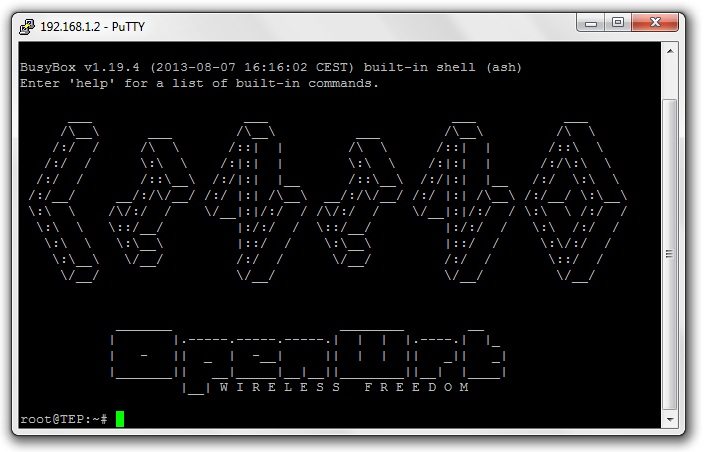
Access Linux Server of Arduino YUN with Putty


Hello friends! Today we will connect to the Linux side of an Arduino Yún using PuTTY on Windows. After signing in, we will inspect the filesystem, locate attached storage and create a small Python script. This gives you a practical way to work with the board's Linux environment directly.
The Yún contains two processing environments. Its ATmega32U4 runs the Arduino sketch, while the Atheros AR9331 runs the Linux system. An SSH session opens a shell on Linux; it does not turn PuTTY into an Arduino sketch editor or automatically provide direct access to every microcontroller pin.
This tutorial concerns the original Yún and its historical OpenWrt-Yun software. Begin with Getting Started with Arduino Yún if the network connection is not configured. We will preserve the original screenshots while explaining where your board's software and paths may differ.
Understand What We Are Connecting To
PuTTY is an SSH client in this exercise. It connects over the network to an SSH service running on the Yún. Once authenticated, you enter commands that execute on the board, and PuTTY displays their output on your computer.
Arduino's archived Yún guide describes the two processors, the OpenWrt-Yun environment and its original Python installation. The product is retired, so identify the installed system before assuming that a present-day Linux package or tutorial applies unchanged.
| Connection | What it accesses | Typical identifier |
|---|---|---|
| SSH through PuTTY | Linux shell on the AR9331 | Network address and TCP port |
| USB sketch connection | Arduino programming and sketch serial behavior | Operating-system serial device |
| Bridge communication | Messages between Linux and the Arduino sketch | Application-defined data or service |
The Ethernet, USB host and microSD facilities belong to the Linux side of the original board. A file stored there is not automatically part of the Arduino sketch's memory. Use the appropriate communication interface when the two programs need to exchange information.
Prepare the Board and Computer
- Power the Yún through a method supported by its exact board revision.
- Allow Linux to finish booting.
- Connect the board and Windows computer to a network where they can reach one another.
- Identify the board's current IP address or resolvable hostname.
- Have the board's configured login credentials available.
- Download PuTTY from its official download page.
Use the router's device list or the board's configuration interface to identify its address. An address shown in an old screenshot is not necessarily the address assigned to your board. DHCP can also assign a different address after network changes.
A name ending in .local depends on local name resolution support. If the name does not resolve, try the verified numeric address while diagnosing the naming issue. Do not select another network device simply because it answers a ping.
Configure a PuTTY SSH Session
- Open PuTTY and select the Session settings.
- Enter the Yún's current address in Host Name.
- Select SSH as the connection type.
- Use port 22 unless your board's SSH service has deliberately been configured differently.
- Optionally save a clearly named session for this board.
- Choose Open to begin the connection.
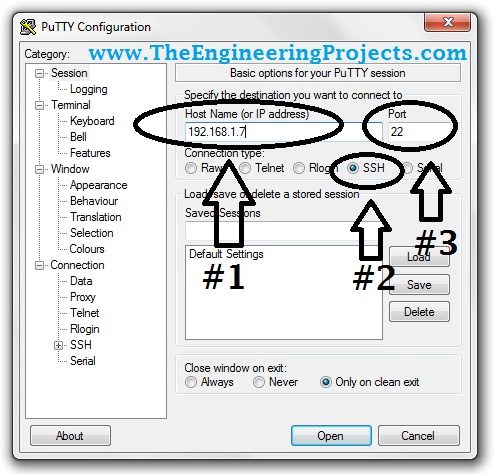
Do not choose Serial and enter a COM port for this network procedure. PuTTY supports several connection methods, but the settings for one are not interchangeable with another. The port number 22 here is a network service port, not an Arduino GPIO number.
On a managed or guest wireless network, client isolation may prevent two connected devices from communicating. Being connected to the same access point does not always prove that the computer can reach the board.
Verify the SSH Host Key
The first connection may display a host-key prompt. It identifies the server's cryptographic key, which helps distinguish the intended board from another machine answering at the same address. PuTTY's host-key instructions explain the verification step.
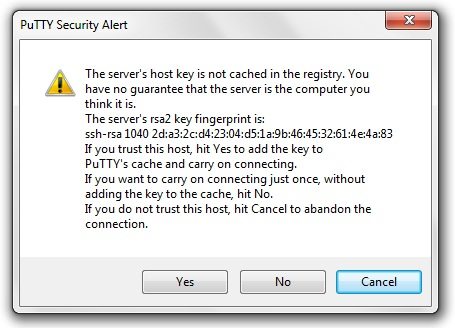
Compare the fingerprint through a trusted source, such as your own established local console or a previously recorded board identity, before accepting it. The original instruction to click Yes without checking is incomplete.
A later changed-key warning can have an ordinary explanation, such as reinstalling the board's operating system, but it can also mean that the address now belongs to a different device. Investigate the cause instead of automatically replacing the saved key.
Sign In to the Linux Shell
The historical Yún setup uses root as the administrative username. Its factory-default password was arduino, but use the password configured on your own board. Do not assume the factory password is still valid after setup or a previous owner has changed it.
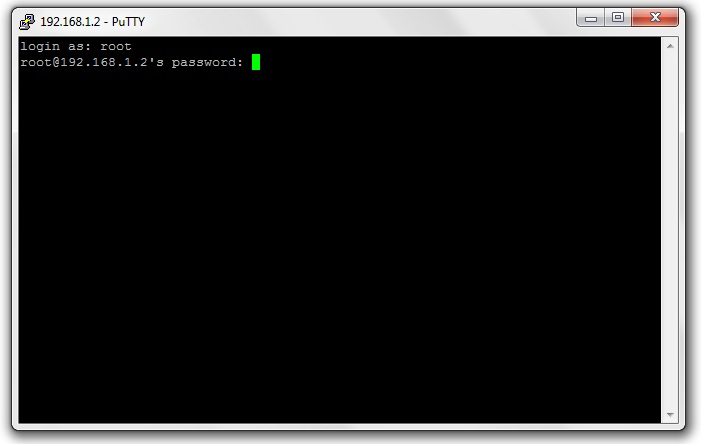
PuTTY normally displays no characters while you type the password. That is expected behavior, not a frozen keyboard. Type the password and press Enter, checking capitalization if authentication fails.
After a successful login, the terminal shows the remote shell prompt. The account name root describes your privileges. It does not mean that the current directory is necessarily the filesystem root, which is written as a single slash.
For a board still using its default password, set a unique password through the supported setup interface or the passwd command. Keep this legacy development board on a network appropriate to its maintenance state; this exercise does not require exposing SSH directly to the public internet.
Identify the System Before Changing It
Begin with a few read-only commands. They establish where you are and which Linux image you are using, without installing packages or changing the network configuration.
pwd
ls
uname -a
cat /etc/openwrt_release
df -h
mount| Command | Purpose |
|---|---|
| pwd | Print the current directory |
| ls | List entries in that directory |
| uname -a | Display kernel and system information |
| cat /etc/openwrt_release | Read image identification if the file exists |
| df -h | Inspect mounted filesystem capacity and free space |
| mount | Inspect mounted filesystems and their locations |
A different firmware image may store release information elsewhere or include different utilities. Treat a missing identification file as a clue about the installed system, not a reason to reset the board.
Record the release information with your project notes. Commands and package repositories suitable for one OpenWrt generation may not be suitable for another.
Navigate to the Actual Storage Location
The original screenshot uses /mnt/sda1 for attached storage. That path is an example from the original board, not a universal guarantee for every SD card, USB drive or firmware image. Confirm the mount point using mount and df before writing files.
ls /mnt
df -h
mount
If your own output confirms that the intended storage is mounted at /mnt/sda1, you can navigate to it:
cd /mnt/sda1
pwd
ls -la
The leading slash makes this an absolute path. By contrast, cd mnt/sda1 looks for a directory relative to the current location. The old sequence of cd .. followed by a relative path only works from particular starting directories.
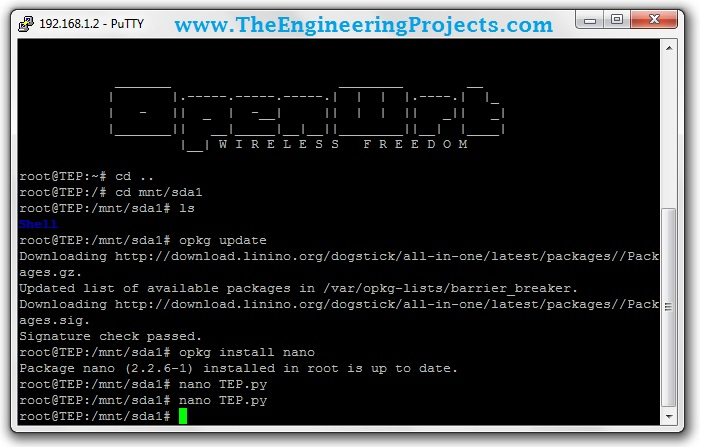
The command cd .. moves to a parent directory, not necessarily the directory you visited previously. Use pwd whenever you are uncertain. Creating a folder with the same name as an expected mount point does not mount an absent card and may instead consume internal flash.
Check Storage Before Installing Software
The original Yún has limited onboard resources. Free filesystem space, RAM and attached-card capacity are different quantities. A large SD card does not automatically increase the free space in the filesystem where a package manager installs programs.
Read df -h to determine which filesystem holds the intended files. If the system provides free, use it to inspect memory. Avoid judging available memory only from a product's advertised total because the operating system and running services already use part of it.
For a logging example, suppose each record occupies 80 bytes including separators and a line ending. At one record per second, the raw data volume is 80 × 86,400 = 6,912,000 bytes per day, approximately 6.9 MB before filesystem overhead.
That calculation helps establish a retention plan. Rotate or remove old application logs through a deliberate policy rather than allowing them to grow until writes fail. Keep a reserve for system operation and diagnostic information.
Install nano Only If the System Supports It
The original tutorial used opkg to install nano, a terminal text editor. First check whether an editor is already available:
command -v nano
command -v vi
If nano is absent and the board has compatible working package feeds, the historical package-manager sequence is:
opkg update
opkg install nano
opkg update refreshes package indexes; it does not upgrade every installed package. Installing nano then requests that editor and its applicable dependencies. Read each command's result before continuing.
An old image may reference feeds that no longer work. Do not replace them with an arbitrary current feed, force incompatible packages or disable verification just to clear an error. Check the installed architecture and firmware's supported maintenance path first.
Installing an editor is optional for this lesson. If the feed is unavailable, use an already installed editor or prepare a small file on your computer and transfer it through an appropriately configured supported method.
Create a Small Python Script
Once you have confirmed the storage location, create a project directory there and enter it. The following example assumes that /mnt/sda1 was verified as the intended mounted volume:
mkdir -p /mnt/sda1/tep-ssh-demo
cd /mnt/sda1/tep-ssh-demo
pwd
ls -la
nano TEP.py
If TEP.py already exists, inspect it before replacing its contents. Keeping experiments in their own directory reduces the chance of confusing an application file with a system configuration file.
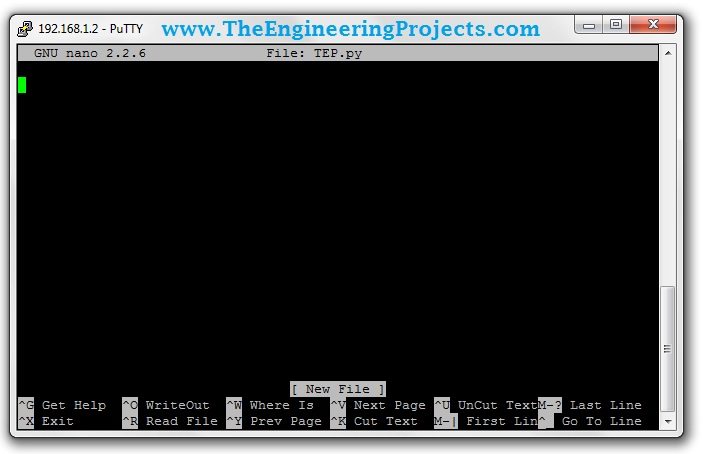
Enter this small script. It prints a message and the Linux working directory, demonstrating where the program executes without requiring sensors or network access.
from __future__ import print_function
import os

print("Hello from the Arduino Yun Linux system")
print("Working directory: {0}".format(os.getcwd()))
In nano, use Ctrl+O to write the file, confirm its name, then Ctrl+X to exit. The exact prompts may differ with the installed editor version. After returning to the shell, list and inspect the file:
ls -l TEP.py
cat TEP.py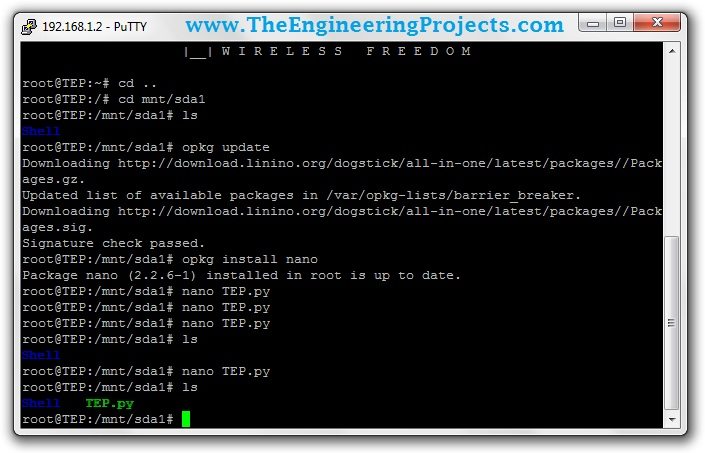
The original image confirms the historical file-creation step. It is not evidence that the revised script has been executed on your board. Reading the file back is a useful way to catch an accidental filename or incomplete save.
Select the Installed Python Interpreter
The original OpenWrt-Yun image included Python 2.7. Other installations may have different interpreters. Check what is present instead of assuming that python and python3 refer to the same runtime.
command -v python
command -v python3
python --version
If python is installed, run the demonstration with python TEP.py. If your board instead provides Python 3, check python3 --version and run python3 TEP.py. The small example above is written to avoid syntax that would unnecessarily separate these two historical cases.
A larger modern Python application may need packages or language features unavailable on the old image. Establish its runtime requirements before transferring it. Successful SSH access does not prove compatibility with a desktop Python environment.
The script runs on the AR9331 Linux processor. Reading a microcontroller input requires a defined interface to the sketch, such as an appropriate Bridge-based application. Importing os does not turn Arduino pin names into Linux filesystem paths.
Keep Commands and Their Effects Clear
A command typed after the remote prompt acts on the Yún. A command typed into a Windows PowerShell window acts on the computer unless it explicitly makes a remote connection. Keep those two contexts distinct when following troubleshooting instructions.
Use full paths when working with files outside the current directory. Linux filenames are case-sensitive, so TEP.py and tep.py can refer to different files. Quote paths containing spaces rather than letting the shell treat the words as separate arguments.
For a running foreground script, Ctrl+C normally interrupts that process. It is not equivalent to powering off the board. If you later need an application to survive logout or restart automatically, configure an appropriate service workflow for the installed system rather than relying on an open terminal window.
Disconnect Cleanly
Finish saving files and stop any foreground demonstration process. Enter exit to leave the remote shell. Closing PuTTY ends your terminal connection; it does not necessarily stop every background process or shut down the Linux system.
Before removing storage, ensure no process is using it and follow the operating system's unmount procedure for the actual mounted device. A shell prompt returning after a write does not guarantee that abruptly removing power is harmless to every filesystem.
Diagnose the Connection in Layers
Work from the network outward when the connection fails. First confirm that the board has finished booting and that its configuration interface shows the address you are using. Next confirm that the computer is on a network allowed to reach that address.
On Windows, you can check the intended board's SSH endpoint from PowerShell with Test-NetConnection followed by its verified address and -Port 22. This is a check of that particular service connection. It does not authenticate the user or establish that a Python application is functioning.
A successful ping and a failed SSH connection are compatible observations: the board can answer one network protocol while the SSH service is unavailable. Conversely, some networks block ping while permitting SSH. Avoid using either observation as proof about every service.
Once PuTTY reaches the password prompt, basic network reachability has already succeeded. Repeatedly changing Wi-Fi settings is unlikely to fix a mistyped password at that stage. After login succeeds, a missing file is a filesystem question rather than an authentication question.
This layered approach also gives better project notes. Record the last successful stage, the exact failing operation and its message. It lets another person continue the investigation without repeating every setup step or making unnecessary changes to a working subsystem.
Troubleshooting and Review
| Symptom | Check |
|---|---|
| Connection times out | Board boot, current address, network reachability and client isolation |
| Connection refused | SSH service availability and selected port |
| Authentication fails | Username, configured password and capitalization |
| Host key changes | Board identity, reinstallation or address reassignment |
| /mnt/sda1 is absent | Actual mount output, inserted media and firmware behavior |
| Package installation fails | Compatible feeds, connectivity, available space and package architecture |
| Script is not found | Working directory, filename case and whether the editor saved |
When reporting a problem, include the board revision, firmware identification and exact error text. Keep passwords and private keys out of screenshots and logs. A network timeout, failed password and missing Python command are different failures requiring different fixes.
The useful outcome is a verified connection, a known working directory and a script you can locate and run again. Once those steps are clear, you can add logging or interprocessor communication without confusing network access with application behavior.
Frequently Asked Questions
Why is the password invisible while I type?
The terminal normally hides password entry. Type it and press Enter; a stationary cursor does not mean the text is being ignored.
Is the login directory always the filesystem root?
No. The root account and the root directory are different concepts. Use pwd to identify your current location.
Does opkg update upgrade Linux?
No. It refreshes package indexes. Firmware maintenance and package upgrades are separate operations that must match the installed image.
Can PuTTY edit an Arduino sketch directly on the AVR?
This SSH session works with Linux files and processes. Compiling and uploading a sketch is a separate development workflow.
Can I use the old screenshots with a Yún Rev2?
The general SSH concepts can transfer, but verify the board-specific setup and installed system. Do not assume every path, password or package instruction is identical.

Comments
0