


Ultrasonic Sensor Simulation in Proteus


Hello friends! In the Ultrasonic Sensor Library for Proteus tutorial, we installed the model and printed distance readings with an Arduino Uno. Now we will use that same interface in three practical simulations: selecting test distances with buttons, producing a proximity indication, and stepping through test conditions with a switch.
Libraries used in this tutorial
Ultrasonic Sensor Library for Proteus: V1.0 (2015, used in this tutorial) · latest version: V2.0 (October 2026)
Helping Tools
- Serial Monitor Advance: a serial terminal window for the UART of your board
- Serial Monitor Expert: the serial monitor with extra debugging tools
- LCD Library for Proteus V3.0: 16x2, 20x4 and I2C LCDs to show your readings
The central idea is simple. Our legacy sensor model has an additional analog control input that represents the simulated environment. Buttons, an adjustable source or a selector can change that input. Arduino still measures the sensor's Echo pulse; it does not need to know which control you used to generate the simulated distance.
We will keep the original schematics and project downloads, then improve the explanation with timeout handling, a clear threshold rule and a repeatable test procedure. The printed sketch is a revised teaching example. The historical archives remain attached and may contain older code, so compile the printed version separately when following its behavior.
Prepare the Sensor and Arduino Models
Install the ultrasonic package before opening these examples. The original library uses UltrasonicTEP.LIB, UltrasonicTEP.IDX and UltrasonicTEP.HEX. Assign the sensor HEX to the ultrasonic component's Program File property. The Arduino requires its own separately compiled firmware.
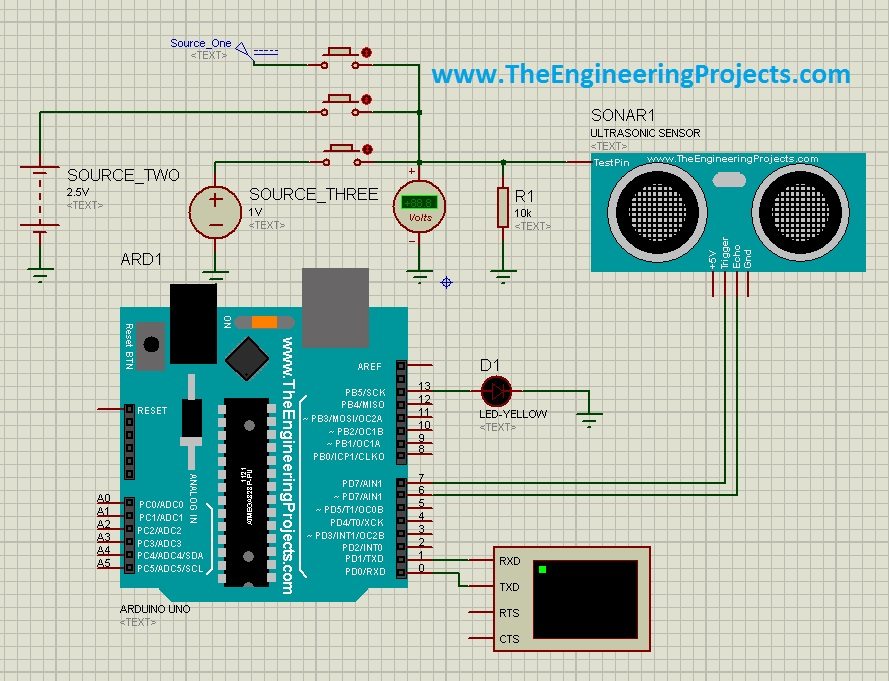
Connect Arduino D7 to Trig and D6 to Echo. Establish the intended supply and common ground, then connect the additional analog control pin to a defined source. Connect Arduino D1/TX to the Virtual Terminal RXD input and configure the terminal for 9600 baud, eight data bits, no parity and one stop bit.
The real HC-SR04 has no extra analog distance-control pin. This input exists because the simulation cannot receive sound reflected from an object on your desk. The model can exercise firmware timing and decision logic, but changing its control voltage does not reproduce acoustic scattering, target shape or interference between physical sensors.
Keep the measurement equation visible
Distance follows d = ct/2, where t is the round-trip time and c is the assumed sound speed. The commonly used approximation for an HC-SR04-style pulse is centimeters = microseconds/58. Thus 1,740 µs represents approximately 30 cm, and 2,030 µs represents approximately 35 cm.
The HC-SR04 reference sheet documents the familiar trigger-and-echo interface. The model's analog-input mapping remains specific to its implementation. Do not assume that 1 V means a particular number of centimeters unless you have established that relationship for the installed package.
Example 1: Select Test Conditions with Buttons
The first retained schematic uses three buttons to select different input conditions. Think of them as repeatable test settings rather than three real obstacles appearing inside Proteus. Each button arrangement changes the voltage applied to the model, which then changes the echo response seen by Arduino.
Before running the circuit, identify the voltage produced when no button is pressed and when each individual button is pressed. The input must remain defined in the idle state. A floating analog control can make results depend on an unintended circuit condition instead of the chosen test case.
Avoid connecting competing voltage sources
If buttons connect separate fixed supplies directly to a common node, pressing more than one can connect those supplies together. That is a wiring problem, not a meaningful intermediate distance. Use a suitable resistor network or a selection arrangement that prevents incompatible sources from being tied together.
For an ideal unloaded voltage divider, Vout = VsRbottom/(Rtop + Rbottom). With 5 V and two equal 10 kΩ resistors, the midpoint is 2.5 V. Loading by the connected model or other branches can alter that value, so inspect the actual control node rather than relying only on component labels.
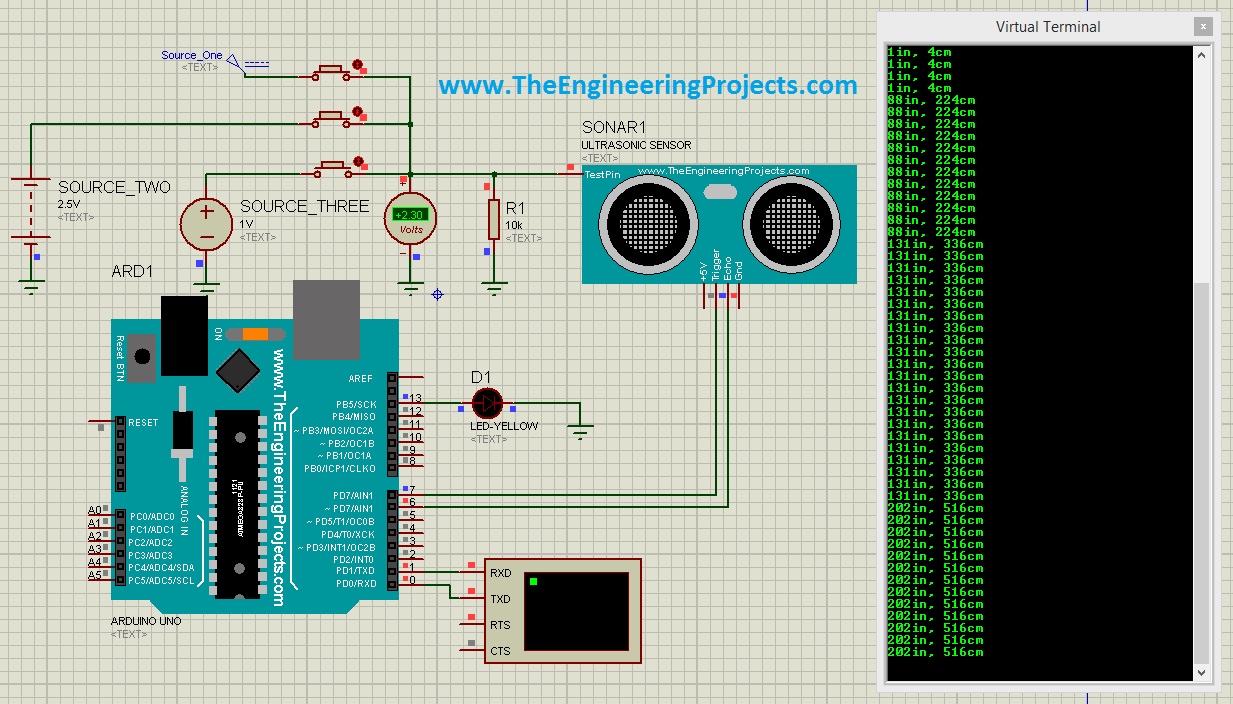
The original running screenshot shows distance output for the button-based simulation. Your output format will differ when using the revised sketch below because it also reports validity and proximity state. Compare the meaning of the measurements instead of expecting an exact character-for-character match to an old terminal image.
| Test condition | What to record | Question answered |
|---|---|---|
| No button pressed | Control voltage and valid/invalid result | Is the idle input defined? |
| Button 1 only | Echo duration and distance | Does the first setting produce a repeatable response? |
| Button 2 only | Echo duration and distance | Is the second setting distinguishable? |
| Button 3 only | Echo duration and distance | Does the final setting behave as intended? |
Repeat each individual setting several times. If two buttons produce the same voltage, the sensor cannot be expected to distinguish them. If the voltages differ but Echo does not change, inspect the control connection and sensor firmware before modifying the distance calculation.
The original button-example archive remains available below. It includes the historical simulation and associated program files rather than a newly generated build of this article's revised sketch.
Download Ultrasonic Sensor simulation in Proteus Using Button
Example 2: Use the Sensor as a Proximity Indicator
In the second example, an adjustable voltage source changes the simulated distance continuously. The program decides whether an object is near enough to indicate. This adds a decision layer above the measurement: first determine whether a reading is valid, then compare a valid distance with the application threshold.
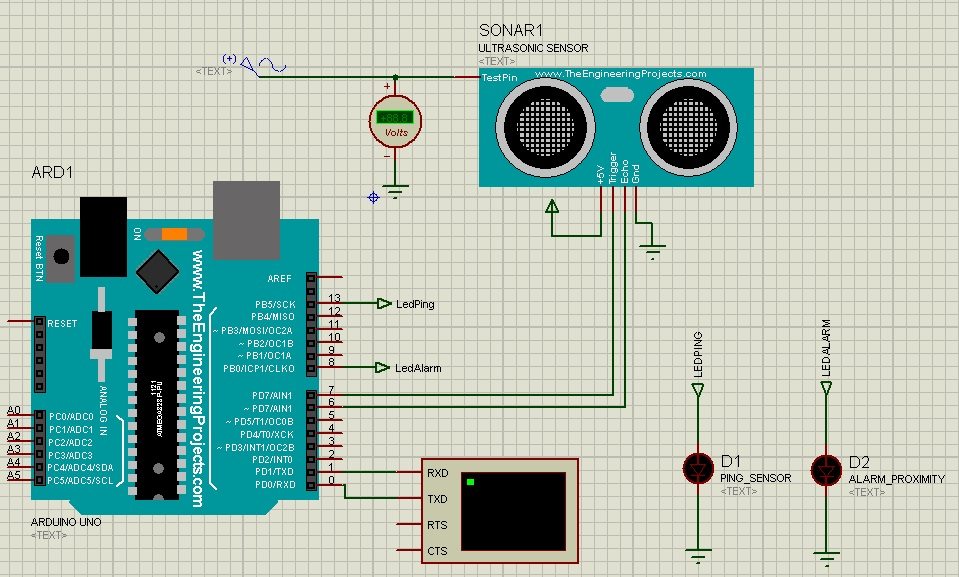
We will use 30 cm as the illustrative activation threshold. A direct rule such as indicator = distance less than 30 cm is easy to understand, but readings near the boundary can make the output switch repeatedly. The problem is especially visible with real sensors whose measurements vary slightly.
Add hysteresis to prevent boundary chatter
Hysteresis uses different thresholds for turning an indication on and off. Here the near indication turns on at 30 cm or below and turns off at 35 cm or above. Between 30 and 35 cm, it retains its previous state. The five-centimeter band is an example design choice, not a specification of the sensor.
| Reading | Previous state | New state |
|---|---|---|
| 29 cm | Clear | Near |
| 32 cm | Near | Near |
| 35 cm | Near | Clear |
| 32 cm | Clear | Clear |
| No valid echo | Either | Unknown; indication cleared in this demo |
The 32 cm rows show why hysteresis needs memory. The same input can produce different states depending on whether the object was previously near or far. That behavior is intentional and should be documented so it is not mistaken for an inconsistent comparison.
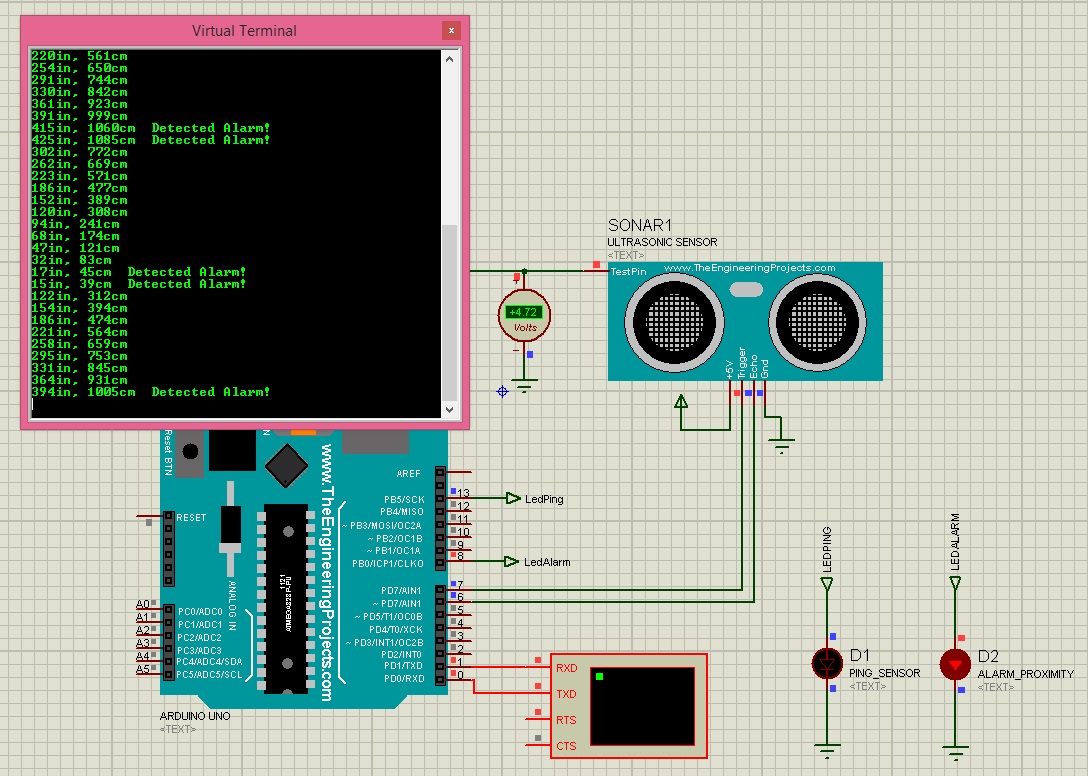
The original proximity screenshot illustrates an indication associated with distance. In our revised demonstration, the Uno's built-in LED is the indicator. A physical buzzer or larger external load would need a compatible output circuit; do not assume an arbitrary alarm can be powered directly from an Arduino pin.
The historical proximity project can be downloaded here. For a separate instrument example, see using a buzzer in Proteus. Its electrical requirements remain separate from the distance threshold logic.
Download Ultrasonic Sensor Simulation in Proteus As Proximity
Revised Arduino Measurement and Proximity Code
This sketch works with the same D7/D6 trigger-and-echo connections for all three stimulus arrangements. It uses a finite wait, treats implausible readings separately, and prints the state explicitly. The 2–400 cm acceptance range is a chosen demonstration filter; it does not certify a particular model or physical target over that entire range.
const byte triggerPin = 7;
const byte echoPin = 6;
const float nearOnCm = 30.0f;
const float nearOffCm = 35.0f;
bool nearState = false;

void setup() {
  pinMode(triggerPin, OUTPUT);
  pinMode(echoPin, INPUT);
  pinMode(LED_BUILTIN, OUTPUT);
  digitalWrite(triggerPin, LOW);
  digitalWrite(LED_BUILTIN, LOW);
  Serial.begin(9600);
}

void loop() {
  digitalWrite(triggerPin, LOW);
  delayMicroseconds(2);
  digitalWrite(triggerPin, HIGH);
  delayMicroseconds(10);
  digitalWrite(triggerPin, LOW);

  unsigned long durationUs = pulseIn(echoPin, HIGH, 30000UL);
  float cm = durationUs / 58.0f;
  bool valid = durationUs != 0 && cm >= 2.0f && cm <= 400.0f;

  if (!valid) {
    nearState = false;
    digitalWrite(LED_BUILTIN, LOW);
    Serial.println("UNKNOWN: no usable distance");
  } else {
    if (!nearState && cm <= nearOnCm) nearState = true;
    else if (nearState && cm >= nearOffCm) nearState = false;

    digitalWrite(LED_BUILTIN, nearState ? HIGH : LOW);
    Serial.print("Distance: ");
    Serial.print(cm, 1);
    Serial.print(" cm | ");
    Serial.println(nearState ? "NEAR" : "CLEAR");
  }
  delay(100);
}
Why an invalid reading needs its own state
Arduino's pulseIn reference describes the timeout result. If a missing echo is converted directly from zero microseconds to zero centimeters, a proximity rule may incorrectly report an object as extremely close. Validity must be checked before applying the distance threshold.
This demo clears its LED on an invalid reading and prints UNKNOWN. It does not claim that the path is clear. A real robot might stop motion when distance becomes unknown; another application might hold a previous indication briefly while displaying a fault. Select that response from the application requirements instead of hiding it inside a convenient default value.
The sketch waits for Echo and then pauses for 100 ms. That is appropriate for a readable learning example, but it is not a nonblocking controller. If other tasks require fast service, restructure the measurement into timed states or use suitable capture hardware.
Example 3: Select Discrete Conditions with a Switch
The third retained schematic uses a selector with four states and includes an oscilloscope. A selector is convenient for moving repeatedly between known control settings without trying to position a potentiometer by eye. Each position should connect one intended condition and leave the control node electrically defined.
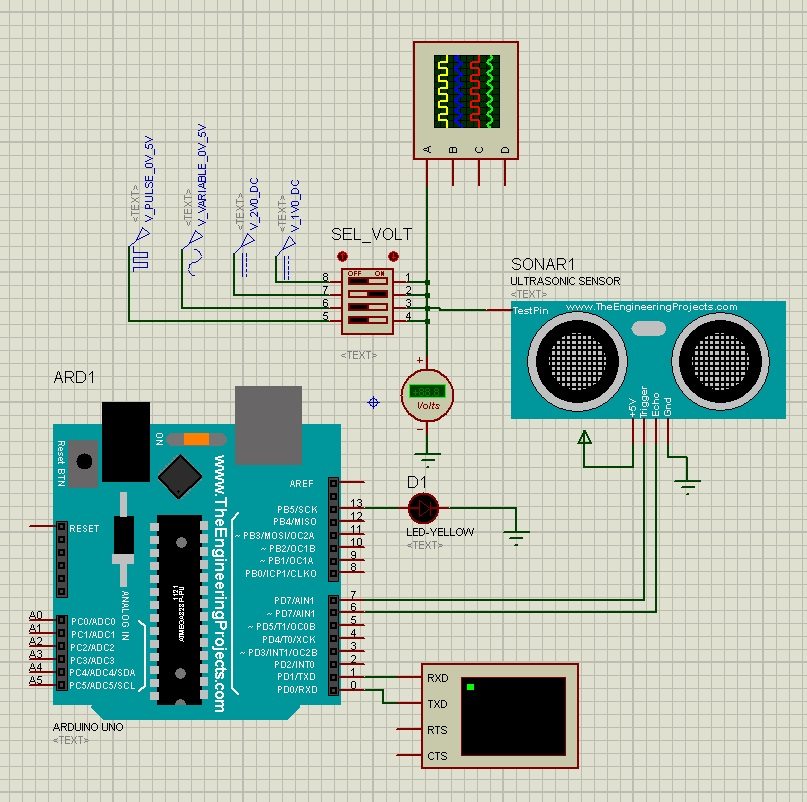
Do not confuse selector position with a fixed physical distance until the model's response has been characterized. Label the positions by their observed control voltages first, then record the resulting echo durations. The Arduino program can stay unchanged because it reads Echo rather than the selector itself.
Use the oscilloscope to separate cause and effect
A trace of the analog control shows which stimulus was selected. A separate trace of Trig confirms when Arduino requests a measurement. Echo shows the response timing used for the distance calculation. These signals answer different questions and should not all be labeled as distance.
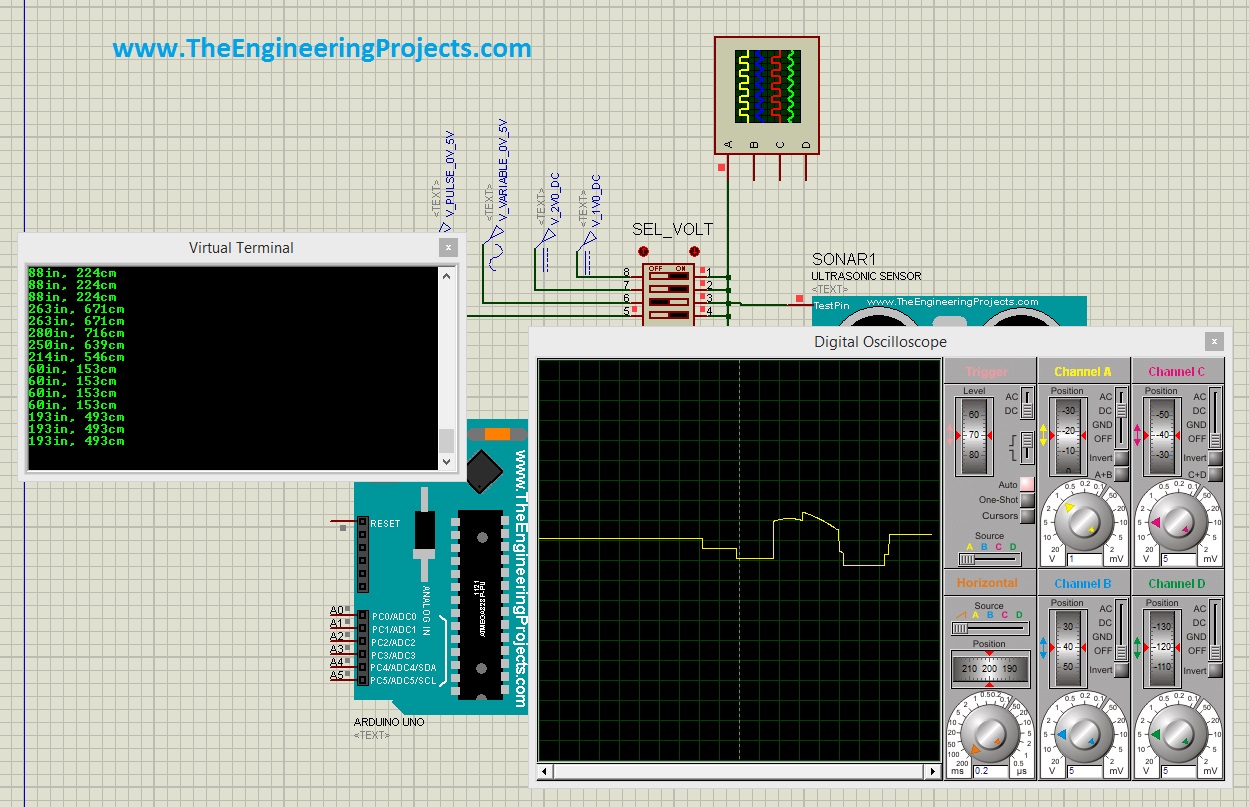
The retained running image shows the terminal and oscilloscope together. For instrument basics, see How to Use the Oscilloscope in Proteus. Choose a time scale that makes the echo pulse measurable; a scale suitable for a slowly changed selector may be too coarse for a millisecond pulse.
The original selector-example simulation and firmware are available below. Keep its sensor HEX and Arduino HEX roles separate when moving the project to another folder or computer.
Download Ultrasonic Sensor Simulation in Proteus Using Switch
Compile, Run and Test the Examples
Select the Arduino Uno target and compile the printed sketch. Export the application HEX and assign it to the Arduino component. Our Arduino HEX-file tutorial explains the purpose of this step. The ultrasonic component must continue to use UltrasonicTEP.HEX.
- Begin with one stable input setting and confirm readable serial output.
- Compare Echo pulse width with the calculated distance.
- Move to a setting below 30 cm and confirm the near indication.
- Increase through the 30–35 cm band and verify that the near state is retained.
- Reach 35 cm or above and confirm that the state clears.
- Return to the band from above and confirm that the clear state is retained.
- Create a controlled missing-echo condition in the simulation and confirm UNKNOWN.
- Restore the normal circuit and repeat the button or selector cases.
For a missing-echo exercise, stop the simulation before disconnecting the relevant signal, then rerun with a defined input state. Do not use random live rewiring as your test method. Record what was changed so a timeout can be distinguished from an unrelated model-loading error.
Check values at the exact boundaries
The code activates at less than or equal to 30 cm and clears at greater than or equal to 35 cm. Those inclusive comparisons matter. Write down the expected behavior for 29.9, 30.0, 30.1, 34.9, 35.0 and 35.1 cm, including the previous state for values inside the band.
Finite pulse resolution may prevent the simulation from producing every decimal value exactly. Use the closest representable values and report the measured pulse width. A serial display rounded to one decimal place can hide a small difference that the internal comparison still sees.
Estimate the response delay
The loop period includes the echo wait, serial printing and the final pause. At 100 cm, an approximately 5,800 µs echo already adds about 5.8 ms before the 100 ms delay. A timeout can add up to roughly 30 ms. The exact execution time also depends on the platform and serial buffering, so this sketch should not be described as sampling at an exact 10 Hz.
An object that changes position just after a measurement must wait for a later acquisition to affect the result. If an application averages several readings, it adds another delay. For a slowly changing demonstration that may be acceptable; for collision avoidance, the response requirement must be calculated from speed, stopping distance and the complete control path.
As an illustrative timing calculation, a platform moving at 0.5 m/s travels 0.065 m during 130 ms. That is 6.5 cm before allowing for braking or actuator delay. The example is not a robot safety specification; it shows why a visually responsive terminal can still be too slow for a moving system.
Choose useful selector test cases
After characterizing the model's control mapping, assign selector positions to a clearly near reading, a value inside the hysteresis band, a clearly far reading and another useful boundary condition. Keep a separate procedure for invalid data, because a valid extreme-distance setting is not necessarily equivalent to a missing echo.
Visit the middle position twice: once after the near position and once after the far position. The terminal should report the same distance but a different retained state. This is a compact demonstration of memory in an otherwise simple measurement program.
Also record what happens after restarting the simulation while the selector is already in the middle position. The sketch initializes nearState to false, so the indication starts clear until an activation condition occurs. That startup choice should be visible in your test notes. Changing it would change the application's behavior even though the thresholds and sensor wiring stayed identical.
Troubleshooting and Practical Review
| Observation | Likely area to inspect |
|---|---|
| No trigger pulse | Arduino firmware path and D7 connection |
| Trigger present but no echo | Sensor HEX and model wiring |
| Echo changes but distance does not | Loaded Arduino code and conversion |
| Control changes unexpectedly | Floating node or conflicting source selections |
| Indicator chatters at a threshold | Missing hysteresis or a noisy validity decision |
| Unknown appears repeatedly | Timeout, accepted range or model response |
A useful review records the stimulus, raw timing, interpreted distance, validity and output state. That record is more informative than a single screenshot showing one favorable result. It also makes later changes to thresholds or the sensor model easier to compare.
When moving to hardware, start with one ultrasonic sensor before attempting multiple sensors. Real measurements introduce acoustic effects and voltage-interface requirements that the extra simulation pin does not represent.
Frequently Asked Questions
Do the buttons connect to Arduino input pins?
In these stimulus examples, they change the sensor model's analog control condition. Arduino receives the resulting Echo pulse through D6. A separate user-button interface would be a different circuit.
Why can 32 cm mean either near or clear?
It lies inside the hysteresis band. The state depends on whether the previous valid measurement had already activated or cleared the indication.
Does a timeout mean the object is far away?
No. It means a usable response was not obtained within the chosen wait. Missing wiring, an absent model response or other problems can produce the same result.
Must I change the Arduino code for every selector position?
No. The selector changes the model stimulus. The trigger, echo measurement and distance calculation stay the same.
Are the attached archives rebuilt with the printed code?
No. They preserve the original examples. Compile the revised code yourself and point the Arduino model to its resulting HEX when following the timeout and hysteresis behavior described here.

Tags


Sir..what is the function of simpin on hcsr04. help
1 reply
I have explained the function of SimPin in my previous post, in simulation you can't place any object in front of this ultrasonic sensor so using this pin you can do this virtually, The output of ultrasonic will depend on the voltage at this pin.
1 reply
hi, I have a problem, I typed the same code and I did the same schematic, but when I run the simulation on isis a message "External DLL model" picEX16 "not found GLE = 0 * 0000007E "can anyone help me please
1 reply
Same Problem. Did u find a solution?
I.m just doing parking sensor project.. how can i make it a simulation using hcsr04.
1 reply
You can design the complete simulation, but instead of placing some parking object in front of the sensor you have to change voltages on the SIMPin and it will work the same.
1 reply
Am simulating the circuit and am geting an eeror " Internal Exception access violation in module 'UNKNOWN'(00000000). What may be a broblem.? Is there anything I have to do in the ultrasonic sensor like pasting a file or other spesfications
Sir, could you learn me about your C language that you insert to Ultrasonic sensor ( C language of Ultrasonic sensor.hex) every your example
Thanks very much, before
I am
Siswanto
Sir, could you learn me about your C code that you insert to Ultrasonic sensor ( C code of Ultrasonic sensor.hex) every your example
Thanks very much, before
I am
hello, thank for your contribution toward those that want to follow your footstep in the field of programming.
I tried to simulate the ultrasonic sensor with atemga16 using the library you post. but i'am unable to. but the program work correctly when it was implemented in the hardware. pls help.
thank you.
1 reply
I don't knowwhere you are having problems, you can download the examples above and can test them, they are working perfectly.
hello, pls is it possible to simulate ultrasonic sensor with avr instead of using arduino board? if yes pls how? because i have been trying but i have never achieved it.
Asalam O Alaikum Syed Zain Nasir Bhai,
Hope you are doing well and prayers for your hardworking upon sharing the knowledge to mankind.
I am in search of a simple Ultrasonic Sensor Used to detect Only and Only ultrasonic sounds not made by PIC, Can you guide me about it please? Hope for a favorable action. Thanks!
hi, Sir may i ask why when i click the run button the virtual terminal ddnt show any values?
I tried simulating the first one "Ultrasonic Sensor with Buttons", but when i Simulate I get the error - "External module DLL "PIC16EX.DLL" not found. GLE=0x00000007E".
But when I enable the option of "Attach hierarchy module" the Ultrasonic sensor then it runs, but the Virtual Terminal always says 0cm, 0inch.
Would be great if you could solve this, even Google doesn't help ;-)
info: I'm using Proteus 7.6
Thanks in Advance!
Comments
17