Hello friends, I hope you all are doing great. Today, I am going to share the Raspberry Pi Pico W MicroPython Library for Proteus. Most people who buy a Pico W never touch C or the Arduino IDE: they plug it in, open Thonny and write MicroPython. Until now Proteus had nothing for them - every Pico model ran compiled code. With this library the Pico W runs your main.py in Proteus 8.5: machine.Pin, PWM, ADC, I2C, network.WLAN and socket work on the pins and modules of your circuit, and the terminal gives you the >>> REPL when the program stops.
Raspberry Pi Pico W MicroPython Library for Proteus
Latest version: V1.0 (October 2026, this tutorial)
Other Raspberry Pi boards: Pico · Pico W · Pico 2 W · Pico 2 · Pi Model B · Pi 1 B+ · Pi 2 Model B · Pi 3 Model B · Pi 3 Model B+ · Pi 3 Model A+ · Pi 4 Model B · Pi 5 · Pi Zero W · Pi Zero 2 W · Pi 400 · Pi 500 · Pi CM4 · Pi 2 · Pi 3 · Pi 4 · Zero W
Temperature and weather sensors: DHT11 / DHT22 · DS18B20 · BME280 · BMP280 · SHT31 · AHT20 · BME680 · MLX90614 · MAX6675
Light sensors: LDR · BH1750 · TCS34725
Other displays: OLED · Nokia 5110 · LCD 128x64 · ST7735 · ST7789 · ILI9341 · TFT Shield 2.4 inch · TFT Shield 3.5 inch · E-Paper
Helping Tools
- Laptop WiFi Monitor: a laptop on the Wi-Fi of your design: a browser, a TCP / UDP terminal and ping
- Mobile WiFi Monitor: a smartphone that opens the pages of your board and sends it commands
- LCD Library for Proteus V3.0: 16x2, 20x4 and I2C LCDs to show your readings
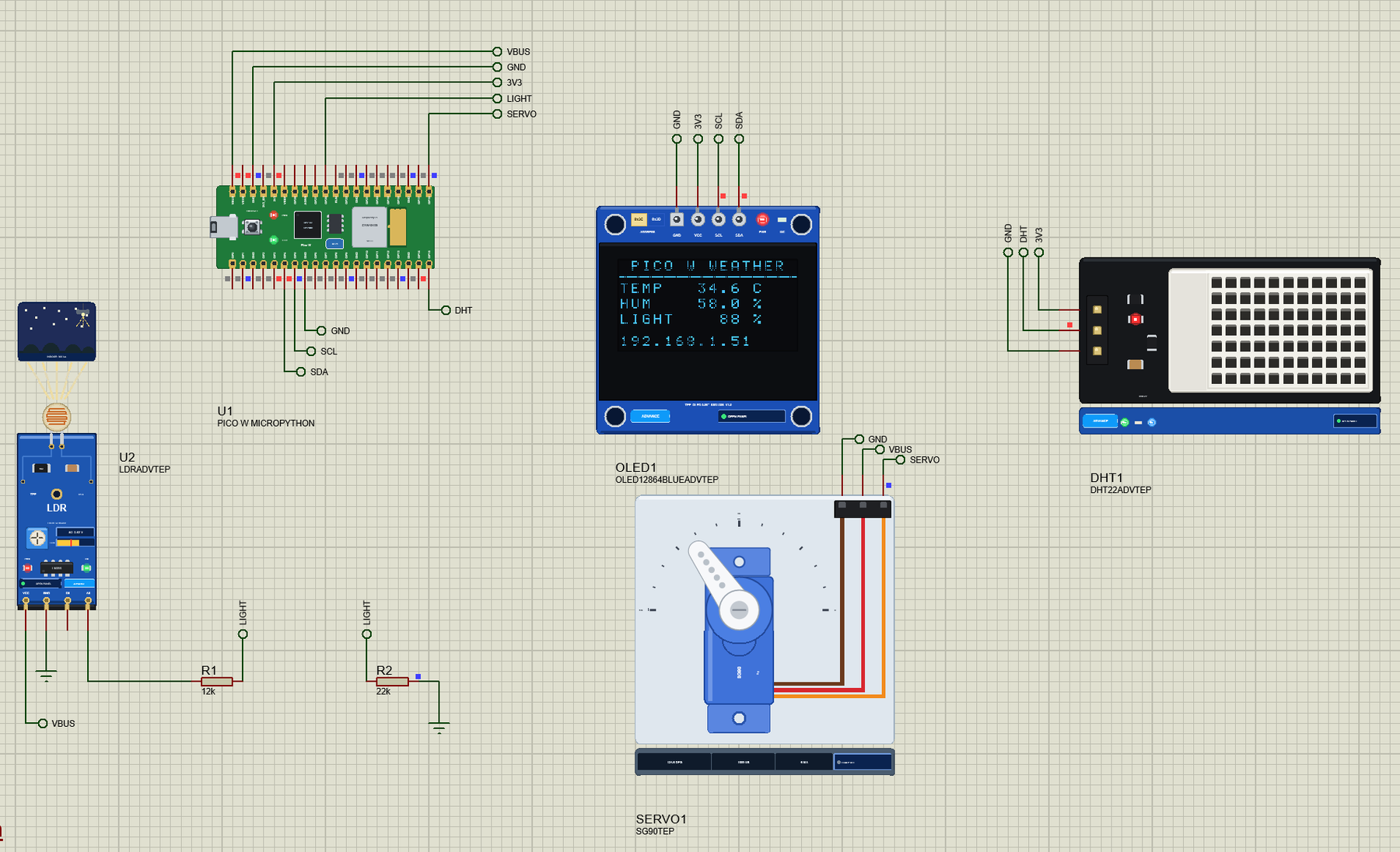
The demo is a Wi-Fi weather station: a DHT22 for temperature and humidity, an LDR module on the ADC for the light, an SSD1306 OLED for the readings, an SG90 servo that turns like the needle of a dial, and a web page with the readings and LED buttons for the laptop and the phone.
NOTICE: Proteus cannot run the MicroPython firmware, so the board runs your main.py in Python 3.11 (included) with our MicroPython modules - the pins, the buses, Wi-Fi and the terminal are our model. Your feedback is the fuel that keeps us going, so please tell us what you think in the comments below or in the Pico W MicroPython board of our forum. And if our free libraries help you, you can buy us a coffee. So, let's get started with the Raspberry Pi Pico W MicroPython Library for Proteus:
What is the Raspberry Pi Pico W?
The Raspberry Pi Pico W is the Wi-Fi version of the Pico, the first microcontroller board made by Raspberry Pi. Its heart is their own chip, the RP2040: two Arm Cortex-M0+ cores at 133 MHz, 264 KB of SRAM and two programmable I/O blocks (PIO) that can imitate almost any digital protocol. Next to it sits a 2 MB flash chip and, under a small metal can, the Infineon CYW43439 for 2.4 GHz Wi-Fi with its antenna printed on the board.
The 40 pins sit along the two long edges as castellated pads, so the board can be soldered flat onto another PCB or fitted with headers for a breadboard. 26 of them are GPIOs, three of those are analog inputs, and almost every pin can carry an I2C, SPI, UART or PWM signal - the RP2040 lets you choose. One detail catches many people: on the Pico W the green LED is wired to the Wi-Fi chip, so in MicroPython it is Pin("LED"), not Pin(25) as on the plain Pico.
| Raspberry Pi Pico W | |
|---|---|
| Microcontroller | RP2040: dual Arm Cortex-M0+ at 133 MHz, 264 KB SRAM, 8 PIO state machines |
| Flash | 2 MB (MicroPython's file system for main.py and your modules) |
| Wireless | Infineon CYW43439: 2.4 GHz Wi-Fi 4 (802.11n), Bluetooth |
| Pins | 40 castellated pins: 26 GPIOs (GP0 - GP22, GP26 - GP28), 3 ADC inputs, 2 x I2C, 2 x SPI, 2 x UART, 16 PWM channels |
| ADC | 12 bits, 0 - 3.3 V, plus an internal temperature sensor |
| Other | micro-USB, the BOOTSEL button, a green LED on the CYW43439 |
| Size | 51 x 21 mm |
What is MicroPython?
MicroPython is a lean version of Python 3 written to run on microcontrollers. On a Pico W you copy its firmware once (hold BOOTSEL, drop the .uf2 file on the RPI-RP2 drive), and from then on the board speaks Python: you type lines at the REPL - the interactive prompt - or save a program as main.py, which runs every time the board powers up.
What makes it pleasant is the machine module: Pin for the GPIOs, PWM, ADC, I2C, SPI, UART and Timer, all with short, readable calls. The Pico W adds network for Wi-Fi and socket for the internet, and modules like dht, onewire and framebuf come built in. Most people write MicroPython in Thonny, which saves files to the board and shows its REPL in the Shell pane.
How Does MicroPython Run in Proteus?
Proteus has no RP2040 model, and the MicroPython firmware cannot run inside it. So the library takes the same road as our Raspberry Pi boards (the Raspberry Pi Model B Library for Proteus was the first): the board model starts Python 3.11, which ships in the package, and runs your main.py with our MicroPython modules - machine, network, socket, time, dht, framebuf and the rest - that do their work on the pins of the Proteus part.
The program and the simulation run in lockstep. While your code runs, Proteus waits; while it sleeps, waits for a pin, a bus transfer or the network, Proteus runs. So time.sleep_ms(500) is half a second of simulation, every pin change is at the right moment, and a busy loop still moves the clock, because every Pin or ticks call costs about 6 microseconds - roughly what MicroPython needs on the real RP2040.
Features of the Pico W MicroPython Library for Proteus
- The board as it looks: the green Pico W with micro-USB, BOOTSEL, the RP2040, the flash chip, the CYW43439 can, the PCB antenna and the 40 pads with their GP names.
- Your main.py: boot.py and main.py run at power-up, then the REPL; an error is printed as MicroPython prints it.
- machine: Pin with pull-ups and interrupts, Signal, PWM, ADC (with the temperature sensor), I2C, SoftI2C, SPI, SoftSPI, UART, Timer, RTC, WDT and time_pulse_us.
- Wi-Fi and sockets:
network.WLANjoins our TEP-WiFi router when your program callsconnect(); web servers, clients, UDP,requestsandntptime. - The built-in modules: time with ticks, dht, onewire and ds18x20, framebuf, micropython, gc.mem_free(), os on the board's flash, and _thread for the second core.
- The terminal is Thonny's Shell: print(), errors, ^C to stop main.py, the >>> REPL with main.py's variables, ^D for a soft reset - in our TEP window without a Windows title bar.
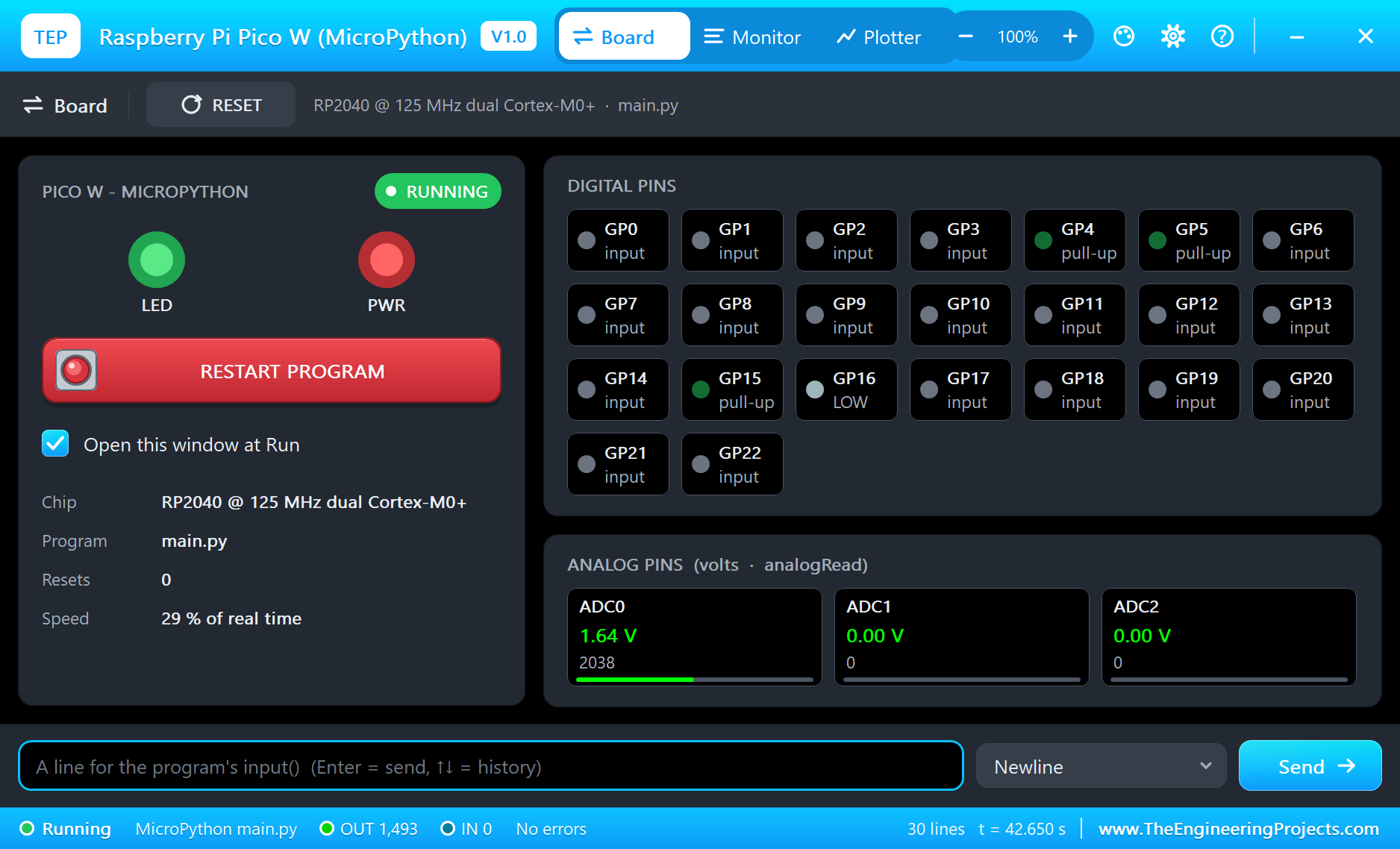
- The Board tab: GP0 - GP22 live, ADC0 - ADC2 in volts, the LEDs and RESTART PROGRAM.
- A complete package: about 14.6 MB with Python, the board, the DHT22, OLED, SG90 and LDR libraries for the demo, without the source code of the models.
The Pico W (MicroPython) in Proteus
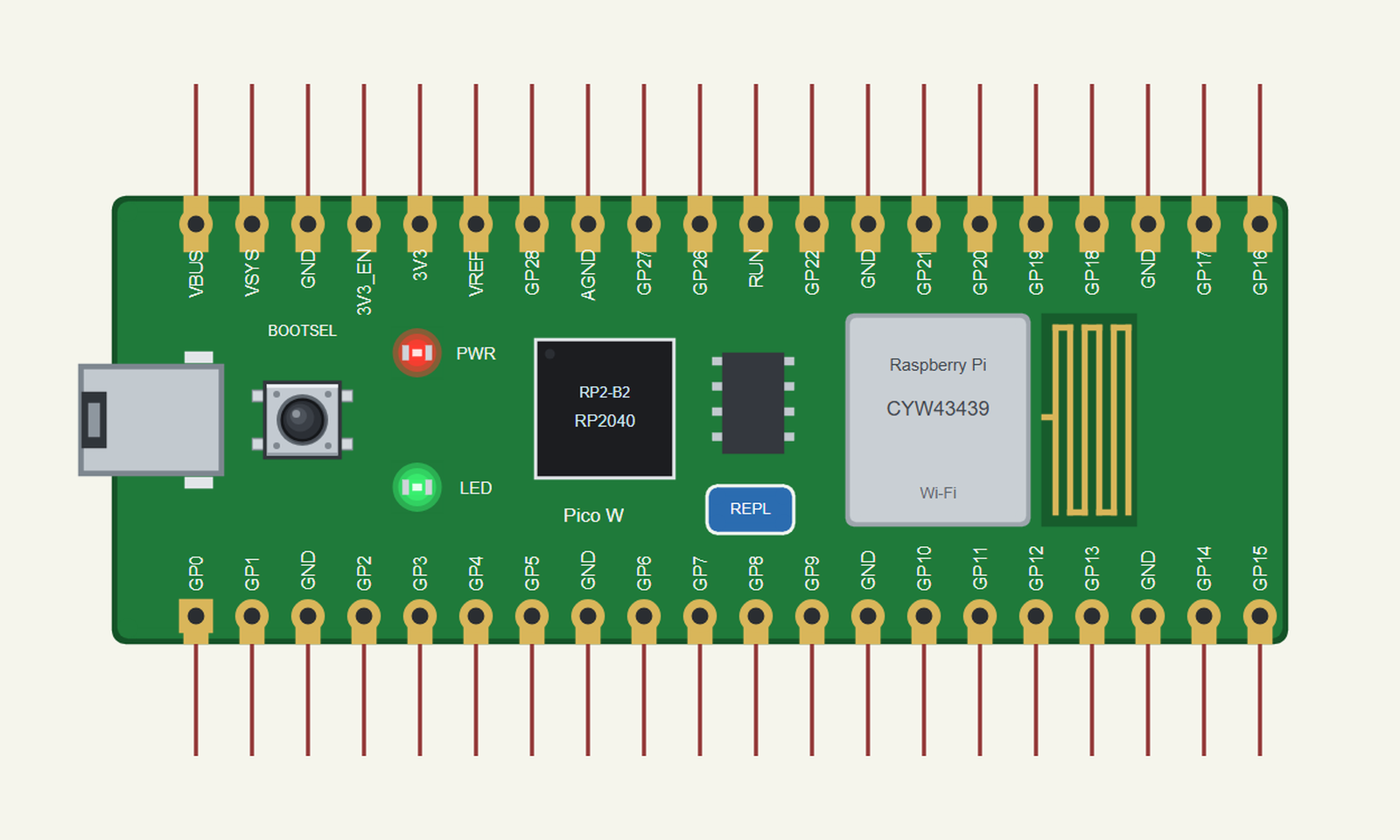
Search MICROPYTHON or PICO in Pick Devices; the device PICO W MICROPYTHON is in TEPPICOWMPY.LIB (Microprocessor ICs, Raspberry Pi), with the prefix U. Click the micro-USB socket or the REPL pad to open the terminal. If you would rather write C++, our Raspberry Pi Pico W Library for Proteus runs Arduino sketches on the same board.
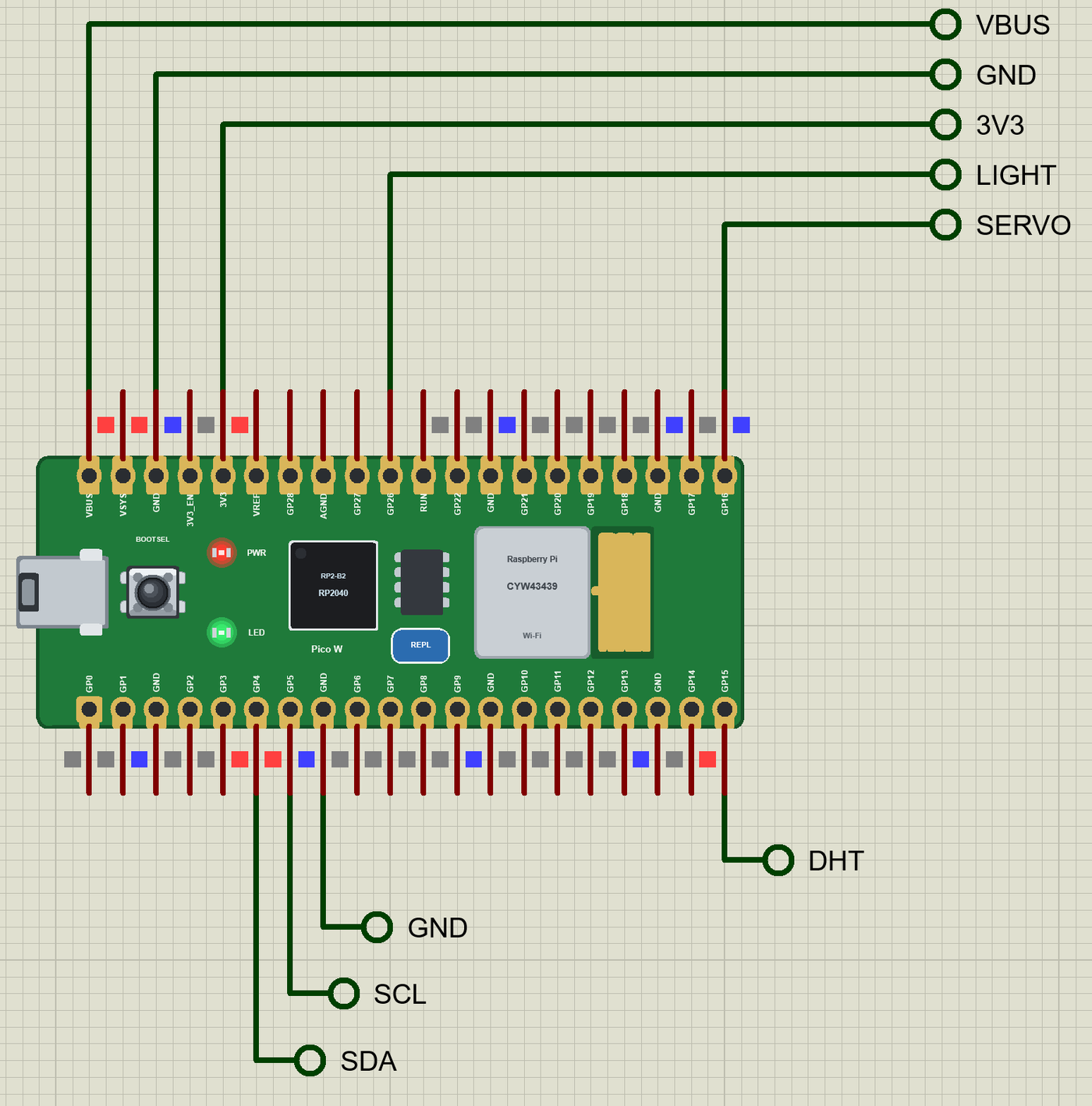
The Pins
| Pins | What the library does with them |
|---|---|
| GP0 - GP22 | Pin (in, out, open drain, pulls, irq), PWM, and the I2C / SPI / UART buses on the pins the RP2040 allows |
| GP26 - GP28 | ADC0 - ADC2: ADC(26).read_u16() reads the node's real voltage, 12 bits, 0 - 3.3 V |
| Pin("LED") | the green LED on the CYW43439 |
| VBUS, VSYS, 3V3, GND | supplies for your modules (VBUS = the 5 V from USB) |
| ADC_VREF, AGND | the ADC's 3.3 V reference and its ground |
| RUN, 3V3_EN | drawn; RESTART PROGRAM on the Board tab is the reset |
The hardware buses follow the RP2040's pin table, exactly as MicroPython checks it. I2C(0, sda=Pin(4), scl=Pin(5)) works because GP4 and GP5 can be I2C0; I2C(0, sda=Pin(5), scl=Pin(4)) gives ValueError: bad SCL pin, as on the real board. Without pins you get MicroPython's defaults: I2C0 on GP8 / GP9, SPI0 on GP18 / GP19 / GP16, UART0 on GP0 / GP1.
The MicroPython Modules
| Module | What works |
|---|---|
| machine.Pin | IN, OUT, OPEN_DRAIN, PULL_UP, PULL_DOWN, value(), on(), off(), toggle(), irq(IRQ_RISING / IRQ_FALLING) |
| machine.PWM | freq(), duty_u16(), duty_ns(), deinit() - the waveform keeps going while main.py sleeps |
| machine.ADC | read_u16() on GP26 - GP28, ADC(4) the RP2040's temperature, ADC(3) VSYS / 3 |
| machine.I2C / SPI / UART | scan, readfrom_mem, writeto, writevto; write, read, write_readinto; write, read, readline, any |
| machine.Timer | PERIODIC and ONE_SHOT soft timers with callbacks |
| network | WLAN(STA_IF): active, connect, status, isconnected, ifconfig, config('mac'), scan |
| socket, requests | TCP servers and clients, UDP, str in send(); http GET / POST |
| time | sleep, sleep_ms, sleep_us, ticks_ms, ticks_us, ticks_diff, localtime |
| dht, onewire, ds18x20 | DHT11 / DHT22 and DS18B20 sensors |
| framebuf | FrameBuffer with text, lines, rectangles, ellipses and blit - what OLED drivers use |
Download Raspberry Pi Pico W MicroPython Library for Proteus
Click the button below to download Raspberry-Pi-Pico-W-MicroPython-Library-for-Proteus-v1.0.zip (about 14.6 MB with Python, without the source code of the models):
Pico W MicroPython Library for Proteus V1.0- README.txt: installation, the demo, the modules, the pins, troubleshooting and the limits.
- Proteus Library Files:
TEPPICOWMPY.LIBand the demo's parts:TEPDHT.LIB,TEPOLED12864.LIB,TEPPCA9685.LIB(the SG90),TEPLDR.LIB,TEPLAPTOP.LIBandTEPMOBILE.LIB. - Proteus Model Files:
TEPNET.DLL(the board, the laptop, the phone and the network), the four modules' DLLs and the TEPPi folder: Python 3.11 and our runtime with its MicroPython modules. - MicroPython Code:
main.py(the demo),ssd1306.py(the OLED driver) andblink.py. - Proteus Simulation: the demo project with main.py, ssd1306.py and copies of the DLLs.
No Proteus yet? Read How to Download and Install Proteus 7 and 8. New to libraries? Follow How to Install a New Library in Proteus.
How to Install Raspberry Pi Pico W MicroPython Library for Proteus
- Close Proteus and extract the whole zip file, for example to your Desktop.
- Copy the files from Proteus Library Files into the LIBRARY folder of Proteus.
- Copy everything in Proteus Model Files - the DLLs and the TEPPi folder - into the MODELS folder, replacing an older TEPNET.DLL and TEPPi.
- Delete
TEPPICOWMPY.IDXfrom the LIBRARY folder if it is there. - Start Proteus, press P and search for MICROPYTHON.
Nothing else is needed: no Python or MicroPython on your PC, no Thonny. The TEPPi folder is shared with our Raspberry Pi, Jetson, BeagleBone and Orange Pi boards, and this one is the newest.
Demo: a Pico W Weather Station in MicroPython
A small weather station is the project most Pico W owners build first, because it touches everything: a digital sensor, an analog one, a display, an actuator and the network. Ours shows the temperature twice - as numbers on the OLED and as the position of a servo needle - and serves everything on a web page.
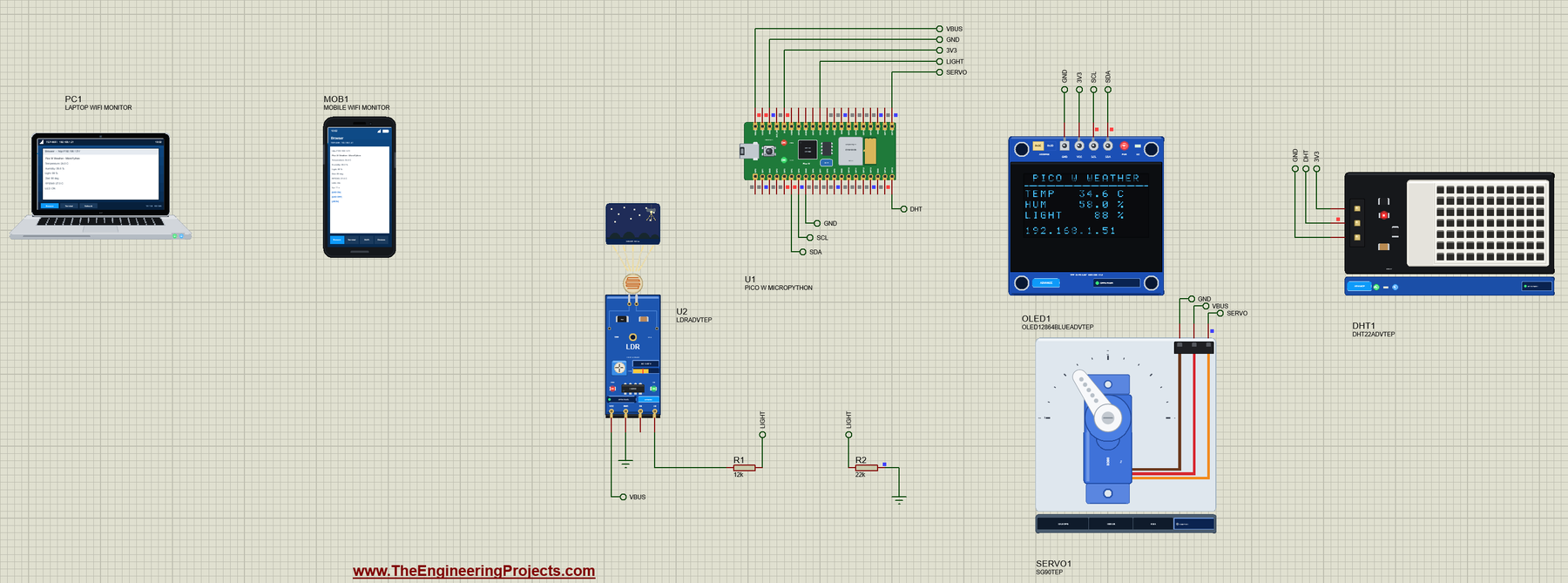
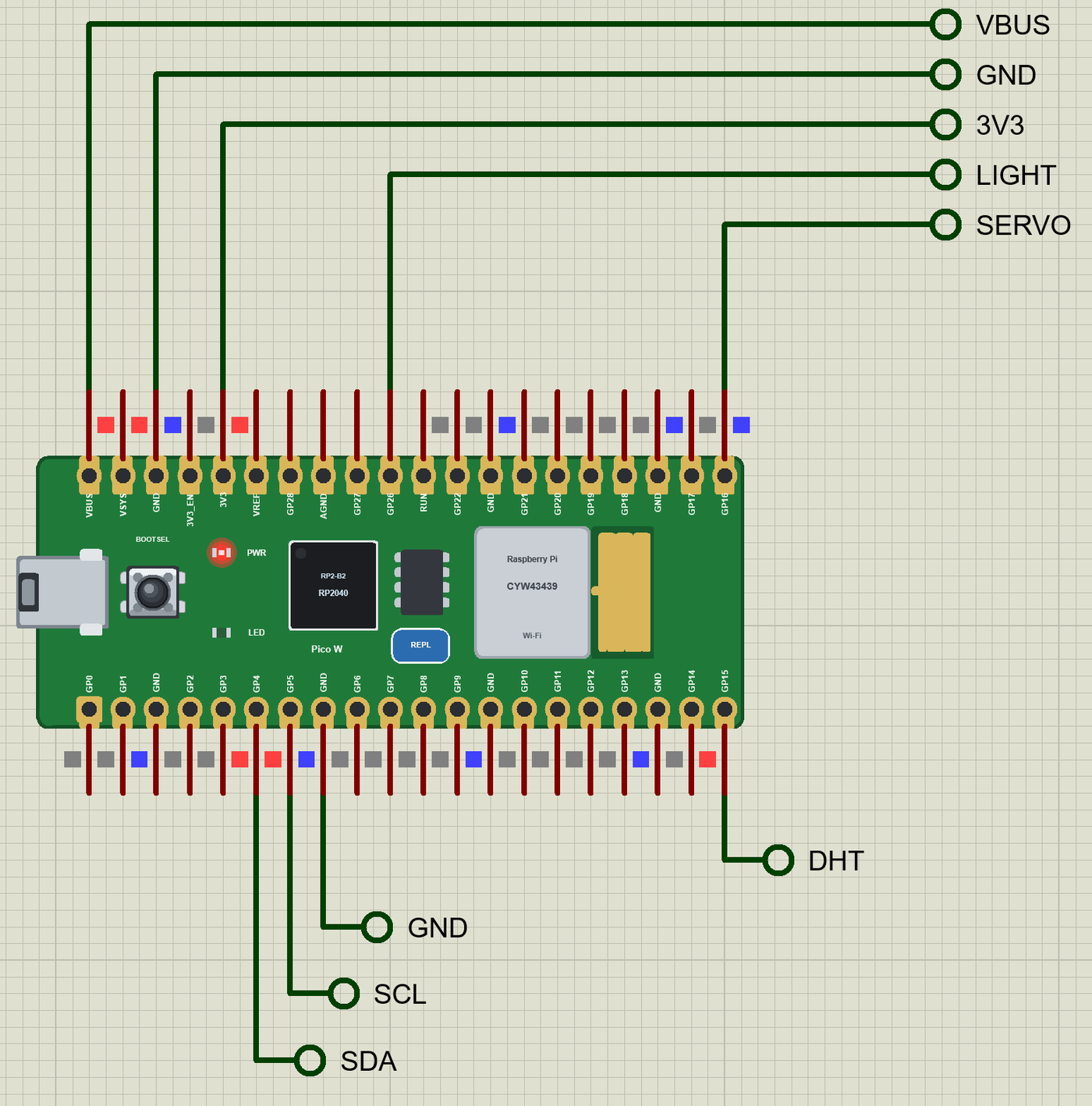
Open Pico-W-MicroPython-Weather-Station.pdsprj. U1 is the Pico W running main.py. DHT1 is the DHT22 from our DHT11 / DHT22 Library for Proteus, OLED1 the 0.96" display from our OLED SSD1306 Library for Proteus, SERVO1 the SG90 from our PCA9685 Servo Driver and SG90 Library for Proteus and U2 the light module from our LDR Sensor Library for Proteus - the DHT22, the OLED and the LDR are the Advance versions with their pop-up windows. PC1 is the Laptop WiFi Monitor and MOB1 the Mobile WiFi Monitor.
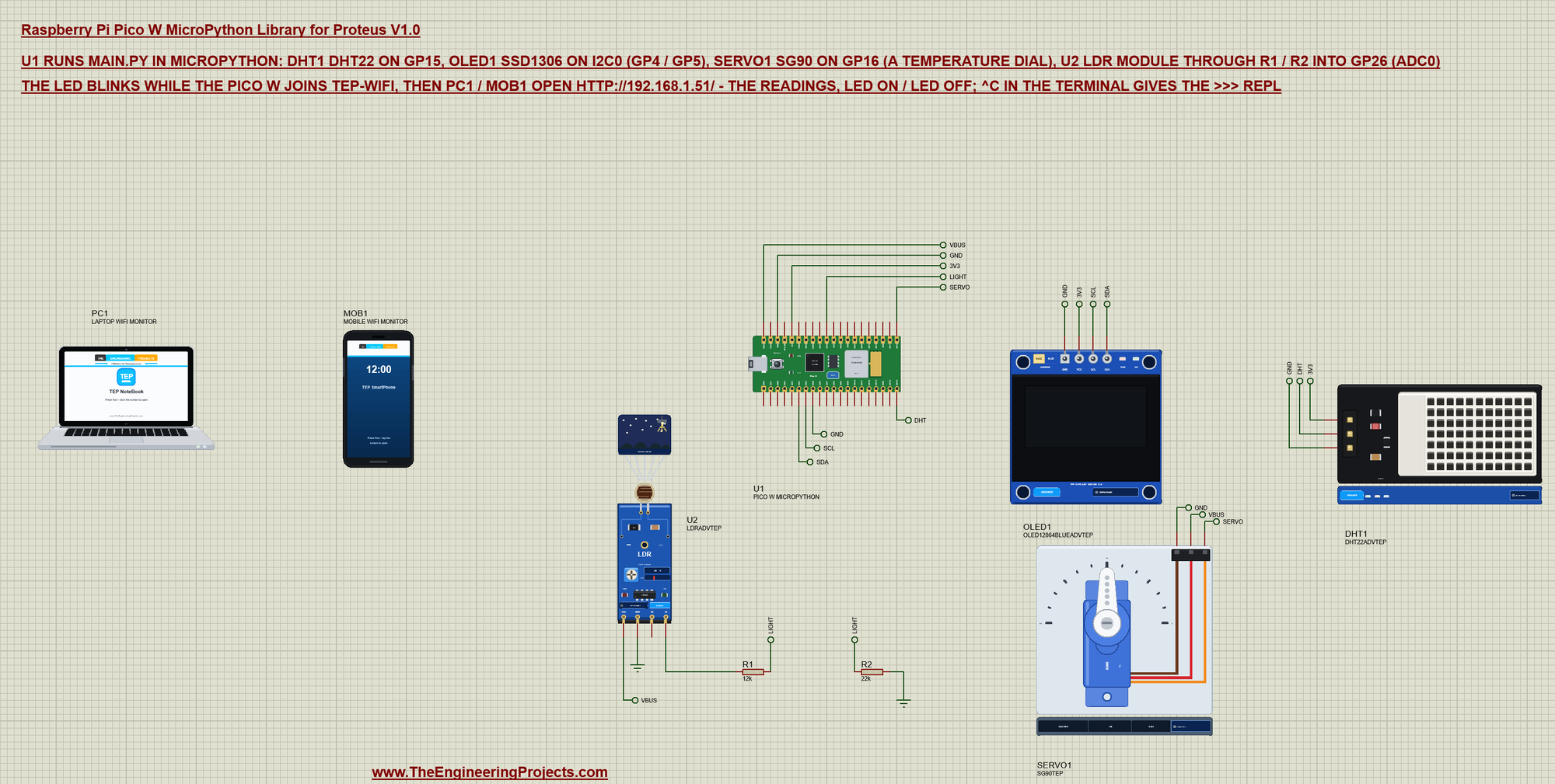
| Part | Pins | Pico W pins | Notes |
|---|---|---|---|
| DHT22 (DHT1) | DATA | GP15 | VCC from 3V3; read with dht.DHT22 |
| SSD1306 OLED (OLED1) | SDA / SCL | GP4 / GP5 (I2C0) | address 0x3C, VCC from 3V3, 400 kHz |
| SG90 (SERVO1) | SIG | GP16 | V+ from VBUS (5 V); PWM at 50 Hz |
| LDR module (U2) | A0 | GP26 (ADC0) | VCC from VBUS; A0 through R1 12k / R2 22k |
| LED | - | Pin("LED") | blinks while joining, then the page switches it |
The LDR module runs on 5 V, and its A0 can reach 5 V in the dark - too much for the Pico's 3.3 V ADC. R1 (12k) and R2 (22k) divide it by 22 / 34, so GP26 never sees more than 3.24 V. main.py undoes the divider to get the module's A0 back.
Setting Up the Hardware in main.py
The first lines of the program are the whole wiring list in MicroPython. Every object is one line - this is what makes MicroPython so quick to start with:
led = Pin('LED', Pin.OUT)
sensor = dht.DHT22(Pin(15))
ldr = ADC(Pin(26))
core = ADC(ADC.CORE_TEMP)                 # the RP2040's own temperature sensor (ADC4)
servo = PWM(Pin(16), freq=50)
i2c = I2C(0, sda=Pin(4), scl=Pin(5), freq=400000)
oled = SSD1306_I2C(128, 64, i2c)
ssd1306.py is the OLED driver; on a real Pico W you save it next to main.py, and in Proteus it sits next to the project. It draws with MicroPython's framebuf, so oled.text() and oled.hline() work as on the board.
The Servo as a Dial
An SG90 turns to an angle set by the length of a pulse repeated 50 times a second: about 0.5 ms for 0 degrees and 2.5 ms for 180. duty_ns() sets that length directly in nanoseconds, so the dial is two lines of arithmetic:
def needle(temp):
    """The servo as a dial: 0 C at 0 degrees, 50 C at 180 degrees (a 0.5 - 2.5 ms pulse)."""
    deg = max(0, min(180, round(temp * 180 / 50)))
    servo.duty_ns(500000 + deg * 2000000 // 180)
    return deg
Reading the Sensors
Every 2 seconds the program reads the DHT22, the LDR through ADC0 and the RP2040's own temperature sensor on ADC4, then moves the needle:
def read_sensors():
    sensor.measure()
    data['temperature'] = sensor.temperature()
    data['humidity'] = sensor.humidity()
    a0 = ldr.read_u16() * 3.3 / 65535 / DIVIDER                # the module's A0 (V): less light = higher
    data['light'] = max(0, min(100, round((1 - a0 / 5.0) * 100)))
    v = core.read_u16() * 3.3 / 65535
    data['rp2040'] = round(27 - (v - 0.706) / 0.001721, 1)
    data['needle'] = needle(data['temperature'])
    data['uptime'] = time.ticks_ms() // 1000
read_u16() always returns 0 - 65535, whatever the ADC's real resolution; on the RP2040 it is 12 bits, so the temperature sensor changes in steps of about half a degree - you will see that in the readings below.
Joining the Wi-Fi
On a Pico W the program joins the network itself. The LED blinks from a Timer callback while it waits:
wlan = network.WLAN(network.STA_IF)
wlan.active(True)
wlan.connect(SSID, PASSWORD)
for _ in range(20):
    if wlan.status() < 0 or wlan.status() >= 3:
        break
    print('waiting for the Wi-Fi...')
    time.sleep(1)
status() becomes 3 (STAT_GOT_IP) when the router has given the Pico W its address. A wrong password gives -3 and an unknown network -2, as on the real board, so the program can tell you what went wrong.
The Web Server
The page is served by a plain MicroPython socket server - no framework needed. A short timeout on accept() lets the same loop take a new reading every 2 seconds between visitors:
addr = socket.getaddrinfo('0.0.0.0', 80)[0][-1]
server = socket.socket()
server.setsockopt(socket.SOL_SOCKET, socket.SO_REUSEADDR, 1)
server.bind(addr)
server.listen(2)
server.settimeout(0.2)
request = client.recv(1024).decode()
path = request.split(' ')[1] if request.count(' ') >= 2 else '/'
print('%s asks for %s' % (remote[0], path))
if path == '/led/on':
led.on()
data['led'] = 'ON'
elif path == '/led/off':
led.off()
data['led'] = 'OFF'Run the Demo
Press Run. The terminal opens and shows the program's lines; the LED blinks until the Pico W is on the network:
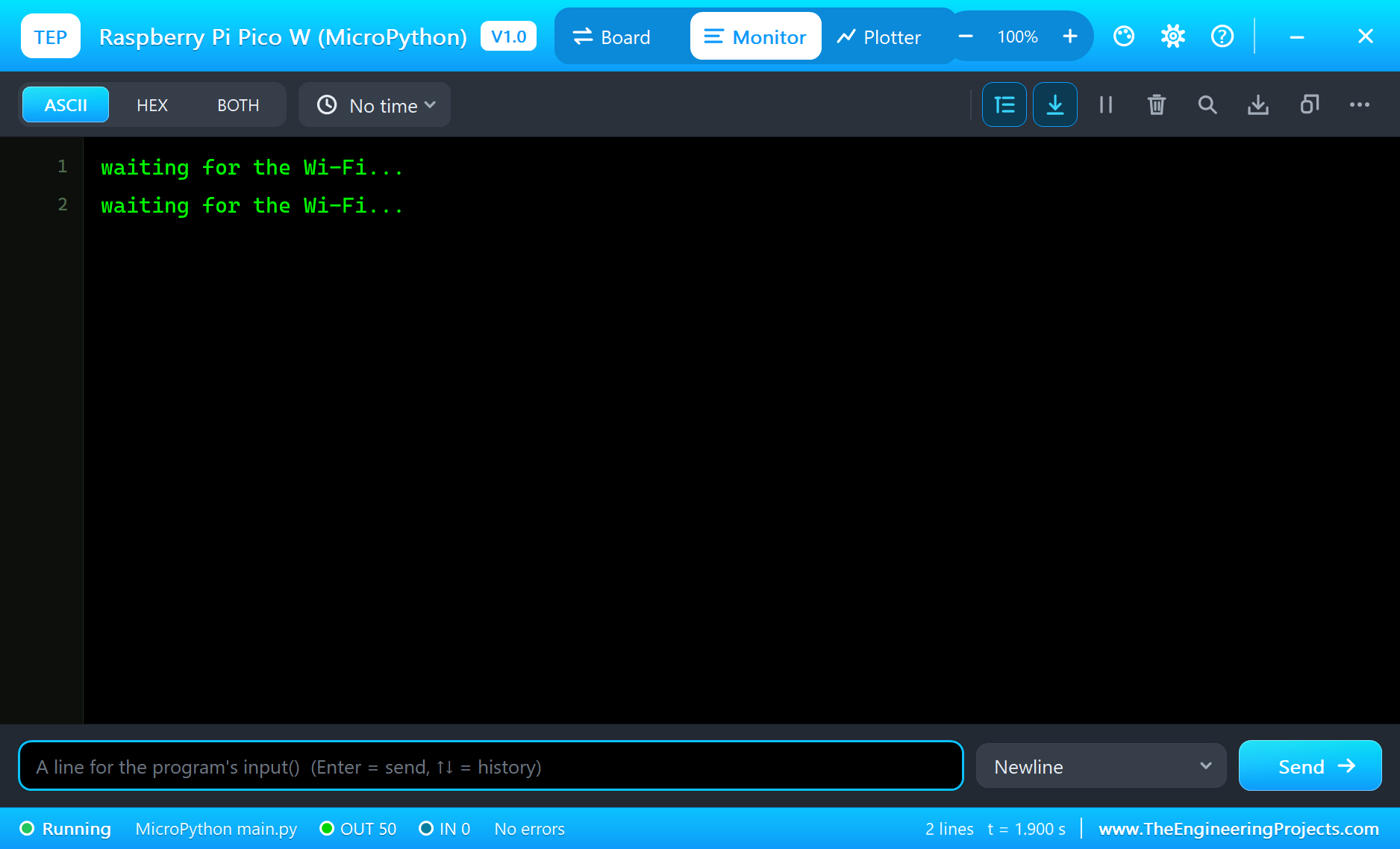
waiting for the Wi-Fi...
waiting for the Wi-Fi...
waiting for the Wi-Fi...
Connected to TEP-WiFi - http://192.168.1.51/
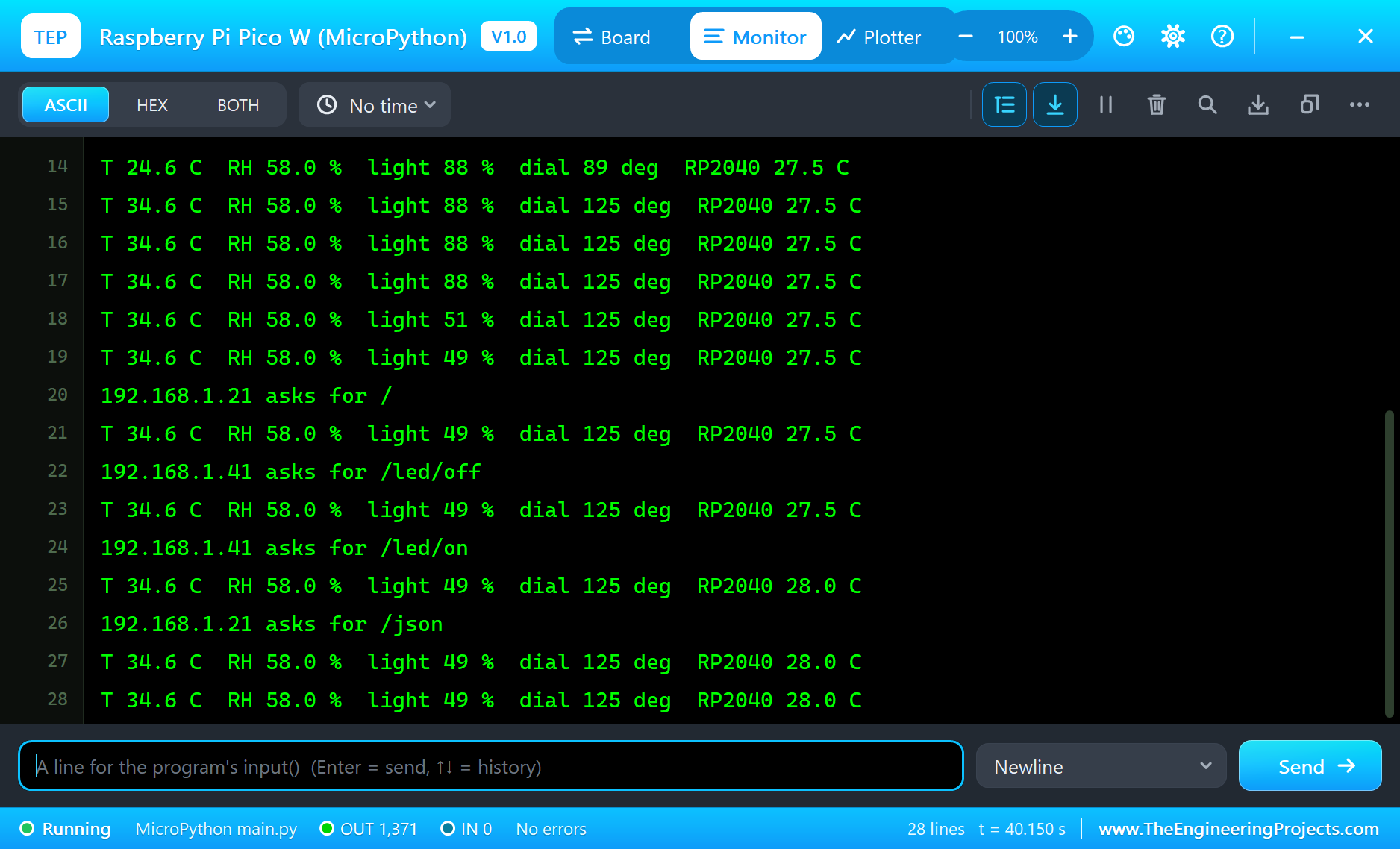
T 24.6 C  RH 58.0 %  light 88 %  dial 89 deg  RP2040 27.0 C
T 24.6 C  RH 58.0 %  light 88 %  dial 89 deg  RP2040 27.0 C
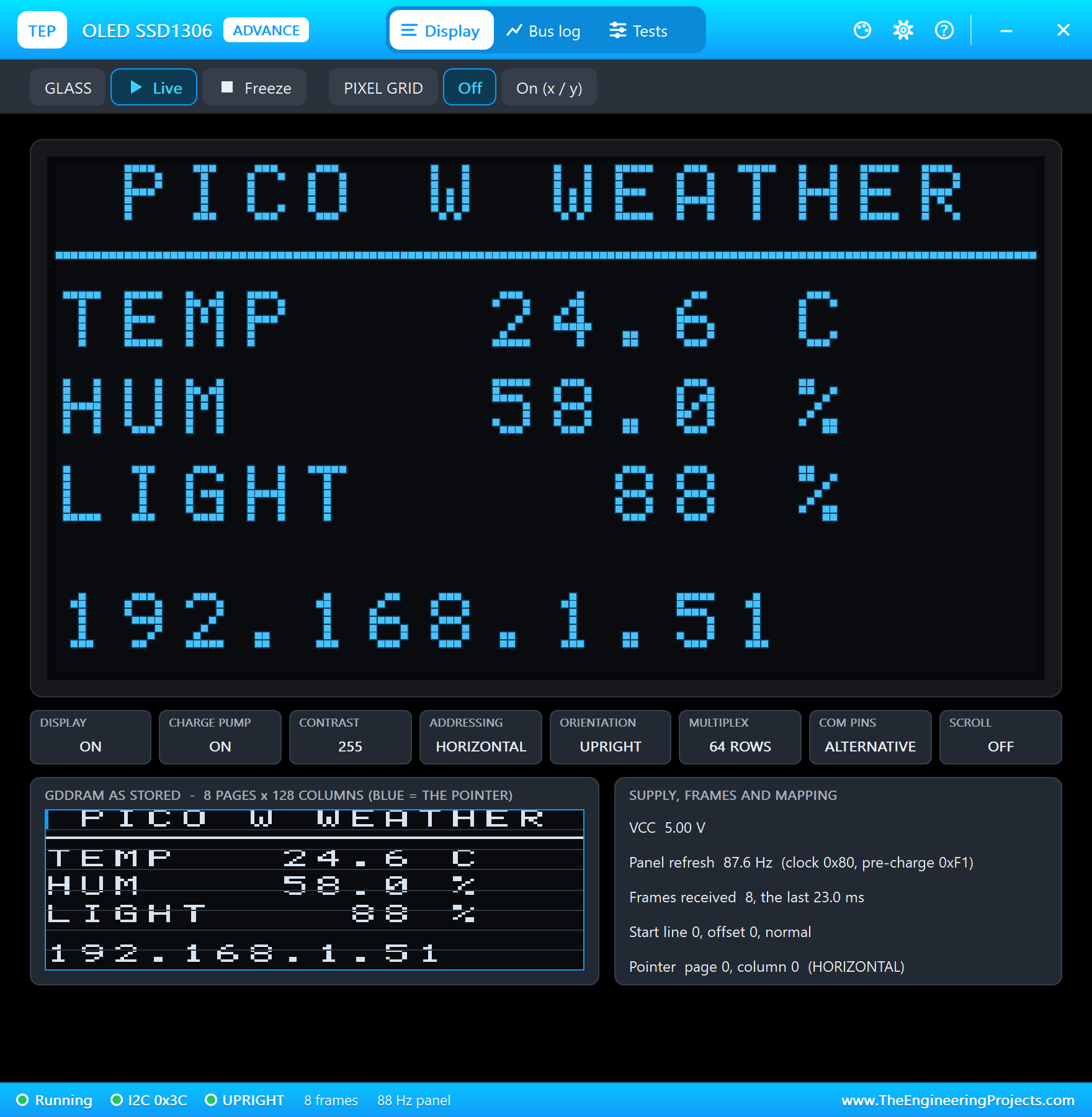
The OLED shows the readings and the board's address, and the needle stands at 89 degrees for 24.6 C:
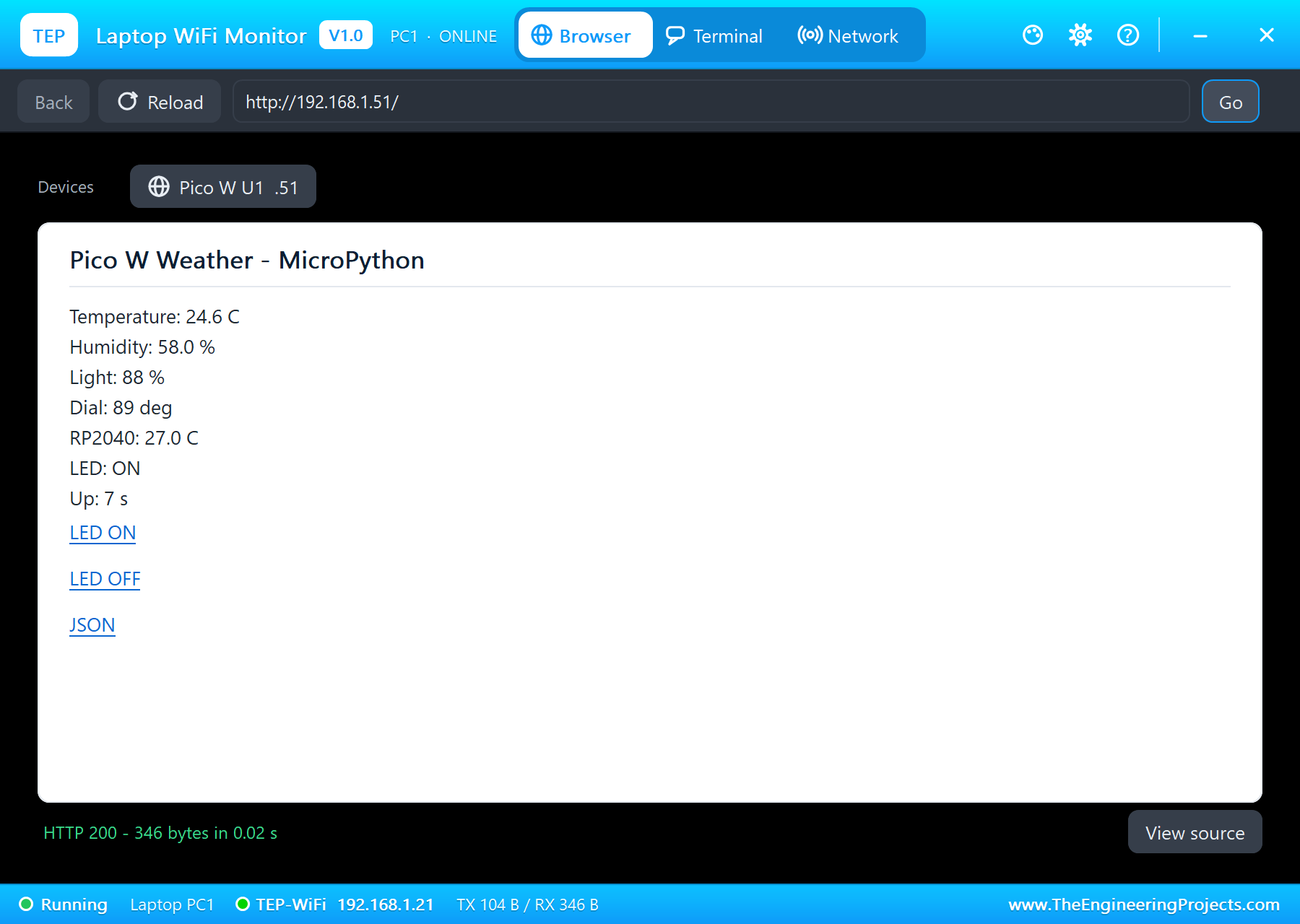
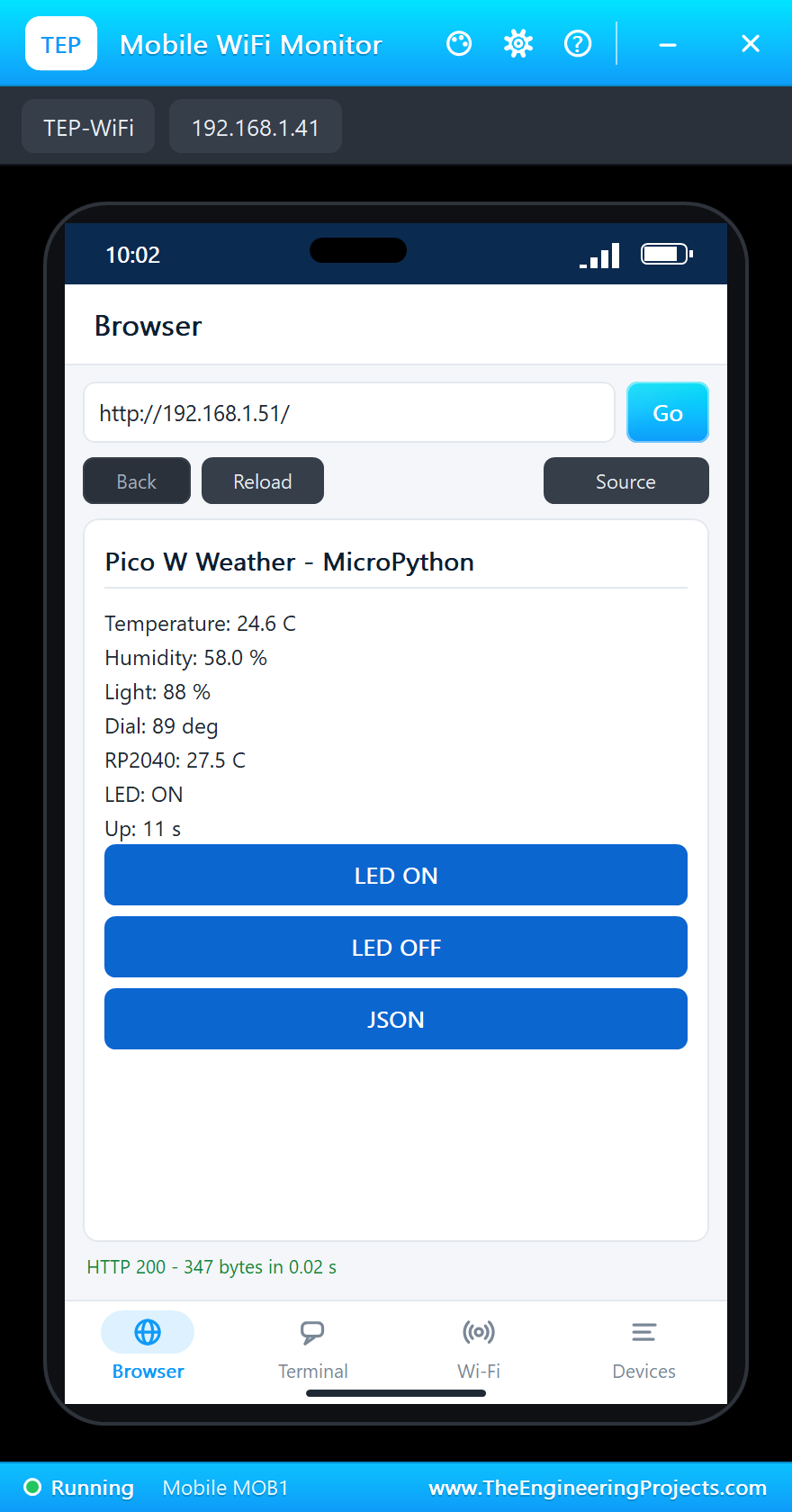
On the laptop or the phone, open http://192.168.1.51/ (Browser, the address, Go):
Warmer Air: the Dial Turns
Click +5 twice on the DHT22's pop-up. At the next reading the temperature is 34.6 C, and the servo turns from 89 to 125 degrees - a pulse of 1.89 ms:
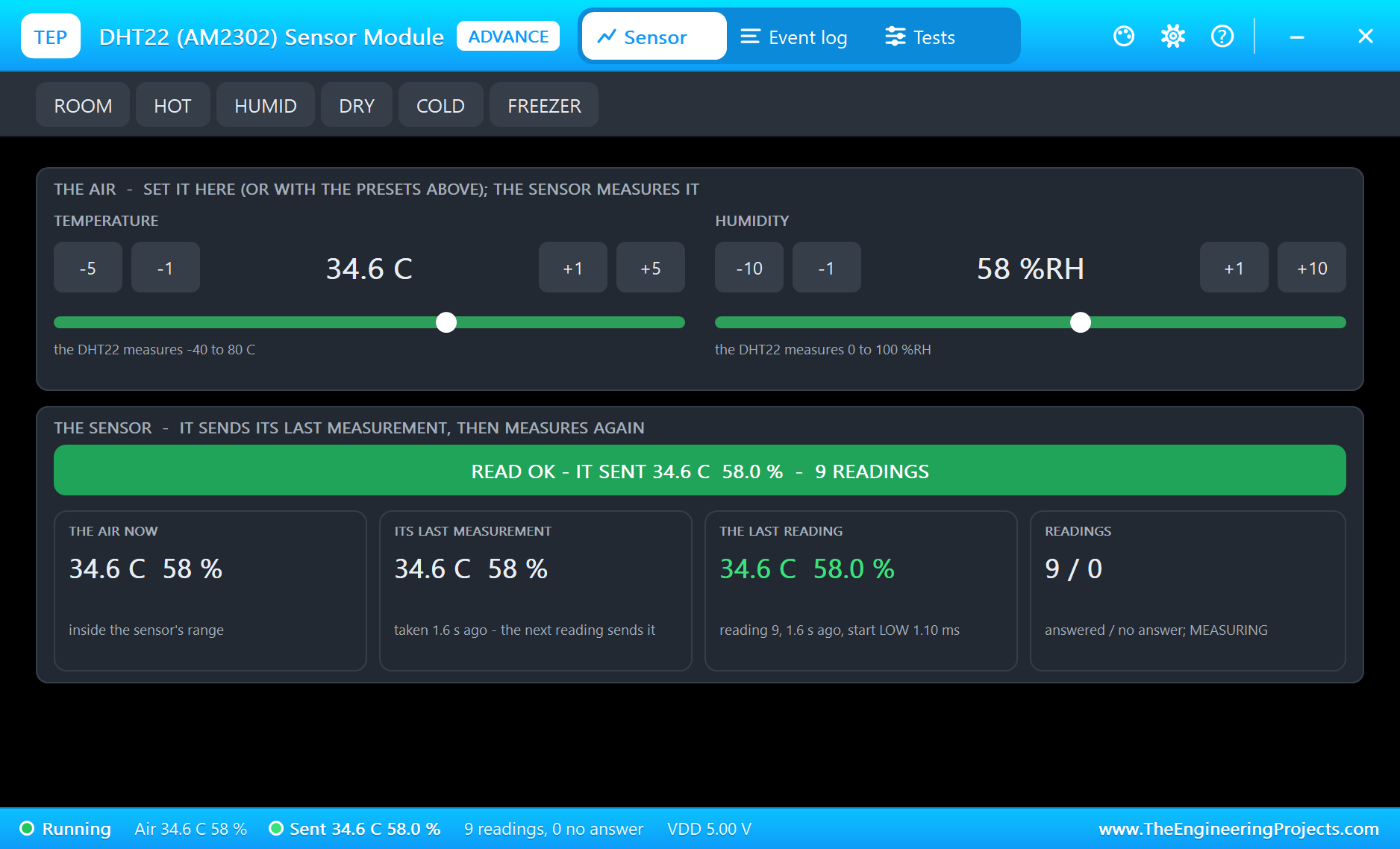
T 34.6 C RH 58.0 % light 88 % dial 125 deg RP2040 27.5 C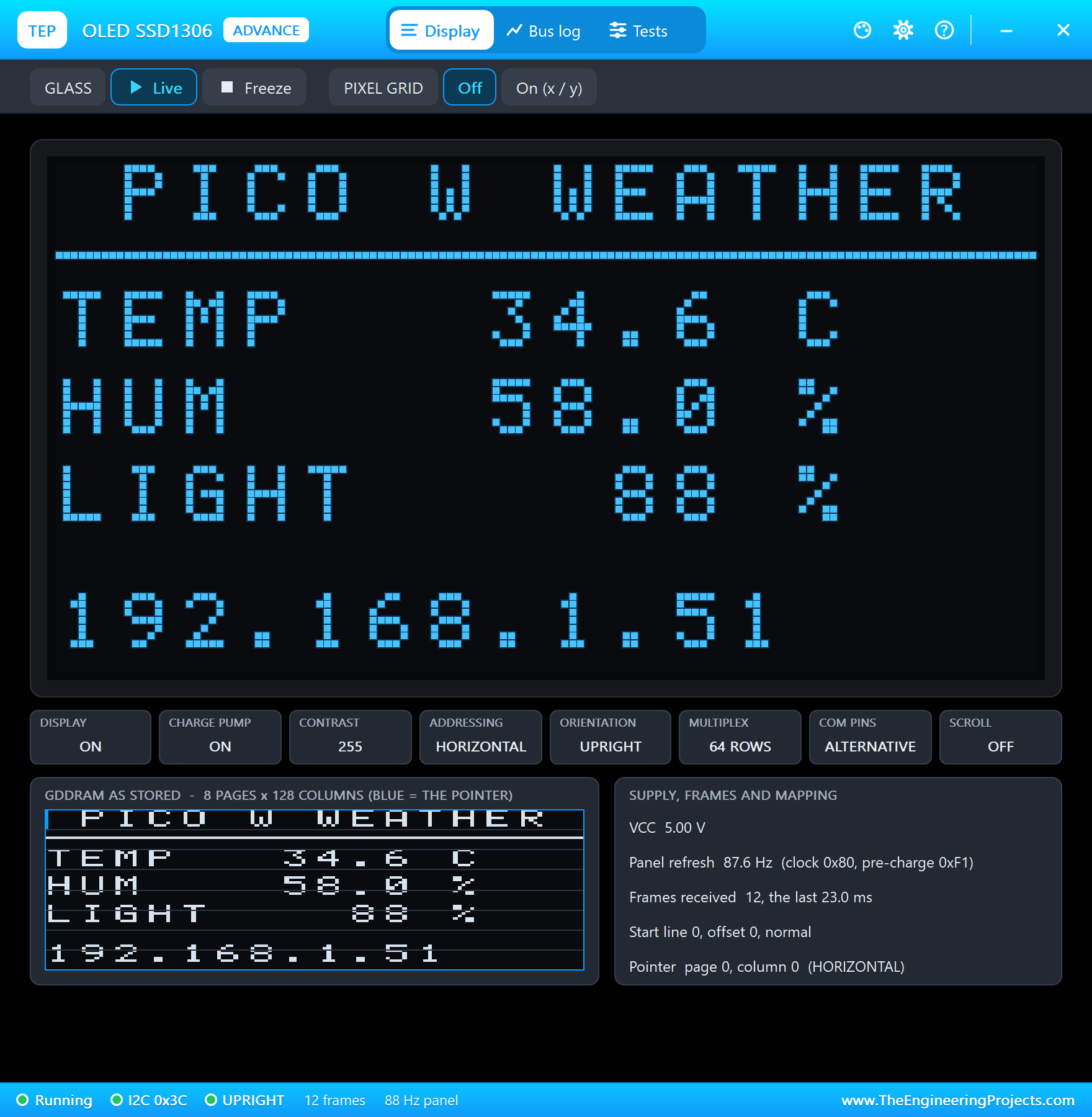
Less Light
Now pick Dim room on the LDR's pop-up. The LDR's resistance goes up, A0 rises and the light falls from 88 to 49 percent within two readings:
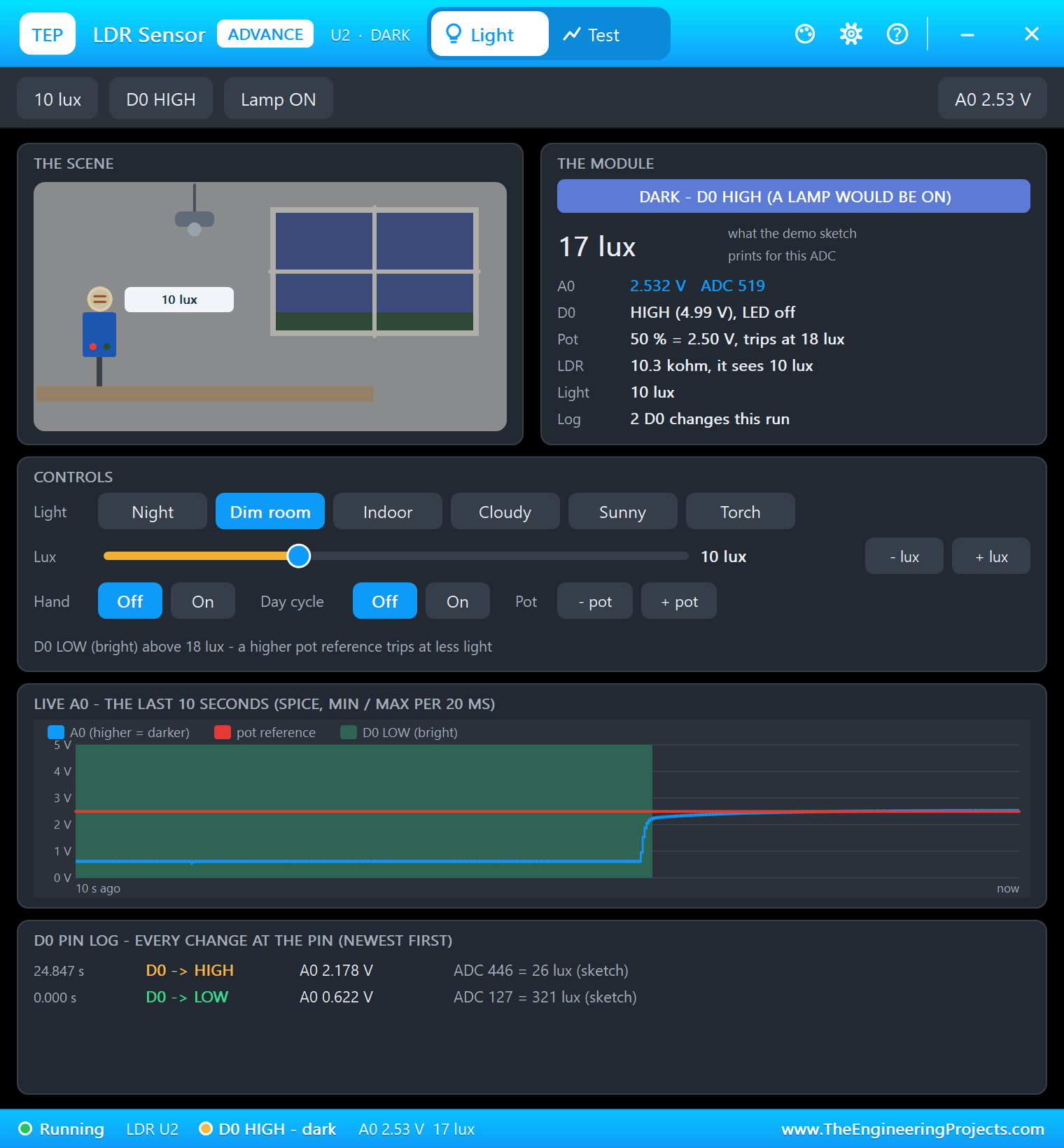
T 34.6 C  RH 58.0 %  light 51 %  dial 125 deg  RP2040 27.5 C
T 34.6 C  RH 58.0 %  light 49 %  dial 125 deg  RP2040 27.5 C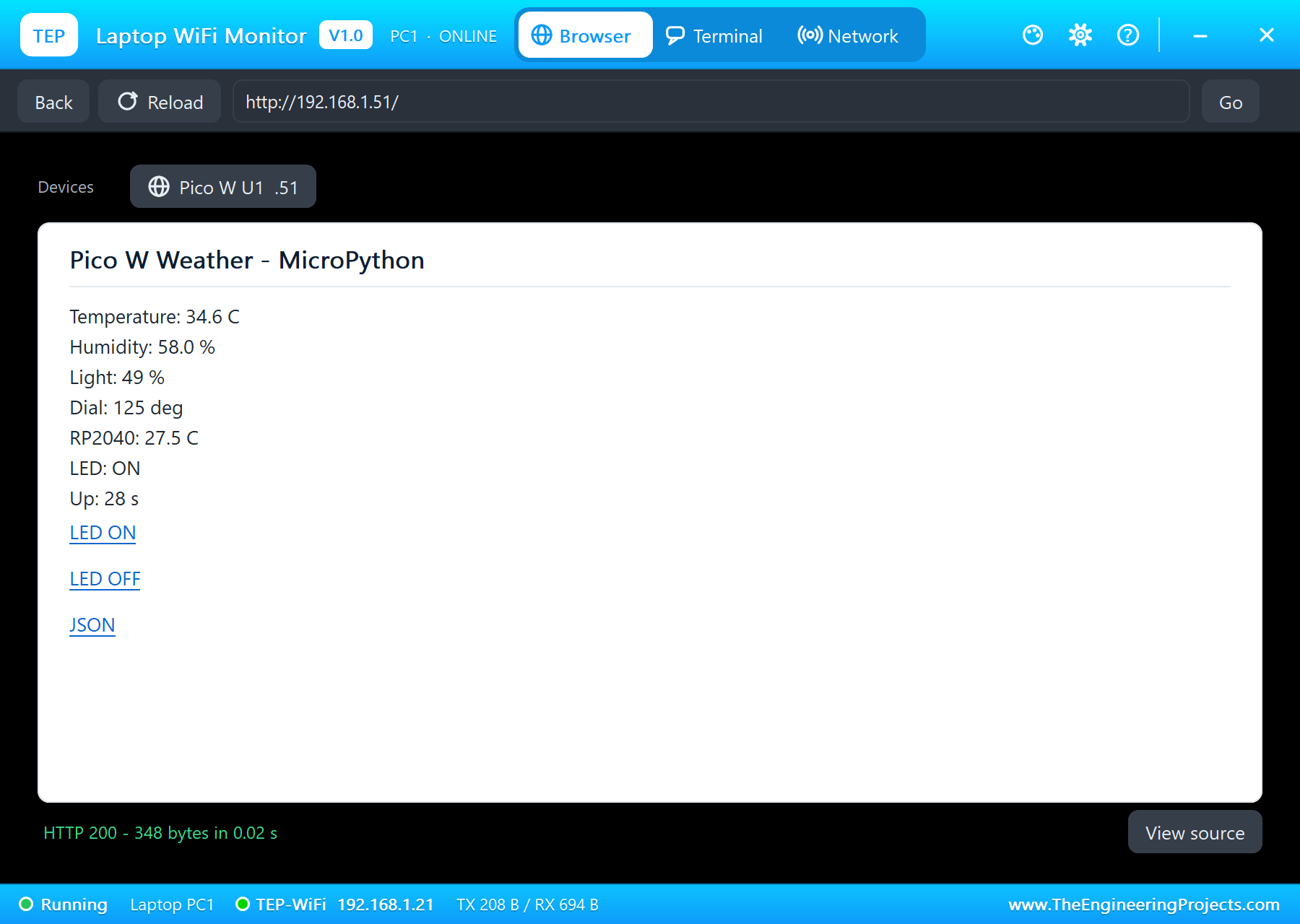
LED OFF From the Phone
Tap LED OFF on the phone. The request reaches main.py, the green LED goes out and the page says LED: OFF; LED ON lights it again:
192.168.1.41 asks for /led/off
T 34.6 C  RH 58.0 %  light 49 %  dial 125 deg  RP2040 27.5 C
192.168.1.41 asks for /led/on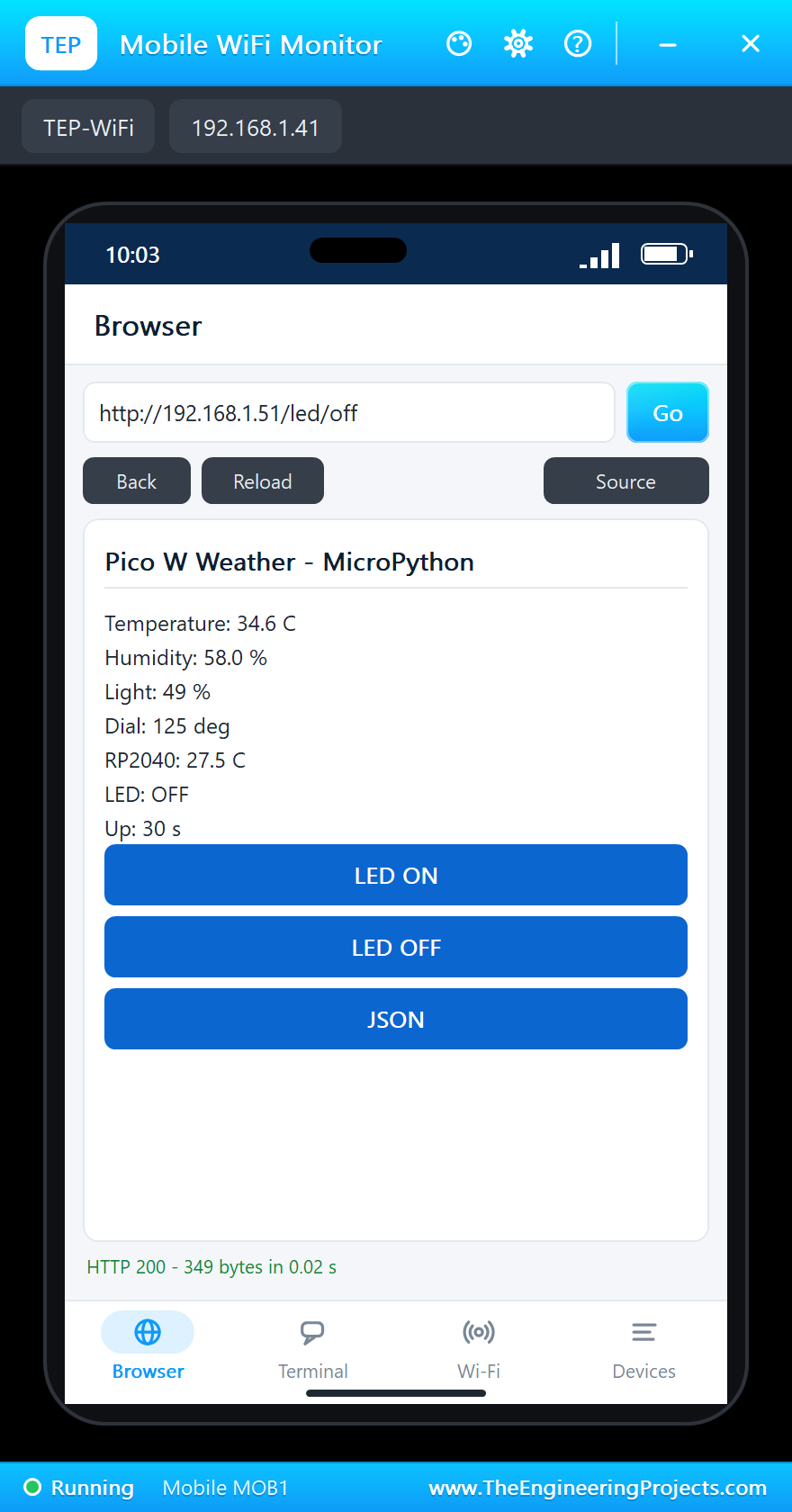
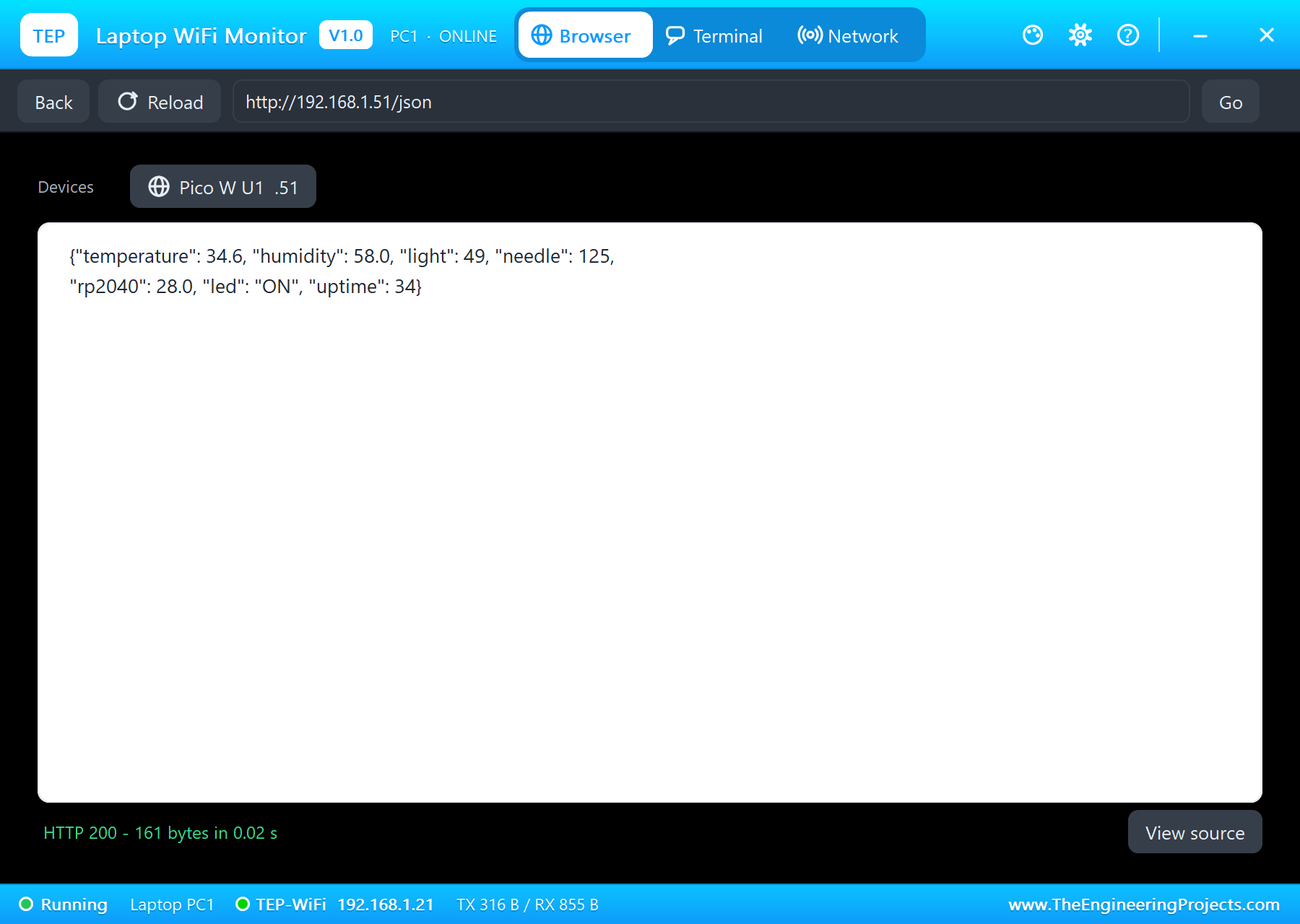
The JSON link gives the same readings as JSON, ready for another program or a dashboard:
The Terminal, the Board Tab and the REPL
The terminal keeps every line of the run - the readings and every request:
Its Board tab shows the pins as main.py set them: GP4 and GP5 on the I2C bus, GP15 for the DHT22, GP16 driving the servo, and ADC0 at 1.64 V in the dim room:
Finally type ^C in the terminal and press Enter. As in Thonny, main.py stops with KeyboardInterrupt and the REPL appears - with all of main.py's variables still there to look at:
Traceback (most recent call last):
  File "main.py", line 105, in <module>
KeyboardInterrupt:
MicroPython v1.24.1 on 2024-11-29; Raspberry Pi Pico W with RP2040
Type "help()" for more information.
>>> wlan.ifconfig()
('192.168.1.51', '255.255.255.0', '192.168.1.1', '192.168.1.1')
>>> data
{'temperature': 34.6, 'humidity': 58.0, 'light': 49, 'needle': 125, 'rp2040': 28.0, 'led': 'ON', 'uptime': 42}
>>> import os; os.uname().machine
'Raspberry Pi Pico W with RP2040'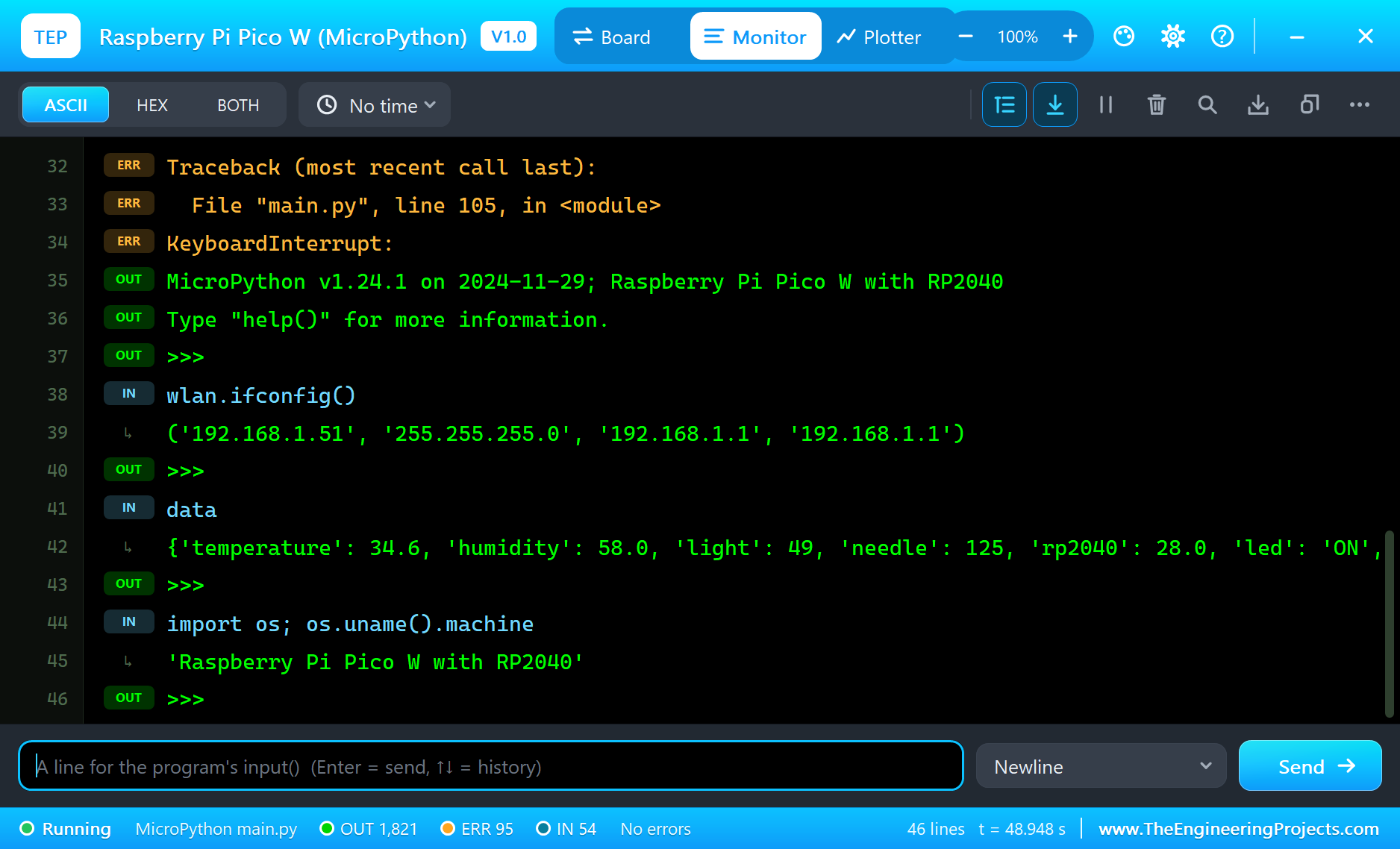
Type ^D at the prompt (or click RESTART PROGRAM) for a soft reset: "MPY: soft reboot", and main.py starts again.
Things to Try
- Change the dial's range in
needle()to 0 - 40 C, or turn it into a humidity dial. - Pick Night, Cloudy or Sunny on the LDR's pop-up and watch the light value follow.
- At the REPL, type
led.toggle()orservo.duty_ns(1500000)and watch the board. - Add a page that sets the servo:
/dial/90moves the needle to 90 degrees. - Use
ntptime.settime()after the Wi-Fi joins and print the time with every reading.
Your Own MicroPython Programs
Write your program in Thonny (or any editor) and save it as main.py next to your Proteus project - or set the board's PROGRAM property to its name. The folder of main.py is the board's flash: drivers like ssd1306.py go there, and files your program writes appear there. A boot.py in the same folder runs first, as on the Pico. Start from blink.py in the package if you want the smallest possible program.
The same files run unchanged on a real Pico W: copy main.py and ssd1306.py to it with Thonny and press the reset. That is the point of this library - you test the idea and the wiring in Proteus, then the board does the same thing on your desk.
Things to Know Before Using a Real Pico W
- 3.3 V logic: the Pico's pins are not 5 V tolerant - divide 5 V signals (as the demo does for the LDR's A0) and power 5 V modules from VBUS only when their outputs stay below 3.3 V.
- The servo's power: feed the SG90 from VBUS or a separate 5 V supply, never from 3V3, and share the ground.
- The ADC: GP26 - GP28 read 0 - 3.3 V; ADC_VREF is the reference, AGND its quiet ground.
- Wi-Fi: the Pico W only does 2.4 GHz networks; give
connect()a few seconds and checkstatus(). - Installing MicroPython: hold BOOTSEL while plugging in USB and copy the Pico W .uf2 from micropython.org to the RPI-RP2 drive.
Properties of the Pico W (MicroPython)
| Property | What it does |
|---|---|
| PROGRAM | the MicroPython program: main.py (default), another name next to the project or a full path |
| AUTOOPEN | opens the terminal at Run (YES / NO) |
| PYTHON, RUNTIME | your own python.exe or runtime folder (empty: the TEPPi folder) |
The Wi-Fi network and its password are in your program - wlan.connect("TEP-WiFi", "12345678") - exactly as on the real Pico W, so there is no property for them.
Troubleshooting
- "TEP Pi: the TEPPi folder ... was not found": copy the TEPPi folder from Proteus Model Files into MODELS.
- "ImportError: no module named 'ssd1306'": copy the driver next to main.py, as on the Pico.
- "ValueError: bad SCL pin": that pin cannot carry this I2C bus - check the pin table in the README.
- "OSError: [Errno 5] EIO": no I2C device answered - the address, the wiring or the module's power.
- Wi-Fi status -3 or -2: the password or the network name in your program (TEP-WiFi, 12345678).
- The REPL does not answer: main.py is still running - type ^C first.
Limitations of the Simulation
- Your program runs in Python 3.11 with our MicroPython modules, not in the MicroPython firmware: a few error messages are worded differently, and @micropython.viper or asm_thumb code does not get faster.
- Not modelled: the PIO state machines and the DMA, NeoPixels, the access point mode (AP_IF), Bluetooth, TLS (https), asyncio, GP26 - GP28 as digital pins, the BOOTSEL button and sleep currents.
- One hardware bus of each kind is active at a time; a second I2C bus on other pins takes over at its next call.
- Pure Python code takes no simulation time; each Pin or ticks call costs about 6 microseconds.
- Raspberry Pi and Pico are trademarks of Raspberry Pi Ltd and MicroPython of George Robotics; this library is not made or endorsed by them, by Infineon or by Labcenter.
- Tested in Proteus 8.5 in October 2026 (the demo as shipped, about 49 s of simulation in about 5 minutes on our PC with every pop-up and both monitors open). Proteus 7 is not supported.
So, that was all about the Raspberry Pi Pico W MicroPython Library for Proteus. I hope it lets you try your MicroPython ideas - sensors, displays, servos and web pages - before the Pico W is even on your desk, and then run the very same main.py on it. If you have any questions, ask in the comments and I will help you out. Till the next tutorial, take care and have fun!