


Raspberry Pi Pico 2 Library for Proteus: MAX30102 Oximeter


Hello friends, I hope you all are doing great. Today, I am going to share the Raspberry Pi Pico 2 Library for Proteus. The Pico 2 is the second generation of the Raspberry Pi Pico: the same 51 x 21 mm board and the same pins, with the new RP2350 - two Arm Cortex-M33 cores (or two RISC-V cores) at 150 MHz and 520 KB of RAM - in place of the RP2040. With this library it runs your Pico 2 Arduino sketch in Proteus 8.5, with the GP pin numbers of the arduino-pico core.
Raspberry Pi Pico 2 Library for Proteus
Latest version: V1.0 (October 2026, this tutorial)
Helping Tools
- Laptop WiFi Monitor: a laptop on the Wi-Fi of your design: a browser, a TCP / UDP terminal and ping
- Mobile WiFi Monitor: a smartphone that opens the pages of your board and sends it commands
- Serial Monitor Advance: a serial terminal window for the UART of your board
The demo is a finger pulse oximeter. A MAX30102 measures the pulse and the blood oxygen through the finger, a 0.96" SSD1306 OLED shows them with the pulse waveform, and a W5500 Ethernet module puts the Pico 2 on the network with a page for a phone and a laptop. When the oxygen falls or the pulse races, the alarm shows everywhere at once.
NOTICE: Proteus has no RP2350 model, so our team has put a lot of effort into building this board ourselves: the Pico 2's pins, button and LED are all our own model, and your sketch compiles with our free TEP Boards for Proteus add-on. Your feedback is the fuel that keeps us going, so please tell us what you think in the comments below or in the Raspberry Pi Pico 2 board of our forum. And if our free libraries help you, you can buy us a coffee. So, let's get started with the Raspberry Pi Pico 2 Library for Proteus:
What is the Raspberry Pi Pico 2?
Raspberry Pi made the Pico 2 a drop-in upgrade: every pin, the BOOTSEL button, the micro-USB and the board outline stayed where they were on the first Pico, so old projects and carrier boards keep working. The new RP2350 runs faster, has twice the RAM and adds security features, and the board gets 4 MB of flash and a small DEBUG connector at the end. The green LED sits on GP25, inside the board. The Pico 2 has no radio - that is the job of the Raspberry Pi Pico 2 W Library for Proteus.
| Pico 2 | Pico (first) | |
|---|---|---|
| Chip | RP2350: 2 x Cortex-M33 or 2 x Hazard3 RISC-V, 150 MHz | RP2040: 2 x Cortex-M0+, 133 MHz |
| Memory | 520 KB RAM, 4 MB flash | 264 KB RAM, 2 MB flash |
| Pins | 2 x 20, GP0 to GP28, 3 ADC inputs | 2 x 20, GP0 to GP28, 3 ADC inputs |
| LED | green, GP25 | green, GP25 |
| Extras | security (secure boot, OTP), a DEBUG connector | SWD pads |
| Logic | 3.3 V | 3.3 V |
The RP2350 is unusual: it carries two pairs of cores - two Arm Cortex-M33 and two Hazard3 RISC-V - and the program chooses at boot which pair runs. The Arm cores have a floating-point unit and DSP instructions, so maths such as a filter or the square roots of a sensor fusion run fast; the RISC-V cores are open hardware, free for anyone to study. Most Arduino users never notice the difference, because the arduino-pico core builds for the Arm pair by default.
Why the Raspberry Pi Pico 2?
The Pico 2 costs about as much as an Arduino Nano and is many times faster, with plenty of pins and RAM for sensors, displays and motors. Its pins and its Arduino core (Earle Philhower's arduino-pico) are well documented, and a large community writes for it. When a project needs a network but not Wi-Fi - a lab bench, a factory, a medical cart - a W5500 on SPI gives it a reliable wired port; WIZnet even sells the pair as one board.
Features of the Raspberry Pi Pico 2 Library for Proteus
- The board as it looks: the green Pico 2 with its castellated pins, micro-USB, BOOTSEL, the RP2350, the flash chip, the crystal, the buck-boost converter and the DEBUG connector.
- Your sketch: a .hex for "Raspberry Pi Pico 2 (TEP Proteus)" with the arduino-pico numbers GP0 to GP28, A0 to A2, LED_BUILTIN (GP25), BOOTSEL, analogReadTemp(), Serial, Serial1 on GP0 / GP1, Wire on GP4 / GP5, SPI on GP16 to GP19.
- The LED and the button: the green LED lights when GP25 is HIGH, BOOTSEL reads true while it is held, RUN resets the board.
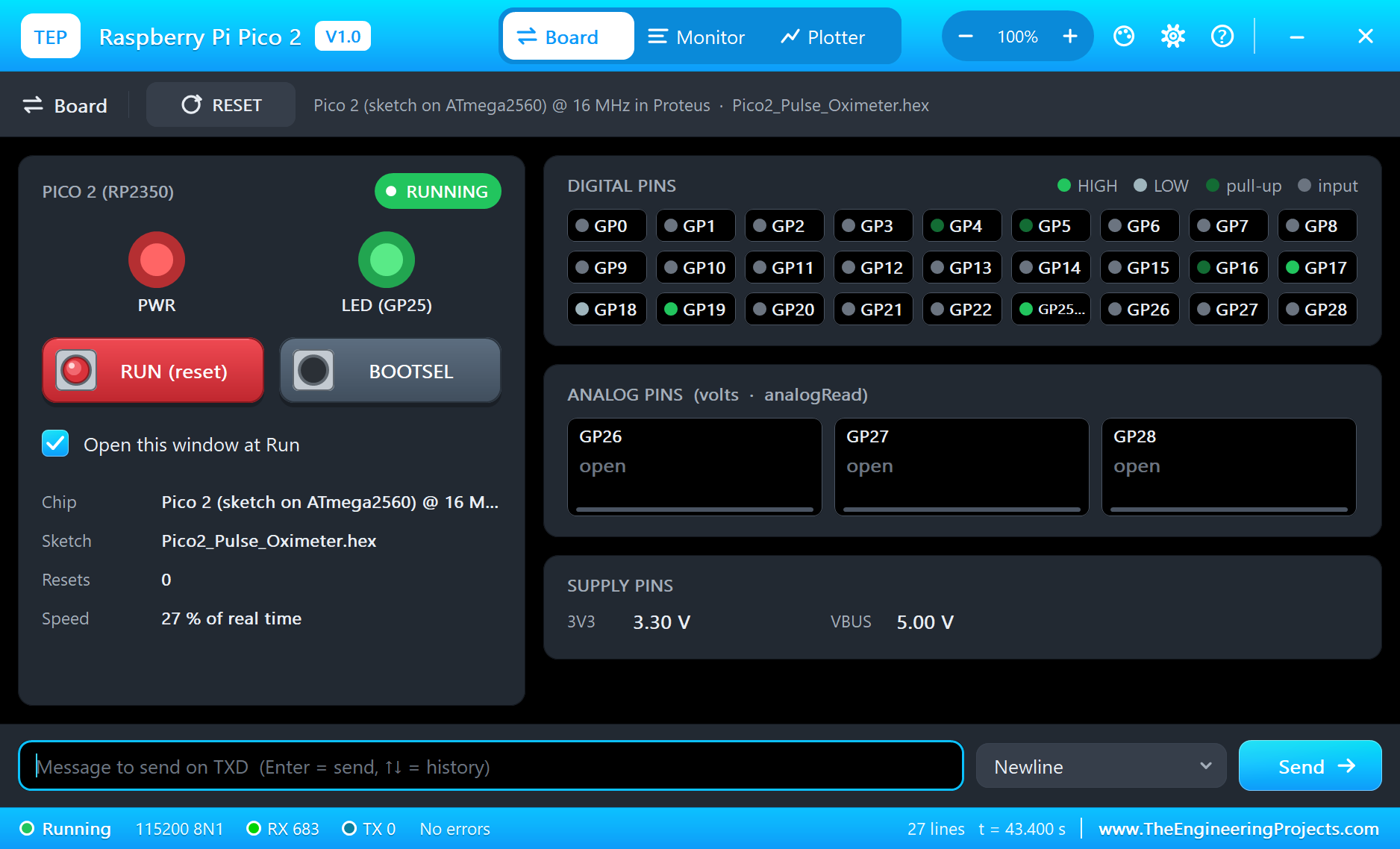
- The serial monitor: the built-in monitor on the USB with Monitor, Plotter and Board tabs - our TEP header, no Windows title bar.
- A complete package: about 3.7 MB with the board, the add-on, the MAX30102, SSD1306 and W5500 libraries and the demo, without the source code of the models.
The Raspberry Pi Pico 2 in Proteus
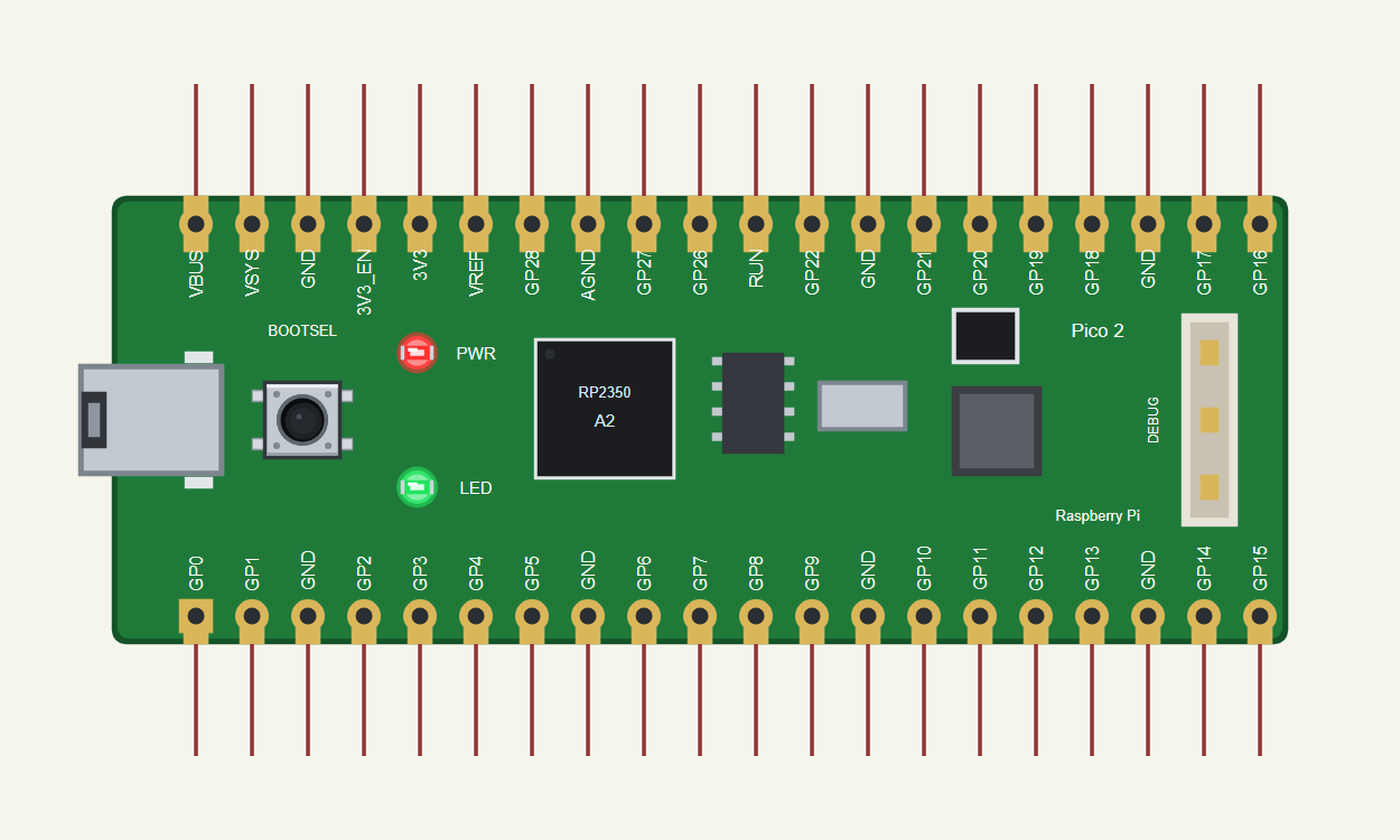
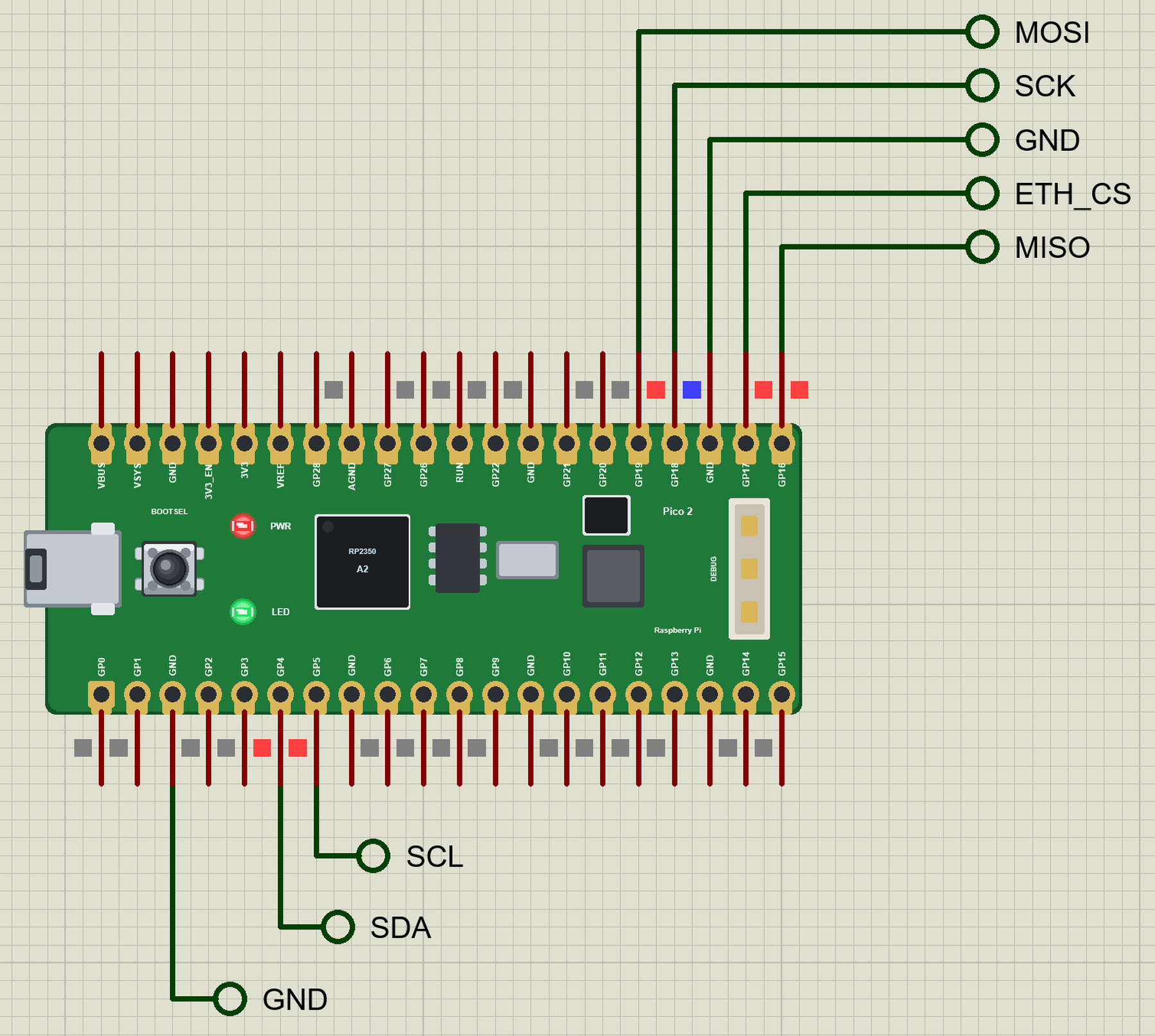
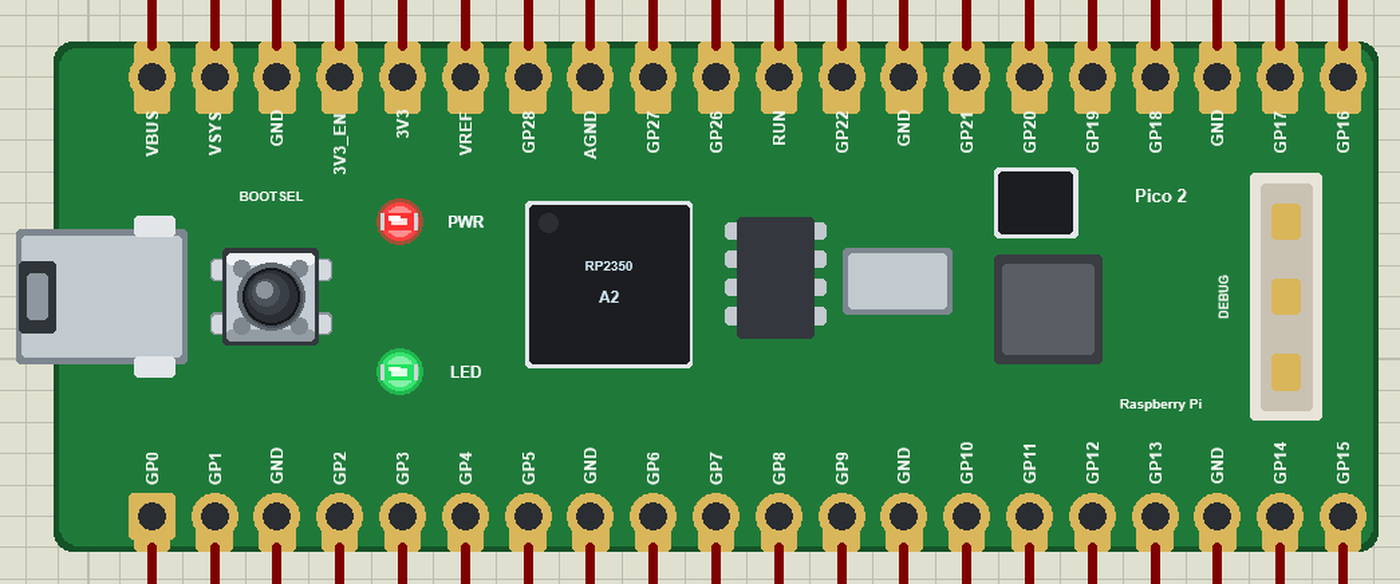
Search PICO 2 in Pick Devices; the device RASPBERRY PI PICO 2 is in TEPPICO2.LIB (Microprocessor ICs, Raspberry Pi Boards), with the prefix U. The board lies with micro-USB on the left: pins 40 to 21 along the top (VBUS, VSYS, GND, 3V3_EN, 3V3, VREF, GP28 ... GP16), pins 1 to 20 along the bottom (GP0 ... GP15). Click the micro-USB to open the serial monitor.
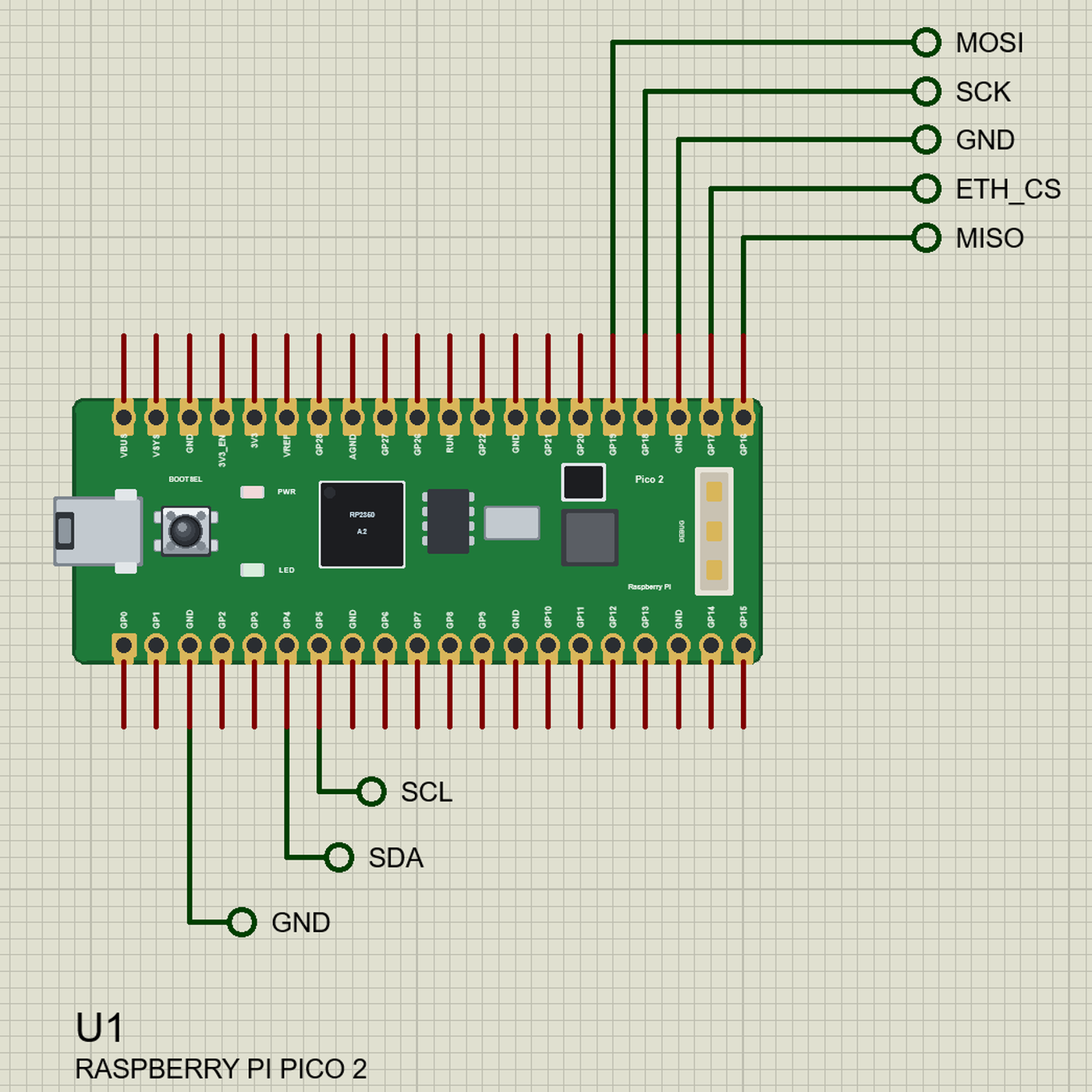
The Pins
| Pins | What the library does with them |
|---|---|
| GP0 / GP1 | Serial1 TX / RX (UART0), GPIO |
| GP2 to GP22 | GPIO, PWM (analogWrite), interrupt |
| GP4 / GP5 | Wire SDA / SCL (I2C0) |
| GP16 to GP19 | SPI MISO / CS / SCK / MOSI (SPI0) |
| GP26 to GP28 | A0 to A2: analogRead 0 to 1023 for 0 to 3.3 V |
| LED_BUILTIN | the green LED on GP25 (inside the board) |
| RUN | the reset: LOW holds the board in reset |
| 3V3, VBUS, GND | 3.3 V, 5 V from the USB, ground |
Download Raspberry Pi Pico 2 Library for Proteus
Click the button below to download Raspberry-Pi-Pico-2-Library-for-Proteus-v1.0.zip (about 3.7 MB, without the source code of the models):
Raspberry Pi Pico 2 Library for Proteus V1.0- README.txt: installation, the demo, the pins, the properties, troubleshooting and the limits.
- Proteus Library Files:
TEPPICO2.LIBand the demo's parts:TEPMAX30102.LIB,TEPOLED12864.LIB,TEPW5500MOD.LIB,TEPLAPTOP.LIBandTEPMOBILE.LIB. - Proteus Model Files:
TEPNET.DLL(the board, the W5500, the laptop, the phone and the network),TEPMAX30102.DLLandTEPOLED.DLL. - Arduino Code: the demo sketch and the TEP Boards for Proteus add-on 1.28.0.
- Proteus Simulation: the demo project, its HEX file and copies of the DLLs.
No Proteus yet? Read How to Download and Install Proteus 7 and 8. New to libraries? Follow How to Install a New Library in Proteus.
How to Install Raspberry Pi Pico 2 Library for Proteus
- Close Proteus and extract the whole zip file, for example to your Desktop.
- Copy the files from Proteus Library Files into the LIBRARY folder of Proteus.
- Copy the DLLs from Proteus Model Files into the MODELS folder, replacing an older TEPNET.DLL.
- Delete
TEPPICO2.IDXfrom the LIBRARY folder if it is there. - For your own sketches, copy Arduino Code\TEP Boards for Proteus\hardware into your Arduino sketchbook (Documents\Arduino) and restart the Arduino IDE; the board is Raspberry Pi Pico 2 (TEP Proteus). For the demo install SparkFun MAX3010x, Adafruit SSD1306 and Ethernet from the Library Manager.
- Start Proteus, press P and search for PICO 2.
Demo: a Pulse Oximeter
A pulse oximeter clips on a finger and shines red and infrared light through it. Blood that carries oxygen absorbs the two colours differently, and every heartbeat pushes a little more blood through, so the light that comes out rises and falls with the pulse. From those waves the device reads the pulse rate and the oxygen saturation, SpO2 - a healthy reading is 95 to 100 %.
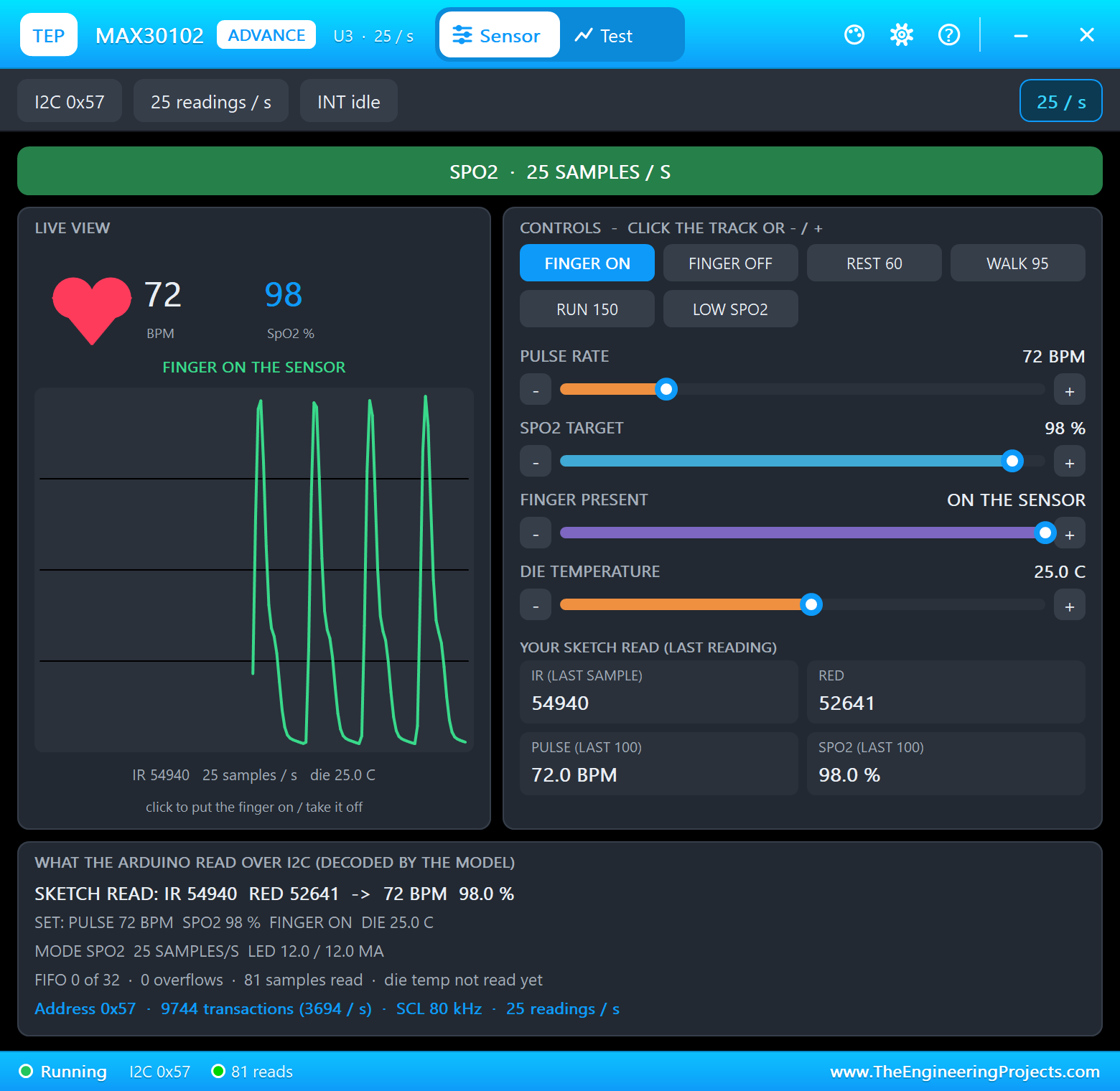
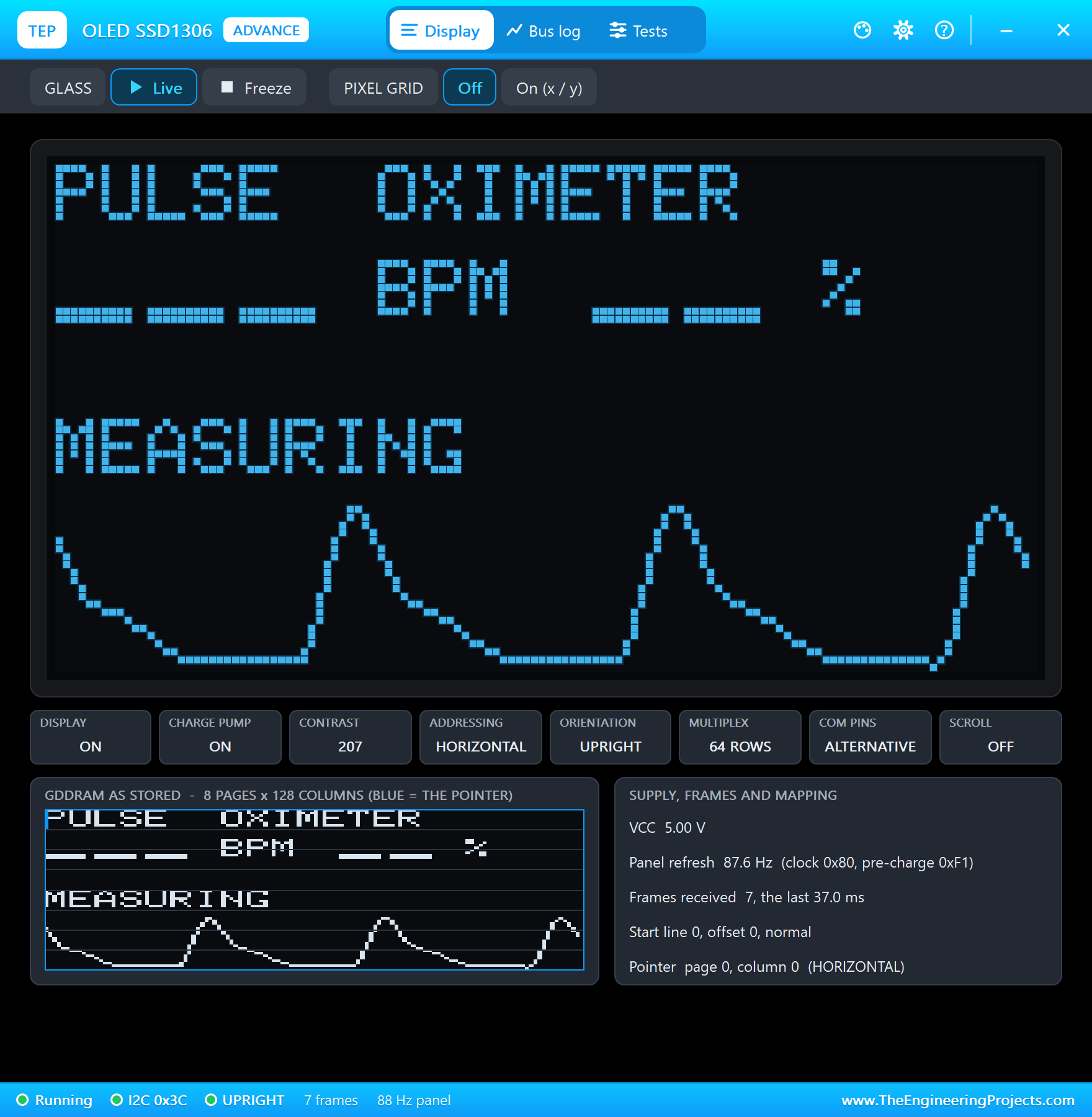
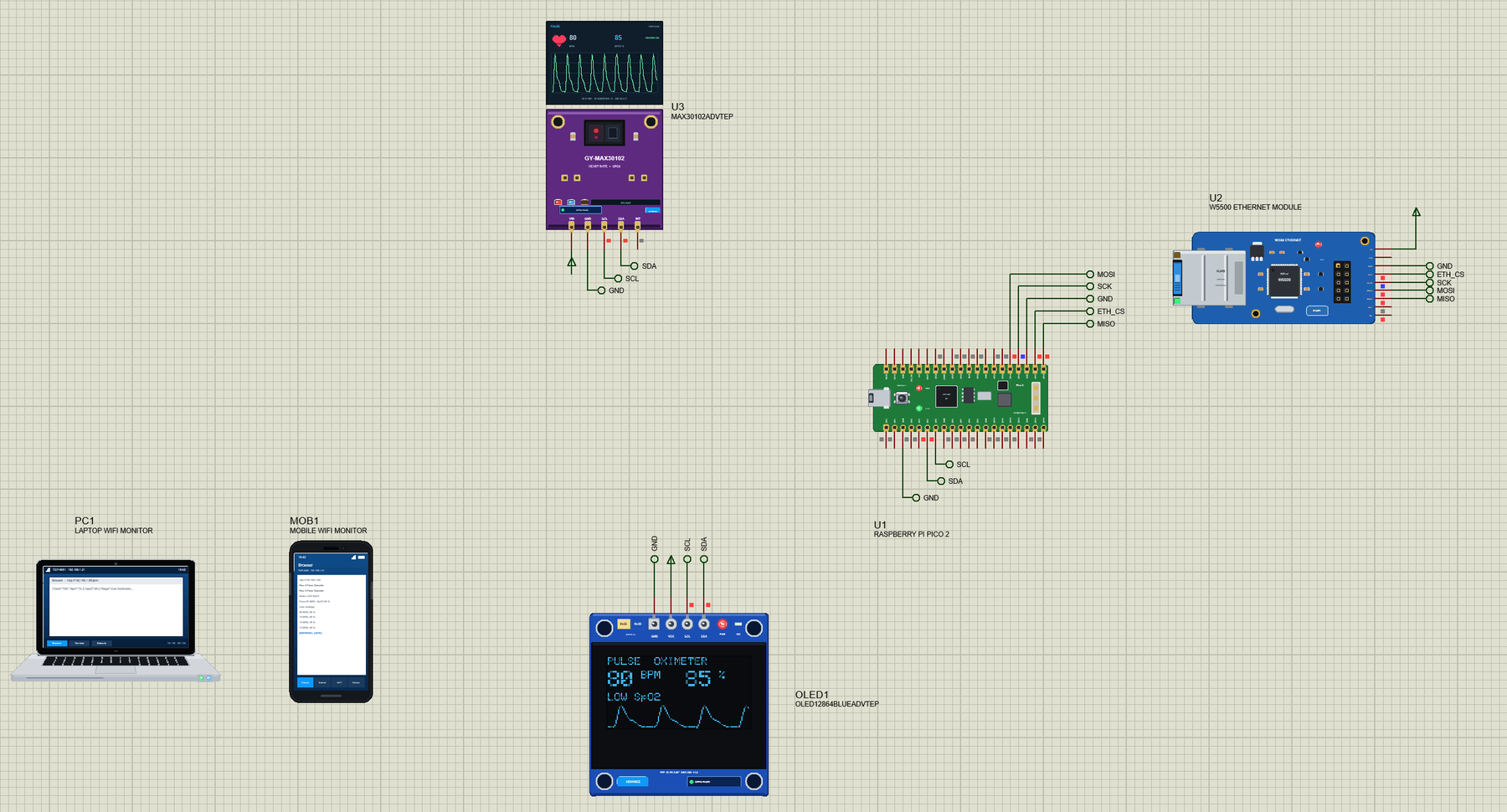
Open Pico2-Pulse-Oximeter.pdsprj. U1 runs Pico2_Pulse_Oximeter.hex. U3 is the sensor board from our MAX30102 Library for Proteus, OLED1 the 0.96" display from our SSD1306 OLED Library for Proteus and U2 the module from our W5500 Ethernet Module Library for Proteus. The sensor and the OLED are the Advance versions: each opens its pop-up window at Run, as the W5500 does. PC1 is the Laptop WiFi Monitor and MOB1 the Mobile WiFi Monitor.
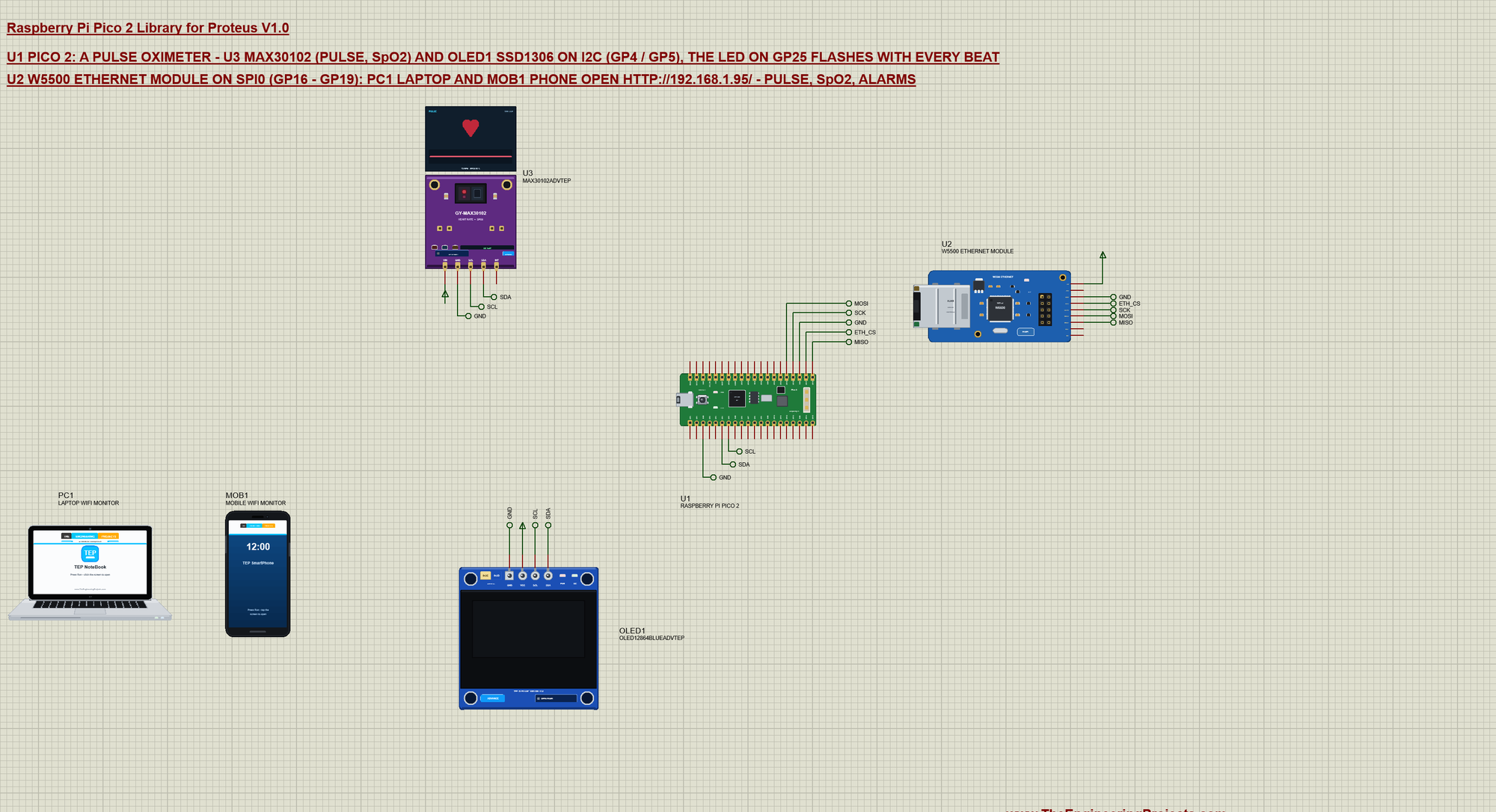
| Part | Pins | Pico 2 pins | Notes |
|---|---|---|---|
| MAX30102 (U3) | SDA, SCL | GP4, GP5 | address 0x57; INT not used |
| SSD1306 OLED (OLED1) | SDA, SCL | GP4, GP5 | address 0x3C |
| W5500 (U2) | MISO, SCS, SCLK, MOSI | GP16, GP17, GP18, GP19 | SPI0, the fixed address 192.168.1.95 |
| All three | VCC / VIN / 5V, GND | power rail, GND | the power terminals of the demo |
The MAX30102 does the optical work in one small package: a red LED at 660 nm, an infrared LED at 880 nm, a photodiode, an 18-bit converter and a FIFO that holds 32 samples, so the microcontroller can read in bursts instead of catching every sample. It talks I2C at address 0x57 and needs only power, ground and the two bus wires; its INT pin can wake a sketch when the FIFO fills, which this demo does not need.
Reading the Light
SparkFun's MAX3010x library also runs the MAX30102. The sketch sets the LEDs to 12 mA, averages 4 samples, uses both colours at 100 Hz - so 25 samples a second reach the FIFO - and the widest ADC range:
  ready = sensor.begin(Wire, I2C_SPEED_STANDARD);
  if (ready) sensor.setup(60, 4, 2, 100, 411, 4096);       // LED 12 mA, average 4, red + IR, 100 Hz, 411 us, 4096 nA range
The samples come out of the sensor's FIFO in pairs. Without a finger the light is not blocked and the readings stay low - the sketch calls that NO FINGER:
    const uint32_t ir = sensor.getFIFOIR(), r = sensor.getFIFORed();
    sensor.nextSample();
    if (ir < 5000 || r < 5000) {                             // the light is not blocked: no finger
      used = 0; finger = false; bpm = spo2 = 0;
      setState(ST_NOFINGER);
      continue;
    }
The Pulse from the Waveform
Every 100 samples - 4 seconds - the sketch looks at the infrared wave. It takes the middle between the lowest and the highest sample and counts how often the wave climbs through it: once per heartbeat.
  const uint16_t threshold = irMin + (irMax - irMin) / 2;
  beatThreshold = threshold;
  int first = -1, last = -1, crossings = 0;
  for (byte i = 1; i < 100; ++i) if (infrared[i - 1] < threshold && infrared[i] >= threshold) {
    if (first < 0) first = i;
    last = i; ++crossings;
  }
The beats between the first and the last crossing, over the time between them, give the pulse in beats per minute. The oxygen comes from how strongly the red light pulses compared with the infrared, through the approximation Maxim published for this sensor:
  bpm = 60.0 * SAMPLES_PER_S * (crossings - 1) / (last - first);   // the beats between the first and the last crossing
  const float ratio = ((float)(rMax - rMin) / rSum) / ((float)(irMax - irMin) / irSum);
  spo2 = constrain(-45.060 * ratio * ratio + 30.354 * ratio + 94.845, 0.0, 100.0);   // Maxim's approximation
Then the state: an oxygen below 94 % is LOW SpO2, a pulse above 120 is HIGH PULSE, below 50 LOW PULSE:
setState(spo2 < SPO2_LOW ? ST_LOWSPO2 : bpm > BPM_HIGH ? ST_HIGHBPM : bpm < BPM_LOW ? ST_LOWBPM : ST_OK);A Beat on the LED
The same middle line tells the sketch when a beat happens: the moment a new sample climbs through it, GP25 goes HIGH and the green LED flashes for 120 ms:
if (beatThreshold && previousIr < beatThreshold && ir >= beatThreshold) { beatOn = true; beatAt = millis(); digitalWrite(LED_BUILTIN, HIGH); }The Waveform on the OLED
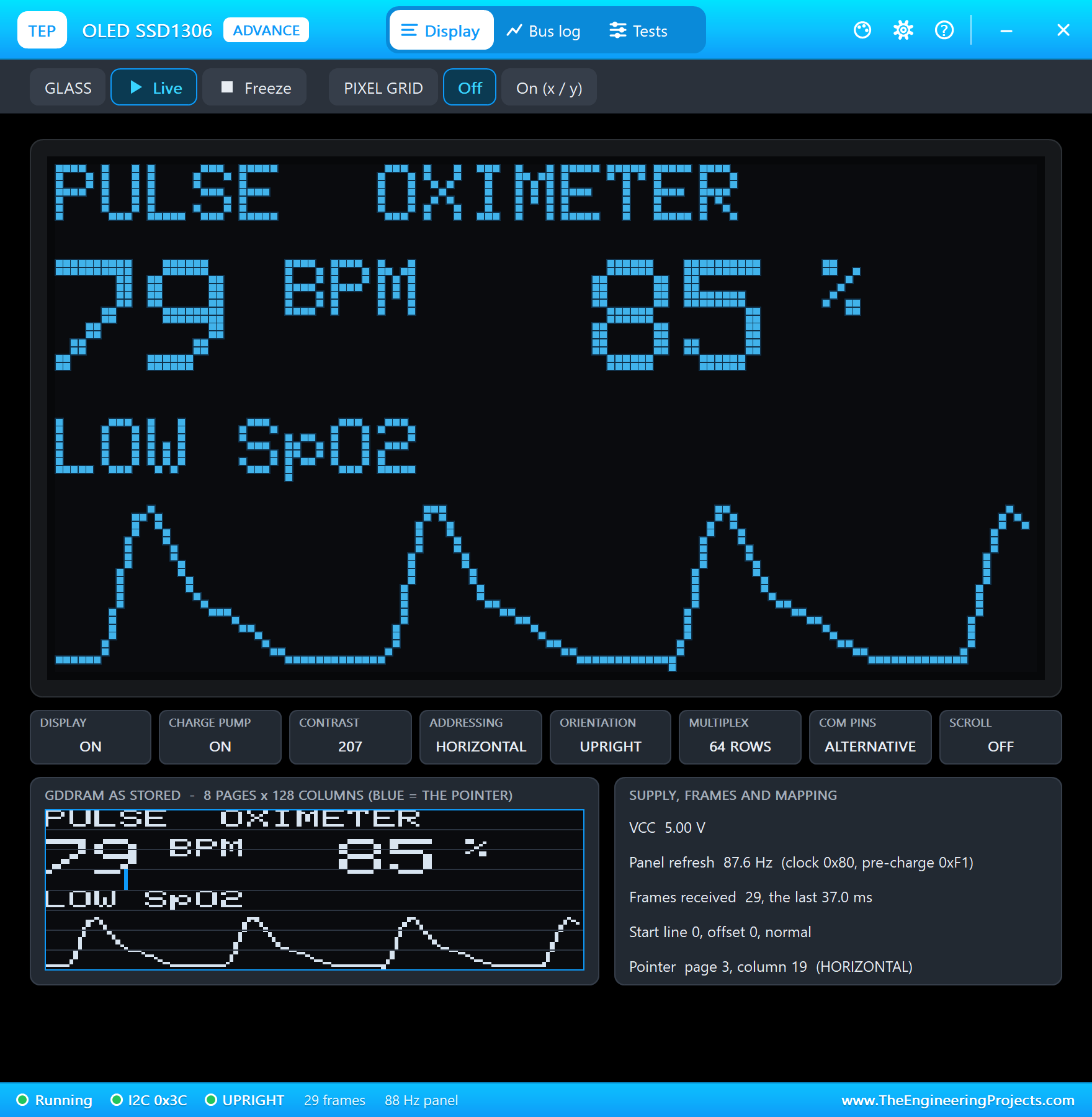
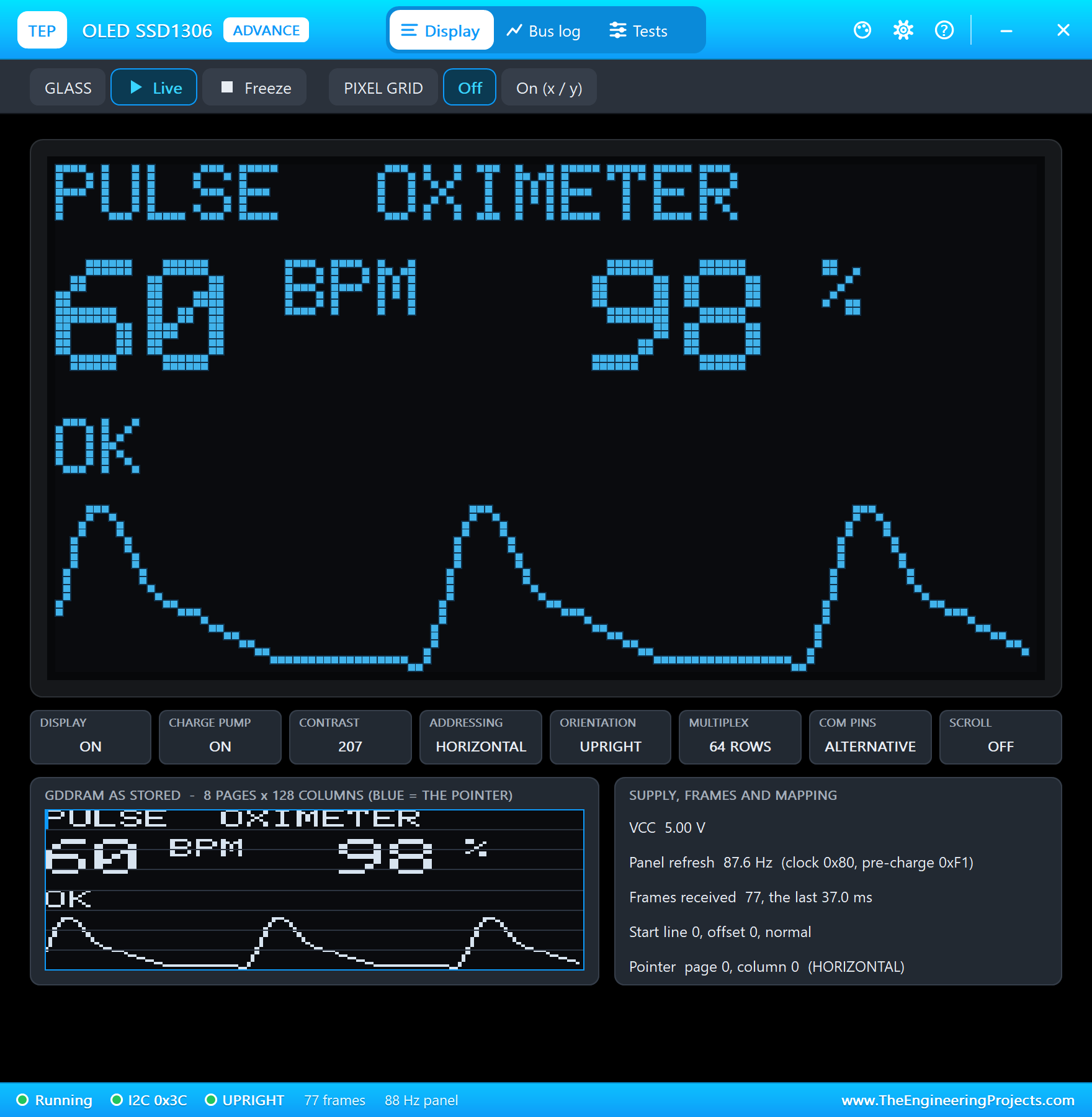
The OLED keeps the last 64 samples - about 2.5 seconds - and draws them as a line, scaled to their own range. Less infrared light means more blood, so the sketch turns the wave upside down and every beat shows as a peak, as on a hospital monitor:
  if (finger && hi > lo) {
    for (byte i = 1; i < 64; ++i) {
      const uint16_t a = wave[(waveAt + i - 1) % 64], b = wave[(waveAt + i) % 64];
      oled.drawLine(2 * (i - 1), 43 + (long)(a - lo) * 20 / (hi - lo), 2 * i, 43 + (long)(b - lo) * 20 / (hi - lo), SSD1306_WHITE);
    }
  }
The Network Page
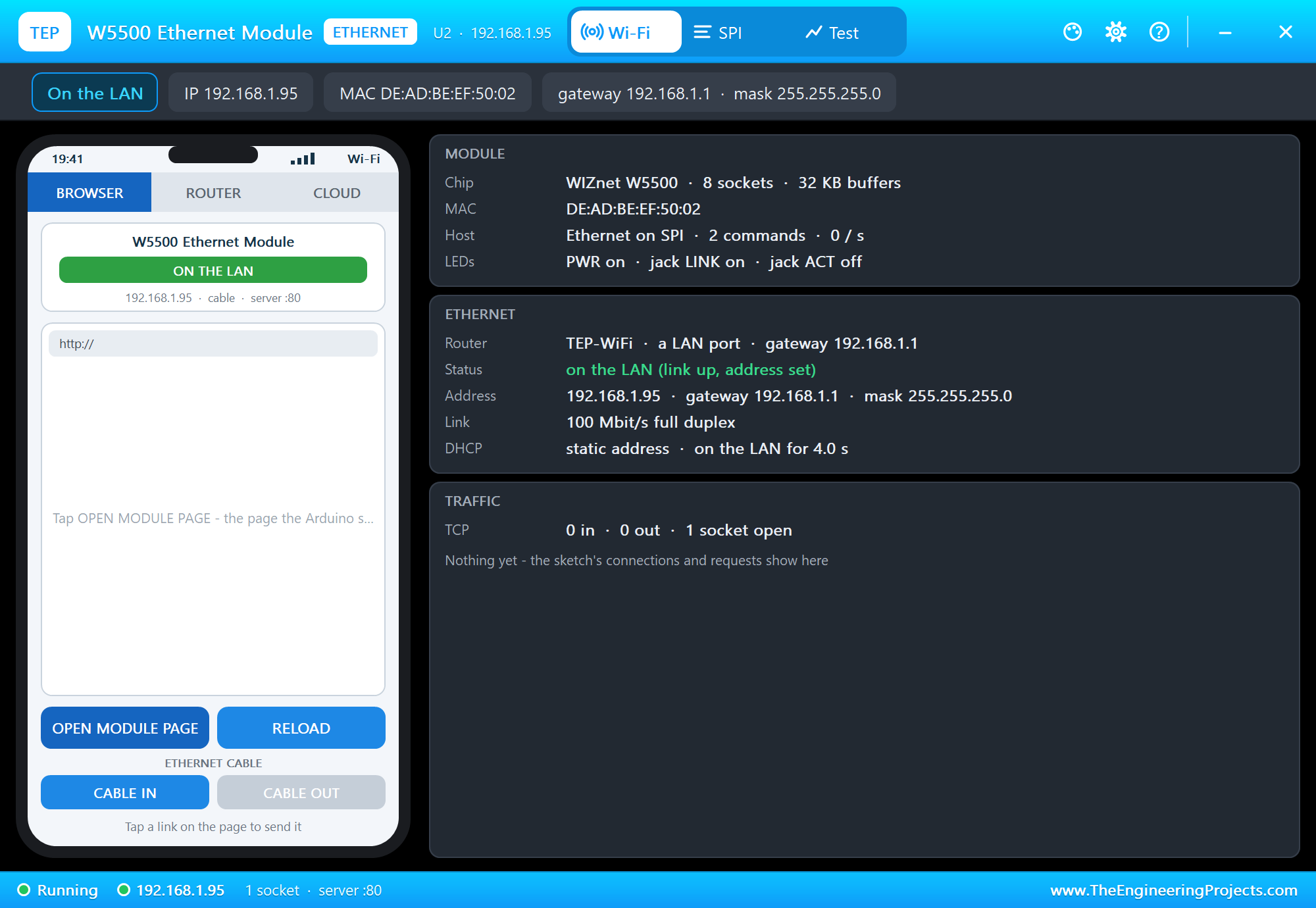
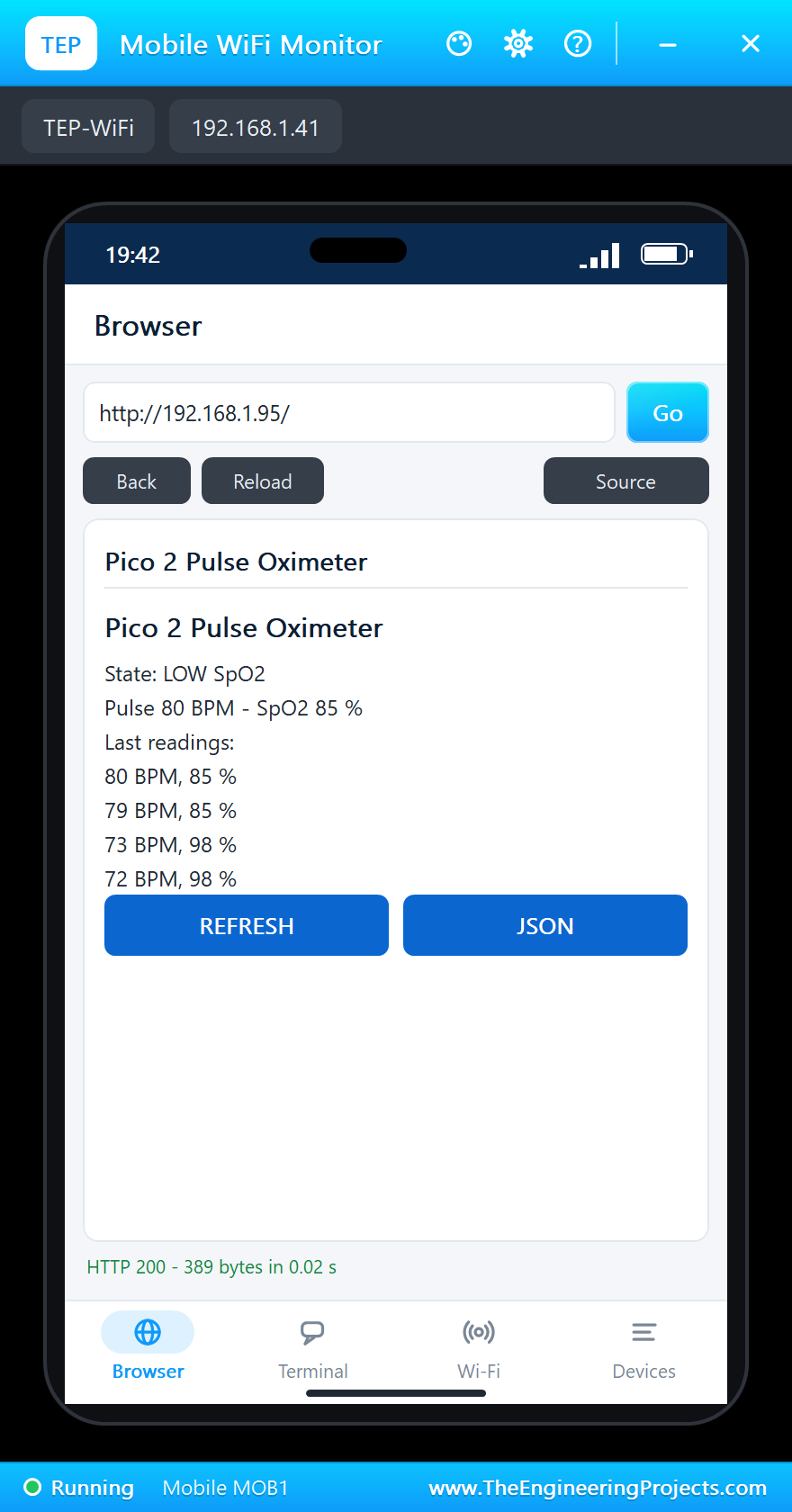
The W5500 talks SPI on GP16 to GP19 with its chip select on GP17. The Ethernet library starts it with a fixed address, and a small server answers / with the state, the readings and the last five estimates, and /json with the same in JSON for a program:
  Ethernet.init(ETH_CS);
  Ethernet.begin(mac, ip, dnsServer, gateway, subnet);
Run the Demo
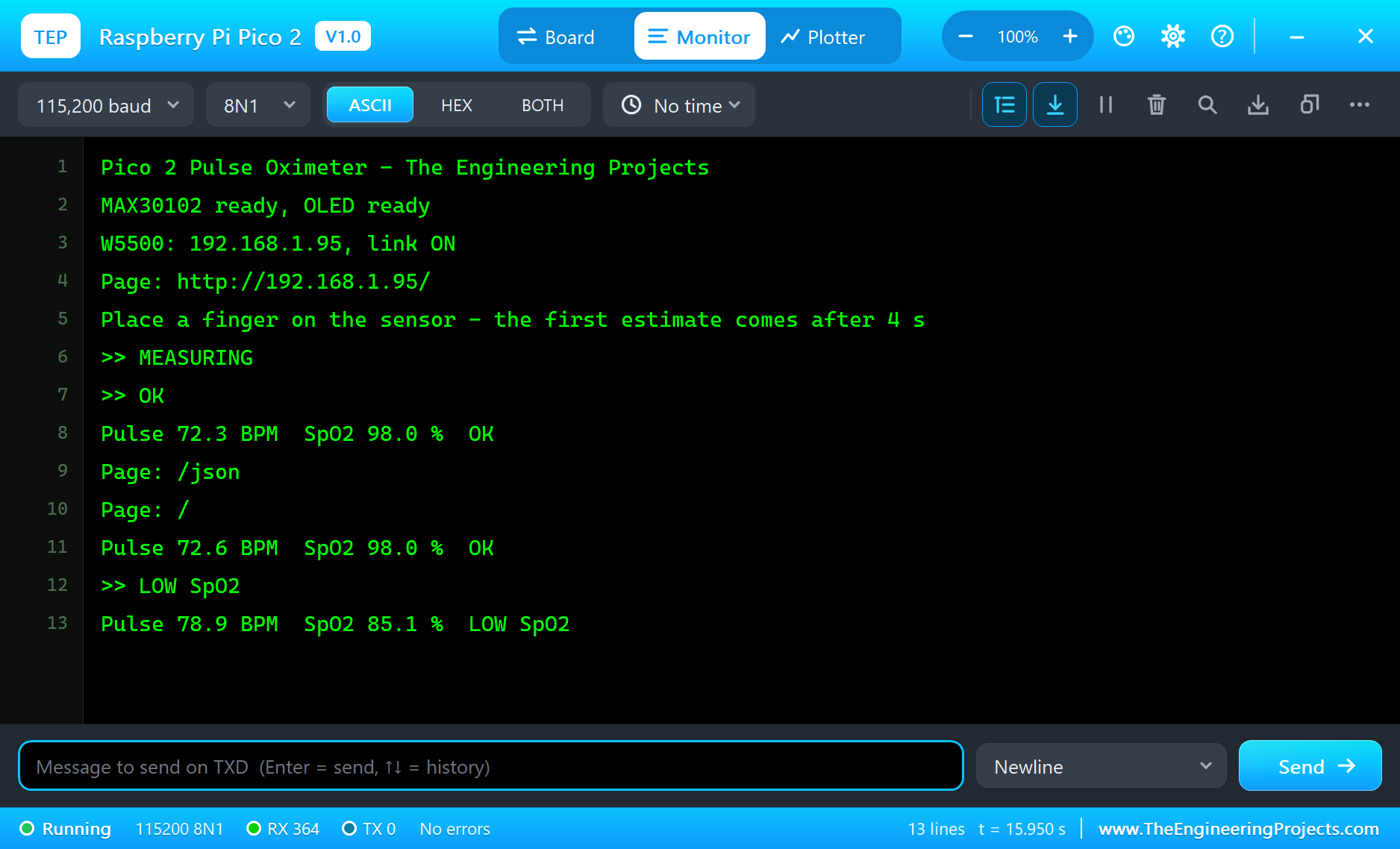
Press Run. The serial monitor opens, the sensor and the OLED answer, the W5500 comes up on the LAN, and after the first 4 seconds of samples the first estimate arrives:
Pico 2 Pulse Oximeter - The Engineering Projects
MAX30102 ready, OLED ready
W5500: 192.168.1.95, link ON
Page: http://192.168.1.95/
Place a finger on the sensor - the first estimate comes after 4 s
>> MEASURING
>> OK
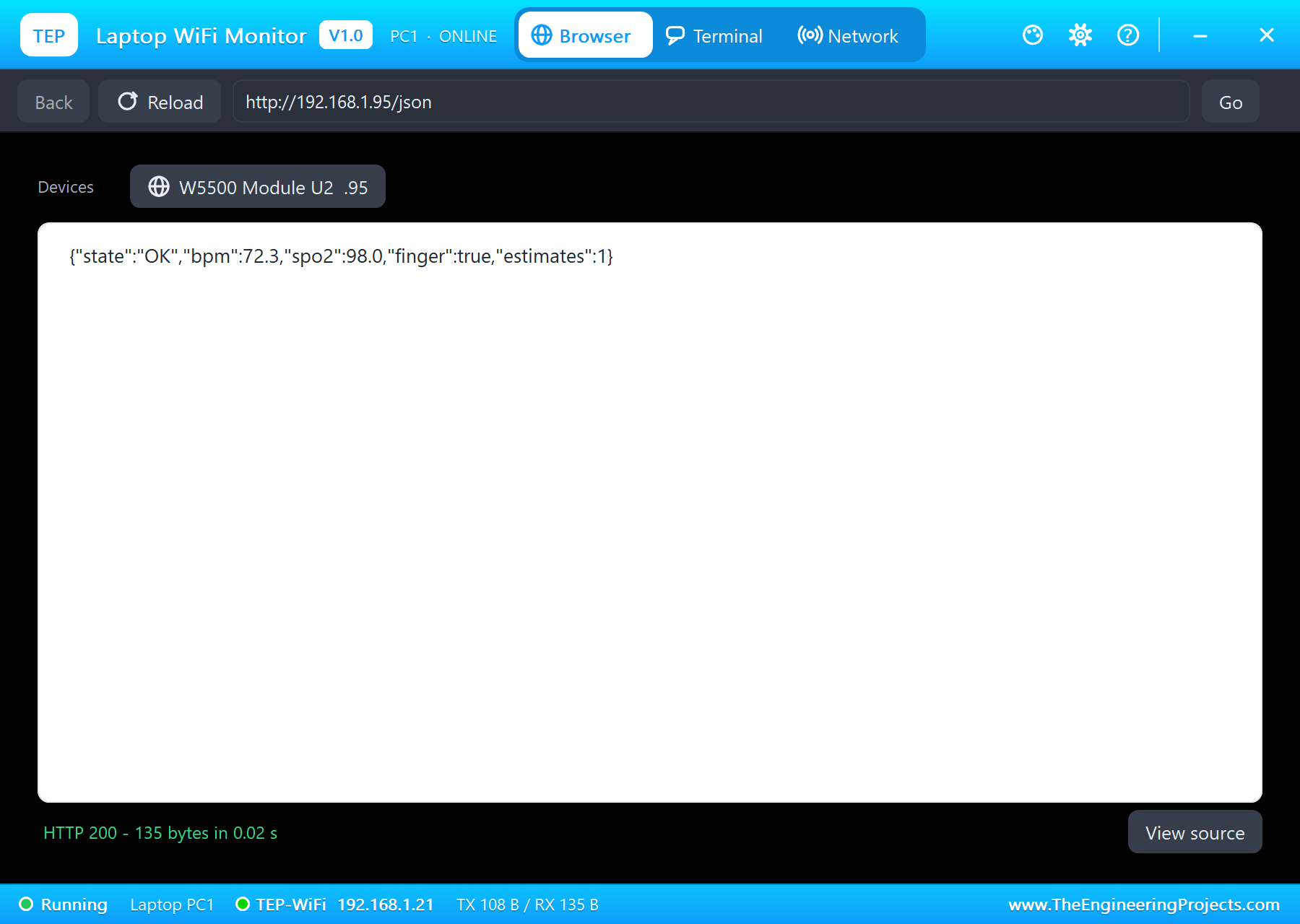
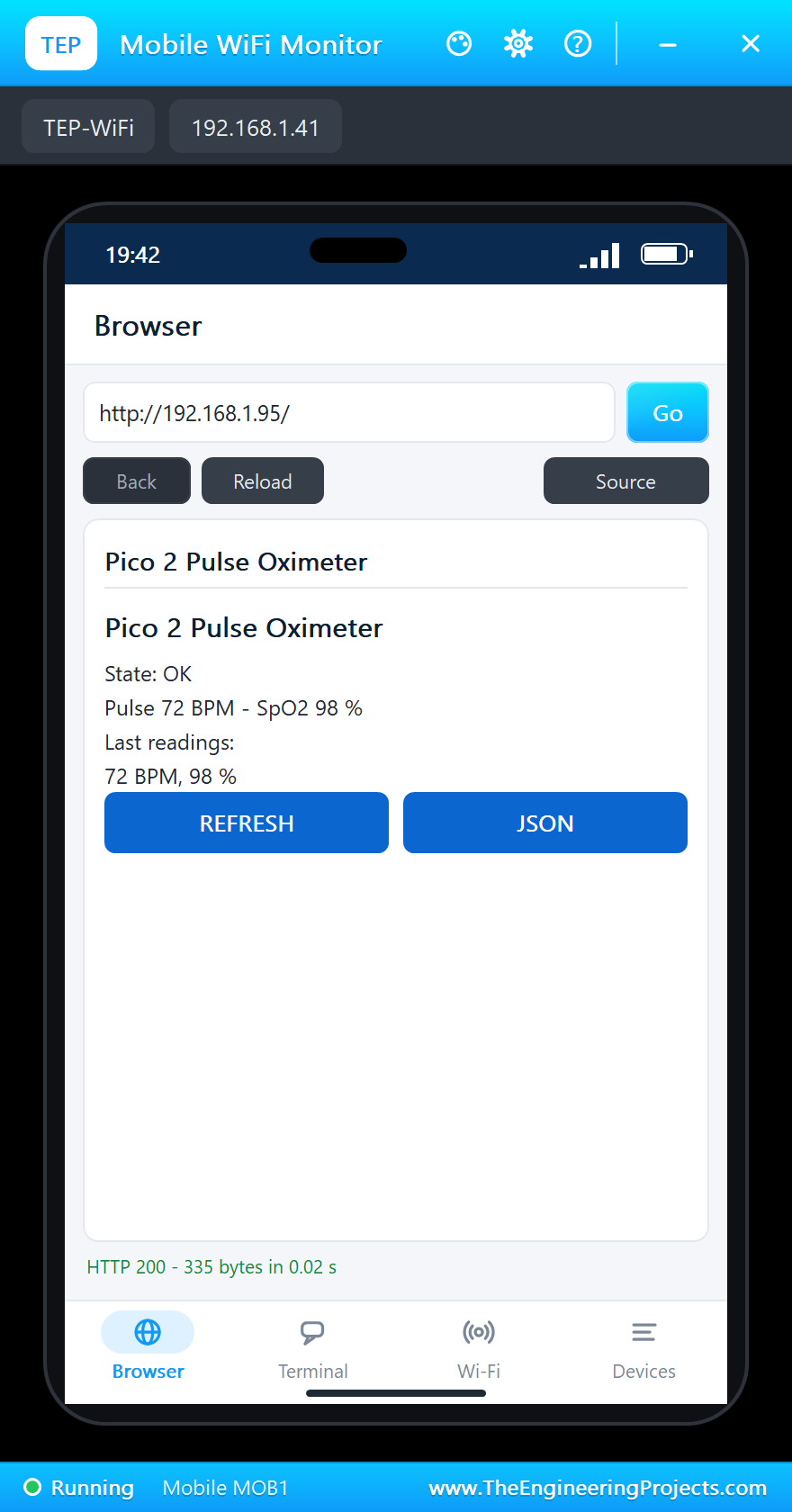
Pulse 72.3 BPM  SpO2 98.0 %  OK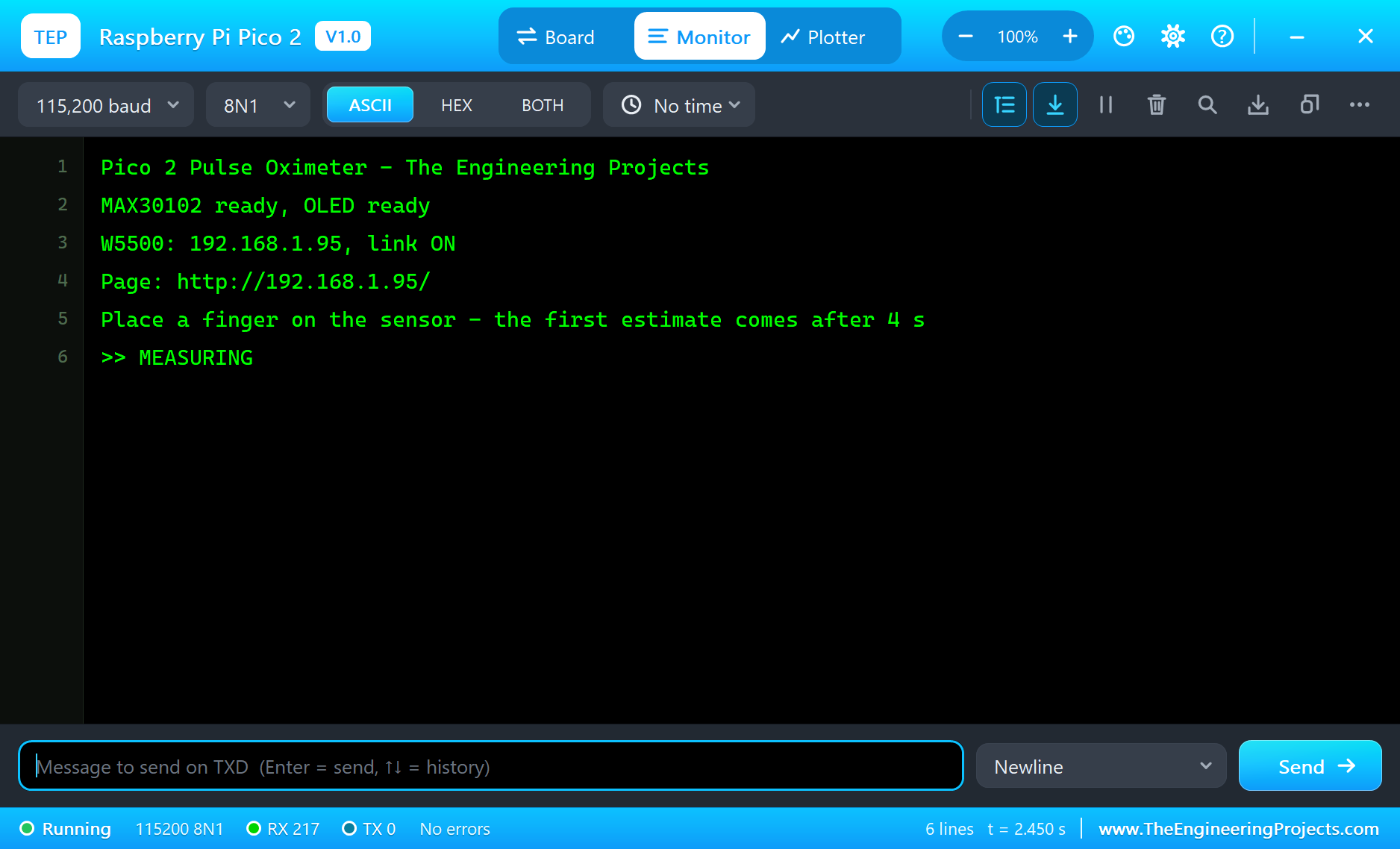
Open the Page
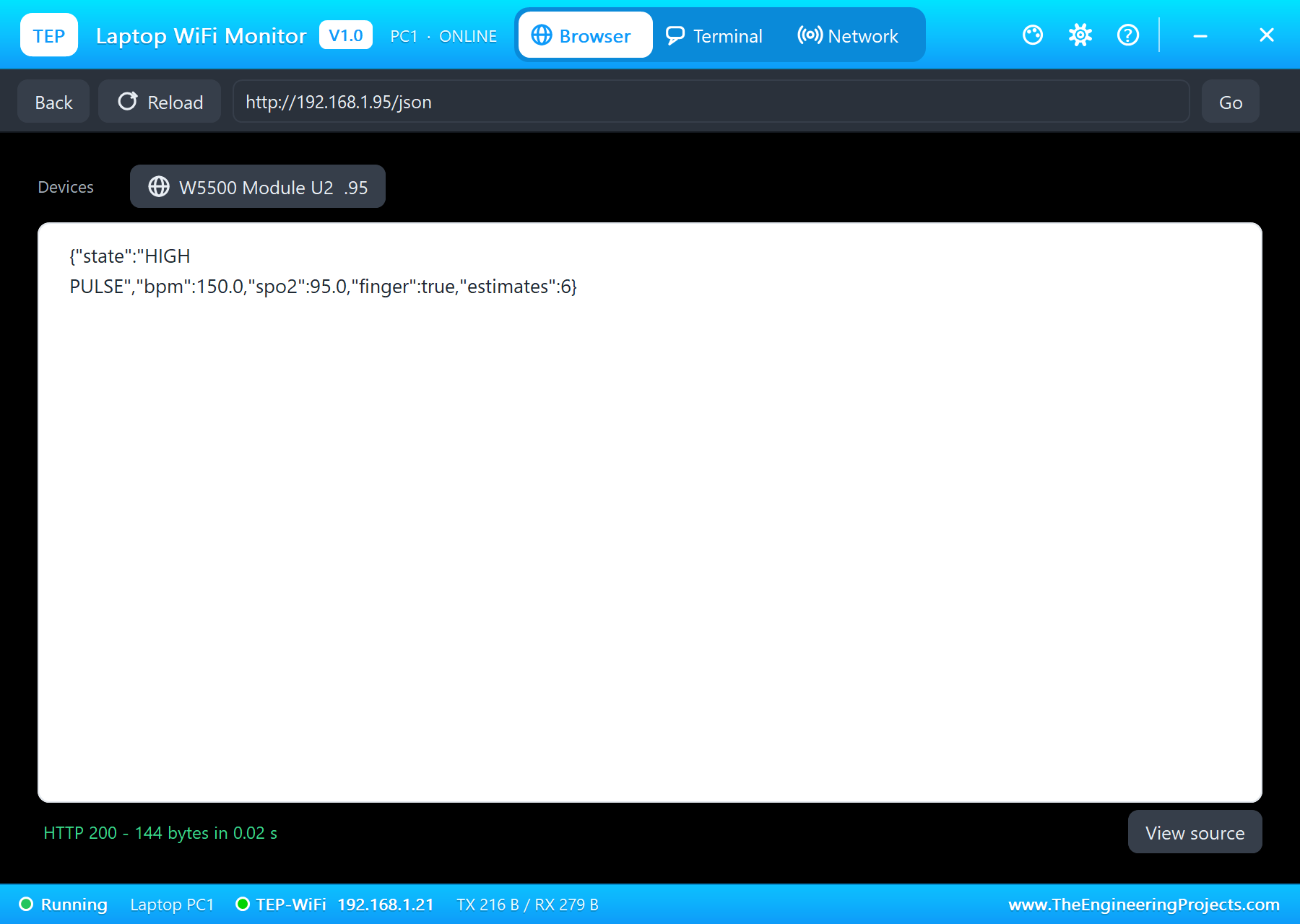
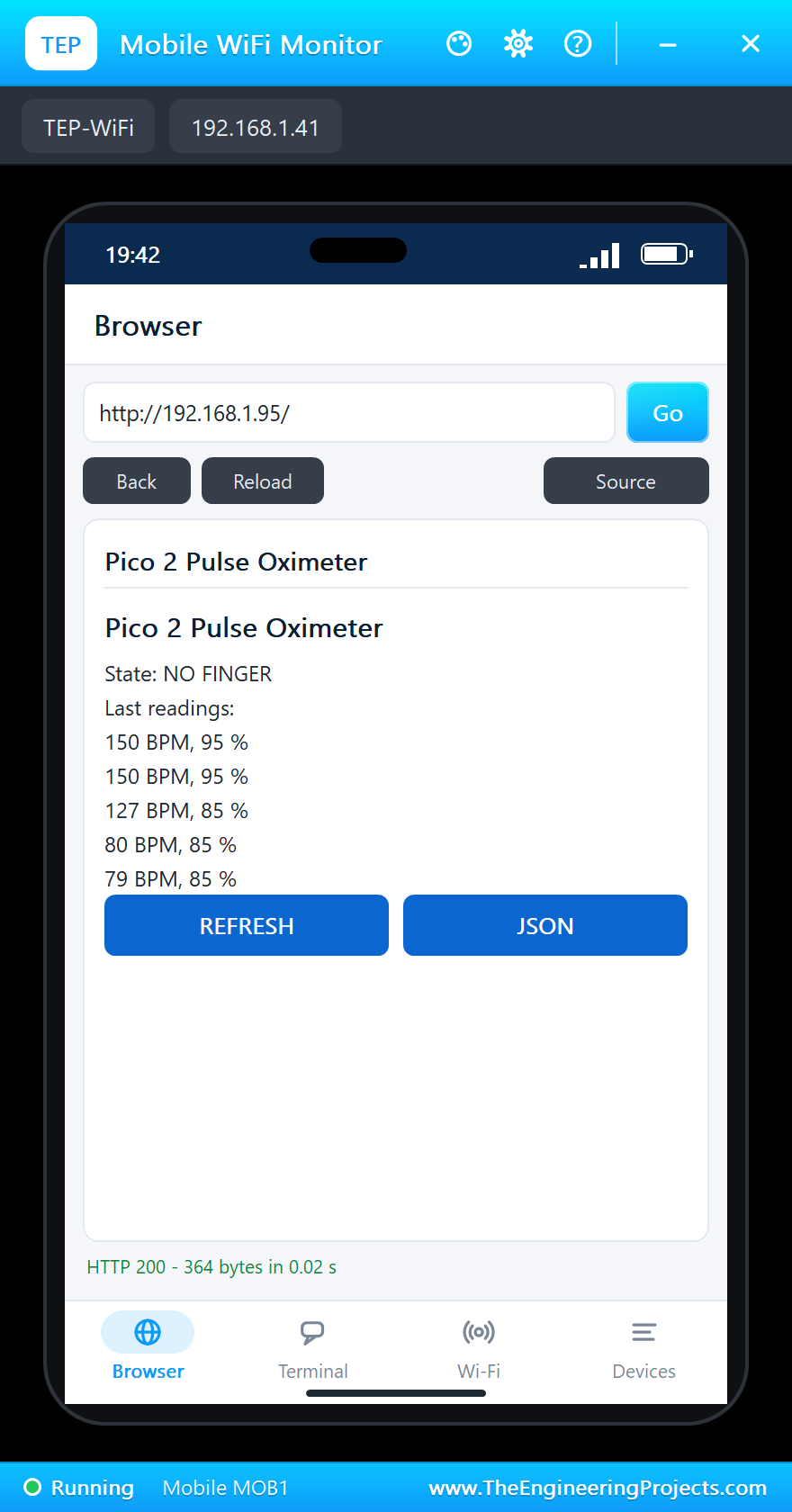
The laptop opens http://192.168.1.95/json and the phone http://192.168.1.95/ - click Go on each:
Low Oxygen
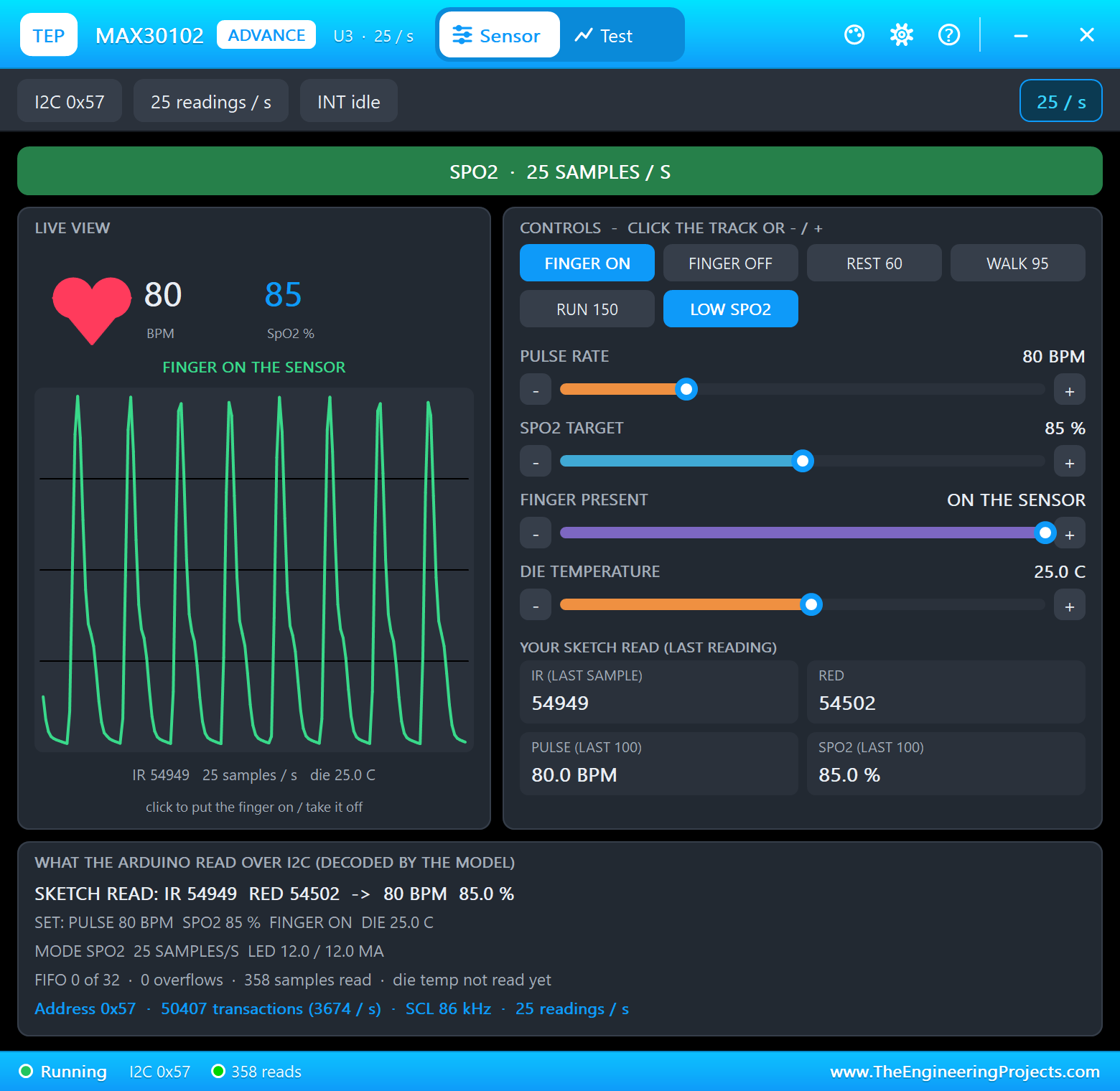
Click LOW SPO2 on the MAX30102's pop-up: the red light now pulses more strongly against the infrared. The next estimate reads 85 % and the sketch raises the alarm:
A Racing Pulse
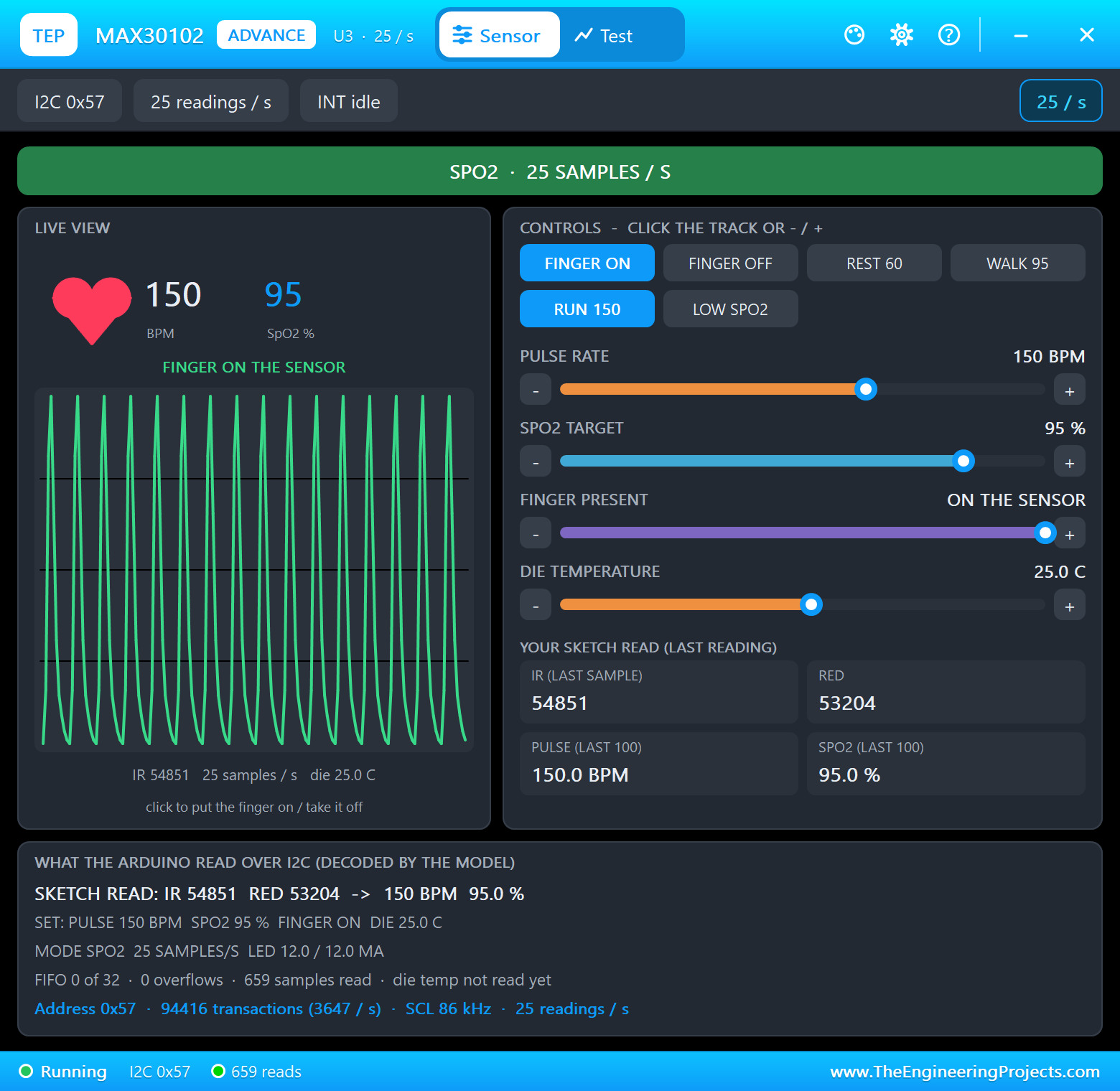
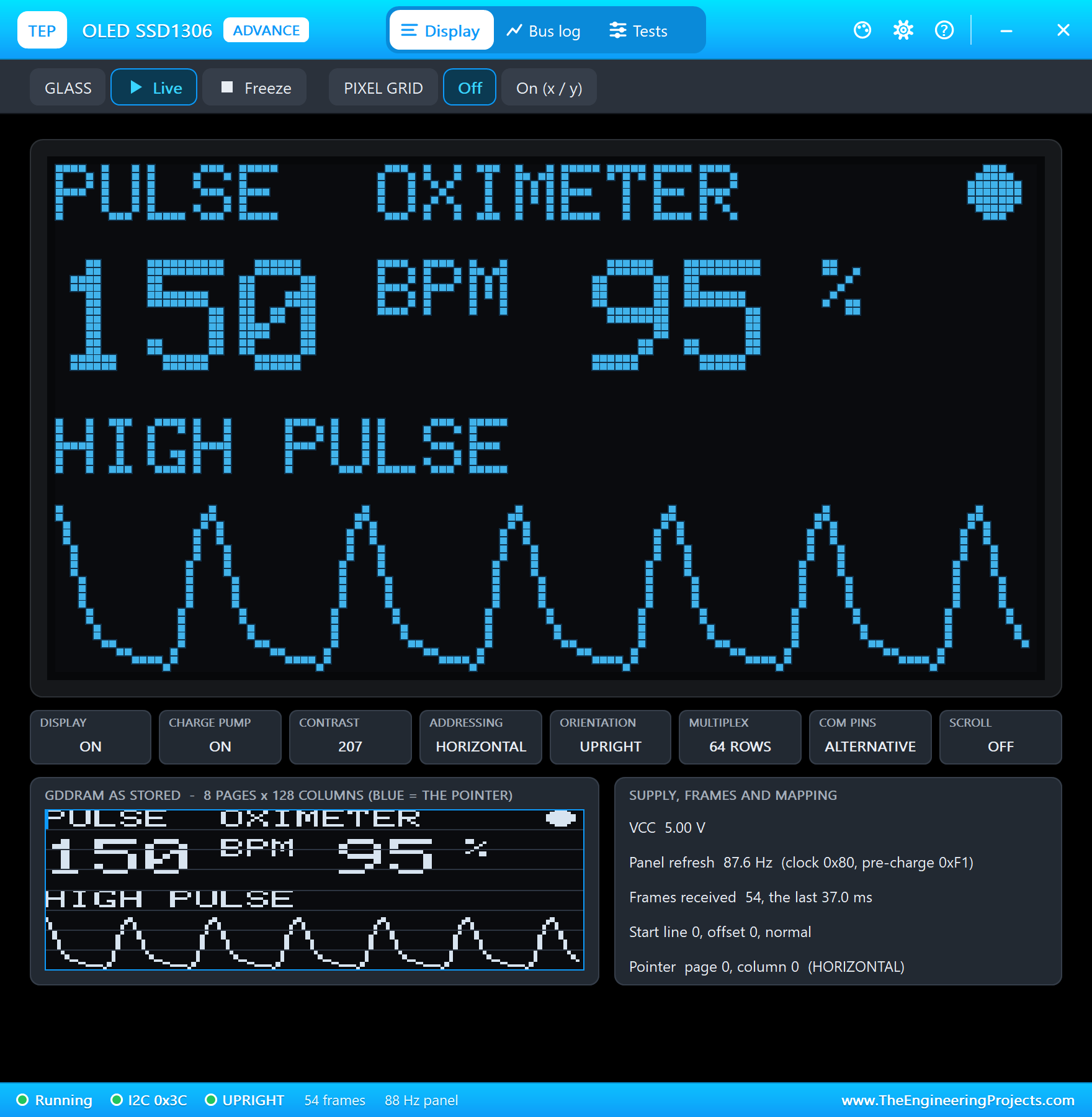
Click RUN 150: a pulse of 150 beats a minute. The window of samples that straddles the change gives an in-between value; the next one is clean - HIGH PULSE:
Finger Off, Finger On
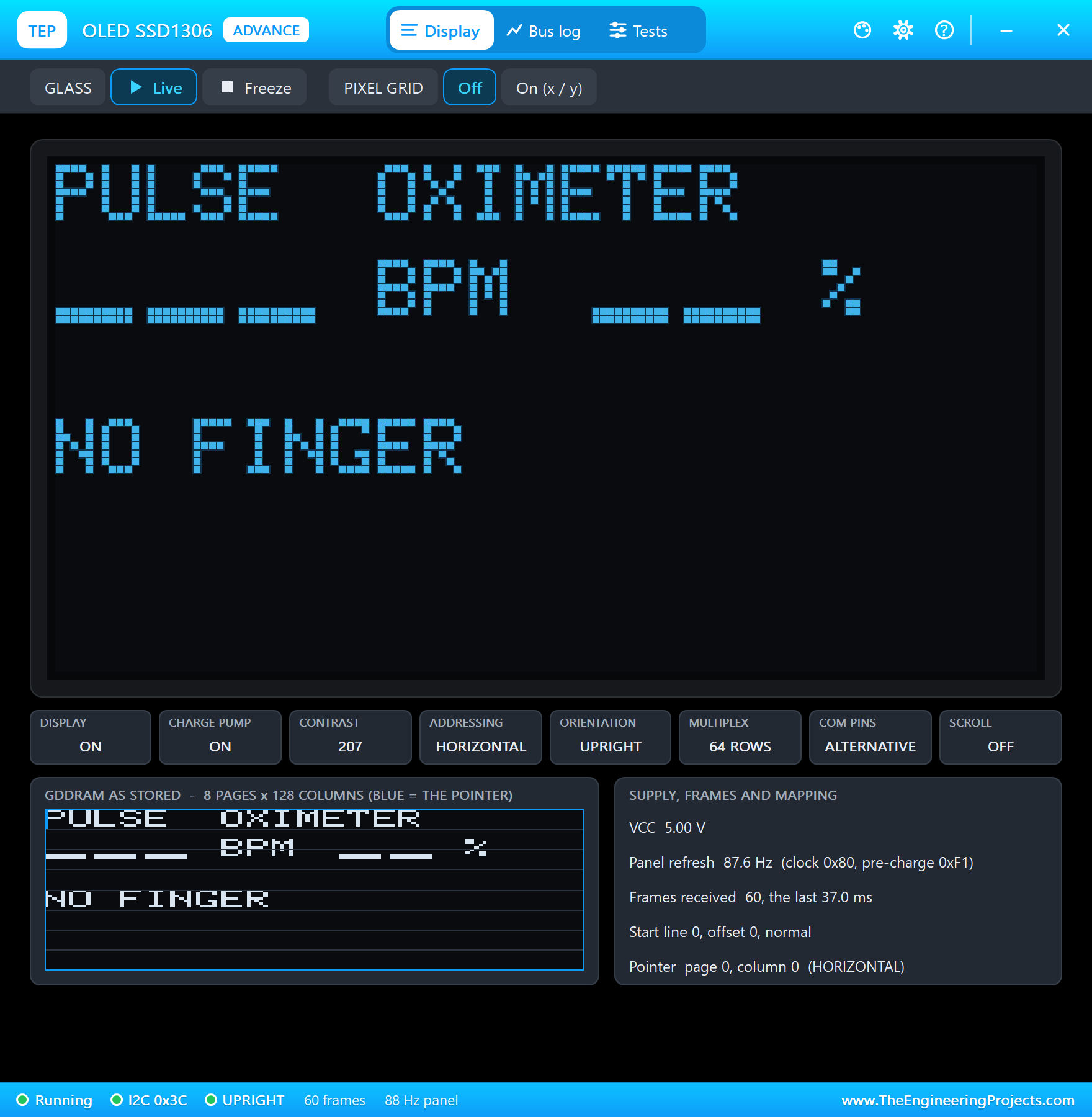
Click FINGER OFF: the light is no longer blocked and the sketch says NO FINGER at once. Then REST 60 and FINGER ON: MEASURING for 4 seconds, then OK at 60 BPM:
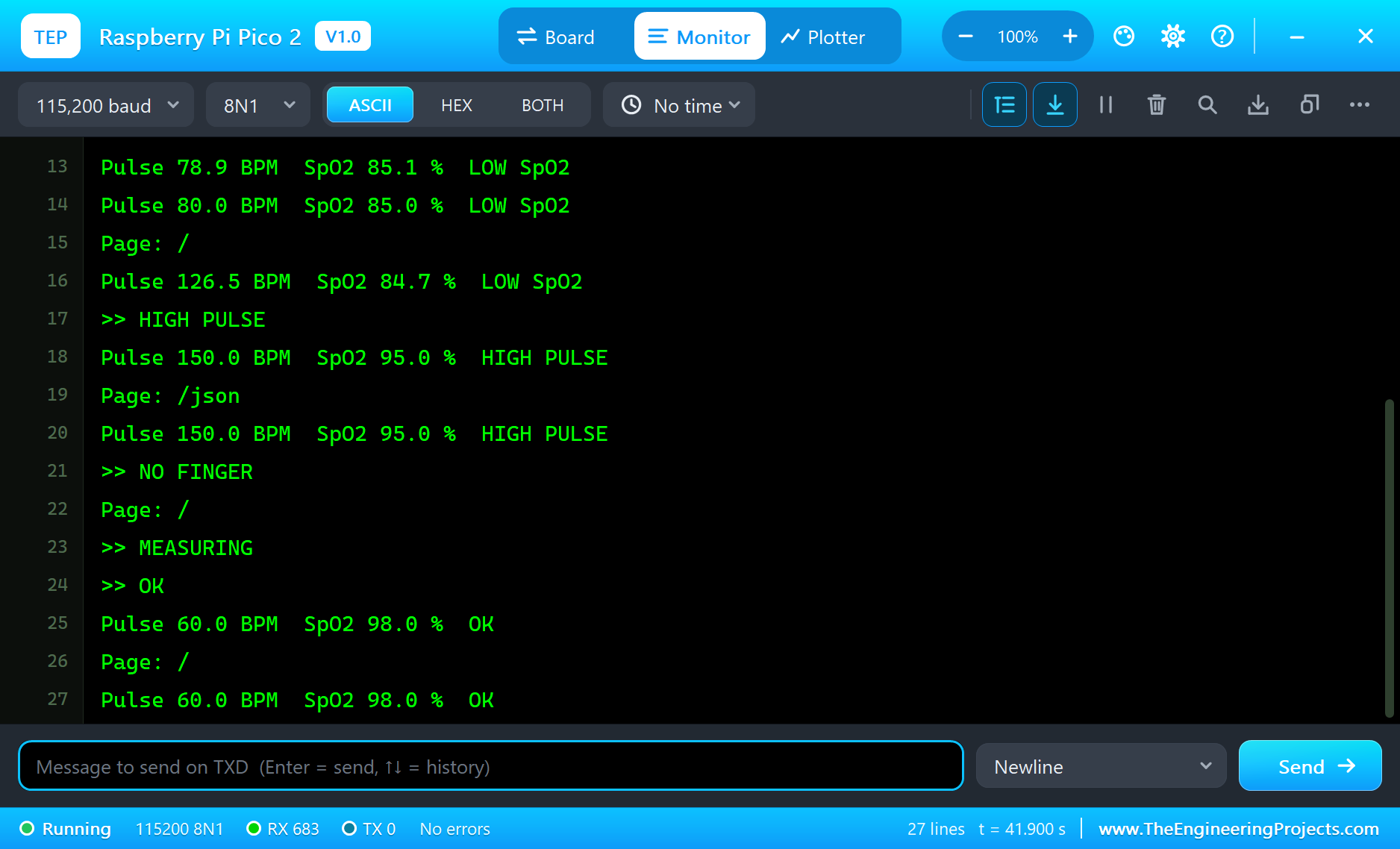
The built-in serial monitor, in the look of our TEP Serial Monitor Advance for Proteus, logs every change:
Pulse 72.6 BPM  SpO2 98.0 %  OK
>> LOW SpO2
Pulse 78.9 BPM  SpO2 85.1 %  LOW SpO2
Pulse 80.0 BPM  SpO2 85.0 %  LOW SpO2
Page: /
Pulse 126.5 BPM  SpO2 84.7 %  LOW SpO2
>> HIGH PULSE
Pulse 150.0 BPM  SpO2 95.0 %  HIGH PULSE
Page: /json
Pulse 150.0 BPM  SpO2 95.0 %  HIGH PULSE
>> NO FINGER
Page: /
>> MEASURING
>> OK
Pulse 60.0 BPM  SpO2 98.0 %  OK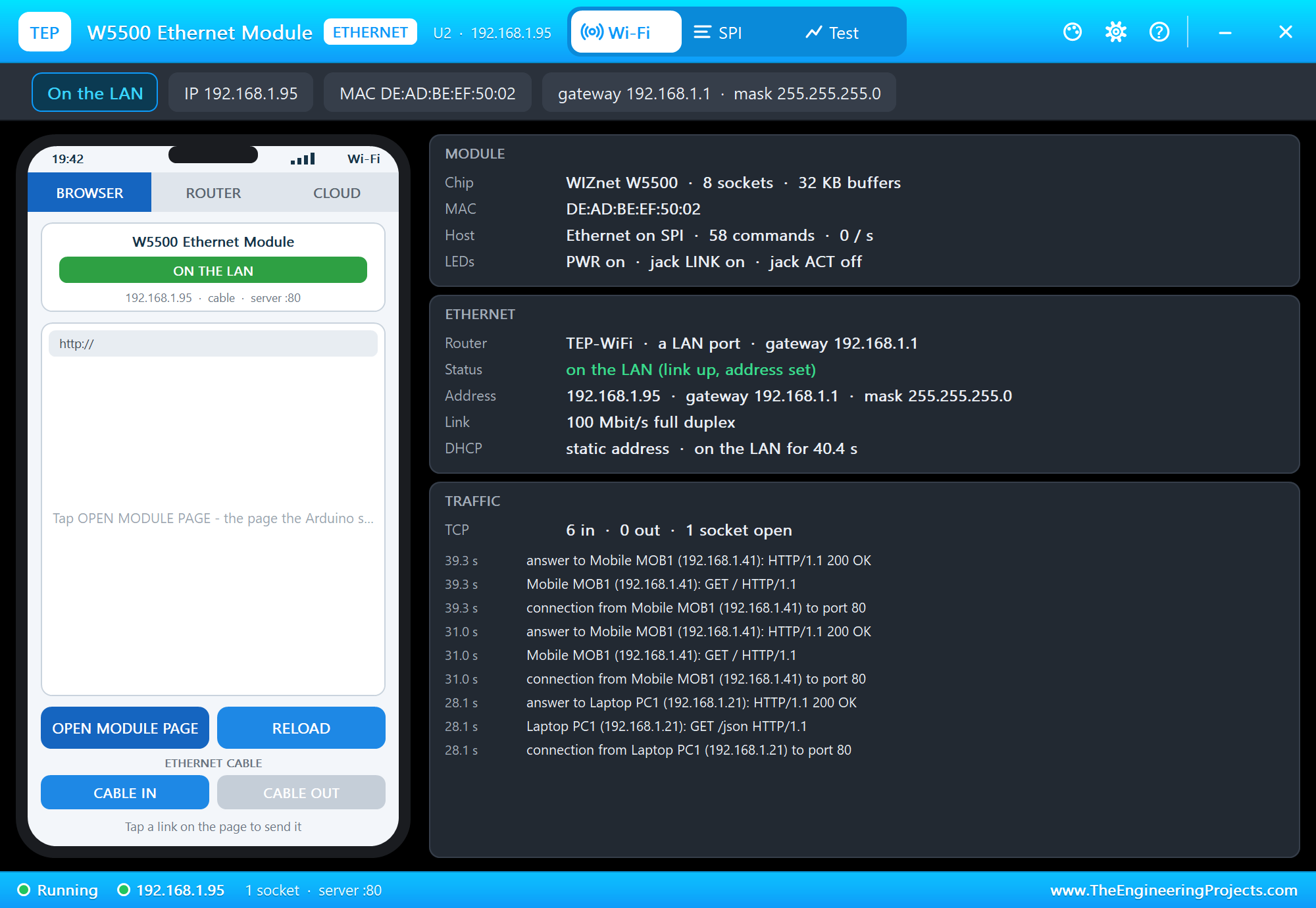
Try It Yourself
- Click WALK 95 on the MAX30102, or drag its PULSE RATE and SPO2 TARGET sliders.
- Type
LED 4in the monitor: with less light the waveform gets weaker;LED 12brings it back. - Change
SPO2_LOWorBPM_HIGHand rebuild the sketch. - Watch the MAX30102's Test tab while the sketch reads the FIFO.
Ideas to Extend the Oximeter
- Average the last three estimates for a steadier reading, as real oximeters do.
- Sound a buzzer on an alarm and stop it with BOOTSEL.
- Log the readings with a time stamp to an SD card for a night of sleep.
- Use the MAX30102's INT pin so the sketch reads the FIFO only when it is full.
Your Own Sketches
Write the sketch in the Arduino IDE with the board Raspberry Pi Pico 2 (TEP Proteus), use Sketch > Export Compiled Binary and set the board's PROGRAM property to the .hex. For a real Pico 2 install Earle Philhower's "Raspberry Pi Pico/RP2040/RP2350" package and select Raspberry Pi Pico 2 - the same sketch, with the same pin numbers.
Things to Know Before Using a Real Pico 2
- Uploading: hold BOOTSEL while plugging in USB; the Pico 2 shows up as a drive and the IDE copies the program onto it.
- 3.3 V pins: the RP2350's pins are not 5 V tolerant; the MAX30102 and OLED boards work at 3.3 V.
- The W5500: it draws over 100 mA - power it from 3V3 (OUT), which can supply 300 mA.
- Not a medical device: a real oximeter needs a calibrated sensor and a proper algorithm; this is a demo.
Properties of the Raspberry Pi Pico 2
| Property | What it does |
|---|---|
| PROGRAM | the sketch: a .hex from TEP Boards for Proteus (board "Raspberry Pi Pico 2") |
| MONITOR, BAUD, AUTOOPEN | the built-in serial monitor: on, its baud rate (115200), open at Run |
Troubleshooting
- "MAX30102 NOT FOUND" / "OLED NOT FOUND": SDA on GP4, SCL on GP5; the module needs a digital supply (the power terminal, as in the demo).
- "No W5500 found" or "link OFF": SCS on GP17, SCLK GP18, MOSI GP19, MISO GP16; the module's CABLE is IN.
- The pulse stays at dashes: no finger on the sensor, or the LED current is too low (LED 12 in the monitor).
- The page shows old values: use REFRESH; the monitors do not reload by themselves.
Limitations of the Simulation
- Your sketch gets 8 KB of RAM in the simulation and runs slower than on the RP2350 at 150 MHz with 520 KB.
- The second core, PIO, the RISC-V cores and the RP2350's security features are not modelled; the DEBUG connector is drawn only.
- The router, the addresses and the windows are TEP additions.
- Raspberry Pi, Pico and RP2350 are trademarks of Raspberry Pi Ltd; this library is not made or endorsed by them or by Labcenter.
- Tested in Proteus 8.5 in October 2026 (the demo as shipped, about 44 s of simulation in 229 s on our PC with the three pop-ups, the monitor and both tools open). Proteus 7 is not supported.
So, that was all about the Raspberry Pi Pico 2 Library for Proteus. I hope it helps you build and test your Pico 2 projects before you touch the hardware - a sensor that reads light through a finger, a display with a live waveform, alarms and a wired network page in one simulation. If you have any questions, ask in the comments and I will help you out. Till the next tutorial, take care and have fun!

Comments
0