


Raspberry Pi Pico W Library for Proteus: Wi-Fi Web Simulation


Hello friends, I hope you all are doing great. Today, I am going to share the Raspberry Pi Pico W Library for Proteus. The Pico W is the Wi-Fi version of the Raspberry Pi Pico: the same 51 x 21 mm board and 40 castellated pins, the RP2040 microcontroller, and an Infineon CYW43439 chip under a metal can for Wi-Fi. With this library it runs your Pico W Arduino sketch in Proteus - written for the popular arduino-pico core: WiFi, WebServer, LEAmDNS, BOOTSEL, analogReadTemp() and LED_BUILTIN - with the LED, the BOOTSEL button and our serial monitor.
Raspberry Pi Pico W Library for Proteus
Latest version: V1.0 (October 2026, this tutorial)
Helping Tools
- Laptop WiFi Monitor: a laptop on the Wi-Fi of your design: a browser, a TCP / UDP terminal and ping
- Mobile WiFi Monitor: a smartphone that opens the pages of your board and sends it commands
- Serial Monitor Advance: a serial terminal window for the UART of your board
This is the twenty-seventh library of our Wi-Fi series and the first Raspberry Pi board in it; our earlier Raspberry Pi Pico Library for Proteus covers the Pico without Wi-Fi. Its demo is a Wi-Fi web thermometer: the RP2040's own temperature on a page at picow.local, the same data as JSON for our Laptop WiFi Monitor, LED buttons on our Mobile WiFi Monitor, and the BOOTSEL button used as a user button - the classic Pico W trick.
NOTICE: Proteus has no RP2040 and no CYW43439, so this is not a real RP2040: your sketch is compiled for a hidden ATmega2560 inside the board (16 MHz, 8 KB of RAM). The arduino-pico names, the LED, BOOTSEL and the Wi-Fi are our model, and the board runs Arduino sketches - MicroPython is not possible. The red PWR LED, the antenna colours, the PANEL pad and the panel are TEP additions. Your feedback is the fuel that keeps us going, so please tell us what you think in the comments below or in the Pico W board of our forum. And if our free libraries help you, you can buy us a coffee. So, let's get started with the Raspberry Pi Pico W Library for Proteus:
What is Raspberry Pi Pico W?
The Pico W is a small, low-cost board from Raspberry Pi. Its RP2040 has two Arm Cortex-M0+ cores at 133 MHz, 264 KB of RAM and the programmable PIO blocks; 2 MB of flash sit beside it. The CYW43439 adds 2.4 GHz Wi-Fi (and Bluetooth on newer firmware). The board is 3.3 V, its pins are called GP0 to GP28, three of them (GP26 to GP28) are analog inputs, and its only button is BOOTSEL - held at power-up it opens the USB drive for a new firmware, and while a sketch runs it can be read as a user button. The LED is not on an RP2040 pin at all but on a pin of the CYW43439.
In the Arduino IDE the Pico W is programmed with Earle Philhower's arduino-pico core ("Raspberry Pi Pico/RP2040" in the Boards Manager). Its Wi-Fi API copies the ESP32's - WiFi, WebServer, HTTPClient - so ESP32 sketches move over easily. For the same API on an ESP32-S3 board, see our Arduino Nano ESP32 Library for Proteus.
| Real Raspberry Pi Pico W | This library in Proteus | |
|---|---|---|
| Processor | RP2040, 2 x Cortex-M0+, 133 MHz, 264 KB RAM | a hidden ATmega2560 at 16 MHz, 8 KB RAM |
| Wi-Fi | Infineon CYW43439 | our model: a router, DHCP, mDNS, TCP, UDP, NTP, an internet host |
| Sketch API | arduino-pico core | the same names from our board package TEP Boards for Proteus 1.13.0 |
| Pins | GP0 to GP22, GP26 to GP28, 3.3 V | the same |
| Analog | GP26 to GP28, 10 bits by default | 0 to 1023 for 0 to 3.3 V |
| LED | on the CYW43439 (LED_BUILTIN = 64) | LED_BUILTIN (32 here, a hidden pin) |
| BOOTSEL | readable with BOOTSEL | the same, on the board and in the monitor |
| Temperature | analogReadTemp() | about 27 C |
| int | 32 bits | 16 bits (use long for big numbers) |
| MicroPython | yes | no - Arduino sketches only |
How Your Pico W Sketch Runs in Proteus
Proteus 8 simulates many processors, but not the RP2040 and not the CYW43439. So, as for our other sketch boards, the Pico W in Proteus has a hidden ATmega2560 inside, and our board package for the Arduino IDE compiles your sketch for it. The package gives the sketch the arduino-pico names - GP numbers, BOOTSEL, analogReadTemp(), LEAmDNS.h - and the Wi-Fi libraries, which talk to our model in TEPNET.DLL. The model plays the CYW43439 and the board around the chip: the router, the sockets, the mDNS name, the LED and the button.
Know the price before you start: the sketch runs at 16 MHz with 8 KB of RAM, an int is 16 bits (32 on the RP2040 - use long above 32767), and the second core, PIO and Bluetooth are not there. For web pages, sockets, sensors and LEDs it is plenty, and the same sketch compiles for a real Pico W with the arduino-pico core.
Features of the Raspberry Pi Pico W Library for Proteus
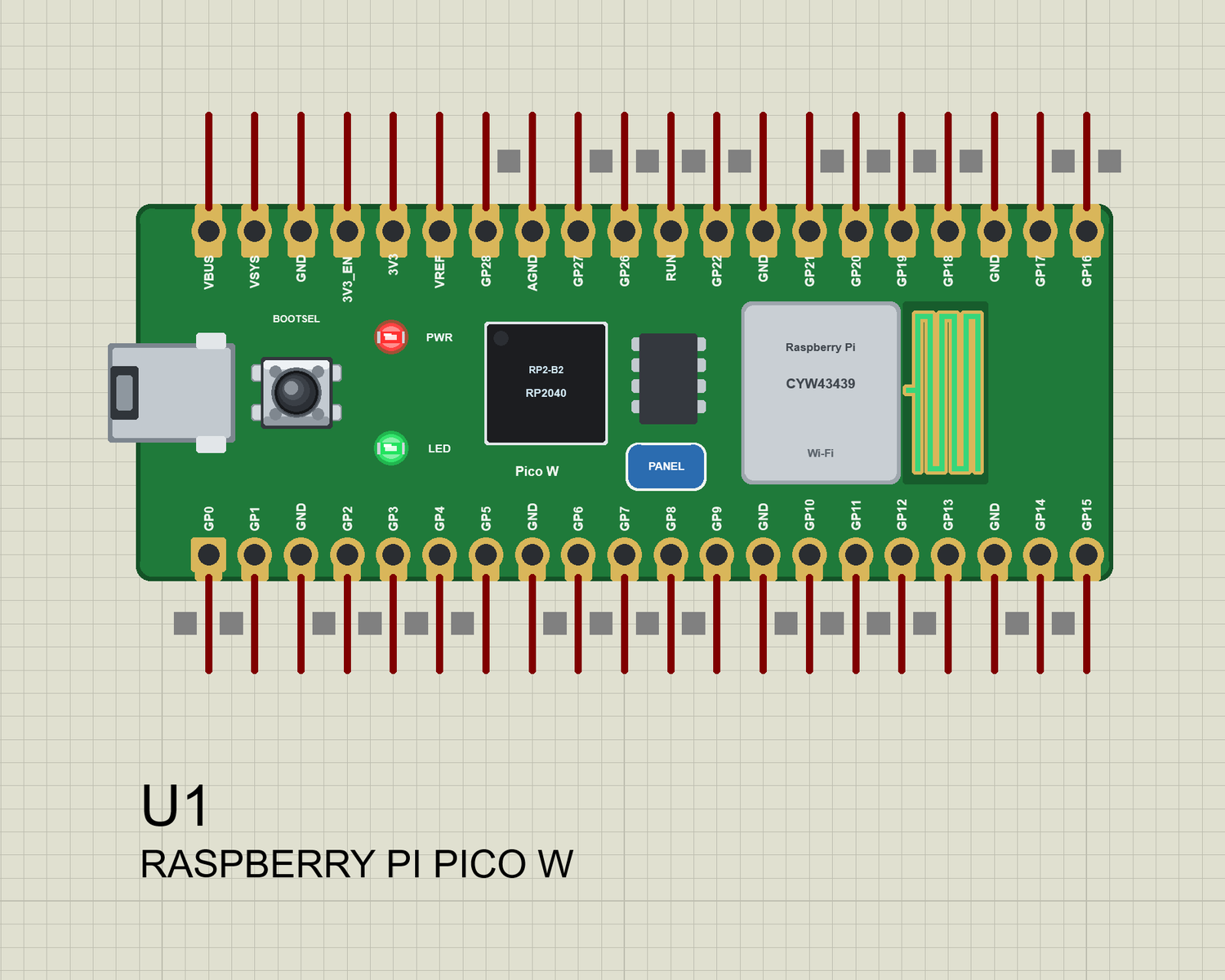
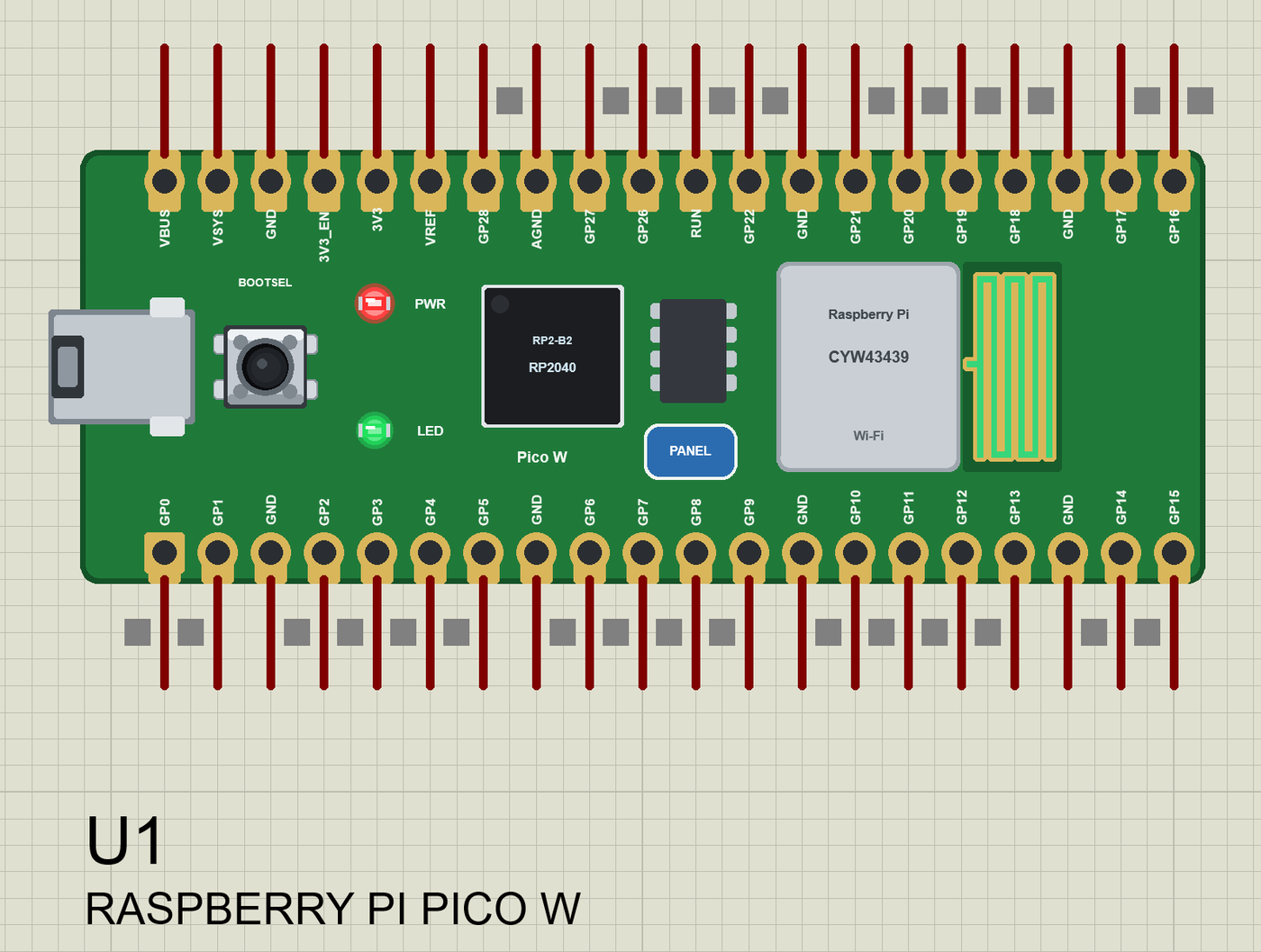
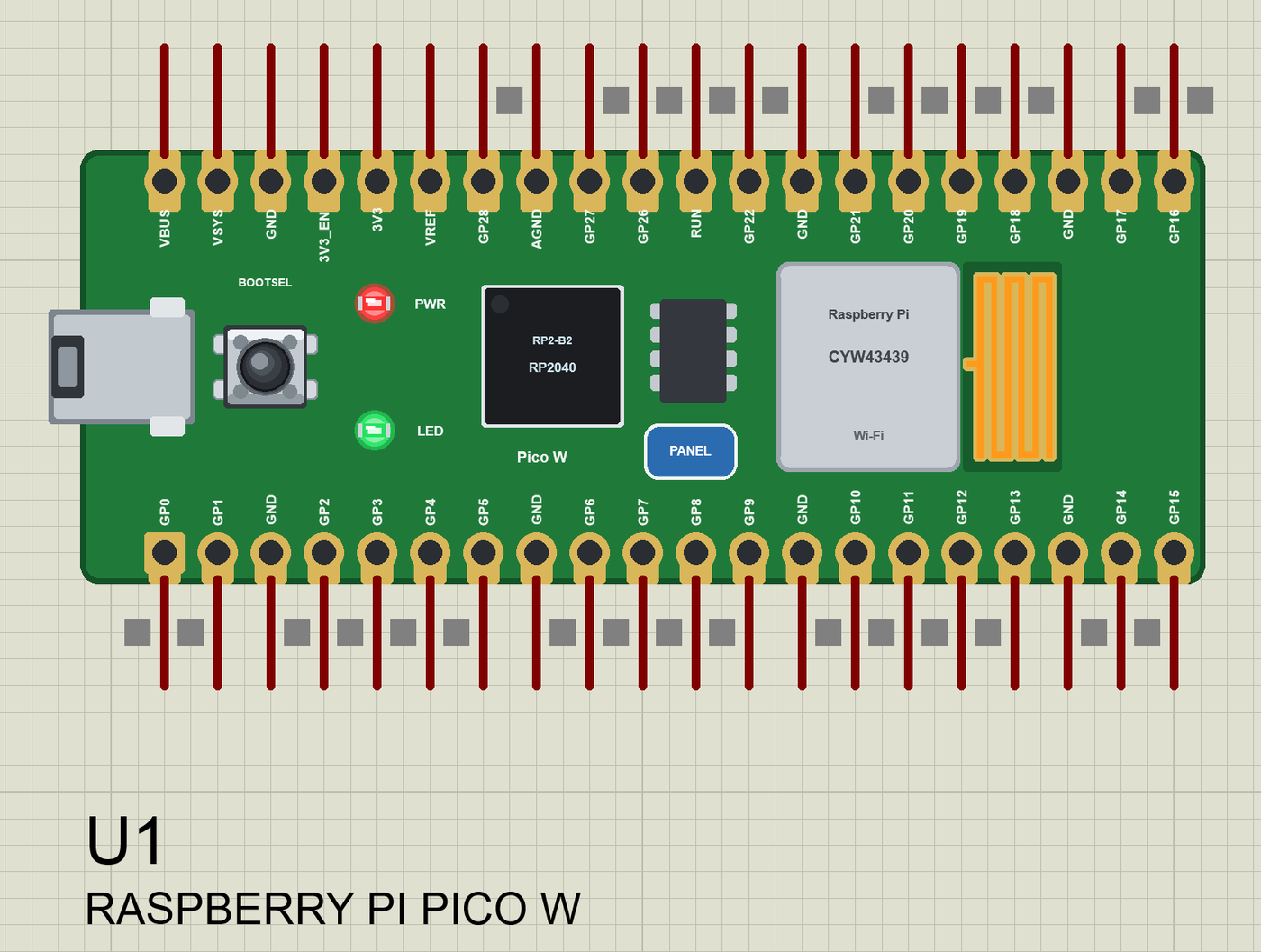
- The Pico W as it looks: the green board with micro-USB on the left, BOOTSEL, the LED, the RP2040, the flash chip, the CYW43439 can and the PCB antenna, and the 40 pins with their GP names.
- The arduino-pico names: GP0 to GP28, A0 to A2,
LED_BUILTIN,BOOTSEL,analogReadTemp(), Serial1 on GP0 / GP1, Wire on GP4 / GP5, SPI on GP16 to GP19. - Wi-Fi: WiFi, WiFiClient, WiFiServer, WiFiUDP, WebServer, HTTPClient and LEAmDNS -
picow.localresolves on the TEP network. - BOOTSEL as a button: hold it on the board, or click BOOTSEL in the monitor's Board tab.
- The LED (LED_BUILTIN), a red PWR LED and an antenna that changes colour with the traffic.
- A built-in serial monitor on the USB (Serial) at 115200 baud with Monitor, Plotter and Board tabs.
- Our pop-up panel: a phone with a browser, the router list and the cloud requests, the board, Wi-Fi and traffic cards, every pin live, a Test page, Settings and Help - with our TEP header, not a Windows title bar.
- A compact package: about 2.21 MB with the board package for the Arduino IDE and our Laptop and Mobile WiFi Monitors, without the C++ source code of the models.
The Raspberry Pi Pico W in Proteus
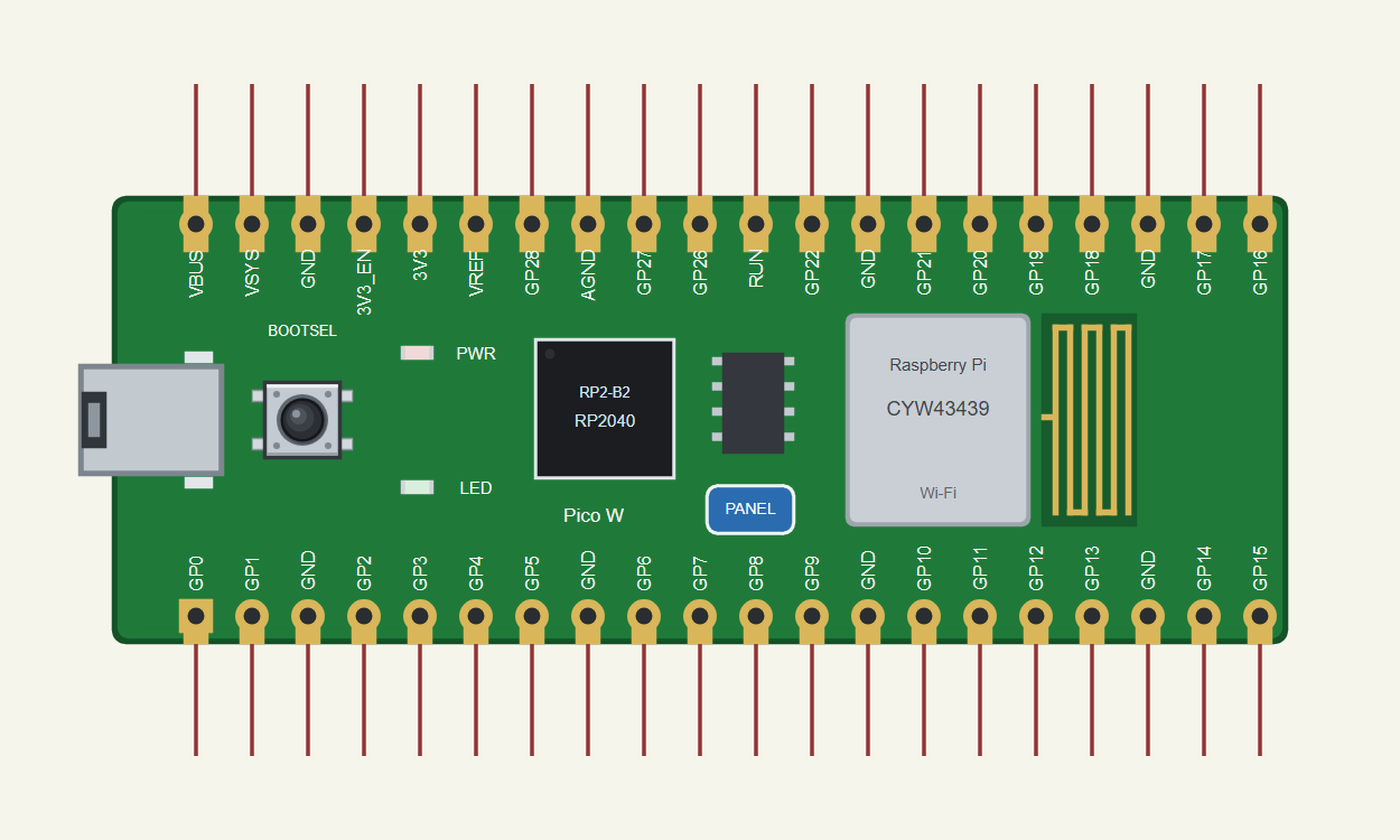
Search PICO W in Pick Devices; the device RASPBERRY PI PICO W is in TEPPICOW.LIB (Microprocessor ICs, Raspberry Pi Boards). Click the micro-USB to open the serial monitor and the PANEL pad or the can to open the panel.
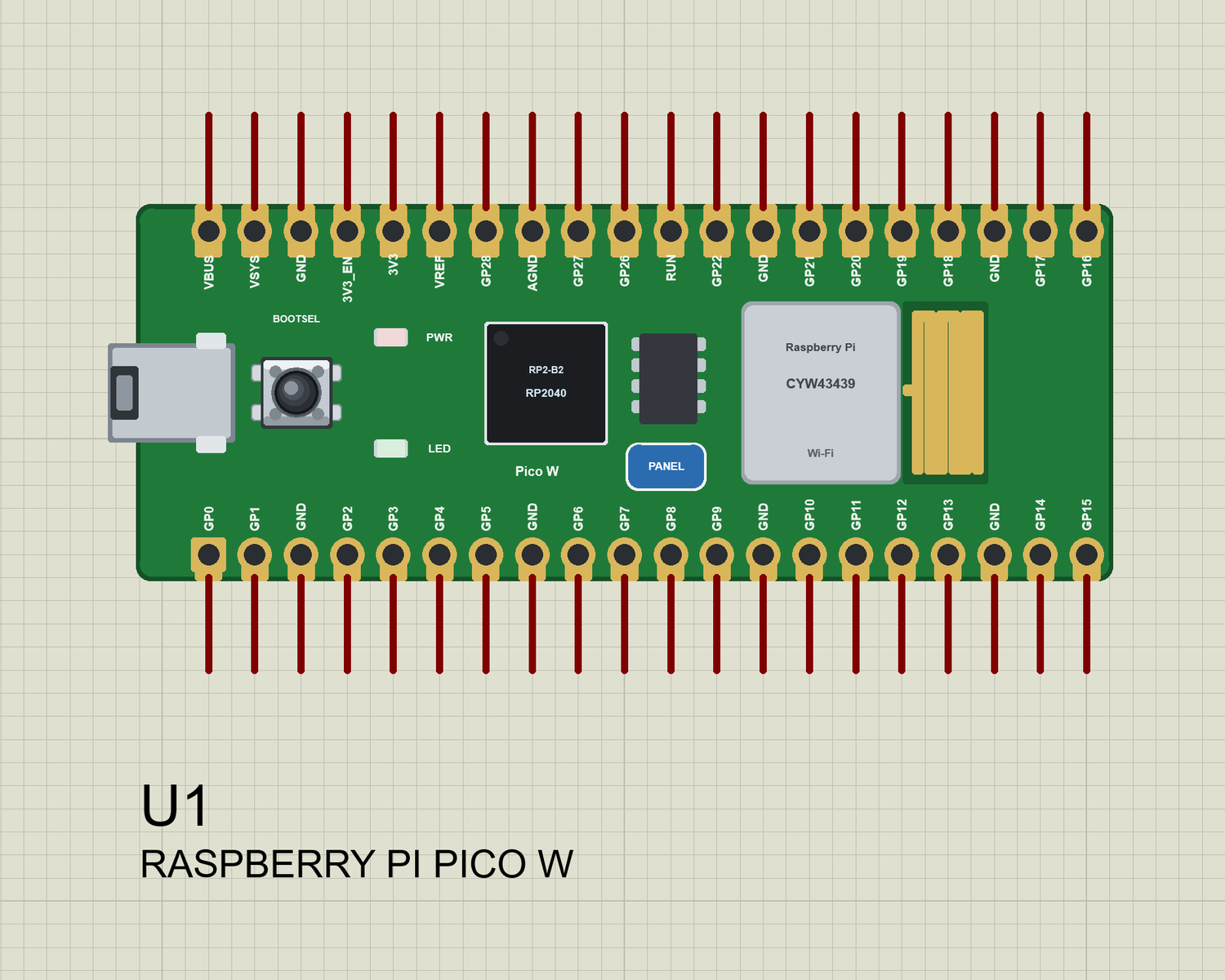
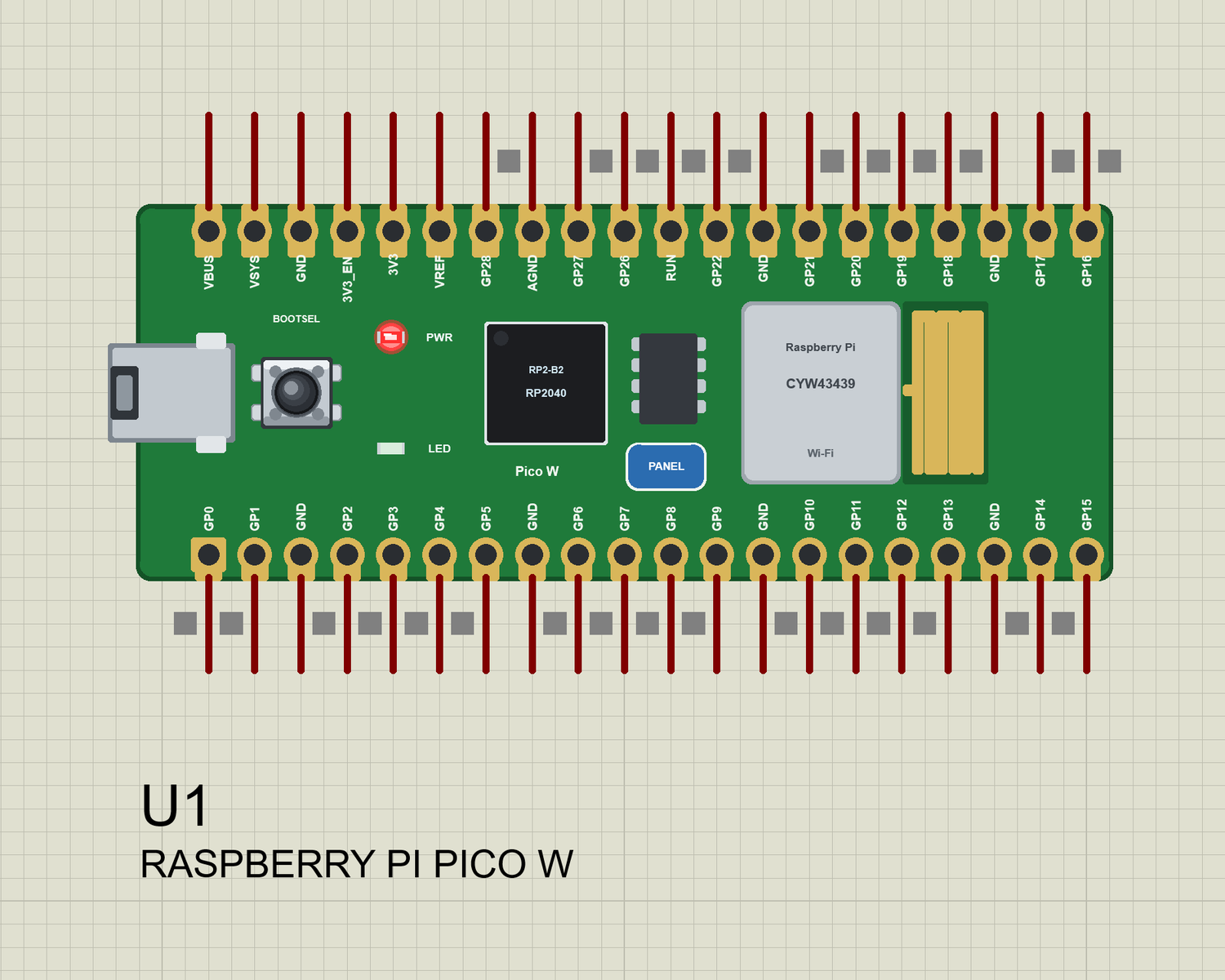
Every State of the Pico W
We ran the board with the demo sketch and paused the simulation for each picture. The sketch keeps the LED off while it joins the router and lights it when the board is on Wi-Fi:
Download Raspberry Pi Pico W Library for Proteus
Click the button below to download Raspberry-Pi-Pico-W-Library-for-Proteus-v1.0.zip (about 2.21 MB, without the C++ source code of the models):
Raspberry Pi Pico W Library for Proteus V1.0- README.txt: the device, installation, the demos, the pins, the arduino-pico names, the properties, troubleshooting and the limits.
- Proteus Library Files:
TEPPICOW.LIB(the board),TEPLAPTOP.LIBandTEPMOBILE.LIB(our Laptop and Mobile WiFi Monitors). - Proteus Model Files:
TEPNET.DLL(the board, the two monitors and the Wi-Fi network). - Proteus Simulation: the two demo projects, the HEX file and a copy of the DLL.
- Arduino Code: the demo sketch and TEP Boards for Proteus 1.13.0, our board package for the Arduino IDE.
No Proteus yet? Read How to Download and Install Proteus 7 and 8. New to libraries? Follow How to Install a New Library in Proteus.
How to Install Raspberry Pi Pico W Library for Proteus
- Close Proteus and extract the whole zip file, for example to your Desktop.
- Copy the three files from Proteus Library Files into the LIBRARY folder of Proteus (usually
C:\Program Files (x86)\Labcenter Electronics\Proteus 8 Professional\LIBRARY). - Copy
TEPNET.DLLfrom Proteus Model Files into the MODELS folder - replace an older copy (this one is the first that knows the Pico W, and it still runs every earlier board, the modules, the shields and the two monitors). - Delete
TEPPICOW.IDX,TEPLAPTOP.IDXandTEPMOBILE.IDXfrom the LIBRARY folder if they are there. - Start Proteus, press P and search for PICO W.
The Board Package for the Arduino IDE
The demo has its HEX file, so you need the Arduino IDE only for your own sketches. Copy the folder Arduino Code\TEP Boards for Proteus\hardware into your sketchbook folder (normally Documents\Arduino), so that Documents\Arduino\hardware\tep\avr\boards.txt exists, and restart the IDE; the Arduino AVR Boards platform must be installed. Version 1.13.0 adds the Pico W and replaces 1.12.0. Choose Tools > Board > TEP Boards for Proteus > Raspberry Pi Pico W (TEP Proteus), write your sketch and use Sketch > Export Compiled Binary; double-click the board in Proteus and set its Program File to the HEX (see How to get the HEX file from Arduino). For a real Pico W you keep Earle Philhower's package - the sketch does not change.
Demo: A Pico W Web Thermometer
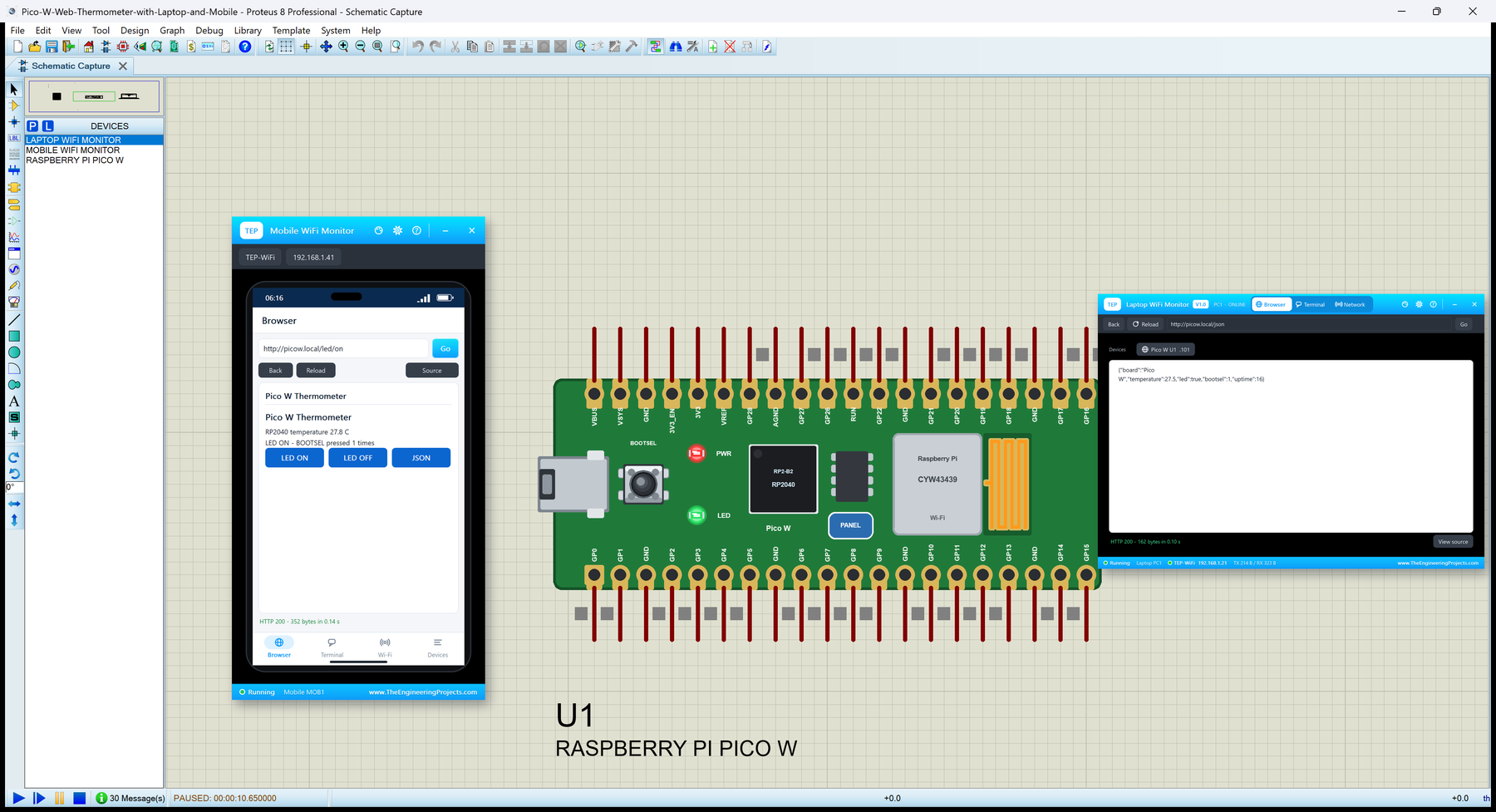
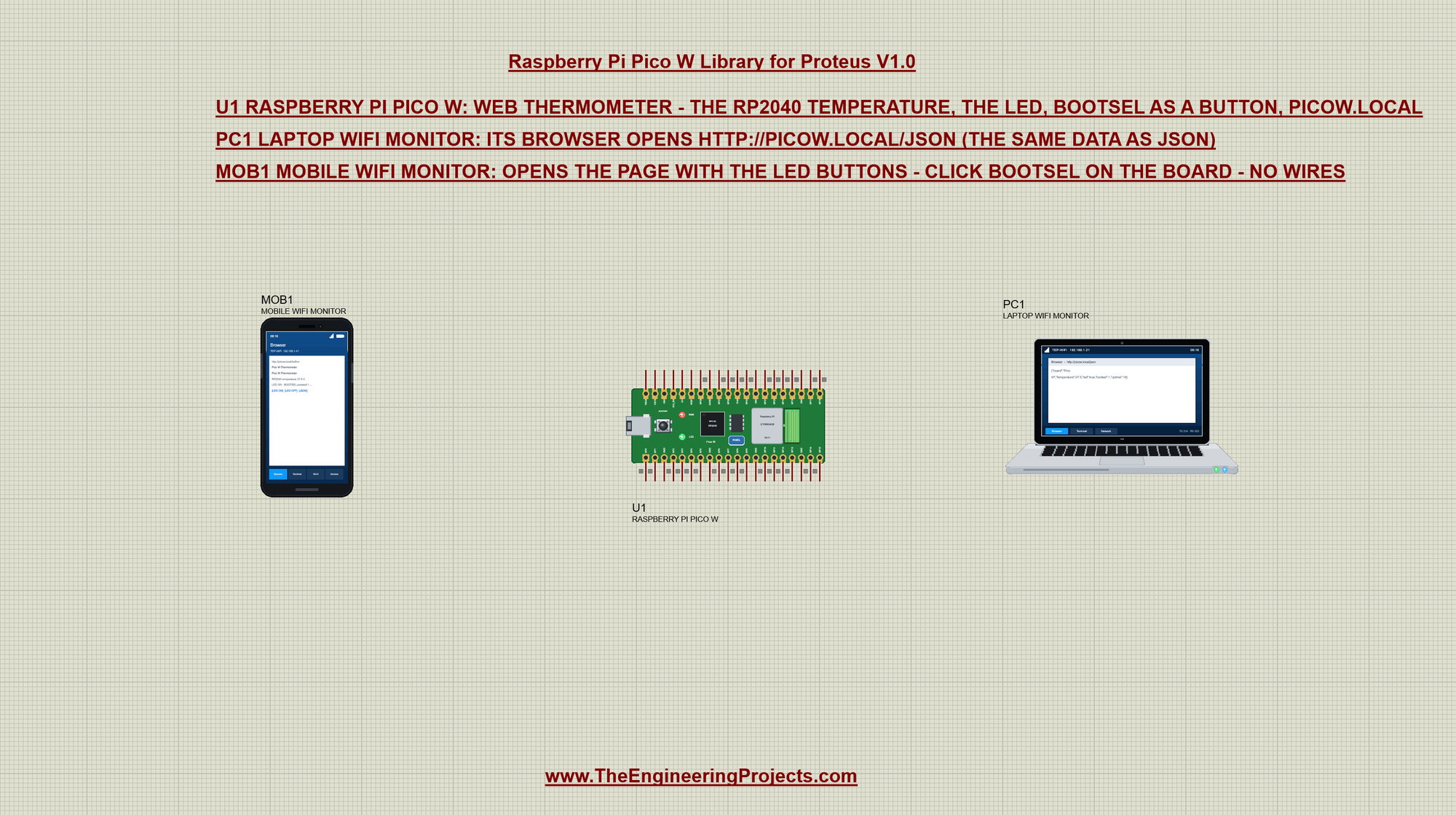
Open Pico-W-Web-Thermometer-with-Laptop-and-Mobile.pdsprj. In the middle is the Pico W (U1), on the left our phone (MOB1) and on the right our laptop (PC1). There are no wires: the three are on the TEP-WiFi network. The package also has Raspberry-Pi-Pico-W-Board.pdsprj, the board alone with the same sketch.
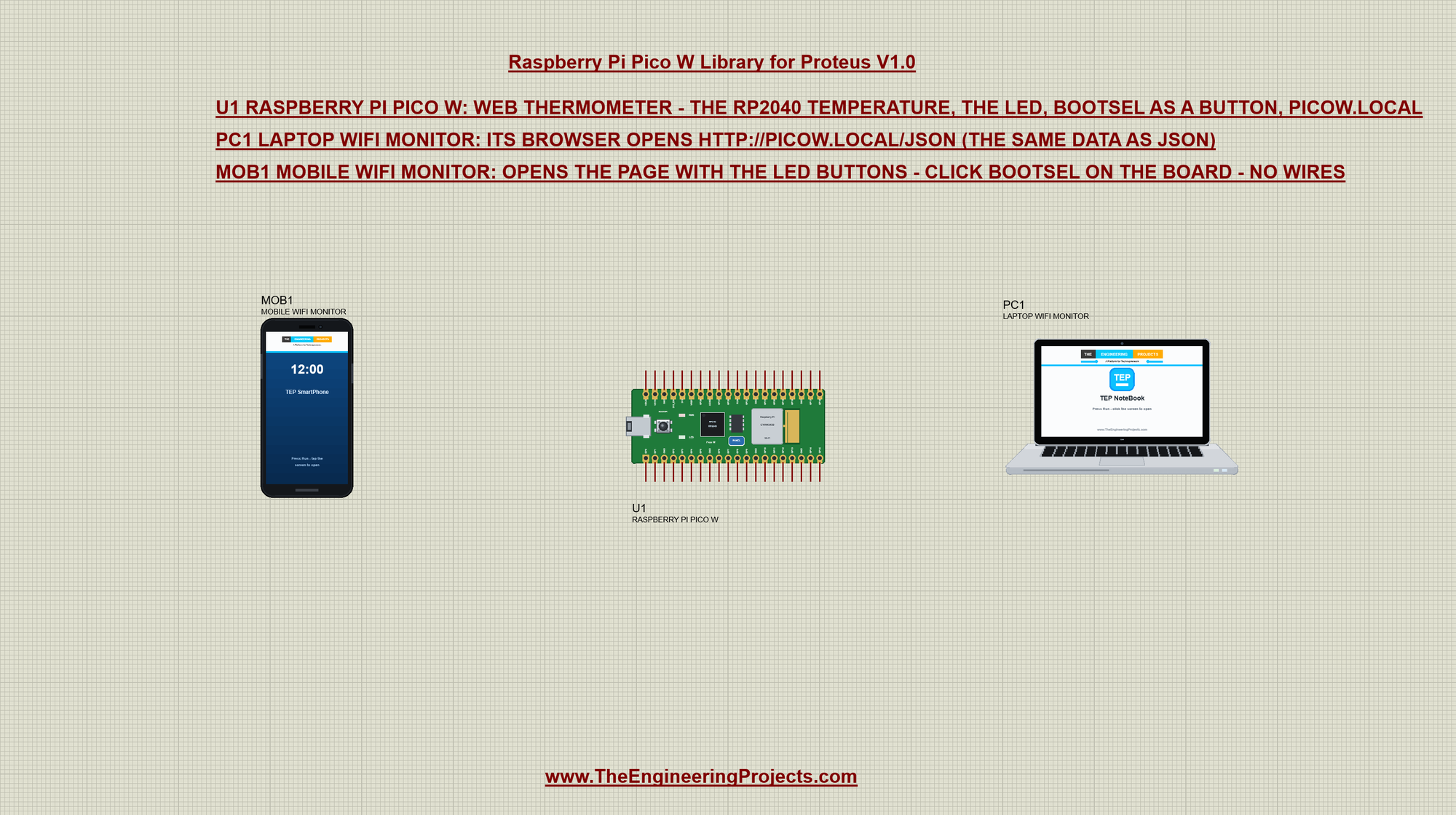
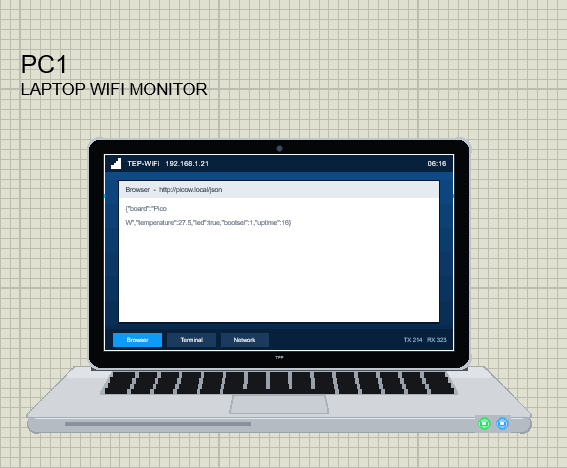
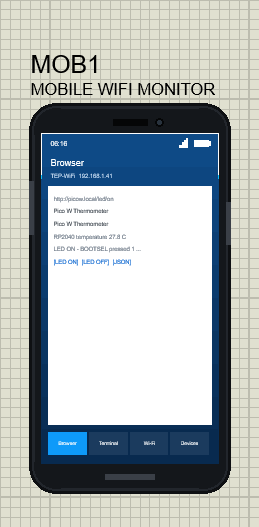
The two tools come from our Laptop WiFi Monitor Library for Proteus and Mobile WiFi Monitor Library for Proteus. Both find the board by its mDNS name: the laptop's home page is http://picow.local/json and the phone's is http://picow.local/:
The Sketch: arduino-pico Style
The sketch includes the three libraries an arduino-pico web sketch uses - the same names as on the real board:
#include <WiFi.h>
#include <WebServer.h>
#include <LEAmDNS.h>
In setup() the LED is switched off first - it stays dark until the board is on Wi-Fi:
  pinMode(LED_BUILTIN, OUTPUT);
  digitalWrite(LED_BUILTIN, LOW);
Then it joins the router the usual way, printing a dot every half second:
  WiFi.mode(WIFI_STA);
  WiFi.begin(ssid, password);
  Serial.print("Connecting to TEP-WiFi");
  while (WiFi.status() != WL_CONNECTED) {
    delay(500);
    Serial.print(".");
  }
  Serial.println();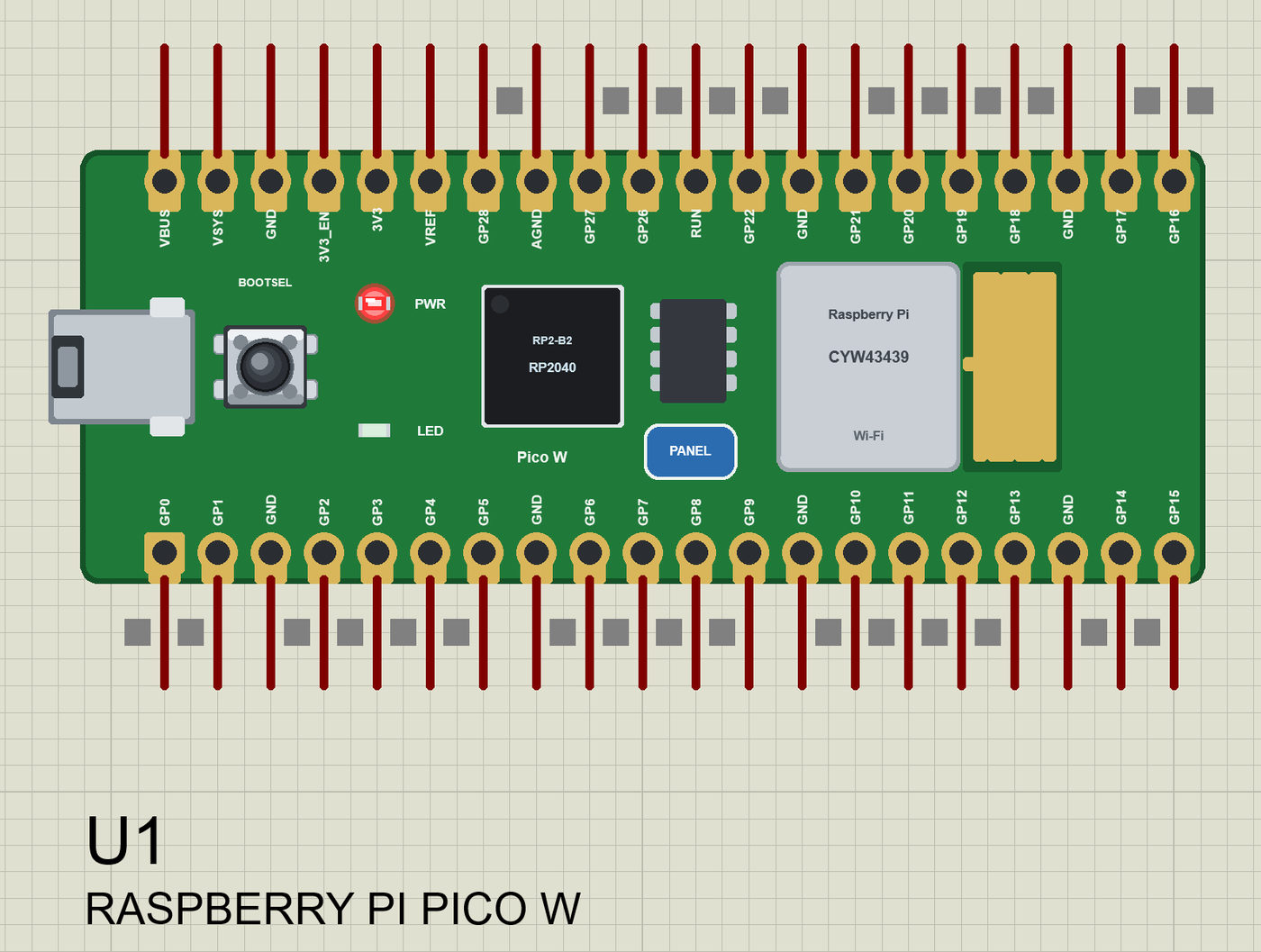
Then it starts mDNS as picow and gives the web server its four pages - two of them as small lambdas:
  if (MDNS.begin("picow")) Serial.println("mDNS: http://picow.local/");
  server.on("/", sendPage);
  server.on("/json", sendJson);
  server.on("/led/on", []() { setLed(true, "page"); sendPage(); });
  server.on("/led/off", []() { setLed(false, "page"); sendPage(); });
  server.begin();
/ is the page for people, /json the data for programs, and /led/on and /led/off switch the LED and answer with the page again, so the phone shows the new state at once. Thanks to mDNS no one needs to know the IP address: the laptop and the phone ask for picow.local and the TEP network answers with the board's address, as a real router with mDNS does.
Press Run and watch the monitor (115200 baud):
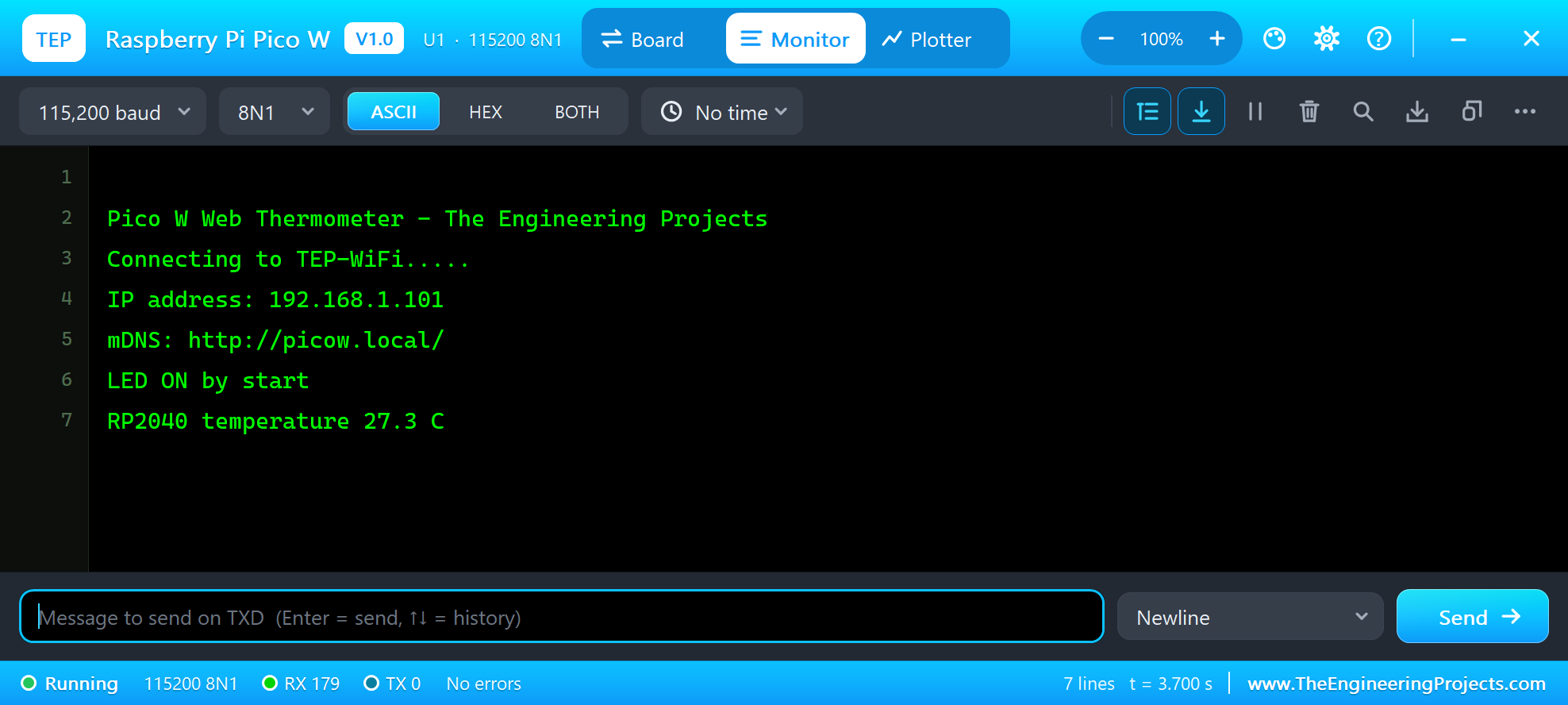
Pico W Web Thermometer - The Engineering Projects
Connecting to TEP-WiFi.....
IP address: 192.168.1.101
mDNS: http://picow.local/
LED ON by start
RP2040 temperature 27.3 C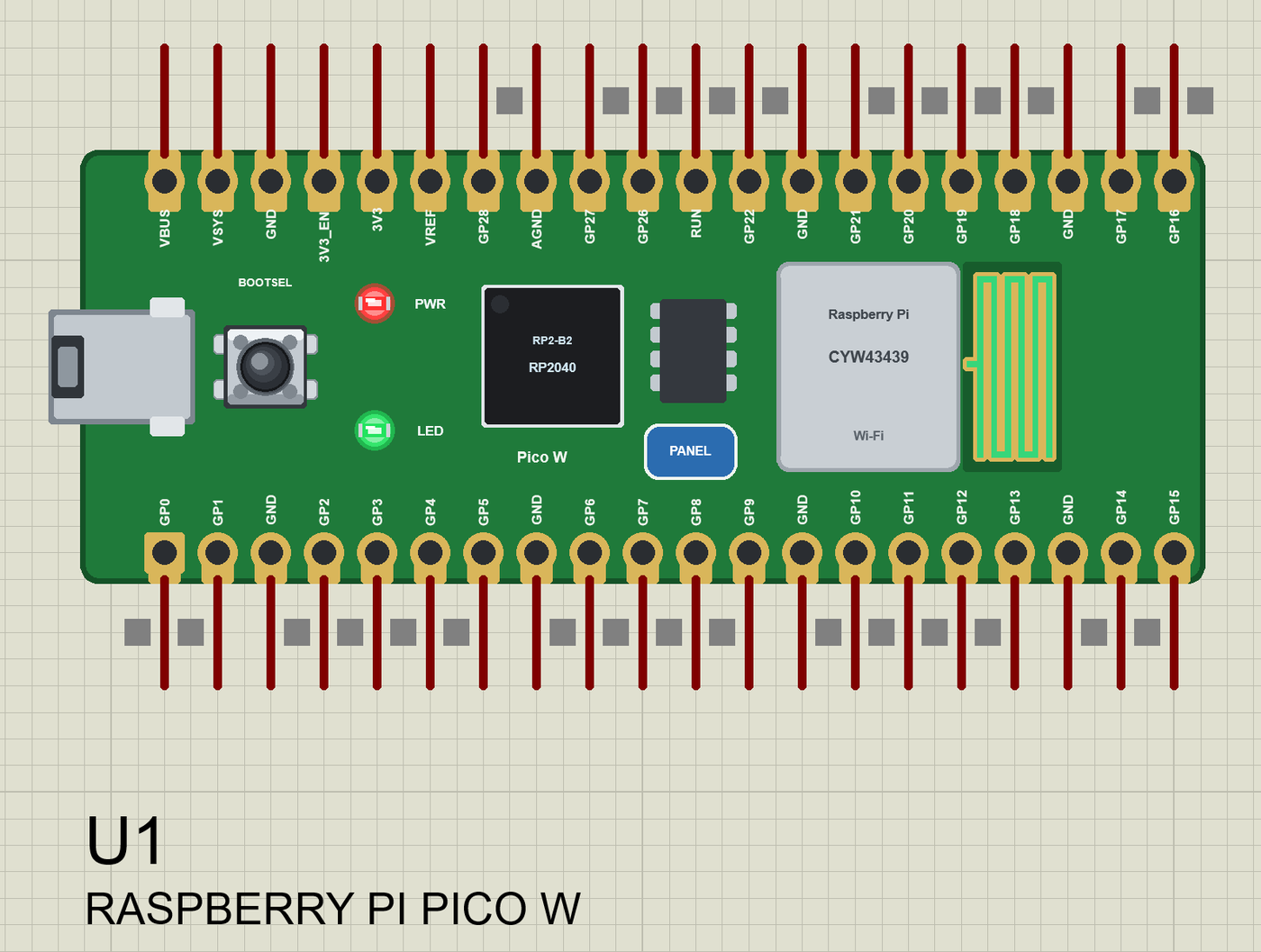
The RP2040 Temperature
analogReadTemp() reads the RP2040's internal temperature sensor in degrees C. The sketch turns it into text with one decimal:
String temperature() {
  return String(analogReadTemp(), 1) + " C";
}
In Proteus the chip sits at about 27 C with a slow wobble of a few tenths - so the value changes a little from read to read, as on a real board.
The JSON for the Laptop
/json sends the same data in a form a program can read - the temperature, the LED, the BOOTSEL count and the uptime:
void sendJson() {
  String json = "{\"board\":\"Pico W\",\"temperature\":" + String(analogReadTemp(), 1) + ",\"led\":" + (ledOn ? "true" : "false") +
                ",\"bootsel\":" + presses + ",\"uptime\":" + (millis() / 1000) + "}";
  server.send(200, "application/json", json);
}
In the laptop, open the Browser and press Go:
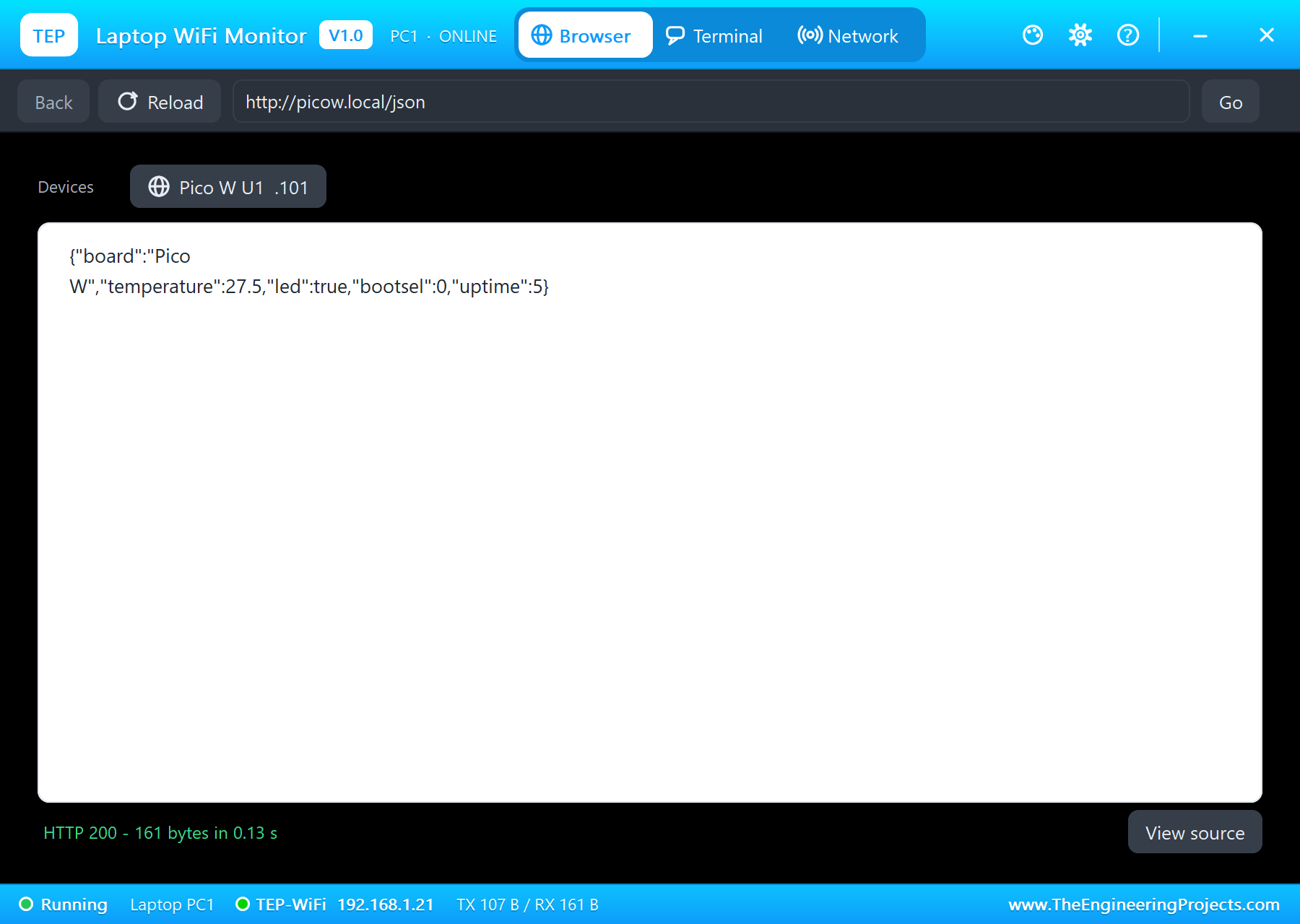
{"board":"Pico W","temperature":27.5,"led":true,"bootsel":0,"uptime":5}A JSON line like this is how a Pico W usually reports to a dashboard, a Python script or a home-automation server. The laptop shows the raw answer, so you can check every field before you write the program that reads it.
LED Buttons on the Phone
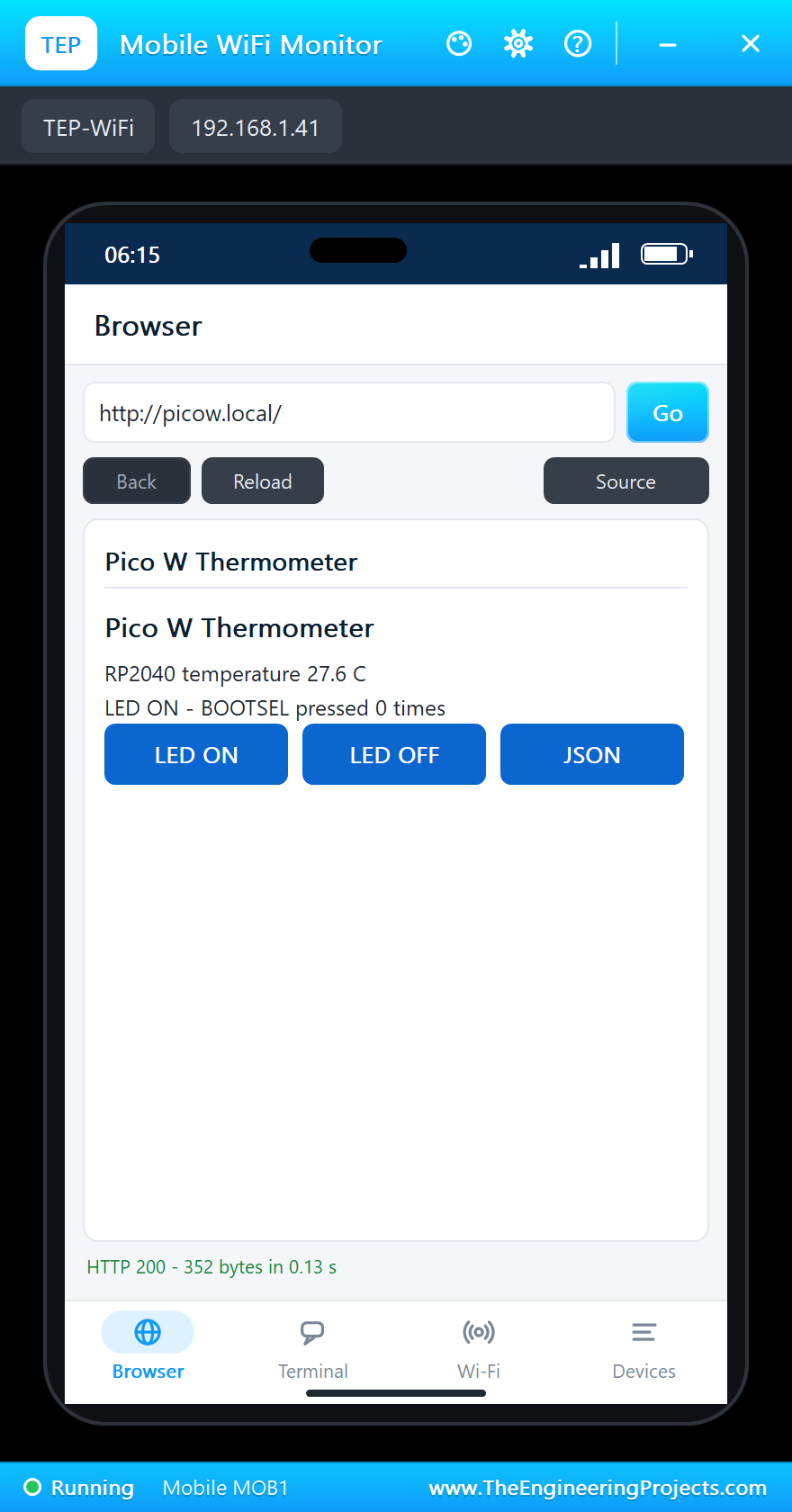
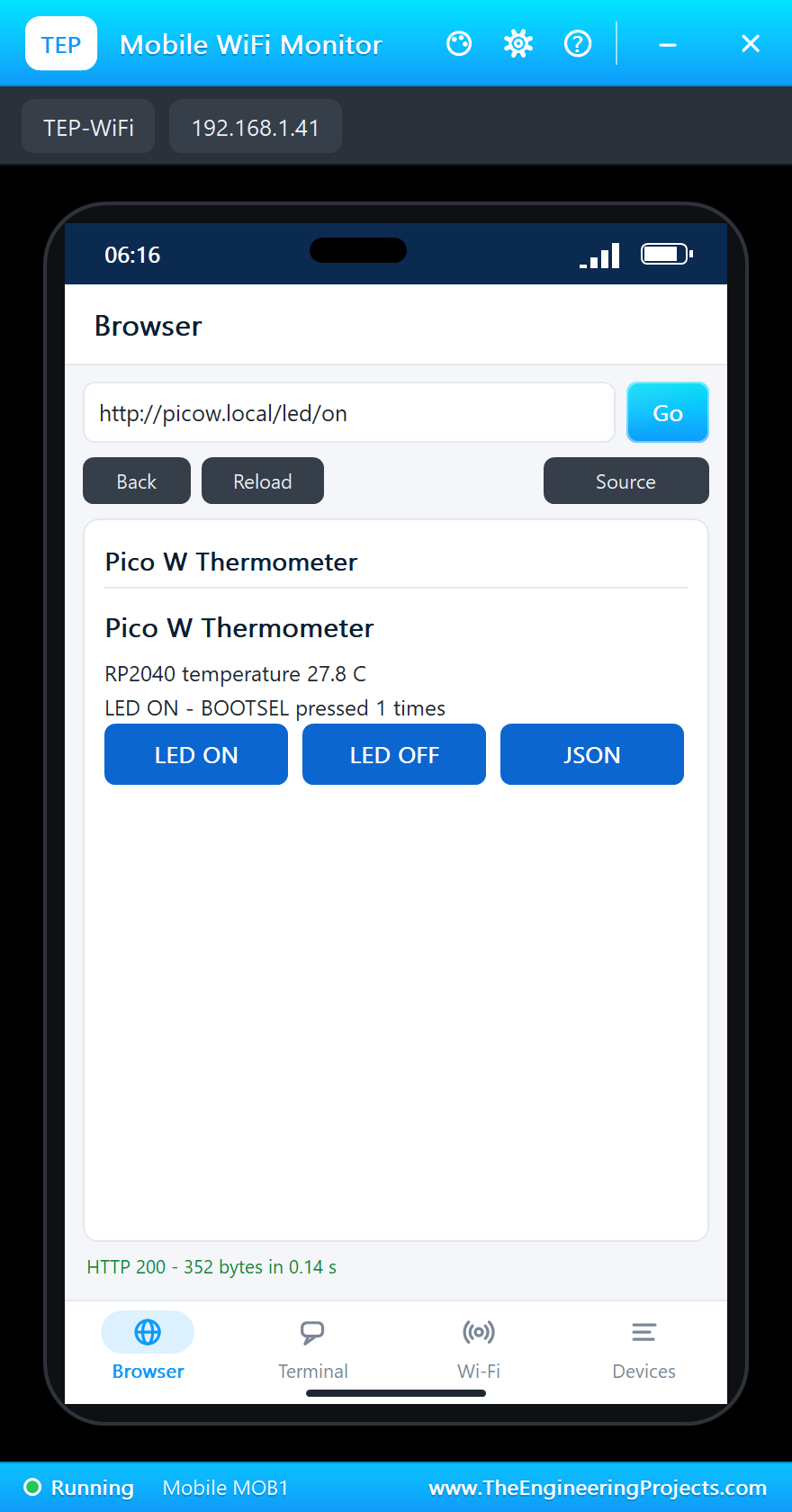
The main page shows the temperature, the LED and the BOOTSEL count, with three links. setLed() switches the LED and logs who did it:
void sendPage() {
  String html = F("<html><head><title>Pico W Thermometer</title></head><body><h1>Pico W Thermometer</h1><p>RP2040 temperature <b>");
  html += temperature();
  html += "</b></p><p>LED " + String(ledOn ? "ON" : "OFF") + " - BOOTSEL pressed " + presses + " times</p>";
  html += F("<p><a href=\"/led/on\">LED ON</a> <a href=\"/led/off\">LED OFF</a> <a href=\"/json\">JSON</a></p></body></html>");
  server.send(200, "text/html", html);
}
void setLed(bool on, const char *by) {
ledOn = on;
digitalWrite(LED_BUILTIN, on ? HIGH : LOW);
Serial.printf("LED %s by %s\n", on ? "ON" : "OFF", by);
}In the phone, open the Browser and press Go - http://picow.local/:
BOOTSEL as a User Button
On a Pico W the BOOTSEL button can be read while a sketch runs - BOOTSEL is true while it is held. The sketch checks it every 20 ms (a simple debounce) and toggles the LED on each new press:
void checkBootsel() {
  if (millis() - lastCheck < 20) return;
  lastCheck = millis();
  bool pressed = BOOTSEL;
  if (pressed && !wasPressed) {
    presses++;
    Serial.printf("BOOTSEL pressed (%d)\n", presses);
    setLed(!ledOn, "BOOTSEL");
  }
  wasPressed = pressed;
}
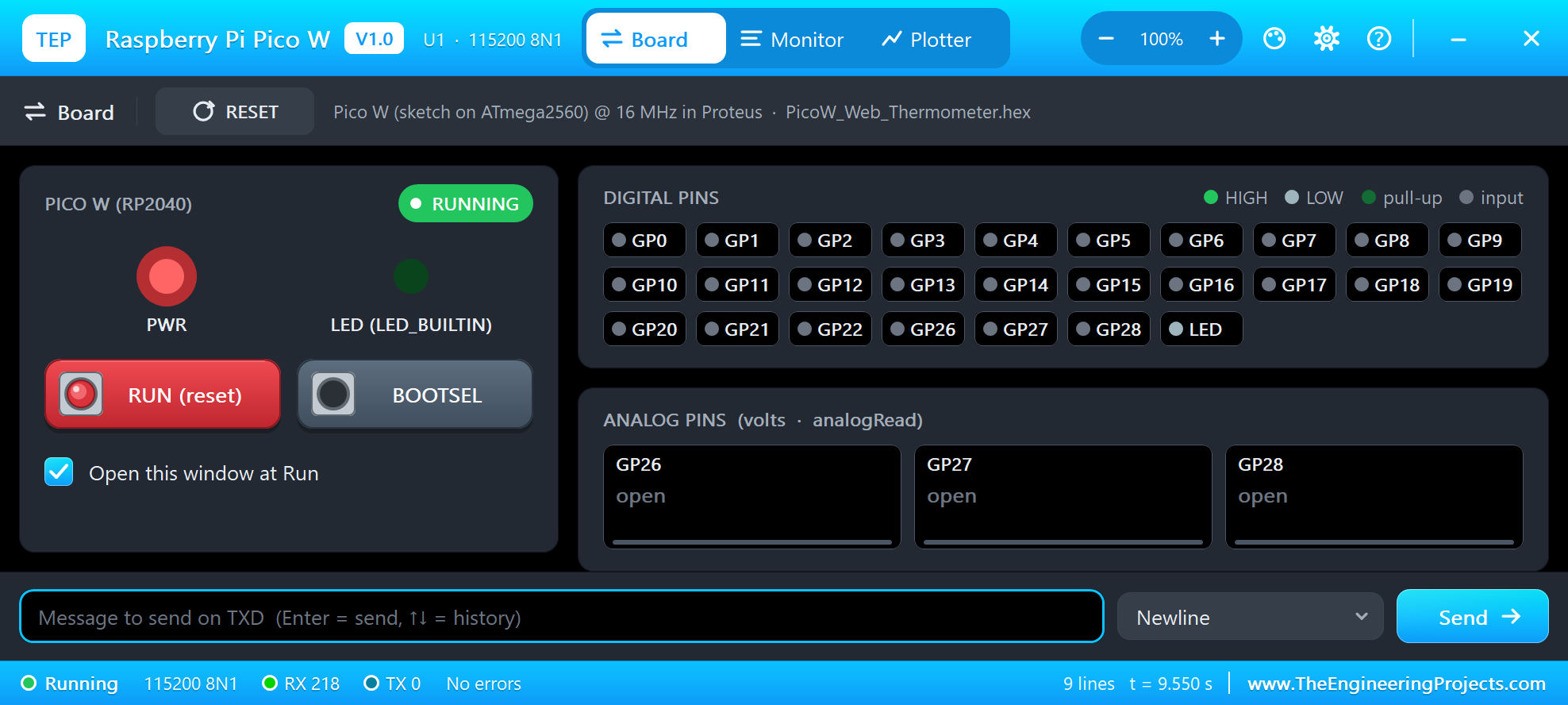
Press BOOTSEL on the board with the mouse, or click BOOTSEL in the monitor's Board tab - a short press of 0.3 s of simulation. We used the Board tab:
Then we tapped LED ON on the phone:
The Serial Monitor Commands
The monitor takes TEMP, LED ON, LED OFF, STATUS and HELP:
void command(String cmd) {
  cmd.trim();
  cmd.toUpperCase();
  if (cmd == "TEMP") Serial.println("RP2040 temperature " + temperature());
  else if (cmd == "LED ON") setLed(true, "monitor");
  else if (cmd == "LED OFF") setLed(false, "monitor");
  else if (cmd == "STATUS") Serial.println(status());
  else Serial.println("Commands: TEMP, LED ON, LED OFF, STATUS, HELP");
}
String status() {
return "Temperature " + temperature() + ", LED " + (ledOn ? "ON" : "OFF") + ", BOOTSEL pressed " + presses + " times, up " +
(millis() / 1000) + " s";
}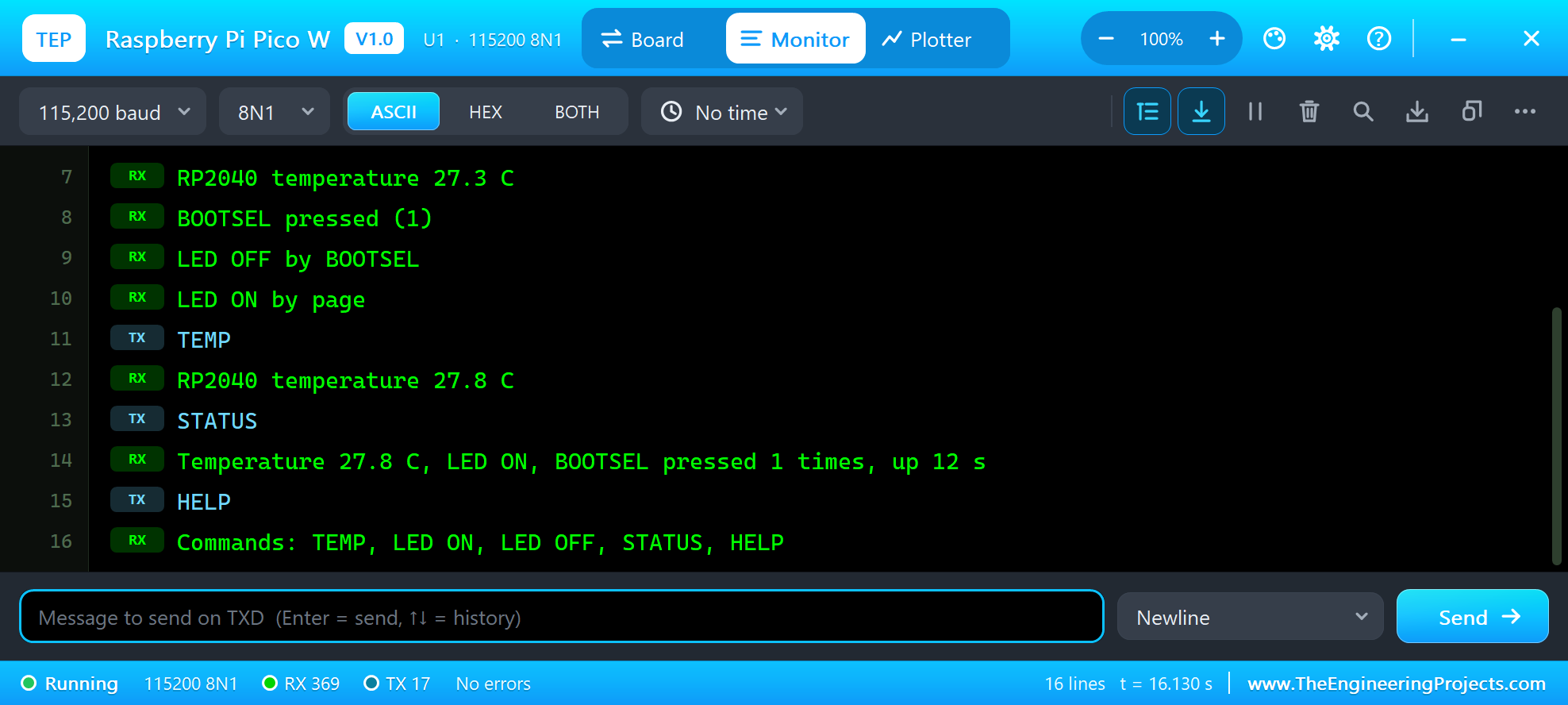
BOOTSEL pressed (1)
LED OFF by BOOTSEL
LED ON by page
TEMP
RP2040 temperature 27.8 C
STATUS
Temperature 27.8 C, LED ON, BOOTSEL pressed 1 times, up 12 s
HELP
Commands: TEMP, LED ON, LED OFF, STATUS, HELP
The laptop's JSON now counts the press:
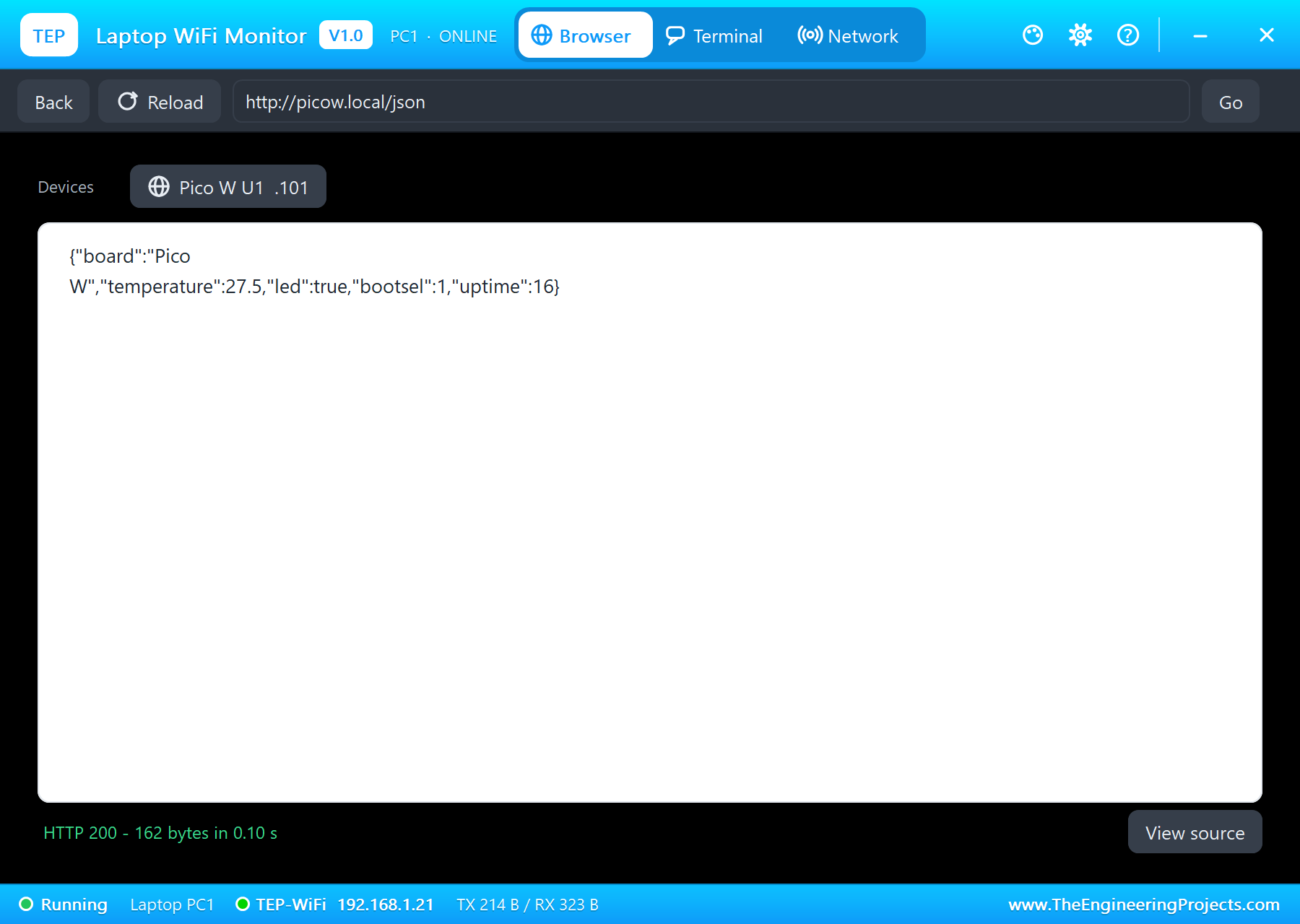
{"board":"Pico W","temperature":27.5,"led":true,"bootsel":1,"uptime":16}loop() serves the pages, keeps mDNS alive, reads BOOTSEL and the monitor - none of them waits for the others:
void loop() {
  server.handleClient();
  MDNS.update();
  checkBootsel();
  readMonitor();
}
And the whole demo after the run:
The Pico W Panel
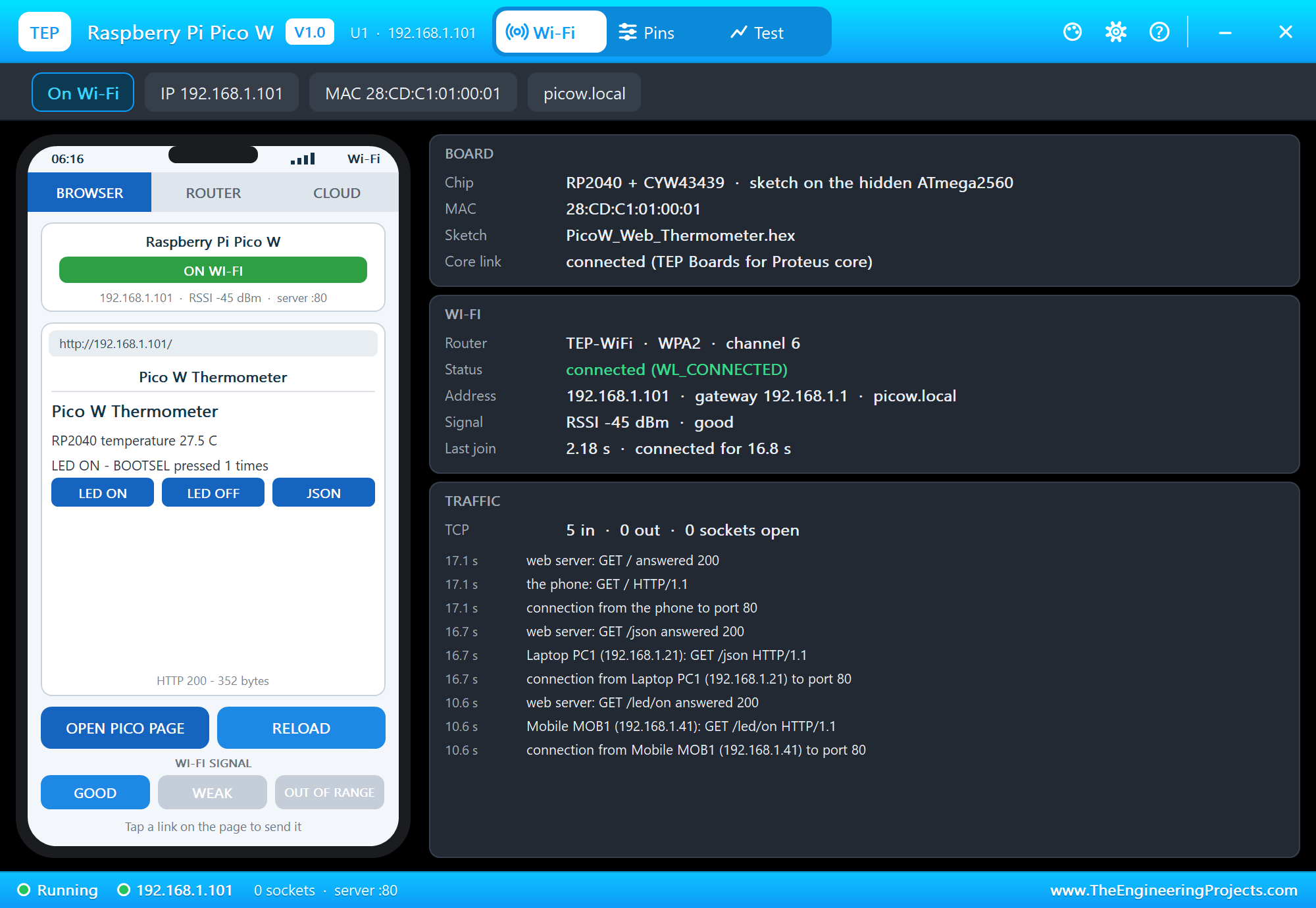
The panel opens at Run, in the look of our TEP Serial Monitor Advance for Proteus - our own TEP header, no Windows title bar. Its Wi-Fi page has a small phone and three cards: BOARD, WI-FI and TRAFFIC. OPEN PICO PAGE opens the sketch's page on the panel's phone:
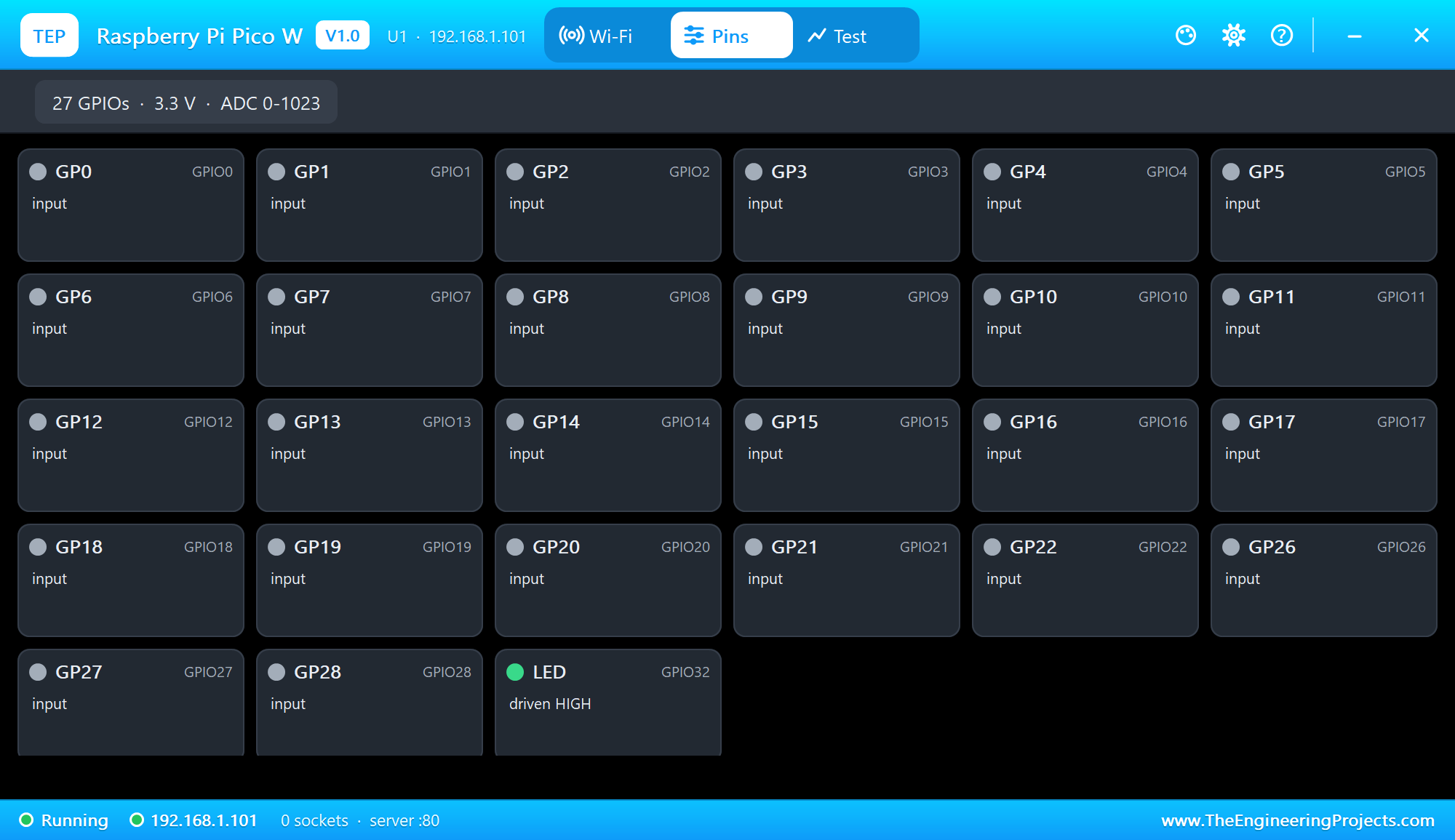
The Pins page shows every pin live:
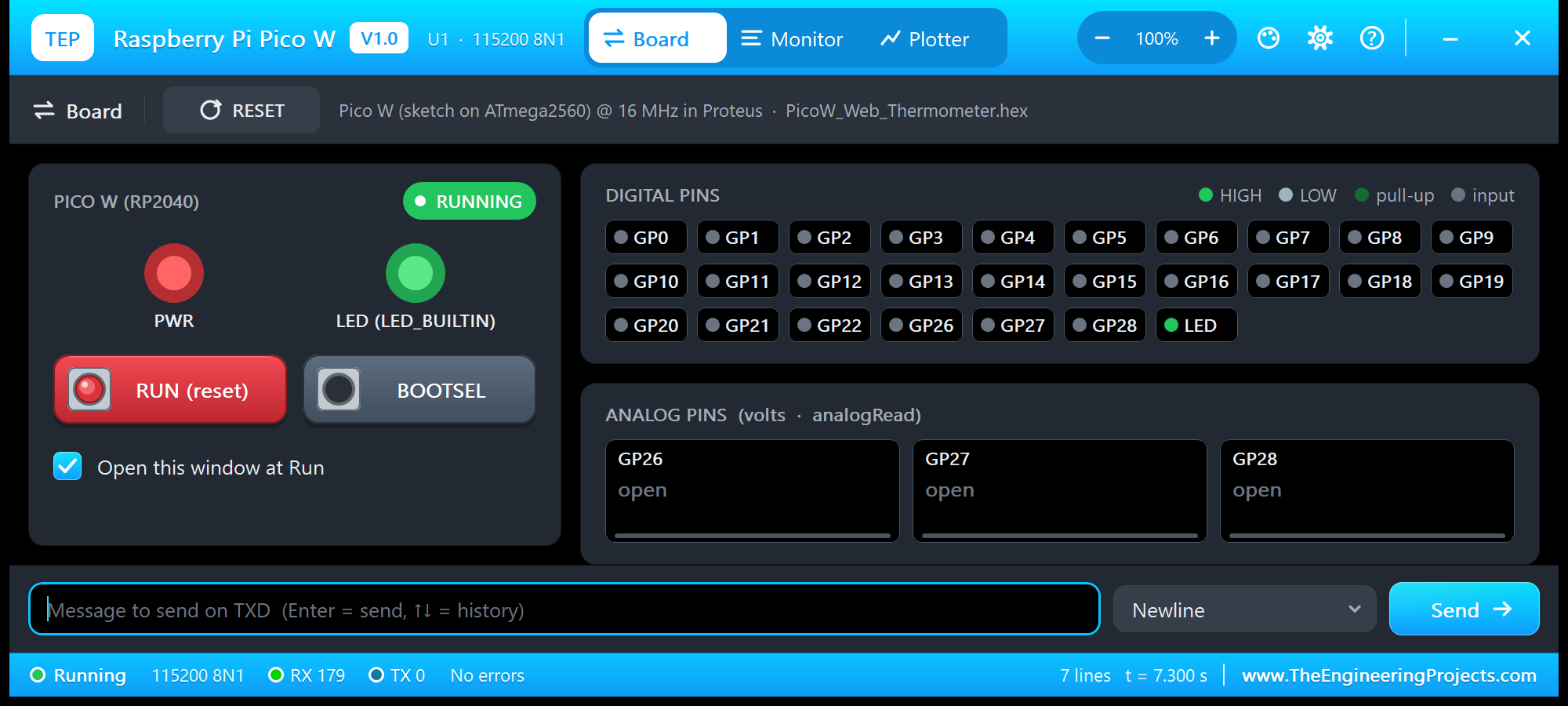
The monitor's Board tab shows the PWR and LED, the RUN and BOOTSEL keys and every pin:
Pins of the Raspberry Pi Pico W
| Pin | Number | What it does in the simulation |
|---|---|---|
| GP0 / GP1 | 0, 1 | Serial1 TX / RX (UART0), GPIO, interrupt |
| GP2 to GP22 | 2 to 22 | GPIO, interrupt, PWM |
| GP4 / GP5 | 4, 5 | also Wire SDA / SCL (I2C0) |
| GP16 to GP19 | 16 to 19 | also SPI MISO / CS / SCK / MOSI (SPI0) |
| GP26 to GP28 | 26 to 28 (A0 to A2) | analogRead 0 to 1023 for 0 to 3.3 V; also GPIO |
| LED | LED_BUILTIN | the LED (32 here, 64 in arduino-pico) |
| 3V3, VBUS | 3.3 V logic supply, 5 V from USB | |
| GND, AGND, RUN | ground; RUN is the reset | |
| VSYS, 3V3_EN, VREF | drawn, not modelled |
Serial is the USB - the board's monitor - and Serial1 is on GP0 / GP1. All pins are 3.3 V logic. Write LED_BUILTIN rather than a number, so the sketch is right on both the real board and the simulation.
Properties of the Raspberry Pi Pico W
| Property | What it does |
|---|---|
| PROGRAM | the sketch's HEX (Export Compiled Binary with the board Raspberry Pi Pico W (TEP Proteus)) |
| WIFISSID / WIFIPASS | the router in range (TEP-WiFi / 12345678) |
| MONITOR | YES = the built-in serial monitor on the USB (Serial) |
| BAUD | the monitor's speed (115200, or AUTO) |
| AUTOOPEN | YES = the monitor opens at Run (the demos: YES) |
| TIME | the clock NTP gives the sketch: PC, or a start time in UTC |
The IP address follows the part's number: U1 gets 192.168.1.101, U2 .102 and so on. Use one Pico W per design: its USB serial and LED lines are hidden pins, and Proteus joins hidden pins of the same name across parts.
Troubleshooting
- Nothing happens at Run: the HEX was not built with our board package - choose Raspberry Pi Pico W (TEP Proteus) and export it again.
- "LEAmDNS.h: No such file" or "BOOTSEL was not declared": an older copy of the board package is installed - 1.13.0 adds the Pico W.
- setup1() / loop1() never run: the second core is not modelled - put the work in
loop(). - digitalWrite(64, ...) does nothing: use
LED_BUILTIN. - The board does not join: the network name or password differs from WIFISSID / WIFIPASS, or the panel's WI-FI SIGNAL is OUT OF RANGE.
- A number goes wrong above 32767: an int is 16 bits on the hidden AVR (32 on the RP2040) - use long.
Writing Your Own Pico W Sketch
Start from the demo: it already has the join, mDNS, the web server and the monitor commands. Keep loop() free of long delay() calls, so the web server, mDNS and BOOTSEL stay responsive, and add your sensor the same way the temperature is read - a small function that returns text or a number:
- Wire the sensor to the GP pins in Proteus - an analog sensor on GP26 to GP28, an I2C sensor on GP4 / GP5.
- Read it in a function and add the value to
sendPage()andsendJson(). - Export the HEX with the board Raspberry Pi Pico W (TEP Proteus), set it as the Program File and press Run.
- Open the page on the phone and the JSON on the laptop, and compare the values with the monitor.
When it works in Proteus, choose the real Raspberry Pi Pico W in the Arduino IDE and upload the same sketch.
Things to Know Before Using a Real Pico W
- The board package: install Earle Philhower's "Raspberry Pi Pico/RP2040" package and choose Raspberry Pi Pico W.
- Uploading: the first time, hold BOOTSEL while plugging in the USB - the Pico appears as a drive and the IDE uploads a UF2 file to it.
- 3.3 V only: the pins are not 5 V tolerant.
- BOOTSEL in a sketch: reading it briefly stops the flash, so read it every few milliseconds, as the demo does, not in a tight loop.
- Our ESP32 boards: the same WiFi and WebServer names run there too - see our ESP32 DevKit V1 Library for Proteus - and the Arduino Nano 33 IoT Library for Proteus shows UDP between a board and our laptop.
Limitations of the Simulation
- The board runs your sketch on a hidden ATmega2560 at 16 MHz with 8 KB of RAM - not on the RP2040. Big buffers that fit in its 264 KB may not fit here, and an int is 16 bits.
- Not modelled: the second core, PIO, Serial2, the rp2040 calls, Bluetooth, the soft AP, real TLS, VSYS / 3V3_EN / VREF, the radio itself - the join and network times are realistic values, not a radio simulation. MicroPython is not possible.
- The red PWR LED, the antenna colours, the PANEL pad, the panel, its phone, the router, the internet host and the two monitors are TEP additions; the MAC address is a TEP address.
- Raspberry Pi, Pico and RP2040 are trademarks of Raspberry Pi Ltd, CYW43439 a name of Infineon Technologies; this library is not made or endorsed by them or by Labcenter.
- Tested in Proteus 8.5 in October 2026 (the demos as shipped, the Pico W, the laptop and the phone together at about 0.4 x real time on our PC). Proteus 7 is not supported.
So, that was all about the Raspberry Pi Pico W Library for Proteus. I hope it lets you try the Pico W's Wi-Fi with the arduino-pico core before the real board is on your desk - web pages, JSON, BOOTSEL, sensors - with the same sketch that runs on the hardware. If you use the Raspberry Pi Pico W Library for Proteus in a project, please share it in the comments or in our forum, and if you have any questions, ask in the comments and I will help you out. Till the next tutorial, take care and have fun!

Comments
0