


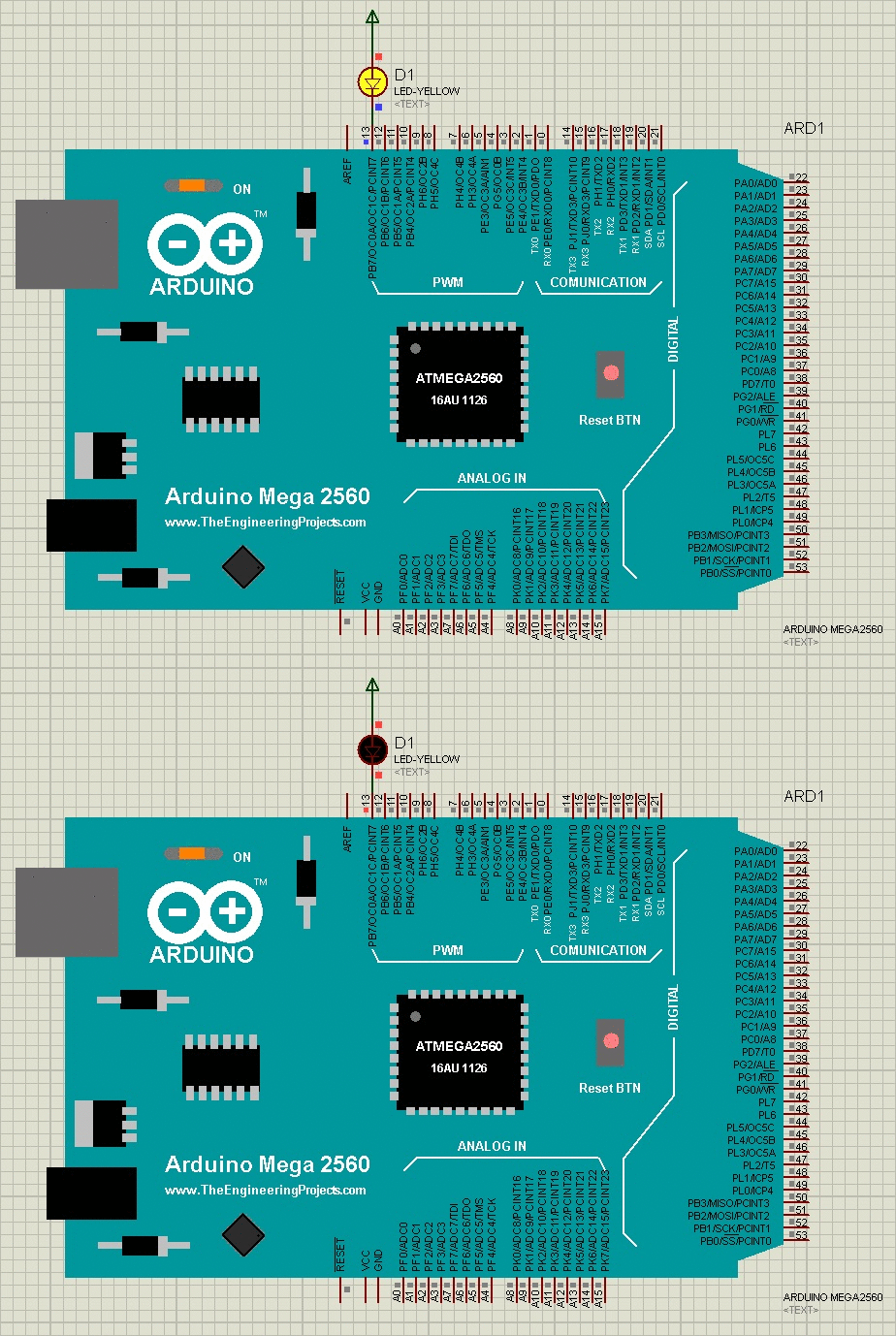
Arduino Mega 2560 Library for Proteus


Hello friends! Today, we are going to install the original Arduino Mega 2560 Library for Proteus and run an Arduino sketch on its simulated board. We will begin with the library files, place the Mega in a schematic, load its compiled firmware and test a simple external LED circuit.
Arduino Mega 2560 Library for Proteus
Latest version: Arduino Mega 2560 Library for Proteus V4.0 (October 2026), with working LEDs, a RESET button and a built-in serial monitor
Earlier versions: V3.0 (2023) · V2.0 (2021) · V1.0 (2015, this tutorial)
Helping Tools
- Serial Monitor Advance: a serial terminal window for the UART of your board
- Serial Monitor Expert: the serial monitor with extra debugging tools
- LCD Library for Proteus V3.0: 16x2, 20x4 and I2C LCDs to show your readings
If you have used our Arduino UNO Library for Proteus, the overall workflow will look familiar. The Mega gives us more pins, memory and serial interfaces, but it still needs a sketch compiled specifically for its ATmega2560 processor.
This tutorial preserves the original V1.0 library from 2015. The newer version references added in October 2026 remain below, so you can reproduce the older project or choose a newer model with its own installation instructions and features.
Arduino Mega 2560 Library Versions
The newer Arduino Mega 2560 Library for Proteus V4.0 is documented separately with working LEDs, a RESET button and a built-in serial monitor. Those features should not be assumed to exist in the original download attached to this page.
| Version | Tutorial |
|---|---|
| V4.0, October 2026 | Mega 2560 V4.0 |
| V3.0, 2023 | Mega 2560 V3.0 |
| V2.0, 2021 | Mega 2560 V2.0 |
| V1.0, 2015 | The original package explained here |
The combined Arduino V4.0 library contains six boards. Related individual guides cover UNO, Mega 1280, Nano, Pro Mini and Mini.
For additional instruments and displays, see Serial Monitor Advance, Serial Monitor Expert and LCD Library for Proteus V3.0. Keep each tool's instructions associated with its own release.
Why Use the Mega 2560?
The Mega is useful when a project needs more connections than a smaller board can conveniently provide. A display, keypad, several sensors and multiple serial devices can quickly consume the available pins on an UNO. The Mega provides more room for that kind of design.
| Feature | Mega 2560 reference |
|---|---|
| Main processor | ATmega2560 |
| Clock | 16 MHz |
| Logic voltage | 5 V |
| Digital I/O pins | 54, numbered 0 through 53 |
| PWM outputs | 15 |
| Analog inputs | 16, labeled A0 through A15 |
| Hardware UARTs | 4 |
| Processor memory | 256 KB flash, 8 KB SRAM and 4 KB EEPROM |
Arduino's Mega 2560 documentation describes the real board. The table identifies the hardware target; it does not claim that an old third-party Proteus model reproduces every electrical or board-level detail.
More memory does not mean unlimited memory, and more pins do not automatically mean faster execution. The classic UNO and Mega both commonly operate at 16 MHz. Choose the Mega for the resources your application needs rather than assuming that every program will run faster on it.
Download the Original Mega Library
Download and extract the archive below. This is a Proteus component package, so it belongs in the Proteus library installation workflow. It is not an Arduino sketch library that should be installed through the Arduino IDE's Library Manager.
Arduino Mega 2560 Library for Proteus
The attachment contains an Arduino Mega 2560 Library for Proteus folder with these two files:
ArduinoMega2560TEP.LIBArduinoMega2560TEP.IDX
The older instructions accidentally named the UNO files. Use the Mega filenames above, which match this actual archive. Do not rename UNO files to make them look like a Mega package; filenames do not change the component definitions inside a library.
Install the Library in Proteus
- Extract the ZIP into an ordinary folder.
- Locate the library path configured for your Proteus installation.
- Copy the Mega LIB and IDX files into that location.
- Restart Proteus if necessary to refresh component discovery.
- Open the component picker and search for the Arduino Mega 2560.
- Place the matching component in a new schematic.
A commonly encountered Proteus 8 library location is C:\ProgramData\Labcenter Electronics\Proteus 8 Professional\LIBRARY. Treat that as an example, not a universal path. The configured folders can differ between versions, installations and user setups.
If the board does not appear, first confirm that the archive was extracted and that the two files are in a folder Proteus actually searches. Copying a ZIP into the library directory without extracting it does not provide the same result.
Our Proteus library installation tutorial provides further guidance. Keep different release packages organized so that replacing one library does not leave an unexplained mixture of old and new files.
Understanding the Placed Board
The original Mega component has a large board outline because it exposes many connections. Digital pins are distributed around the symbol, and the analog inputs are labeled along the analog header area. Read the labels rather than assuming that nearby pins perform similar functions.
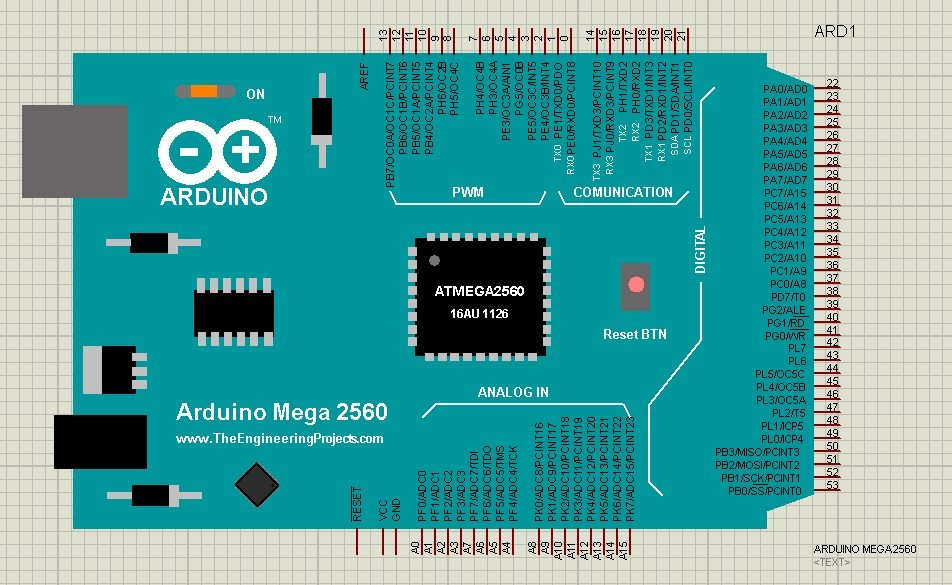
Arduino pin numbers are not the same as ATmega2560 package-pin numbers. A sketch using digital pin 22 refers to the Arduino board mapping. Connecting it to the processor's physical pin 22 would be a different instruction unless the mapping happened to coincide.
The drawing also includes board artwork. A printed USB connector, reset switch or indicator does not by itself establish that the original model simulates that function interactively. Follow the capabilities documented for the particular library version.
A simulation component is also separate from a validated PCB footprint. If the eventual goal is a PCB or shield, check mechanical dimensions, header positions and footprint data independently rather than treating the schematic picture as manufacturing information.
Select the Correct Arduino Build Target
Open the Arduino IDE and choose the Mega or Mega 2560 board entry from the AVR board platform. If the interface provides a processor selection, choose ATmega2560. Do not compile this example for UNO, Mega 1280 or a different processor family.
The selected board determines processor instructions, memory layout, pin mapping and clock assumptions. A HEX file does not become suitable for the Mega merely because Proteus allows you to browse to it. Select the correct target before compiling.
You can compile and export without connecting a physical board. A COM port is relevant to uploading firmware to hardware; it is not required for placing a compiled program into the simulated processor's Program File property.
Arduino Code for the First LED Test
We will use D13 for an external LED, matching the historical example. The pictured branch connects toward the positive supply, so the revised sketch explicitly uses active-low operation for that external LED.
const byte testLed = 13;

void setup() {
  digitalWrite(testLed, HIGH);
  pinMode(testLed, OUTPUT);
}

void loop() {
  digitalWrite(testLed, LOW);
  delay(1000);
  digitalWrite(testLed, HIGH);
  delay(1000);
}
The output remains low for approximately one second and high for approximately one second. For the specified external connection, low means on and high means off. The full cycle is approximately two seconds, giving a blink frequency of 0.5 Hz.
This simple delay-based example is useful for confirming the installation and firmware path. A larger application that must continuously read sensors or service communication should use a suitable nonblocking timing structure instead of waiting inside long delays.
Export and Load the HEX File
- Save the sketch and compile it for the Mega 2560 target.
- Resolve any compiler errors.
- Select Sketch, Export Compiled Binary.
- Locate the exported application HEX file in the sketch's build output.
- Open the Mega component properties in Proteus.
- Choose that HEX file as the Program File and confirm the 16 MHz clock.
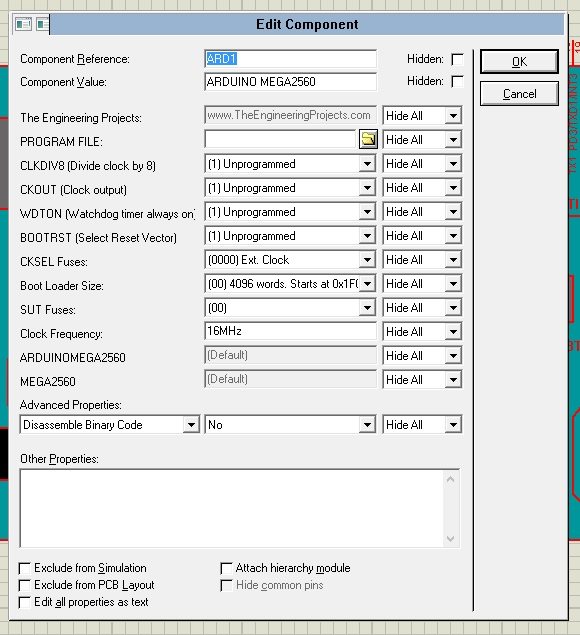
Some AVR exports include a second file with with_bootloader in its name. This demonstration loads the application directly rather than simulating an upload through the board's USB connection. Use the application firmware appropriate to that workflow.
The exact export folder depends on the IDE and platform configuration. Arduino's platform documentation explains the export mechanism. If the file is not where you expected, inspect the build output instead of selecting an unrelated old HEX file.
Keep a stable exported copy with the Proteus project. Temporary compiler folders may be cleaned later, and a path that works on your computer may not exist on another computer. After every source change, rebuild and confirm which file the simulation loads.
Wire the External LED Correctly
The original image shows an external LED connected between a positive supply terminal and D13. It does not show a series resistor. Add one in the revised circuit; the LED needs current limiting even if a simplified simulation appears to work without it.
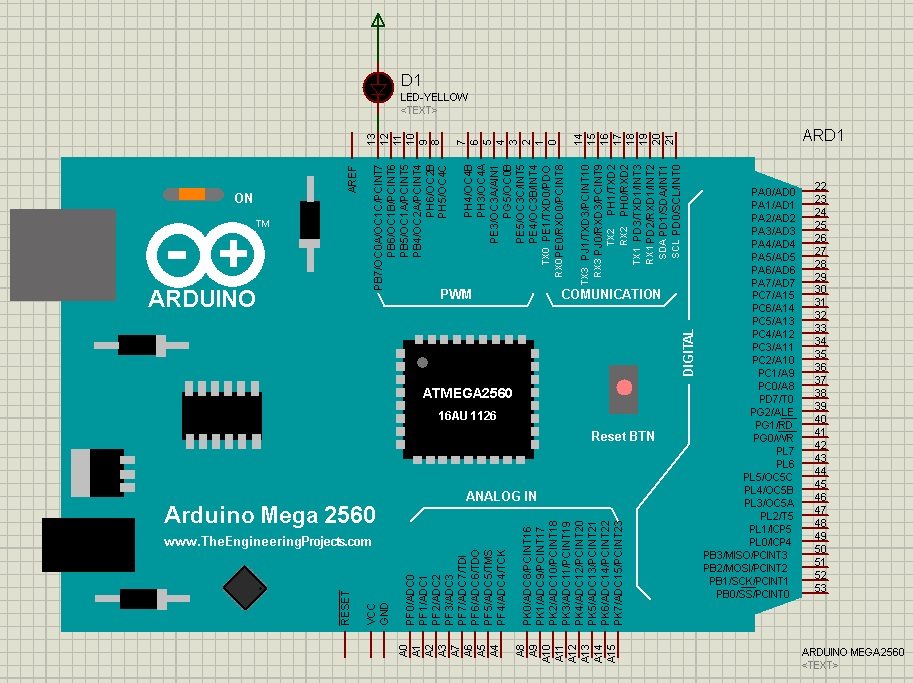
Connect the positive supply through a suitable resistor to the LED anode, and connect the cathode to D13. When the pin drives low, current flows through the resistor and LED into the output. Ensure the supply and ground references are consistent throughout the circuit.
A useful first estimate is R = (Vsupply − VLED − Voutput-low) / I. For 5 V, a 2 V LED, a 0.2 V output drop and an 8 mA target, the result is approximately 350 Ω. Select an appropriate available value and check the resulting current against the device and LED limits.
The output pin is a signal driver, not a general-purpose power supply. If a later project drives several LEDs, a relay or another substantial load, use an appropriate driver stage and account for both individual-pin and total-current constraints.
Run the First Simulation
Start the simulation after checking the library, program file, clock and LED branch. The external LED should alternate between its two states. If you observe the output with an instrument, its period should correspond to the two one-second delays.
The original animation shows the intended result. Its playback rate is not a measurement of processor timing. Use the simulator's time information or an oscilloscope when comparing intervals rather than relying on how quickly an animation plays in a browser.
If the LED does not change, inspect D13 independently. A changing output with a dark LED points toward the load connection or polarity. A static output points toward firmware execution, clock configuration or the selected program file.
Important Mega Pin Differences
Moving an UNO project to the Mega can require more than changing the board selection. Some peripheral functions appear on different board pins, so a circuit copied wire for wire may no longer match the sketch or attached module.
| Interface | Mega 2560 board pins |
|---|---|
| Serial | RX0 on D0, TX0 on D1 |
| Serial1 | RX1 on D19, TX1 on D18 |
| Serial2 | RX2 on D17, TX2 on D16 |
| Serial3 | RX3 on D15, TX3 on D14 |
| I2C | SDA on D20, SCL on D21 |
| SPI | MISO on D50, MOSI on D51, SCK on D52 and hardware SS on D53 |
Check Arduino's board pinout when using these interfaces. An SPI peripheral connected to the UNO's D11 through D13 convention will not automatically reach the Mega's SPI signals. Shield designs may use the ICSP header to provide a board-independent SPI connection, but the actual wiring still needs inspection.
A small Serial1 experiment
After Blink works, you can test another hardware UART with the following separate sketch. Connect Mega D18/TX1 to a Virtual Terminal's RX input, and connect the terminal's TX output to Mega D19/RX1. Set the terminal to 9600 baud, eight data bits, no parity and one stop bit.
void setup() {
  Serial1.begin(9600);
  Serial1.println("Mega Serial1 ready");
}

void loop() {
  if (Serial1.available() > 0) {
    int received = Serial1.read();
    Serial1.write((byte)received);
  }
}
This example returns each received byte. Disable terminal local echo initially so you can distinguish the returned character from text displayed locally as you type. The code uses Serial1, so connecting the terminal to D0 and D1 would target the wrong UART.
A successful serial echo is useful evidence for that specific model and connection. It does not establish that every peripheral or every timing condition has been validated. Add each interface separately and keep a small working example for comparison.
Planning Larger Mega Projects
Write a pin-allocation table before combining modules. Reserve communication pins, identify interrupt or PWM requirements, and note which library uses each timer. A project can run out of a particular peripheral resource even while many ordinary GPIO pins remain unused.
The sixteen analog inputs are selected through the processor's ADC system; they are not sixteen independent simultaneous converters. If an application needs closely synchronized measurements, investigate acquisition timing and channel switching rather than assuming all analog values represent the same instant.
Likewise, several I2C devices share a bus but must have compatible addressing and electrical levels. More board pins do not solve two fixed-address devices responding at the same address. Check whether the devices support address selection or require another bus arrangement.
Keep memory use visible as the program expands. The Mega offers more SRAM than an UNO, but large buffers and repeated dynamic string allocation can still create problems. Prefer bounded data structures when the maximum message or sample count is known.
Moving an Existing UNO Sketch to the Mega
Begin by compiling the unchanged sketch for the Mega target and reading any warnings or errors. Standard Arduino pin functions often transfer easily, but a library that directly accesses processor registers may depend on the original device. Check that library's supported architectures and board assumptions before changing unrelated application code.
Next, compare the wiring with a written pin table. Test ordinary digital outputs first, then analog inputs, and finally communication interfaces. This order helps separate a basic board-selection problem from a peripheral-specific connection problem.
Keep the original UNO project and exported firmware in a separate folder. The Mega build should have its own clearly identified output, especially when both versions contain a sketch with the same name. That small organizational step prevents accidental loading of the wrong program during later comparisons.
Troubleshooting the Library and Firmware
| Symptom | Check |
|---|---|
| Mega is missing from component search | Correct Mega LIB/IDX pair and configured library folder |
| Model appears but does not execute | Processor-model support and the exact simulation error |
| Sketch behaves unpredictably | Mega 2560 target rather than UNO or Mega 1280 |
| Timing is incorrect | 16 MHz simulation setting and compiled clock assumptions |
| Serial1 shows nothing | D18/D19 connections and terminal baud settings |
| Old behavior remains after editing | New build, export path and selected HEX file |
Do not replace the whole installation in response to a single missing-file message. Identify whether the missing item is a library definition, a processor model or the application's firmware. Those are different layers and require different corrections.
Original Video Demonstration
The video below shows the original Mega library workflow. Follow it for the historical board placement and LED example, while using the corrected Mega filenames and current firmware-export explanation in this article.
Library Review
The original Mega library is useful for reproducing older TEP projects and learning how an Arduino board representation connects with a compiled AVR program. Its larger pin set also makes it a practical platform for exercises involving multiple inputs, displays and serial channels.
Keep the limits of simulation in view. A successful schematic does not establish regulator temperature, physical wiring quality, USB operation or every real sensor's behavior. Use the newer-version links when you need their documented interactive features, and check the physical design separately before building hardware.
Frequently Asked Questions
Which files belong to this Mega download?
The original archive contains ArduinoMega2560TEP.LIB and ArduinoMega2560TEP.IDX. The UNO filenames in the older wording were incorrect.
Can I load an UNO HEX file into the Mega?
Compile for the Mega 2560 target. Processor configuration and board pin mapping are part of the build and should not be assumed interchangeable.
Why does Serial1 use different pins from Serial?
They are separate hardware UARTs. Serial1 uses D19 for receive and D18 for transmit, while Serial uses D0 and D1.
Do I need a real Mega to export the program?
No. Select the board and compile/export the sketch without performing a hardware upload.
Does the original board picture guarantee working reset and LEDs?
No. Use the features documented for the installed library release. The V4.0 guide separately describes the newer interactive controls.

Tags


The library looks decent. Will try it out and provide constructive feedback.
Thanks for your effort.
ThxOne
I have a error when i use analog input A1,
PC=0X0BE6[AVR AD CONVERTER] Reference value =0
PC=0X0F88[AVR AD CONVERTER] Reference value =0
sir, I am working on the project of smart attendance system in which we are using the iris scanner can u please help us in the making of the this project and please help in the interfacing of iris with the Arduino and its circuitry your faithfully please help us
1 reply
Add me on Skype and we will discuss it in detail. My Skype id is theenggprojects.
Assalam o alaikum
i need a arduino library with pcb package. These libraries don't have pcb package.
1 reply
Hi,
Yeah, we will provide you that library. Add me on Skype and we will discuss it in detail. My Skype id is theenggprojects.
Thanks.
Comments
8