


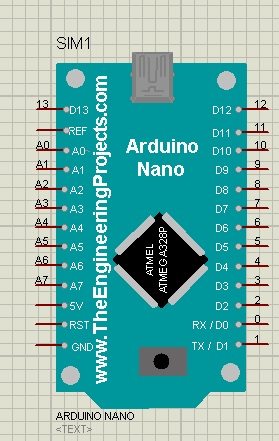
Arduino Nano Library for Proteus


Hello friends! In this tutorial, we will install the Arduino Nano Library for Proteus, load a compiled Arduino program and run an LED-blinking simulation. We will follow the same sequence you would use for a larger project: identify the board, install its model, check the basic circuit and then add your application.
Arduino Nano Library for Proteus
Latest version: Arduino Nano Library for Proteus V4.0 (October 2026), with working LEDs, a RESET button and a built-in serial monitor
Earlier versions: V3.0 (2023) · V2.0 (2021) · V1.0 (2015, this tutorial)
Helping Tools
- Serial Monitor Advance: a serial terminal window for the UART of your board
- Serial Monitor Expert: the serial monitor with extra debugging tools
- LCD Library for Proteus V3.0: 16x2, 20x4 and I2C LCDs to show your readings
The Nano is useful when an Arduino UNO would take too much space. In the project described in the original article, I used a Nano with an inertial measurement unit on a cricket bat. The smaller board helped keep the electronics compact. That example illustrates the reason for choosing the Nano: board size and connections matter alongside the processor's capabilities.
This page explains the original V1.0 Proteus library and retains its download and screenshots. Newer library versions are linked below. We will keep their features separate so that you do not expect a feature shown in a recent model to appear automatically in the older package.
Which Arduino Nano Does This Library Represent?
The tutorial concerns the classic AVR Arduino Nano, using an ATmega328-family microcontroller and a 16 MHz clock. It is not a model of the Nano Every, Nano ESP32 or Nano 33 family. Those boards can share a similar shape while using different processors, peripherals and electrical characteristics.
The official classic Nano documentation identifies the board and provides its schematic and pinout. Use the exact board reference when translating a simulation into hardware. A familiar name or matching number of header pins is not enough to establish firmware compatibility.
| Connection group | Classic Nano assignment | Practical consideration |
|---|---|---|
| Digital signals | D0 through D13 | Match Arduino pin numbers to the model's labels |
| Analog inputs | A0 through A7 on the classic board | A6 and A7 are analog inputs only |
| UART | D0 RX and D1 TX | Reserve them when using hardware serial communication |
| I2C | A4 SDA and A5 SCL | Check pull-ups and peripheral voltage |
| SPI | D10 SS, D11 MOSI, D12 MISO and D13 SCK | D13 also appears in many LED examples |
| Clock for this example | 16 MHz | The compiled program and simulated processor must agree |
A digital pin may have more than one function, but that does not mean all functions can be used independently at once. For example, an LED connected to D13 shares that signal with SPI clock activity. Plan pin assignments before connecting a display, sensor and communication module to the same board.
Choose the Library Version Before Installing
For the newer board model, see Arduino Nano Library for Proteus V4.0. Its guide covers the working LEDs, reset button and built-in serial monitor introduced in that release. Earlier alternatives remain available as V3.0 and V2.0.
Do not mix files from different versions simply because their names contain Nano. Keep the files from one release together and follow its installation instructions. The screenshots on this page belong to the original model, whose appearance and properties can differ from the newer releases.
Download the Arduino Nano Library for Proteus
Download the original package using the attachment below. Extract the archive into a temporary folder where you can inspect its contents before copying anything into Proteus.
Arduino Nano Library for ProteusThe original library uses two files: ArduinoNanoTEP.LIB and ArduinoNanoTEP.IDX. Keep the pair from the same archive. The library defines the board component, while its associated index supports component lookup in the older library format.
These are Proteus library files. They do not belong in the Arduino sketchbook's libraries directory, and you do not install them through Arduino Library Manager. Arduino source libraries and Proteus component libraries solve different problems, even though both are called libraries.
Install the Library Files
- Close Proteus before changing the installed library files.
- Extract the archive fully; do not try to use files while they are still inside the compressed folder.
- Locate the library directory used by your installed Proteus version.
- Copy ArduinoNanoTEP.LIB and ArduinoNanoTEP.IDX into that directory.
- Open Proteus and create or reopen your schematic project.
- Open the component picker and search for Arduino Nano.
- Select the intended TEP component and place one instance on the schematic.
The library directory depends on your Proteus installation and configuration. Do not assume a path copied from another computer is correct. Our guide on adding a library in Proteus 8 explains the general process.
If the board does not appear, first check the directory and extracted filenames. Then restart Proteus and search again. Repeatedly copying differently named duplicates into several directories makes troubleshooting harder because you may no longer know which component definition the picker is finding.
Understand the Program File Property
Double-click the Nano component to open its properties. The original model exposes a Program File field where you select the compiled firmware. Its properties screen is shown below.
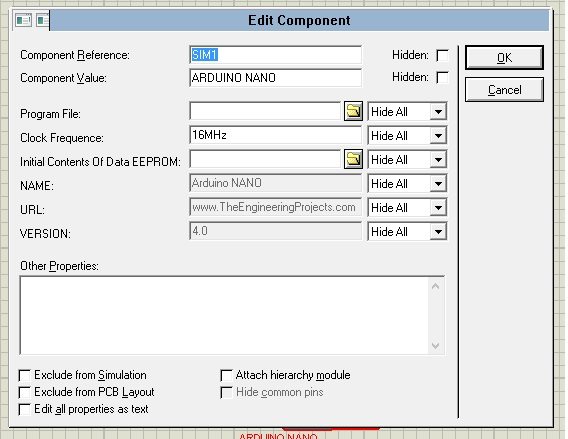
A sketch file ending in .ino contains source code. Proteus needs the executable program produced for the simulated processor, typically an Intel HEX file for this AVR workflow. Selecting the .ino file does not ask Proteus to compile the Arduino sketch.
Arduino's sketch build documentation explains how preprocessing, compilation and linking produce the executable image. The selected board affects the target and build settings, so selecting the correct board is part of preparing the firmware, not merely an upload preference.
Compile for the Classic Nano
- Open Arduino IDE and install the Arduino AVR Boards platform if necessary.
- Select Arduino Nano from that platform's board list.
- Select the processor option matching the modeled device.
- Compile the sketch and resolve any errors before continuing.
- Use the IDE's compiled-binary export command, or locate the generated HEX path in verbose build output.
- Copy the application HEX to a stable folder beside your simulation project.
- Select that file in the Nano component's Program File property.
The classic Nano board menu includes ATmega328P, ATmega328P with the old bootloader, and an ATmega168 option for certain boards. Arduino documents these distinctions in its Nano processor-selection guide. Do not choose ATmega168 for an ATmega328 model simply because an upload attempt failed on separate hardware.
Directly loading an application HEX into a simulated processor does not use a USB bootloader upload session. The old-bootloader choice is particularly relevant when communicating with a physical Nano's bootloader. For simulation, first establish the processor, clock and application image rather than treating a missing COM port as a firmware problem.
If the export includes a separate file marked with_bootloader, use the ordinary application image for the direct-loading exercise unless your model's instructions specifically require otherwise. Keep the exported filename recognizable, especially when several sketches or board targets are stored in the same directory.
Build the LED-Blinking Circuit
We will connect an external LED to D13 so that the test does not depend on whether the original board artwork animates its onboard LED. Connect D13 through a series resistor to the LED anode, and connect the cathode to ground.
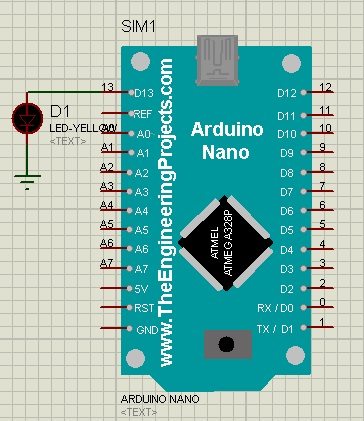
Use a resistor even in a simple demonstration. For a first estimate, assume a 5 V output, a red LED forward voltage of 2 V and a target current of 5 mA. Ohm's law gives R = (5 - 2) / 0.005 = 600 ohms. A 680-ohm resistor gives approximately 4.4 mA under those assumptions.
The actual output-high voltage and LED forward voltage vary with current and the selected parts. This calculation is a starting point, not a guaranteed measurement. Check the controller's per-pin and combined port-current limits when expanding to multiple LEDs. An absolute maximum rating is not the current you should routinely design around.
Connect a common ground for every part of the test circuit. If the model uses hidden power pins, confirm how those pins are supplied in your Proteus project. A decorative USB connector on a component is not evidence that plugging a virtual cable into it is required or even modeled.
Arduino Blink Code
const byte ledPin = 13;
void setup() {
  pinMode(ledPin, OUTPUT);
  digitalWrite(ledPin, LOW);
}
void loop() {
  digitalWrite(ledPin, HIGH);
  delay(500);
  digitalWrite(ledPin, LOW);
  delay(500);
}
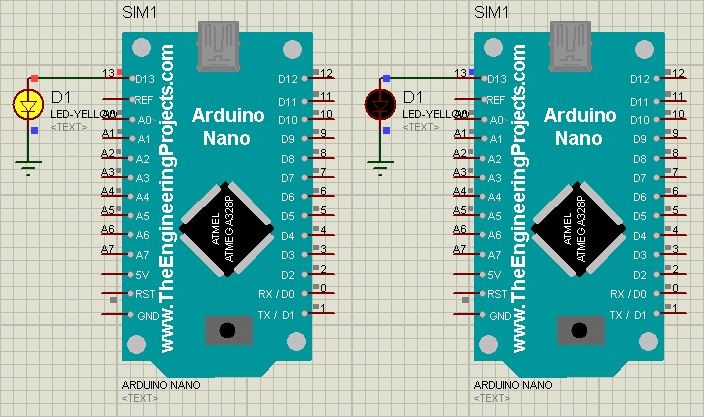
The LED is on for half a second and off for half a second. One complete cycle therefore takes one second, corresponding to a frequency of 1 Hz and a duty cycle of 50 percent. The time between successive edges is half a second; that is not the full waveform period.
Compile and export this sketch, select the resulting HEX file and start the simulation. The retained animation below shows the original blinking demonstration. It illustrates the intended behavior rather than documenting a new execution of the revised example.
Why the Clock Setting Matters
Arduino timing functions depend on the clock frequency assumed during compilation. If code compiled for 16 MHz runs on a model configured for 8 MHz, instructions and timer events take longer in simulated time. A delay expected to last half a second can become approximately one second.
UART timing is affected too. A program compiled for one clock and executed at another may send characters at the wrong baud rate. When both LED timing and serial output are wrong, inspect the clock before changing unrelated code or reinstalling the library.
Measure time using the simulation's timebase or a logic instrument. A busy computer may display a simulation more slowly than wall-clock real time. Watching an animation with a stopwatch is therefore less informative than measuring the signal within the simulation.
Extend the Test Without Losing Responsiveness
The delay-based sketch is deliberately small, but delay pauses the main loop. Once you add a button, sensor or serial command, you may want to keep checking those inputs while the LED continues blinking. The following version uses elapsed time instead.
const byte ledPin = 13;
const unsigned long intervalMs = 500;
unsigned long previousMs = 0;
bool ledOn = false;

void setup() {
  pinMode(ledPin, OUTPUT);
  digitalWrite(ledPin, LOW);
}
void loop() {
  unsigned long now = millis();
  if (now - previousMs >= intervalMs) {
    previousMs = now;
    ledOn = !ledOn;
    digitalWrite(ledPin, ledOn ? HIGH : LOW);
  }
  // Other short input-handling tasks can run here.
}
Unsigned subtraction makes the elapsed-time comparison work across the millis counter's rollover when intervals are used appropriately. Setting previousMs to now schedules the next transition from the latest handled transition; it does not attempt to replay missed flashes after a long interruption.
Keep each added task short. A nonblocking LED routine cannot make the whole application responsive if another function waits several seconds for a sensor or incoming message. Give communication operations explicit timeouts and avoid unbounded loops waiting for external events.
Add a Serial Diagnostic
After blinking works, add Serial.begin(9600) in setup and print a short startup message. Connect Nano D1 TX to the RXD input of a Proteus Virtual Terminal and set the terminal to 9600 baud with matching framing. If you need replies, connect terminal TXD to D0 RX as well.
Keep messages short and occasional. At 9600 baud with eight data bits, no parity and one stop bit, each character uses ten transmitted bits. A 40-character message occupies about 40 × 10 / 9600 = 41.7 milliseconds on the wire. Flooding the serial link can eventually make print calls wait for buffer space.
The Virtual Terminal observes the simulated UART. The Arduino IDE Serial Monitor normally connects to an operating-system serial port, so it is not automatically attached to the Nano inside Proteus. Use an appropriate virtual connection only if your project specifically requires that separate integration.
Common Problems and Their Causes
Check an Analog Input Before Adding a Sensor
A potentiometer provides a useful controlled input for the next experiment. Connect its outer terminals to the compatible logic supply and ground, and connect its wiper to A0. Read the channel with analogRead(A0) and report the raw result occasionally through the UART. The potentiometer supplies a known adjustable voltage, so you can separate ADC behavior from sensor-specific conversion code.
With the classic Nano's ten-bit ADC, the output codes range from zero to 1023. For an ideal 5 V reference, the nominal voltage step is 5 / 1024, or approximately 4.88 mV. A wiper near half the reference voltage should therefore produce a code near 512. Do not present that ideal relationship as a calibrated voltage measurement.
Move the wiper slowly between several positions and record the applied voltage and reported code. Unexpected jumps may indicate a floating connection, while a consistently incorrect scale may indicate a different reference assumption. Keep the input within the permitted range. After this simple test works, replace the potentiometer with the sensor and apply that sensor's transfer function to the reading.
| Problem | First checks |
|---|---|
| Nano missing from the component picker | Library directory, extraction, filenames and Proteus restart |
| Board appears but simulation will not start | Required processor simulation support and the exact diagnostic message |
| Program File cannot be loaded | Valid compiled HEX, accessible path and correct processor target |
| LED stays dark | Pin number, LED polarity, ground, supply and output configuration |
| LED timing is wrong | Compiled clock versus model clock and simulated timebase |
| Serial text is unreadable | Baud settings, clock, TX/RX direction and framing |
| Edited sketch has no effect | Successful recompilation and selection of the updated HEX file |
A library installs a component definition; it does not provide every simulation capability available in every Proteus edition. If the log reports an unavailable processor model, investigate that requirement rather than copying more versions of the board symbol. Keep the exact error message when asking for help.
When a larger project fails, return to the saved blinking example. If that still works, the installation and basic execution path are probably intact. Add peripherals back one at a time, checking power, address, pin conflicts and firmware after each addition.
Review and Related Libraries
The Nano library is useful for learning firmware behavior and checking connections around a compact classic Arduino board. Its main benefit is a familiar board layout inside the simulator. Its limits depend on the underlying processor and peripheral models: it cannot establish the physical size, battery life, radio performance or mechanical reliability of the finished device.
For the cricket-bat example, simulation can help develop sensor-reading and reporting logic, but it cannot establish how the mounted assembly survives impacts or how an actual IMU responds to that movement. Keep those hardware and mechanical tests separate from software checks.
If you need several boards, the original combined Arduino library and combined V4.0 package provide related options. Individual V4.0 guides cover the UNO, Mega 2560, Mega 1280, Pro Mini and Mini.
For displays and diagnostics, see LCD Library V3.0, Serial Monitor Advance and Serial Monitor Expert. Add these after the basic Nano simulation works, following each tool's own instructions.
Frequently Asked Questions
Can I load an UNO sketch into the Nano?
Many sketches using compatible classic AVR pins and peripherals can be adapted, but rebuild for the intended Nano target. Check pin assignments and board-specific assumptions rather than assuming every UNO binary or shield connection transfers unchanged.
Do I need a physical Nano connected to the computer?
No physical board is required to compile a sketch and load its application HEX into this simulation. Hardware uploading is a separate workflow that requires the appropriate board connection and upload settings.
Why does my A6 output not switch?
A6 and A7 on the classic Nano are analog-input-only connections. Use an appropriate digital pin for an LED output and adjust both the sketch and schematic together.
Does the V1.0 package include the V4.0 serial monitor?
No. Use the V4.0 guide and its matching package for that model's features. The original library can be used with an external simulated UART terminal for the exercise described here.
What should I include when reporting a problem?
Provide the Proteus version, library release, selected processor, clock, minimal sketch and exact error message. A small reproducible circuit is more useful than a large project with several untested peripherals.

Tags


Much Appreciated! Great Work.
Hello
After downloading ardiuno library, there is no ardiuno nano figure. Why?
Please explain me about it.
Hi, do you have a pcb layout of arduino nano? can you email me plsss
Email: [email protected]
Comments
5