


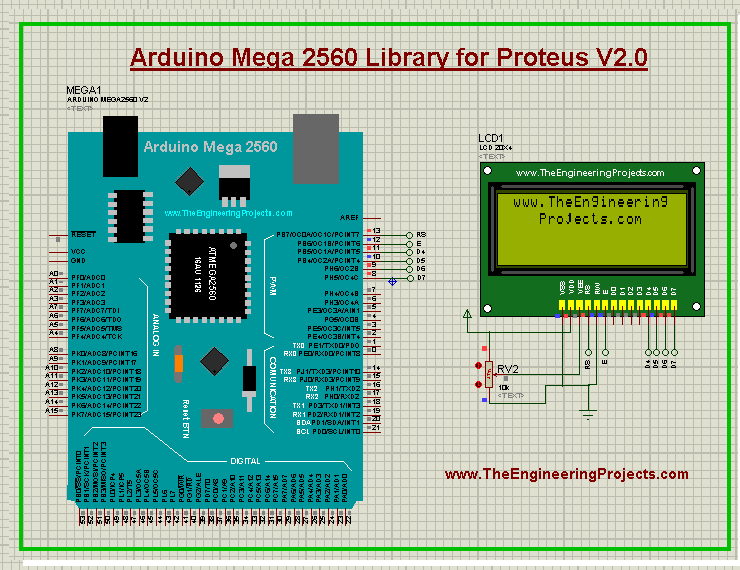
Arduino Mega 2560 Library for Proteus V2.0


What is Arduino Mega 2560?
- The Arduino Mega 2560 is a robust, powerful, application-type microcontroller board based on the Atmega2560 microcontroller.
- There are total 54 digital I/O pins incorporated on the board, including 15 pins for PWM.
- There are 16 analog pins available on the board. Moreover, the board contains a USB port to transfer the code from the computer to the module, and a DC power jack is included on the board to power up the module.
Arduino Mega 2560 Library for Proteus V2.0
First of all, download the Arduino Mega 2560 library for Proteus V2.0 by clicking the link below. Arduino Mega 2560 Library for Proteus V2.0 You will get the downloaded file in zip format.- Extract this zip file where you’ll find the folder named "Proteus Library Files".
- ArduinoMega25602TEP.dll
- ArduinoMega25602TEP.idx
- If you are facing problems in adding a library in Proteus 7 or 8 Professional, then you should read How to add new Library in Proteus 8 Professional.
- If you haven’t bought your Arduino Mega 2560 yet, then you can buy it from this reliable source:
- If you want to go through its technical specifications, features and pinout then you better have a look at Introduction to Arduino Mega 2560.
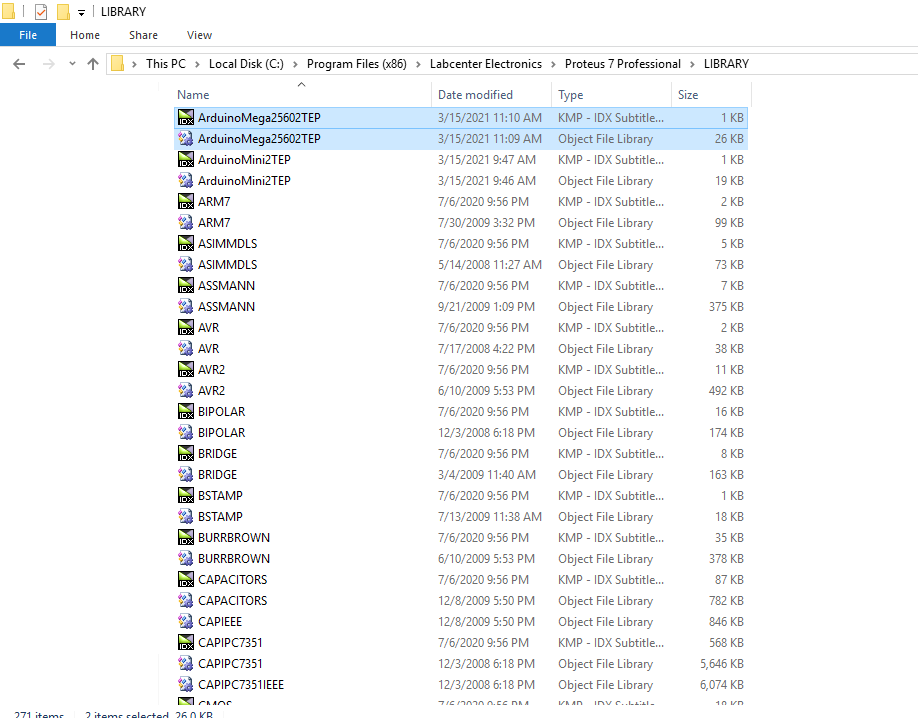
- After placing the library files, open your Proteus software or restart (if it's already open).
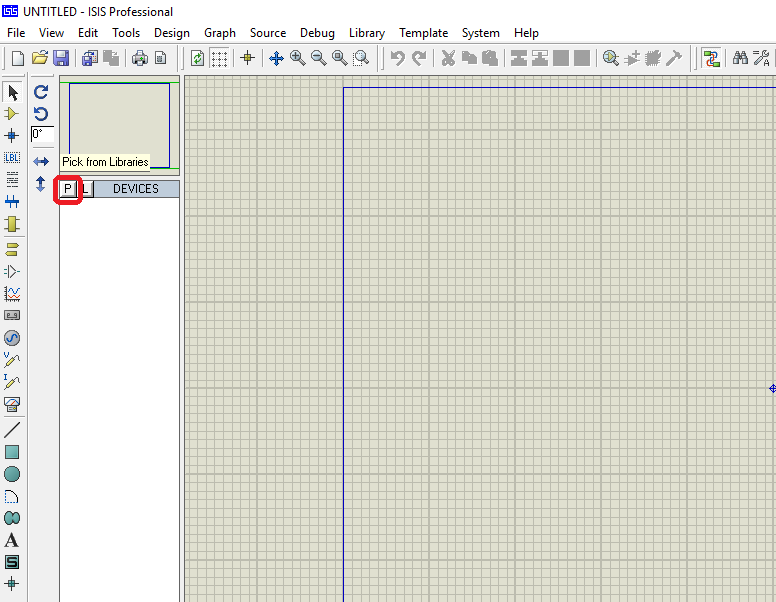
- Now search for the Arduino Mega 2560 V2.0 by clicking the “Pick from Libraries” button as shown in the below figure.
- Select Arduino Mega 2560 V2.0 and click OK.
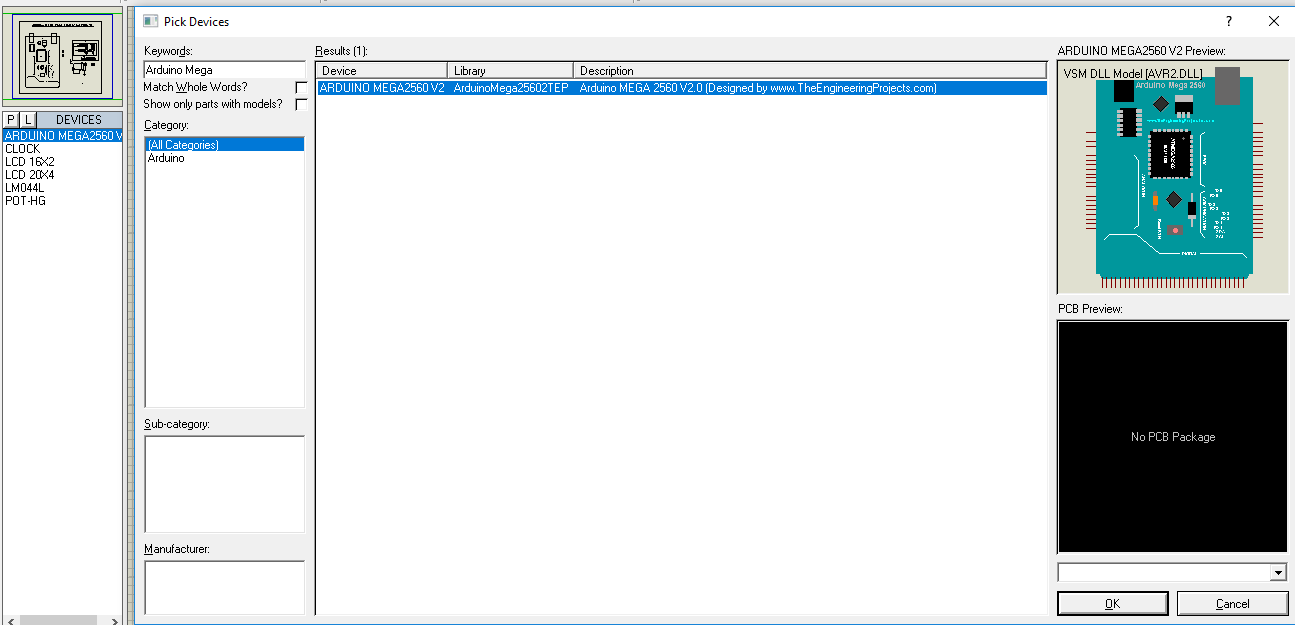
- Place Arduino Mega 2560 board in the Proteus workspace and it will appear as shown in the below figure.
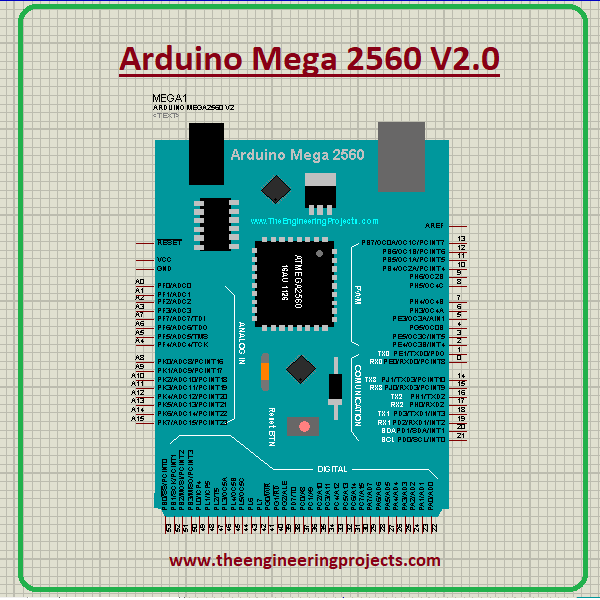
- You’ve successfully placed the Arduino Mega 2560 V2.0 board in the proteus workspace.
- Now, we need to upload the hex file to simulate our board.
- To upload the hex file, double-click the Arduino Mega 2560 board.
- As you double click, it will return the following image.
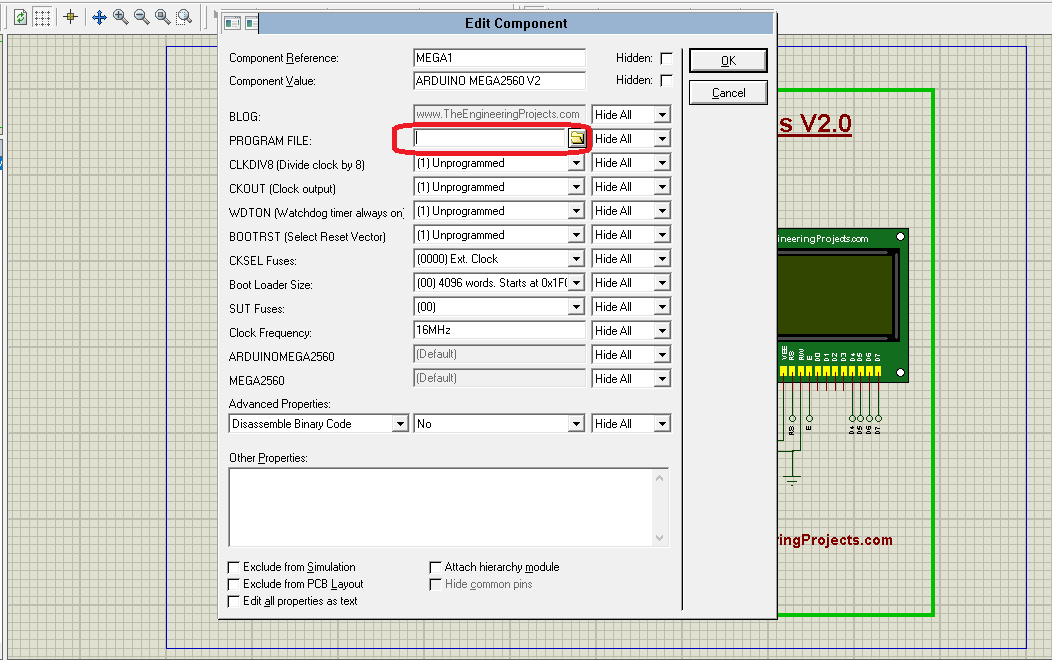
- Click this read detailing how to get hex file from Arduino software, if you don’t know already.
- Upload the hex file of your code and click Ok.
- The clock frequency of the Arduino board is 16MHz by default as shown in the properties panel.
Comparison with Old Proteus Library (V2.0 vs V1.0)
- The following figure shows the comparison between version 1 Arduino Mega 2560 Board (V1) and version 2 Arduino Mega 2560 Board (V2).
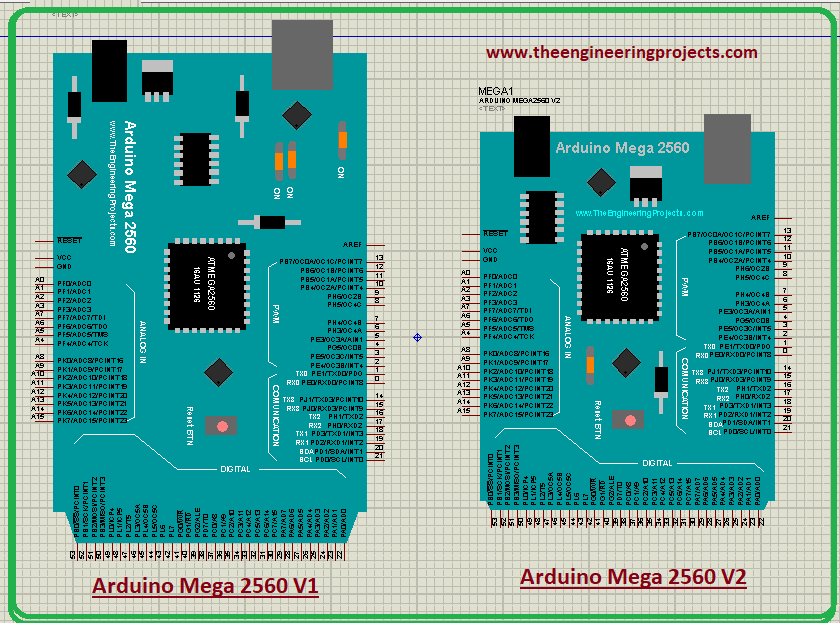
- You can see in the above figure, V2 Arduino Mega 2560 board is more compact and small-sized as compared to the V1 Arduino Mega 2560 board.
Arduino Mega 2560 LCD Interfacing
- The Arduino Code and its simulation file have been added in the zip format that you have downloaded at the start.
- Use that simulation but the best way is to design your own simulation that will assist you to learn better along the process.
- Next, Arduino Mega 2560 Board is interfaced with a 20x4 LCD.
- Design the circuit given below to interface LCD with the Arduino Mega 2560 board:
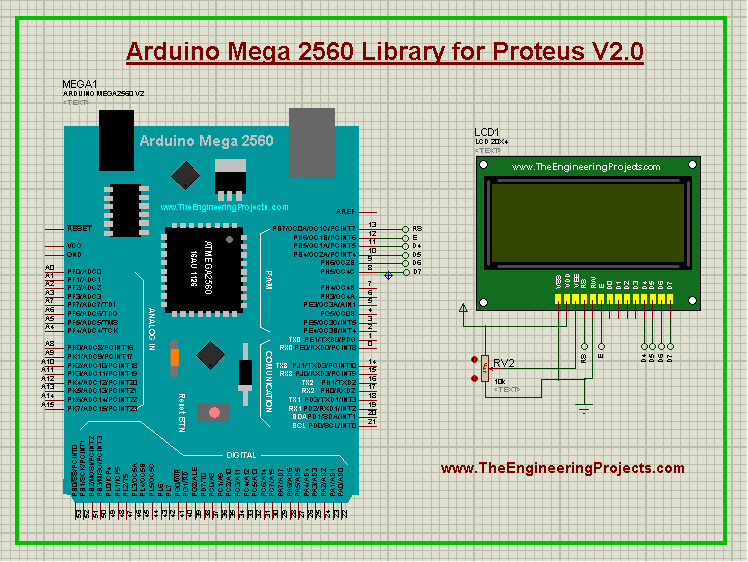
- Data pins of LCD are connected with 8,9,10 & 11 pins of Arduino Mega 2560, while Pins 12 & 13 of Arduino board are connected to Enable & Reset of LCD.
- To upload the code, compile the Arduino code available in the zip format and get the Hex file.
- You will use Arduino Mega 2560 properties panel to upload the hex file as we excercised in the previous section.
- You have successfully interfaced LCD with the Arduino Mega 2560 board, now press the RUN button to get the result shown in the below figure:
Summary
- First, you need to download the Arduino Mega 2560 Library Files.
- Next, copy these files from “Proteus Library Files”(Folder) to the Library folder of Proteus software.
- Now, look for the Arduino Mega 2560 in Proteus software.
- Place that Arduino Mega 2560 board in the proteus workspace.
- Next, double click the board that will return the properties panel and upload the HEX File.
- Design your circuit & run the simulation.

Only the attached hex file is working for me ... when I made hex file of given code its again not working I have been struggling to connect 20x4 lcd with arduino mega 2560 in proteus Lcd always come back blank
1 reply
When you are compiling the code in Arduino IDE, make sure you select Arduino Mega 2560 in Boards section, normally Arduino UNO is selected.
Comments
2