


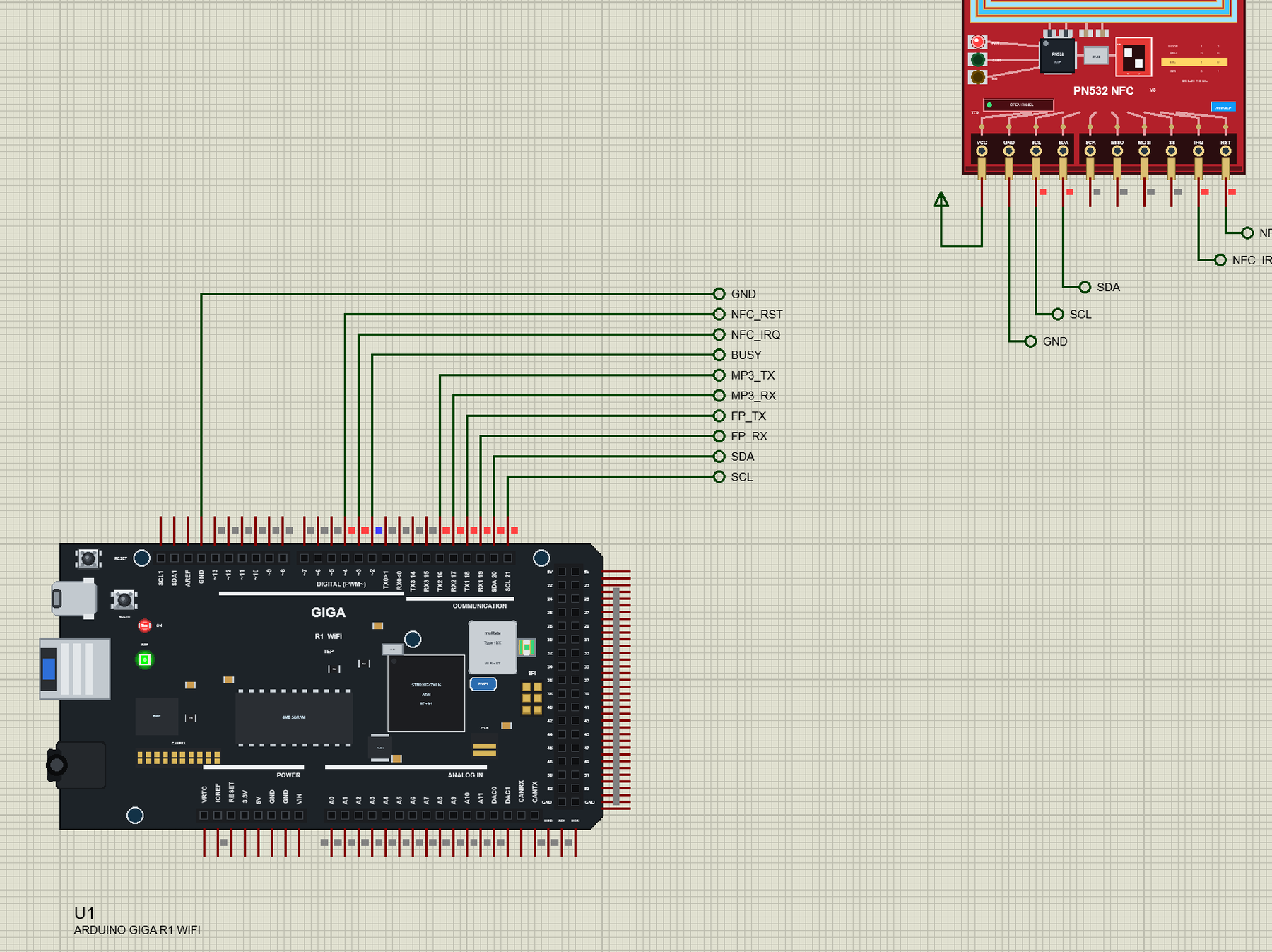
Arduino GIGA R1 WiFi Library for Proteus: M7 + M4 Cores, RPC


Hello friends, I hope you all are doing great. Today, I am going to share the Arduino GIGA R1 WiFi Library for Proteus. The GIGA R1 WiFi is the biggest board Arduino makes today: the Mega's familiar shape and headers, but with a dual-core STM32H747 inside - a Cortex-M7 and a Cortex-M4 on one chip - plus Wi-Fi, 8 MB of SDRAM and a pile of connectors. With this library your GIGA sketches run in Proteus 8.5, and not just one of them: the M7 core runs your main sketch while the M4 core runs a second one, and the two talk to each other through RPC, exactly as on the real board.
Arduino GIGA R1 WiFi Library for Proteus
Latest version: V1.0 (October 2026, this tutorial)
Helping Tools
- Laptop WiFi Monitor: a laptop on the Wi-Fi of your design: a browser, a TCP / UDP terminal and ping
- Mobile WiFi Monitor: a smartphone that opens the pages of your board and sends it commands
- Serial Monitor Advance: a serial terminal window for the UART of your board
The demo is a door station: an NFC card on a PN532 reader or a finger on an R307 fingerprint sensor opens the door, a DFPlayer Mini says "welcome home" or beeps, the M4 core turns the RGB LED green or red, and a web page on the phone shows who came in, opens the door from the sofa and locks everything down.
NOTICE: Proteus has no STM32H747 or any Cortex-M7 model, so our team has put a lot of effort into building this board ourselves: the GIGA's two cores, pins, Wi-Fi, RPC and serial monitor are all our own model, and both sketches compile with our free TEP Boards for Proteus add-on. Your feedback is the fuel that keeps us going, so please tell us what you think in the comments below or in the Arduino GIGA R1 WiFi board of our forum. And if our free libraries help you, you can buy us a coffee. So, let's get started with the Arduino GIGA R1 WiFi Library for Proteus:
What is the Arduino GIGA R1 WiFi?
The Arduino GIGA R1 WiFi keeps the footprint of the Arduino Mega - the same 101.6 x 53.3 mm board, the same digital header along the top, the power and analog headers along the bottom and the 2 x 18 header at the right end - so most Mega shields fit. Inside, everything is new. The processor is STMicroelectronics' STM32H747XI, a dual-core chip with a Cortex-M7 at 480 MHz and a Cortex-M4 at 240 MHz, 2 MB of flash and 1 MB of RAM. Next to it sit 8 MB of SDRAM, 16 MB of QSPI flash and the Murata 1DX module for Wi-Fi and Bluetooth.
The board is a box of connectors too: USB-C for programming, a USB-A port that can host a keyboard or a USB stick, a 3.5 mm audio jack wired to the two DACs, a camera connector, a JTAG header and an RGB LED. The logic runs at 3.3 V, so the pins are not 5 V tolerant like the old Mega's.
| Arduino GIGA R1 WiFi | |
|---|---|
| Processor | STM32H747XI: Cortex-M7 at 480 MHz + Cortex-M4 at 240 MHz, 2 MB flash, 1 MB RAM |
| Memory | 8 MB SDRAM, 16 MB QSPI flash |
| Radio | Murata 1DX: Wi-Fi 802.11 b/g/n and Bluetooth |
| Pins | 76 GPIO, 12 analog inputs, 2 DAC outputs (DAC0 / DAC1), 3.3 V logic |
| Interfaces | 4 UARTs, 3 I2C, 2 SPI, CAN, USB-C, USB-A host, audio jack, camera connector, JTAG |
| LEDs and buttons | the ON LED, an RGB LED (lit when LOW), RESET and BOOT0 |
| Size | 101.6 x 53.3 mm - the Arduino Mega's footprint |
Two Cores in One Chip
The two cores of the STM32H747 run separate programs. In the Arduino IDE you pick the Target core before uploading: "Main Core" for the M7 sketch and "M4 Co-processor" for the second one, with the flash split between them. The M7 is the boss: the M4 does not start until the M7 calls RPC.begin(). From then on the two exchange data through the RPC library - either as remote function calls with RPC.bind() and RPC.call(), or simply as a stream of bytes with RPC.print() on one side and RPC.read() on the other.
A typical split gives the M7 the heavy and slow jobs - Wi-Fi, a web server, a display - and leaves the M4 the jobs that must react at once: blinking, motor timing, reading a sensor on a schedule. In a sketch, HAL_GetCurrentCPUID() tells you which core you are on.
Both Cores in Proteus
Two cores that run two sketches side by side in one part took our team a lot of effort. The M7 sketch owns the header pins; the M4 sketch owns the RGB LED. The board model carries the RPC bytes from one to the other and holds the M4 in reset until the M7 calls RPC.begin(), as the real board does. Each core keeps its own memory windows in Proteus, so you can watch both cores while they run.
Features of the Arduino GIGA R1 WiFi Library for Proteus
- The board as it looks: the black PCB, the STM32H747 with its SDRAM and QSPI flash, the Murata 1DX and its antenna socket, USB-C, USB-A, the audio jack, the camera and JTAG connectors, the RGB LED and all the Mega-style headers.
- Two sketches: the M7 one in the PROGRAM property and the M4 one in PROGRAMM4, each a .hex from "TEP Boards for Proteus" 1.38.0.
- RPC between the cores:
RPC.begin()boots the M4;RPC.print/printlnon one core arrive atRPC.available/readon the other. - The GIGA's pins: D0 - D53, A0 - A11, DAC0 / DAC1, Serial1 - Serial3 on the GIGA's own pins, Wire on D20 / D21 and SPI on the SPI header.
- Wi-Fi: WiFi.begin, WiFiServer, WiFiClient and WiFiUDP on a virtual router shared with the other TEP Wi-Fi parts.
- The serial monitor: the built-in monitor on the USB-C with Monitor, Plotter and Board tabs - our TEP header, no Windows title bar.
- SoftwareSerial in the add-on: libraries that include it, like Adafruit's fingerprint library, now compile.
- A complete package: about 4.2 MB with the board, the add-on, the PN532, R307 and DFPlayer libraries for the demo, without the source code of the models.
The GIGA R1 WiFi in Proteus
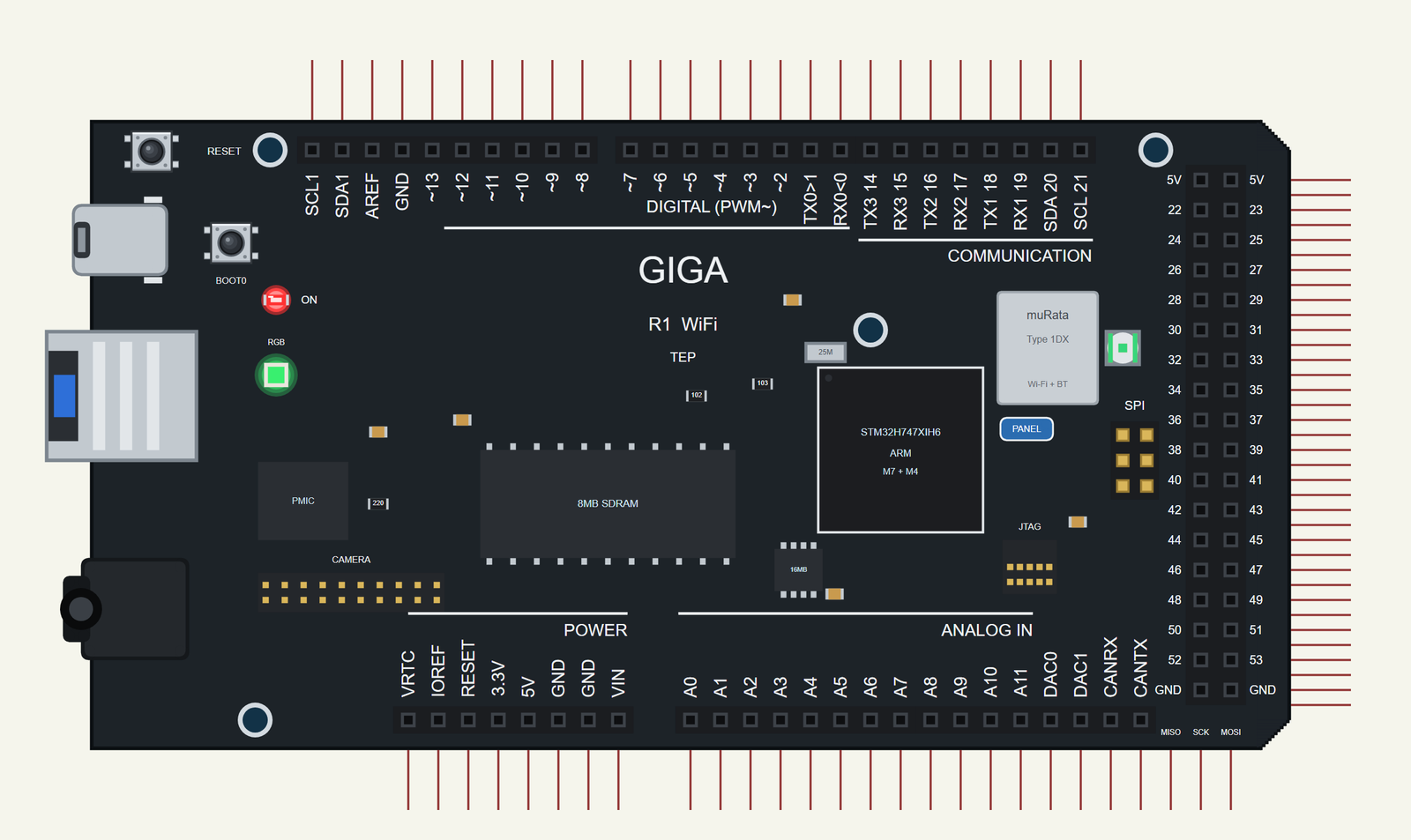
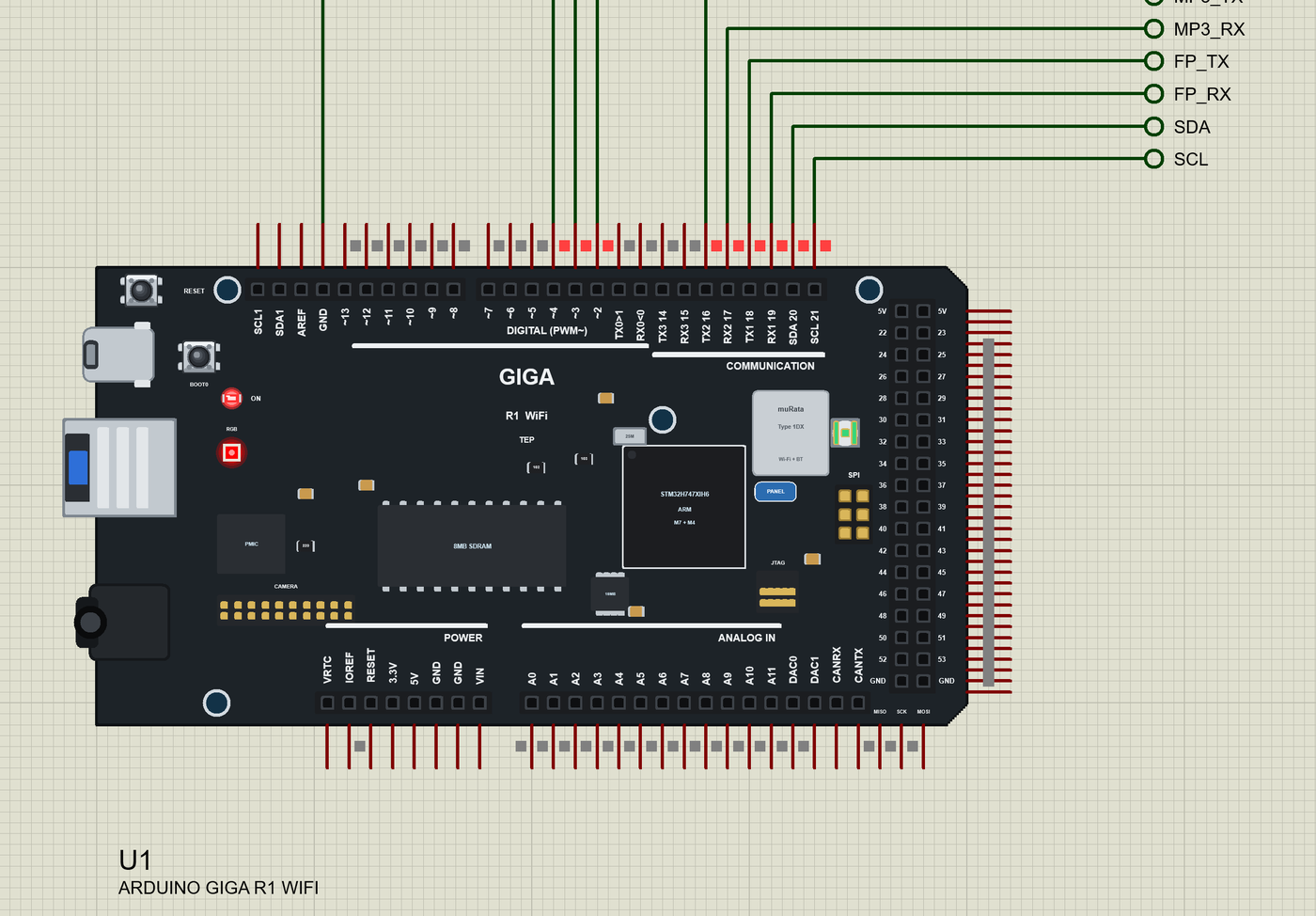
Search GIGA in Pick Devices; the device ARDUINO GIGA R1 WIFI is in TEPGIGA.LIB (Microprocessor ICs, Arduino Wi-Fi Boards), with the prefix U. Click the USB-C for the serial monitor and the PANEL pad for the board's Wi-Fi panel.
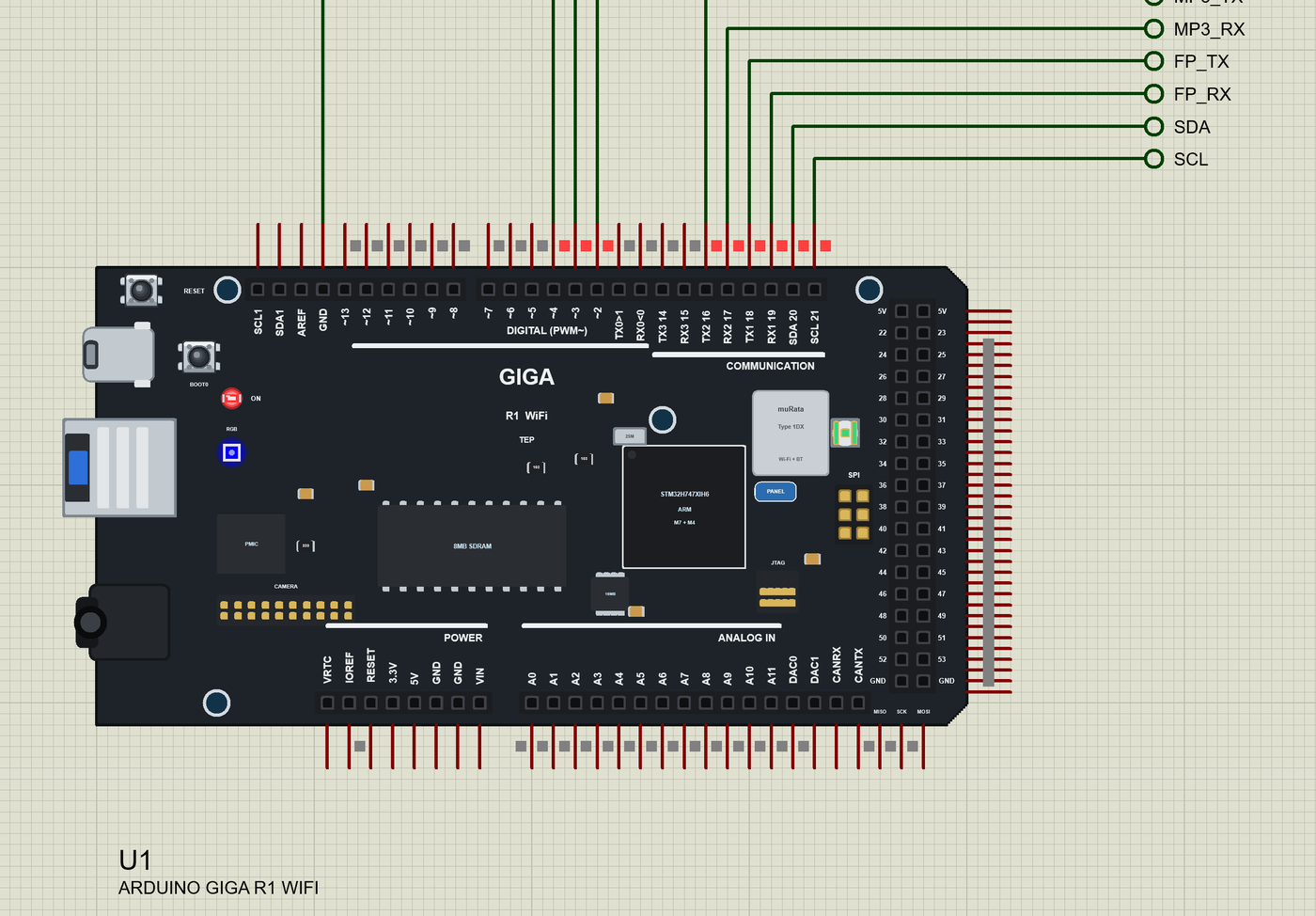
The Pins
| Pins | What the library does with them |
|---|---|
| D0 / D1 | Serial1 (not the USB), GPIO |
| D2 - D13, D22 - D53 | GPIO, PWM through the board model, interrupts |
| D16 / D17, D18 / D19 | Serial3 TX / RX and Serial2 TX / RX |
| D20 / D21 | Wire SDA / SCL |
| A0 - A11, DAC0 / DAC1 | analogRead 0 - 1023 for 0 - 3.3 V; the DAC 0 - 3.3 V |
| LEDR / LEDG / LEDB | the RGB LED, lit when LOW - both cores can drive it |
| D14 / D15, SDA1 / SCL1, CAN | plain GPIO / drawn only (Serial4, Wire1 and CAN are not modelled) |
The pins are 3.3 V logic. Serial is the USB-C - the board's own monitor - not D0 / D1. Every header pin behaves like the Mega 2560's pin in the same place, as on our Arduino Due Library for Proteus, so Mega libraries work.
The M7 Talks to the M4
In the demo the M7 owns the door and only tells the M4 what state it is in. One line does it, and another function reads the M4's answers and prints them on the monitor:
void tellM4(const char *state) { RPC.println(state); } // OPEN, DENY, LOCKED, LOCKDOWNvoid readM4() { // the M4 core's lines: shown on the monitor
while (RPC.available()) {
char c = RPC.read();
if (c == '\n') { fromM4.trim(); if (fromM4.length()) Serial.println(fromM4); fromM4 = ""; }
else if (c != '\r' && fromM4.length() < 40) fromM4 += c;
}
}The M4 sketch is short. It waits for a line, sets the colour of the RGB LED - the GIGA's LED is lit when its pin is LOW - and answers:
void rgb(bool r, bool g, bool b) {
  digitalWrite(LEDR, r ? LOW : HIGH);
  digitalWrite(LEDG, g ? LOW : HIGH);
  digitalWrite(LEDB, b ? LOW : HIGH);
}
void command(const String &s) {
changes++;
if (s == "DENY") { flashUntil = millis() + 3000; nextFlash = 0; RPC.println("M4 core: RGB LED red, flashing"); return; }
flashUntil = 0;
if (s == "OPEN") base = 'O';
else if (s == "LOCKDOWN") base = 'X';
else base = 'L';
showBase();
RPC.print("M4 core: RGB LED "); RPC.println(base == 'O' ? "green (open)" : base == 'X' ? "red (lockdown)" : "blue (locked)");
}Download Arduino GIGA R1 WiFi Library for Proteus
Click the button below to download Arduino-GIGA-R1-WiFi-Library-for-Proteus-v1.0.zip (about 4.2 MB, without the source code of the models):
Arduino GIGA R1 WiFi Library for Proteus V1.0- README.txt: installation, the demo, the pins, the properties, troubleshooting and the limits.
- Proteus Library Files:
TEPGIGA.LIBand the demo's parts:TEPPN532.LIB,TEPFINGER.LIB,TEPDFPLAYER.LIB,TEPLAPTOP.LIBandTEPMOBILE.LIB. - Proteus Model Files:
TEPNET.DLL(the GIGA with both cores, the laptop, the phone and the network),TEPPN532.DLL,TEPFINGER.DLLandTEPDFPLAYER.DLL. - Arduino Code: the two demo sketches and the TEP Boards for Proteus add-on 1.38.0 with the RPC and SoftwareSerial libraries.
- Proteus Simulation: the demo project, its two HEX files and copies of the DLLs.
No Proteus yet? Read How to Download and Install Proteus 7 and 8. New to libraries? Follow How to Install a New Library in Proteus.
How to Install Arduino GIGA R1 WiFi Library for Proteus
- Close Proteus and extract the whole zip file, for example to your Desktop.
- Copy the files from Proteus Library Files into the LIBRARY folder of Proteus.
- Copy the DLLs from Proteus Model Files into the MODELS folder, replacing an older TEPNET.DLL.
- Delete
TEPGIGA.IDXfrom the LIBRARY folder if it is there. - For your own sketches, copy Arduino Code\TEP Boards for Proteus\hardware into your Arduino sketchbook (Documents\Arduino) and restart the Arduino IDE; the boards are Arduino GIGA R1 WiFi (TEP Proteus) and Arduino GIGA R1 WiFi M4 core (TEP Proteus).
- Start Proteus, press P and search for GIGA.
Demo: a Door Station With NFC, Fingerprint and Sound
A door station is a good job for a two-core board. The M7 has plenty to do - an NFC reader on I2C, a fingerprint sensor and an MP3 player on two serial ports, a web server - while the M4 does one thing and does it at once: it shows the state of the door on the RGB LED.
Open GIGA-R1-WiFi-Door-Station.pdsprj. U1 is the GIGA R1 WiFi with GIGA_Door_Station.hex in PROGRAM and GIGA_Door_Light.hex in PROGRAMM4. U2 is the PN532 from our PN532 NFC Library for Proteus, U3 the R307 from our Fingerprint Sensor Library for Proteus and U4 the DFPlayer Mini from our DFPlayer Mini Library for Proteus - all three the Advance versions with their pop-up windows. PC1 is the Laptop WiFi Monitor and MOB1 the Mobile WiFi Monitor.
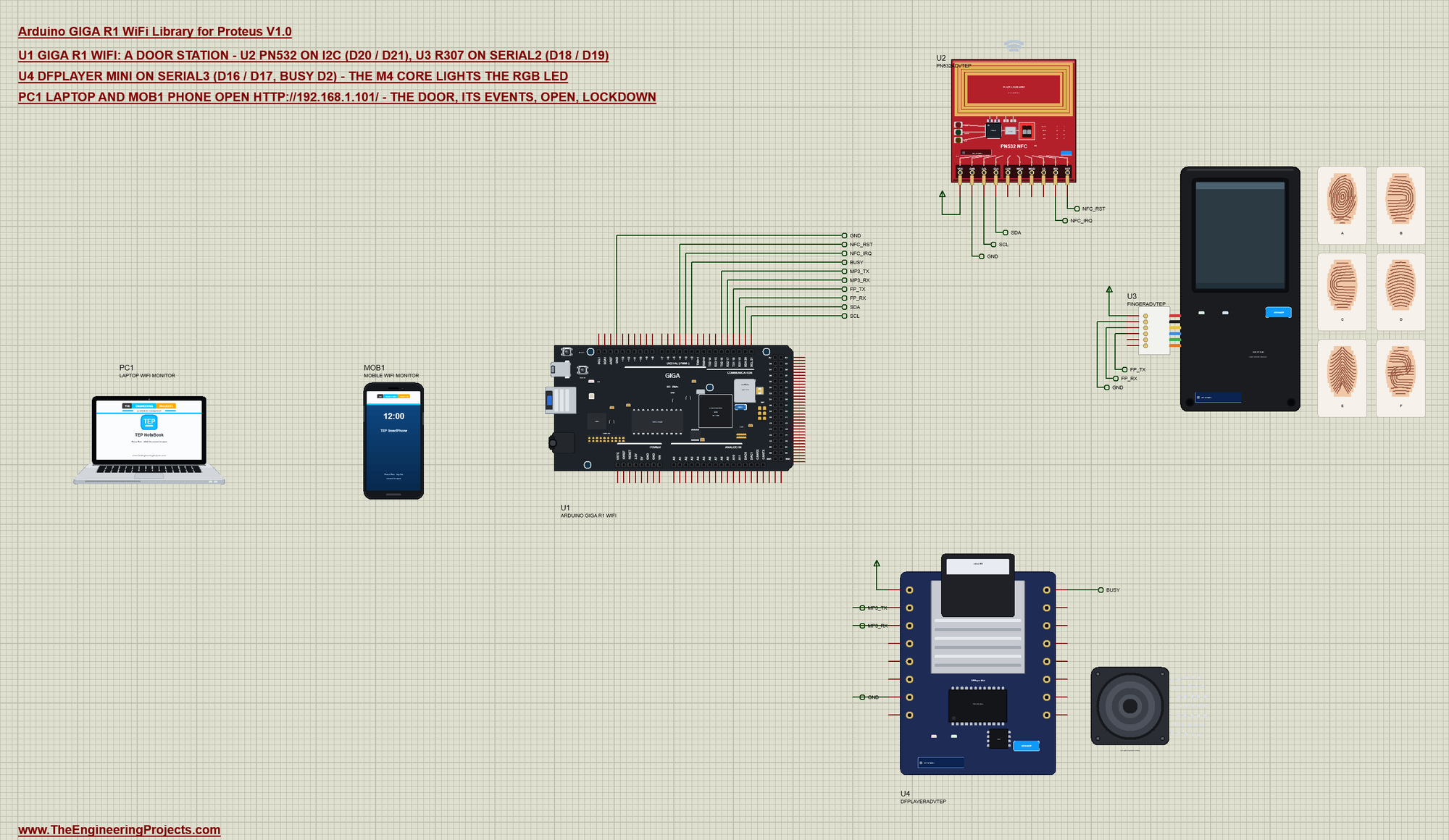
| Part | Pins | GIGA pins | Notes |
|---|---|---|---|
| PN532 NFC (U2) | SDA / SCL, IRQ / RST | D20 / D21, D3 / D4 | I2C at 0x24 (MODE I2C) |
| R307 fingerprint (U3) | RXD / TXD | D18 / D19 | Serial2 at 57600 baud; IDs 1 and 2 enrolled (fingers A and B) |
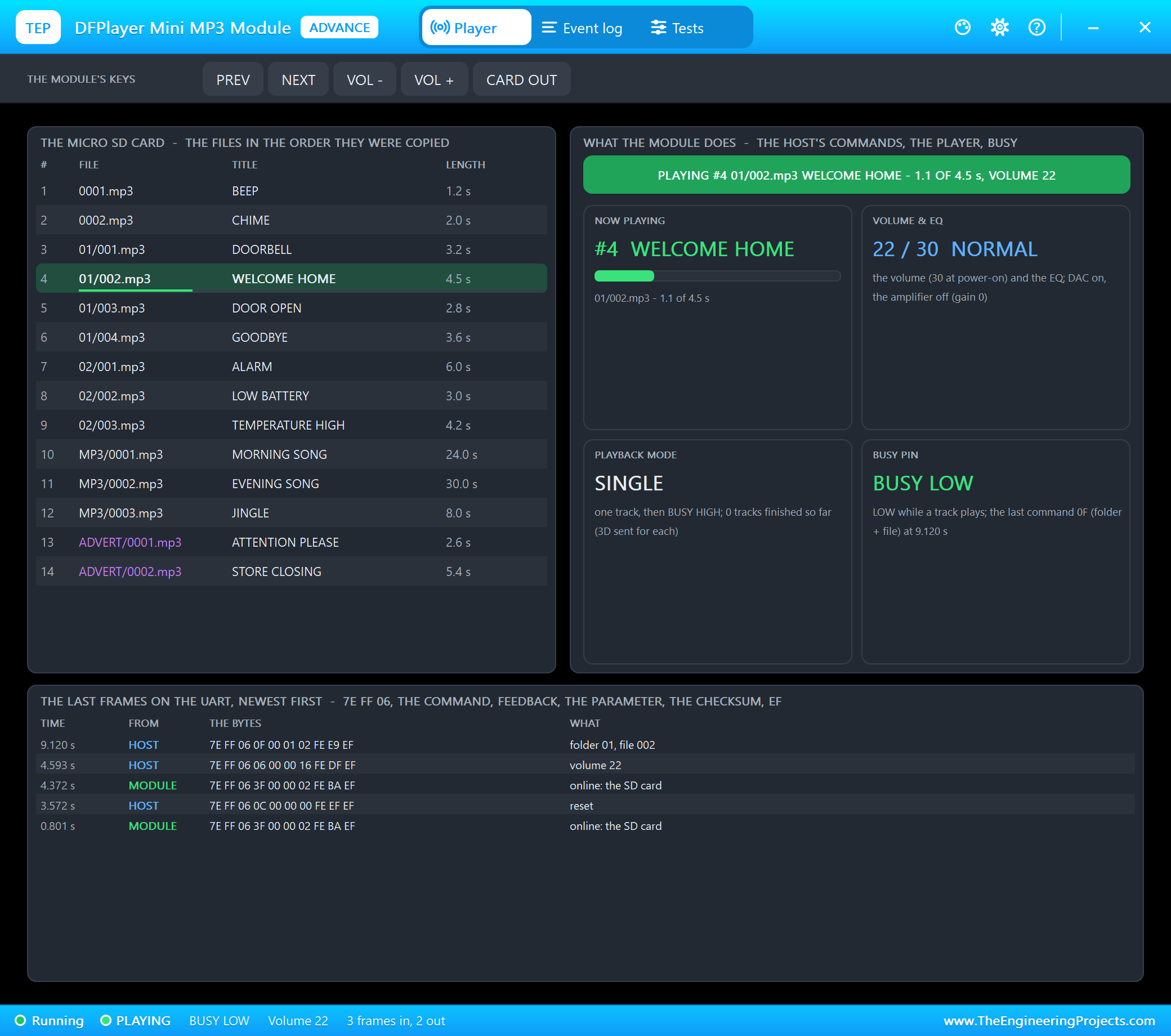
| DFPlayer Mini (U4) | RX / TX, BUSY | D16 / D17, D2 | Serial3 at 9600 baud; the DEMO card with 14 files |
| all three | VCC / 5V, GND | power terminal / GND | their models want a digital supply |
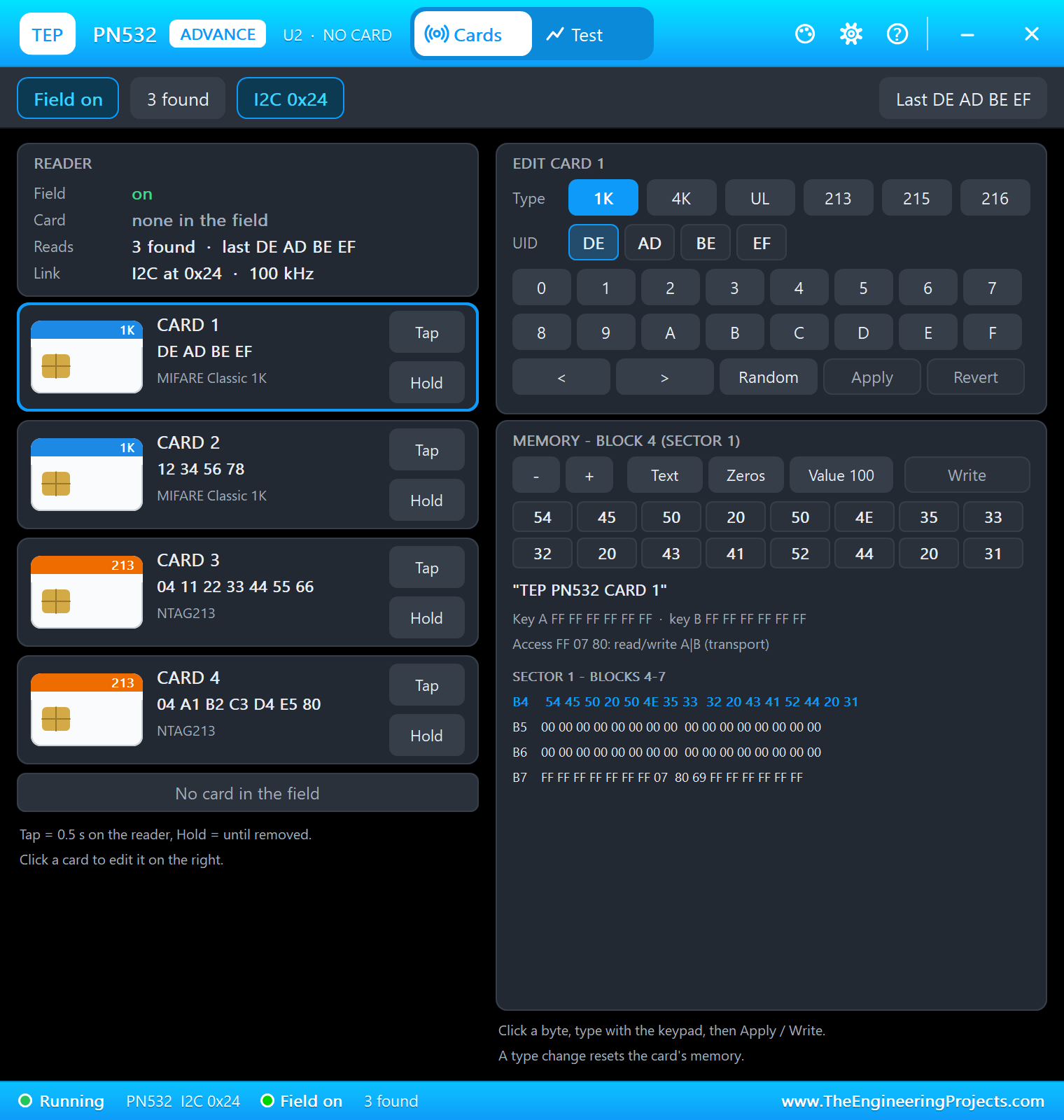
Two people are allowed in: Sana with card 1 (UID DE AD BE EF) or finger ID 1, and Omar with card 2 (12 34 56 78) or finger ID 2. The list is a small table in the sketch:
const Person PEOPLE[] = { {"Sana", {0xDE, 0xAD, 0xBE, 0xEF}, 1}, {"Omar", {0x12, 0x34, 0x56, 0x78}, 2} };Reading the Card
Every 200 ms the sketch asks the PN532 for a card with a 60 ms timeout. A card that stays on the reader is reported only once, and two misses in a row mean it was taken away:
void readCard() {
  if (!nfcOk || millis() < nextCard) return;
  nextCard = millis() + 200;
  uint8_t uid[7], len = 0;
  if (!nfc.readPassiveTargetID(PN532_MIFARE_ISO14443A, uid, &len, 60)) {
    if (cardLen && ++cardMisses >= 2) { cardLen = 0; Serial.println("Card removed"); }
    return;
  }
  cardMisses = 0;
  if (len == cardLen && !memcmp(uid, cardUid, len)) return; // the same card, still on the reader
  memcpy(cardUid, uid, len); cardLen = len;
  char hex[15];
  for (byte k = 0; k < len && k < 7; k++) sprintf(hex + 2 * k, "%02X", uid[k]);
  for (byte p = 0; p < N_PEOPLE; p++)
    if (len == 4 && !memcmp(uid, PEOPLE[p].uid, 4)) { grant('C', PEOPLE[p].name); return; }
  refuse('C', hex);
}
Searching the Finger
The R307 is asked for an image every 150 ms. When a finger is on the glass, the image becomes a character file and the sensor searches its own library - the sketch only gets the ID and a score back:
void readFinger() {
  if (!fpOk || millis() < nextFinger) return;
  nextFinger = millis() + 150;
  uint8_t p = finger.getImage();
  if (p == FINGERPRINT_NOFINGER) { fingerDown = false; return; }
  if (p != FINGERPRINT_OK || fingerDown) return;            // one answer per touch
  fingerDown = true;
  if (finger.image2Tz() != FINGERPRINT_OK) { Serial.println("Finger: a poor image - try again"); fingerDown = false; return; }
  p = finger.fingerFastSearch();
  if (p == FINGERPRINT_OK) {
    for (byte k = 0; k < N_PEOPLE; k++)
      if (finger.fingerID == PEOPLE[k].finger) { grant('F', PEOPLE[k].name); return; }
    char who[15]; sprintf(who, "ID %u", finger.fingerID);
    grant('F', who);
  } else refuse('F', "unknown");
}
Opening the Door
Every way in ends in the same function: it counts the event, keeps it in the log, tells the M4 and plays the sound - WELCOME HOME for a card or a finger, DOOR OPEN for the web page and the monitor:
void grant(char how, const char *who) {
  if (lockdown) { refuse(how, who); return; }
  opened++;
  openUntil = millis() + OPEN_MS;
  logEvent(how, who, true);
  tellM4("OPEN");
  if (mp3Ok) { if (how == 'W' || how == 'M') mp3.playFolder(1, 3); else mp3.playFolder(1, 2); }   // DOOR OPEN / WELCOME HOME
  Serial.print("OPEN  - "); Serial.print(who); Serial.print(" by "); Serial.print(howText(how));
  Serial.print(" (open "); Serial.print(opened); Serial.println(")");
}
Run the Demo
Press Run. The M7 starts the M4, finds the PN532 and the R307, joins the Wi-Fi and starts the DFPlayer; the M4 answers and lights the RGB LED blue - the door is locked:
GIGA R1 WiFi Door Station - The Engineering Projects
M4 core started (RPC)
PN532 ready, firmware 1.6
R307 ready, 2 fingerprints
Connecting to TEP-WiFi
Door page: http://192.168.1.101/
DFPlayer Mini ready
M4 core: door light ready
M4 core: RGB LED blue (locked)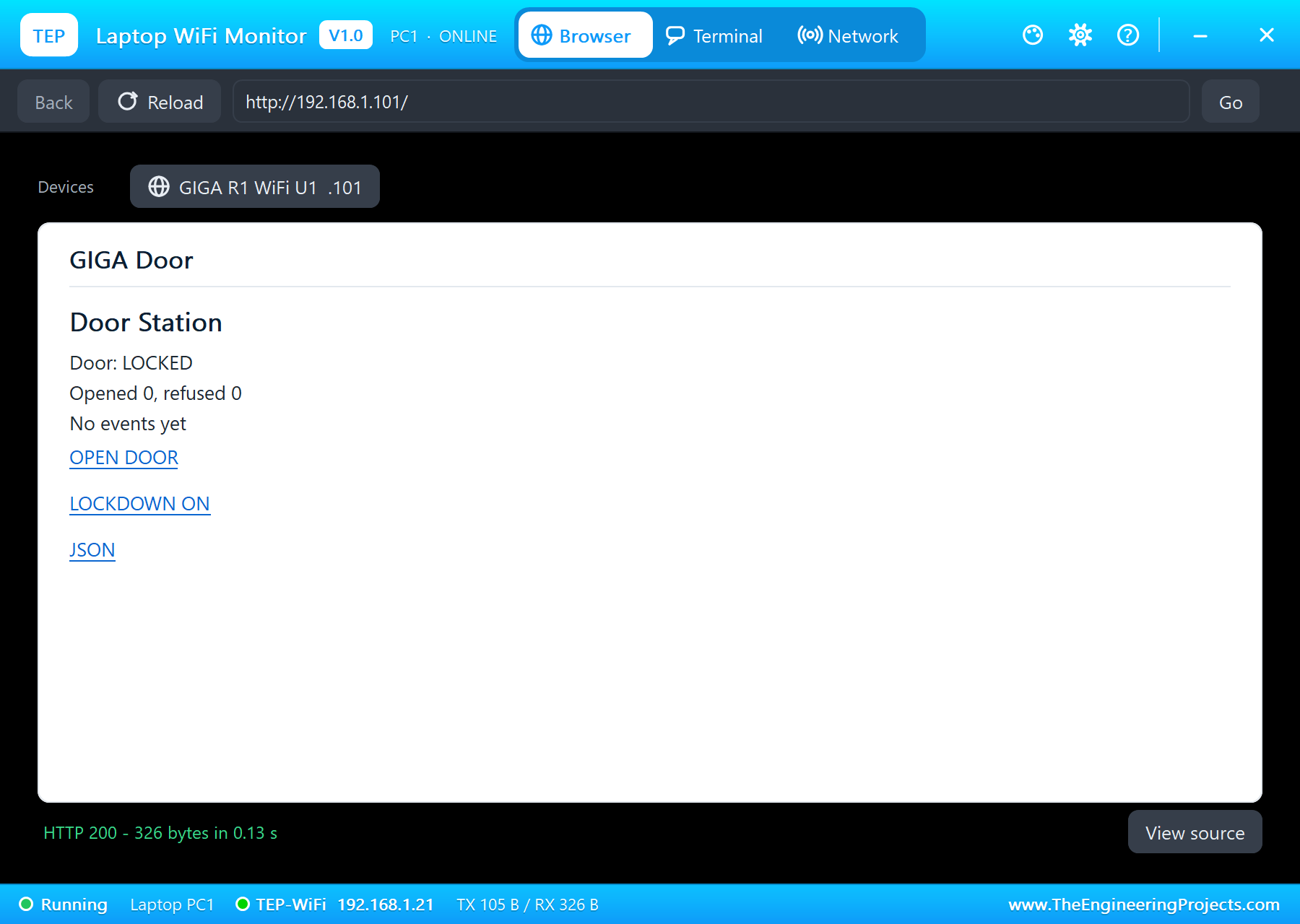
Sana's Card
On the PN532's pop-up click Tap next to card 1 - the card lies on the reader for half a second. The door opens, the DFPlayer plays WELCOME HOME and the M4 turns the LED green; five seconds later the door locks again:
OPEN  - Sana by card (open 1)
M4 core: RGB LED green (open)
Card removed
Door locked
M4 core: RGB LED blue (locked)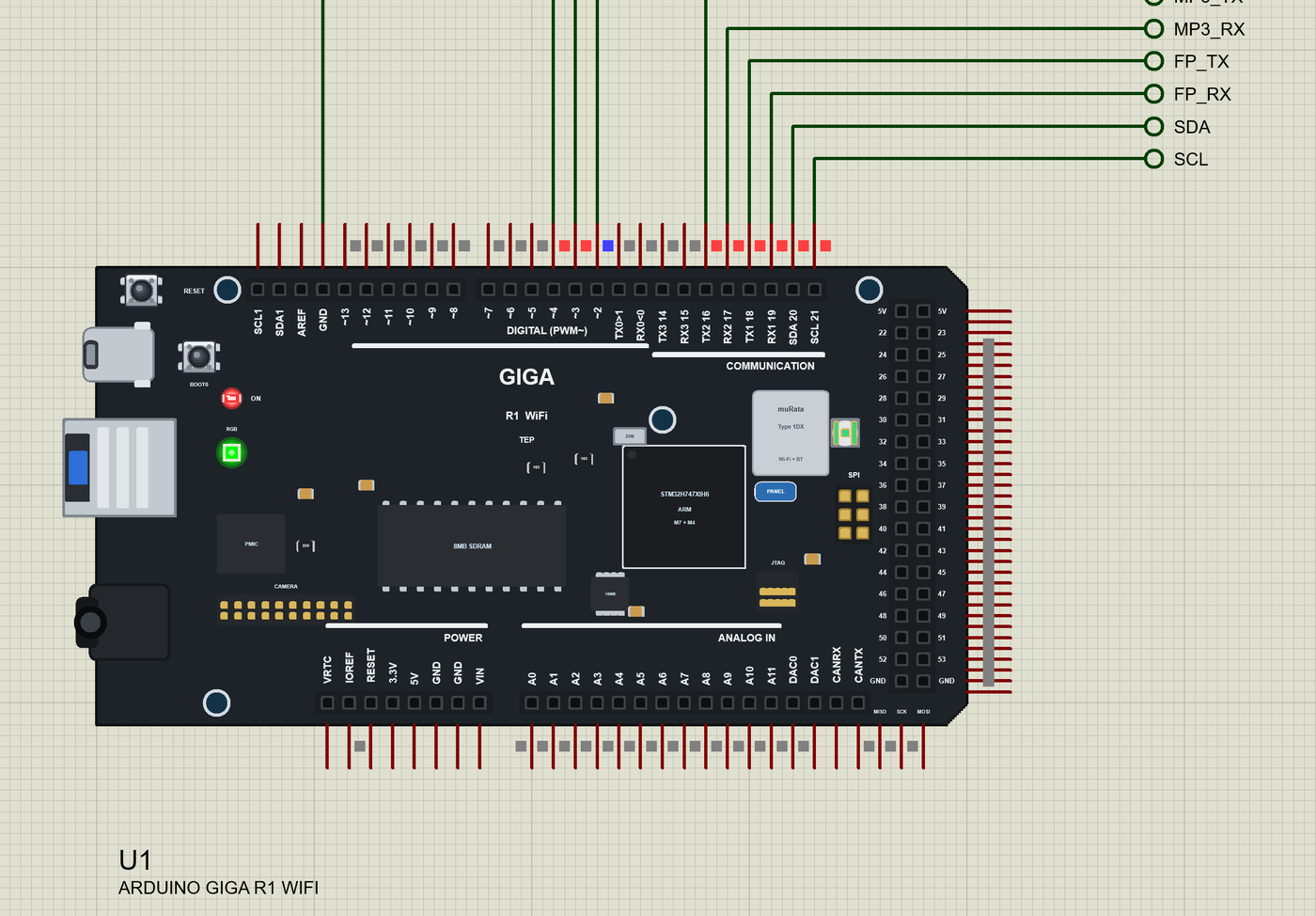
A Card Nobody Knows
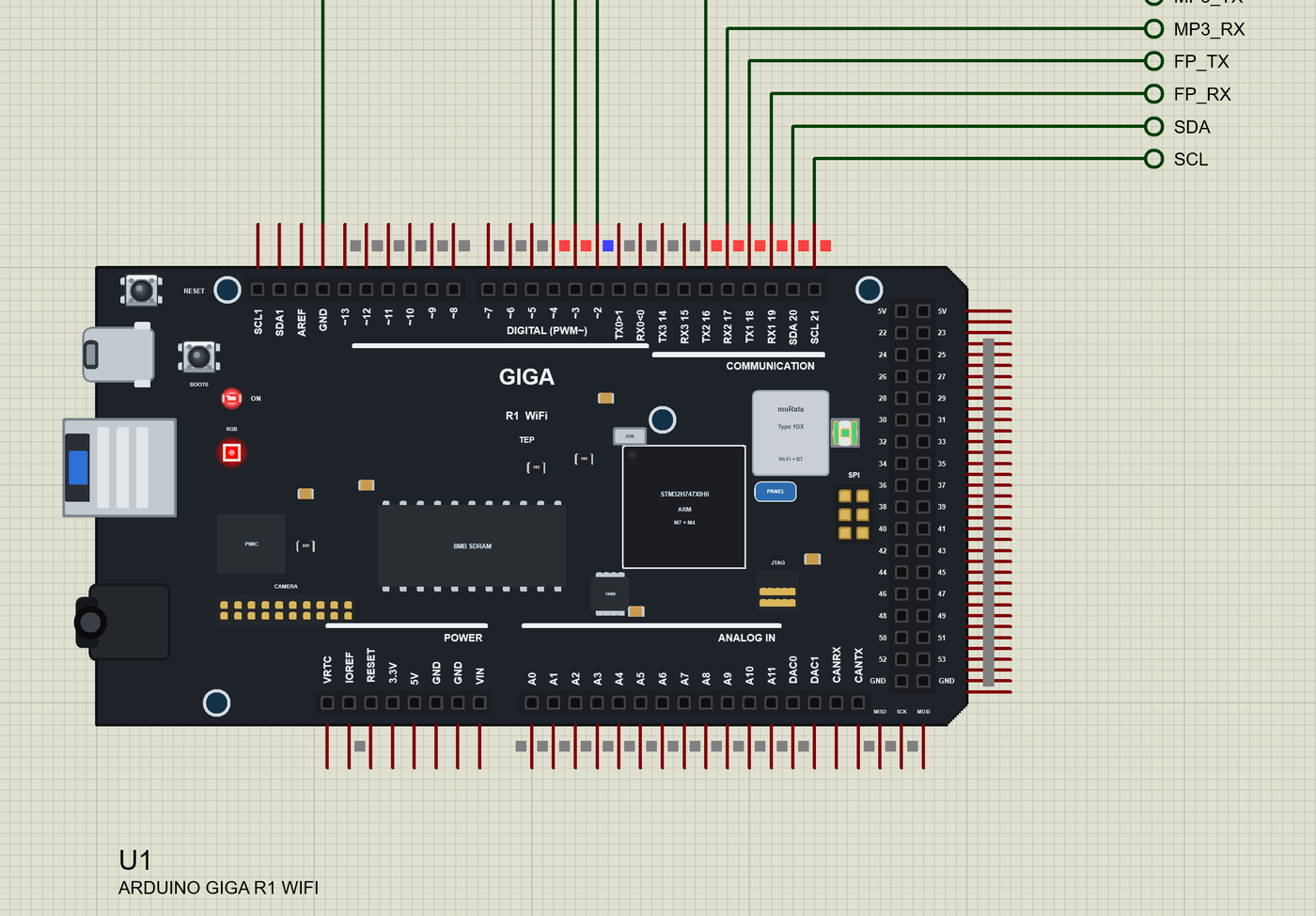
Now Tap card 3, an NTAG213 with a 7-byte UID that is not on the list. The door stays shut, the player beeps and the M4 flashes the LED red for three seconds:
DENY  - 04112233445566 by card
M4 core: RGB LED red, flashing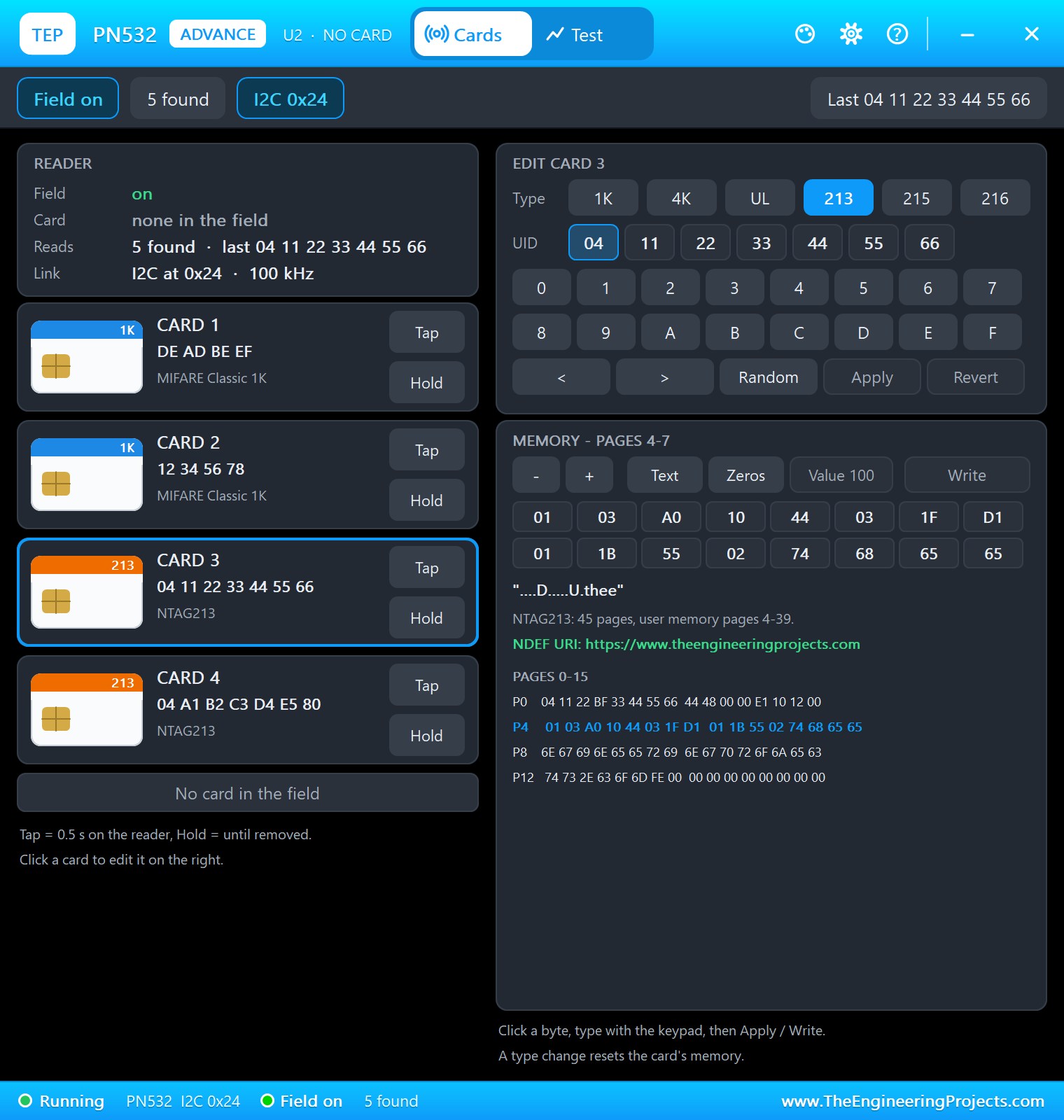
Fingers A and C
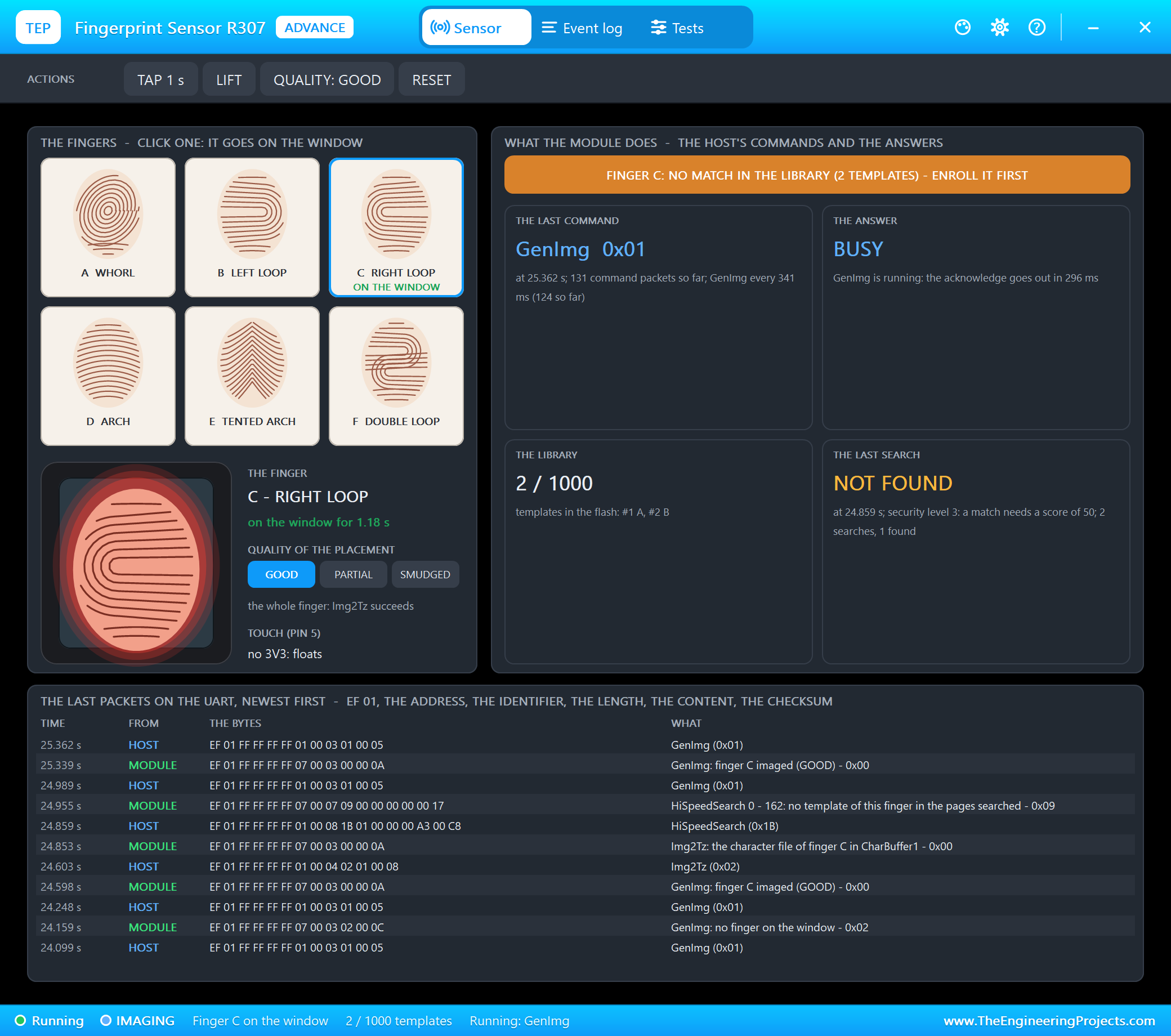
On the R307's pop-up click finger A: it goes on the glass, the sensor finds it as ID 1 with a score of 130, and Sana is in. Click A again to lift it. Finger C is not in the sensor's library - the search finds nothing:
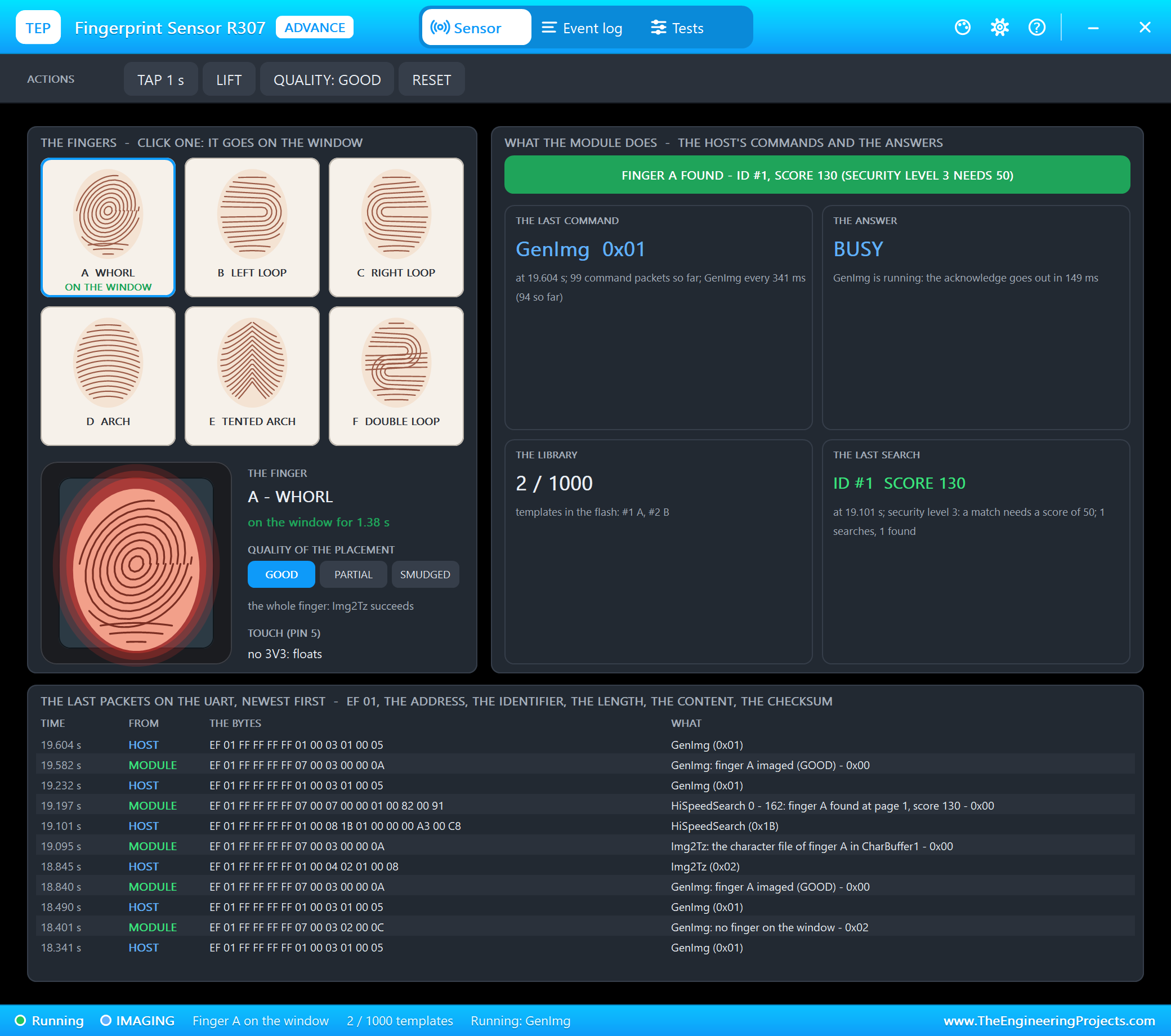
OPEN  - Sana by finger (open 2)
M4 core: RGB LED green (open)
Door locked
M4 core: RGB LED blue (locked)
DENY  - unknown by finger
M4 core: RGB LED red, flashing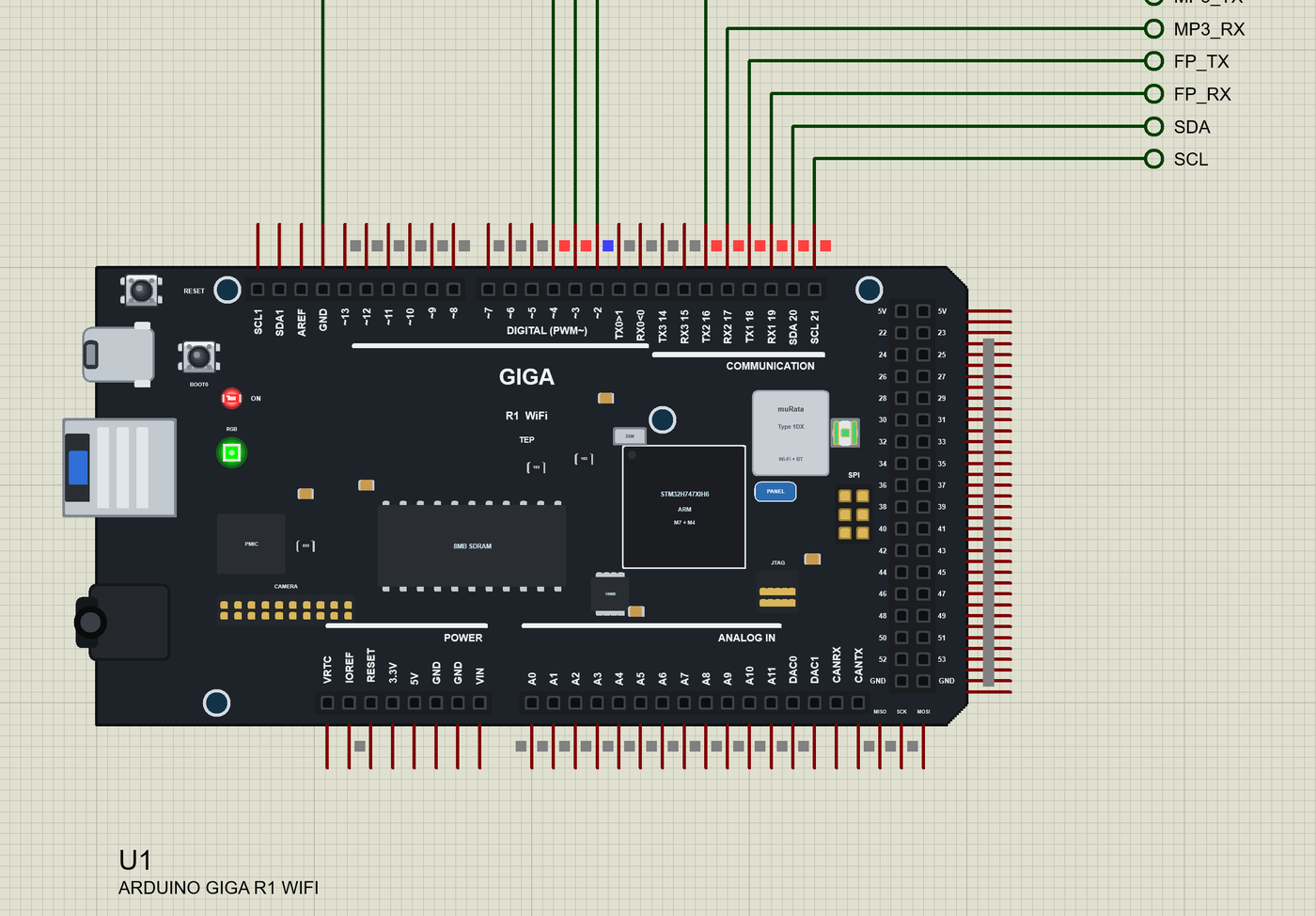
The Phone: Events, OPEN DOOR and LOCKDOWN
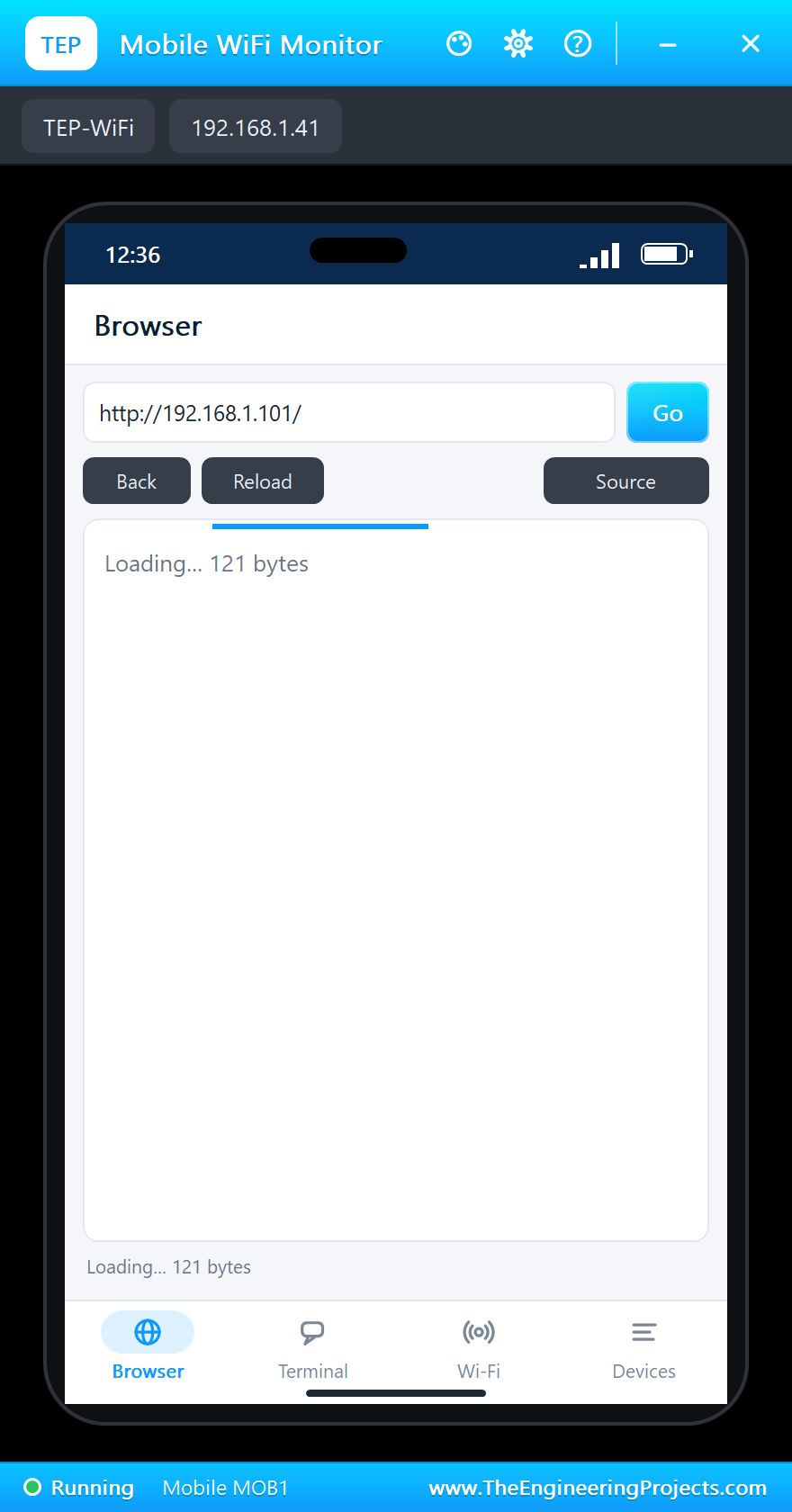
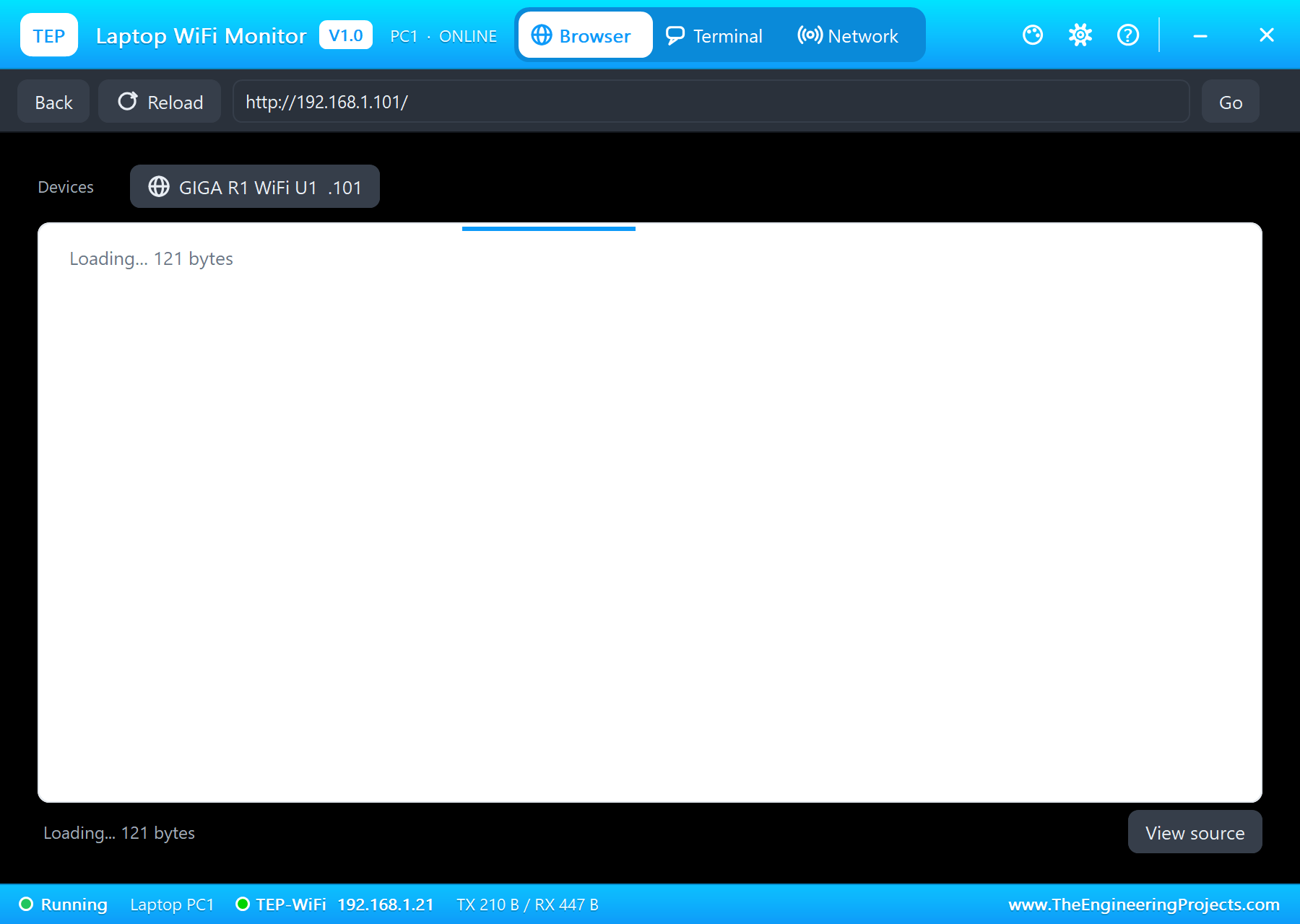
On the phone tap Reload: the page lists the events, newest first. OPEN DOOR opens it from the page (DOOR OPEN plays), and LOCKDOWN ON refuses every card and finger until you turn it off - the M4 shows it with a steady red:
OPEN  - remote by web page (open 3)
Page /open for 192.168.1.41
M4 core: RGB LED green (open)
Door locked
M4 core: RGB LED blue (locked)
Lockdown ON (the web page)
Page /lock for 192.168.1.41
M4 core: RGB LED red (lockdown)
DENY  - Sana by card (lockdown)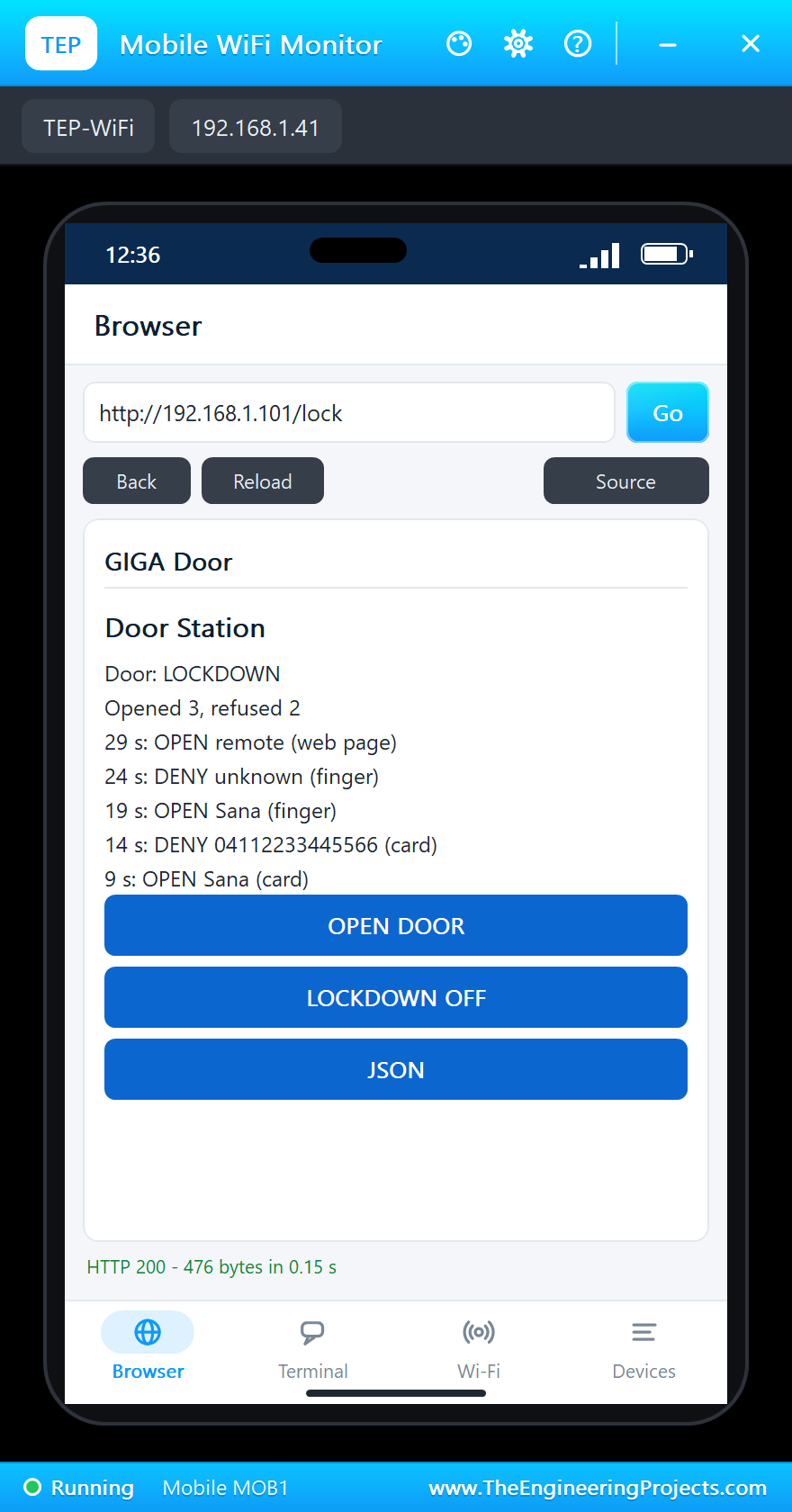
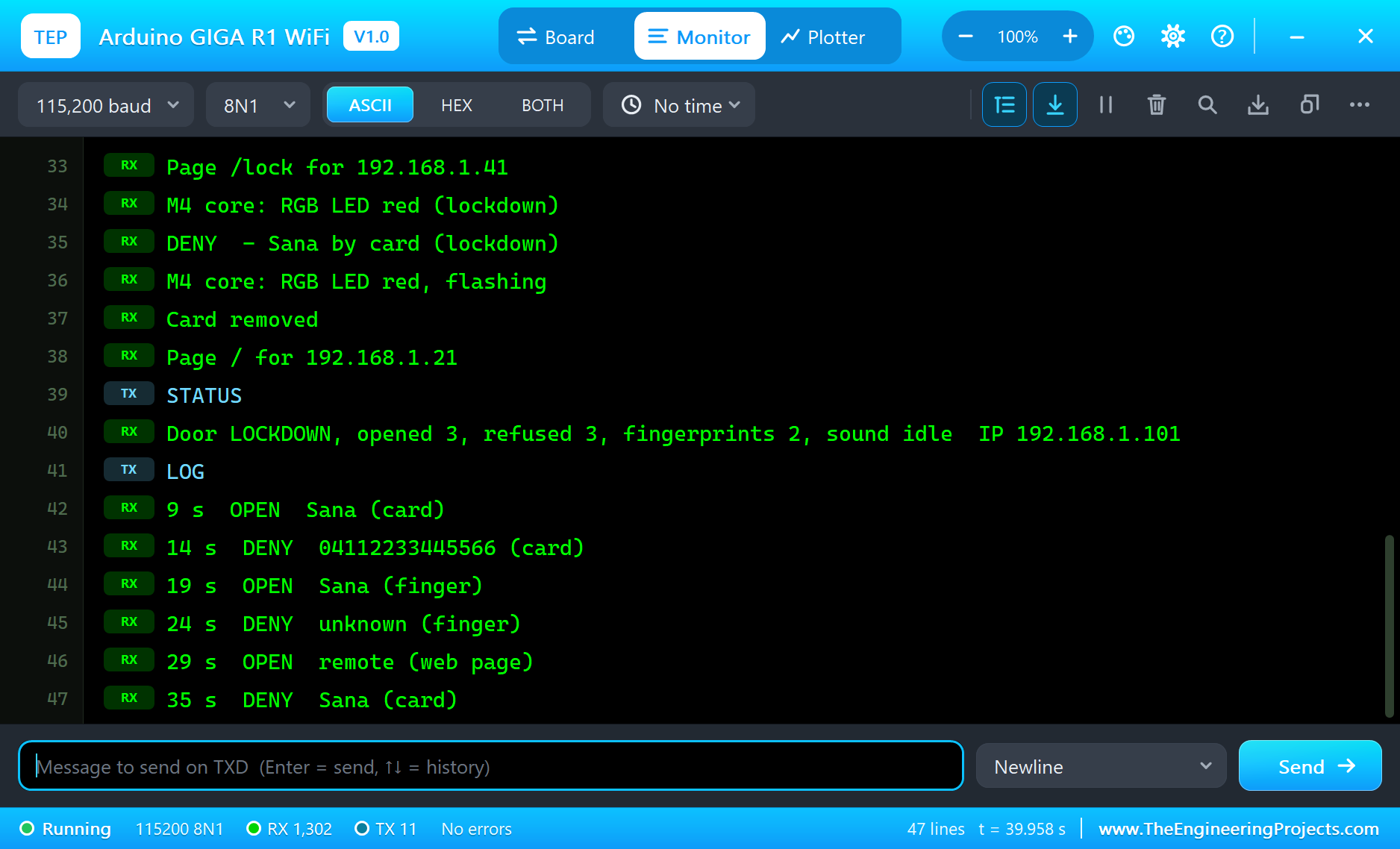
STATUS in the monitor sums it up:
Door LOCKDOWN, opened 3, refused 3, fingerprints 2, sound idle IP 192.168.1.101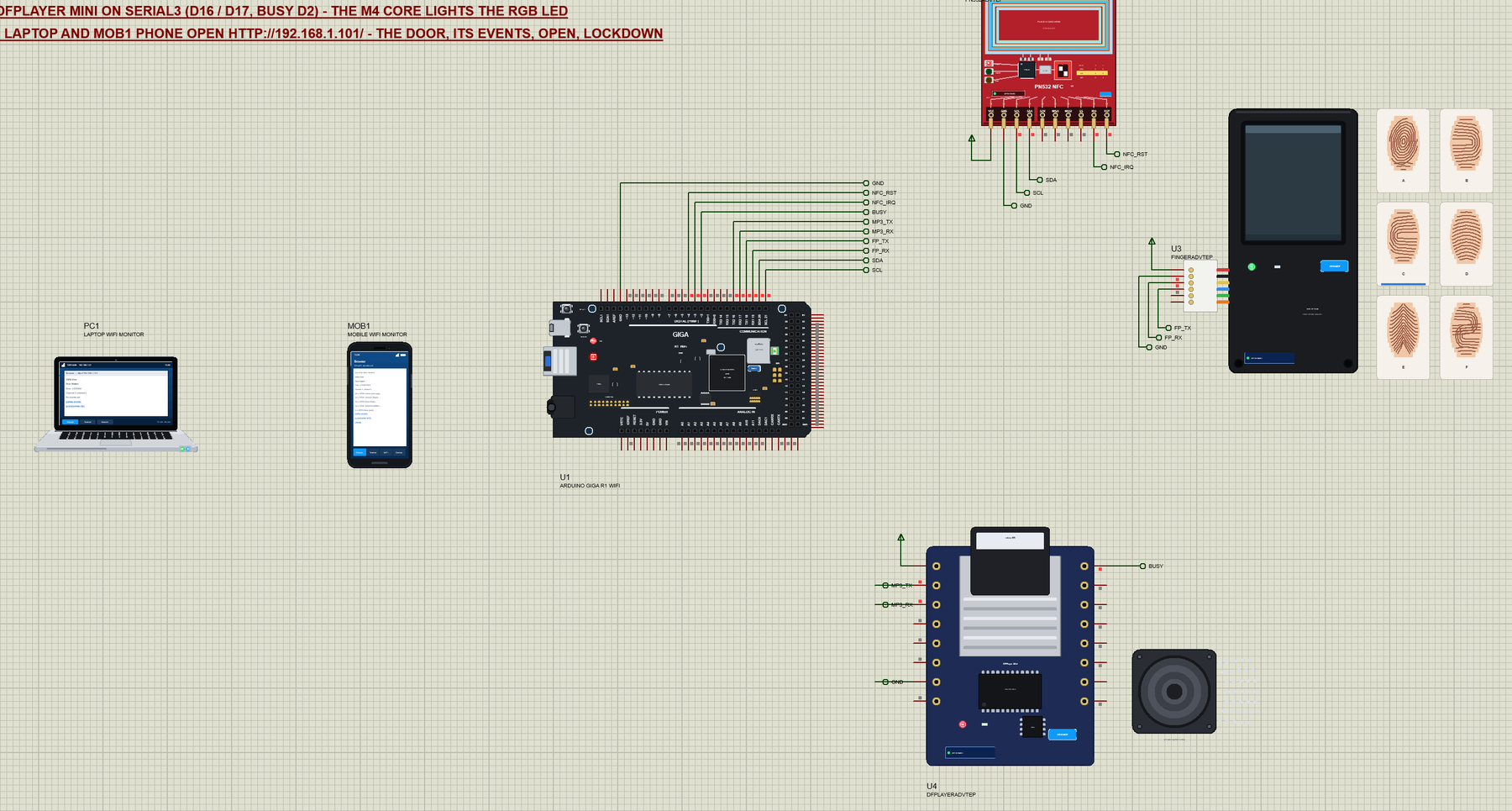
The built-in serial monitor, in the look of our TEP Serial Monitor Advance for Proteus, keeps every line - the M7's and the M4's:
Why the M4 Gets the LED
It looks like a small job for a whole core, but it shows the point of the GIGA. The M7 sketch is busy: a card read is an I2C conversation of a few milliseconds, a fingerprint search a serial exchange of a few dozen bytes, and a web page takes as long as the phone needs to send its request. If the same loop also flashed the LED, every one of those waits would show as a stutter in the flashing. On the M4 the LED has a loop of its own that does nothing else, so the flashing stays even while the M7 serves a page. The same split works for a buzzer, a stepper motor or a sensor that must be read on a fixed schedule.
RPC also keeps the two sketches independent. The M7 only says OPEN, DENY, LOCKED or LOCKDOWN; how that looks is the M4's business. You can change the colours, add a buzzer pattern or replace the LED with a small display on the M4 without touching the door logic.
How the PN532 and the R307 Answer
Both modules are smart peripherals that do the hard work themselves. The PN532 switches its 13.56 MHz field on, waits for a card to answer, runs the anticollision and hands back the UID - the sketch only sends InListPassiveTarget and reads the reply. The R307 takes the picture, turns it into a template and compares it with the templates in its own flash; the Arduino never sees a fingerprint, only "found, ID 1, score 130" or "not found". The Advance pop-ups show both conversations byte by byte, so you can see exactly what the sketch asked and what the module answered.
Try It Yourself
- Click Hold instead of Tap on the PN532's pop-up: the card stays on the reader and is reported only once.
- Set the R307's ENROLLED property to
1:A 2:B 3:Dand add a third person toPEOPLE[]. - Type
LOG,LOCKorOPENin the monitor. - Change the M4 sketch so that the locked door breathes blue instead of a steady light.
Ideas to Extend the Door Station
- Ask for a card and a finger for the same person within ten seconds - two-factor entry.
- Keep the events in the EEPROM so a reset does not lose them.
- Let the M4 count how long the door stays open and send an alarm line back if it is left open.
- Play a different track for each person from the DFPlayer's folder 01.
Your Own Sketches
Write the M7 sketch in the Arduino IDE with the board Arduino GIGA R1 WiFi (TEP Proteus) and the M4 one with Arduino GIGA R1 WiFi M4 core (TEP Proteus), use Sketch > Export Compiled Binary for each and set PROGRAM and PROGRAMM4 to the two .hex files. For the real board install "Arduino Mbed OS GIGA Boards", select the Arduino GIGA R1, and upload the M7 sketch with Target core "Main Core" and the M4 sketch with "M4 Co-processor" - the same sketches. If you already know our Arduino Due Library for Proteus, the headers are the same; the UARTs follow the GIGA's own map.
Things to Know Before Using a Real GIGA R1 WiFi
- 3.3 V pins: the GIGA is not 5 V tolerant - level-shift 5 V modules, or power them at 3.3 V where they allow it.
- The M4 sketch: it needs the flash split (1 MB M7 + 1 MB M4) and starts only after
RPC.begin()on the M7. - RPC calls: the real library also has
RPC.bind()/RPC.call()with MessagePack - this simulation models the byte stream only, so send text lines. - 16-bit int here: int is 16 bits on the simulated board and 32 bits on the real one - use
longfor big numbers so the sketch behaves the same on both.
Properties of the GIGA R1 WiFi
| Property | What it does |
|---|---|
| PROGRAM | the M7 sketch: a .hex from TEP Boards for Proteus (board "Arduino GIGA R1 WiFi") |
| PROGRAMM4 | the M4 sketch (board "Arduino GIGA R1 WiFi M4 core"); empty = the M4 stays off |
| WIFISSID, WIFIPASS | the router in range and its password |
| MONITOR, BAUD, AUTOOPEN | the built-in serial monitor on the USB-C, its speed, open at Run |
| TIME | the clock the sketch reads: the PC's, or a fixed date and time |
Troubleshooting
- Nothing happens at Run: the HEX was not built with TEP Boards for Proteus - select Arduino GIGA R1 WiFi (TEP Proteus).
- The RGB LED stays dark: PROGRAMM4 is empty, the M4 HEX was built for the M7 board, or the M7 never calls
RPC.begin(). - "PN532 NOT FOUND": SDA on D20, SCL on D21, the PN532's VCC on the power rail.
- "R307 NOT FOUND": the sensor's RXD on D18 and TXD on D19,
finger.begin(57600). - "SoftwareSerial.h: No such file": update the add-on to 1.38.0; in Proteus SoftwareSerial sends but cannot receive, so use Serial1 - Serial3 for modules that answer.
Limitations of the Simulation
- Each core gives its sketch 8 KB of RAM in the simulation and runs slower than the real Cortex-M7 at 480 MHz and Cortex-M4 at 240 MHz.
- The M4 core has no header pins of its own: it drives the RGB LED and talks through RPC.
- RPC is a byte stream;
RPC.bind()/RPC.call(), Serial4, Wire1 / Wire2, CAN, Bluetooth, the USB-A host, the audio jack and the camera are not modelled. - Arduino and GIGA are trademarks of Arduino S.r.l., STM32 of STMicroelectronics; this library is not made or endorsed by them, by Murata, NXP, DFRobot or by Labcenter.
- Tested in Proteus 8.5 in October 2026 (the demo as shipped, about 40 s of simulation in about 14 minutes on our PC with the monitor, the three pop-ups and both tools open). Proteus 7 is not supported.
So, that was all about the Arduino GIGA R1 WiFi Library for Proteus. I hope it helps you try the GIGA's two cores before you buy one, and build your access systems, dashboards and robots with a core for each job. If you have any questions, ask in the comments and I will help you out. Till the next tutorial, take care and have fun!

Comments
0