


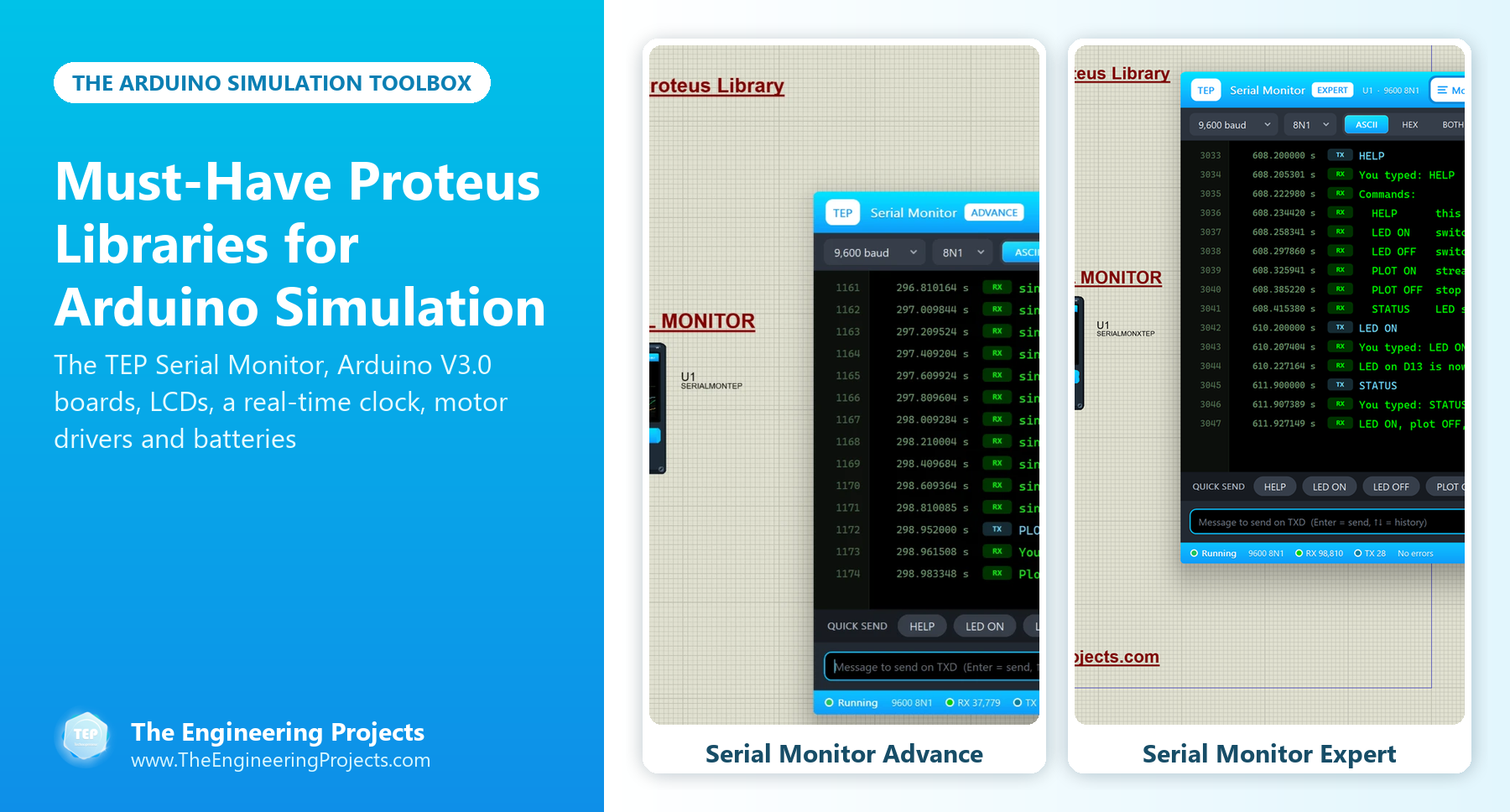
Must-Have Proteus Libraries for Arduino Simulation


Hello friends, I hope you all are doing great. Today, I am going to share a list of Must-Have Proteus Libraries for Arduino Simulation. Whatever your project is, a GSM alarm, a weather station or a line follower, its Proteus simulation always needs the same basic things: an Arduino board, a way to see what the code is printing, a display, maybe a real-time clock, a driver for motors and something to power the circuit. These are the libraries you will install once and use in almost every project.
Proteus does have some of these parts in its own library, but often in a very basic form. Our versions look like the real boards and modules, which makes your circuit diagrams and project reports much clearer, and our new TEP Serial Monitor replaces the small Proteus Virtual Terminal with a modern window that works like the Serial Monitor of the Arduino IDE.
In this list, our two new serial monitor tools come first, because they make every other library easier to debug. After them, you will find our Arduino boards, display, clock, driver and power libraries, and a short guide to loading your Arduino code into Proteus. If you are new to Proteus libraries, read How to Add New Library in Proteus 8 first. So, let's get started with the Must-Have Proteus Libraries for Arduino Simulation:
The Arduino Simulation Toolbox at a Glance
| Job in your project | Library |
|---|---|
| See and send serial data | Serial Monitor Advance, Serial Monitor Expert |
| The Arduino board | Arduino Library V3.0, Arduino UNO Library V3.0 |
| Show text on a display | LCD Library V2.0 |
| Keep the time | DS1307 Library |
| Drive motors | L298 Motor Driver Library |
| Isolate and switch | PC817 Library, C945 Library |
| Power the circuit | LiPo Battery Library, CR2032 Library |
Debugging Tools: The TEP Serial Monitor
1. Serial Monitor Proteus Library (Advance)
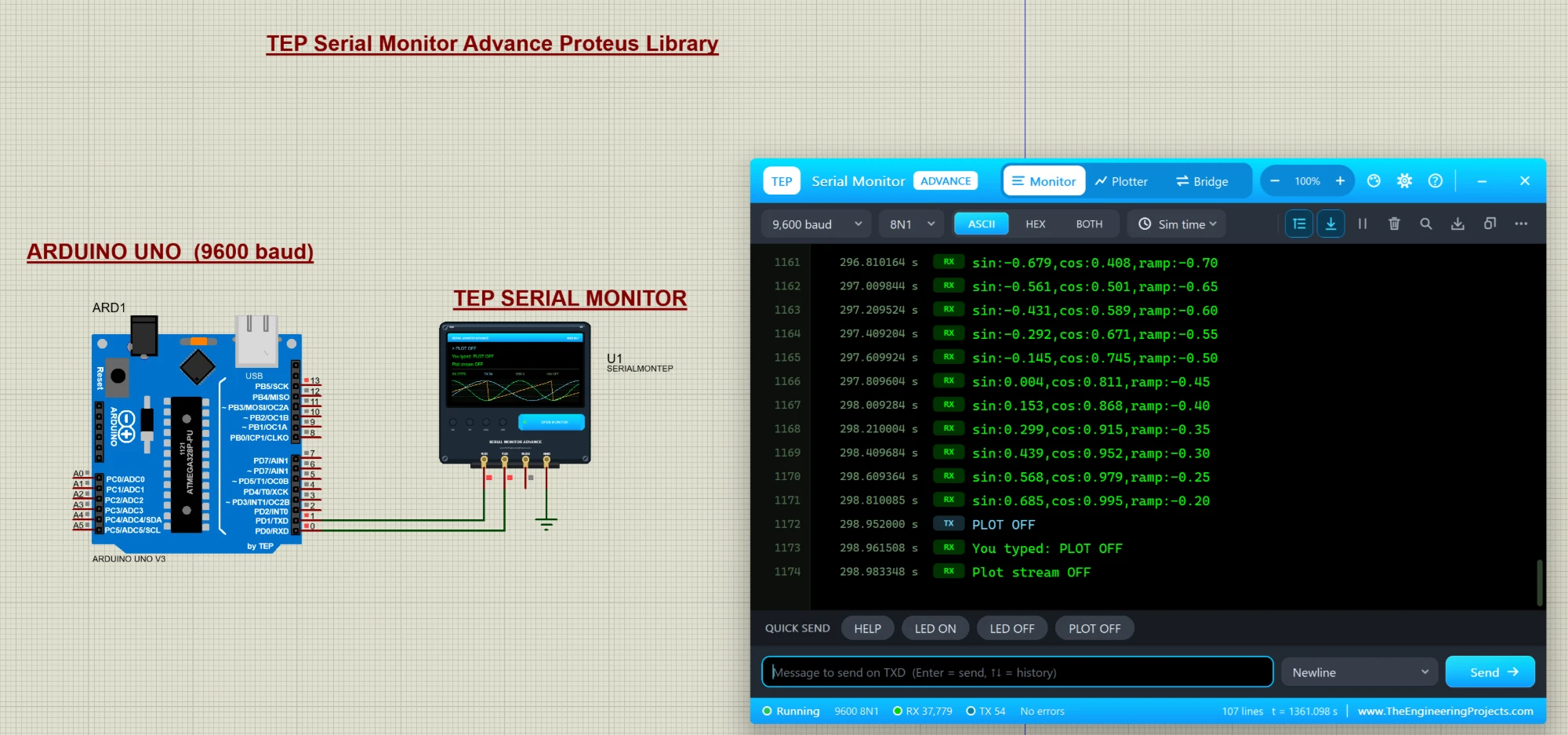
If you have simulated an Arduino in Proteus, you have used the Virtual Terminal to see what your code prints with Serial.println(). The TEP Serial Monitor does the same job in a modern window that works like the Serial Monitor of the Arduino IDE, and it fixes the things that make the Virtual Terminal painful:
- Long lines don't get cut off: the window is wide and resizable, with a zoom from 8 to 28 points.
- Line numbers and timestamps: every line gets a number, and you can add the simulation time or the PC clock to it.
- Colours, tags and HEX: received text, sent text and a second input line each have their own colour and tag, and every byte can be shown in HEX.
- No more one-minute freeze: the Virtual Terminal stops after about a minute of busy output, while our log keeps 50,000 lines by default (up to 200,000).
- More in one window: a serial plotter for live graphs, a bridge to a real COM port of your PC, send history, quick-send buttons, search, saving the log and nine colour themes.
Read the complete tutorial: Serial Monitor Proteus Library
2. Serial Monitor Expert Proteus Library
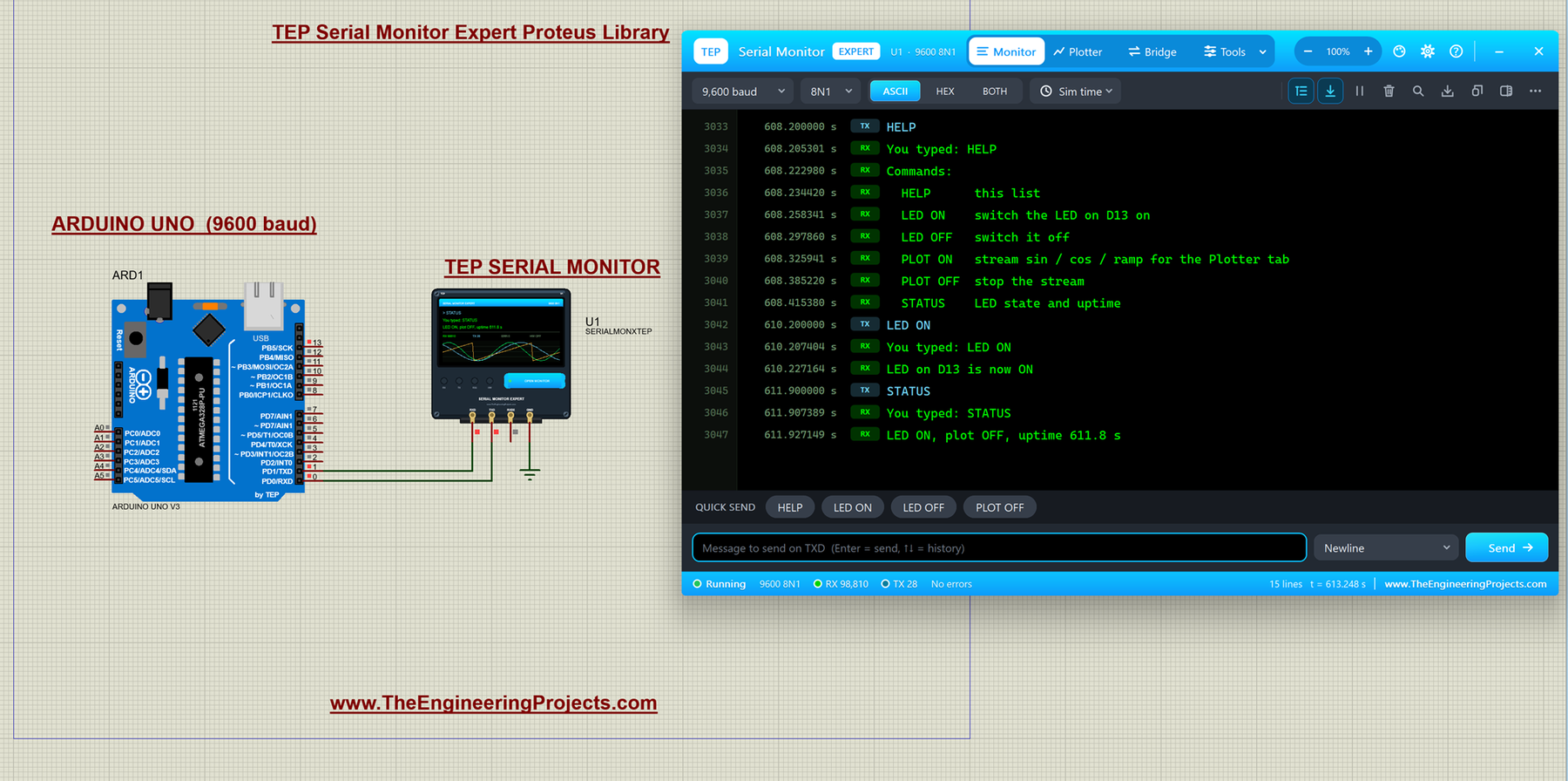
The Expert edition has everything in the Advance plus six professional tools: an auto-responder that plays a missing module, a network bridge that connects your simulation to Python, Node-RED or a web page, triggers and alarms that stop the simulation at the right line, record and replay, smart decoders for NMEA, AT, HEX and JSON data, and export to CSV for Excel or MATLAB. With these tools, Proteus becomes a real serial debugging lab. Read the complete tutorial: Serial Monitor Expert Proteus Library
Arduino Boards for Proteus
3. Arduino Library for Proteus V3.0
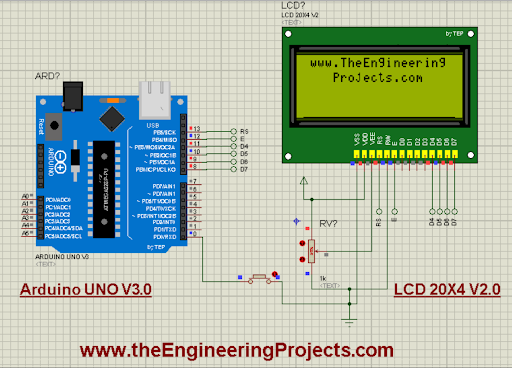
Our Arduino Library for Proteus V3.0 is the third generation of our most popular library. It has six boards in one package: Arduino UNO, Mega 1280, Mega 2560, Mini, Pro Mini and Nano, with a more realistic design and better performance than V1.0 and V2.0. Several of our newest module libraries already include its Arduino UNO in their packages. Read the complete tutorial: Arduino Library for Proteus V3.0
4. Arduino UNO Library for Proteus V3.0
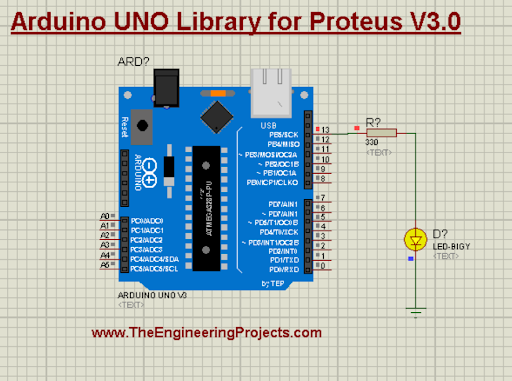
If your project only needs an Arduino UNO, this library has just that board in its V3.0 design. The UNO is based on the ATmega328P, with 14 digital and 6 analog I/O pins, and its tutorial includes a small project to show the board at work. Read the complete tutorial: Arduino UNO Library for Proteus V3.0
Display and Timekeeping
5. LCD Library for Proteus V2.0
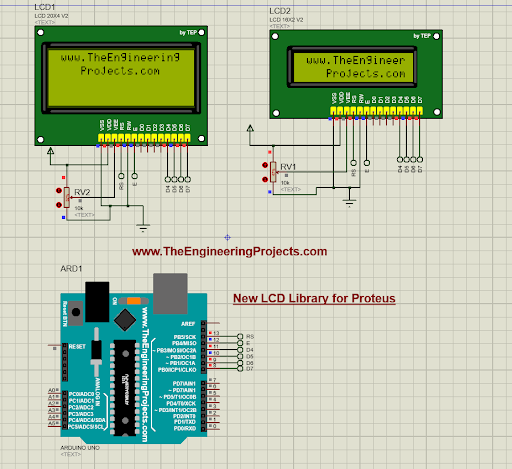
The character LCD is the display of countless student projects. Our LCD Library V2.0 has a 16x2 and a 20x4 alphanumeric LCD that look like the real modules, with better pinout prints and error-free working, and its tutorial interfaces the LCD with an Arduino. Read the complete tutorial: LCD Library for Proteus V2.0
6. DS1307 Library for Proteus
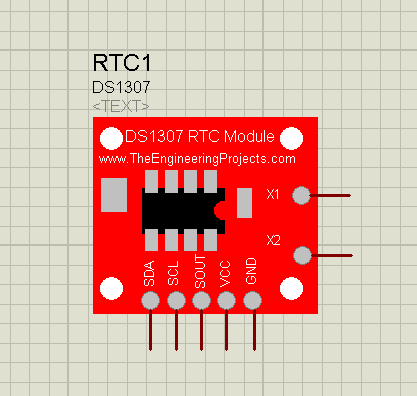
The DS1307 is a real-time clock module that keeps the date and time even when the Arduino resets, so it is used in clocks, data loggers, alarms and attendance systems. Proteus already has a basic DS1307, but our module looks like the red board you buy in the market. We used it in our DS1307 Arduino based Digital Clock in Proteus. Read the complete tutorial: DS1307 Library for Proteus
Driving Loads
7. L298 Motor Driver Library for Proteus
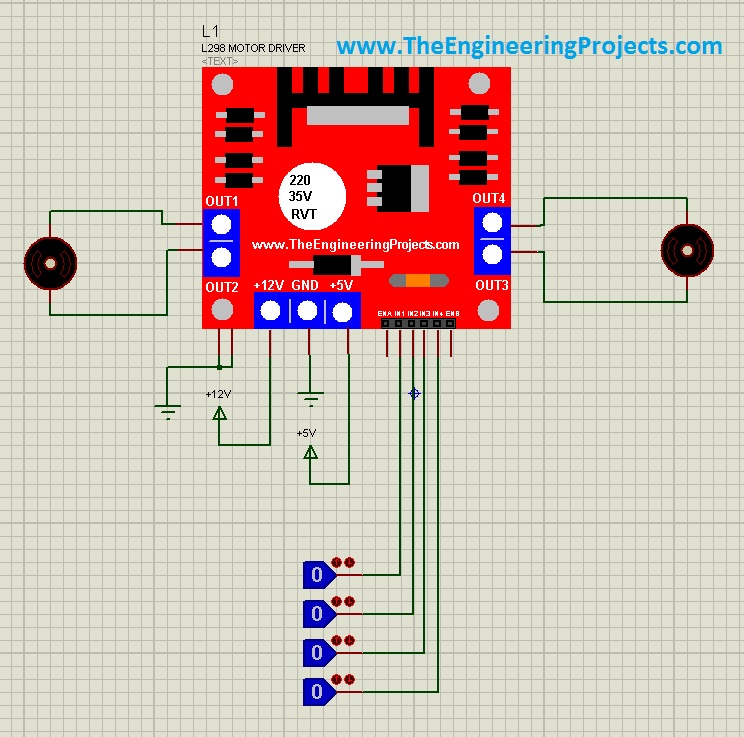
An Arduino pin can't power a motor, so robots and conveyors use a motor driver. The L298 controls the speed and the direction of DC motors and can also drive stepper motors. Proteus didn't have the L298 module, so our team designed it. Read the complete tutorial: L298 Motor Driver Library for Proteus
8. PC817 Library for Proteus
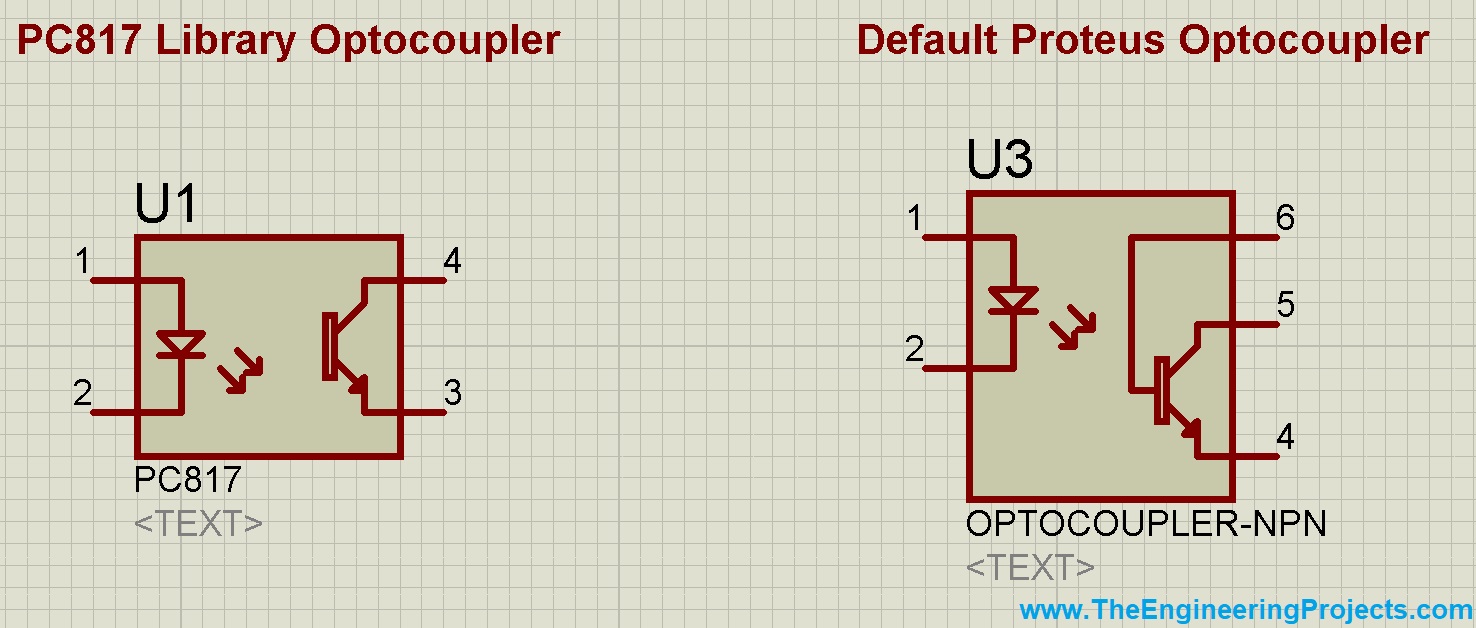
The PC817 is an optocoupler (optoisolator): it passes a signal through light, so the Arduino side and the high-power side of a circuit stay electrically isolated. It is common in relay boards and industrial inputs. Read the complete tutorial: PC817 Library for Proteus
9. C945 Library for Proteus
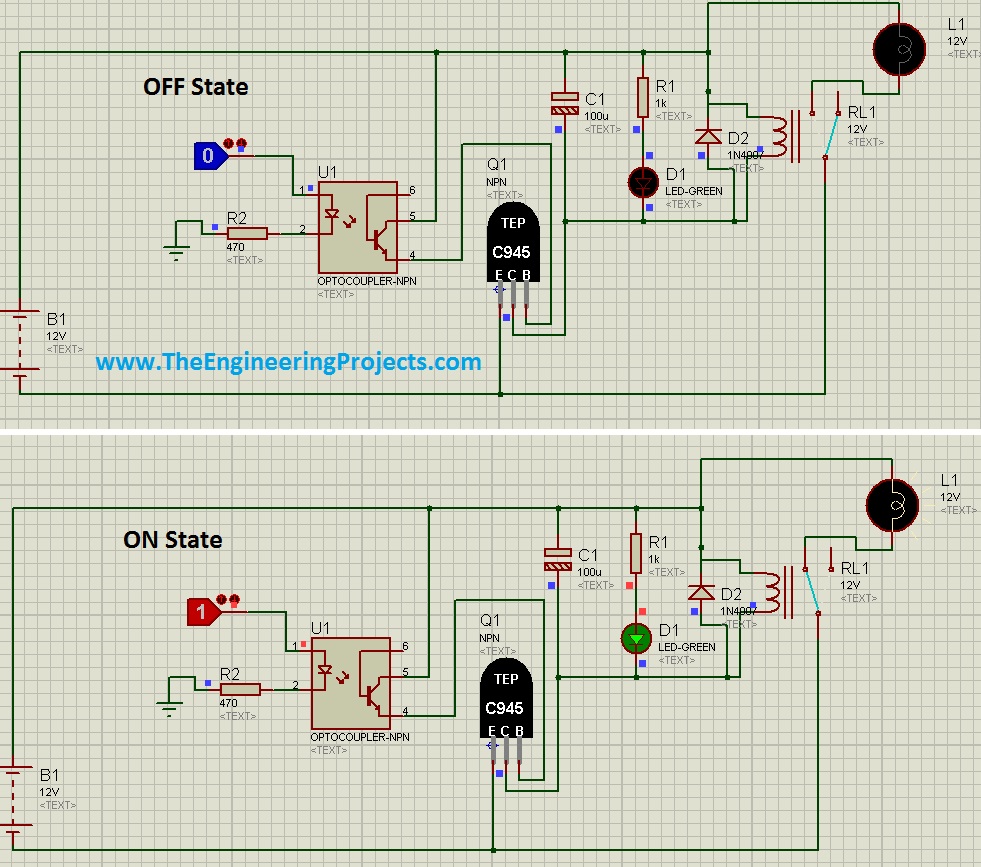
The C945 is an NPN transistor used in many engineering projects as an automatic switch, for example to drive a relay or a buzzer from an Arduino pin. It isn't in the Proteus components list, so we designed it. Read the complete tutorial: C945 Library for Proteus
Powering Your Circuit
10. LiPo Battery Library for Proteus
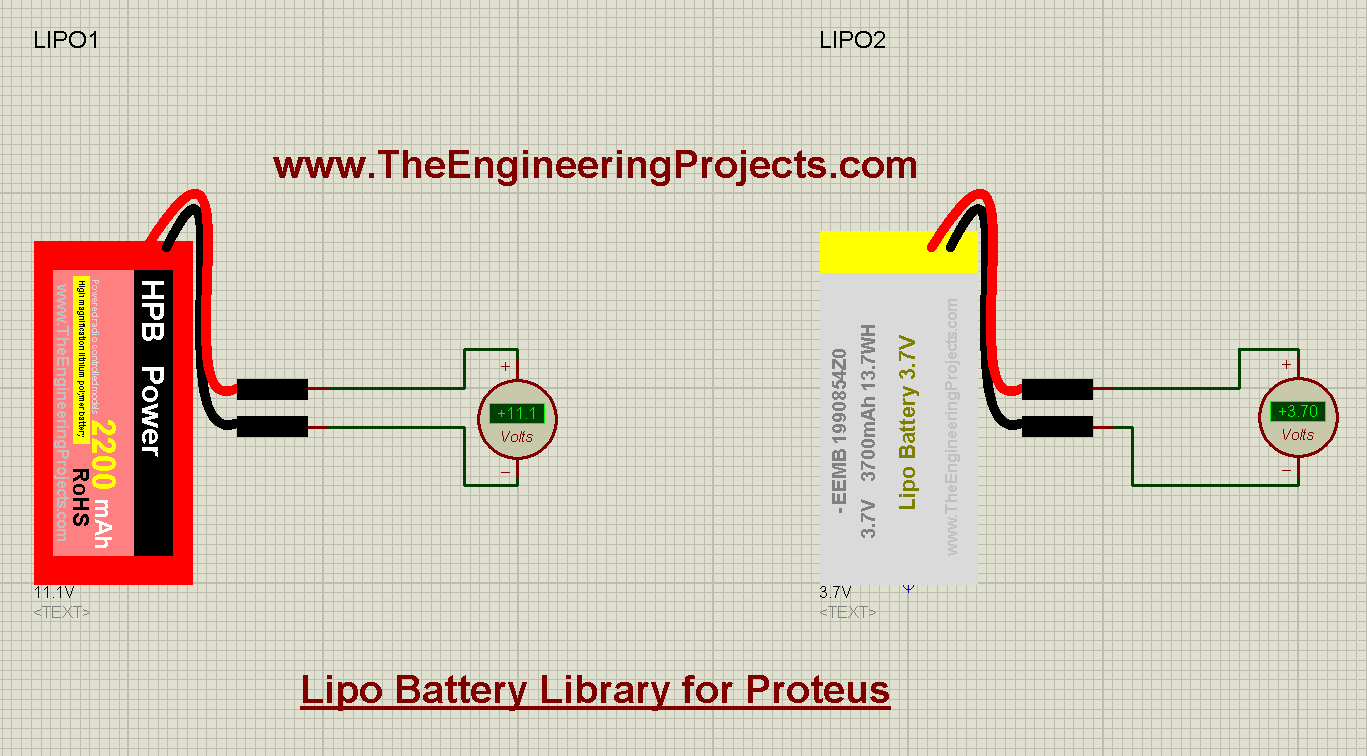
The LiPo battery powers drones, robots and portable projects. Our library has two LiPo batteries, 3.7 V and 11.1 V, and you can change their voltage in the properties. Proteus has a plain battery, but a LiPo makes your design look like the real project. Read the complete tutorial: LiPo Battery Library for Proteus
11. CR2032 Lithium Coin Library for Proteus
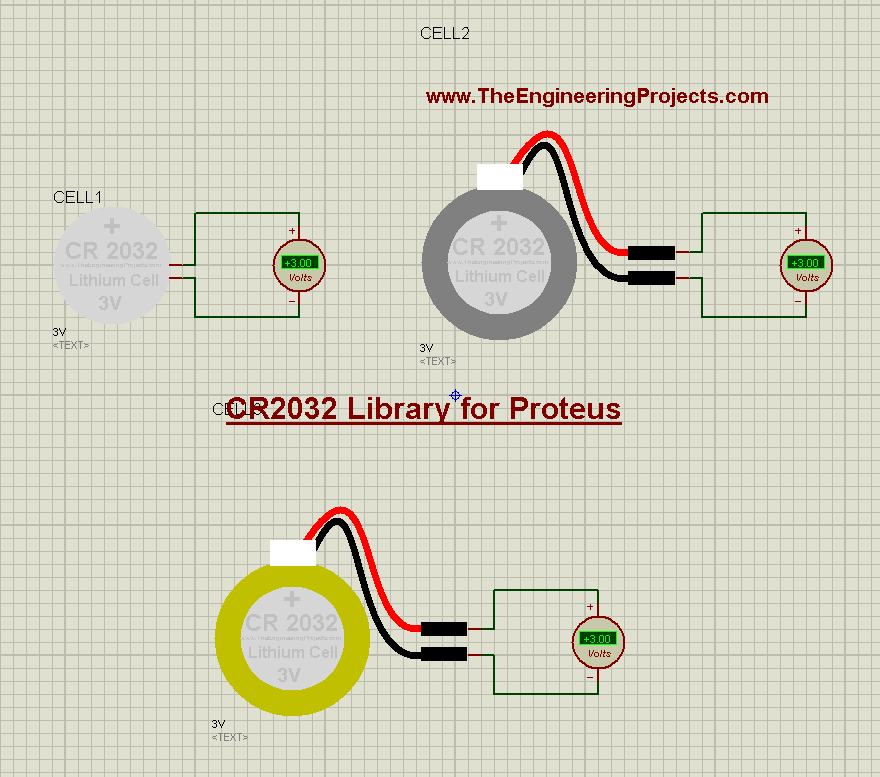
The CR2032 is the 3 V coin cell of watches, calculators and real-time clock modules. Our library has three models: the cell itself and two cells with leads. Read the complete tutorial: CR2032 Lithium Coin Library for Proteus
How to Load Your Arduino Code into Proteus
Every Arduino simulation in Proteus runs the compiled HEX file of your sketch. Here are the steps:
- Open your sketch in the Arduino IDE and select the same board that you placed in Proteus, for example the Arduino UNO.
- Compile it with Sketch > Export Compiled Binary. The IDE writes the HEX file next to your sketch.
- In Proteus, double-click the Arduino board and choose that HEX file in its Program File property.
- Check the clock frequency of the board (16 MHz for the UNO) and the baud rate of your serial monitor, and run the simulation.
For a detailed guide with pictures, read How to Get the HEX File from the Arduino Software. Most of our new libraries also include a compiled HEX file, so you can run their example before you compile anything yourself.
Tips for Smoother Arduino Simulations
- Don't print in every loop. A sketch that prints thousands of lines per second slows the whole simulation down. Print when something changes, or once or twice a second.
- Watch the CPU load. The status bar of Proteus shows whether the simulation keeps up with real time. If it doesn't, timing-sensitive code such as serial communication may behave differently.
- Avoid long delays in sensor code. Sensors with a FIFO, like the MAX30102, lose data if your code sleeps too long between reads.
- Use timestamps to measure timing. The timestamps of the TEP Serial Monitor show exactly when each line arrived, which is the easiest way to check your delays and timeouts.
A Typical Arduino Simulation Setup
Here is a setup that works for most projects: an Arduino UNO V3.0 in the middle, the TEP Serial Monitor on its TX and RX pins for debugging, an LCD 16x2 for the user, your sensors and modules around it, and an L298 or a C945 transistor for the loads. Add a DS1307 if the project needs the time, and a LiPo battery to show how it is powered. Once this basic setup works, adding a GSM, Wi-Fi or LoRa module from our other libraries is just one more step. You can find all of our libraries in our Proteus Libraries tutorial series.
More Lists of Proteus Libraries
We have grouped our Proteus libraries into several lists, so you can quickly find the right ones for your project:
- 30 New Proteus Libraries for Engineering Students (2026)
- GSM Libraries for Proteus
- GPS Libraries for Proteus
- RF Module Libraries for Proteus
- LoRa and RF Libraries for Proteus
- Wi-Fi and Bluetooth Libraries for Proteus
- List of Wireless Modules for Proteus
- Top IoT Libraries for Proteus
- RFID and NFC Libraries for Proteus
- List of Embedded Sensors in Proteus
- I2C Sensor Libraries for Proteus
- Environmental Sensor Libraries for Proteus
- Motion and Distance Sensor Libraries for Proteus
- Smart Agriculture Sensor Libraries for Proteus
- Medical Sensor Libraries for Proteus
- Microcontroller Board Libraries for Proteus
Conclusion
So, that was all about the Must-Have Proteus Libraries for Arduino Simulation. I hope this toolbox saves you time in every project you simulate. If you think another library belongs in this list, please tell us in the comments or in the Proteus Libraries category of our forum. Till the next tutorial, take care and have fun!
Comments
0