


Feather nRF52840 Express Library for Proteus: Bluetooth Simulation


Hello friends, I hope you all are doing great. Today, I am going to share the Feather nRF52840 Express Library for Proteus, so you can run a Bluetooth LE simulation of Adafruit's popular Feather board. The Feather nRF52840 Express carries Nordic's nRF52840, an Arm Cortex-M4F at 64 MHz with Bluetooth LE and native USB, on a board of just 2.0 x 0.9 inches. With this library it runs your Arduino sketch in Proteus 8.5, talks to a phone over Bluetooth LE with Adafruit's Bluefruit library, and its red LED, blue CONN LED and USER switch work just like on the real board.
Feather nRF52840 Express Library for Proteus
Latest version: V1.0 (November 2026, this tutorial)
Helping Tools
- Laptop WiFi Monitor: a laptop on the Wi-Fi of your design: a browser, a TCP / UDP terminal and ping
- Mobile WiFi Monitor: a smartphone that opens the pages of your board and sends it commands
- Serial Monitor Advance: a serial terminal window for the UART of your board
For the demo we built a Bluetooth reaction timer. Press USER, wait for the red LED, press USER again as fast as you can: the board measures your reaction in milliseconds, keeps the best one and sends every result to a phone.
NOTICE: Proteus has no nRF52840 model, so our team has put a lot of effort into building this board ourselves: the pins, the LEDs, the USER switch and Bluetooth LE are all our own model, and your sketch compiles with our free TEP Boards for Proteus add-on. Your feedback is the fuel that keeps us going, so please tell us what you think in the comments below. And if our free libraries help you, you can buy us a coffee. So, let's get started with the Feather nRF52840 Express Library for Proteus:
What is the Feather nRF52840 Express?
The Feather nRF52840 Express is Adafruit's Bluetooth LE board in the Feather family, the small boards that all share one pinout so that add-on boards (FeatherWings) fit any of them. Its nRF52840 from Nordic Semiconductor is an Arm Cortex-M4F at 64 MHz with hardware floating point, 1 MB of flash and 256 KB of RAM, a 2.4 GHz Bluetooth LE radio and a native USB port. Adafruit adds 2 MB of QSPI flash for files, a NeoPixel, a red LED on D3, a blue CONN LED, a USER switch, a reset button, a LiPo charger with its JST socket and a standard SWD connector for debugging.
| Part | The real Feather | In the library |
|---|---|---|
| MCU | nRF52840: Cortex-M4F 64 MHz, 1 MB flash, 256 KB RAM | your Arduino sketch |
| Radio | Bluetooth LE 2.4 GHz | Bluefruit and ArduinoBLE |
| LEDs | red LED (D3), blue CONN LED (D4), NeoPixel (D8) | LED_RED, LED_BLUE / LED_CONN; NeoPixel drawn |
| Switch | USER (D7), RESET | PIN_BUTTON1 and RESET |
| Pins | the Feather rows: 16 + 12 | D0 to D13, A0 to A5, AREF |
| USB | native USB, micro-USB | the serial monitor |
| Memory | 1 MB flash, 256 KB RAM, 2 MB QSPI | about 256 KB of flash, 8 KB of RAM |
The Feather Pinout
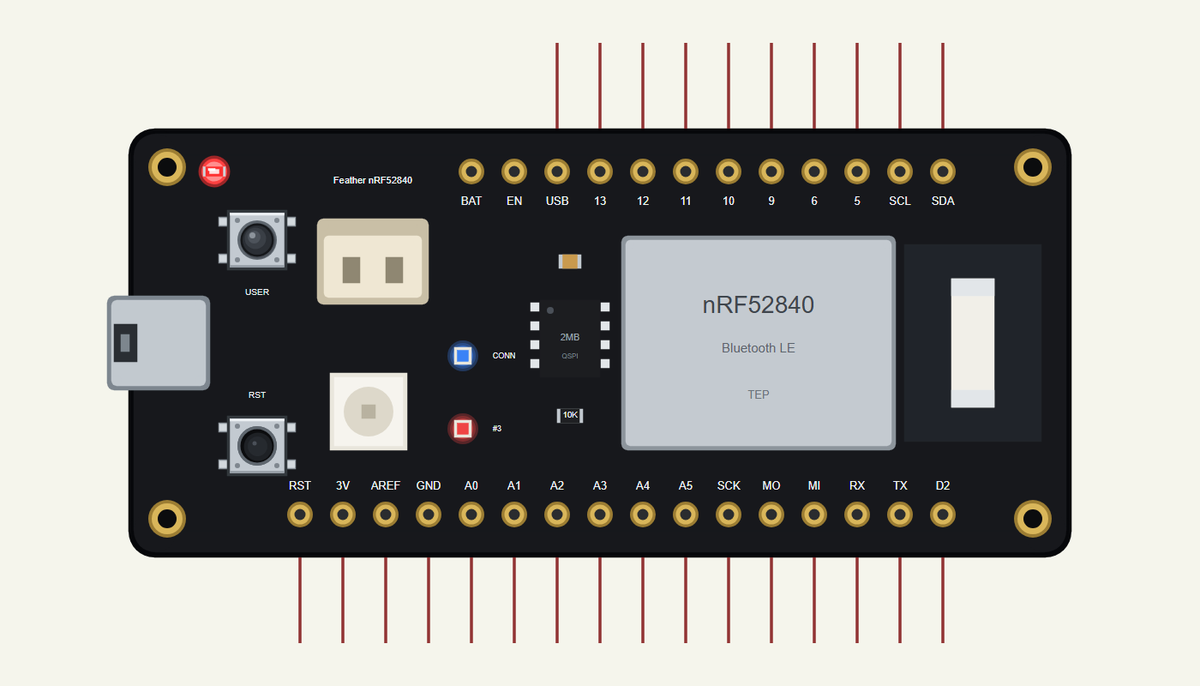
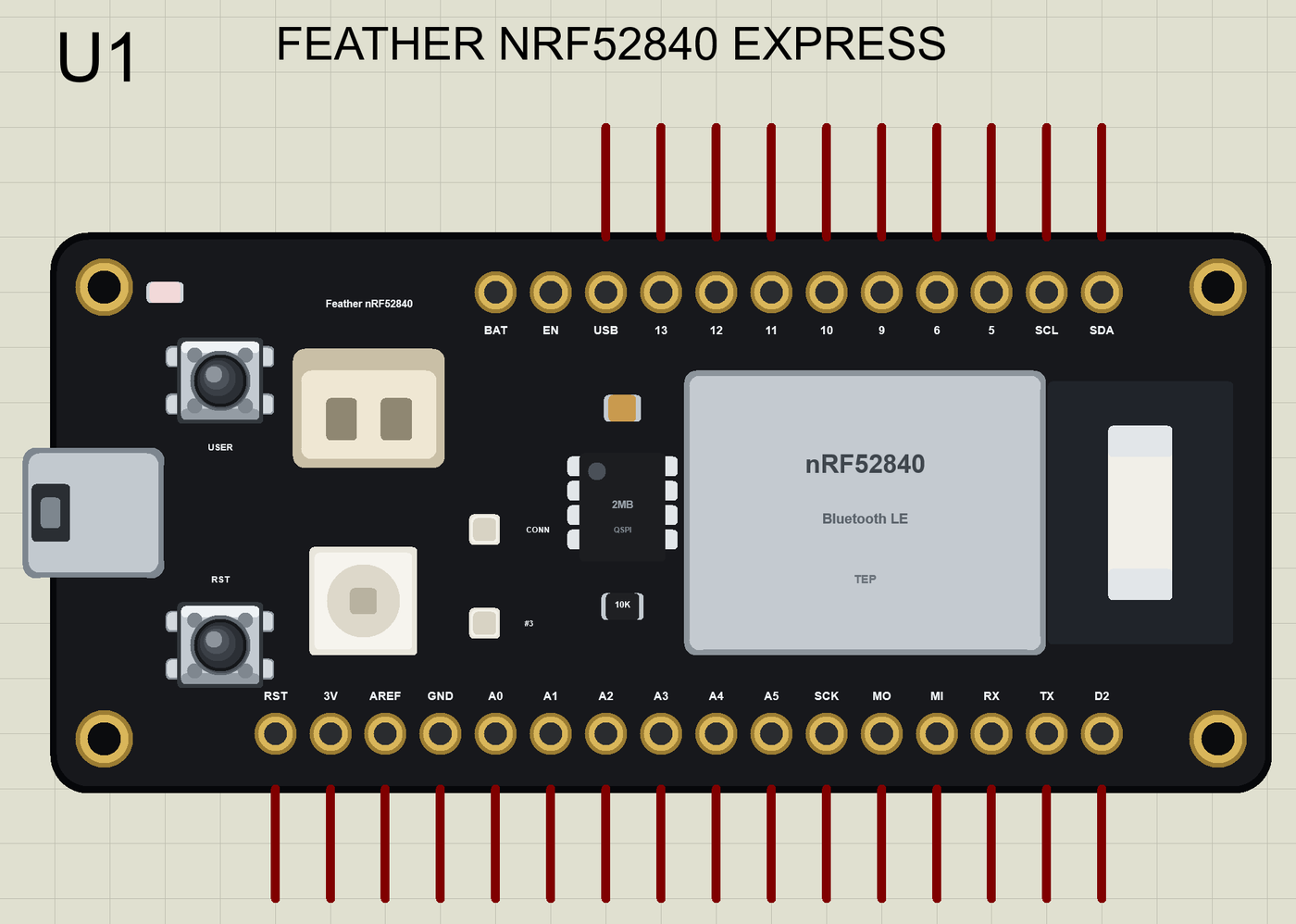
Every Feather has the same two rows: 16 pins on one long edge - reset, 3.3 V, the analog reference, ground, six analog inputs, the SPI pins, the serial pins and one free pin - and 12 on the other, starting with the battery, enable and USB supply pins, then the digital pins and I2C. Adafruit's specification fixes these places, so a FeatherWing with a display, a motor driver or a sensor fits every Feather, and all Feathers use 3.3 V logic. On this board the free pin of the long row is D2.
Bluefruit: Bluetooth LE the Adafruit Way
Adafruit's nRF52 core comes with the Bluefruit library. Instead of building services from raw characteristics, a sketch creates ready-made services - BLEUart for a serial link to a phone, BLEDis for the device information, BLEBas for the battery level - and starts advertising. BLEUart is a Stream, so the sketch writes to the phone with the same print() and println() it uses for the serial monitor. Our library offers the same calls, and ArduinoBLE as well.
The Blue CONN LED
The blue LED is called CONN because Bluefruit can drive it by itself: with Bluefruit.autoConnLed(true) it lights while a phone is connected. That is a small but useful detail - you see at a glance whether the board is talking to anything, without opening a serial monitor. The simulation does the same.
Where Is It Used?
The Feather nRF52840 Express is a favourite for wearables, wireless sensors, game controllers, keyboards and remote controls, and for teaching Bluetooth LE, because it is small, runs on a LiPo cell and has a friendly Arduino core. For Nordic's own development kit with the same chip, see our nRF52840 DK Library for Proteus; for the previous board in this series, a Wi-Fi and Bluetooth kit from Infineon, see our PSoC 6 WiFi-BT Pioneer Kit Library for Proteus.
A simulation lets you build the logic and the phone link before the board is on the desk: the switch, the LEDs and the messages. When the sketch works in the Proteus simulation, the real board only has to confirm it.
Features of the Feather nRF52840 Express Library for Proteus
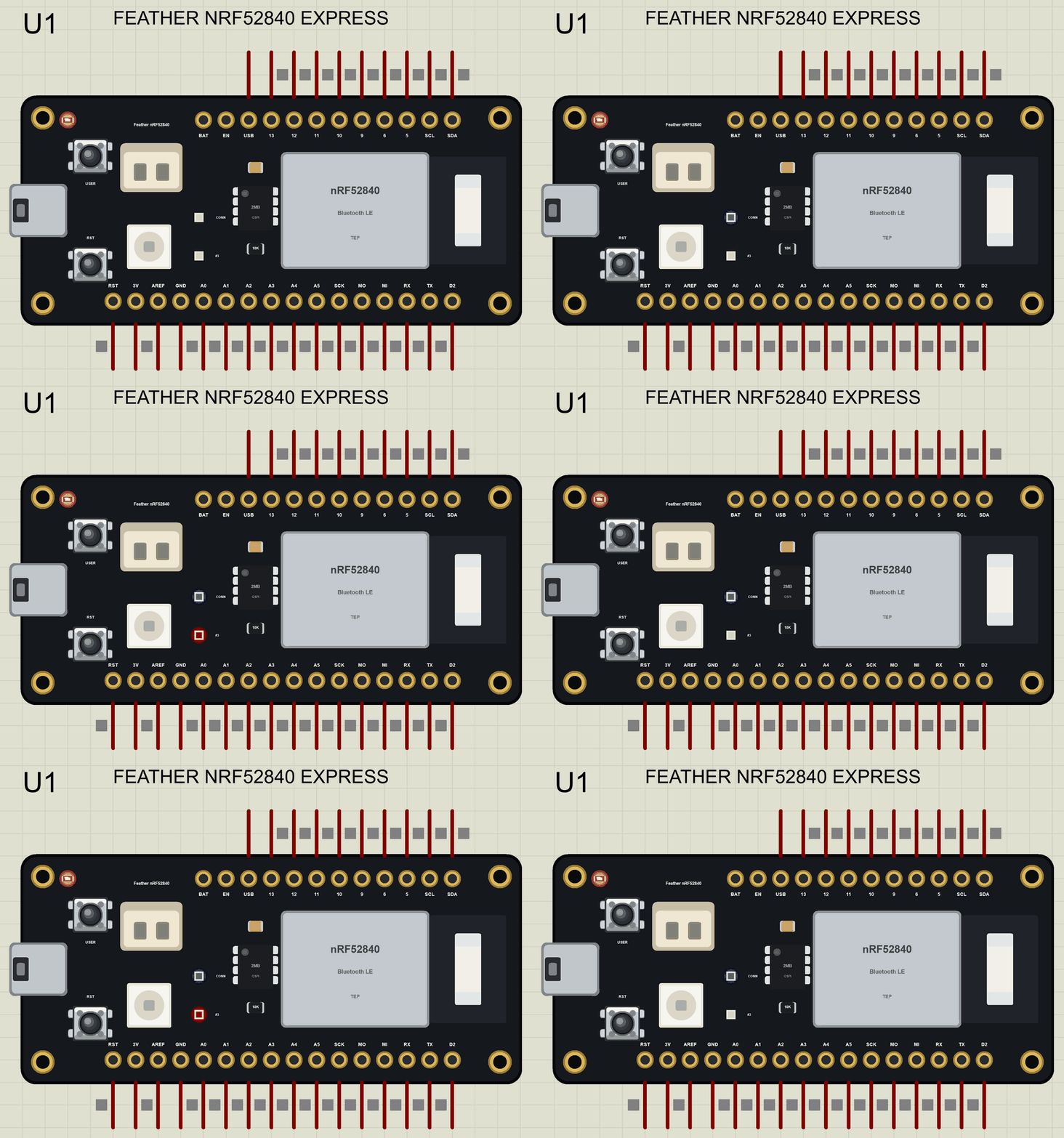
- The board as it looks: the black Feather with the micro-USB, the JST socket, RESET and USER, the red and blue LEDs, the NeoPixel, the QSPI flash, the nRF52840 module with its antenna end and the 16 + 12 Feather pins, drawn compact, with our small TEP signature.
- Your sketch: a .hex for "Adafruit Feather nRF52840 Express (TEP Proteus)" with the names of Adafruit's core: D0 to D13, A0 to A5, LED_RED, LED_BLUE, LED_CONN, LED_BUILTIN, PIN_BUTTON1 and PIN_NEOPIXEL.
- Bluetooth LE: Bluefruit (Bluefruit, BLEUart, BLEDis, BLEBas) or ArduinoBLE, with our phone as the central.
- Real LEDs and a real switch: the LEDs light when their pin is HIGH, the CONN LED follows the connection, and USER reads LOW while you click it, as on the real board.
- A complete package: about 3.4 MB with the part, the add-on, the phone and the demo, without the source code of the models.
The Feather nRF52840 Express in Proteus Simulation
Search FEATHER in Pick Devices; the device FEATHER NRF52840 EXPRESS is in TEPFTH52.LIB (Microprocessor ICs, Bluetooth Boards), with the prefix U. The micro-USB opens the serial monitor. The board has no Wi-Fi, so there is no Wi-Fi panel.
The Pins
| Pins | What the library does with them |
|---|---|
| TX, RX (D0, D1) | Serial1, or GPIO |
| D2, D5, D6, D9 to D13 | GPIO, PWM, attachInterrupt |
| A0 to A5 | analogRead 0 to 1023 for 0 to 3.3 V, or GPIO (AREF is A7) |
| SCK, MO, MI | SPI (SS is D5) |
| SDA, SCL | Wire |
| LED_RED (D3), LED_BLUE (D4) | the red and blue LEDs, lit when HIGH (LED_BUILTIN is LED_RED) |
| PIN_BUTTON1 (D7) | the USER switch, LOW while pressed |
| 3V, USB, GND, RST | the supply and the reset |
Download Feather nRF52840 Express Library for Proteus
Click the button below to download Feather-nRF52840-Express-Library-for-Proteus-v1.0.zip (about 3.4 MB, without the source code of the models):
Feather nRF52840 Express Library for Proteus V1.0- README.txt: installation, the demo, the pins, the properties, troubleshooting and the limits.
- Proteus Library Files:
TEPFTH52.LIBand the phone and laptop (TEPMOBILE.LIB,TEPLAPTOP.LIB). - Proteus Model Files:
TEPNET.DLL, the model of the board, the phone and the laptop. - Arduino Code: the demo sketch and the TEP Boards for Proteus add-on 1.78.0, with Bluefruit and ArduinoBLE.
- Proteus Simulation: the demo project, its HEX file and a copy of the DLL.
No Proteus yet? Read How to Download and Install Proteus 7 and 8. New to libraries? Follow How to Install a New Library in Proteus.
How to Install Feather nRF52840 Express Library for Proteus
- Close Proteus and extract the whole zip file, for example to your Desktop.
- Copy the files from Proteus Library Files into the LIBRARY folder of Proteus.
- Copy the DLLs from Proteus Model Files into the MODELS folder, replacing an older
TEPNET.DLL. - Delete
TEPFTH52.IDXfrom the LIBRARY folder if it is there. - For your own sketches, copy Arduino Code\TEP Boards for Proteus\hardware into your Arduino sketchbook (Documents\Arduino) and restart the Arduino IDE; the board is Adafruit Feather nRF52840 Express (TEP Proteus).
- Start Proteus, press P and search for FEATHER.
Demo: a Bluetooth Reaction Timer in Simulation
A reaction timer is a classic first project for a new board: one button, one light, a clock and a result. Our version adds a phone, so the results arrive on the screen in your hand - the same pattern as a real wireless sensor that reports to an app.
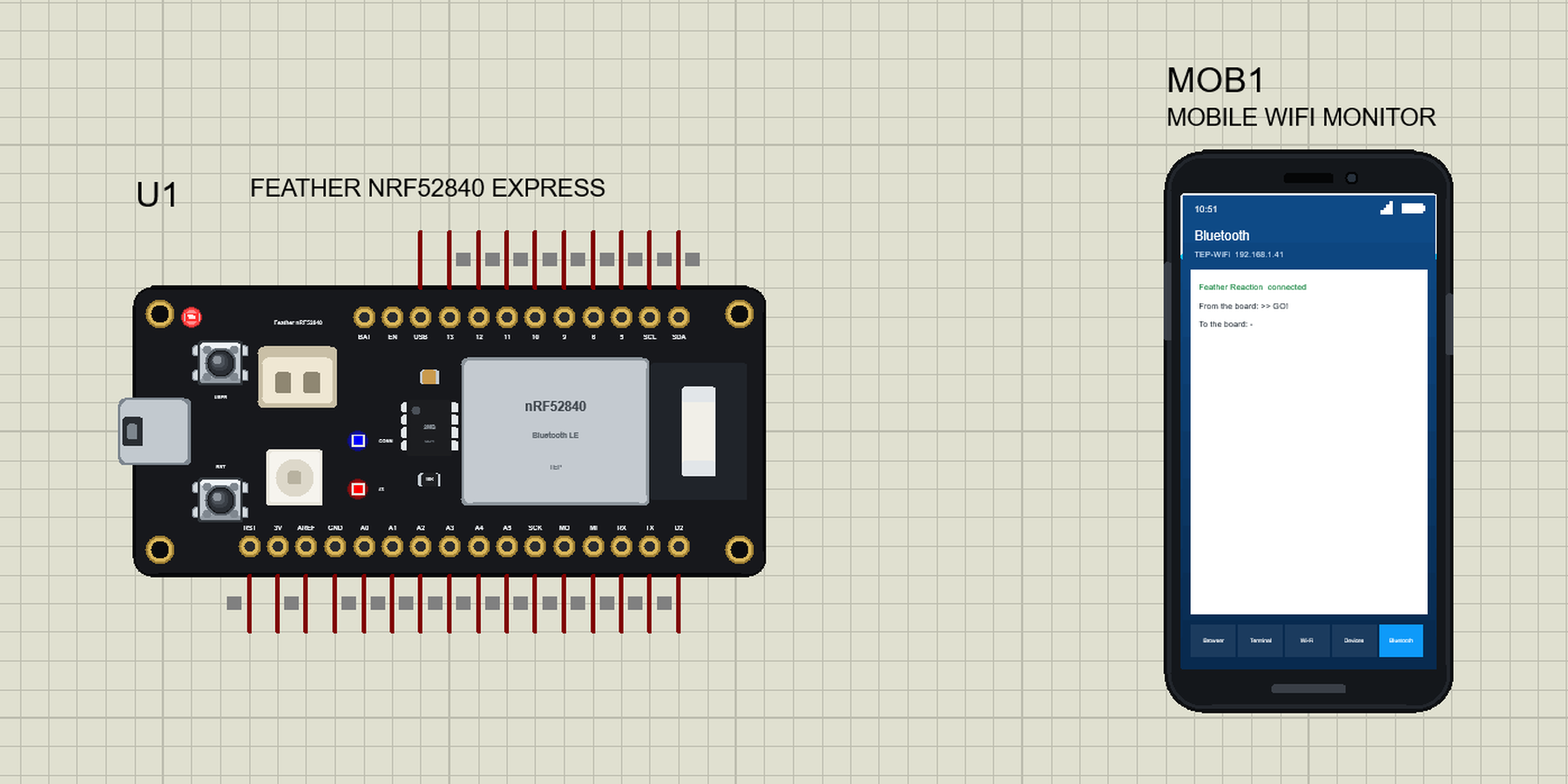
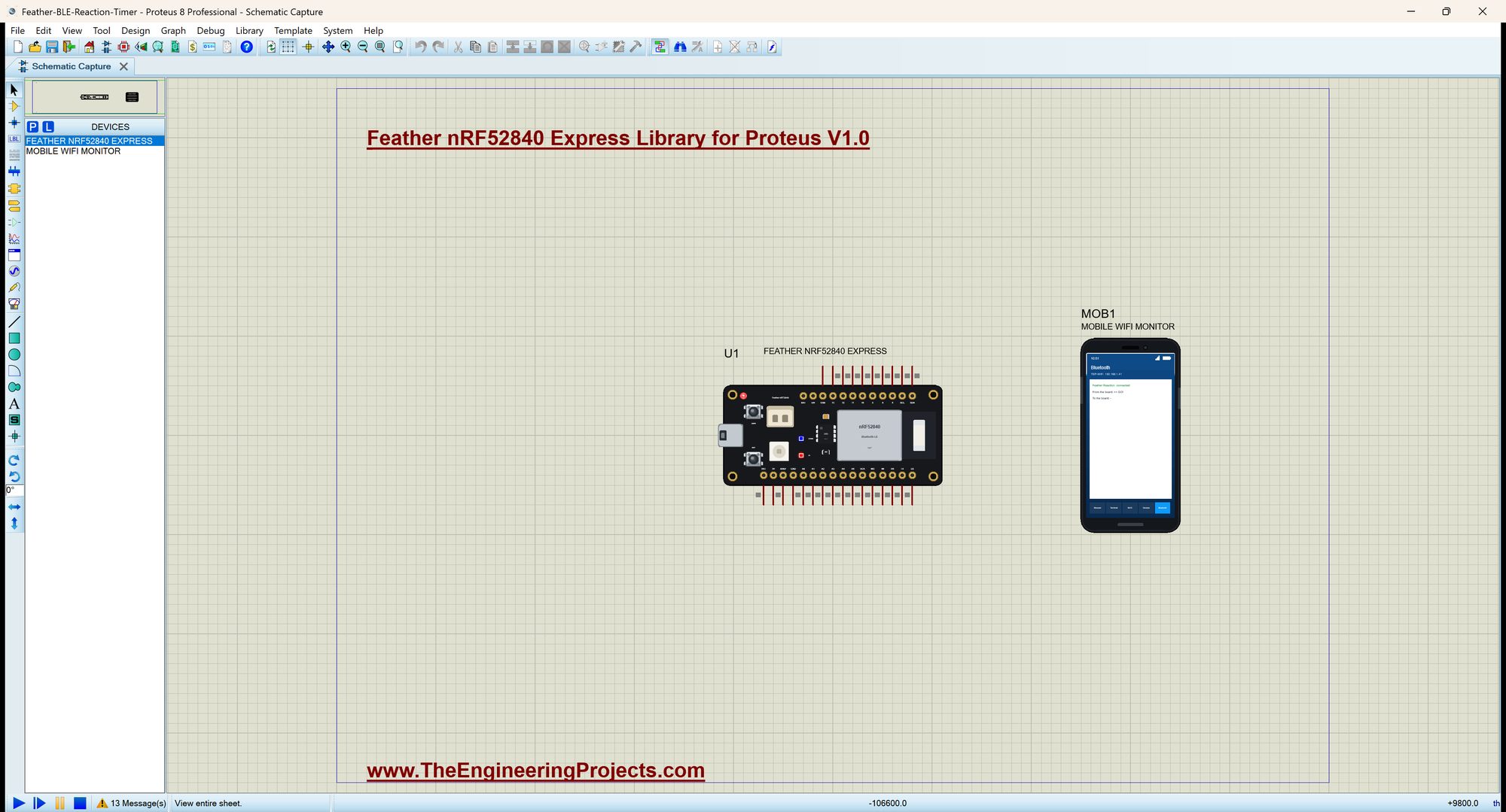
Open Feather-BLE-Reaction-Timer.pdsprj. U1 runs Feather_Reaction_Timer.hex, and MOB1 is our Mobile WiFi Monitor, a phone whose Bluetooth app connects to the board. No other parts are needed: the switch and the LEDs are on the Feather.
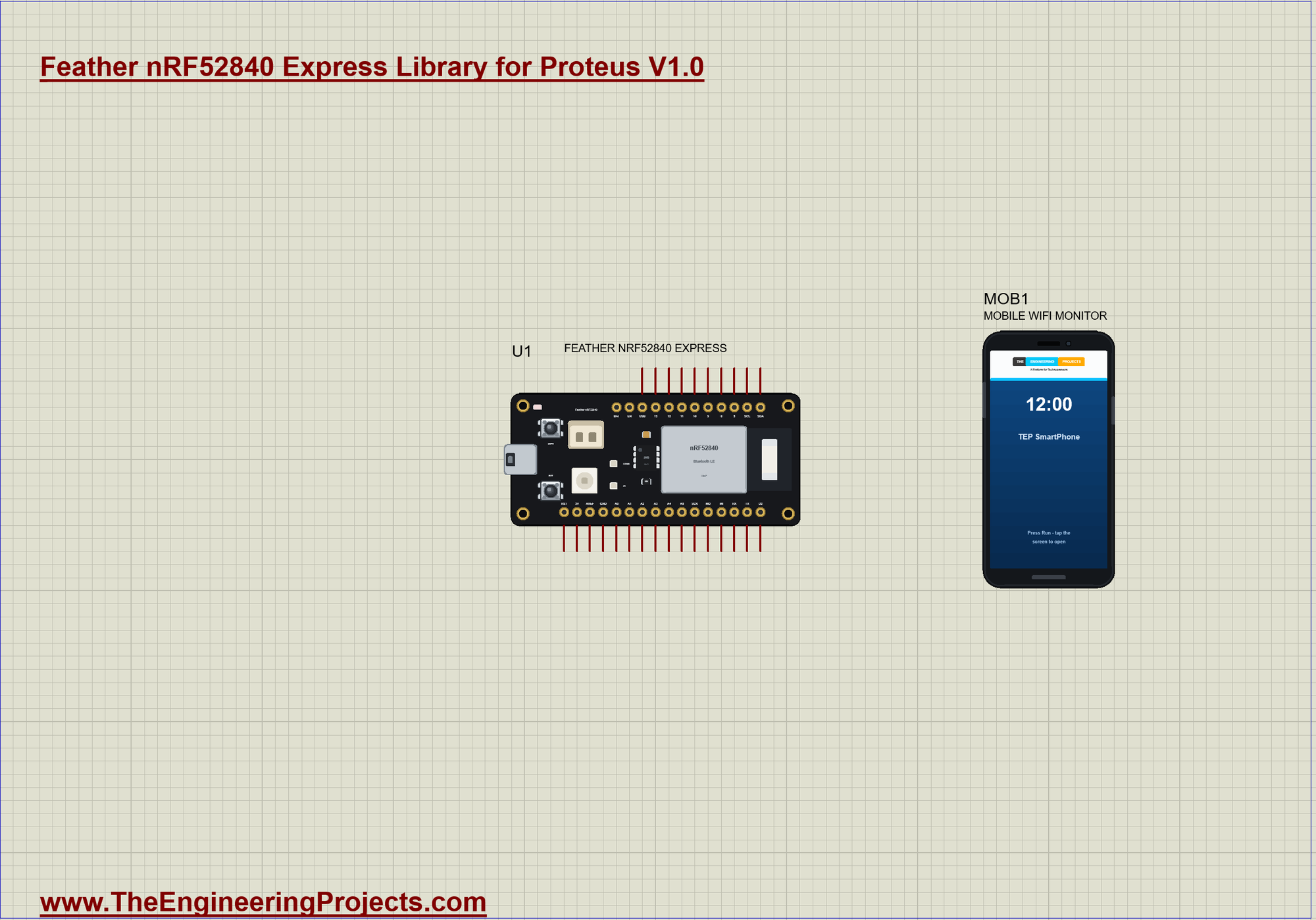
| On the board | What it does |
|---|---|
| USER | starts a round, then stops the clock |
| red LED | GO: lights after a random wait |
| blue CONN LED | on while the phone is connected |
| the phone | shows every message: get ready, GO, the time and the best time |
The Rounds
The sketch has three states: IDLE, WAITING and GO. startRound() switches the red LED off and picks a random wait of 1.5 to 4 seconds, so nobody can guess the moment:
void startRound() {
  state = WAITING;
  digitalWrite(LED_RED, LOW);
  waitUntil = millis() + random(1500, 4000);                // 1.5 to 4 s: nobody can guess it
  say(">> Get ready...");
}
Measuring the Reaction
userPressed() does different things, depending on the state: it starts a round, catches a false start, refuses a time under 100 ms as a guess, or measures the time since GO and keeps the best one:
void userPressed() {
  if (state == IDLE) { startRound(); return; }
  if (state == WAITING) {                                   // a false start
    state = IDLE;
    say(">> Too soon! Press USER to try again");
    return;
  }
  const unsigned long ms = millis() - goAt;                 // state == GO
  digitalWrite(LED_RED, LOW);
  state = IDLE;
  if (ms < GUESS_MS) {                                      // faster than a human can react: a guess
    say(">> Too fast - that was a guess! Press USER to try again");
    return;
  }
  rounds++;
  const bool record = best == 0 || ms < best;
  if (record) best = ms;
  char line[56];
  snprintf(line, sizeof line, ">> Round %u: %lu ms%s (best %lu ms)", rounds, ms, record ? " NEW BEST" : "", best);
  say(line);
}
One Line for Two Screens
say() sends every message to the serial monitor and to the phone. BLEUart is a Stream, so it has the same println() as Serial:
void say(const char *text) {
  Serial.println(text);
  bleuart.println(text);                                    // the phone shows the last line
}
Advertising
In setup() the board turns on the automatic CONN LED, starts Bluetooth with its name, adds the UART service to the advertising packet and starts advertising:
  Bluefruit.autoConnLed(true);                              // the blue CONN LED: on while connected
  Bluefruit.begin();
  Bluefruit.setName("Feather Reaction");
  Bluefruit.Periph.setConnectCallback(onConnect);
Watching the Clock
loop() reads USER on every pass and acts on the change to LOW, the moment of the press. When the random wait is over, it lights the red LED and remembers the time:
void loop() {
  const bool now = digitalRead(PIN_BUTTON1);
  if (now != lastUser) {
    lastUser = now;
    if (now == LOW) userPressed();
  }
  if (state == WAITING && (long)(millis() - waitUntil) >= 0) {
    state = GO;
    goAt = millis();
    digitalWrite(LED_RED, HIGH);                            // GO!
    say(">> GO!");
  }
}
Run the Simulation
Press Run. The board starts advertising and prints its name in the serial monitor, the same window as our TEP Serial Monitor Advance for Proteus:
Feather nRF52840 Express BLE Reaction Timer - The Engineering Projects
Advertising as "Feather Reaction" - press USER to start a round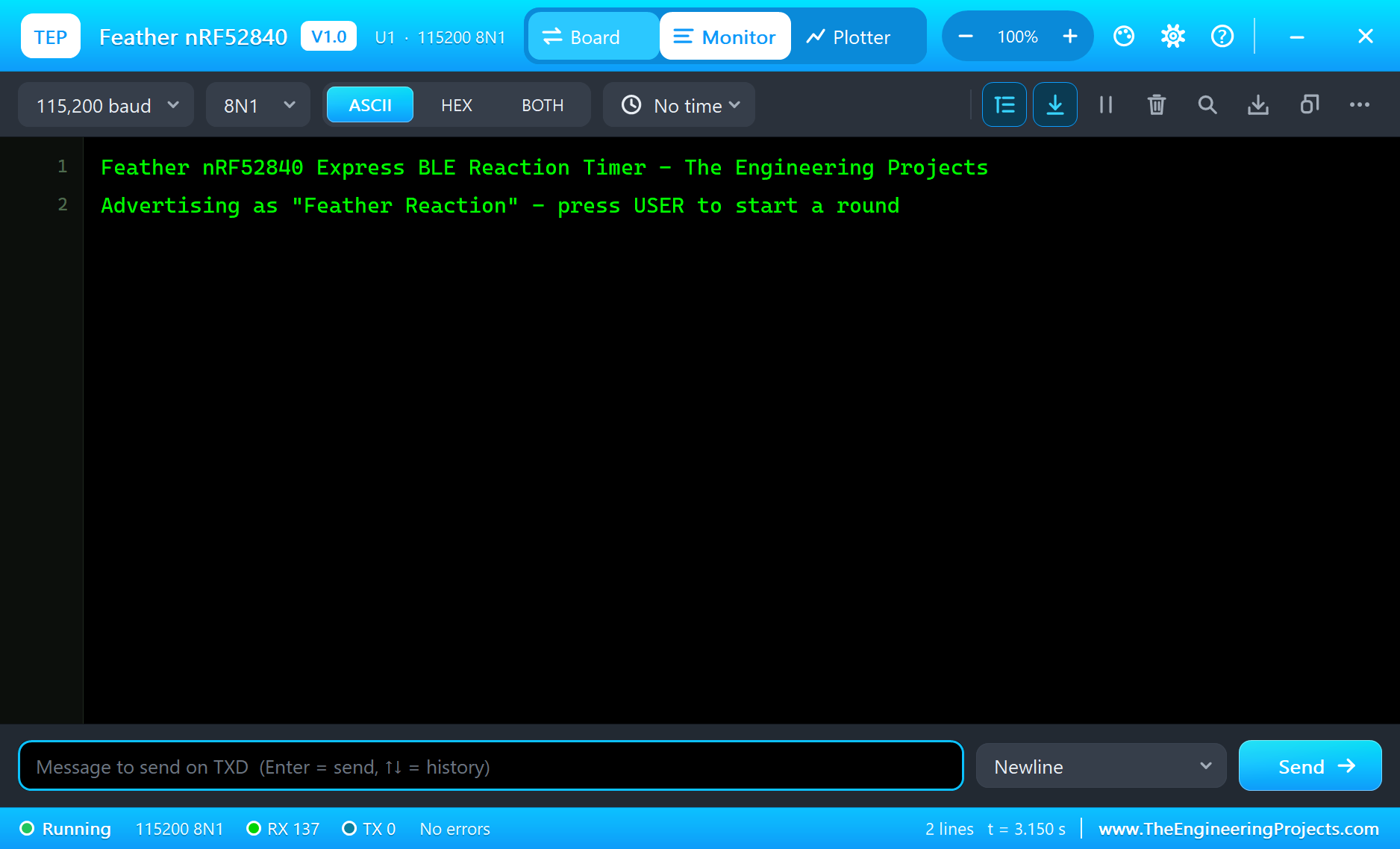
Connect the Phone
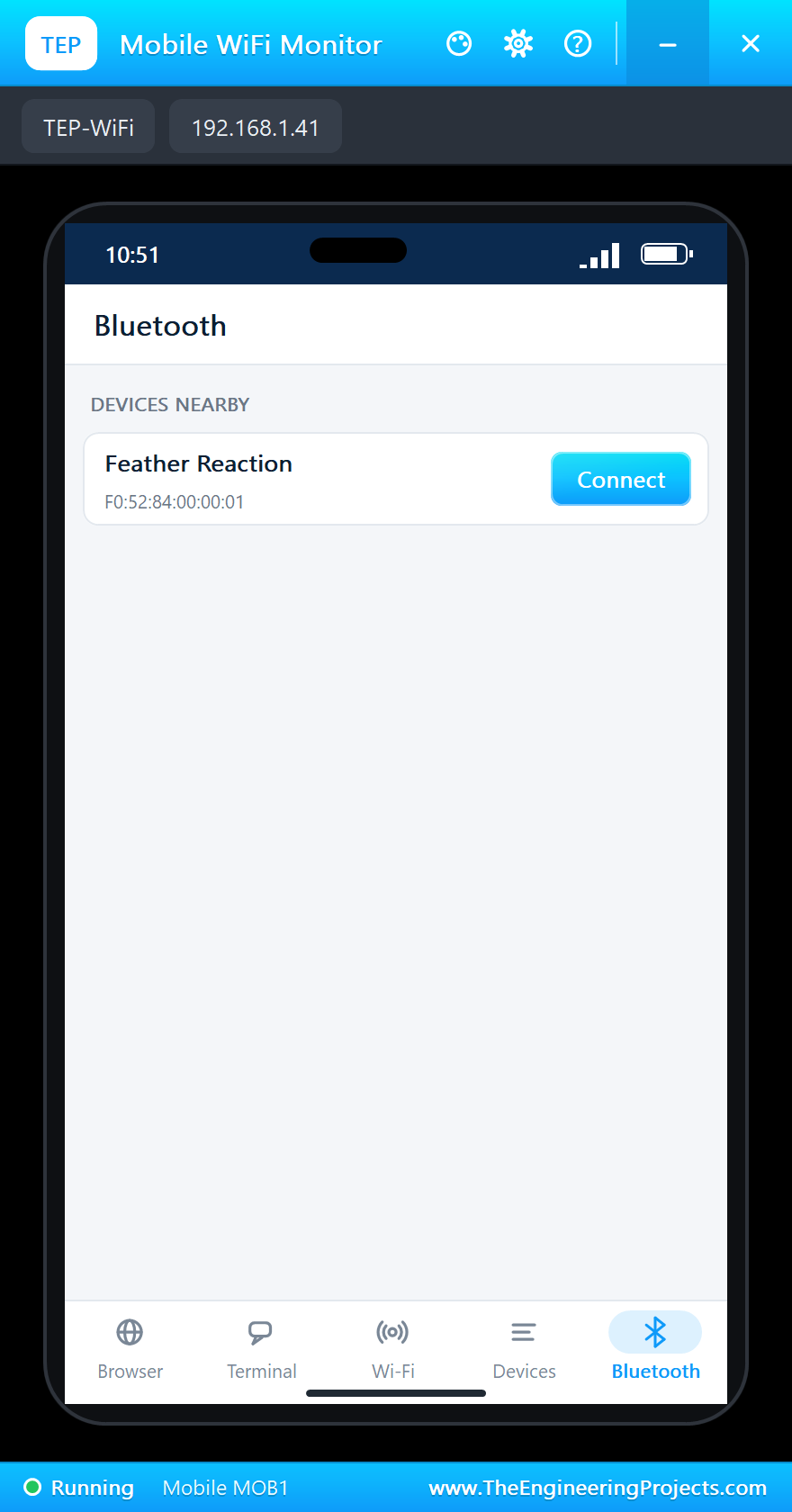
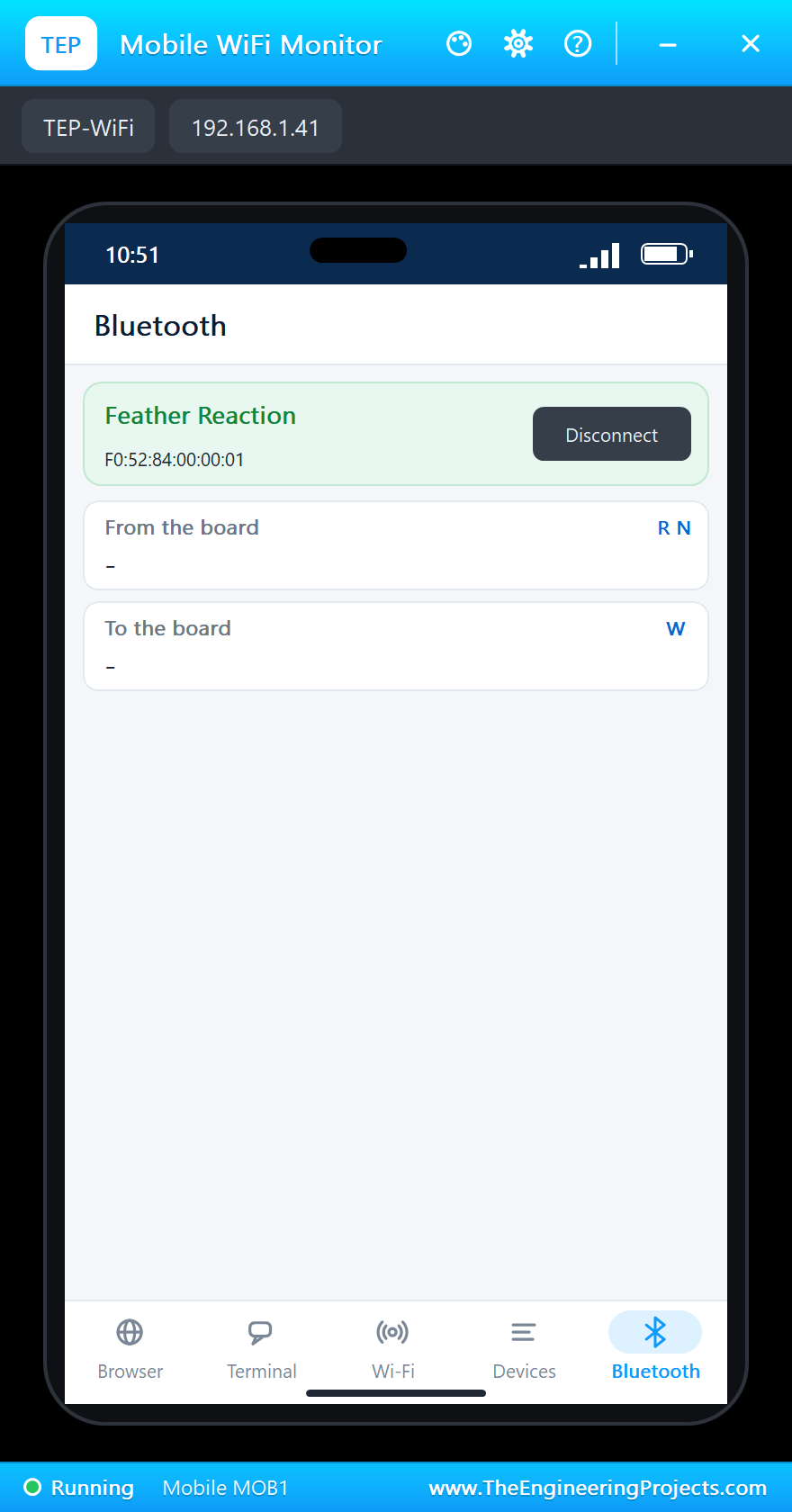
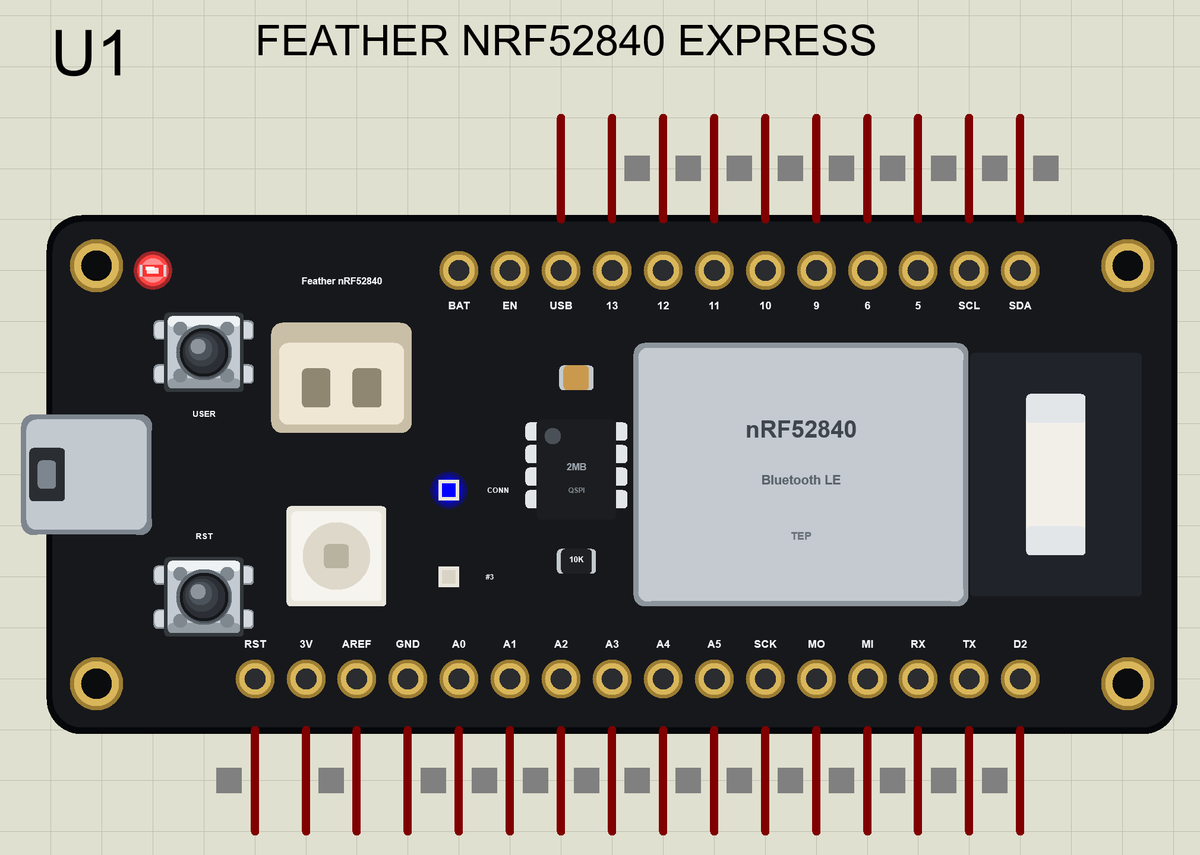
Click the phone, open its Bluetooth app and press SCAN. "Feather Reaction" appears; tap it to connect. The monitor prints "Phone connected" and the blue CONN LED lights:
Play a Round
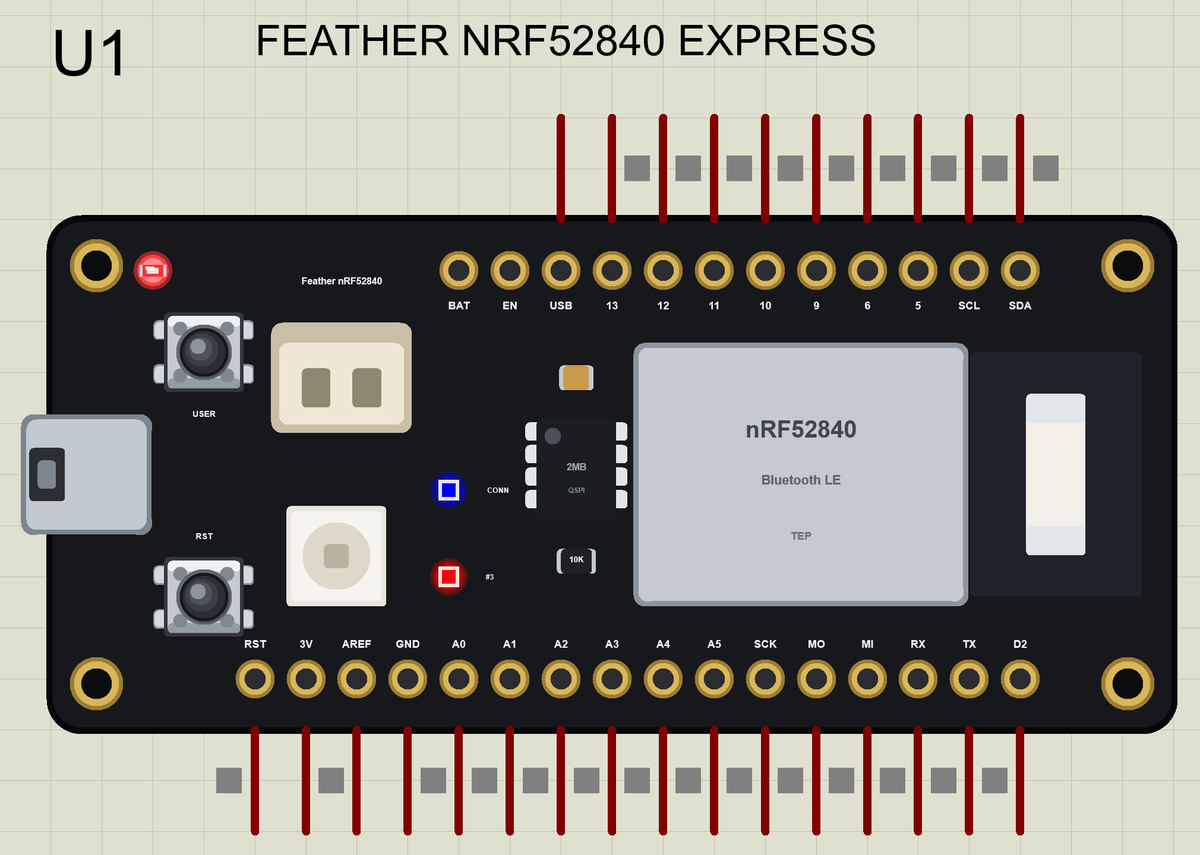
Click USER: "Get ready...". After a random wait the red LED lights and the board says GO! Click USER again as fast as you can:
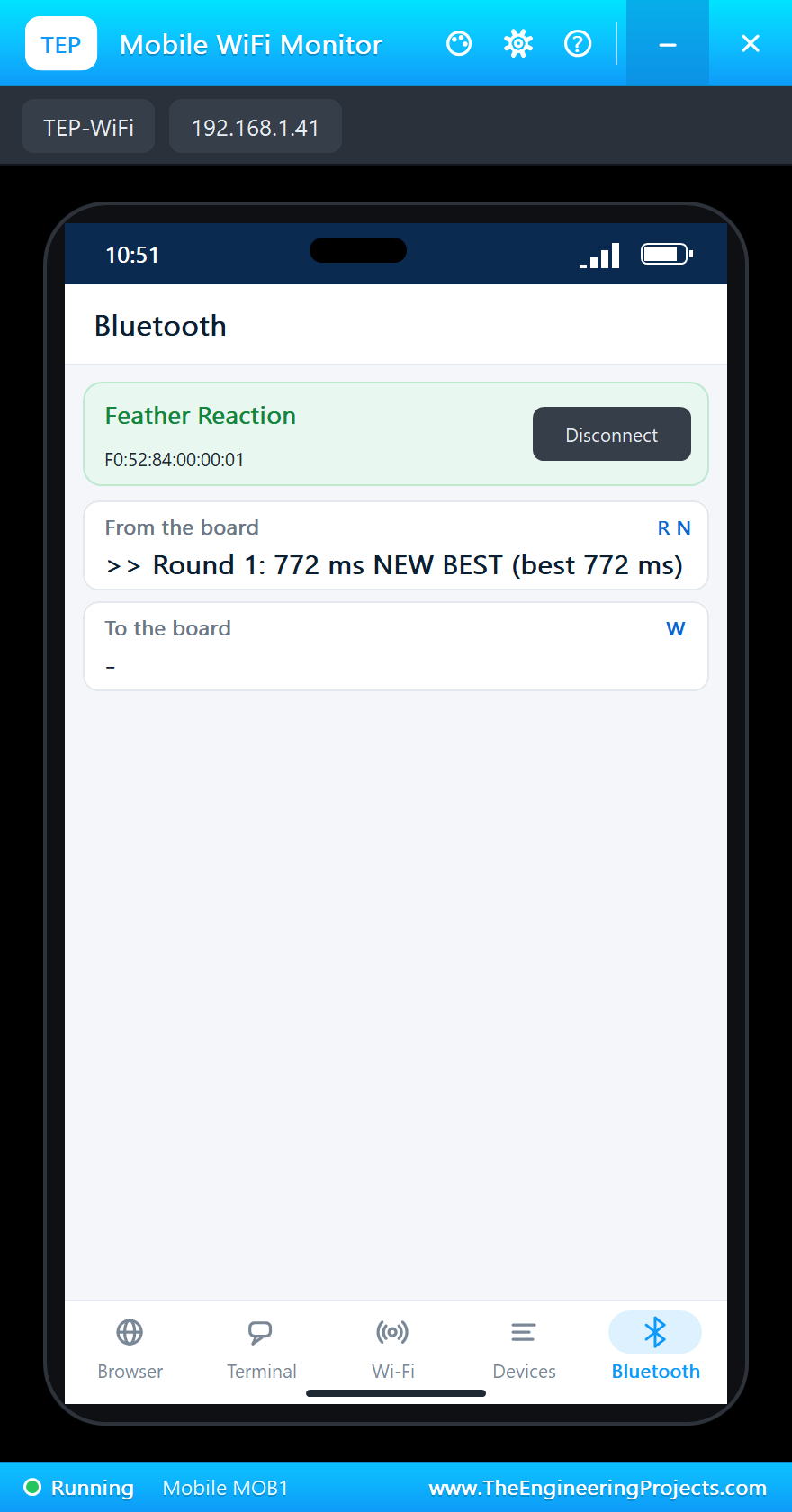
Here is the complete circuit while the simulation runs:
A False Start
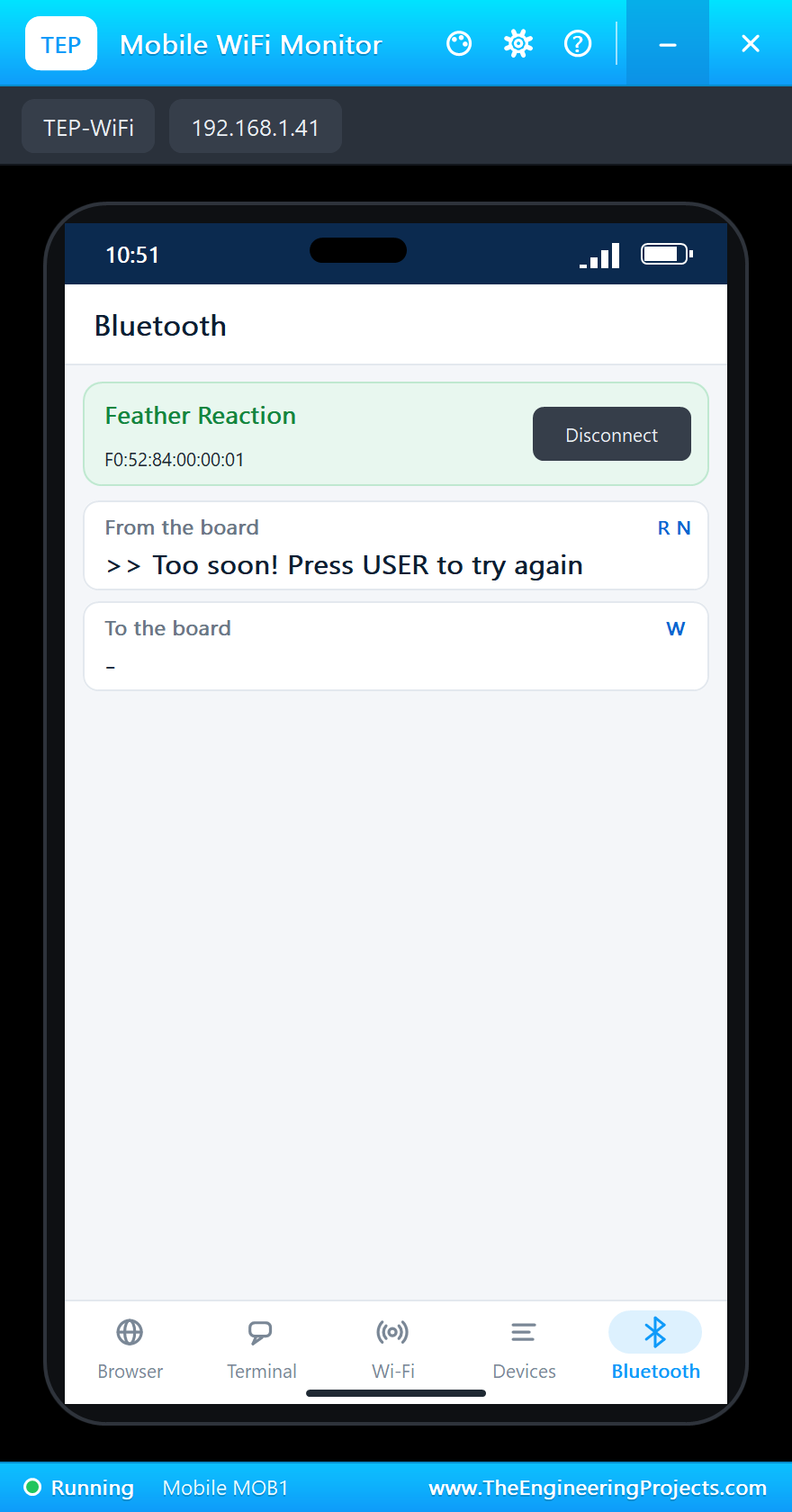
Start another round and click USER before the red LED lights. The board catches it: "Too soon!", and the round does not count:
After a few rounds the monitor holds the whole game:
Phone connected
>> Get ready...
>> GO!
>> Round 1: 772 ms NEW BEST (best 772 ms)
>> Get ready...
>> GO!
>> Round 2: 262 ms NEW BEST (best 262 ms)
>> Get ready...
>> Too soon! Press USER to try again
>> Get ready...
>> GO!
>> Round 3: 538 ms (best 262 ms)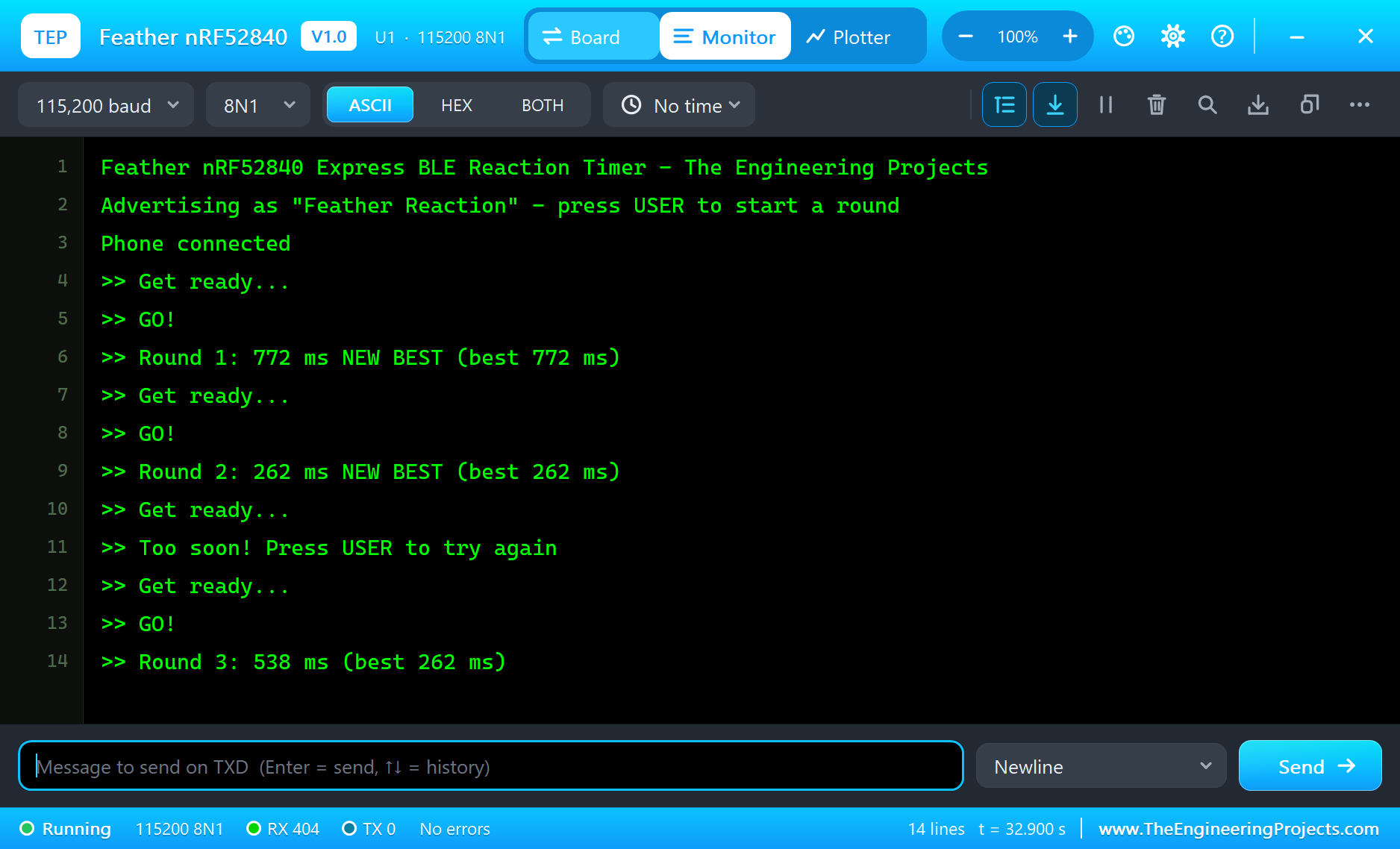
Why a Random Wait?
If the red LED always lit after exactly two seconds, players would learn the rhythm and press in advance - they would measure their sense of timing, not their reaction. A random wait between 1.5 and 4 seconds, and a penalty for pressing early, keep the game honest. Sprint starts go one step further: a reaction faster than 100 milliseconds counts as a false start, because no one reacts that fast - they guessed. Our timer uses the same limit.
How Fast Is a Human?
A typical reaction to a light is around 200 to 300 milliseconds; trained athletes get below 200. The time includes seeing the light, the brain's decision and the finger's movement. The microcontroller itself is many thousands of times faster: millis() counts every millisecond, and the loop reads the switch far more often than that. In the simulation the times depend on how quickly you click, as on the real board.
A State Machine in Three States
IDLE, WAITING and GO make the sketch easy to read and easy to extend: each press means something different in each state, and the loop never waits or blocks. That is why the board can watch the switch, the clock and the Bluetooth link at the same time. Most real devices are built this way.
Bluetooth Without Pairing
The demo connects without pairing: anyone nearby with a Bluetooth app can read the results. For a game that is fine. A device that controls something - a lock, a motor - should use pairing and bonding, which Bluefruit offers on the real board; our simulation models the plain connection.
Advertising Fast, Then Slow
The sketch calls Bluefruit.Advertising.setInterval(32, 244) and setFastTimeout(30). The intervals are counted in steps of 0.625 milliseconds, so the board advertises every 20 milliseconds for the first 30 seconds - a phone finds it almost at once - and then only every 152.5 milliseconds. Fewer packets mean less radio time, and on a battery that matters: a Feather that waits all day for a phone should advertise slowly. With restartOnDisconnect(true) it starts again by itself when the phone goes away.
Why Report to a Phone?
A small device rarely has a screen, but almost everyone carries a phone. Sending the results over Bluetooth LE turns the phone into the display, the log and the remote control of the device, at no extra cost. The same idea runs fitness bands, smart locks and plant sensors - and the BLE UART link used here is the quickest way to start, because both sides simply exchange lines of text.
Try It Yourself
- Keep the average of the last five rounds and send it to the phone.
- Blink the red LED three times for a new best time.
- Add the battery level with
BLEBas, so the phone shows it too. - Make a two-player game with a second button on D5.
Ideas to Extend the Timer
- Store the best time in the QSPI flash of the real board, so it survives a reset.
- Add a buzzer on D6 that beeps at GO.
- Let the phone send "start" over BLEUart to begin a round.
- Make the wait shorter as the player gets faster.
Your Own Sketches
Write the sketch in the Arduino IDE with the board Adafruit Feather nRF52840 Express (TEP Proteus), use Sketch > Export Compiled Binary and set the part's PROGRAM property to the .hex.
Moving to a Real Feather nRF52840 Express
- Add Adafruit's board URL in the Arduino IDE's preferences and install "Adafruit nRF52" from the Boards Manager.
- Select Adafruit Feather nRF52840 Express and upload the same sketch over USB.
- Open the Serial Monitor at 115200 baud.
- On the phone, open a Bluetooth LE app with a UART view (Adafruit's Bluefruit Connect, for example) and connect to "Feather Reaction".
- Press USER and play.
The sketch is the same: Bluefruit, the pin names and the LEDs move across without changes.
Things to Know Before Using a Real Feather
- 3.3 V logic: the pins are 3.3 V, as on every Feather; check every module before you connect it.
- The battery: a LiPo cell on the JST socket powers the board and charges from USB; check its polarity.
- The bootloader: a double-click on RESET starts the bootloader if an upload fails.
- D2 is NFC2: one of the NFC antenna pins; it ships as a normal GPIO.
Properties of the Feather nRF52840 Express
| Property | What it does |
|---|---|
| PROGRAM | the sketch: a .hex from TEP Boards for Proteus (board "Adafruit Feather nRF52840 Express") |
| MONITOR, BAUD, AUTOOPEN | the built-in serial monitor: on, its baud rate (115200), open at Run |
Troubleshooting
- The phone finds nothing: press SCAN after "Advertising as" is printed; the sketch must call
Bluefruit.Advertising.start(). - The phone shows no text: lines go out at their newline - use
println(). - The switch seems dead: use
pinMode(PIN_BUTTON1, INPUT_PULLUP)and act on the change to LOW. - An LED stays dark: LED_RED is D3 and LED_BLUE D4, lit when HIGH.
- A number goes wrong above 32767: int is 16 bits in the simulation - use long.
Limitations of the Simulation
- The NeoPixel is drawn, not modelled in this version; use the red and blue LEDs.
- The QSPI flash, the charger, NFC, USB HID and the central role of Bluetooth are not modelled.
- Your sketch gets 8 KB of RAM in the simulation, and int is 16 bits there.
- Adafruit, Feather and NeoPixel are names of Adafruit Industries, nRF52840 of Nordic Semiconductor and Arduino of Arduino, and the Bluetooth word mark belongs to Bluetooth SIG; this library is not made or endorsed by them or by Labcenter.
- Tested in Proteus 8.5 in November 2026 (the demo as shipped, about 32 s of simulation). Proteus 7 is not supported.
So, that was all about the Feather nRF52840 Express Library for Proteus. I hope it helps you try your Bluetooth ideas on a Feather in a simulation before you buy the board - the switch, the LEDs and the phone, all on one sheet. If you have any questions, ask in the comments and I will help you out. Till the next tutorial, take care and have fun!

Comments
0