


Arduino Due Library for Proteus: DAC Signal Generator, 3.5" TFT


Hello friends, I hope you all are doing great. Today, I am going to share the Arduino Due Library for Proteus. The Due was the first Arduino with a 32-bit ARM processor: an Atmel SAM3X8E - a Cortex-M3 at 84 MHz with 512 KB of flash and 96 KB of RAM - on the big Mega-sized board, with the Mega's headers and two things no AVR Arduino has: two real DACs. With this library it runs your Arduino Due sketch in Proteus 8.5, with the Due's own pin numbers.
Arduino Due Library for Proteus
Latest version: V1.0 (October 2026, this tutorial)
Helping Tools
- Laptop WiFi Monitor: a laptop on the Wi-Fi of your design: a browser, a TCP / UDP terminal and ping
- Mobile WiFi Monitor: a smartphone that opens the pages of your board and sends it commands
- Serial Monitor Advance: a serial terminal window for the UART of your board
The demo puts those DACs to work. It is a two-channel signal generator - sine, triangle, saw and square from 20 to 200 Hz - that measures its own outputs and draws them on a 3.5 inch TFT LCD shield like a small oscilloscope, while an Arduino Ethernet Shield 2 gives it a web page to change the wave from a phone or a laptop.
NOTICE: Proteus has no SAM3X8E model, so our team has put a lot of effort into building this board ourselves: the Due's pins, DACs and LEDs are all our own model, and your sketch compiles with our free TEP Boards for Proteus add-on. Your feedback is the fuel that keeps us going, so please tell us what you think in the comments below or in the Arduino Due board of our forum. And if our free libraries help you, you can buy us a coffee. So, let's get started with the Arduino Due Library for Proteus:
What is the Arduino Due?
Arduino released the Due in 2012. It keeps the size and the header layout of the Arduino Mega 2560 - 54 digital pins, 12 analog inputs, four serial ports - but replaces the 8-bit AVR with Atmel's SAM3X8E, so the same shields fit and sketches run many times faster. Everything on it works at 3.3 V, which is the one thing to watch when you plug old 5 V shields on it. (The Mega itself is in our Arduino Mega 2560 Library for Proteus.)
Look along the left edge and you find two micro-USB sockets. The PROGRAMMING port goes through an ATmega16U2, as on the UNO, and is the usual way to upload; the NATIVE port goes straight to the SAM3X and can make the Due a USB keyboard, a mouse or a USB host. Next to them are the DC jack, the RESET button and an ERASE button that wipes the flash, and in the middle the JTAG header for a debugger and the 6-pin SPI header - on the Due, SPI lives only there, not on D50 to D52 as on the Mega.
| Arduino Due | Arduino Mega 2560 | |
|---|---|---|
| Chip | Atmel SAM3X8E, Cortex-M3 at 84 MHz | ATmega2560, 8-bit AVR at 16 MHz |
| Memory | 512 KB flash, 96 KB SRAM | 256 KB flash, 8 KB SRAM |
| Logic | 3.3 V (not 5 V tolerant) | 5 V |
| Analog | 12 inputs (12 bits), 2 DAC outputs | 16 inputs (10 bits), no DAC |
| USB | PROGRAMMING (16U2) and NATIVE micro-USB | one USB-B (16U2) |
| SPI | the 6-pin SPI header only | D50 to D53 and the ICSP header |
Why the Arduino Due?
Speed, memory and analog output. The Due runs floating-point maths, audio and long buffers that would never fit an UNO, and its two 12-bit DACs give real analog voltages - for test signals, audio, a programmable reference or a control voltage - without a filter on a PWM pin. Because it keeps the Mega's headers, most shields fit straight on top; it is still a popular board for synthesizers, CNC and 3D-printer controllers and data acquisition.
Features of the Arduino Due Library for Proteus
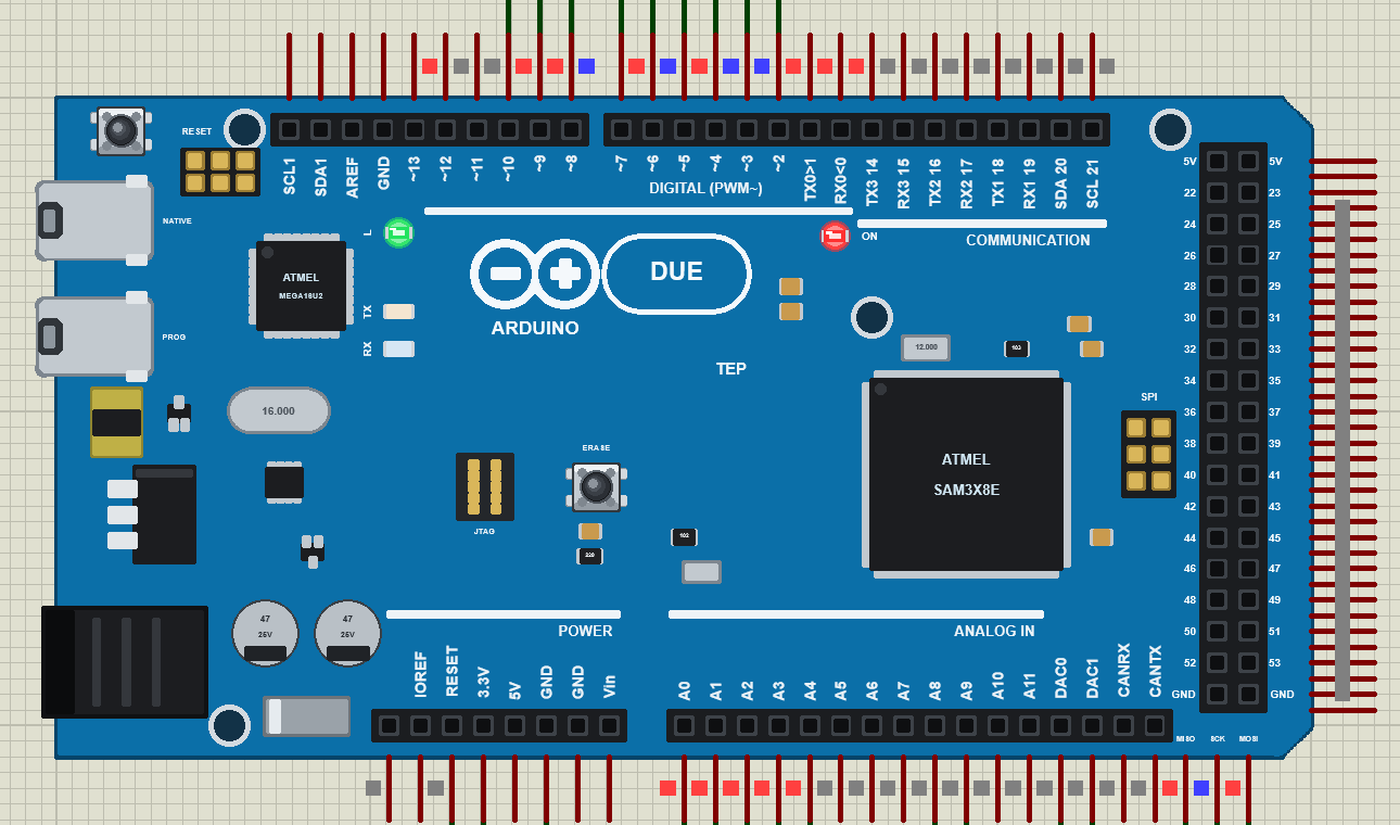
- The board as it looks: the blue Due with the Mega's headers, the PROGRAMMING and NATIVE ports, the 16U2, the DC jack, ERASE and RESET, the JTAG and SPI headers, the SAM3X8E and the ON, L, TX and RX LEDs.
- Your sketch: a .hex for "Arduino Due (TEP Proteus)" with the Due's numbers - D0 to D53, A0 to A11, DAC0, DAC1, LED_BUILTIN = 13 - analogRead and analogReadResolution(12), analogWrite, attachInterrupt, Serial, Serial1 to Serial3, Wire and SPI on the SPI header.
- Two real DACs: analogWrite on DAC0 and DAC1 puts out 0.55 to 2.75 V, as the SAM3X's DAC does, with 8 or 12 bits.
- Mega shields: every header pin behaves like the Mega's pin in the same place, so Mega shield libraries such as MCUFRIEND_kbv work unchanged.
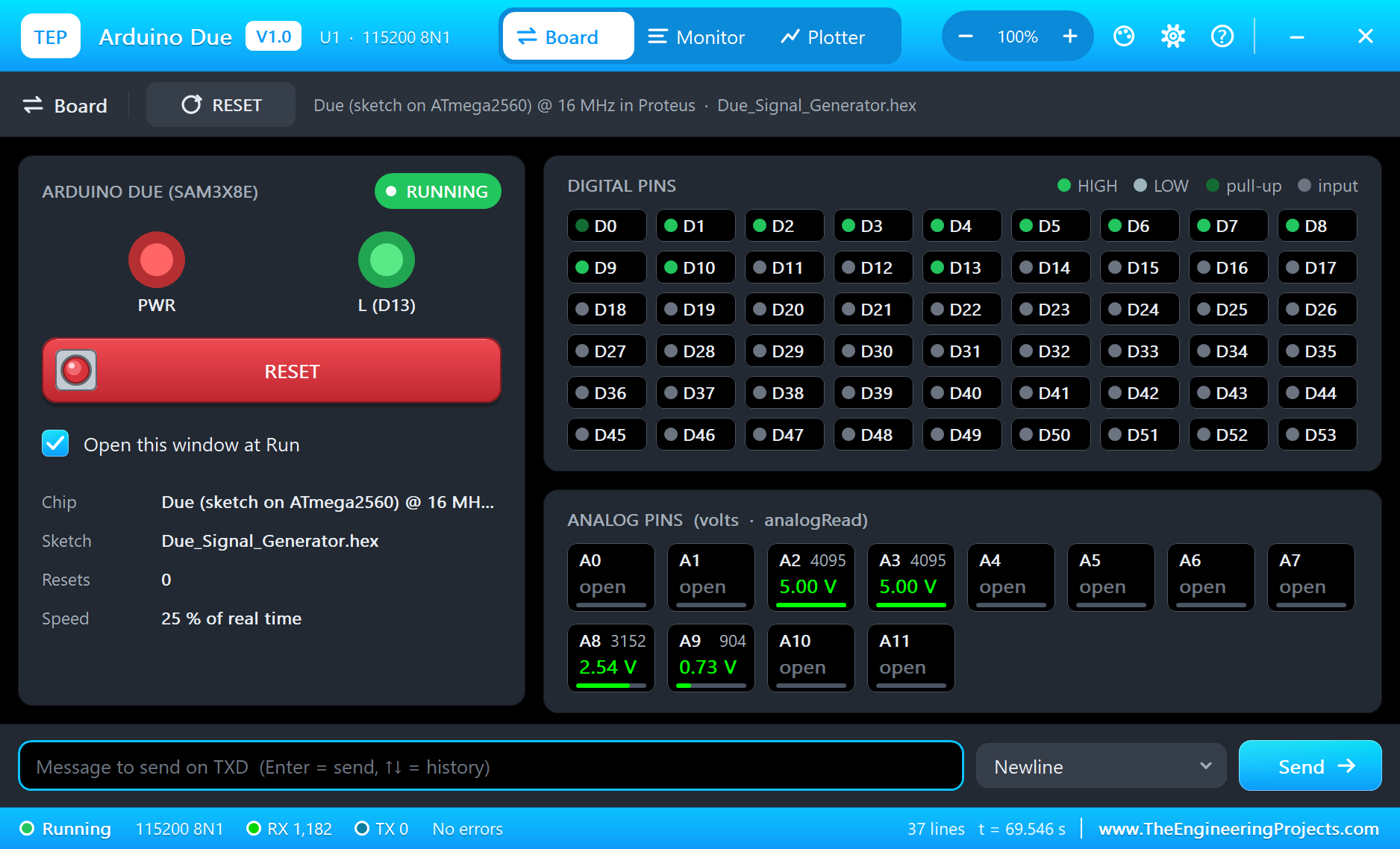
- The serial monitor: the built-in monitor on the PROGRAMMING port with Monitor, Plotter and Board tabs - our TEP header, no Windows title bar.
- A complete package: about 3.2 MB with the board, the add-on, the TFT and Ethernet Shield 2 libraries and the demo, without the source code of the models.
The Arduino Due in Proteus
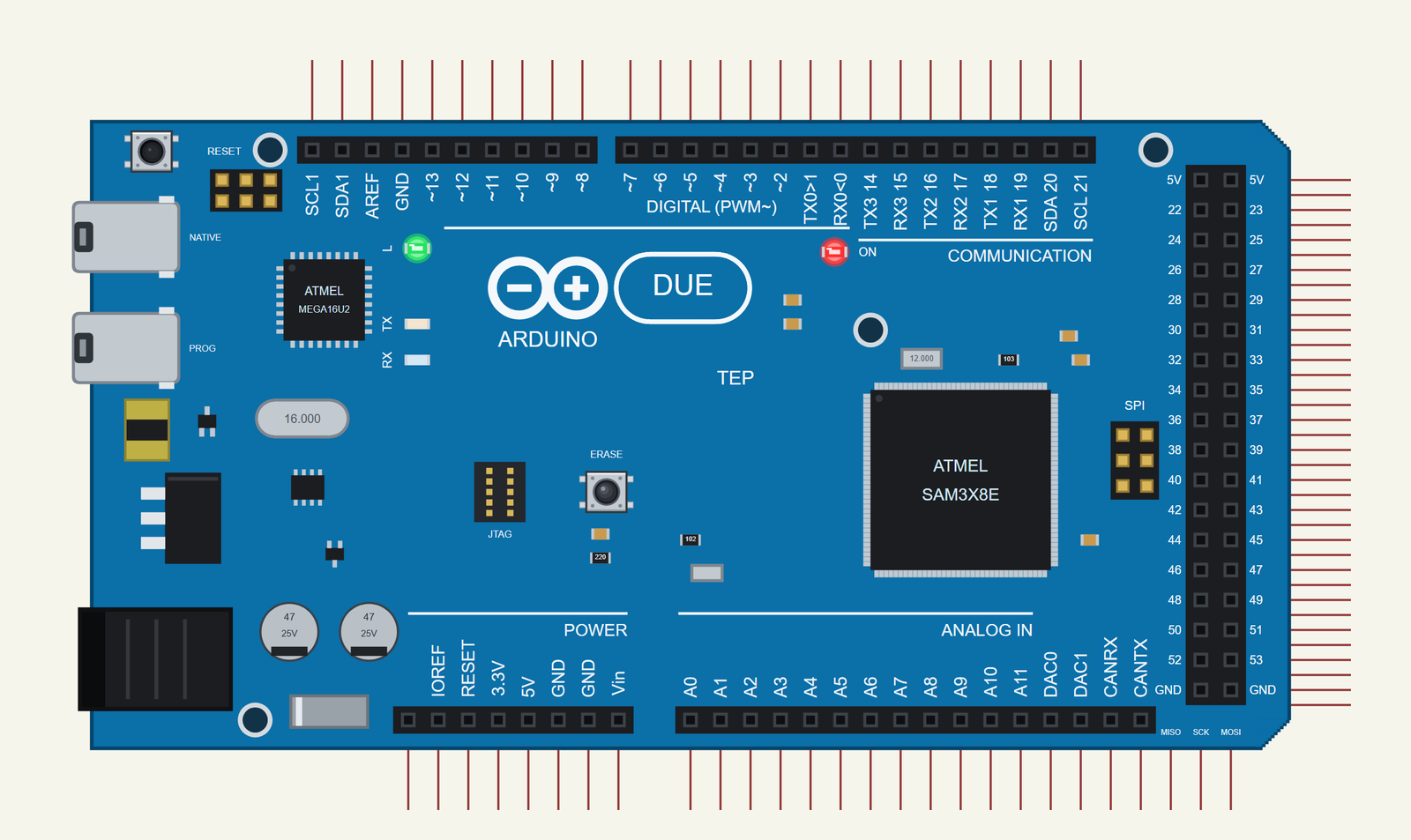
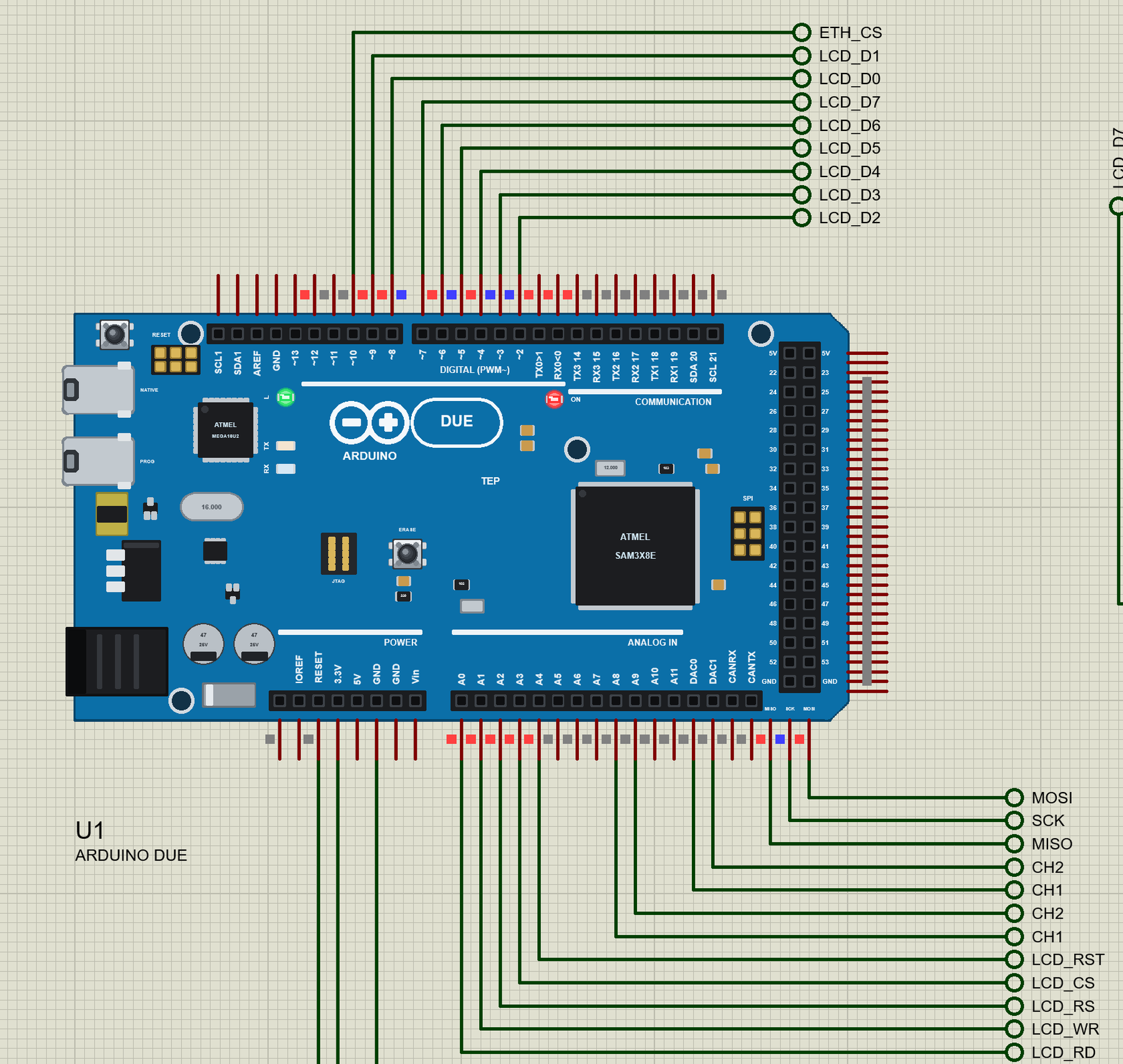
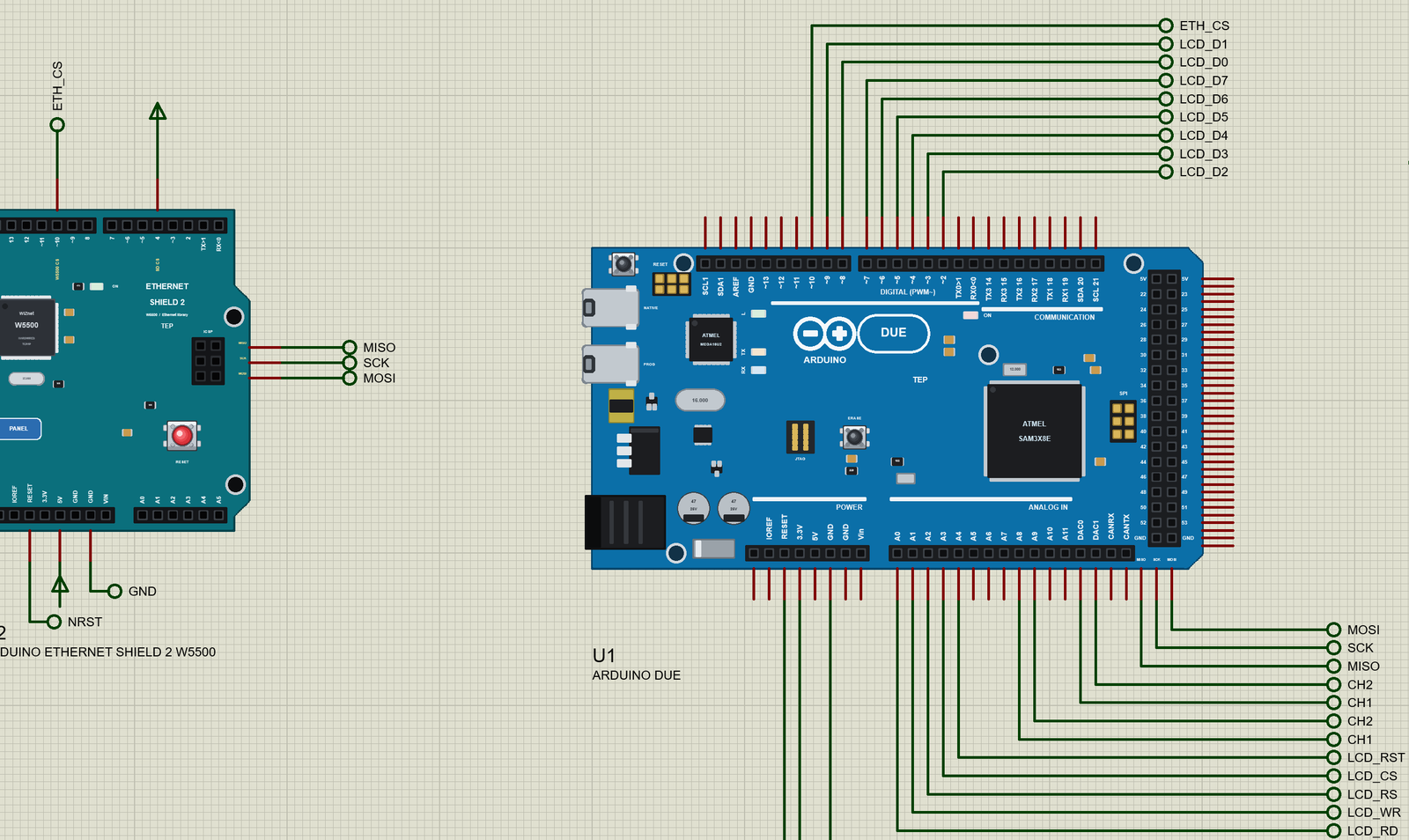
Search DUE in Pick Devices; the device ARDUINO DUE is in TEPDUE.LIB (Microprocessor ICs, Arduino Boards), with the prefix U. The board lies as the Mega does: the digital and communication pins on top, the power, analog, DAC and CAN pins at the bottom, the 2x18 header at the right end. The three SPI lines - MISO, SCK and MOSI - leave the board at the bottom right, under the 2x18 header. Click the PROGRAMMING port to open the serial monitor.
The Pins
| Pins | What the library does with them |
|---|---|
| D0 / D1 | Serial (the PROGRAMMING port), GPIO |
| D2 to D13 | GPIO, PWM (analogWrite), interrupt; D13 is also the L LED |
| D14 to D19 | Serial3, Serial2 and Serial1, GPIO, interrupt |
| D20 / D21 | Wire SDA / SCL |
| D22 to D53 | GPIO; interrupt on D22 to D39 |
| A0 to A11 | analogRead, 10 bits or 12 with analogReadResolution(12) |
| DAC0 / DAC1 | analogWrite: 0.55 to 2.75 V |
| MISO, SCK, MOSI | the SPI header |
| 3.3V, 5V, GND | 3.3 V (the logic), 5 V, ground |
The pins are numbered as on the real board, and analogRead(0) reads A0 just as analogRead(A0) does. CANRX and CANTX are plain pins here; the CAN controllers, the NATIVE port and Wire1 on SDA1 / SCL1 are drawn but not modelled.
Download Arduino Due Library for Proteus
Click the button below to download Arduino-Due-Library-for-Proteus-v1.0.zip (about 3.2 MB, without the source code of the models):
Arduino Due Library for Proteus V1.0- README.txt: installation, the demo, the pins, the properties, troubleshooting and the limits.
- Proteus Library Files:
TEPDUE.LIBand the demo's parts:TEPTFTSHIELD35.LIB,TEPETHSHIELD2.LIB,TEPLAPTOP.LIBandTEPMOBILE.LIB. - Proteus Model Files:
TEPNET.DLL(the board, the Ethernet Shield 2, the laptop, the phone and the network) andTEPTFTSHIELD35.DLL. - Arduino Code: the demo sketch and the TEP Boards for Proteus add-on 1.31.0.
- Proteus Simulation: the demo project, its HEX file and copies of the DLLs.
No Proteus yet? Read How to Download and Install Proteus 7 and 8. New to libraries? Follow How to Install a New Library in Proteus.
How to Install Arduino Due Library for Proteus
- Close Proteus and extract the whole zip file, for example to your Desktop.
- Copy the files from Proteus Library Files into the LIBRARY folder of Proteus.
- Copy the DLLs from Proteus Model Files into the MODELS folder, replacing an older TEPNET.DLL.
- Delete
TEPDUE.IDXfrom the LIBRARY folder if it is there. - For your own sketches, copy Arduino Code\TEP Boards for Proteus\hardware into your Arduino sketchbook (Documents\Arduino) and restart the Arduino IDE; the board is Arduino Due (TEP Proteus). For the demo install MCUFRIEND_kbv, Adafruit GFX, Adafruit BusIO and Ethernet from the Library Manager.
- Start Proteus, press P and search for DUE.
Demo: a Two-Channel Signal Generator with a TFT Scope
A signal generator is the first instrument many people build for their bench: a known wave to feed an amplifier, a filter or an ADC. With two DACs the Due can make one on its own, and with a screen it can show what it makes. This demo does both, and it measures the real output instead of drawing the numbers it sent.
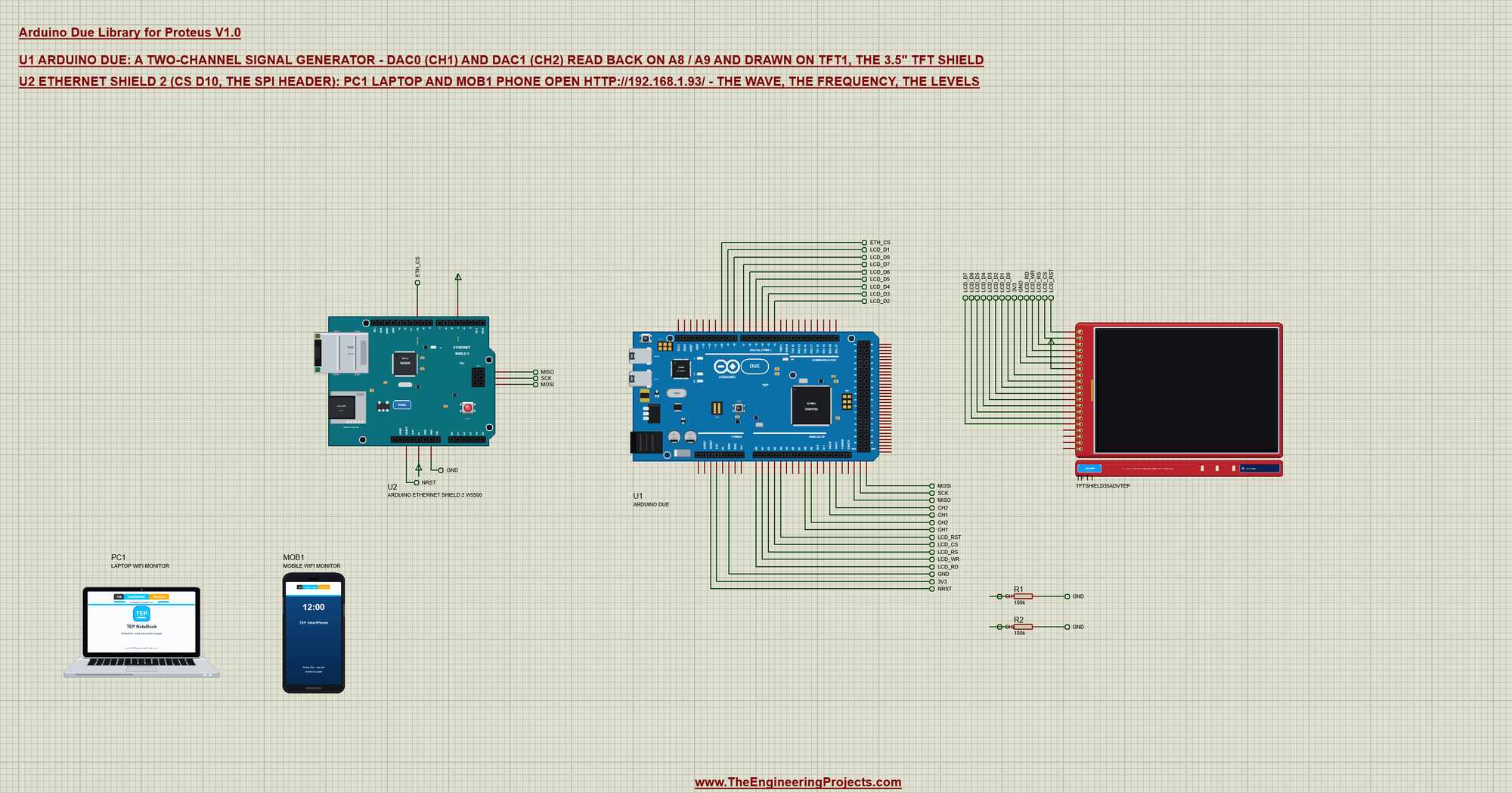
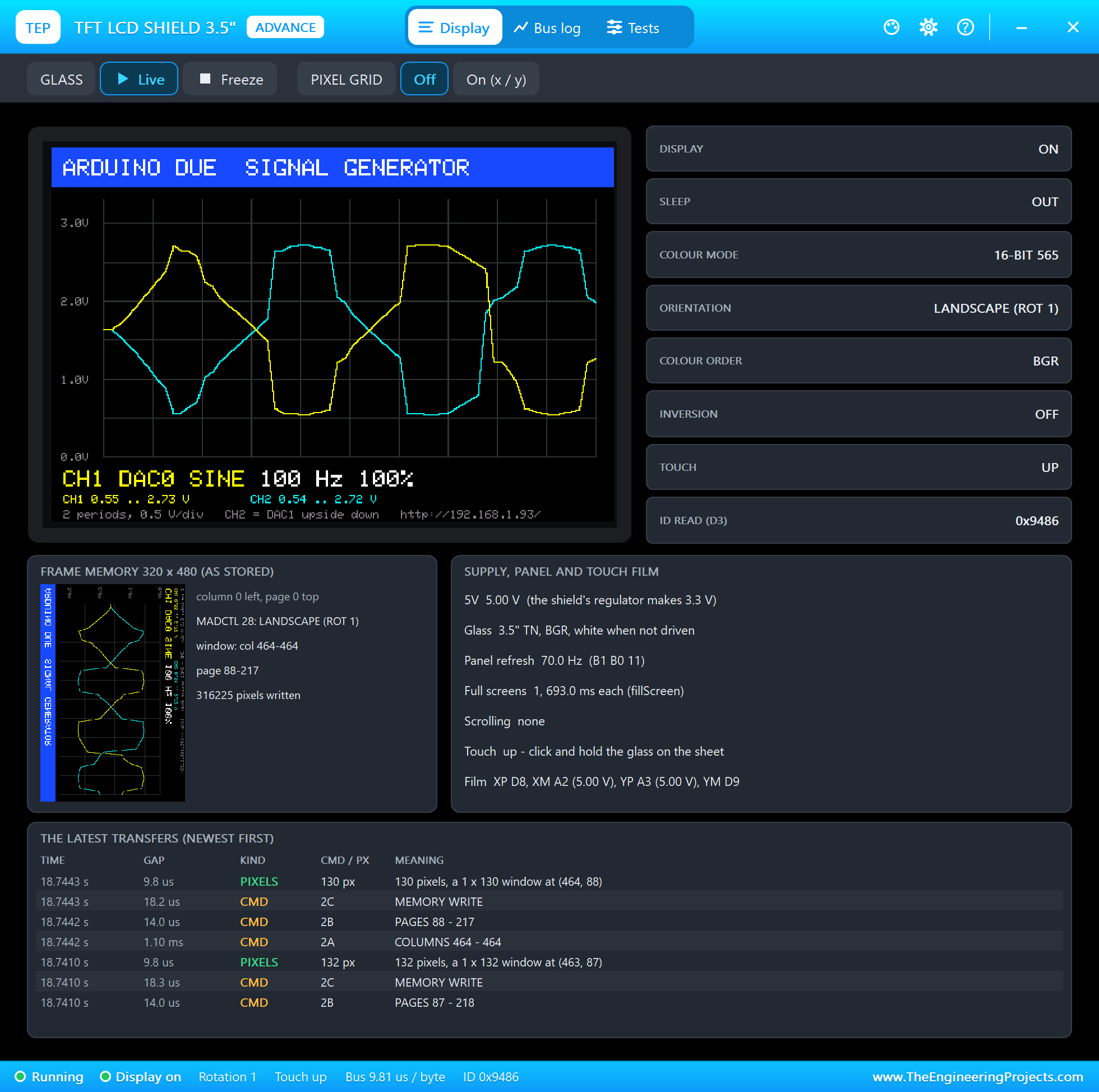
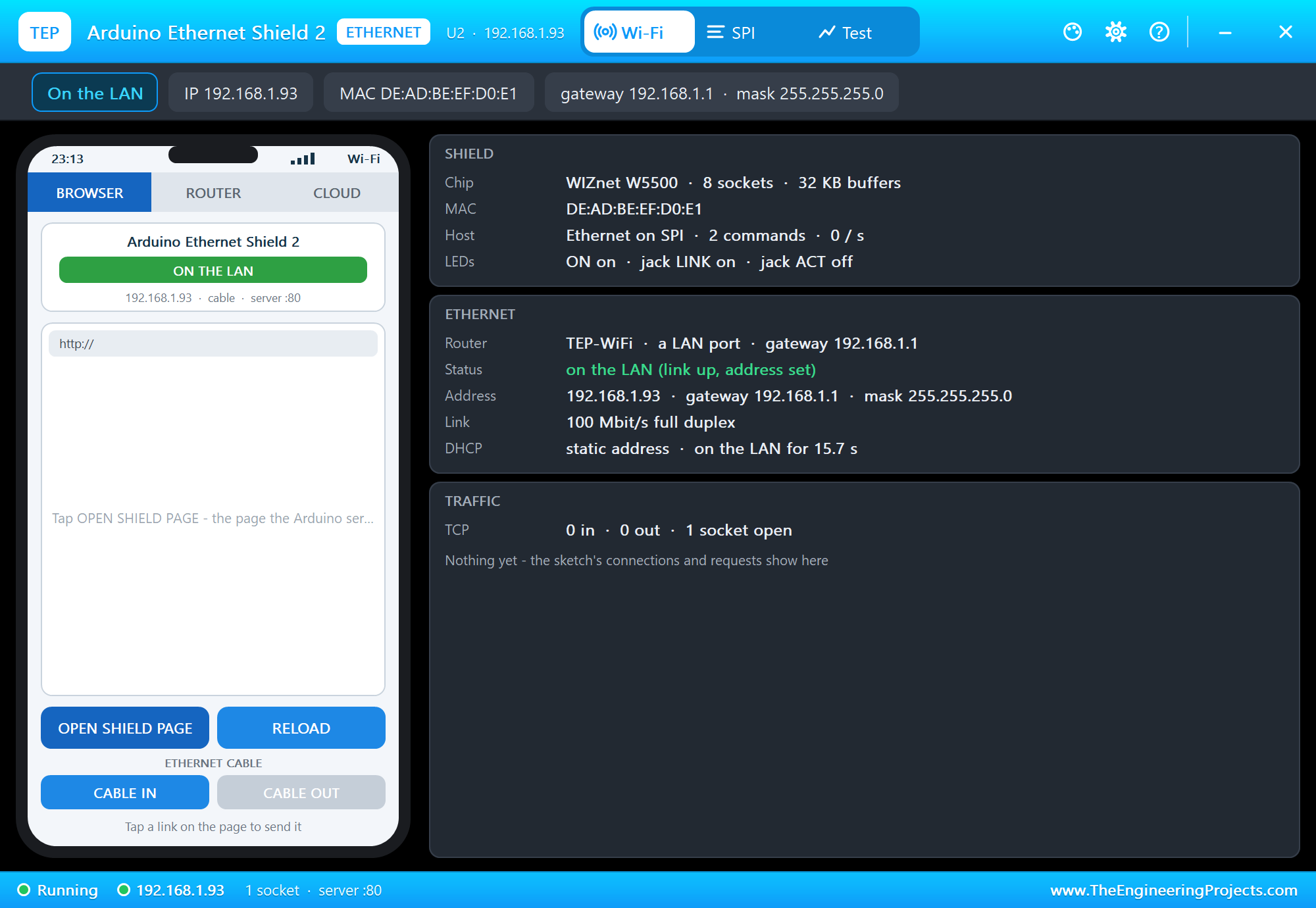
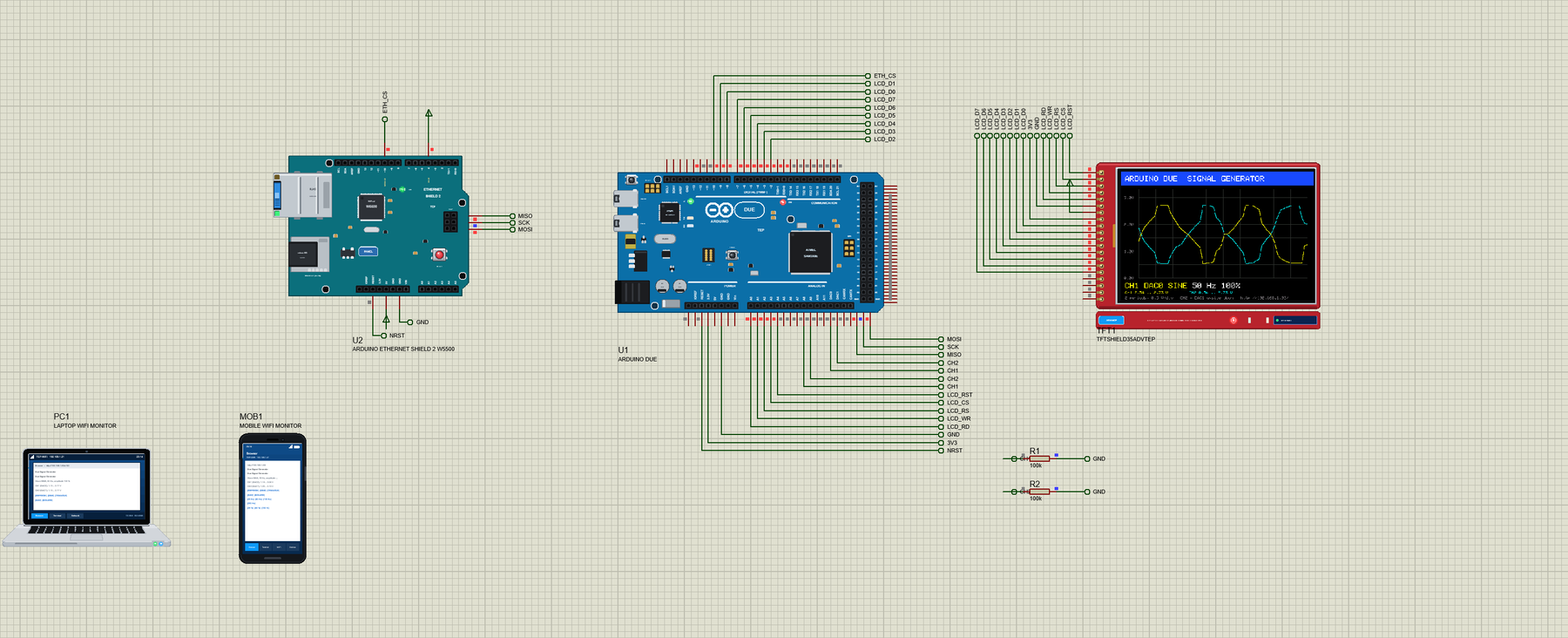
Open Due-Signal-Generator.pdsprj. U1 runs Due_Signal_Generator.hex. TFT1 is the screen from our 3.5 inch TFT LCD Shield Library for Proteus - an ILI9486 with 480 x 320 pixels - and U2 the shield from our Arduino Ethernet Shield 2 Library for Proteus. The TFT is the Advance version: it opens its pop-up window at Run, as the Ethernet shield does. PC1 is the Laptop WiFi Monitor and MOB1 the Mobile WiFi Monitor. R1 and R2 load the two DAC outputs.
| Part | Pins | Due pins | Notes |
|---|---|---|---|
| TFT shield (TFT1) | LCD_D0 to LCD_D7 | D8, D9, D2 to D7 | the 8-bit bus, as on a Mega |
| LCD_RD, WR, RS, CS, RST | A0 to A4 | the control lines | |
| Ethernet Shield 2 (U2) | CS, MISO, SCK, MOSI | D10 and the SPI header | its micro SD deselected; 192.168.1.93 |
| CH1 / CH2 | DAC0 / DAC1 | A8 / A9 | read back; R1 / R2 100k to GND |
Why does a Mega shield library work on the Due? MCUFRIEND_kbv writes the TFT's 8-bit bus straight into the Mega's port registers when it sees a Mega. Our team made every Due header pin answer those port writes exactly as the Mega's pin in the same place does, so the library works without a change.
Making the Waves
The sketch keeps one period of the wave in a table of 32 DAC codes, from 0 to 4095. A sine, a triangle, a saw and a square are just four formulas, scaled by the amplitude around the middle of the range:
void makeTable() {
  for (byte i = 0; i < N; i++) {
    const float x = (float)i / N;                           // 0 .. 1 along the period
    float s;                                                // -1 .. 1
    if (wave == SINE) s = sin(2 * PI * x);
    else if (wave == TRIANGLE) s = x < 0.5 ? 4 * x - 1 : 3 - 4 * x;
    else if (wave == SAW) s = 2 * x - 1;
    else s = x < 0.5 ? 1 : -1;
    table[i] = constrain(2048 + (long)(s * 2047 * amp / 100), 0, 4095);
  }
  periodUs = 1000000UL / ((unsigned long)freq * N);
}
loop() sends the next sample whenever its time comes - 32 samples a period, so 3200 a second at 100 Hz. DAC0 gets the code and DAC1 its mirror image, so CH2 is CH1 upside down:
  const uint16_t v = table[k];
  analogWrite(DAC0, v);
  analogWrite(DAC1, 4095 - v);
With analogWriteResolution(12) the DACs take 12-bit codes. The SAM3X's DAC does not reach the rails: 0 gives 0.55 V and 4095 gives 2.75 V, one sixth and five sixths of 3.3 V. Our model does the same, and the measured traces show it.
Measuring the Outputs
Every two seconds the sketch waits for the start of a period and captures two of them. Before each new sample it reads A8 and A9 - the voltages the last sample left on the DAC pins - so the screen shows what really comes out, including the DAC's range and the load:
  if (capturing) {
    cap1[capN] = (uint32_t)analogRead(A8) * 3300 / 4095;
    cap2[capN] = (uint32_t)analogRead(A9) * 3300 / 4095;
    if (++capN == CAP) { capturing = false; captured = true; }
  }
The traces are drawn on a grid of 0.5 V a division. An 8-bit TFT is fast at long bursts of pixels and slow at many small windows, so the sketch redraws the screen a column at a time: for each of the 421 columns it puts the grid, the old traces (now black) and the new ones into a buffer and sends one window and one burst:
    const bool vline = (x - GX) % (GW / 10) == 0;
    int n = 0;
    for (int y = lo; y <= hi; y++) {
      bool grid = vline;
      for (byte v = 0; v < 7 && !grid; v++) grid = y == gridY[v];
      colBuf[n++] = (y >= lo1 && y <= hi1) ? YELLOW : (y >= lo2 && y <= hi2) ? CYAN : grid ? GRID : BLACK;
    }
    tft.setAddrWindow(x, lo, x, hi);
    tft.pushColors(colBuf, n, true);
A redraw takes a moment, and the output holds meanwhile; the L LED goes out while it happens. A finished instrument feeds the SAM3X's DAC from a timer with DMA, so the wave never pauses.
The Network Page
The Ethernet Shield 2 sits on the Due's SPI header with its chip select on D10. Its links are short paths - /sine, /f200, /a50 - and one function turns a path, or a word typed in the monitor, into a setting:
bool apply(const char *p, const __FlashStringHelper *from) {   // a path or a command word: the setting it names
  if (!strcmp_P(p, PSTR("sine"))) wave = SINE;
  else if (!strcmp_P(p, PSTR("tri"))) wave = TRIANGLE;
  else if (!strcmp_P(p, PSTR("saw"))) wave = SAW;
  else if (!strcmp_P(p, PSTR("square"))) wave = SQUARE;
  else if (p[0] == 'f' && (atoi(p + 1) == 20 || atoi(p + 1) == 50 || atoi(p + 1) == 100 || atoi(p + 1) == 200)) freq = atoi(p + 1);
  else if (p[0] == 'a' && (atoi(p + 1) == 25 || atoi(p + 1) == 50 || atoi(p + 1) == 100)) amp = atoi(p + 1);
  else return false;
  settings(from);
  return true;
}
Run the Demo
Press Run. The serial monitor opens; the TFT answers with its ID, the shield comes up on the LAN and the first captures arrive:
Due Signal Generator - The Engineering Projects
TFT readID: 0x9486
W5500: 192.168.1.93, link ON
Page: http://192.168.1.93/
>> SINE 100 Hz, amplitude 100 % (start)
CH1 0.55 .. 2.73 V  CH2 0.54 .. 2.72 V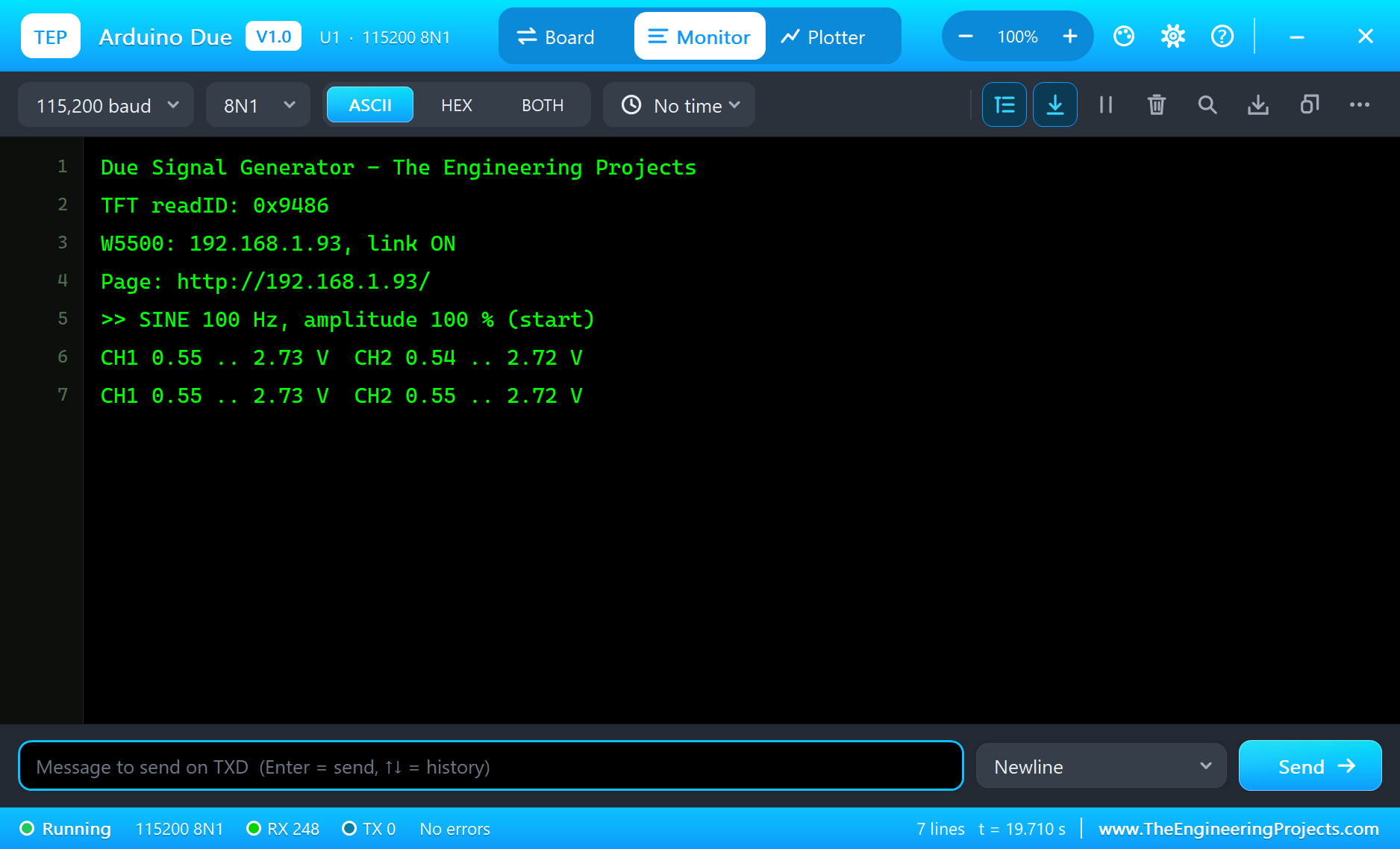
Open the Page
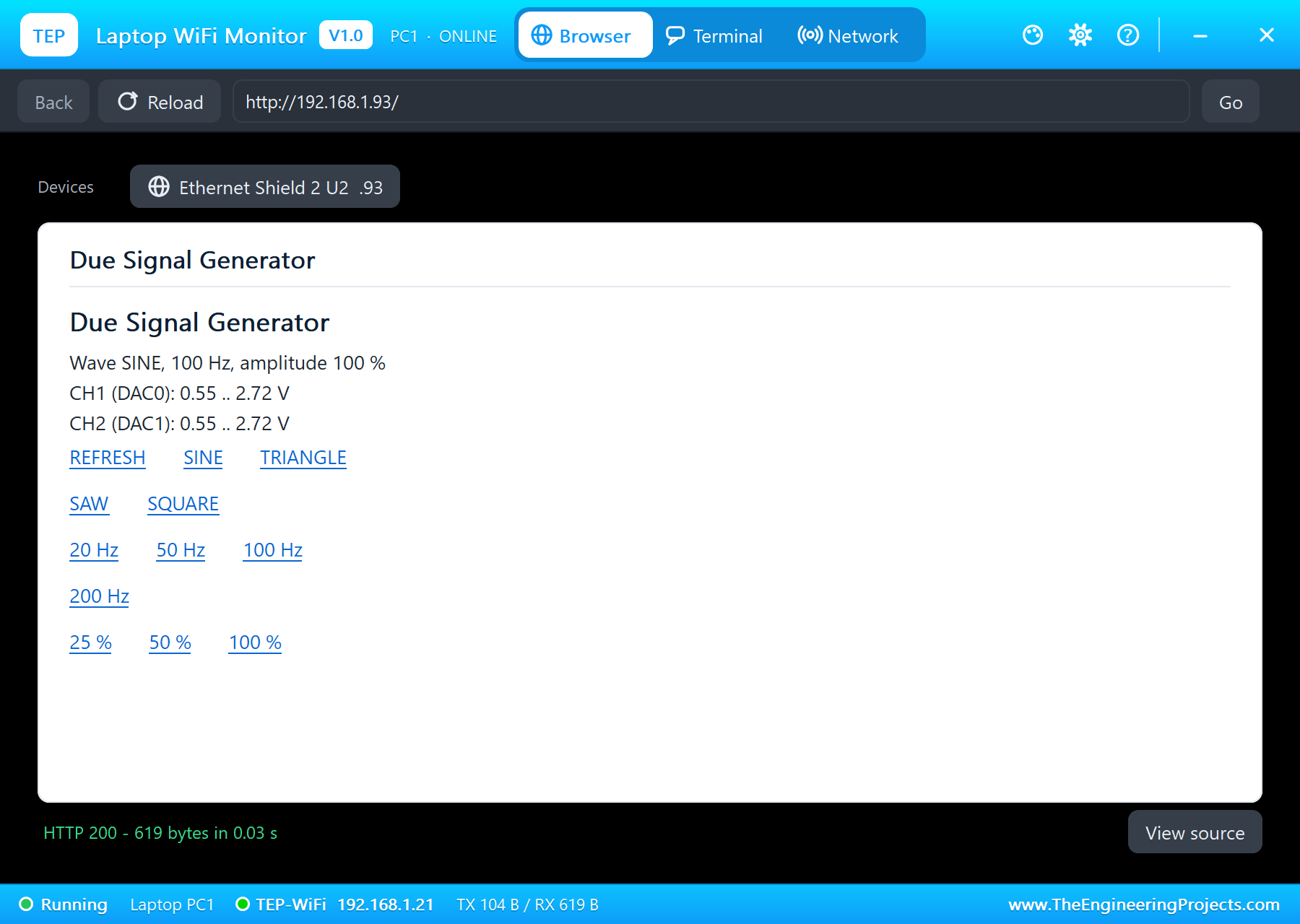
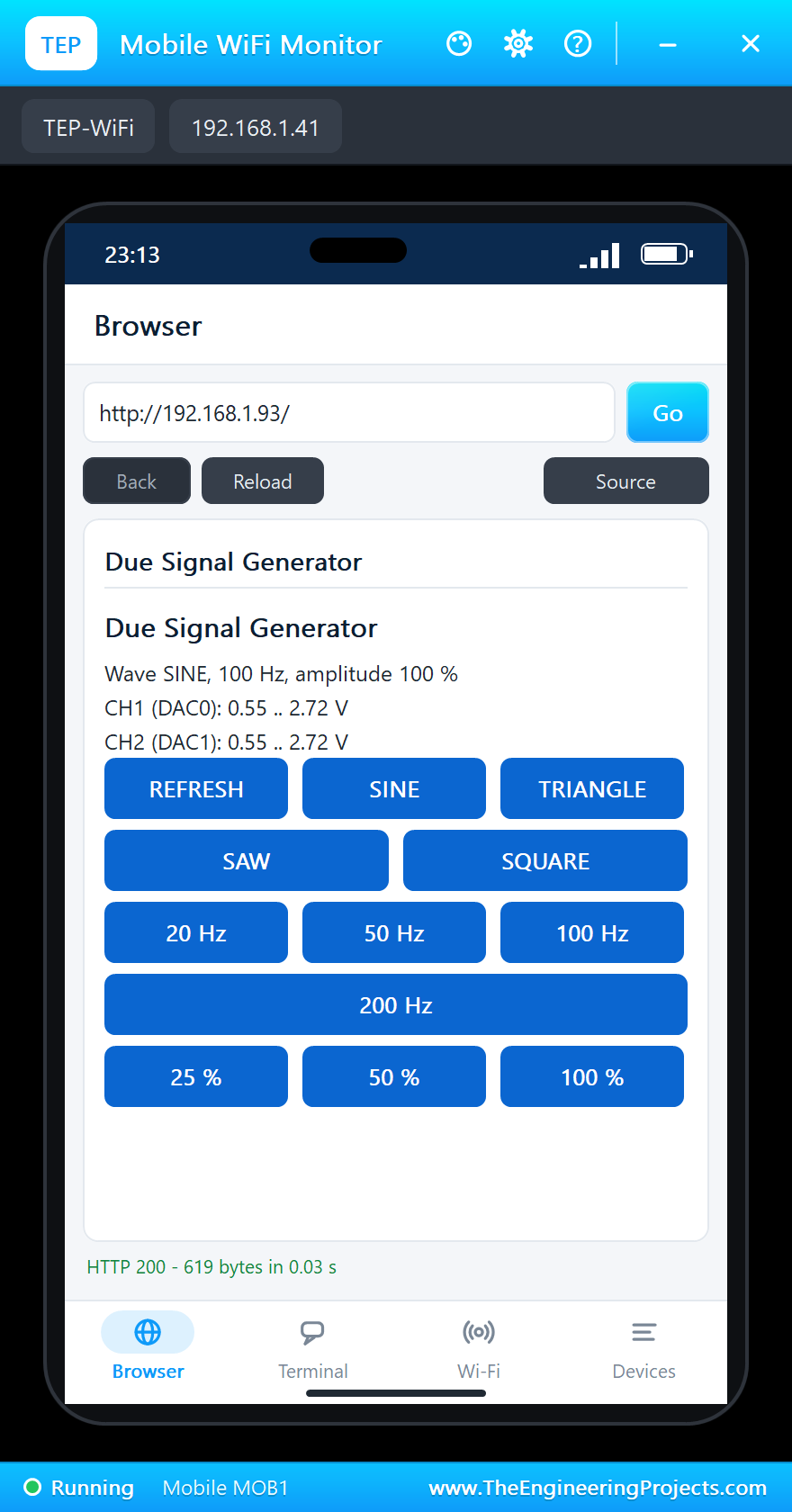
On the laptop click Browser and Go; on the phone the same - both open http://192.168.1.93/:
Change the Wave
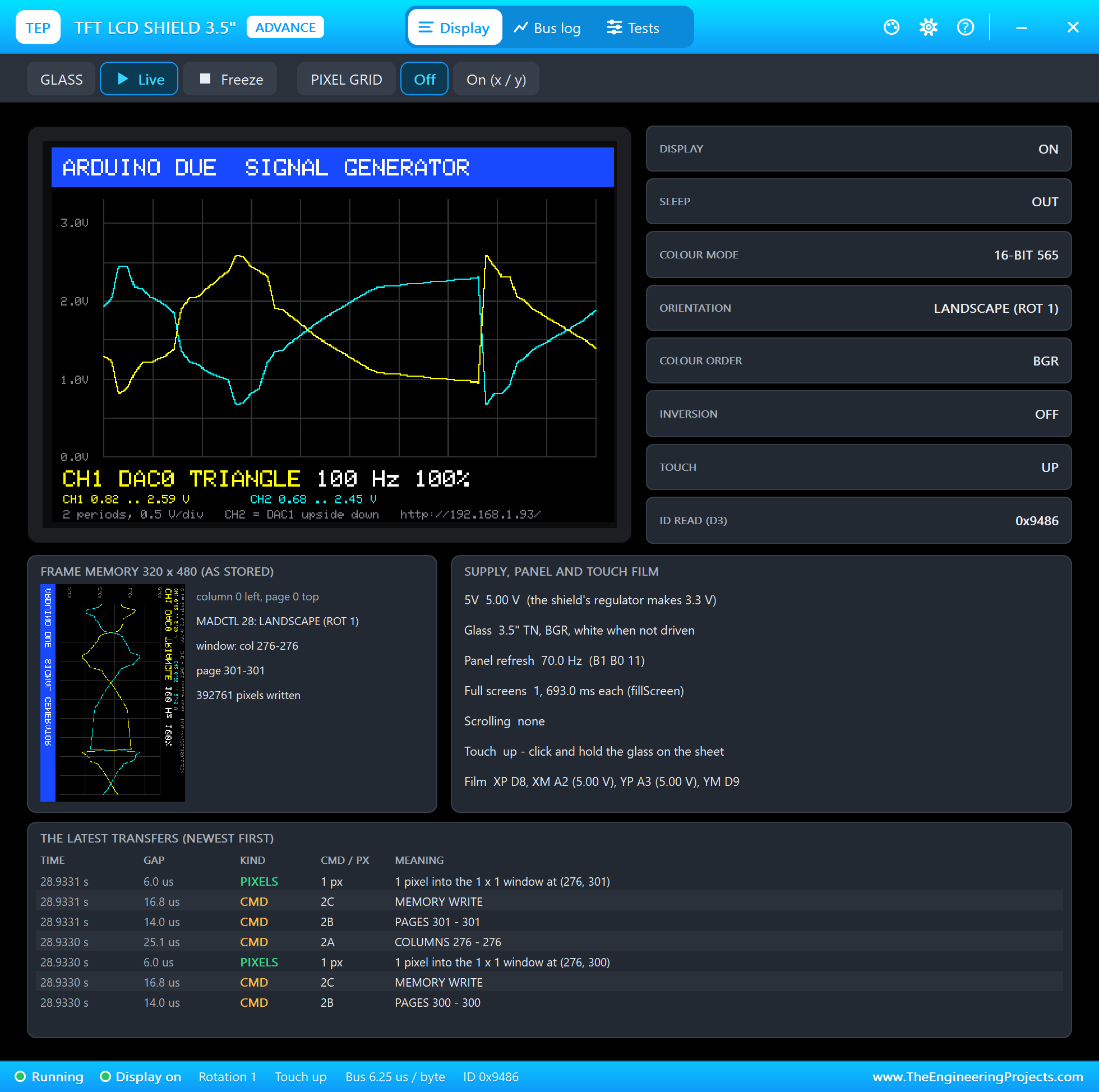
Click TRIANGLE on the laptop. The next capture shows the new shape:
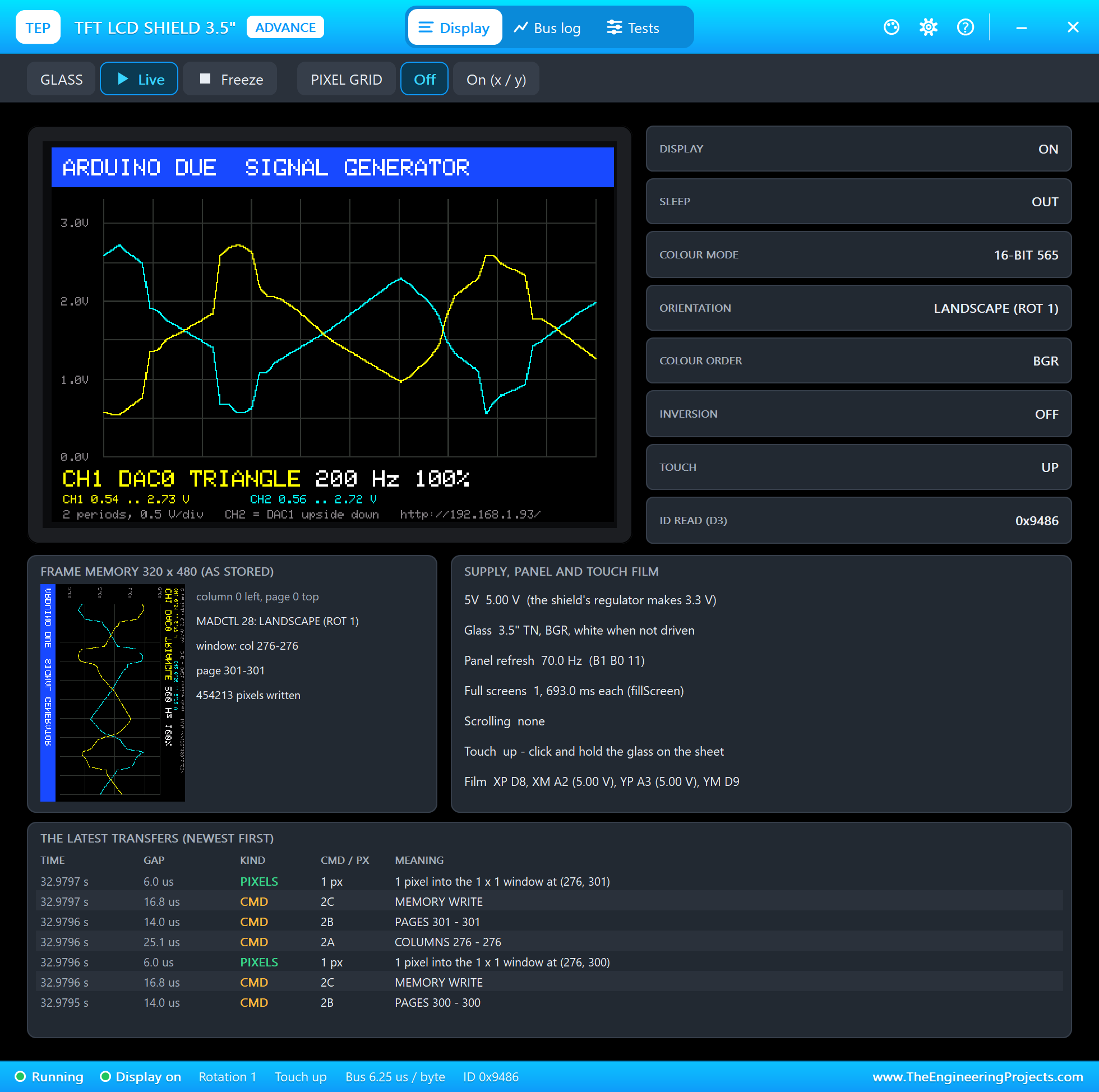
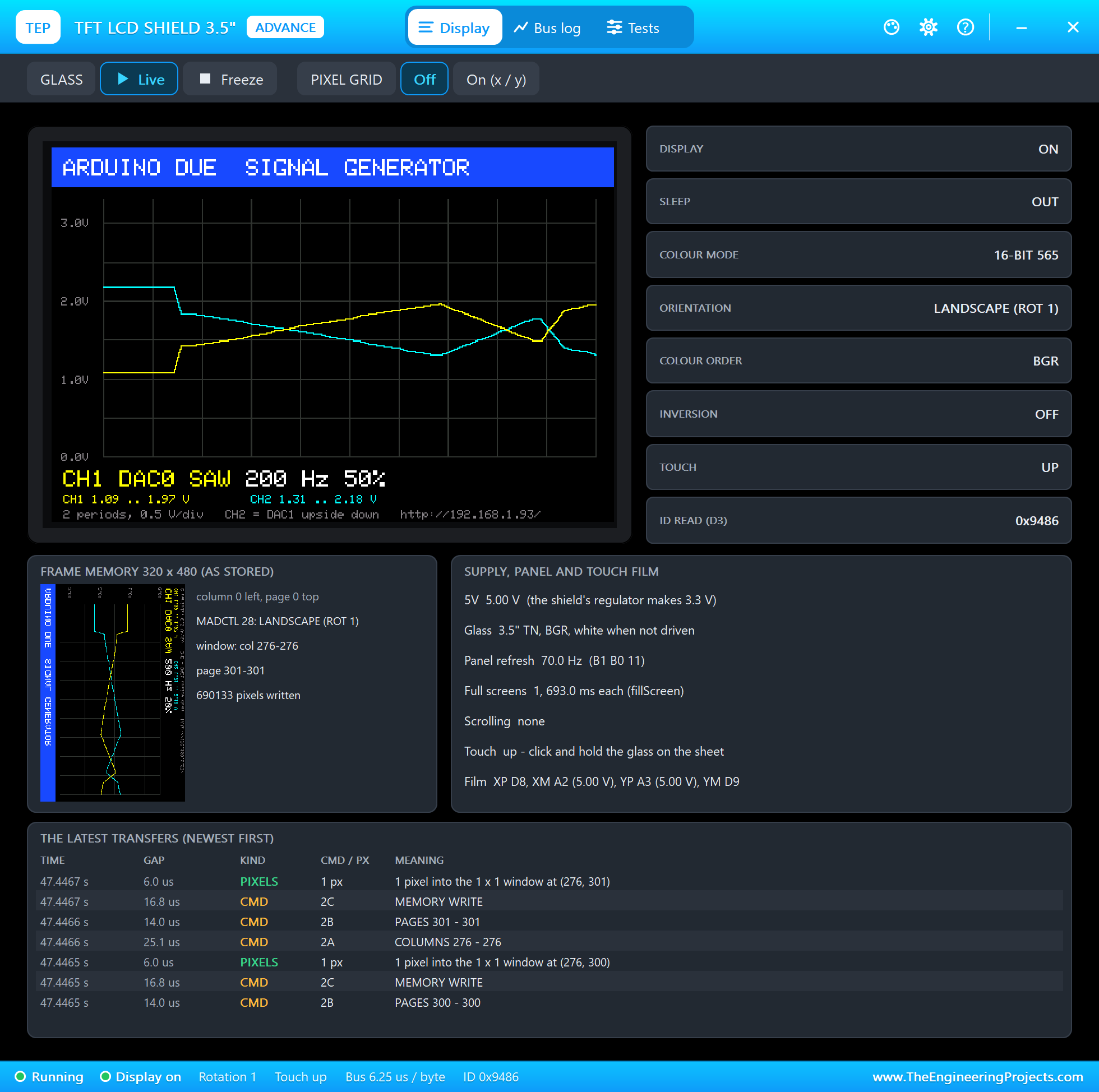
Then 200 Hz: four times as many periods in the same time, so the screen still shows two of them, each with its 32 steps:
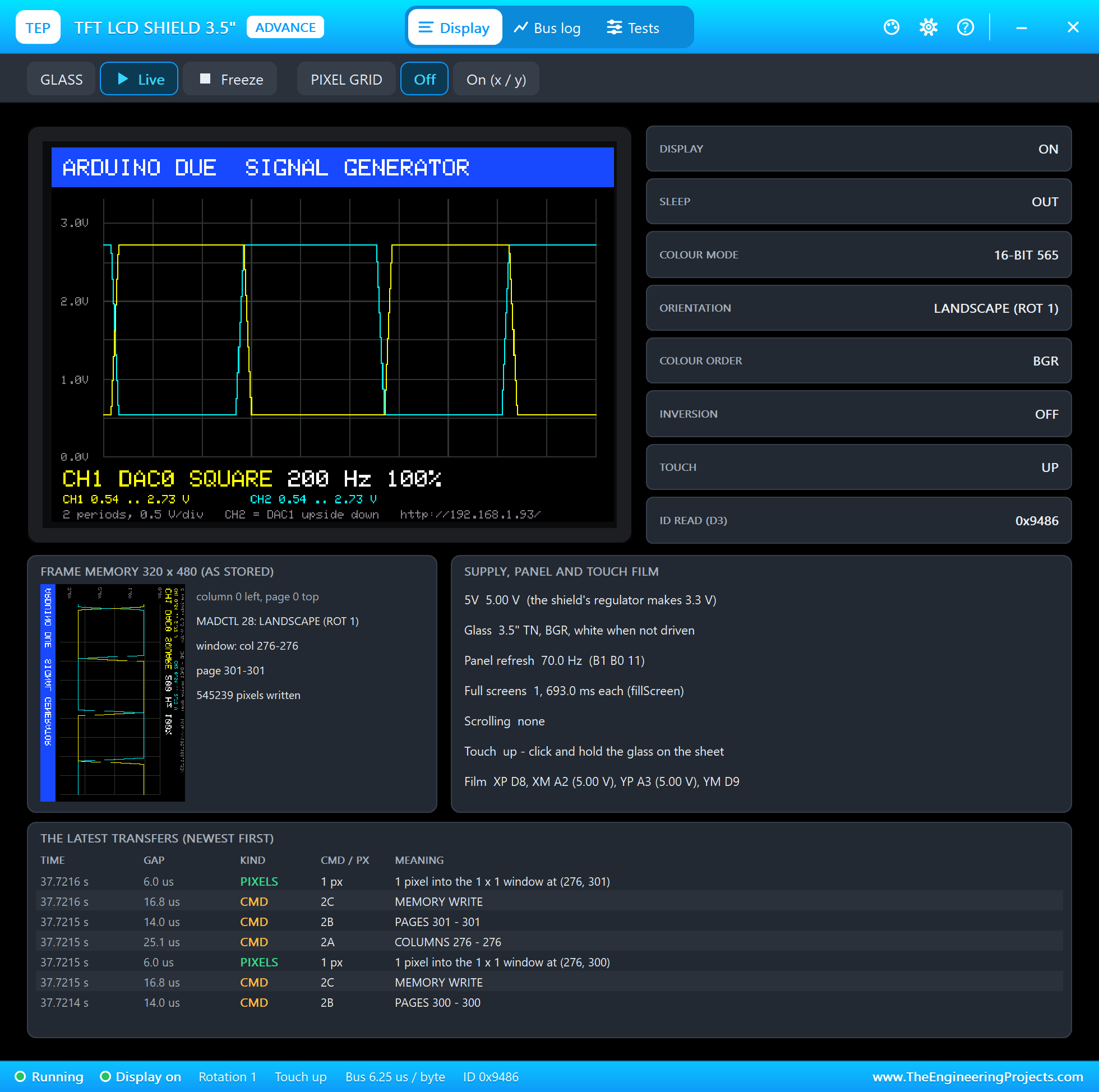
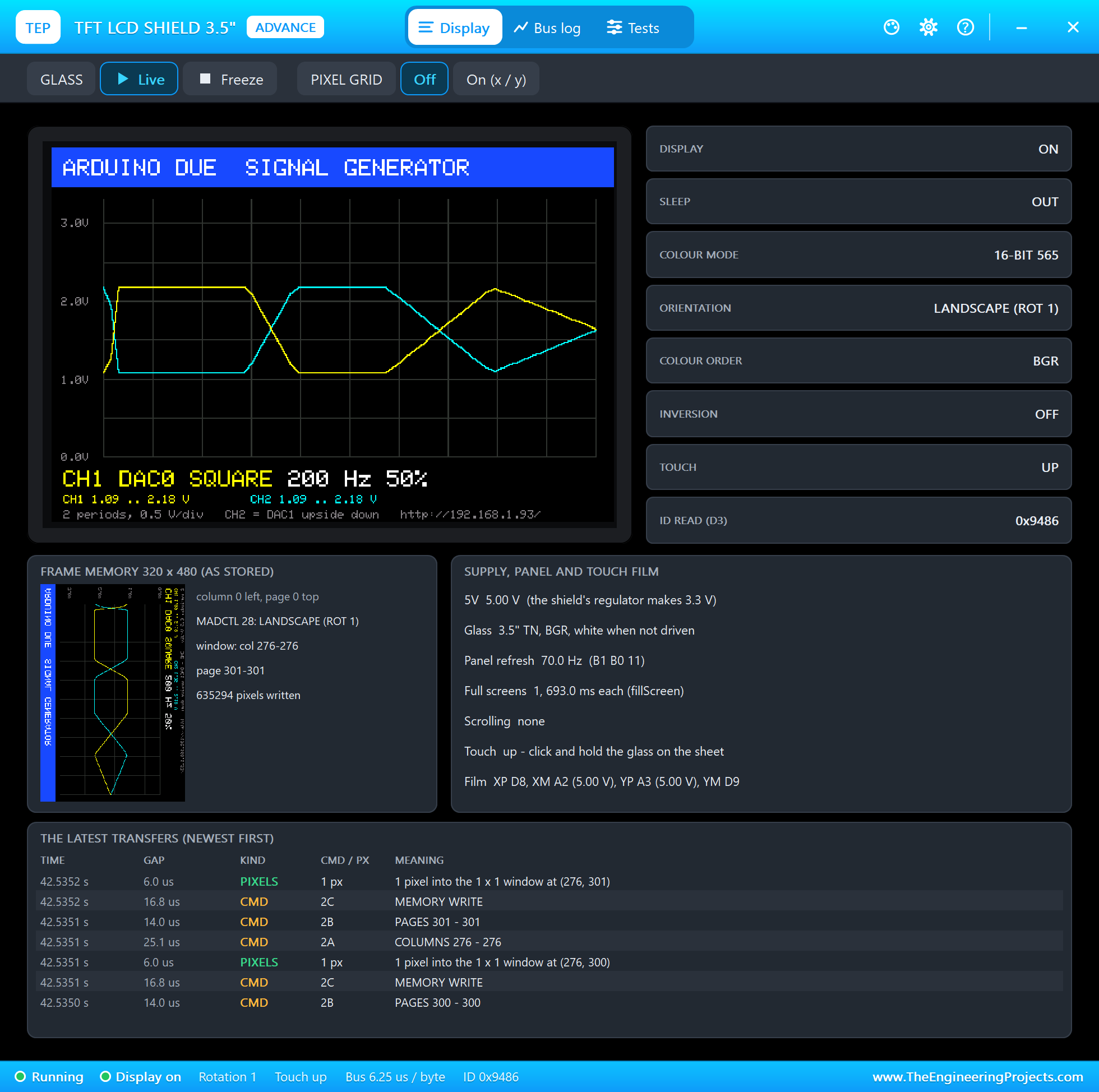
SQUARE jumps between the two ends, and 50 % halves the swing round the middle:
From the Phone
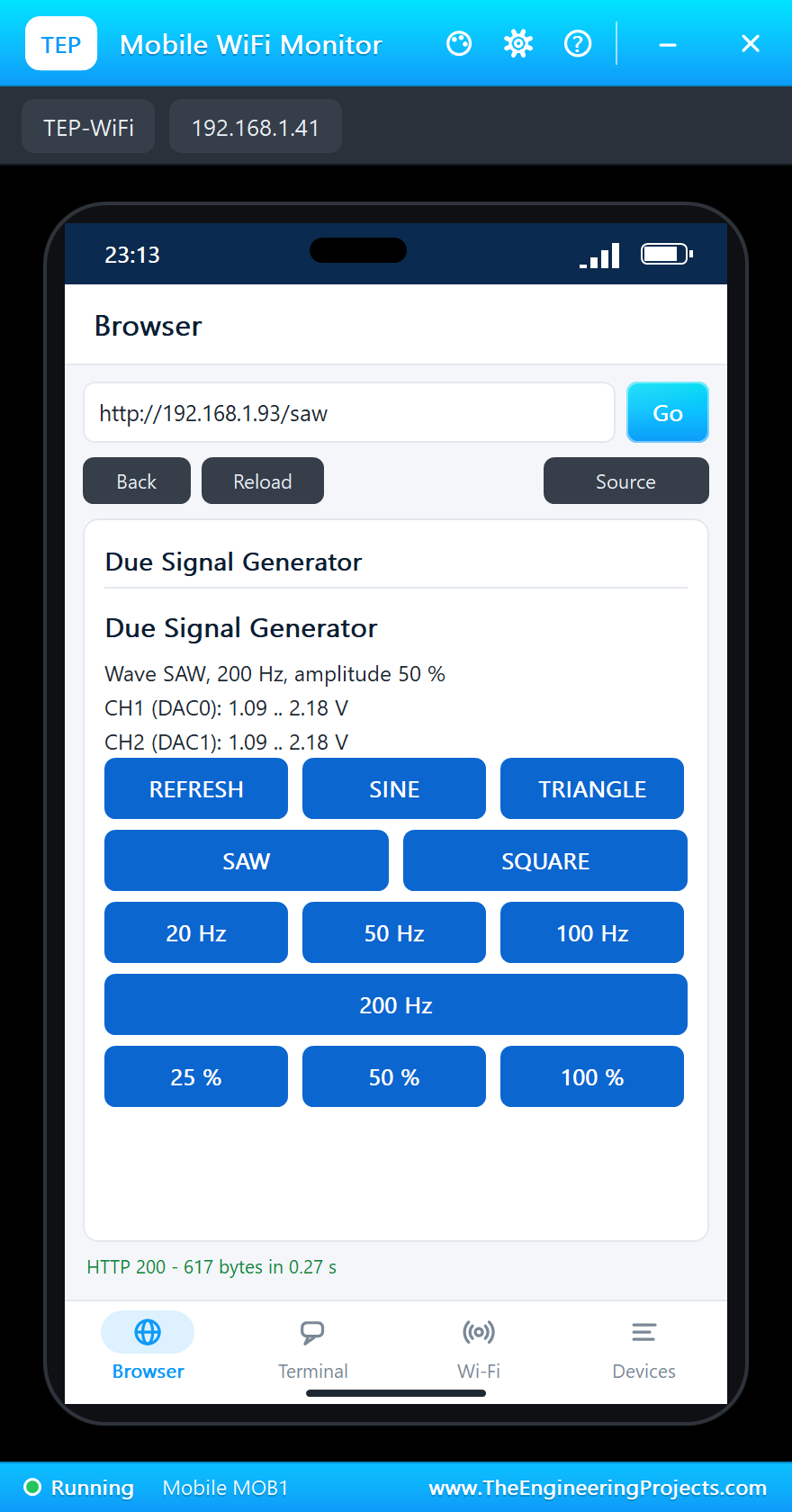
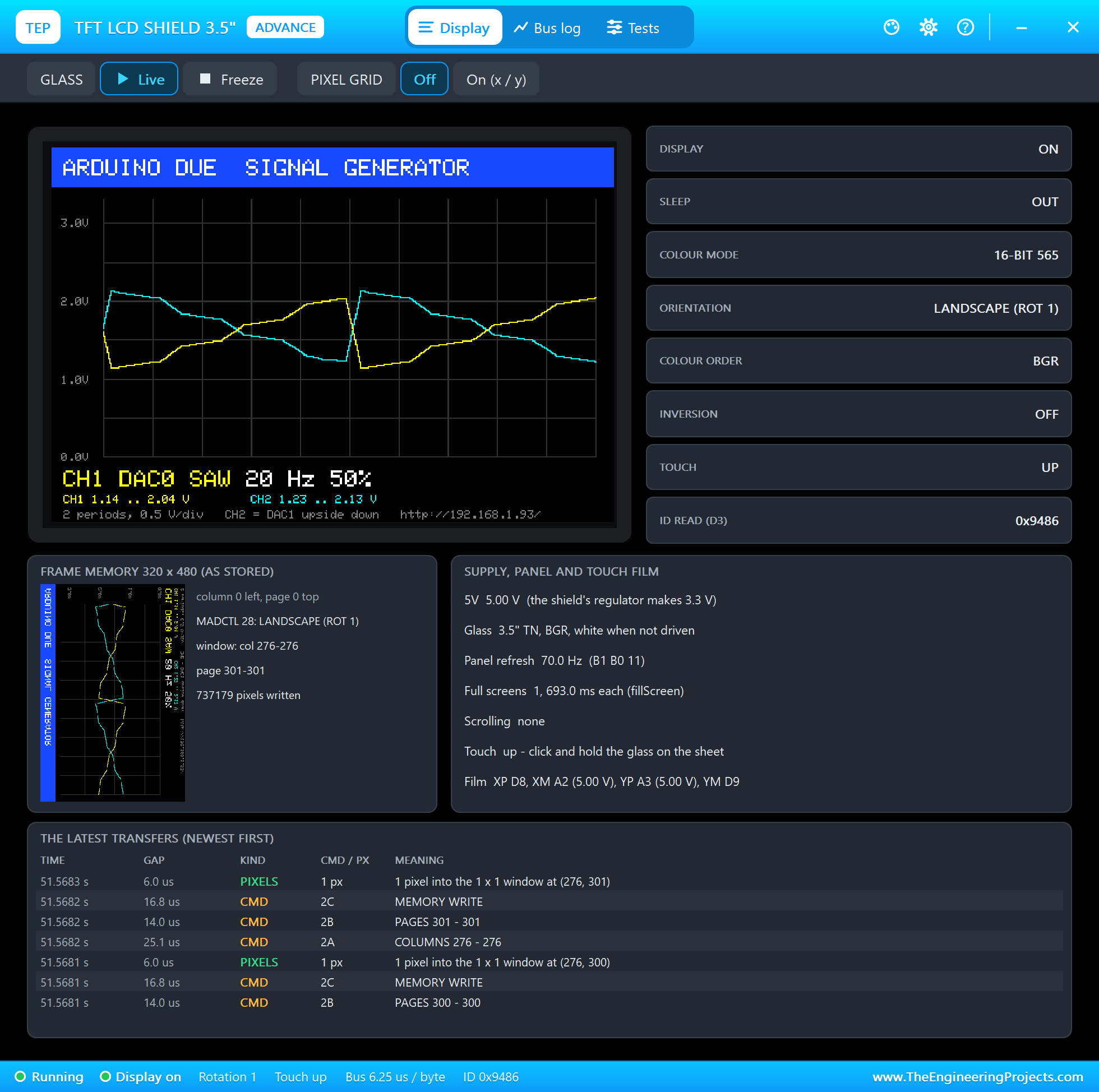
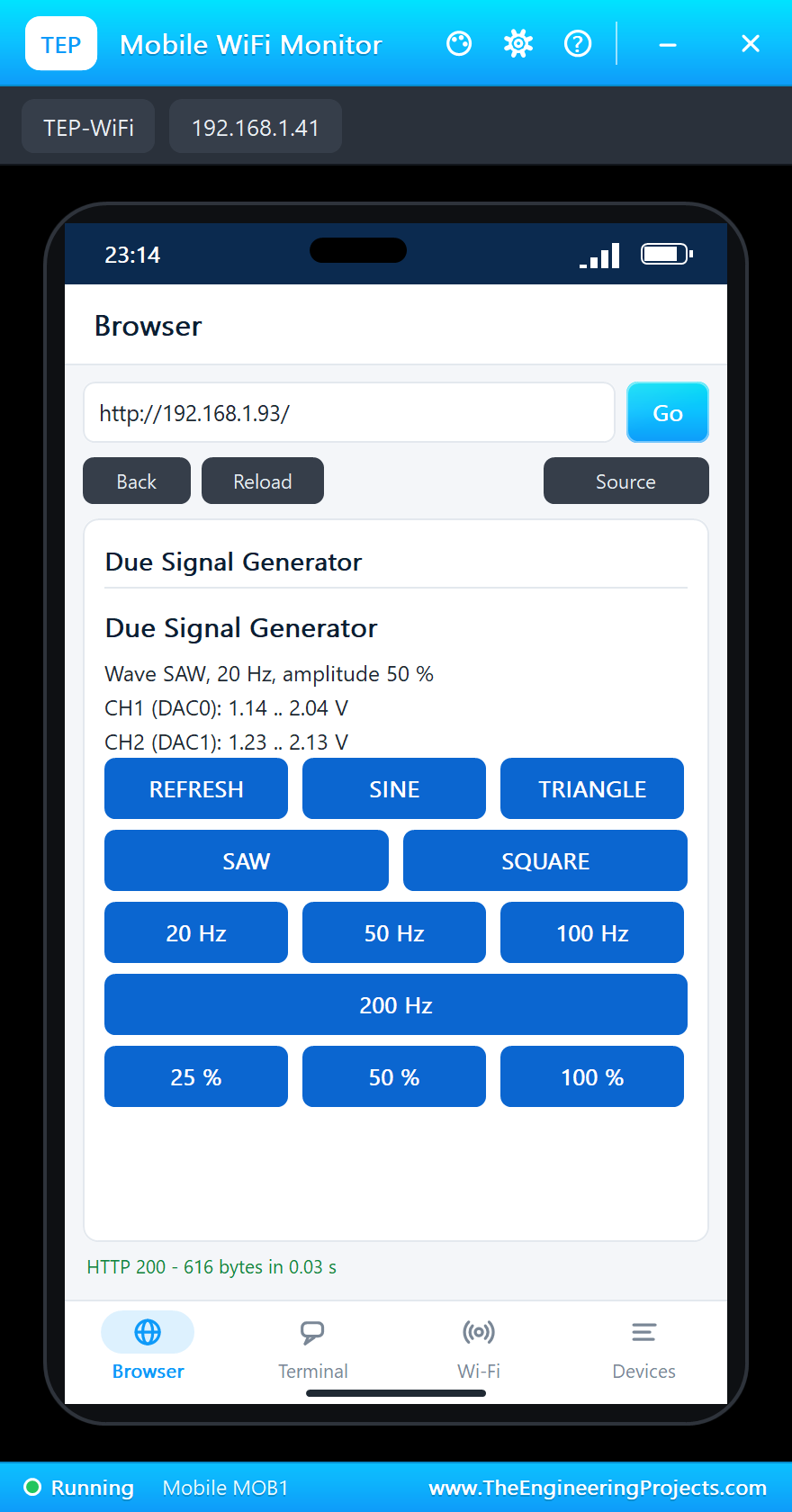
Tap SAW and then 20 Hz on the phone:
Back to a Full Sine
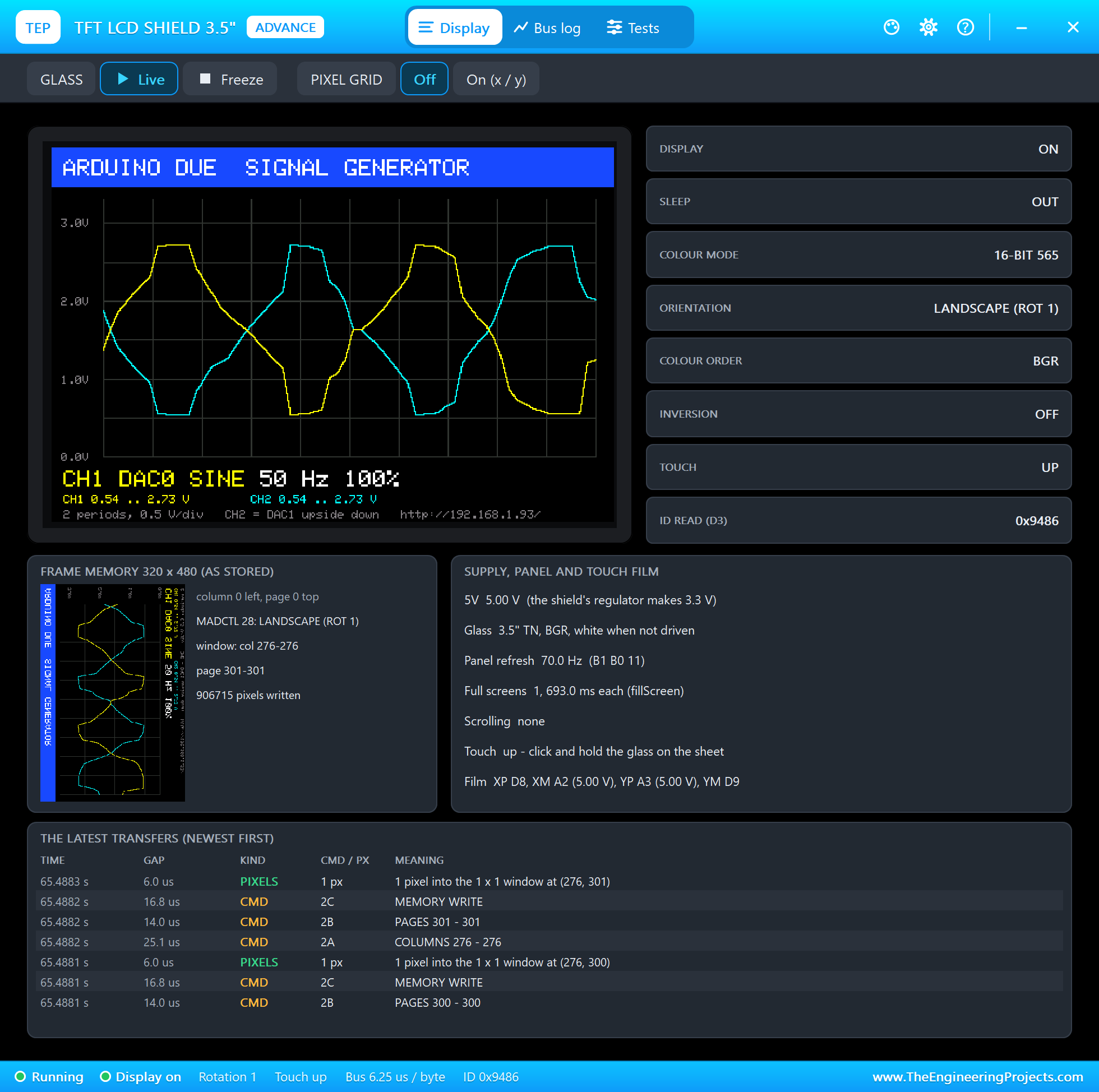
On the laptop click SINE, 50 Hz and 100 %:
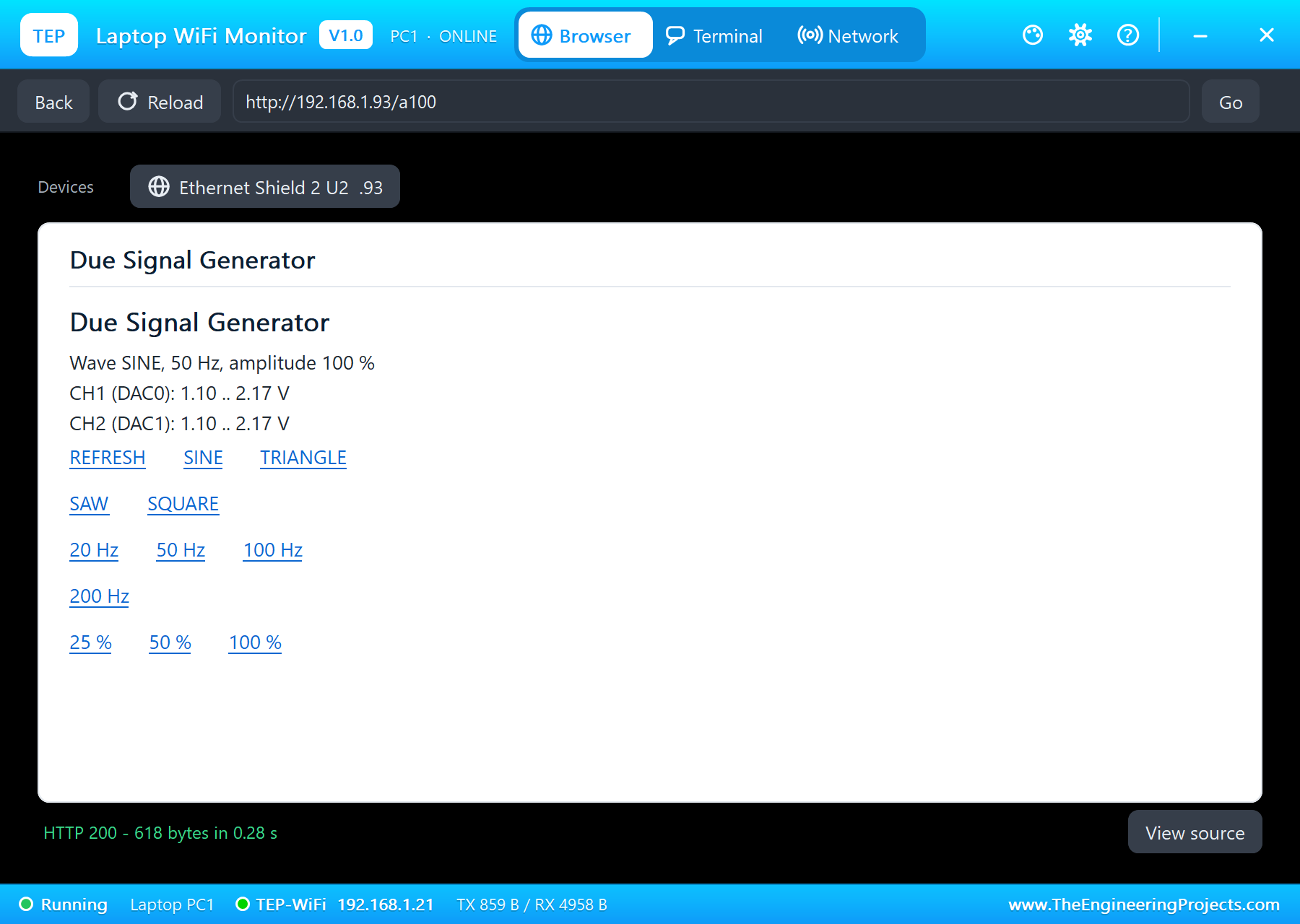
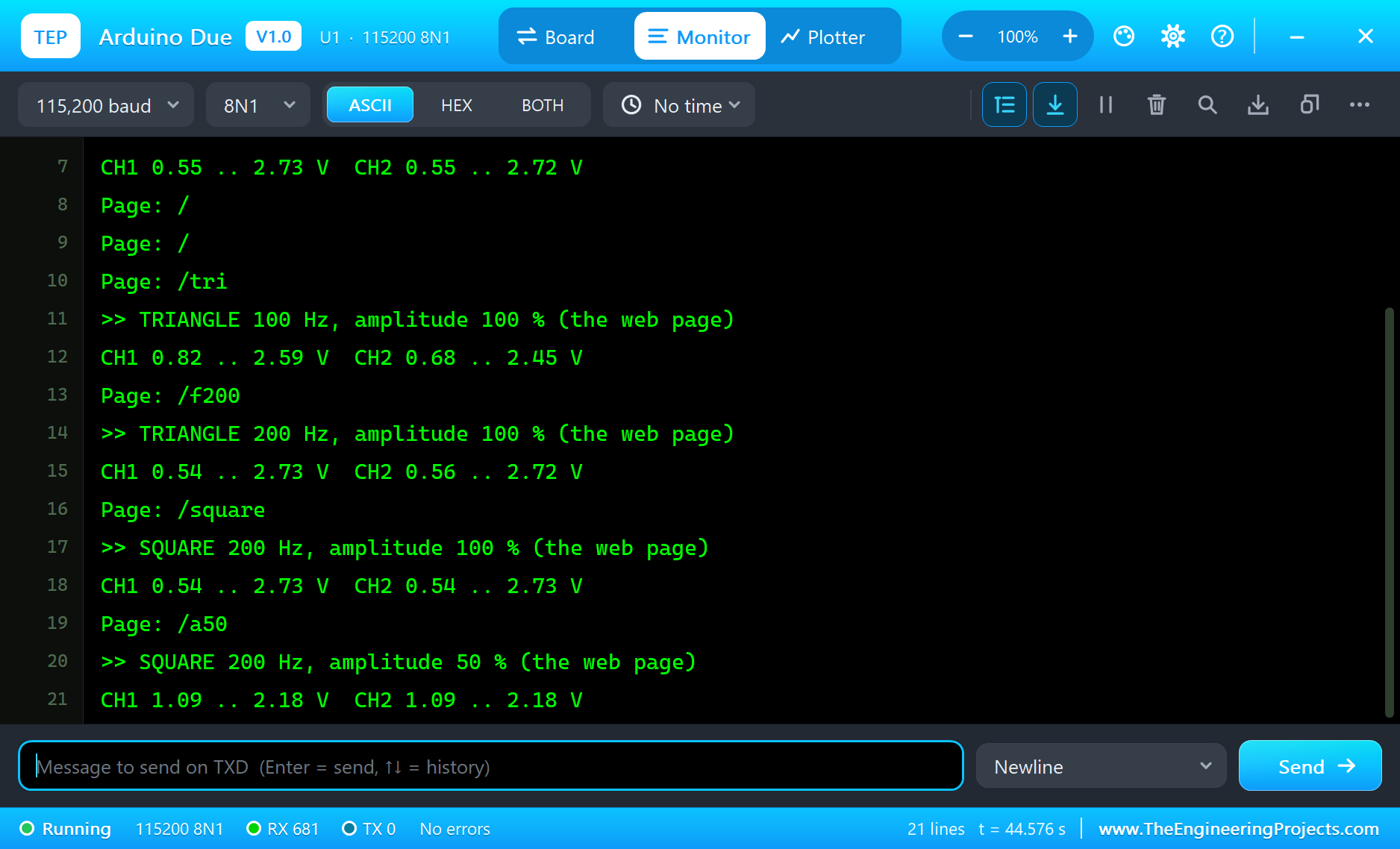
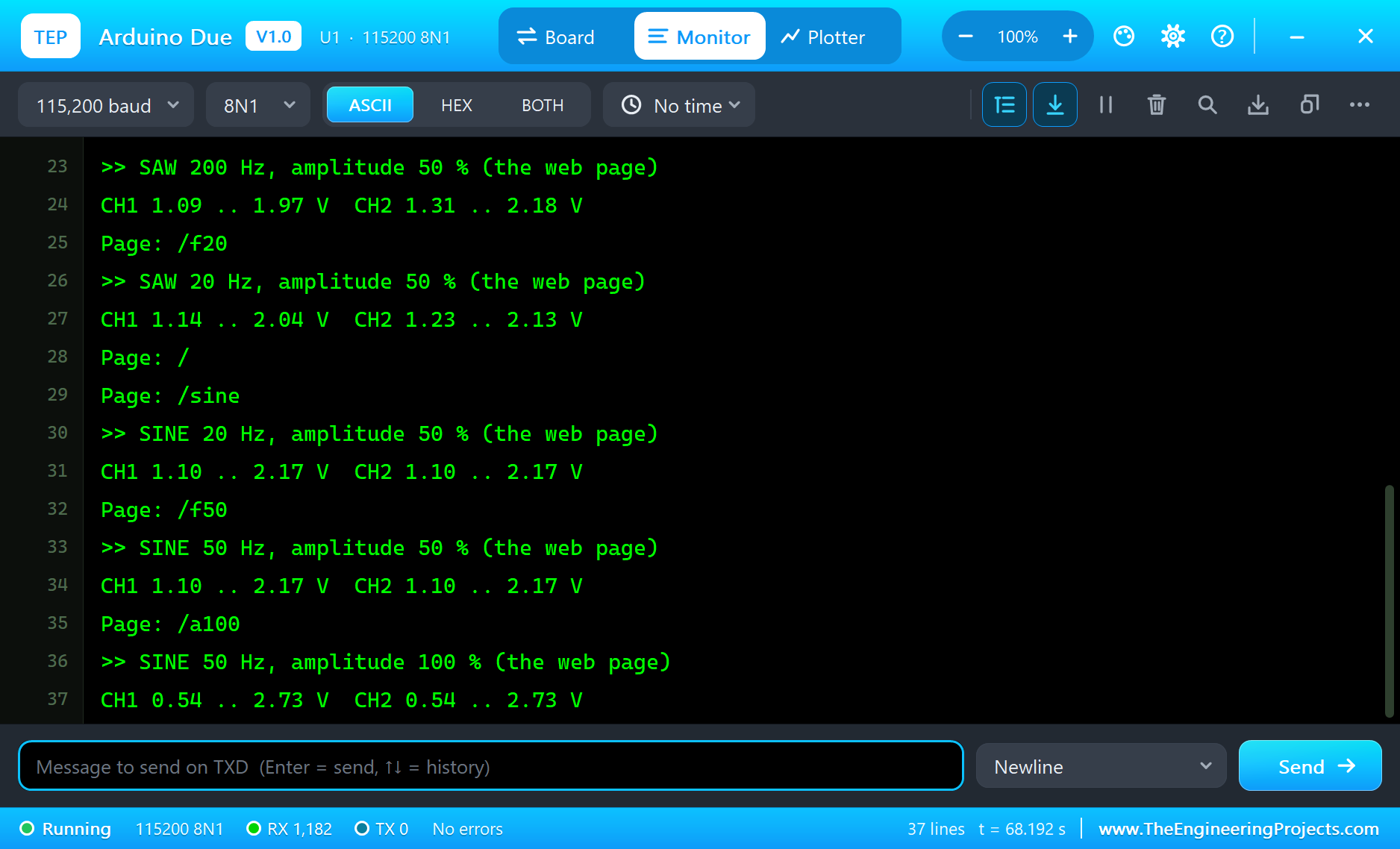
The built-in serial monitor, in the look of our TEP Serial Monitor Advance for Proteus, logs every change and every capture:
Page: /tri
>> TRIANGLE 100 Hz, amplitude 100 % (the web page)
CH1 0.82 .. 2.59 V  CH2 0.68 .. 2.45 V
Page: /f200
>> TRIANGLE 200 Hz, amplitude 100 % (the web page)
CH1 0.54 .. 2.73 V  CH2 0.56 .. 2.72 V
Page: /square
>> SQUARE 200 Hz, amplitude 100 % (the web page)
CH1 0.54 .. 2.73 V  CH2 0.54 .. 2.73 V
Page: /a50
>> SQUARE 200 Hz, amplitude 50 % (the web page)
CH1 1.09 .. 2.18 V  CH2 1.09 .. 2.18 V
Page: /saw
>> SAW 200 Hz, amplitude 50 % (the web page)
CH1 1.09 .. 1.97 V  CH2 1.31 .. 2.18 V
Page: /f20
>> SAW 20 Hz, amplitude 50 % (the web page)
CH1 1.14 .. 2.04 V  CH2 1.23 .. 2.13 V
Page: /
Page: /sine
>> SINE 20 Hz, amplitude 50 % (the web page)
CH1 1.10 .. 2.17 V  CH2 1.10 .. 2.17 V
Page: /f50
>> SINE 50 Hz, amplitude 50 % (the web page)
CH1 1.10 .. 2.17 V  CH2 1.10 .. 2.17 V
Page: /a100
>> SINE 50 Hz, amplitude 100 % (the web page)
CH1 0.54 .. 2.73 V  CH2 0.54 .. 2.73 V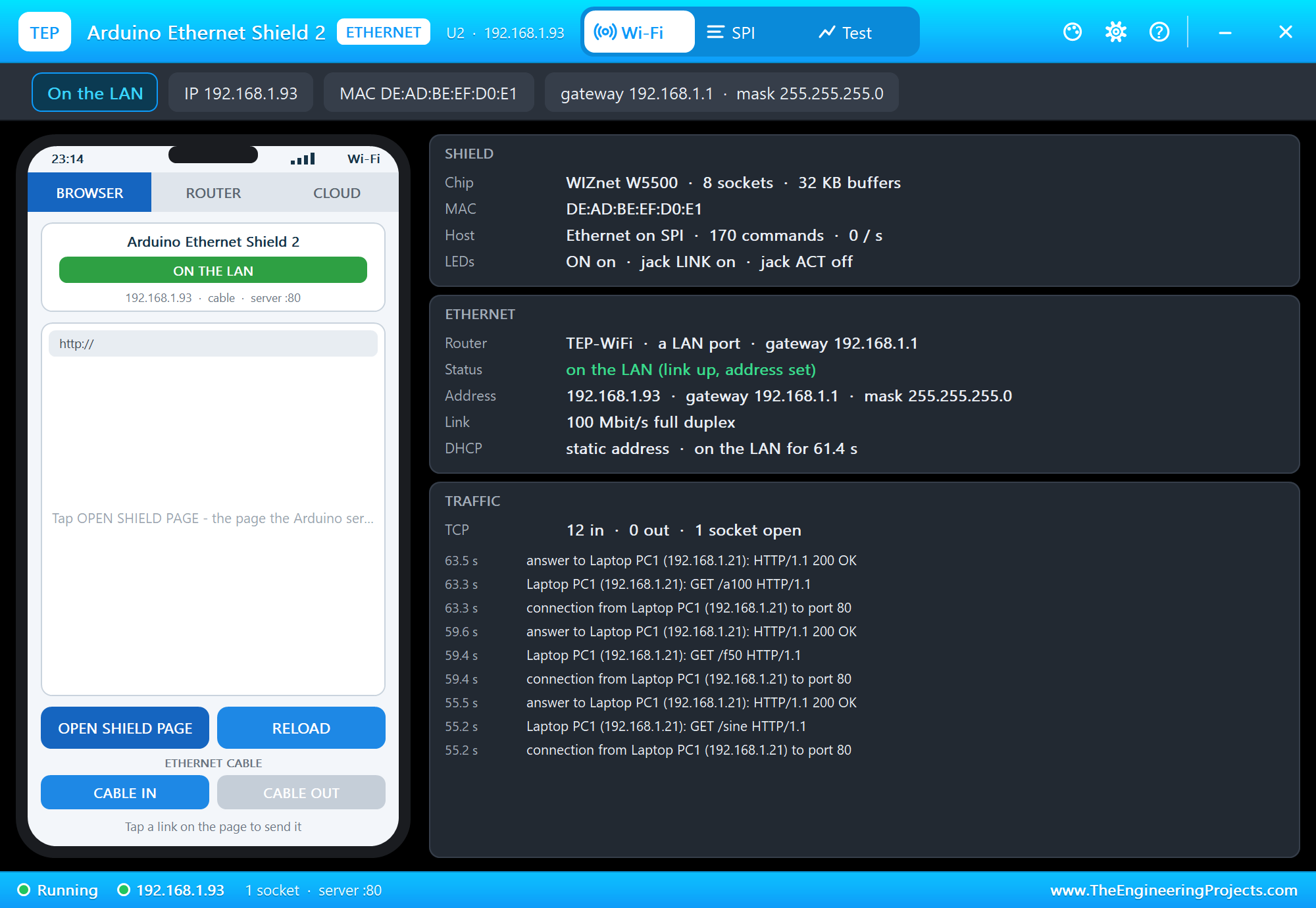
Try It Yourself
- Type
WAVE TRI,FREQ 50orAMP 25in the monitor. - Watch A8 and A9 on the monitor's Board tab: their volts follow the DACs.
- Change
Nto 64 for smoother waves at the low frequencies and rebuild. - Replace R1 with 10k: the model's DAC has 1 kOhm inside, so the levels drop by about a tenth - a reason real designs buffer a DAC.
Ideas to Extend the Generator
- Add a frequency sweep: step from 20 to 200 Hz and back for testing a filter.
- Put a phase setting on CH2 instead of the mirror, for two-phase signals.
- Measure an external signal on a free analog pin and draw it as a third trace.
- Use the TFT's touch film for the settings, as our 3.5 inch TFT demo does.
Your Own Sketches
Write the sketch in the Arduino IDE with the board Arduino Due (TEP Proteus), use Sketch > Export Compiled Binary and set the board's PROGRAM property to the .hex. For a real Due install "Arduino SAM Boards (32-bits ARM Cortex-M3)", select Arduino Due (Programming Port) and upload - the same sketch, with the same pin numbers.
Things to Know Before Using a Real Arduino Due
- 3.3 V only: the pins are not 5 V tolerant - check a shield before you plug it on; the Ethernet Shield 2 is fine.
- The DACs: they span about 0.55 to 2.75 V and can be damaged by a short or a heavy load; buffer them with an op-amp.
- Two USB ports: upload through the PROGRAMMING port; the NATIVE port is for SerialUSB and USB devices.
- ERASE: holding it wipes the flash; press RESET or upload again afterwards.
Properties of the Arduino Due
| Property | What it does |
|---|---|
| PROGRAM | the sketch: a .hex from TEP Boards for Proteus (board "Arduino Due") |
| MONITOR, BAUD, AUTOOPEN | the built-in serial monitor: on, its baud rate (115200), open at Run |
Troubleshooting
- The TFT stays white: LCD_RD to LCD_RST on A0 to A4, LCD_D0 / D1 on D8 / D9, LCD_D2 to D7 on D2 to D7.
- A flat trace: DAC0 / DAC1 wired to A8 / A9 and loaded by R1 / R2; analogWrite on DAC0 / DAC1 only.
- "No W5500 found" or "link OFF": MISO, SCK and MOSI on the SPI header, not D50 to D52; CS on D10.
- The page shows old values: use REFRESH; the monitors do not reload by themselves.
Limitations of the Simulation
- Your sketch gets 8 KB of RAM in the simulation and runs slower than on the SAM3X8E at 84 MHz with 96 KB.
- The SAM3X's registers, DMA, the CAN controllers, the NATIVE USB port and Wire1 are not modelled; interrupts work on D0 to D39.
- The router, the addresses and the windows are TEP additions.
- Arduino is a trademark of Arduino SA; this library is not made or endorsed by Arduino, Microchip or Labcenter.
- Tested in Proteus 8.5 in October 2026 (the demo as shipped, about 70 s of simulation in 337 s on our PC with the TFT and Ethernet pop-ups, the monitor and both tools open). Proteus 7 is not supported.
So, that was all about the Arduino Due Library for Proteus. I hope it helps you build and test your Due projects before you touch the hardware - two real DACs, a screen that shows what they make and a wired network page in one simulation. If you have any questions, ask in the comments and I will help you out. Till the next tutorial, take care and have fun!

Comments
0