


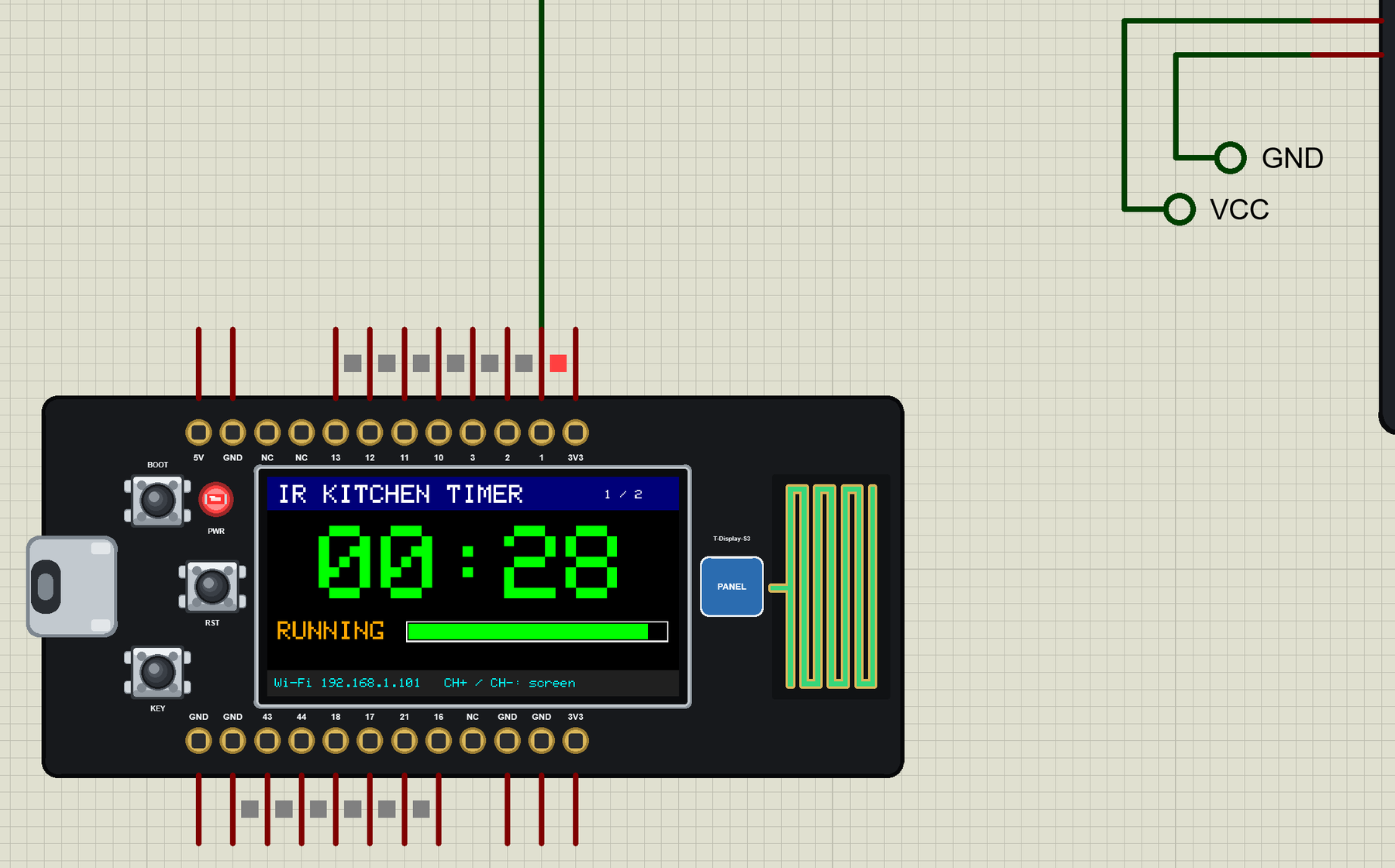
LilyGO T-Display S3 Library for Proteus: IR Remote Timer, TFT


Hello friends, I hope you all are doing great. Today, I am going to share the LilyGO T-Display S3 Library for Proteus. The T-Display S3 is one of the most popular ESP32 boards with a screen: an ESP32-S3 with 8 MB of PSRAM, a bright 1.9" 170 x 320 IPS display, two buttons and a battery connector, all on a board the size of a pack of chewing gum. With this library it runs your ESP32-S3 Arduino sketch in Proteus 8.5 - the display shows what your sketch draws - and joins our virtual Wi-Fi network.
LilyGO T-Display S3 Library for Proteus
Latest version: V1.0 (October 2026, this tutorial)
Helping Tools
- Laptop WiFi Monitor: a laptop on the Wi-Fi of your design: a browser, a TCP / UDP terminal and ping
- Mobile WiFi Monitor: a smartphone that opens the pages of your board and sends it commands
- Serial Monitor Advance: a serial terminal window for the UART of your board
For the demo we made a kitchen timer with an IR remote. A VS1838B receiver picks up the remote, the sketch decodes the NEC frames itself, the display shows a menu of two screens with a big countdown, and a phone and a laptop start, pause and reset the timer on the board's web page.
NOTICE: Proteus has no ESP32-S3 model, so our team has put a lot of effort into building this board ourselves: the board's pins, the display, Wi-Fi and the buttons are all our own model, and your sketch compiles with our free TEP Boards for Proteus add-on. Your feedback is the fuel that keeps us going, so please tell us what you think in the comments below or in the LilyGO T-Display S3 board of our forum. And if our free libraries help you, you can buy us a coffee. So, let's get started with the LilyGO T-Display S3 Library for Proteus:
What is the LilyGO T-Display S3?
LilyGO's T-Display S3 came out in 2022 as the big brother of the original TTGO T-Display. It moves to the ESP32-S3R8 - two Xtensa LX7 cores at 240 MHz, 512 KB of RAM plus 8 MB of PSRAM, 16 MB of flash, Wi-Fi and Bluetooth LE - and to a larger 1.9" IPS display with 170 x 320 pixels and an ST7789 controller. The display is driven on an 8-bit parallel bus, much faster than SPI, so full-screen animations run smoothly. The board adds a BOOT and a KEY button, a reset button on the side, a JST connector for a LiPo cell with its charger, and a 4-pin I2C connector.
| LilyGO T-Display S3 | TTGO T-Display (ESP32) | |
|---|---|---|
| Processor | ESP32-S3R8, two LX7 cores at 240 MHz | ESP32, two LX6 cores at 240 MHz |
| Memory | 512 KB RAM, 8 MB PSRAM, 16 MB flash | 520 KB RAM, 4 MB flash |
| Display | 1.9", 170 x 320, ST7789, 8-bit parallel | 1.14", 135 x 240, ST7789, SPI |
| USB | USB-C, the S3's own USB | USB-C through a CH9102 bridge |
| Buttons | BOOT (GPIO0), KEY (GPIO14), RST | GPIO0, GPIO35, RST |
| Header | 2 x 12 pins | 2 x 12 pins |
Our TTGO T-Display Library for Proteus is the first T-Display, and the display model inside both comes from our ST7789 TFT LCD Library for Proteus. For the same S3 chip without a screen see the ESP32-S3 DevKitC-1 Library for Proteus.
Why the T-Display S3?
A screen changes what a small project can do: a clock, a weather station, a sensor dashboard, a menu for settings, a game - without wiring a display module. The T-Display S3 has that screen built in, a battery connector for portable builds and the S3's speed for smooth graphics, and it still costs about as much as a bare ESP32 board with a separate display.
Features of the LilyGO T-Display S3 Library for Proteus
- The board as it looks: the black T-Display S3 with its USB-C port, BOOT, KEY and RST, the PWR LED, the 1.9" display between the two 12-pin rows, the PCB antenna and the PANEL pad.
- The display: 170 x 320, ST7789, IPS - it shows what your sketch draws with Adafruit_ST7789 and Adafruit_GFX, with the backlight.
- Your sketch: a .hex for "LilyGO T-Display S3 (TEP Proteus)" with the S3's GPIO numbers - the header's 1, 2, 3, 10 to 13, 16, 17, 18, 21, 43 and 44, analogRead 0 to 4095, PWM, attachInterrupt, micros, pulseIn, the buttons.
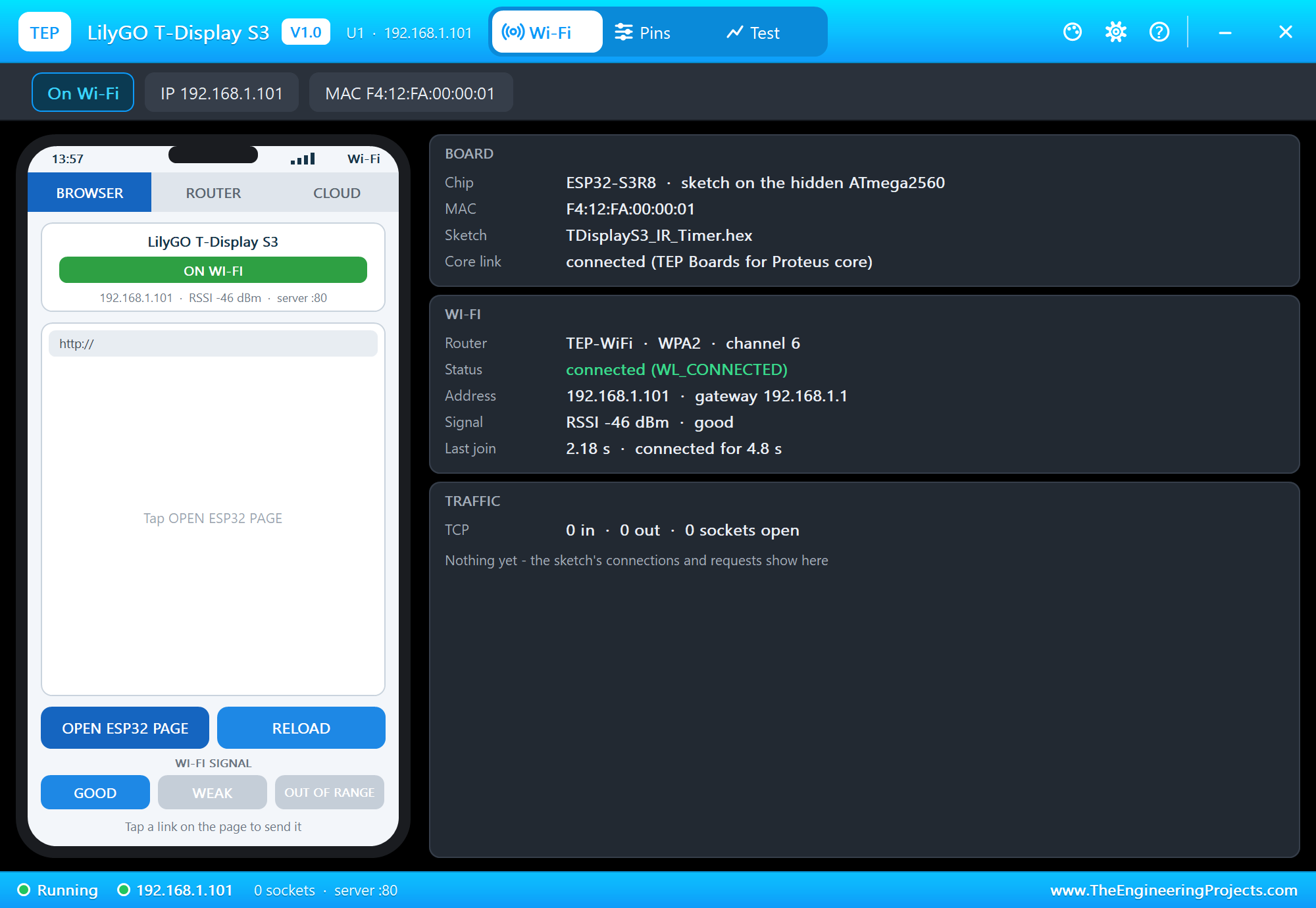
- Wi-Fi: WiFi.begin, WebServer, HTTPClient, mDNS and NTP on our virtual router TEP-WiFi; the board is 192.168.1.101 in the demo.
- The panel and the serial monitor: the board's panel (Wi-Fi, Pins, Test) and the built-in serial monitor with Monitor, Plotter and Board tabs - our TEP header, no Windows title bar.
- A complete package: about 3.1 MB with the board, the add-on, the IR receiver and monitor libraries and the demo, without the source code of the models.
The LilyGO T-Display S3 in Proteus
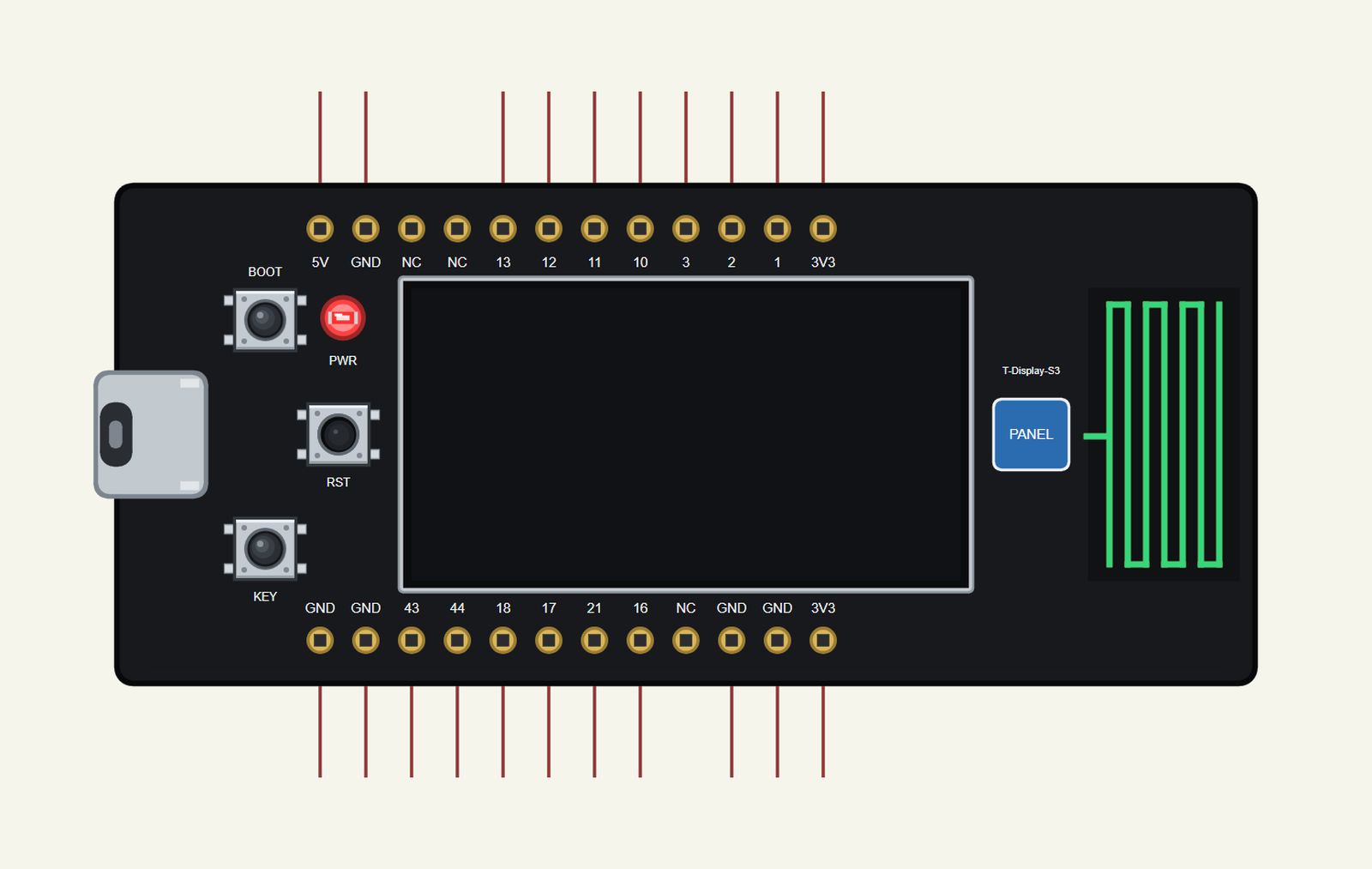
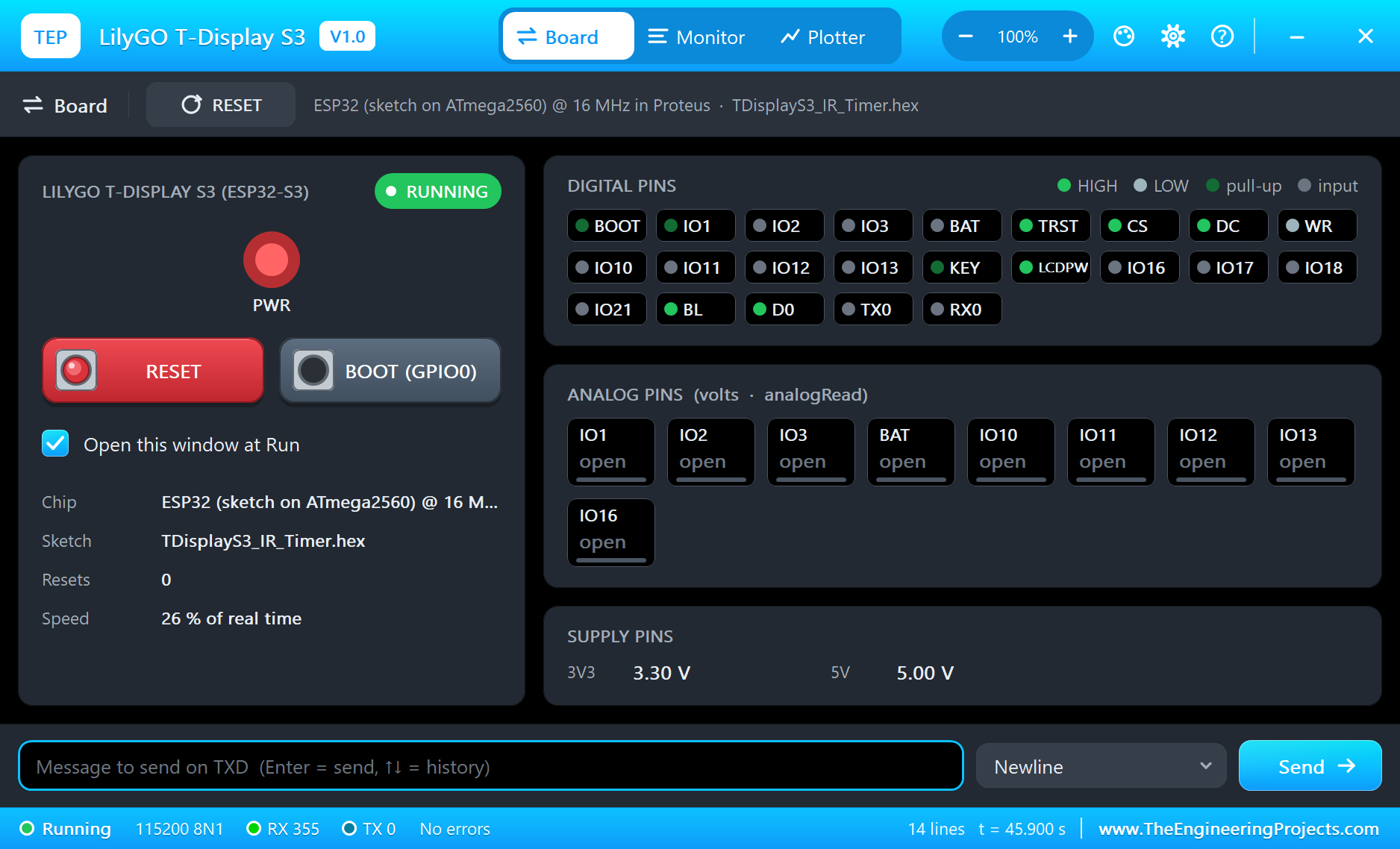
Search T-DISPLAY in Pick Devices; the device LILYGO T-DISPLAY S3 is in TEPTDISPLAYS3.LIB (Microprocessor ICs, ESP32 Boards), with the prefix U. The board lies with the USB-C port on the left. Click the USB-C port to open the serial monitor and the PANEL pad (or the display) to open the board's panel.
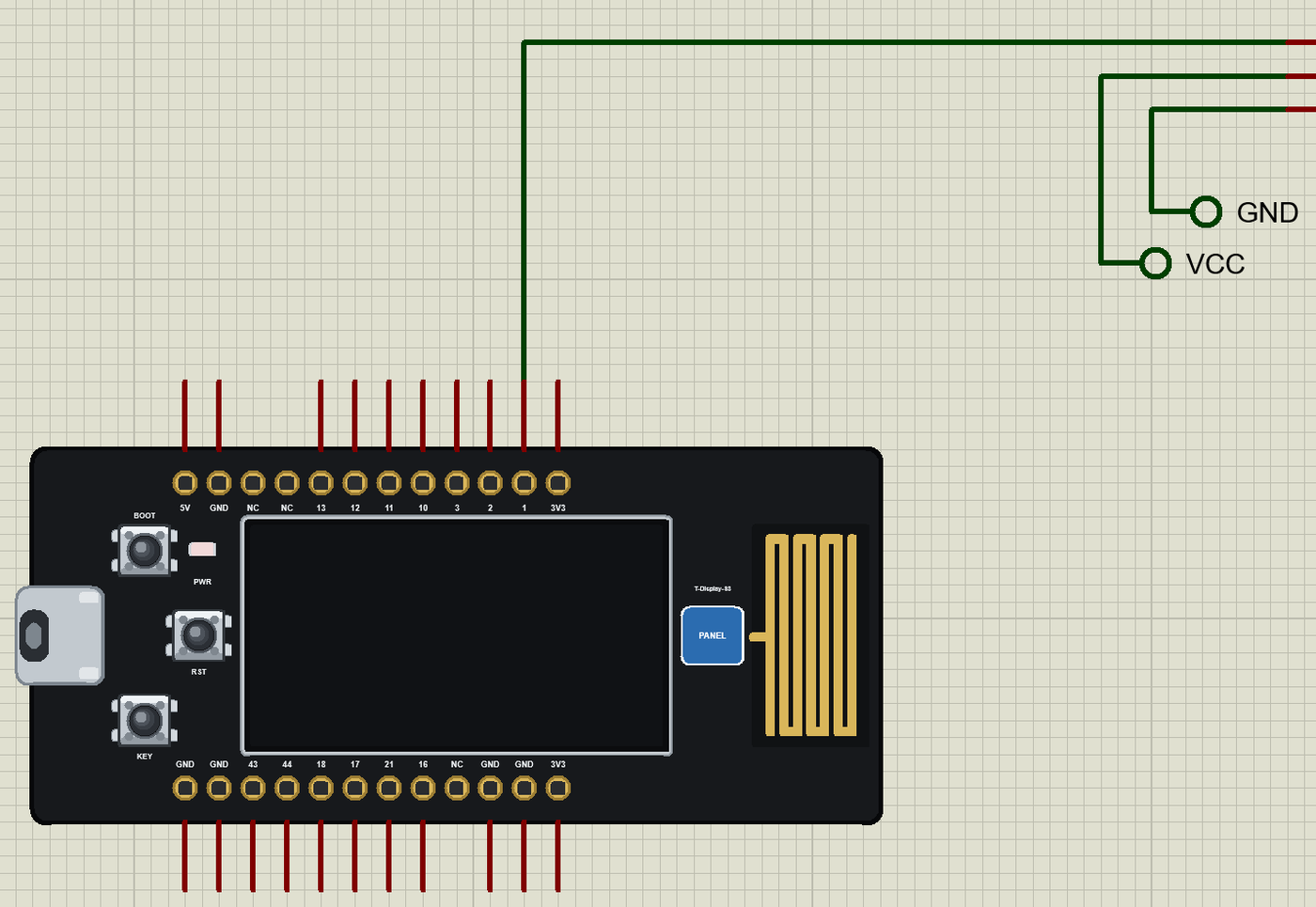
The Pins
| Pins | What the library does with them |
|---|---|
| 1, 2, 3, 10 to 13, 16 | GPIO, analogRead 0 to 4095, PWM, interrupt |
| 21 | GPIO, PWM, interrupt |
| 18 / 17 | Wire SDA / SCL |
| 43 / 44 | Serial0 TX / RX |
| 3V3, 5V, GND | 3.3 V, 5 V, ground |
| NC | not connected |
| On the board | the display, BOOT (GPIO0), KEY (GPIO14), the battery (GPIO4), the USB (Serial) |
The Display in Proteus
On the real board the ST7789 sits on an 8-bit parallel bus. In Proteus our display model listens on the board's SPI instead, so the sketch talks to it through Adafruit's library - the same drawing calls (fillScreen, setCursor, print, fillRect) that TFT_eSPI and Arduino_GFX offer on the real board. Three lines start it, after the LCD power (GPIO15) and the backlight (GPIO38) are switched on, as in LilyGO's own examples:
  tft.init(170, 320);
  tft.setRotation(1);
  tft.fillScreen(ST77XX_BLACK);
Download LilyGO T-Display S3 Library for Proteus
Click the button below to download LilyGO-T-Display-S3-Library-for-Proteus-v1.0.zip (about 3.1 MB, without the source code of the models):
LilyGO T-Display S3 Library for Proteus V1.0- README.txt: installation, the demo, the pins, the properties, troubleshooting and the limits.
- Proteus Library Files:
TEPTDISPLAYS3.LIBand the demo's parts:TEPIRREMOTE.LIB,TEPLAPTOP.LIBandTEPMOBILE.LIB. - Proteus Model Files:
TEPNET.DLL(the board, its display, the laptop, the phone and the network) andTEPIRREMOTE.DLL. - Arduino Code: the demo sketch and the TEP Boards for Proteus add-on 1.23.0.
- Proteus Simulation: the demo project, its HEX file and copies of the DLLs.
No Proteus yet? Read How to Download and Install Proteus 7 and 8. New to libraries? Follow How to Install a New Library in Proteus.
How to Install LilyGO T-Display S3 Library for Proteus
- Close Proteus and extract the whole zip file, for example to your Desktop.
- Copy the files from Proteus Library Files into the LIBRARY folder of Proteus.
- Copy the DLLs from Proteus Model Files into the MODELS folder, replacing an older TEPNET.DLL.
- Delete
TEPTDISPLAYS3.IDXfrom the LIBRARY folder if it is there. - For your own sketches, copy Arduino Code\TEP Boards for Proteus\hardware into your Arduino sketchbook (Documents\Arduino) and restart the Arduino IDE; the board is LilyGO T-Display S3 (TEP Proteus). Install Adafruit ST7735 and ST7789 and Adafruit GFX from the Library Manager.
- Start Proteus, press P and search for T-DISPLAY.
Demo: an IR Kitchen Timer
A kitchen timer is a small job with a real need for a remote: your hands are busy, flour on your fingers, and the timer is across the room. The cheap 21-key remotes sold with IR receiver kits are perfect for it - number keys to type the time and a play key to start. The T-Display S3 shows the countdown big enough to read from the cooker.
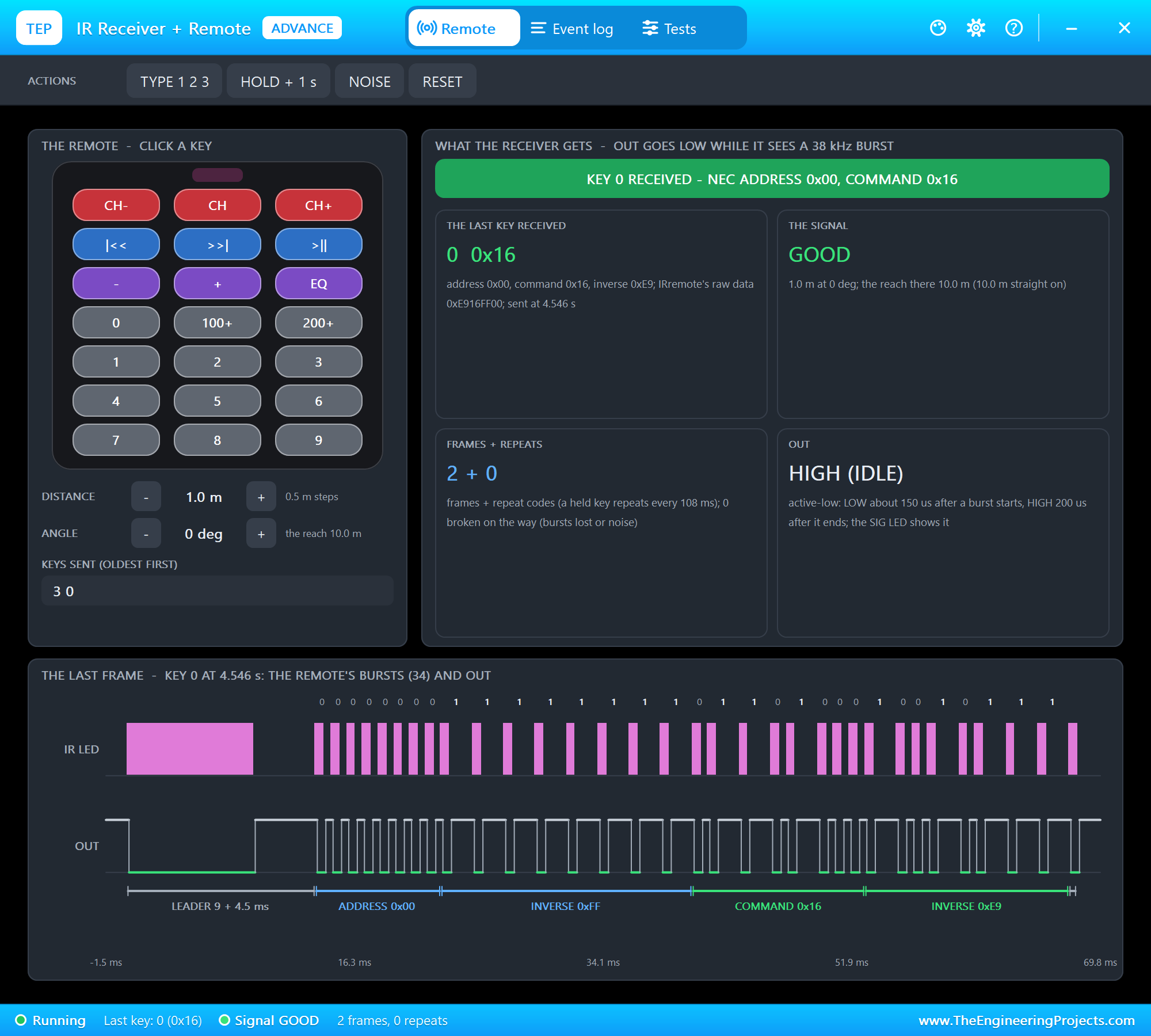
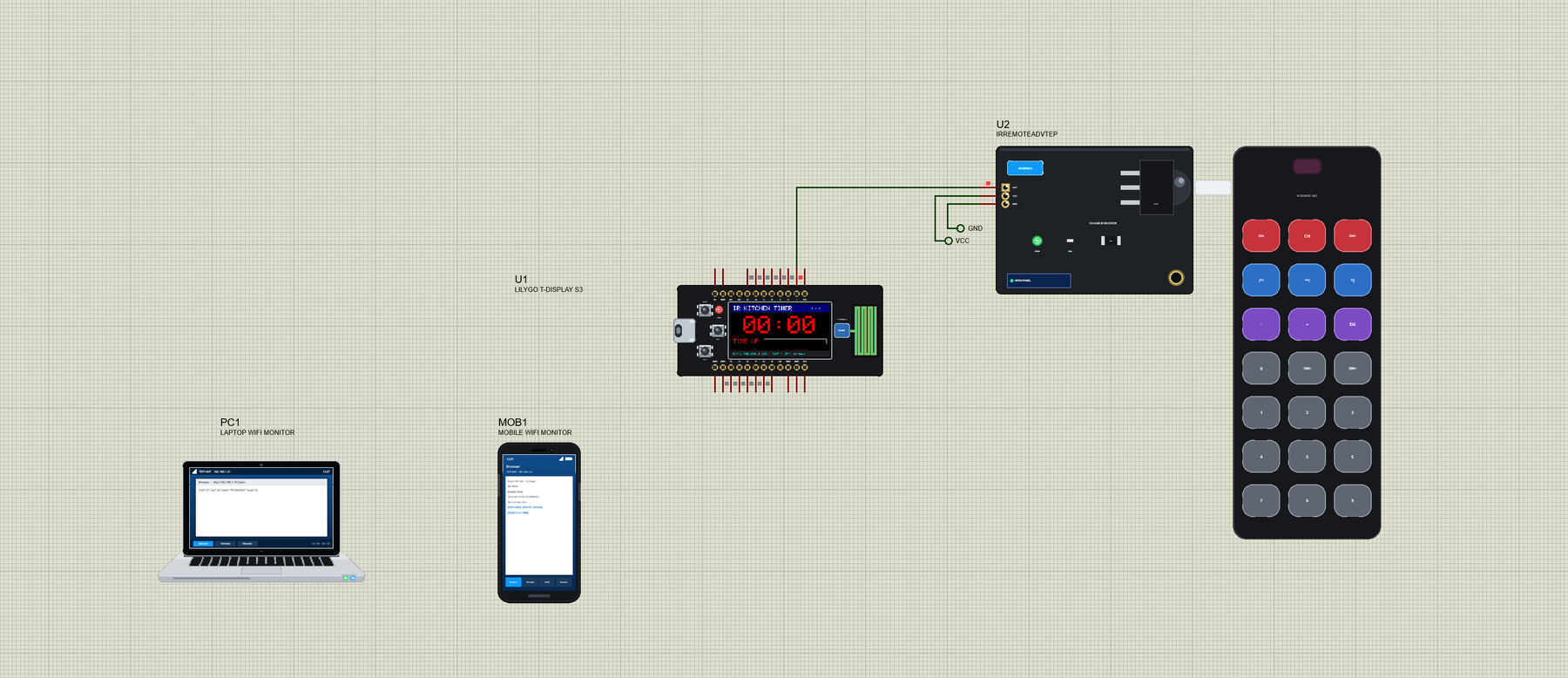
Open T-Display-S3-IR-Timer.pdsprj. U1 runs TDisplayS3_IR_Timer.hex. U2 is the receiver with its remote from our IR Receiver + Remote Library for Proteus - the Advance version: it opens its pop-up window at Run, with the remote to click and a live view of every frame. PC1 is the Laptop WiFi Monitor and MOB1 the Mobile WiFi Monitor.
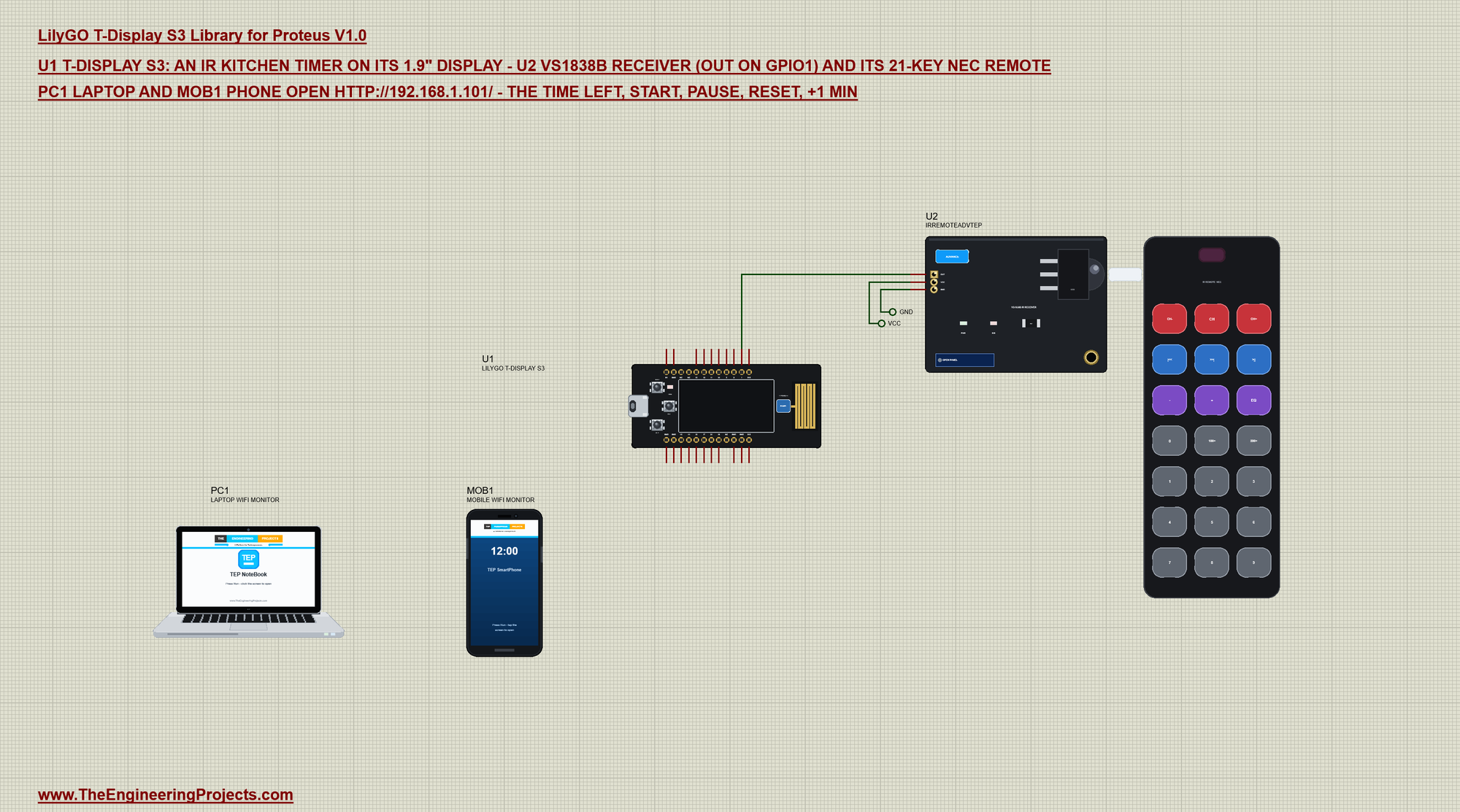
| Receiver pin | Connected to | What it does |
|---|---|---|
| OUT | GPIO1 | LOW while it sees the 38 kHz light |
| VCC | the VCC label | the supply (3V3 on a real board) |
| GND | the GND label | ground |
How an IR Remote Talks
The remote's LED does not just switch on: it flashes at 38 kHz, and the receiver only reacts to light flashing at that rate - sunlight and lamps are ignored. While it sees the 38 kHz light, the VS1838B pulls OUT LOW. The NEC protocol, used by most cheap remotes, sends a 9 ms burst and a 4.5 ms pause as a header, then 32 bits: an address, its inverse, a command and its inverse. Every bit is a 562 us burst followed by a short pause (a 0) or a long one (a 1). Held down, the remote sends a short repeat code every 108 ms.
| Key | Command | In the timer |
|---|---|---|
| 0 to 9 | 0x16, 0x0C, 0x18, 0x5E, 0x08, 0x1C, 0x5A, 0x42, 0x52, 0x4A | type the time |
| >|| | 0x43 | start / pause |
| EQ | 0x09 | clear |
| + and - | 0x15, 0x07 | add / take 10 s |
| 100+ | 0x19 | add a minute |
| CH+ and CH- | 0x47, 0x45 | switch the screen |
Why send every byte twice, once inverted? A 0 and a 1 differ only in the length of a pause, and a flash of sunlight or a lamp can stretch or cut a pause. With the inverse beside it, a byte that changed on the way no longer matches its partner, so the receiver knows the frame is broken and drops it instead of acting on a wrong key. The address lets two devices in one room use the same command numbers without answering each other's remote.
Decoding NEC Without a Library
Instead of a library the sketch measures the gaps between falling edges of OUT: from the start of one burst to the start of the next. The header gives 13.5 ms, a 0 gives 1.125 ms, a 1 gives 2.25 ms and a repeat code 11.25 ms - four numbers far enough apart that a little timing error does not matter. An interrupt on every falling edge does the work:
void IRAM_ATTR onFall() {
  unsigned long now = micros(), gap = now - lastFall;
  lastFall = now;
  if (gap > 12500 && gap < 14500) { nBits = 1; bits = 0; return; }          // the leader: 9 ms + 4.5 ms
  if (gap > 10500 && gap < 12300) { repeatReady = true; nBits = 0; return; } // the repeat code: 9 ms + 2.25 ms
  if (nBits == 0) return;
  if (gap > 900 && gap < 1500) bits >>= 1;                                   // a 0: 562 + 562 us (LSB first)
  else if (gap > 1900 && gap < 2600) bits = (bits >> 1) | 0x80000000UL;      // a 1: 562 + 1687 us
  else { nBits = 0; return; }                                                // broken: wait for the next leader
  if (++nBits == 33) { frame = bits; frameReady = true; nBits = 0; }
}
NEC sends the least significant bit first, so each new bit enters at the top and the word shifts right. The main loop takes a finished frame and checks that the command and its inverse agree - a broken frame is simply ignored:
void readRemote() {
  if (frameReady) {
    noInterrupts(); unsigned long f = frame; frameReady = false; interrupts();
    uint8_t cmd = (f >> 16) & 0xFF, inv = (f >> 24) & 0xFF;
    if ((uint8_t)(cmd ^ inv) == 0xFF) onKey(cmd);             // the command and its inverse must agree
  }
  repeatReady = false;                                        // (a held key is not repeated here)
}
Typing the Time
Digits fill the MM:SS display from the right, like a microwave oven: 3 then 0 gives 00:30, a third digit 5 would give 03:05. The sketch keeps the time in seconds and rebuilds the four digits for each key:
  for (int d = 0; d < 10; d++)
    if (code == CODES[d]) {                                   // a digit: MM:SS fills from the right
      long mmss = (leftSec / 60) * 100 + leftSec % 60;
      mmss = (mmss * 10 + d) % 10000;
      setTimer((mmss / 100) * 60 + mmss % 100, "the remote");
      return;
    }
The Screens
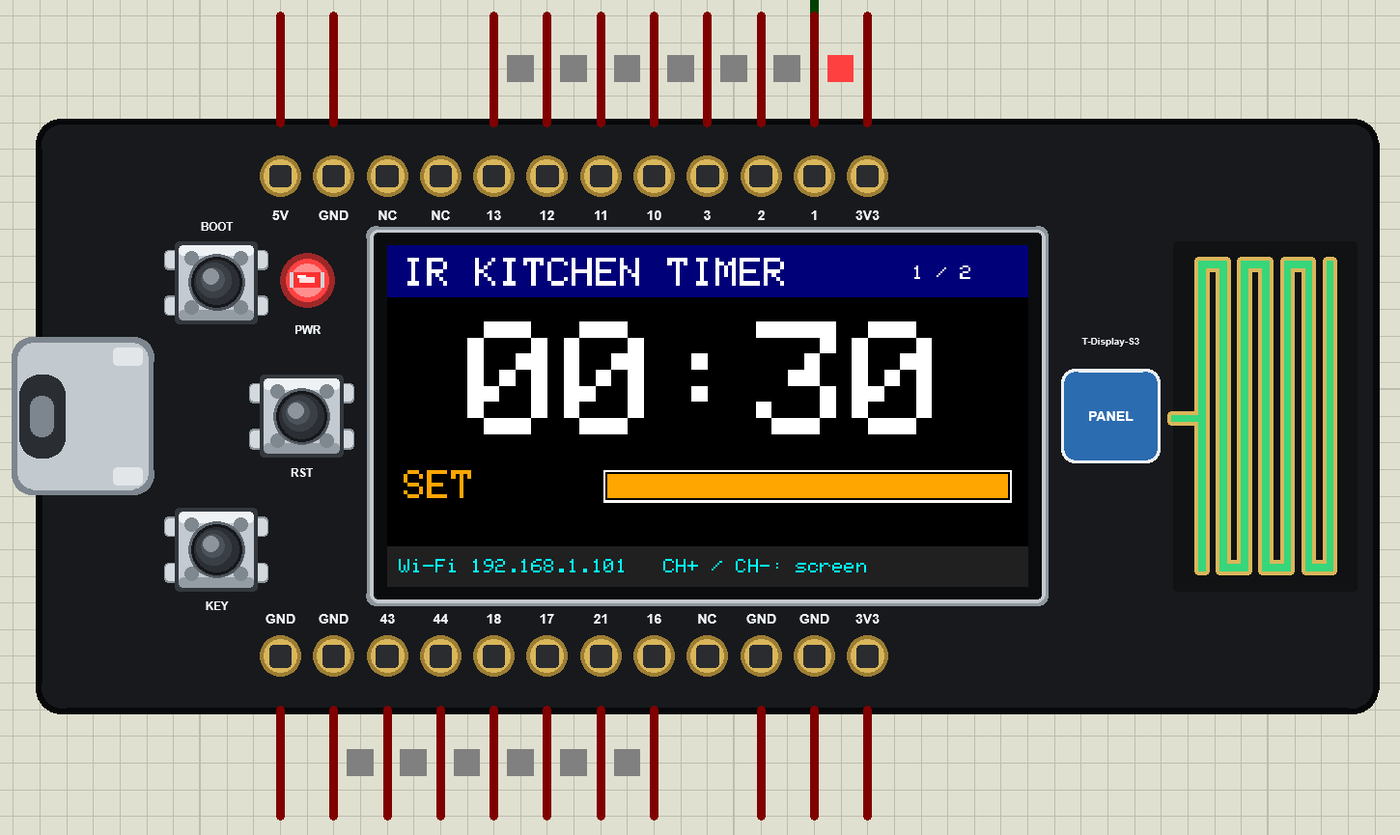
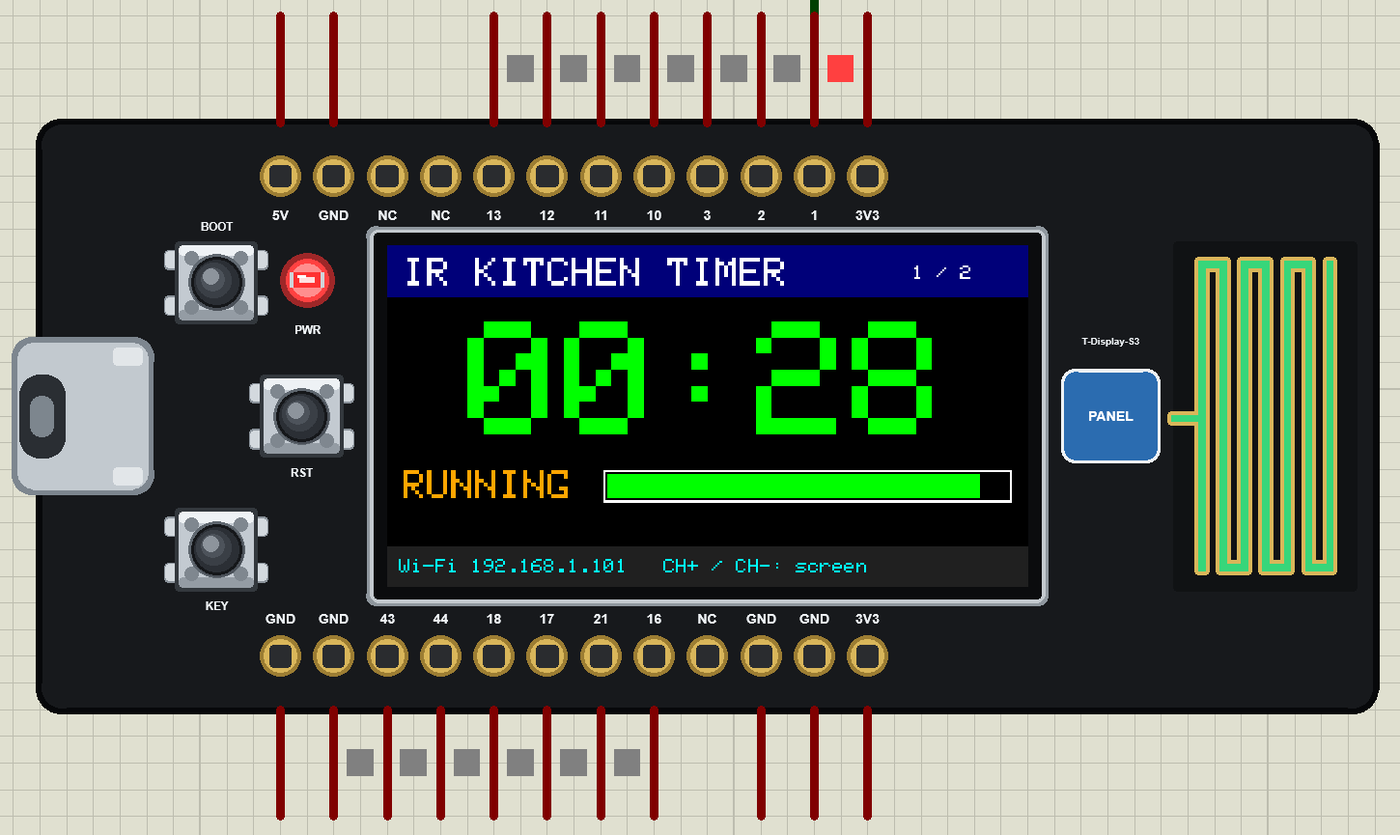
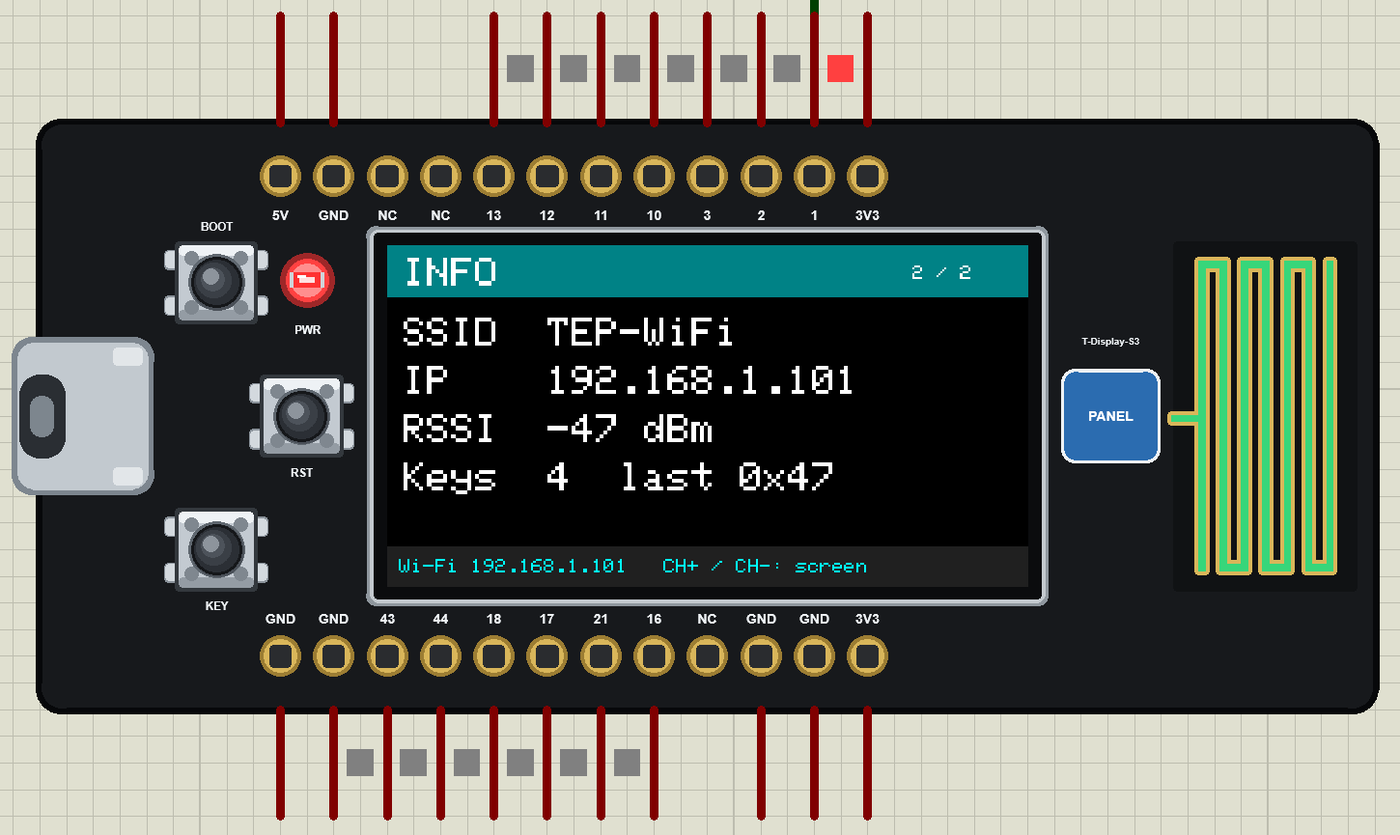
The display shows a menu of two screens: TIMER with the big countdown and a bar of the time left, and INFO with the network and the remote's last key. CH+ and CH- (or the board's BOOT button) switch between them. The countdown redraws only the digits, the state and the bar each second - the text is drawn with a background colour, so no flicker:
void drawTimer() {
  char buf[8];
  snprintf(buf, sizeof buf, "%02ld:%02ld", leftSec / 60, leftSec % 60);
  tft.setTextSize(8); tft.setCursor(40, 38);
  tft.setTextColor(timeUp ? ST77XX_RED : running ? ST77XX_GREEN : ST77XX_WHITE, ST77XX_BLACK);
  tft.print(buf);
  tft.fillRect(8, 112, 96, 16, ST77XX_BLACK);
  tft.setTextSize(2); tft.setCursor(8, 112);
  tft.setTextColor(timeUp ? ST77XX_RED : ORANGE, ST77XX_BLACK);
  tft.print(stateText());
  int w = setSec ? (int)(200L * leftSec / setSec) : 0;          // the bar: the time left of the time set
  tft.drawRect(108, 112, 204, 16, ST77XX_WHITE);
  tft.fillRect(110, 114, w, 12, running ? ST77XX_GREEN : ORANGE);
  tft.fillRect(110 + w, 114, 200 - w, 12, ST77XX_BLACK);
}
Wi-Fi and the Page
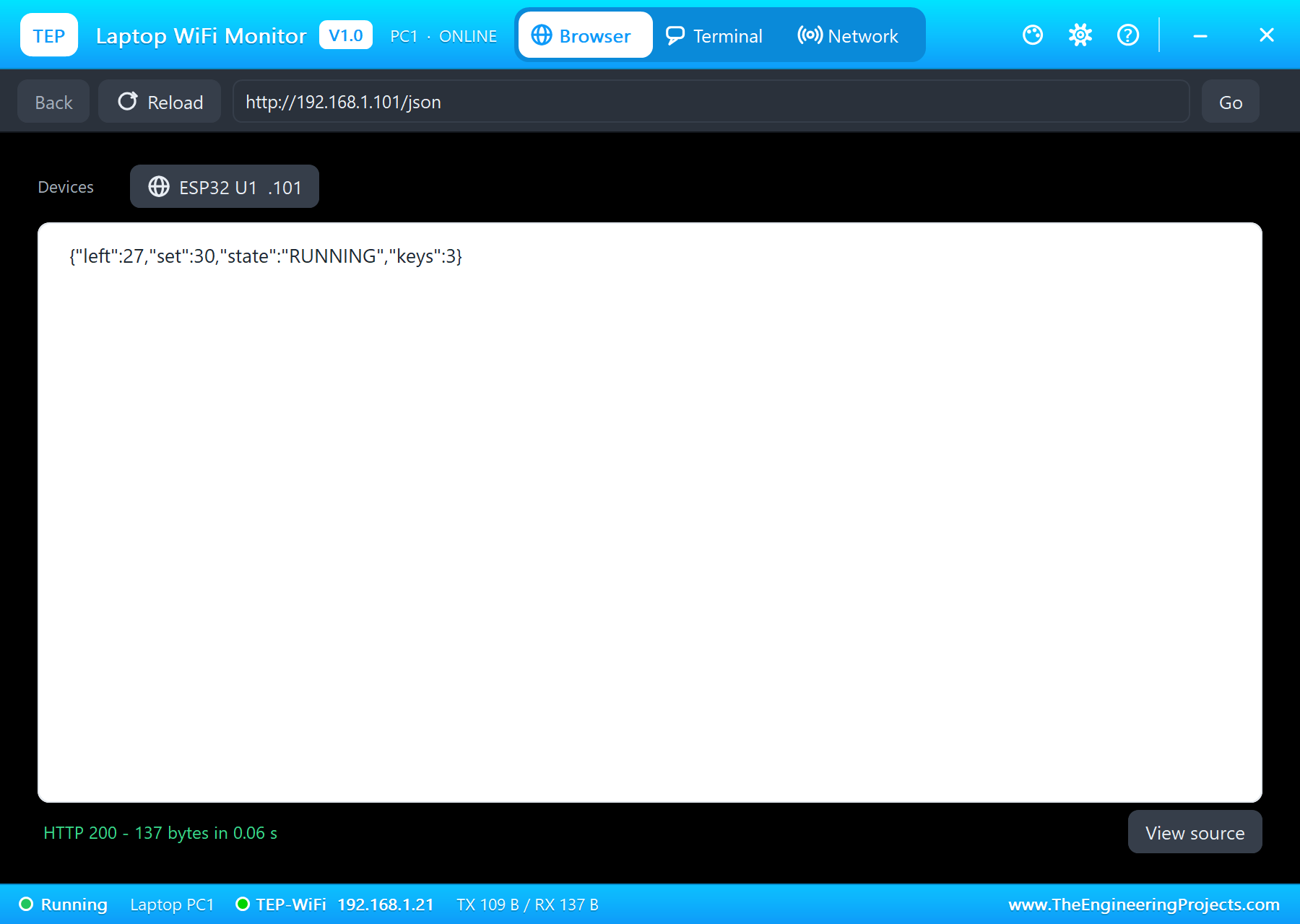
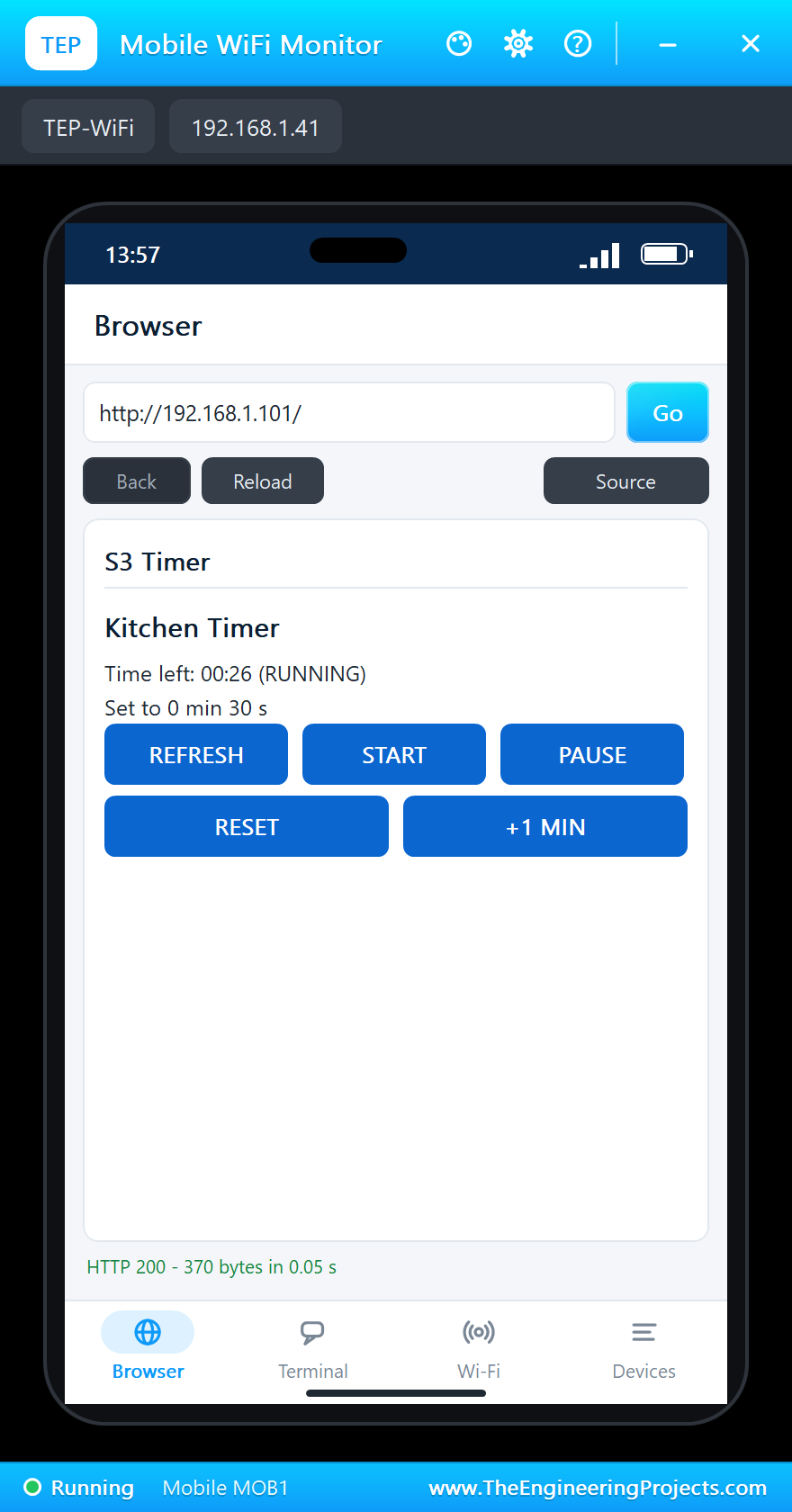
The web server has a page for the phone with START, PAUSE, RESET and +1 MIN, and a JSON page for programs:
  server.on("/", handleRoot); server.on("/json", handleJson); server.on("/start", webStart);
  server.on("/pause", webPause); server.on("/reset", webReset); server.on("/plus", webPlus);
Run the Demo
Press Run. The serial monitor opens and the board joins TEP-WiFi. On the remote in the receiver's pop-up click 3 and 0:
T-Display S3 IR Timer - The Engineering Projects
Connecting to TEP-WiFi
Timer page: http://192.168.1.101/
Key 0x5E
Timer set to 0 min 3 s (from the remote)
Key 0x16
Timer set to 0 min 30 s (from the remote)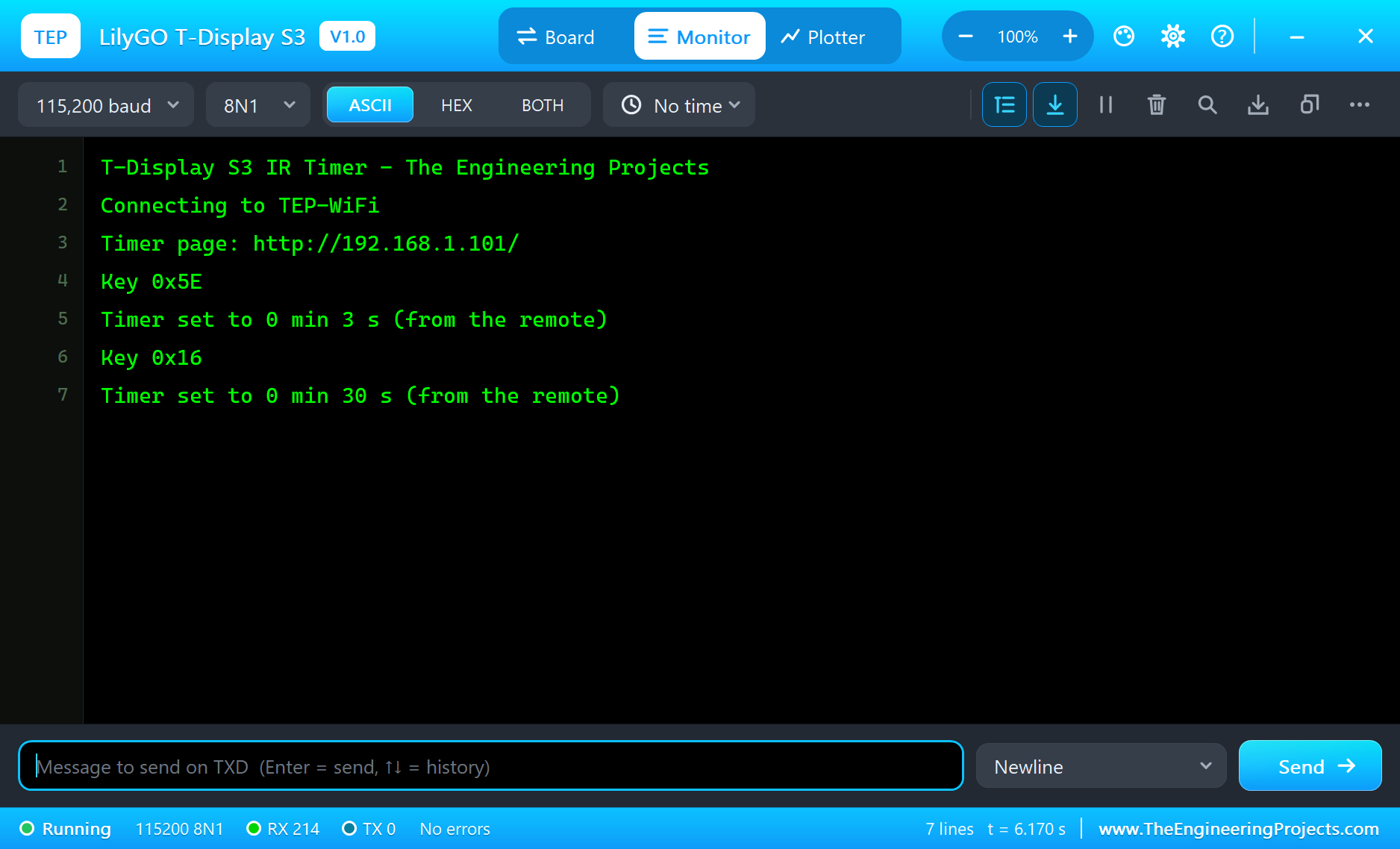
Start: the Countdown
Click >||. The timer starts: the digits turn green and the bar shrinks every second.
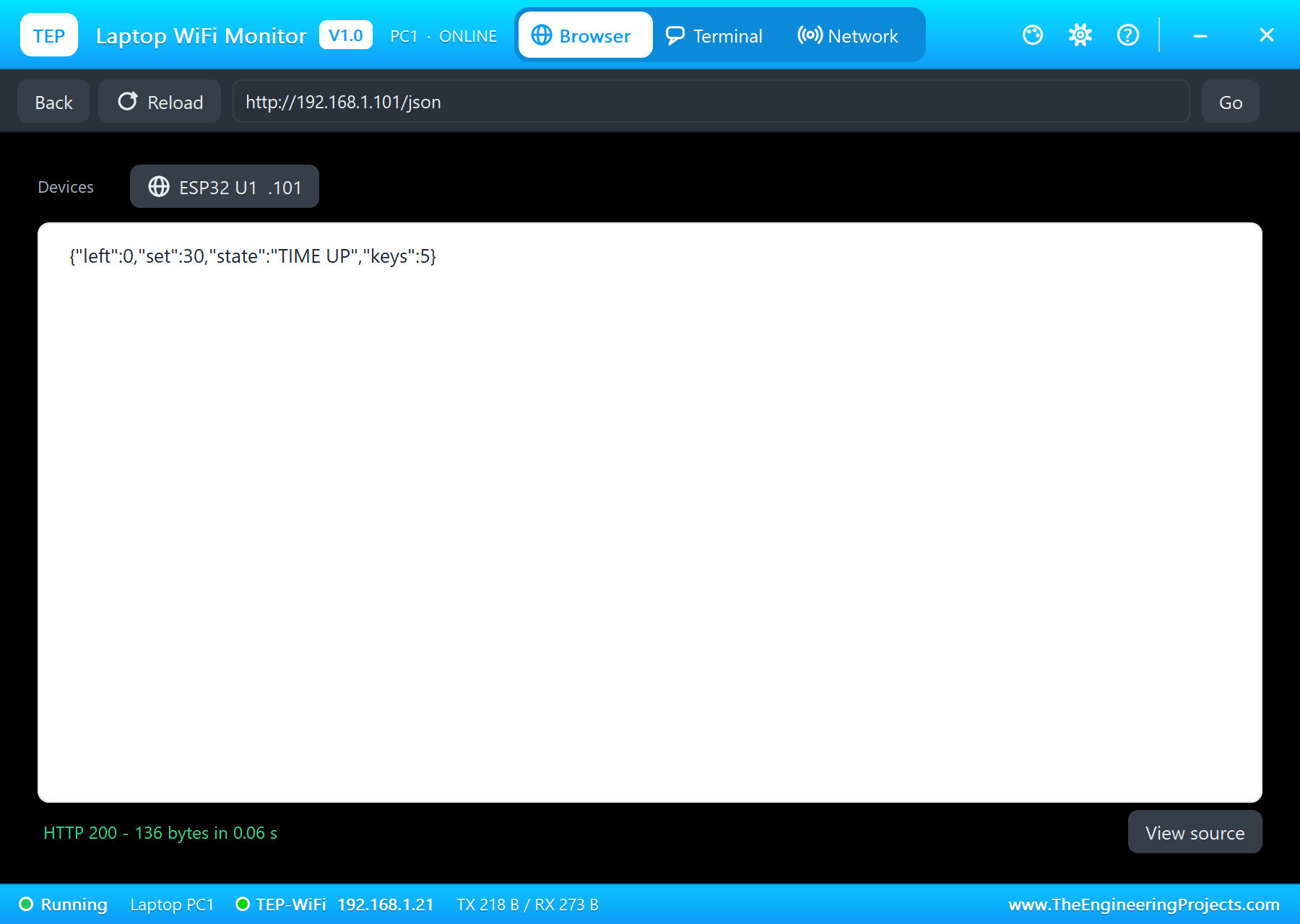
On the laptop click Browser and Go (the home page is http://192.168.1.101/json); on the phone the same with http://192.168.1.101/:
The INFO Screen
Click CH+: the INFO screen shows the network and the remote's last key. CH- goes back to the timer, which kept counting.
Pause and Start from the Phone
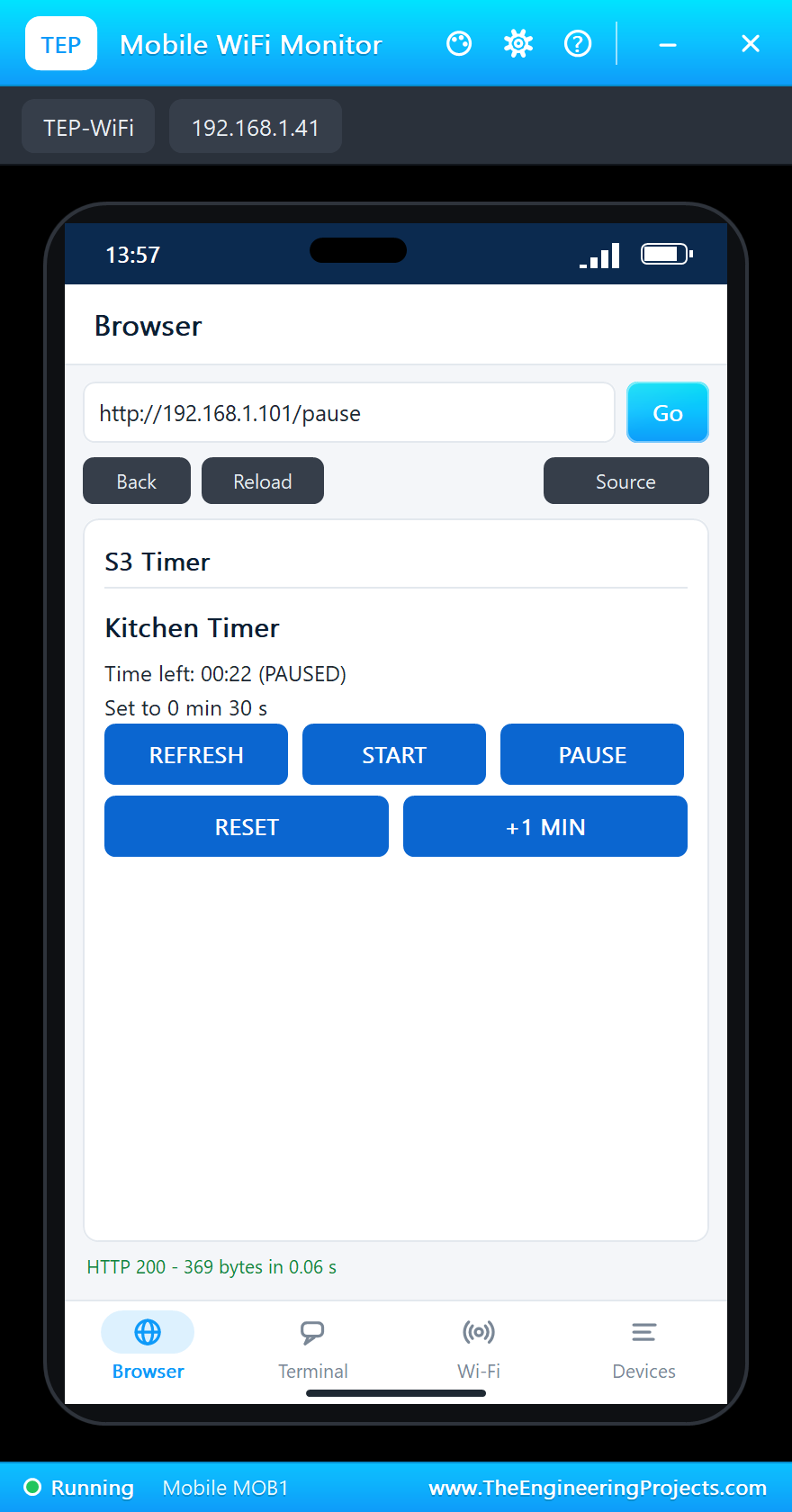
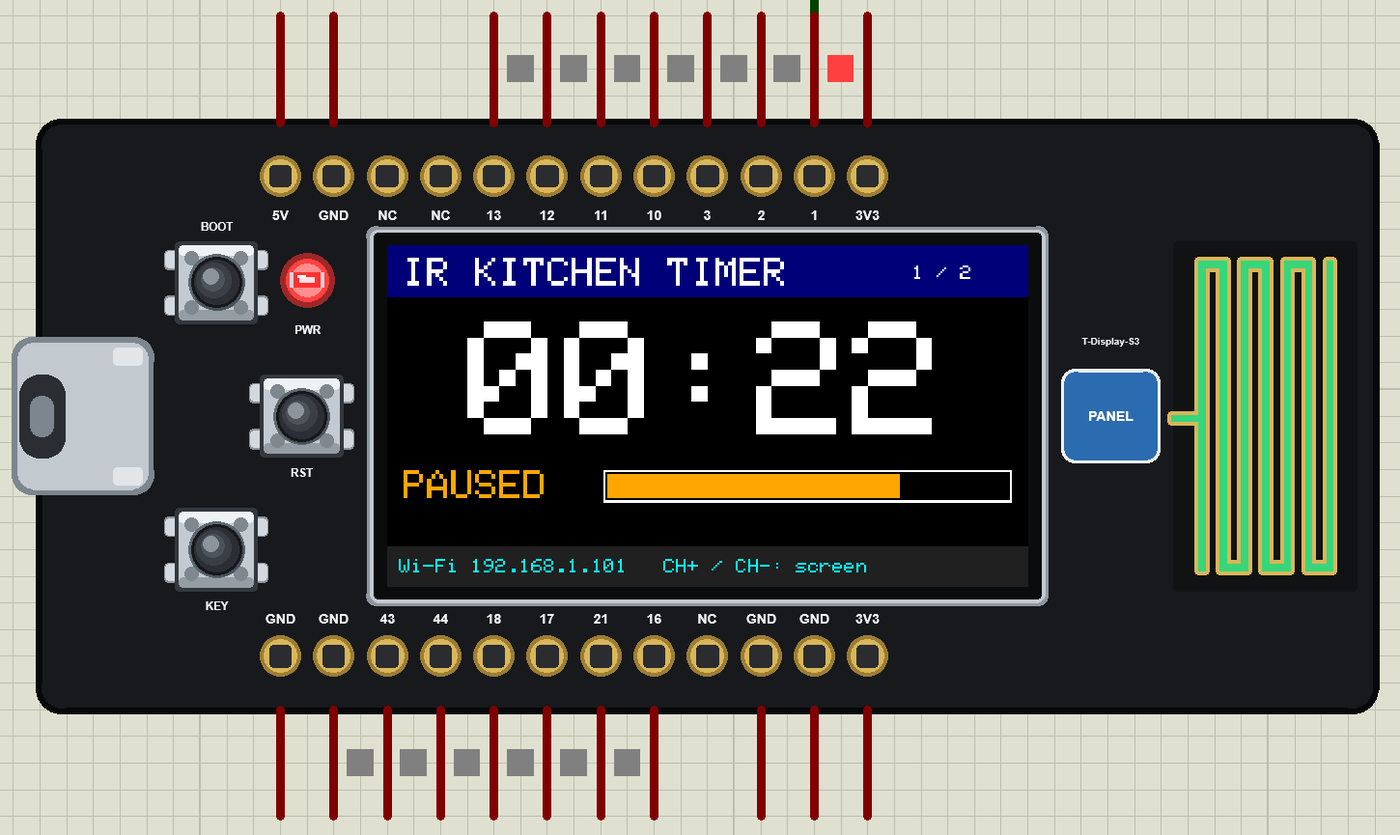
Tap PAUSE on the phone: the countdown stops, the bar turns orange. START goes on.
Time Up
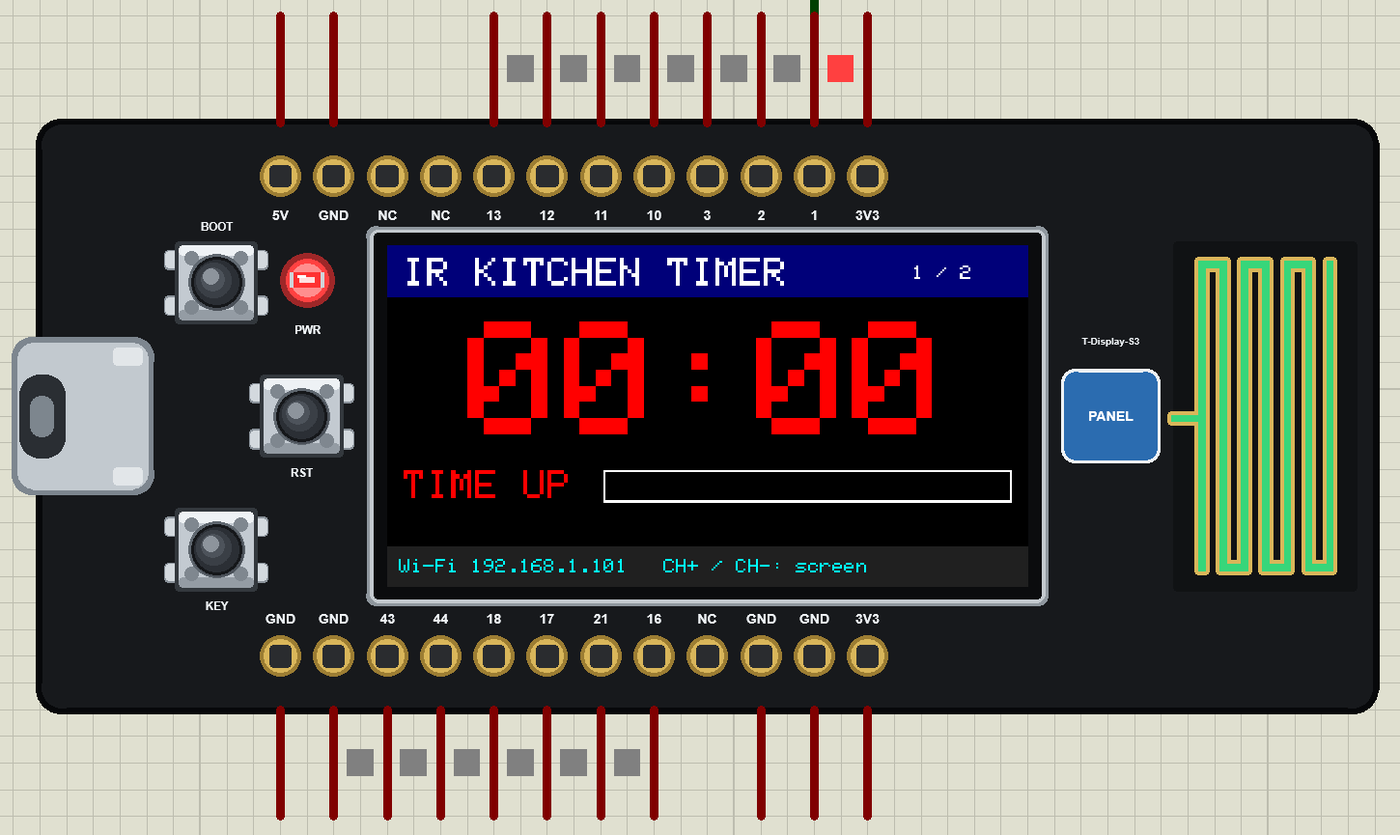
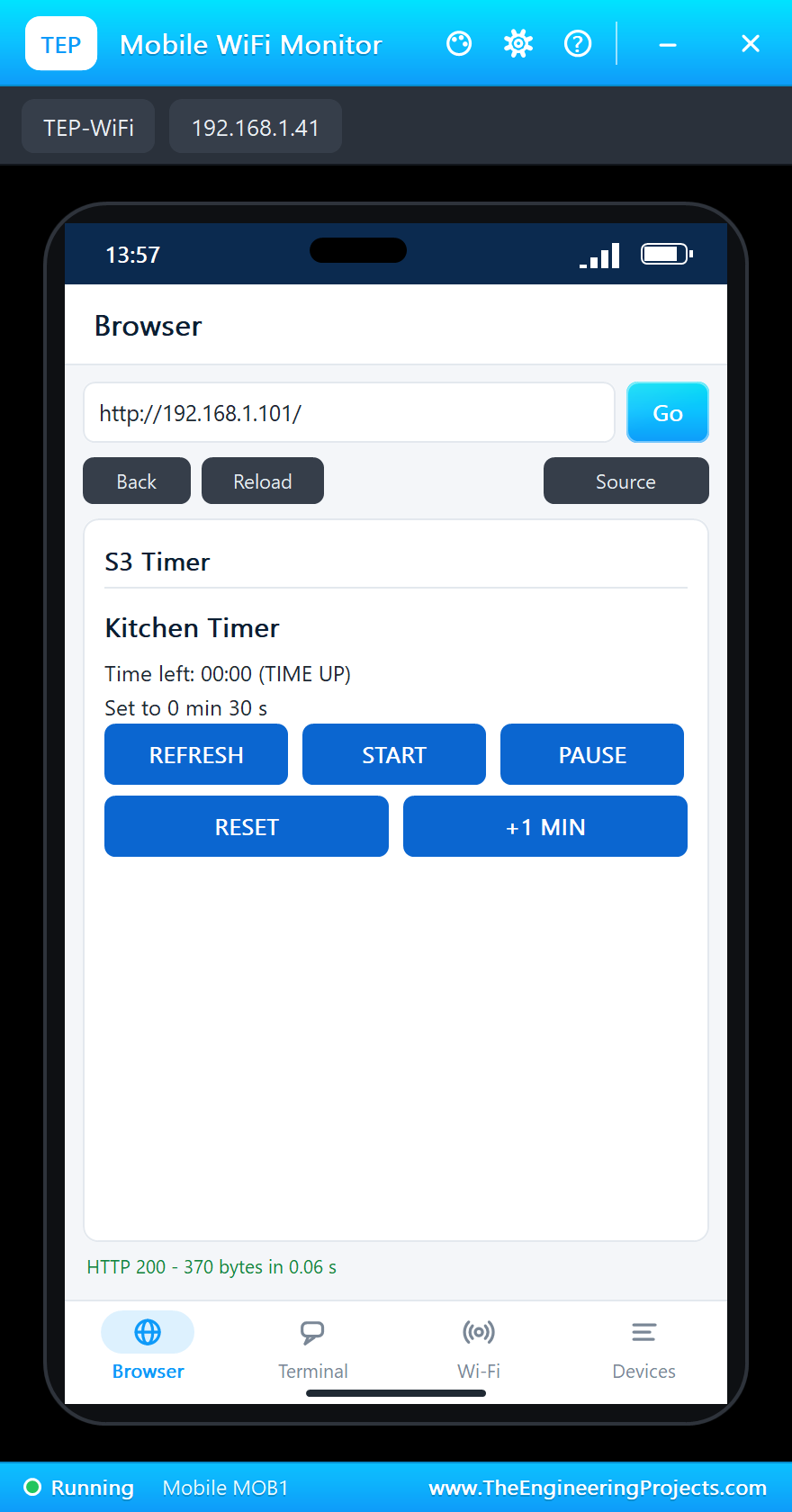
At 00:00 the digits turn red and the display says TIME UP; the page and the JSON say so too:
The built-in serial monitor, in the look of our TEP Serial Monitor Advance for Proteus, logs every key and every change:
Key 0x43
Timer started (from the remote)
Key 0x47
Key 0x45
Timer paused (from the web page)
Timer started (from the web page)
TIME UP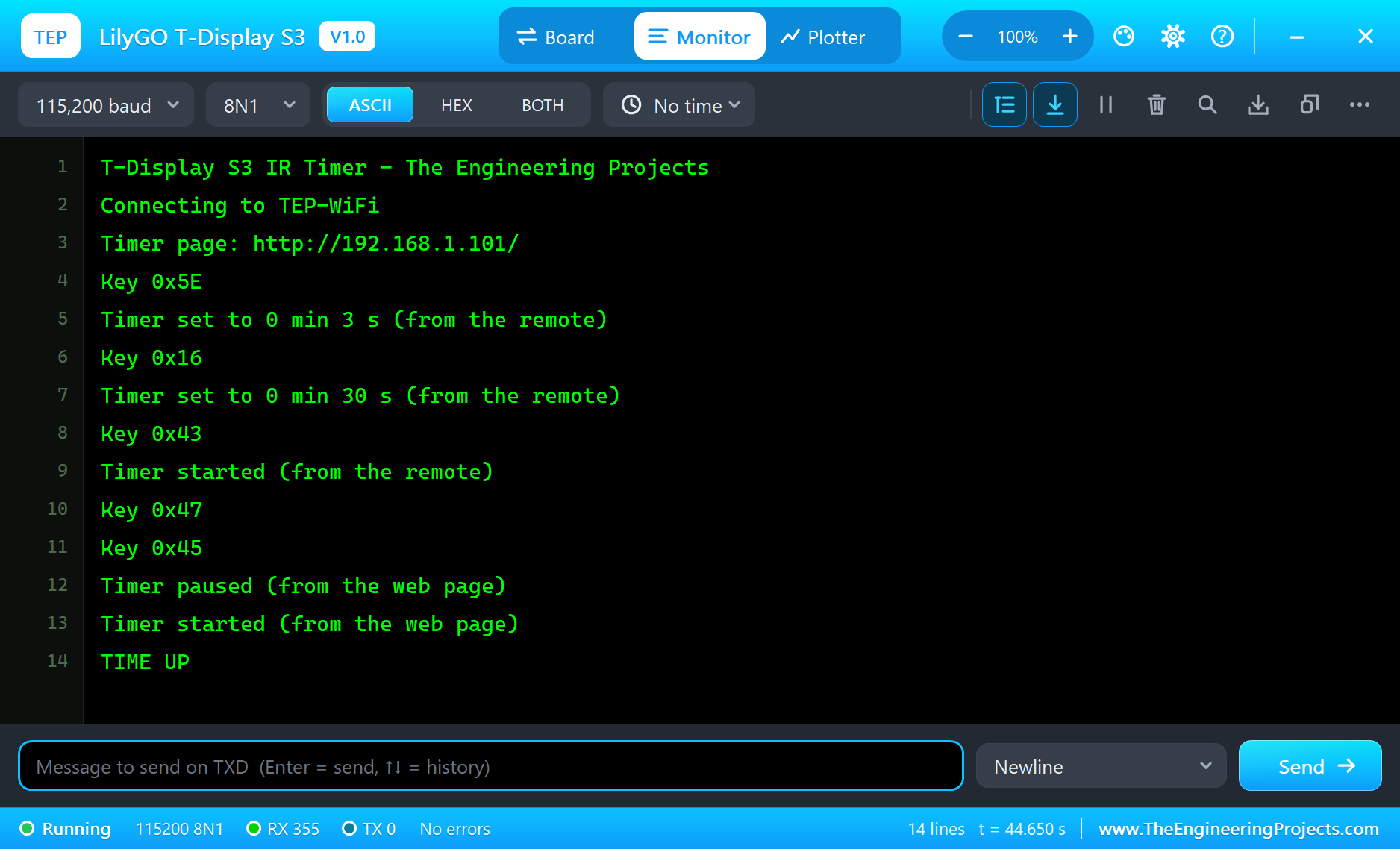
Try It Yourself
- Click HOLD + 1 s on the receiver's pop-up: the remote sends repeat codes - the sketch ignores them, so a held key counts once.
- Move the remote away with DISTANCE: past its reach the frames break and the timer does not react.
- Press the board's KEY button to start and pause, BOOT to switch the screen.
- Type
STATUS,START,PAUSEorRESETin the monitor.
Ideas to Extend the Timer
- Add a buzzer on a free pin that beeps at TIME UP.
- Keep several timers (eggs, pasta, oven) and choose them with |<< and >>|.
- Show the time of day from NTP on a third screen.
- Learn any remote: print unknown codes and store them as keys with Preferences.
Your Own Sketches
Write the sketch in the Arduino IDE with the board LilyGO T-Display S3 (TEP Proteus), use Sketch > Export Compiled Binary and set the board's PROGRAM property to the .hex. For the real T-Display S3 select "LilyGo T-Display-S3" in Espressif's "esp32" package; the IR decoder, the timer, the buttons and the web page stay the same, and the drawing goes through TFT_eSPI with LilyGO's setup or through Arduino_GFX on the parallel bus.
Things to Know Before Using a Real T-Display S3
- GPIO15 powers the LCD: set it HIGH first, or the display stays dark on battery power.
- USB CDC: Serial goes over the S3's own USB; enable "USB CDC On Boot" in the IDE to see it.
- The receiver on 3.3 V: the VS1838B works from 2.7 V, so it sits on the 3V3 pin and OUT goes straight to a GPIO.
- The battery: GPIO4 reads half the battery voltage only when USB is unplugged.
- Flash and PSRAM: choose "OPI PSRAM" and 16 MB flash in the IDE's Tools menu.
Properties of the LilyGO T-Display S3
| Property | What it does |
|---|---|
| PROGRAM | the sketch: a .hex from TEP Boards for Proteus (board "LilyGO T-Display S3") |
| WIFISSID, WIFIPASS | the router in range (TEP-WiFi, 12345678) |
| MONITOR, BAUD, AUTOOPEN | the built-in serial monitor: on, its baud rate (115200), open at Run |
| TIME | the clock for NTP: PC or a fixed UTC time |
Troubleshooting
- The display stays dark: GPIO15 and GPIO38 HIGH; tft.init(170, 320) and setRotation(1).
- The picture is shifted: the display is 170 x 320 - not 135 x 240 or 240 x 320.
- The remote does nothing: the receiver's OUT on GPIO1, its VCC on the power rail; the remote within reach.
- The board stays off the network: the sketch's SSID and password must match WIFISSID and WIFIPASS.
- A number goes wrong above 32767: int is 16 bits in the simulation - use long.
Limitations of the Simulation
- Your sketch gets 8 KB of RAM in the simulation and runs slower than on the S3's two 240 MHz cores with 512 KB and 8 MB of PSRAM.
- The display is reached over SPI instead of the 8-bit parallel bus; PSRAM, Bluetooth LE, the battery charger and the native USB devices are not modelled. One T-Display S3 per design.
- The router, the addresses and the windows are TEP additions.
- LilyGO and T-Display are names of LilyGO, ESP32-S3 of Espressif Systems; this library is not made or endorsed by them or by Labcenter.
- Tested in Proteus 8.5 in October 2026 (the demo as shipped, about 46 s of simulation). Proteus 7 is not supported.
So, that was all about the LilyGO T-Display S3 Library for Proteus. I hope it helps you build and test your T-Display S3 projects before you touch the hardware - the screen, the remote, the buttons and the web page in one simulation. If you have any questions, ask in the comments and I will help you out. Till the next tutorial, take care and have fun!

Comments
0