


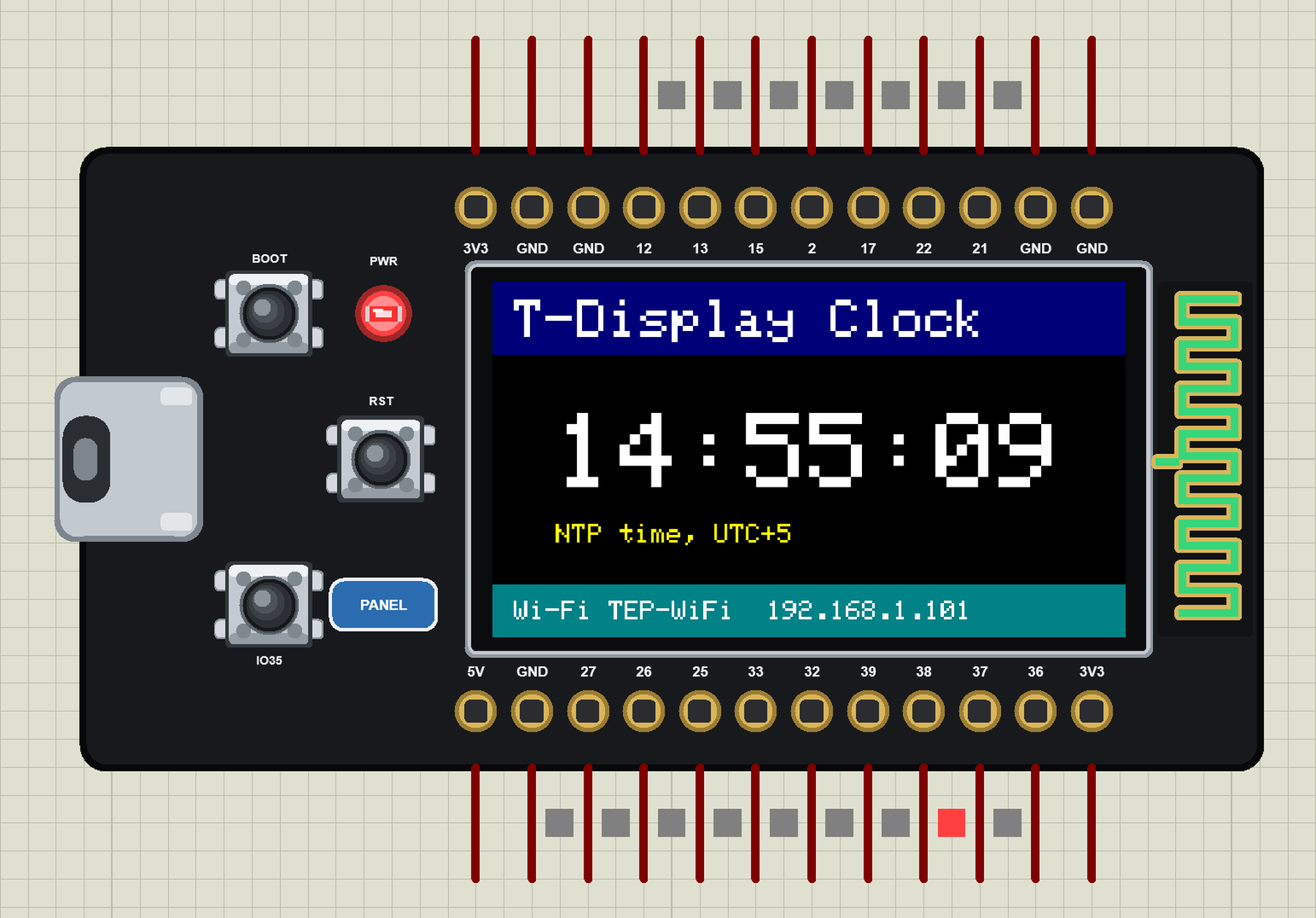
TTGO T-Display ESP32 Library for Proteus: TFT Display and Wi-Fi


Hello friends, I hope you all are doing great. Today, I am going to share the TTGO T-Display ESP32 Library for Proteus. It is the fifth board of our Wi-Fi series, after the ESP32 DevKit V1 Library for Proteus V2.0, the ESP32-DevKitC V4, the ESP32-S3 DevKitC-1 Library for Proteus and the ESP32-C3 SuperMini Library for Proteus: LilyGO's TTGO T-Display, the ESP32 board with a 1.14" 135 x 240 IPS colour display right on it, two buttons and a USB-C port. In Proteus the display really works: every pixel your sketch draws appears on the board.
TTGO T-Display ESP32 Library for Proteus
Latest version: V1.0 (October 2026, this tutorial)
Helping Tools
- Laptop WiFi Monitor: a laptop on the Wi-Fi of your design: a browser, a TCP / UDP terminal and ping
- Mobile WiFi Monitor: a smartphone that opens the pages of your ESP32 and sends it commands
- Serial Monitor Advance: a serial terminal window for the UART of your board
Let us be clear from the first line: this is not a real ESP32 chip. Proteus 8 has no model of the ESP32's Xtensa cores, so our board runs your sketch on a hidden ATmega2560 - Proteus's own AVR model - and our board model wraps it with the T-Display's pins, its ST7789 display, its buttons and Wi-Fi. You write a normal ESP32 Arduino sketch with the Adafruit ST7789 library for the display, WiFi, WebServer or HTTPClient, and compile it with our free Arduino IDE add-on, TEP Boards for Proteus. The price is the AVR inside: 16 MHz, 8 KB of RAM, no FreeRTOS tasks, no Bluetooth - we list every limit below.
NOTICE: this board brought two new things to our ESP32 model: a real display (our ST7789 controller model, fed bit by bit from the SPI pins) and hidden pins - the display bus, the buttons and the USB serial are not on the T-Display's header, and on our part they are not either. Your feedback is the fuel that keeps us going, so please tell us what you think in the comments below or in the TTGO T-Display board of our forum. And if our free libraries help you, you can buy us a coffee. So, let's get started with the TTGO T-Display ESP32 Library for Proteus:
What is the TTGO T-Display?
The TTGO T-Display by LilyGO is a compact ESP32 development board, about 51.5 x 25 mm, with a 1.14-inch IPS colour display covering most of its front: 135 x 240 pixels, driven by the ST7789V controller over SPI. Around it sit a USB-C port (with a USB-to-UART chip on the back), two user buttons - the left one is BOOT on GPIO0, the right one GPIO35 -, a reset button, a battery connector with a charger, a PCB antenna and two rows of 12 header pins. It is the classic choice for a small Wi-Fi gadget that shows something: a clock, a sensor reading, a status screen.
| Real TTGO T-Display | This library in Proteus | |
|---|---|---|
| Processor | ESP32-D0WDQ6, two Xtensa LX6 cores, 240 MHz | Proteus's ATmega2560 model at 16 MHz, inside the board |
| Memory | 520 KB SRAM, 4 MB flash | 8 KB of RAM, 256 KB of flash |
| Display | 1.14" IPS, 135 x 240, ST7789V on SPI | the same: our ST7789 model, painted on the board |
| Wi-Fi / Bluetooth | 802.11 b/g/n, Bluetooth 4.2 + BLE | a virtual router, DHCP, TCP, UDP, mDNS, NTP, an internet host / no |
| Pins | 24 (16 GPIOs on the header) | the same 24 pins with their GPIO numbers |
| Buttons | BOOT (GPIO0), GPIO35, RST | the same three, working with the mouse |
| Programming | Arduino-ESP32 core ("LilyGo T-Display") | TEP Boards for Proteus, the HEX file in the board's properties |
How Can an ESP32 Sketch Drive a Display in Proteus?
The board you place is our part; inside it sits Proteus's own ATmega2560 model, which runs the HEX file of your sketch. The HEX comes from our Arduino IDE add-on TEP Boards for Proteus, now version 1.4.0 with the T-Display in its board list. The display pins of the T-Display - GPIO18 SCLK, 19 MOSI, 5 CS, 16 DC, 23 RST and 4 for the backlight - are the AVR's SPI and port pins, so the Adafruit library talks to the display exactly as it would on a real board. Our board model watches those pins and feeds every bit to the same ST7789 controller model as our ST7789 TFT LCD Library for Proteus: commands, colour modes, rotations, windows, sleep and display on / off. What the controller holds in its memory is painted on the board's glass, as bright as the backlight.
Pins That Are Not on the Header
On the real T-Display the display bus, the two buttons and the USB serial port are wired on the board only - you cannot reach them from the header. Our part does the same with hidden pins: they exist for the AVR model and for our board model, but Proteus draws no pin for them. One thing to know: Proteus joins hidden pins that share a name, so use one T-Display per design.
Features of the TTGO T-Display ESP32 Library for Proteus
- A working 1.14" display: 135 x 240 pixels, the ST7789 controller fed bit by bit, the picture on the board in its real colours, the backlight dimmed by PWM on GPIO4.
- The T-Display's 24 pins: 3V3, GND, 12, 13, 15, 2, 17, 22, 21 on one side, 5V, GND, 27, 26, 25, 33, 32, 39, 38, 37, 36, 3V3 on the other, as printed on the real board.
- Three working buttons: BOOT (GPIO0), IO35 and RST.
- Your ESP32 sketch runs: GPIO numbers as on the ESP32, 12-bit
analogRead()read by the board model, ledc PWM,attachInterrupt()on every pin, the DAC on GPIO25 / 26, Serial, Wire and SPI. - Wi-Fi in Proteus: a virtual router with DHCP, RSSI, mDNS names, TCP and UDP, NTP time and an internet host that answers HTTP.
- A phone in the panel: it opens your sketch's web page and taps its links.
- A real-looking board: the T-Display at its real proportions, smaller than the UNO, with the USB-C port, the buttons, the PWR LED and a PCB antenna that changes colour with the Wi-Fi.
- The panel and the built-in serial monitor of our ESP32 boards: Wi-Fi, Pins (28 GPIOs) and Test pages, a Board tab with every pin.
- Three demo projects: a Wi-Fi clock, a web message board, and a level graph that reads our ESP32-C3 SuperMini over HTTP.
- A compact package: about 1.76 MB, without the C++ source code of the models.
The TTGO T-Display Part in Proteus
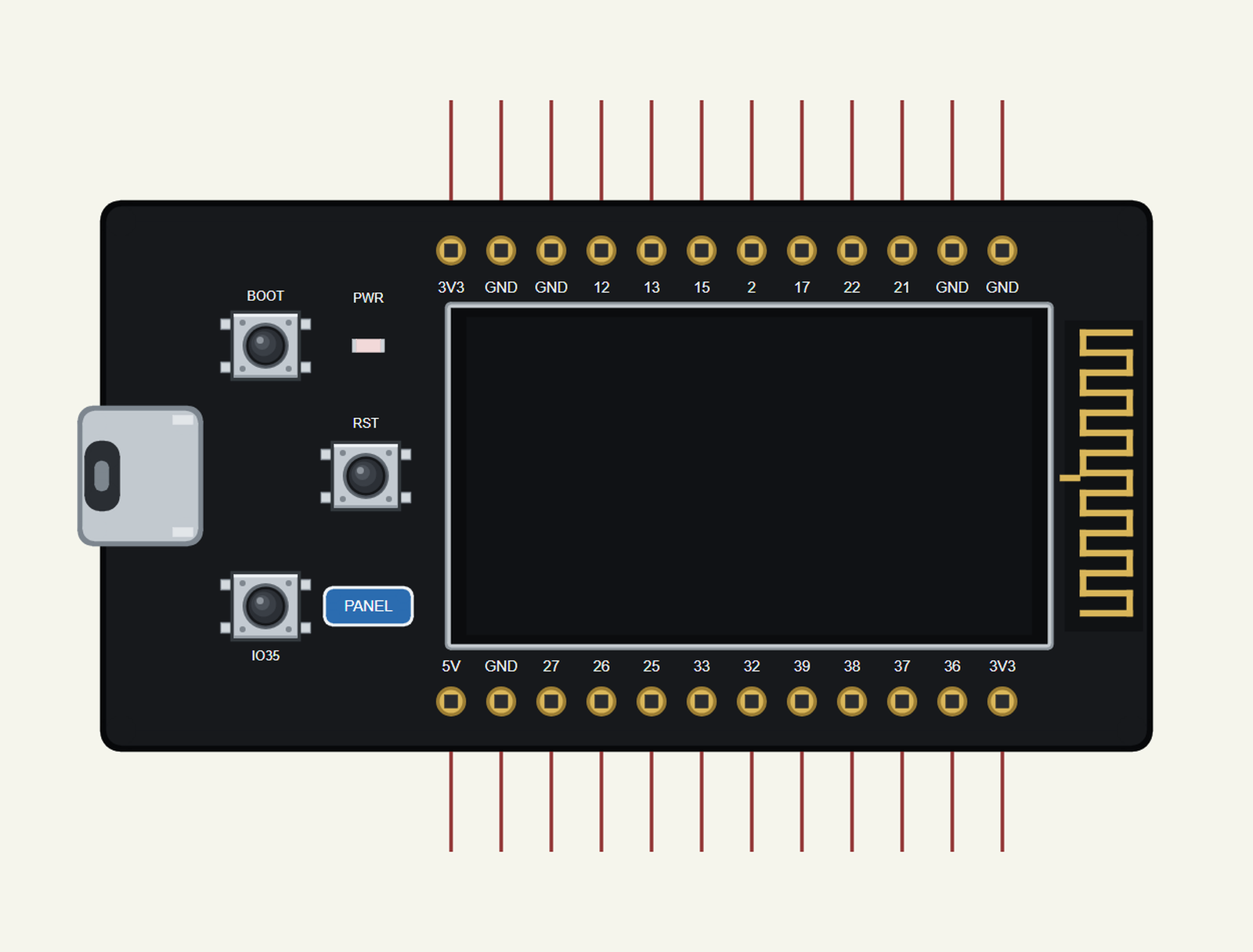
The part is the real board turned on its side, the USB-C end on the left, at its real proportions - smaller than the Arduino UNO. The top row of pins is the real board's left column, the bottom row its right column. Search TTGO in Pick Devices; the device is TTGO T-DISPLAY in TEPTDISPLAY.LIB. The USB-C port opens the serial monitor, the PANEL pad (or the display) the board's panel.
The Display at Work
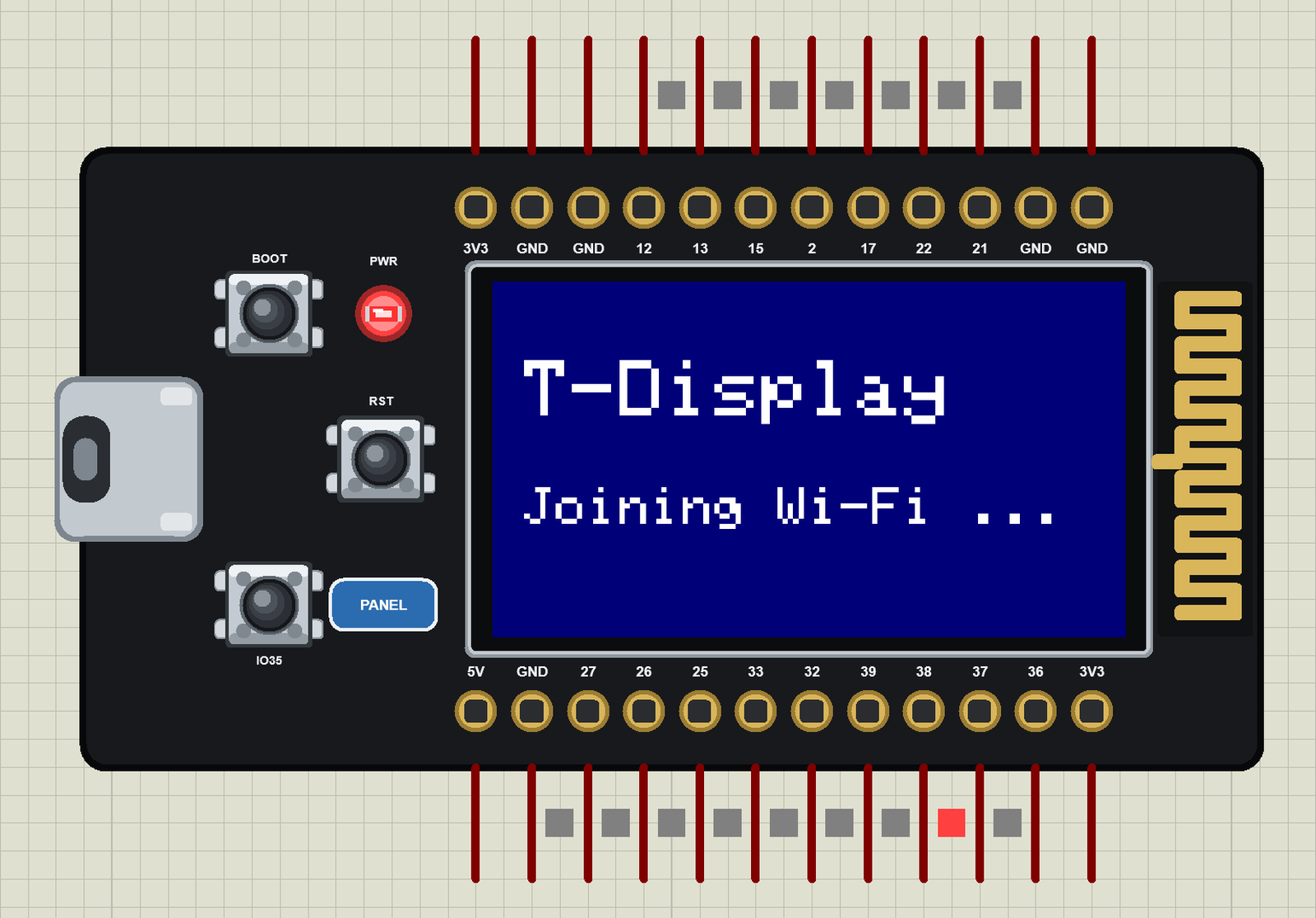
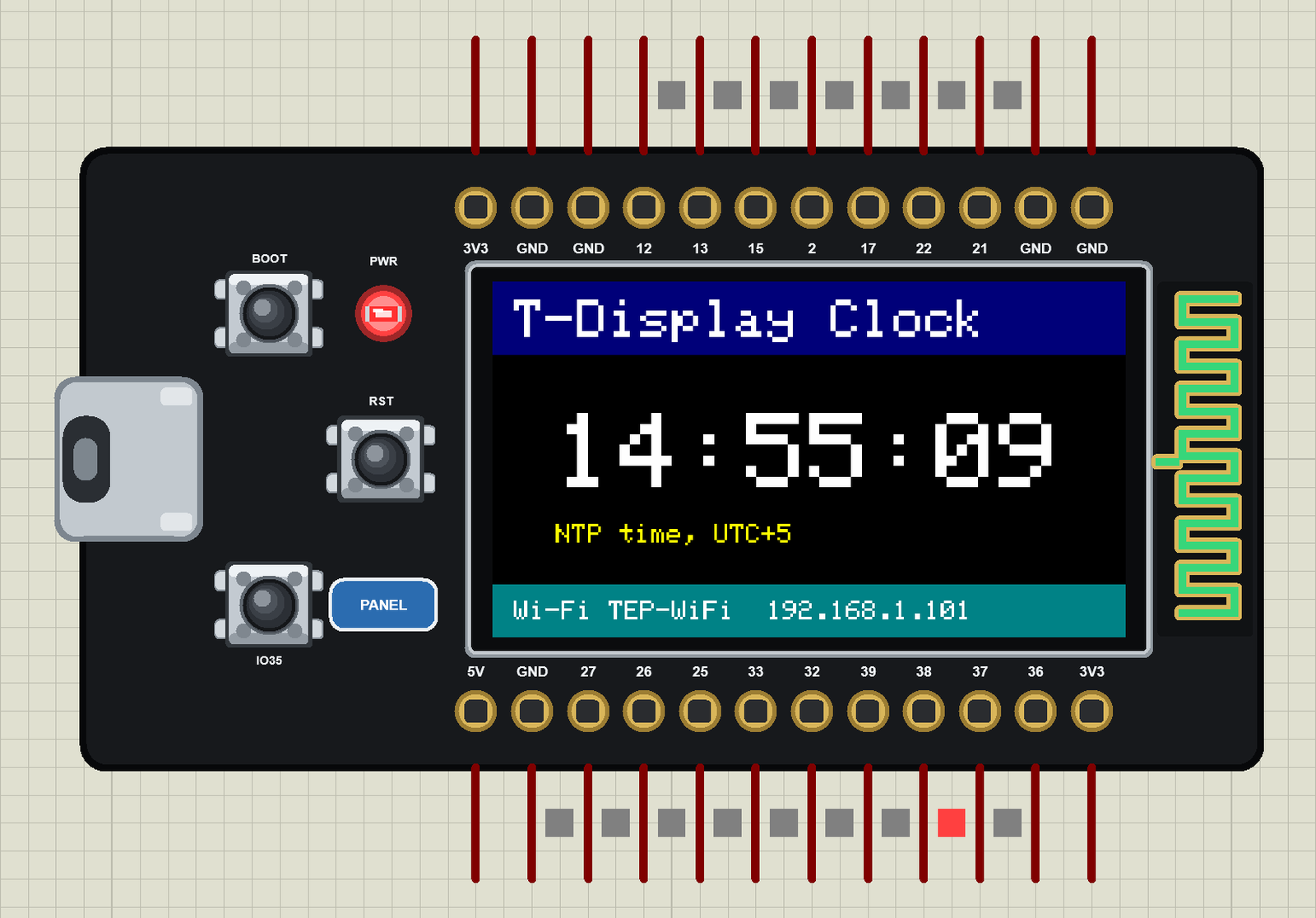
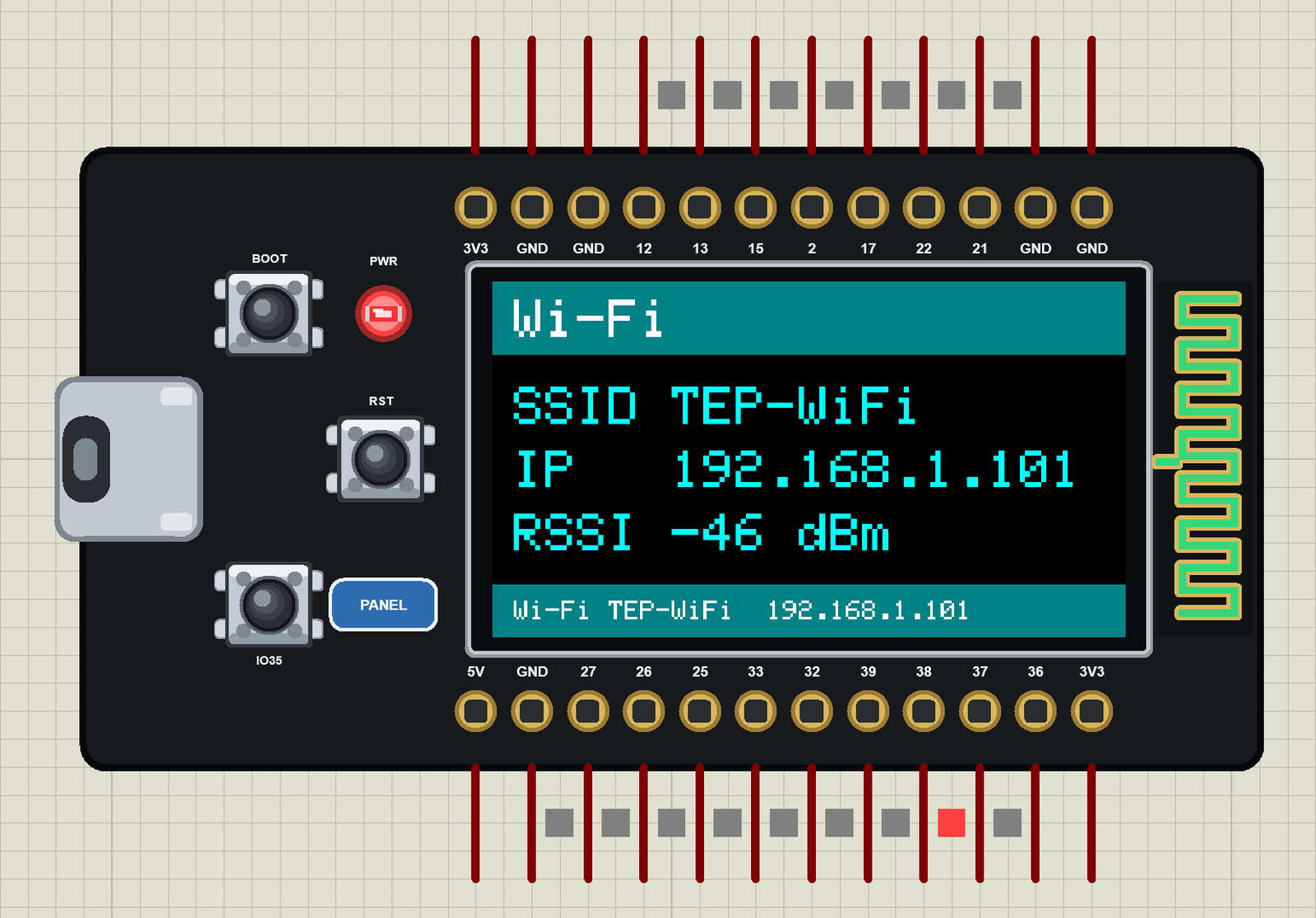
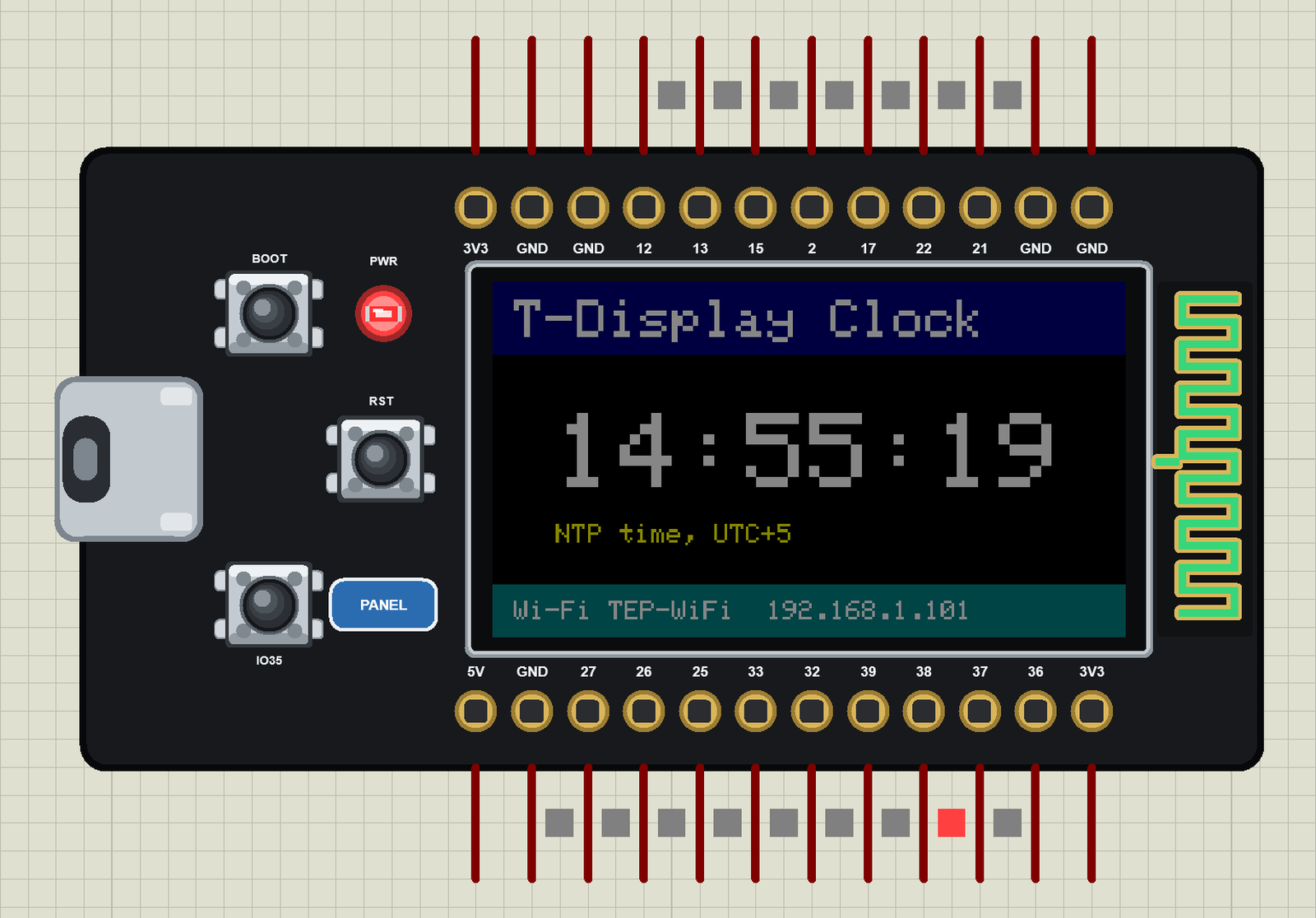
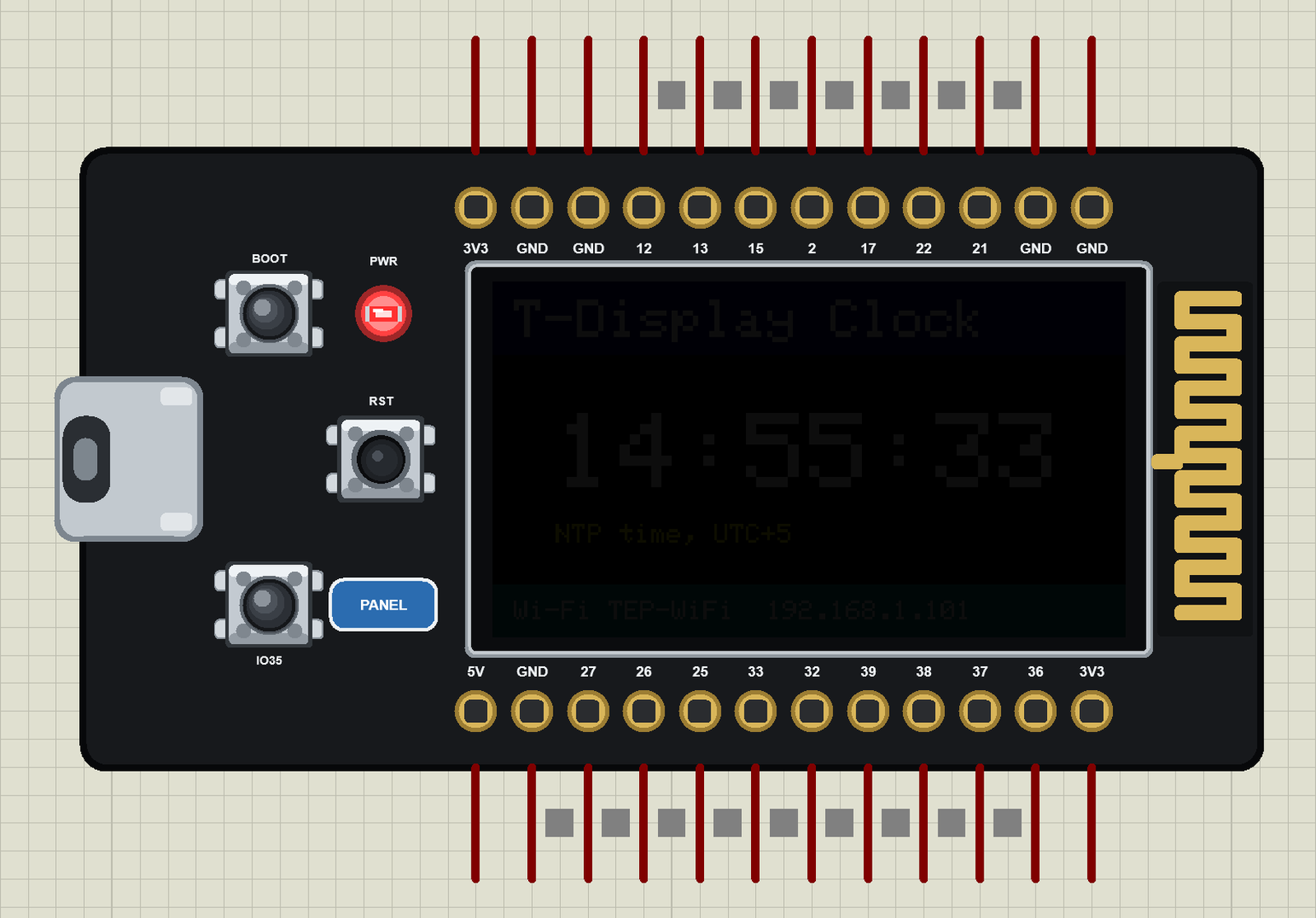
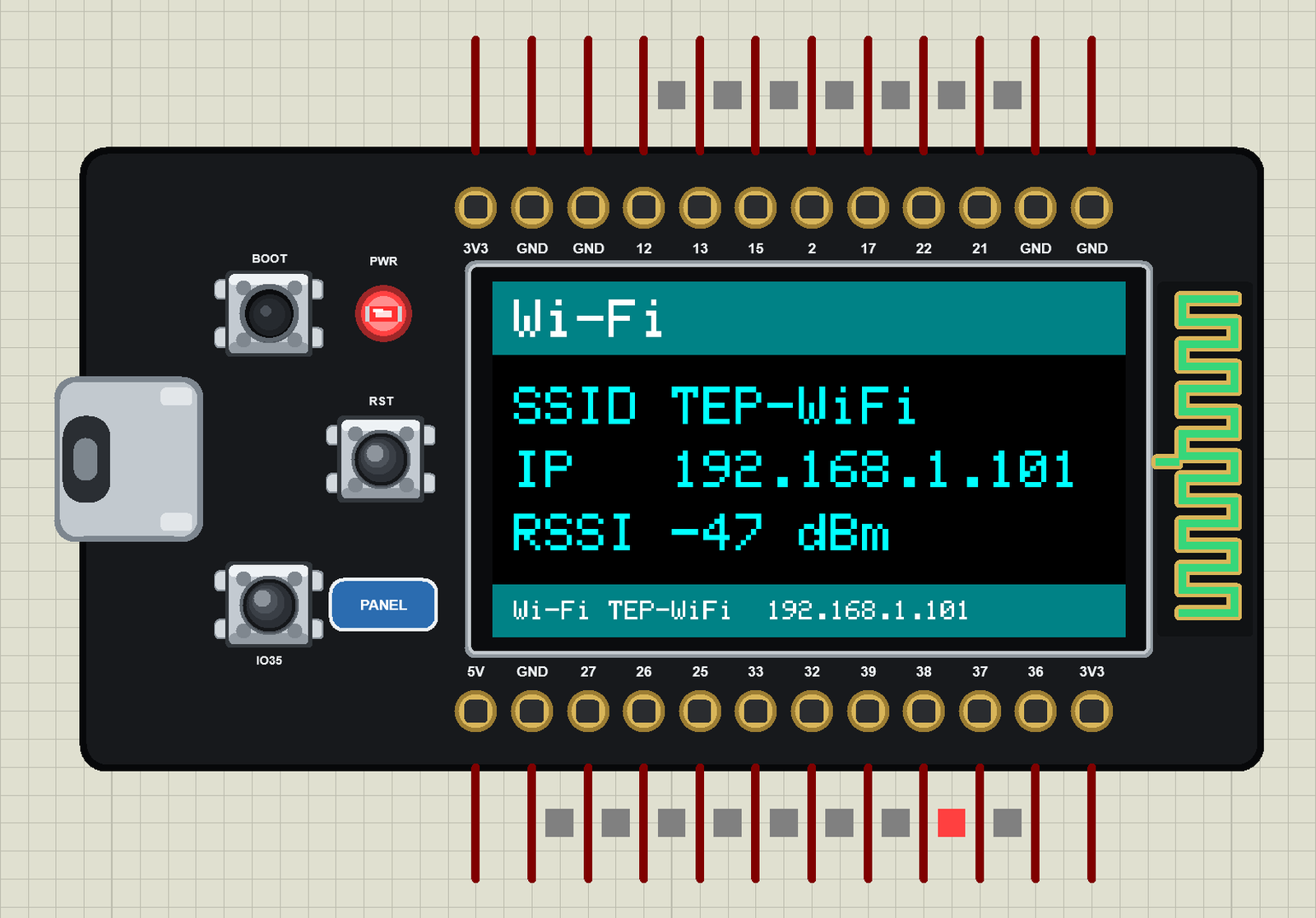
The first demo draws a splash screen while the board joins the Wi-Fi, then an NTP clock. We paused the simulation for each picture:
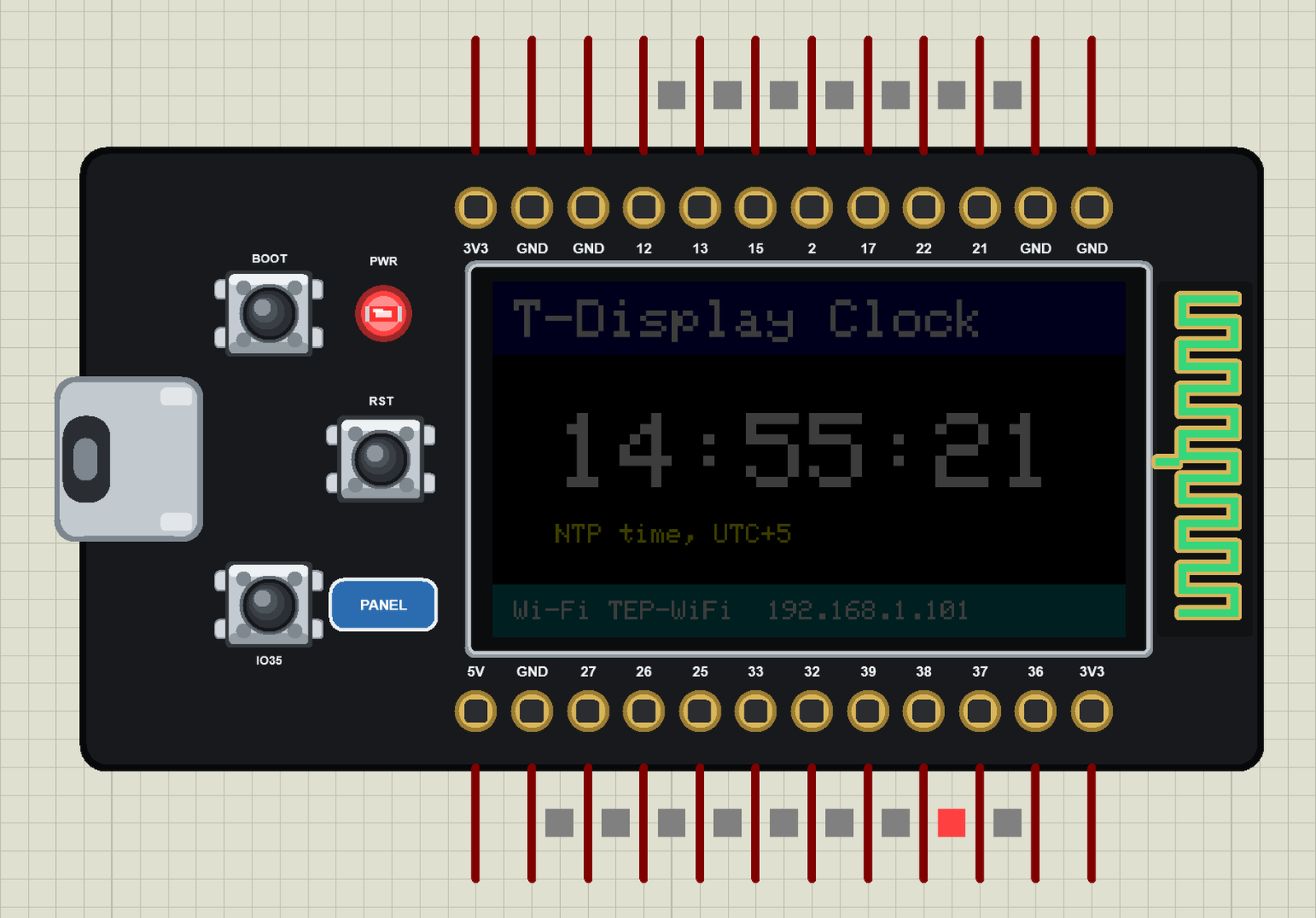
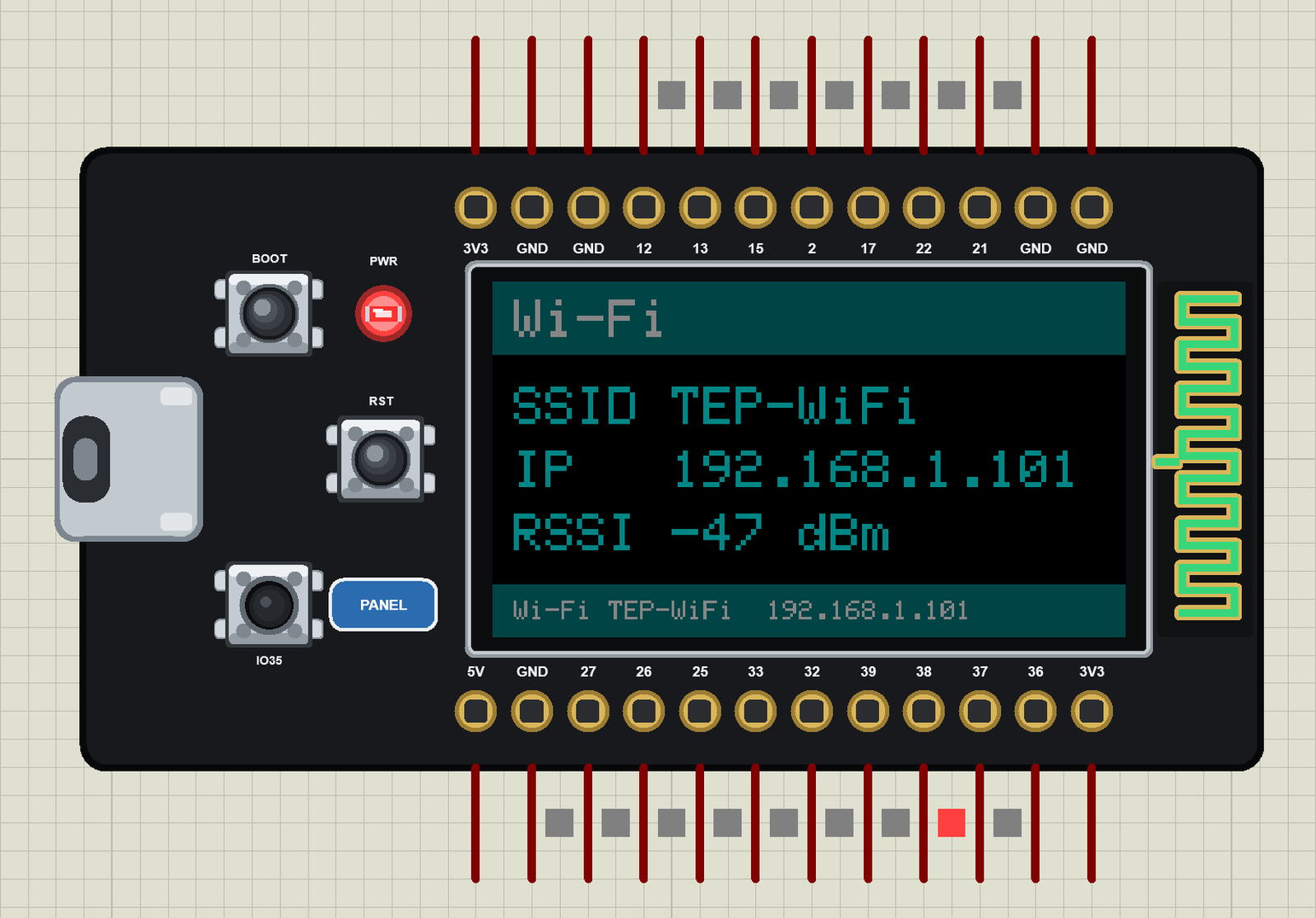
The backlight is an LED behind the glass, on GPIO4. The sketch drives it with ledc PWM, and our model makes the glass as bright as the PWM duty:
The three buttons work with the mouse. We held each one for a picture:
Download TTGO T-Display ESP32 Library for Proteus
Click the button below to download TTGO-T-Display-Library-for-Proteus-v1.0.zip (about 1.76 MB, without the C++ source code of the models):
TTGO T-Display Library for Proteus V1.0- README.txt: the device, installation, the three demos, the pins, the properties, troubleshooting and the limits.
- Proteus Library Files:
TEPTDISPLAY.LIB(the board) andTEPESP32C3.LIBfrom our ESP32-C3 SuperMini library - used by the third demo. - Proteus Model Files:
TEPNET.DLL- the ESP32 boards, the display and the Wi-Fi network. - Proteus Simulation: the three demo projects, their HEX files and a copy of the DLL.
- Arduino Code: the demo sketches and the TEP Boards for Proteus add-on 1.4.0 for the Arduino IDE. The Adafruit libraries are not included - install them from the Library Manager.
No Proteus yet? Read How to Download and Install Proteus 7 and 8. New to libraries? Follow How to Install a New Library in Proteus.
How to Install TTGO T-Display ESP32 Library for Proteus
- Close Proteus and extract the whole zip file, for example to your Desktop.
- Copy the two files from Proteus Library Files into the LIBRARY folder of Proteus (usually
C:\Program Files (x86)\Labcenter Electronics\Proteus 8 Professional\LIBRARY). - Copy
TEPNET.DLLfrom Proteus Model Files into the MODELS folder - it replaces an older TEPNET.DLL (the new one runs all our ESP32 boards). - Delete
TEPTDISPLAY.IDXandTEPESP32C3.IDXfrom the LIBRARY folder if they are there. - Start Proteus, press P and search for TTGO.
Install TEP Boards for Proteus and the Adafruit Libraries
You only need this to compile your own sketches - the demos come with their HEX files.
- The Arduino AVR Boards platform must be installed: it comes with the Arduino IDE 1.8.x; in IDE 2.x install "Arduino AVR Boards" from the Boards Manager once. The add-on uses its compiler.
- Copy the folder
Arduino Code\TEP Boards for Proteus\hardwareinto your sketchbook folder, normallyDocuments\Arduino, so thatDocuments\Arduino\hardware\tep\avr\boards.txtexists - replace an older copy (the T-Display needs version 1.4.0). - In Sketch > Include Library > Manage Libraries install Adafruit ST7735 and ST7789 and Adafruit GFX (with Adafruit BusIO).
- Restart the IDE and select Tools > Board > TEP Boards for Proteus > TTGO T-Display (TEP Proteus).
- Write your sketch and use Sketch > Export Compiled Binary. Double-click the board in Proteus and set Program File to the exported HEX (see How to get the HEX file from Arduino).
The variant defines the T-Display's usual names: TFT_MOSI, TFT_SCLK, TFT_CS, TFT_DC, TFT_RST, TFT_BL, BUTTON_1 (35), BUTTON_2 (0), ADC_PIN (34) and ADC_EN (14). The same sketch compiles for a real board with the "LilyGo T-Display" board of the Arduino-ESP32 core.
Demo 1: A Wi-Fi Clock on the Display
Open TTGO-T-Display-Board.pdsprj: the board alone with TDisplay_WiFi_Clock.hex. The display object is Adafruit's, on the board's SPI pins:
Adafruit_ST7789 tft = Adafruit_ST7789(&SPI, TFT_CS, TFT_DC, TFT_RST);In setup() the sketch starts SPI on the T-Display's pins, sets the panel size and turns it to landscape. Rotation 1 is upright with the USB-C on the left, as our part is drawn:
  SPI.begin(TFT_SCLK, -1, TFT_MOSI, TFT_CS);
  tft.init(135, 240);
  tft.setRotation(1);                                // landscape, the USB-C on the left
The backlight is a PWM channel on TFT_BL; IO35 steps it through 100, 50 and 20 %:
  ledcAttach(TFT_BL, 5000, 8);
  ledcWrite(TFT_BL, LEVELS[level]);
After joining, configTime() asks NTP for the time, and the loop redraws only the digits once a second - with a background colour, so the old digits are overwritten without clearing the screen:
void drawTime() {
  struct tm now;
  if (!getLocalTime(&now, 0) || now.tm_sec == lastSecond) return;
  lastSecond = now.tm_sec;
  char buf[12];
  strftime(buf, sizeof buf, "%H:%M:%S", &now);
  tft.setTextColor(ST77XX_WHITE, ST77XX_BLACK);
  tft.setTextSize(4);
  tft.setCursor(24, 50);
  tft.print(buf);
  tft.setTextColor(ST77XX_YELLOW, ST77XX_BLACK);
  tft.setTextSize(1);
  tft.setCursor(24, 92);
  tft.print("NTP time, UTC+5");
}
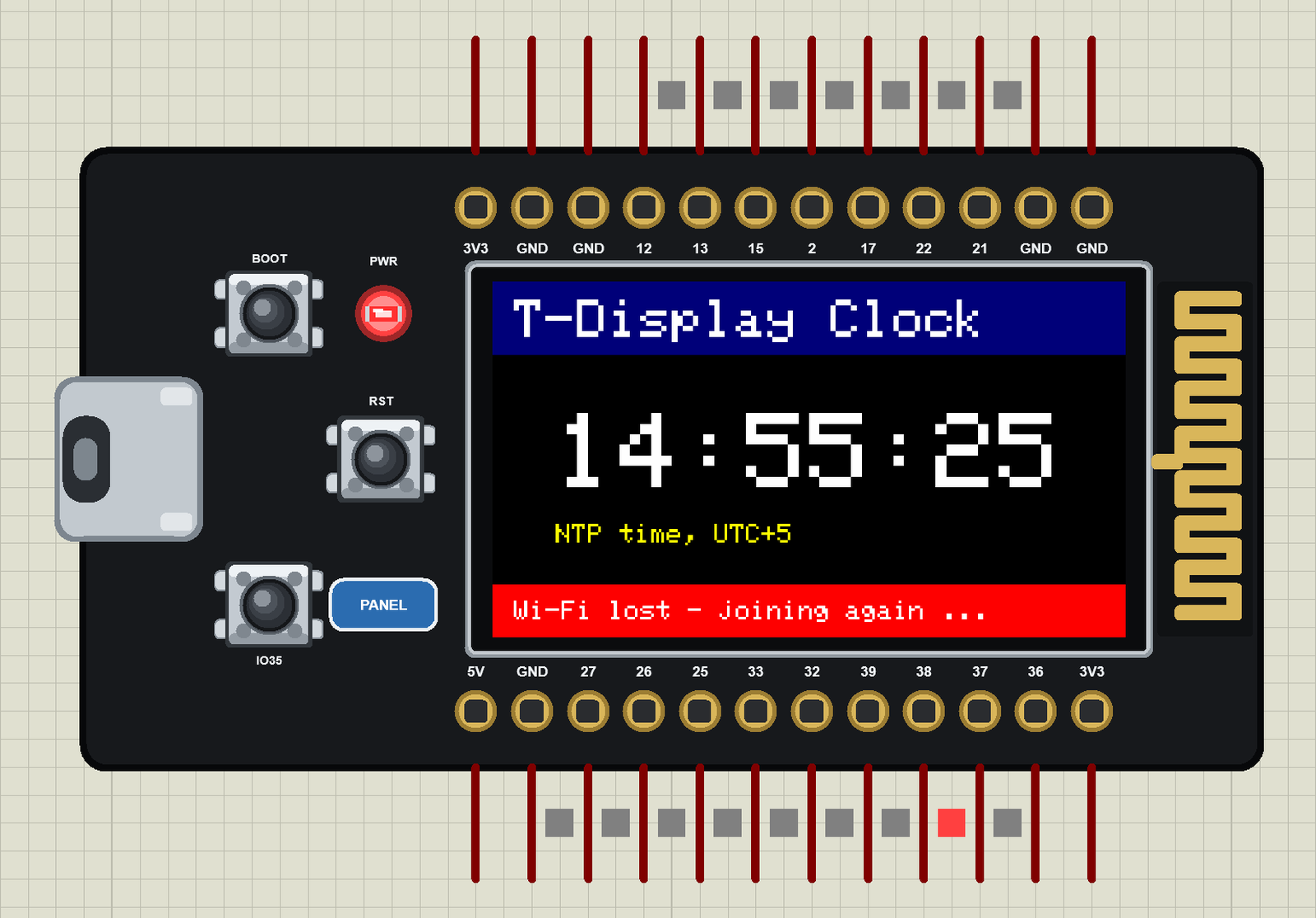
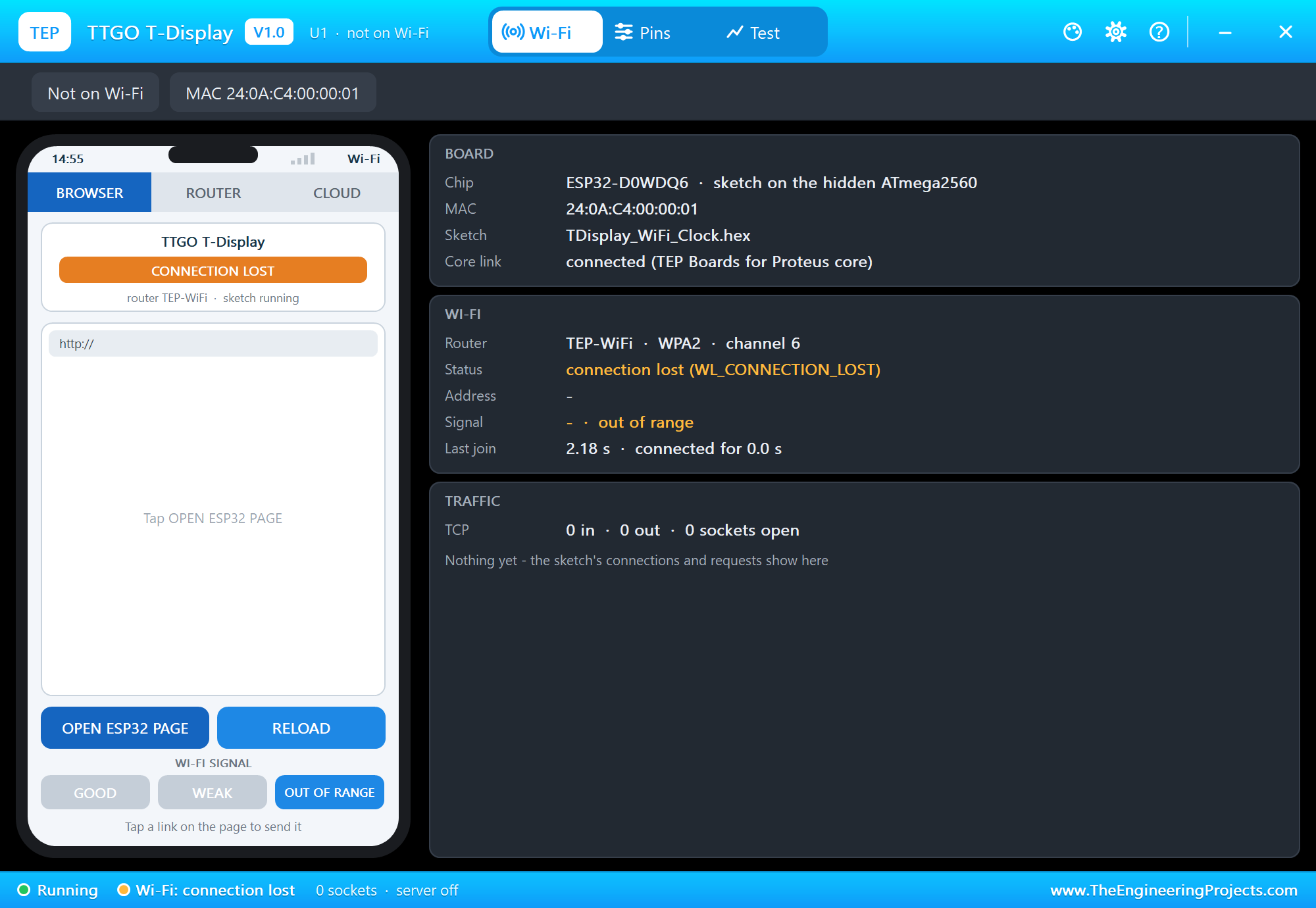
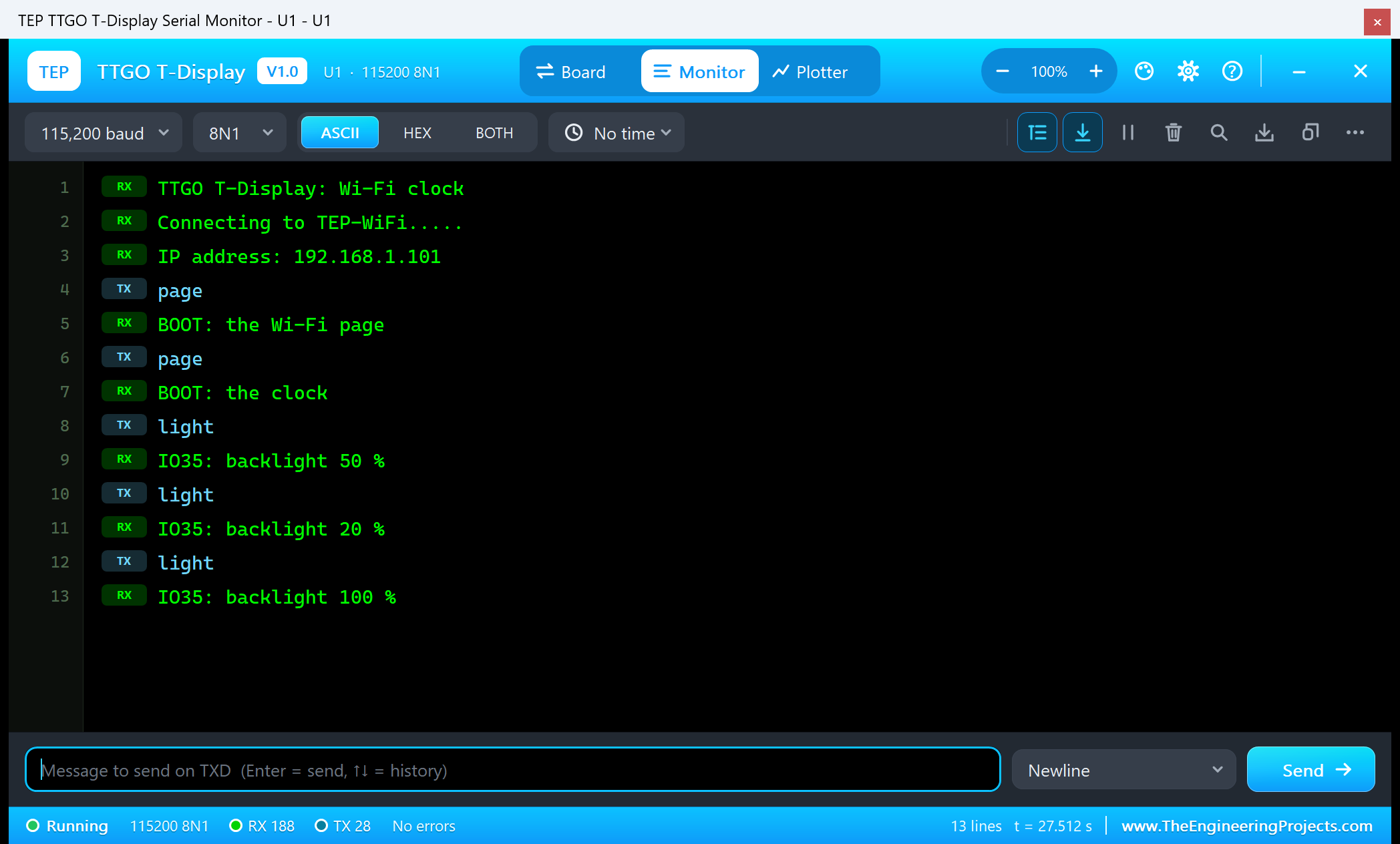
Press Run. The serial monitor (115200 baud) and the board's panel open; move them aside. We typed page twice and light three times in the monitor (the same as BOOT and IO35), then sent the router out of range and back:
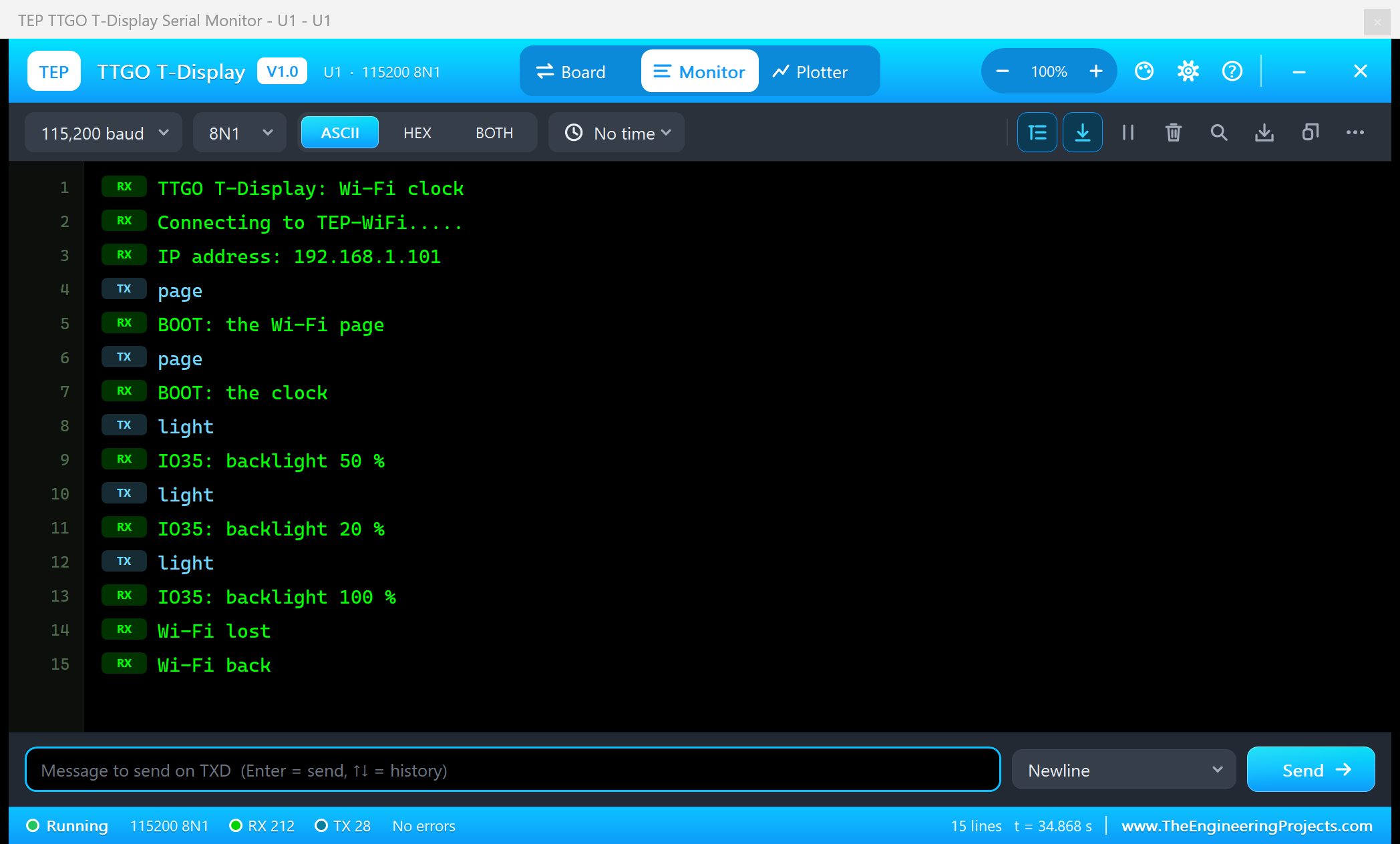
TTGO T-Display: Wi-Fi clock
Connecting to TEP-WiFi.....
IP address: 192.168.1.101
page
BOOT: the Wi-Fi page
page
BOOT: the clock
light
IO35: backlight 50 %
light
IO35: backlight 20 %
light
IO35: backlight 100 %
Wi-Fi lost
Wi-Fi back
The Board's Panel
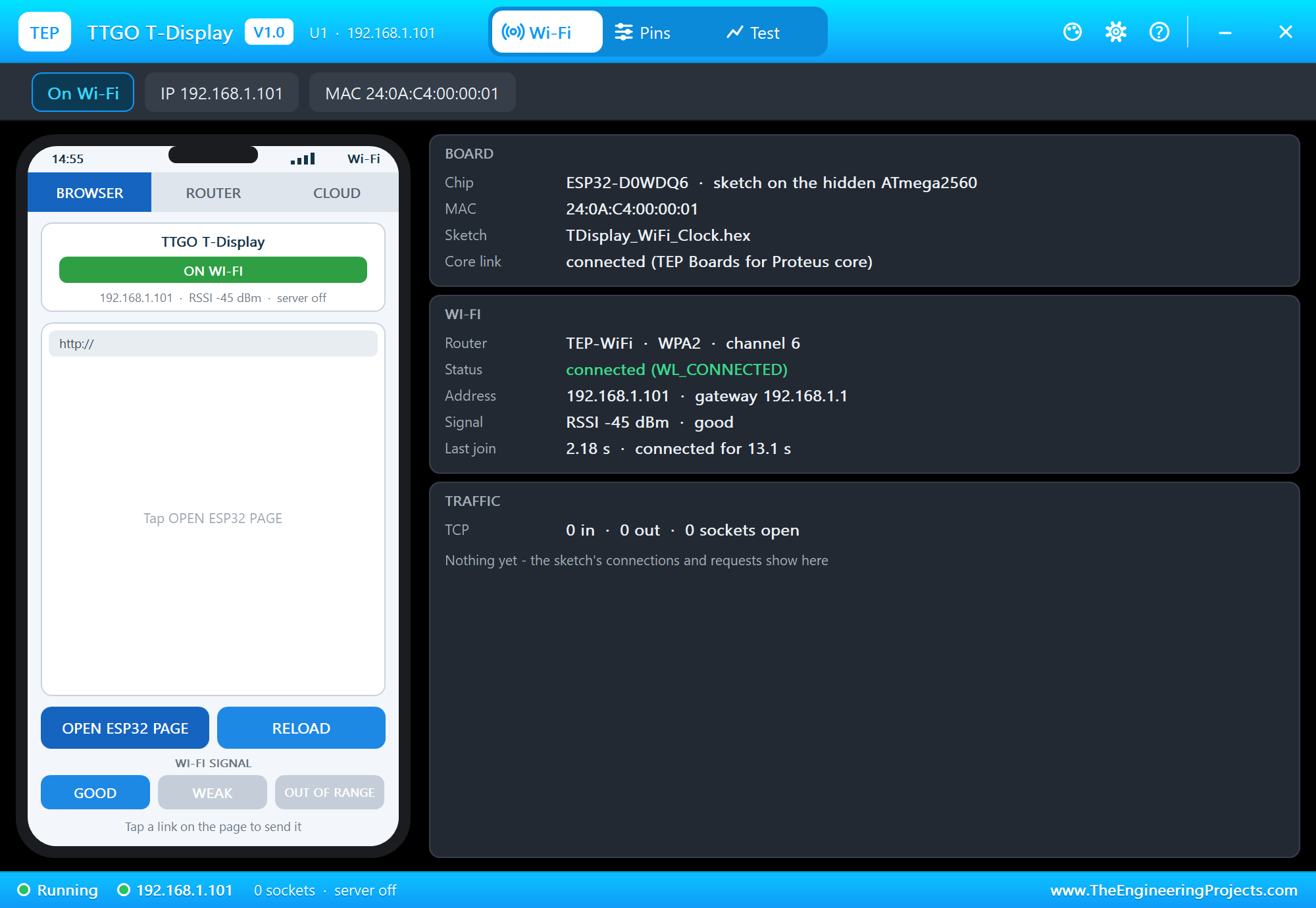
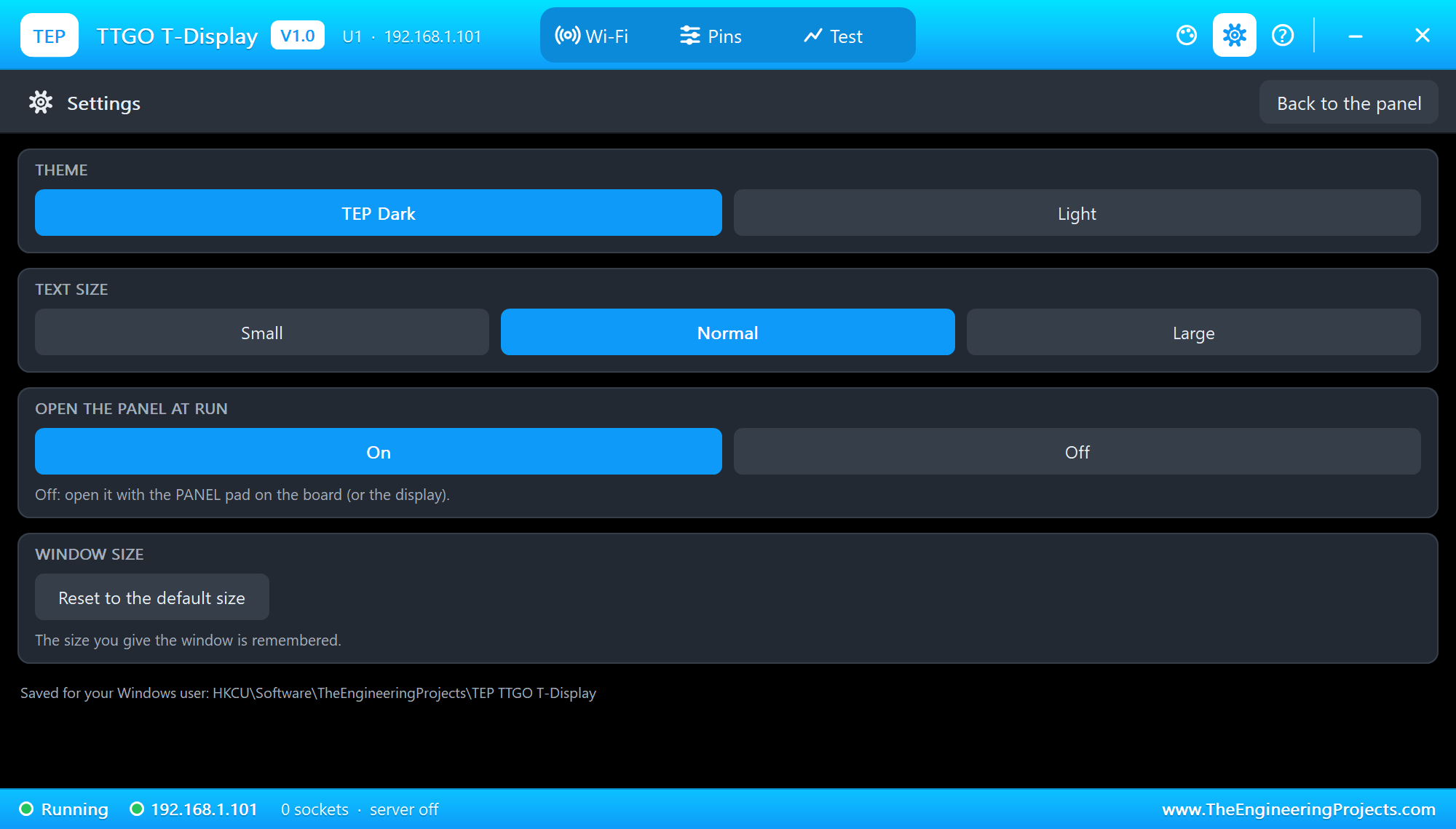
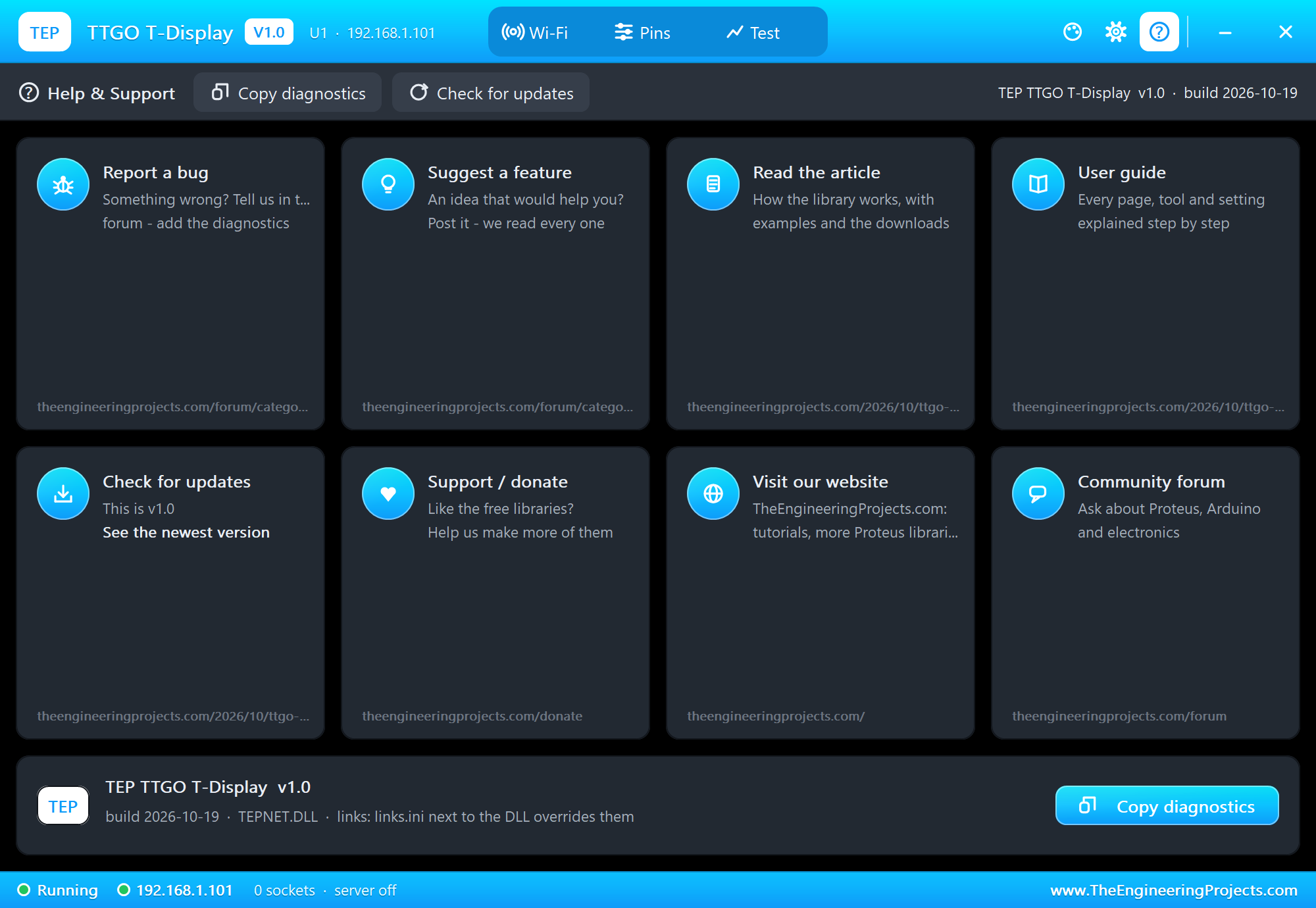
The panel opens at Run, in the look of our TEP Serial Monitor Advance for Proteus: Wi-Fi (a phone, the WI-FI SIGNAL buttons and three cards), Pins and Test, with Settings and Help on the right.
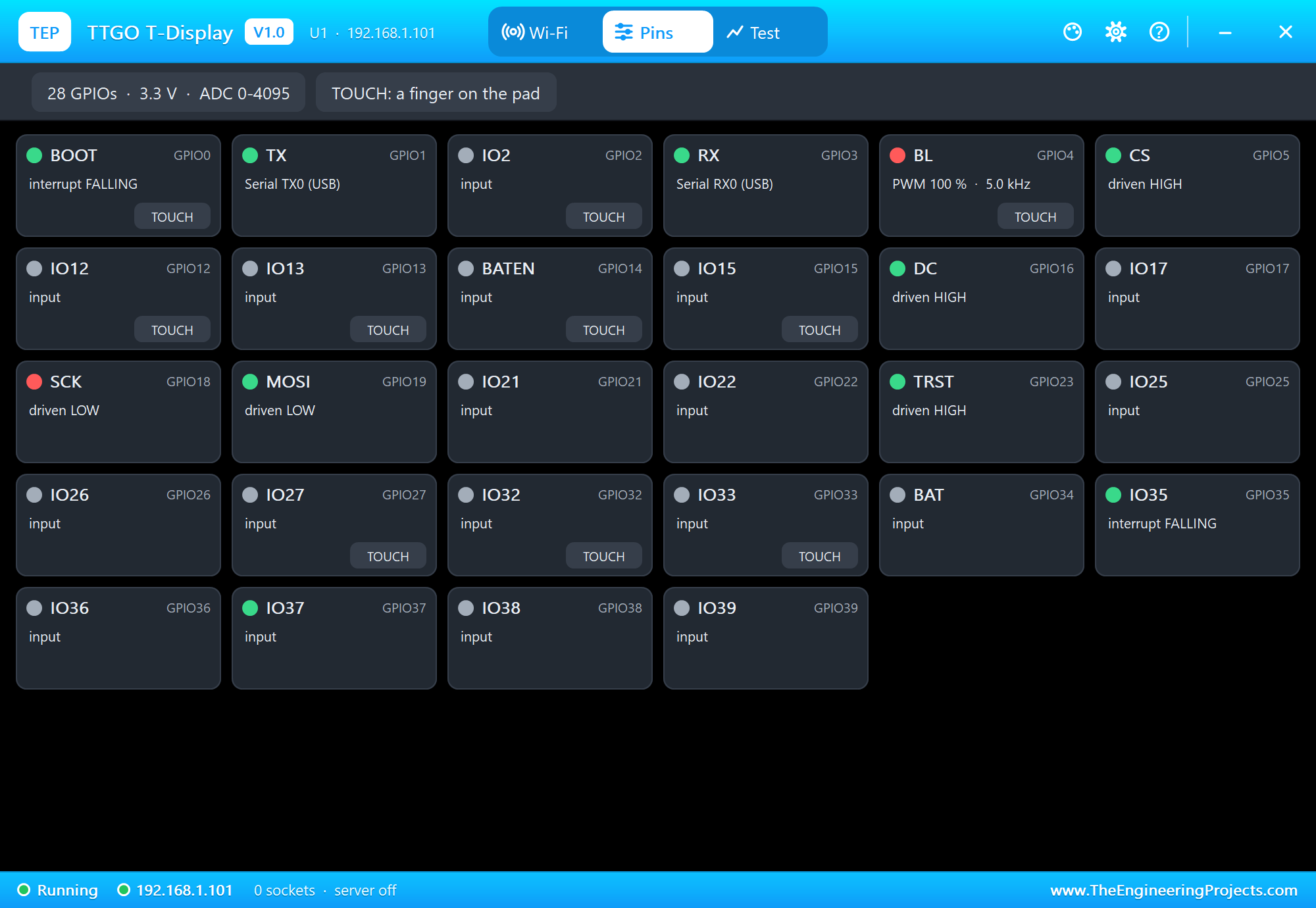
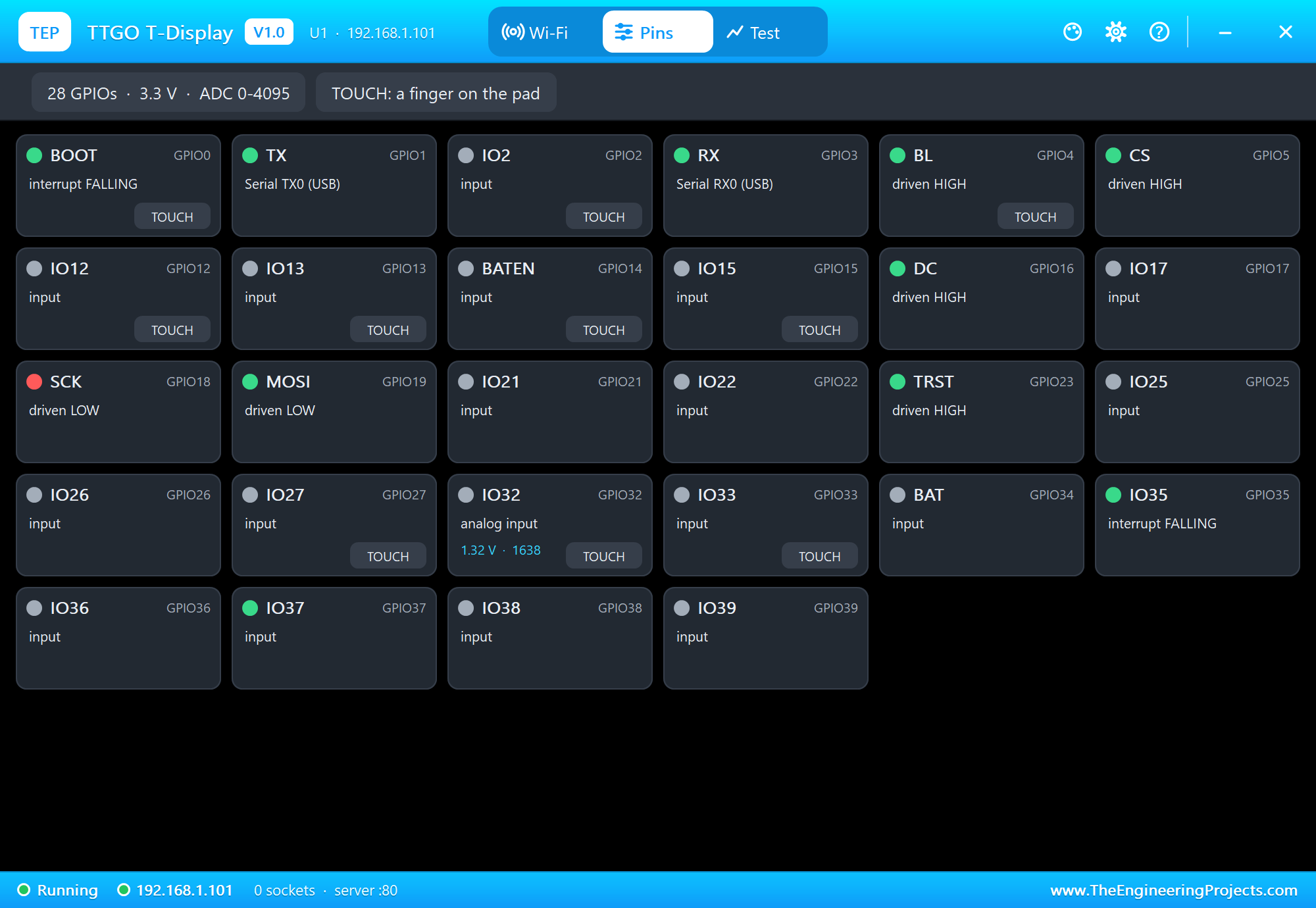
The Pins page shows all 28 GPIOs - the 16 header GPIOs and the board-only ones, named by their job (BOOT, BL, CS, DC, SCK, MOSI ...):
Demo 2: A Web Message Board
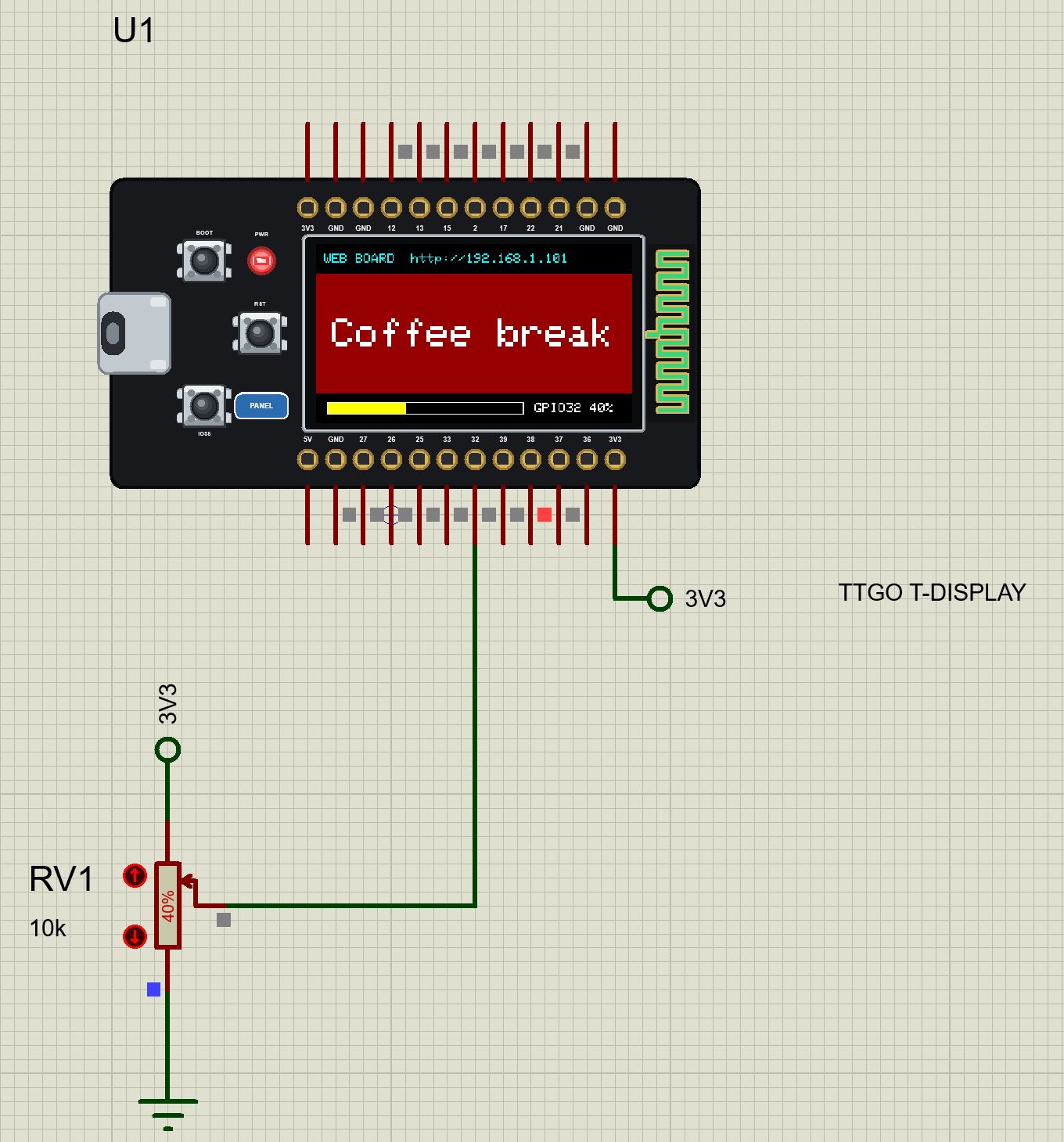
TTGO-T-Display-Web-Board.pdsprj adds one 10k pot RV1 on GPIO32 between the board's 3V3 pin and ground. The sketch, TDisplay_Web_Board.ino, serves a page with three messages and three colours, writes the chosen message big and centred on the display, and shows the pot as a bar at the bottom:
void drawBoard() {
  tft.fillRect(0, 0, 240, 113, COLOURS[col]);
  tft.fillRect(0, 0, 240, 22, ST77XX_BLACK);
  tft.setTextColor(ST77XX_CYAN);
  tft.setTextSize(1);
  tft.setCursor(6, 7);
  tft.print("WEB BOARD  http://");
  tft.print(WiFi.localIP());
  int16_t x1, y1;
  uint16_t w, h;
  tft.setTextSize(3);
  tft.getTextBounds(MESSAGES[msg], 0, 0, &x1, &y1, &w, &h);
  tft.setTextColor(ST77XX_WHITE);
  tft.setCursor((240 - w) / 2, 56);
  tft.print(MESSAGES[msg]);
  if (pot >= 0) drawPot();
}
Each link of the page is a small handler - the message number in, the display and the page updated:
void handleMsg() {
  int id = server.arg("id").toInt();
  if (id < 0 || id >= N_MSG) { server.send(400, "text/plain", "id: 0 .. 2"); return; }
  show(id, col, "phone");
  sendPage();
}
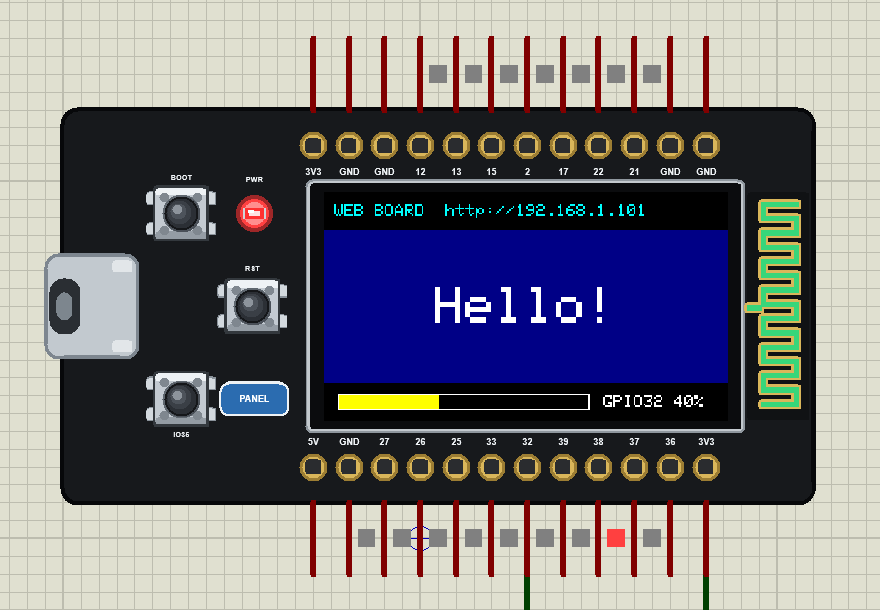
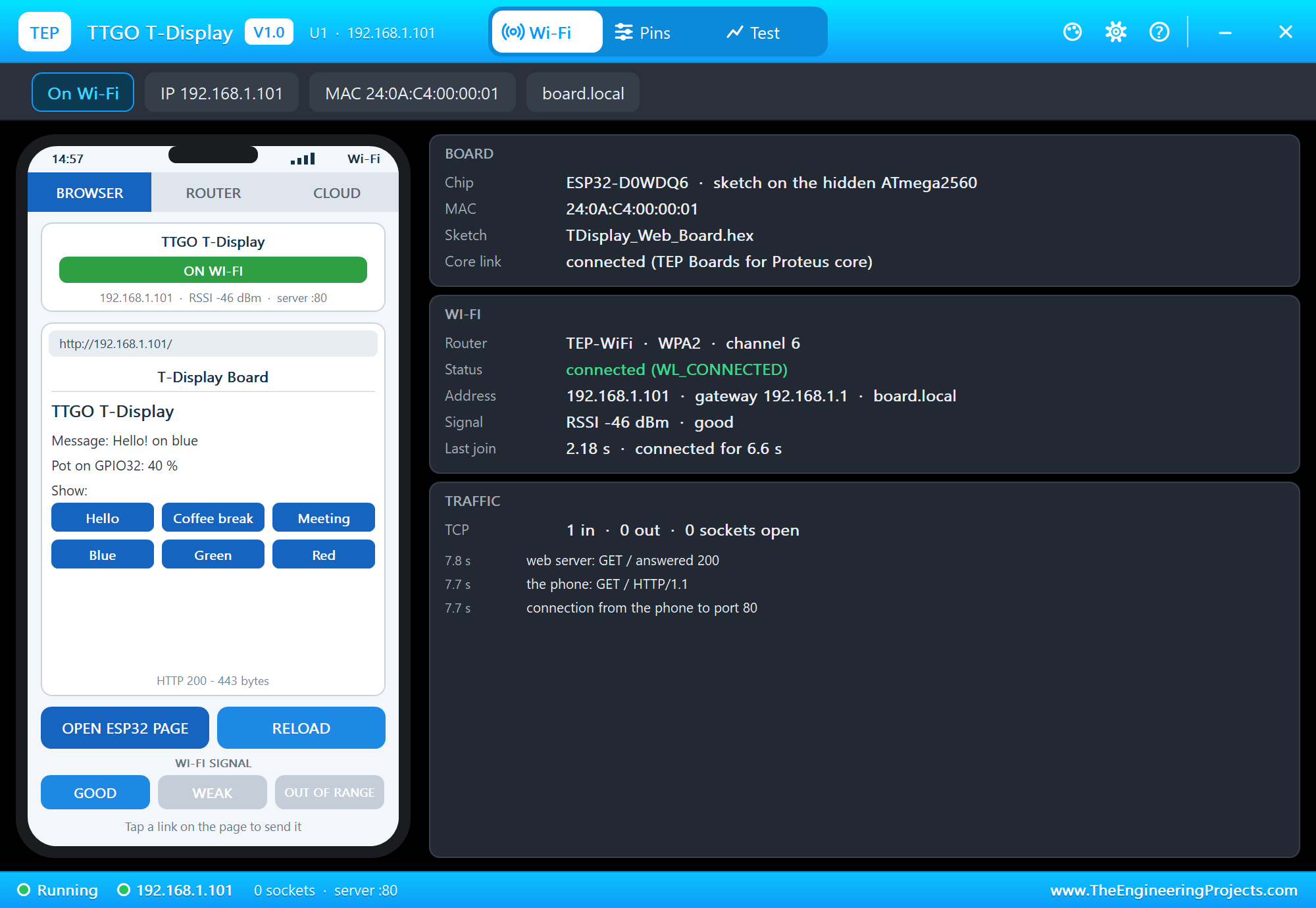
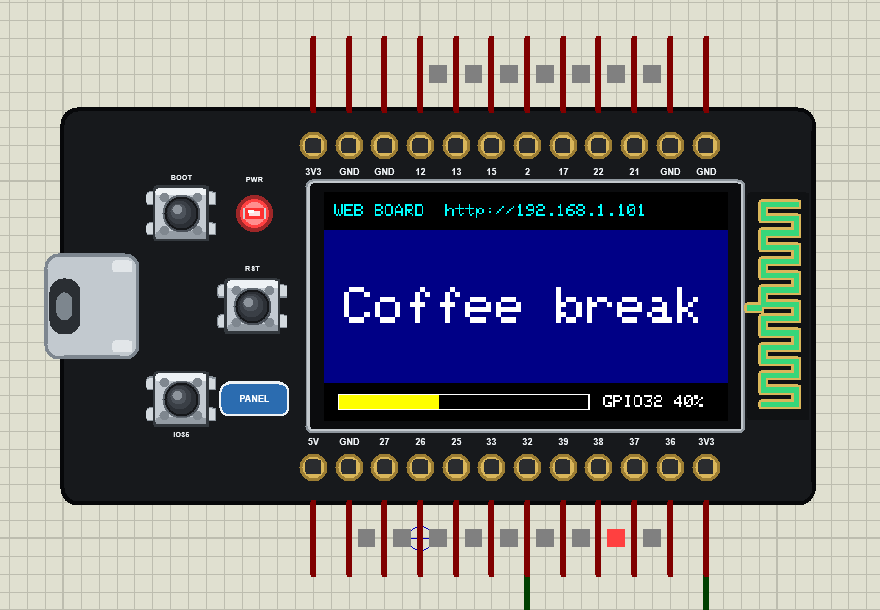
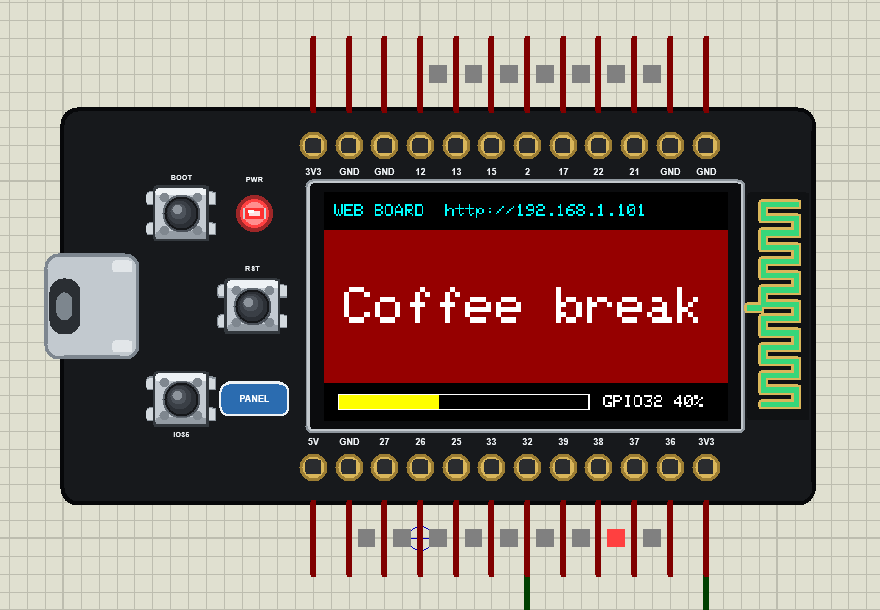
Press Run. The display shows "Hello!" on blue and the pot at 40 %:
Now OPEN ESP32 PAGE on the panel:
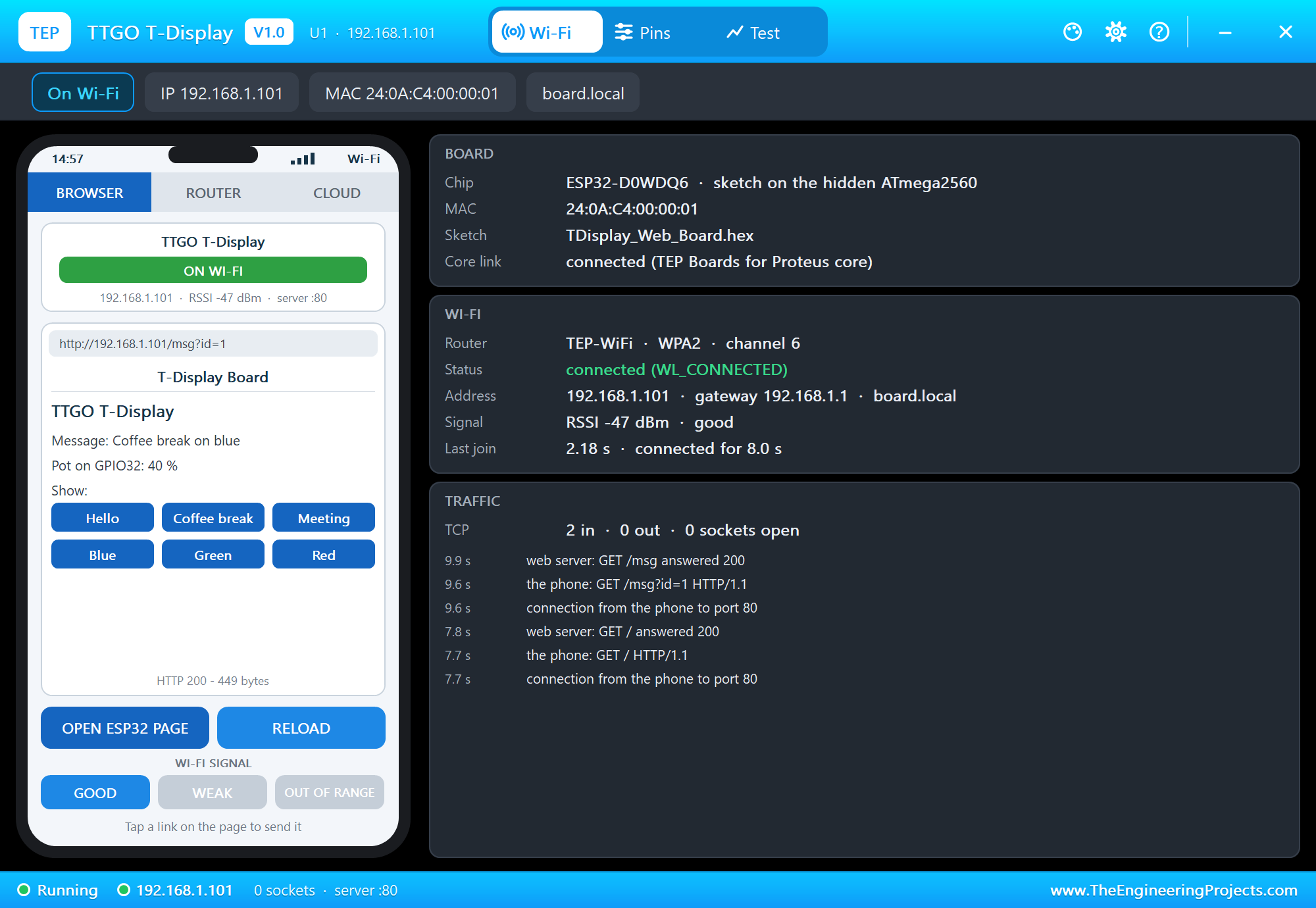
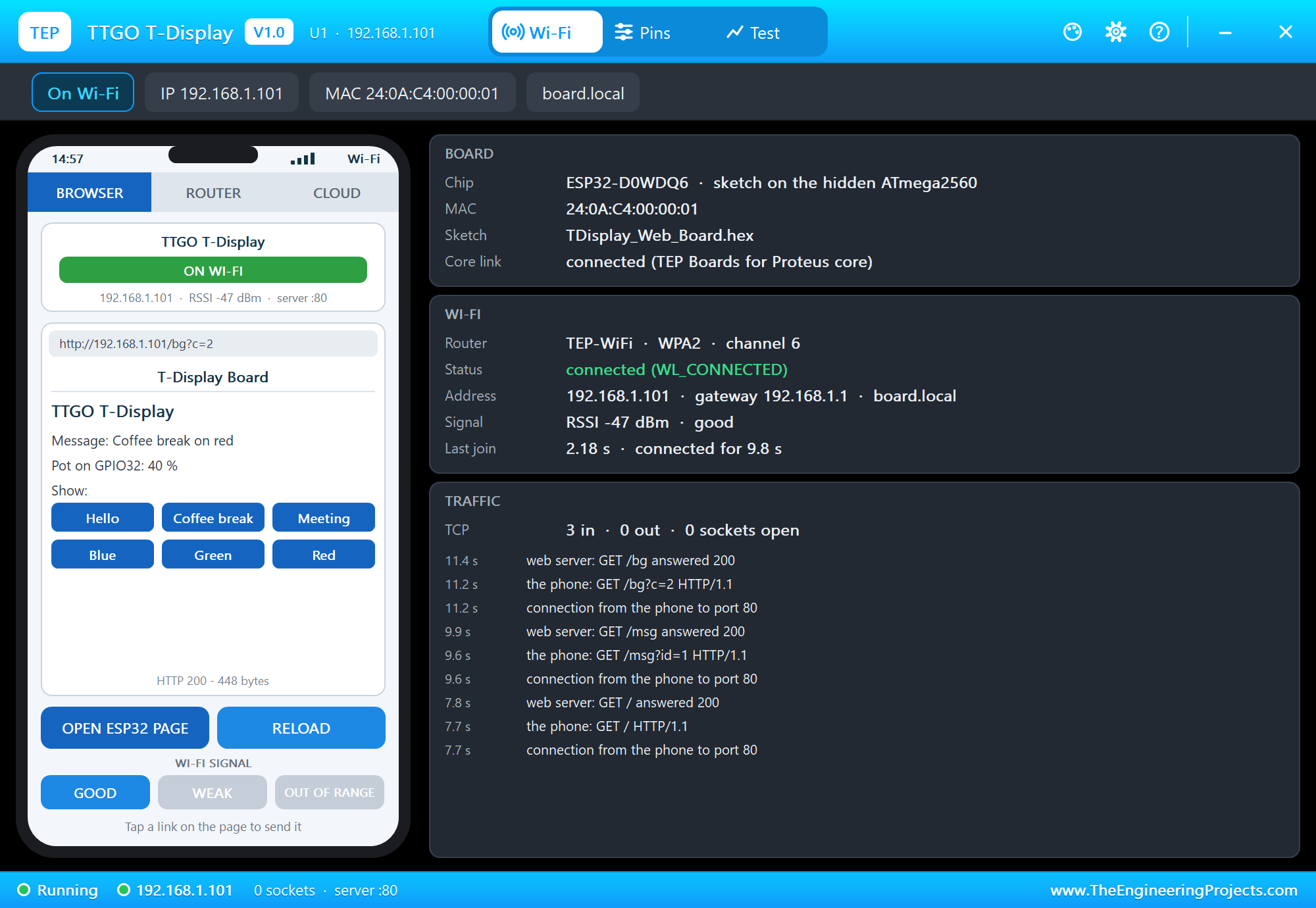
Tap Coffee break, then Red - the phone sends GET /msg?id=1 and GET /bg?c=2, and the display changes at once:
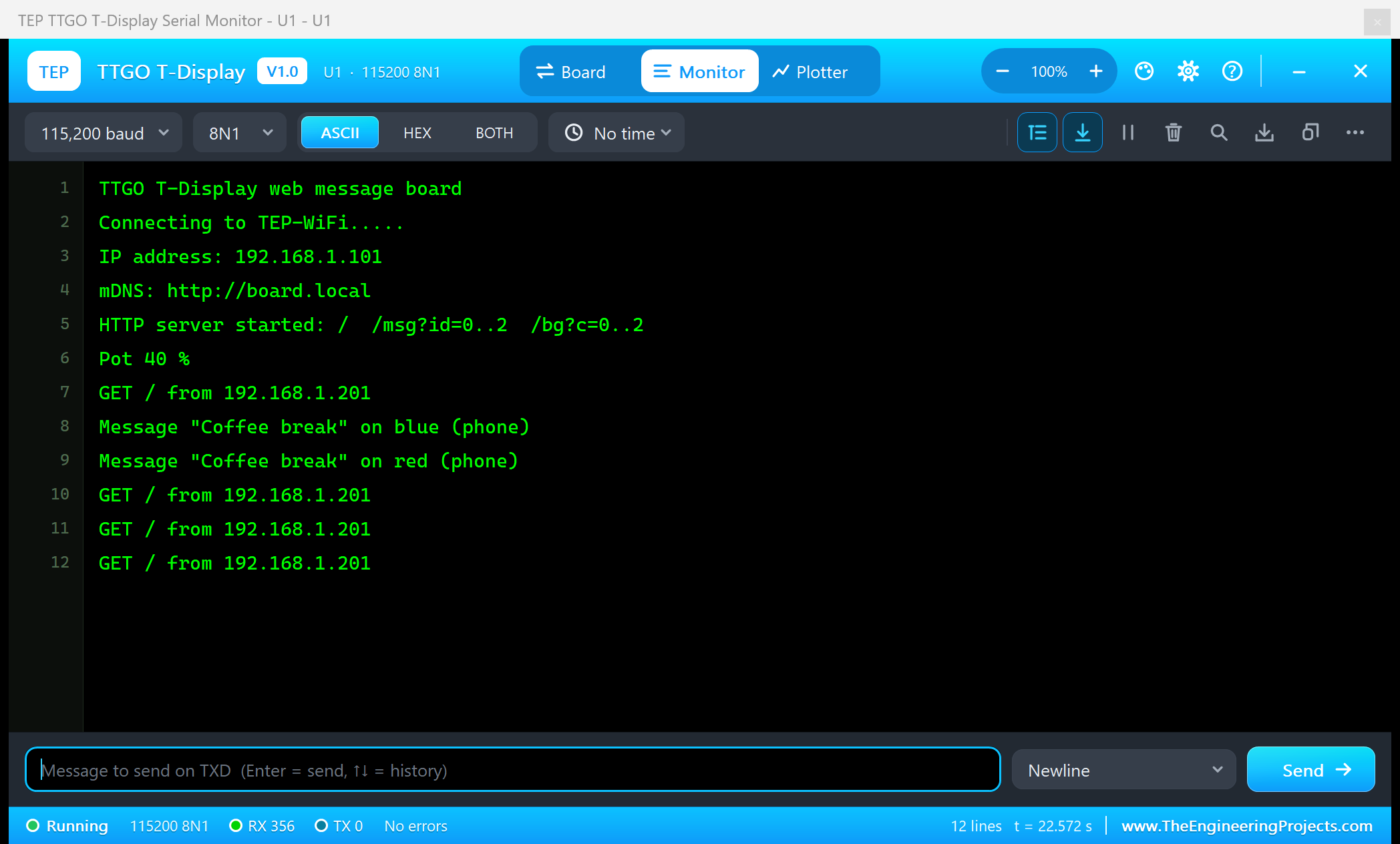
TTGO T-Display web message board
Connecting to TEP-WiFi.....
IP address: 192.168.1.101
mDNS: http://board.local
HTTP server started: /  /msg?id=0..2  /bg?c=0..2
Pot 40 %
GET / from 192.168.1.201
Message "Coffee break" on blue (phone)
Message "Coffee break" on red (phone)
GET / from 192.168.1.201
GET / from 192.168.1.201
GET / from 192.168.1.201
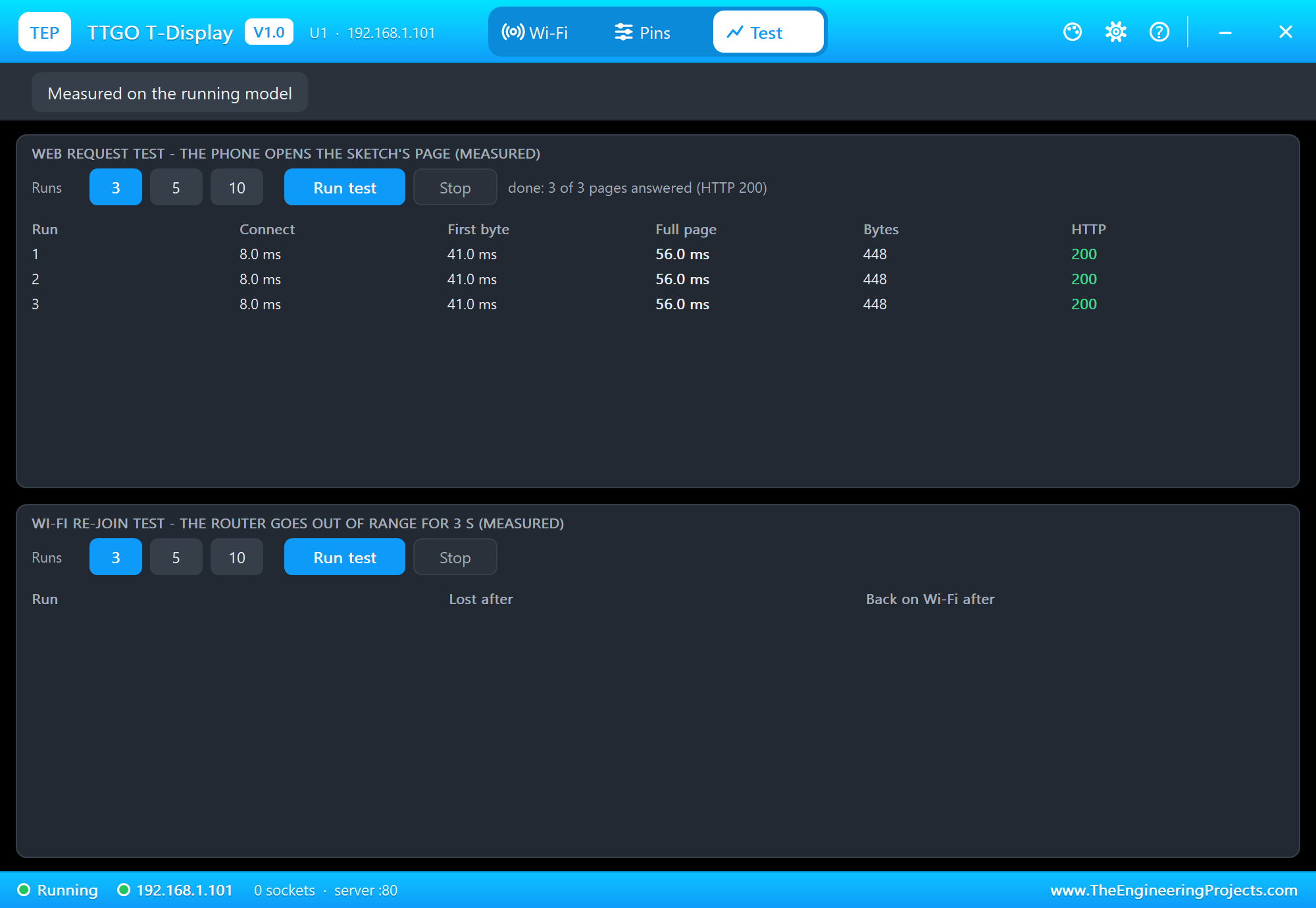
The Web Request Test
The Test page measures the running model: the phone opened the page three times.
Demo 3: The T-Display Graphs the ESP32-C3 SuperMini
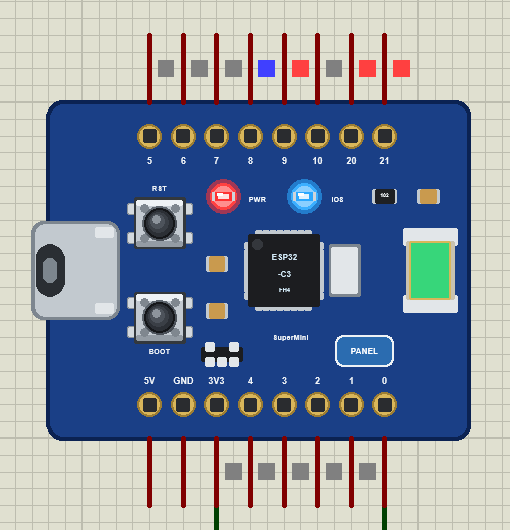
Now the T-Display meets the previous board of the series. In TTGO-T-Display-and-C3-Level-Graph.pdsprj the ESP32-C3 SuperMini (U2) of our ESP32-C3 SuperMini Library for Proteus runs its tank level web page, with the level pot on GPIO0 at 30 %, and the T-Display (U1) becomes its display: every second it asks the C3 for the level and draws it.
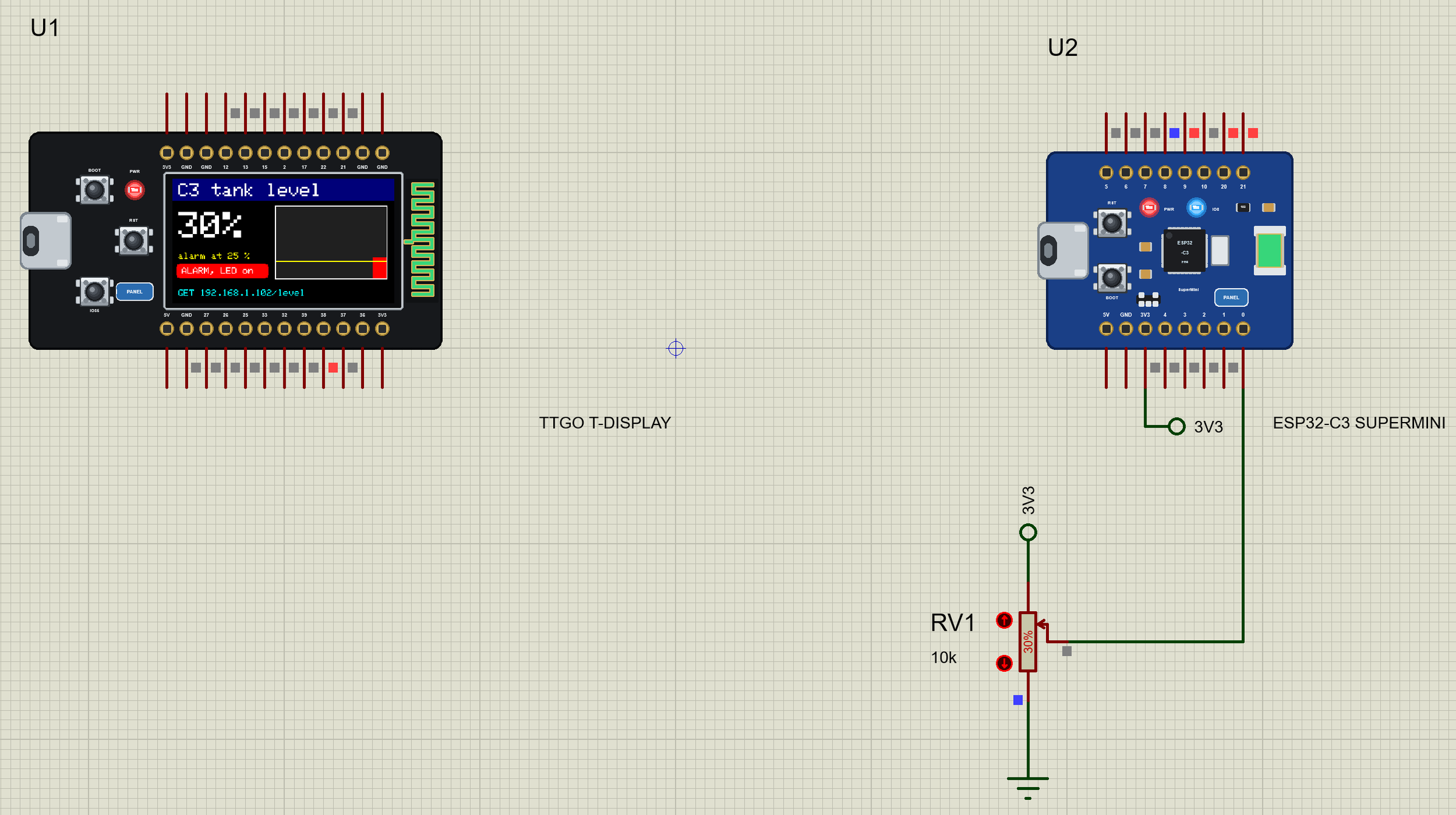
The C3 already has a JSON address, /level. The T-Display reads it with HTTPClient, picks the numbers out of the answer and keeps the last 120 readings for the graph:
void poll() {
  HTTPClient http;
  http.begin(String(node) + "/level");
  int code = http.GET();
  if (code == 200) {
    String body = http.getString();
    level = jsonInt(body, "\"level\"");
    alarmAt = jsonInt(body, "\"alarm\"");
    led = jsonInt(body, "\"led\"");
    if (!online) Serial.println("The C3 answers: " + body);
    online = true;
    history[count % GW] = (uint8_t)constrain(level, 0, 100);
    ++count;
  }
  else {
    if (online || count == 0) Serial.printf("The C3 is not answering (HTTP %d)\n", code);
    online = false;
  }
  http.end();
}
A tiny parser is enough for a flat JSON object - no JSON library needed:
int jsonInt(const String &s, const char *key) {      // the number after "key": in a flat JSON object (-1 = not there)
  int k = s.indexOf(key);
  if (k < 0) return -1;
  k = s.indexOf(':', k);
  return k < 0 ? -1 : s.substring(k + 1).toInt();
}
The other way works too: BOOT and IO35 on the T-Display set the C3's alarm point with a GET to /alarm?at= - the same address the C3's phone page uses:
void setAlarm(int at) {
  HTTPClient http;
  http.begin(String(node) + "/alarm?at=" + at);
  int code = http.GET();
  http.end();
  Serial.printf("Set the C3's alarm point to %d %%: HTTP %d\n", at, code);
  lastPoll = 0;                                       // read it back at once
}
Our C3 demo used a raw TCP connection, and our S3 demo an HTTP GET from one board to another; here one board reads a JSON API of the other and draws it - the pattern of every small dashboard: one node measures, another shows.
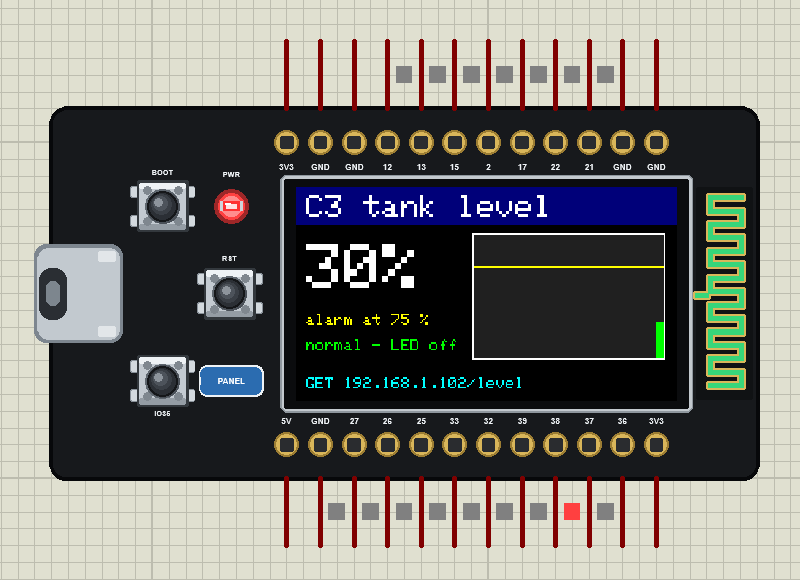
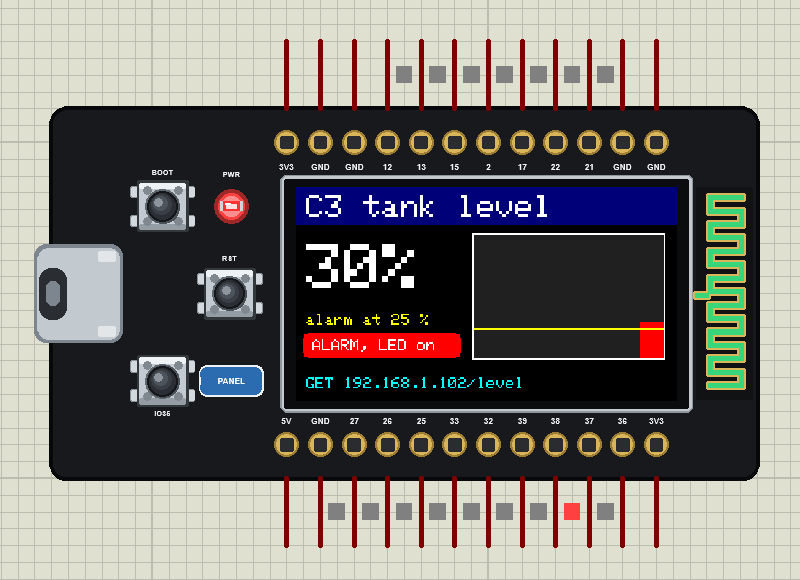
Press Run. The C3 joins as 192.168.1.102, the T-Display as 192.168.1.101; within a second the display shows 30 %, the alarm point 75 % (the yellow line) and the first bar of the graph. Then we typed alarm 25 in the T-Display's monitor:
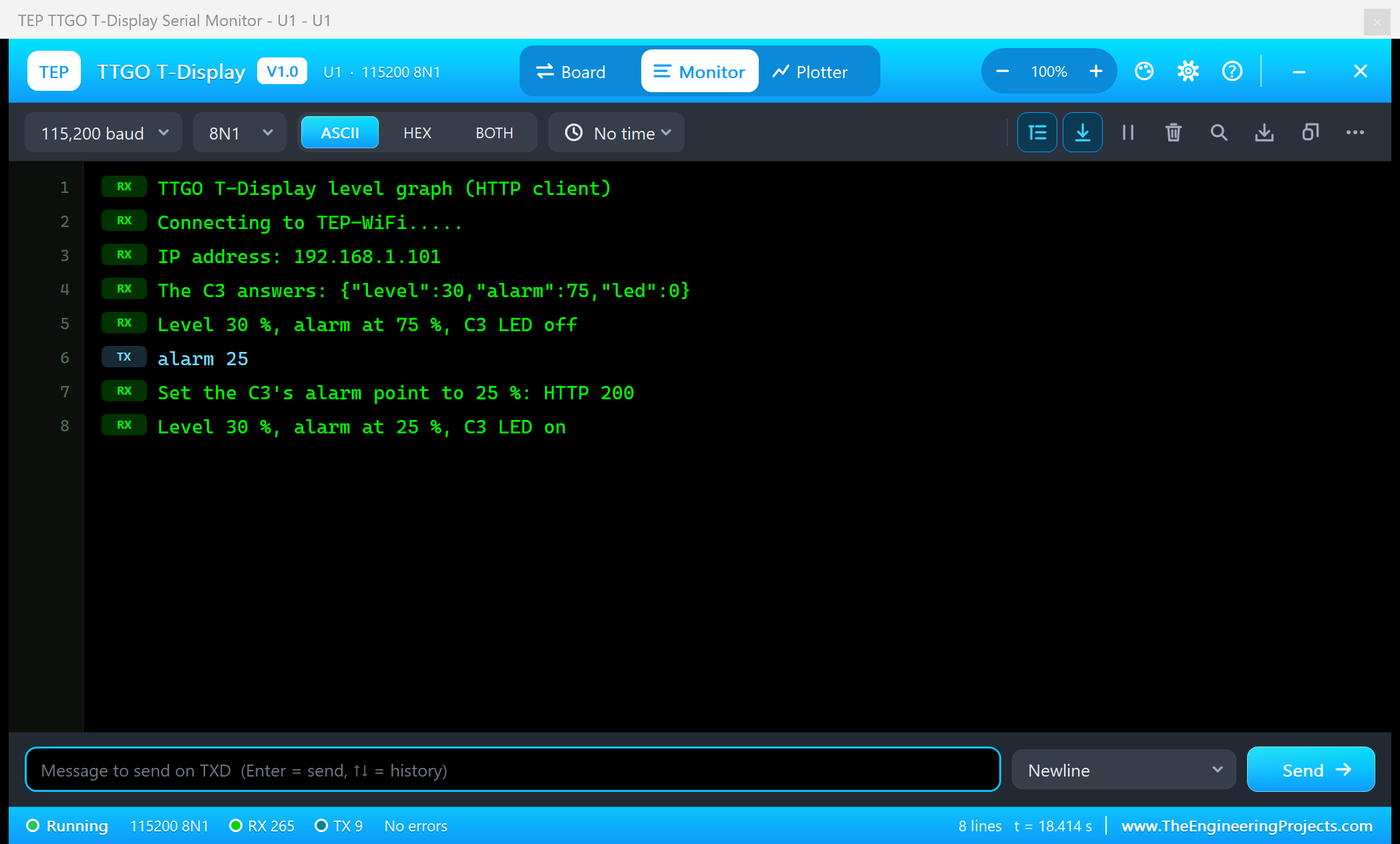
TTGO T-Display level graph (HTTP client)
Connecting to TEP-WiFi.....
IP address: 192.168.1.101
The C3 answers: {"level":30,"alarm":75,"led":0}
Level 30 %, alarm at 75 %, C3 LED off
alarm 25
Set the C3's alarm point to 25 %: HTTP 200
Level 30 %, alarm at 25 %, C3 LED on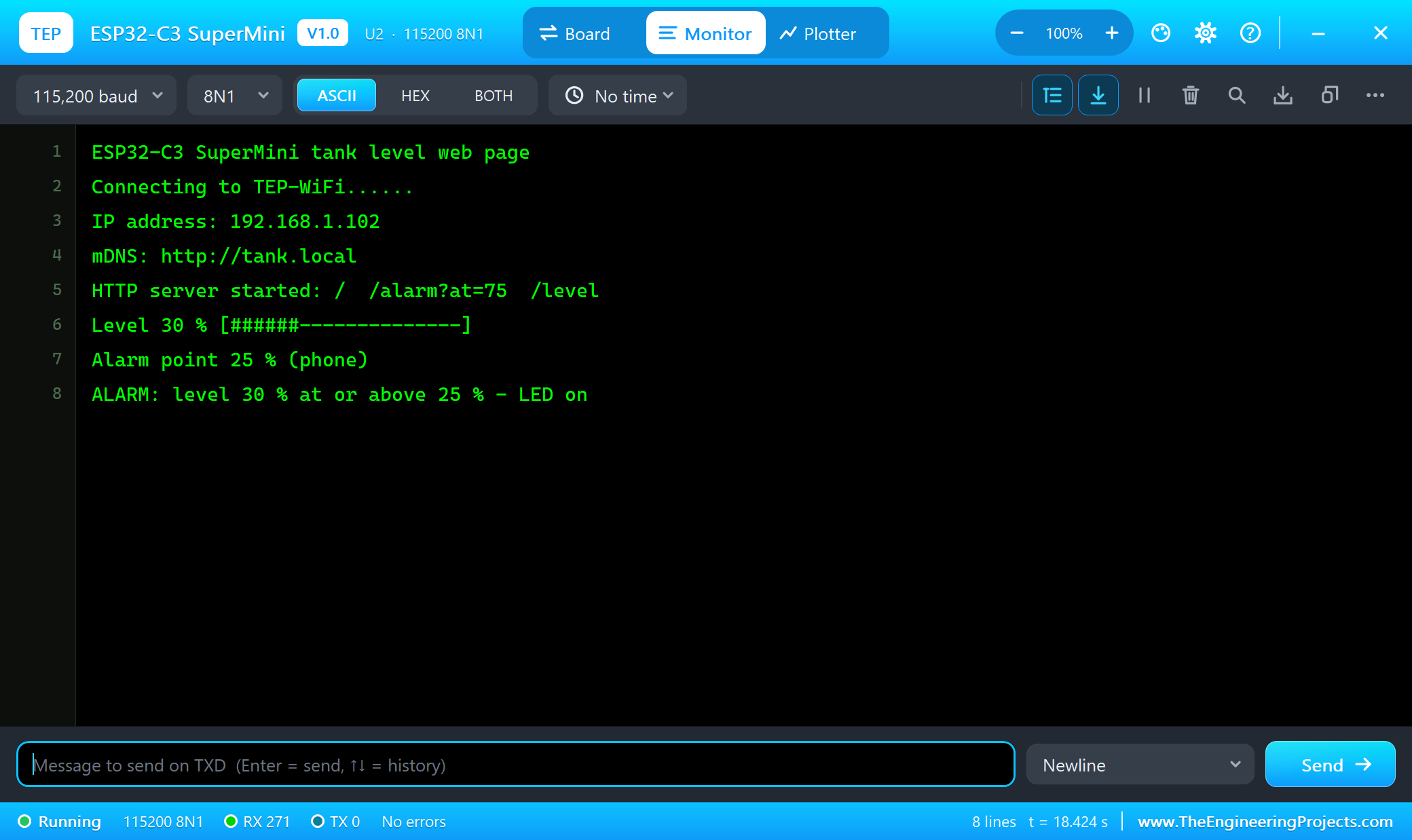
ESP32-C3 SuperMini tank level web page
Connecting to TEP-WiFi......
IP address: 192.168.1.102
mDNS: http://tank.local
HTTP server started: /  /alarm?at=75  /level
Level 30 % [######--------------]
Alarm point 25 % (phone)
ALARM: level 30 % at or above 25 % - LED on
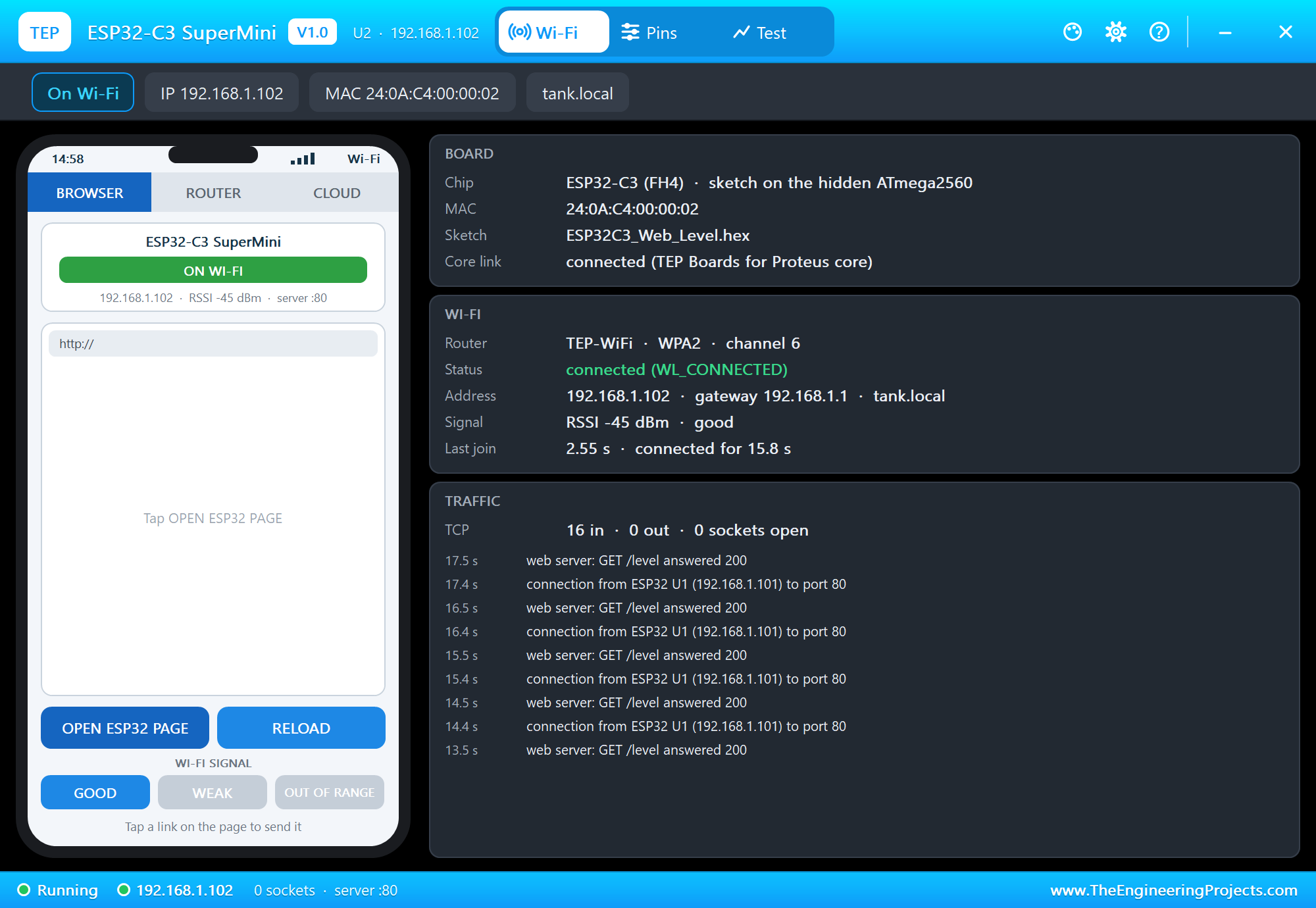
The C3's TRAFFIC card shows the requests coming in from the T-Display:
Pins of the TTGO T-Display
| Pins | What they can do in the simulation |
|---|---|
| 36, 39, 38, 32, 33, 25, 26, 27 | GPIO (36 - 39 input only), PWM, analogRead (12 bits); 25 / 26 the DAC |
| 2, 15, 13, 12 | GPIO, PWM, analogRead, touch |
| 37 | GPIO, input only |
| 21 / 22 | Wire SDA / SCL, GPIO |
| 17 | Serial2 TX, GPIO |
| 3V3, 5V, GND | 3.3 V out (both 3V3 pins), 5 V, ground |
| on the board only | the display (MOSI 19, SCLK 18, CS 5, DC 16, RST 23, BL 4), BOOT (0), IO35, ADC_PIN 34, ADC_EN 14, Serial (1 / 3) |
Properties of the Board
| Property | What it does |
|---|---|
| PROGRAM | the sketch's HEX from TEP Boards for Proteus |
| WIFISSID / WIFIPASS | the router in range (TEP-WiFi / 12345678) |
| MONITOR | YES: the built-in serial monitor on TX / RX |
| BAUD | the monitor's speed (115200, or AUTO) |
| AUTOOPEN | YES: the monitor opens at Run (the demos) |
| TIME | the clock NTP gives: PC (the PC's clock) or a fixed start time in UTC |
Troubleshooting
- Nothing happens at Run: the HEX was not built with TEP Boards for Proteus - select TTGO T-Display (TEP Proteus) and export the binary again.
- The display stays black: call
tft.init(135, 240)afterSPI.begin(), and turn the backlight on (TFT_BLHIGH or ledcWrite). - The picture is sideways:
setRotation(1)is upright with the USB-C on the left; 3 is upside down. - Two T-Displays show the same picture: their hidden pins share nets - use one T-Display per design.
- A warning about the AVR SPI clock in the log: the hidden AVR notes each speed change of the Adafruit library's SPI transactions - harmless.
- Stuck at "Joining Wi-Fi": the SSID or password in the sketch differ from the WIFISSID / WIFIPASS properties, or the phone's WI-FI SIGNAL is OUT OF RANGE.
- No monitor or no panel: click the USB-C port or the PANEL pad; or turn "Open the panel at Run" back on in Settings.
Things to Know Before Moving to a Real T-Display
- The board: select "LilyGo T-Display" (or "ESP32 Dev Module"); the USB-C port is a CH9102 USB-to-UART, so Serial works as usual.
- The library: many T-Display examples use Bodmer's TFT_eSPI with its T-Display setup; the Adafruit code of our demos works on the real board too, with the same pins.
- GPIO35 is input only and has no internal pull-up - the board has its own; GPIO0 is a strapping pin.
- The battery: GPIO34 reads half the battery voltage when GPIO14 (ADC_EN) is HIGH.
- Memory: the real ESP32 has 520 KB of RAM - a full-screen frame buffer fits there, not in 8 KB here.
- 3.3 V logic: the pins are not 5 V tolerant.
Limitations of the Simulation
- It is not a real ESP32 chip: the sketch runs on Proteus's ATmega2560 model at 16 MHz with 8 KB of RAM and 256 KB of flash;
intis 16 bits. - The display is modelled bit by bit, which costs speed: one T-Display runs at about 0.4 x real time.
- Not modelled: reading the display, the battery charger, FreeRTOS tasks, Bluetooth, ESP-IDF calls, the soft access point, real TLS, OTA updates, SPIFFS / LittleFS, the radio itself - the join and network times are realistic values, not a radio simulation.
- The antenna colours, the PANEL pad, the panel, its phone, the router and the internet host are TEP additions.
- TEP Boards for Proteus is based on the Arduino AVR core 1.8.6 (LGPL 2.1, the licence text is included); our libraries are MIT. The API follows Espressif's Arduino-ESP32 core - names only. This library is not made or endorsed by LilyGO, Espressif, Arduino, Adafruit or Labcenter.
- Tested in Proteus 8.5 in October 2026 (the three demos as shipped, the board demo 14.6 s of simulation in 33 s with the panel and the monitor open, about 0.4 x real time; the two boards of the level graph 22.6 s in 82 s, about 0.3 x). Proteus 7 is not supported.
So, that was all about the TTGO T-Display ESP32 Library for Proteus. I hope you enjoy drawing on this little screen and linking it with our other ESP32 boards. If you use the TTGO T-Display ESP32 Library for Proteus in a project, please share it in the comments or in our forum, and if you have any questions, ask in the comments and I will help you out. Till the next tutorial, take care and have fun!
Comments
0