


Project Files of LilyGO T-Display S3 Library for Proteus: IR Remote Timer, TFT
 Libraries
 Code
Code Projects
 Simulation
lilygo-t-display-s3-tep-v1-0-f0670849d5ff4380a7b512895780f6df.zip
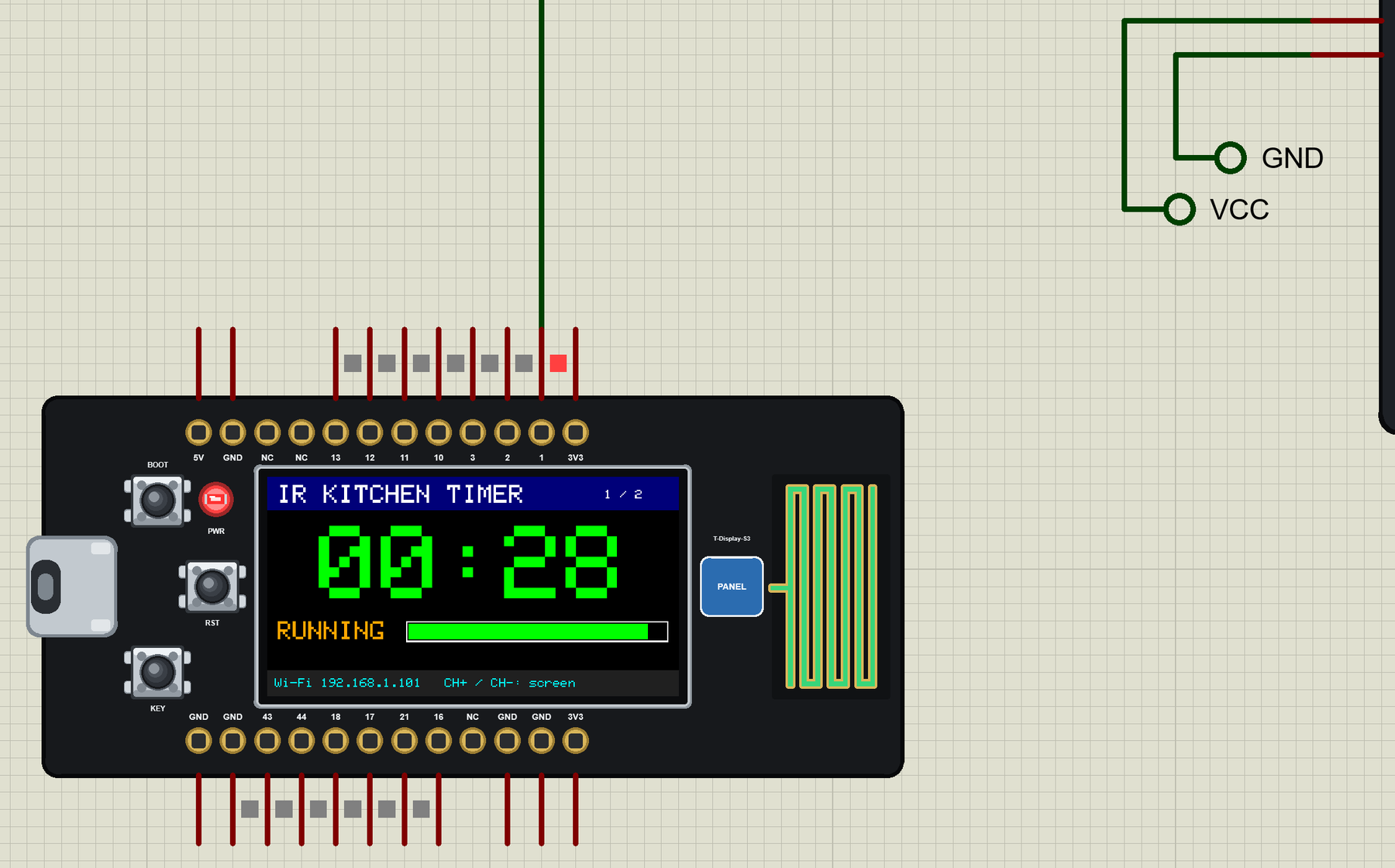
LilyGO T-Display S3 Library for Proteus V1.0
LilyGO T-Display S3 Library for Proteus V1.0 comes as a ZIP archive of 176 files (3.0 MB, 6.5 MB unpacked) holding Proteus library files, simulation model DLLs, a Proteus simulation, an Arduino sketch, an Arduino library, compiled HEX firmware and source code.
- LIBProteus library
- DLLProteus model
- DSNProteus simulation
- INOArduino sketch
- LIBArduino library
- HEXHEX firmware
- SRCSource code
Description
LilyGO-T-Display-S3-Library-for-Proteus-v1.0.zip with the LilyGO T-Display S3 in Proteus (your ESP32-S3 sketch on the 1.9" 170 x 320 display, Wi-Fi, BOOT / KEY / RST, the panel and a serial monitor; TEPTDISPLAYS3.LIB, TEPNET.DLL and the TEP Boards for Proteus add-on 1.23.0), the IR receiver + remote library, the Laptop / Mobile WiFi Monitor symbols, the IR kitchen timer demo with its sketch and a README.

File Structure
 File Structure
10.6 KB1.1 KB7.7 KB11 KB8.5 KB1.5 KB1.7 KB1.8 KB5.6 KB4.9 KB1.1 KB5.8 KB9.6 KB5.9 KB2.5 KB1.9 KB4.4 KB1.1 KB3 KB3 KB1.8 KB2.5 KB3.5 KB149 B2.7 KB2 KB6.4 KB3.2 KB1.3 KB963 B8.6 KB5.9 KB5.8 KB8.4 KB1.5 KB14.7 KB4.3 KB6.1 KB20.1 KB8.2 KB2 KB4.5 KB311 B12.3 KB5.6 KB3.6 KB2.2 KB3.4 KB5.9 KB1.5 KB1.6 KB16.6 KB9.7 KB3.6 KB3.8 KB504 B8.3 KB10.9 KB522 B918 B1.4 KB1.8 KB1 KB1.3 KB1.4 KB1.8 KB1.4 KB5.7 KB502 B463 B5 KB1.6 KB368 B406 B466 B404 B444 B460 B477 B739 B448 B1.3 KB350 B5.7 KB4 KB562 B7.2 KB4.1 KB371 B390 B478 B5.1 KB4.6 KB371 B294 B358 B4.4 KB1.9 KB5.6 KB10.4 KB835 B518 B9.1 KB4.4 KB439 B3.9 KB1.2 KB9.3 KB7.1 KB4.4 KB2.4 KB388 B5.1 KB893 B667 B1.3 KB5.5 KB2.3 KB1.8 KB468 B882 B530 B791 B487 B894 B2 KB730 B646 B2.6 KB977 B702 B20.6 KB1.8 KB10.4 KB3.2 KB596 B406 B5.9 KB6.4 KB5.3 KB5.7 KB7.7 KB6.4 KB6.3 KB8.3 KB6 KB6.1 KB6.3 KB6 KB6.2 KB6.1 KB5.8 KB6.6 KB6.5 KB7.7 KB7.1 KB5.8 KB5.9 KB5.9 KB7 KB11.4 KB25.9 KB1.3 KB8.5 KB16.3 KB119.5 KB39.5 KB13.1 KB29.9 KB310.5 KB2.5 MB25.4 KB91.4 KB310.5 KB2.5 MB15.1 KBGallery12 images from the tutorialOpen the tutorial
 Gallery12 images from the tutorial
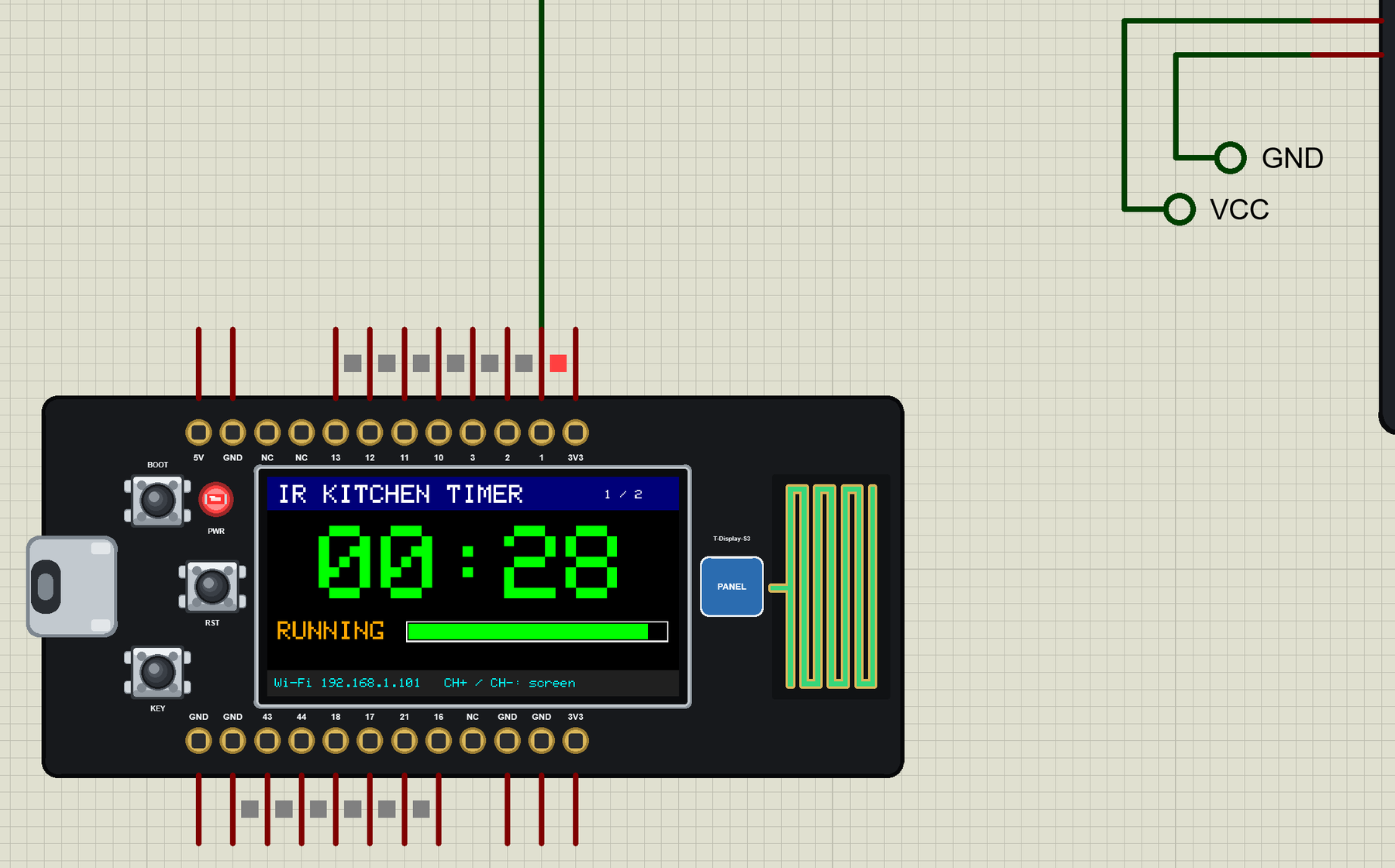
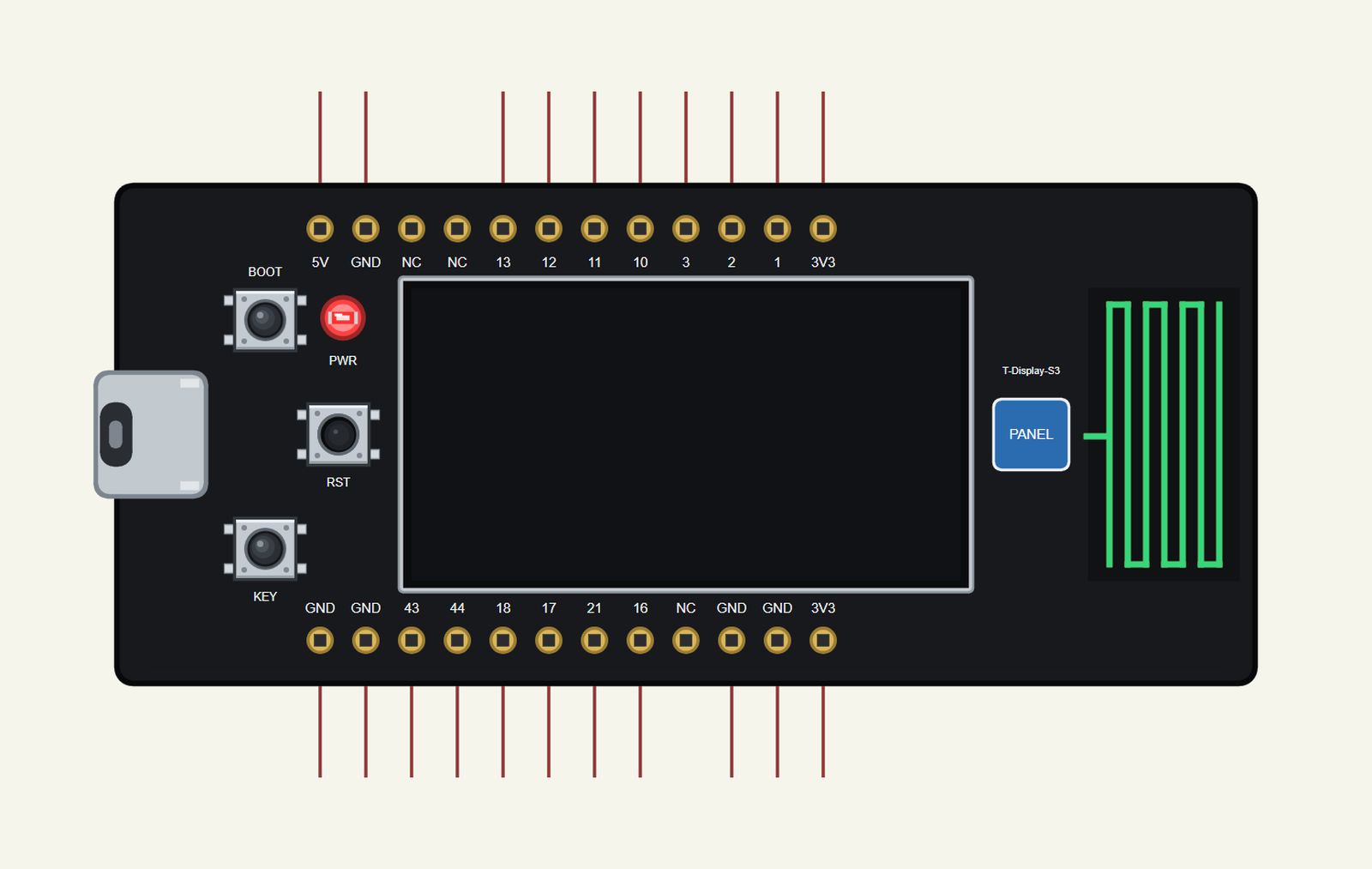
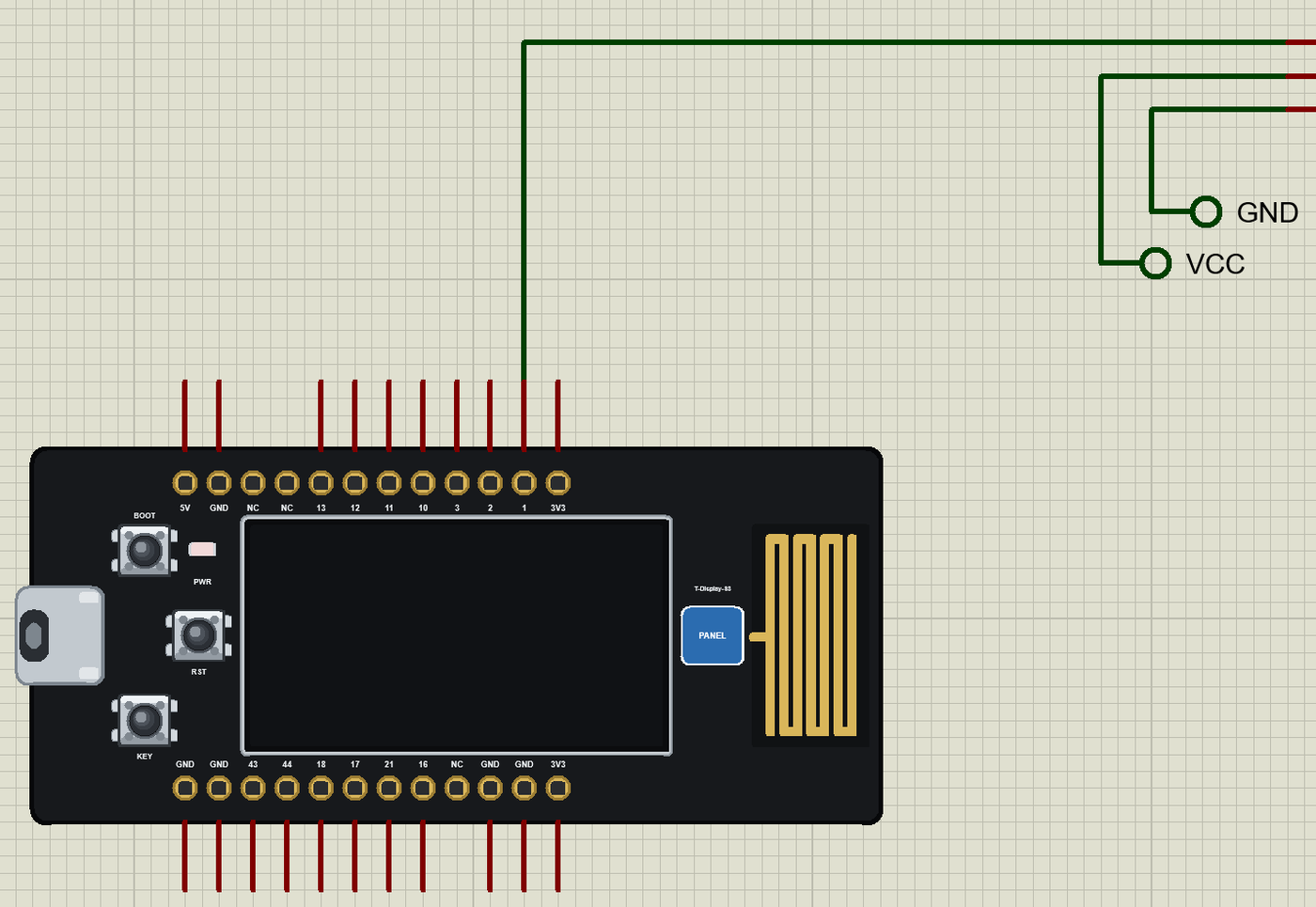
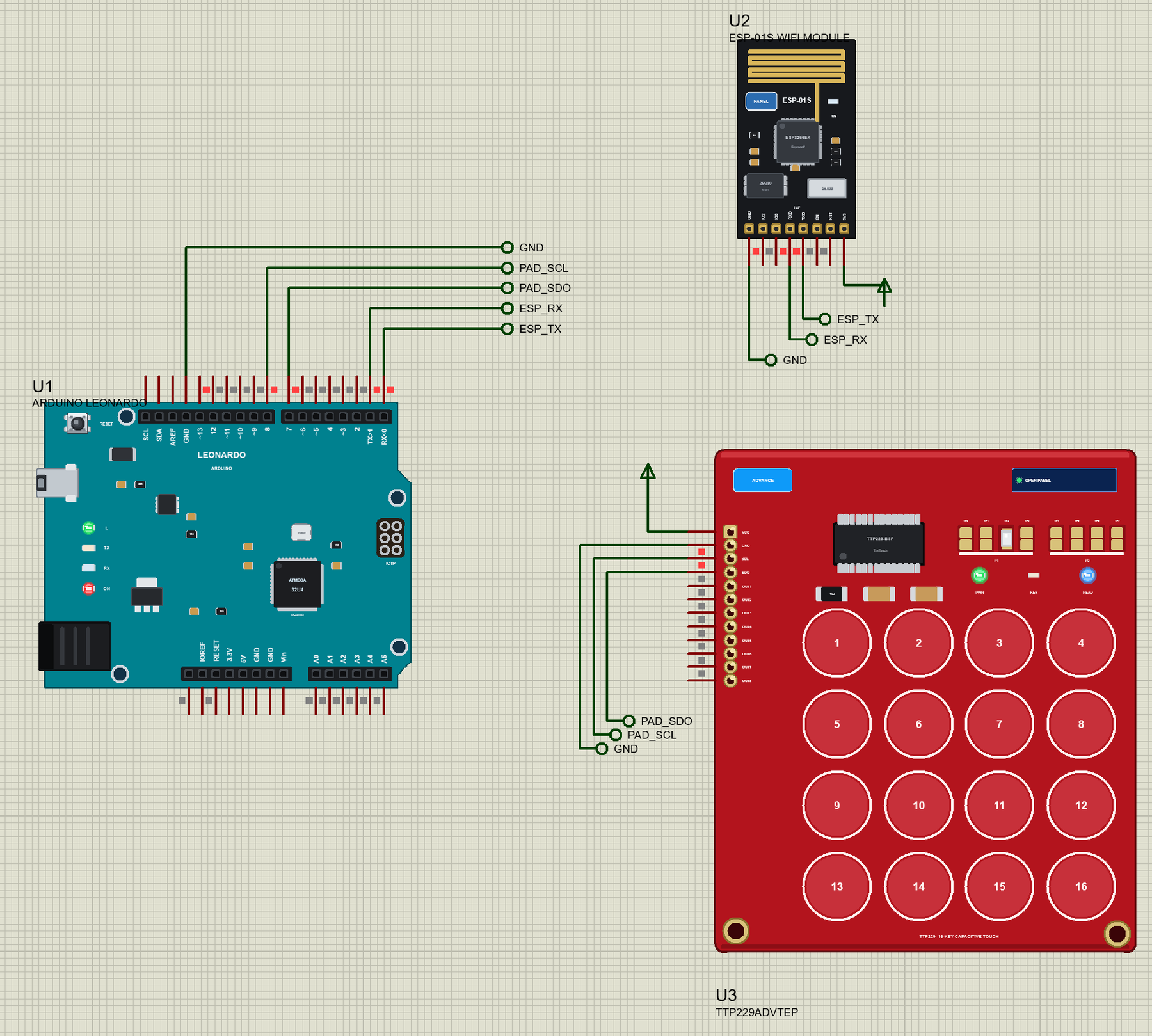
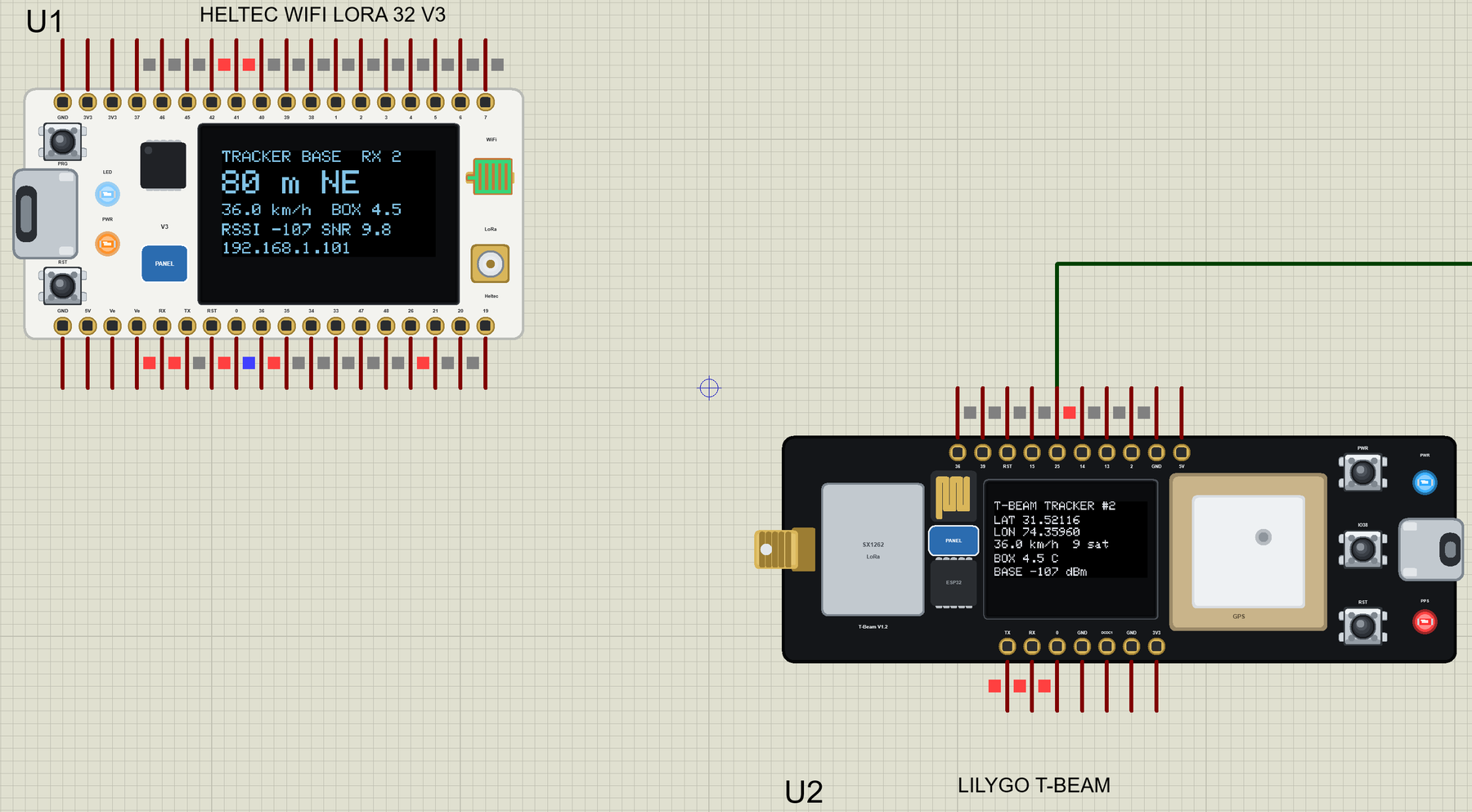
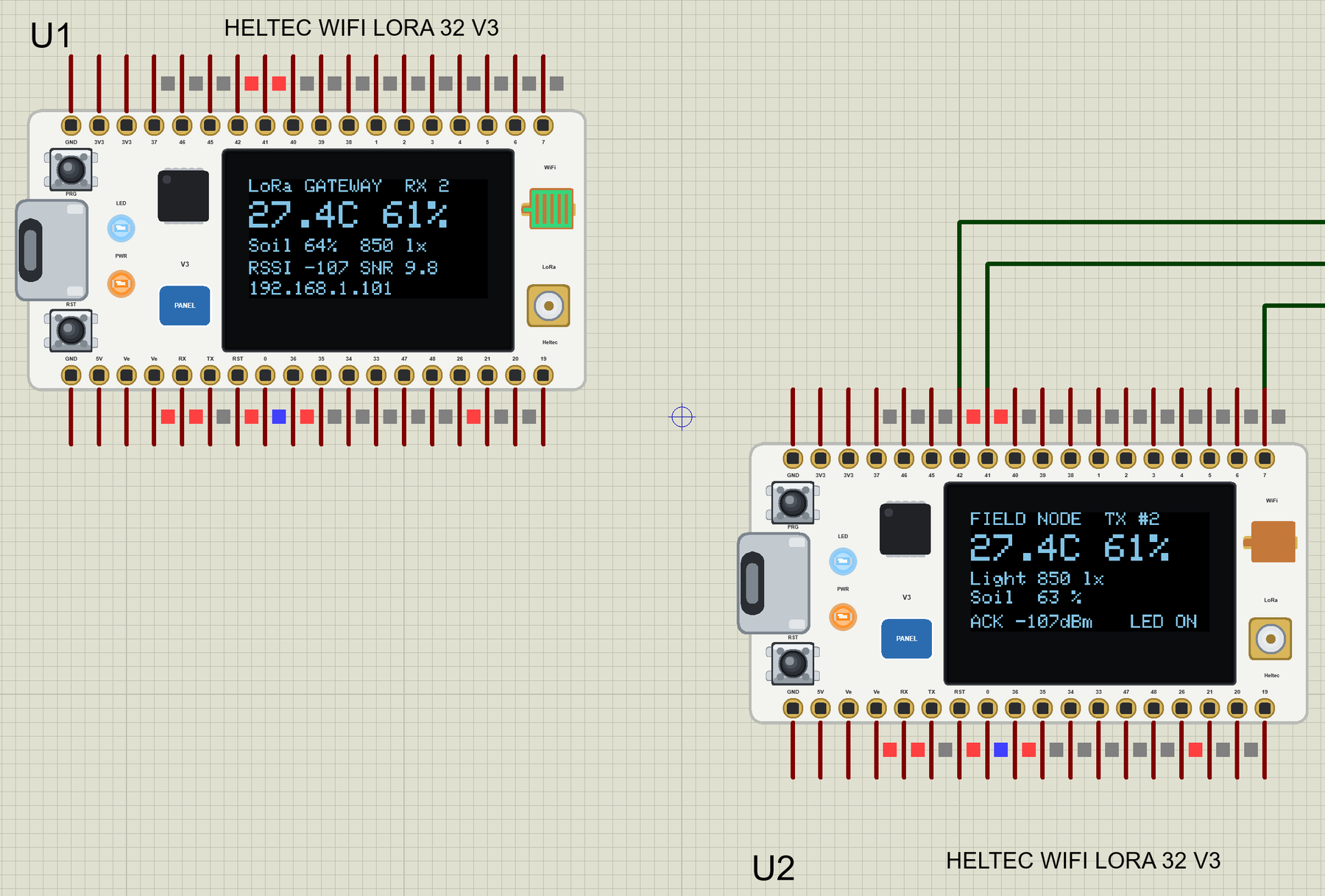
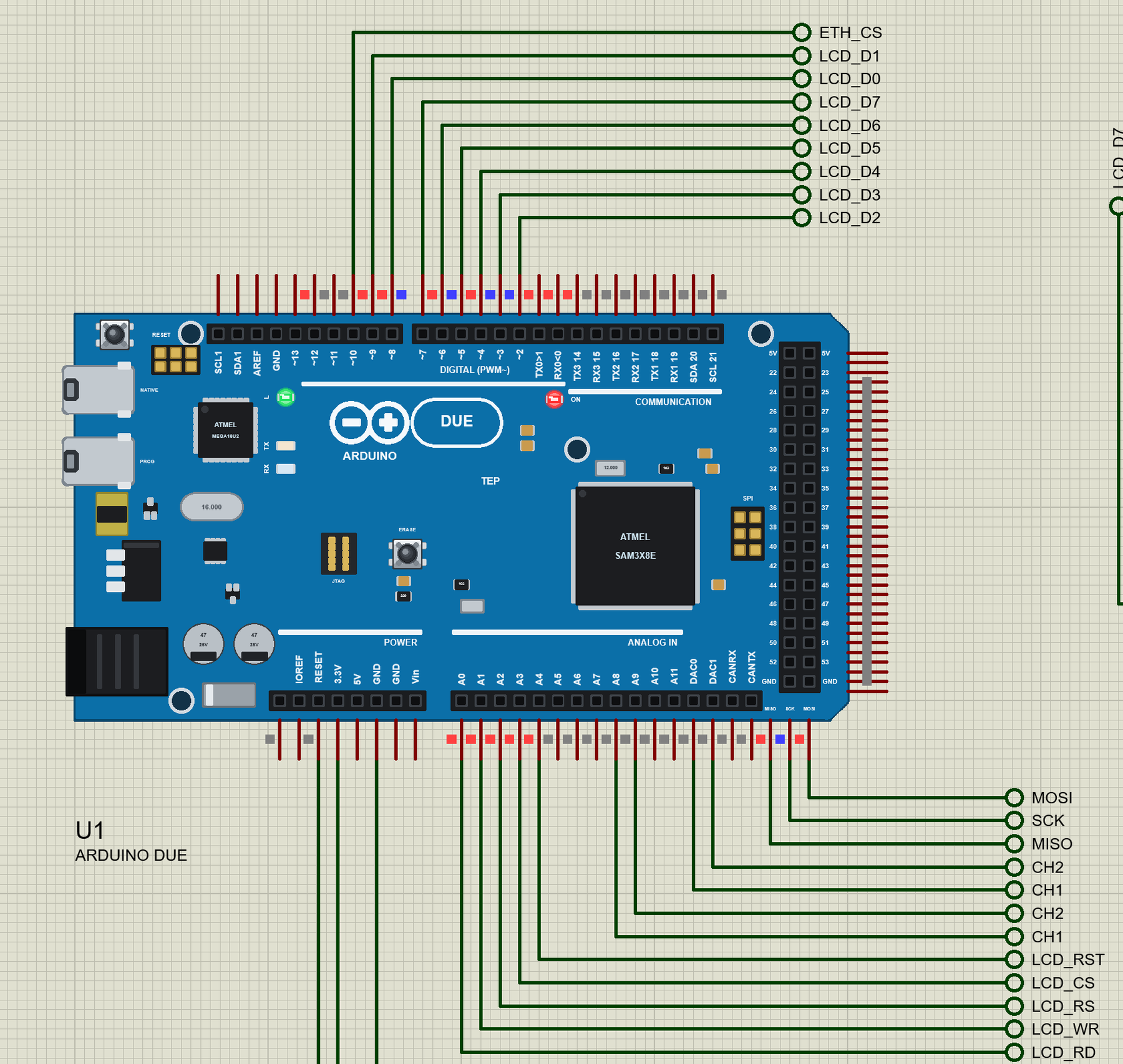
The circuit, the board and the results as they appear in LilyGO T-Display S3 Library for Proteus: IR Remote Timer, TFT. Open an image for its full size.
README
 README
LILYGO T-DISPLAY S3 LIBRARY FOR PROTEUS - V1.0 (YOUR ESP32-S3 SKETCH, THE 1.9" DISPLAY, WI-FI, AN IR TIMER)
Designed by The Engineering Projects
www.TheEngineeringProjects.com
IMPORTANT LINKS
Article (read it first - pictures, step by step, every feature explained):
https://www.theengineeringprojects.com/2026/10/lilygo-t-display-s3-library-for-proteus.html
Report a bug or suggest a feature (our forum):
https://www.theengineeringprojects.com/forum/category/lilygo-t-display-s3-proteus-library
The demo's IR receiver and remote are our library (included) - its article:
https://www.theengineeringprojects.com/2026/10/ir-receiver-remote-library-for-proteus-v1-0.html
The first T-Display of the series (ESP32, 1.14") and our ST7789 display library:
https://www.theengineeringprojects.com/2026/10/ttgo-t-display-esp32-library-for-proteus.html
https://www.theengineeringprojects.com/2026/10/st7789-tft-lcd-library-for-proteus-v1-0.html
The laptop and the phone:
https://www.theengineeringprojects.com/2026/10/laptop-wifi-monitor-library-for-proteus.html
https://www.theengineeringprojects.com/2026/10/mobile-wifi-monitor-library-for-proteus.html
Support us (the libraries are free):
https://www.theengineeringprojects.com/donate
FILE STRUCTURE
LilyGO-T-Display-S3-TEP-v1.0/
|-- Proteus Library Files/
| |-- TEPIRREMOTE.LIB 119.5 KB the IR receiver and its remote (demo), to LIBRARY
| |-- TEPLAPTOP.LIB 39.5 KB the laptop (demo), to LIBRARY
| |-- TEPMOBILE.LIB 13.1 KB the phone (demo), to LIBRARY
| |-- TEPTDISPLAYS3.LIB 29.9 KB the LilyGO T-Display S3, to LIBRARY
|-- Proteus Model Files/
| |-- TEPIRREMOTE.DLL 310.5 KB the IR receiver and its remote, to MODELS
| |-- TEPNET.DLL 2.45 MB the board + monitors + network, to MODELS
|-- Arduino Code/
| |-- TDisplayS3_IR_Timer/TDisplayS3_IR_Timer.ino 10.6 KB the demo sketch
| |-- TEP Boards for Proteus/hardware/ 693.1 KB the Arduino IDE add-on 1.23.0 (164 files)
|-- Proteus Simulation/
| |-- TDisplayS3_IR_Timer.hex 91.4 KB the demo sketch (U1)
| |-- T-Display-S3-IR-Timer.pdsprj 25.4 KB the demo: an IR kitchen timer
| |-- TEPIRREMOTE.DLL 310.5 KB copy of the model
| |-- TEPNET.DLL 2.45 MB copy of the model
|-- README.txt ~14.5 KB this file
Total: 6.52 MB (unzipped). The source code of the models is not included.
WHAT IS IT?
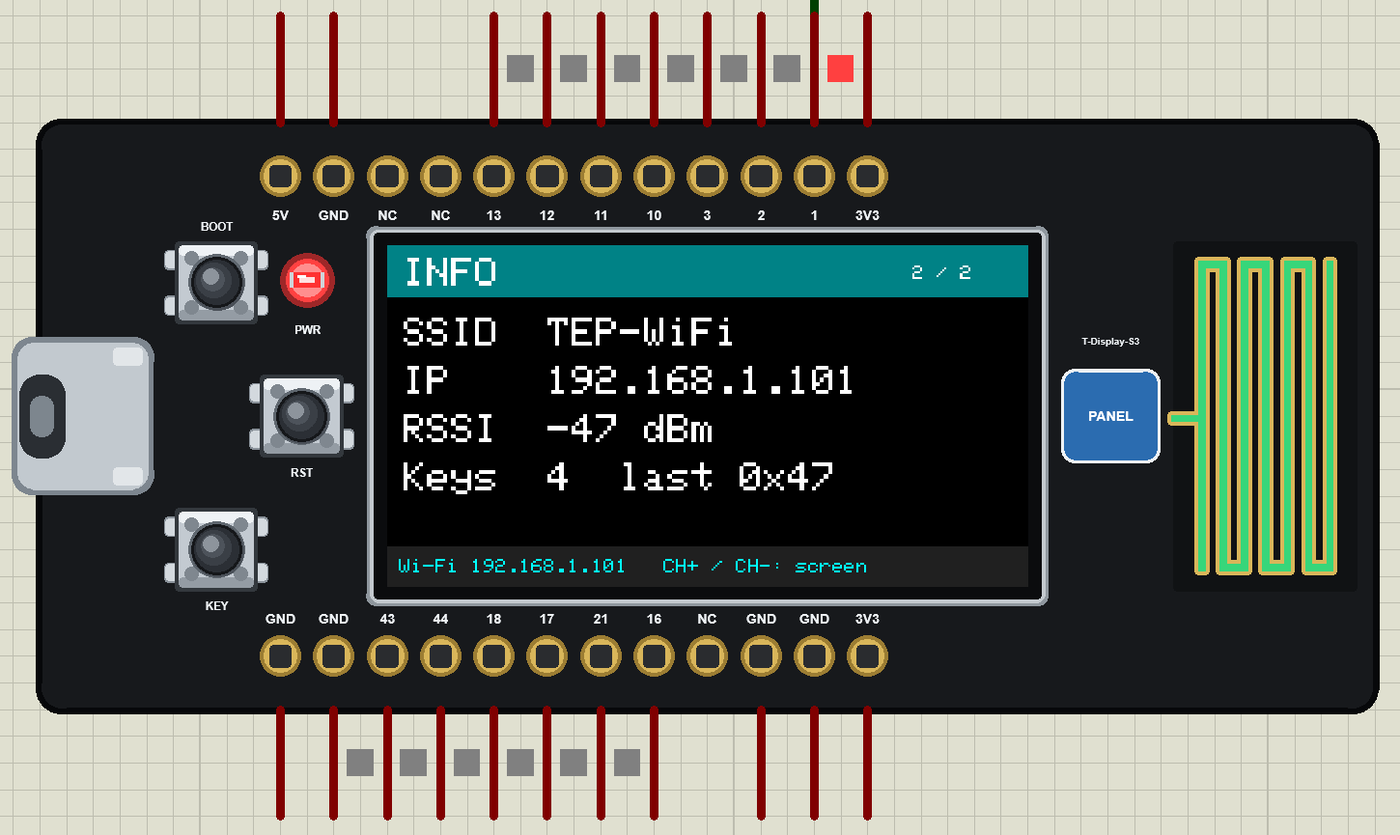
Proteus 8 has no ESP32-S3 processor model, so this is NOT a real ESP32-S3 chip. It is LilyGO's T-Display S3 - the board
with the ESP32-S3R8, the 1.9" 170 x 320 ST7789 IPS display, the BOOT and KEY buttons, RST, the PCB antenna and the 2 x
12 header - that runs YOUR ESP32-S3 Arduino sketch in Proteus:
* You write a normal T-Display S3 sketch (the header's GPIOs, analogRead 0-4095, analogWrite, attachInterrupt, micros,
the display with Adafruit_ST7789 + Adafruit_GFX, the buttons, WiFi, WebServer, HTTPClient, ESPmDNS ...) and compile
it in the Arduino IDE with our board package "TEP Boards for Proteus" 1.23.0 (in Arduino Code - see INSTALLATION).
* Inside the board, Proteus's own ATmega2560 model runs the compiled sketch at 16 MHz; our model (TEPNET.DLL) wraps
it: the header's GPIO numbers, the display (it shows what the sketch draws), BOOT (GPIO0) and KEY (GPIO14), RST, the
PWR LED, the built-in serial monitor on the USB and the Wi-Fi radio.
* Wi-Fi: a virtual router (TEP-WiFi, password 12345678 - the WIFISSID / WIFIPASS properties) with DHCP (192.168.1.101
for U1), a scan list, RSSI, mDNS names, NTP time, TCP and UDP between all the TEP Wi-Fi parts in the design.
The display: on the real board it sits on an 8-bit parallel bus (D0 .. D7 = GPIO39 .. 42, 45 .. 48, WR 8, RD 9, DC 7, CS
6, RST 5, the backlight 38, the LCD power 15). In Proteus our ST7789 model listens on the hidden processor's SPI
instead: WR is its clock, D0 its data. So in Proteus use Adafruit_ST7789 tft(&SPI, TFT_CS, TFT_DC, TFT_RST) with
tft.init(170, 320) and setRotation(1) (upright, the USB-C on the left); on the real board use the same drawing calls
through TFT_eSPI (LilyGO's Setup206) or Arduino_GFX with the parallel bus. Set PIN_POWER_ON (15) and the backlight (38)
HIGH first, as LilyGO's examples do. TEP additions: the antenna changes colour (gold not joined, green on Wi-Fi, orange
sending, cyan receiving), the PANEL pad (or the display) opens the board's panel, the USB-C port opens the serial
monitor. Limits (say them before you start): 16 MHz, 8 KB of RAM (the real S3: two cores at 240 MHz, 512 KB plus 8 MB of
PSRAM), 256 KB of flash, int is 16 bits (use long / int32_t for big numbers), no FreeRTOS tasks, no Bluetooth LE, no
PSRAM, no camera / LCD peripheral DMA, no native USB devices (Serial is the board's monitor), no ESP-IDF, no real TLS,
no soft AP. One T-Display S3 per design (its display and USB lines are hidden pins, and Proteus joins hidden pins of the
same name). See MODEL SCOPE AND LIMITS.
ONE DEVICE (search "T-DISPLAY" in Pick Devices):
LILYGO T-DISPLAY S3 "LilyGO T-Display S3" V1.0 (Microprocessor ICs > ESP32 Boards), prefix U, model TEPNET.DLL. The
panel (a TEP pop-up window; the PANEL pad opens it): Wi-Fi (a phone: OPEN ESP32 PAGE, the router's list), Pins (every
GPIO live), Test, Settings, Help. The serial monitor (115200 baud) has Monitor, Plotter and Board tabs (the Board tab:
the PWR LED, RESET, BOOT, KEY, every pin). Like every TEP window it has no Windows title bar.
The same TEPNET.DLL also runs our other Wi-Fi boards and the Laptop / Mobile WiFi Monitors; it replaces any older
TEPNET.DLL (keep only this newest one in MODELS).
TEST STATUS
V1.0: verified in Proteus 8.5 on 26 Oct 2026 with the demo project as shipped. What the Proteus run showed:
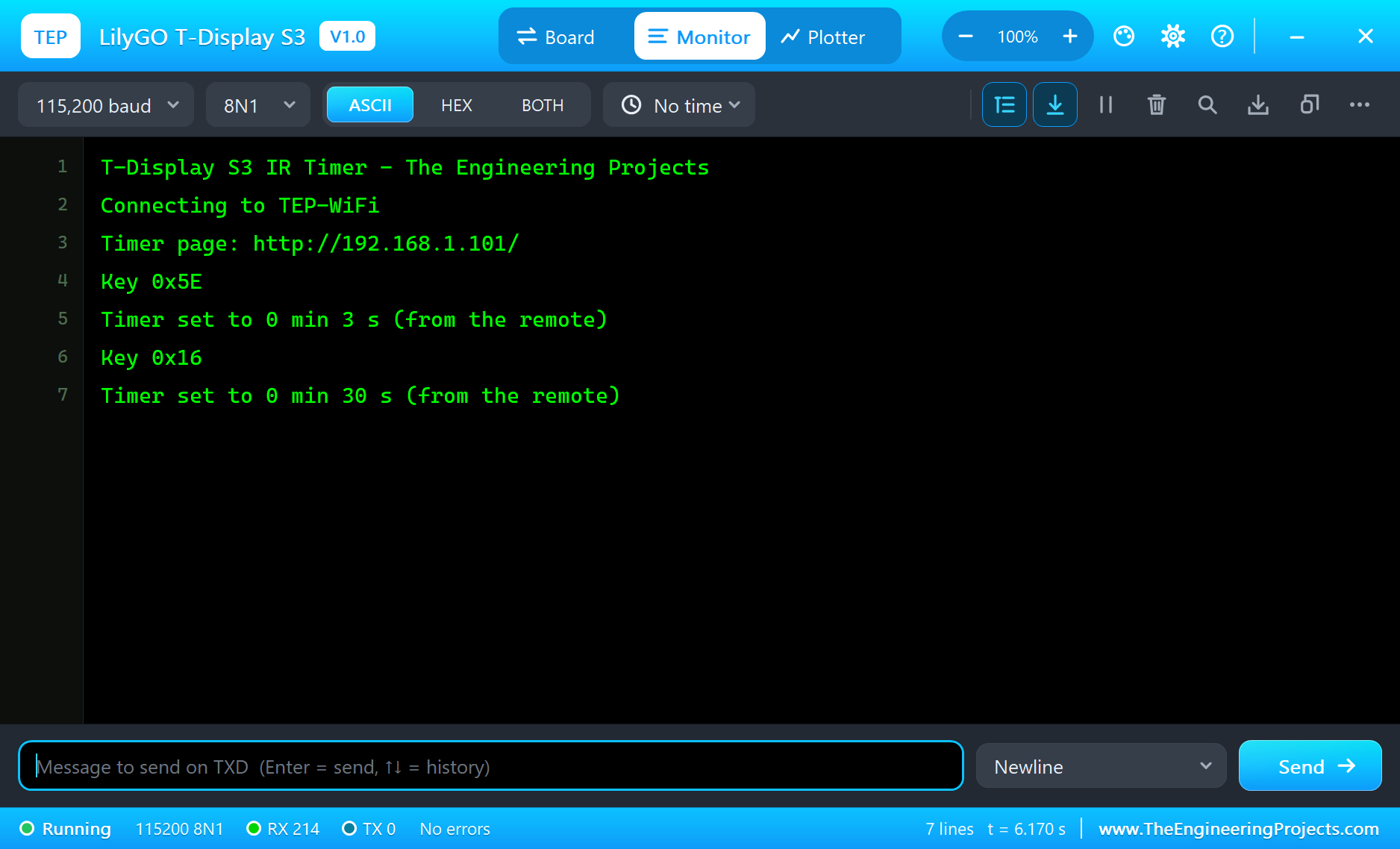
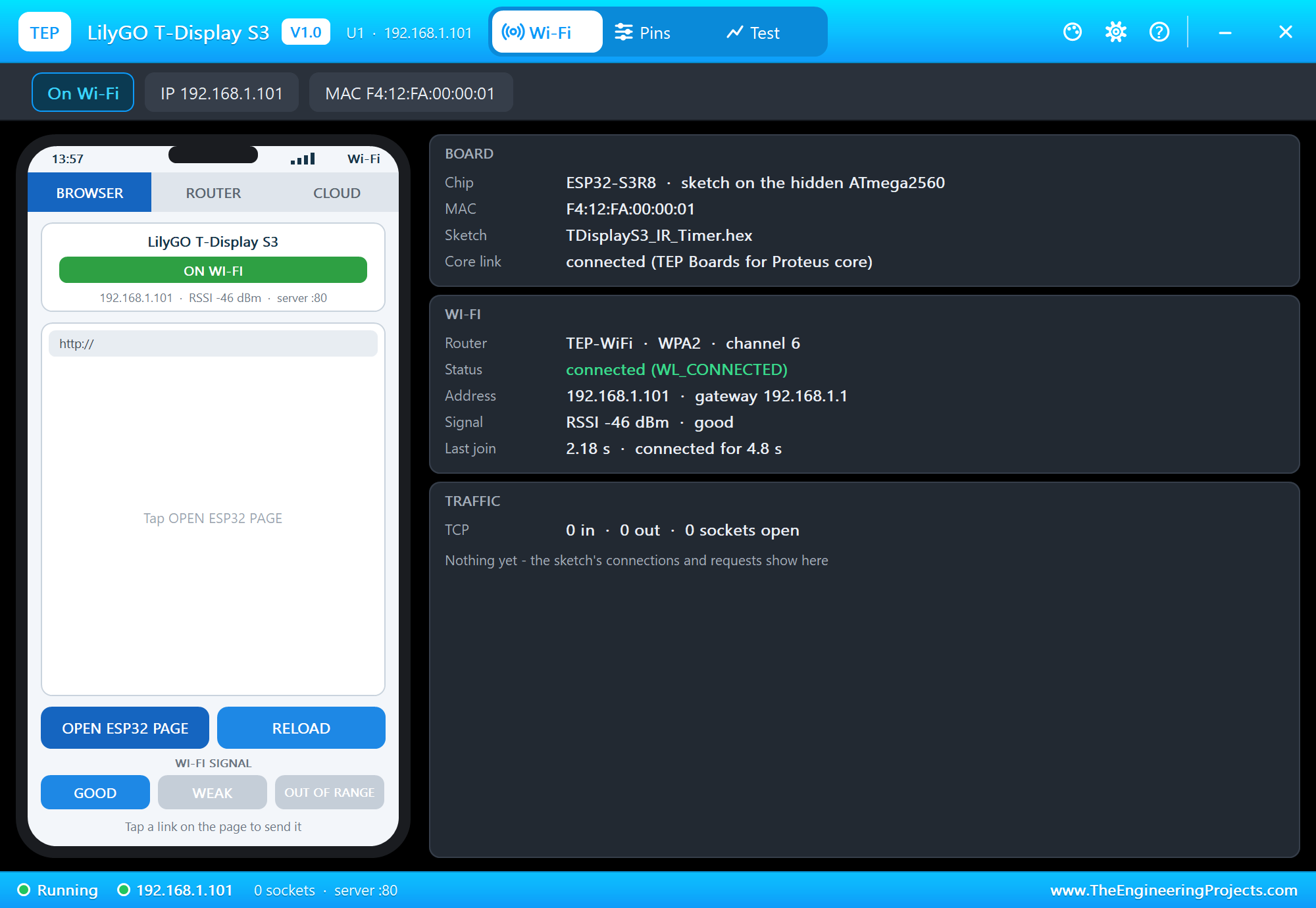
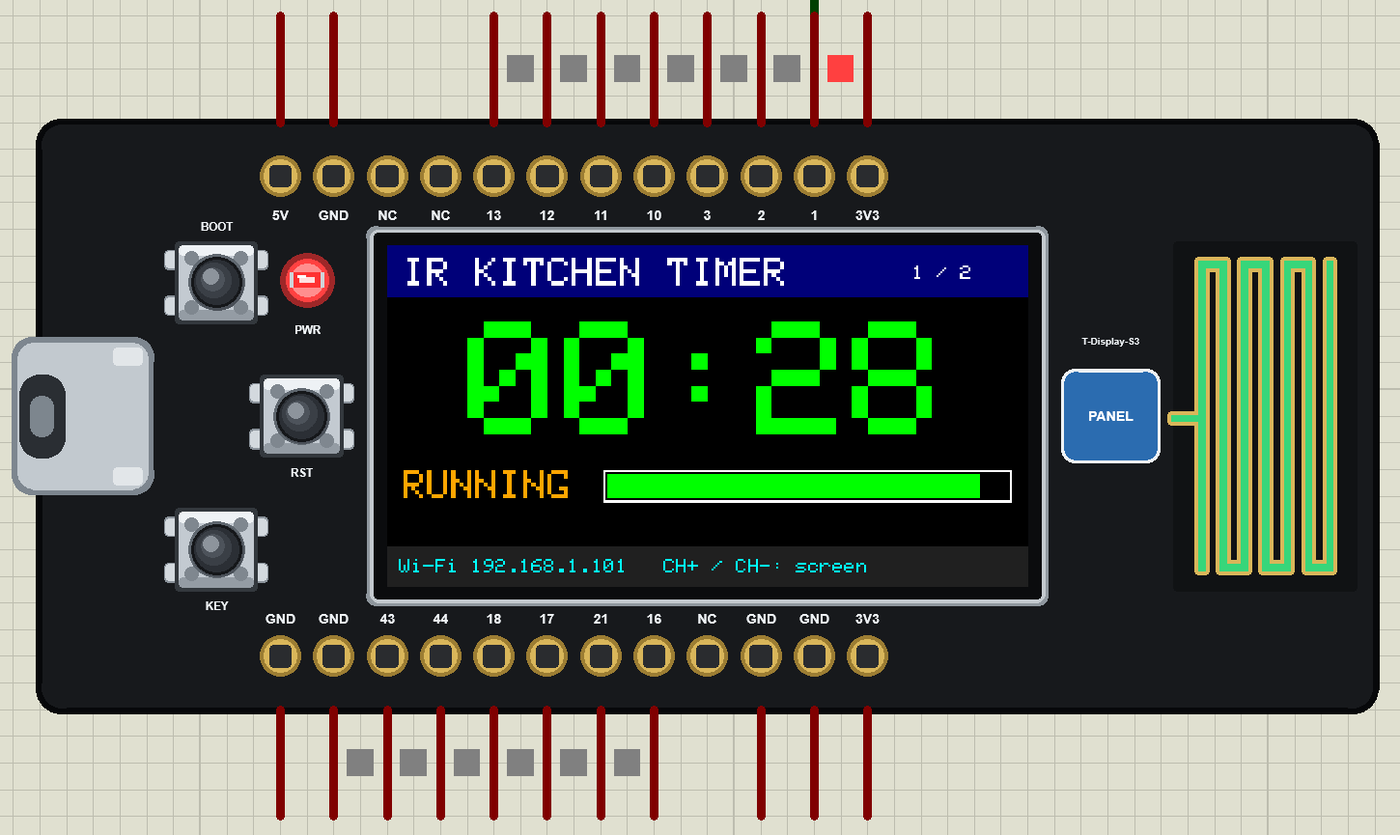
* T-Display-S3-IR-Timer: the monitor printed "Connecting to TEP-WiFi" and "Timer page: http://192.168.1.101/"; the
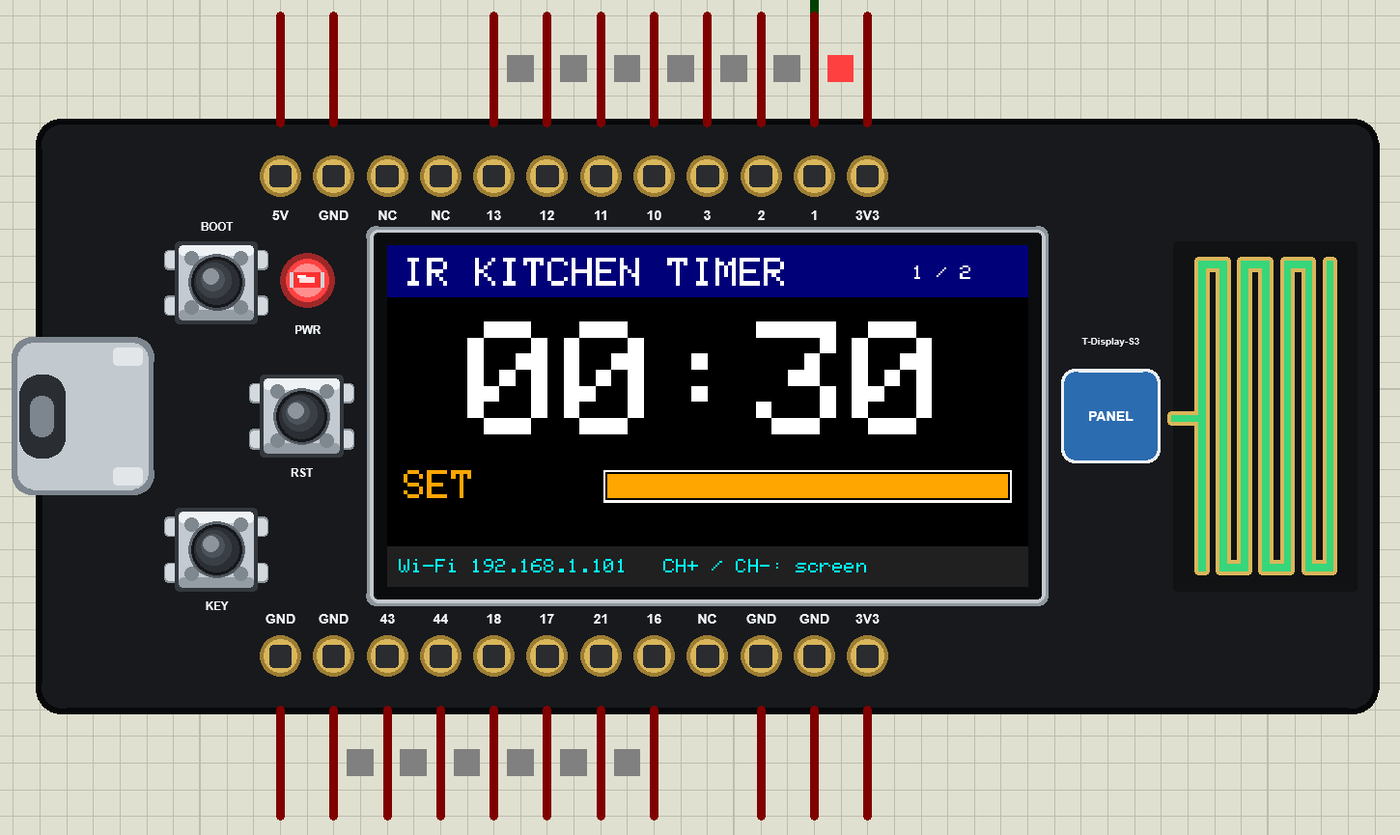
display showed IR KITCHEN TIMER; the antenna green on Wi-Fi, the PWR LED on; the board's panel: on TEP-WiFi at
192.168.1.101.
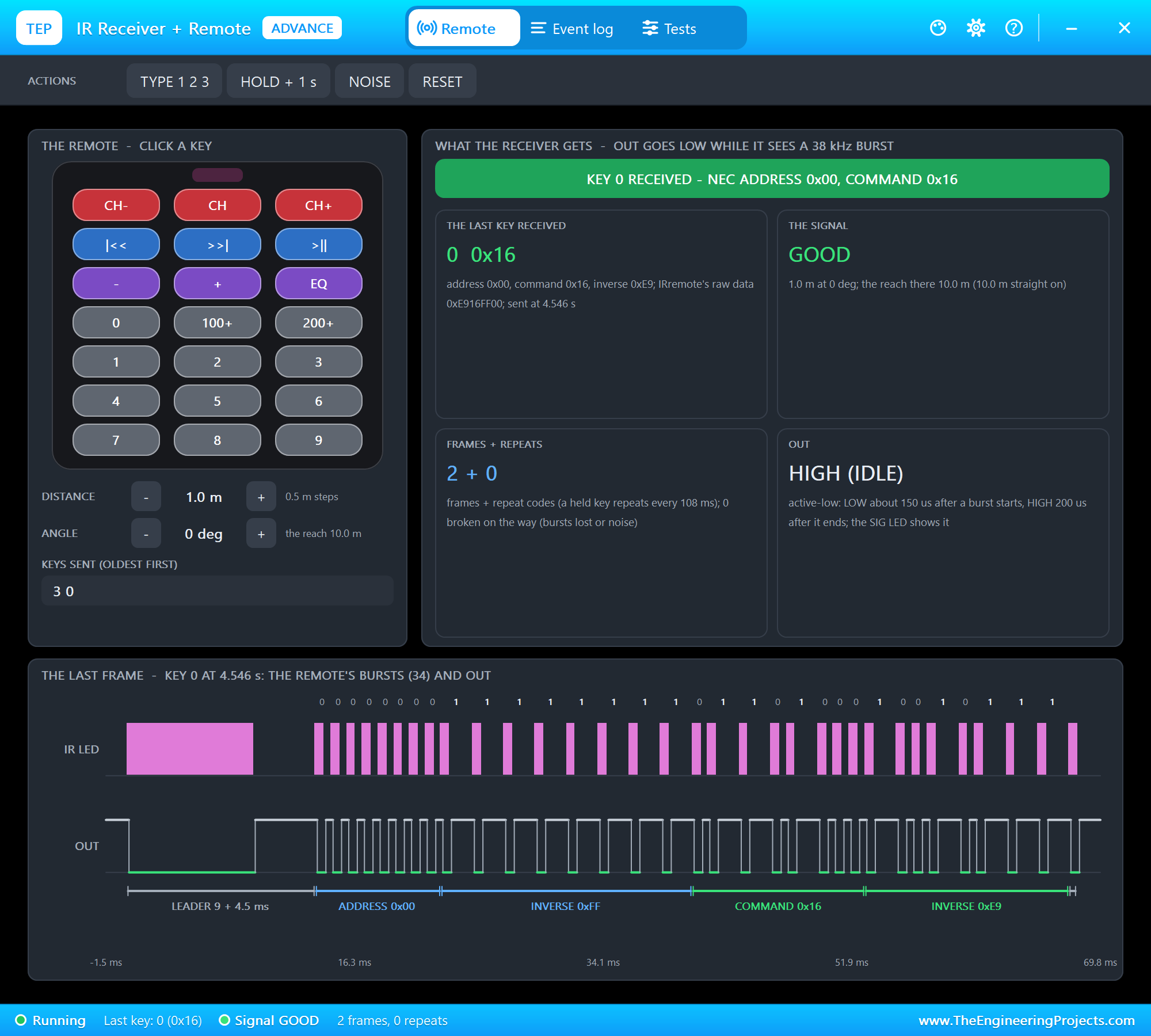
* The remote's keys 3 and 0 (the receiver's pop-up): "Key 0x5E", "Key 0x16", "Timer set to 0 min 30 s (from the
remote)" - 00:30 SET on the display; >||: "Key 0x43", "Timer started (from the remote)" - the digits green, the
bar shrinking.
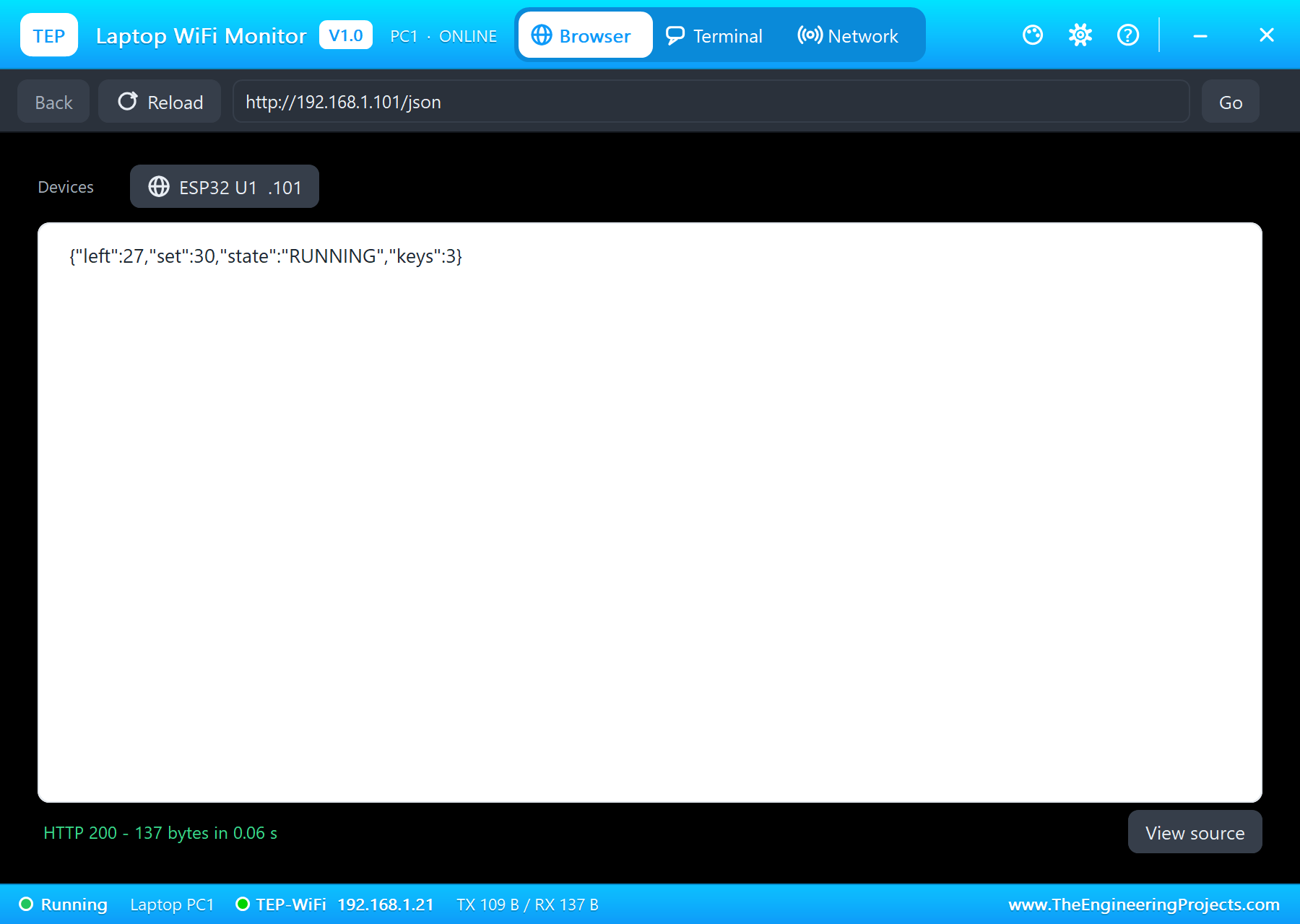
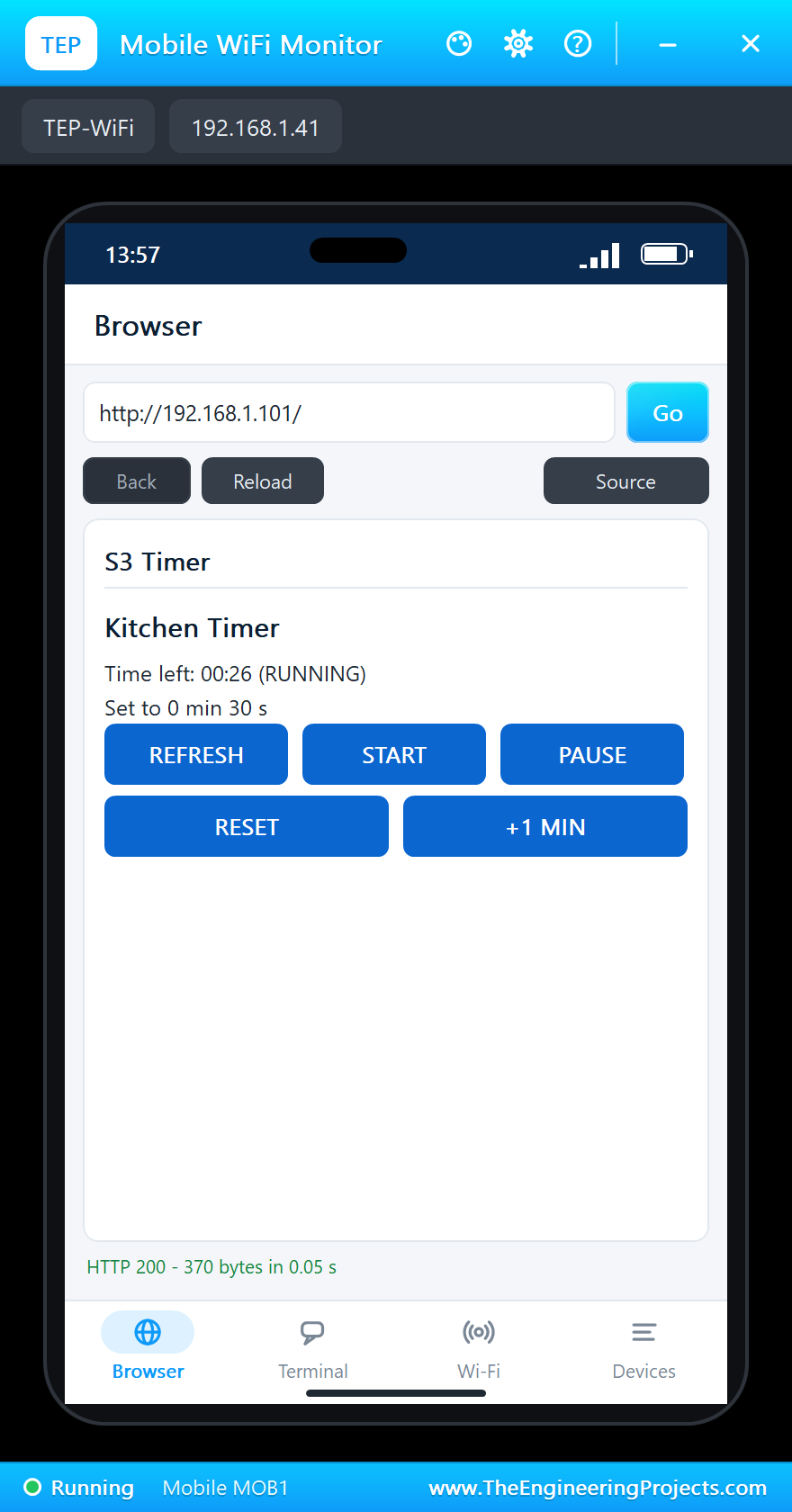
* The laptop (192.168.1.21) opened http://192.168.1.101/json and the phone (192.168.1.41) http://192.168.1.101/
(HTTP 200).
* CH+ ("Key 0x47"): the INFO screen (SSID, IP, RSSI -47 dBm, 4 keys, last 0x47); CH- ("Key 0x45"): back to the
timer.
* PAUSE from the phone: "Timer paused (from the web page)" - PAUSED, the bar orange; START: "Timer started (from the
web page)"; at 00:00 "TIME UP" - the digits red; the phone and the laptop's JSON: TIME UP.
* About 46 s of simulation, no errors, with the pop-up, the panel, the monitor and both tools open.
INSTALLATION (about 3 minutes)
1. Close Proteus. Extract the WHOLE ZIP to a normal folder (e.g. Desktop).
2. Copy everything in "Proteus Library Files" to the LIBRARY folder of Proteus, for example:
C:\Program Files (x86)\Labcenter Electronics\Proteus 8 Professional\LIBRARY
(on some PCs: C:\ProgramData\Labcenter Electronics\Proteus 8 Professional\LIBRARY). TEPTDISPLAYS3.LIB is the board;
the others are the demo's parts: TEPIRREMOTE.LIB, TEPLAPTOP.LIB and TEPMOBILE.LIB.
3. Copy the DLLs from "Proteus Model Files" (TEPNET.DLL, TEPIRREMOTE.DLL) to the MODELS folder (...\Proteus 8
Professional\MODELS)
- replace an older TEPNET.DLL (this one is the first that knows the T-Display S3).
4. Delete TEPTDISPLAYS3.IDX from the LIBRARY folder if it is there.
5. The Arduino IDE (only to compile your own sketches - the demo has its HEX file): copy the folder
"Arduino Code\TEP Boards for Proteus\hardware" into your sketchbook folder (normally Documents\Arduino), so that
Documents\Arduino\hardware\tep\avr\boards.txt exists (replace an older copy); restart the IDE. The Arduino AVR Boards
platform must be installed (it comes with IDE 1.8.x; in IDE 2.x install "Arduino AVR Boards" from the Boards Manager
once). Tools > Board > TEP Boards for Proteus > LilyGO T-Display S3 (TEP Proteus). The demo also needs Adafruit
ST7735 and ST7789 and Adafruit GFX (Library Manager).
6. Start Proteus. In Pick Devices (P) search "T-DISPLAY".
RUN THE DEMO
Keep the .hex file and the DLLs beside the project in "Proteus Simulation".
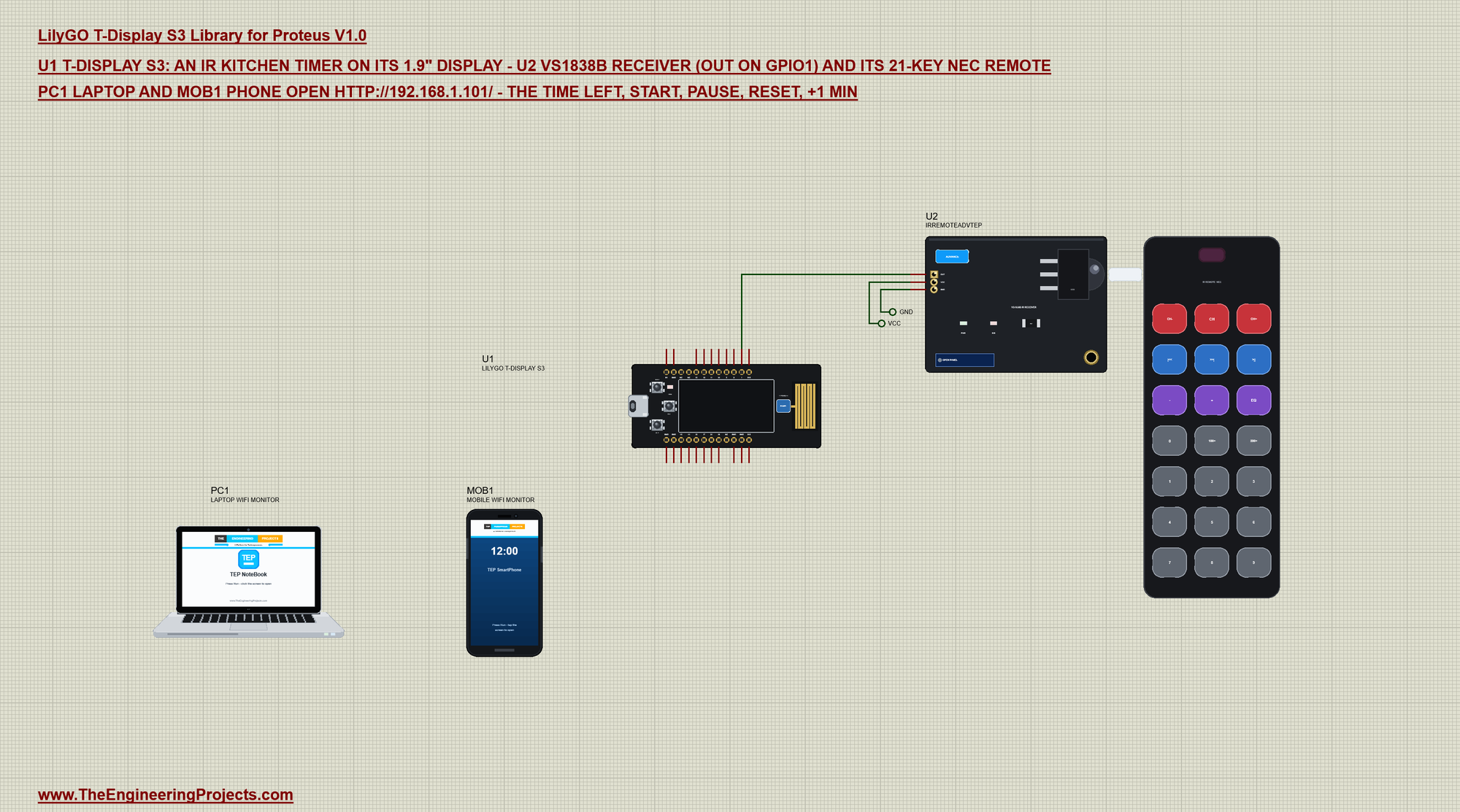
T-Display-S3-IR-Timer.pdsprj - U1 the T-Display S3 (TDisplayS3_IR_Timer.hex) is a kitchen timer on its own display, set
with an IR remote: U2 = the VS1838B IR receiver (OUT on GPIO1) with its 21-key NEC remote. PC1 the Laptop WiFi Monitor
opens http://192.168.1.101/json, MOB1 the Mobile WiFi Monitor the page http://192.168.1.101/. The receiver is the
Advance version: it opens its pop-up window at Run, with the remote to click.
The sketch decodes the remote itself: an interrupt on every falling edge of OUT and micros() - 13.5 ms between falls = a
new frame, 1.125 ms = a 0, 2.25 ms = a 1 (NEC, least significant bit first); the command and its inverse must agree.
The remote: the digits type the time (MM:SS, from the right), >|| starts and pauses, EQ clears, + and - add or take 10
s, 100+ adds a minute, CH+ and CH- switch the screen (TIMER, INFO). The board's KEY button (GPIO14) starts and pauses,
BOOT (GPIO0) switches the screen. The page: START, PAUSE, RESET, +1 MIN.
Press Run. The board joins TEP-WiFi. On the remote (the receiver's pop-up) click 3 and 0: 00:30. Click >||: the display
counts down, green, with a bar of the time left. CH+ shows the INFO screen (the network, the keys received), CH- goes
back. PAUSE and START from the phone; at 00:00 the display says TIME UP in red.
The supply: in the demo the receiver's VCC is on a label named VCC - Proteus' power rail; on a real board the VS1838B
sits on 3V3. Closed a window? The USB-C port of the board opens the monitor, the PANEL pad the panel. The monitor
(115200) prints every key and every change and takes STATUS, START, PAUSE and RESET.
THE PINS (the label on the board, what it can do in the simulation)
1 2 3 10 11 12 13 GPIO, analogRead 0 .. 4095 for 0 .. 3.3 V, PWM, interrupt
16 GPIO, analogRead, PWM, interrupt
21 GPIO, PWM, interrupt
18 / 17 Wire SDA / SCL (GPIO too)
43 / 44 Serial0 TX / RX (GPIO too)
3V3, 5V, GND 3.3 V (the logic), 5 V, ground
NC not connected (drawn, no pin)
On the board only: the display (CS 6, DC 7, RST 5, WR 8, D0 39, the backlight 38, the LCD power 15), BOOT (GPIO0), KEY
(GPIO14), the battery divider (GPIO4), RST, the USB (Serial).
PROPERTIES (double-click the board > Edit Properties)
PROGRAM the sketch's HEX (Arduino IDE: Sketch > Export Compiled Binary with LilyGO T-Display S3 (TEP Proteus))
WIFISSID the router in range (default TEP-WiFi); WIFIPASS its password (default 12345678)
MONITOR YES = the built-in serial monitor on the USB; BAUD its speed (115200, or AUTO)
AUTOOPEN YES = the monitor window opens at Run (the demo: YES)
TIME the clock for NTP: PC (the PC's clock) or YYYY-MM-DD HH:MM:SS in UTC
The IP address follows the part's number: U1 192.168.1.101.
TROUBLESHOOTING
* Nothing happens at Run: the HEX was not built with TEP Boards for Proteus - select LilyGO T-Display S3 (TEP Proteus)
and export the binary again.
* The display stays dark: set PIN_POWER_ON (15) and the backlight (38) HIGH; use tft.init(170, 320) and setRotation(1).
* The picture is shifted or cut: the display is 170 x 320 - init(170, 320), not 135 x 240 or 240 x 320.
* The remote does nothing: the receiver's OUT on GPIO1, its VCC on the power rail; the remote's DISTANCE within its
RANGE.
* The board stays off the network: the sketch's SSID / password differ from WIFISSID / WIFIPASS.
* An integer goes wrong above 32767: int is 16 bits on the hidden AVR - use long.
* The page shows old values: tap REFRESH (the monitors do not reload by themselves).
BUG REPORTS AND FEATURE REQUESTS
Please post them in our forum with a screenshot and the Serial Monitor text:
https://www.theengineeringprojects.com/forum/category/lilygo-t-display-s3-proteus-library
LICENCES AND THIRD-PARTY NOTES
* The board model, the display model and the Wi-Fi network (TEPNET.DLL), the symbols and artwork (TEPTDISPLAYS3.LIB,
TEPLAPTOP.LIB, TEPMOBILE.LIB) and the receiver model (TEPIRREMOTE.LIB / .DLL) are made by The Engineering Projects.
The board's processor is Proteus's own ATmega2560 model. The source code of the models is not included.
* TEP Boards for Proteus (Arduino Code): its core, the variants and the EEPROM, SPI and Wire libraries are modified
copies of the Arduino AVR core 1.8.6 - GNU Lesser General Public License 2.1 (LGPL 2.1, the text:
LICENSE-LGPL-2.1.txt); its WiFi, WebServer and the other libraries and our core files are MIT (LICENSE-MIT.txt).
* The demo sketch uses Adafruit ST7735 and ST7789 and Adafruit GFX (BSD) - install them in the Arduino IDE (Library
Manager) to compile it; the .hex is included. Its NEC decoder is our own code.
* Proteus is a product of Labcenter Electronics and is not included. LilyGO and T-Display are names of LilyGO (Xinyuan);
ESP32-S3 is a name of Espressif Systems. This library is not made or endorsed by them or by Labcenter.
REBUILDING THE FIRMWARE (OPTIONAL)
The HEX file is supplied. Install TEP Boards for Proteus (INSTALLATION step 5) and the Adafruit libraries, open Arduino
Code\TDisplayS3_IR_Timer, select LilyGO T-Display S3 (TEP Proteus) and use Sketch > Export Compiled Binary. For a real
T-Display S3 install "esp32" by Espressif Systems (3.x), select "LilyGo T-Display-S3" and draw through TFT_eSPI
(LilyGO's setup) or Arduino_GFX - the IR decoder, the timer, the buttons and the web page stay the same.
MODEL SCOPE AND LIMITS
Modelled: the T-Display S3's header GPIOs, the buttons and the display lines on a hidden ATmega2560 (Proteus's AVR
model, 16 MHz, 3.3 V); digital I/O, analogRead 0 .. 4095, PWM (analogWrite / ledc), attachInterrupt (through the board
model, about 50 us of delay) and pulseIn; the ST7789 display (170 x 320, IPS, the backlight) on the AVR's SPI; BOOT,
KEY, RST and the PWR LED; Serial (the USB, the board's monitor), Serial0 on GPIO43 / 44, Wire on GPIO18 / 17; WiFi
station mode, DHCP, TCP, UDP, WebServer, HTTPClient, mDNS and NTP; the other TEP Wi-Fi parts on the same network.
Not modelled: the ESP32-S3 itself (two 240 MHz cores, 512 KB of RAM, 8 MB of PSRAM, 16 MB of flash), the 8-bit parallel
LCD bus (replaced by SPI), the battery charger and the charge LED, the touch panel of the touch version, Bluetooth LE,
native USB devices. The simulation runs below real time.
VERSION
TEP LilyGO T-Display S3 library V1.0 (Oct 2026). Device LILYGO T-DISPLAY S3 (TEPTDISPLAYS3.LIB / TEPNET.DLL), TEP Boards
for Proteus 1.23.0 (adds the T-Display S3). Demo sketch TDisplayS3_IR_Timer V1.0. Demo parts: IRREMOTEADVTEP (the
Advance version), LAPTOP WIFI MONITOR and MOBILE WIFI MONITOR.Development1 release
 Development1 release
-
V1.0LilyGO T-Display S3 Library for Proteus V1.0this page
V1.0 is the only release in the Download Center so far. When a newer version is published, it appears above with its own download page.
Installation10 steps
 Installation10 steps
From the download to a working project, in order. The steps follow what the package contains.
You will need
- Proteus Design SuiteProteus 8 or newer (Labcenter), on Windows
- Arduino IDE1.8 or 2.x, with the board of the tutorial chosen under Tools → Board
- The compiler named in the tutorialto build the source files into firmware
- Any archive toolWindows, macOS and Linux extract ZIP files on their own

Steps
- 1
Extract the archive
Right-click lilygo-t-display-s3-tep-v1-0-f0670849d5ff4380a7b512895780f6df.zip and choose Extract All (or open it with 7-Zip or WinRAR) into a folder you can find again. Keep its folder structure (LilyGO-T-Display-S3-TEP-v1.0) as it is.
- 2
Copy the library files into Proteus
Move TEPIRREMOTE.LIB, TEPLAPTOP.LIB and TEPMOBILE.LIB and 1 more and the files into the LIBRARY folder of your Proteus installation: C:\Program Files (x86)\Labcenter Electronics\Proteus 8 Professional\LIBRARY for Proteus 8, or the matching Proteus 7 folder. Older versions keep it under ProgramData\Labcenter Electronics. If Proteus is open, close it first.
- 3
Add the simulation model
Copy TEPIRREMOTE.DLL and TEPNET.DLL into the MODELS folder next to LIBRARY, so the component can run, not only be drawn.
- 4
Restart Proteus and place the component
Start Proteus, open a schematic, press P (Pick Devices) and search for the component by the name used in the tutorial. It appears with its pins ready to wire.
- 5
Install the Arduino library
In the Arduino IDE choose Sketch → Include Library → Add .ZIP Library and pick the library, or copy its folder into Documents\Arduino\libraries. Restart the IDE to see its examples.
- 6
Open the sketch in the Arduino IDE
Open TDisplayS3_IR_Timer.ino, eeprom_clear.ino and eeprom_crc.ino and 15 more, select your board and port under Tools, then Verify. Sketch → Export Compiled Binary writes the HEX file a simulation needs.
- 7
Build the source code
Open abi.cpp, Arduino.h and binary.h and 49 more in the compiler named in the tutorial (MikroC, Keil, MPLAB, Code Composer or the Arduino IDE) and build it to get the firmware.
- 8
Load the HEX file
In Proteus double-click the microcontroller, set Program File to TDisplayS3_IR_Timer.hex and run the simulation. For real hardware, flash the same file with your programmer.
- 9
Open the example simulation
Open T-Display-S3-IR-Timer.pdsprj in Proteus to see the wiring exactly as in the tutorial. Check the controller's Program File path, then press Play.
- 10
Follow the tutorial
LilyGO T-Display S3 Library for Proteus: IR Remote Timer, TFT explains every connection and setting in order; keep it open beside the files while you build.
FAQs9 questionsContact TEP
 FAQs9 questions
How do I download LilyGO T-Display S3 Library for Proteus V1.0?
Wait for the 30-second guest countdown on this page, then press the download button; the file comes straight from our storage. Members who are logged in skip the wait. If the browser opens the file instead of saving it, use its Save as option. The download link is made for you when the countdown ends and works for 15 minutes; a saved or shared link stops working, so share this page instead.
What is inside the archive?
LilyGO T-Display S3 Library for Proteus V1.0 comes as a ZIP archive of 176 files (3.0 MB, 6.5 MB unpacked) holding Proteus library files, simulation model DLLs, a Proteus simulation, an Arduino sketch, an Arduino library, compiled HEX firmware and source code. Open the File Structure tab for the full list of 176 files.
What should I do if the download does not start?
Check the browser's download list first; an ad blocker or a company firewall can also hold it back, so try another browser or network. If the file arrives incomplete, download it again. For an installation problem, read the Install tab or tell us in the comments with your software version and the exact error message.
Is this file free?
Yes. Every file in the TEP Download Center is free for learning, personal and student projects. If you share it, link back to this page or the tutorial so others find the latest version.
How do I check that the file arrived complete?
Compare its SHA-256 with the one on this page, 05eef96eaaffacebf9b93591ebdf51fcfbcce06658f7bcc3e33658f23adc108c. In PowerShell run Get-FileHash "lilygo-t-display-s3-tep-v1-0-f0670849d5ff4380a7b512895780f6df.zip"; on macOS or Linux run shasum -a 256 "lilygo-t-display-s3-tep-v1-0-f0670849d5ff4380a7b512895780f6df.zip". The same value means the file is exactly the one in our storage; a different one means the download broke off, so download it again.
Do I need WinRAR to open the ZIP file?
No. Windows, macOS and Linux open ZIP archives on their own (Extract All, or double-click). WinRAR and 7-Zip work too. Extract the whole archive before using the files.
Where do I put the LIB and IDX files?
Both files go into the LIBRARY folder of your Proteus installation (Proteus 8: C:\Program Files (x86)\Labcenter Electronics\Proteus 8 Professional\LIBRARY; Proteus 7 has the same folder under its own name). Restart Proteus afterwards and search for the component with P.
Which Proteus version does the library need?
The tutorial names the Proteus version the library was made and tested with. Most TEP libraries work in Proteus 7 and Proteus 8; if the component does not appear after a restart, check that both the LIB and the IDX file were copied and that Proteus was fully closed while copying.
How do I get the HEX file into the simulation?
Compile the sketch in the Arduino IDE (Sketch → Export Compiled Binary gives you the HEX next to the sketch), then in Proteus double-click the board, set Program File to that HEX and run.
Members skip the wait. Log in or join TEP.

- 0Total downloads
- 4%Popularity
- ProteusCategory
- 0Comments
- ssyedzainnasirUploaded by
- 26 Oct 2026Uploaded at


 SHA-256
05eef96eaaffacebf9b93591ebdf51fcfbcce06658f7bcc3e33658f23adc108c


 Need help with this file?
 Tags
TagsRelated Proteus
All Proteus tutorials



Comments
0