


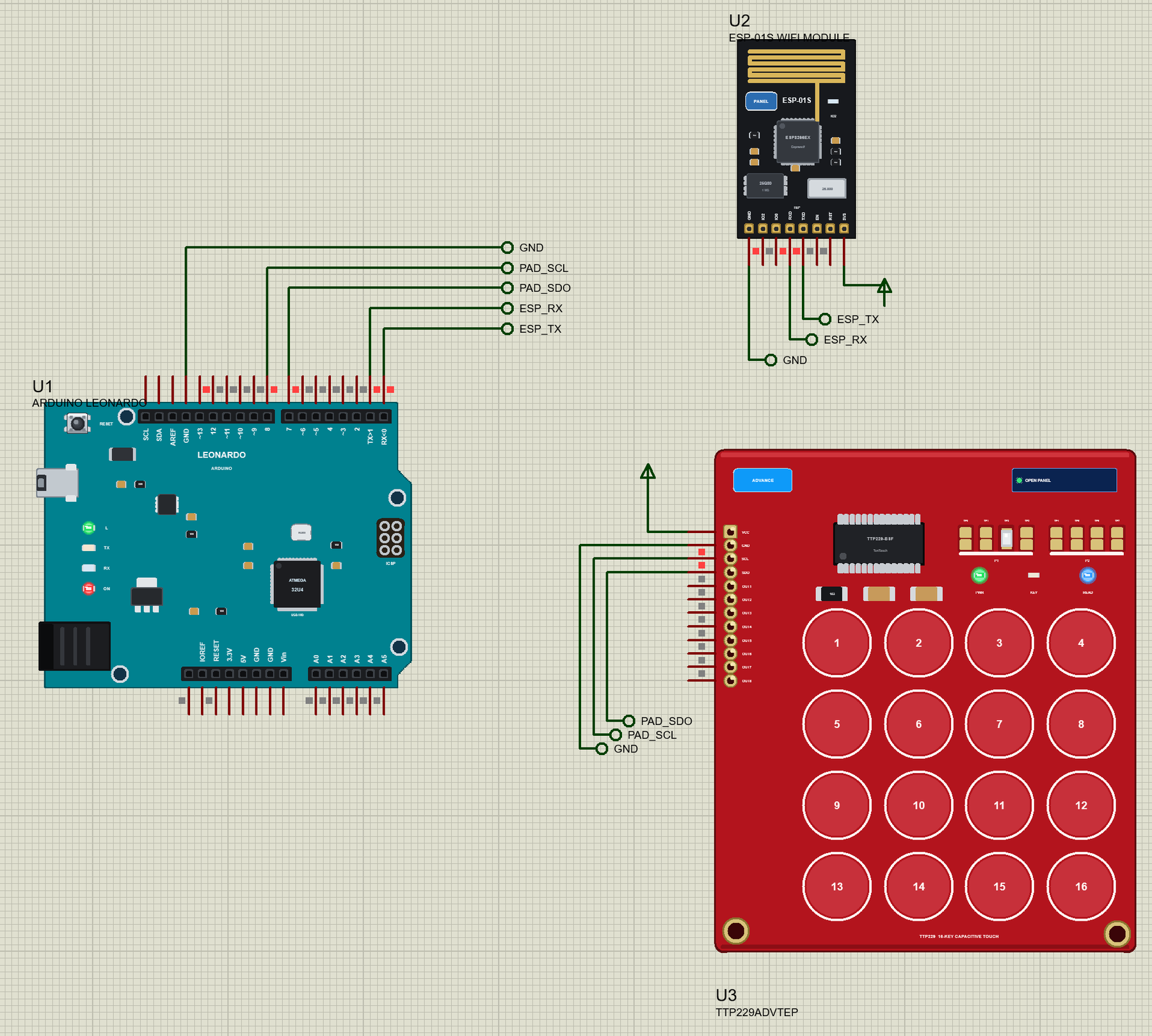
Arduino Leonardo Library for Proteus: USB Keyboard + Mouse


Hello friends, I hope you all are doing great. Today, I am going to share the Arduino Leonardo Library for Proteus. The Leonardo looks like an Arduino UNO, but its ATmega32U4 has USB built into the chip. Plug it into a computer and it is not only a serial port: it can be a USB keyboard and a USB mouse. With this library it runs your Leonardo sketch in Proteus 8.5 - and what it types lands on a PC that the board model plays for you.
Arduino Leonardo Library for Proteus
Latest version: V1.0 (October 2026, this tutorial)
Helping Tools
- Laptop WiFi Monitor: a laptop on the Wi-Fi of your design: a browser, a TCP / UDP terminal and ping
- Mobile WiFi Monitor: a smartphone that opens the pages of your board and sends it commands
- Serial Monitor Advance: a serial terminal window for the UART of your board
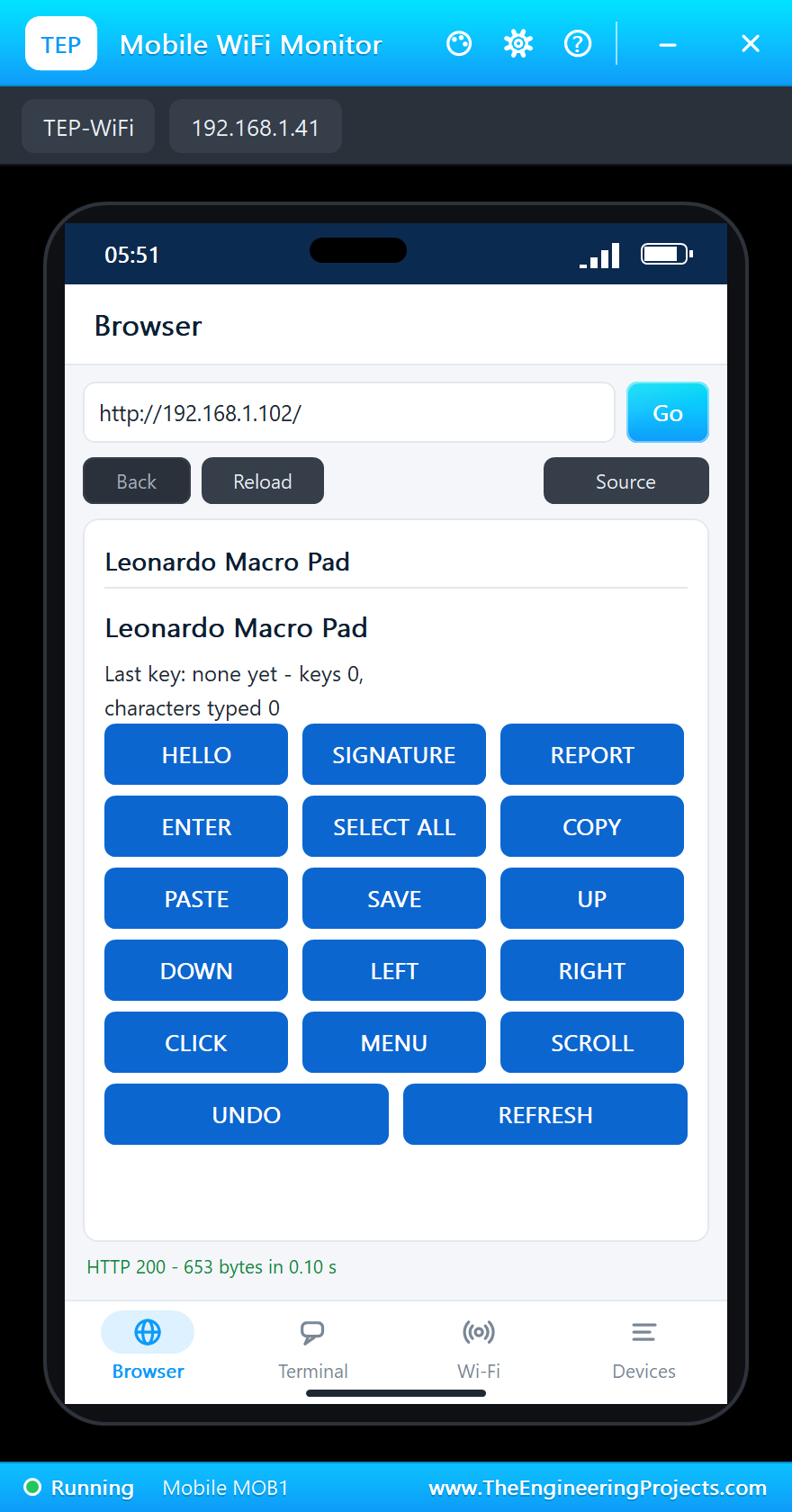
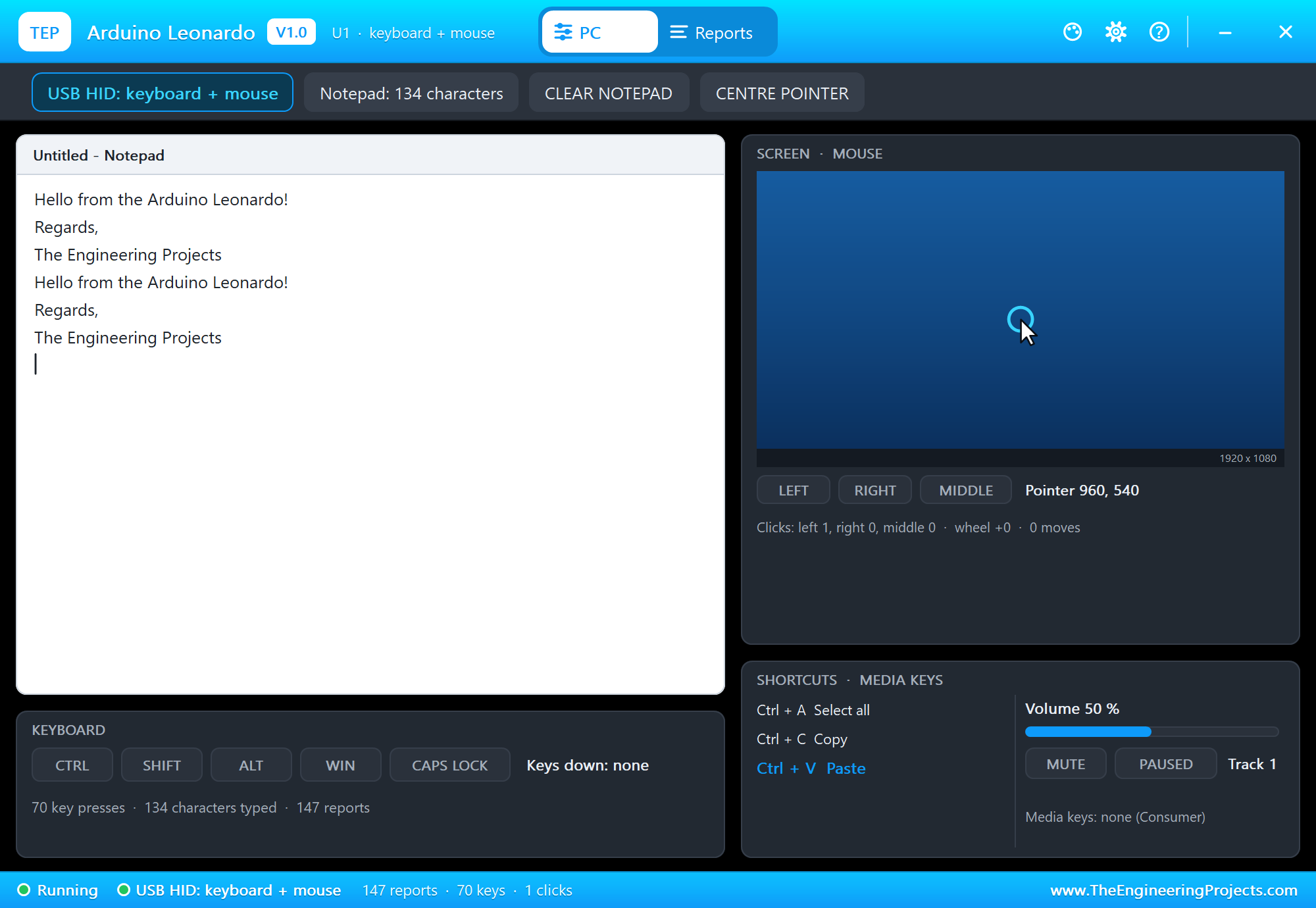
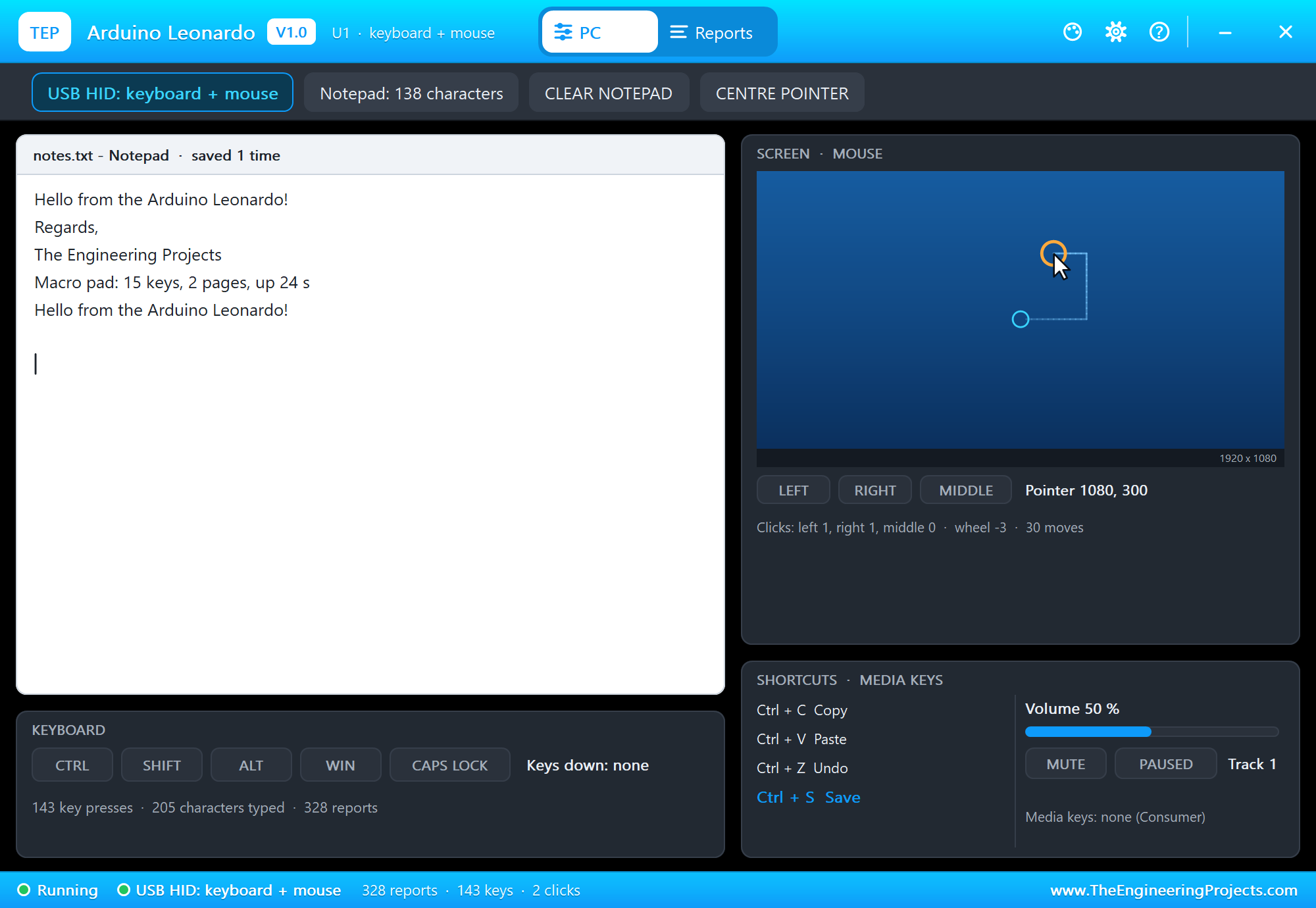
A click on the board's ATmega32U4 opens the PC window: a notepad that types what the sketch types, the keys and the modifiers it holds, the shortcuts, and a screen with the mouse pointer, its clicks and the wheel. The demo is a 16-key macro pad: a TTP229 touch keypad whose pads type text, copy and paste, save and move the mouse, with an ESP-01S that puts the same 16 keys on a web page for the phone and the laptop.
NOTICE: Proteus has no ATmega32U4 model with its USB, so our team has put a lot of effort into building this board ourselves: the Leonardo's pins, LEDs, serial monitor and its USB keyboard and mouse are all our own model, and your sketch compiles with our free TEP Boards for Proteus add-on. Your feedback is the fuel that keeps us going, so please tell us what you think in the comments below or in the Arduino Leonardo board of our forum. And if our free libraries help you, you can buy us a coffee. So, let's get started with the Arduino Leonardo Library for Proteus:
What is the Arduino Leonardo?
Arduino released the Leonardo in 2012 as the first UNO-sized board with a single chip. The UNO has two: the ATmega328P runs your sketch and a second chip turns its serial port into USB. On the Leonardo the ATmega32U4 does both, so the sketch itself decides what the computer sees - a serial port, a keyboard, a mouse, or all three at once. That is why the Leonardo (and its small brother, the Micro) became the board for macro pads, game controllers, assistive switches and keyboard tricks.
Everything else will feel familiar: the UNO's 68.6 x 53.3 mm board, its headers in the same places, 5 V logic, a DC jack, the RESET button and the ICSP header. The board has a micro-USB socket instead of the UNO's big USB-B, and four LEDs by it: L on D13, TX and RX for the USB traffic and ON.
| Arduino Leonardo R3 | |
|---|---|
| Chip | ATmega32U4: 8-bit AVR at 16 MHz with full-speed USB on the chip |
| Memory | 32 KB flash (4 KB used by the bootloader), 2.5 KB SRAM, 1 KB EEPROM |
| Pins | 20 digital I/O: 7 with PWM, 12 analog inputs (A0 - A5 and six on digital pins) |
| USB | micro-USB: a serial port (CDC) and a keyboard / mouse (HID) at the same time |
| Serial ports | Serial is the USB; Serial1 is a real UART on D0 / D1 |
| I2C / SPI | SDA on D2, SCL on D3; SPI only on the ICSP header |
| Interrupts | attachInterrupt on D0, D1, D2, D3 and D7 |
Leonardo or UNO?
Most UNO sketches run on a Leonardo unchanged, with three differences worth knowing. Serial is the USB, so a module on D0 / D1 talks to Serial1. I2C is on D2 / D3, not on A4 / A5. And the board restarts its USB when it resets, so a sketch that wants to see its first lines in the Serial Monitor waits with while (!Serial);. For a classic UNO in Proteus use our Arduino UNO Library for Proteus V4.0.
Features of the Arduino Leonardo Library for Proteus
- The board as it looks: Arduino's teal Leonardo with the UNO's headers and the Leonardo's labels (SDA and SCL on 2 and 3, PWM on 3, 5, 6, 9, 10, 11 and 13), the ATmega32U4, the 16 MHz crystal, the micro-USB, the DC jack, RESET, ICSP and the L, TX, RX and ON LEDs.
- Your sketch: a .hex for "Arduino Leonardo (TEP Proteus)" with D0 - D13, A0 - A5, LED_BUILTIN, Serial, Serial1, Wire, EEPROM, analogRead, analogWrite and attachInterrupt.
- Keyboard and Mouse: Arduino's names -
Keyboard.print,press,releaseAll, the KEY_ codes,Mouse.moveandclick- from the add-on, no extra library. - The PC window: a notepad that types (Shift, Caps Lock, Enter, Backspace, Tab) and obeys Ctrl+A, C, V, X, Z, S and N, the modifiers and keys held, the shortcuts with their meaning, a 1920 x 1080 screen with the pointer, its trail, the clicks, a right-click menu and the wheel, and a Reports tab with every report's bytes.
- The serial monitor: the built-in monitor on the USB with Monitor, Plotter and Board tabs - our TEP header, no Windows title bar.
- A complete package: about 3.2 MB with the board, the add-on, the TTP229 and ESP-01S libraries for the demo, without the source code of the models.
The Arduino Leonardo in Proteus
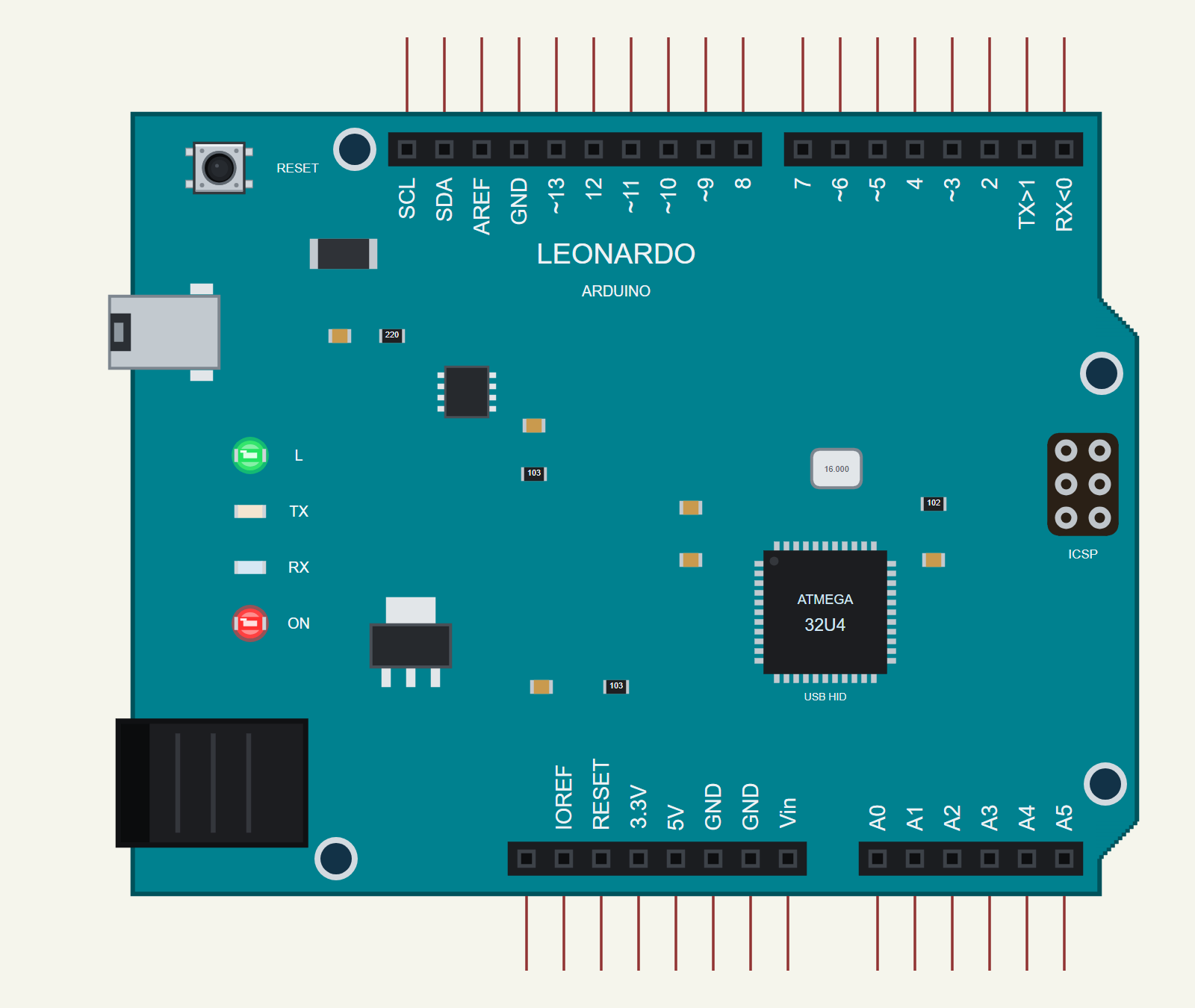
Search LEONARDO in Pick Devices; the device ARDUINO LEONARDO is in TEPLEONARDO.LIB (Microprocessor ICs, Arduino Boards), with the prefix U. It has the size and the pin positions of our UNO, so shields and wiring drawn for the UNO line up. Click the micro-USB for the serial monitor and the ATmega32U4 for the PC window.
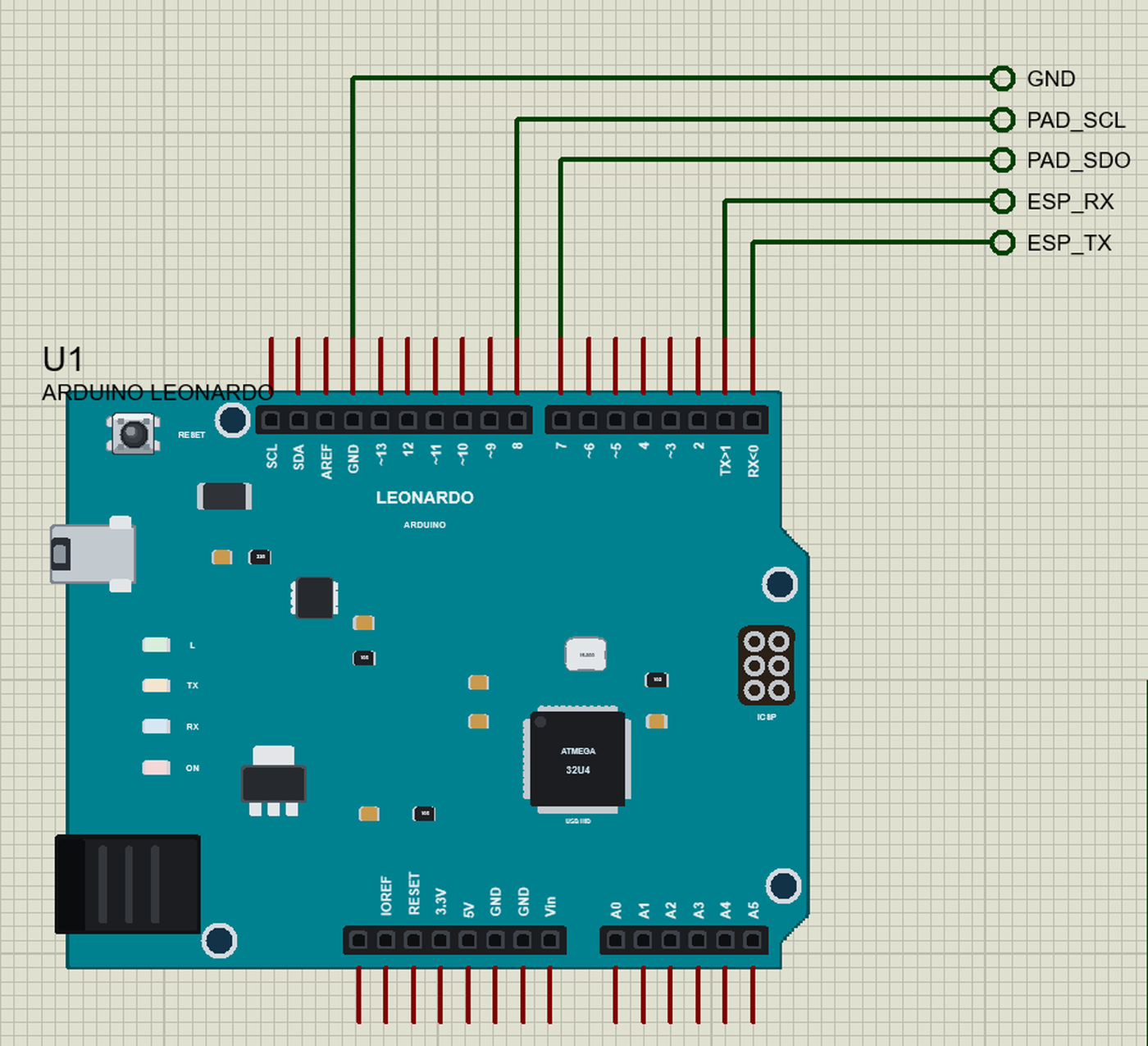
The Pins
| Pins | What the library does with them |
|---|---|
| 0 (RX), 1 (TX) | D0 / D1: Serial1 and GPIO |
| 2, 3 (and SDA, SCL) | Wire: SDA on D2, SCL on D3 - the SDA / SCL pins are the same nets |
| 4 - 13 | GPIO, PWM and interrupts on any of them; 13 is also the L LED |
| A0 - A5 | analogRead 0 - 1023 for 0 - 5 V, also GPIO 18 - 23 |
| 5V, 3.3V, GND, RESET | 5 V, 3.3 V, ground, the reset (LOW = reset) |
| AREF, IOREF, Vin | drawn, not modelled |
Serial is the USB and goes to the board's own monitor, not to D0 / D1 - as on the real Leonardo. The ICSP header is drawn; SPI is not wired in this version.
The USB Keyboard and Mouse
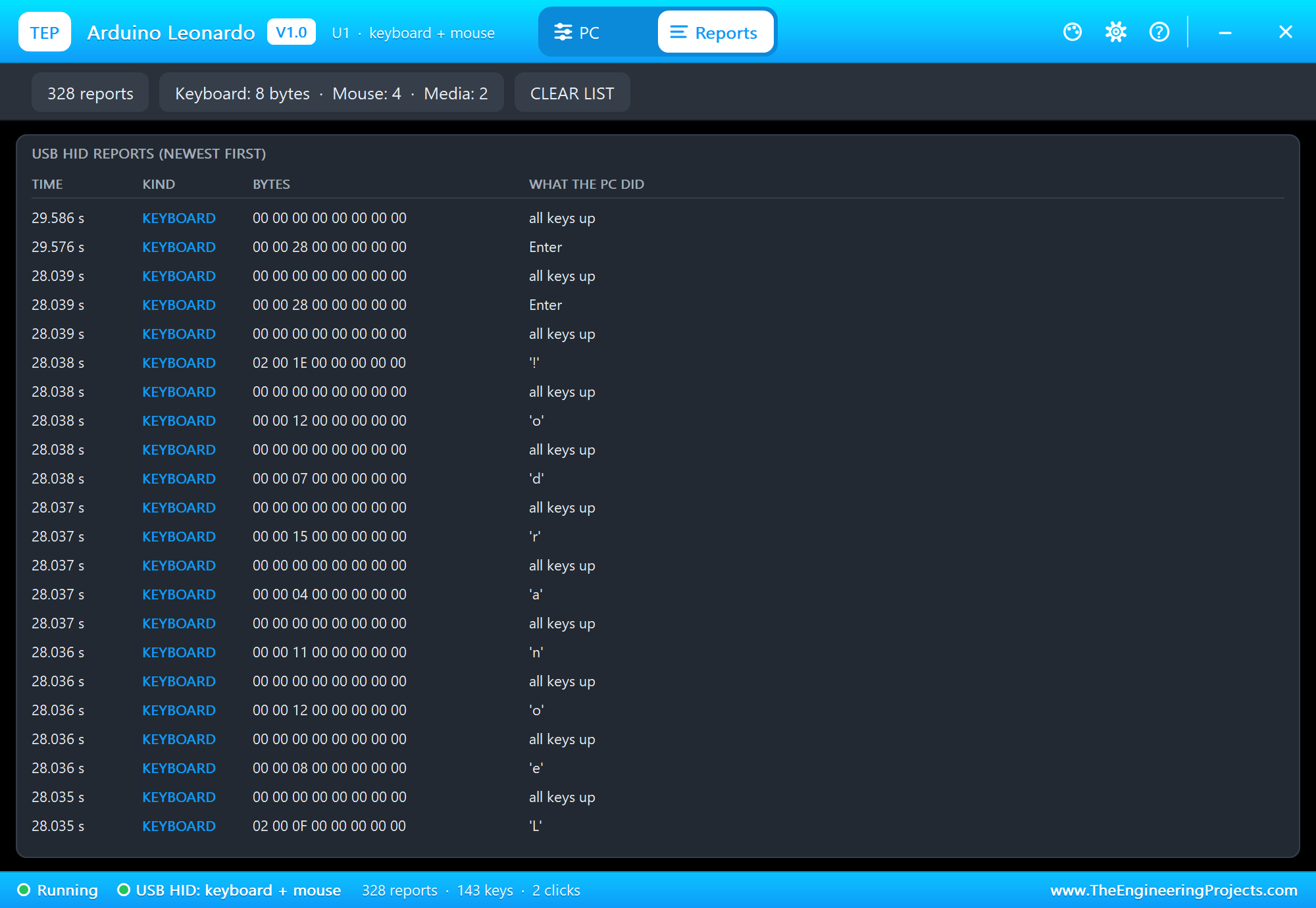
On a real Leonardo, Keyboard.begin() makes the chip tell the computer "I am also a keyboard", and every Keyboard.press() sends an 8-byte HID report: one byte of modifiers (Ctrl, Shift, Alt, the Windows key), one reserved byte and up to six keys held at once. The computer compares each report with the one before it - a key that appears was pressed, a key that disappears was released. The mouse sends 4 bytes: the buttons, the movement in x and y and the wheel.
Our Keyboard and Mouse libraries build exactly those reports and hand them to the board model, which plays the computer. That is why the PC window behaves like a real one: Keyboard.print("Hi!") becomes Shift+H, i, Shift+1, and Ctrl+A followed by Ctrl+C really selects and copies the notepad's text. The Reports tab shows every report with its bytes, so you can see what a real computer would receive.
void ctrl(char key) {                                      // Ctrl + a key, as a person presses it
  Keyboard.press(KEY_LEFT_CTRL); Keyboard.press(key); delay(10);
  Keyboard.releaseAll();
}
Download Arduino Leonardo Library for Proteus
Click the button below to download Arduino-Leonardo-Library-for-Proteus-v1.0.zip (about 3.2 MB, without the source code of the models):
Arduino Leonardo Library for Proteus V1.0- README.txt: installation, the demo, the pins, the properties, troubleshooting and the limits.
- Proteus Library Files:
TEPLEONARDO.LIBand the demo's parts:TEPTTP229.LIB,TEPESP01S.LIB,TEPLAPTOP.LIBandTEPMOBILE.LIB. - Proteus Model Files:
TEPNET.DLL(the Leonardo and its PC window, the ESP-01S, the laptop, the phone and the network) andTEPTTP229.DLL. - Arduino Code: the demo sketch and the TEP Boards for Proteus add-on 1.34.0 with the Keyboard and Mouse libraries.
- Proteus Simulation: the demo project, its HEX file and copies of the DLLs.
No Proteus yet? Read How to Download and Install Proteus 7 and 8. New to libraries? Follow How to Install a New Library in Proteus.
How to Install Arduino Leonardo Library for Proteus
- Close Proteus and extract the whole zip file, for example to your Desktop.
- Copy the files from Proteus Library Files into the LIBRARY folder of Proteus.
- Copy the DLLs from Proteus Model Files into the MODELS folder, replacing an older TEPNET.DLL.
- Delete
TEPLEONARDO.IDXfrom the LIBRARY folder if it is there. - For your own sketches, copy Arduino Code\TEP Boards for Proteus\hardware into your Arduino sketchbook (Documents\Arduino) and restart the Arduino IDE; the board is Arduino Leonardo (TEP Proteus). The demo needs no other library.
- Start Proteus, press P and search for LEONARDO.
Demo: a 16-Key Macro Pad
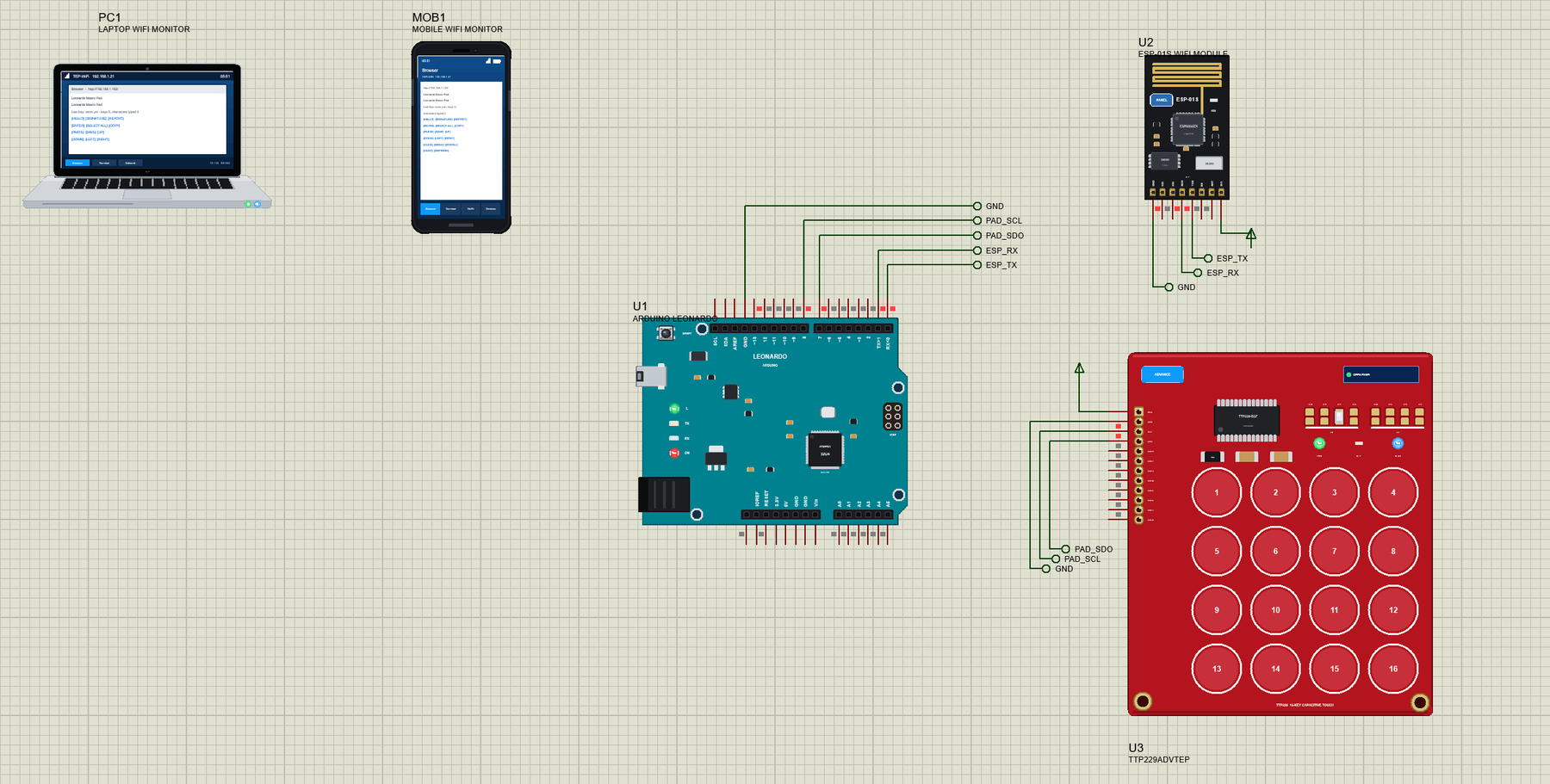
A macro pad is a small keyboard where every key does a whole job: types a signature, saves the file, pastes the last copy, mutes the meeting. Streamers, video editors and programmers build them from a Leonardo or a Micro because the board needs no driver - the computer simply sees a keyboard. Ours has 16 capacitive pads, and a phone can press them too.
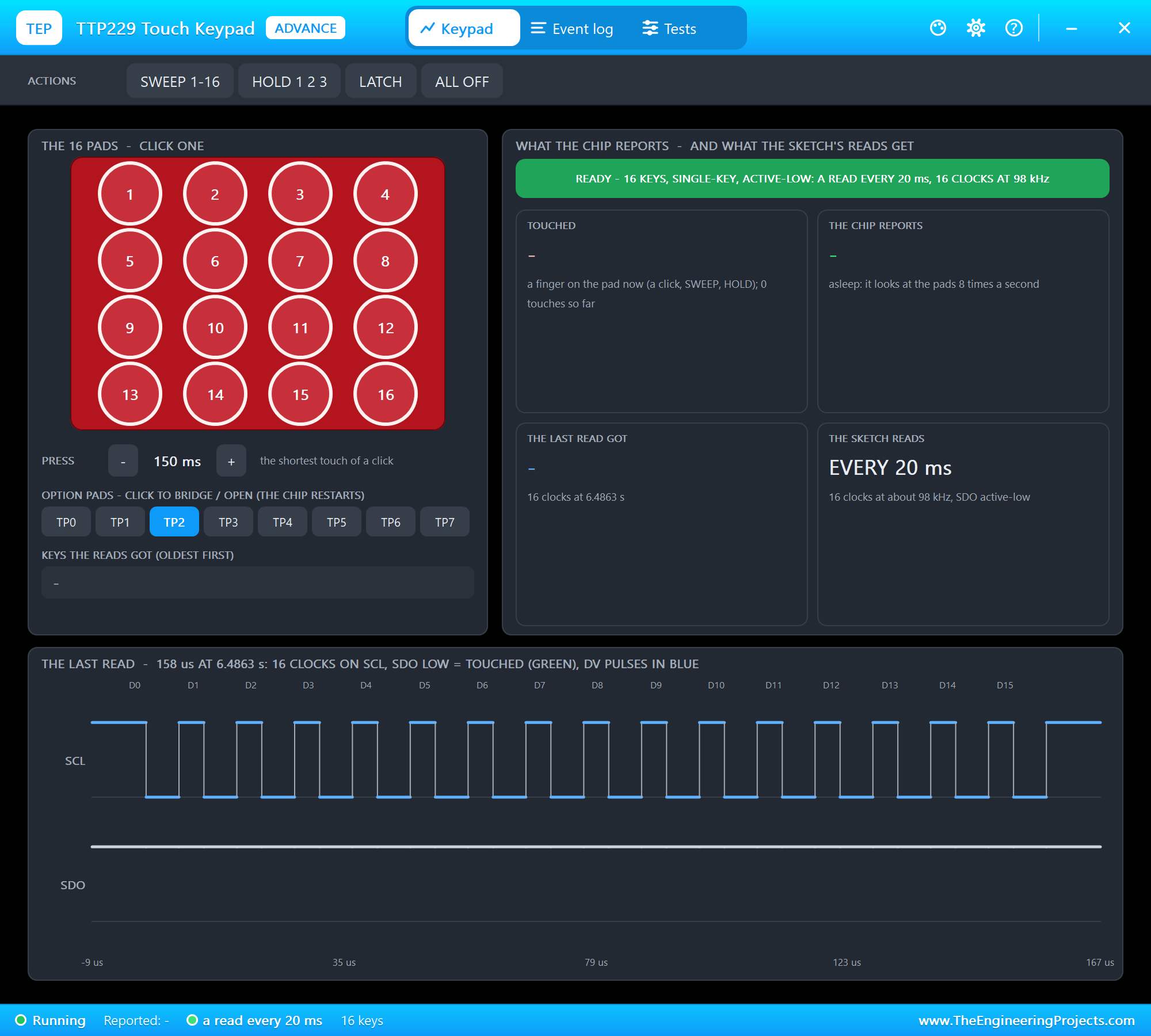
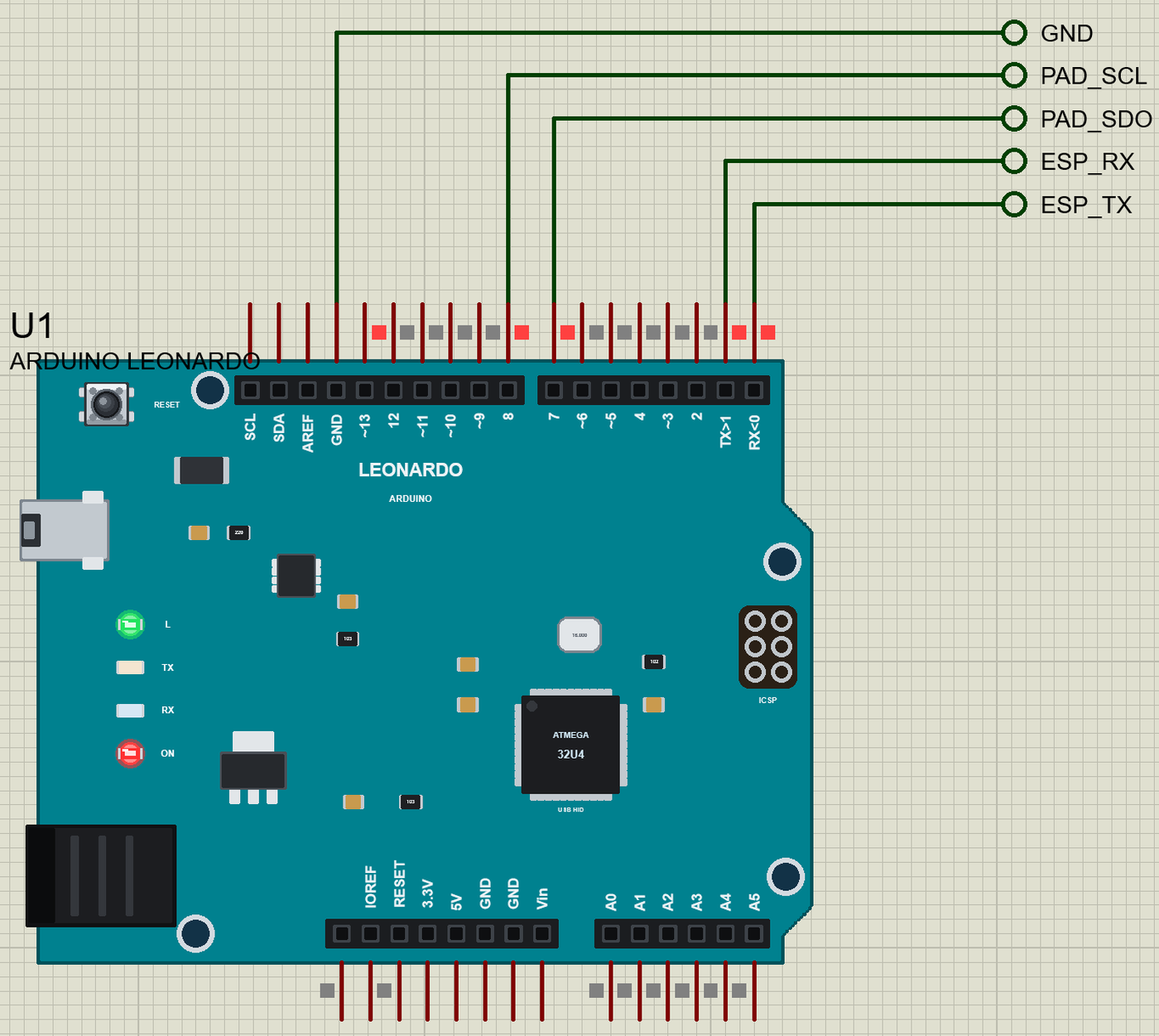
Open Leonardo-Macro-Pad.pdsprj. U1 is the Leonardo running Leonardo_Macro_Pad.hex. U3 is the TTP229 from our TTP229 Touch Keypad Library for Proteus, the Advance version, with its TP2 pad bridged for 16 keys (the OPTIONS property). U2 is the ESP-01S from our ESP-01S Library for Proteus on Serial1. PC1 is the Laptop WiFi Monitor and MOB1 the Mobile WiFi Monitor.
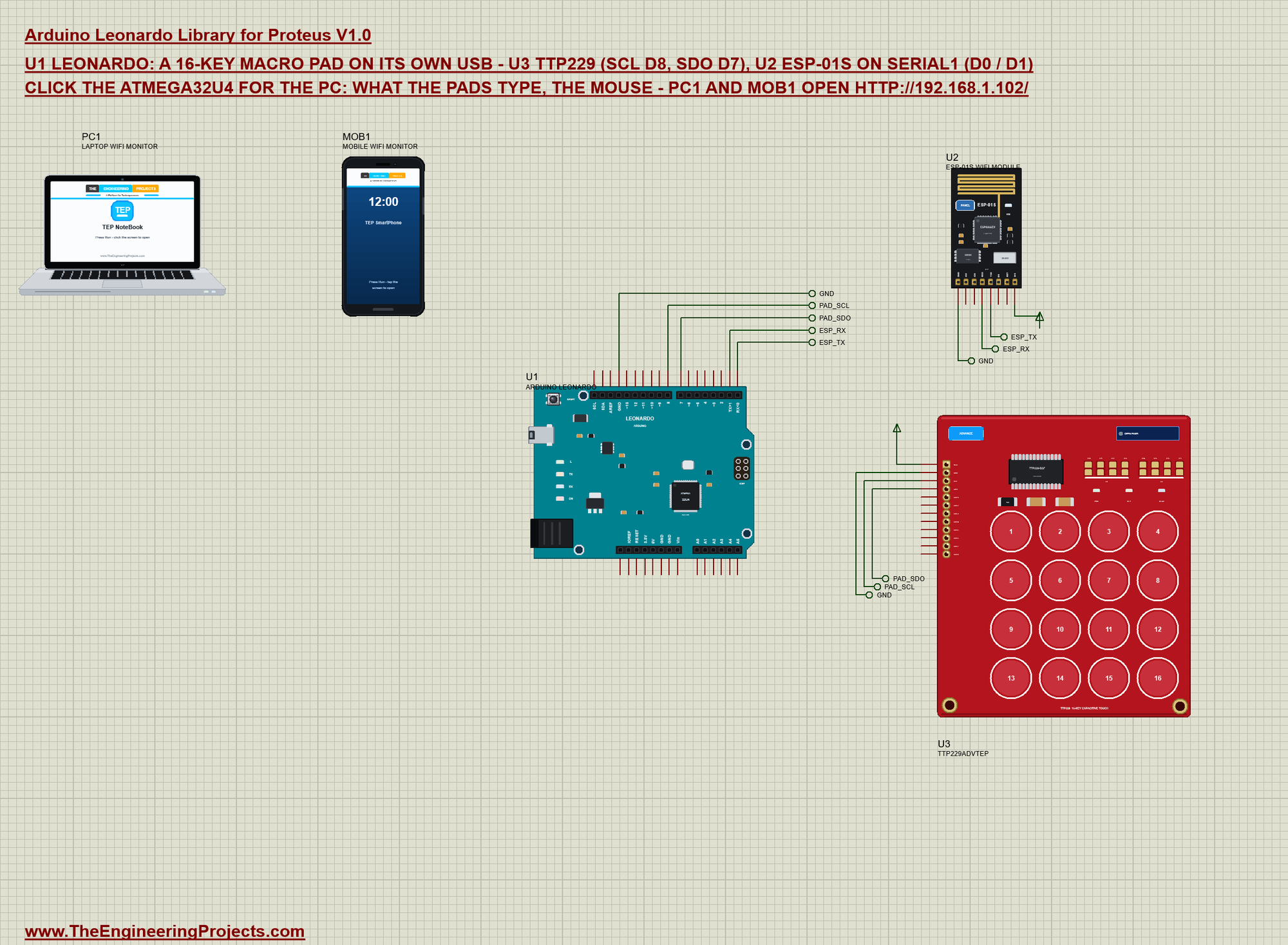
| Part | Pins | Leonardo pins | Notes |
|---|---|---|---|
| TTP229 (U3) | SCL | D8 | the clock, an output |
| SDO | D7 | the data, LOW = touched | |
| VCC / GND | power terminal / GND | OPTIONS TP2: 16 keys | |
| ESP-01S (U2) | TXD / RXD | D0 (RX) / D1 (TX) | Serial1, 115200 baud, AT commands |
| VCC / GND | power terminal / GND | 192.168.1.102 on TEP-WiFi |
The TTP229 and the ESP-01S get their VCC from power terminals: their models read the supply as a digital level, which the board's 5V (an analog source in Proteus) does not give them. On a real board the TTP229 sits on 5V and the ESP-01S on its own 3.3 V regulator.
Reading the TTP229
The TTP229 is not an I2C device even though its pins say SCL and SDO. As the board comes, SCL rests HIGH; each falling edge puts the next key on SDO, and LOW means touched. Sixteen clocks read all 16 pads, every 20 ms:
uint16_t readPads() {
  uint16_t k = 0;
  for (byte i = 0; i < 16; i++) {
    digitalWrite(SCL_PIN, LOW);                            // the next key's bit comes out on SDO
    if (digitalRead(SDO_PIN) == LOW) k |= 1u << i;
    digitalWrite(SCL_PIN, HIGH);
  }
  return k;
}
A key runs its macro once, when it is first touched - holding a pad does not repeat it:
  const uint16_t down = now & ~held;                       // pads just touched
  held = now;
  for (byte i = 0; i < 16; i++) if (down & (1u << i)) runKey(i, "pad");
The Macros
Each of the 16 keys is one case. Typing is a single Keyboard.print; shortcuts press Ctrl and a letter together, then let both go; the mouse moves 120 pixels in six small steps, as a hand would:
    case 0: type(F("Hello from the Arduino Leonardo!\n")); break;
    case 1: type(F("Regards,\nThe Engineering Projects\n")); break;
case 4: ctrl('a'); break;
case 5: ctrl('c'); break;
case 6: ctrl('v'); break;
case 7: ctrl('s'); break; case 8: glide(0, -20); break;
case 9: glide(0, 20); break;
case 10: glide(-20, 0); break;
case 11: glide(20, 0); break;
case 12: Mouse.click(MOUSE_LEFT); break;
case 13: Mouse.click(MOUSE_RIGHT); break;
case 14: Mouse.move(0, 0, -3); break; // three notches down
case 15: ctrl('z'); break;| Pads | What they do |
|---|---|
| 1 - 4 | HELLO (a line), SIGNATURE (two lines), REPORT (the counts and the uptime), ENTER |
| 5 - 8 | SELECT ALL (Ctrl+A), COPY (Ctrl+C), PASTE (Ctrl+V), SAVE (Ctrl+S) |
| 9 - 12 | the mouse UP, DOWN, LEFT, RIGHT |
| 13 - 16 | CLICK, MENU (right click), SCROLL (3 notches down), UNDO (Ctrl+Z) |
The Page
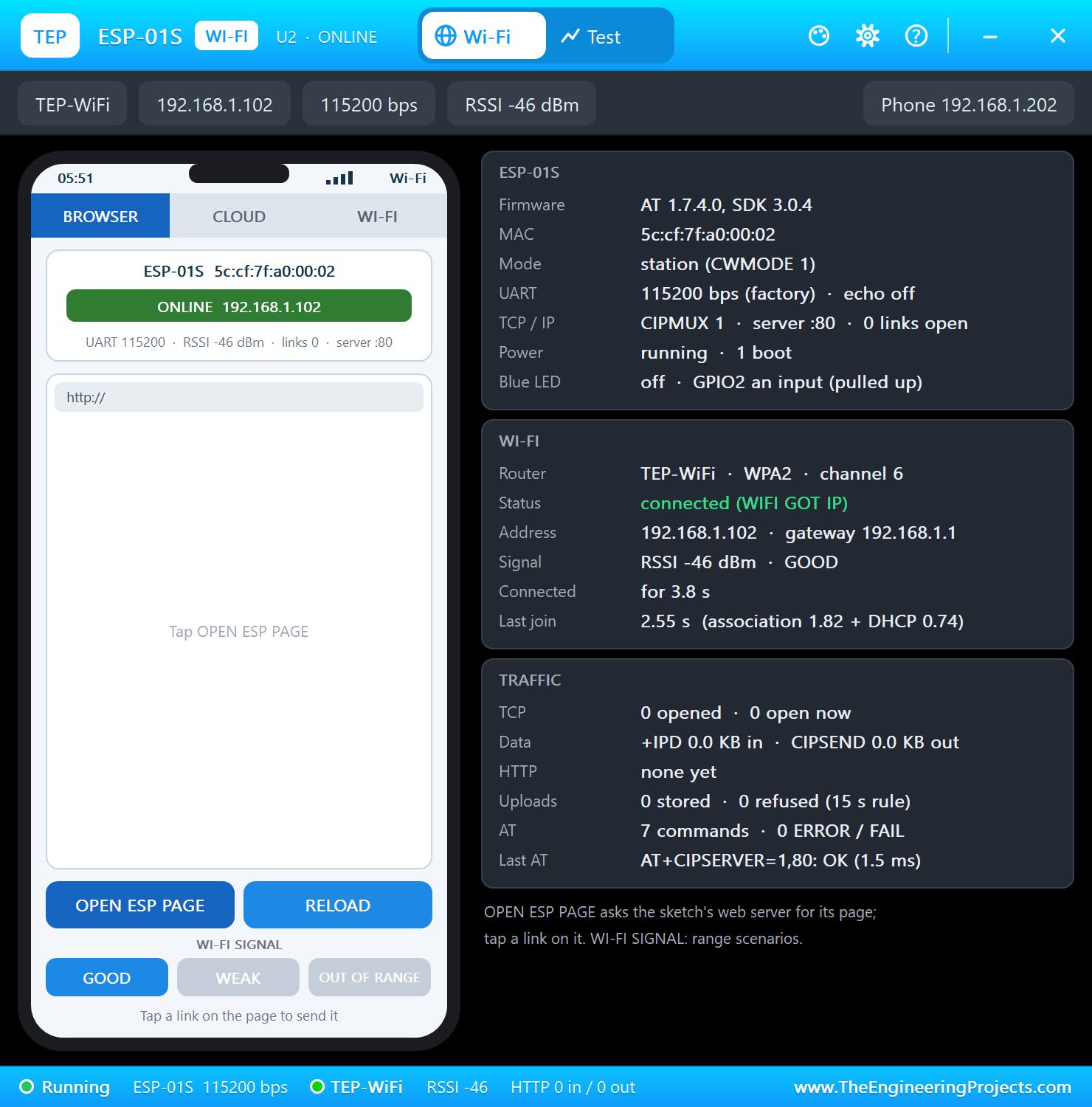
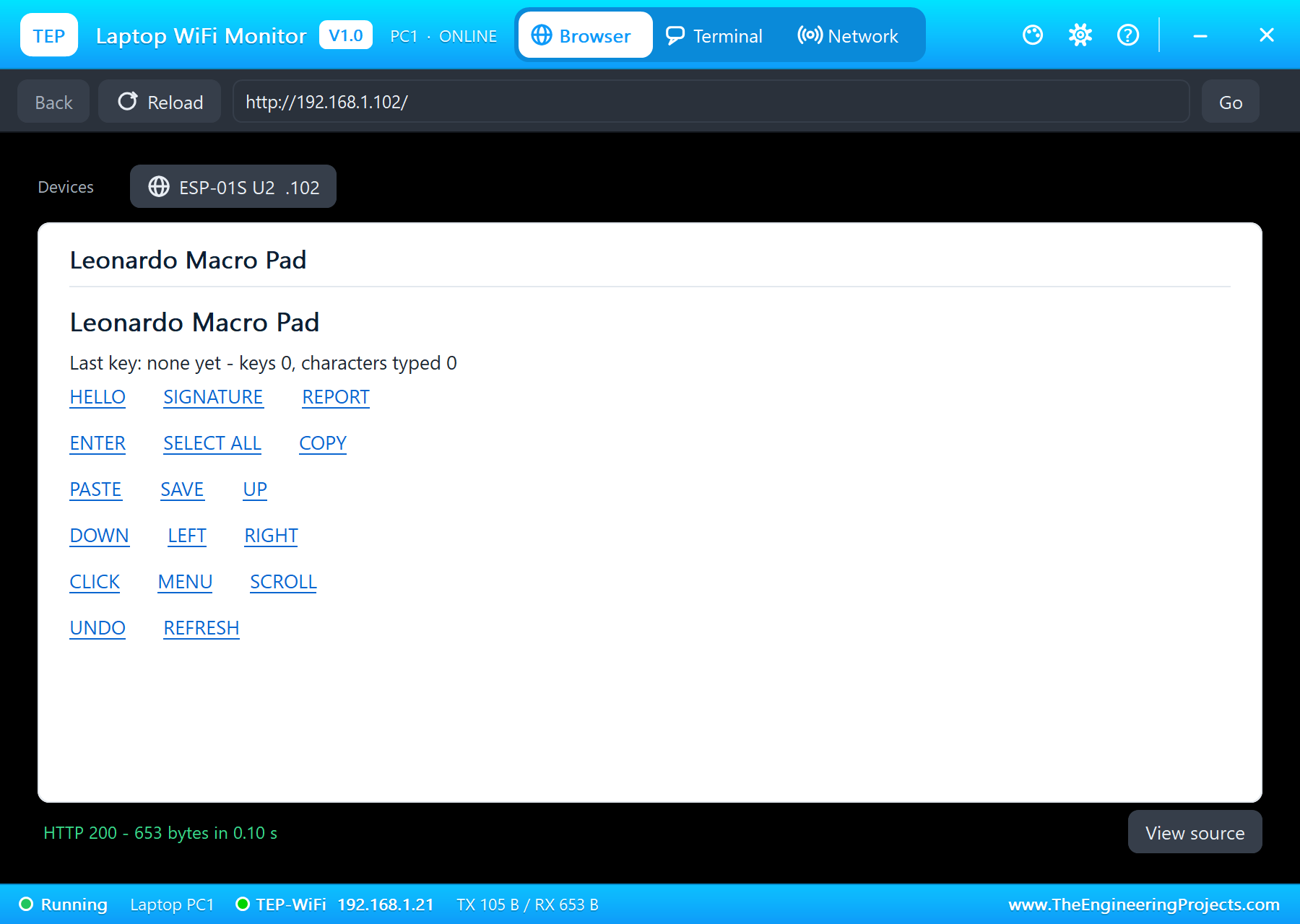
The ESP-01S answers AT commands on Serial1: it joins TEP-WiFi, opens a server on port 80 and hands the sketch every request. The page lists the 16 keys as links, so /k5 runs key 5 - the phone becomes a second macro pad:
void route(const char *path) {                             // "/k1" .. "/k16": that key, from the page
  if (path[0] == '/' && path[1] == 'k') runKey(atoi(path + 2) - 1, "page");
}
Run the Demo
Press Run. The PC window opens and says USB HID: keyboard + mouse - the sketch has called Keyboard.begin() and Mouse.begin(). The ESP-01S joins TEP-WiFi and the monitor prints the address:
Leonardo Macro Pad - The Engineering Projects
Joining TEP-WiFi... connected
Macro pad page: http://192.168.1.102/
Pads free, keys 0, characters 0, IP 192.168.1.102, pages 0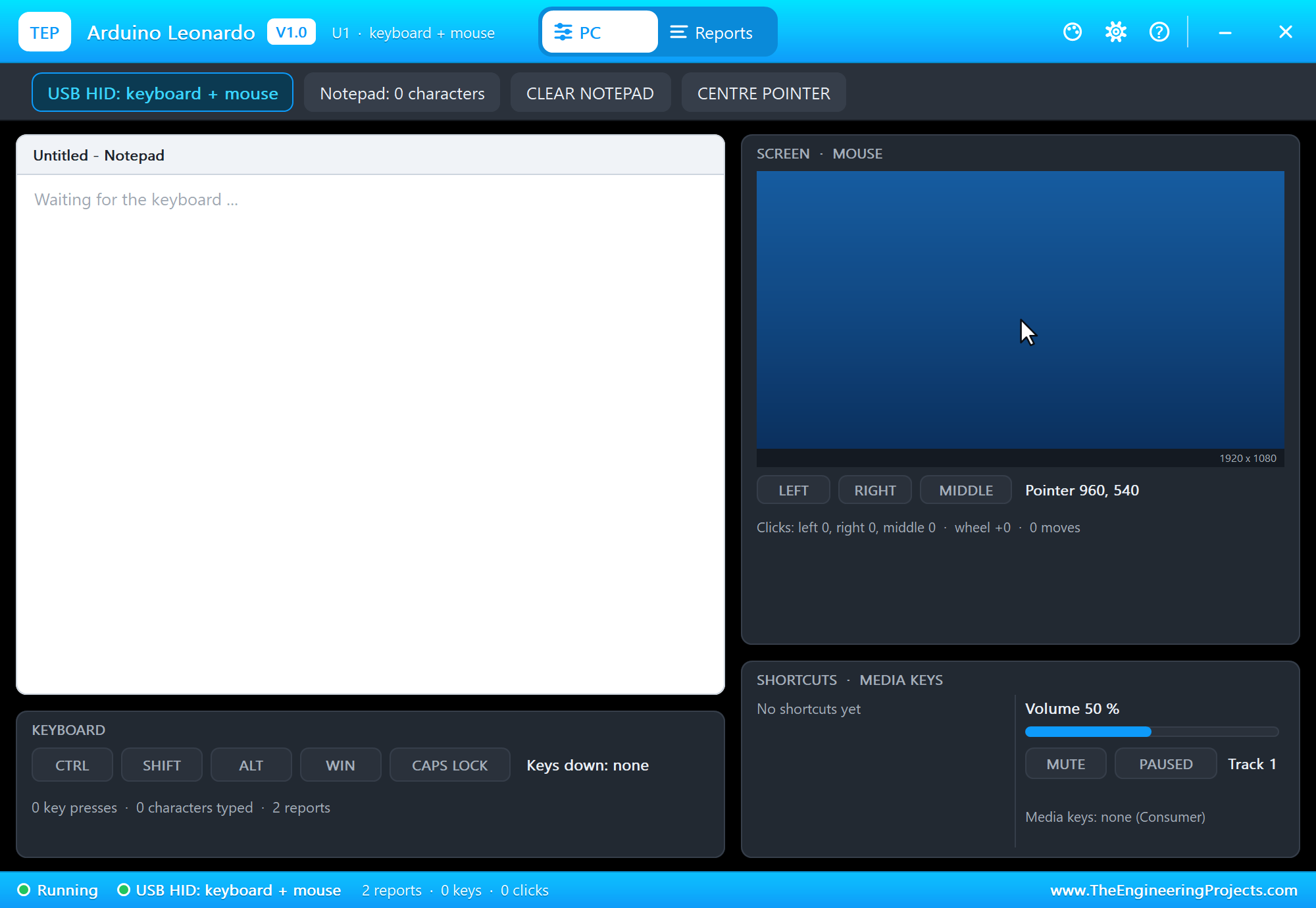
Type, Select, Copy and Paste
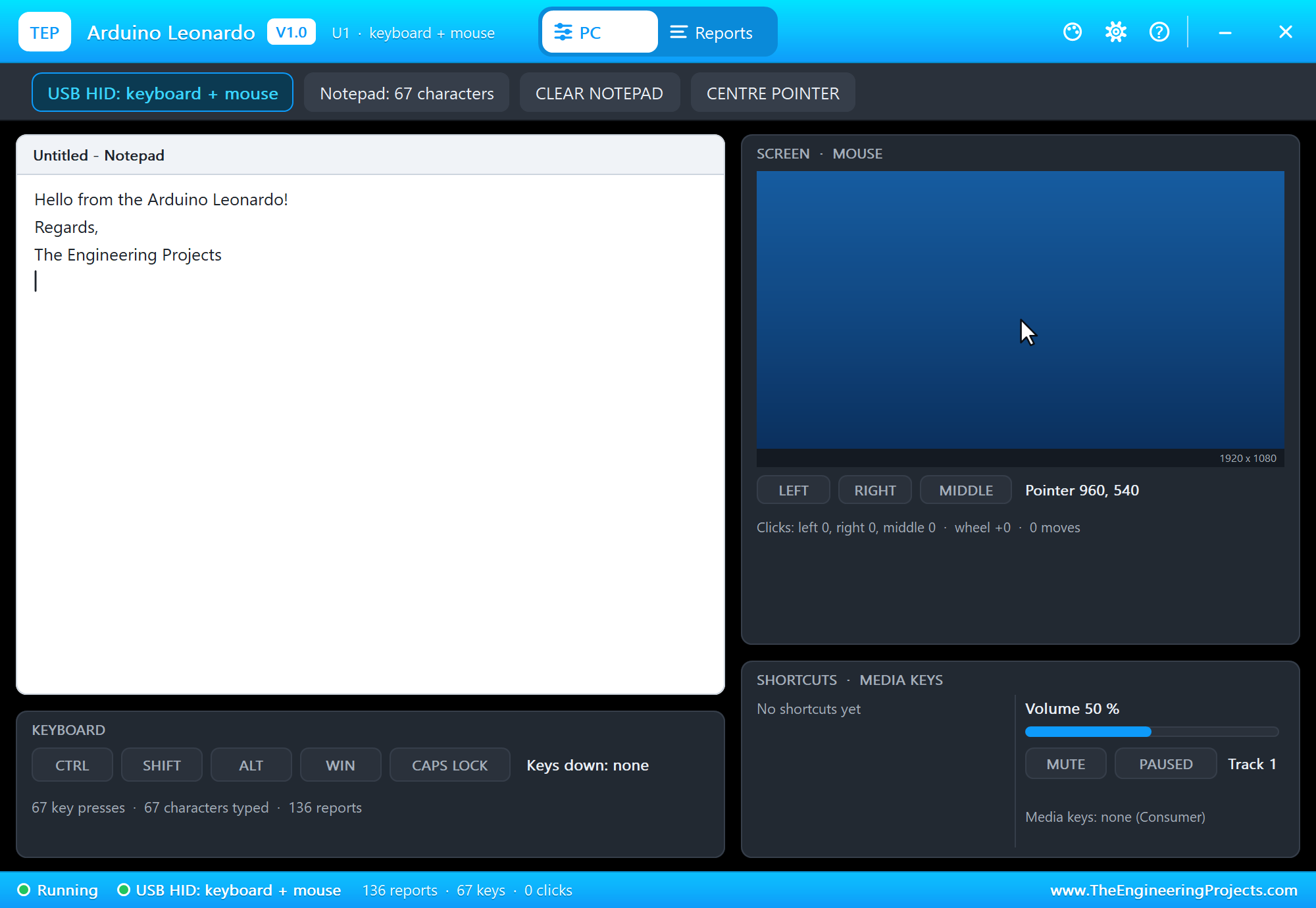
Click pad 1 and pad 2 on the TTP229's pop-up. The sketch types a greeting and a signature, and the notepad fills up exactly as a text editor on a real computer would:
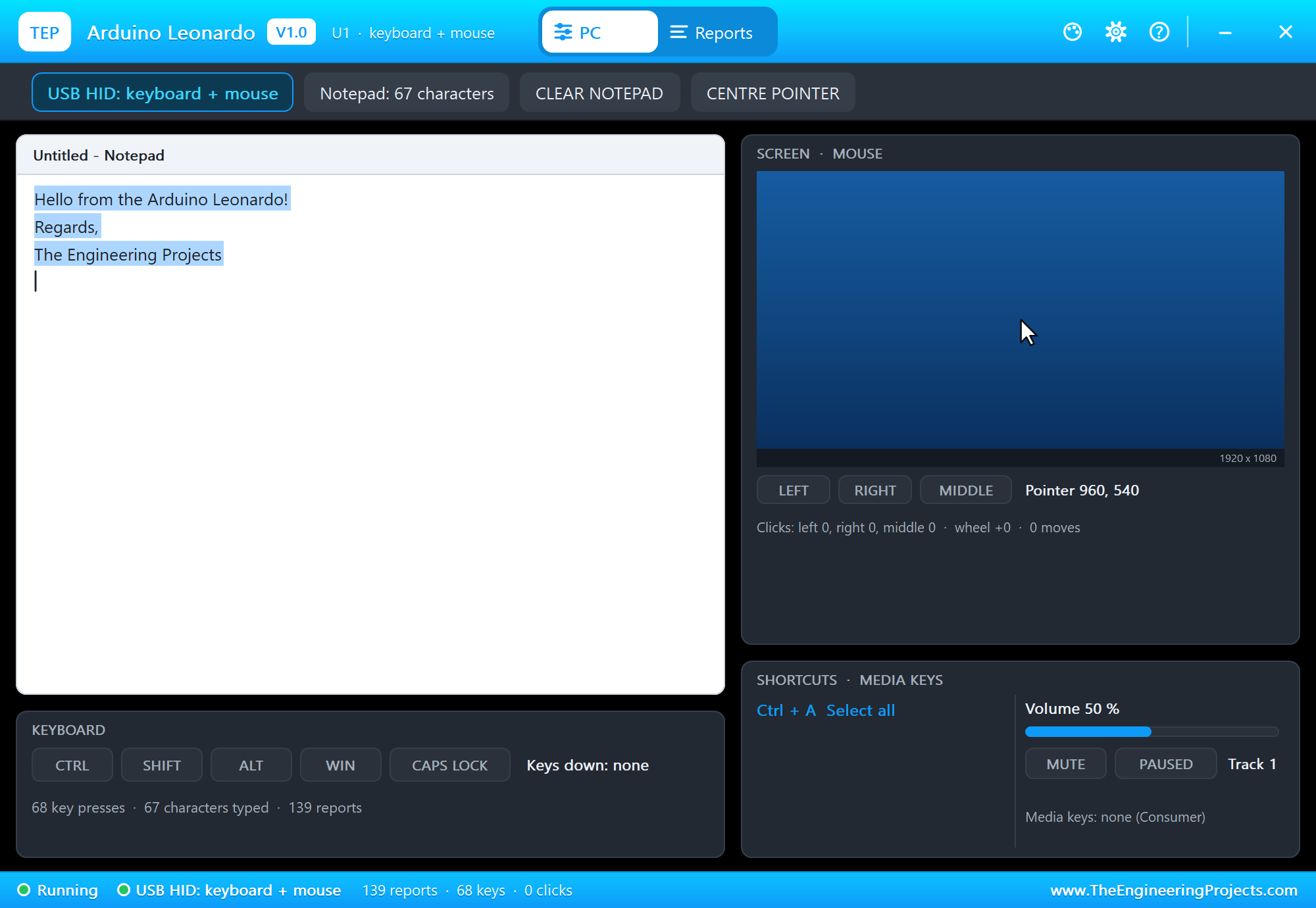
Now pad 5 (SELECT ALL): the text turns blue. Pad 6 (COPY) copies it, pad 13 (CLICK) puts the caret back at the end and pad 7 (PASTE) pastes the copy:
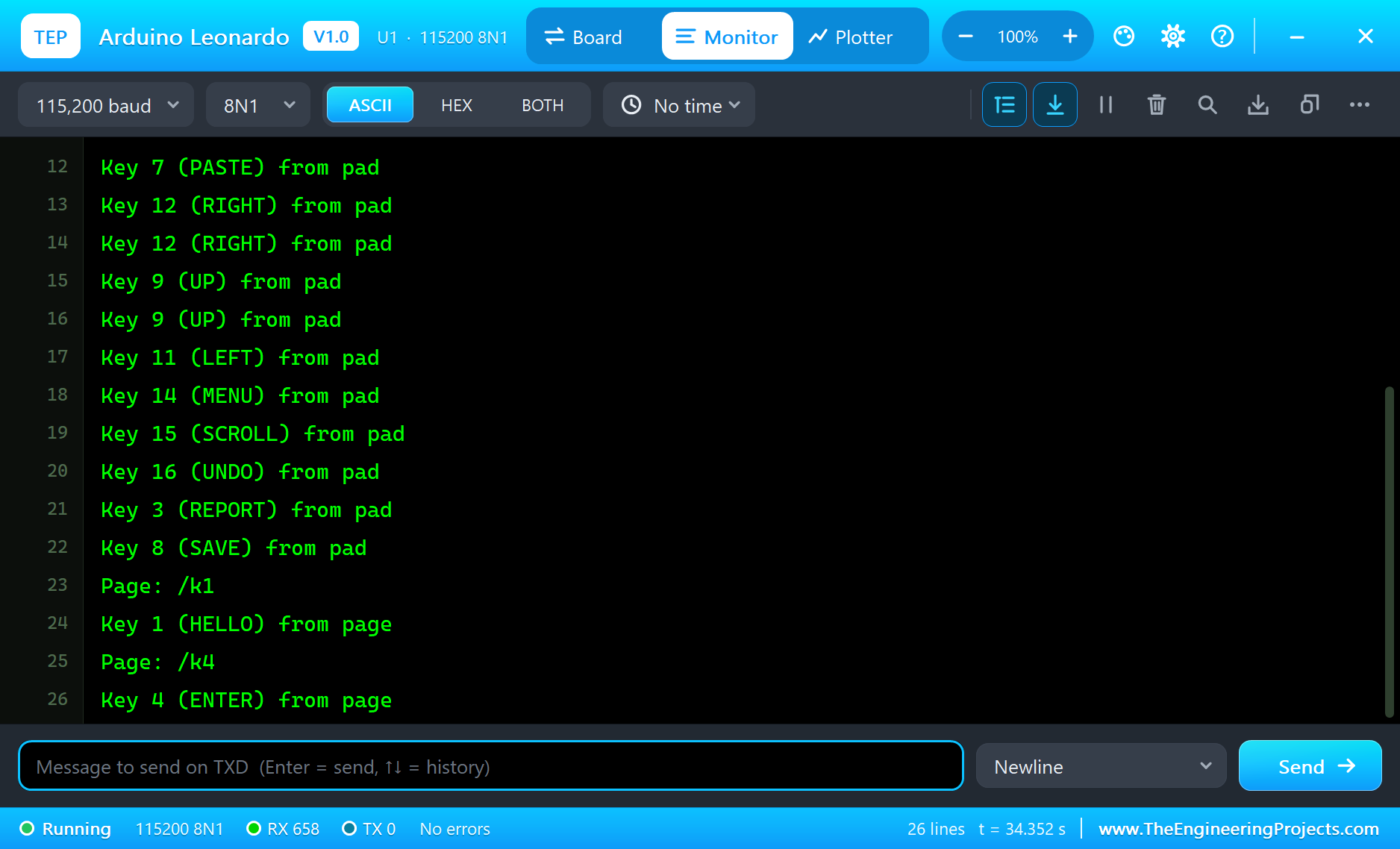
Key 1 (HELLO) from pad
Key 2 (SIGNATURE) from pad
Key 5 (SELECT ALL) from pad
Key 6 (COPY) from pad
Key 13 (CLICK) from pad
Key 7 (PASTE) from pad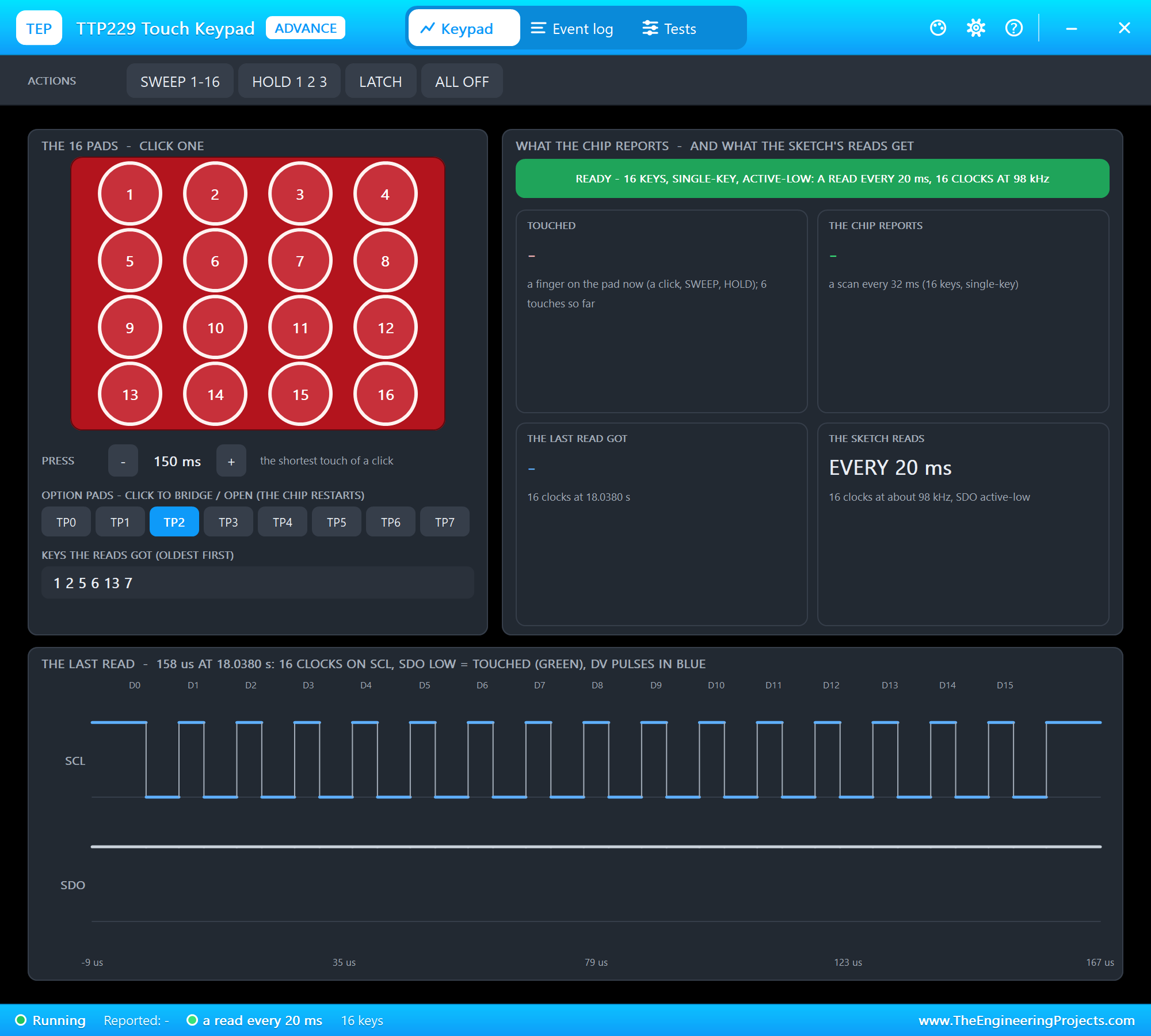
Move the Mouse
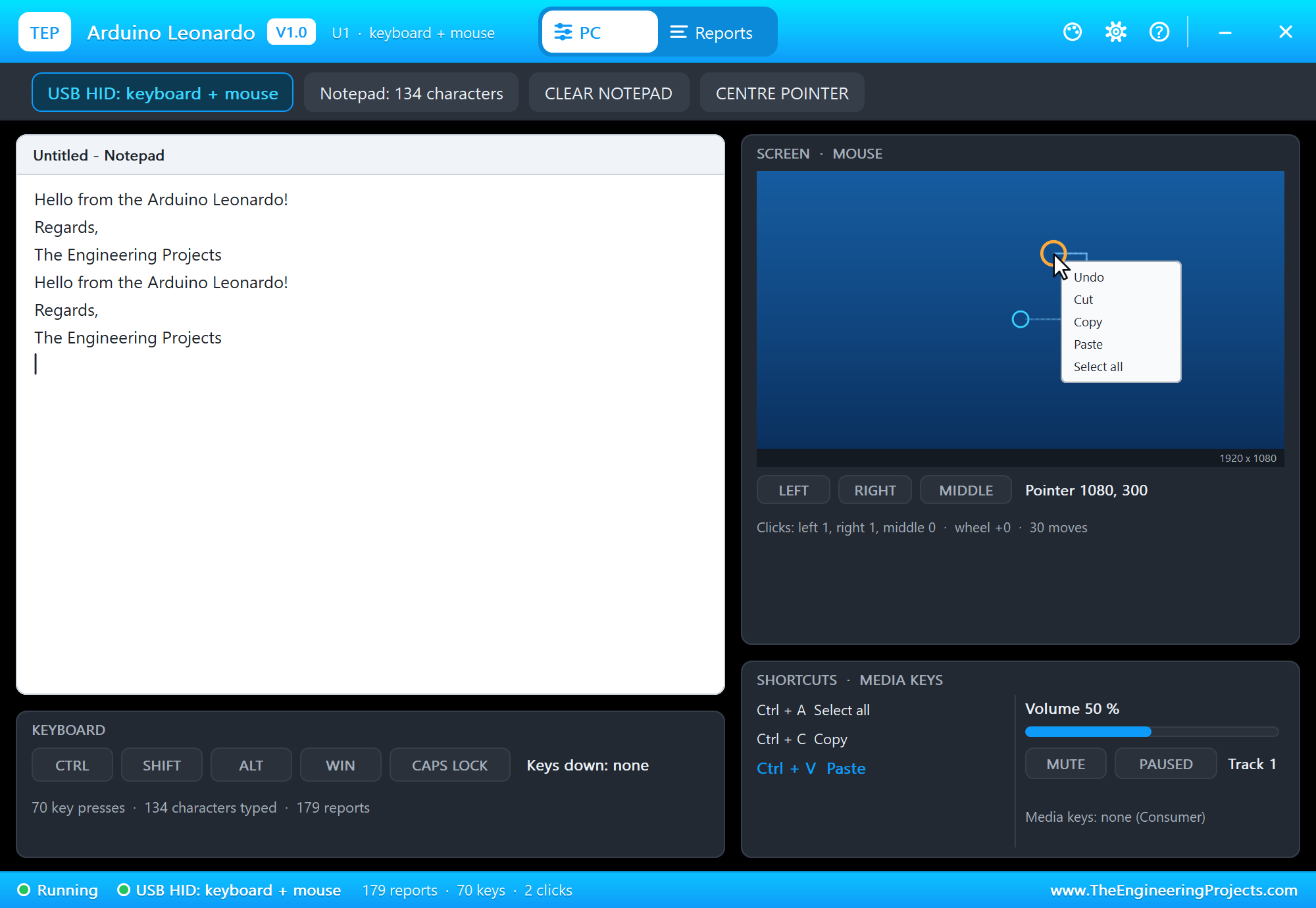
Pads 12, 12, 9, 9 and 11 move the pointer right, right, up, up and left; pad 14 right-clicks and the context menu opens by the pointer. The screen keeps the trail and a ring for every click - blue for left, orange for right:
Undo, Report and Save
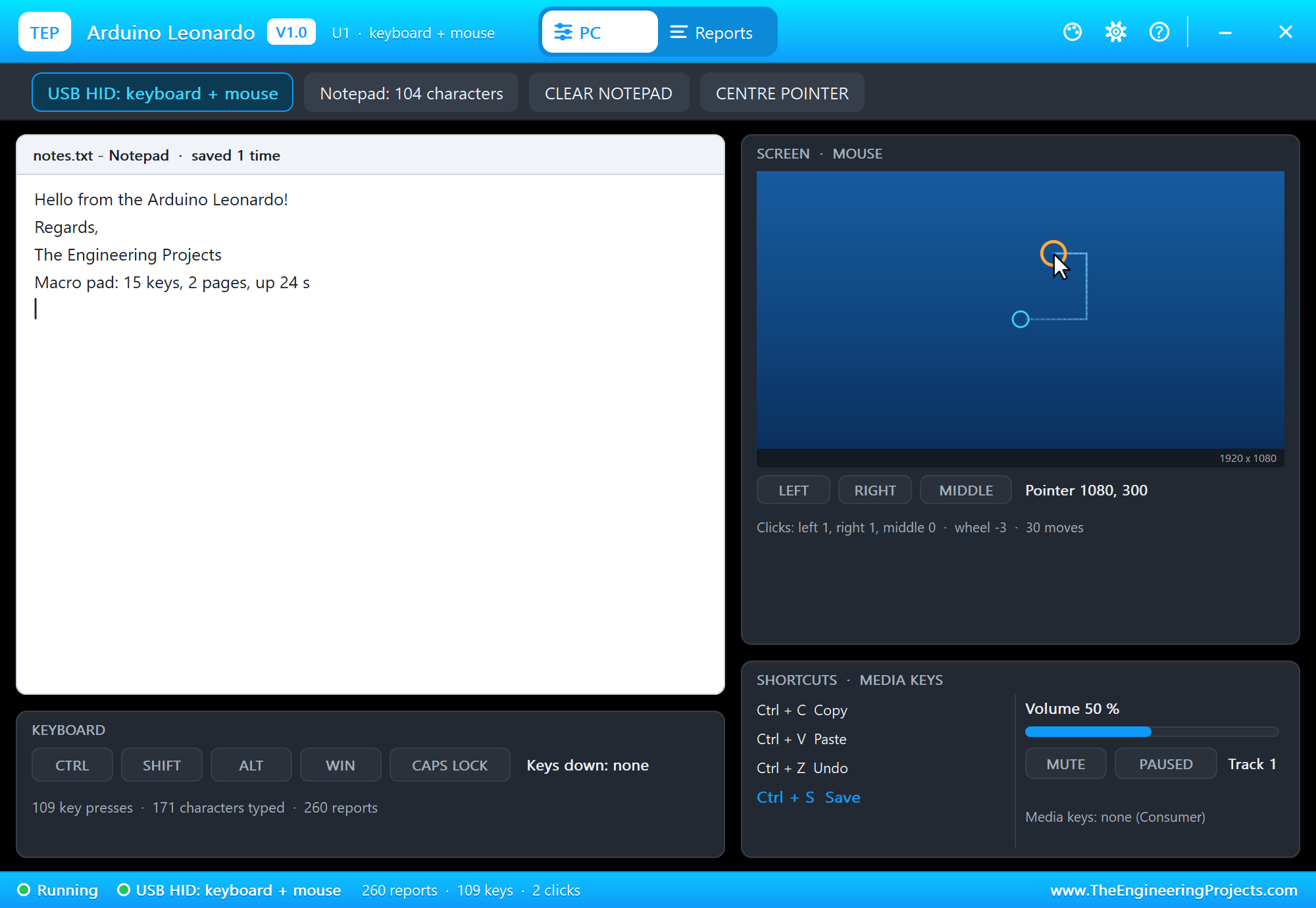
Pad 15 scrolls three notches, pad 16 (UNDO) takes the paste back, pad 3 types the pad's own report and pad 8 saves - the title becomes notes.txt:
Keys from the Phone
Tap HELLO on the phone and ENTER on the laptop. The ESP-01S passes each request to the sketch, which runs the same macro as the pad:
Page: /k1
Key 1 (HELLO) from page
Page: /k4
Key 4 (ENTER) from page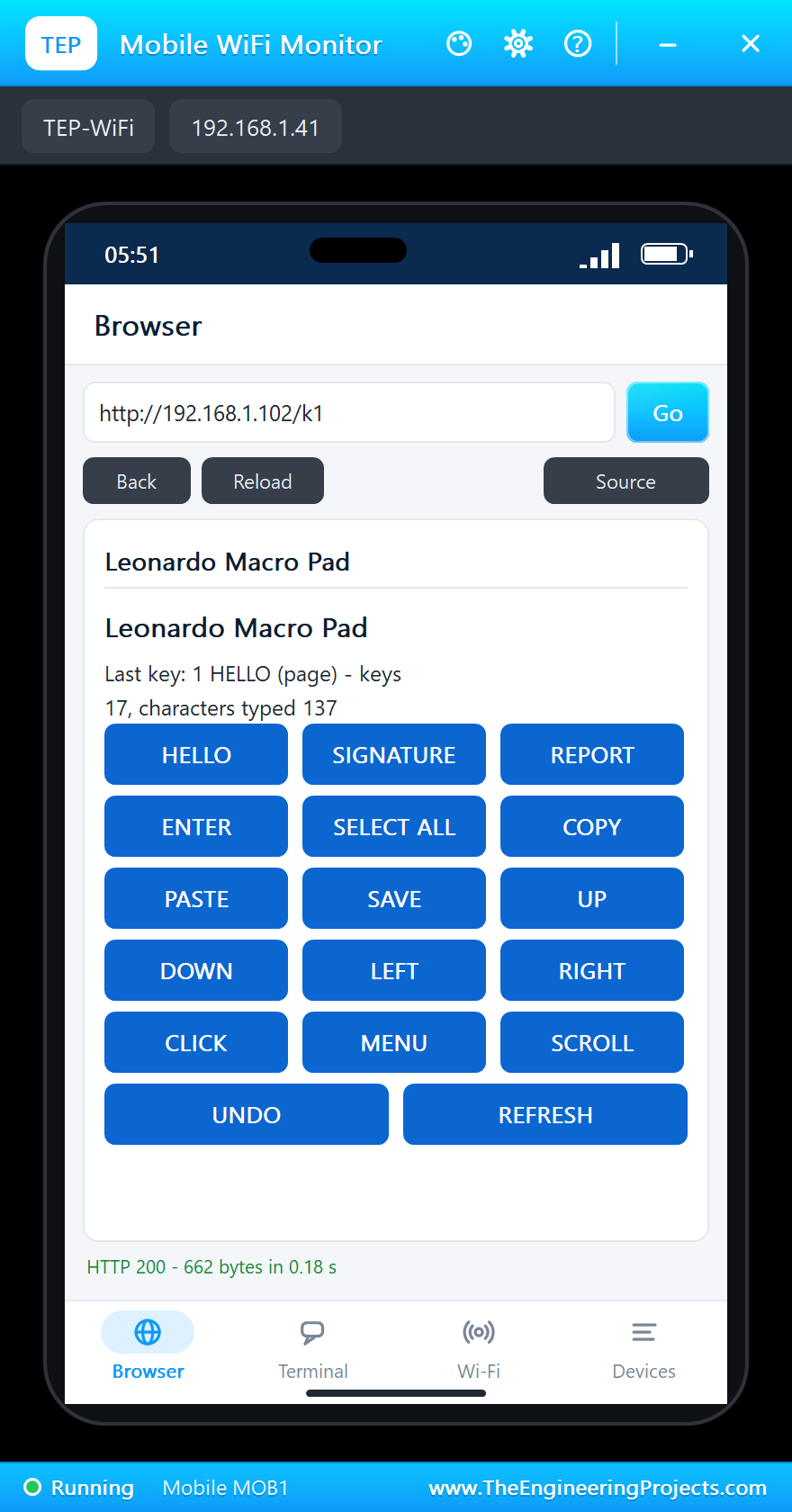
The Reports tab shows the traffic behind it: each character is a press report and an all-keys-up report, and the first byte is 02 when Shift is held:
The built-in serial monitor, in the look of our TEP Serial Monitor Advance for Proteus, keeps every key and every page:
Try It Yourself
- Type
TYPE Hello againin the serial monitor: the line is typed on the PC. - Type
KEY 9five times and watch the pointer climb. - Change a macro: make pad 4 type today's to-do list instead of Enter.
- Click the TTP229's TP2 pad on its pop-up: the chip restarts with 8 keys, and pads 9 - 16 stop working.
Ideas to Extend the Macro Pad
- A second layer: hold pad 16 and the other keys do something else.
- A password-free "lock the PC" key: Keyboard.press(KEY_LEFT_GUI) and 'l'.
- Show the last key on an OLED next to the pad.
- An accessibility switch: one big button that clicks the mouse.
Your Own Sketches
Write the sketch in the Arduino IDE with the board Arduino Leonardo (TEP Proteus), use Sketch > Export Compiled Binary and set the board's PROGRAM property to the .hex. For a real Leonardo select "Arduino Leonardo" and install Arduino's Keyboard and Mouse libraries from the Library Manager - the same sketch.
Things to Know Before Using a Real Leonardo
- A keyboard types everywhere: on a real PC the macro pad types into whatever window has the focus. Add a start-up delay or an enable switch while you develop, so a runaway loop cannot fill your editor.
- Uploading: the USB restarts when the board resets; if an upload cannot find the port, press RESET just as the IDE starts uploading.
- Serial waits:
while (!Serial);waits for the Serial Monitor - leave it out on a board that runs without a computer. - Keyboard layouts: Keyboard.print assumes a US layout; on other layouts pass the layout to Keyboard.begin().
Properties of the Arduino Leonardo
| Property | What it does |
|---|---|
| PROGRAM | the sketch: a .hex from TEP Boards for Proteus (board "Arduino Leonardo") |
| MONITOR, BAUD, AUTOOPEN | the built-in serial monitor: on, its baud rate (115200), open at Run |
The PC window has its own "Open at Run" switch on its Settings tab, with the theme and the text size.
Troubleshooting
- The PC window says "waiting for Keyboard.begin()": the sketch has not called Keyboard.begin() or Mouse.begin().
- Pads 9 - 16 do nothing: the TTP229 is in 8-key mode - its OPTIONS must include TP2.
- The ESP-01S does not answer: its VCC needs the power terminal; TXD to D0, RXD to D1; Serial1.begin(115200).
- Closed a window? The micro-USB opens the monitor again, the ATmega32U4 the PC window.
- The page shows old values: use REFRESH; the monitors do not reload by themselves.
Limitations of the Simulation
- Your sketch gets 8 KB of RAM in the simulation (the real ATmega32U4 has 2.5 KB).
- The USB controller, its descriptors and Timer4 are not modelled: write Arduino code, not registers.
- The PC does not answer the keyboard: no Caps Lock LED state comes back, and the layout is US English.
- The TX and RX LEDs are drawn, not driven; SPI on the ICSP header and the extra analog inputs A6 - A11 are not modelled.
- Arduino and Leonardo are trademarks of Arduino S.r.l.; this library is not made or endorsed by Arduino, Microchip, Tontek or Labcenter.
- Tested in Proteus 8.5 in October 2026 (the demo as shipped, about 35 s of simulation in about 4 minutes on our PC with the two pop-ups, the PC window, the monitor and both tools open). Proteus 7 is not supported.
So, that was all about the Arduino Leonardo Library for Proteus. I hope it helps you build and test your own USB keyboards, mice and macro pads before you plug a board into your computer - and see exactly what each key sends. If you have any questions, ask in the comments and I will help you out. Till the next tutorial, take care and have fun!

Comments
0