


AirLift WiFi Shield Library for Proteus: ESP32 WiFiNINA for Arduino


Hello friends, I hope you all are doing great. Today, I am going to share the AirLift WiFi Shield Library for Proteus. The AirLift shield puts an ESP32 Wi-Fi co-processor on top of an Arduino UNO. The ESP32 runs the NINA firmware and the UNO talks to it over SPI with the WiFiNINA library - the same library the Arduino MKR WiFi 1010 and the UNO WiFi Rev2 use. Your sketch calls WiFi.begin(), WiFiServer and WiFiClient, and the ESP32 does the Wi-Fi, the TCP and UDP sockets and DNS. With this library you can place the shield in Proteus, wire it to our UNO and run a WiFiNINA sketch as it is.
AirLift WiFi Shield Library for Proteus
Latest version: V1.0 (October 2026, this tutorial)
Helping Tools
- Laptop WiFi Monitor: a laptop on the Wi-Fi of your design: a browser, a TCP / UDP terminal and ping
- Mobile WiFi Monitor: a smartphone that opens the pages of your ESP32 and sends it commands
- Serial Monitor Advance: a serial terminal window for the UART of your board
This is the fourteenth library of our Wi-Fi series and the first one that talks SPI instead of AT commands. Its demo is an RGB server: a web page on port 80 and a command line on port 23, used from our Laptop WiFi Monitor and Mobile WiFi Monitor, and every command changes the colour of the shield's own RGB LED. The shield's micro SD socket works too, with the Arduino SD library and a second demo.
NOTICE: the PWR and SPI LEDs and the PANEL pad of our shield are TEP additions; the access point mode and TLS are not simulated (see the limits at the end). Use the Adafruit version of WiFiNINA with WiFi.setPins() - the AirLift's pins are not those of the MKR boards. Your feedback is the fuel that keeps us going, so please tell us what you think in the comments below or in the AirLift WiFi Shield board of our forum. And if our free libraries help you, you can buy us a coffee. So, let's get started with the AirLift WiFi Shield Library for Proteus:
What is the AirLift WiFi Shield?
The AirLift boards (made by Adafruit) carry an ESP32-WROOM-32 module flashed with a version of the NINA firmware - the firmware of the u-blox NINA-W102 module on Arduino's own Wi-Fi boards. The ESP32 does not run your sketch: it is a Wi-Fi modem that the Arduino controls over SPI. The shield version sits on an Arduino UNO and adds a 3.3 V regulator, a level shifter for the 5 V pins, an RGB LED, a micro SD socket and a prototyping area.
| Real AirLift WiFi Shield | This library in Proteus | |
|---|---|---|
| Wi-Fi chip | ESP32-WROOM-32 with the NINA firmware | our NINA firmware model (version 1.7.4, a property) |
| Link to the UNO | SPI on the ICSP header + CS D10, BUSY D7, RST D5 | SPI on D13 / D12 / D11 + CS D10, BUSY D7, RST D5 |
| Arduino library | WiFiNINA (the Adafruit fork) | the same library, unchanged |
| RGB LED | on ESP32 GPIO 26 / 25 / 27, WiFi.setLEDs() | the same, drawn in its colour on the shield |
| micro SD | socket on SPI, CS D4 | a 64 MB card with files, CS D4 |
| Extra LEDs | none | a red PWR LED and an orange SPI LED (TEP additions) |
| Supply | 5 V from the UNO, 3.3 V regulator (500 mA peaks) | 5V and GND pins |
NINA: a Wi-Fi Co-processor on SPI
Our earlier Wi-Fi modules - the ESP8266 WiFi Shield Library for Proteus or the ESP32-WROOM-32 Library for Proteus - take AT commands on a serial port. NINA is different: every WiFiNINA function becomes a short binary command frame on SPI (start byte, command, parameters, end byte) and the ESP32 answers with a reply frame. WiFi.status() is one command, client.write() two (send the data, then check it was sent), and the library asks "is there data?" in every pass of loop(). In our demo the UNO sends about 5000 commands a second.
The SPI Pins and the BUSY Line
The shield takes SCK, MISO and MOSI from the UNO's 2x3 ICSP header - on the UNO the same signals as D13, D12 and D11, which is how they are wired in Proteus. D10 is the ESP32's chip select, D5 its reset and D7 the BUSY line. BUSY is the handshake: the ESP32 pulls it LOW when it is ready for the next frame and HIGH while it is selected or working. WiFiNINA waits for LOW before every frame - forever if it has to - so a shield without power or held in reset stops the sketch at its first WiFi call. Our model drives BUSY exactly like that, and it keeps BUSY HIGH while a command takes time on the real ESP32: a connect, a DNS look-up, a scan or a ping.
The RGB LED and the micro SD Socket
The RGB LED next to the ESP32 is wired to the ESP32, not to the UNO: WiFi.setLEDs(red, green, blue) sends it over SPI (green on GPIO 25, red on 26, blue on 27, 0 to 255 each). The micro SD socket is on the same SPI pins with its own chip select, D4; the card is the one of our Micro SD Card Library for Proteus, so the Arduino SD library reads and writes its files.
Features of the AirLift WiFi Shield Library for Proteus
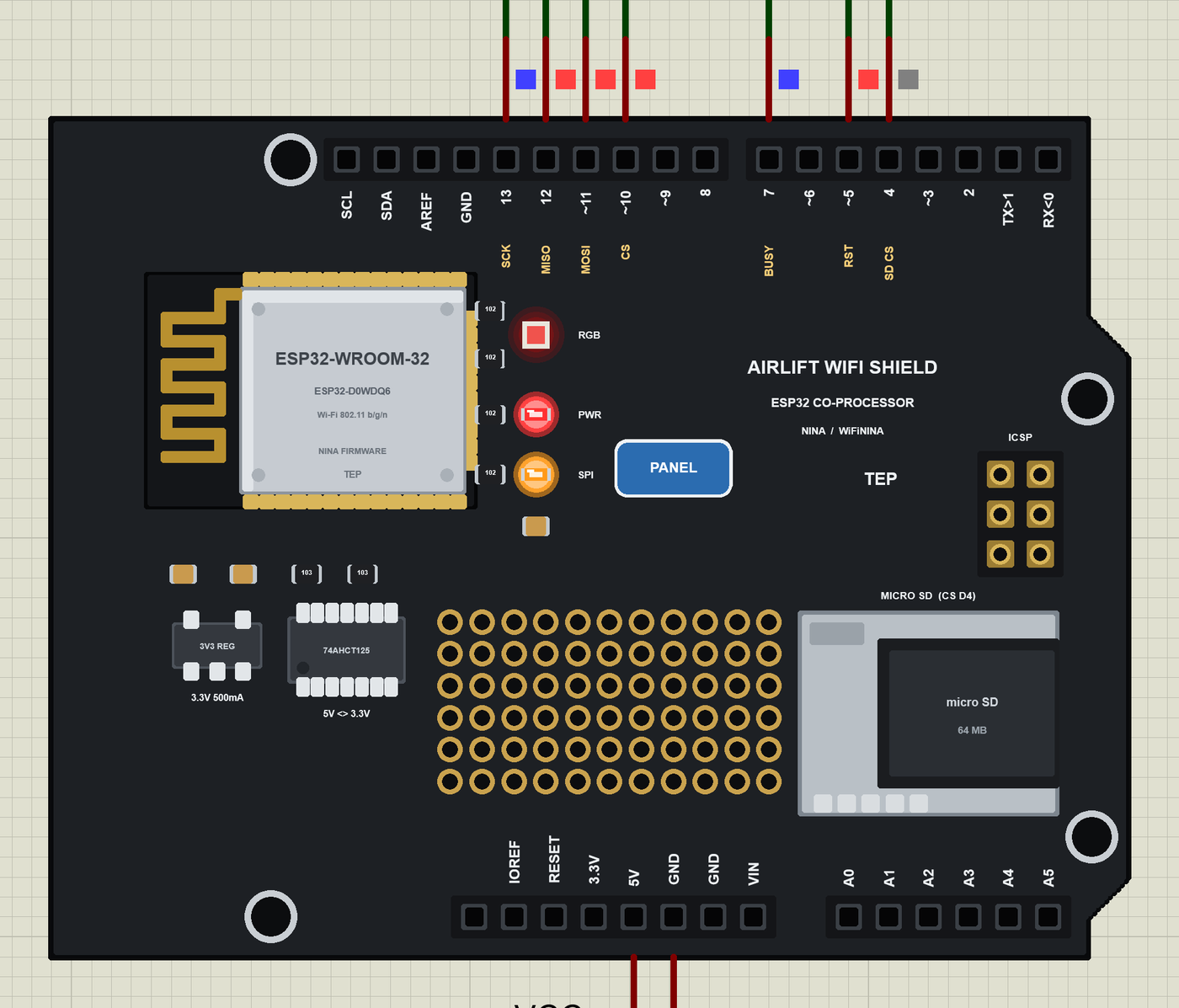
- The AirLift shield as it looks: the black shield at the UNO's size with the stacking headers, the ESP32-WROOM-32 module, the RGB LED, the 3.3 V regulator, the level shifter, the ICSP header, the micro SD socket with a card and the prototyping area.
- The real WiFiNINA library: our model answers the NINA commands exactly as the library expects - we ran the library unchanged against the model on the PC (28 checks) and in Proteus.
- The BUSY handshake, reset and boot as on the real shield: BUSY LOW = ready, HIGH = selected or working; RST LOW holds the ESP32 in reset.
- Wi-Fi and sockets: join, status, IP, RSSI, scan, DNS, ping, time; ten sockets for WiFiClient, WiFiServer and WiFiUDP.
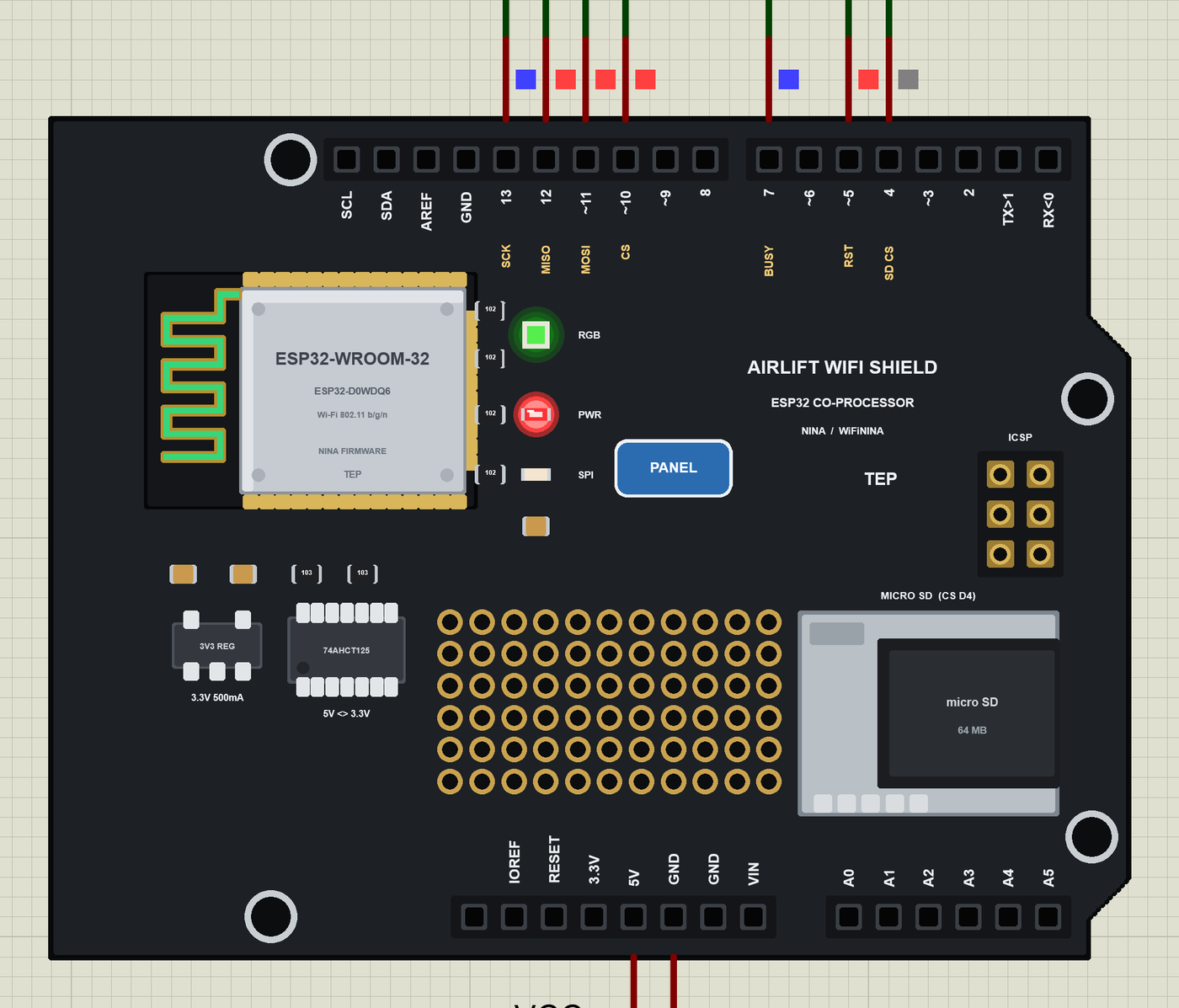
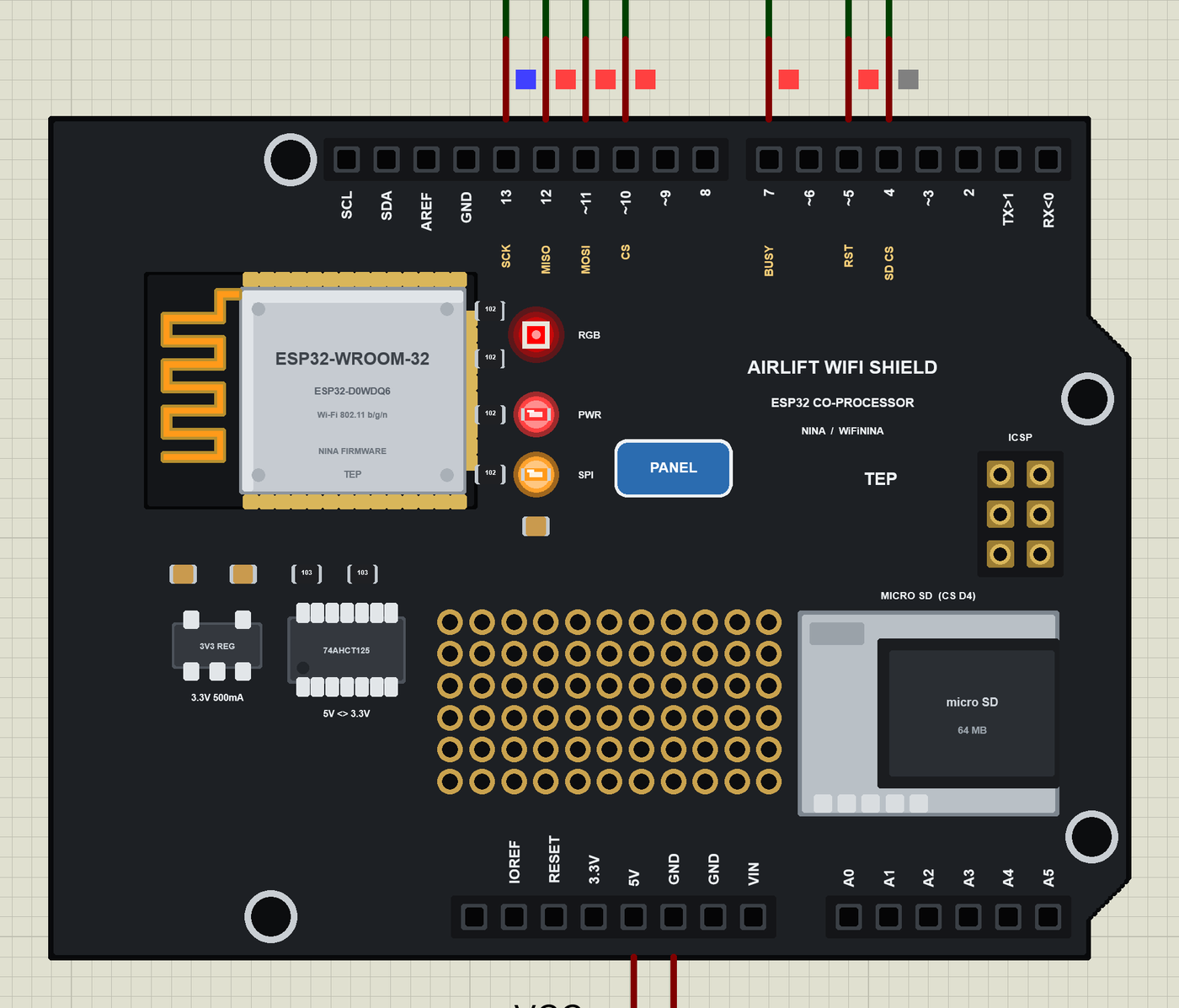
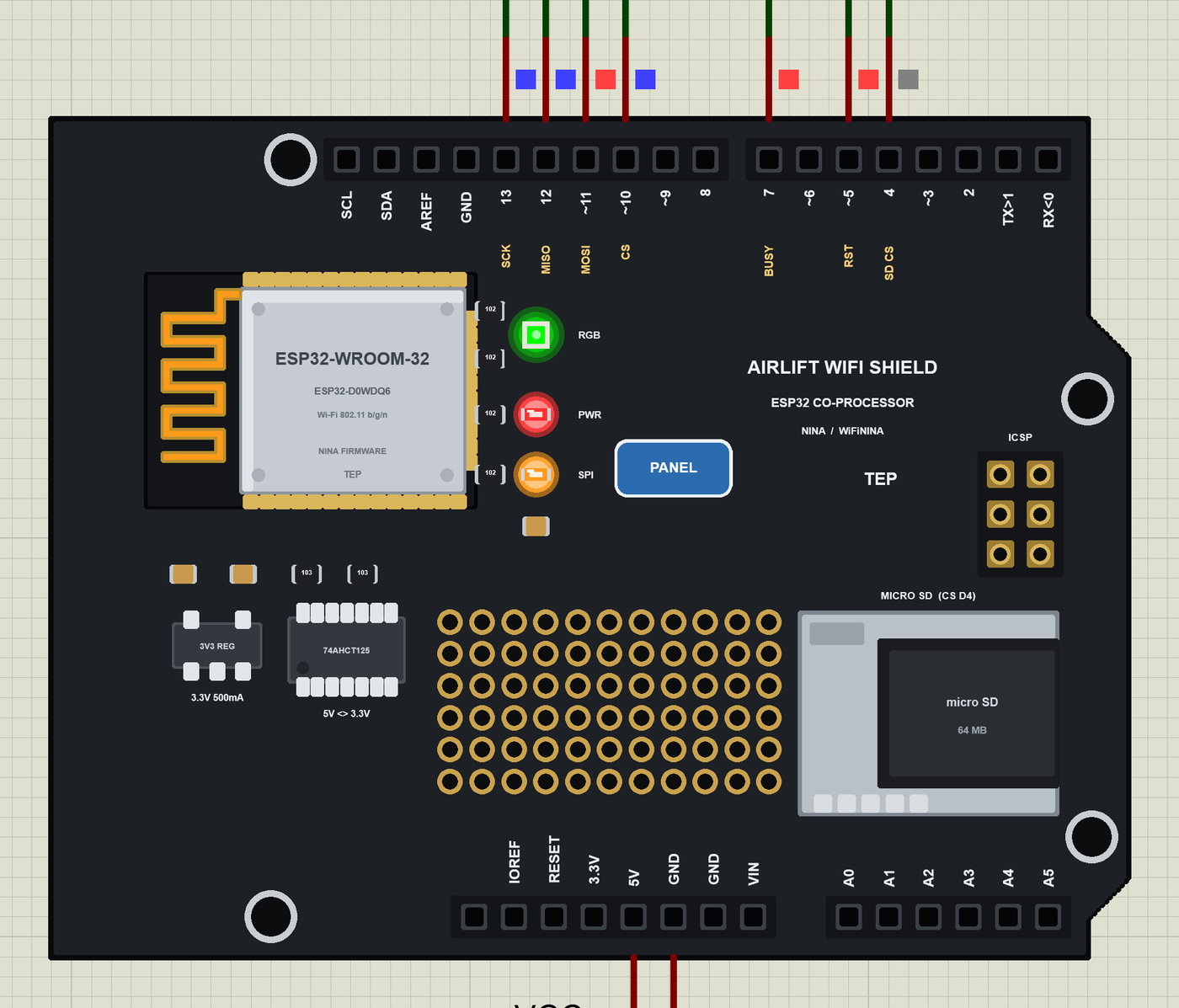
- The RGB LED in the colour
WiFi.setLEDs()gives it, and an antenna that turns green on Wi-Fi and orange while it sends. - The micro SD socket with a 64 MB card for the SD library; a click takes the card out.
- Wi-Fi in Proteus: a virtual router with DHCP and two neighbours for scans, a phone in the panel that opens your web page, an internet host, and TCP / UDP to every TEP Wi-Fi part in the design.
- Our Laptop and Mobile WiFi Monitors: a laptop and a phone on the same network, with a browser, TCP terminals and ping - included in the package.
- Our pop-up panel: the phone, the shield card, an SPI page with every WiFiNINA command, the sockets and the card, a Test page, Settings and Help.
- A compact package: about 2.74 MB, without the C++ source code of the models.
The AirLift WiFi Shield in Proteus
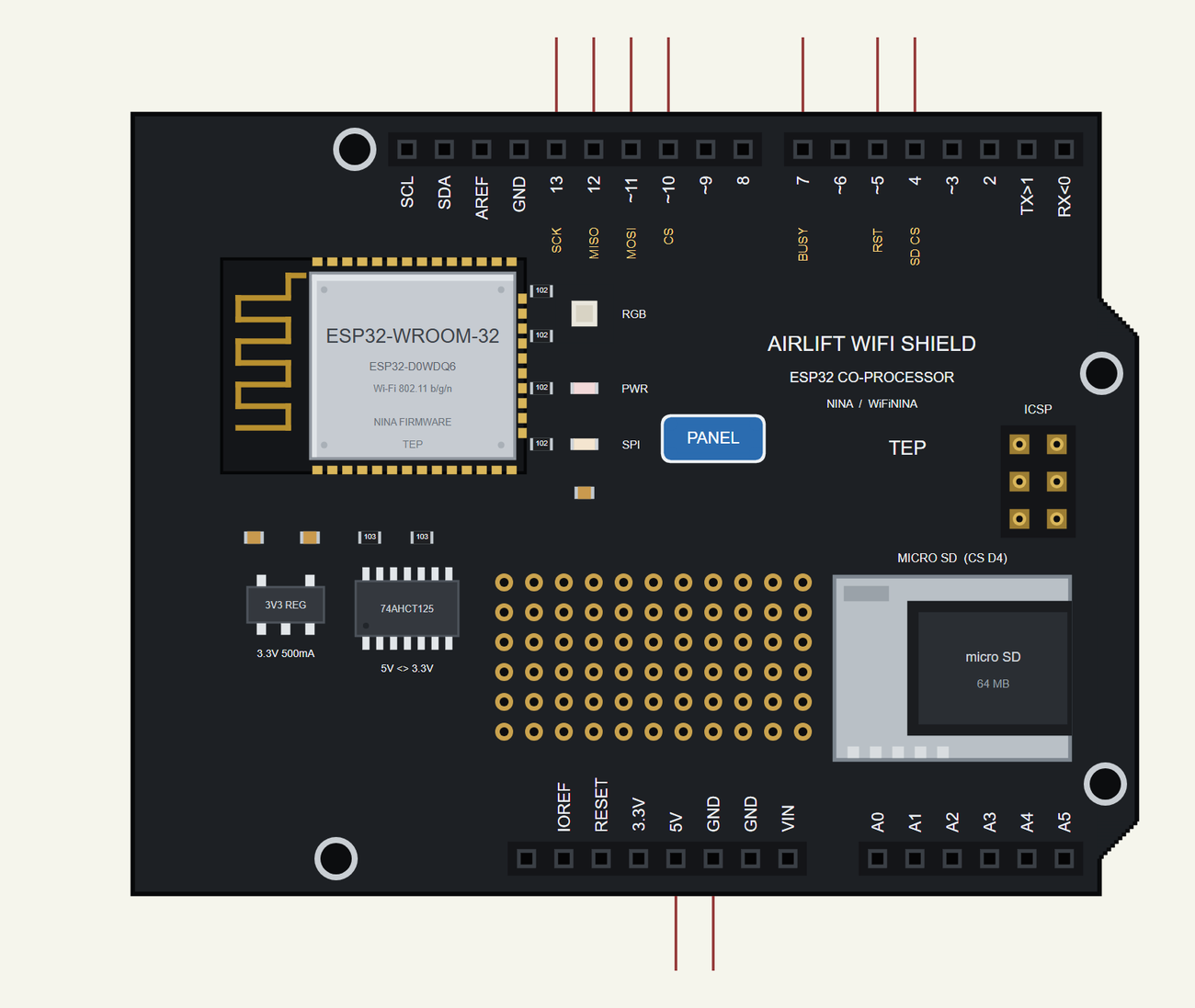
Search AIRLIFT in Pick Devices; the device AIRLIFT WIFI SHIELD is in TEPAIRLIFT.LIB. Proteus cannot stack a shield on a board, so the shield sits next to the UNO with its own pins: SCK, MISO, MOSI, CS, BUSY, RST and SD CS on the digital header, 5V and GND on the power header; the other holes are drawn only. Click the PANEL pad or the ESP32 module to open the panel.
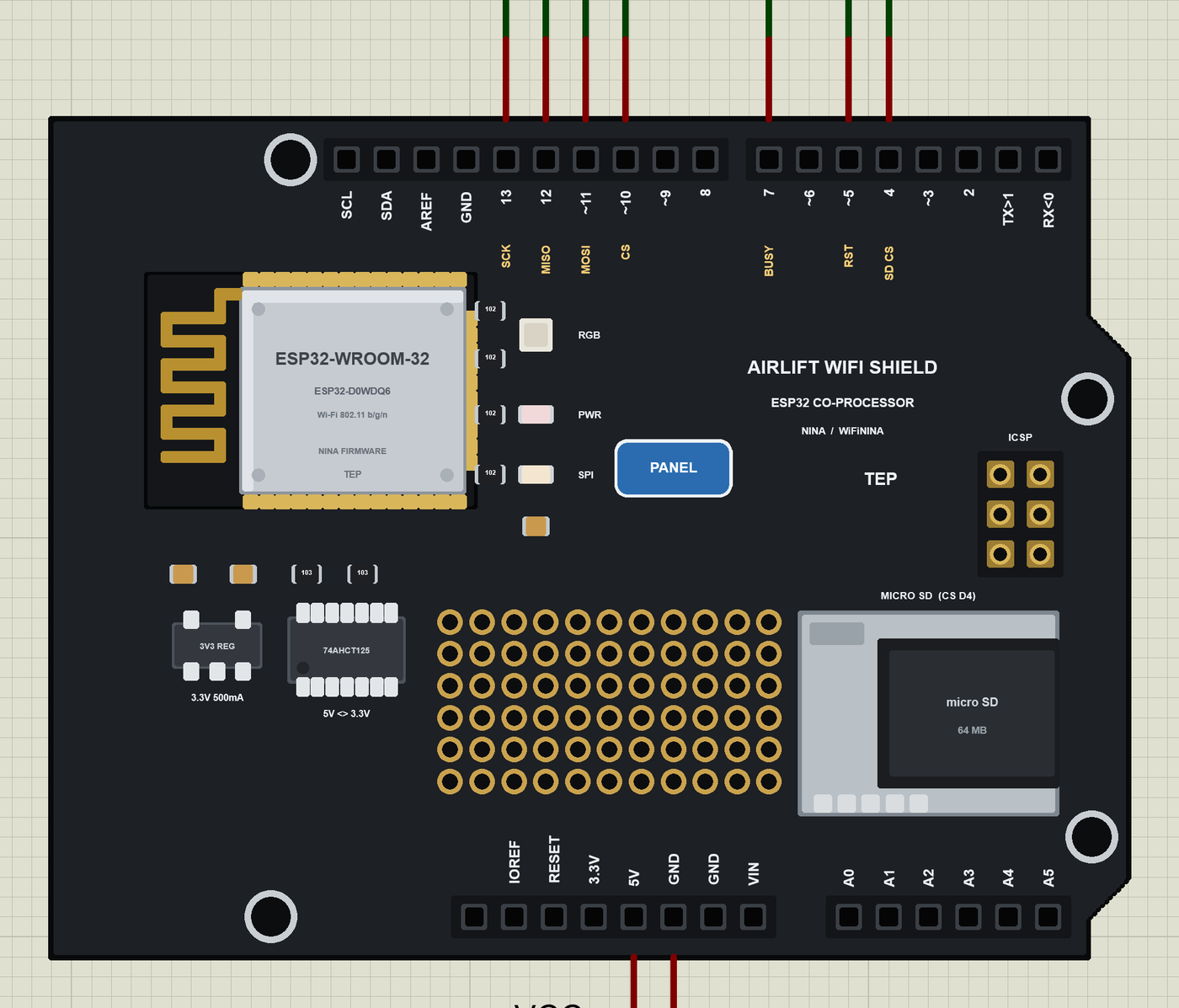
Every State of the AirLift WiFi Shield
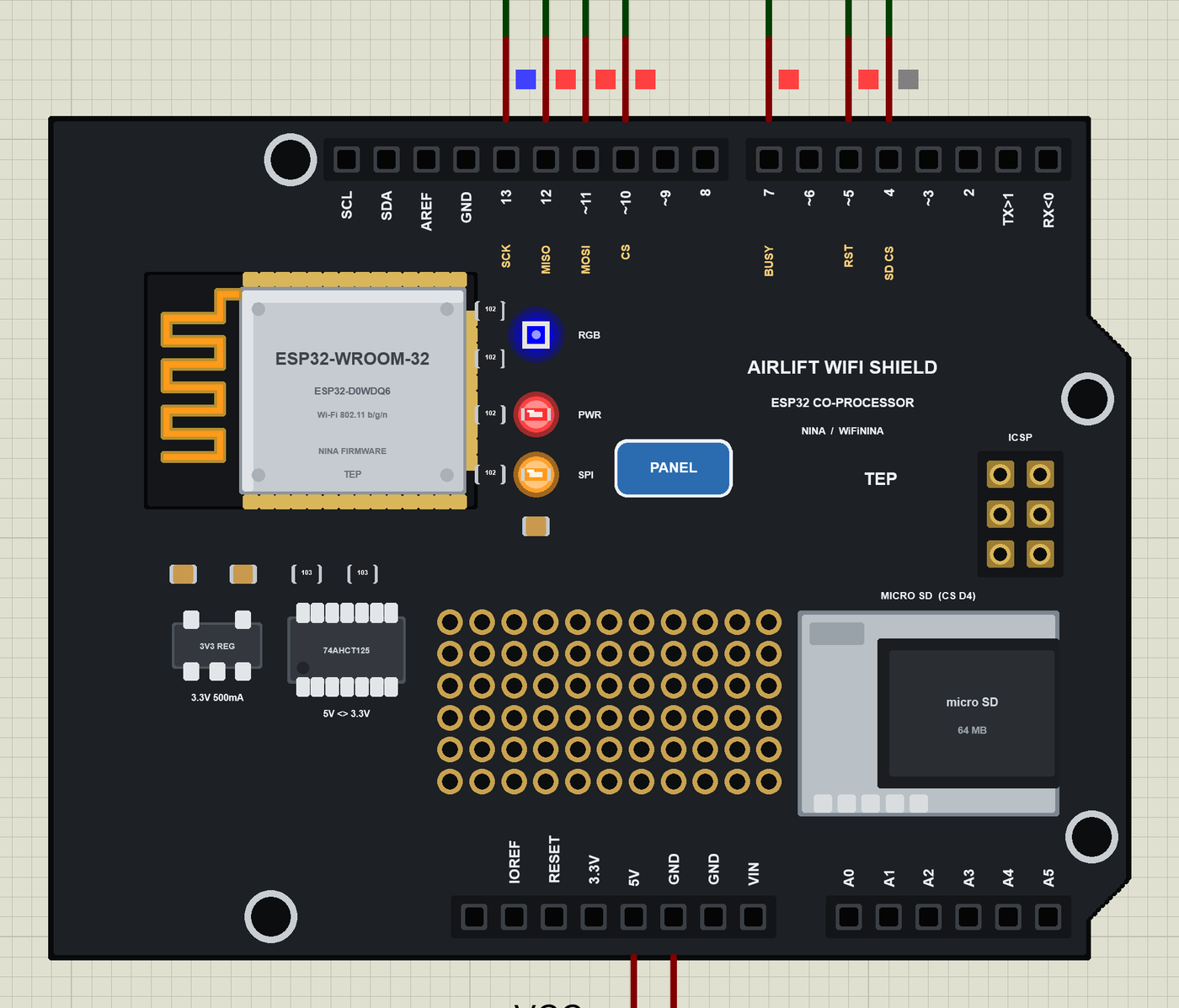
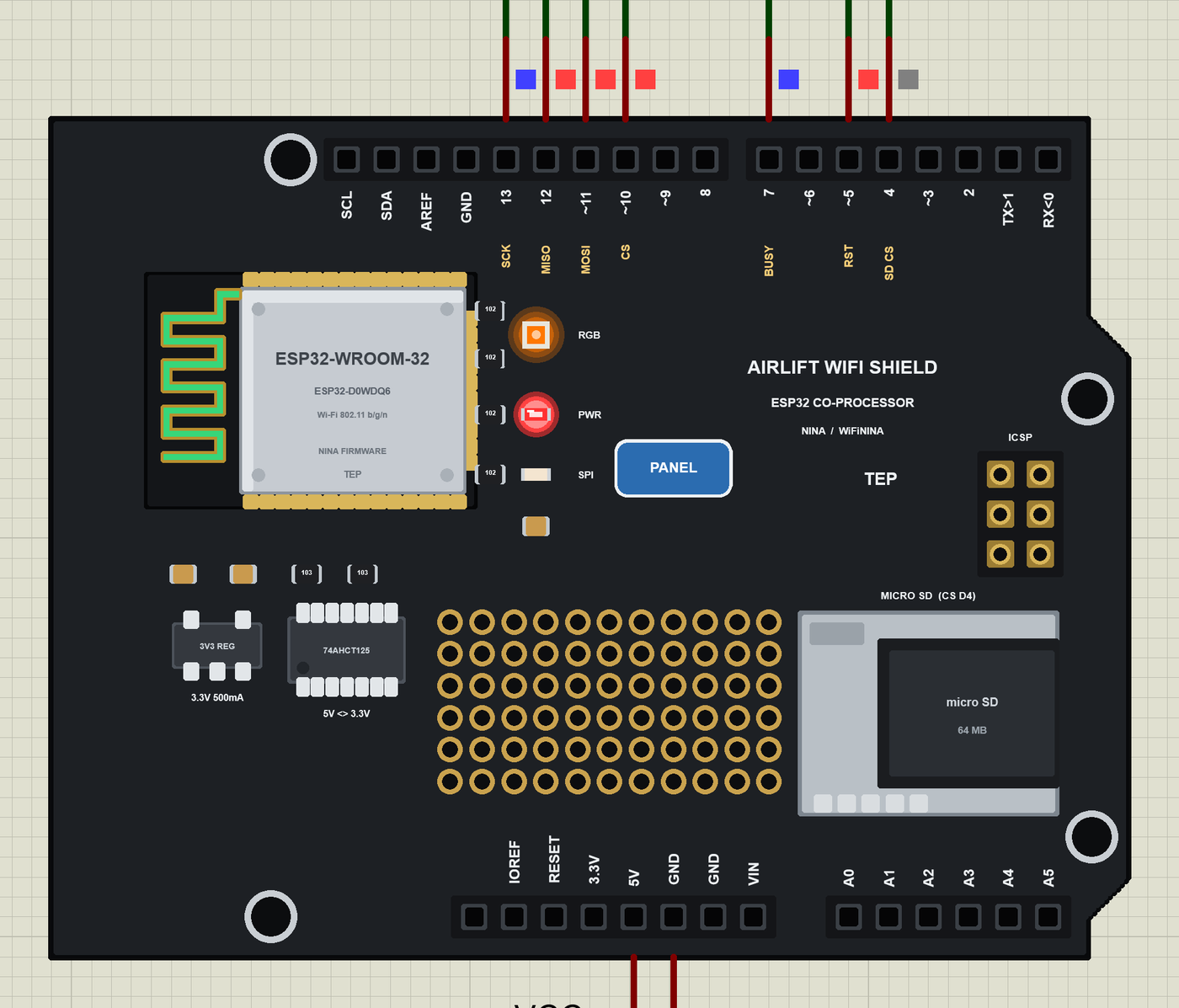
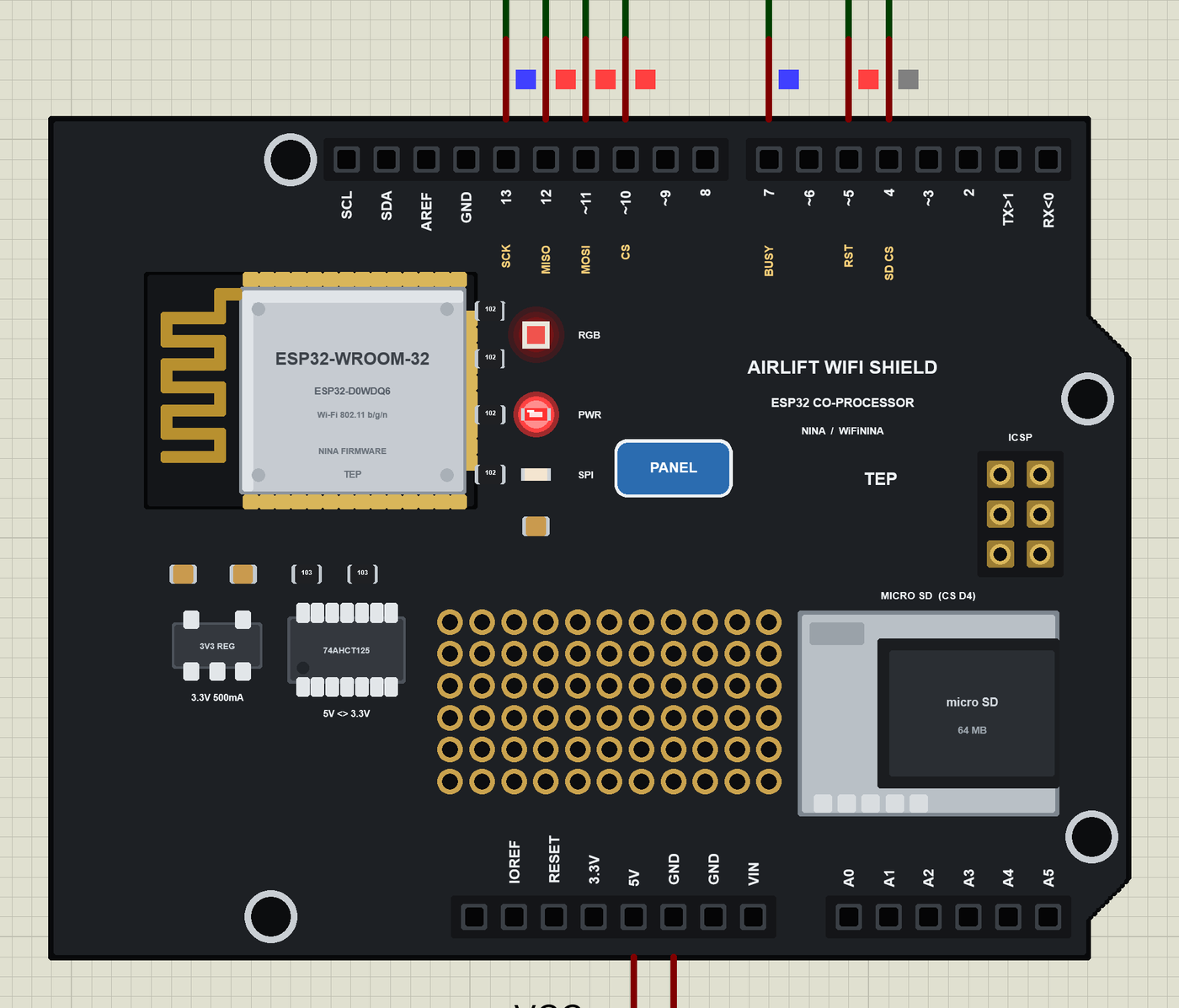
We ran the demo and paused the simulation for each picture. At Run the shield gets 5 V and the ESP32 starts; the UNO's first WiFiNINA call resets it with D5 and waits for BUSY to go LOW:
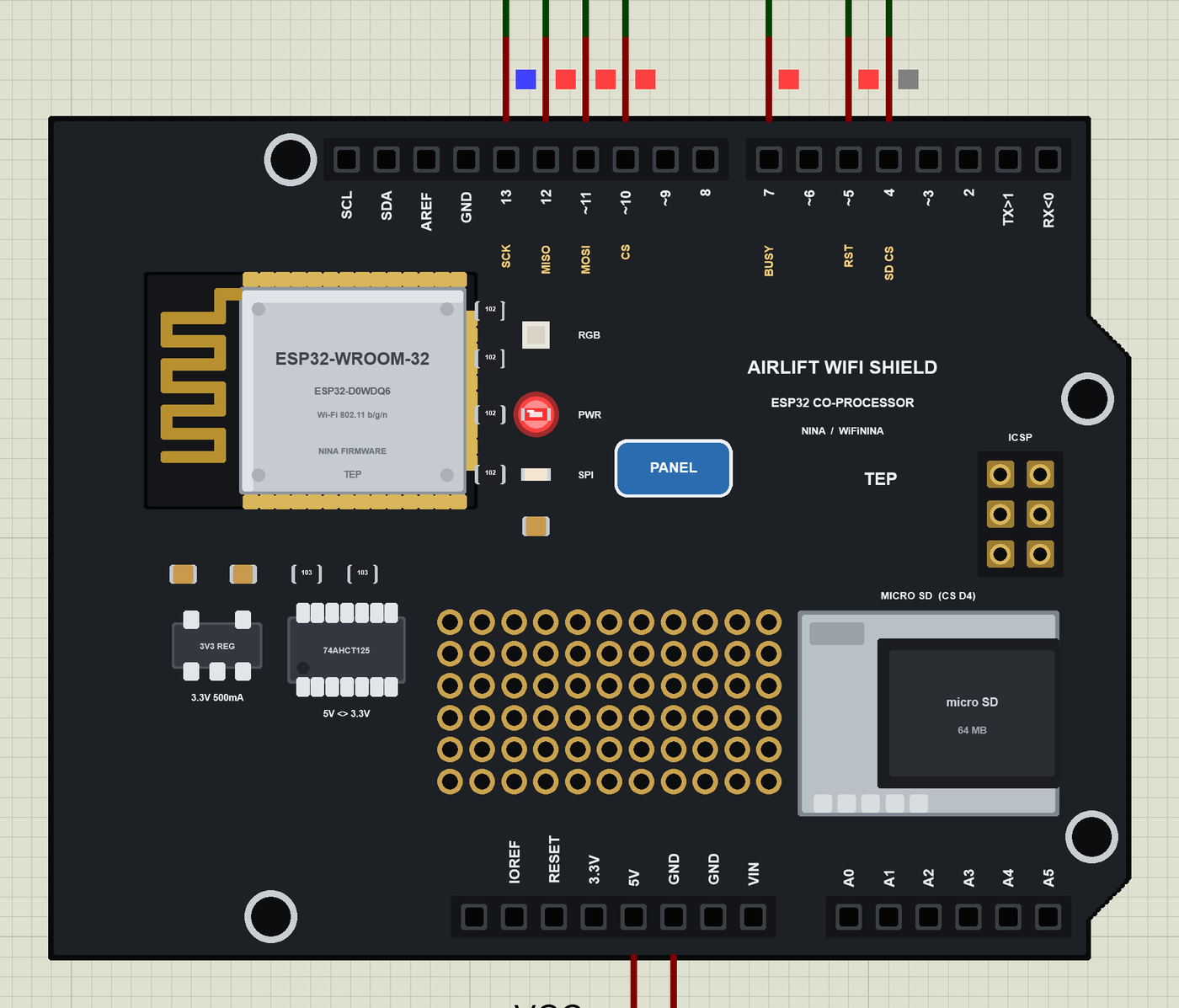
The RGB LED takes any colour the sketch gives it. These four came from the page's links and from the monitor:
Download AirLift WiFi Shield Library for Proteus
Click the button below to download AirLift-WiFi-Shield-Library-for-Proteus-v1.0.zip (about 2.74 MB, without the C++ source code of the models):
AirLift WiFi Shield Library for Proteus V1.0- README.txt: the device, installation, the demos, the pins, the properties, troubleshooting and the limits.
- Proteus Library Files:
TEPAIRLIFT.LIB(the shield),ArduinoV4TEP.LIB(our Arduino boards V4.0 - the UNO of the demos),TEPLAPTOP.LIBandTEPMOBILE.LIB(our Laptop and Mobile WiFi Monitors). - Proteus Model Files:
TEPNET.DLL(the shield, the two monitors and the Wi-Fi network) andTEPARDUINO.DLL(the Arduino boards). - Proteus Simulation: the two demo projects, their HEX files and copies of the DLLs.
- Arduino Code: the two demo sketches. WiFiNINA and the SD library are not included - install "WiFiNINA - Adafruit Fork" from the Library Manager; the SD library comes with the IDE.
No Proteus yet? Read How to Download and Install Proteus 7 and 8. New to libraries? Follow How to Install a New Library in Proteus.
How to Install AirLift WiFi Shield Library for Proteus
- Close Proteus and extract the whole zip file, for example to your Desktop.
- Copy the four files from Proteus Library Files into the LIBRARY folder of Proteus (usually
C:\Program Files (x86)\Labcenter Electronics\Proteus 8 Professional\LIBRARY). - Copy
TEPNET.DLLandTEPARDUINO.DLLfrom Proteus Model Files into the MODELS folder - replace older copies (this TEPNET.DLL is the first one that knows the AirLift, and it still runs all our ESP32 boards, the ESP8266 and ESP32 modules and the two monitors). - Delete
TEPAIRLIFT.IDX,ArduinoV4TEP.IDX,TEPLAPTOP.IDXandTEPMOBILE.IDXfrom the LIBRARY folder if they are there. - Start Proteus, press P and search for AIRLIFT.
The sketches are normal UNO sketches: select Arduino Uno in the Arduino IDE, install the Adafruit WiFiNINA, write your sketch and use Sketch > Export Compiled Binary; then double-click the UNO in Proteus and set its Program File to the HEX (see How to get the HEX file from Arduino).
Demo: An RGB Server for the Laptop and the Phone
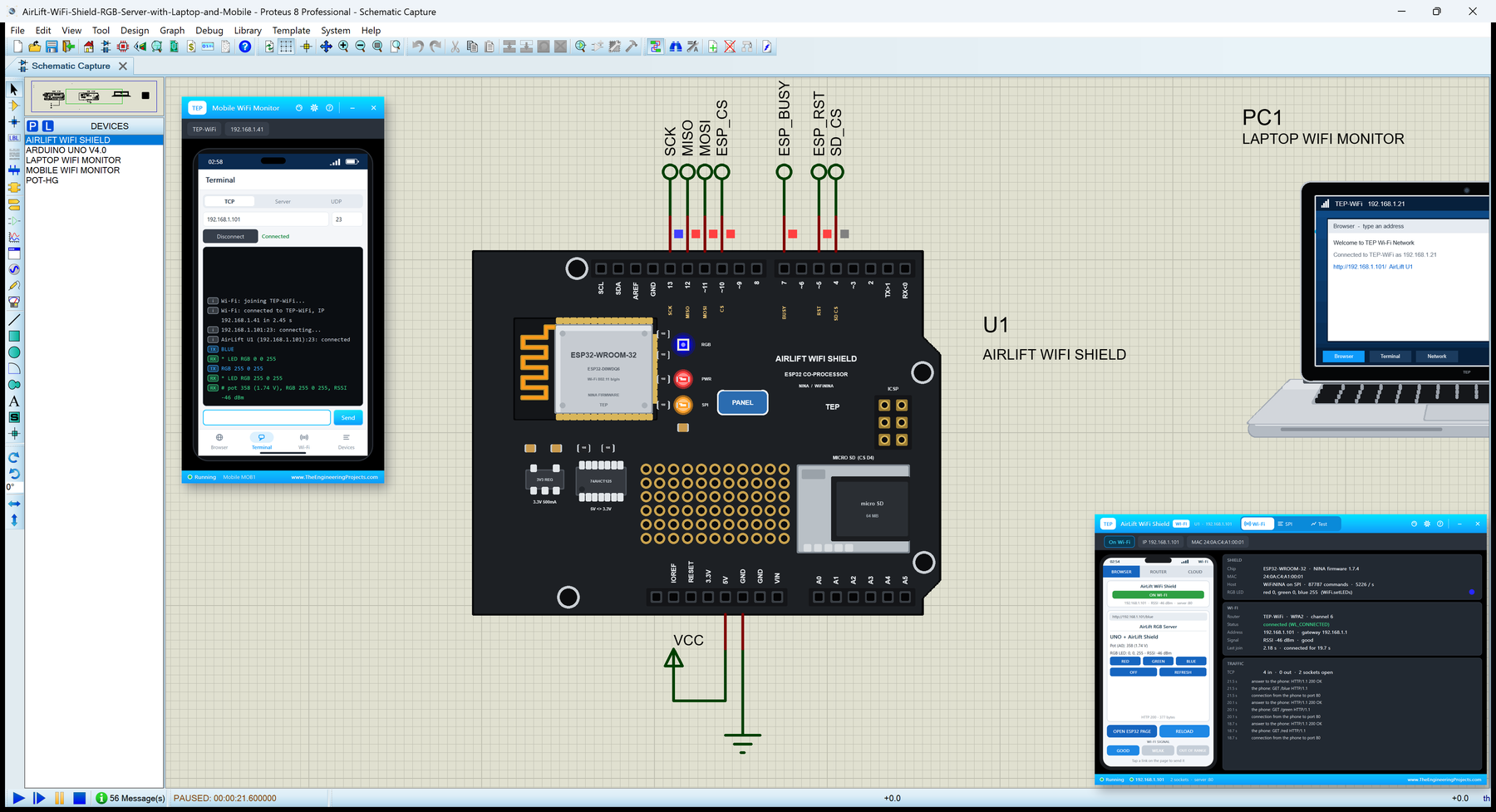
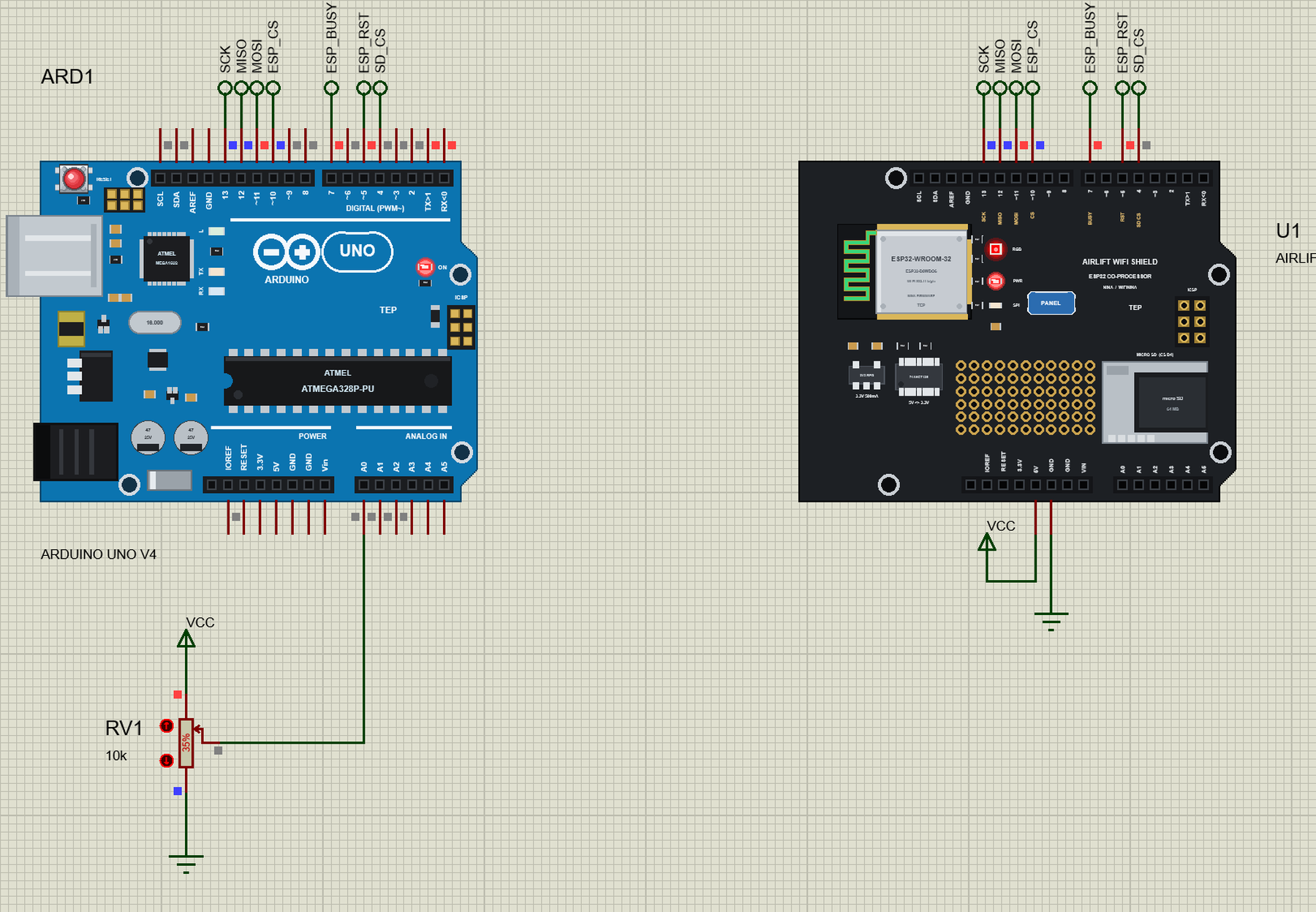
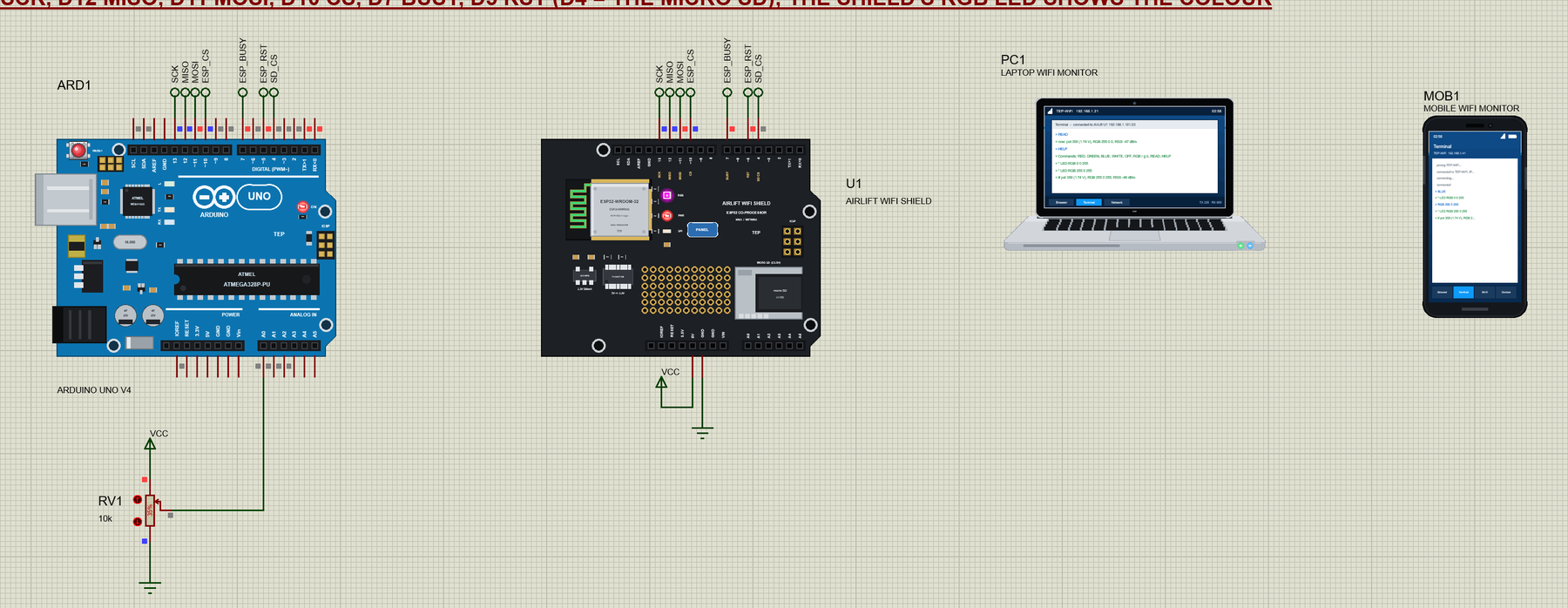
Open AirLift-WiFi-Shield-RGB-Server-with-Laptop-and-Mobile.pdsprj. On the left is our Arduino UNO Library for Proteus V4.0 (ARD1) with its built-in serial monitor and a pot on A0, next to it the AirLift shield (U1), and on the right the laptop (PC1) and the phone (MOB1) - no wires to them, they are on the TEP-WiFi network like the real ones.
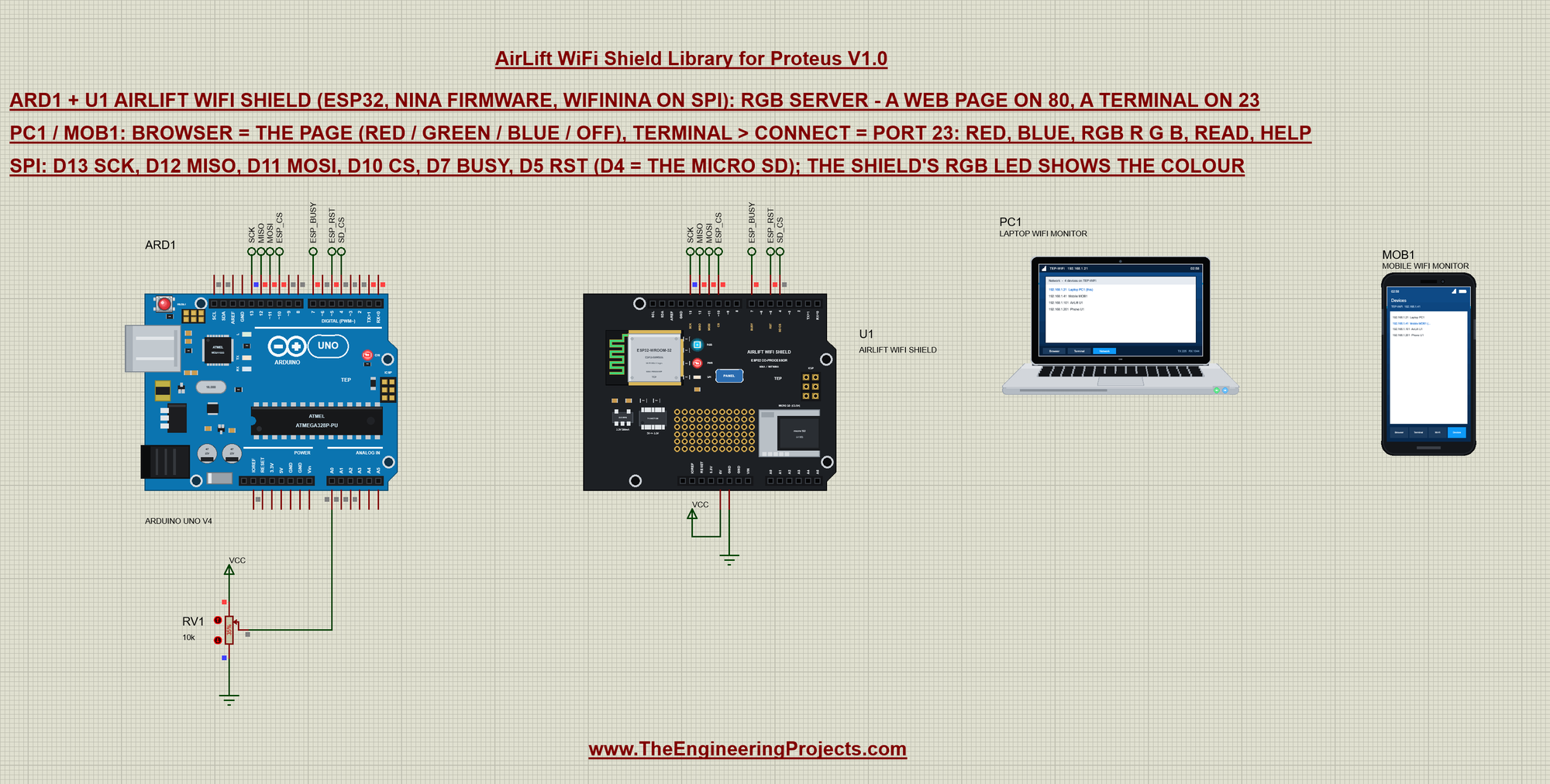
Seven net labels join the UNO and the shield: SCK, MISO, MOSI (D13, D12, D11), ESP_CS (D10), ESP_BUSY (D7), ESP_RST (D5) and SD_CS (D4). The shield's 5V goes to VCC and GND to ground; RV1 (10k, at 35 %) on A0 gives a reading:
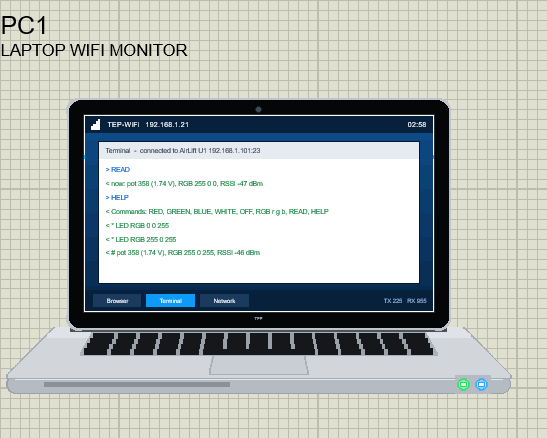
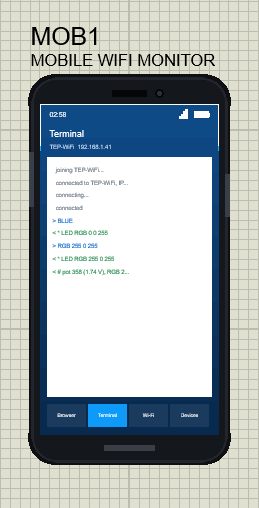
The two tools come from our Laptop WiFi Monitor Library for Proteus and Mobile WiFi Monitor Library for Proteus. In this project their browsers open http://192.168.1.101/ and their TCP client is set to 192.168.1.101 port 23; you only press Go and Connect. The laptop is 192.168.1.21 and the phone 192.168.1.41:
The Sketch: WiFiNINA on the AirLift
Adafruit's WiFiNINA needs to know the shield's pins. The sketch names them and passes them to WiFi.setPins() before any other WiFi call; WL_NO_MODULE means the ESP32 did not answer:
#define SPIWIFI       SPI                                          // the shield's SPI pins (WiFi.setPins)
#define SPIWIFI_SS    10
#define SPIWIFI_ACK   7
#define ESP32_RESETN  5
#define ESP32_GPIO0   -1
WiFi.setPins(SPIWIFI_SS, SPIWIFI_ACK, ESP32_RESETN, ESP32_GPIO0, &SPIWIFI);
if (WiFi.status() == WL_NO_MODULE) {
Serial.println(F("No AirLift found - check CS D10, BUSY D7, RST D5 and SPI"));
while (true) delay(1000);
}WiFi.begin() sends the network name and password and then waits five seconds before it asks for the status - on the real shield too - so the join takes a little over five seconds:
while (WiFi.begin(ssid, pass) != WL_CONNECTED) { Serial.print('.'); delay(2000); }The RGB LED belongs to the ESP32; the sketch keeps the colour in three variables and sends it with WiFi.setLEDs():
void setRgb(uint8_t r, uint8_t g, uint8_t b) {
  red = r; green = g; blue = b;
  WiFi.setLEDs(red, green, blue);
}
One thing to know about WiFiNINA on an UNO: print(F("...")) on a WiFiClient sends a flash string one byte at a time, and every byte is a SPI command and a small TCP packet. The demo copies flash text into a 64-byte buffer and sends it in pieces:
void sendP(Print& p, const __FlashStringHelper* s) {
  PGM_P q = reinterpret_cast<PGM_P>(s);
  char buf[64];
  for (;;) {
    size_t n = 0; char ch;
    while (n < sizeof buf && (ch = pgm_read_byte(q + n)) != 0) buf[n++] = ch;
    if (n) p.write((const uint8_t*)buf, n);
    if (n < sizeof buf) return;
    q += n;
  }
}
loop() serves the page, the terminals and the monitor, sends a reading to every terminal every ten seconds and joins again if the router is lost:
  WiFiClient page = web.available();
  if (page) servePage(page);
if (millis() - lastReport >= 10000) { // a reading to every terminal every 10 s
lastReport = millis();
term.print(status("# "));
Serial.print(msg + 2);
} if (WiFi.status() != WL_CONNECTED) { // lost the router: join again
Serial.println(F("Wi-Fi lost - joining again"));
setRgb(40, 0, 0);
while (WiFi.begin(ssid, pass) != WL_CONNECTED) delay(2000);
setRgb(0, 40, 0);
Serial.println(F("Back on Wi-Fi"));
}Press Run and watch the UNO's monitor: the firmware version, the join, the page and terminal addresses and the signal:
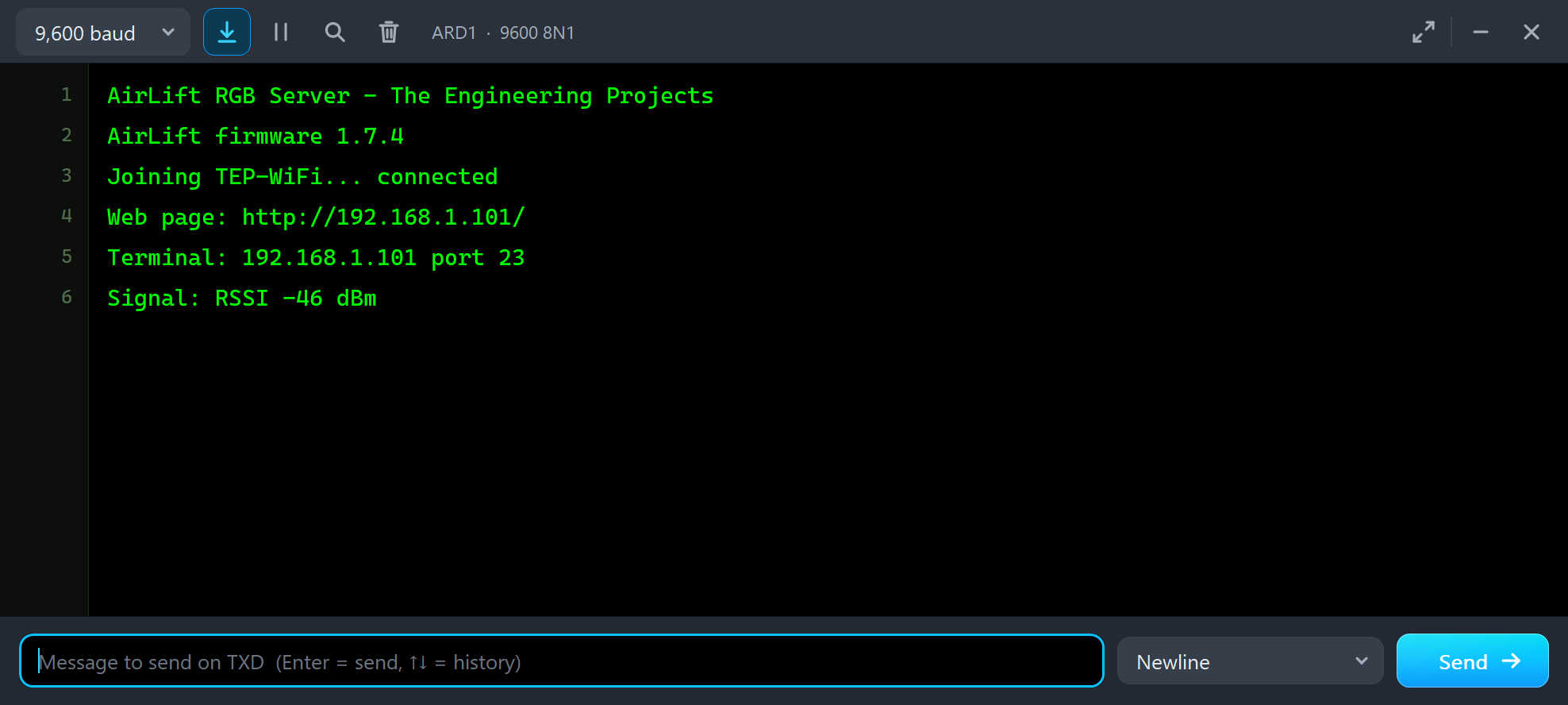
AirLift RGB Server - The Engineering Projects
AirLift firmware 1.7.4
Joining TEP-WiFi... connected
Web page: http://192.168.1.101/
Terminal: 192.168.1.101 port 23
Signal: RSSI -46 dBm
The Page on Port 80
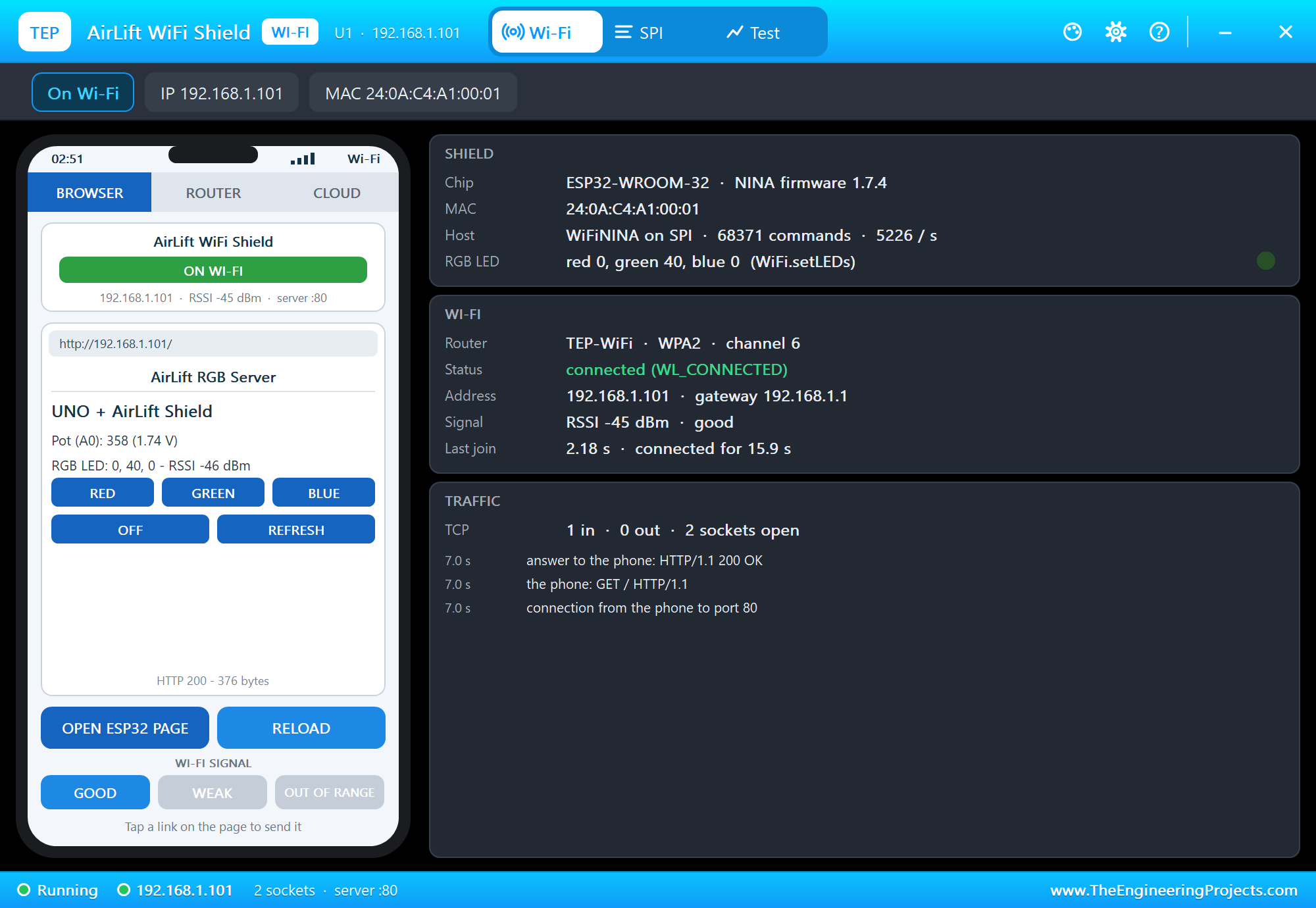
In the laptop's Browser the address bar already holds http://192.168.1.101/ - click Go. The page shows the pot, the LED's colour and the signal, with four links:
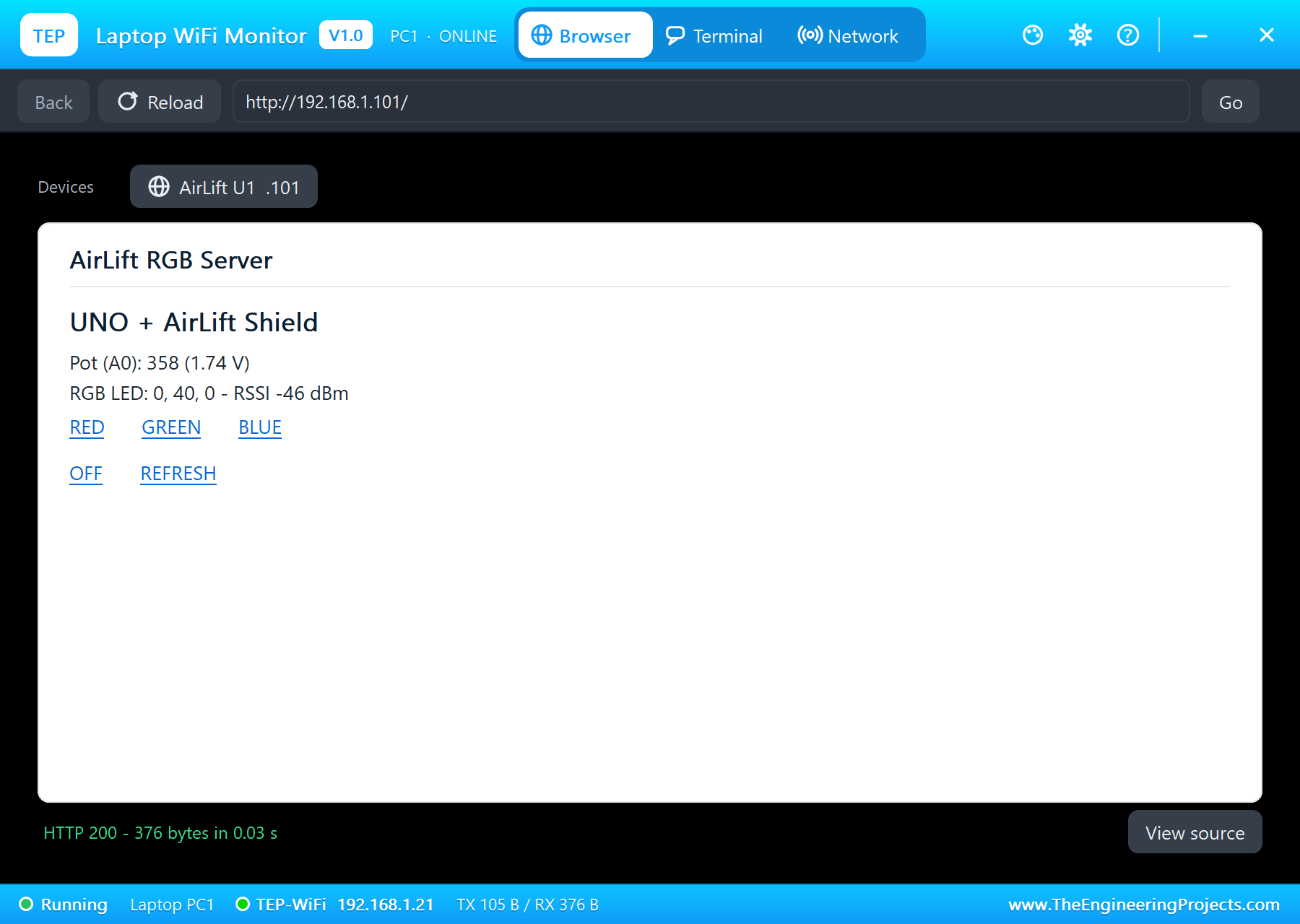
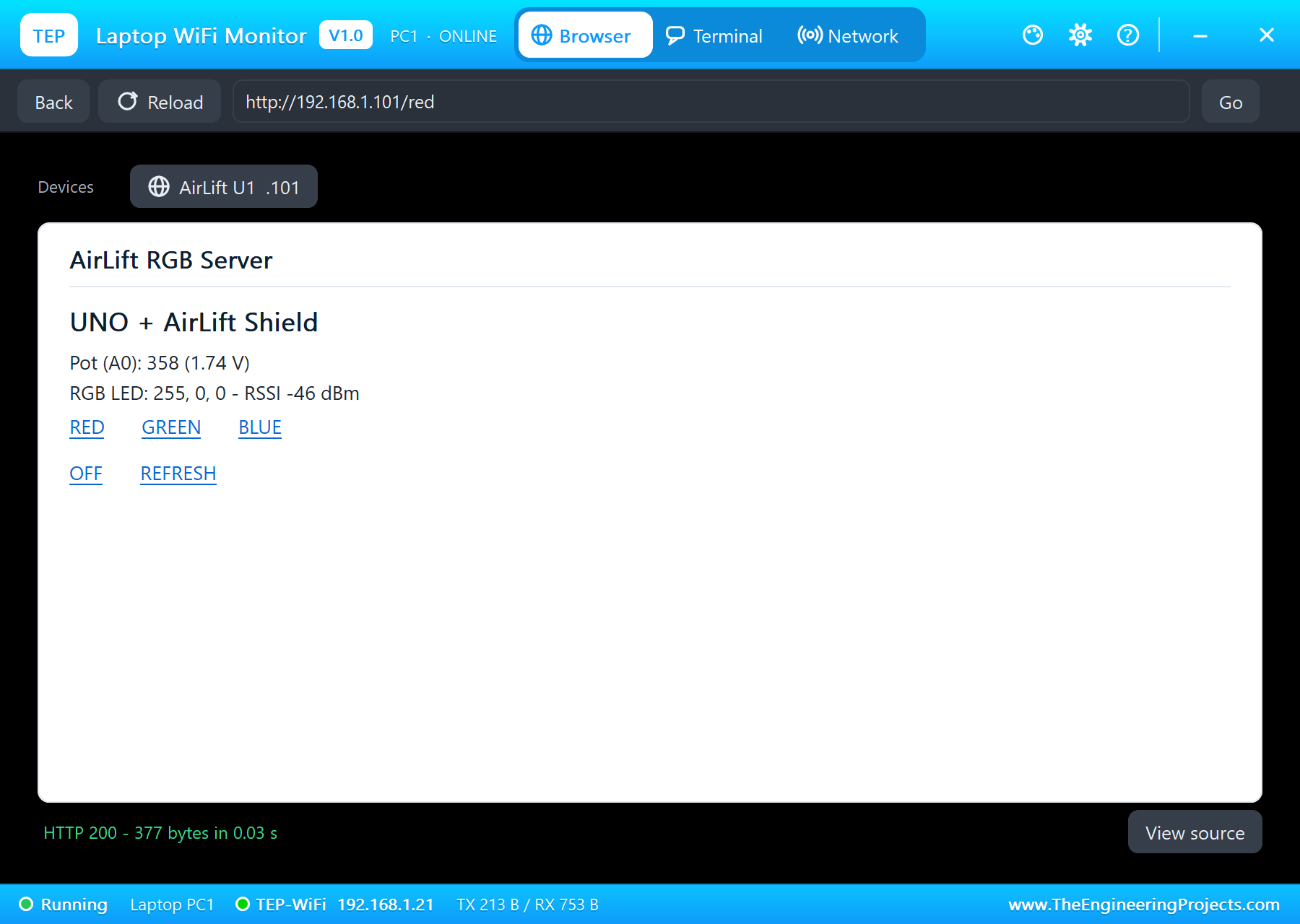
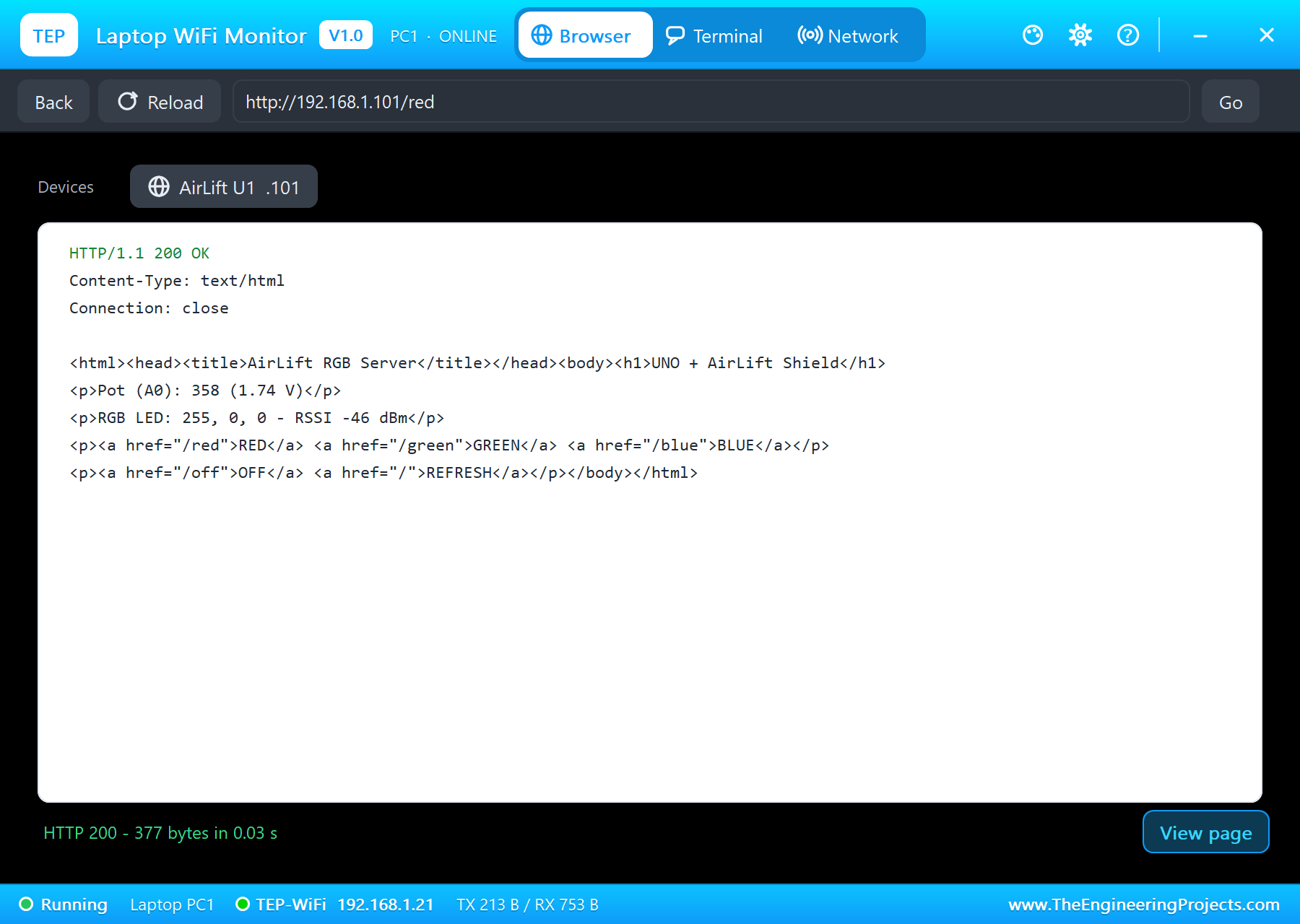
A browser request is answered in one pass: the sketch reads the request line up to the blank line, acts on /red, /green, /blue or /off, sends the page and closes the connection.
  if (!strncmp(req, "GET /red", 8)) setRgb(255, 0, 0);
  else if (!strncmp(req, "GET /green", 10)) setRgb(0, 255, 0);
  else if (!strncmp(req, "GET /blue", 9)) setRgb(0, 0, 255);
  else if (!strncmp(req, "GET /off", 8)) setRgb(0, 0, 0);
  else changed = false;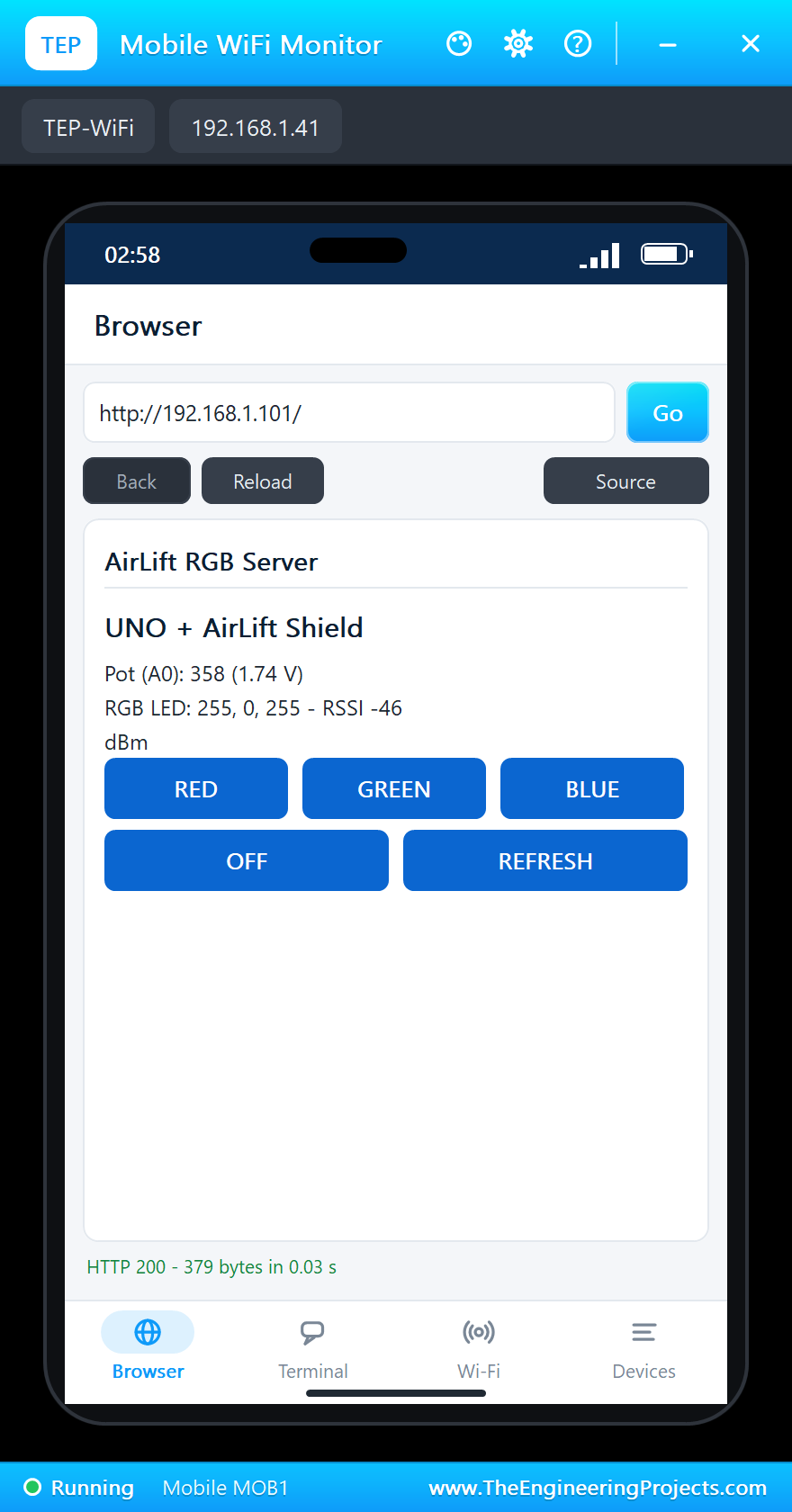
The Terminals on Port 23
On the laptop, open Terminal, choose TCP Client and click Connect; on the phone, Terminal, TCP, Connect. Type a colour, RGB r g b, READ or HELP. What one terminal changes, every terminal is told, because term.print() goes to all clients of the server:
void terminalLine(WiFiClient& c, const char* cmd) {
  Serial.print(F("Terminal ")); Serial.print(c.remoteIP()); Serial.print(F(": ")); Serial.println(cmd);
  if (colourCommand(cmd)) { term.print(colourLine("* LED ", "")); return; }
  if (!strcasecmp(cmd, "READ")) { c.print(status("now: ")); return; }
  if (!strcasecmp(cmd, "HELP")) { sendP(c, F("Commands: RED, GREEN, BLUE, WHITE, OFF, RGB r g b, READ, HELP\r\n")); return; }
  sendP(c, F("Unknown command - type HELP\r\n"));
}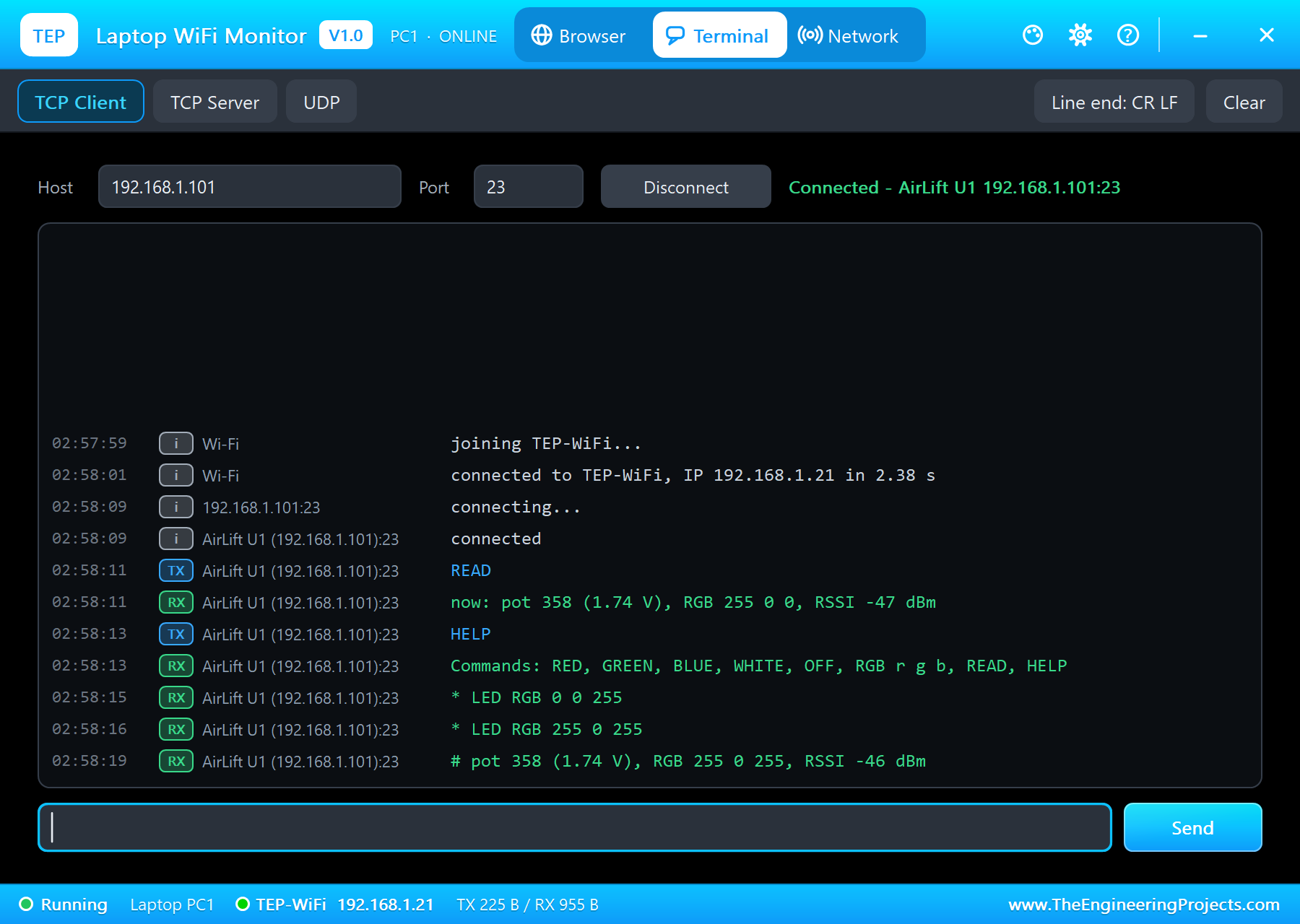
192.168.1.101:23  connecting...
AirLift U1 (192.168.1.101):23  connected
READ
now: pot 358 (1.74 V), RGB 255 0 0, RSSI -47 dBm
HELP
Commands: RED, GREEN, BLUE, WHITE, OFF, RGB r g b, READ, HELP
* LED RGB 0 0 255
* LED RGB 255 0 255
# pot 358 (1.74 V), RGB 255 0 255, RSSI -46 dBm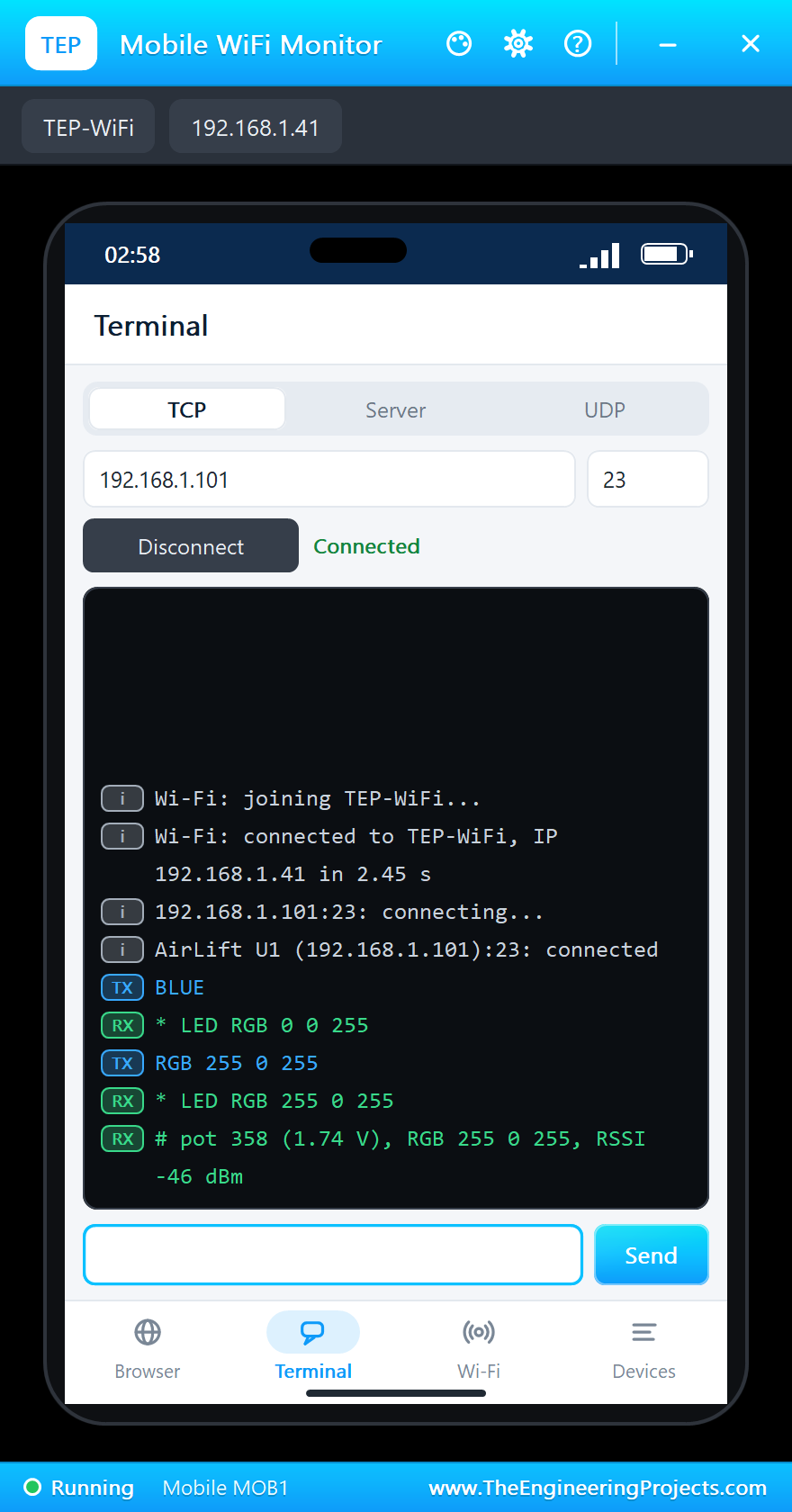
AirLift U1 (192.168.1.101):23: connected
BLUE
* LED RGB 0 0 255
RGB 255 0 255
* LED RGB 255 0 255
# pot 358 (1.74 V), RGB 255 0 255, RSSI -46 dBm
WiFiServer's available() hands the sketch a client when it has sent something; a new client is also reported once when it connects. The sketch reads one line from it:
void serveTerminal() {
  WiFiClient c = term.available();                                 // a client with bytes waiting
  if (!c) return;
  char cmd[32]; uint8_t n = 0;
  unsigned long t0 = millis();
  while (c.connected() && millis() - t0 < 500) {
    if (!c.available()) continue;
    const char ch = c.read();
    if (ch == '\n' || ch == '\r') { if (n) break; continue; }
    if (n < sizeof cmd - 1) cmd[n++] = ch;
  }
  cmd[n] = 0;
  if (n) terminalLine(c, cmd);
}
The UNO's monitor shows who sent what:
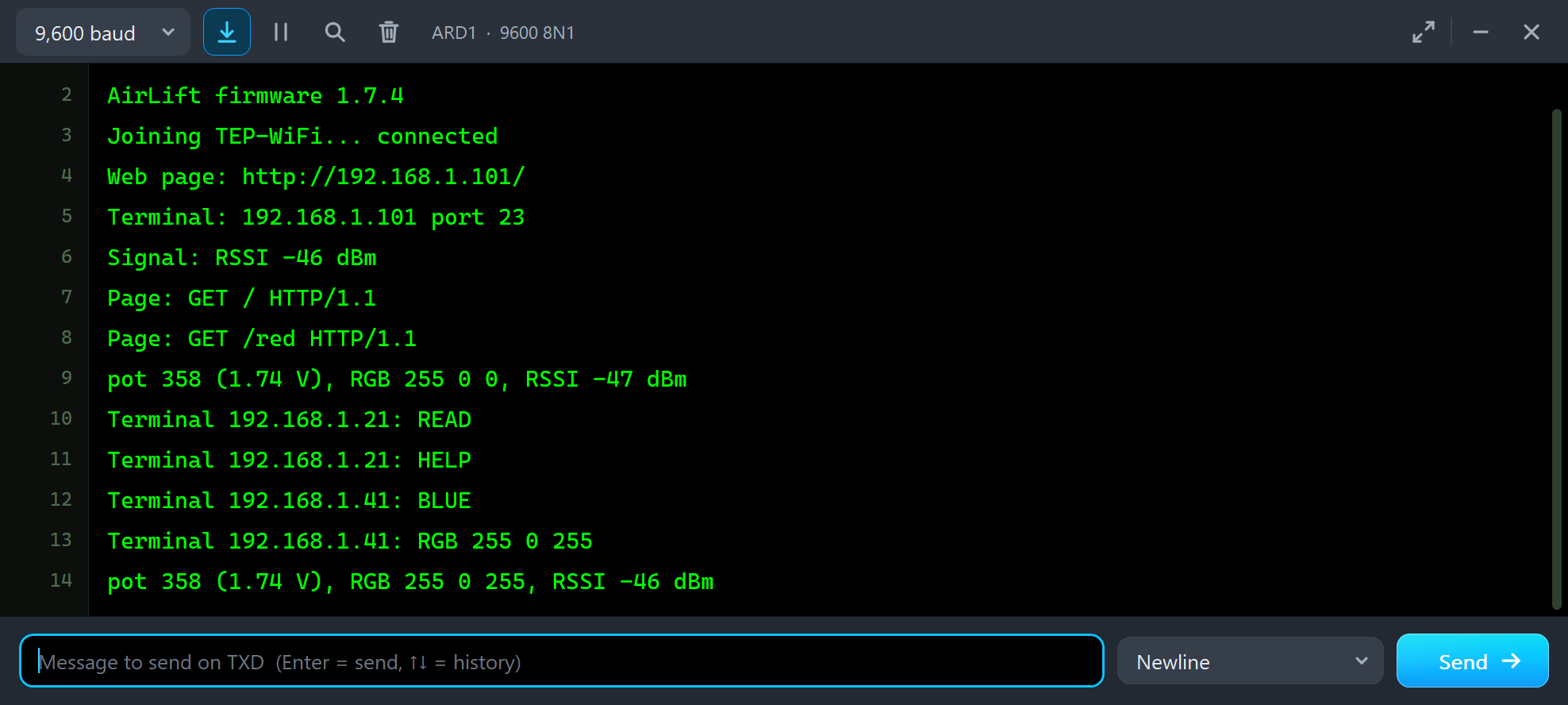
Page: GET / HTTP/1.1
Page: GET /red HTTP/1.1
pot 358 (1.74 V), RGB 255 0 0, RSSI -47 dBm
Terminal 192.168.1.21: READ
Terminal 192.168.1.21: HELP
Terminal 192.168.1.41: BLUE
Terminal 192.168.1.41: RGB 255 0 255
pot 358 (1.74 V), RGB 255 0 255, RSSI -46 dBm
The Serial Monitor
The monitor takes commands too: /status, /scan (WiFi.scanNetworks), /rgb r g b and /help:
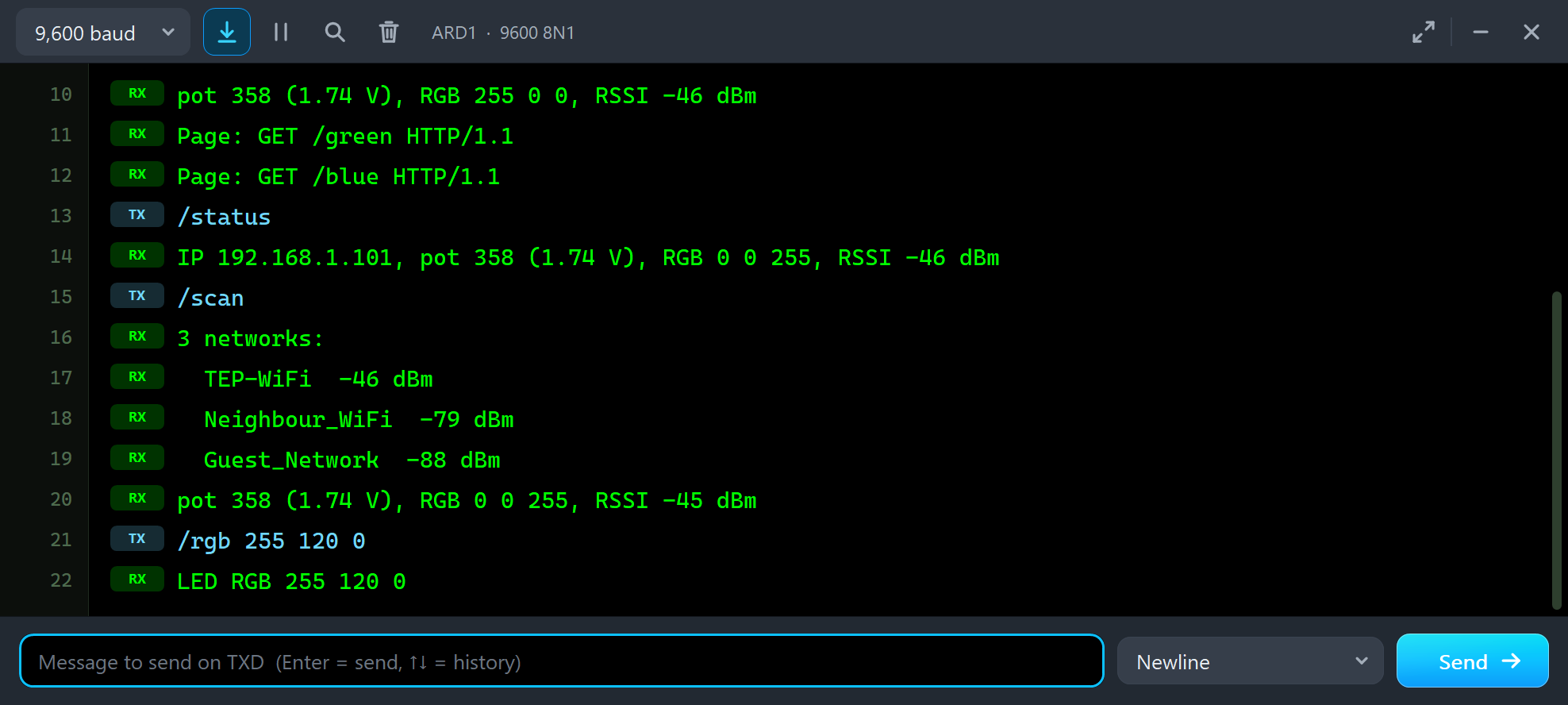
/status
IP 192.168.1.101, pot 358 (1.74 V), RGB 0 0 255, RSSI -46 dBm
/scan
3 networks:
  TEP-WiFi  -46 dBm
  Neighbour_WiFi  -79 dBm
  Guest_Network  -88 dBm
pot 358 (1.74 V), RGB 0 0 255, RSSI -45 dBm
/rgb 255 120 0
LED RGB 255 120 0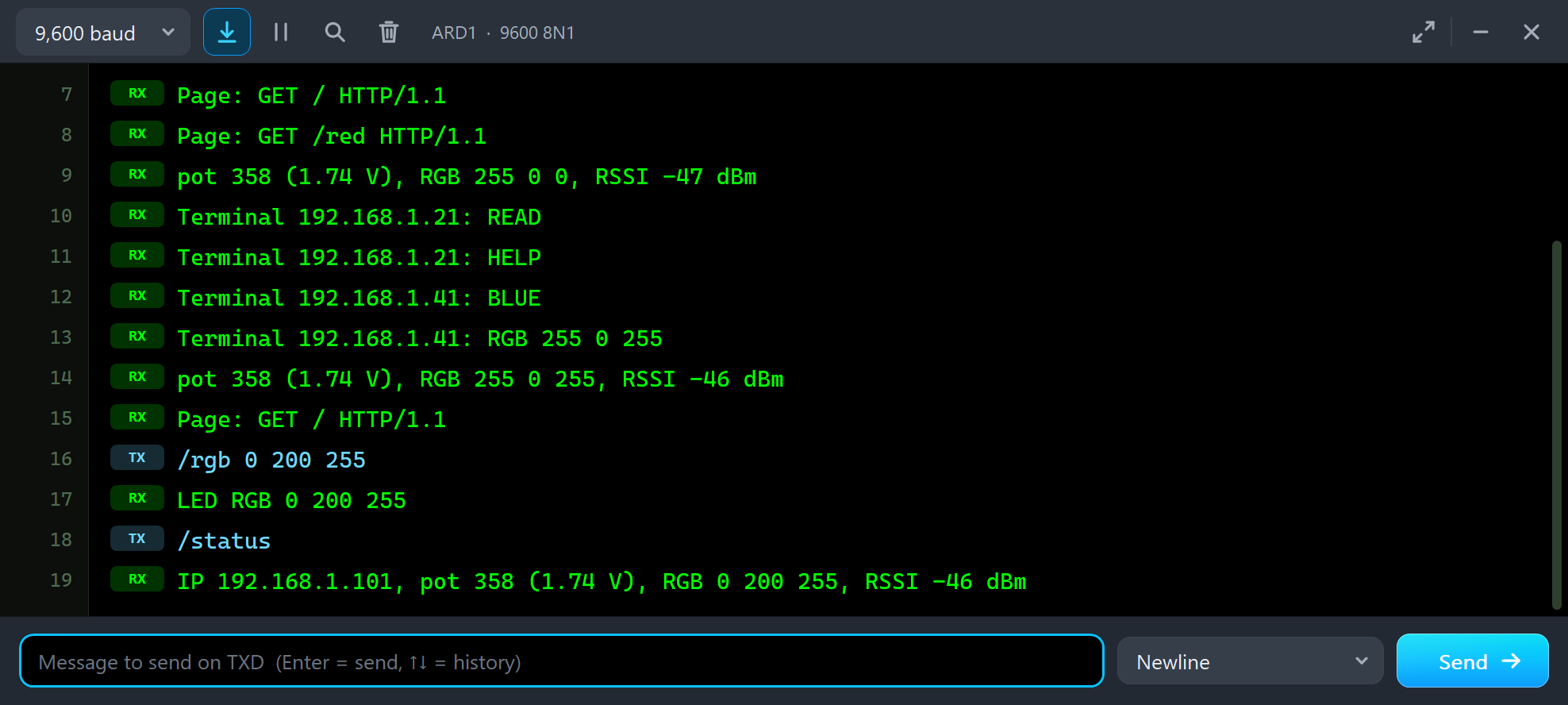
The laptop's Network tab can ping the shield while it works, and the phone's Devices app lists everything on TEP-WiFi:
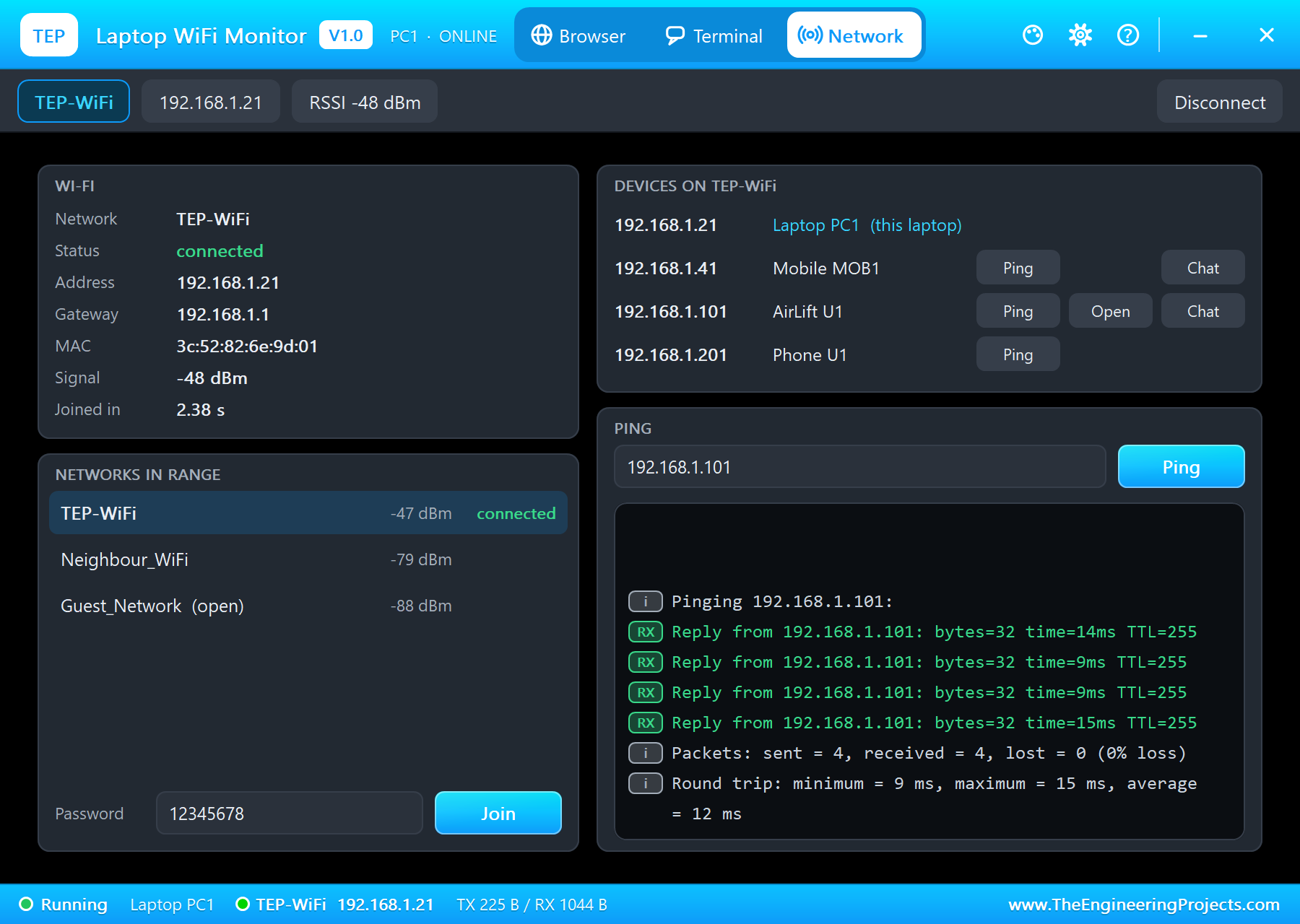
Pinging 192.168.1.101:
Reply from 192.168.1.101: bytes=32 time=14ms TTL=255
Reply from 192.168.1.101: bytes=32 time=9ms TTL=255
Reply from 192.168.1.101: bytes=32 time=9ms TTL=255
Reply from 192.168.1.101: bytes=32 time=15ms TTL=255
Packets: sent = 4, received = 4, lost = 0 (0% loss)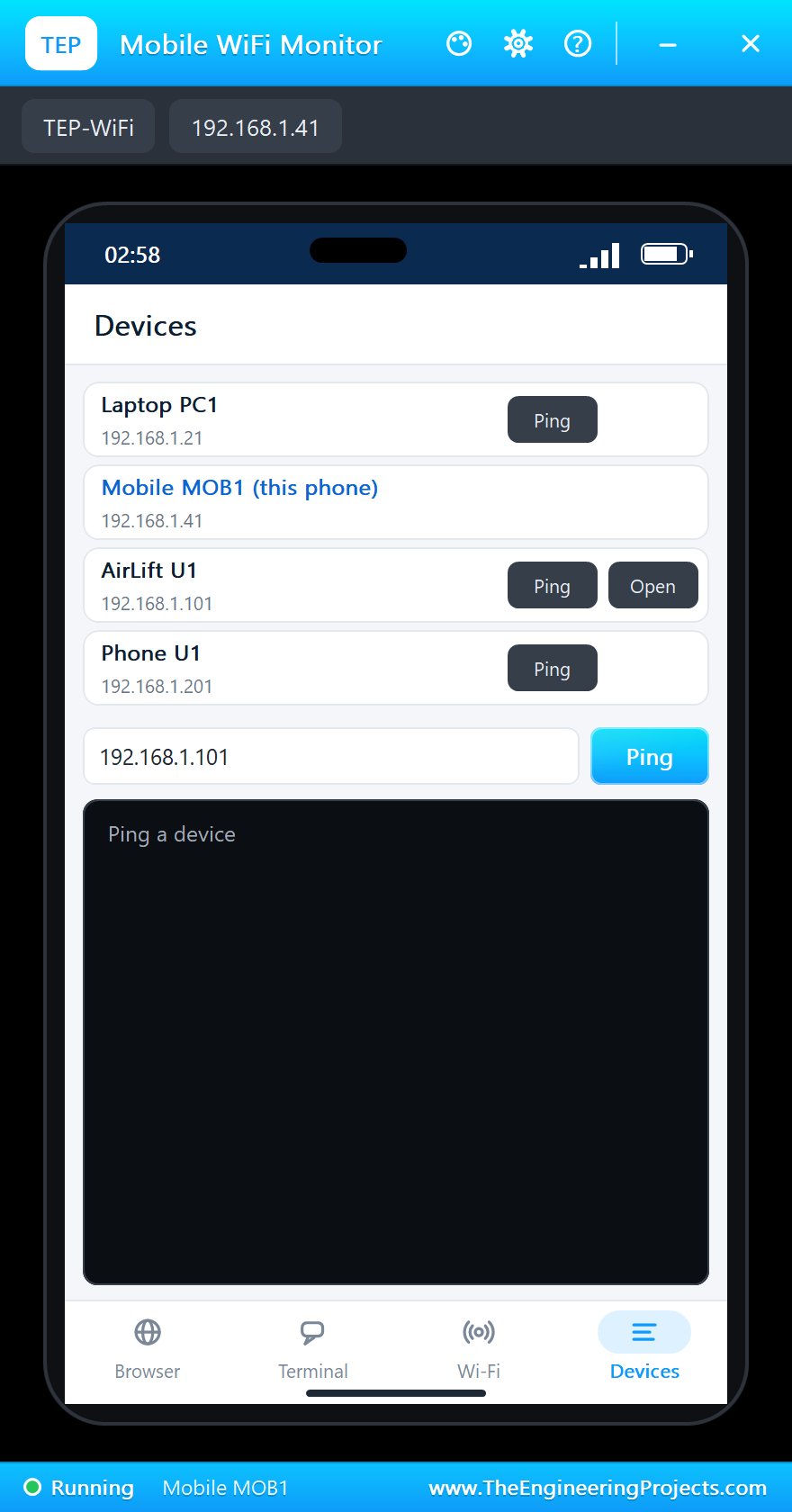
And the whole demo running:
Demo 2: The micro SD Socket
Open AirLift-WiFi-Shield-SD-Log.pdsprj - the same circuit with AirLift_SD_Log.hex. The sketch uses only the SD library: it keeps the ESP32's chip select HIGH (both chips share MISO) and starts the card on D4:
  pinMode(ESP_CS, OUTPUT);
  digitalWrite(ESP_CS, HIGH);                                      // the ESP32 off the bus
if (!SD.begin(SD_CS)) {
Serial.println(F("No card - is one in the shield's socket (CS D4)?"));
while (true) delay(1000);
}Then it lists the card and adds a line to LOG.TXT every five seconds; /read prints the file back:
    File f = SD.open("LOG.TXT", FILE_WRITE);
    if (f) {
      f.print(F("t=")); f.print(millis() / 1000); f.print(F(" s, pot ")); f.println(pot);
      f.close();
      Serial.print(F("Logged: t=")); Serial.print(millis() / 1000); Serial.print(F(" s, pot ")); Serial.println(pot);
    } else Serial.println(F("Could not open LOG.TXT"));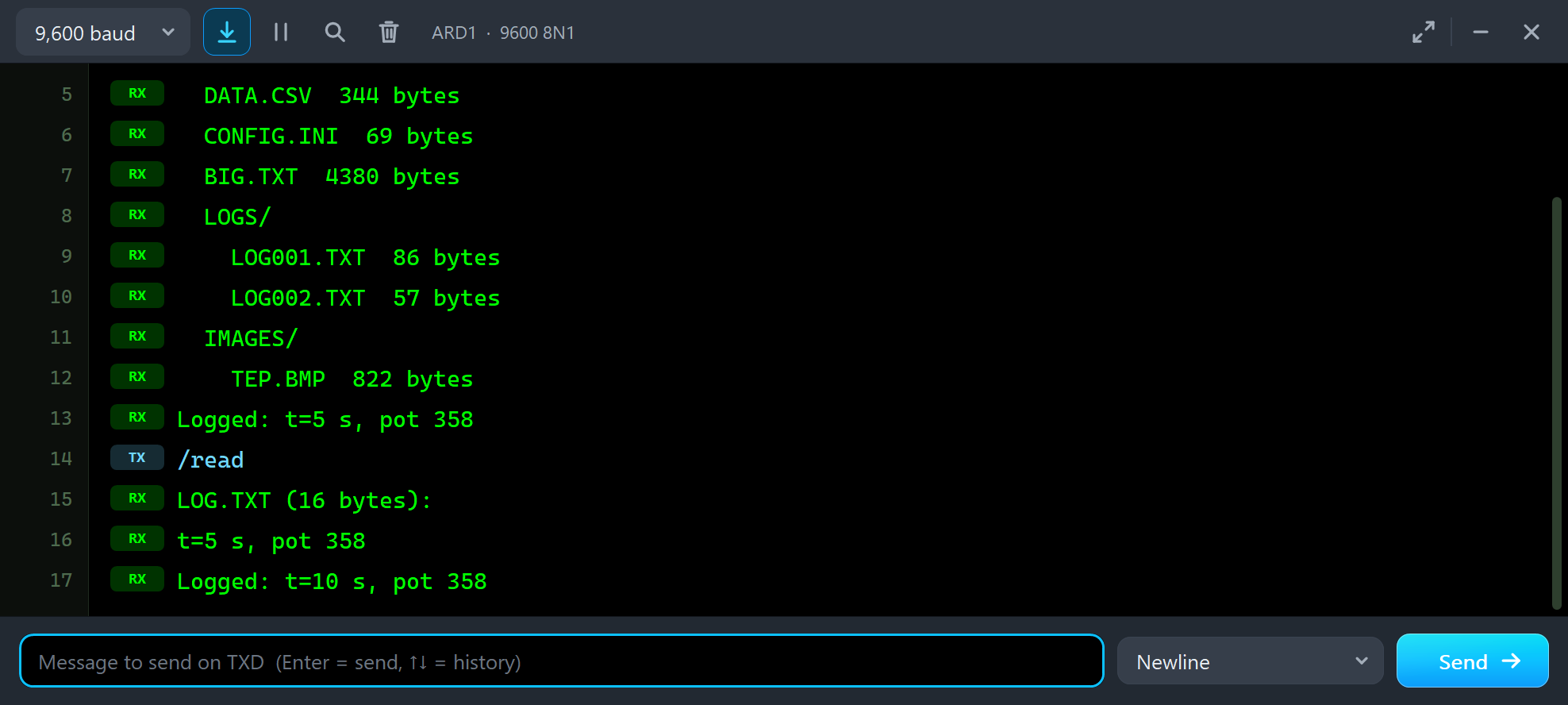
  DATA.CSV  344 bytes
  CONFIG.INI  69 bytes
  BIG.TXT  4380 bytes
  LOGS/
    LOG001.TXT  86 bytes
    LOG002.TXT  57 bytes
  IMAGES/
    TEP.BMP  822 bytes
Logged: t=5 s, pot 358
/read
LOG.TXT (16 bytes):
t=5 s, pot 358
Logged: t=10 s, pot 358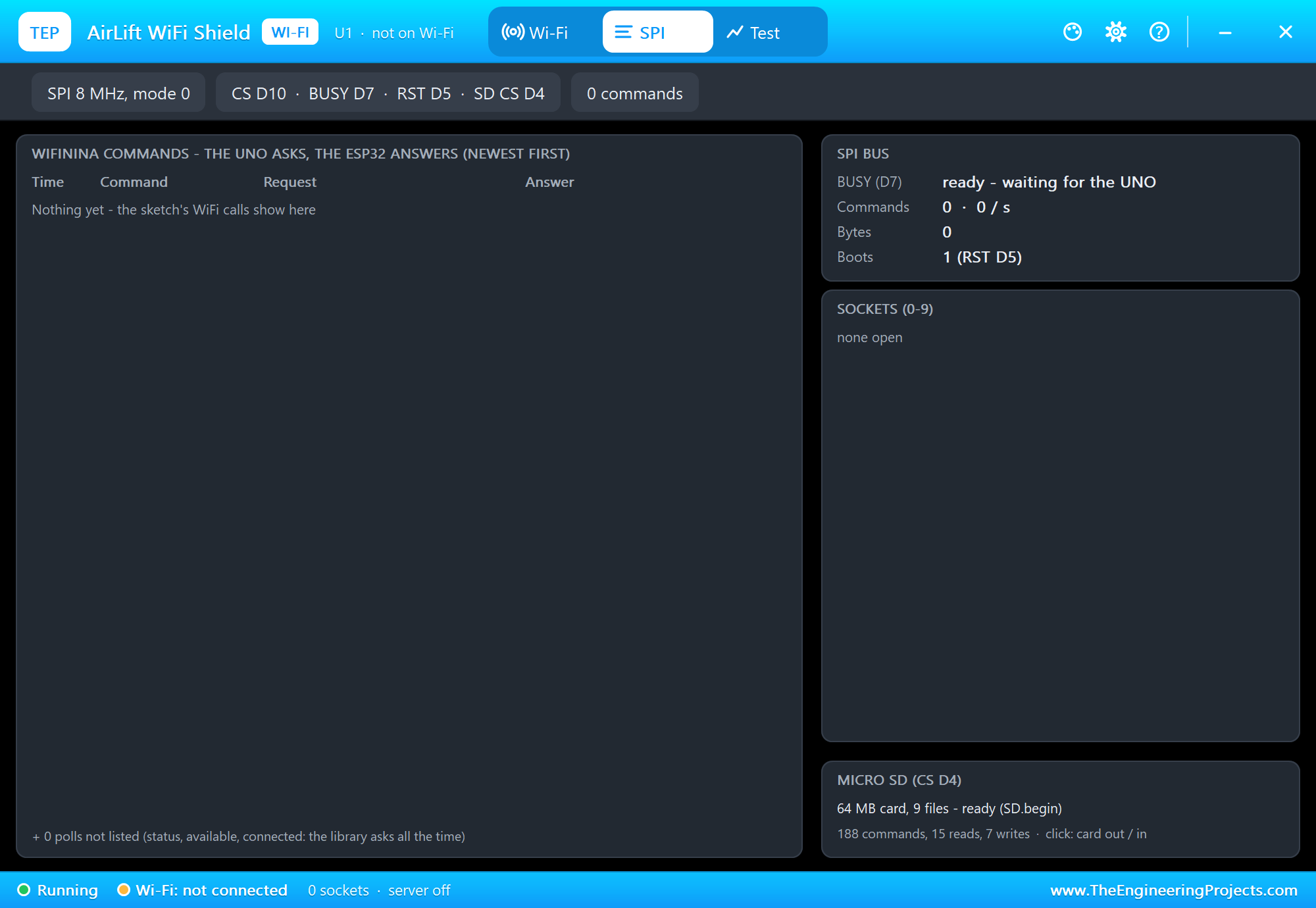
Wi-Fi and the card can share the bus in your own sketches, but on an UNO the two libraries together leave little RAM: WiFiNINA keeps a 64-byte buffer for every open socket and the SD library a 512-byte block buffer.
The AirLift WiFi Shield Panel
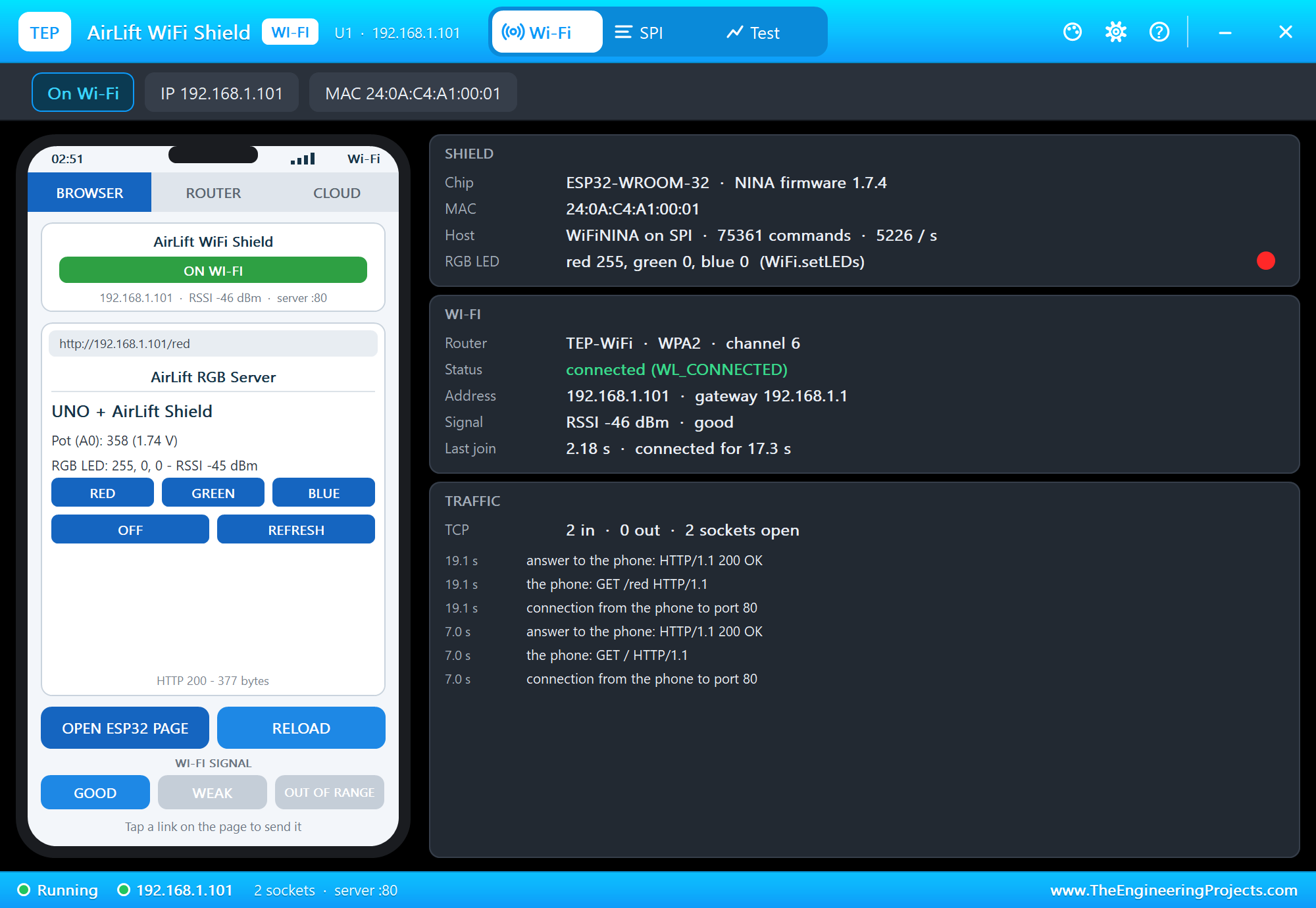
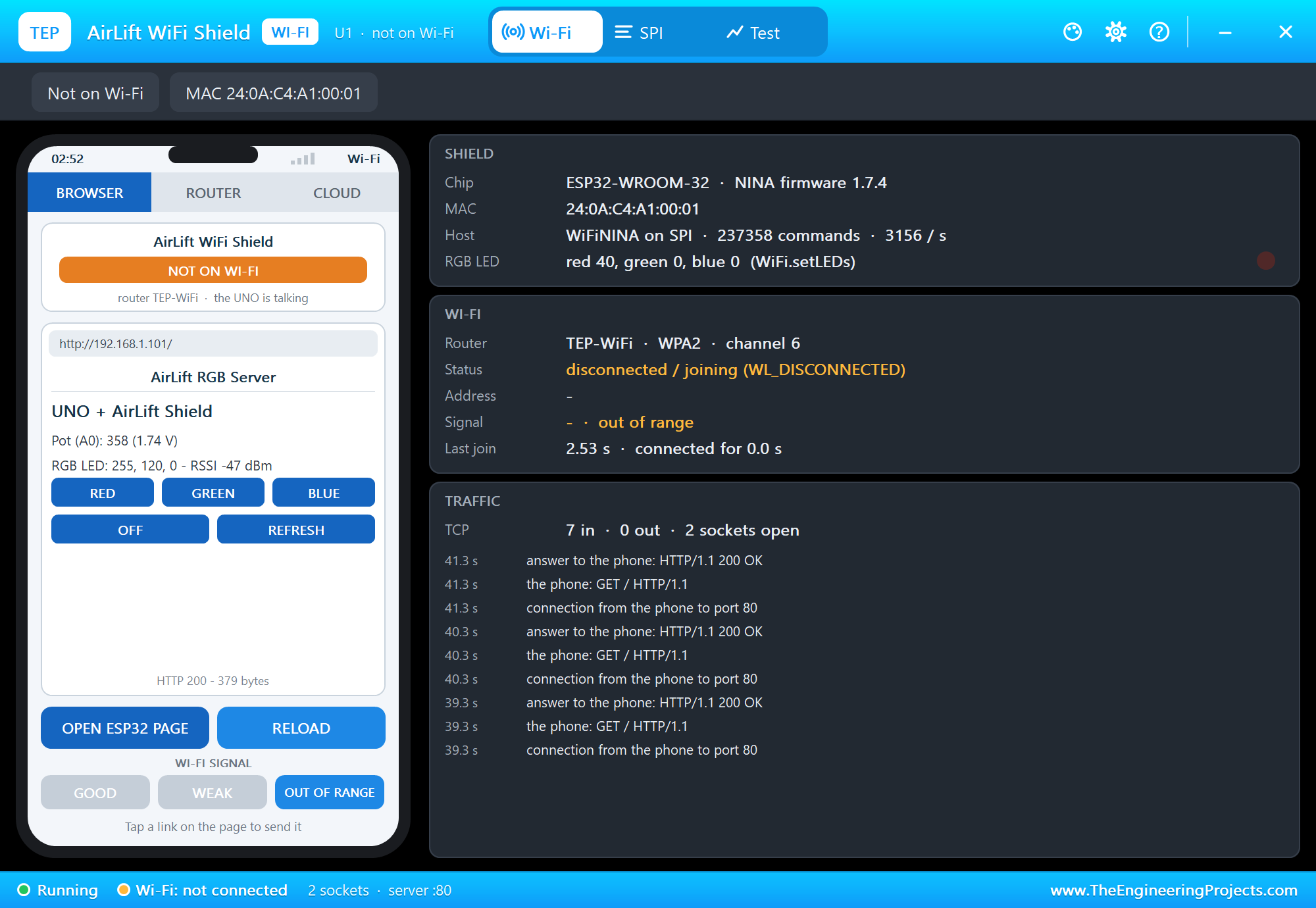
The panel opens at Run, in the look of our TEP Serial Monitor Advance for Proteus. Its Wi-Fi page has a small phone of its own and three cards: the SHIELD card with the firmware, the MAC address, the host link with its command rate and the RGB LED, the WI-FI card and the TRAFFIC card:
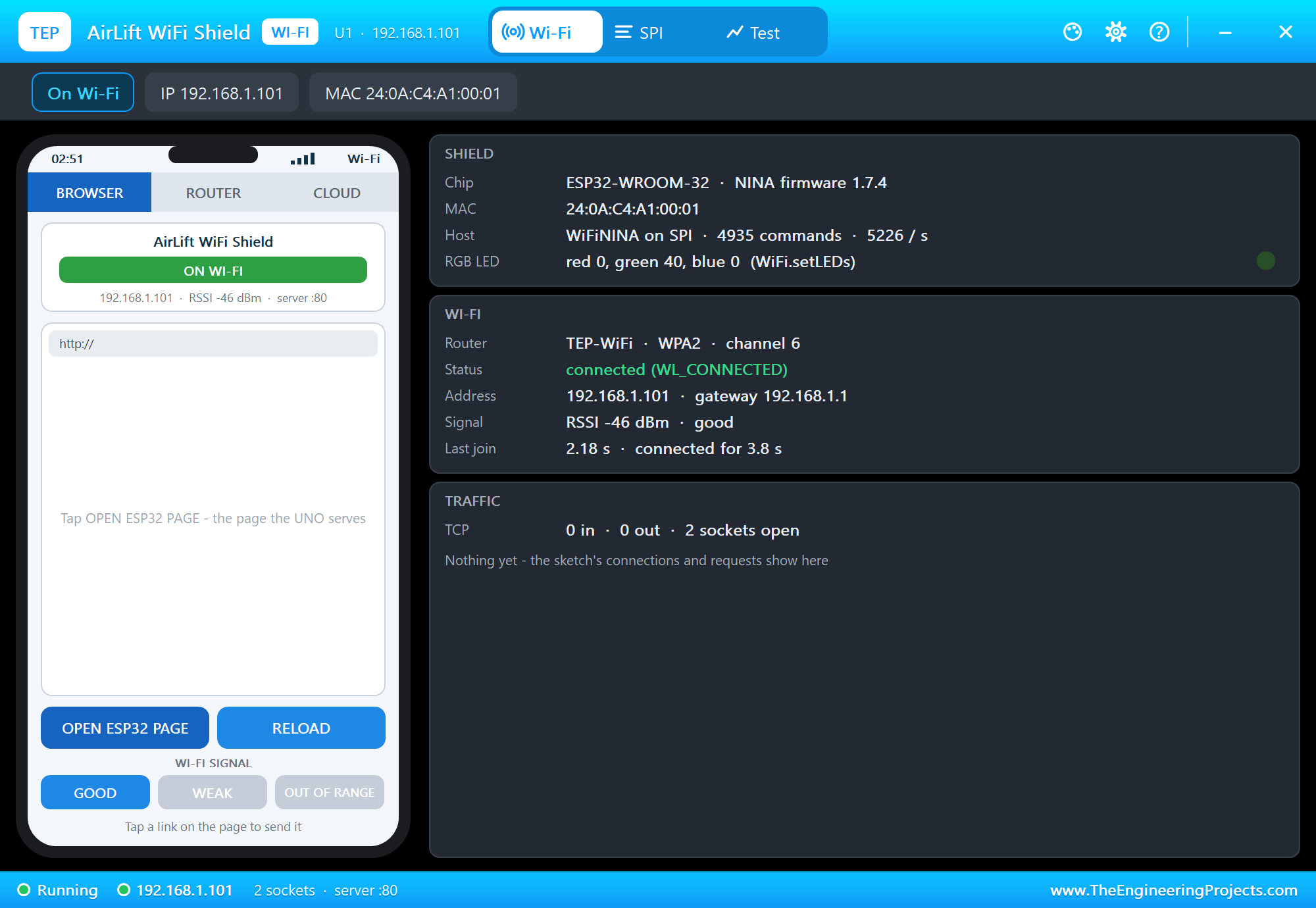
OPEN ESP32 PAGE asks the shield for the page the UNO serves; its links work on the phone too:
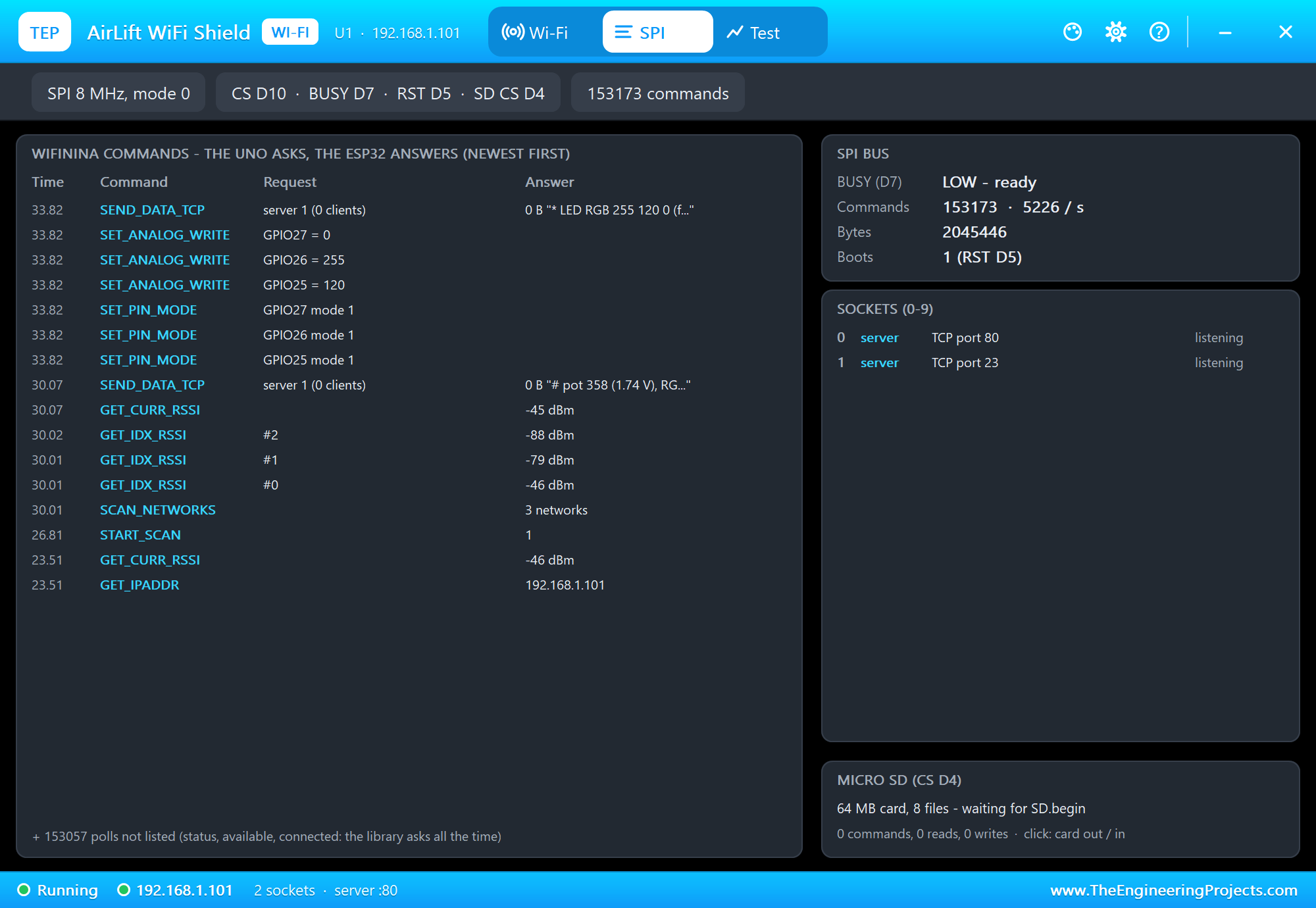
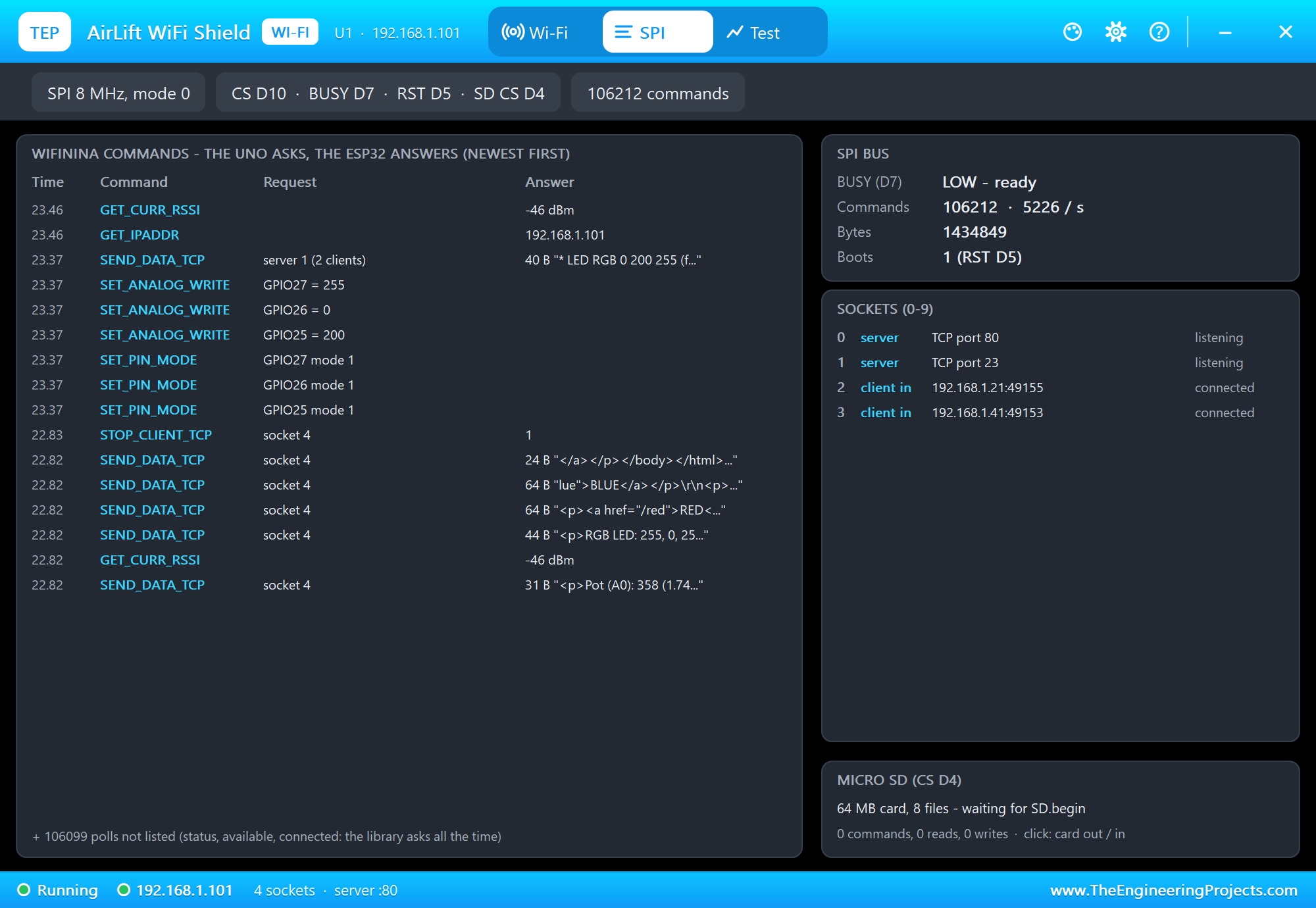
The SPI page is the place to learn the NINA protocol. It lists the WiFiNINA commands with their requests and answers, newest first - the polls (status, available, connected) are only counted. On the right are the bus, the sockets 0 - 9 and the card:
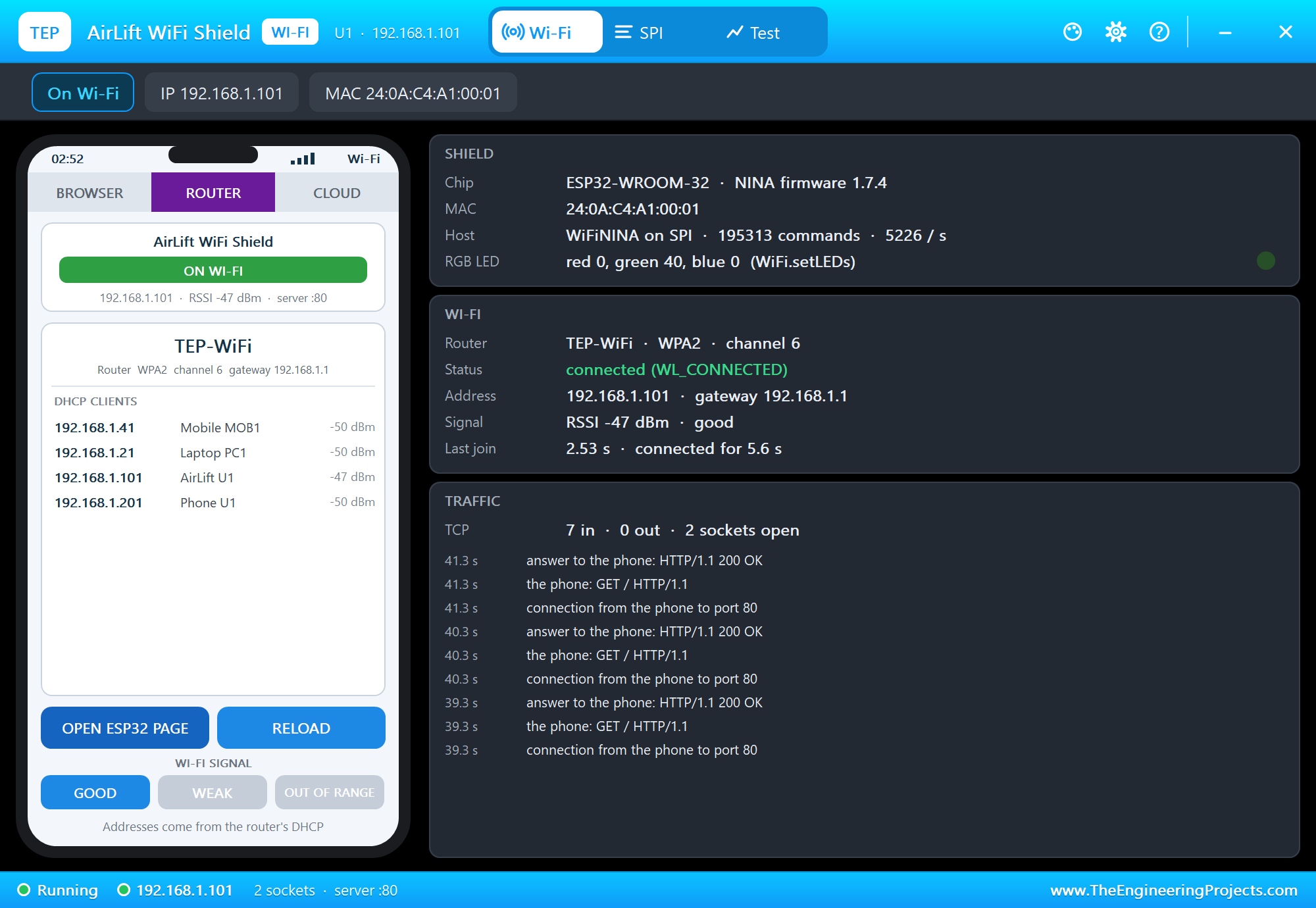
WEAK moves the router far away; the shield stays connected with a weaker signal:
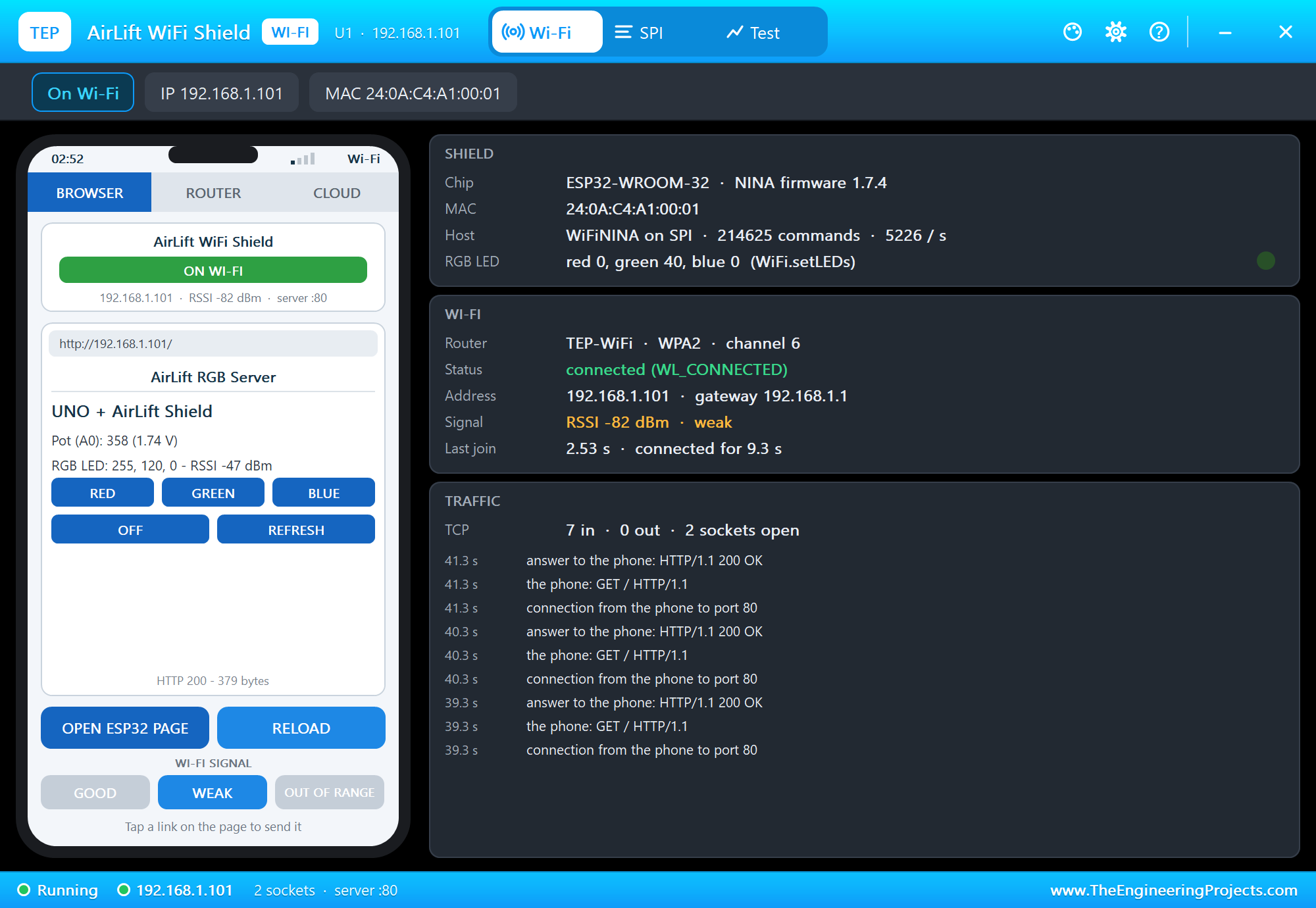
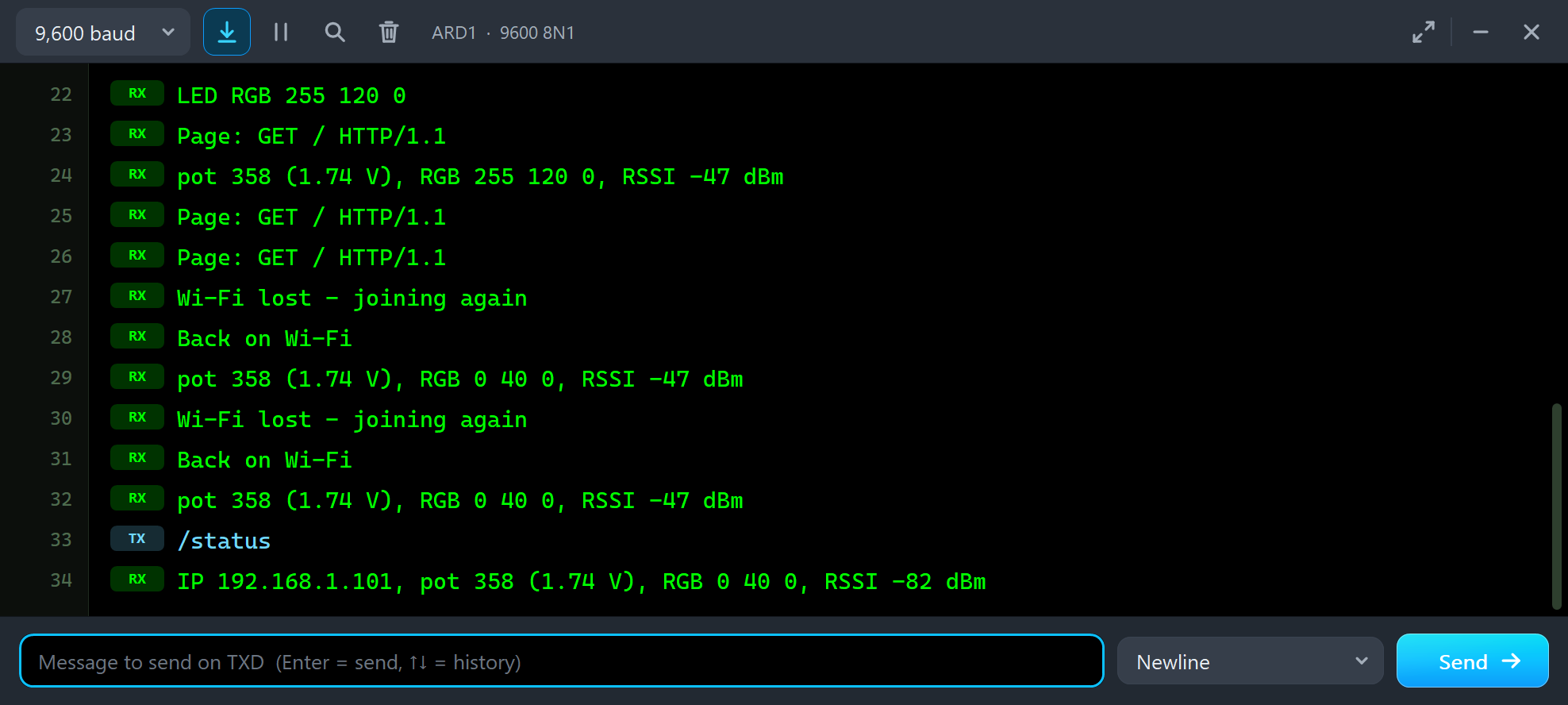
OUT OF RANGE takes the router away; WiFi.status() stops saying WL_CONNECTED, so the sketch joins again and is back once GOOD returns the router:
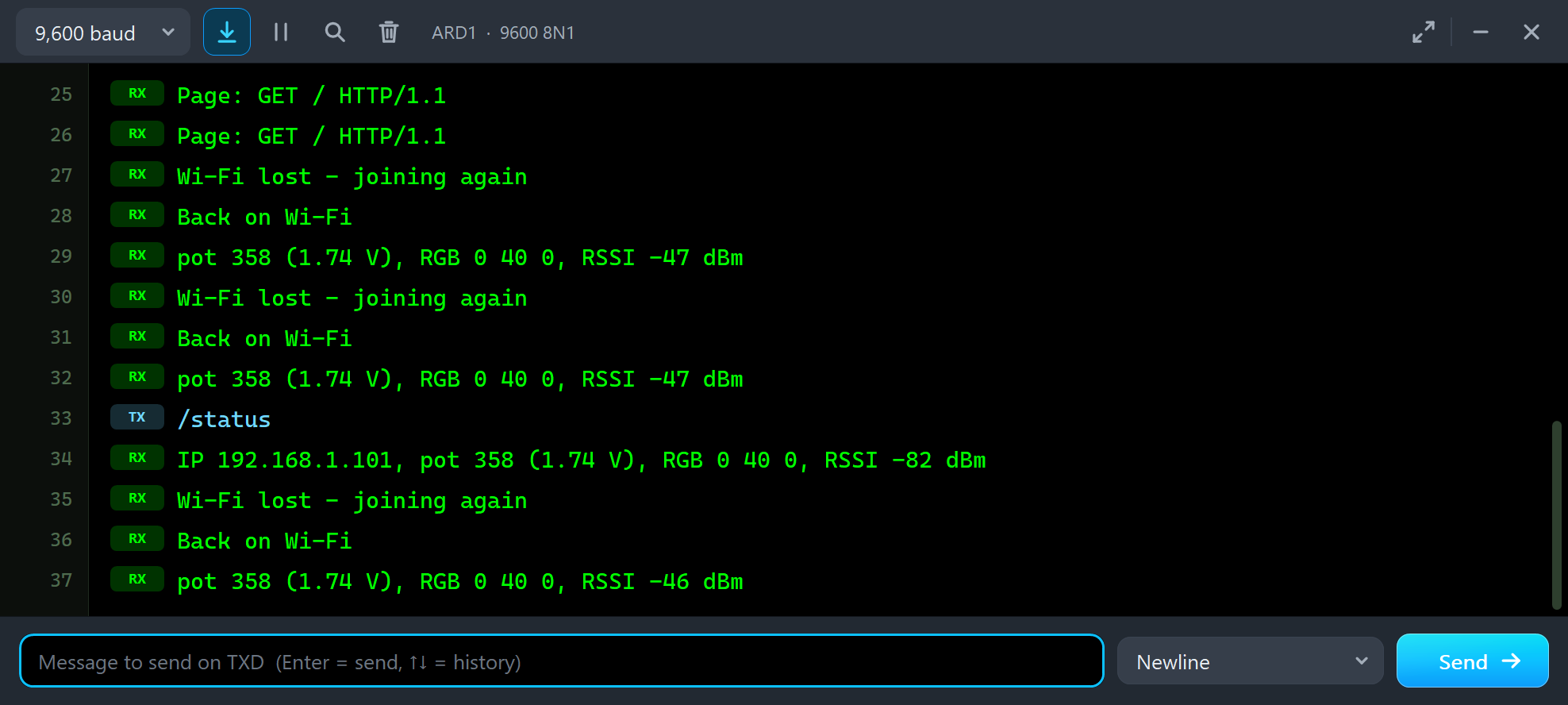
Wi-Fi lost - joining again
Back on Wi-Fi
pot 358 (1.74 V), RGB 0 40 0, RSSI -46 dBm
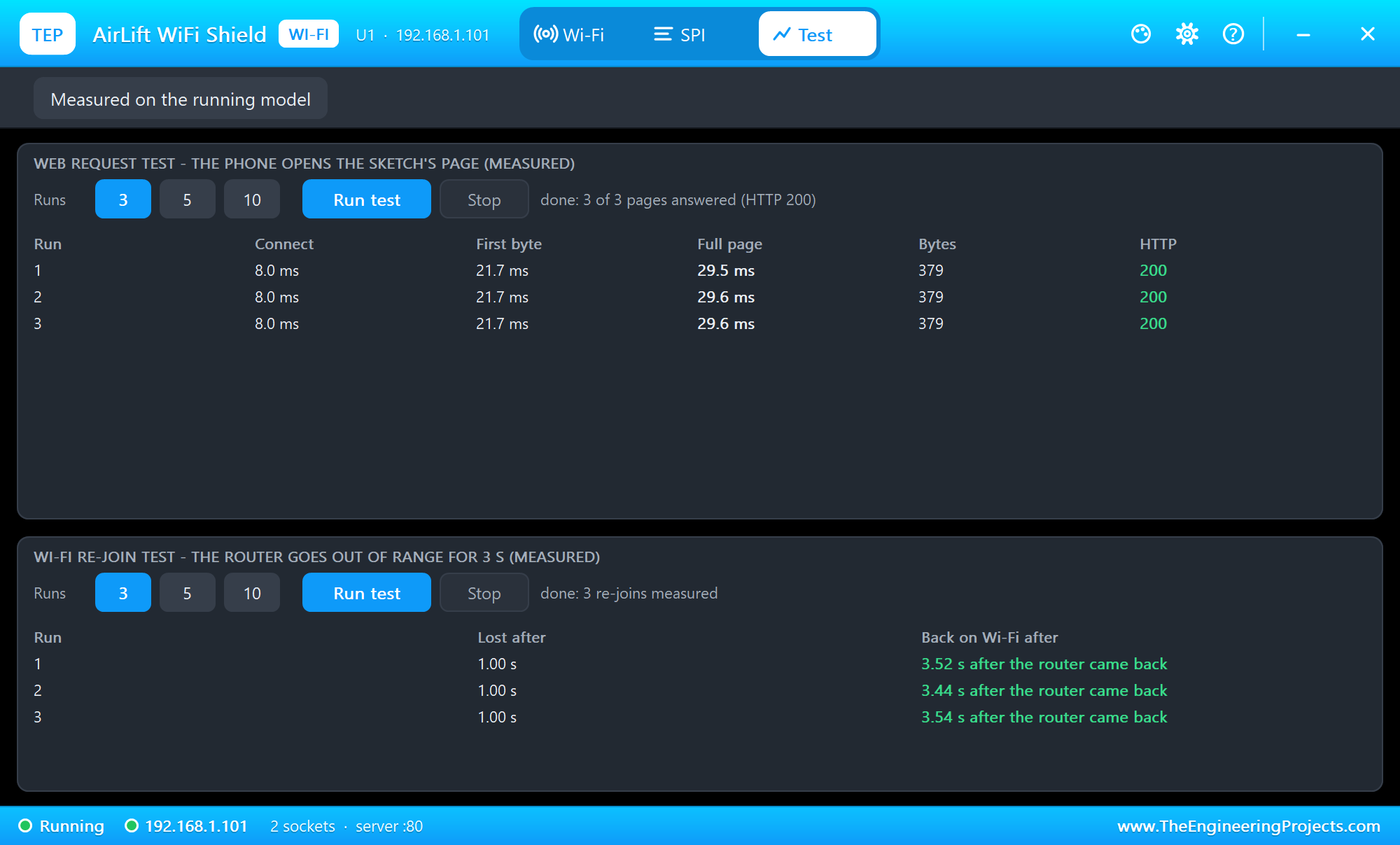
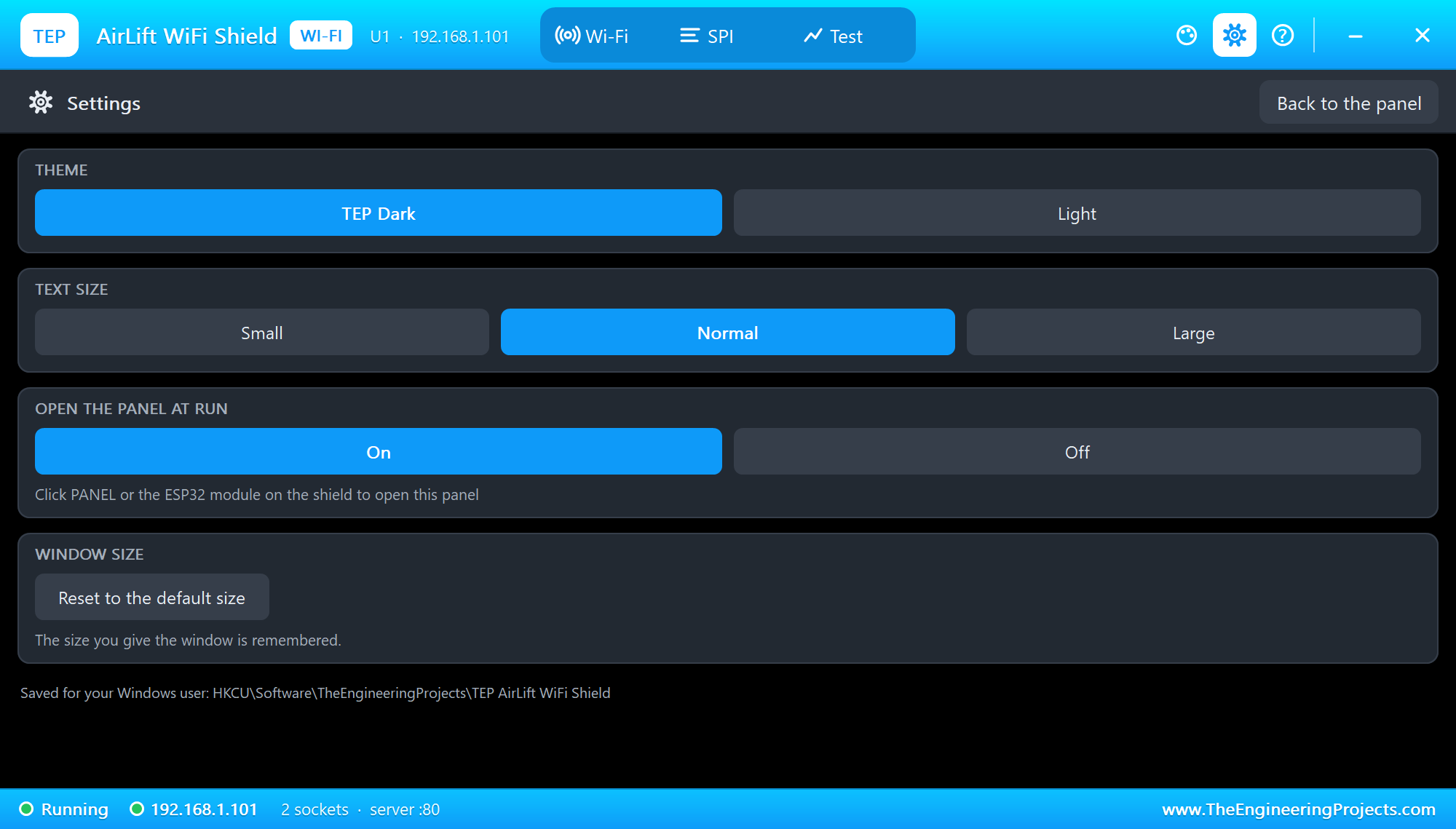
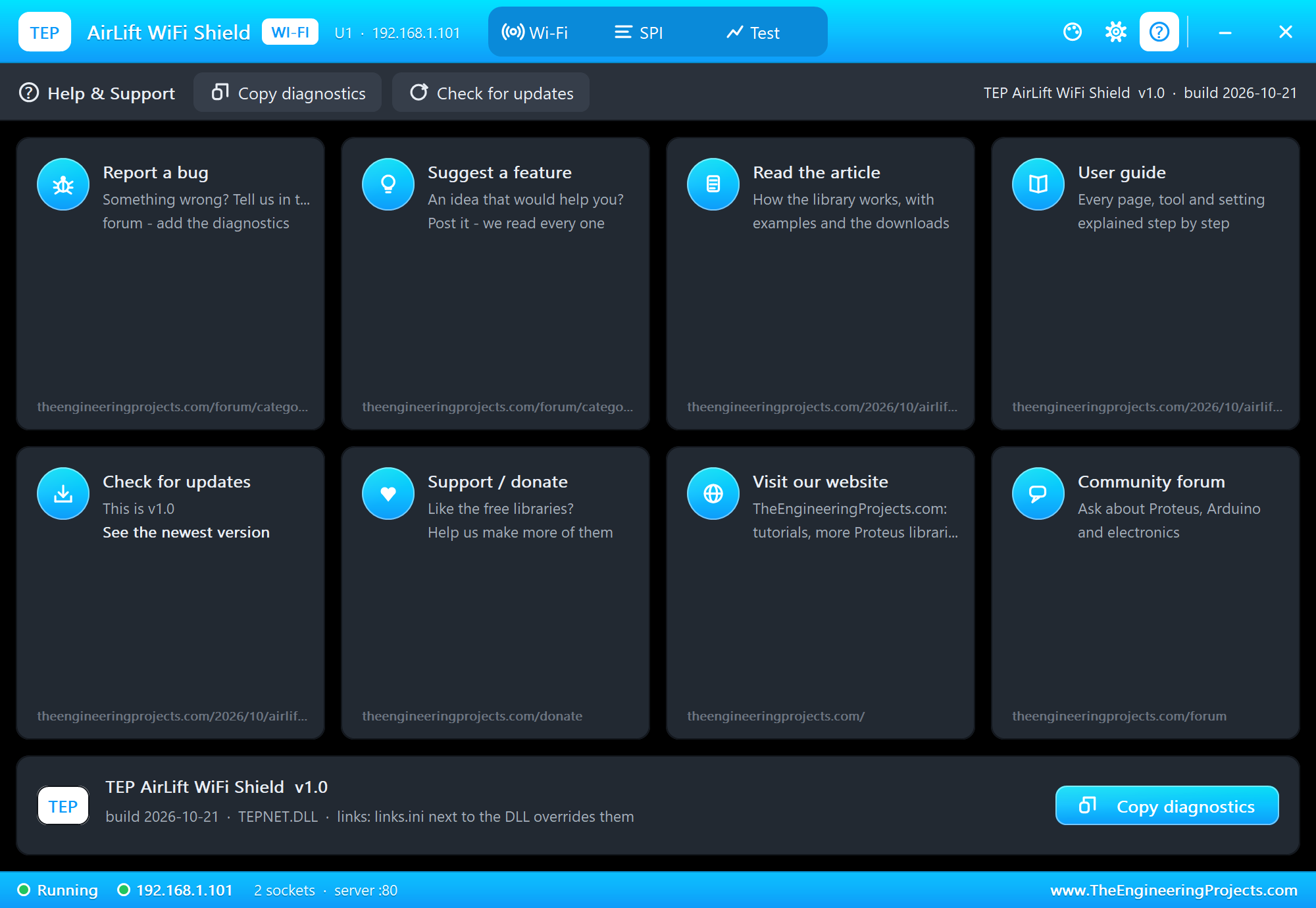
The Test page measures the running model: the phone opens the page several times, and the router goes out of range for 3 seconds to time the re-join. Then Settings and Help:
Pins of the AirLift WiFi Shield
| Pin | UNO pin | What it does |
|---|---|---|
| SCK | D13 | the SPI clock (on the real shield from the ICSP header) |
| MISO | D12 | data to the UNO - from the ESP32 or the card, whichever CS is LOW |
| MOSI | D11 | data from the UNO |
| CS | D10 | the ESP32's chip select (LOW = selected) |
| BUSY | D7 | the ESP32's READY / BUSY line: LOW = ready for the next frame |
| RST | D5 | the ESP32's reset: LOW = reset, open = running |
| SD CS | D4 | the micro SD's chip select |
| 5V, GND | power header | the supply - without it the shield is off |
Properties of the AirLift WiFi Shield
| Property | What it does |
|---|---|
| WIFISSID / WIFIPASS | the router in range (TEP-WiFi / 12345678) |
| FIRMWARE | the NINA version WiFi.firmwareVersion() reports (1.7.4) |
| SDCARD | the card at Run: DEMO, EMPTY, RAW or NONE |
| PANEL | the phone's tab at start (BROWSER, ROUTER, CLOUD) |
| PAGEPORT | the port OPEN ESP32 PAGE opens (80) |
| CLOCK | the time WiFi.getTime() gives: PC or a fixed start time |
The IP address follows the part's number: U1 gets 192.168.1.101, U2 .102 and so on, so give every Wi-Fi part its own number. The laptop is always 192.168.1.21 and the phone 192.168.1.41.
Troubleshooting
- "No AirLift found" (WL_NO_MODULE): check CS D10, BUSY D7, RST D5, SCK / MISO / MOSI and 5V / GND, and call
WiFi.setPins(10, 7, 5, -1, &SPI)before anything else. - The sketch hangs at the first WiFi call: BUSY never goes LOW - the shield has no power or RST is held LOW.
- WiFi.begin() takes five seconds or more: WiFiNINA waits five seconds before it asks for the status.
- Slow pages: send whole lines from RAM, not
print(F("..."))- see sendP() in the demo. - The card does not answer: D10 must be HIGH while the card is used;
SD.begin(4). - No panel: click the PANEL pad or the ESP32 module, or turn "Open the panel at Run" back on in Settings.
Things to Know Before Using a Real AirLift Shield
- The library: install "WiFiNINA - Adafruit Fork"; Arduino's own WiFiNINA does not have
setPins()andsetLEDs(). - The ICSP header: the real shield takes SPI from the UNO's ICSP header, so it works on boards whose SPI is not on D11 - D13 (the Mega, the Leonardo).
- IOREF: the level shifter needs the UNO's IOREF pin; old boards without it need a jumper on the shield.
- RAM: an UNO has 2 KB; WiFiNINA, its socket buffers and a few strings fill it quickly - keep text in flash.
- Firmware: the NINA firmware can be updated; check its version with
WiFi.firmwareVersion().
Limitations of the Simulation
- The ESP32 runs our model of the NINA firmware as WiFiNINA (Adafruit 1.6.x) uses it - not the real firmware.
- Not modelled: the access point mode (
WiFi.beginAP()answers WL_AP_FAILED), WEP and WPA2-Enterprise (joined as WPA2), TLS (WiFiSSLClient connects as plain TCP), Bluetooth, the ESP32's other GPIOs and the GPIO0 "data ready" pad, firmware updates, the supply's voltage and current, the radio itself - the join and network times are realistic values, not a radio simulation. - The PWR and SPI LEDs, the antenna colours, the PANEL pad, the panel, its phone, the router, the two neighbour networks, the internet host and the two monitors are TEP additions.
- Adafruit and AirLift are names of Adafruit Industries, ESP32 and ESP32-WROOM-32 of Espressif Systems; this library is not made or endorsed by Adafruit, Espressif, Arduino or Labcenter.
- Tested in Proteus 8.5 in October 2026 (the demos as shipped, the UNO, the AirLift shield, the laptop and the phone together at about 0.25 to 0.5 x real time on our PC). Proteus 7 is not supported.
So, that was all about the AirLift WiFi Shield Library for Proteus. I hope it helps you try WiFiNINA sketches in Proteus before you stack the real shield on your UNO - and watch every SPI command on the panel while you do. The Laptop and Mobile WiFi Monitors talk to every one of our Wi-Fi boards and modules. If you use the AirLift WiFi Shield Library for Proteus in a project, please share it in the comments or in our forum, and if you have any questions, ask in the comments and I will help you out. Till the next tutorial, take care and have fun!

Comments
0