


WeMos D1 R2 Library for Proteus: ESP8266 Wi-Fi Simulation


Hello friends, I hope you all are doing great. Today, I am going to share the WeMos D1 R2 Library for Proteus. The D1 R2 is the ESP8266 board for people who come from the Arduino UNO: an ESP-12F Wi-Fi module on a board with the UNO's size, shape and headers, a micro-USB socket, a DC jack and a RESET button. With this library it runs your ESP8266 sketch in Proteus - ESP8266WiFi with its network scan and signal strength, ESP8266WebServer, ESP8266mDNS, the D0 to D15 names of the board - and joins a Wi-Fi network inside the simulation.
WeMos D1 R2 Library for Proteus
Latest version: V1.0 (October 2026, this tutorial)
Helping Tools
- Laptop WiFi Monitor: a laptop on the Wi-Fi of your design: a browser, a TCP / UDP terminal and ping
- Mobile WiFi Monitor: a smartphone that opens the pages of your Wi-Fi module and sends it commands
- Serial Monitor Advance: a serial terminal window for the UART of your board
This is the twenty-second library of our Wi-Fi series and the fourth ESP8266 board, after our NodeMCU ESP8266 V3 Library for Proteus V2.0, the NodeMCU V2 and our WeMos D1 Mini Library for Proteus. Its demo is a Wi-Fi scanner and signal meter: the board lists every network in range, joins the router and shows the signal on two LED bars, serves a page to our Mobile WiFi Monitor at meter.local and the same data in JSON to our Laptop WiFi Monitor. Then we take the router away step by step - a weak signal, out of range, back again - and watch the bars follow.
NOTICE: Proteus has no ESP8266 processor, so this is not a real ESP8266 chip: your sketch is compiled for a hidden ATmega2560 inside the board (16 MHz, 8 KB of RAM). The ESP8266 Arduino API and the Wi-Fi are our model. The antenna colours, the red PWR LED, the PANEL pad and the panel are TEP additions. Your feedback is the fuel that keeps us going, so please tell us what you think in the comments below or in the WeMos D1 R2 board of our forum. And if our free libraries help you, you can buy us a coffee. So, let's get started with the WeMos D1 R2 Library for Proteus:
What is WeMos D1 R2?
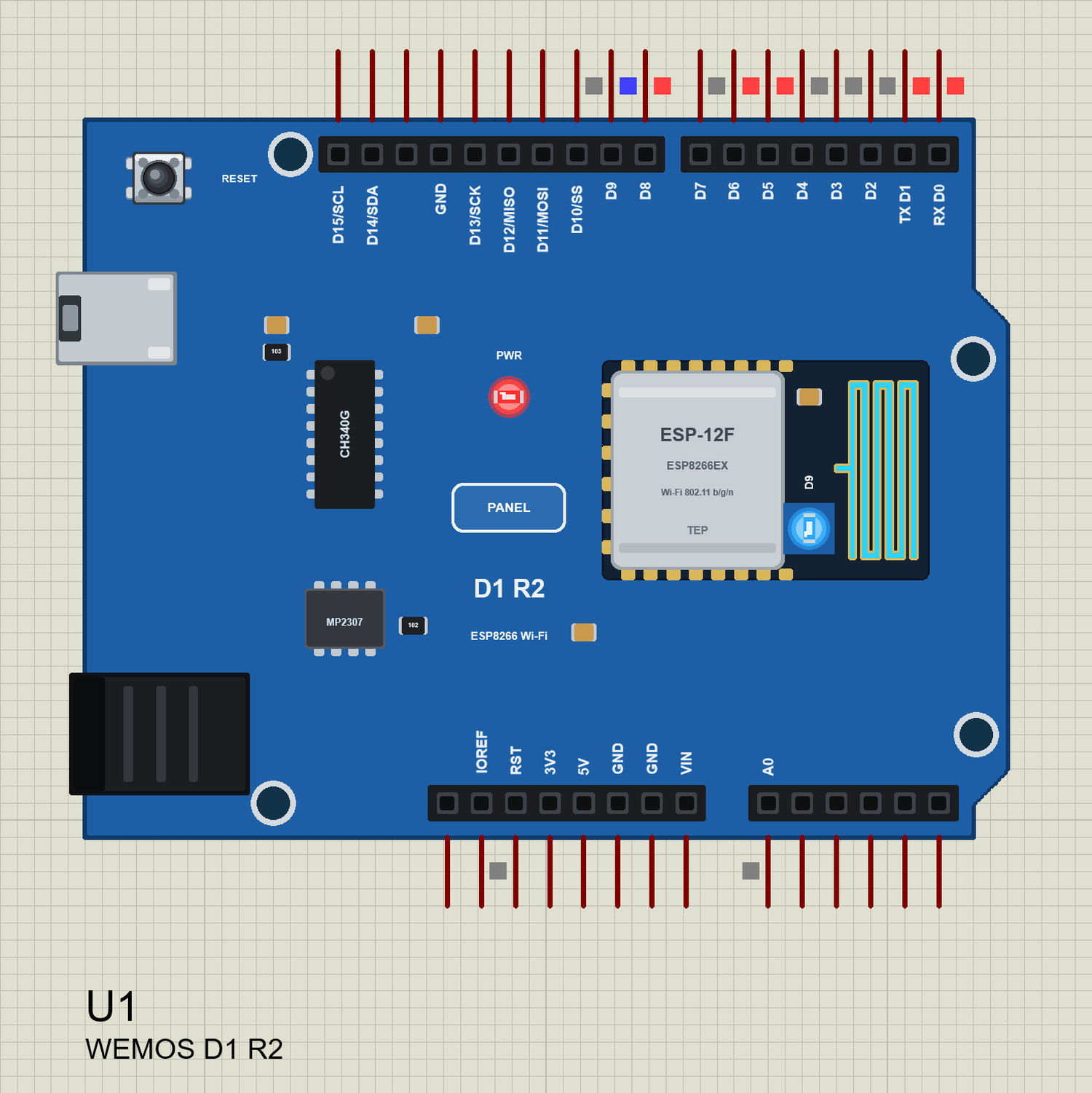
The WeMos D1 R2 puts an ESP-12F module - the ESP8266EX chip with 4 MB of flash and a PCB antenna - on a board with the outline of the Arduino UNO. Beside the module there is a CH340G USB chip, an MP2307 regulator for the DC jack (9 to 24 V) and a RESET button. The headers sit where the UNO's are, so UNO shields fit on top - but the ESP8266 has far fewer pins than the ATmega328P, so several header pins share one GPIO and the analog header has only A0. For the chip itself, read our ESP8266 Pinout, Datasheet, Features and Applications.
| Real WeMos D1 R2 | This library in Proteus | |
|---|---|---|
| Processor | ESP8266EX, 80 / 160 MHz, about 80 KB RAM | a hidden ATmega2560 at 16 MHz, 8 KB RAM |
| Sketch | ESP8266 Arduino core | the same API from our board package TEP Boards for Proteus 1.8.0 |
| Wi-Fi | 802.11 b/g/n, 2.4 GHz | our model: a router, a scan list, RSSI, DHCP, TCP, UDP, mDNS, NTP |
| USB chip | CH340G | drawn; the micro-USB opens the built-in serial monitor |
| Power | micro-USB or a 9 to 24 V DC jack (MP2307) | the 5V pin; the jack is drawn, not modelled |
| A0 | 0 to 3.2 V through a 220k / 100k divider, 0 to 1023 | the same: 0 to 1023 for 0 to 3.2 V |
| LEDs | one blue LED on GPIO2 (the ESP-12F) | the same, plus a red PWR LED |
| Buttons | RESET only (no FLASH button) | the same, clickable |
| Size | the UNO's 68.6 x 53.3 mm with its step | the same outline and header positions |
UNO Headers, ESP8266 Pins
The UNO has 20 I/O pins, the ESP8266 only 11 usable GPIOs and one analog input. So the D1 R2 labels its top header D0 to D15 like an UNO, but D3 and D15 are the same GPIO5, D4 and D14 the same GPIO4, and D5 / D13, D6 / D12 and D7 / D11 are the SPI pins twice. The names come from the ESP8266 core's board "LOLIN(WEMOS) D1 R1": D0 is GPIO3 (RX), D1 GPIO1 (TX), D2 GPIO16, D8 GPIO0 and D9 GPIO2, the blue LED. Our board package uses the same names, and the board in Proteus connects the twin pins to one net, as the copper on the real board does.
Two warnings that the UNO shape hides: the pins are 3.3 V logic, not 5 V, and the names are not the D1 Mini's - on the D1 Mini D4 is GPIO2, here D4 is GPIO4. A sketch that uses GPIO numbers runs on both.
How Your ESP8266 Sketch Runs in Proteus
Proteus 8 simulates many processors, but not the ESP8266. So, as for our other ESP8266 boards, the D1 R2 in Proteus has a hidden ATmega2560 inside, and our board package for the Arduino IDE compiles your ESP8266 sketch for it. The package gives the sketch the ESP8266 names and libraries, which talk to our model in TEPNET.DLL. The model is the radio: it scans, joins the router, measures the signal, hands out the address, keeps the sockets, answers mDNS names and reaches the virtual internet.
Know the price before you start: the sketch runs at 16 MHz with 8 KB of RAM, an int is 16 bits (use long above 32767), and there is no SPIFFS or LittleFS, no OTA and no real TLS. For web pages, sockets, scans, sensors and LEDs it is plenty, and the same sketch compiles for a real D1 R2 without a change.
Features of the WeMos D1 R2 Library for Proteus
- The D1 R2 as it looks: the blue board with the UNO's outline, the micro-USB and the DC jack on the left, RESET in the corner, the CH340G and the MP2307, the ESP-12F with its blue LED and its meander antenna on the right, and the UNO's headers with the D1 R2's labels (D0 to D15, A0, IOREF, RST, 3V3, 5V, GND, VIN).
- The ESP8266 Arduino API:
WiFi.scanNetworks()with SSID, RSSI, channel and encryption,WiFi.RSSI(),digitalWrite,analogRead(A0),analogWrite,attachInterrupt,LED_BUILTIN, EEPROM,configTimeand more. - Wi-Fi: a virtual router (TEP-WiFi) and two neighbour networks, DHCP, mDNS names, NTP time, TCP clients and servers, UDP, and an internet host - every TEP Wi-Fi part in the design is on the same network.
- A signal you can change: the panel's WI-FI SIGNAL buttons make the router GOOD, WEAK or OUT OF RANGE while the simulation runs.
- The blue LED on GPIO2 (D9, lit when LOW), the RESET button, a red PWR LED and an antenna that changes colour with the traffic.
- A built-in serial monitor at 115200 baud with Monitor, Plotter and Board tabs.
- Our pop-up panel: a phone with a browser, the router list and the cloud requests, the board, Wi-Fi and traffic cards, every pin live, a Test page, Settings and Help.
- Our Laptop and Mobile WiFi Monitors in the package: a browser, TCP and UDP terminals and ping on the same network.
- A compact package: about 2.17 MB with the board package for the Arduino IDE, without the C++ source code of the models.
The WeMos D1 R2 in Proteus
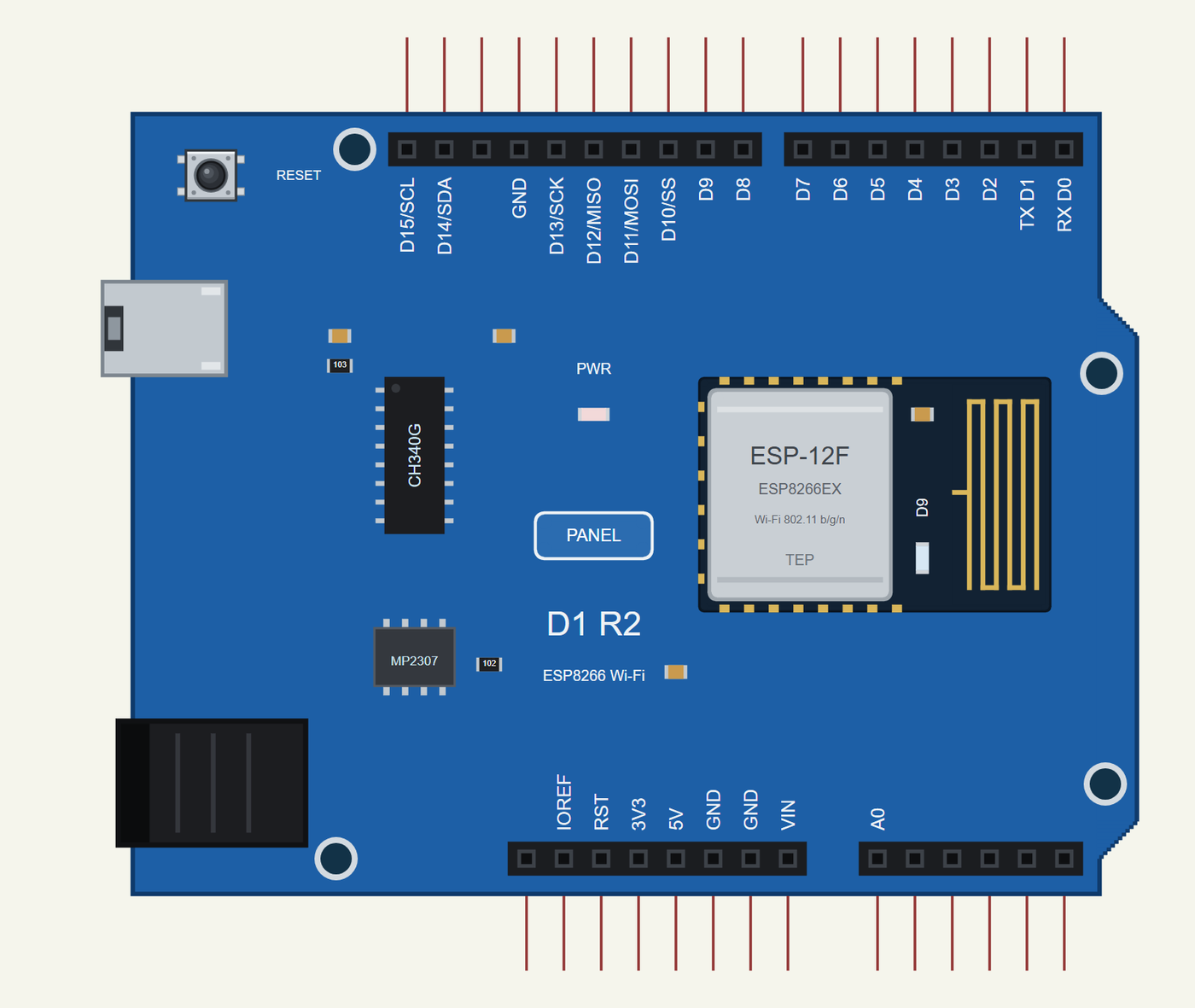
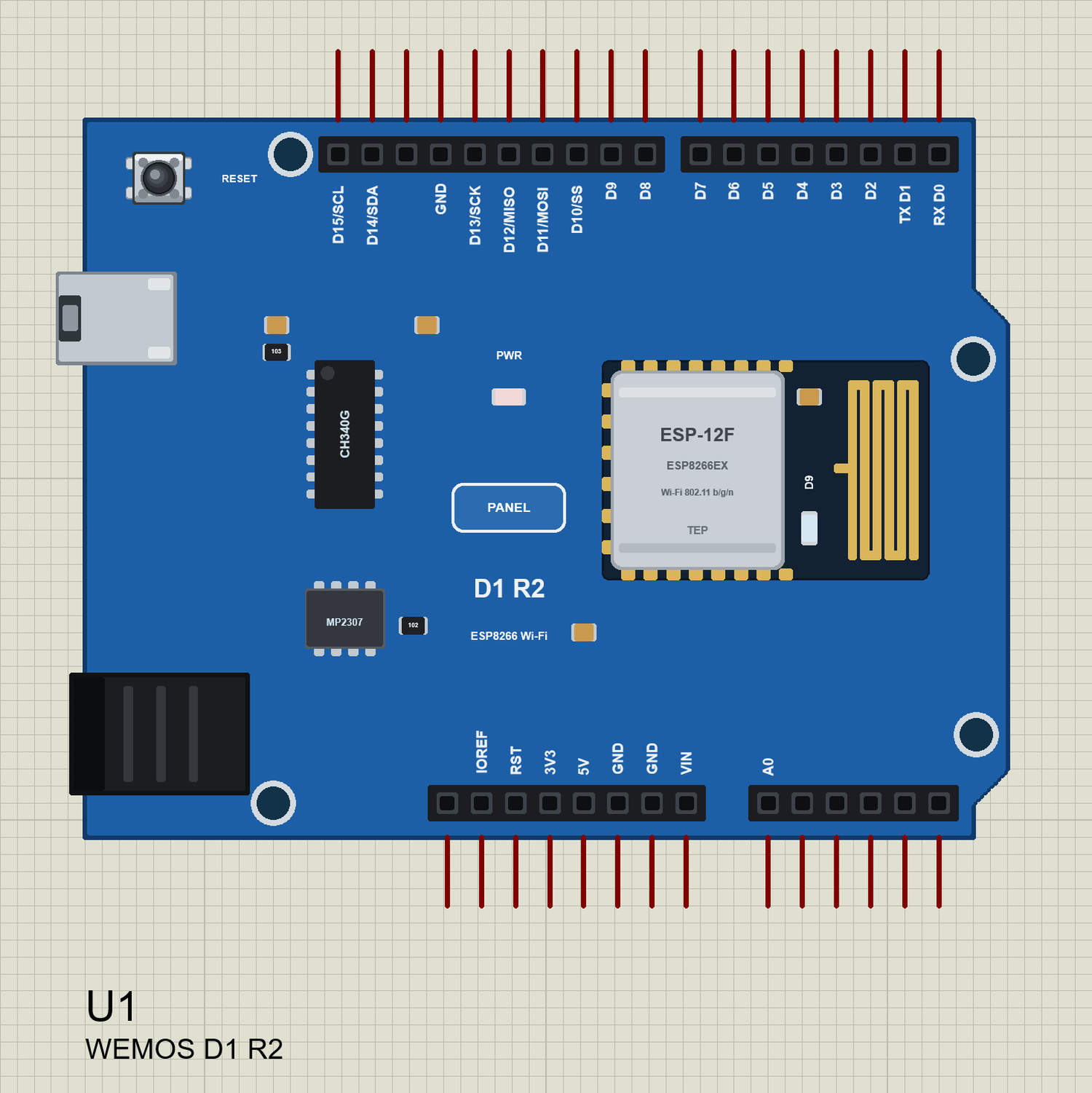
Search D1 R2 in Pick Devices; the device WEMOS D1 R2 is in TEPD1R2.LIB (Microprocessor ICs, ESP8266 Boards). Click the micro-USB to open the serial monitor and the PANEL pad or the ESP-12F to open the panel.
Every State of the D1 R2
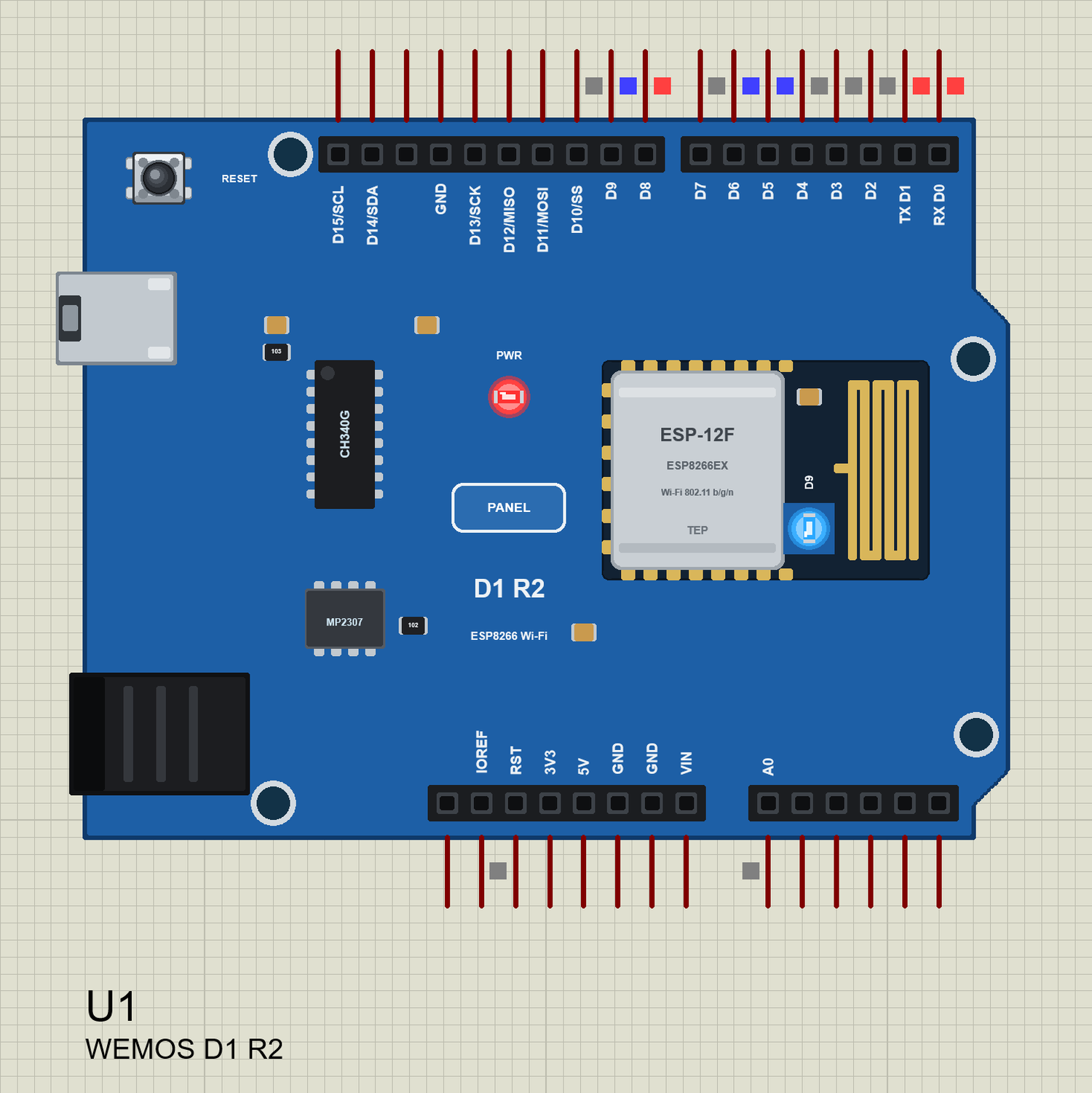
We ran the board with the demo sketch and paused the simulation for each picture. The sketch scans first, then blinks the D9 LED while it joins the router and keeps it on when the board is on Wi-Fi:
Download WeMos D1 R2 Library for Proteus
Click the button below to download WeMos-D1-R2-Library-for-Proteus-v1.0.zip (about 2.17 MB, without the C++ source code of the models):
WeMos D1 R2 Library for Proteus V1.0- README.txt: the device, installation, the demos, the pins, the properties, troubleshooting and the limits.
- Proteus Library Files:
TEPD1R2.LIB(the board),TEPLAPTOP.LIBandTEPMOBILE.LIB(our Laptop and Mobile WiFi Monitors). - Proteus Model Files:
TEPNET.DLL(the board, the two monitors and the Wi-Fi network). - Proteus Simulation: the two demo projects, the HEX file and a copy of the DLL.
- Arduino Code: the demo sketch and TEP Boards for Proteus 1.8.0, our board package for the Arduino IDE with the ESP8266 libraries.
No Proteus yet? Read How to Download and Install Proteus 7 and 8. New to libraries? Follow How to Install a New Library in Proteus.
How to Install WeMos D1 R2 Library for Proteus
- Close Proteus and extract the whole zip file, for example to your Desktop.
- Copy the three files from Proteus Library Files into the LIBRARY folder of Proteus (usually
C:\Program Files (x86)\Labcenter Electronics\Proteus 8 Professional\LIBRARY). - Copy
TEPNET.DLLfrom Proteus Model Files into the MODELS folder - replace an older copy (this one is the first that knows the D1 R2, and it still runs our D1 Mini, the NodeMCU boards, the ESP32 boards, the ESP8266 modules, the shields and the two monitors). - Delete
TEPD1R2.IDX,TEPLAPTOP.IDXandTEPMOBILE.IDXfrom the LIBRARY folder if they are there. - Start Proteus, press P and search for D1 R2.
The Board Package for the Arduino IDE
The demo has its HEX file, so you need the Arduino IDE only for your own sketches. Copy the folder Arduino Code\TEP Boards for Proteus\hardware into your sketchbook folder (normally Documents\Arduino), so that Documents\Arduino\hardware\tep\avr\boards.txt exists, and restart the IDE; the Arduino AVR Boards platform must be installed. Version 1.8.0 adds the D1 R2 with its D0 to D15 names and replaces 1.7.0 (it still has the D1 Mini, the NodeMCU boards and the ESP32 boards). Choose Tools > Board > TEP Boards for Proteus > WeMos D1 R2 (TEP Proteus), write your sketch and use Sketch > Export Compiled Binary; double-click the board in Proteus and set its Program File to the HEX (see How to get the HEX file from Arduino).
Demo: A D1 R2 Wi-Fi Scanner and Signal Meter
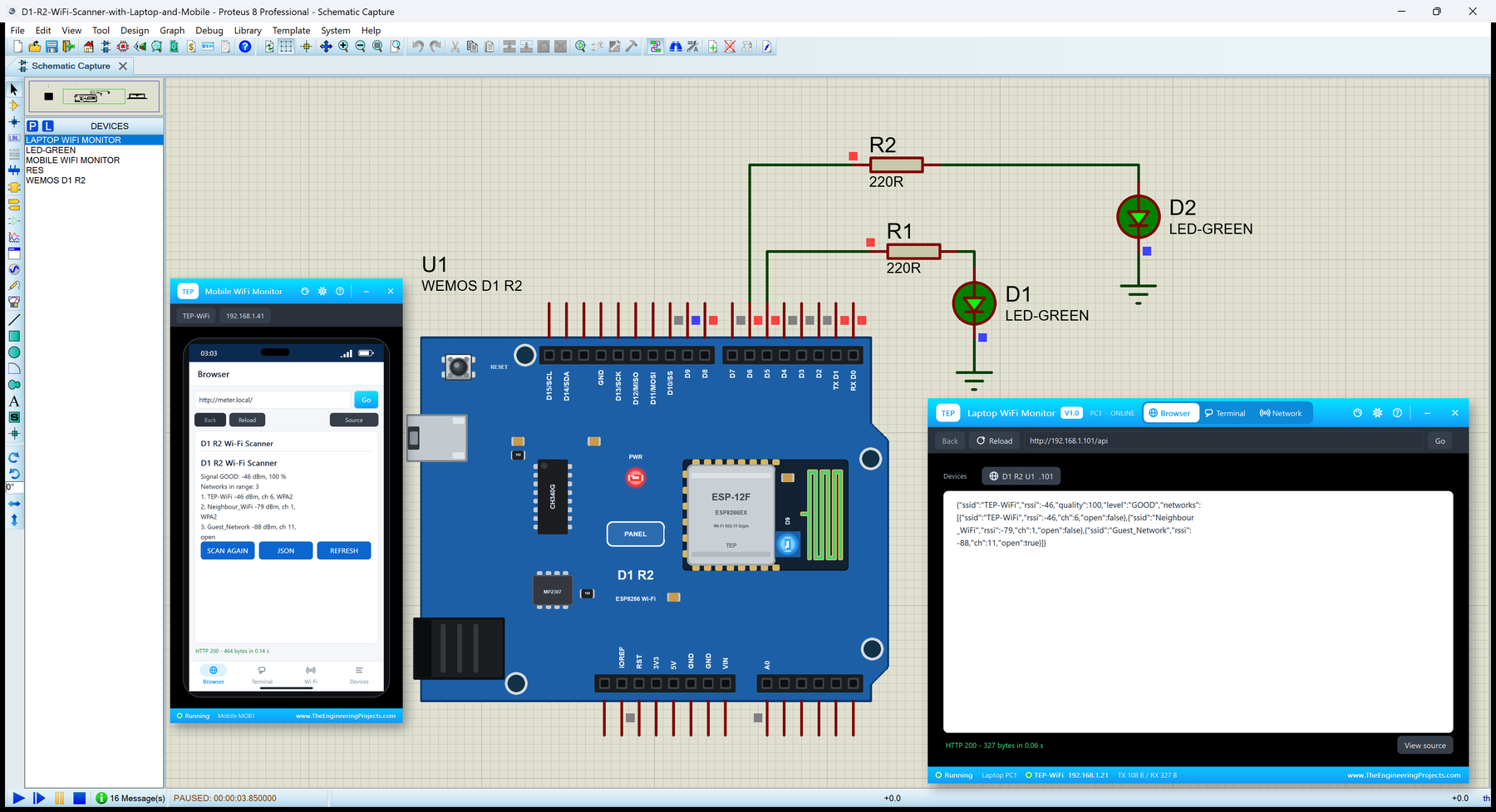
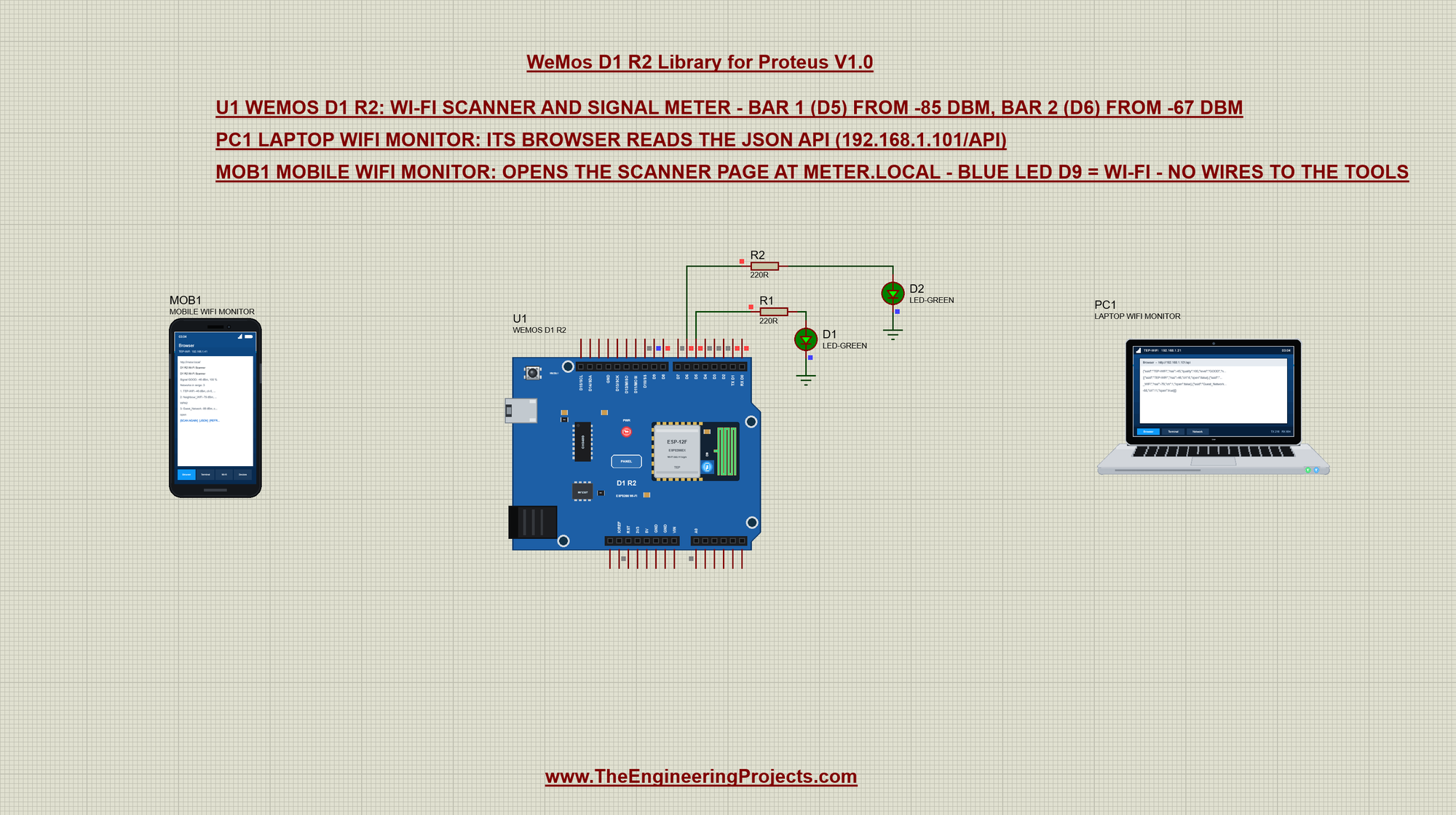
Open D1-R2-WiFi-Scanner-with-Laptop-and-Mobile.pdsprj. In the middle is the D1 R2 (U1) with its two signal bars, on the left our phone (MOB1) and on the right our laptop (PC1) - no wires to them, they are on the TEP-WiFi network. The package also has WeMos-D1-R2-Board.pdsprj, the board alone with the same sketch.
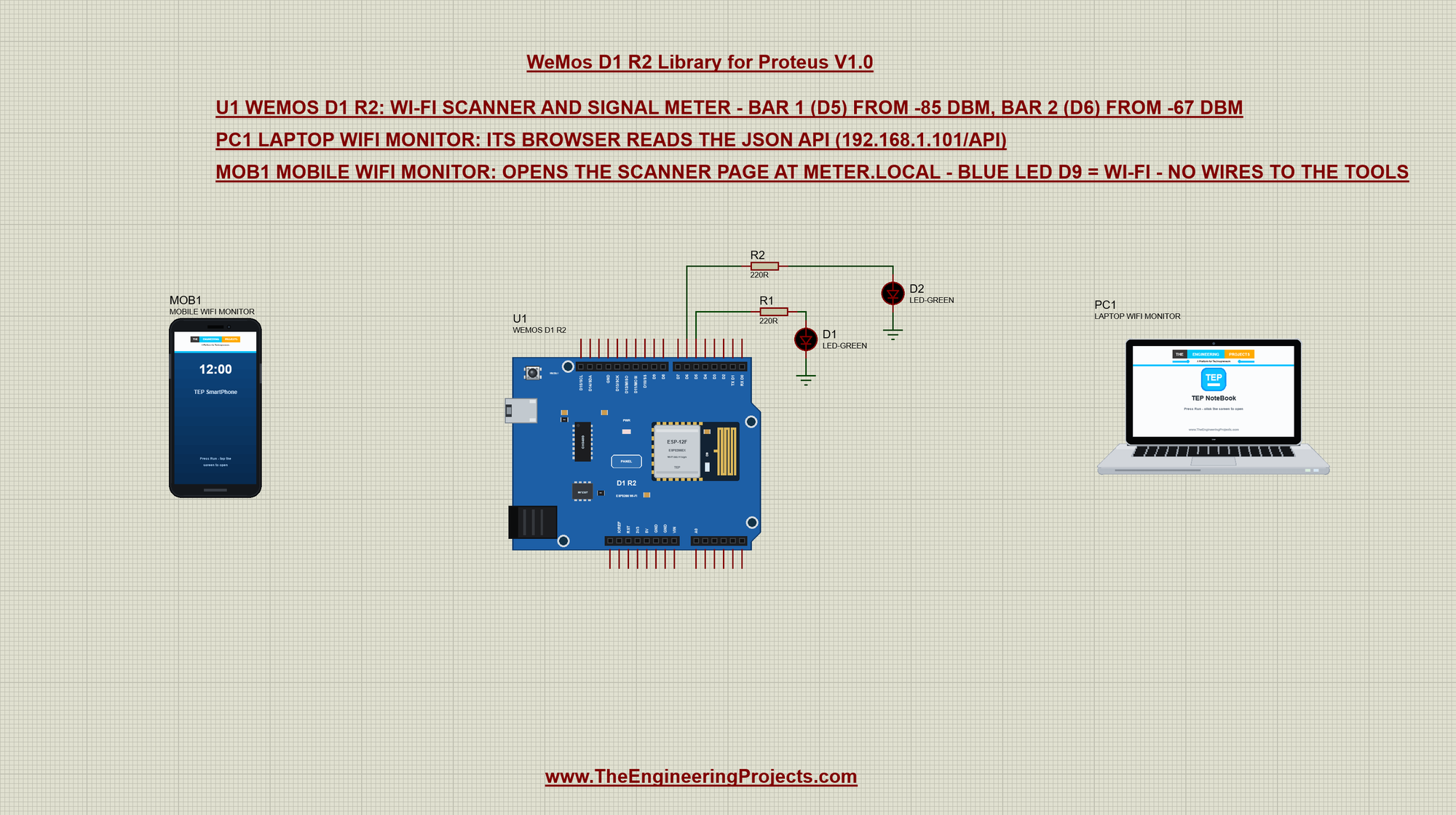
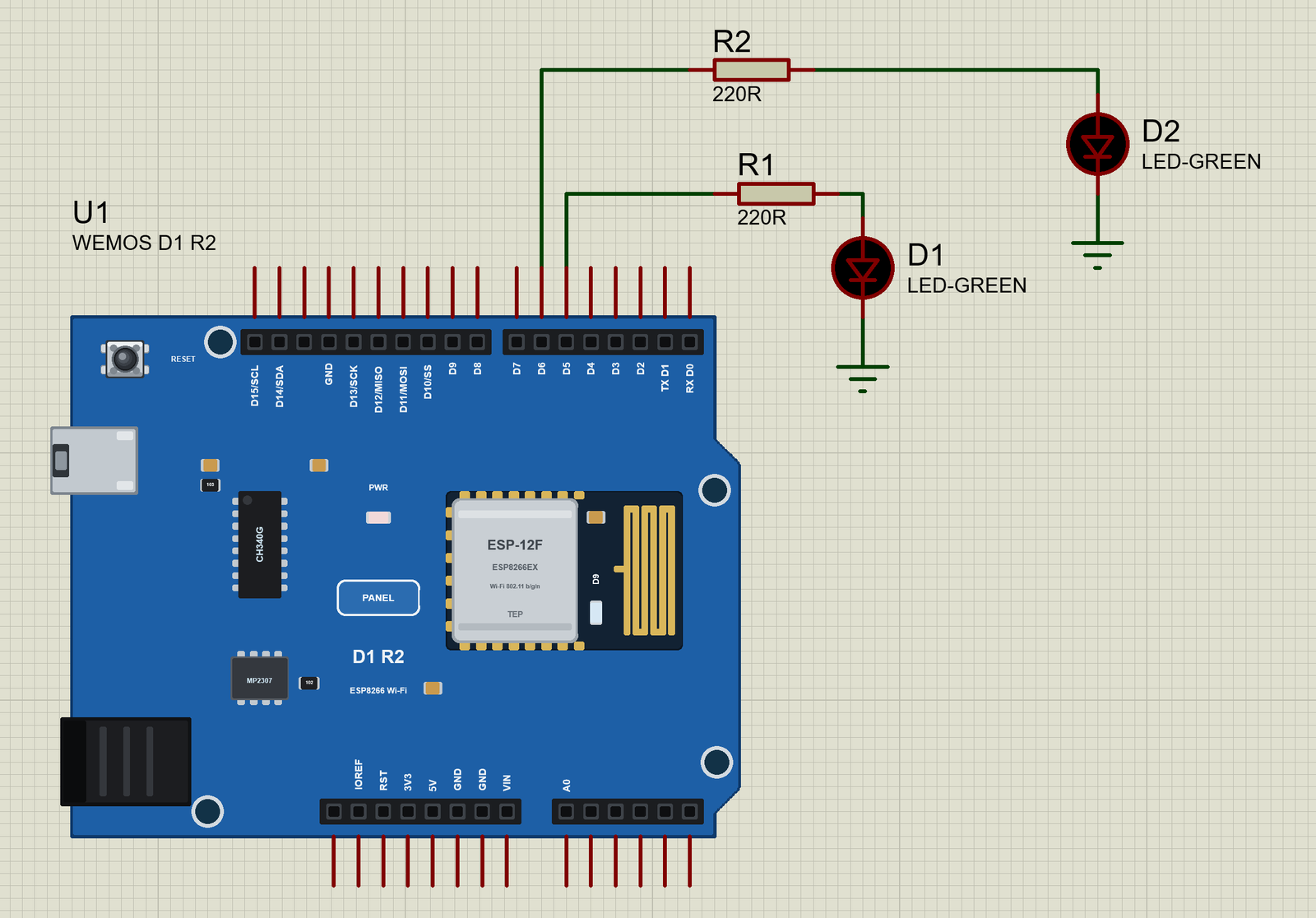
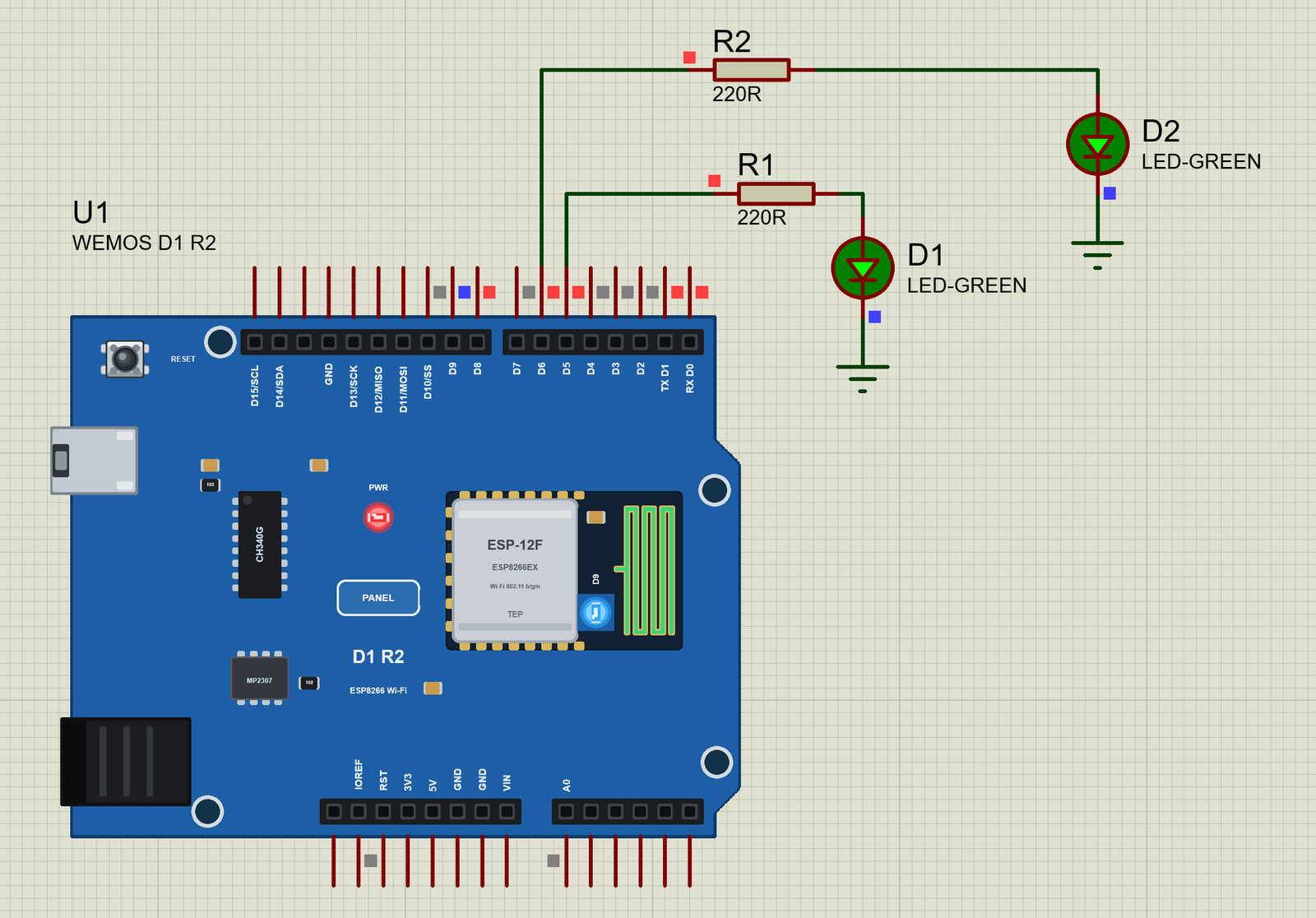
The meter is two green LEDs, each with a 220 ohm resistor: BAR 1 on D5 (GPIO14) lights from -85 dBm, a signal you can still use, and BAR 2 on D6 (GPIO12) from -67 dBm, a good one. Both wires leave the top header, so BAR 2 runs above BAR 1 and no wire crosses. That is the whole circuit:
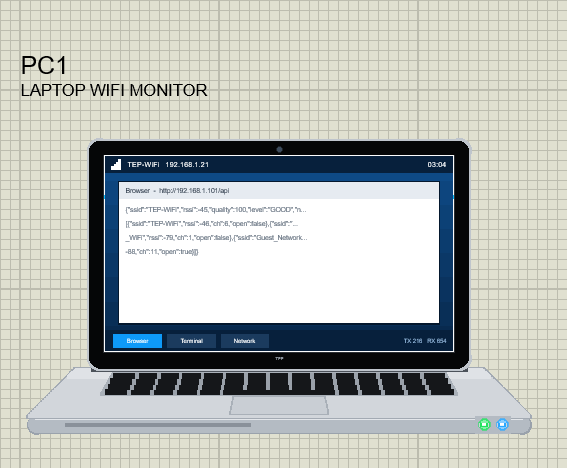
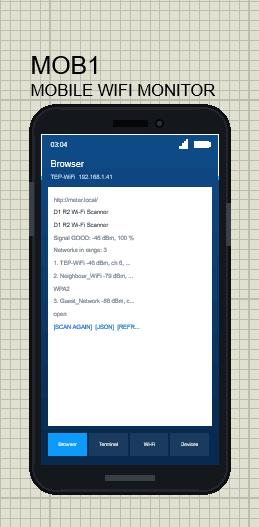
The two tools come from our Laptop WiFi Monitor Library for Proteus and Mobile WiFi Monitor Library for Proteus. The laptop is 192.168.1.21 and its browser's home page is the board's JSON API, http://192.168.1.101/api. The phone is 192.168.1.41 and its home page is http://meter.local/, the board's mDNS name:
The Sketch: Settings and Pins
The sketch is written as for a real D1 R2. It needs only the three ESP8266 libraries:
#include <ESP8266WiFi.h>
#include <ESP8266WebServer.h>
#include <ESP8266mDNS.h>
The two bars, the Wi-Fi LED (LED_BUILTIN is D9 on this board) and the two thresholds in dBm:
const int BAR1_PIN = D5;               // GPIO14: lit from -85 dBm
const int BAR2_PIN = D6;               // GPIO12: lit from -67 dBm
const int LED_WIFI = LED_BUILTIN;      // D9 = GPIO2, the ESP-12F's blue LED (lit when LOW)
const int BAR1_DBM = -85;
const int BAR2_DBM = -67;
RSSI is a negative number in dBm: -45 is a strong signal, -90 almost nothing. The sketch also shows it as a percentage, the way phones do - twice the distance from -100, limited to 0 to 100:
int quality(int rssi) {                // RSSI as 0 .. 100 %
  return constrain(2 * (rssi + 100), 0, 100);
}
Scanning the Networks
Before it joins, the board looks around. WiFi.scanNetworks() waits for the scan and returns how many networks it found; WiFi.SSID(i), WiFi.RSSI(i), WiFi.channel(i) and WiFi.encryptionType(i) describe each one. The sketch copies them into small arrays, because the page and the API need them later, and frees the scan's memory:
void scan() {
  Serial.println("Scanning...");
  int n = WiFi.scanNetworks();
  netCount = 0;
  for (int i = 0; i < n && netCount < MAX_NETS; ++i) {
    WiFi.SSID(i).toCharArray(netName[netCount], sizeof netName[0]);
    netRssi[netCount] = WiFi.RSSI(i);
    netChannel[netCount] = WiFi.channel(i);
    netOpen[netCount] = WiFi.encryptionType(i) == ENC_TYPE_NONE;
    ++netCount;
  }
  WiFi.scanDelete();
Then it prints a table. snprintf with field widths keeps the columns straight in the monitor:
  char row[64];
  for (int i = 0; i < netCount; ++i) {
    snprintf(row, sizeof row, "%2d  %-16s %5d  %2d  %-8s  %3d %%", i + 1, netName[i], netRssi[i], netChannel[i],
             netOpen[i] ? "OPEN" : "WPA2", quality(netRssi[i]));
    Serial.println(row);
  }
}
In setup() the scan comes first, then the join - with the host name meter for mDNS:
  WiFi.mode(WIFI_STA);
  WiFi.hostname("meter");
  scan();
  Serial.print("Connecting to ");
  Serial.print(ssid);
  WiFi.begin(ssid, password);
Press Run and watch the monitor (115200 baud): three networks - our router TEP-WiFi and two neighbours, one of them open - then the join, the address, the name, the server and the first signal line:
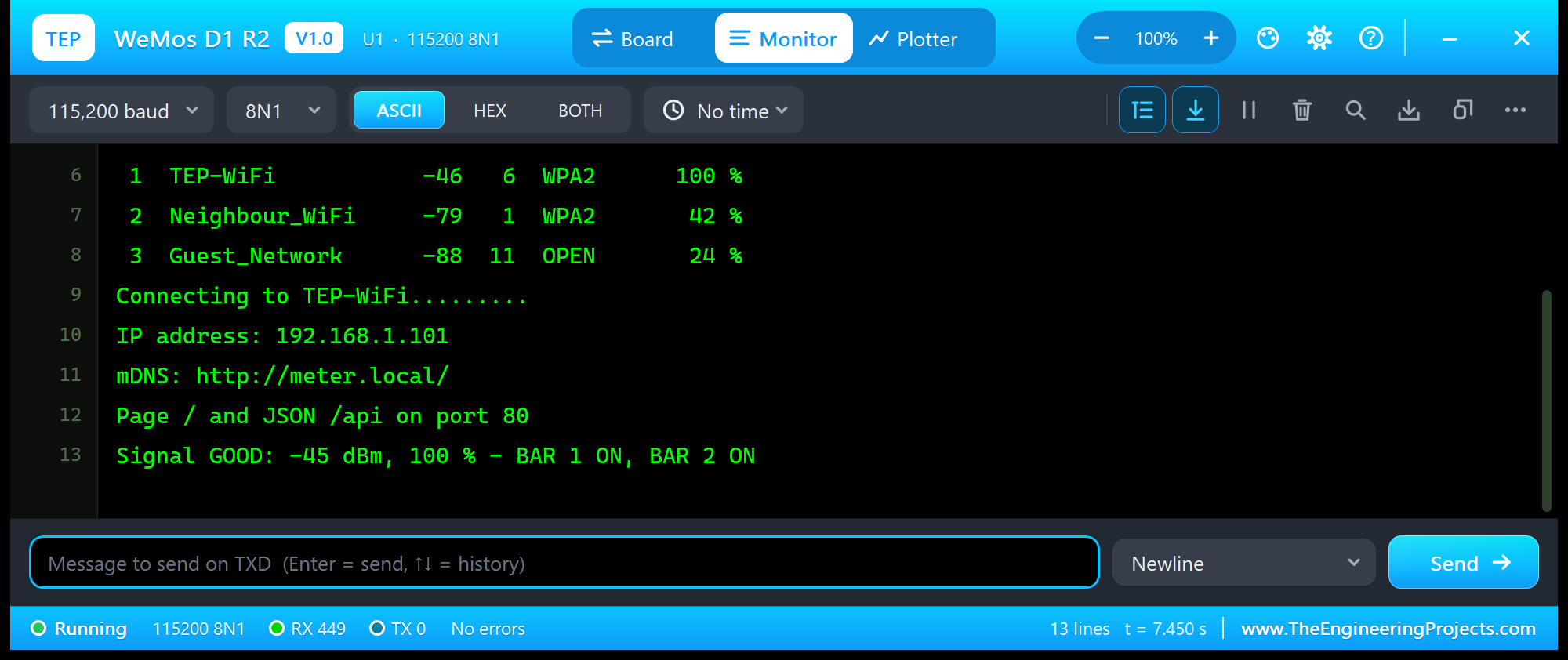
D1 R2 Wi-Fi Scanner - The Engineering Projects
Scanning...
Scan: 3 networks
 #  SSID              RSSI  CH  SECURITY  QUALITY
 1  TEP-WiFi           -46   6  WPA2      100 %
 2  Neighbour_WiFi     -79   1  WPA2       42 %
 3  Guest_Network      -88  11  OPEN       24 %
Connecting to TEP-WiFi.........
IP address: 192.168.1.101
mDNS: http://meter.local/
Page / and JSON /api on port 80
Signal GOOD: -45 dBm, 100 % - BAR 1 ON, BAR 2 ON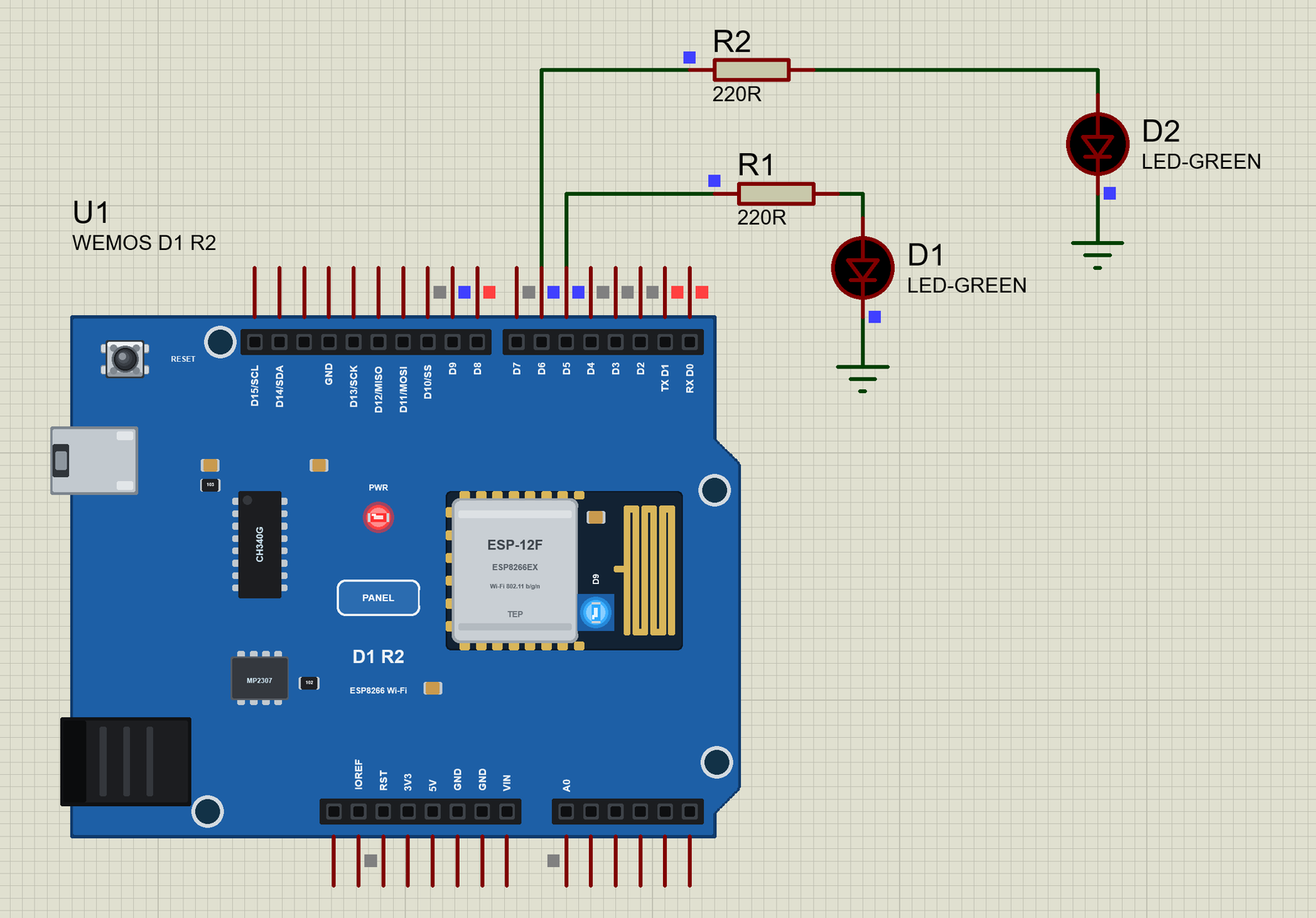
The Signal Meter: Two LEDs and a Line
Every pass of loop() reads WiFi.RSSI() and sets the two bars. A line goes to the monitor only when the level changes, so a signal that wanders between -45 and -47 dBm does not fill the screen:
void showSignal() {
  int rssi = online ? WiFi.RSSI() : -127;
  int level = levelOf(rssi);
  digitalWrite(BAR1_PIN, online && rssi >= BAR1_DBM ? HIGH : LOW);
  digitalWrite(BAR2_PIN, online && rssi >= BAR2_DBM ? HIGH : LOW);
  if (level == shownLevel) return;
  shownLevel = level;
  Serial.print("Signal ");
The level has five steps, from NO WI-FI to GOOD. The thresholds are the bars' -85 and -67 dBm, with FAIR between them at -75:
int levelOf(int rssi) {
  if (!online) return 0;
  if (rssi >= BAR2_DBM) return 4;
  if (rssi >= -75) return 3;
  if (rssi >= BAR1_DBM) return 2;
  return 1;
}
With the router close by, the RSSI is about -45 dBm and both bars are on:
The Page on the Phone and the JSON API on the Laptop
The web server has three addresses: / shows the signal and the last scan, /scan scans again and shows the same page, and /api answers in JSON for other programs:
  if (MDNS.begin("meter")) Serial.println("mDNS: http://meter.local/");
  server.on("/", handleRoot);
  server.on("/scan", handleScan);
  server.on("/api", handleApi);
  server.begin();
  Serial.println("Page / and JSON /api on port 80");
In the laptop, open the Browser and press Go. Its home page is the API, and the answer is the board's view of the air in one line - our router, its signal and level, and the three networks:
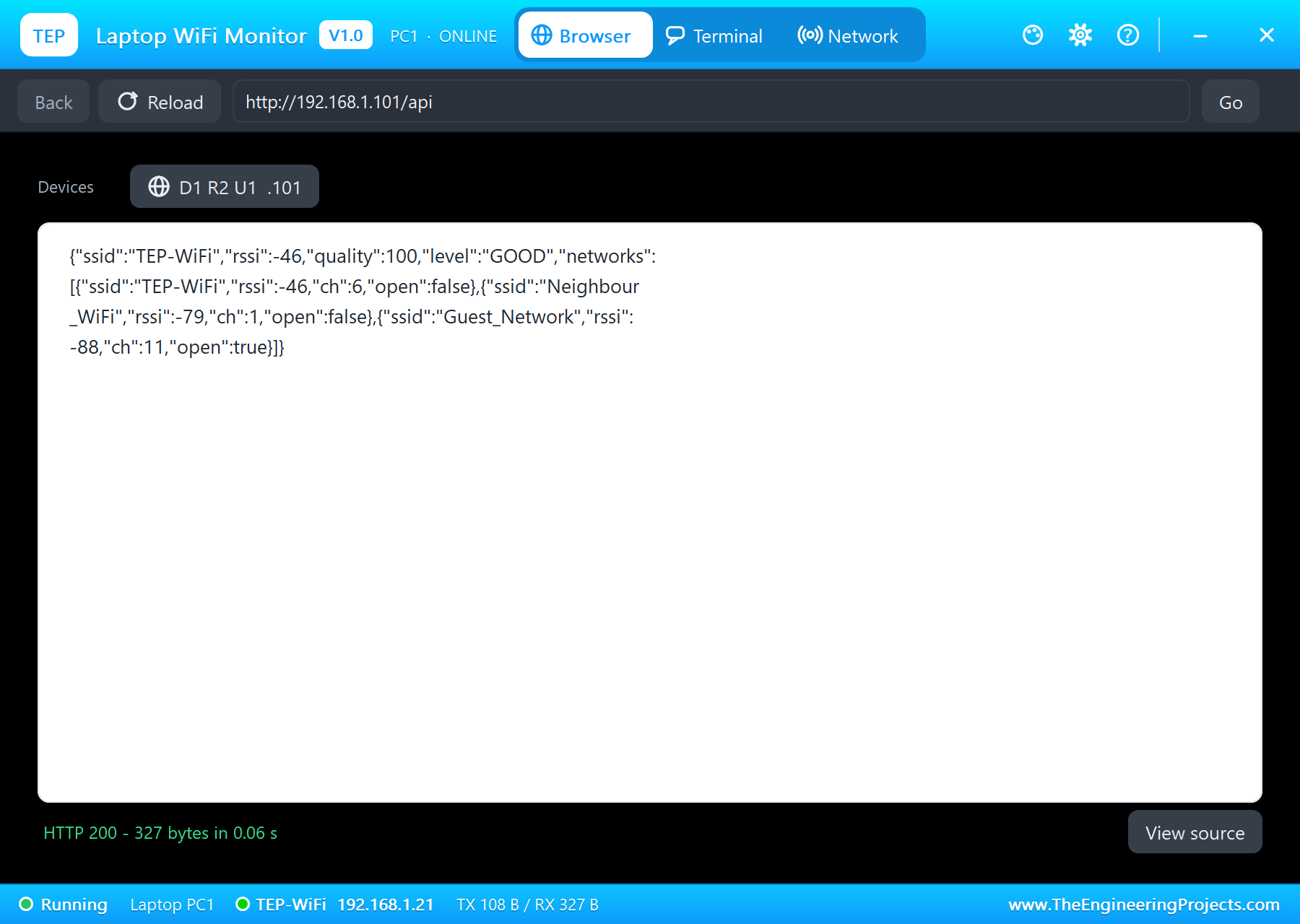
{"ssid":"TEP-WiFi","rssi":-46,"quality":100,"level":"GOOD","networks":[{"ssid":"TEP-WiFi","rssi":-46,"ch":6,"open":false},
{"ssid":"Neighbour_WiFi","rssi":-79,"ch":1,"open":false},{"ssid":"Guest_Network","rssi":-88,"ch":11,"open":true}]}
The JSON is built with String pieces - small enough for 8 KB of RAM. On a real ESP8266 you might use ArduinoJson; here the plain way keeps the memory under control:
void handleApi() {
  Serial.print("API for ");
  Serial.println(server.client().remoteIP());
  int rssi = WiFi.RSSI();
  String json = "{\"ssid\":\"" + WiFi.SSID() + "\",\"rssi\":" + String(rssi) + ",\"quality\":" + String(quality(rssi)) +
                ",\"level\":\"" + levelName(levelOf(rssi)) + "\",\"networks\":[";
  for (int i = 0; i < netCount; ++i) {
    if (i) json += ",";
    json += "{\"ssid\":\"" + String(netName[i]) + "\",\"rssi\":" + String(netRssi[i]) + ",\"ch\":" + String(netChannel[i]) +
            ",\"open\":" + (netOpen[i] ? "true" : "false") + "}";
  }
  json += "]}";
  server.send(200, "application/json", json);
}
In the phone, open the Browser and press Go - its home page is http://meter.local/, which the board's mDNS answers:
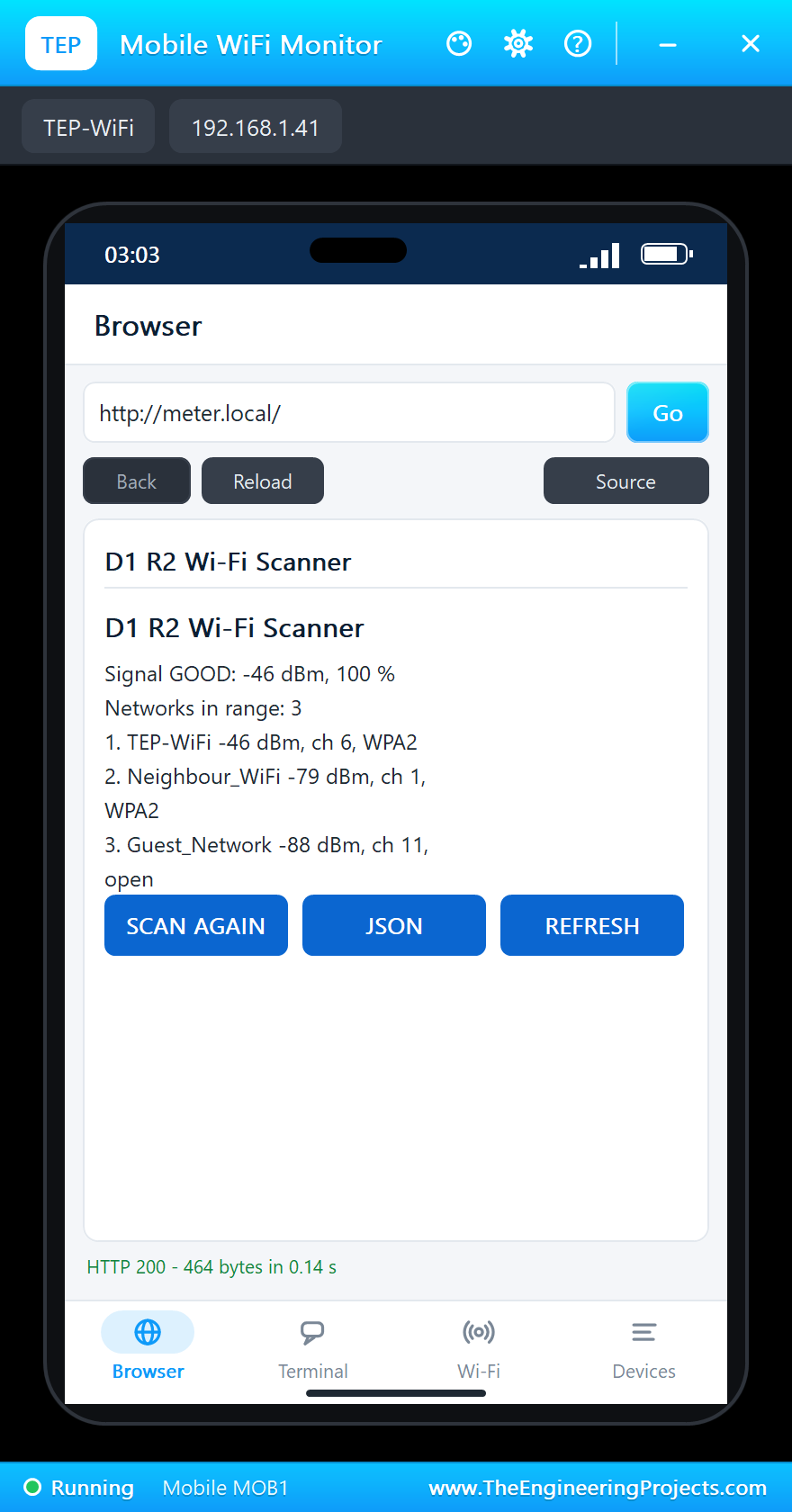
SCAN AGAIN calls a second handler that scans first and then sends the page - the phone sees the fresh list:
void handleScan() {
  scan();
  sendPage();
}
A Weak Signal
Now the interesting part. The board's panel has a phone with three WI-FI SIGNAL buttons - GOOD, WEAK and OUT OF RANGE - that move the router away while the simulation runs. We pressed WEAK:
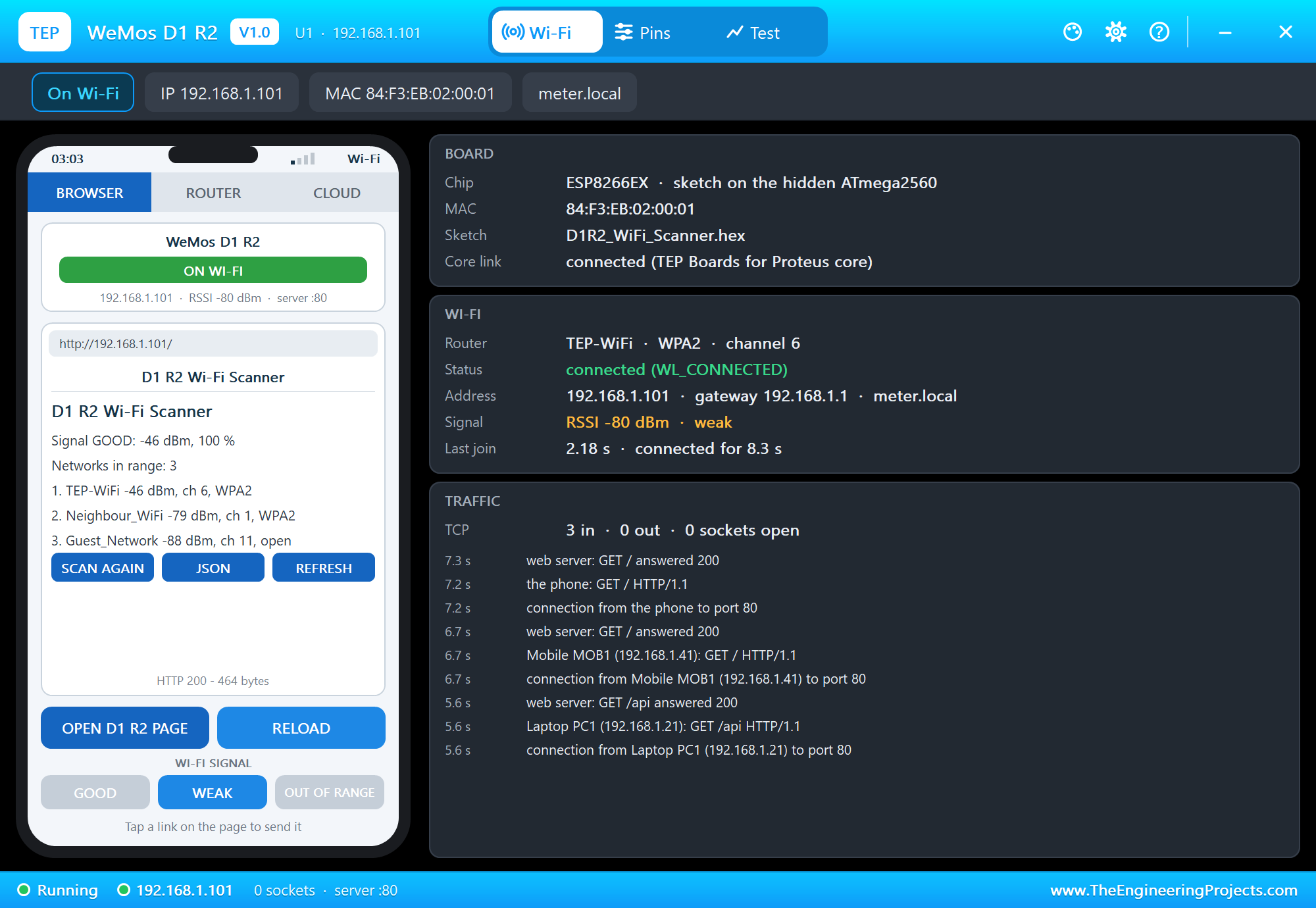
The RSSI fell to -80 dBm. That is above -85, so BAR 1 stays on, but below -67, so BAR 2 goes off - and the monitor gets one line for the change. STATUS gives the details:
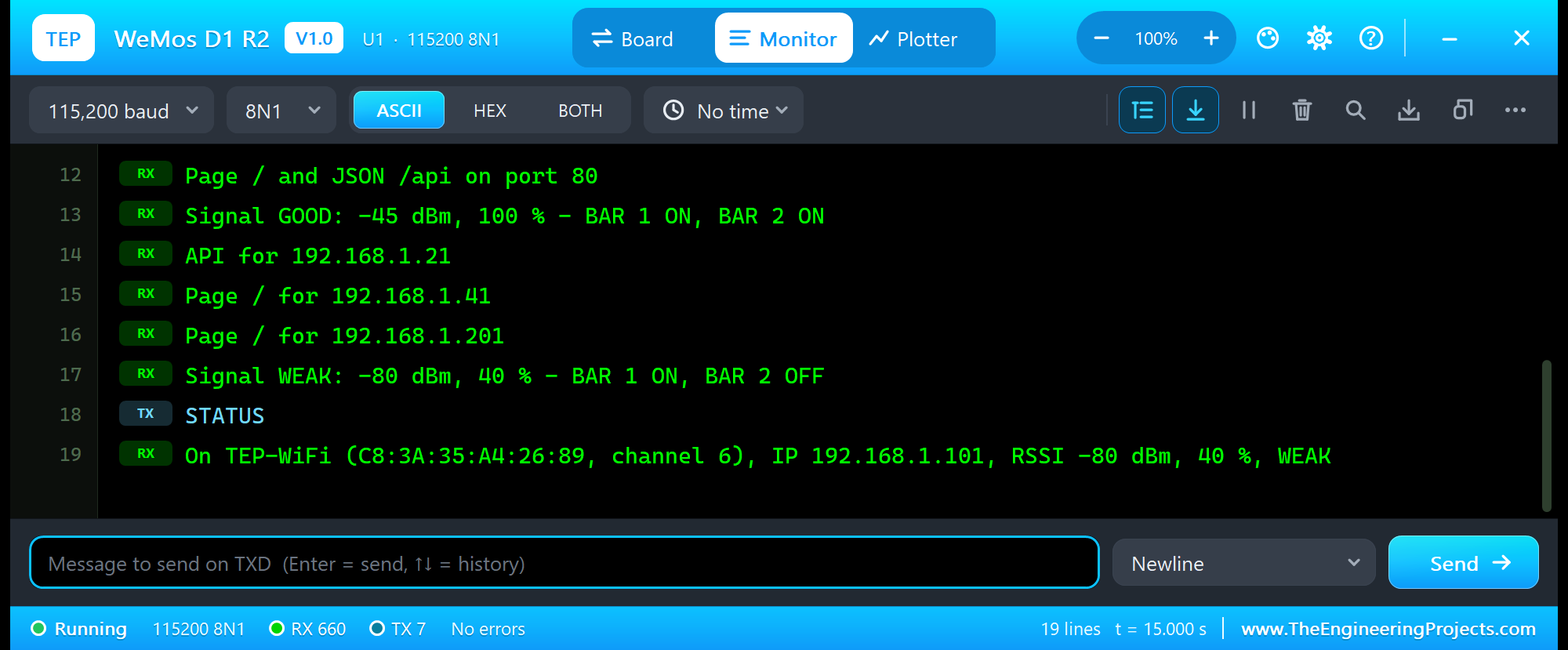
API for 192.168.1.21
Page / for 192.168.1.41
Page / for 192.168.1.201
Signal WEAK: -80 dBm, 40 % - BAR 1 ON, BAR 2 OFF
STATUS
On TEP-WiFi (C8:3A:35:A4:26:89, channel 6), IP 192.168.1.101, RSSI -80 dBm, 40 %, WEAK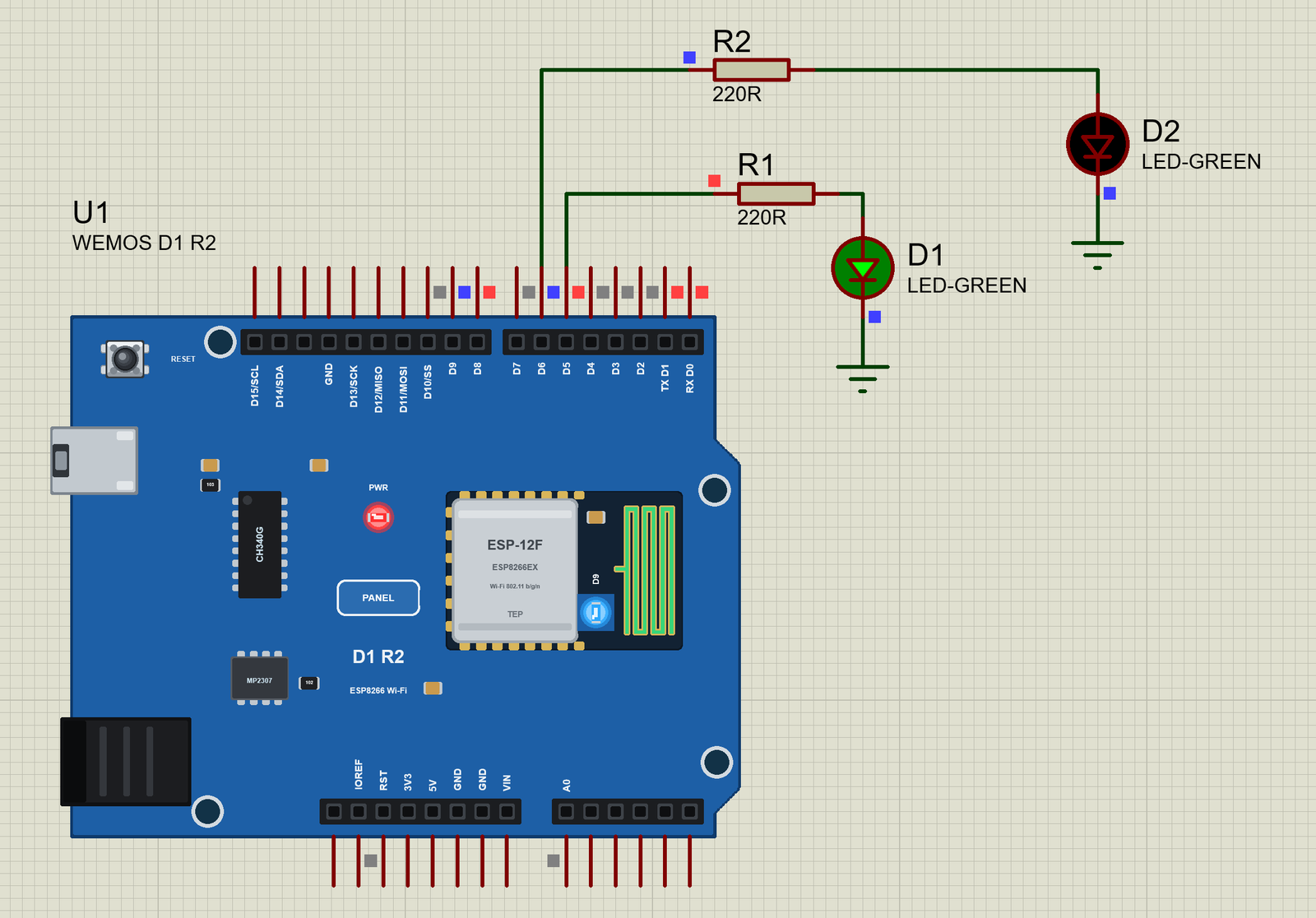
The phone, reloaded, shows the same: a weak signal at -82 dBm. The router's RSSI moves a little between readings, as a real one does:
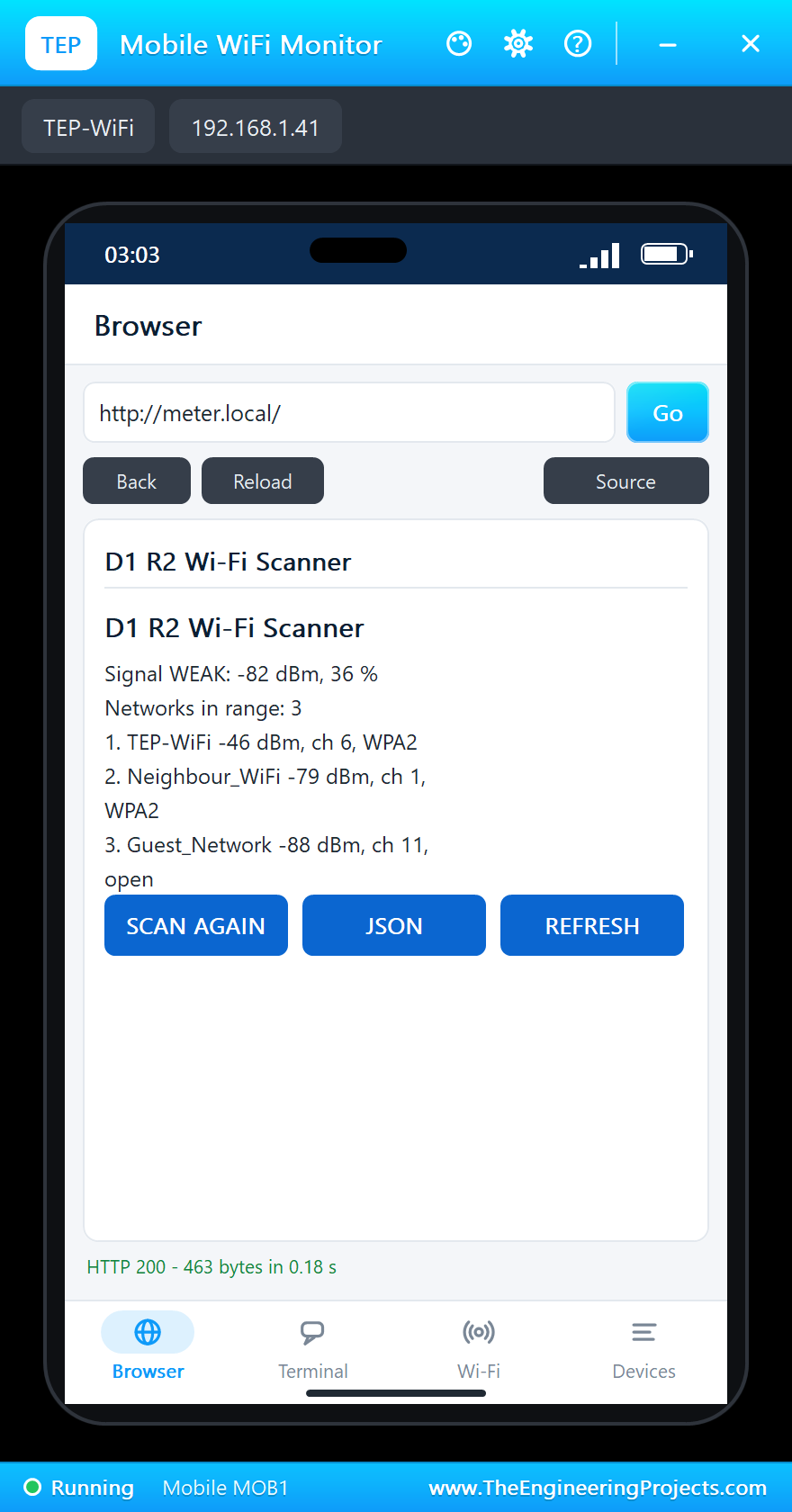
The STATUS line is built from the station calls of the ESP8266 core - the SSID, the router's MAC (BSSID), the channel, the address and the RSSI:
void status(Print &out) {
  if (online) {
    int rssi = WiFi.RSSI();
    out.print(String("On ") + WiFi.SSID() + " (" + WiFi.BSSIDstr() + ", channel " + String(WiFi.channel()) + "), IP " +
              WiFi.localIP().toString() + ", RSSI " + String(rssi) + " dBm, " + String(quality(rssi)) + " %, " + levelName(levelOf(rssi)));
  } else {
    out.print(String("Not on Wi-Fi: searching for ") + ssid);
  }
  out.print("\r\n");
Out of Range
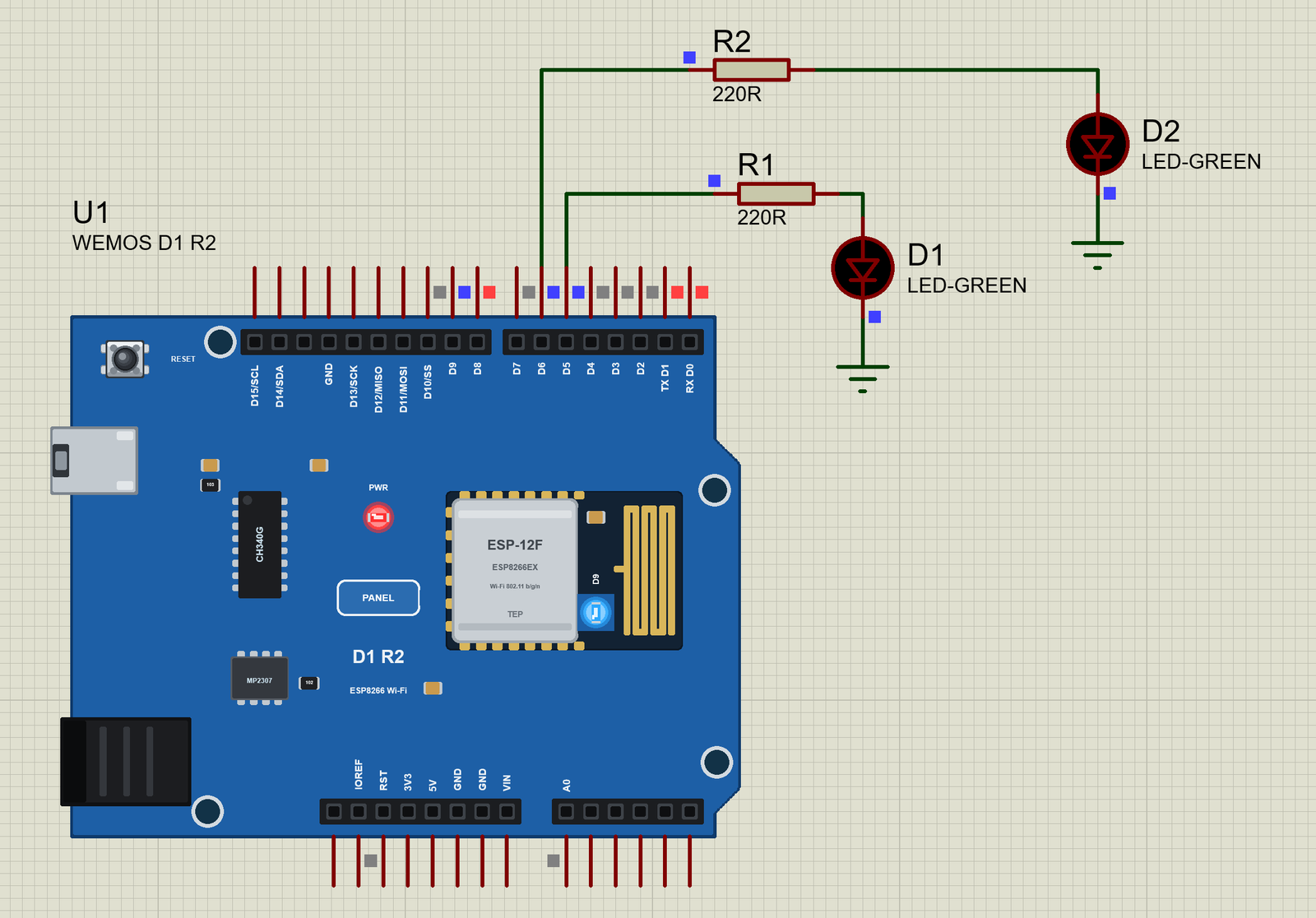
OUT OF RANGE takes the router away. The board loses the connection, and the sketch must not stop: a meter that hangs in a while loop until the router is back would be useless. So watchWiFi() notices the change once, prints it and keeps going:
void watchWiFi() {
  bool now = WiFi.status() == WL_CONNECTED;
  if (now && !online) {
    online = true;
    digitalWrite(LED_WIFI, LOW);       // on: joined
    Serial.println();
    Serial.print("IP address: ");
    Serial.println(WiFi.localIP());
  } else if (!now && online) {
    online = false;
    Serial.println("Wi-Fi lost - searching");
    nextJoin = millis() + 15000UL;
  }
While the board is offline, the same function blinks D9 every 250 ms and calls WiFi.begin() again every 15 seconds - with subtractions, so it keeps working when millis() rolls over:
  if (!online) {
    if ((long)(millis() - nextBlink) >= 0) {   // the blue LED blinks while the board searches
      nextBlink = millis() + 250;
      digitalWrite(LED_WIFI, !digitalRead(LED_WIFI));
    }
    if ((long)(millis() - nextJoin) >= 0) {
      nextJoin = millis() + 15000UL;
      WiFi.begin(ssid, password);
    }
  }
The panel's cards say the same: CONNECTION LOST, no address, the signal out of range:
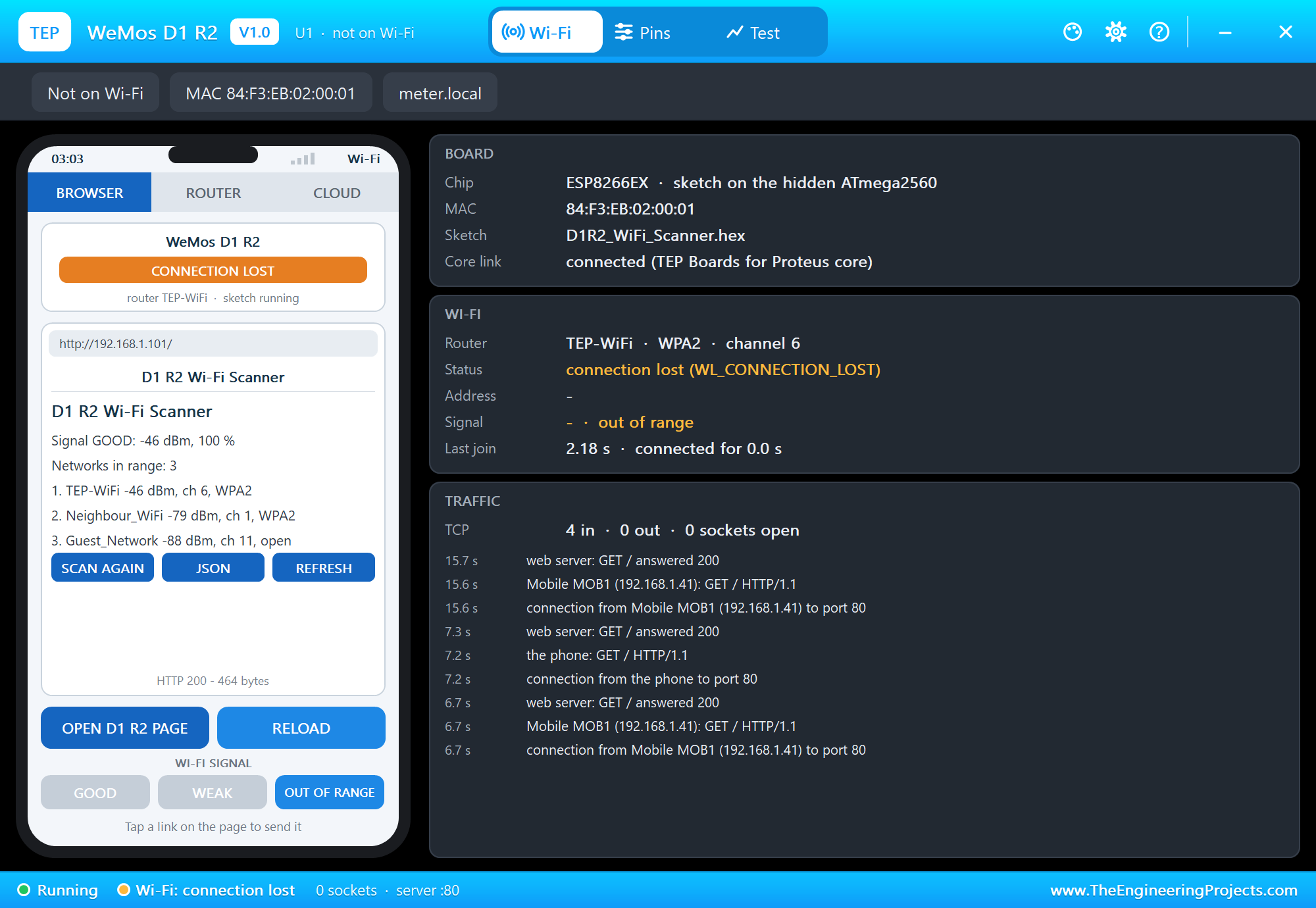
A scan now finds only the two neighbours - our router is gone - and STATUS says the board is searching:
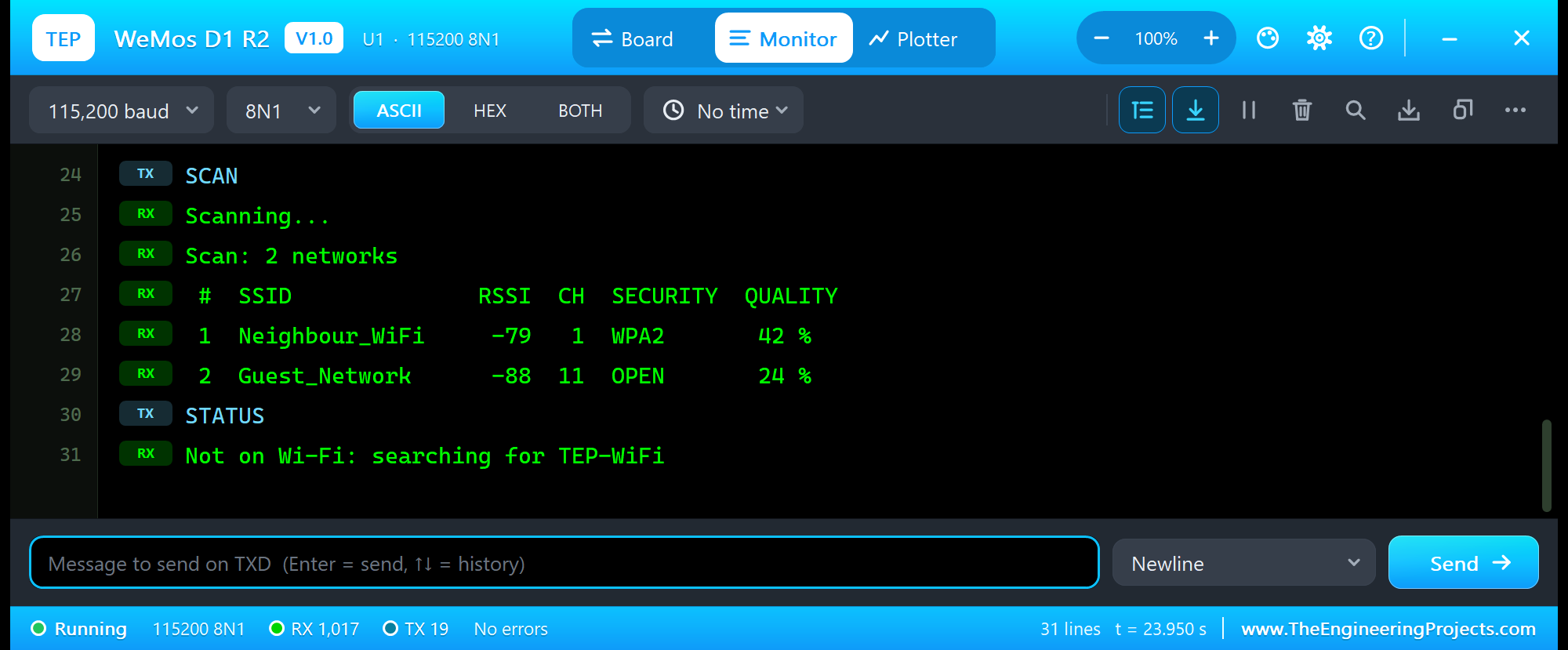
SCAN
Scanning...
Scan: 2 networks
 #  SSID              RSSI  CH  SECURITY  QUALITY
 1  Neighbour_WiFi     -79   1  WPA2       42 %
 2  Guest_Network      -88  11  OPEN       24 %
STATUS
Not on Wi-Fi: searching for TEP-WiFi
Back in Range
We pressed GOOD. On its next try the board joined again, printed its address and the GOOD line, and both bars came back on - nothing to reset, nothing to click on the board:
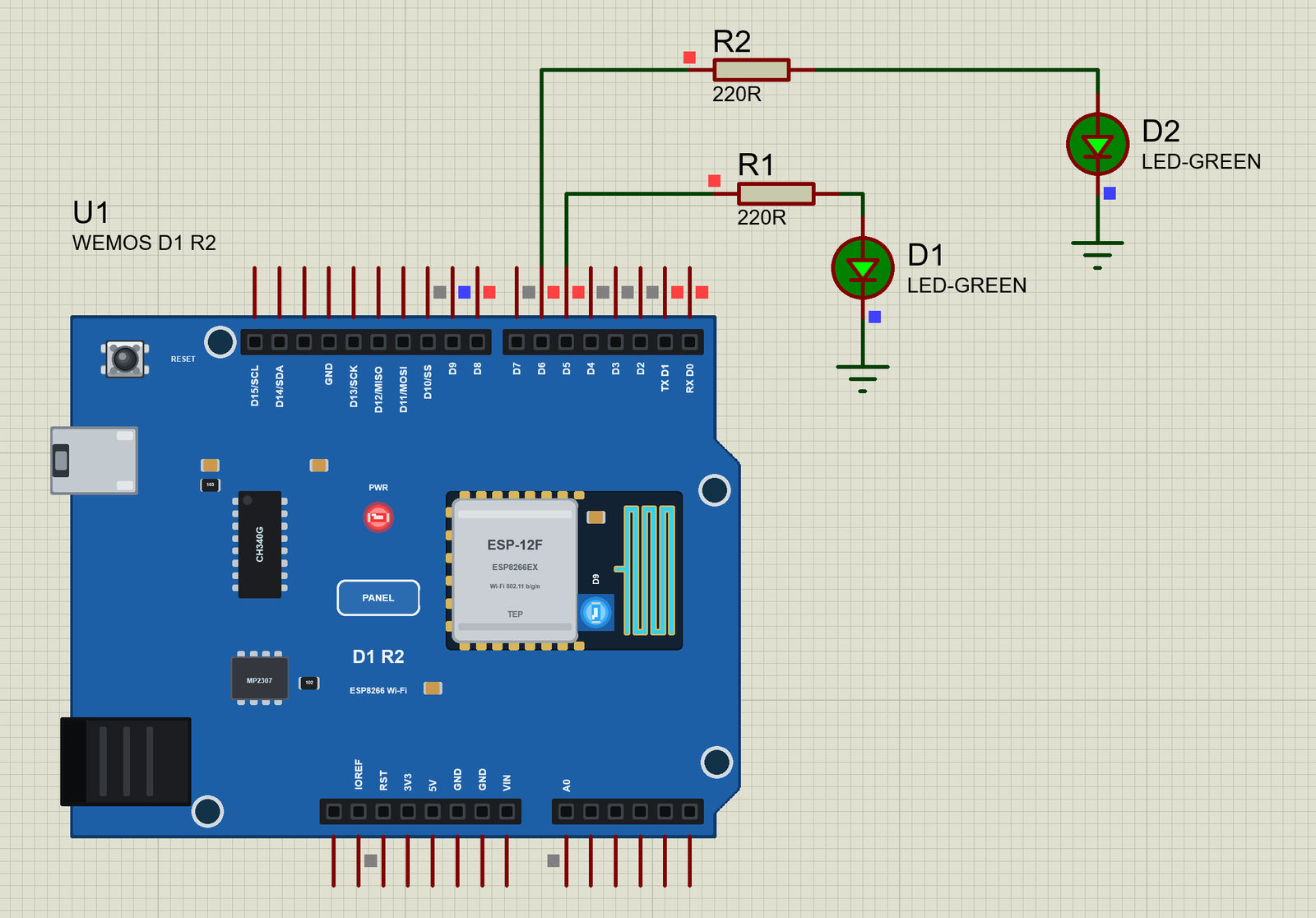
SCAN lists all three networks again, STATUS shows the strong signal, and HELP lists the commands:
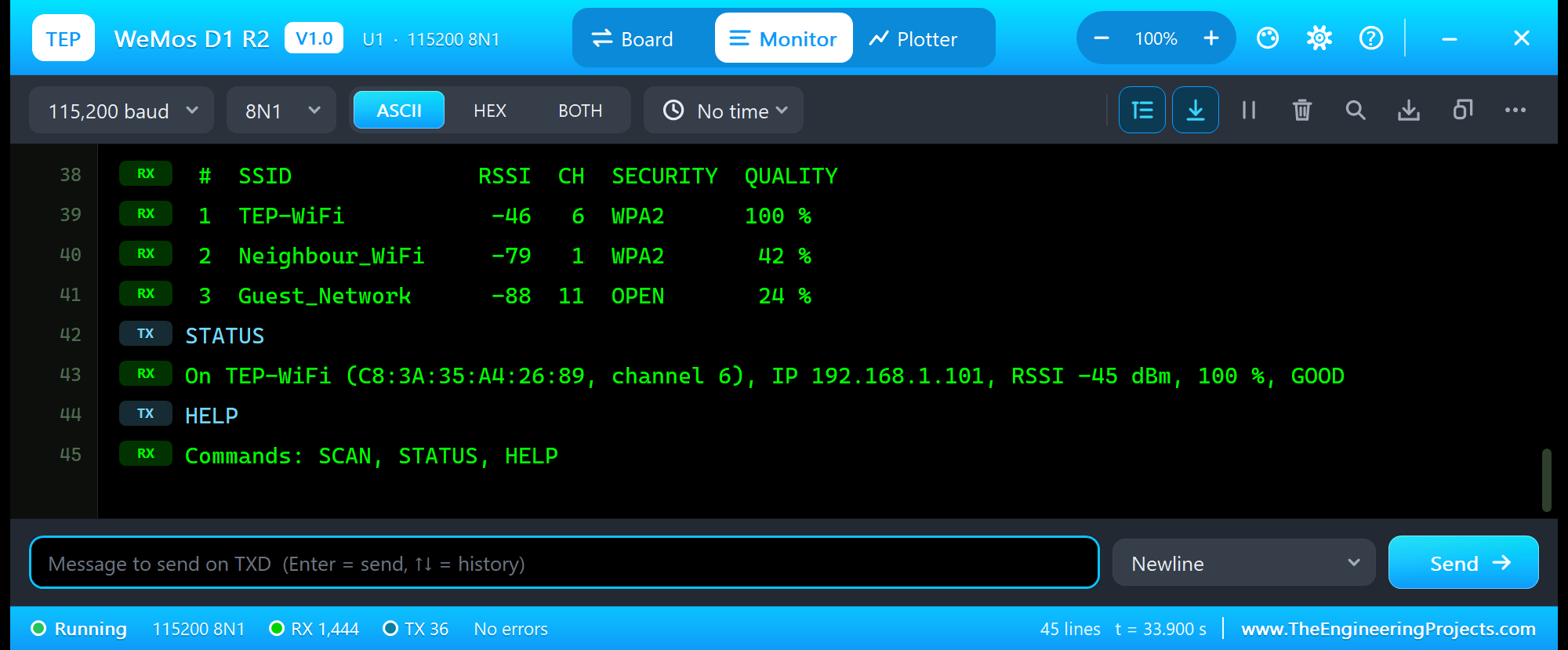
STATUS
On TEP-WiFi (C8:3A:35:A4:26:89, channel 6), IP 192.168.1.101, RSSI -45 dBm, 100 %, GOOD
HELP
Commands: SCAN, STATUS, HELP
The commands are read a character at a time, so the loop never waits for the monitor:
void command(String cmd) {
  cmd.trim();
  cmd.toUpperCase();
  if (cmd == "SCAN") scan();
  else if (cmd == "STATUS") status(Serial);
  else Serial.println("Commands: SCAN, STATUS, HELP");
}
And the whole loop - the server, mDNS, the monitor, the Wi-Fi watch and the meter, each a short call:
void loop() {
  server.handleClient();
  MDNS.update();
  readMonitor();
  watchWiFi();
  showSignal();
}
The whole demo after the run:
The WeMos D1 R2 Panel
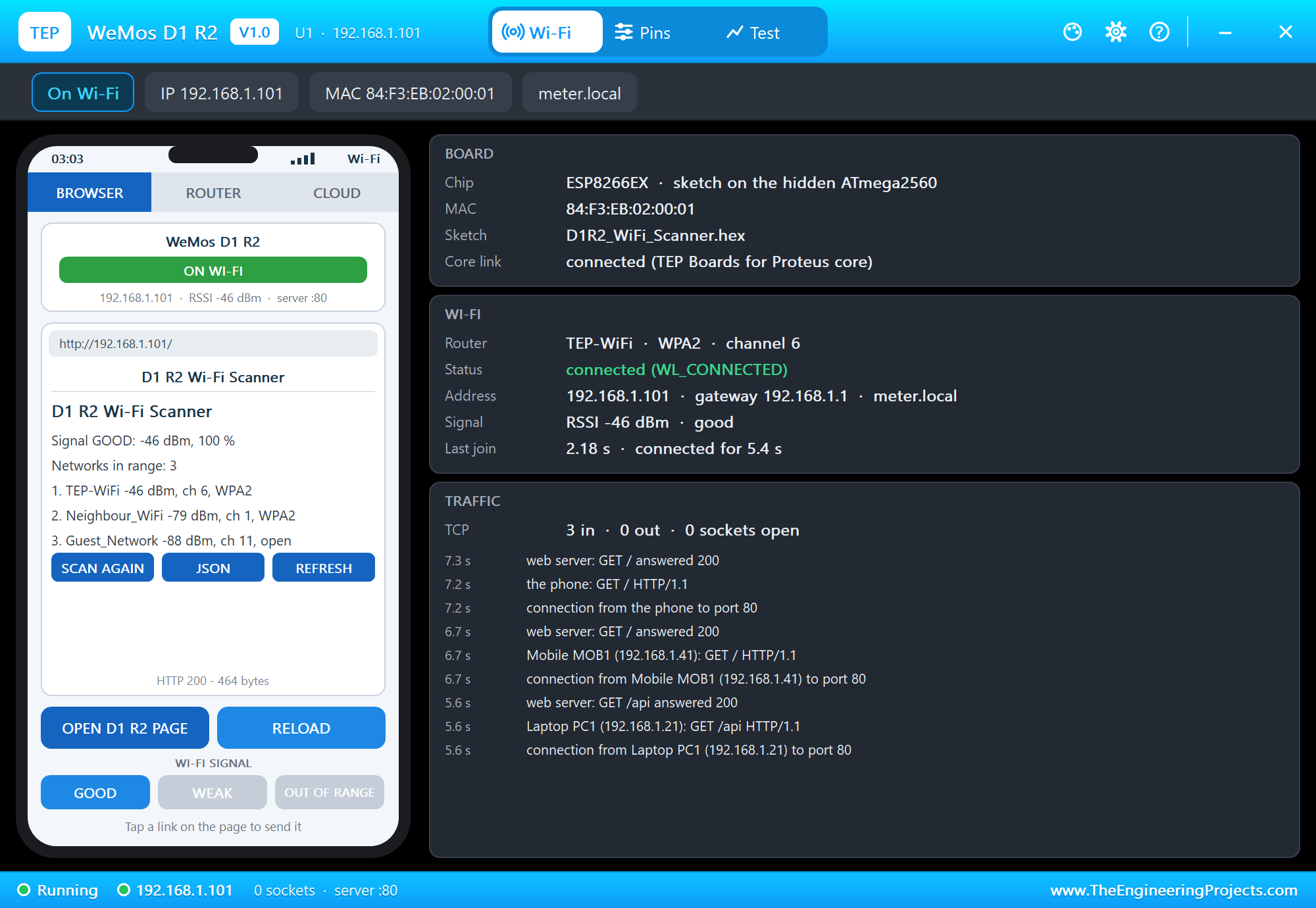
The panel opens at Run, in the look of our TEP Serial Monitor Advance for Proteus. Its Wi-Fi page has a small phone and three cards: BOARD, WI-FI and TRAFFIC. OPEN D1 R2 PAGE opens the sketch's page on the panel's phone:
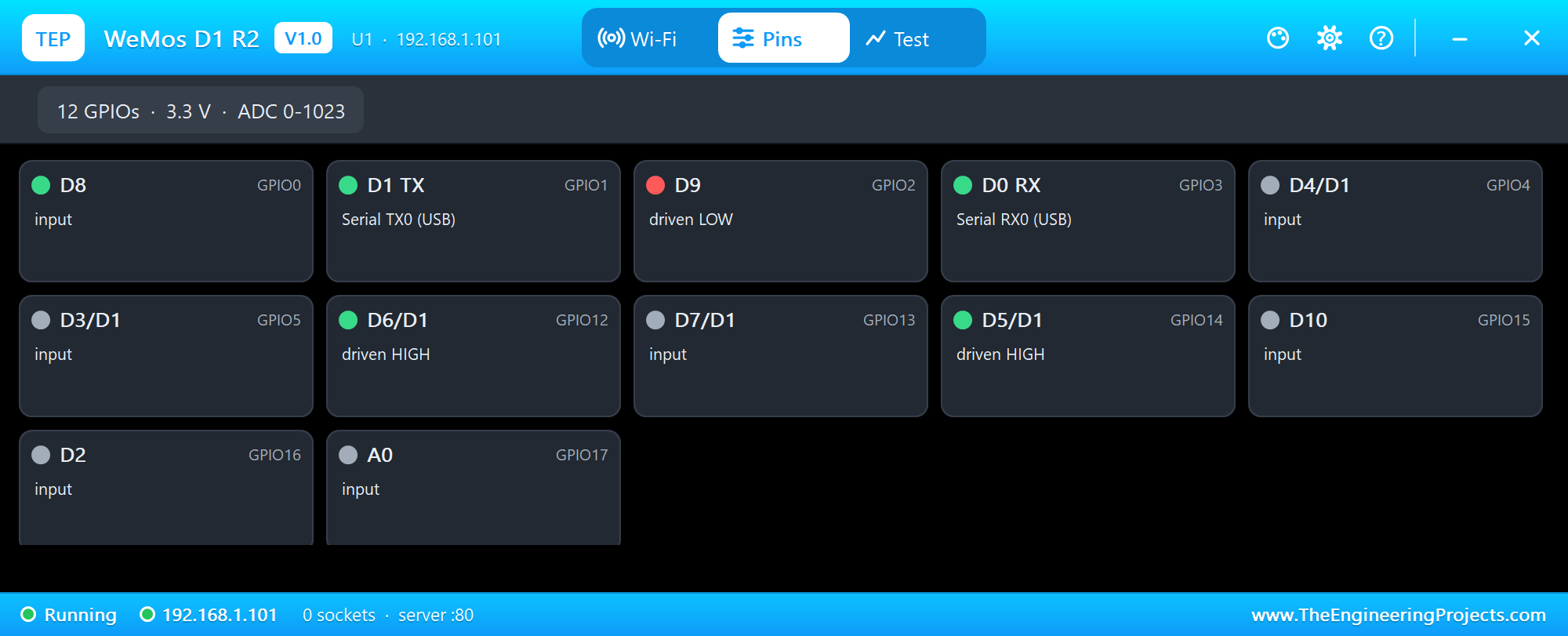
The Pins page shows the GPIOs live and A0 with its voltage and reading - the twin header pins appear once, under both names:
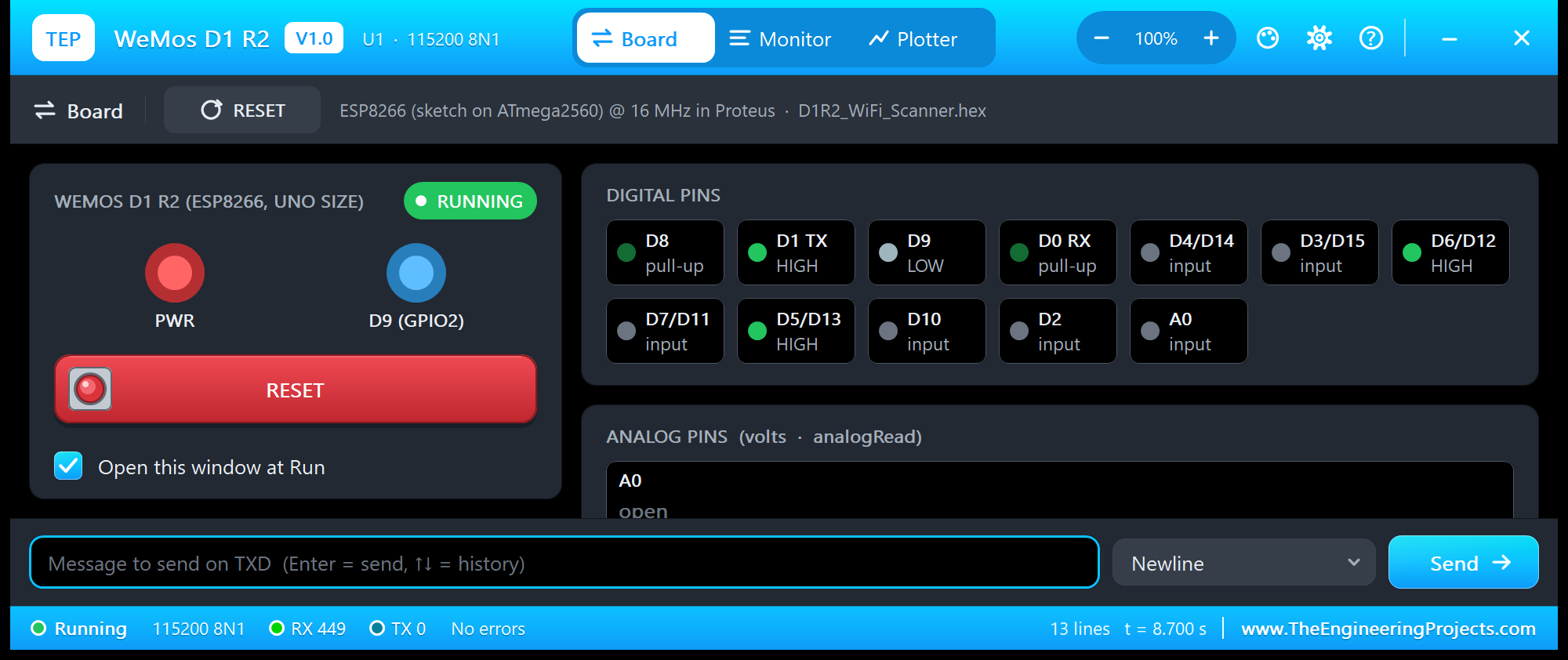
The monitor's Board tab shows the board as a whole - the PWR and D9 LEDs, the RESET button you can click there too, and every pin with its state:
Pins of the WeMos D1 R2
| Pin | GPIO | What it does in the simulation |
|---|---|---|
| D0 (RX), D1 (TX) | GPIO3, GPIO1 | Serial (the micro-USB and the board's monitor) |
| D2 | GPIO16 | digital I/O only (no PWM, no interrupt) |
| D3 / D15, D4 / D14 | GPIO5, GPIO4 | Wire SCL, SDA; I/O, PWM, interrupt |
| D5 / D13, D6 / D12, D7 / D11 | GPIO14, 12, 13 | SPI SCK, MISO, MOSI; I/O, PWM, interrupt (D5, D6: the bars) |
| D8 | GPIO0 | I/O with a 10k pull-up (no button on the D1 R2) |
| D9 | GPIO2 | the ESP-12F's blue LED (lit when LOW), Serial1 TX; I/O |
| D10 | GPIO15 | SPI SS; I/O, PWM, interrupt |
| A0 | ADC | 0 to 1023 for 0 to 3.2 V |
| 3V3, IOREF, 5V, GND | 3.3 V, the 3.3 V logic level, 5 V, ground | |
| RST | reset (LOW holds the board in reset, as the RESET button) | |
| VIN, NC | the DC jack's input and the unused pins: drawn, not modelled |
analogWrite works on every output pin but D2, with a range of 255 and 1 kHz by default. All pins are 3.3 V logic. For the GPIOs themselves - which ones are safe at boot, which ones the flash uses - see ESP8266: Knowing the NodeMCU GPIOs.
Properties of the WeMos D1 R2
| Property | What it does |
|---|---|
| PROGRAM | the sketch's HEX (Export Compiled Binary with the board WeMos D1 R2 (TEP Proteus)) |
| WIFISSID / WIFIPASS | the router in range (TEP-WiFi / 12345678) |
| MONITOR | YES = the built-in serial monitor on TX / RX |
| BAUD | the monitor's speed (115200, or AUTO) |
| AUTOOPEN | YES = the monitor opens at Run (the demos: YES) |
| TIME | the clock NTP gives the sketch: PC, or a start time in UTC |
The IP address follows the part's number: U1 gets 192.168.1.101, U2 .102 and so on. The laptop is always 192.168.1.21 and the phone 192.168.1.41; the panel's own phone is 192.168.1.201.
Troubleshooting
- Nothing happens at Run: the HEX was not built with our board package - choose WeMos D1 R2 (TEP Proteus) and export it again.
- "D15 was not declared": an older copy of the board package is installed - 1.8.0 adds the D1 R2.
- A bar does not light: D5 or D6 to the 220 ohm resistor, the resistor to the LED's anode, the cathode to ground. With WEAK only BAR 1 is on; OUT OF RANGE turns both off.
- A D1 Mini sketch uses the wrong pins: the two boards name their pins differently - use GPIO numbers, or the names of the board you selected.
- The board stays on "Connecting to TEP-WiFi": the network name or password differs from WIFISSID / WIFIPASS, or the panel's WI-FI SIGNAL is OUT OF RANGE.
- A number goes wrong above 32767: an int is 16 bits on the hidden AVR - use long.
Things to Know Before Using a Real D1 R2
- 3.3 V, not 5 V: the board looks like an UNO, but its pins are 3.3 V logic. A 5 V shield or sensor output needs a level shifter or a divider.
- Shields: an UNO shield fits, but it may use pins the D1 R2 joins together (D11 to D13 are D7 to D5) or A1 to A5, which are not connected. Check the shield's pins against the table above.
- The boot pins: D8 (GPIO0) and D9 (GPIO2) must be HIGH and D10 (GPIO15) LOW when the board starts - the board's resistors take care of that, so do not pull them the other way with your circuit. The simulation does not check this.
- A0: the ESP8266's own ADC takes 0 to 1 V; the board's divider stretches that to about 3.2 V. A bare ESP-12F module (our ESP-12F Library for Proteus) has no divider.
- RSSI on the bench: a real signal jumps by several dBm from one reading to the next. Average a few readings, or add a little hysteresis, before you switch a bar.
- The same sketch: choose "LOLIN(WEMOS) D1 R1" of the ESP8266 core - its pin names match the D1 R2's labels - and upload; nothing to change.
Limitations of the Simulation
- The board runs your sketch on a hidden ATmega2560 at 16 MHz with 8 KB of RAM - not on an ESP8266. Long strings and big buffers that fit in the ESP8266's 80 KB may not fit here.
- Not modelled: the CH340 and its auto-reset, the DC jack and its regulator, SPIFFS and LittleFS, OTA updates, the soft AP and Wi-Fi events, real TLS, deep sleep timing (the board restarts), the radio itself - the scan list, the RSSI and the join times are realistic values, not a radio simulation.
- Every board in the design sees the same router and the same two neighbours; the WI-FI SIGNAL buttons set the router's RSSI.
- The antenna colours, the red PWR LED, the PANEL pad, the panel, its phone, the router, the internet host and the two monitors are TEP additions; the MAC address is a TEP address.
- WeMos is a name of WEMOS Electronics, ESP8266 and ESP-12F of Espressif Systems and Ai-Thinker, CH340 of WCH, Arduino and UNO of Arduino SA; this library is not made or endorsed by them or by Labcenter.
- Tested in Proteus 8.5 in October 2026 (the demos as shipped, the D1 R2, the laptop and the phone together at about 0.4 x real time on our PC). Proteus 7 is not supported.
So, that was all about the WeMos D1 R2 Library for Proteus. I hope it lets you build your ESP8266 projects on a board you already know from the UNO - scanners, meters, web pages, sensors - before the real D1 R2 is on your desk, and test what your sketch does when the Wi-Fi gets weak or disappears. Its smaller brother is in our WeMos D1 Mini Library for Proteus. If you use the WeMos D1 R2 Library for Proteus in a project, please share it in the comments or in our forum, and if you have any questions, ask in the comments and I will help you out. Till the next tutorial, take care and have fun!

Comments
0