


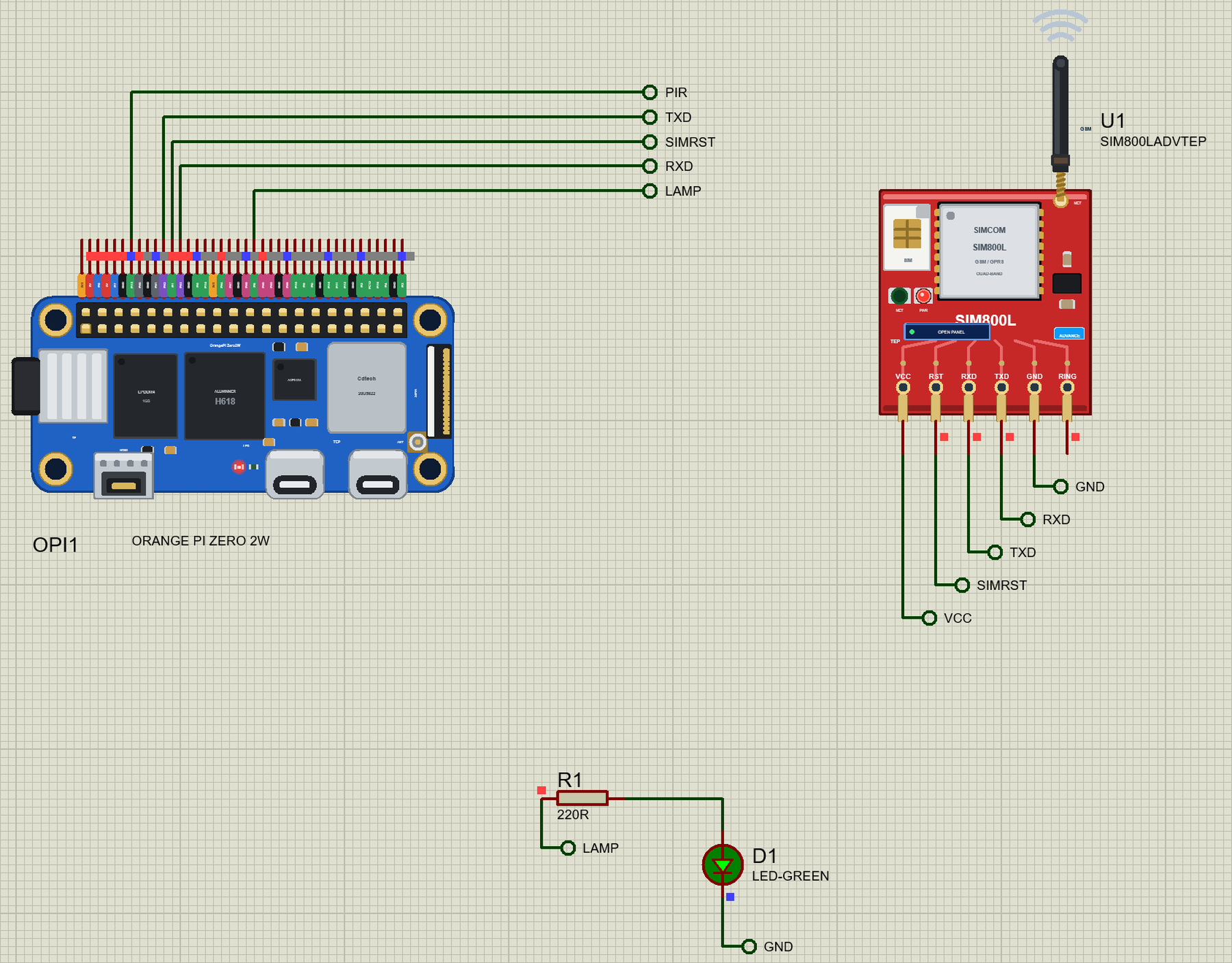
Orange Pi Zero 2W Library for Proteus: SIM800L GSM + PIR Alarm


Hello friends, I hope you all are doing great. Today, I am going to share the Orange Pi Zero 2W Library for Proteus. The Orange Pi Zero 2W is a Linux computer of the Raspberry Pi Zero's size with a much bigger engine: the Allwinner H618 with four Cortex-A53 cores at 1.5 GHz, 1 GB of LPDDR4 or more, dual-band Wi-Fi 5 and Bluetooth 5.0, a mini-HDMI, two USB-C sockets and the familiar 40-pin header. With this library the board runs your Python program against the circuit in Proteus 8.5, with the Python packages an Orange Pi uses - wiringpi (Orange Pi's wiringOP-Python) and OPi.GPIO - on our virtual Wi-Fi network.
Orange Pi Zero 2W Library for Proteus
Latest version: V1.0 (October 2026, this tutorial)
Helping Tools
- Laptop WiFi Monitor: a laptop on the Wi-Fi of your design: a browser, a TCP / UDP terminal and ping
- Mobile WiFi Monitor: a smartphone that opens the pages of your board and sends it commands
- LCD Library for Proteus V3.0: 16x2, 20x4 and I2C LCDs to show your readings
Every library of our board series connects the board to a different module and serves a web page. The Orange Pi Zero 2W becomes a GSM security alarm: an HC-SR501 PIR watches a room, a SIM800L GSM module on the board's UART5 texts the owner's phone when somebody walks in, a lamp flashes, and the owner sends SMS commands back - STATUS, LED ON, LED OFF, ARM and DISARM. A web page on a laptop and a phone shows the alarm and arms or disarms it.
NOTICE: this library does not run Debian or Ubuntu. It runs your Python program, with the same Python libraries an Orange Pi uses for its pins, its buses and its network, in step with the simulation. Your feedback is the fuel that keeps us going, so please tell us what you think in the comments below or in the Orange Pi Zero 2W section of our forum. And if our free libraries help you, you can buy us a coffee. So, let's get started with the Orange Pi Zero 2W Library for Proteus:
What is the Orange Pi Zero 2W?
Shenzhen Xunlong has made Orange Pi boards since 2014, mostly with Allwinner processors. The Orange Pi Zero 2W (2023) takes the Raspberry Pi Zero's 65 x 30 mm shape, its mounting holes and its 40-pin header, and puts the H618 on it - the chip of many Android TV boxes, with four Cortex-A53 cores at 1.5 GHz and a Mali-G31 MP2 GPU. It comes with 1, 1.5, 2 or 4 GB of LPDDR4, a microSD slot plus 16 MB of SPI flash, a Wi-Fi 5 and Bluetooth 5.0 module with an antenna socket, a mini-HDMI that drives 4K, two USB-C sockets (either one powers the board) and a red power LED and a green status LED.
Two things set it apart from a Pi Zero. A 24-pin flat connector takes a small expansion board with 100M Ethernet, two USB-A sockets, audio, an IR receiver and buttons. And the 40-pin header speaks Allwinner: its pins are named by port and number - PI13, PH2 - and the buses are TWI1 for I2C, SPI1, and UART5 on pins 11 and 13, because UART0 on pins 8 and 10 is the board's debug console.
| Raspberry Pi Zero 2 W | Orange Pi Zero 2W | |
|---|---|---|
| Processor | RP3A0 (BCM2710A1), four Cortex-A53 at 1 GHz | Allwinner H618, four Cortex-A53 at 1.5 GHz |
| GPU | VideoCore IV | Mali-G31 MP2 |
| RAM | 512 MB | 1, 1.5, 2 or 4 GB LPDDR4 |
| Storage | microSD | microSD and 16 MB SPI flash |
| Wireless | 2.4 GHz Wi-Fi, Bluetooth 4.2 | dual-band Wi-Fi 5, Bluetooth 5.0, antenna socket |
| USB and power | two micro-USB | two USB-C |
| Expansion | a camera connector | a 24-pin connector: Ethernet, USB, audio, IR |
| 40-pin header | BCM numbers (GPIO17) | Allwinner names (PI13, PH2) |
| GPIO in Python | RPi.GPIO, gpiozero | wiringpi (wiringOP-Python), OPi.GPIO |
| Size | 65 x 30 mm | the same |
In Proteus, our Raspberry Pi Model B Library for Proteus covers how a board runs a Python program: the program and Proteus work in lockstep, every sleep, pin wait and bus transfer moves the simulation clock. The Raspberry Pi Zero 2 W Library for Proteus is the same size; the Jetson Nano Library for Proteus and the BeagleBone Black Library for Proteus are the other boards of the series that are not Raspberry Pis - each with the GPIO package its own system uses.
Features of the Orange Pi Zero 2W Library for Proteus
- The board as it looks: the blue board with the H618, the LPDDR4, the AXP313A power chip, the Cdtech Wi-Fi module and its antenna socket, the 24-pin connector, the microSD slot, the mini-HDMI, the two USB-C sockets and the two LEDs.
- Allwinner pin names: the 40 pins carry their real names - PI8, PH2, PC12 - on colour-coded tags, with TWI1, SPI1 and UART5 where Orange Pi's manual puts them.
- wiringpi: Orange Pi's wiringOP-Python - wiringPiSetup with wPi numbers, pinMode, digitalWrite, digitalRead, wiringPiISR, softPwm, the serial functions on /dev/ttyS5, I2C and SPI.
- OPi.GPIO: the RPi.GPIO-style package with BOARD, SUNXI ('PI13') and BCM numbering, edge callbacks and software PWM.
- pyserial, smbus2 and spidev on UART5, TWI1 (/dev/i2c-1) and SPI1 (/dev/spidev1.0 and 1.1).
- Wi-Fi: wlan0 joins our router TEP-WiFi as 192.168.1.51; sockets and http.server work as on the board.
- The board's files: /proc/device-tree/model says "OrangePi Zero 2W", the compatible string xunlong,orangepi-zero2w, and the Raspberry Pi packages are not installed - as on a real Orange Pi image.
- The terminal: the orangepi@orangepi prompt, the output, the errors, a line for input(), and a Board tab with the pins by their Allwinner names - with our TEP header, no Windows title bar.
- A complete package: about 13.9 MB with the board, Python, the runtime, the SIM800L and PIR libraries, the monitors and the demo, without the source code of the models.
The Orange Pi Zero 2W in Proteus
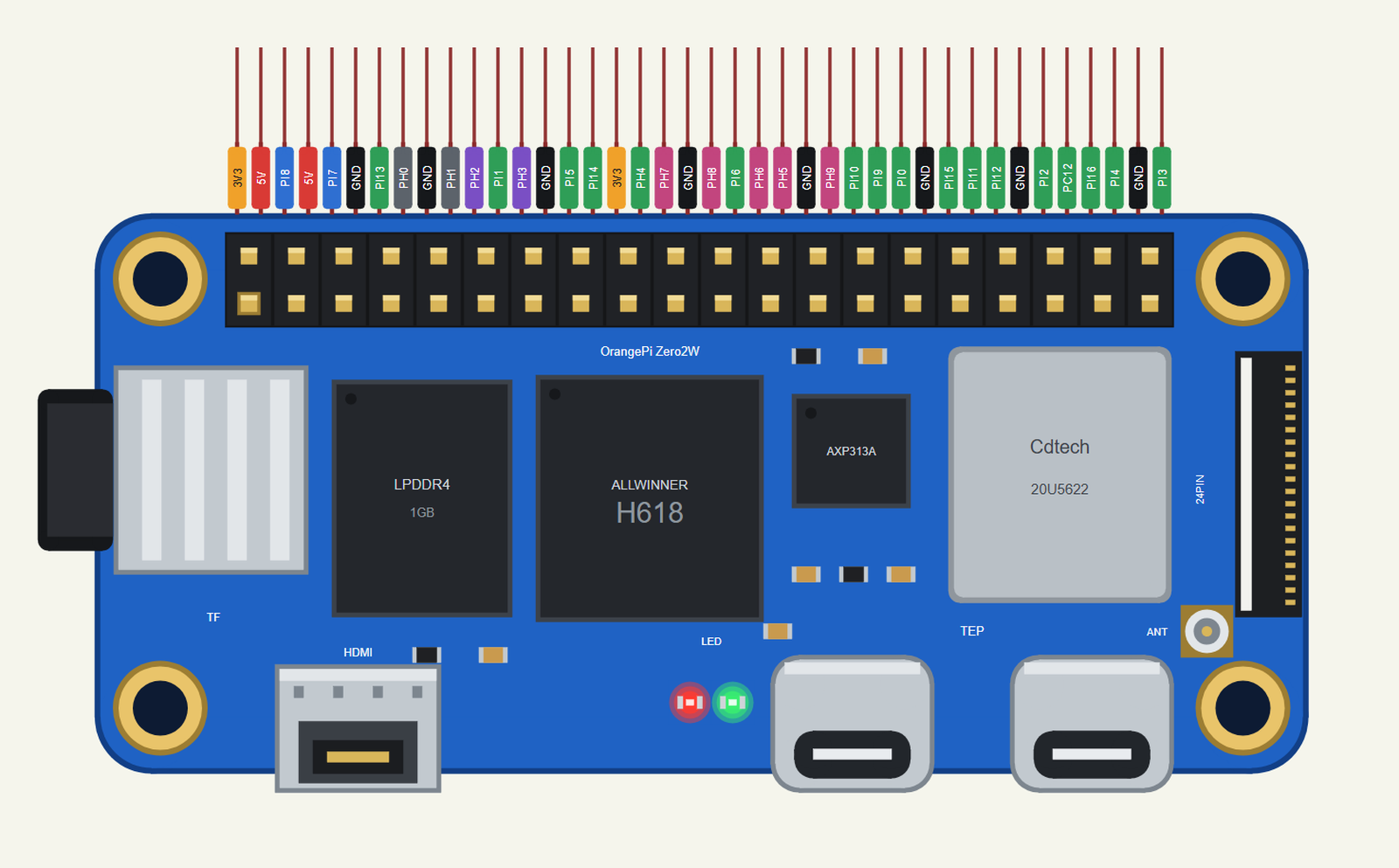
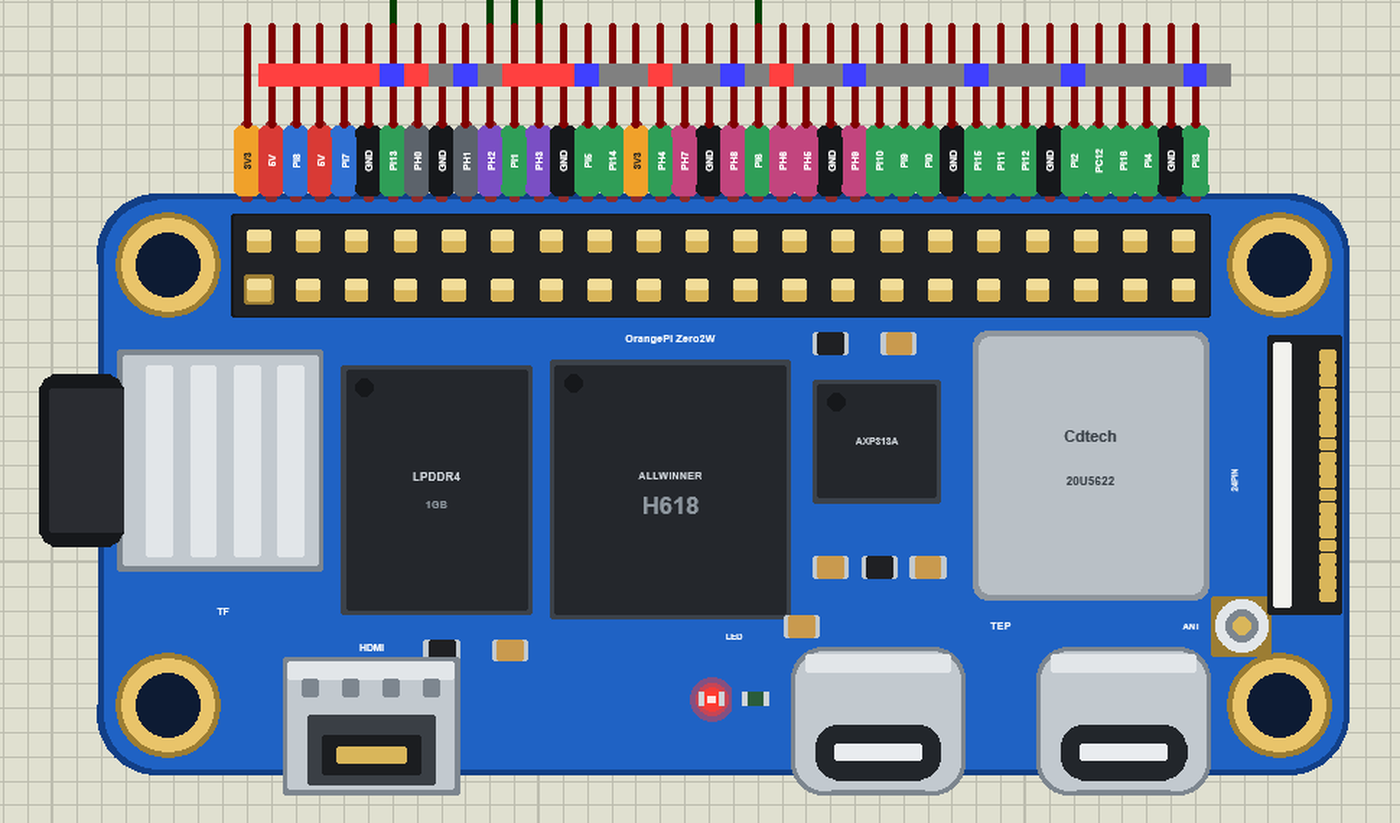
Search ORANGE in Pick Devices; the device ORANGE PI ZERO 2W is in TEPOPI02W.LIB (Microprocessor ICs, Orange Pi), with the prefix OPI. It is drawn at its real size from Orange Pi's top view, turned half a turn so that the header runs along the top edge like every board of our series, its 40 pins leaving the board as one comb with a tag in the colour of its kind: 5V red, 3V3 orange, GND black, GPIO green, I2C blue, SPI pink, UART5 purple and the UART0 console grey. Click the mini-HDMI socket or the H618 to open the terminal.
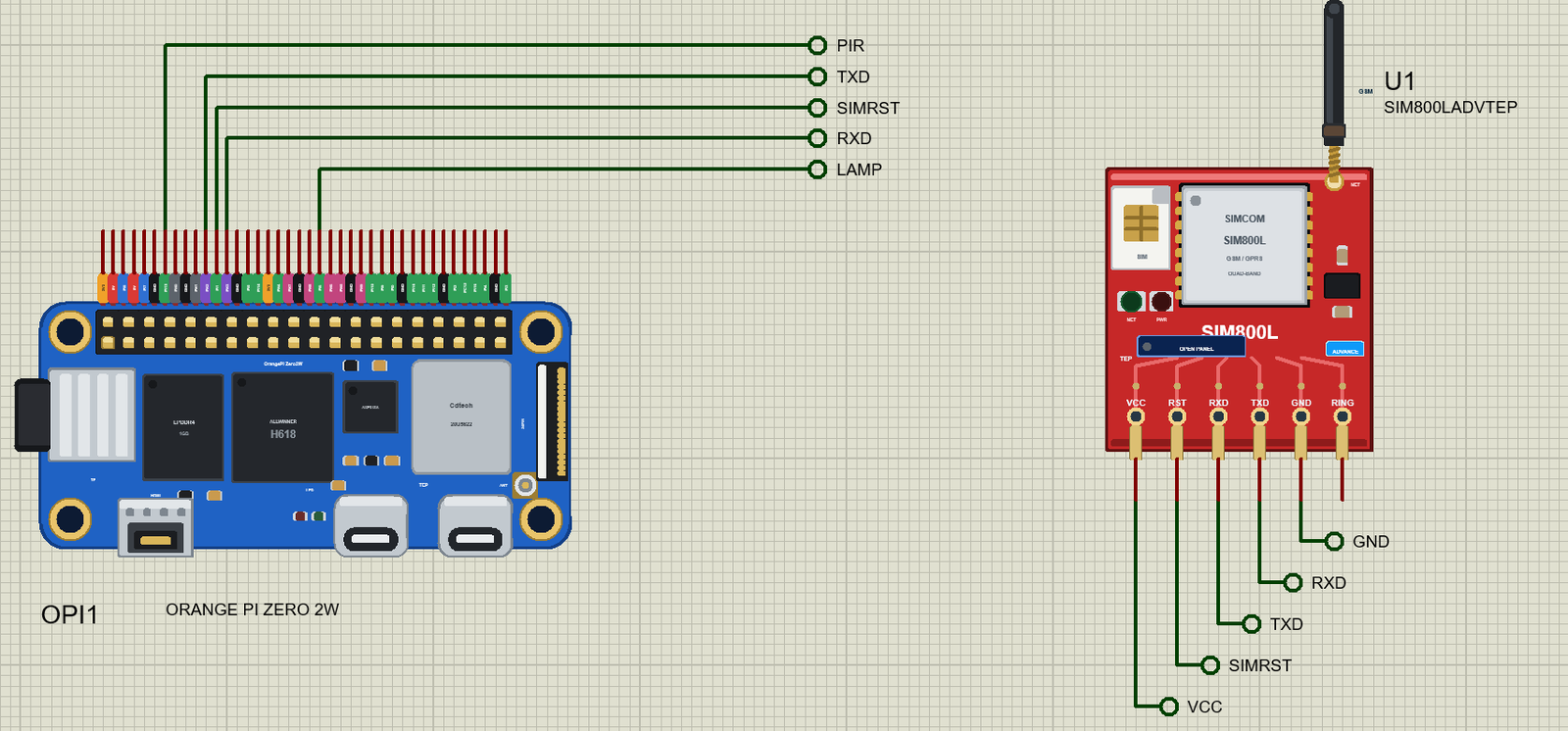
The 40-Pin Header
| Pin | Name | Function | wPi | Pin | Name | Function | wPi |
|---|---|---|---|---|---|---|---|
| 1 | 3V3 | 2 | 5V | ||||
| 3 | PI8 | TWI1-SDA | 0 | 4 | 5V | ||
| 5 | PI7 | TWI1-SCL | 1 | 6 | GND | ||
| 7 | PI13 | 2 | 8 | PH0 | UART0-TX | 3 | |
| 9 | GND | 10 | PH1 | UART0-RX | 4 | ||
| 11 | PH2 | UART5-TX | 5 | 12 | PI1 | 6 | |
| 13 | PH3 | UART5-RX | 7 | 14 | GND | ||
| 15 | PI5 | 8 | 16 | PI14 | 9 | ||
| 17 | 3V3 | 18 | PH4 | 10 | |||
| 19 | PH7 | SPI1-MOSI | 11 | 20 | GND | ||
| 21 | PH8 | SPI1-MISO | 12 | 22 | PI6 | 13 | |
| 23 | PH6 | SPI1-CLK | 14 | 24 | PH5 | SPI1-CS0 | 15 |
| 25 | GND | 26 | PH9 | SPI1-CS1 | 16 | ||
| 27 | PI10 | 17 | 28 | PI9 | 18 | ||
| 29 | PI0 | 19 | 30 | GND | |||
| 31 | PI15 | 20 | 32 | PI11 | 21 | ||
| 33 | PI12 | 22 | 34 | GND | |||
| 35 | PI2 | 23 | 36 | PC12 | 24 | ||
| 37 | PI16 | 25 | 38 | PI4 | 26 | ||
| 39 | GND | 40 | PI3 | 27 |
The pins work at 3.3 V. The wPi numbers are wiringOP's: the 28 GPIOs counted in pin order, from pin 3 (wPi 0) to pin 40 (wPi 27), as "gpio readall" prints them on a real board. The Linux GPIO number is the port's letter (A = 0) times 32 plus the pin: PH2 is 7 x 32 + 2 = 226, PI13 is 269.
Download Orange Pi Zero 2W Library for Proteus
Click the button below to download Orange-Pi-Zero-2W-Library-for-Proteus-v1.0.zip (about 13.9 MB with Python included, without the source code of the models):
Orange Pi Zero 2W Library for Proteus V1.0- README.txt: the device, the network, installation, the demo, the header, the properties, troubleshooting and the limits.
- Proteus Library Files:
TEPOPI02W.LIB(the Orange Pi Zero 2W) and the demo's parts:TEPSIM800L.LIB,TEPHCSR501.LIB,TEPLAPTOP.LIBandTEPMOBILE.LIB. - Proteus Model Files:
TEPNET.DLL(the board, the laptop, the phone and the network),TEPSIM800L.DLL,TEPHCSR501.DLLand the TEPPi folder - Python 3.11 and the TEP Pi runtime with wiringpi and OPi.GPIO. - Python Code:
blink.pyandgsm_alarm.py. - Proteus Simulation: the demo project, its program and copies of the DLLs.
No Proteus yet? Read How to Download and Install Proteus 7 and 8. New to libraries? Follow How to Install a New Library in Proteus.
How to Install Orange Pi Zero 2W Library for Proteus
- Close Proteus and extract the whole zip file, for example to your Desktop.
- Copy the files from Proteus Library Files into the LIBRARY folder of Proteus (usually
C:\Program Files (x86)\Labcenter Electronics\Proteus 8 Professional\LIBRARY). - Copy everything from Proteus Model Files - the DLLs and the TEPPi folder - into the MODELS folder, replacing an older TEPNET.DLL and TEPPi folder (these are the newest; they also run every earlier board of the series).
- Delete
TEPOPI02W.IDXfrom the LIBRARY folder if it is there. - Start Proteus, press P and search for ORANGE.
There is nothing else to install: Python comes in the TEPPi folder, so you need no Python on your PC.
Demo: a GSM and PIR Alarm
A PIR (passive infrared) sensor sees the warm body of a person moving across its zones; the HC-SR501 turns that into a HIGH on its OUT pin for a few seconds. A SIM800L is a tiny GSM modem: give it a SIM card and it sends and receives text messages, controlled with AT commands over a UART. Together they make the classic alarm that works where there is no internet: motion while armed, and the owner's phone gets an SMS.
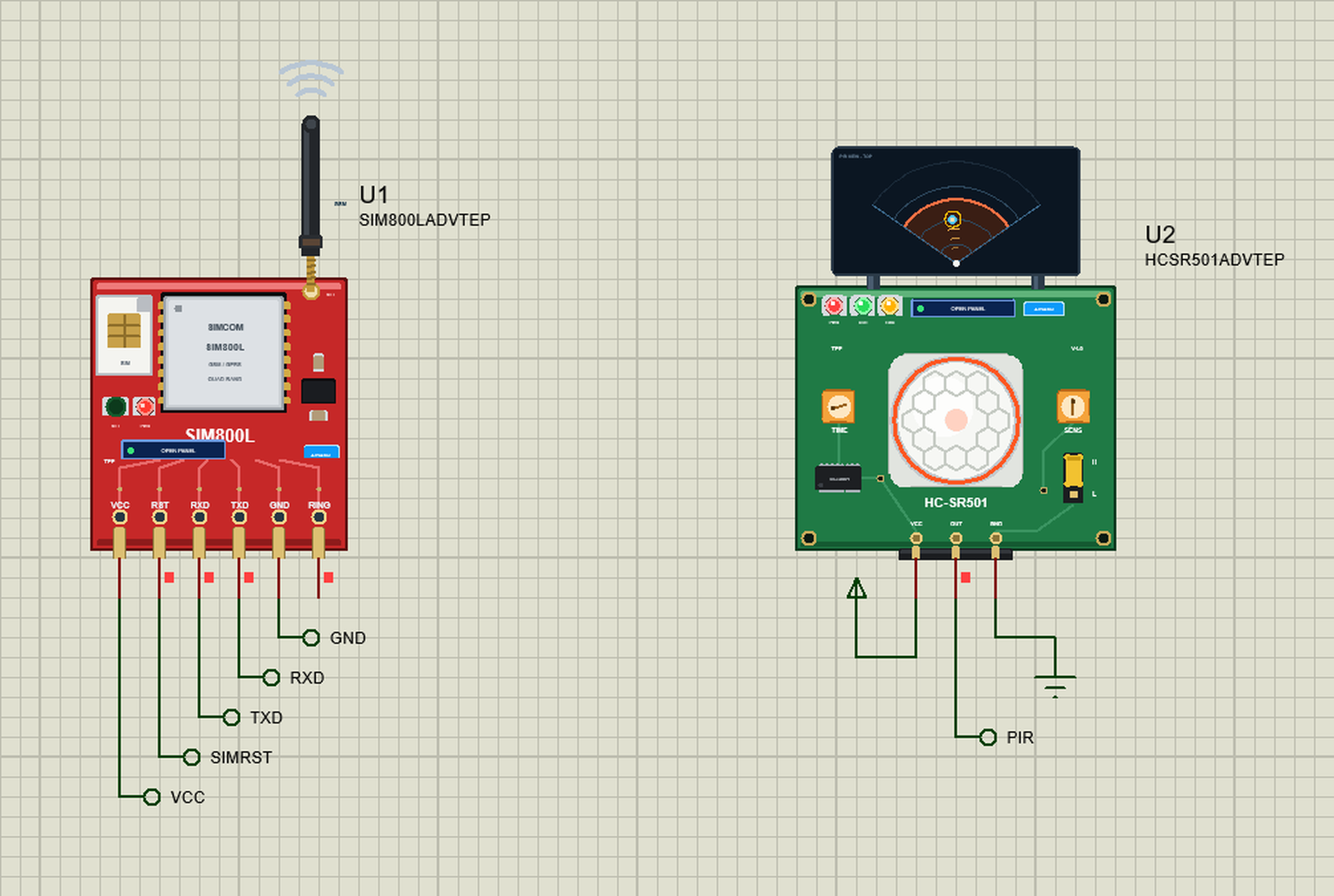
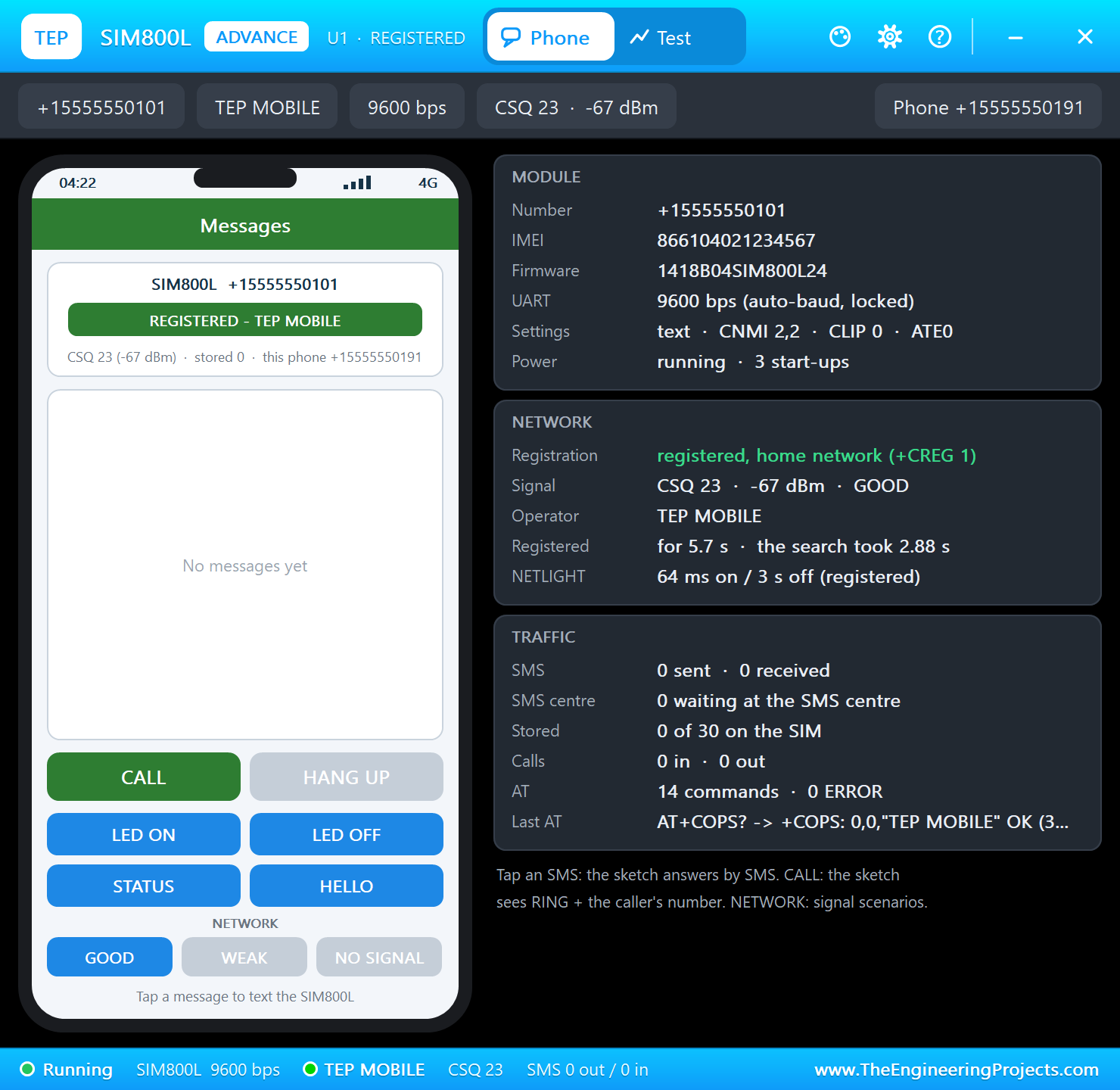
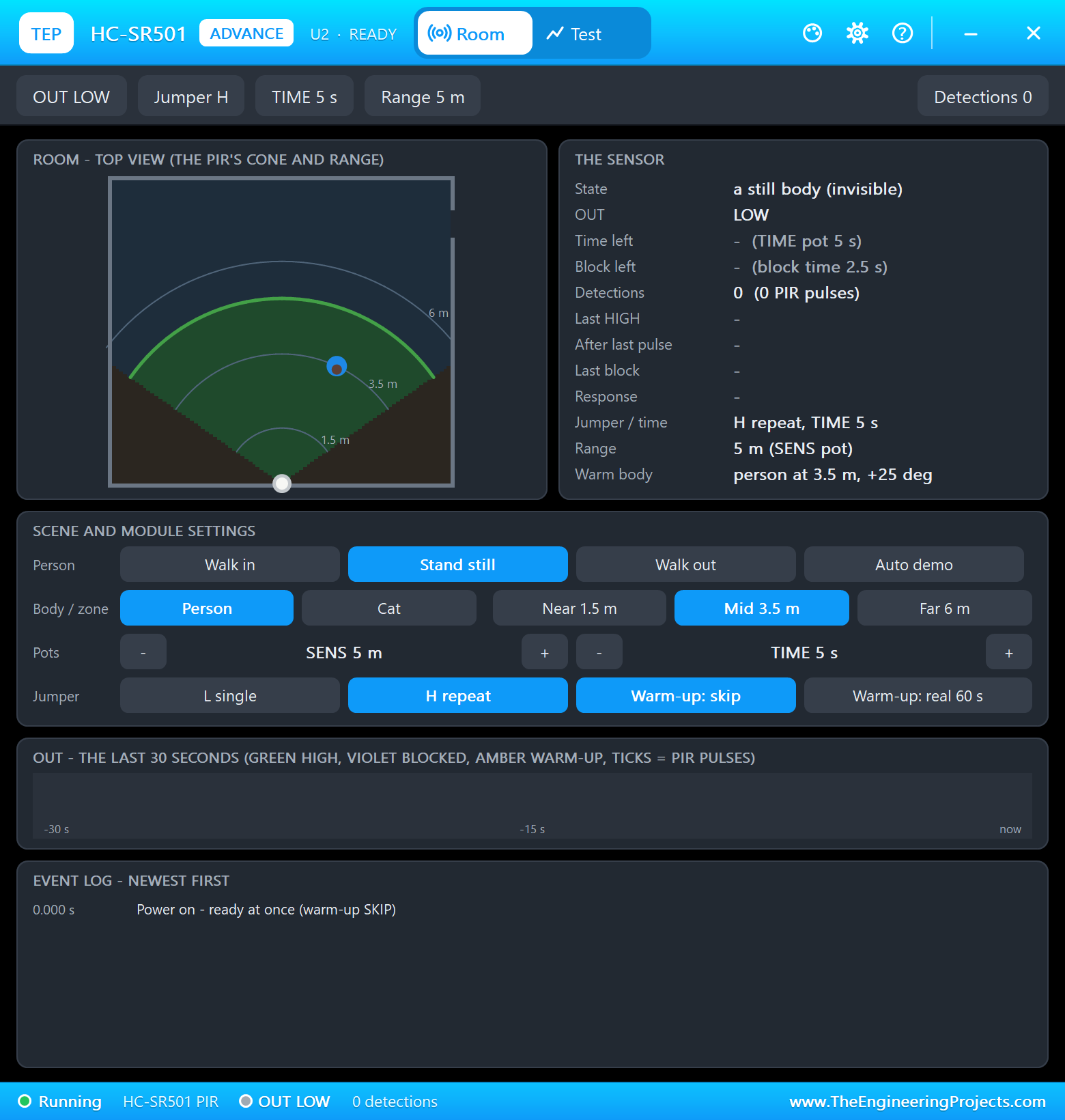
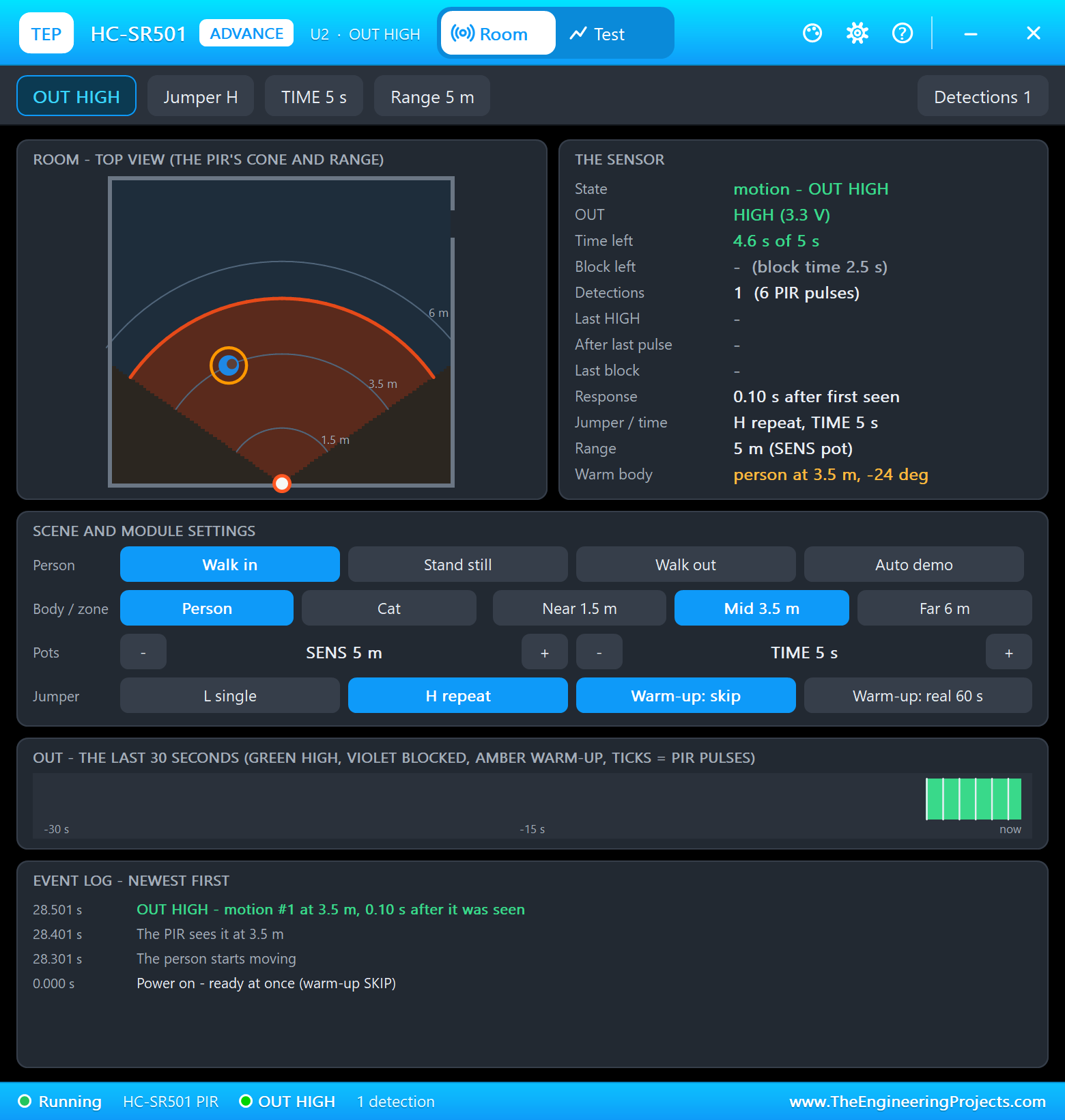
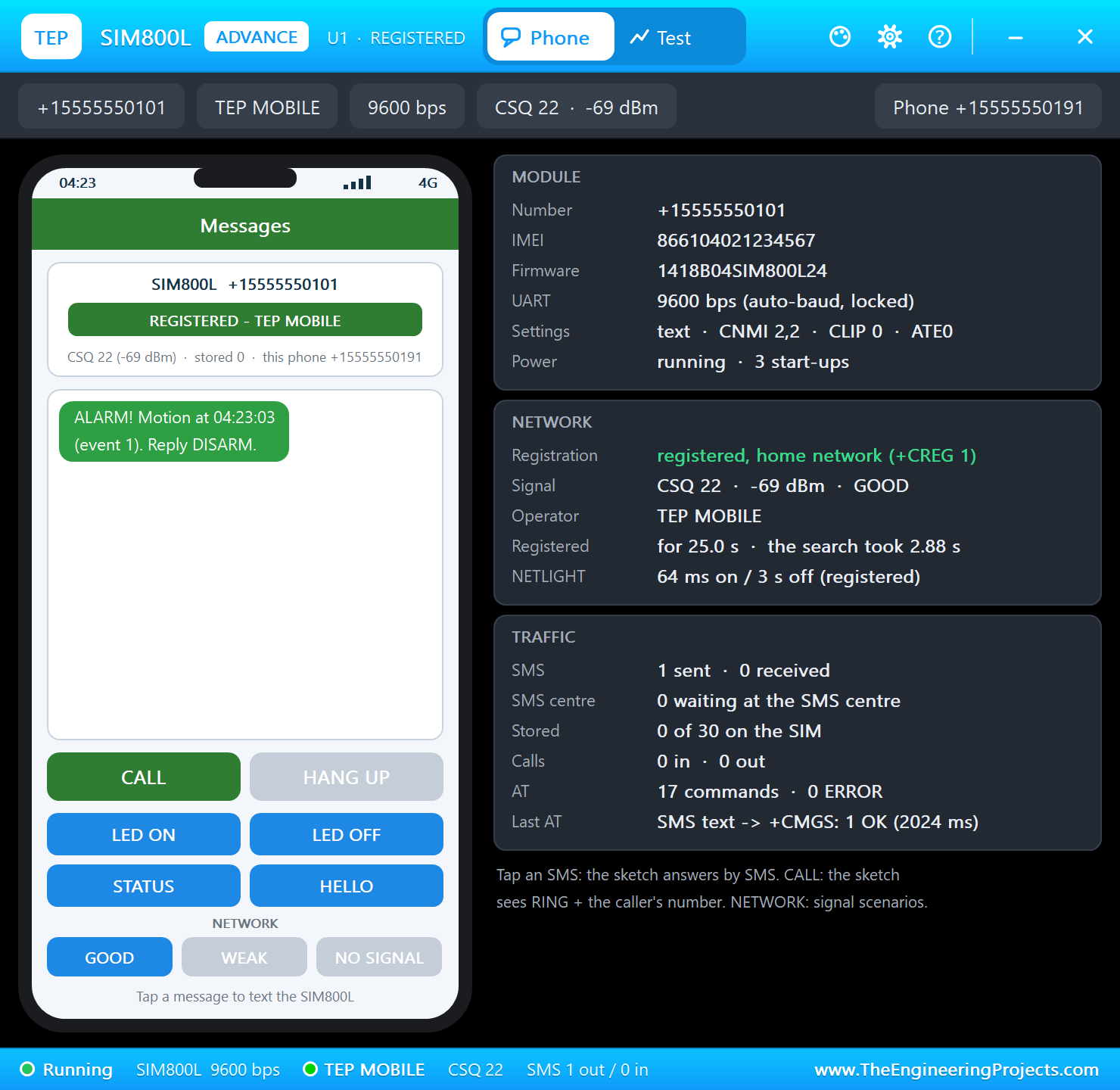
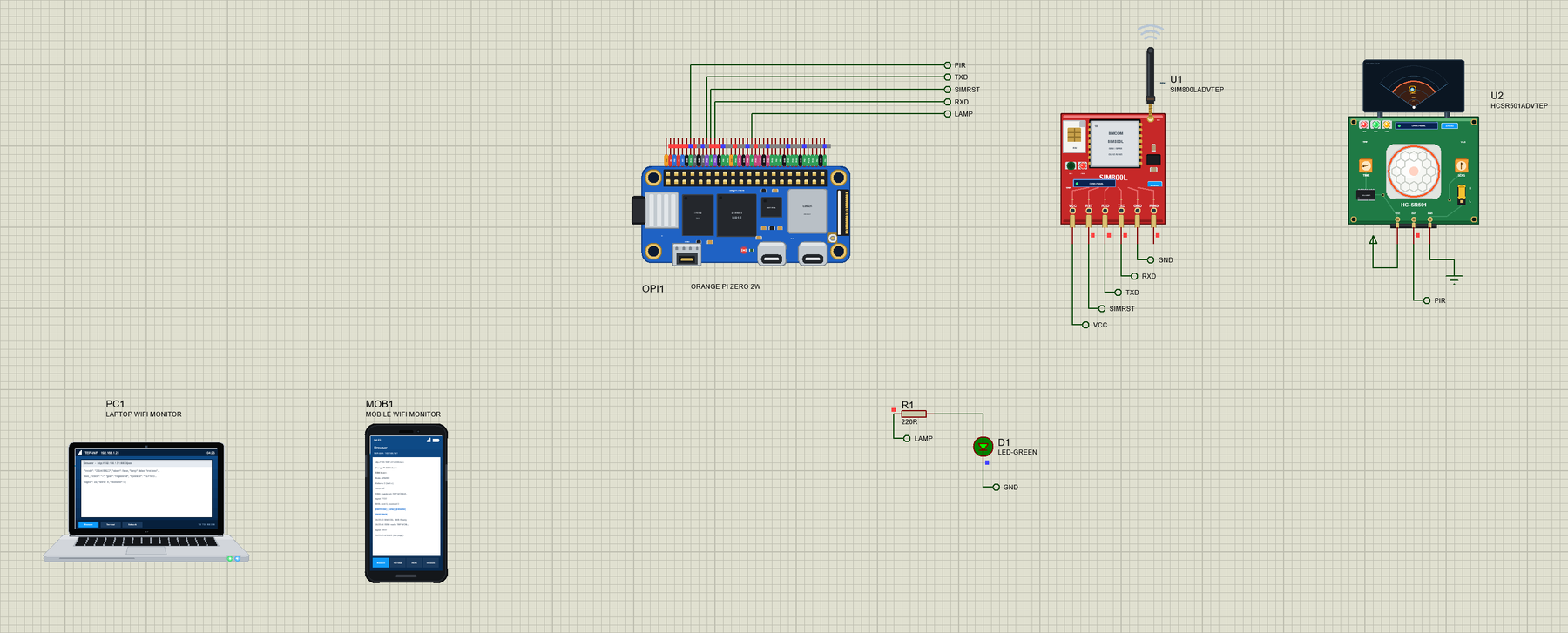
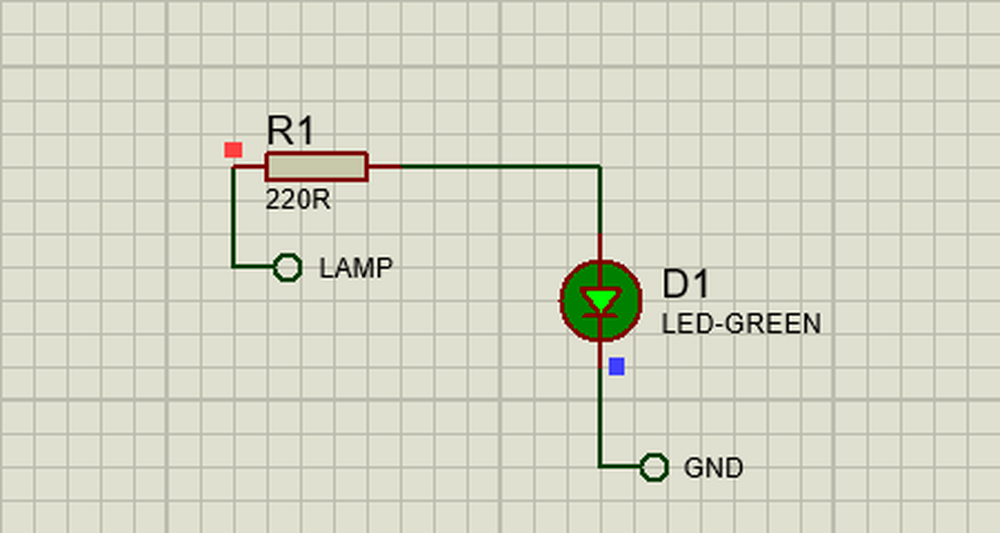
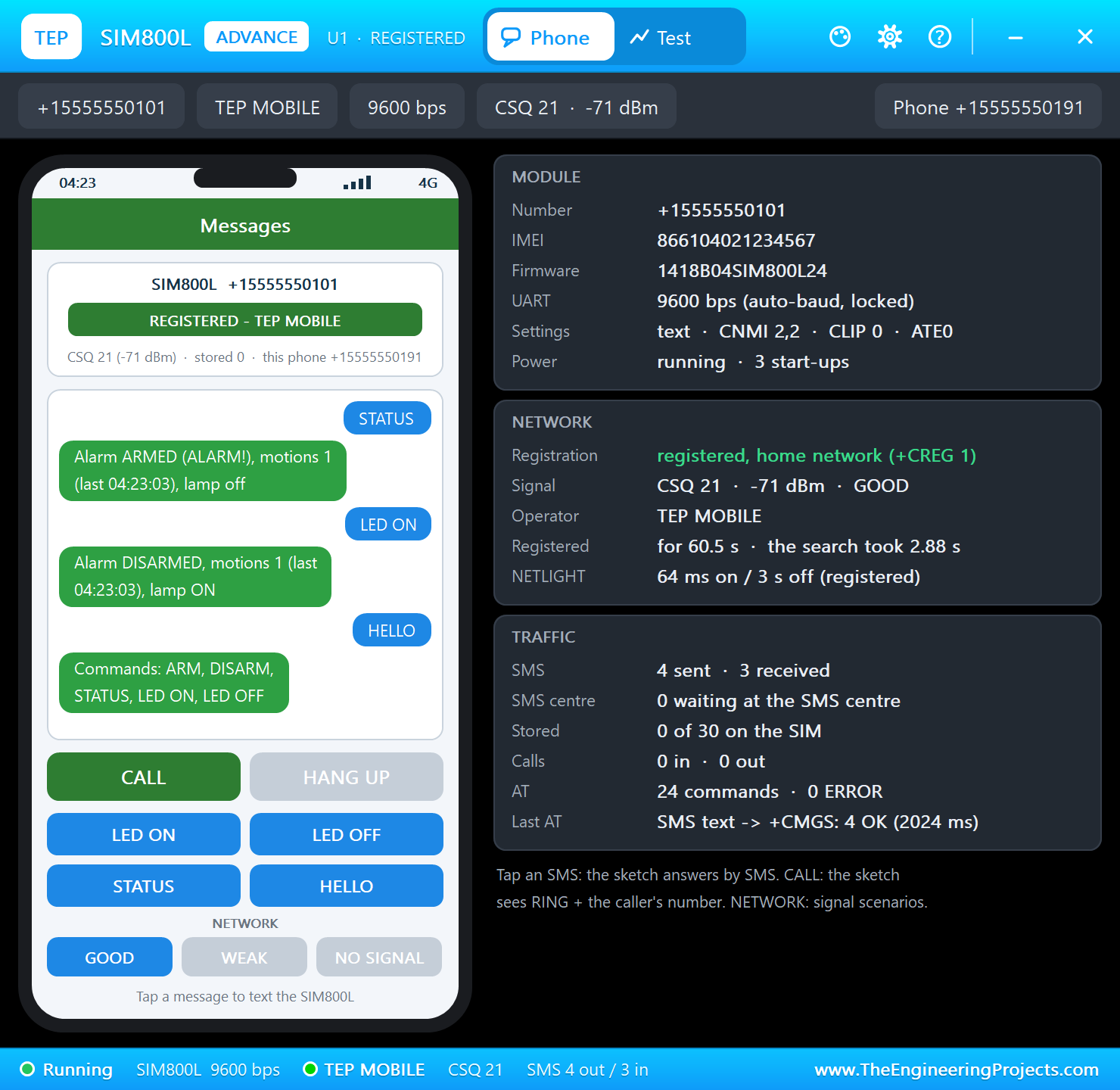
Open OPi-Zero-2W-GSM-Alarm.pdsprj. OPI1 runs gsm_alarm.py on Wi-Fi. U1 is a SIM800L from our SIM800L Library for Proteus on UART5, U2 an HC-SR501 from our PIR Sensor Library for Proteus V4.0 on pin 7, and D1 with R1 is the lamp on pin 22. Both modules are the Advance versions: the SIM800L's pop-up holds the owner's phone (+15555550191) with buttons that text the module, the PIR's pop-up shows the room and lets a person walk in. PC1 is the Laptop WiFi Monitor and MOB1 the Mobile WiFi Monitor.
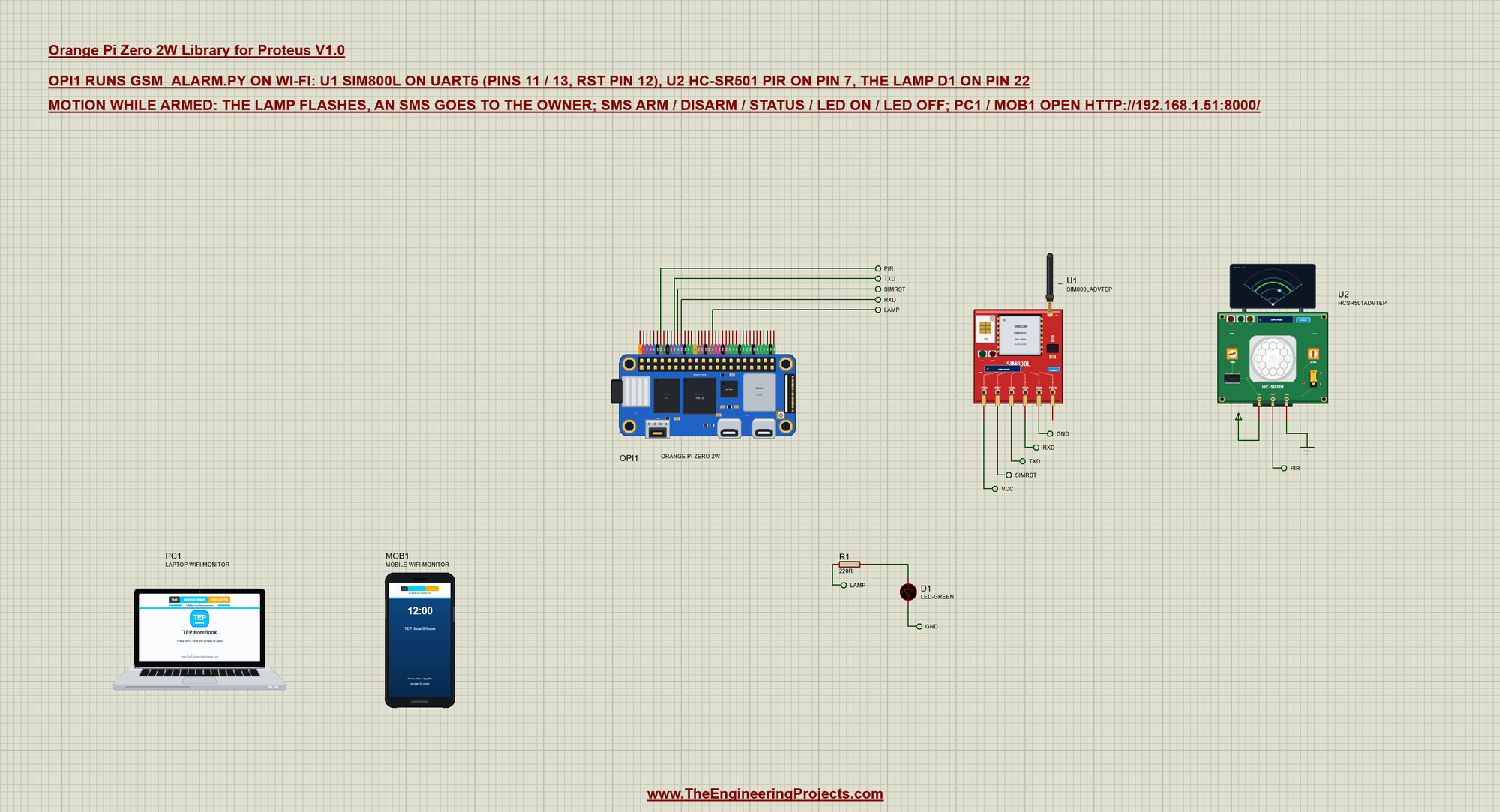
| Part | Its pin | Net label | Orange Pi pin | What it does |
|---|---|---|---|---|
| U1 SIM800L | RXD | TXD | 11 (PH2, UART5-TX) | the AT commands and the SMS texts |
| U1 SIM800L | TXD | RXD | 13 (PH3, UART5-RX) | the answers and the incoming SMS |
| U1 SIM800L | RST | SIMRST | 12 (PI1, wPi 6) | LOW for 200 ms resets the module |
| U2 HC-SR501 | OUT | PIR | 7 (PI13, wPi 2) | HIGH while it sees motion |
| D1 + R1 | anode | LAMP | 22 (PI6, wPi 13) | the alarm lamp |
wiringpi: the Orange Pi Way to the Pins
Orange Pi's manual drives the header with wiringOP, Orange Pi's port of WiringPi, and its Python binding wiringOP-Python - "import wiringpi". After wiringPiSetup() the pins are wPi numbers; wiringPiISR() calls a function on an edge, and the same module opens the serial port. The program starts like this:
print('gsm_alarm.py - GSM + PIR alarm on the Orange Pi Zero 2W')
wiringpi.wiringPiSetup()
wiringpi.pinMode(PIR, GPIO.INPUT)
wiringpi.pullUpDnControl(PIR, GPIO.PUD_DOWN)
wiringpi.pinMode(LAMP, GPIO.OUTPUT)
wiringpi.digitalWrite(LAMP, GPIO.LOW)
wiringpi.pinMode(SIM_RST, GPIO.OUTPUT)
wiringpi.digitalWrite(SIM_RST, GPIO.HIGH)
wiringpi.wiringPiISR(PIR, GPIO.INT_EDGE_RISING, motion)
print('PIR on pin 7 (wPi %d), lamp on pin 22 (wPi %d), SIM800L on %s at %d baud, RST on pin 12' % (PIR, LAMP, PORT_NAME, BAUD))
The lamp is an output, the SIM800L's RST is held HIGH so the module runs, and the PIR's OUT is an input with a pull-down - every rising edge calls motion().
Talking to the SIM800L
The GSM thread owns the serial port. Lines come in byte by byte with serialDataAvail() and serialGetchar(); a line is complete at its line feed, and the SMS prompt "> " has no line feed at all, so it is caught on its own:
    def readline(self, timeout):
        """The next line without CR LF, '>' for the SMS prompt, or None after the timeout (s)."""
        end = time.monotonic() + timeout
        while True:
            while wiringpi.serialDataAvail(self.fd) > 0:
                c = wiringpi.serialGetchar(self.fd)
                if c == 10:
                    line, self.buf = self.buf.decode('latin-1').strip(), b''
                    if line:
                        return line
                elif c >= 0 and c != 13:
                    self.buf += bytes([c])
                    if self.buf == b'> ':
                        self.buf = b''
                        return '>'
            if time.monotonic() >= end:
                return None
            time.sleep(0.02)
Some lines arrive without being asked for - the module's start-up messages, and above all +CMT, an incoming SMS: with AT+CNMI=2,2,0,0,0 the module pushes it straight to the UART as a +CMT line with the sender's number, then the text on the next line. The program keeps these aside while it waits for an OK:
    def urc(self, line):
        """True when the line is unsolicited: an SMS (+CMT, then its text), the start-up lines, a call."""
        if self.sender is not None:
            self.inbox.append((self.sender, line))
            self.sender = None
            return True
        if line.startswith('+CMT:'):
            parts = line.split('"')
            self.sender = parts[1] if len(parts) > 1 else '?'
            return True
        if line in ('Call Ready', 'SMS Ready'):
            note('SIM800L: ' + line)
            return True
        if line in ('RING', 'NO CARRIER') or line.startswith(('+CPIN:', '+CFUN:', '+CLIP:')) or (line.startswith('+CREG:') and ',' not in line):
            return True
        return False
At the start the program pulses RST, sends AT until the module answers - the SIM800L finds the baud rate from the first AT - turns the echo off, waits for AT+CREG? to say registered, and sets text mode and the SMS delivery:
    def start(self):
        """A reset pulse, AT until the module answers, echo off, wait for the network, text mode, SMS straight to the UART."""
        wiringpi.digitalWrite(SIM_RST, GPIO.LOW)
        wiringpi.delay(200)
        wiringpi.digitalWrite(SIM_RST, GPIO.HIGH)
        note('SIM800L reset - waiting for it to answer')
        for _ in range(20):
            if self.at('AT', 1.0)[0] == 'OK':
                break
        else:
            return False
        self.at('ATE0')
        t0 = time.monotonic()
        while True:
            result, lines = self.at('AT+CREG?')
            stat = lines[0].split(',')[-1].strip() if lines and lines[0].startswith('+CREG:') else ''
            if stat in ('1', '5'):
                break
            if time.monotonic() - t0 > 60:
                return False
            time.sleep(1)
        self.at('AT+CMGF=1')
        self.at('AT+CNMI=2,2,0,0,0')
        self.refresh()
        return True
Sending a text is the SIM800L's classic dance: AT+CMGS="number", wait for the "> " prompt, write the text, end it with Ctrl-Z (byte 26) and wait for +CMGS and OK:
    def send_sms(self, number, text):
        wiringpi.serialPuts(self.fd, 'AT+CMGS="%s"\r' % number)
        end = time.monotonic() + 5
        while True:
            line = self.readline(end - time.monotonic())
            if line == '>':
                break
            if line is None or line == 'ERROR' or line.startswith('+CMS ERROR'):
                return False
            self.urc(line)
        wiringpi.serialPuts(self.fd, text)
        wiringpi.serialPutchar(self.fd, 26)                         # Ctrl-Z sends it
        return self.final(30)[0] == 'OK'
The Alarm
motion() runs on the edge of the PIR's OUT. It counts the motion; if the alarm is ARMED it raises the alarm and queues one SMS to the owner - at most one a minute, so a person walking around does not cost a text every few seconds:
def motion():
    """wiringPiISR: the PIR's OUT rose (on the runtime's event thread - no waiting here)."""
    now = time.monotonic()
    with lock:
        state['motions'] += 1
        state['last_motion'], state['last_motion_t'] = time.strftime('%H:%M:%S'), now
        n, armed = state['motions'], state['mode'] == 'ARMED'
        text_due = armed and now - state['last_sms_t'] >= SMS_GAP
        if armed:
            state['alarm'] = True
        if text_due:
            state['last_sms_t'] = now
    note('motion #%d%s' % (n, ' - ALARM' if armed else ''))
    if text_due:
        queue_sms(OWNER, 'ALARM! Motion at %s (event %d). Reply DISARM.' % (time.strftime('%H:%M:%S'), n))
A second thread flashes the lamp twice a second during an alarm; 30 s after the last motion the alarm ends by itself and the system stays armed. Outside an alarm the lamp is whatever the owner asked for by SMS:
def lamp_loop():
    """The lamp flashes (2 Hz) during an alarm - the alarm ends ALARM_TIME s after the last motion - else it is what LED ON / OFF set."""
    on = False
    while True:
        with lock:
            ended = state['alarm'] and time.monotonic() - state['last_motion_t'] > ALARM_TIME
            if ended:
                state['alarm'] = False
            alarm, lamp = state['alarm'], state['lamp']
        if ended:
            note('alarm over - still ARMED')
        on = (not on) if alarm else lamp
        wiringpi.digitalWrite(LAMP, GPIO.HIGH if on else GPIO.LOW)
        time.sleep(0.25)
SMS Commands
Every SMS from the owner's number is a command: ARM, DISARM, STATUS, LED ON and LED OFF, each answered with the status in one short text; HELLO, or anything else, returns the list. Texts from other numbers are only logged - a stranger cannot disarm the alarm:
def command(sender, text):
    """An SMS from the owner's phone: ARM, DISARM, STATUS, LED ON / LED OFF (the lamp) - answered with the status - or HELLO (the
    list of commands)."""
    cmd = ' '.join(text.strip().upper().split())
    with lock:
        state['received'] += 1
    note('SMS from %s: %s' % (sender, text.strip()))
    if sender != OWNER:
        note('not the owner\'s number - ignored')
        return
    if cmd == 'ARM':
        set_mode('ARMED', 'SMS')
    elif cmd == 'DISARM':
        set_mode('DISARMED', 'SMS')
    elif cmd in ('LED ON', 'LED OFF'):
        set_lamp(cmd == 'LED ON', 'SMS')
    elif cmd != 'STATUS':
        queue_sms(sender, 'Commands: ARM, DISARM, STATUS, LED ON, LED OFF')
        return
    queue_sms(sender, status_text())
The Web Page
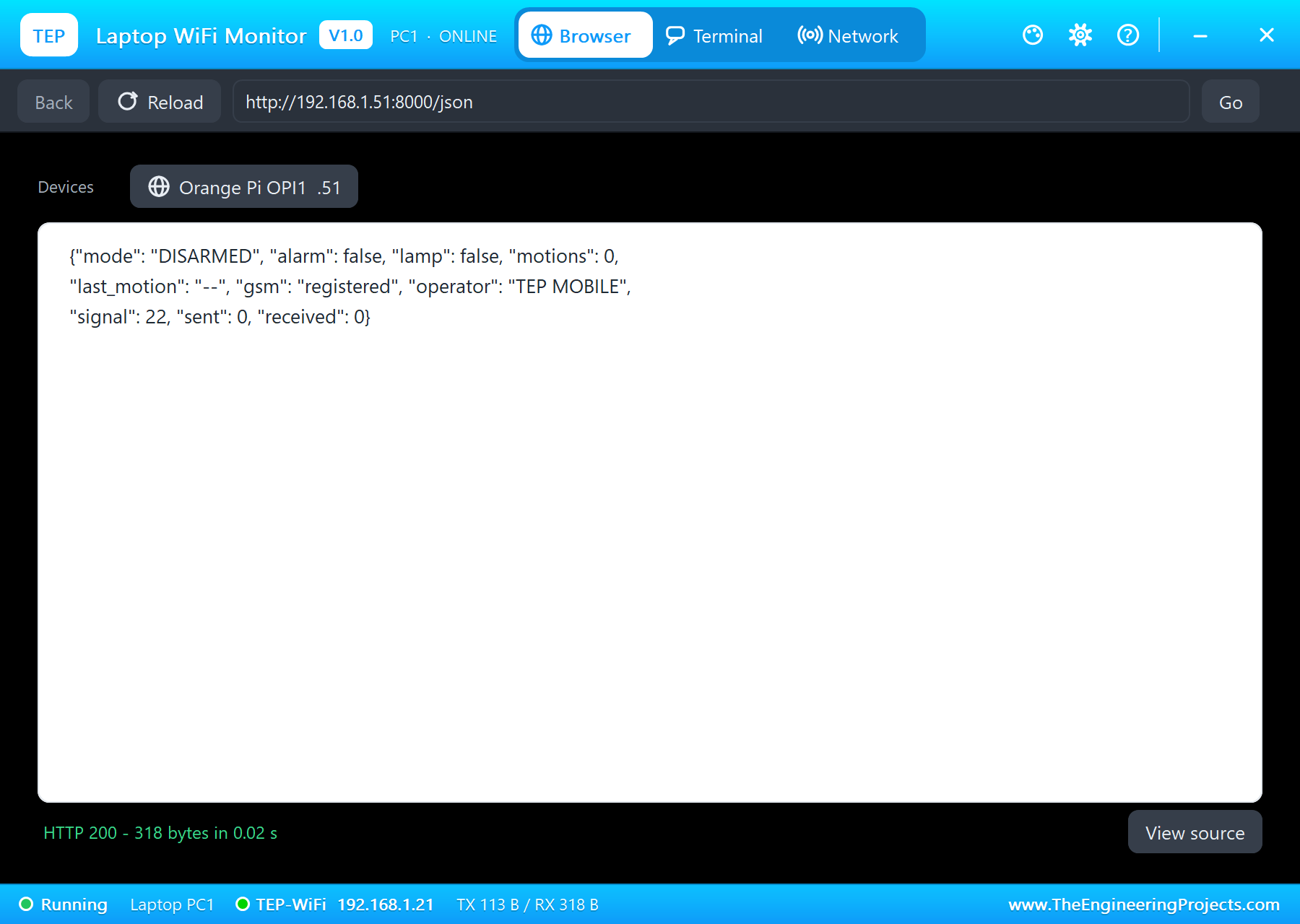
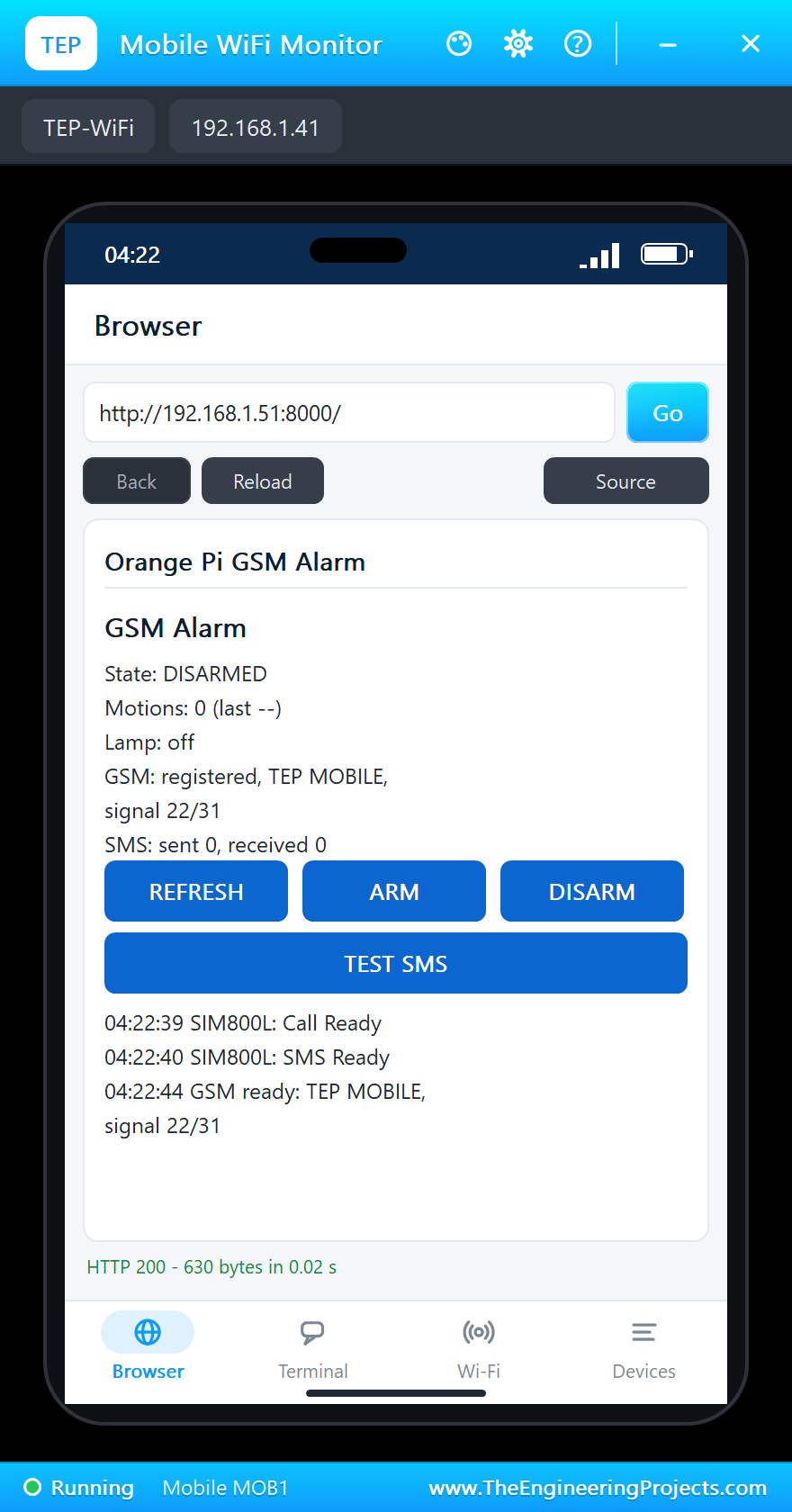
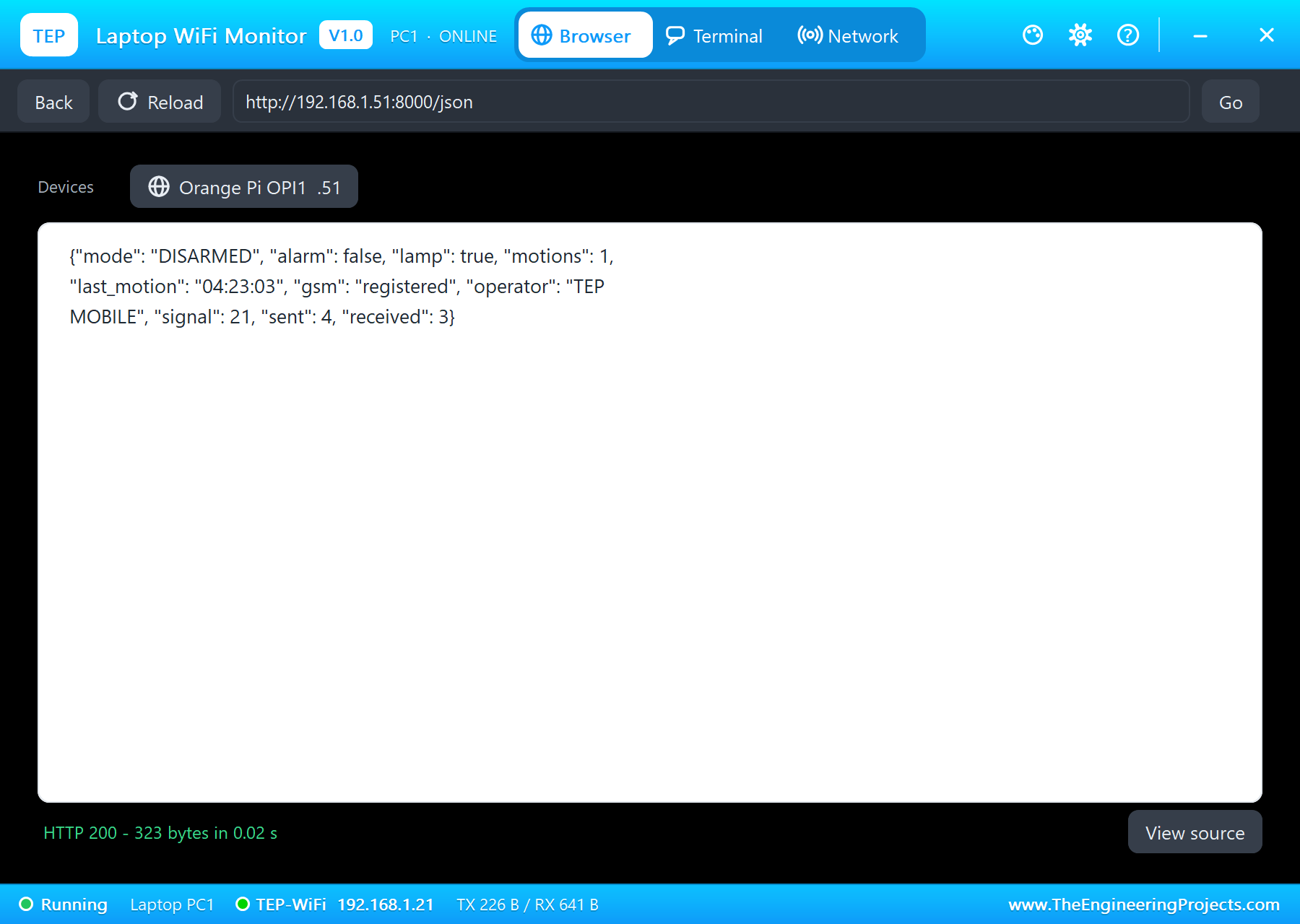
The page shows the state, the motions, the lamp, the GSM network and the SMS counters, with REFRESH, ARM, DISARM and TEST SMS; /json gives the same values for another program:
PAGE = """<html><head><title>Orange Pi GSM Alarm</title></head><body>
<h1>GSM Alarm</h1>
<p>State: <b>{mode}</b></p>
<p>Motions: <b>{motions}</b> (last {last})</p>
<p>Lamp: <b>{lamp}</b></p>
<p>GSM: {gsm}, {operator}, signal {signal}/31</p>
<p>SMS: sent {sent}, received {received}</p>
<p><a href="/">REFRESH</a> <a href="/arm">ARM</a> <a href="/disarm">DISARM</a> <a href="/test">TEST SMS</a></p>
<p>{log}</p>
</body></html>"""
Run the Demo
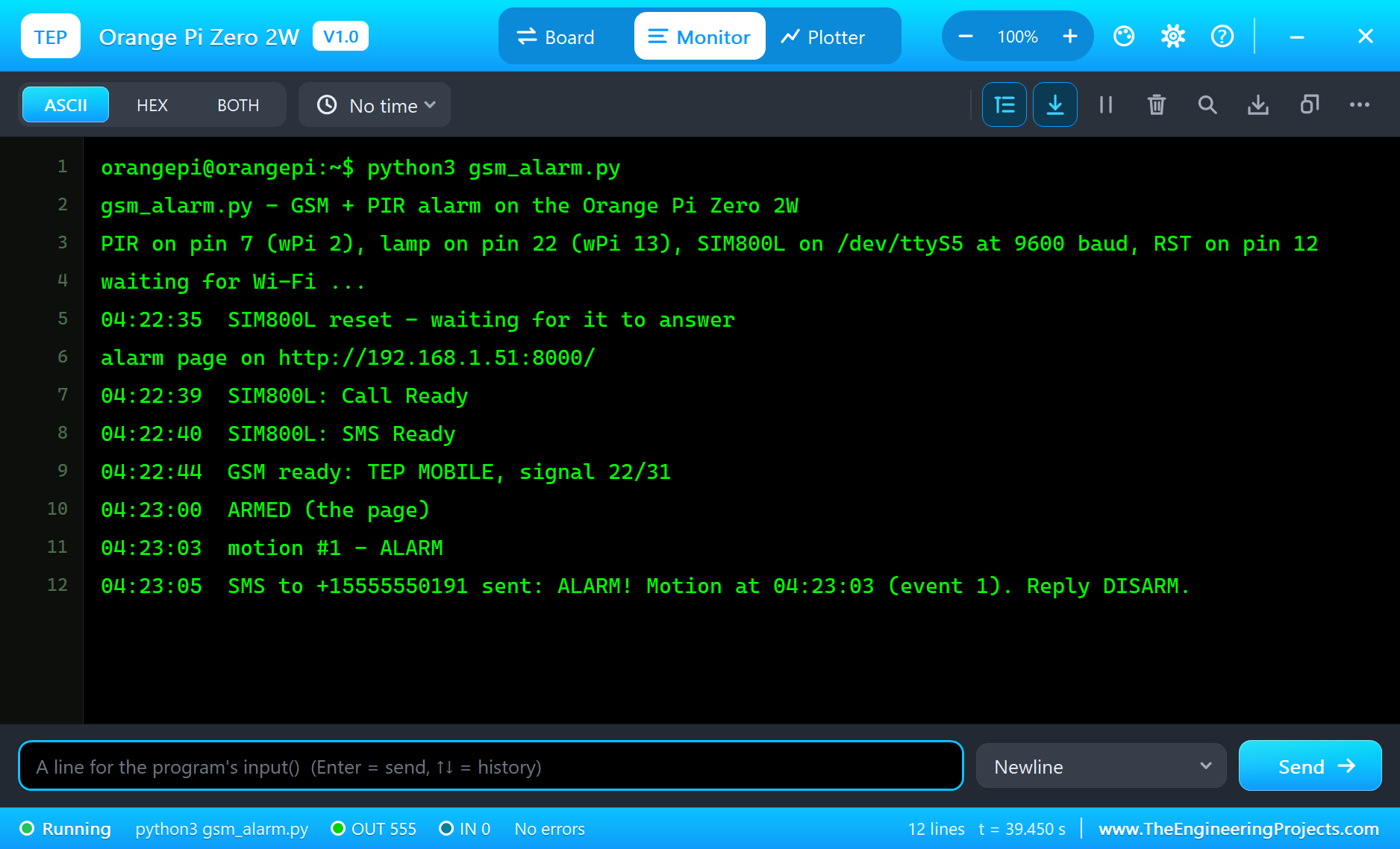
Press Run. Wi-Fi is up in about 2.5 s and the page is served; the SIM800L answers after its reset, sends Call Ready and SMS Ready, and registers on our network, TEP MOBILE:
orangepi@orangepi:~$ python3 gsm_alarm.py
gsm_alarm.py - GSM + PIR alarm on the Orange Pi Zero 2W
PIR on pin 7 (wPi 2), lamp on pin 22 (wPi 13), SIM800L on /dev/ttyS5 at 9600 baud, RST on pin 12
waiting for Wi-Fi ...
04:22:35  SIM800L reset - waiting for it to answer
alarm page on http://192.168.1.51:8000/
04:22:39  SIM800L: Call Ready
04:22:40  SIM800L: SMS Ready
04:22:44  GSM ready: TEP MOBILE, signal 22/31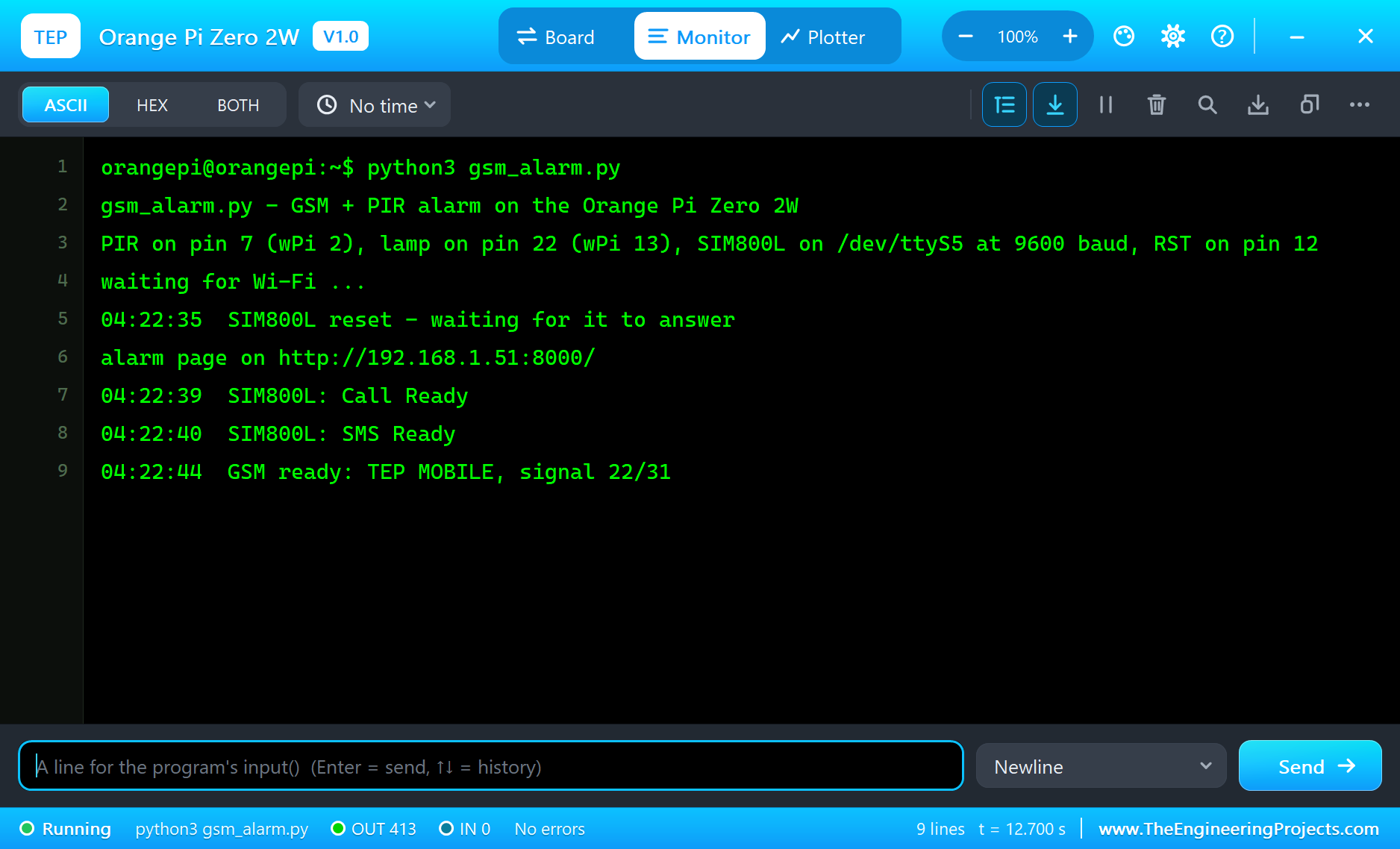
Open the Page
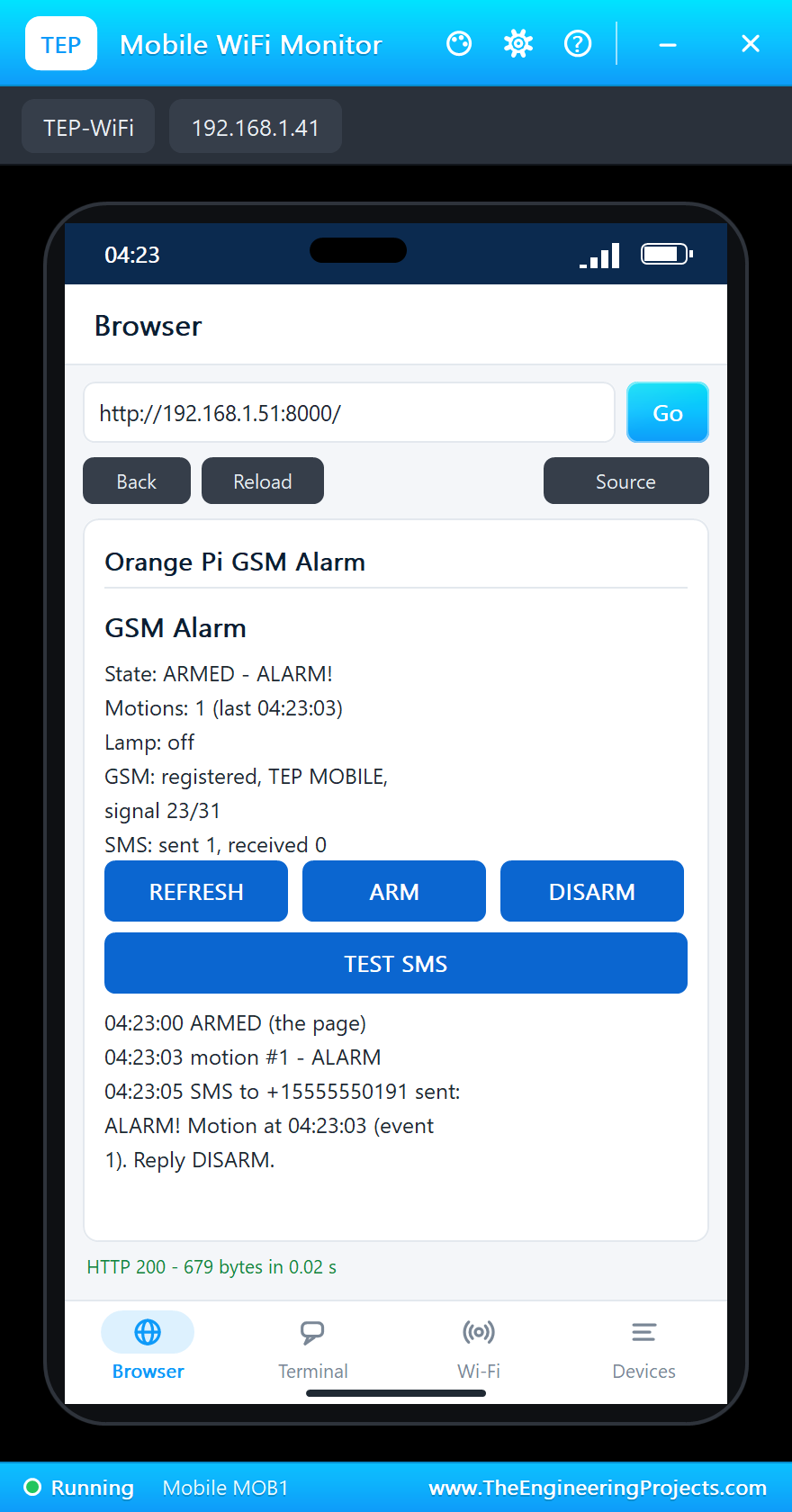
On the laptop click Browser and Go (its home page is http://192.168.1.51:8000/json); on the phone the same with http://192.168.1.51:8000/:
Arm It and Walk In
Tap ARM on the phone, then Walk in on the PIR's pop-up. A tenth of a second after the PIR first sees the person, OUT goes HIGH; the program raises the alarm, the lamp starts flashing, and two seconds later the owner's phone has the text:
04:23:00  ARMED (the page)
04:23:03  motion #1 - ALARM
04:23:05  SMS to +15555550191 sent: ALARM! Motion at 04:23:03 (event 1). Reply DISARM.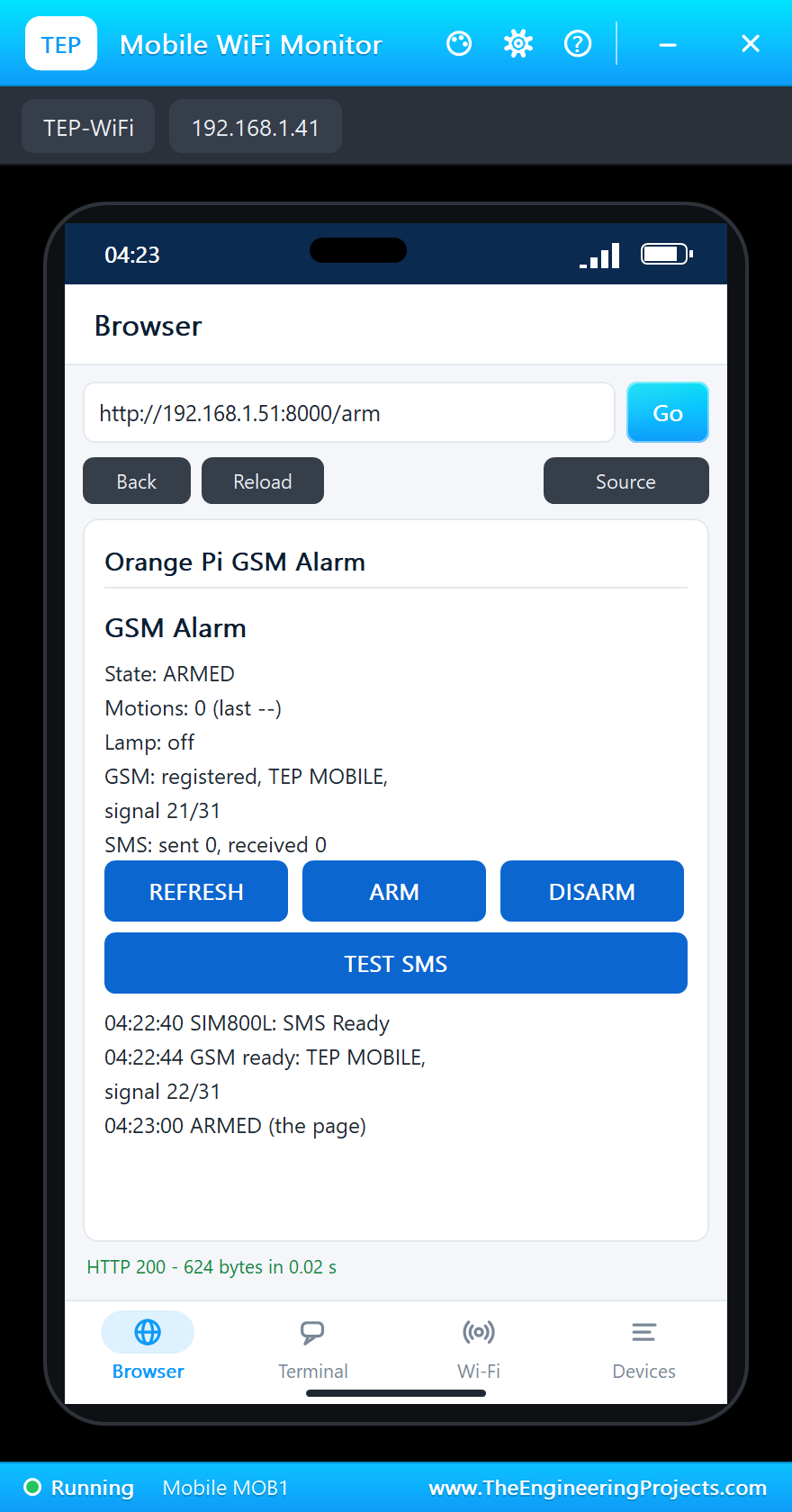
Commands by SMS
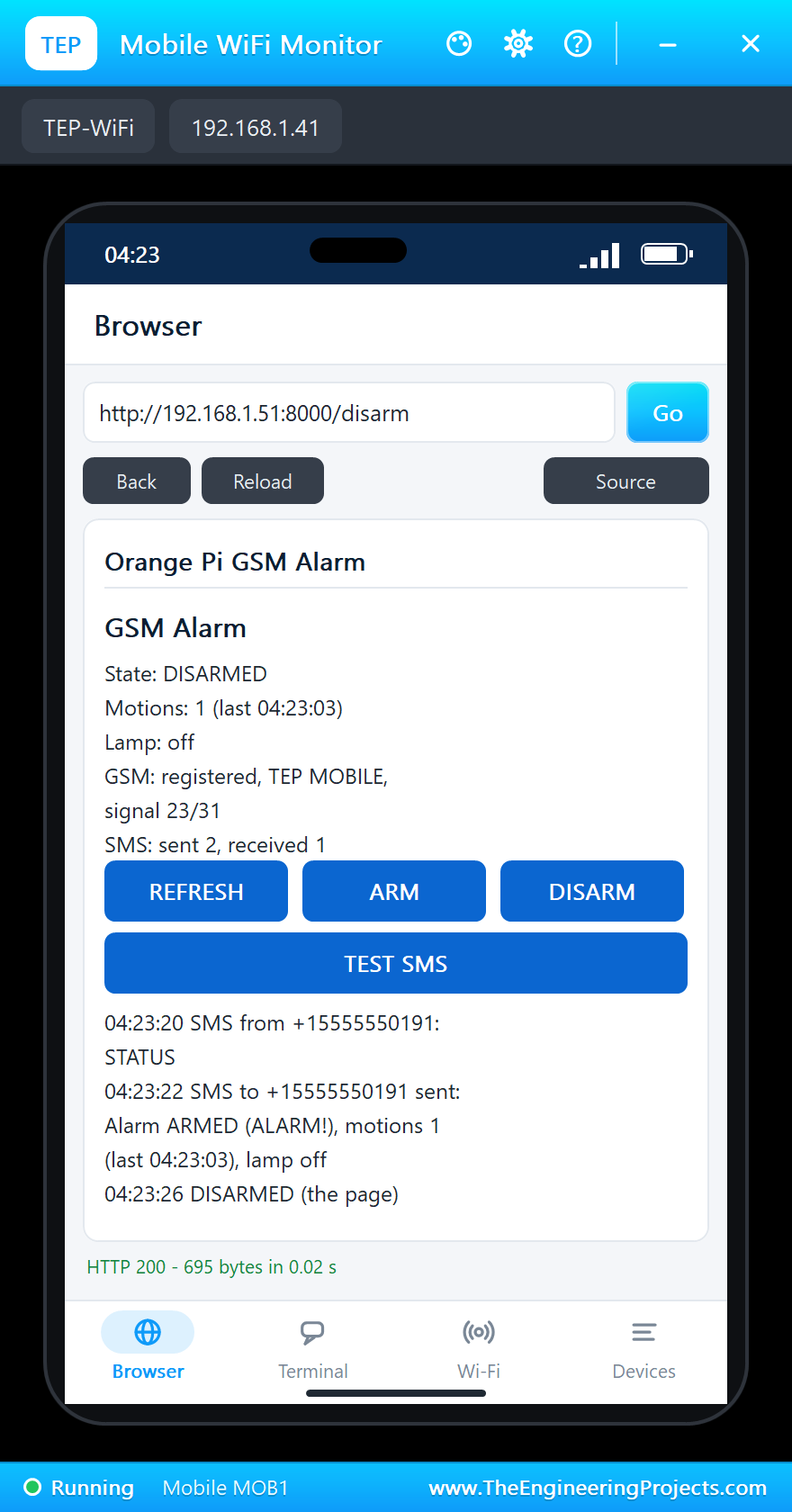
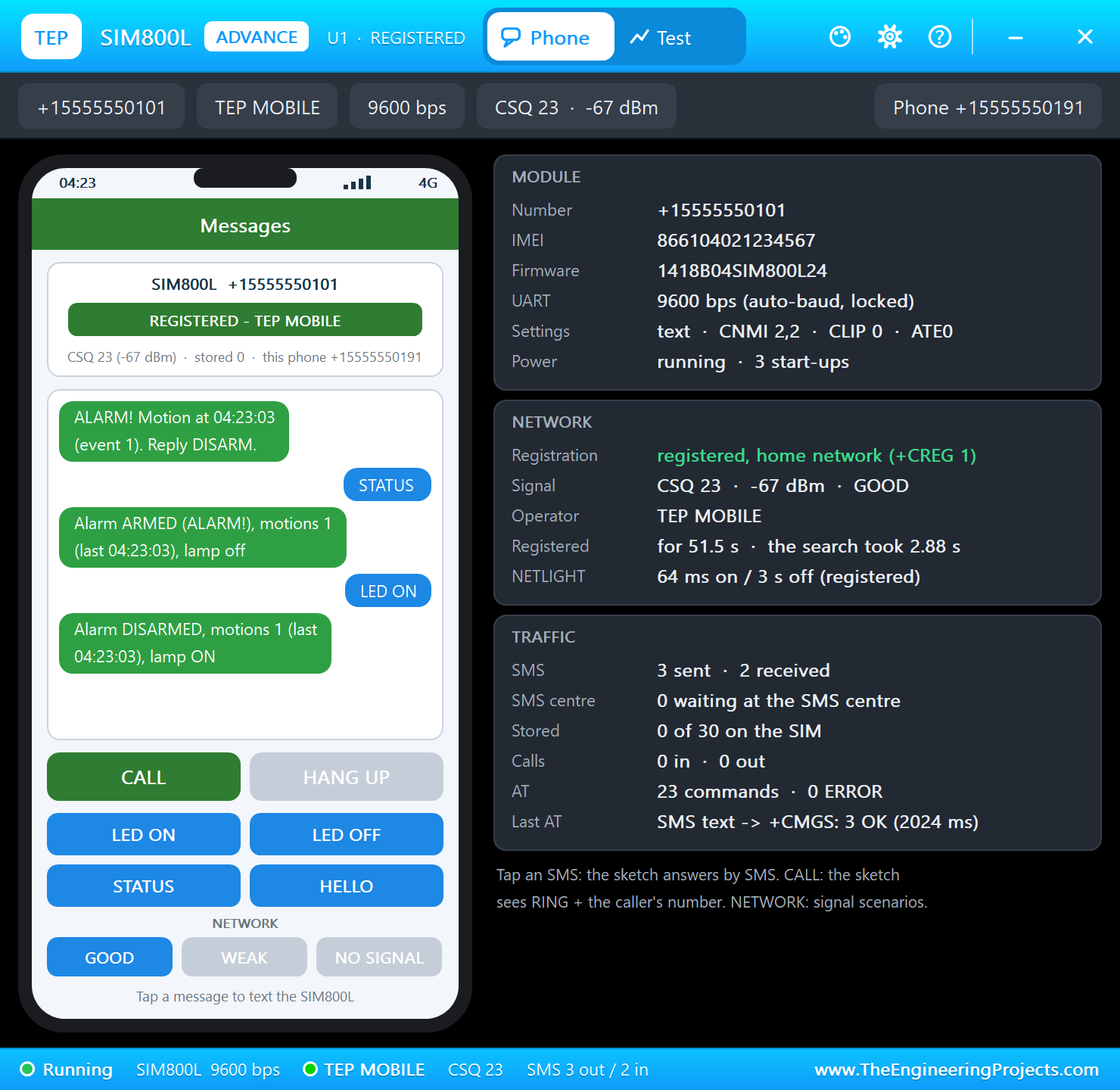
Now the owner answers from the phone in the SIM800L's pop-up. STATUS brings the state back in one text. Then DISARM on the web page ends the alarm, LED ON by SMS lights the lamp - a light switched from anywhere with a GSM signal - and HELLO asks for the list of commands:
04:23:20  SMS from +15555550191: STATUS
04:23:22  SMS to +15555550191 sent: Alarm ARMED (ALARM!), motions 1 (last 04:23:03), lamp off
04:23:26  DISARMED (the page)
04:23:30  SMS from +15555550191: LED ON
04:23:30  lamp ON (SMS)
04:23:32  SMS to +15555550191 sent: Alarm DISARMED, motions 1 (last 04:23:03), lamp ON
04:23:39  SMS from +15555550191: HELLO
04:23:41  SMS to +15555550191 sent: Commands: ARM, DISARM, STATUS, LED ON, LED OFF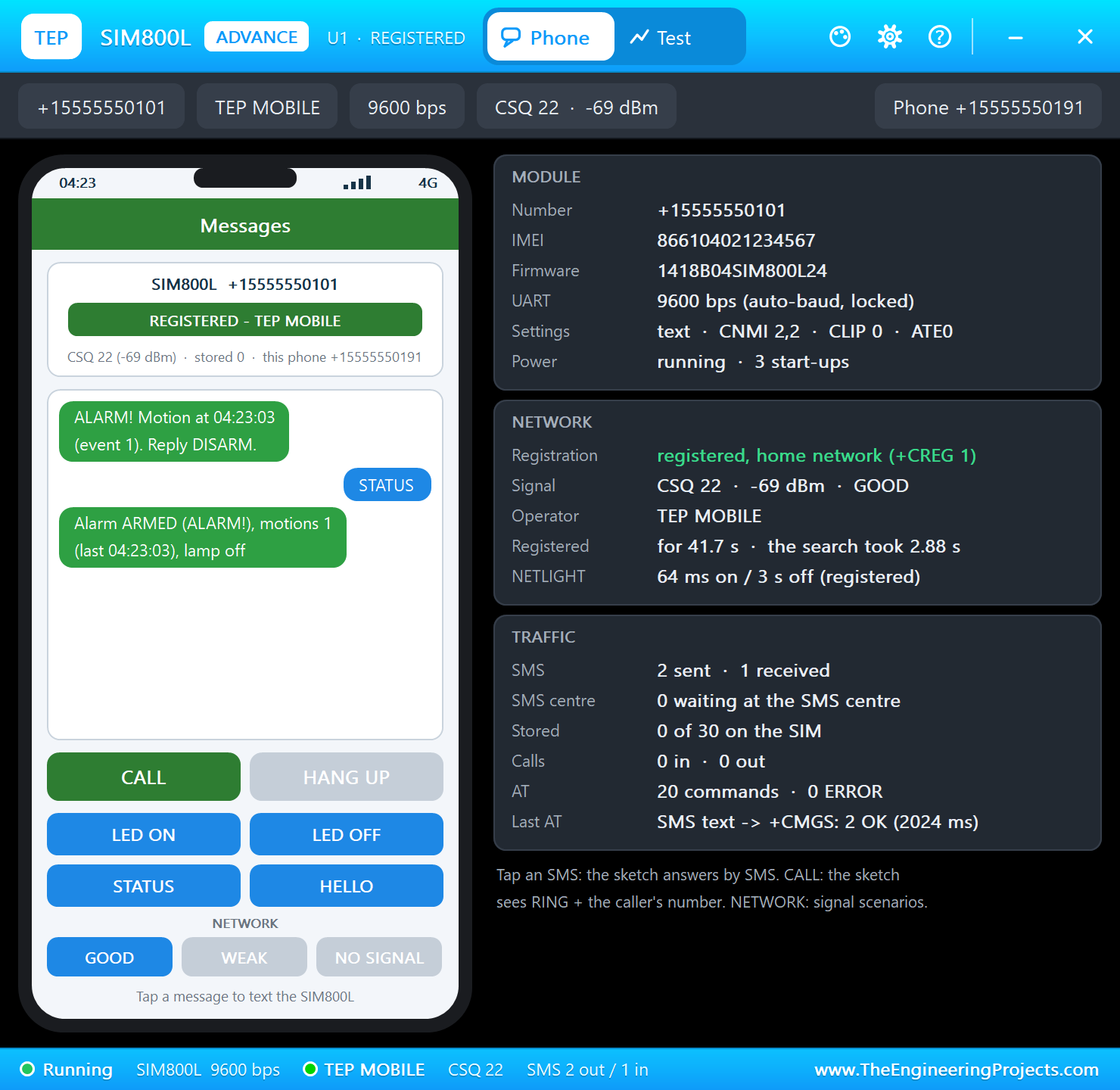
The Terminal
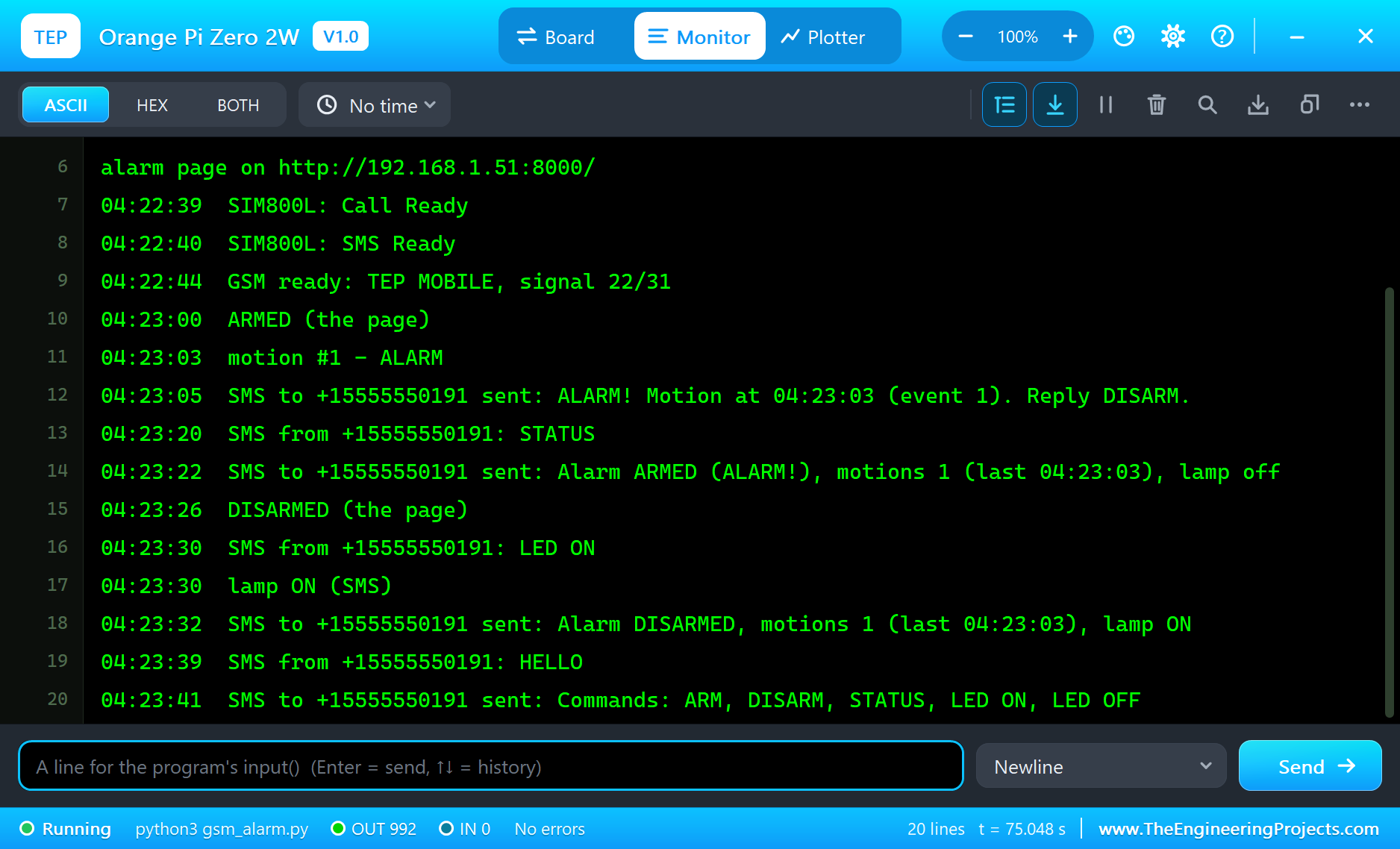
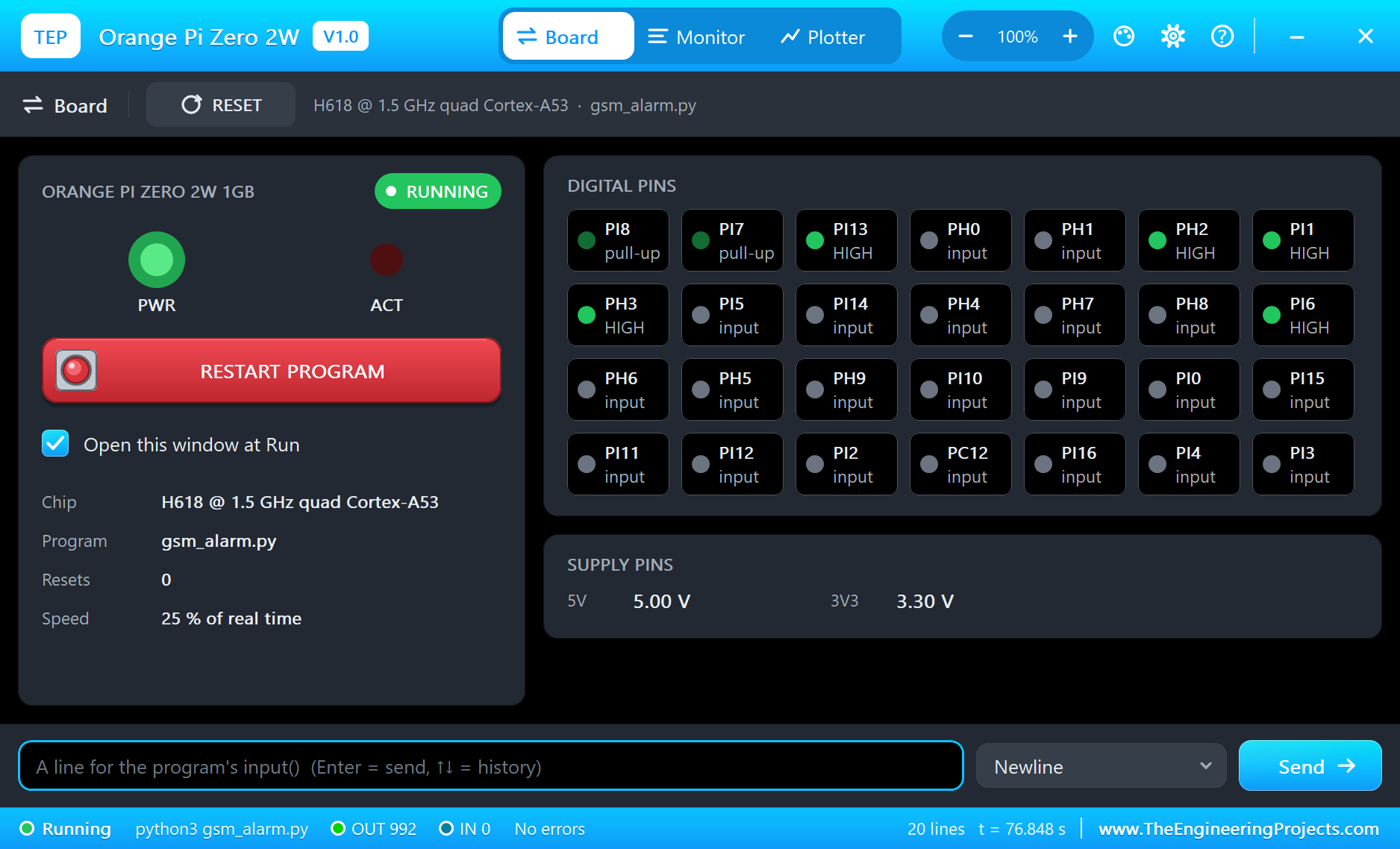
The terminal opens at Run, in the look of our TEP Serial Monitor Advance for Proteus - our own TEP header, no Windows title bar. Its Monitor tab shows the program's output (OUT), errors (ERR) and the lines you type for input() (IN). The Board tab shows the board live with the Allwinner names - PH2 and PH3 idle HIGH on UART5, PI1 HIGH for the SIM800L's RST, PI6 HIGH for the lamp - the LEDs and the supply pins, and RESTART PROGRAM starts the program again:
Properties of the Orange Pi Zero 2W
| Property | What it does |
|---|---|
| PROGRAM | the Python program (default blink.py; a name next to the project or a full path) |
| AUTOOPEN | the terminal at Run: YES (default) or NO |
| WIFISSID, WIFIPASS | the network wlan0 joins and its password (default TEP-WiFi, 12345678) |
| PYTHON, RUNTIME | a python.exe and a runtime folder of your own (empty: the TEPPi folder) |
Your own programs go next to your project; set PROGRAM to the file's name. The default blink.py blinks an LED on pin 7 with wiringpi:
import wiringpi
from wiringpi import GPIO

LED = 2                                     # the wPi number of pin 7
wiringpi.wiringPiSetup()
wiringpi.pinMode(LED, GPIO.OUTPUT)
while True:
    wiringpi.digitalWrite(LED, GPIO.HIGH)
    print('LED on')
    wiringpi.delay(500)
    wiringpi.digitalWrite(LED, GPIO.LOW)
    print('LED off')
    wiringpi.delay(500)
Troubleshooting
- "No module named 'RPi'": this board has wiringpi and OPi.GPIO instead of RPi.GPIO and gpiozero, as a real Orange Pi image.
- The SIM800L never answers AT: its RXD on pin 11 (PH2), its TXD on pin 13 (PH3), the port /dev/ttyS5 at 9600 baud. The pop-up's MODULE card counts the AT commands it received.
- "SIM800L: no network": the NETWORK buttons on the pop-up - NO SIGNAL keeps the module searching.
- The PIR's pop-up says NO POWER: its VCC must come from a power terminal (the VCC rail), its GND from a ground terminal.
- No alarm: the page must say ARMED; the PIR keeps OUT HIGH while the person moves (H repeat), so a new motion needs OUT to go LOW first.
- The page does not open: the address is http://192.168.1.51:8000/ and the program must have printed "alarm page on". A monitor sometimes needs Go a second time.
- The TEPPi folder was not found: copy it from Proteus Model Files into MODELS, or next to your project.
Things to Know Before Using a Real Orange Pi Zero 2W
- Turn the buses on: UART5, TWI1 and SPI1 are off on a fresh image. Run
sudo orangepi-config, System, Hardware, and tick ph-uart5 (and pi-i2c1, spi1-cs0-spidev for the other buses), then reboot. - wiringOP-Python: wiringOP comes with Orange Pi's Debian and Ubuntu images ("gpio readall" shows the wPi numbers); the Python binding is built from Orange Pi's wiringOP-Python repository as their manual describes.
- Feed the SIM800L properly: it wants 3.4 to 4.4 V and draws bursts of up to 2 A while it transmits. A buck converter set to 4.0 V or a Li-ion cell works; the board's 5V pin directly does not.
- Logic levels: the SIM800L's RXD expects 2.8 V logic - put a divider on the board's TX. The HC-SR501 runs on 5 V, but its OUT is 3.3 V and safe for the H618.
- The antenna: the Orange Pi needs its Wi-Fi antenna on the socket, and the SIM800L its GSM antenna, or both links stay weak.
- A real siren: pin 22 can drive an LED; for a siren or a lamp use a relay module or a transistor.
Limitations of the Simulation
- The board does not run Debian or Ubuntu: there is no desktop, no shell, no orangepi-config - every header bus is simply on - and no kernel drivers. It runs one Python program; its threads take turns, so the four cores are not modelled.
- wiringpi here is pure Python with the functions above; the real one is a C extension with more of WiringPi's functions.
- UART0 (the debug console), UART2 to UART4, TWI0, TWI2 and hardware PWM are not modelled; the header's GPIOs, TWI1, SPI1 and UART5 are.
- The 24-pin expansion connector (Ethernet, USB, audio, IR, buttons), USB-C data, the mini-HDMI, the microSD card, the SPI flash, Bluetooth and the GPU are drawn or named but not simulated; the green LED flickers with the program's output instead of the kernel's heartbeat.
- The 5V and 3V3 pins are logic levels: a module that reads its own supply sees 5 V on either.
- Pure Python code takes no simulation time; only the pin, bus, sleep and network calls move the clock.
- The router, the board's address, the boot time and the terminal are TEP additions.
- Orange Pi is a brand of Shenzhen Xunlong Software Co., Limited; this library is not made or endorsed by Xunlong, Allwinner, SIMCom or Labcenter.
- Tested in Proteus 8.5 in October 2026 (the demo as shipped, about 77 s of simulation in 324 s on our PC with the two pop-ups, the monitors and the terminal open). Proteus 7 is not supported.
So, that was all about the Orange Pi Zero 2W Library for Proteus. I hope it helps you try the board with real modules before you touch the hardware - the Allwinner pins through wiringpi, a SIM800L driven with AT commands on UART5, a PIR alarm that texts you, SMS commands that switch a lamp, and a page on a laptop or a phone. The next boards of our series bring other modules and more web pages. If you use the library in a project, please share it in the comments or in our forum, and if you have any questions, ask in the comments and I will help you out. Till the next tutorial, take care and have fun!

Comments
0