


Raspberry Pi Model B Library for Proteus: Python GPIO Simulation


Hello friends, I hope you all are doing great. Today, I am going to share the Raspberry Pi Model B Library for Proteus. The Raspberry Pi Model B is the board that started it all in 2012: a credit-card sized computer with a 700 MHz BCM2835, 512 MB of RAM, Ethernet and a 26-pin GPIO header. With this library you can test a Pi project in Proteus 8.5: the board runs your Python program against the circuit on the sheet, with RPi.GPIO, gpiozero, I2C, SPI, the UART, 1-Wire and the network.
Raspberry Pi Model B Library for Proteus
Latest version: V1.0 (October 2026, this tutorial)
Helping Tools
- Laptop WiFi Monitor: a laptop on the Wi-Fi of your design: a browser, a TCP / UDP terminal and ping
- Mobile WiFi Monitor: a smartphone that opens the pages of your board and sends it commands
- LCD Library for Proteus V3.0: 16x2, 20x4 and I2C LCDs to show your readings
This is the first library of our new Raspberry Pi series. We start with the original Model B and go on, one board per library. In this post we will place the board in Proteus, run two demo programs - an ultrasonic distance meter with an I2C LCD and a weather station with a web page over Ethernet - and see the Pi Terminal, where your program prints its output, reads its input and shows its errors as Python shows them on a Pi.
NOTICE: this library does not run Raspberry Pi OS. It runs your Python program, with the same Python libraries a Pi uses for its pins, in step with the simulation. Your feedback is the fuel that keeps us going, so please tell us what you think in the comments below or in the Raspberry Pi Model B board of our forum. And if our free libraries help you, you can buy us a coffee. So, let's get started with the Raspberry Pi Model B Library for Proteus:
What is the Raspberry Pi Model B?
The Raspberry Pi Model B is a single-board computer made by the Raspberry Pi Foundation for teaching computing. It came out in February 2012 at 35 dollars. The board is 85.6 x 56 mm and carries a Broadcom BCM2835 with a 700 MHz ARM1176JZF-S core and a VideoCore IV graphics processor, the RAM chip stacked on top of it, and an SMSC LAN9512 that gives the two USB ports and the 10/100 Ethernet port. There are HDMI and composite video outputs, a 3.5 mm audio jack, a full-size SD card slot for the operating system and a micro-USB socket for the 5 V supply.
For electronics, the important part is the P1 header in the corner: 26 pins with 17 GPIOs, the I2C, SPI and UART pins among them, 5 V, 3.3 V and ground. The revision 2 board, which we draw here, has 512 MB of RAM, the I2C bus 1 on GPIO2 / GPIO3 and GPIO27 on pin 13, and the P5 pads under P1. Its five LEDs show the power (PWR), the SD card activity (ACT) and the Ethernet link (FDX, LNK and 100).
| Real Raspberry Pi Model B | This library in Proteus | |
|---|---|---|
| Processor | BCM2835, 700 MHz ARM11, Raspberry Pi OS | not emulated: your Python program runs in step with the simulation |
| GPIO header | P1, 26 pins, 17 GPIOs at 3.3 V | all 26 pins, named by their BCM numbers |
| Buses | I2C, SPI, UART, 1-Wire through the kernel | the same, from the same Python libraries |
| Network | 10/100 Ethernet through the LAN9512 | a virtual cable to our router, DHCP, TCP and UDP |
| LEDs | PWR, ACT, FDX, LNK, 100 | all five, live |
| Video, audio, USB, SD card | HDMI, RCA, 3.5 mm jack, 2 USB ports, the SD card | drawn on the board, not simulated |
How a Python Program Runs in Proteus
A real Pi runs Linux, and Linux runs your program. Proteus cannot run Linux, so the library does what matters for a circuit: at Run, the board starts Python 3.11 (included in the package) with our TEP Pi runtime and then your program. The two work in lockstep. While your program runs, Proteus waits; while your program sleeps, waits for a pin, a bus or the network, Proteus runs. So time.sleep(0.5) is half a second of simulation time, a busy loop still moves the clock (each GPIO call takes about 7 microseconds, as Python on the Model B's ARM11), and every edge on the pins comes at the right moment.
Threads work too: gpiozero's blink and sampling threads, your own threading.Thread, timers and queues. Every wait is a wait in simulation time, so the program behaves the same whether your PC is fast or slow.
Features of the Raspberry Pi Model B Library for Proteus
- The board as it looks: the green Model B at its real size with the yellow RCA jack, the blue audio jack, the stacked USB ports, the RJ45 jack, HDMI, the SD card, the Samsung RAM on the BCM2835, the LAN9512 and the five LEDs.
- Your Python program: any .py file, set in the PROGRAM property; Python 3.11 and its standard library are included.
- RPi.GPIO and gpiozero: outputs, inputs, pull-ups and pull-downs, edges with callbacks, software PWM, and gpiozero's LED, Button, DistanceSensor and the rest.
- The buses: I2C with smbus2 / smbus, SPI0 with spidev in modes 0 to 3, the UART with pyserial on /dev/serial0, 1-Wire through /sys/bus/w1/devices, and the DHT11 / DHT22 with Adafruit_DHT.
- Ethernet: sockets, http.server, socketserver and urllib on eth0, with our Laptop and Mobile WiFi Monitors as the clients.
- The Pi's own files: /proc/cpuinfo, /proc/device-tree/model and the CPU temperature, as gpiozero reads them.
- The Pi Terminal: the shell prompt, the output, the errors, a line for input(), and a Board tab with every pin, the LEDs, the supply pins and RESTART PROGRAM - with our TEP header, no Windows title bar.
- Real supply pins: modules wired to the Pi's 5V, 3V3 and GND get their power from it, as on the bench.
- A complete package: about 14.6 MB with the board, Python, the runtime, the demo modules, two demo projects and their programs, without the source code of the models.
The Raspberry Pi Model B in Proteus
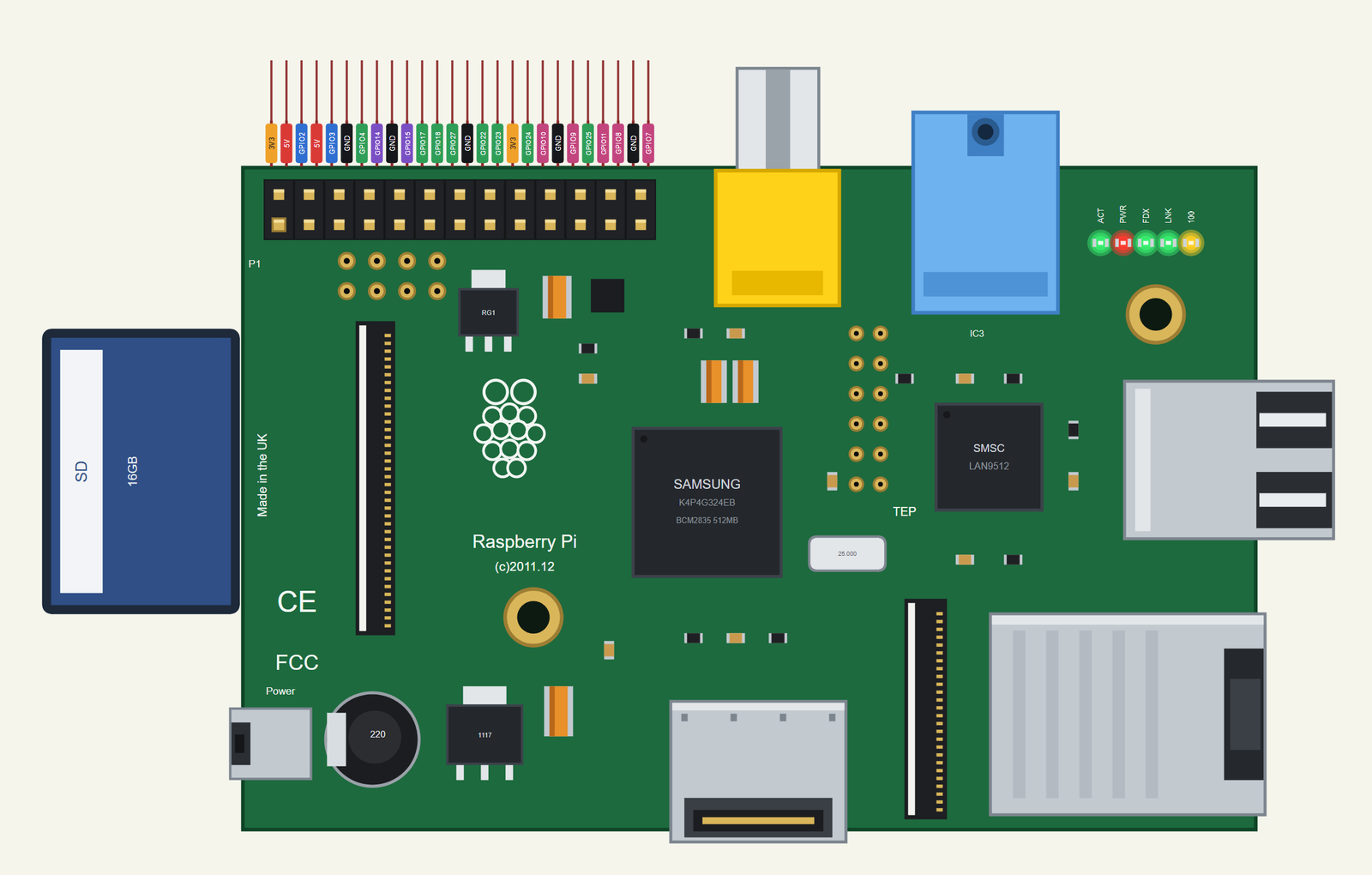
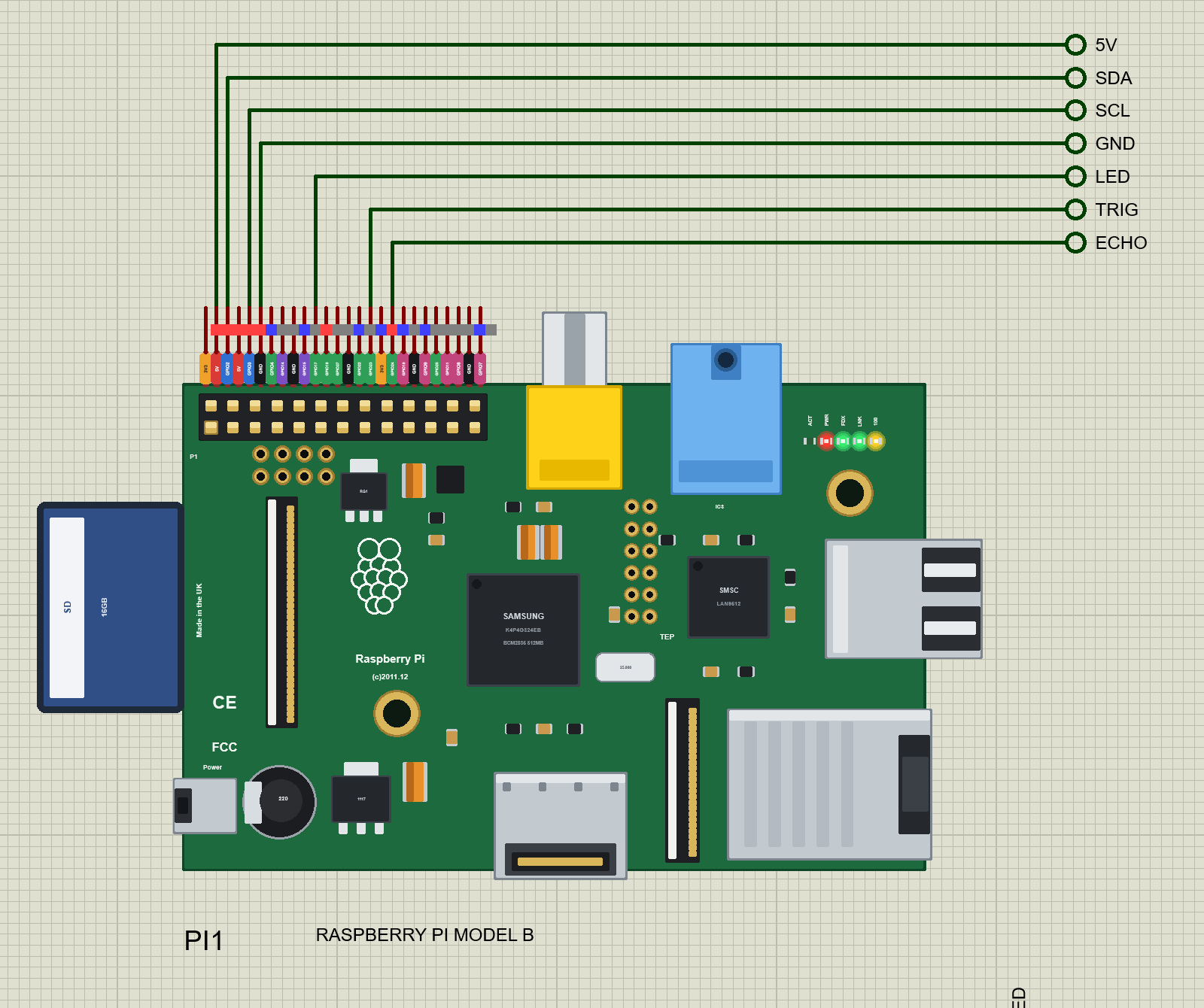
Search RASPBERRY in Pick Devices; the device RASPBERRY PI MODEL B is in TEPRPIB.LIB (Microprocessor ICs, Raspberry Pi), with the prefix PI. The 26 pins of P1 leave the top edge as one comb, each pin above its column of the header, with a tag in a colour for its kind: 5V red, 3V3 orange, GND black, GPIO green, I2C blue, SPI pink and UART purple.
The board has two places to click while the simulation runs: the HDMI socket or the processor opens the Pi Terminal, and the RJ45 jack pulls the Ethernet cable out or plugs it back in.
The P1 Header
| Pins | Name | Pins | Name |
|---|---|---|---|
| 1 | 3V3 | 2 | 5V |
| 3 | GPIO2 (SDA) | 4 | 5V |
| 5 | GPIO3 (SCL) | 6 | GND |
| 7 | GPIO4 (1-Wire) | 8 | GPIO14 (TXD) |
| 9 | GND | 10 | GPIO15 (RXD) |
| 11 | GPIO17 | 12 | GPIO18 |
| 13 | GPIO27 | 14 | GND |
| 15 | GPIO22 | 16 | GPIO23 |
| 17 | 3V3 | 18 | GPIO24 |
| 19 | GPIO10 (MOSI) | 20 | GND |
| 21 | GPIO9 (MISO) | 22 | GPIO25 |
| 23 | GPIO11 (SCLK) | 24 | GPIO8 (CE0) |
| 25 | GND | 26 | GPIO7 (CE1) |
The GPIOs work at 3.3 V. GPIO2 and GPIO3 have the Pi's 1.8 k pull-ups to 3.3 V, as on the real board, so an I2C module needs no resistors of its own.
The Python Libraries on the Board
Your program imports the same libraries as on a Pi, with the same names, pin numbers and error messages:
| Library | What it does here |
|---|---|
| RPi.GPIO | setmode, setup, output, input, add_event_detect and wait_for_edge, PWM |
| gpiozero | gpiozero 2.0.1, unchanged, on RPi.GPIO: LED, PWMLED, Button, Buzzer, Servo, DistanceSensor, CPUTemperature ... |
| smbus2, smbus | I2C bus 1 on GPIO2 / GPIO3 at 100 kHz; no answer from an address gives OSError [Errno 121] Remote I/O error |
| spidev | SPI0 on GPIO11, GPIO10 and GPIO9 with CE0 (GPIO8) and CE1 (GPIO7), modes 0 to 3 |
| serial | pyserial on /dev/serial0: TXD GPIO14, RXD GPIO15, any baud rate |
| 1-Wire | the DS18B20's w1_slave file under /sys/bus/w1/devices (w1-gpio on GPIO4) |
| Adafruit_DHT, adafruit_dht | the DHT11 and DHT22 on any GPIO |
| socket, http.server, urllib | TCP and UDP on the board's Ethernet |
Download Raspberry Pi Model B Library for Proteus
Click the button below to download Raspberry-Pi-Model-B-Library-for-Proteus-v1.0.zip (about 14.6 MB with Python included, without the source code of the models):
Raspberry Pi Model B Library for Proteus V1.0- README.txt: the device, installation, the demos, the header, the properties, troubleshooting and the limits.
- Proteus Library Files:
TEPRPIB.LIB(the Raspberry Pi Model B) and the demos' parts:TEPI2CLCD16X2.LIB,TEPHCSR04.LIB,TEPDS18B20.LIB,TEPDHT.LIB,TEPLAPTOP.LIBandTEPMOBILE.LIB. - Proteus Model Files:
TEPNET.DLL(the Pi, the network and the two monitors), the modules' DLLs and the TEPPi folder - Python 3.11 and the TEP Pi runtime. - Python Code:
blink.py,distance_meter.pyandweather_web.py. - Proteus Simulation: the two demo projects, their programs and copies of the DLLs.
No Proteus yet? Read How to Download and Install Proteus 7 and 8. New to libraries? Follow How to Install a New Library in Proteus.
How to Install Raspberry Pi Model B Library for Proteus
- Close Proteus and extract the whole zip file, for example to your Desktop.
- Copy the files from Proteus Library Files into the LIBRARY folder of Proteus (usually
C:\Program Files (x86)\Labcenter Electronics\Proteus 8 Professional\LIBRARY). - Copy everything from Proteus Model Files - the DLLs and the TEPPi folder - into the MODELS folder. Replace an older TEPNET.DLL: this one is the first with the Raspberry Pi, and it still runs every part of our Wi-Fi and Ethernet series.
- Delete
TEPRPIB.IDXand the IDX files of the other LIBs from the LIBRARY folder if they are there. - Start Proteus, press P and search for RASPBERRY.
There is nothing else to install. Python comes in the TEPPi folder, so you need no Python on your PC, and the one you have is not touched. The board finds TEPPi next to TEPNET.DLL in MODELS, or next to your project.
Demo 1: an Ultrasonic Distance Meter with an I2C LCD
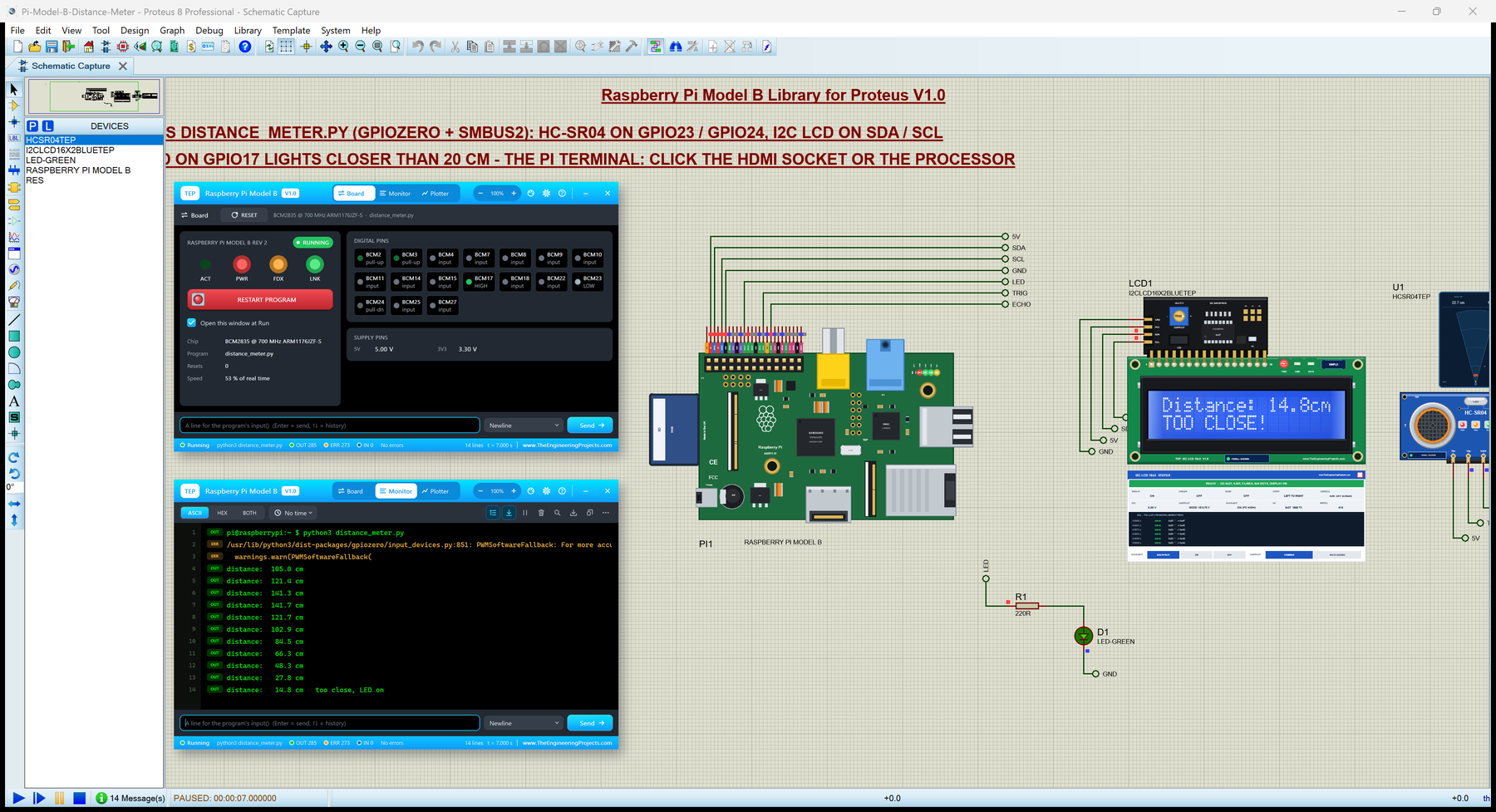
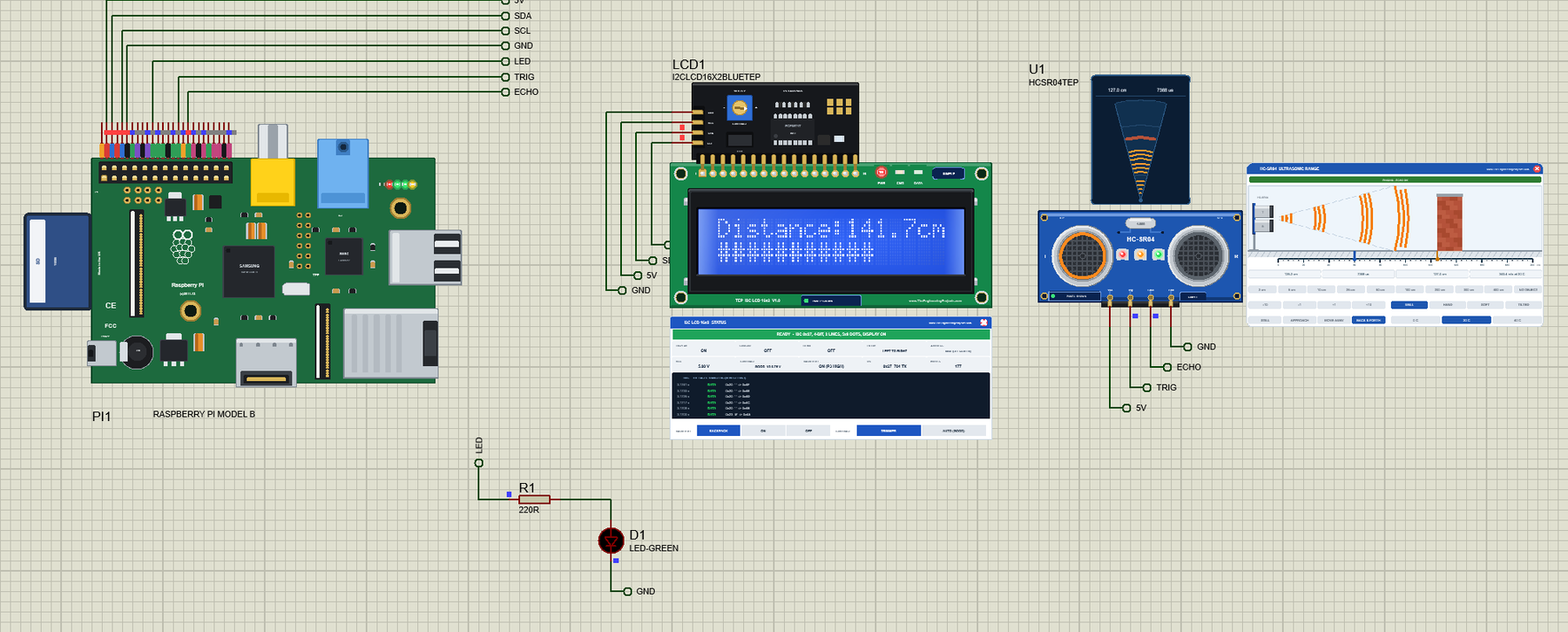
Open Pi-Model-B-Distance-Meter.pdsprj. PI1 runs distance_meter.py: an HC-SR04 (U1) measures the distance, an I2C LCD 16x2 (LCD1) shows it with a bar, and the LED D1 lights when something is closer than 20 cm. The HC-SR04 comes from our Ultrasonic Sensor Library for Proteus V2.0 and the LCD from our I2C LCD 16x2 Library for Proteus.
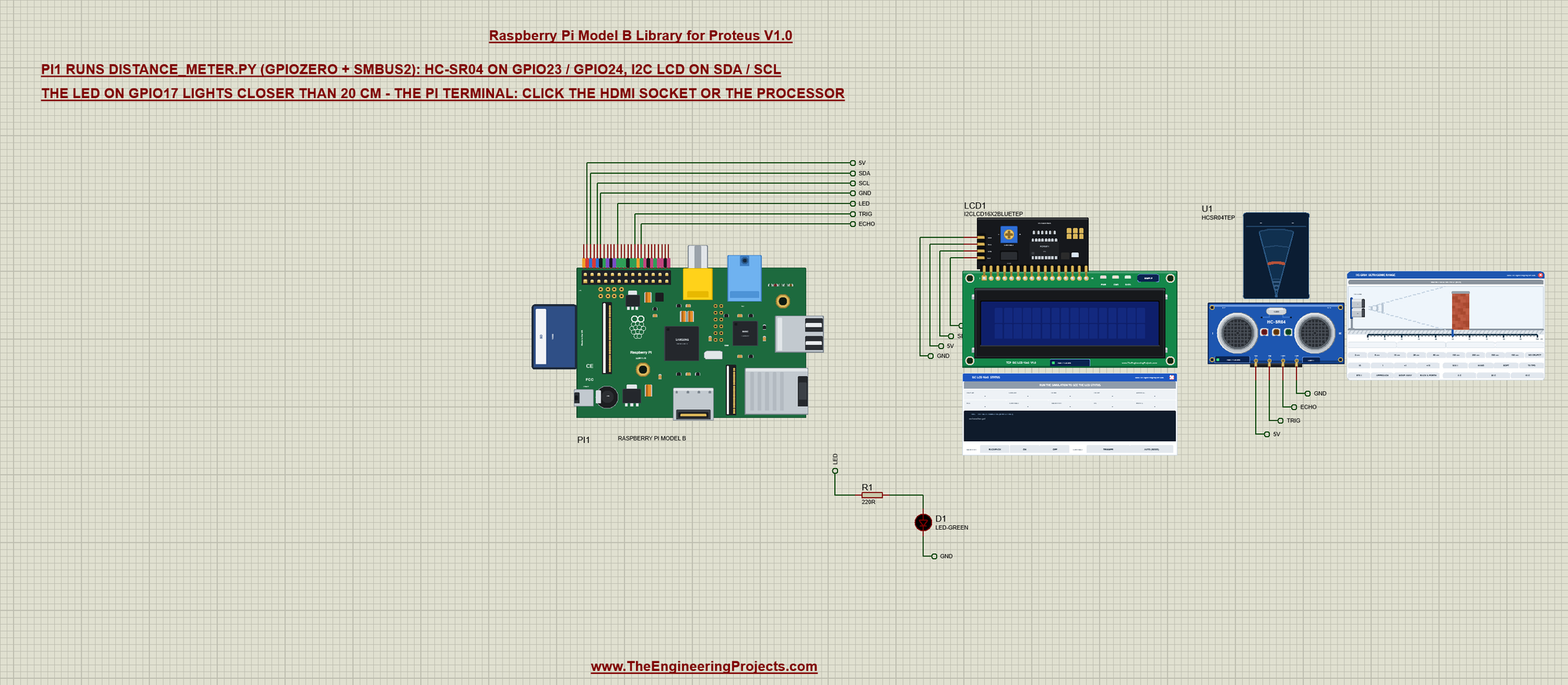
Net labels connect everything. The modules take 5 V and ground from the Pi's own header pins, as they would on the bench:
| Pi pin | Net label | Goes to |
|---|---|---|
| 2 (5V) | 5V | VCC of the LCD and the HC-SR04 |
| 3 (GPIO2 SDA) | SDA | SDA of the LCD |
| 5 (GPIO3 SCL) | SCL | SCL of the LCD |
| 6 (GND) | GND | GND of the LCD, the HC-SR04 and the LED |
| 11 (GPIO17) | LED | R1 220R and the LED D1 |
| 16 (GPIO23) | TRIG | TRIG of the HC-SR04 |
| 18 (GPIO24) | ECHO | ECHO of the HC-SR04 |
The Program
The program uses gpiozero for the sensor and the LED, and smbus2 for the LCD:
from gpiozero import DistanceSensor, LED
from smbus2 import SMBus
The LCD class talks to the HD44780 through its PCF8574 backpack at address 0x27, four bits at a time. The controller needs about 5 ms after each set-up command, so the program waits for it:
class LCD:
    """A 16x2 HD44780 LCD on a PCF8574 I2C backpack (4-bit mode)."""
    BACKLIGHT, ENABLE, RS = 0x08, 0x04, 0x01

    def __init__(self, bus=1, address=0x27):
        self.bus, self.addr = SMBus(bus), address
        for b in (0x33, 0x32, 0x28, 0x0C, 0x06, 0x01):             # (the HD44780 needs about 5 ms after each of these)
            self.command(b)
            sleep(0.005)

    def _nibble(self, v):
        self.bus.write_byte(self.addr, v | self.BACKLIGHT | self.ENABLE)
        self.bus.write_byte(self.addr, (v | self.BACKLIGHT) & ~self.ENABLE)

    def _byte(self, b, mode):
        self._nibble((b & 0xF0) | mode)
        self._nibble(((b << 4) & 0xF0) | mode)

    def command(self, b):
        self._byte(b, 0)

    def text(self, row, s):
        self.command(0x80 | (0x40 if row else 0x00))
        for ch in s.ljust(16)[:16]:
            self._byte(ord(ch), self.RS)
gpiozero's DistanceSensor sends the trigger pulse on GPIO23 and times the echo on GPIO24 in a thread of its own:
sensor = DistanceSensor(echo=24, trigger=23, max_distance=2)
led = LED(17)
The main loop reads the distance twice a second, writes both rows of the LCD, switches the LED and prints the reading:
while True:
    cm = sensor.distance * 100
    near = cm < 20
    led.value = near
    bar = '#' * int(min(cm, 200) / 200 * 16)
    lcd.text(0, 'Distance:%5.1fcm' % cm)                         # (16 characters: the LCD's width)
    lcd.text(1, 'TOO CLOSE!' if near else bar)
    print('distance: %6.1f cm%s' % (cm, '   too close, LED on' if near else ''))
    sleep(0.5)
Run It
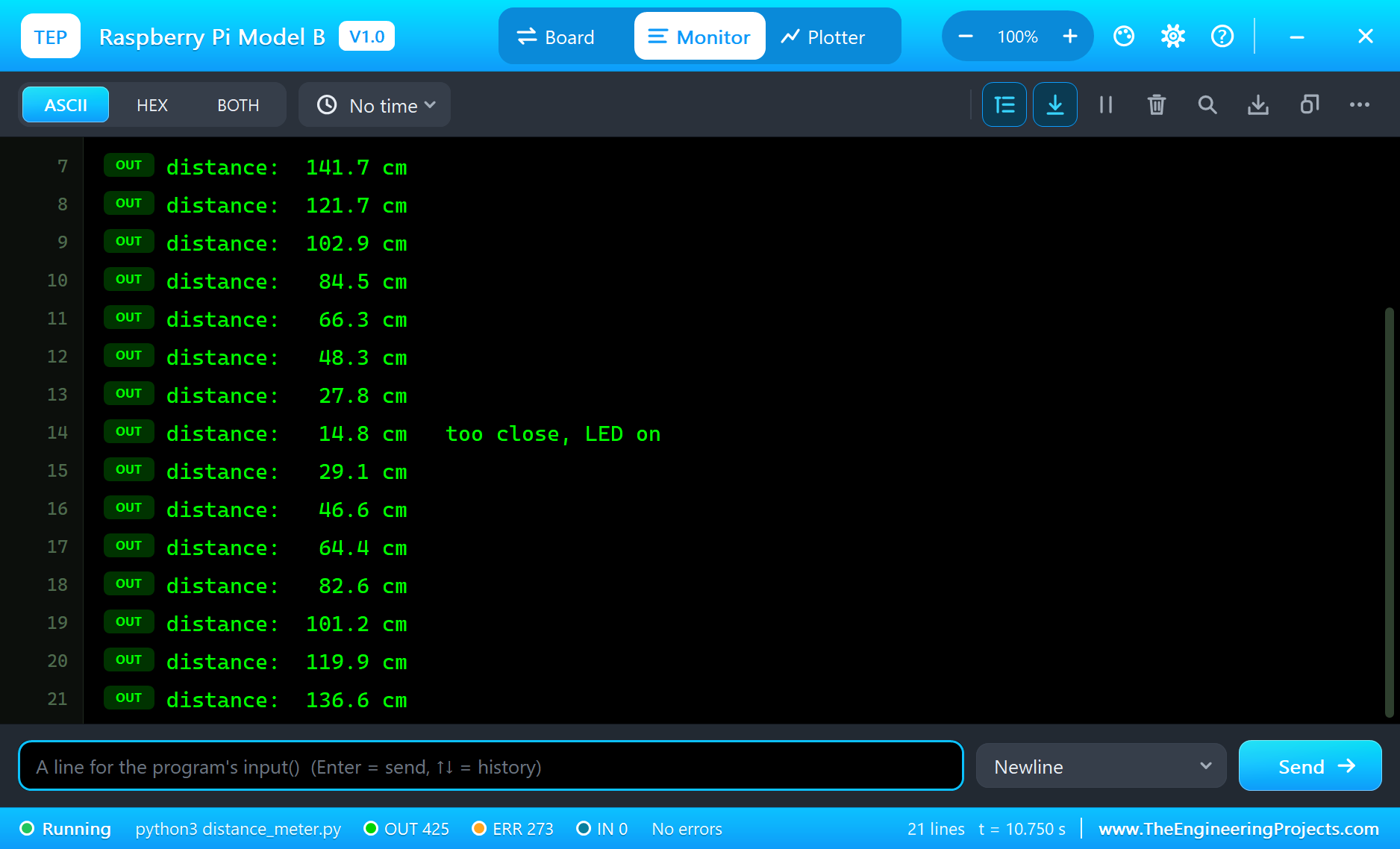
Press Run. The board boots for half a second - the ACT LED flickers - and the program starts. The HC-SR04's object swings from 60 cm, so the reading goes up and down. The Pi Terminal opens with the readings:
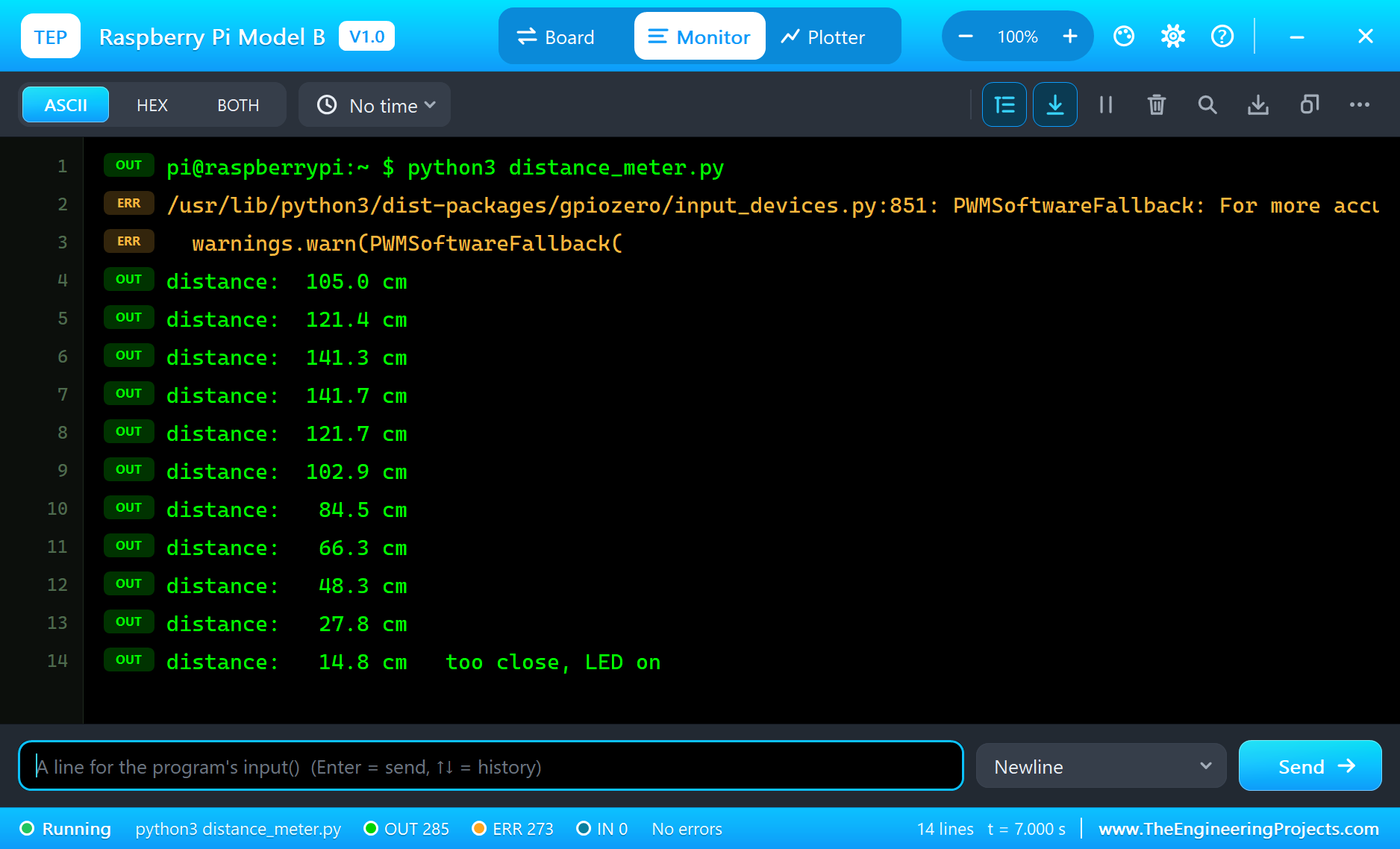
pi@raspberrypi:~ $ python3 distance_meter.py
distance:  105.0 cm
distance:  121.4 cm
distance:  141.3 cm
distance:  141.7 cm
distance:  121.7 cm
distance:  102.9 cm
distance:   84.5 cm
distance:   66.3 cm
distance:   48.3 cm
distance:   27.8 cm
distance:   14.8 cm   too close, LED on
distance:   29.1 cm
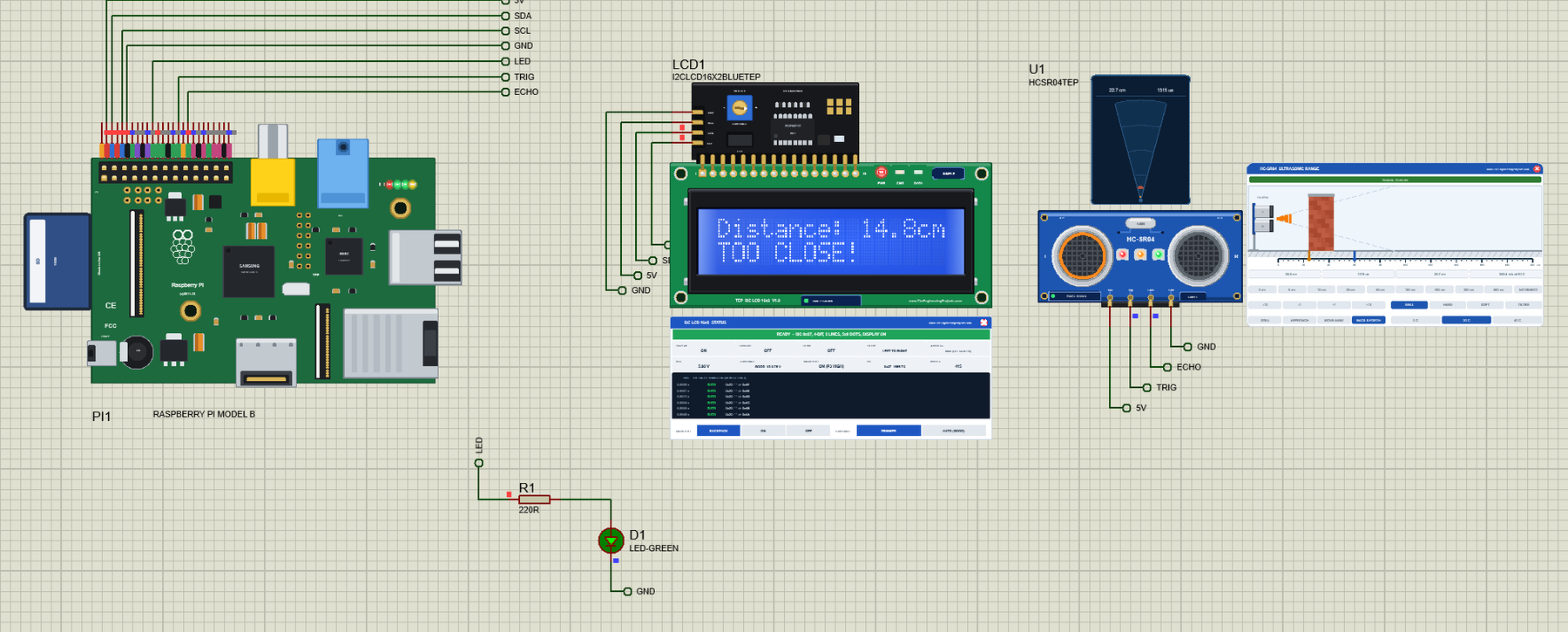
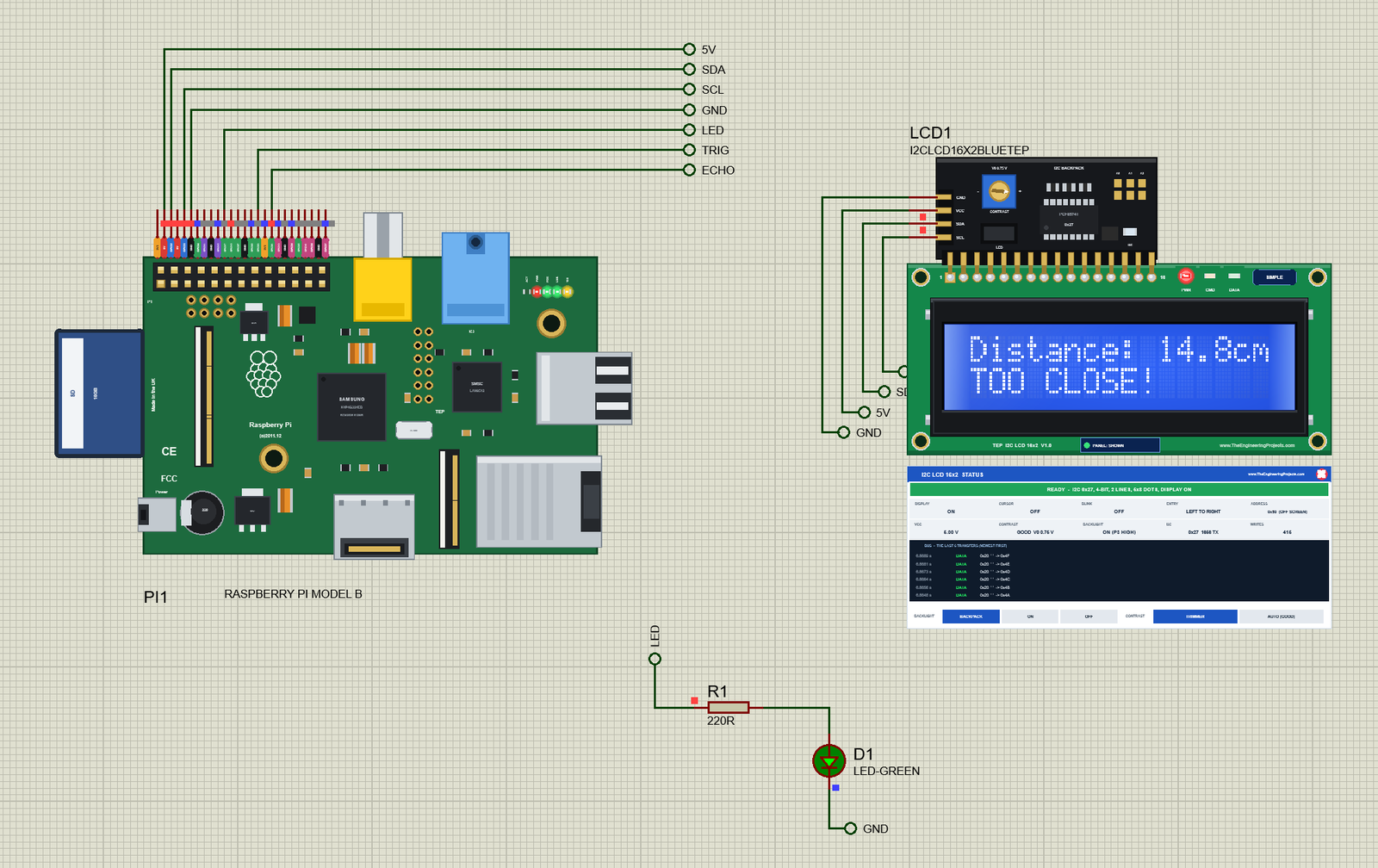
The orange line is a real gpiozero warning. On a Pi, DistanceSensor with RPi.GPIO prints the same PWMSoftwareFallback warning and suggests the pigpio pin factory for better timing. In Proteus the timing is exact anyway. When the object comes closer than 20 cm, the LCD says TOO CLOSE! and the LED lights:
Demo 2: a Weather Station Web Page over Ethernet
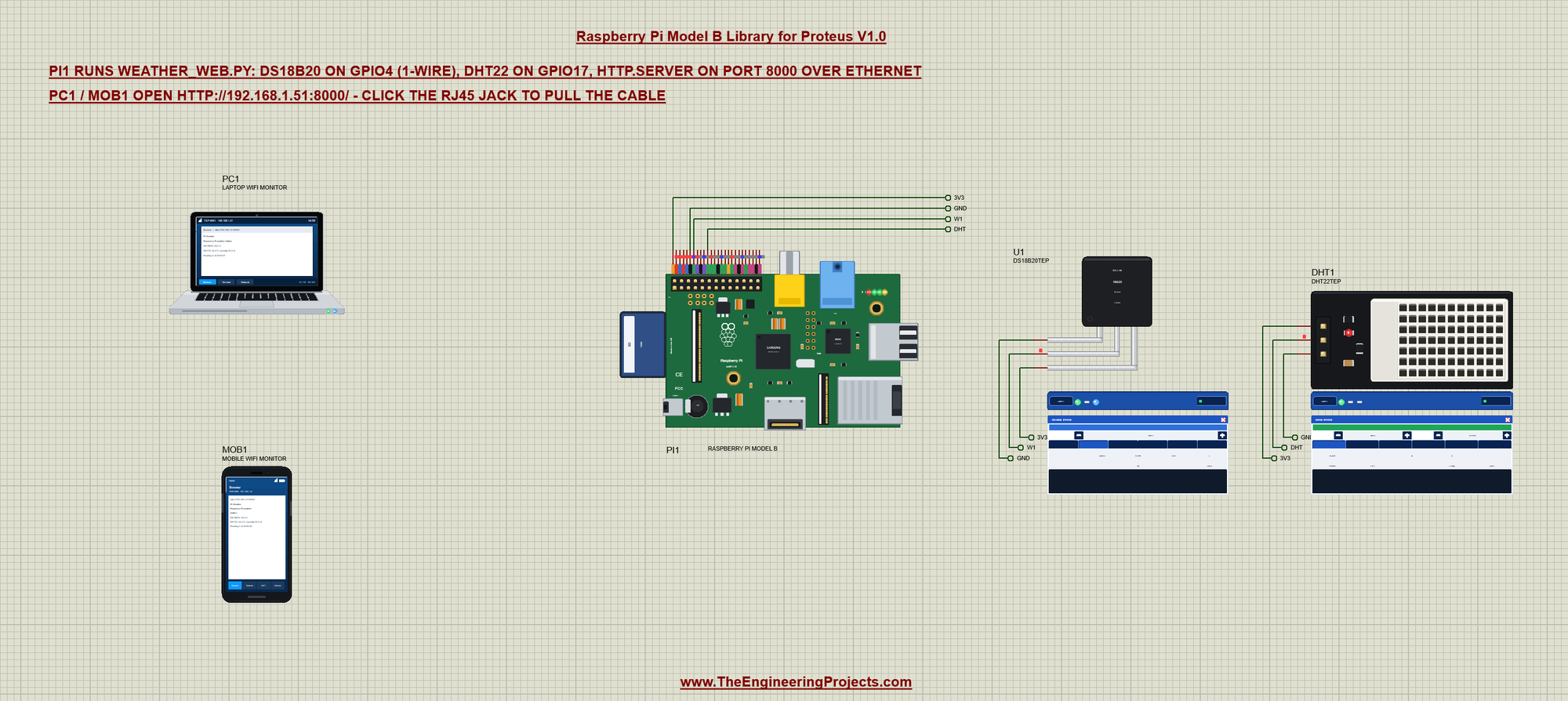
Open Pi-Model-B-Weather-Web.pdsprj. PI1 runs weather_web.py: a DS18B20 (U1) on GPIO4 and a DHT22 (DHT1) on GPIO17 are read every 2 seconds, and Python's http.server shows the readings on a web page on port 8000. The laptop (PC1) and the phone (MOB1) open the page over the network. The sensors come from our DS18B20 Library for Proteus and DHT11 and DHT22 Library for Proteus, the laptop and the phone from our Laptop WiFi Monitor Library for Proteus and Mobile WiFi Monitor Library for Proteus.
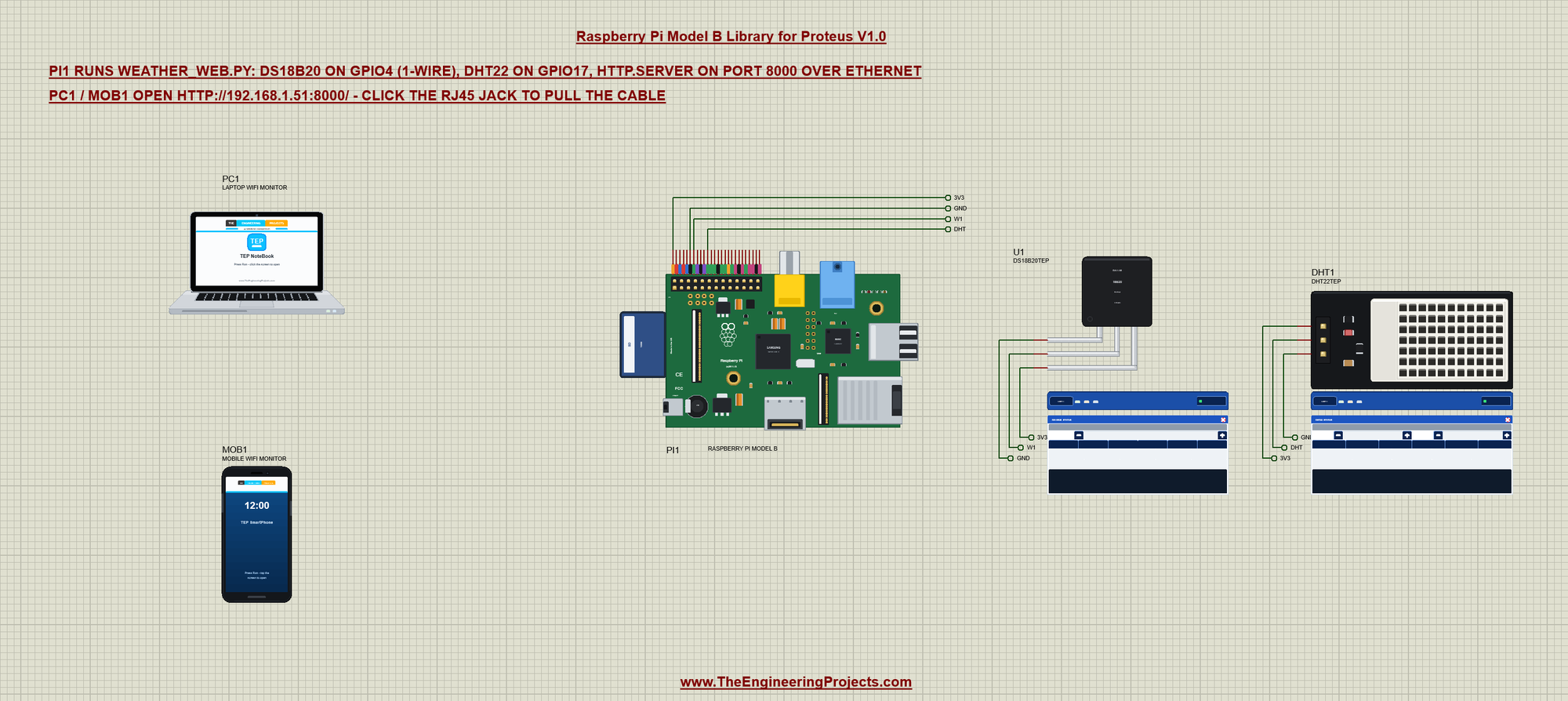
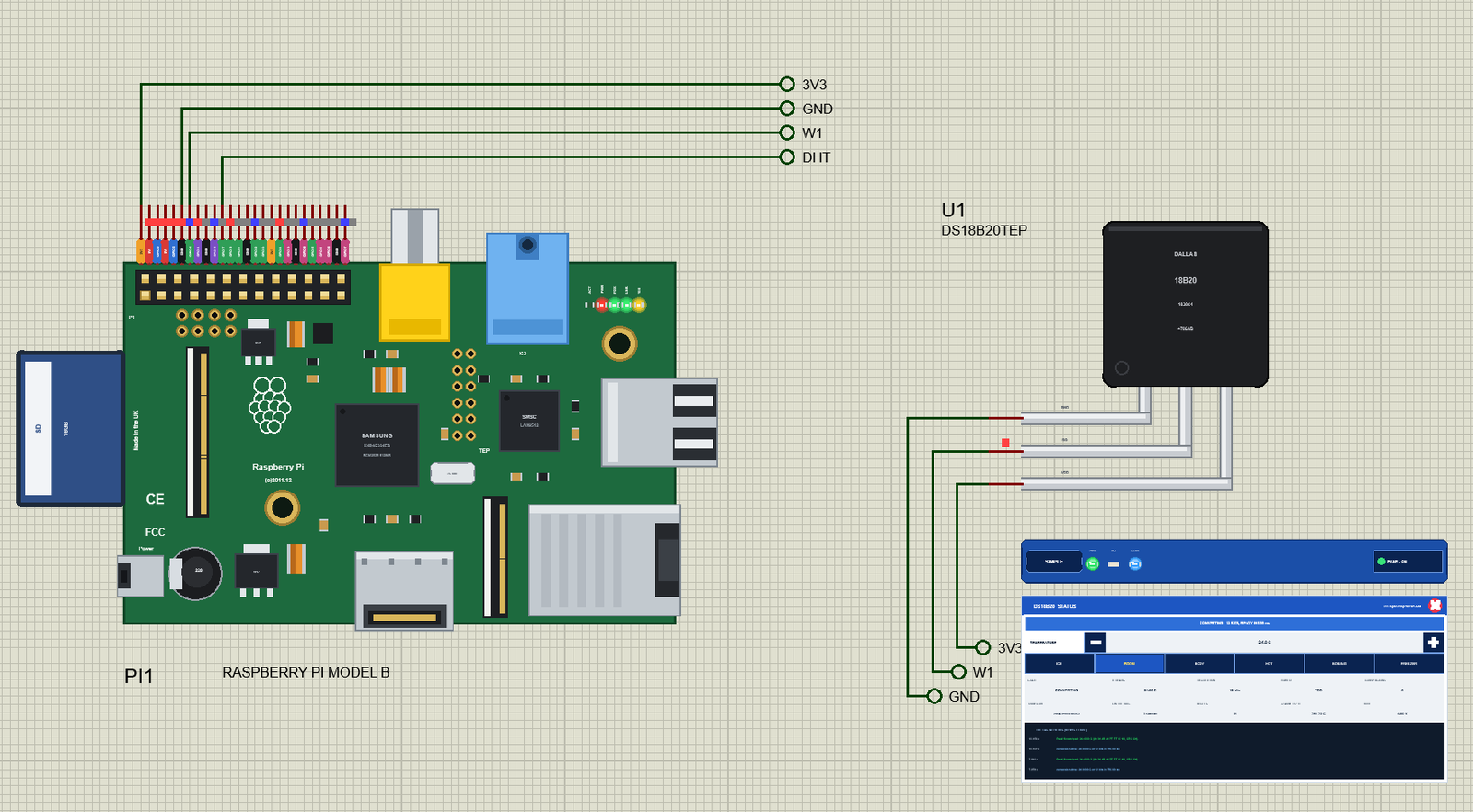
Both sensors take 3.3 V and ground from the Pi's header. The laptop and the phone have no wires: they are on the router's network, and the Pi reaches the router through its RJ45 jack, with the cable in at Run:
| Pi pin | Net label | Goes to |
|---|---|---|
| 1 (3V3) | 3V3 | VDD of the DS18B20, VCC of the DHT22 |
| 6 (GND) | GND | GND of both sensors |
| 7 (GPIO4) | W1 | DQ of the DS18B20 (1-Wire) |
| 11 (GPIO17) | DHT | DATA of the DHT22 |
Reading the Sensors
On a Pi, the 1-Wire driver (dtoverlay=w1-gpio) makes a folder for each DS18B20 under /sys/bus/w1/devices, and its w1_slave file holds the CRC check and the temperature in thousandths of a degree. The board makes the same files, so the usual code works as it is:
def ds18b20():
    folders = glob.glob('/sys/bus/w1/devices/28-*')
    if not folders:
        return None
    lines = open(folders[0] + '/w1_slave').read().splitlines()
    if not lines[0].endswith('YES'):
        return None
    return int(lines[1].split('t=')[1]) / 1000.0
The sampler thread reads both sensors, keeps the readings and prints them; Adafruit_DHT.read_retry reads the DHT22 on GPIO17:
def sampler():
    while True:
        t = ds18b20()
        h, t2 = Adafruit_DHT.read_retry(Adafruit_DHT.DHT22, 17)
        readings.update(ds18b20=t, dht_temp=t2, humidity=h, time=time.strftime('%H:%M:%S', time.localtime(time.time())), count=readings['count'] + 1)
        print('%s  DS18B20 %.1f C   DHT22 %.1f C  %.1f %%' % (readings['time'], t or 0, t2 or 0, h or 0))
        time.sleep(2)
The Web Server
The handler answers /json with the readings for programs and any other path with the HTML page:
class Handler(BaseHTTPRequestHandler):
    def do_GET(self):
        if self.path == '/json':
            body, kind = json.dumps(readings).encode(), 'application/json'
        else:
            safe = {k: (v if v is not None else 0) for k, v in readings.items()}
            body, kind = PAGE.format(**safe).encode(), 'text/html'
        self.send_response(200)
        self.send_header('Content-Type', kind)
        self.send_header('Content-Length', str(len(body)))
        self.end_headers()
        self.wfile.write(body)
eth0 gets its address by DHCP 1.2 s after Run. The program finds it with the usual trick - a UDP socket "connected" to an outside address - and waits until it is there:
def my_ip():
    s = socket.socket(socket.AF_INET, socket.SOCK_DGRAM)
    s.connect(('8.8.8.8', 80))
    ip = s.getsockname()[0]
    s.close()
    return ip
print('waiting for the network ...')
while my_ip() == '0.0.0.0':
time.sleep(0.5)
threading.Thread(target=sampler, daemon=True).start()
print('serving on http://%s:8000/' % my_ip())
HTTPServer(('', 8000), Handler).serve_forever()Run It
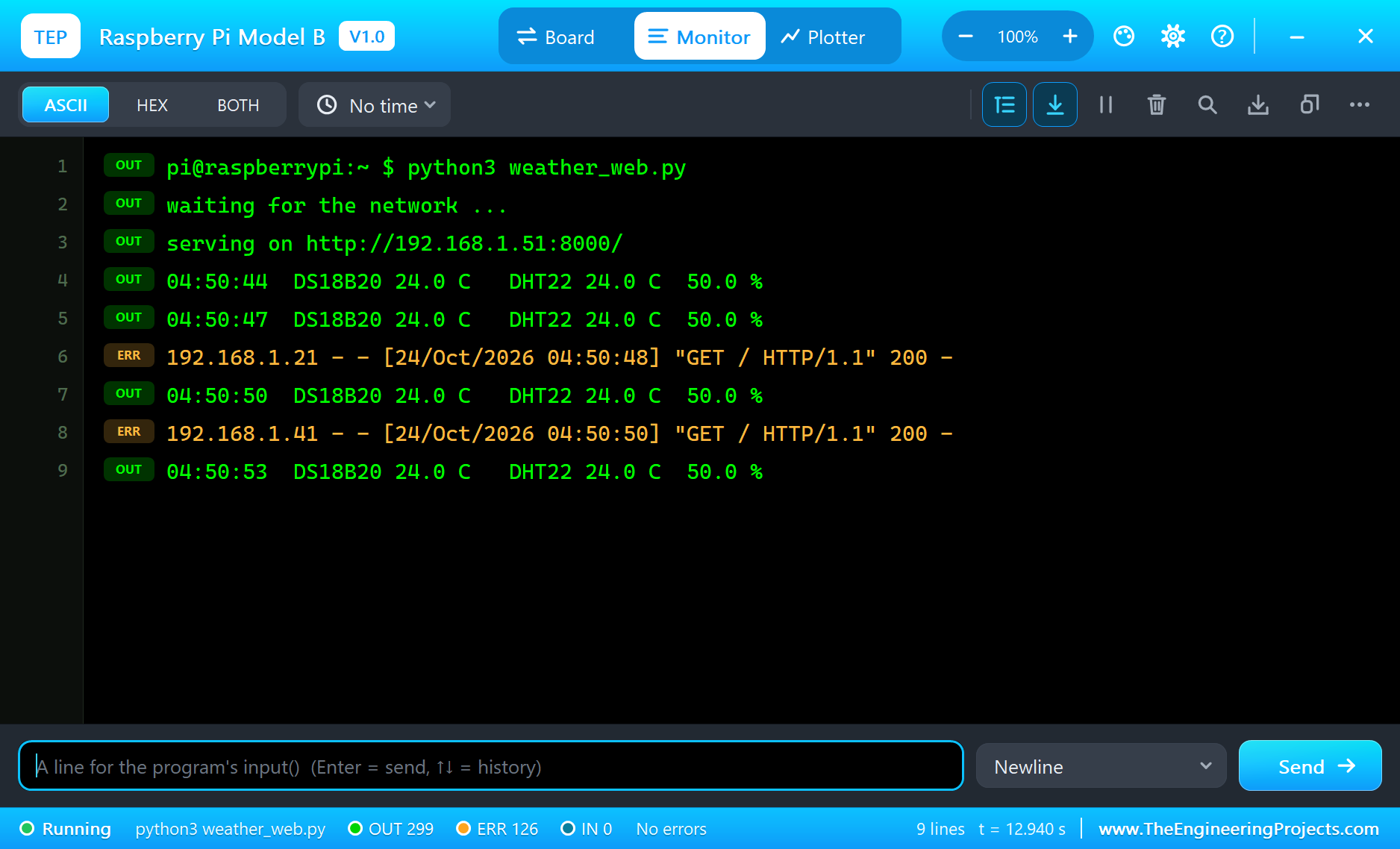
Press Run. The terminal shows the wait, then the server's address, 192.168.1.51 (192.168.1.50 plus the part's number), and the readings:
pi@raspberrypi:~ $ python3 weather_web.py
waiting for the network ...
serving on http://192.168.1.51:8000/
04:50:44  DS18B20 24.0 C   DHT22 24.0 C  50.0 %
04:50:47  DS18B20 24.0 C   DHT22 24.0 C  50.0 %
In the laptop's Browser tab press Go (its home page is http://192.168.1.51:8000/). The page arrives, and the Pi Terminal logs the request in orange, because http.server writes its log to stderr - exactly as on a Pi:
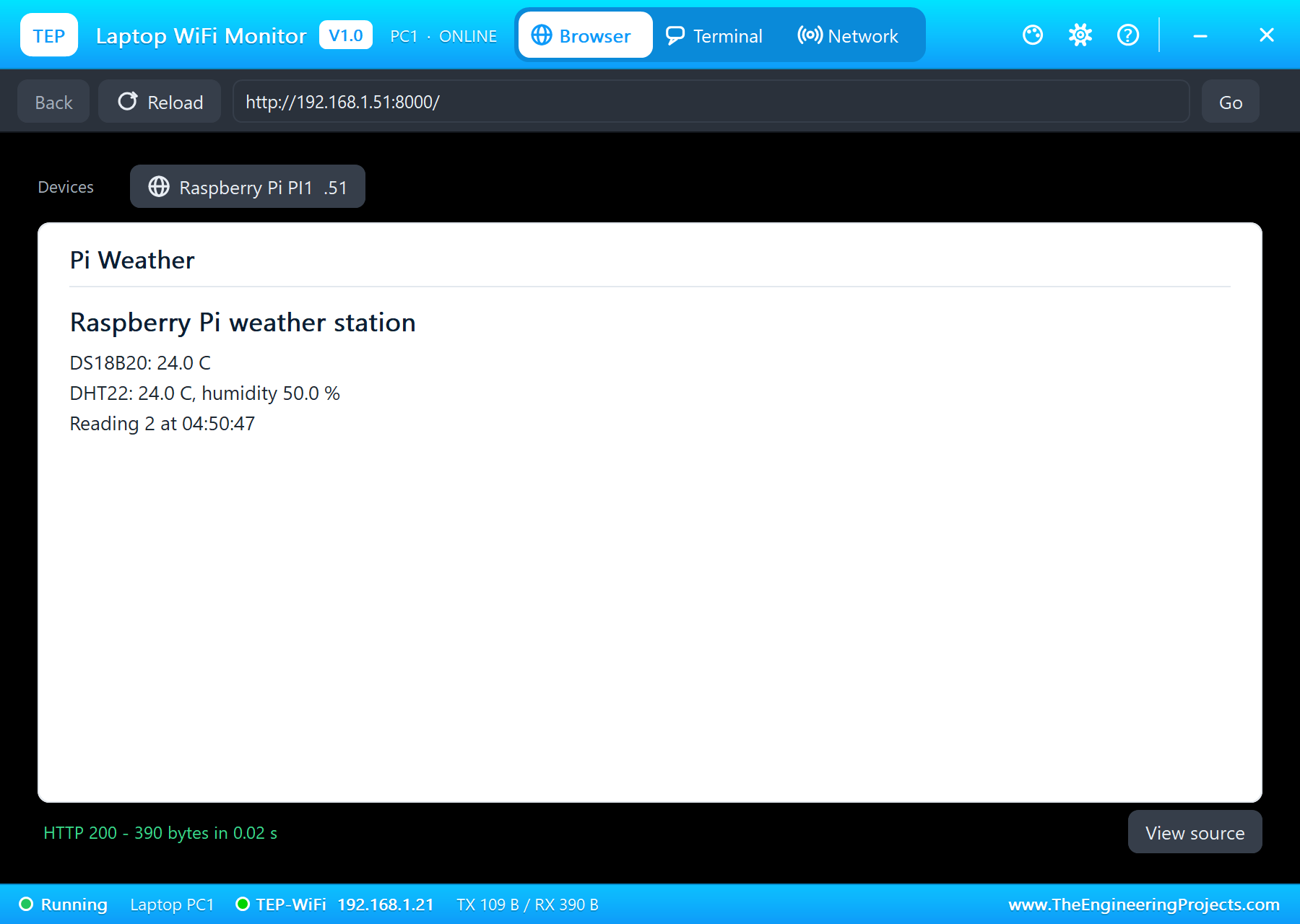
Raspberry Pi weather station
DS18B20: 24.0 C
DHT22: 24.0 C, humidity 50.0 %
Reading 3 at 04:50:50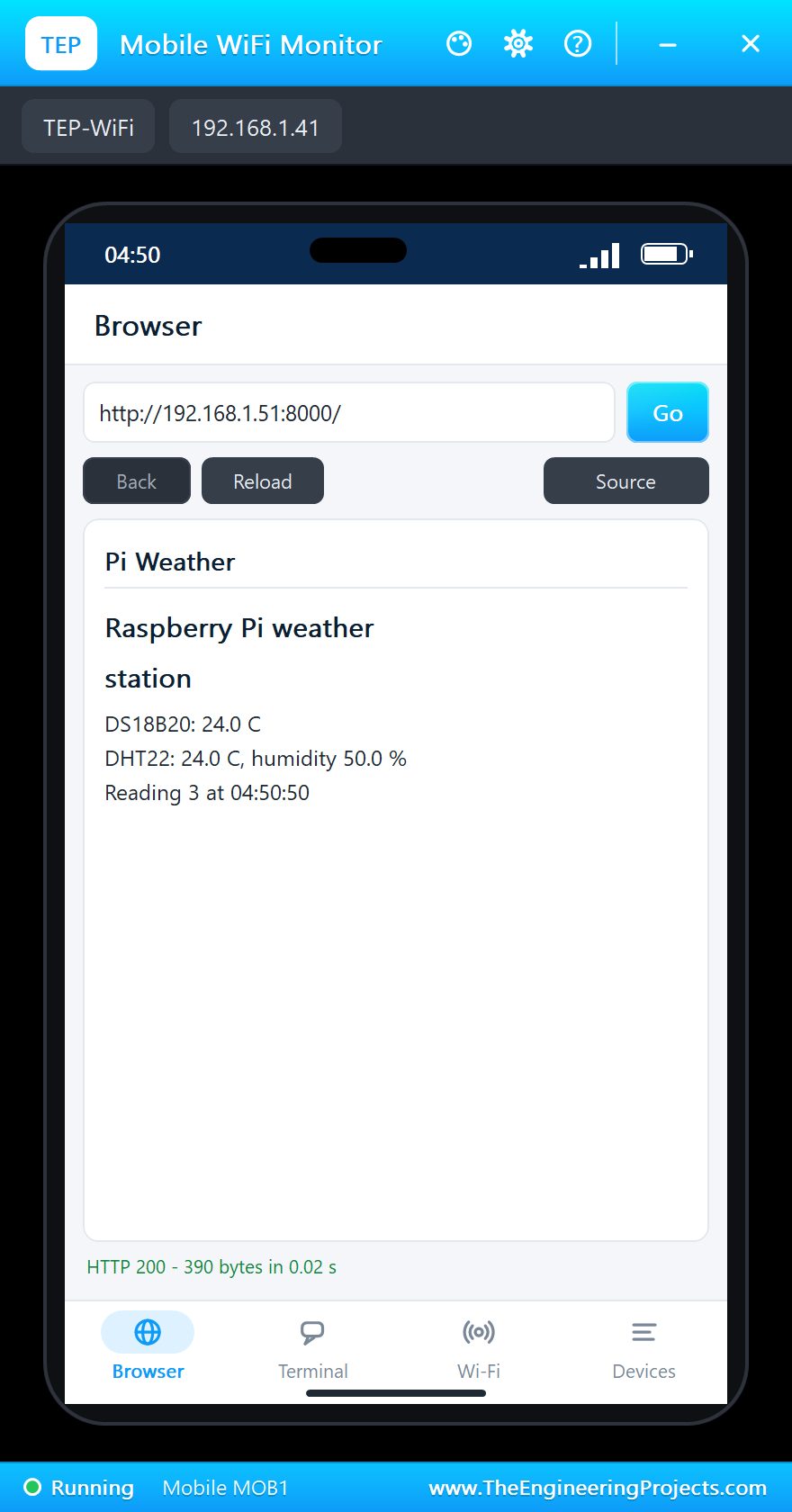
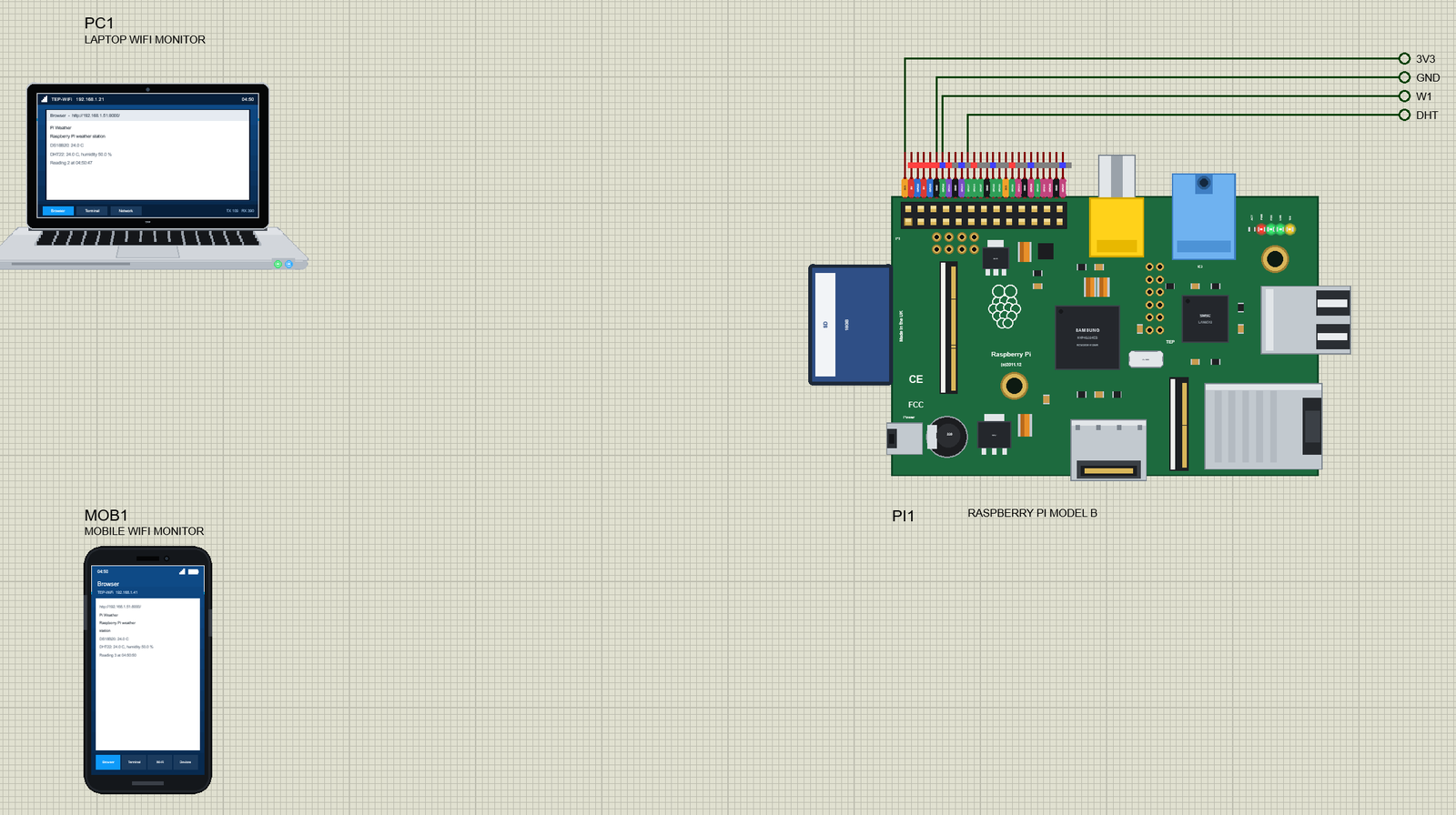
Click the RJ45 jack to pull the cable out: FDX, LNK and 100 go dark and only PWR stays lit. Click it again to plug the cable back in. To start with the cable out, set the Pi's ETHERNET property to OUT - the program then waits at "waiting for the network ...".
Your Own Python Programs
Write your program with any editor and save it next to your project. Double-click the Pi and set PROGRAM to its name (or a full path). The default is blink.py from the Python Code folder - an LED on GPIO17 through a 220R resistor to ground:
from time import sleep
from gpiozero import LED

led = LED(17)
while True:
    led.on()
    print('LED on')
    sleep(0.5)
    led.off()
    print('LED off')
    sleep(0.5)
Use BCM numbers (GPIO.setmode(GPIO.BCM), gpiozero's LED(17)) or GPIO.setmode(GPIO.BOARD) with the header's pin numbers. Python's standard library is there, and a pure-Python package works when you copy its folder next to your program. Packages with C code, such as numpy or OpenCV, do not.
When something goes wrong, the error appears as Python prints it on a Pi, with your program's lines under /home/pi. For example, a program named wrong_pin.py that asks RPi.GPIO for pin 99 on its fifth line:
Traceback (most recent call last):
  File "/home/pi/wrong_pin.py", line 5, in <module>
    GPIO.setup(99, GPIO.OUT)
ValueError: The channel sent is invalid on a Raspberry Pi
The Pi Terminal
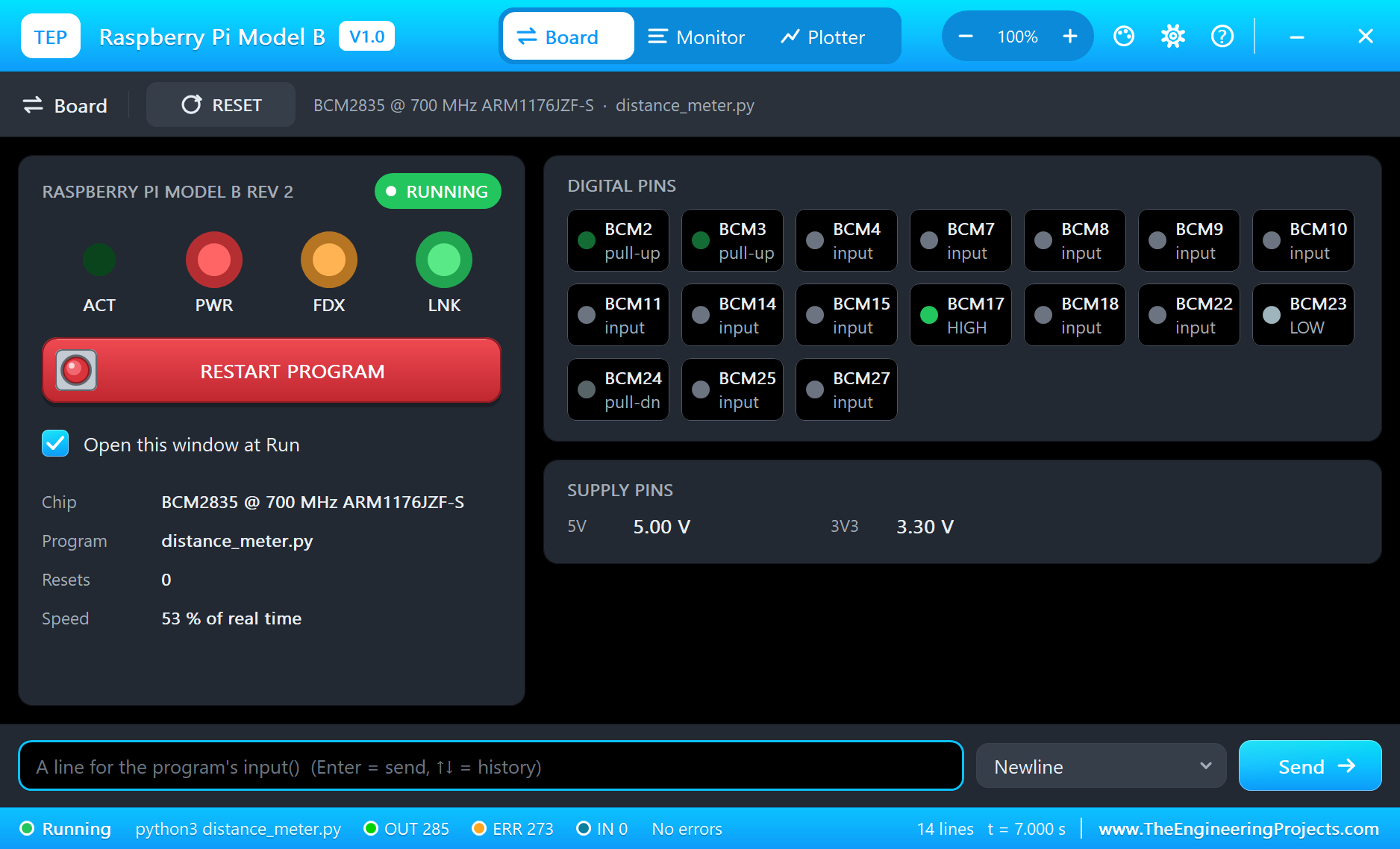
The Pi Terminal opens at Run, in the look of our TEP Serial Monitor Advance for Proteus - our own TEP header, no Windows title bar. Its Monitor tab is the screen of the program: the prompt pi@raspberrypi:~ $ with the command, the output tagged OUT, the errors and warnings tagged ERR, and the lines you type tagged IN. Type a line at the bottom and press Enter, and the program's input() gets it.
The Board tab shows the board live: the LEDs, every GPIO with its state (HIGH or LOW for an output, input, pull-up or pull-dn for an input), the 5V and 3V3 supply pins, the program and the speed. RESTART PROGRAM stops the program and starts it again, as Ctrl+C and the same command would on a Pi:
Properties of the Raspberry Pi Model B
| Property | What it does |
|---|---|
| PROGRAM | the Python program (default blink.py; a name next to the project or a full path) |
| AUTOOPEN | the Pi Terminal at Run: YES (default) or NO |
| ETHERNET | the cable to the router at Run: IN (default) or OUT |
| PYTHON, RUNTIME | a python.exe and a runtime folder of your own (empty: the TEPPi folder) |
Troubleshooting
- The TEPPi folder was not found: copy the TEPPi folder from Proteus Model Files into MODELS, or next to your project.
- python3: can't open file: the PROGRAM file is not next to the project - put it there or give a full path.
- ModuleNotFoundError: only the libraries above are built in; copy a pure-Python package's folder next to your program.
- OSError [Errno 121] Remote I/O error: no I2C device answered its address - check SDA, SCL and the address.
- An LCD stays blank: give the HD44780 time - about 5 ms after each set-up command.
- The page does not open: eth0 comes up 1.2 s after Run with the cable in; use the address the program prints.
- The simulation pauses with the log: click the Schematic Capture tab to go back to the sheet.
Things to Know Before Using a Real Raspberry Pi
- 3.3 V only: the GPIOs are not 5 V tolerant. The HC-SR04's ECHO is a 5 V signal, so bring it down to 3.3 V with a 1k / 2k divider on a real Pi.
- Turn the interfaces on: I2C, SPI and the serial port are off in a fresh Raspberry Pi OS - enable them with
sudo raspi-config, and adddtoverlay=w1-gpioto config.txt for 1-Wire. - The serial console: the Model B's UART carries a Linux console at first; switch it off in raspi-config before your program uses /dev/serial0.
- Packages: install the libraries you need with apt or pip; RPi.GPIO comes with Raspberry Pi OS.
- Timing: Linux is not a real-time system, so software timing such as the HC-SR04's echo jitters a little on a real Pi - that is why gpiozero suggests pigpio.
Limitations of the Simulation
- The board does not run Raspberry Pi OS: there is no desktop, no shell commands, no apt and no os.system. It runs one Python program.
- The HDMI, RCA video and audio outputs, the camera and display connectors, USB, the SD card's files and the P5 pads are drawn but not simulated; GPIO18's PWM is software PWM here.
- C programs and Python packages with C code do not run. Pure Python code takes no simulation time; only the pin, bus, sleep and network calls move the clock.
- The router, the board's address (192.168.1.51 for PI1), the boot time, the Pi Terminal and the two monitors are TEP additions.
- Raspberry Pi is a trademark of Raspberry Pi Ltd; this library is not made or endorsed by Raspberry Pi Ltd or Labcenter.
- Tested in Proteus 8.5 in October 2026 (both demos as shipped, about 50 to 80 % of real time on our PC with the Pi Terminal open). Proteus 7 is not supported.
So, that was all about the Raspberry Pi Model B Library for Proteus. I hope it helps you try a Raspberry Pi project before you touch the hardware - the GPIOs, the buses, the sensors and a web page on the network, all from your own Python program. This is the first board of our Raspberry Pi series, and the next ones follow the same way. If you use the library in a project, please share it in the comments or in our forum, and if you have any questions, ask in the comments and I will help you out. Till the next tutorial, take care and have fun!

Comments
0