


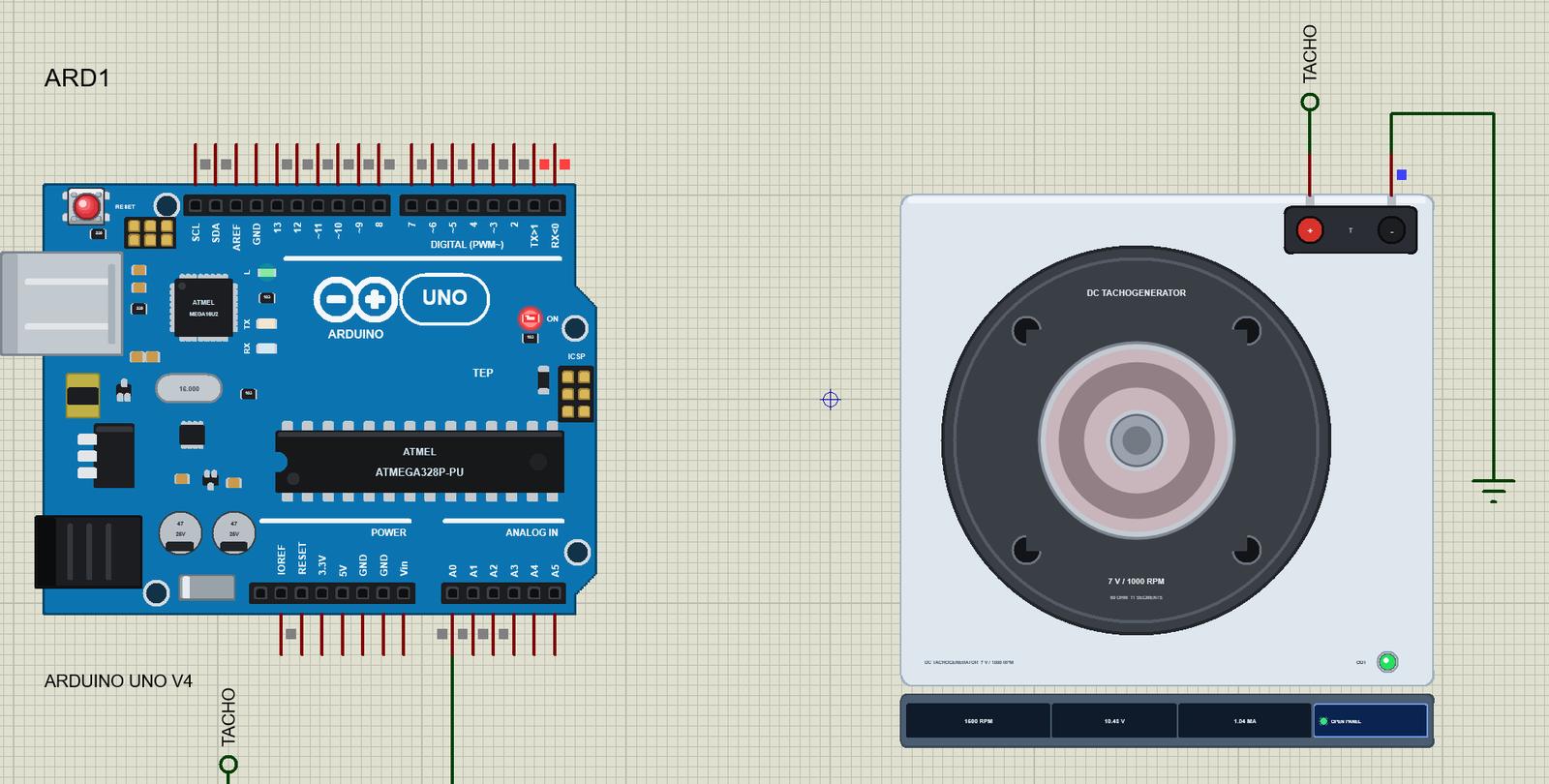
DC Tachogenerator Library for Proteus V1.0 (Arduino RPM Sensor)


Hello friends, I hope you all are doing great. Today, I am going to share the new DC Tachogenerator Library for Proteus V1.0. Every speed-controlled machine needs to know how fast it really turns: the spindle of a lathe, the drum of a conveyor, the reel of a winder, the shaft of an old servo motor. For decades the answer was a tachogenerator - a small DC generator on the shaft whose output voltage is simply proportional to the speed. Read the volts, and you have the RPM.
DC Tachogenerator Library for Proteus
Latest version: V1.0 (October 2026, this tutorial)
Helping Tools
- Serial Monitor Advance: a serial terminal window for the UART of your board
- Serial Monitor Expert: the serial monitor with extra debugging tools
- LCD Library for Proteus V3.0: 16x2, 20x4 and I2C LCDs to show your readings
This library brings a brushed DC tachogenerator into Proteus. Its output is a real source in your circuit: 7 volts per 1000 RPM behind its armature resistance, so a load makes it sag, with the small commutator ripple a real tacho has, and a sign that tells the direction. The shaft belongs to the machine being measured: you set its speed on the pop-up and it runs up with the machine's inertia. The demo runs on our Arduino UNO V4.0: a potentiometer divides the tacho's up to 21 V down to the Arduino's 5 V, and the sketch averages away the ripple and prints the speed.
NOTICE: a tachogenerator is the simplest speed sensor there is, and that is exactly why it is worth getting right: the volts, the load, the ripple and the sign all carry information an engineer reads at a glance. We modelled each of them. It took our team a lot of hard work. Your feedback is the fuel that keeps us going, so please tell us what you think in the comments below or in the Motor Driver board of our forum. And if our free libraries help you, you can buy us a coffee. So, let's get started with the DC Tachogenerator Library for Proteus V1.0:
What is a DC Tachogenerator?
A DC tachogenerator is a permanent-magnet DC machine built for measuring instead of power. Turn its shaft and the coils on its armature cut the magnet's field: an EMF appears at its brushes that rises in step with the speed. The constant that links the two is printed on its data plate - 7 V per 1000 RPM for the one we model, so 1500 RPM gives 10.5 V and 3000 RPM gives 21 V. Turn the shaft the other way and the voltage changes sign.
| DC tachogenerator (the model) | |
|---|---|
| Output | 7 V per 1000 RPM (property KV), the sign shows the direction |
| Armature and brushes | 60 ohm behind the terminals |
| Commutator | 11 segments: a ripple at 11 x the turns a second, 1 % peak |
| Load | keep it at 10 kohm or more; 10 mA is an overload |
| Rated speed | up to 6000 RPM |
| Terminals | T+ (red) and T- (black) |
A Generator Used as a Sensor
Any DC motor turned by hand gives a voltage, but a tachogenerator is built so that the voltage is linear, stable and clean: strong magnets, many commutator segments and silver brushes. It is used only as a sensor, so it should never deliver real current. The 60 ohm of its armature and brushes stay in series with whatever reads it: with a 10 kohm load at 1500 RPM, 1 mA flows and 0.063 V is lost inside the tacho - 0.6 %. Heavy loads cost accuracy, which is why the datasheets ask for 10 kohm or more.
Why the Output Ripples
The brushes slide from one commutator segment to the next as the shaft turns. Each switch makes a small bump in the output, so the voltage carries a ripple at the number of segments times the turns per second: 11 segments at 1500 RPM, 25 turns a second, give a ripple at 275 Hz. A little eccentricity adds a slow wobble once a turn. Together they are a few percent peak to peak - small, but enough to make single Arduino readings jump. Averaging or a small RC filter removes them.
What's New in DC Tachogenerator Library for Proteus V1.0
- A real output: 7 V per 1000 RPM behind 60 ohm, solved by Proteus with the load - the volts sag as they would.
- The commutator ripple: 11 segments and a once-a-turn wobble on the output, drawn sample by sample.
- A machine to measure: the shaft's speed set on the pop-up, by property RPM or by a click on the coupling, with a realistic run-up.
- The direction: backwards, the output is negative.
- It reads itself: run-up times, the steady volts, the load's sag, the ripple, the direction and an overload.
- A turning coupling on the schematic that blurs into rings at speed, as a camera sees it.
- A pop-up window with four pages - Tacho, Graphs, Event log and Check - and the ripple drawn live.
- A full release: the zip with the library, our Arduino UNO V4.0 and an A4 demo, tested in Proteus.
The Tachogenerator in Proteus
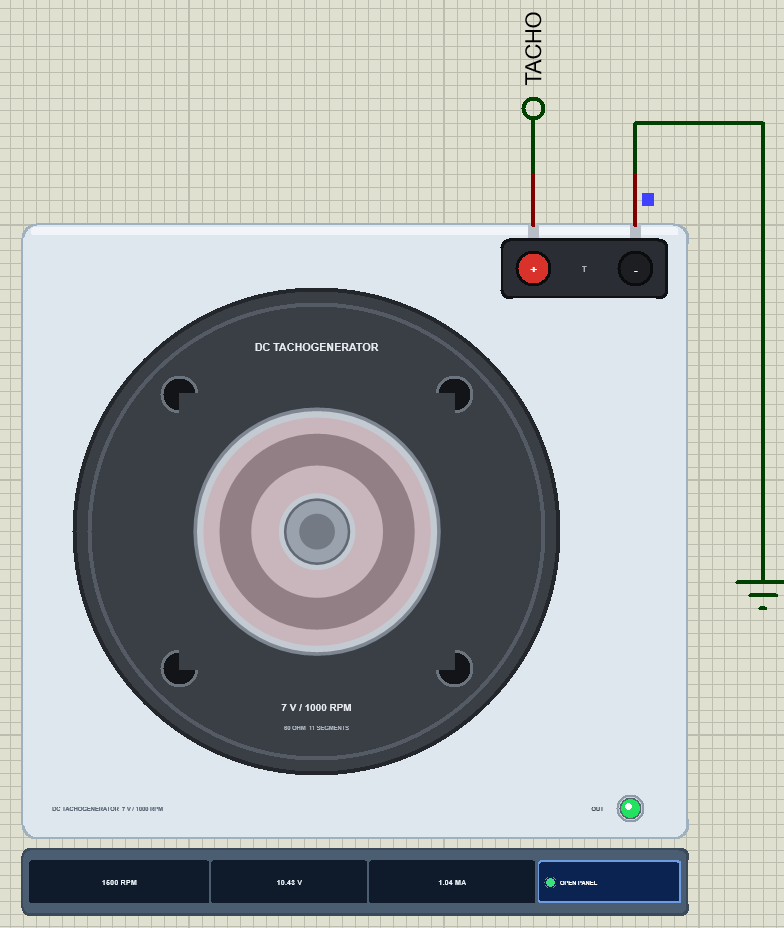
Search TACHO in Pick Devices; the device DCTACHOTEP is in TEPTACHO.LIB (category Electromechanical, DC Motors) and its model is TEPTACHO.DLL. It is drawn from the shaft end: the dark anodised mounting flange with four screw holes and its data, and on the shaft the coupling disc of the machine it measures - six holes and a red marker so you can see it turn. At Run the disc turns with the shaft; above a couple of hundred RPM it becomes a set of blurred rings, just as a camera with a 50 ms exposure would show it.
The terminal box at the top right carries T+ (the red stud) and T- (the black stud). The LED OUT lights green while T+ is positive and red while the output is negative. Under the plate the strip shows the speed, the volts and the load current, and the OPEN PANEL button. The plate, the LED and the strip are TEP additions; the real tacho has none of them.
The Pins and the Properties
| Pin | What the model does with it |
|---|---|
| T+ | the positive terminal while the shaft turns forwards |
| T- | the other terminal: GND in the demo |
| Property | Default | What it does |
|---|---|---|
| RPM | 1500 | the shaft's speed at the start (minus = backwards, up to 6000): the machine runs up to it at Run |
| KV | 7 | the tacho's volts per 1000 RPM - set it from your tacho's data plate |
Download DC Tachogenerator Library for Proteus
Click the button below to download DC-Tachogenerator-Library-for-Proteus-v1.0.zip (about 1.2 MB, without the source code of the models):
DC Tachogenerator Library for Proteus V1.0- README.txt: installation, the demo, the wiring, the properties, real hardware, troubleshooting and the limits.
- Proteus Library Files:
TEPTACHO.LIBandArduinoV4TEP.LIBfrom our Arduino Library for Proteus V4.0. - Proteus Model Files:
TEPTACHO.DLLandTEPARDUINO.DLL. - Proteus Simulation:
DC-Tachogenerator-ArduinoUnoV4.pdsprj,Tacho_Demo.hexand copies of the two DLLs. - Arduino Code:
Tacho_Demo.ino(no library needed).
No Proteus yet? Read How to Download and Install Proteus 7 and 8. New to libraries? Follow How to Install a New Library in Proteus.
How to Install DC Tachogenerator Library for Proteus
- Close Proteus and extract the whole zip file, for example to your Desktop.
- Copy
TEPTACHO.LIBandArduinoV4TEP.LIBfrom Proteus Library Files into the LIBRARY folder of Proteus (usuallyC:\Program Files (x86)\Labcenter Electronics\Proteus 8 Professional\LIBRARY). - Copy
TEPTACHO.DLLandTEPARDUINO.DLLfrom Proteus Model Files into the MODELS folder. The two Arduino files are the ones of our Arduino Library V4.0; if you have it, they are the same. - Delete
TEPTACHO.IDXfrom the LIBRARY folder if it is there. - Start Proteus, press P and search for TACHO.
Tip: keep the Proteus Simulation folder together, because the project needs its .hex file and the DLLs beside it. The library is tested in Proteus 8.5; Proteus 7 is not supported.
The Demo Circuit
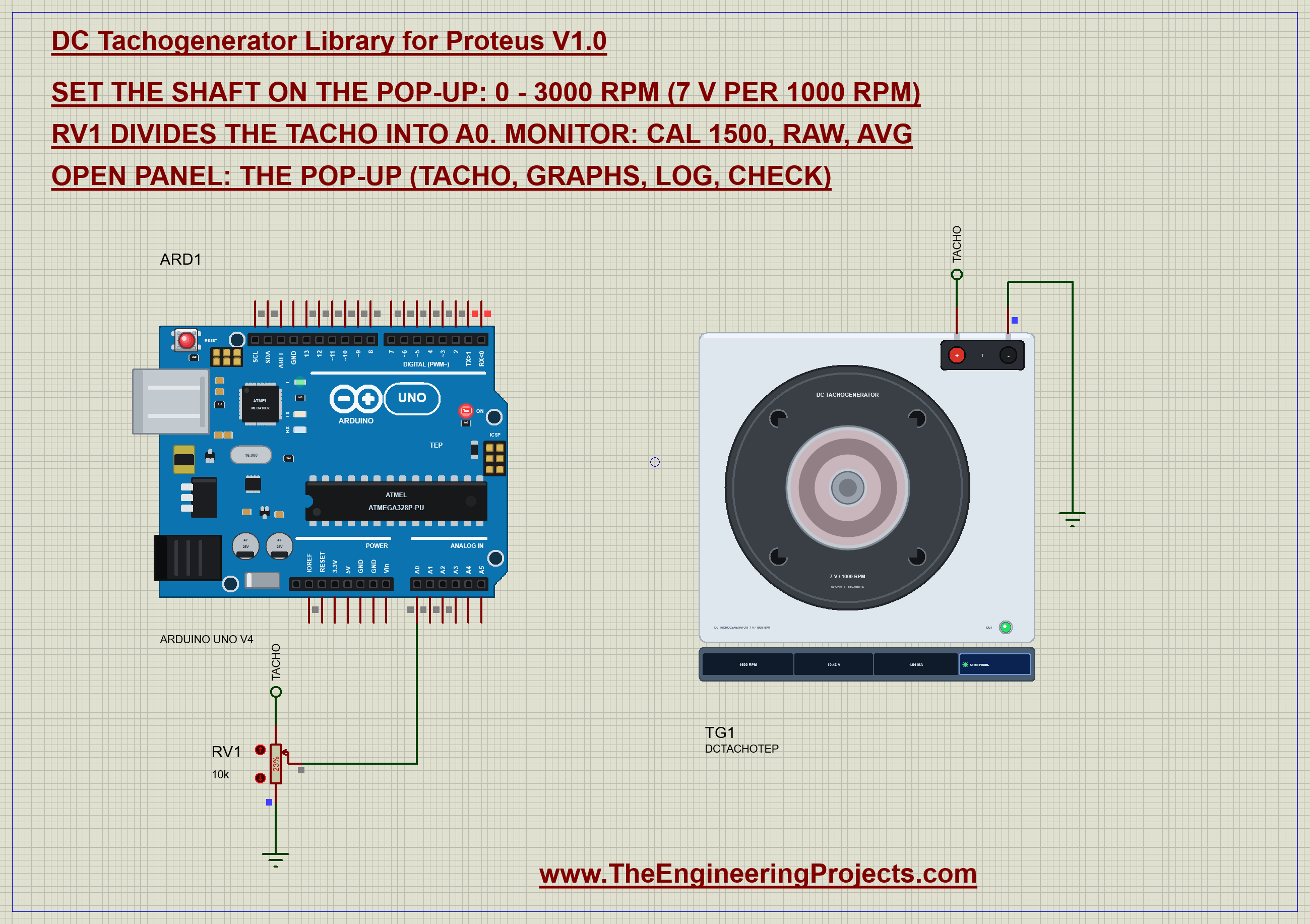
Open DC-Tachogenerator-ArduinoUnoV4.pdsprj. ARD1 is an Arduino UNO V4.0 from our Arduino UNO Library for Proteus V4.0, running Tacho_Demo.hex with its serial monitor built in. TG1 is the tachogenerator, and RV1, a 10k potentiometer, is the voltage divider between them.
| Part | Connection | Note |
|---|---|---|
| TG1 T+ | net label TACHO | up to 21 V at 3000 RPM |
| TG1 T- | GND | |
| RV1 top / bottom | TACHO / GND | the tacho's whole output across 10 kohm |
| RV1 wiper | A0 | at 23 %: 21 V becomes 4.8 V |
The divider is the key part. An Arduino pin reads 0 to 5 V, but the tacho gives up to 21 V at 3000 RPM. With the wiper at 23 %, only 0.23 of the voltage reaches A0, so the top speed stays below 5 V. On a real board two fixed resistors - for example 33 kohm over 10 kohm - do the same job; keep the total at 10 kohm or more, because the tacho is a sensor.
The Arduino Code
The demo needs no library. New to Arduino? Start with Arduino Tutorial for Beginners and Introduction to Arduino UNO. The constants say everything about the measurement chain: the pin, the tacho's constant, the divider's ratio and how many samples to average:
const int TACHO_PIN = A0;
const float KV = 7.0;                                    // the tacho's volts per 1000 RPM
float ratio = 0.23;                                      // RV1: the share of the tacho's voltage that reaches A0
int samples = 256;                                       // averaged per reading: the ripple cancels
One reading averages 256 samples. Each analogRead() takes about 0.11 ms, so a reading spans about 30 ms - several ripple periods and most of a turn at 1500 RPM. Then the speed is the voltage divided by the ratio and by the tacho's constant:
float readA0() {
  long sum = 0;
  for (int i = 0; i < samples; i++) sum += analogRead(TACHO_PIN);
  return sum * 5.0 / 1023.0 / samples;
}
float rpmFrom(float a0) { return a0 / ratio * 1000.0 / KV; }
Every half second the loop takes a reading and prints it only when the speed has changed by 5 RPM or more, so a steady machine does not flood the monitor:
  static unsigned long at = 0;
  if (millis() - at >= 500) {
    at = millis();
    const float a0 = readA0(), rpm = rpmFrom(a0);
    if (fabs(rpm - lastRpm) >= 5) { lastRpm = rpm; report(a0); }
  }
void report(float a0) {
Serial.print(F("A0 ")); Serial.print(a0, 3); Serial.print(F(" V -> tacho ")); Serial.print(a0 / ratio, 2);
Serial.print(F(" V -> ")); Serial.print(rpmFrom(a0), 0); Serial.println(F(" RPM"));
}The cal command is the bench technician's trick. Run the machine at a known speed, tell the sketch that speed, and it works out the divider's true ratio from the reading:
    ratio = readA0() / (rpm * KV / 1000.0);
    Serial.print(F("calibrated: RV1 ratio = ")); Serial.println(ratio, 4);
And raw shows what the averaging hides: twenty single samples taken as fast as the ADC goes:
void raw() {
  int v[20];
  for (int i = 0; i < 20; i++) { v[i] = analogRead(TACHO_PIN); delayMicroseconds(80); }
void setup() {
Serial.begin(9600);
Serial.println(F("DC tachogenerator demo - The Engineering Projects"));The HEX file is in the package. To change the sketch, open it in the Arduino IDE and export the compiled binary, as in How to get the HEX file from Arduino. It needs 7,474 bytes of flash (23 % of the UNO) and 276 bytes of RAM.
Running the Demo
Press Run. The UNO's serial monitor and the tacho's pop-up open over the schematic; move them aside. The machine starts and the shaft runs up to 1500 RPM - property RPM - while the sketch prints the readings as they rise:
A0 1.834 V -> tacho 7.98 V -> 1139 RPM
A0 2.237 V -> tacho 9.73 V -> 1390 RPM
A0 2.352 V -> tacho 10.23 V -> 1461 RPM
A0 2.391 V -> tacho 10.40 V -> 1485 RPM
A0 2.400 V -> tacho 10.43 V -> 1490 RPM
The run-up takes 1.56 s to come within 2 % - the machine's inertia. At the end the tacho gives 10.43 V and the sketch says 1490 RPM: 0.7 % low. Two small things add up here: the 0.063 V lost in the armature under RV1's load, and the divider not being exactly 0.23. That is why every real tacho installation is calibrated once.
Calibrating the Divider
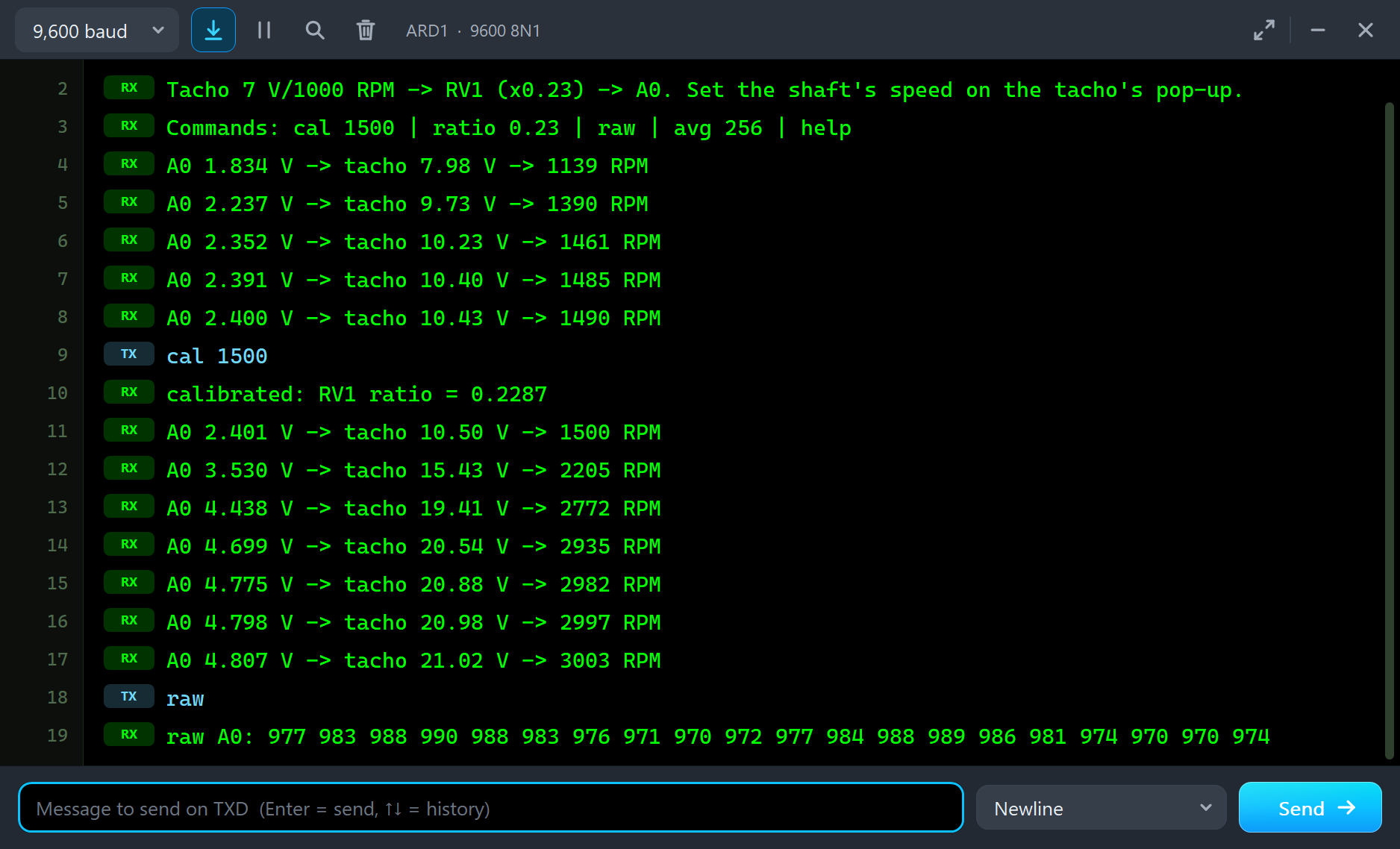
With the shaft at a known 1500 RPM, type cal 1500:
cal 1500
calibrated: RV1 ratio = 0.2287
A0 2.401 V -> tacho 10.50 V -> 1500 RPM
The ratio becomes 0.2287 instead of 0.23 and the reading is exactly 1500 RPM. Because the load and the divider are both linear, one calibration point is enough for every speed - as the next step shows.
The Pop-Up Window
At Run the tacho opens TEP DC Tachogenerator, a window in the look of our TEP Serial Monitor Advance for Proteus. It has four tabs - Tacho, Graphs, Event log and Check - plus Settings and Help behind the gear and question mark icons; the palette icon switches between the dark and the light theme. If you close it, the OPEN PANEL button on the strip brings it back.
Tacho
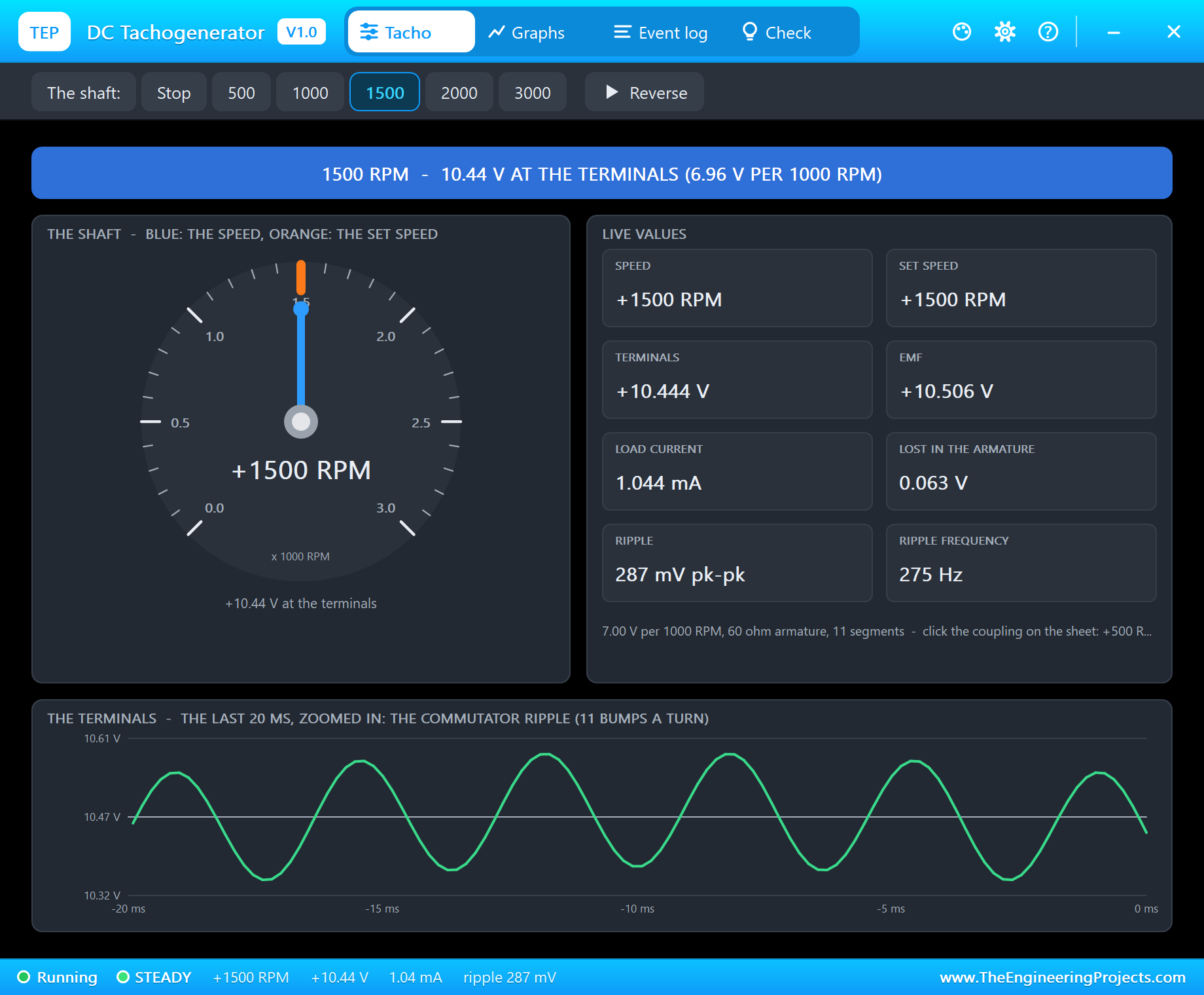
The banner gives the state: the speed with its volts and the measured volts per 1000 RPM, RUNNING UP or DOWN, BACKWARDS, STOPPED or OVERLOADED. The dial shows the shaft (blue) against the set speed (orange). The live values are the speed and the set speed, the terminal voltage and the EMF behind it, the load current and the volts lost in the armature, the ripple and its frequency. The toolbar is the machine's control: Stop, 500, 1000, 1500, 2000 and 3000 RPM, and Reverse.
At the bottom is the terminal voltage over the last 20 milliseconds, zoomed in round its mean. There is the commutator ripple: about 288 mV peak to peak at 275 Hz, riding on 10.44 V, with the slow once-a-turn wobble changing the height of the bumps.
3000 RPM
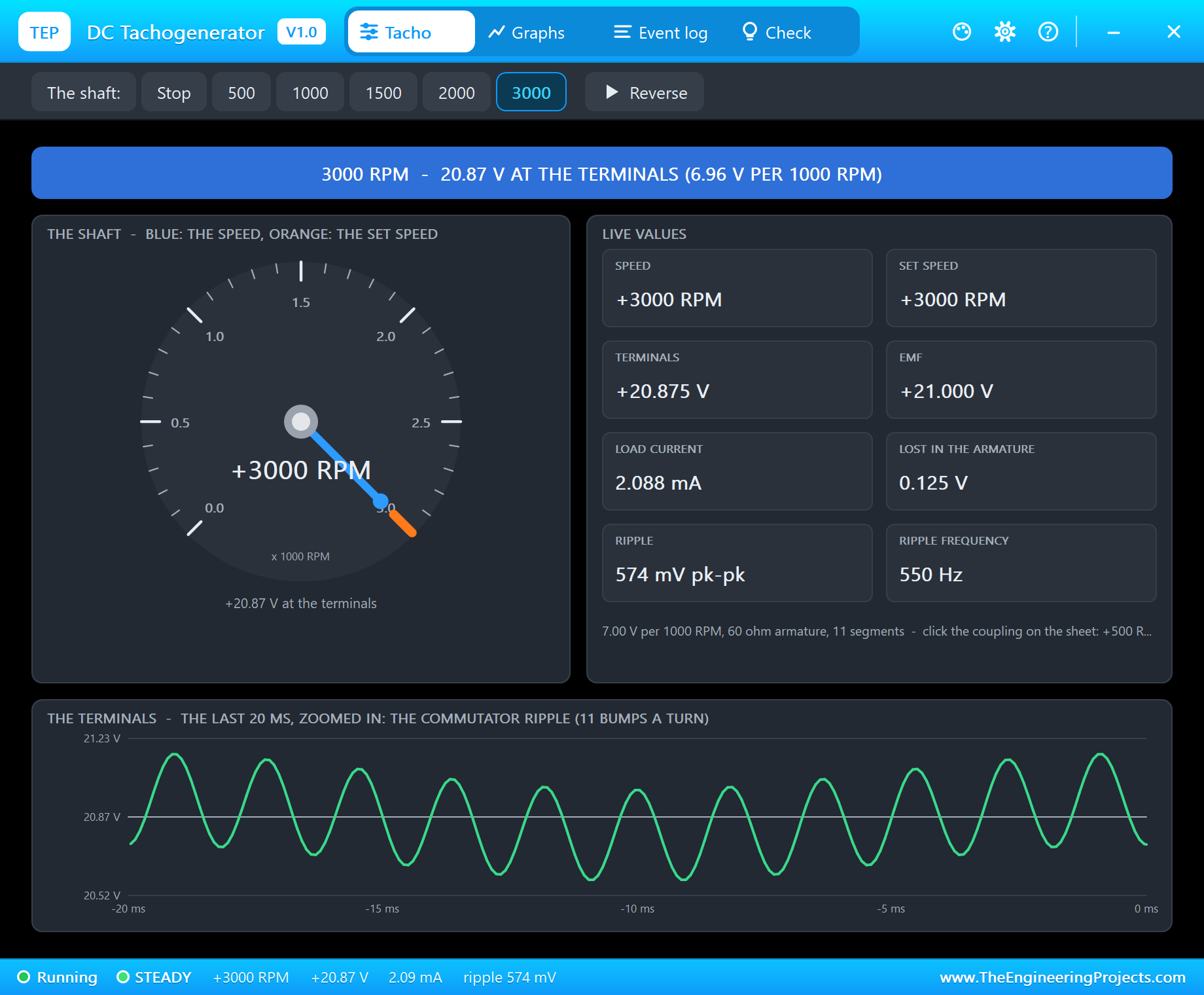
Click 3000 on the toolbar. The shaft runs up in 1.29 s and the output doubles to 20.88 V; the load current and the armature's loss double with it, and the ripple doubles in size and in frequency. In the monitor the calibrated sketch follows:
A0 3.530 V -> tacho 15.43 V -> 2205 RPM
A0 4.438 V -> tacho 19.41 V -> 2772 RPM
A0 4.699 V -> tacho 20.54 V -> 2935 RPM
A0 4.775 V -> tacho 20.88 V -> 2982 RPM
A0 4.798 V -> tacho 20.98 V -> 2997 RPM
A0 4.807 V -> tacho 21.02 V -> 3003 RPM
3003 RPM: within 0.1 % after a calibration made at half the speed. Now type raw:
raw
raw A0: 977 983 988 990 988 983 976 971 970 972 977 984 988 989 986 981 974 970 970 974
Twenty single samples swing between 970 and 990 - the ripple, seen through the divider. A sketch that read A0 once and printed it would jump by about 60 RPM from line to line. The 256-sample average turns that into a steady number.
Backwards
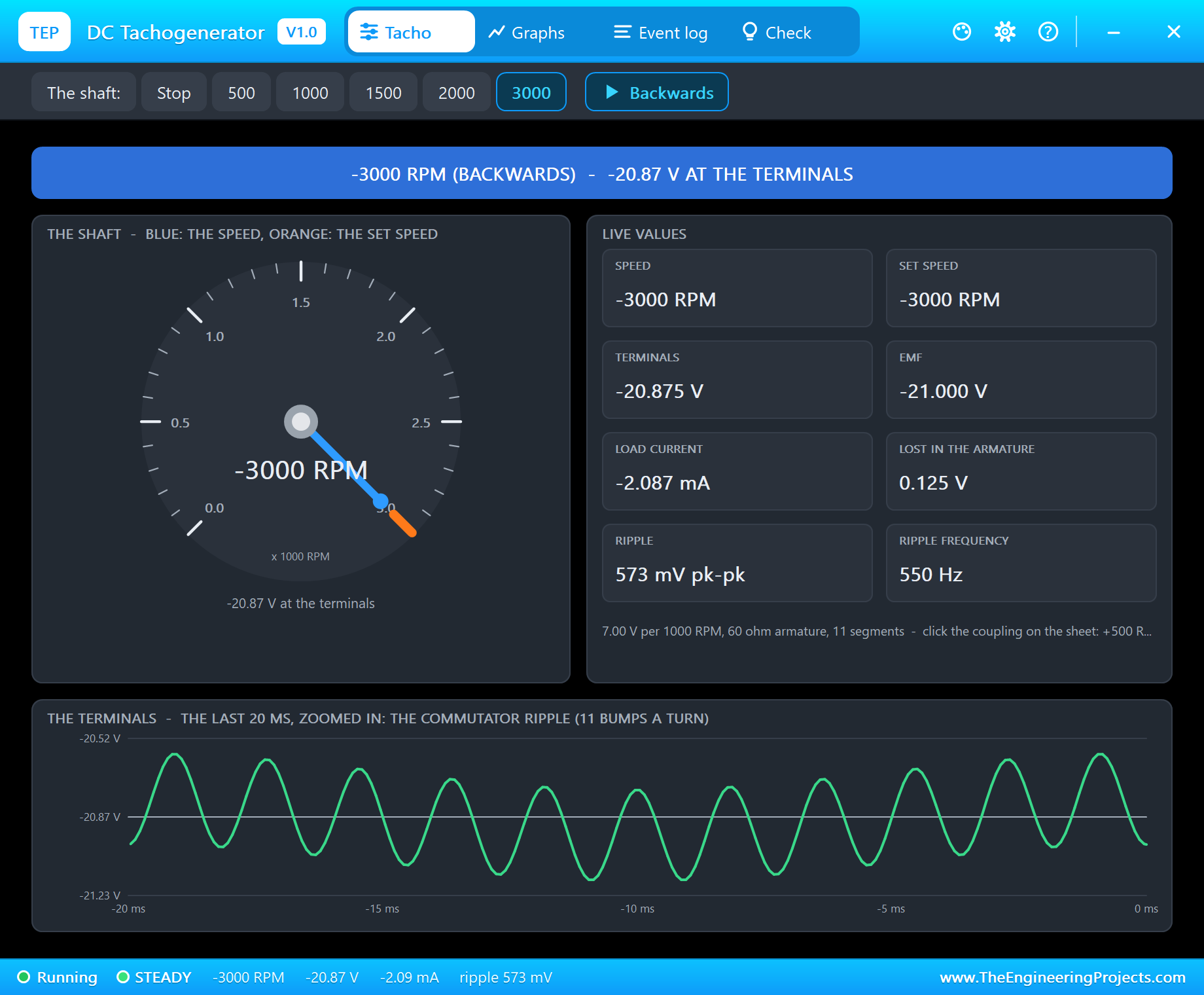
Click Reverse. The machine slows down, passes through zero and runs up the other way to -3000 RPM in 1.84 s. The output follows to -20.87 V, the LED OUT turns red and the banner says BACKWARDS. The sign of a tachogenerator is the direction - but an Arduino pin cannot read a negative voltage, so A0 now reads 0 V and the sketch sees nothing. On real hardware a negative voltage on a pin is worse than invisible: it can damage the input. The Check page and the README explain the cure.
Graphs and the Event Log
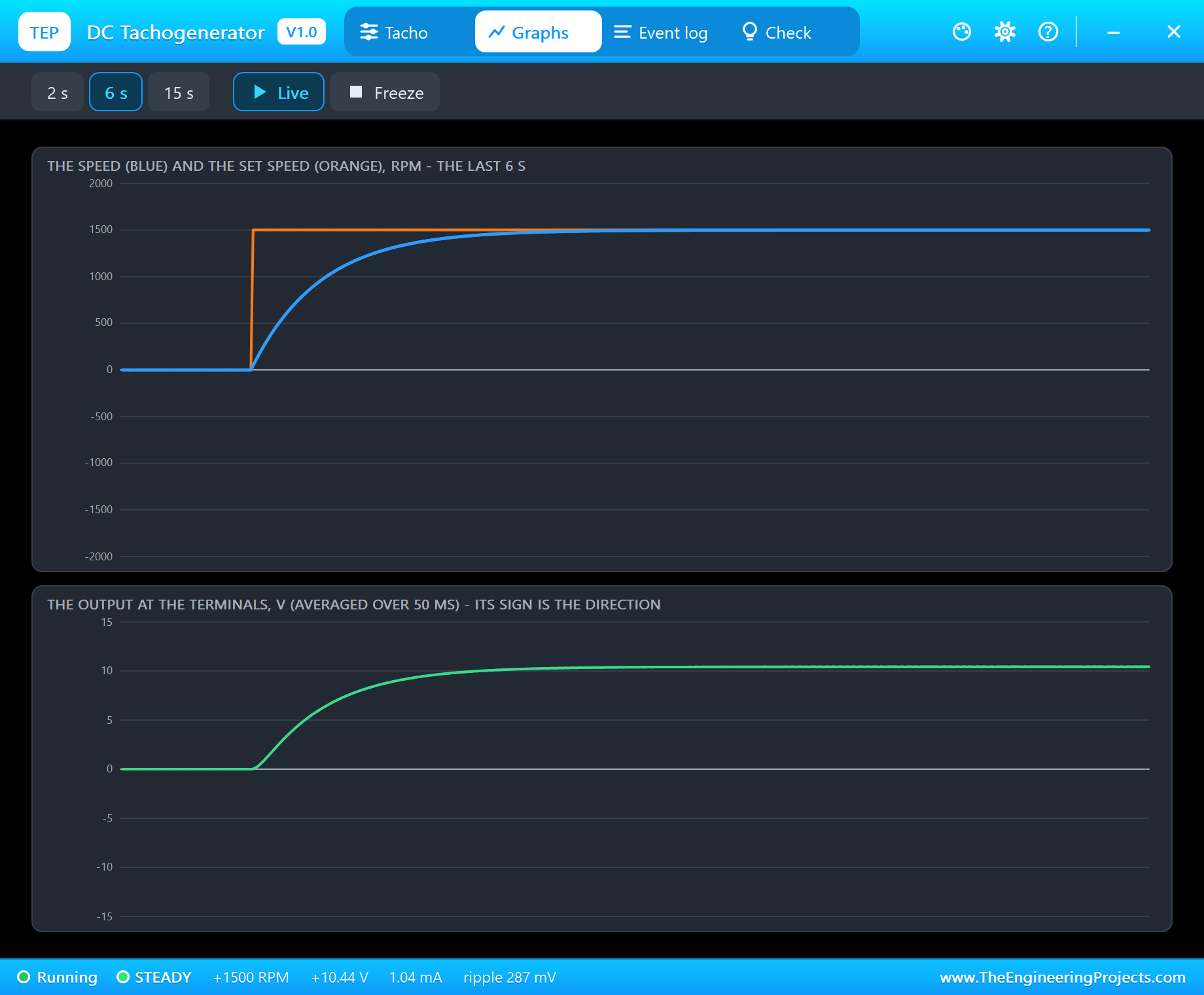
Graphs draws the speed (blue) against the set speed (orange) and the output averaged over 50 ms, over the last 2, 6 or 15 seconds. After Stop and then 1500, the orange line jumps and the blue one follows on the classic curve of a machine with inertia - fast at first, then easing in. The output below has exactly the same shape: that is what proportional means.
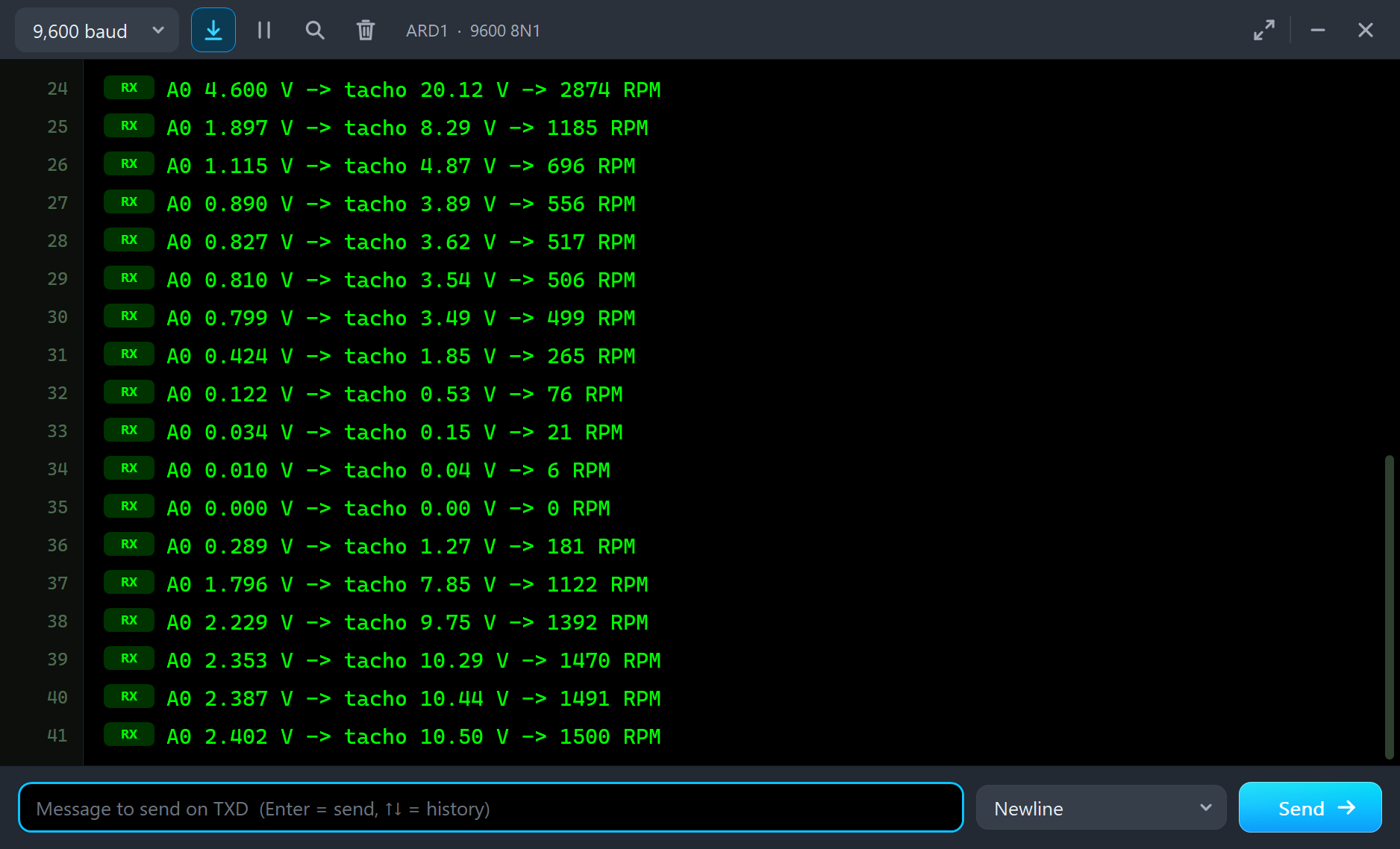
The monitor shows the same story in numbers: the speed easing down to 499 RPM, down to 0 after Stop, and up through 1122, 1392, 1470 and 1491 to 1500 RPM.
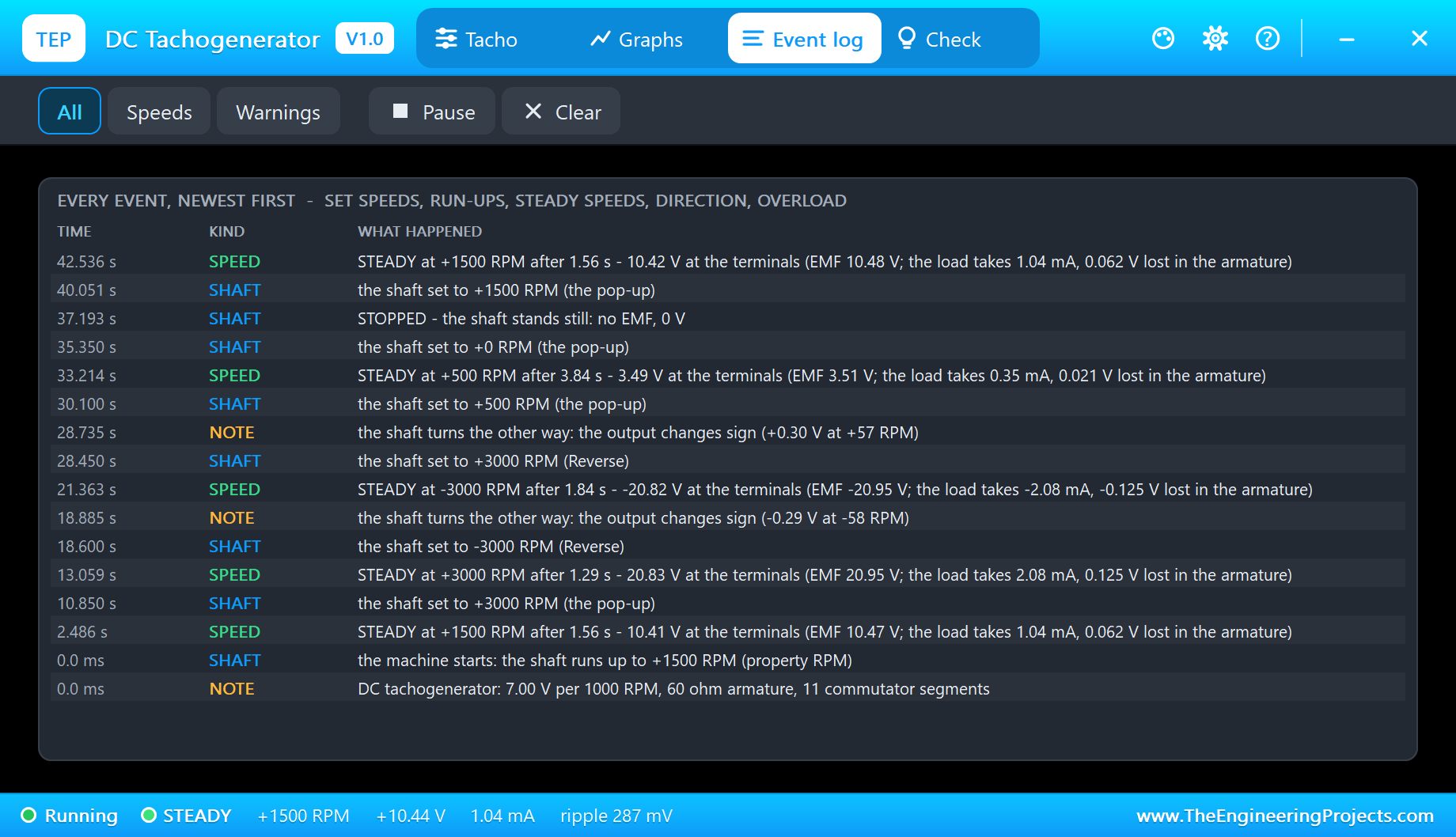
The Event log keeps the run with the simulation time: every set speed and where it came from (property RPM, the pop-up, Reverse or a click on the coupling), every steady speed with its run-up time and volts - "STEADY at +1500 RPM after 1.56 s - 10.41 V at the terminals" - the direction changes and STOPPED. Filter it by speeds or warnings, pause it or clear it.
The Check Page
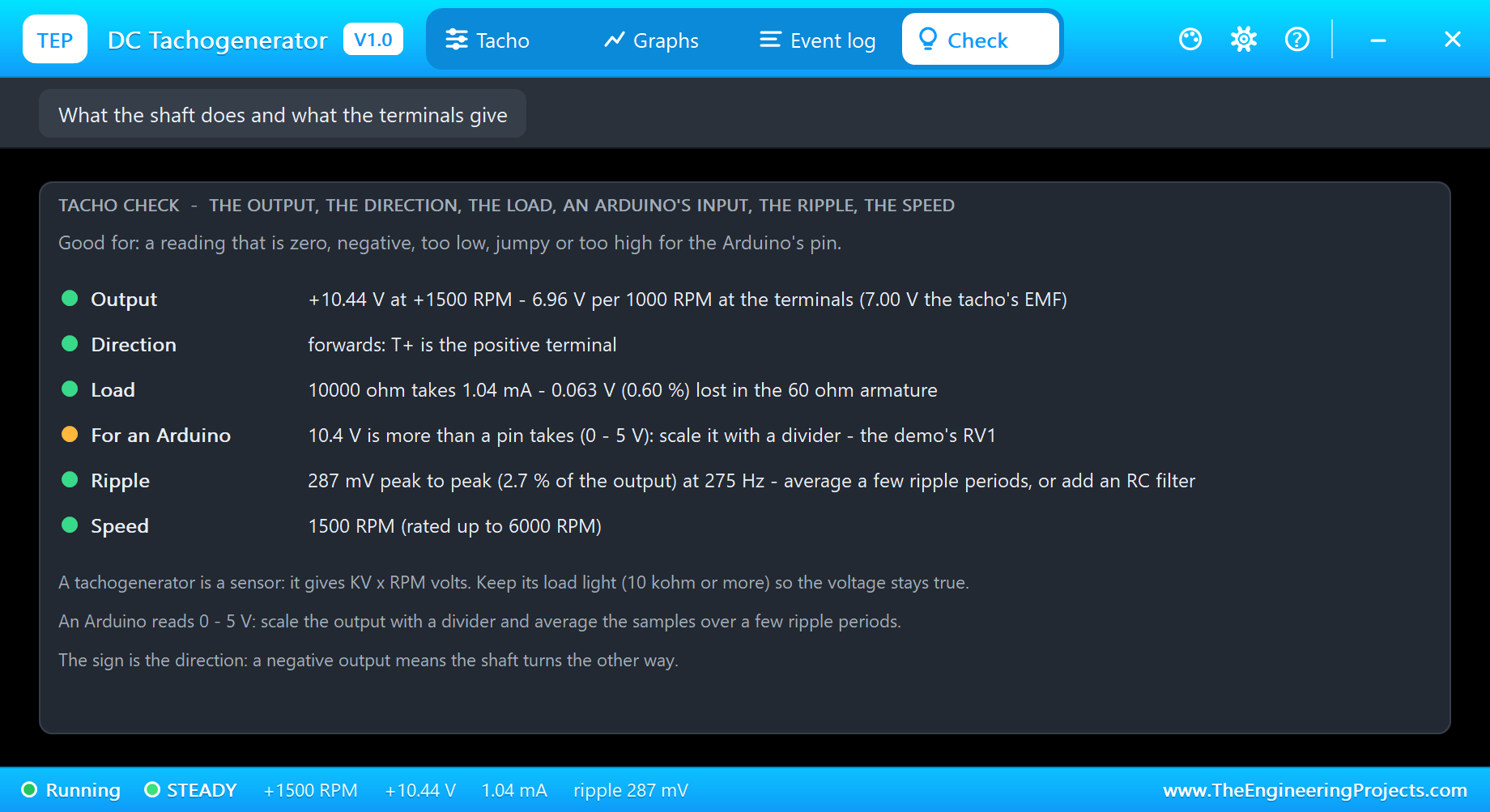
The Check page answers the forum questions in one look, each row with a verdict - green for fine, amber to check, red for wrong: the output and the measured volts per 1000 RPM, the direction, the load ("10000 ohm takes 1.04 mA - 0.063 V (0.60 %) lost in the 60 ohm armature"), the input for an Arduino, the ripple with its frequency, and the speed against the rated 6000 RPM. At 1500 RPM the row for an Arduino is amber: 10.4 V is more than a pin takes, and the demo's RV1 is the answer.
How the Model Works
The terminals are the EMF - 7 V per 1000 RPM with the ripple on it - behind 60 ohm, stamped into the circuit as its Norton equivalent at every analog point, so Proteus solves the tacho together with its load. To draw the ripple rather than guess it, the model cuts the analog step to a twentieth of a ripple period - 0.18 ms at 1500 RPM - and to 2 ms while the speed changes. The shaft follows the set speed with a 0.4 s time constant, like a machine with real inertia.
We checked it on a PC with 14 automatic tests: 1500 RPM into 10 kohm gives 10.425 V after a 1.56 s run-up, with 0.290 V of ripple and 0.063 V lost in the armature; -1000 RPM reverses the sign; Stop gives 0 V; 500 ohm at 3000 RPM is reported as an overload; and a KV of 2.5 gives 5.0 V at 2000 RPM. Two more tests render the pop-up pages, and the demo project is read back from disk with 45 checks.
Troubleshooting
- The reading is 0 (STOPPED): the shaft stands still - pick a speed on the pop-up or click the coupling; or T+ / T- are not connected.
- The reading is 0 but the pop-up shows a speed: the shaft turns backwards and A0 cannot read a negative voltage - or the divider's middle is not on A0.
- The reading is a little low: the armature's sag and the divider's tolerance - calibrate at a known speed.
- The reading jumps: too few samples averaged, or a heavy load.
- OVERLOADED: the load draws more than 10 mA - the divider is too small.
- No disc turning, no UNO or no monitor:
TEPTACHO.DLLorTEPARDUINO.DLLis missing from MODELS and the project folder; a closed monitor opens again with a click on the UNO's USB port.
Things to Know Before Using a Real Tachogenerator
- Protect the pin from negative volts: if the shaft can turn backwards, add a Schottky clamp from A0 to GND and a series resistor, or an offset.
- Size the divider for the top speed: industrial tachos give 7 to 60 V per 1000 RPM - check the data plate.
- Keep the load light: 10 kohm or more, so the voltage stays true.
- Filter or average: the ripple grows as brushes wear; an RC filter of 10 kohm and 1 uF helps as much as averaging.
- Want to see the speed on a needle? Our Analog Panel Meter Library for Proteus turns a voltage into a swinging needle, and our 130 DC Motor Library for Proteus is a motor to spin.
Limitations of the Simulation
- Not modelled: the tacho's own drag on the machine, brush wear, temperature, the armature's inductance and AC tachogenerators.
- The plate, the LED, the strip, the speed chips and the clickable coupling are TEP additions.
- The model is our own, written from the typical data of small brushed DC tachogenerators; this library is not made or endorsed by any tachogenerator maker, Arduino or Labcenter.
- Licences: the demo HEX contains the Arduino AVR core 1.8.6 (LGPL); the sketch is included and the README gives the source link. The potentiometer is Proteus's own.
- Tested in Proteus 8.5 in October 2026 with the demo as shipped: the run-up, cal 1500, 3000 RPM, raw, Reverse, 500 RPM, Stop, 1500 RPM and all four pages of the pop-up. Proteus 7 is not supported.
So, that was all about the DC Tachogenerator Library for Proteus V1.0. I hope it helps you build and test your speed measurement in Proteus first - the divider, the averaging, the calibration and the direction - before you couple a real tacho to a real shaft. If you have any questions, ask in the comments and I will help you out. Till the next tutorial, take care and have fun!

Comments
0