


NUCLEO-WB55RG Library for Proteus: STM32WB BLE Quiz Simulation


Hello friends, I hope you all are doing great. Today, I am going to share the NUCLEO-WB55RG Library for Proteus, so you can run a Bluetooth LE simulation of ST's STM32WB55 Nucleo board. The NUCLEO-WB55RG carries the STM32WB55, a dual-core wireless microcontroller for Bluetooth LE, Thread and Zigbee, on a Nucleo board with Arduino Uno headers, three coloured LEDs and three user buttons. With this library it runs your Arduino sketch in Proteus 8.5, talks Bluetooth LE to a phone, and its LEDs and buttons work with a click.
NUCLEO-WB55RG Library for Proteus
Latest version: V1.0 (November 2026, this tutorial)
Helping Tools
- Laptop WiFi Monitor: a laptop on the Wi-Fi of your design: a browser, a TCP / UDP terminal and ping
- Mobile WiFi Monitor: a smartphone that opens the pages of your board and sends it commands
- Serial Monitor Advance: a serial terminal window for the UART of your board
For the demo we built a Bluetooth quiz buzzer for three players. Each player has a button and a lamp; the first to press wins the question, the others are locked out for a moment, and the quiz master's phone shows the winner and the scores over Bluetooth LE.
NOTICE: Proteus has no STM32WB55 model, so our team has put a lot of effort into building this board ourselves: the headers, the LEDs, the buttons and Bluetooth LE are all our own model, and your sketch compiles with our free TEP Boards for Proteus add-on. Your feedback is the fuel that keeps us going, so please tell us what you think in the comments below. And if our free libraries help you, you can buy us a coffee. So, let's get started with the NUCLEO-WB55RG Library for Proteus:
What is the NUCLEO-WB55RG?
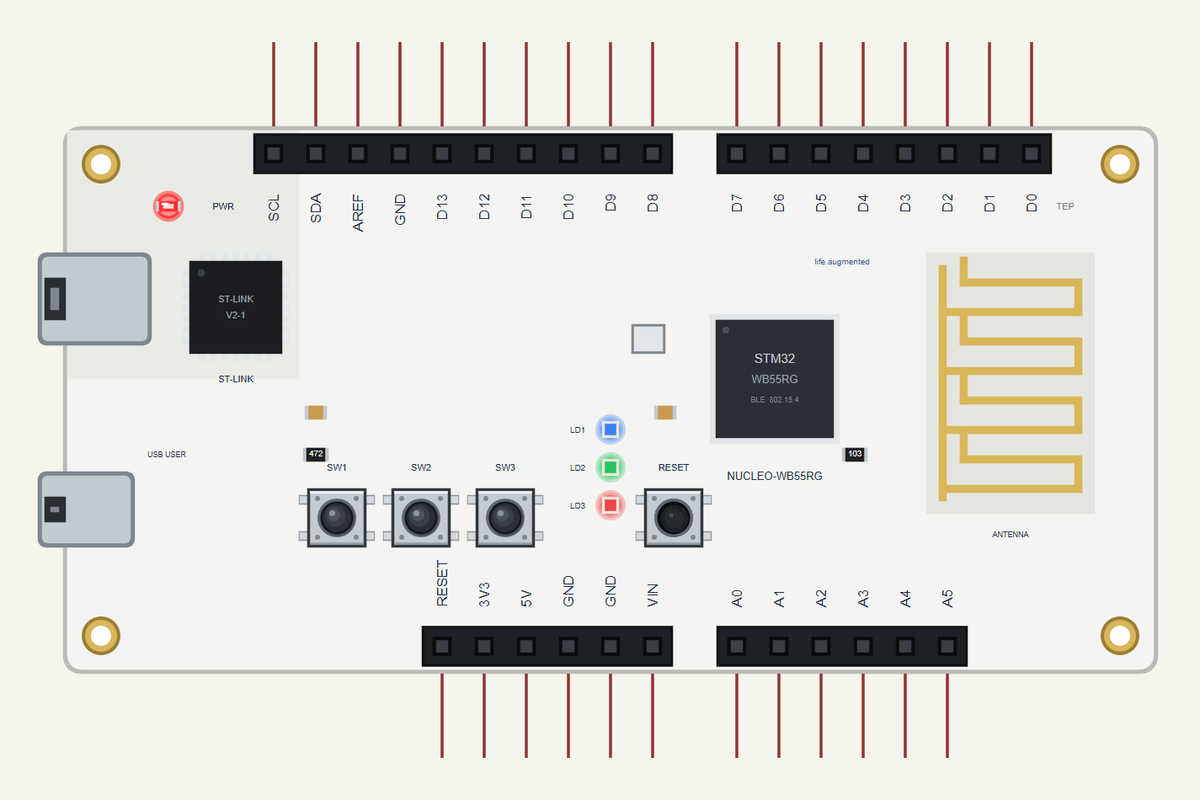
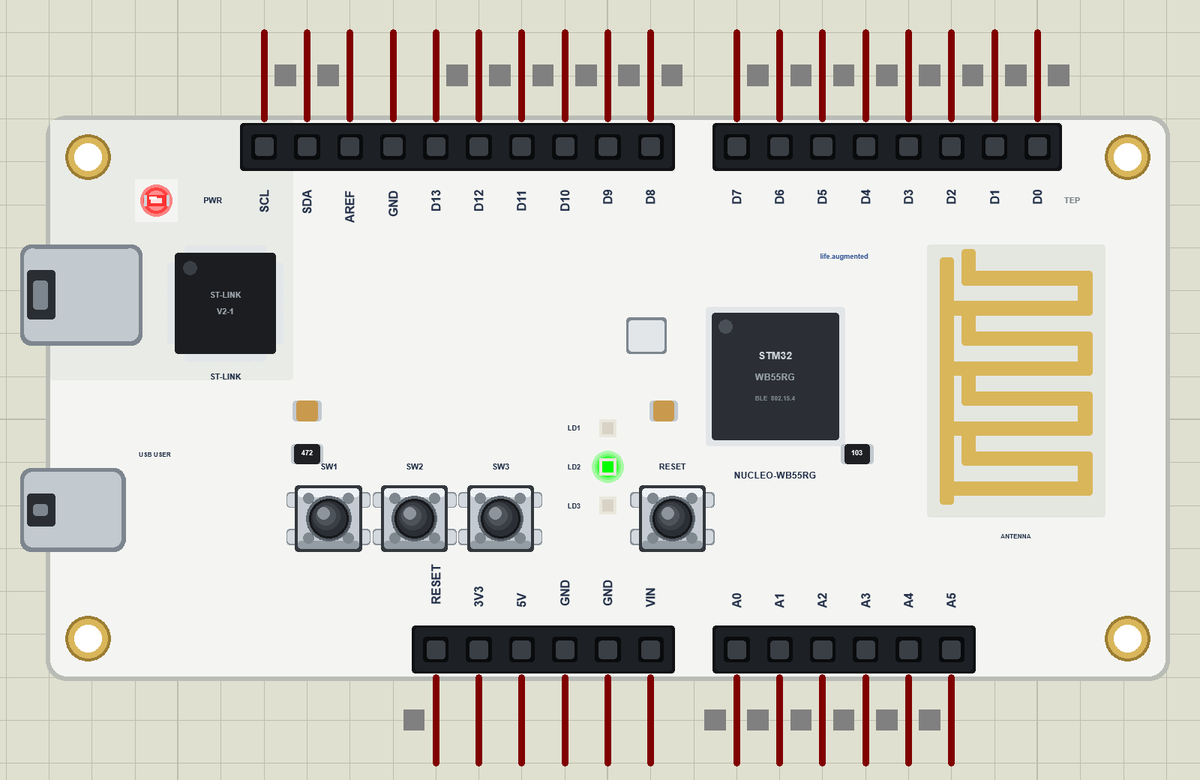
The NUCLEO-WB55RG is the Nucleo-68 board of ST's P-NUCLEO-WB55 pack. Its STM32WB55RG has two Arm cores: a Cortex-M4 at 64 MHz runs your application, and a Cortex-M0+ runs the radio stack, so the timing of the radio never disturbs your program. The radio speaks Bluetooth LE 5 and IEEE 802.15.4, the base of Thread and Zigbee. The chip has 1 MB of flash and 256 KB of RAM. The board adds an ST-LINK debugger with its own USB port, a user USB port, a printed 2.4 GHz antenna, three user LEDs (LD1 blue, LD2 green, LD3 red), three user buttons (SW1, SW2, SW3), RESET, a coin-cell holder and the Arduino Uno V3 and ST morpho headers.
| Part | The real NUCLEO-WB55RG | In the library |
|---|---|---|
| MCU | STM32WB55RG: Cortex-M4 64 MHz + Cortex-M0+ radio core | your Arduino sketch |
| Radio | Bluetooth LE 5, 802.15.4 (Thread, Zigbee) | ArduinoBLE |
| LEDs | LD1 blue, LD2 green, LD3 red | LED_BLUE, LED_GREEN, LED_RED |
| Buttons | SW1, SW2, SW3, RESET | USER_BTN, USER_BTN2, USER_BTN3, RESET |
| Headers | Arduino Uno V3, ST morpho | the Arduino Uno pins (the morpho rows are left out) |
| Memory | 1 MB flash, 256 KB RAM | about 256 KB of flash, 8 KB of RAM |
Why Two Cores?
A Bluetooth or Thread radio has strict timing: it must answer packets within microseconds, while the application may be busy reading a sensor or writing to flash. Single-core chips solve this with careful interrupt priorities. The STM32WB family gives the radio its own core instead, with its own memory and its own firmware from ST, and the two cores talk through shared mailboxes. The application developer gets a whole Cortex-M4 to themselves and a radio that keeps its timing, which makes certification and power tuning much simpler.
Bluetooth LE, Thread and Zigbee
Bluetooth LE connects to phones, which makes it the natural choice for setup, control and wearables. Thread and Zigbee build mesh networks of many low-power devices: lights, switches and sensors in a home or a building pass messages to each other, so the network reaches every corner. Thread also carries Matter, the common smart-home standard. With one chip that speaks all of them, the same board can be a Bluetooth gadget today and a Thread light switch tomorrow.
The P-NUCLEO-WB55 Pack
ST sells the NUCLEO-WB55RG in the P-NUCLEO-WB55 pack together with a small USB dongle that carries another STM32WB55. The dongle can act as the other end of a link, for example a Thread router or a Bluetooth central, so two devices can talk from day one. ST's STM32CubeWB package brings ready examples for both: a heart-rate sensor, a Bluetooth peer-to-peer server and client, Thread and Zigbee demos and more. In our simulation the other end is the phone of our Mobile WiFi Monitor, which plays the part of a Bluetooth app on a real phone.
Where Is It Used?
The P-NUCLEO-WB55 pack, with this Nucleo board and a small USB dongle, is a popular low-cost starting point for Bluetooth LE and Thread courses and prototypes: smart-home switches and sensors, wearables, beacons and simple games and classroom tools like our quiz buzzer. Because it keeps the Nucleo layout, Arduino shields fit on top and the same tools work as for other Nucleo boards; see our STM32 Nucleo-F401RE Library for Proteus. For an ST board with Wi-Fi and sensors, see our B-L475E-IOT01A Library for Proteus.
A simulation lets you build and test the logic of such a device before any hardware is on the desk: the buttons, the lamps, the timing and the Bluetooth service. When it works in the Proteus simulation, moving it to the real board is much quicker.
How Bluetooth LE Notifications Work
A Bluetooth LE device offers services, and each service holds characteristics, small values with a UUID that a phone can read. Our quiz has one service with five characteristics: the winner, the question number and the three scores. A phone subscribes once, and the board sends a notification every time a value changes. Our Mobile WiFi Monitor is that phone in Proteus.
Features of the NUCLEO-WB55RG Library for Proteus
- The board as it looks: the white Nucleo PCB with the ST-LINK and its USB, the user USB, the STM32WB55, the crystal, the printed antenna, LD1 to LD3, SW1 to SW3, RESET and the Arduino Uno headers, drawn compact, with our small TEP signature.
- Your sketch: a .hex for "ST NUCLEO-WB55RG (TEP Proteus)" with the STM32duino board's names: D0 to D15, A0 to A5, LED_BLUE, LED_GREEN, LED_RED and USER_BTN to USER_BTN3.
- Bluetooth LE: ArduinoBLE, with our phone as the central: scan, connect, read, write and notifications.
- Real LEDs and buttons: the LEDs light in their own colours when HIGH; the buttons are clicked on the board.
- A complete package: about 3.3 MB with the part, the add-on, the phone and the demo, without the source code of the models.
The NUCLEO-WB55RG in Proteus Simulation
Search NUCLEO-WB55 in Pick Devices; the device is in TEPWB55.LIB (Microprocessor ICs, Bluetooth Boards), with the prefix U. The ST-LINK's USB opens the serial monitor.
The Pins
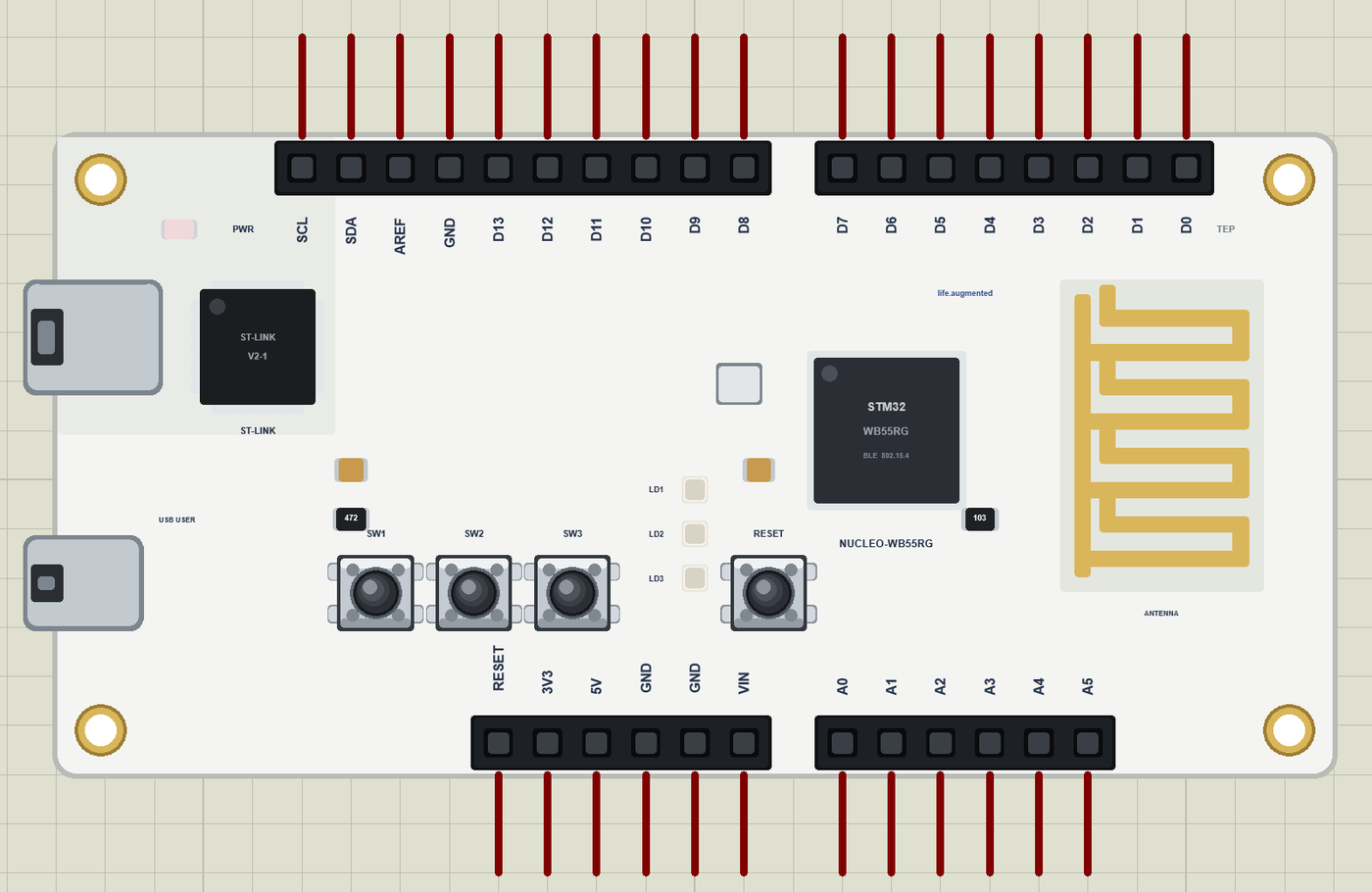
| Pins | What the library does with them |
|---|---|
| D0 to D13 | GPIO, PWM with analogWrite, attachInterrupt; D0 / D1 Serial1; D10 to D13 SPI |
| SDA, SCL | D14 and D15: Wire, the I2C bus |
| A0 to A5 | analogRead 0 to 1023 for 0 to 3.3 V, or GPIO |
| LED_BLUE, LED_GREEN, LED_RED | LD1, LD2, LD3, lit when HIGH |
| USER_BTN, USER_BTN2, USER_BTN3 | SW1, SW2, SW3, LOW when pressed |
| 3V3, 5V, GND, RESET | the supply and the reset |
Download NUCLEO-WB55RG Library for Proteus
Click the button below to download NUCLEO-WB55RG-Library-for-Proteus-v1.0.zip (about 3.3 MB, without the source code of the models):
NUCLEO-WB55RG Library for Proteus V1.0- README.txt: installation, the demo, the pins, the properties, troubleshooting and the limits.
- Proteus Library Files:
TEPWB55.LIBand the phone and laptop:TEPMOBILE.LIBandTEPLAPTOP.LIB. - Proteus Model Files:
TEPNET.DLL. - Arduino Code: the demo sketch and the TEP Boards for Proteus add-on 1.70.0, with ArduinoBLE.
- Proteus Simulation: the demo project, its HEX file and a copy of the DLL.
No Proteus yet? Read How to Download and Install Proteus 7 and 8. New to libraries? Follow How to Install a New Library in Proteus.
How to Install NUCLEO-WB55RG Library for Proteus
- Close Proteus and extract the whole zip file, for example to your Desktop.
- Copy the files from Proteus Library Files into the LIBRARY folder of Proteus.
- Copy
TEPNET.DLLfrom Proteus Model Files into the MODELS folder, replacing an older one. - Delete
TEPWB55.IDXfrom the LIBRARY folder if it is there. - For your own sketches, copy Arduino Code\TEP Boards for Proteus\hardware into your Arduino sketchbook (Documents\Arduino) and restart the Arduino IDE; the board is ST NUCLEO-WB55RG (TEP Proteus).
- Start Proteus, press P and search for NUCLEO-WB55.
Demo: a Bluetooth Quiz Buzzer in Simulation
Every quiz needs a fair way to see who answered first. A buzzer with one button and one lamp per player decides it in microseconds and without arguments, and a phone that shows the winner and keeps the score frees the quiz master from paper and pencil. The NUCLEO-WB55RG has all of it on the board: three buttons, three lamps in different colours and Bluetooth LE.
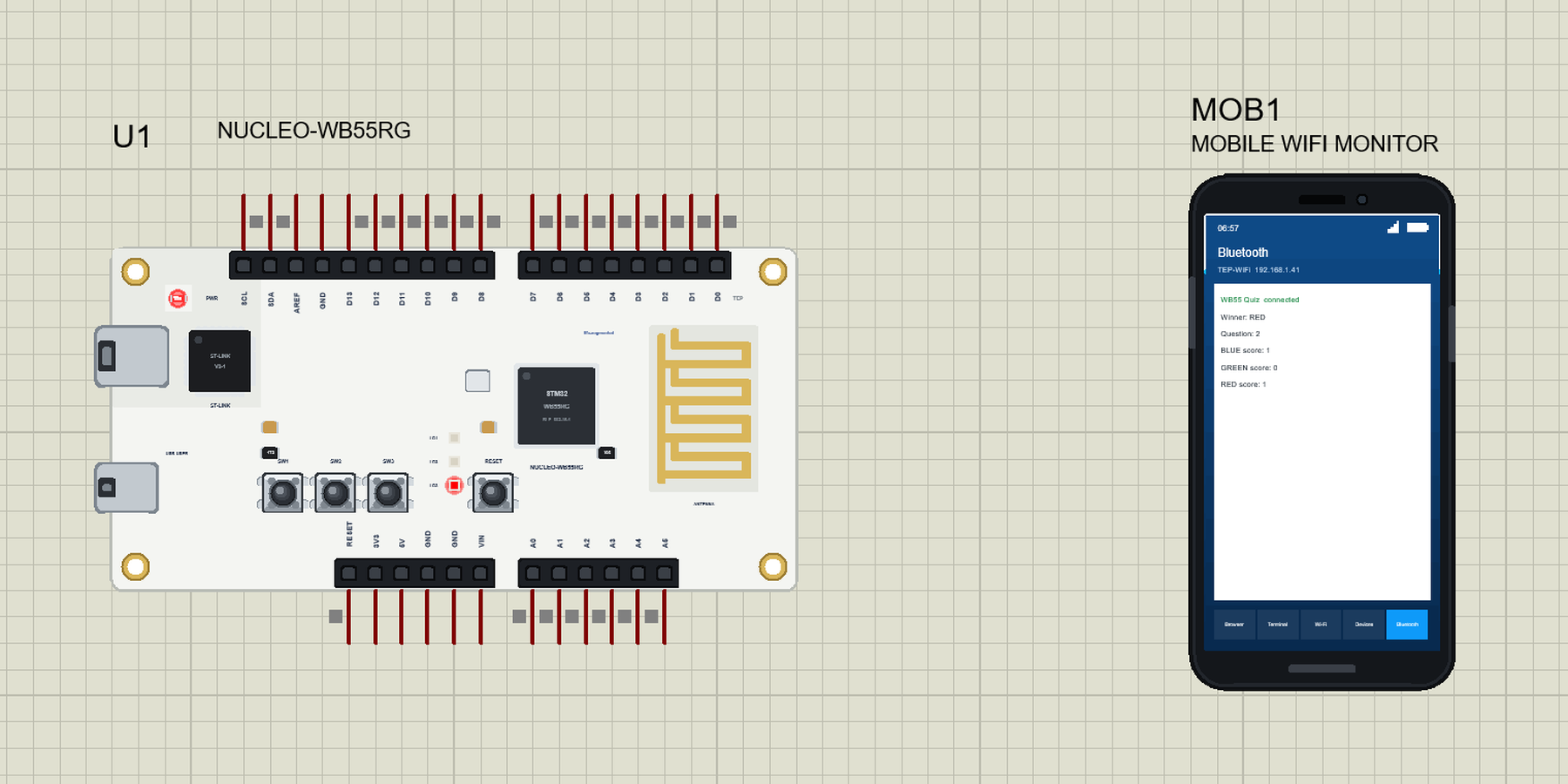
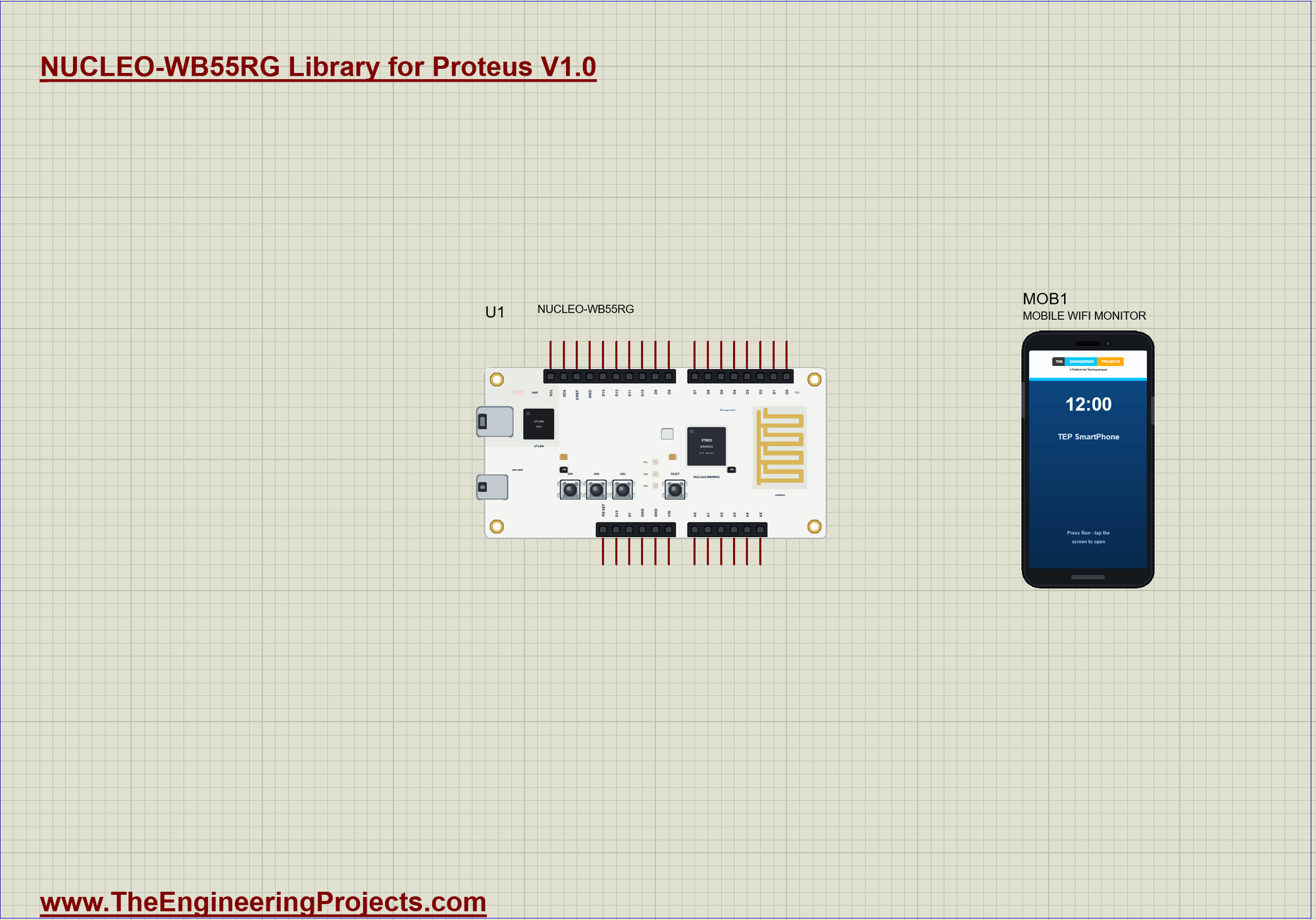
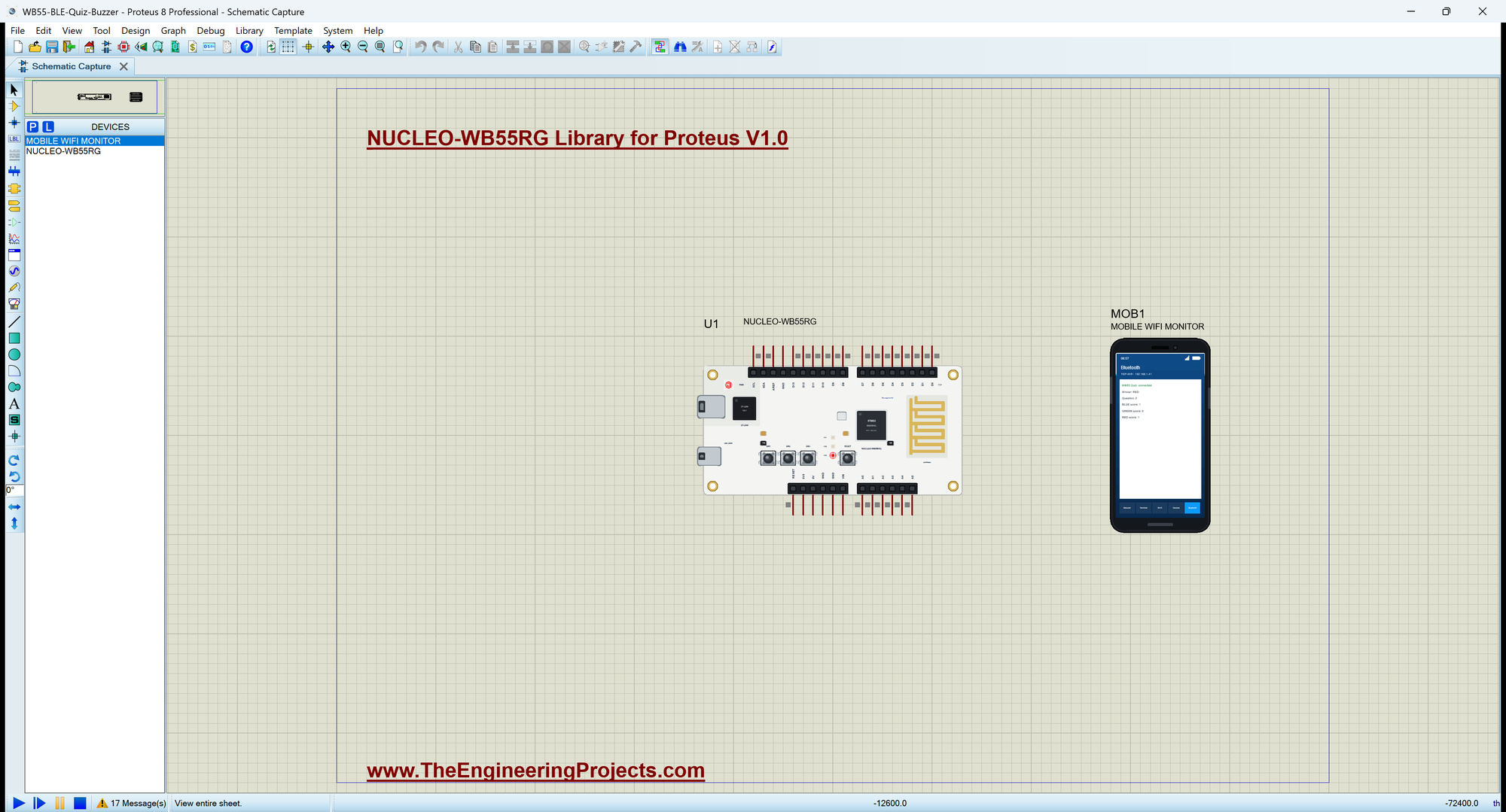
Open WB55-BLE-Quiz-Buzzer.pdsprj. U1 runs WB55_Quiz_Buzzer.hex, and MOB1 is the quiz master's phone, whose Bluetooth app connects to the board. There are no wires on this sheet. The serial monitor is the same window as our TEP Serial Monitor Advance for Proteus.
Who Was First?
buzz() runs on every press. If somebody already won the question, the press is just "too late"; otherwise this player wins: the score goes up, their lamp lights and the board locks for three seconds:
void buzz(byte k) {
  if (winner >= 0) {                                        // somebody was faster
    Serial.print(F(">> ")); Serial.print(NAMES[k]); Serial.println(F(" pressed too late"));
    return;
  }
  winner = k;
  scores[k]++;
  lamps(k);
  lockUntil = millis() + LOCK_MS;
  winnerChar.writeValue(NAMES[k]);
Reading the Buttons
The three buttons read LOW when pressed. handleKeys() acts only on the change to LOW, so holding a button down counts once:
void handleKeys() {
  for (byte k = 0; k < 3; k++) {
    const bool now = digitalRead(KEYS[k]);
    if (now == lastKey[k]) continue;
    lastKey[k] = now;
    if (now == LOW) buzz(k);                                // act on the press
  }
}
The Next Question
Three seconds after a win, nextQuestion() switches the lamps off, counts the question and tells the phone:
void nextQuestion() {
  winner = -1;
  question++;
  lamps(-1);
  roundChar.writeValue(question);
  winnerChar.writeValue("-");
  Serial.print(F("Ready for question ")); Serial.println(question);
}
The Bluetooth Service
The service holds the winner, the question and the three scores, each with BLERead | BLENotify:
BLEService quizService("19B10080-E8F2-537E-4F6C-D104768A1214");
BLEStringCharacteristic winnerChar("19B10081-E8F2-537E-4F6C-D104768A1214", BLERead | BLENotify, 8);
BLEIntCharacteristic roundChar("19B10082-E8F2-537E-4F6C-D104768A1214", BLERead | BLENotify);
BLEIntCharacteristic blueChar("19B10083-E8F2-537E-4F6C-D104768A1214", BLERead | BLENotify);
BLEIntCharacteristic greenChar("19B10084-E8F2-537E-4F6C-D104768A1214", BLERead | BLENotify);
BLEIntCharacteristic redChar("19B10085-E8F2-537E-4F6C-D104768A1214", BLERead | BLENotify);
The Labels the Phone Shows
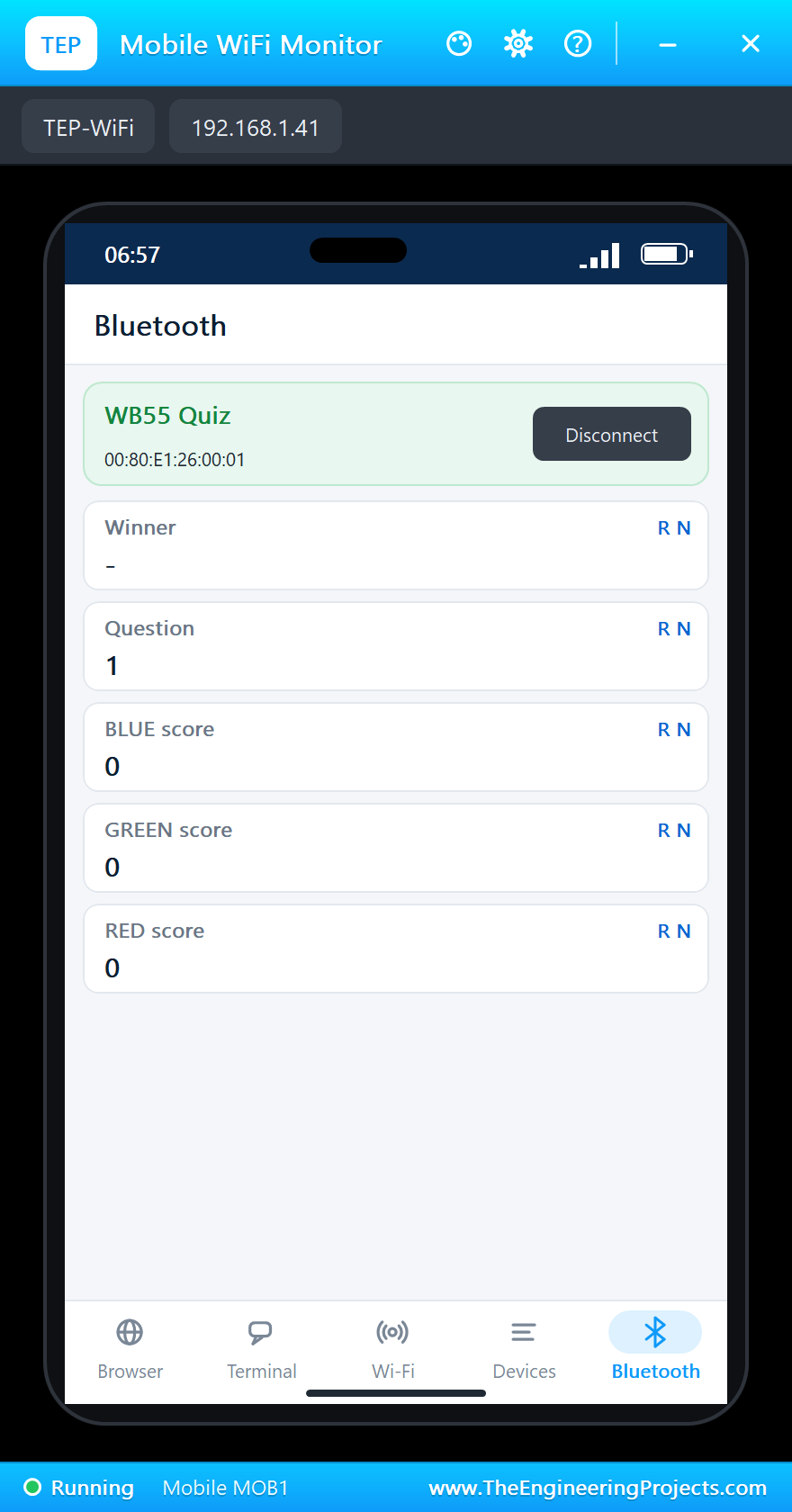
A characteristic is only a UUID and a value, so a phone app would show five long numbers. The sketch adds a descriptor with the UUID 2901, the standard "user description", to each characteristic: "Winner", "Question", "BLUE score", "GREEN score" and "RED score". Our phone reads these descriptors after it connects and prints them above the values, and so do general Bluetooth apps on a real phone. The 128-bit UUIDs share one base and differ only in the last digits of the first group, which keeps them easy to tell apart in a log.
Is the Buzzer Fair?
A quiz buzzer must never pick the wrong winner. The loop reads the three buttons one after another, and one pass of the loop is very short compared with a human reaction, which is around 200 ms even for the fastest player. Two presses would have to land inside the same pass for the order to be decided by the reading order instead of the players, and that is far below anything a person can do on purpose.
The board also never misses the "too late" press: the winner is locked in by the variable winner, and every later press is printed but changes nothing. Only nextQuestion() clears it, after LOCK_MS. On a real board you would read the buttons with interrupts to make the timing even tighter, but the structure stays the same.
Run the Simulation
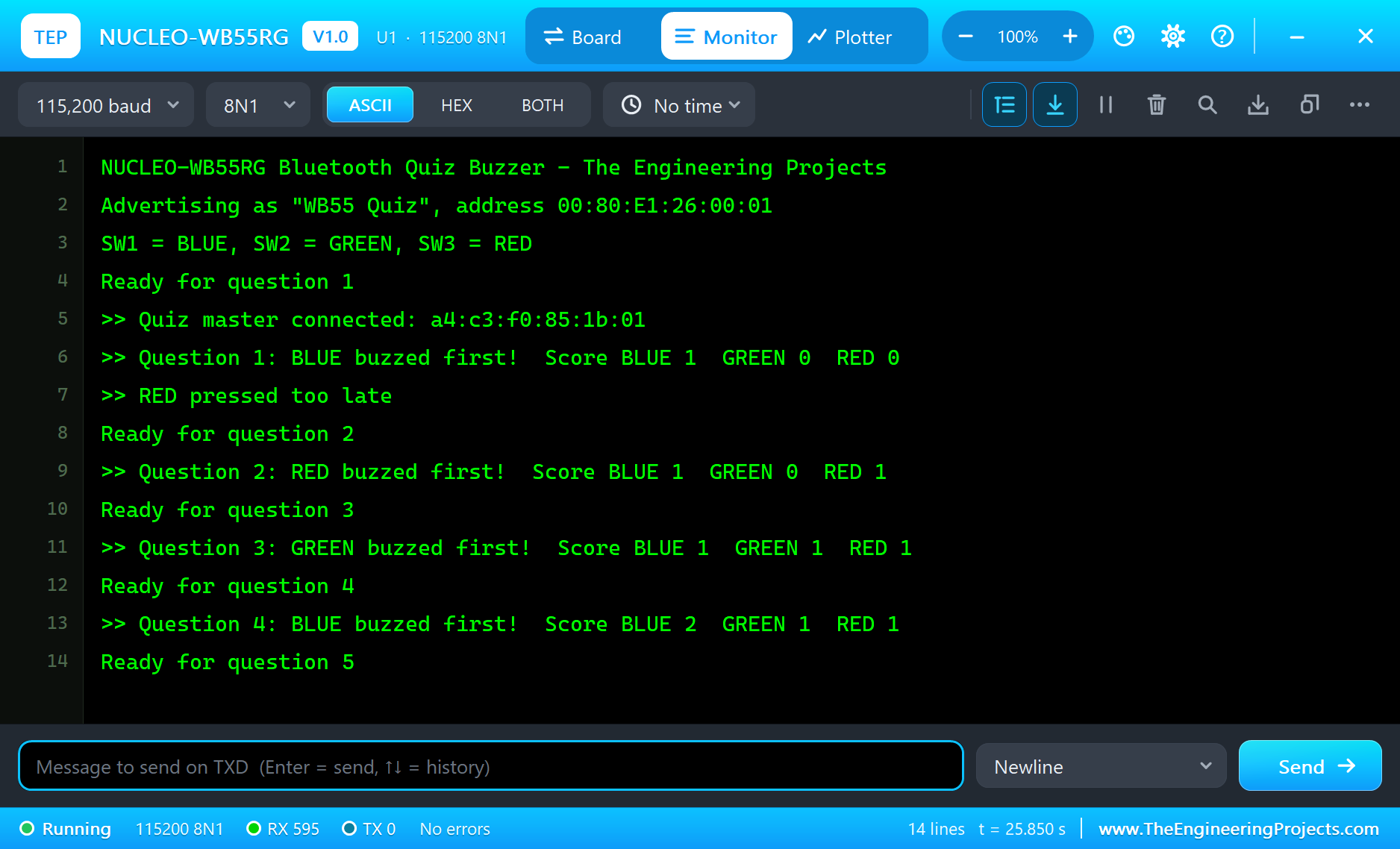
Press Run. The board starts advertising as "WB55 Quiz" and is ready for the first question:
NUCLEO-WB55RG Bluetooth Quiz Buzzer - The Engineering Projects
Advertising as "WB55 Quiz", address 00:80:E1:26:00:01
SW1 = BLUE, SW2 = GREEN, SW3 = RED
Ready for question 1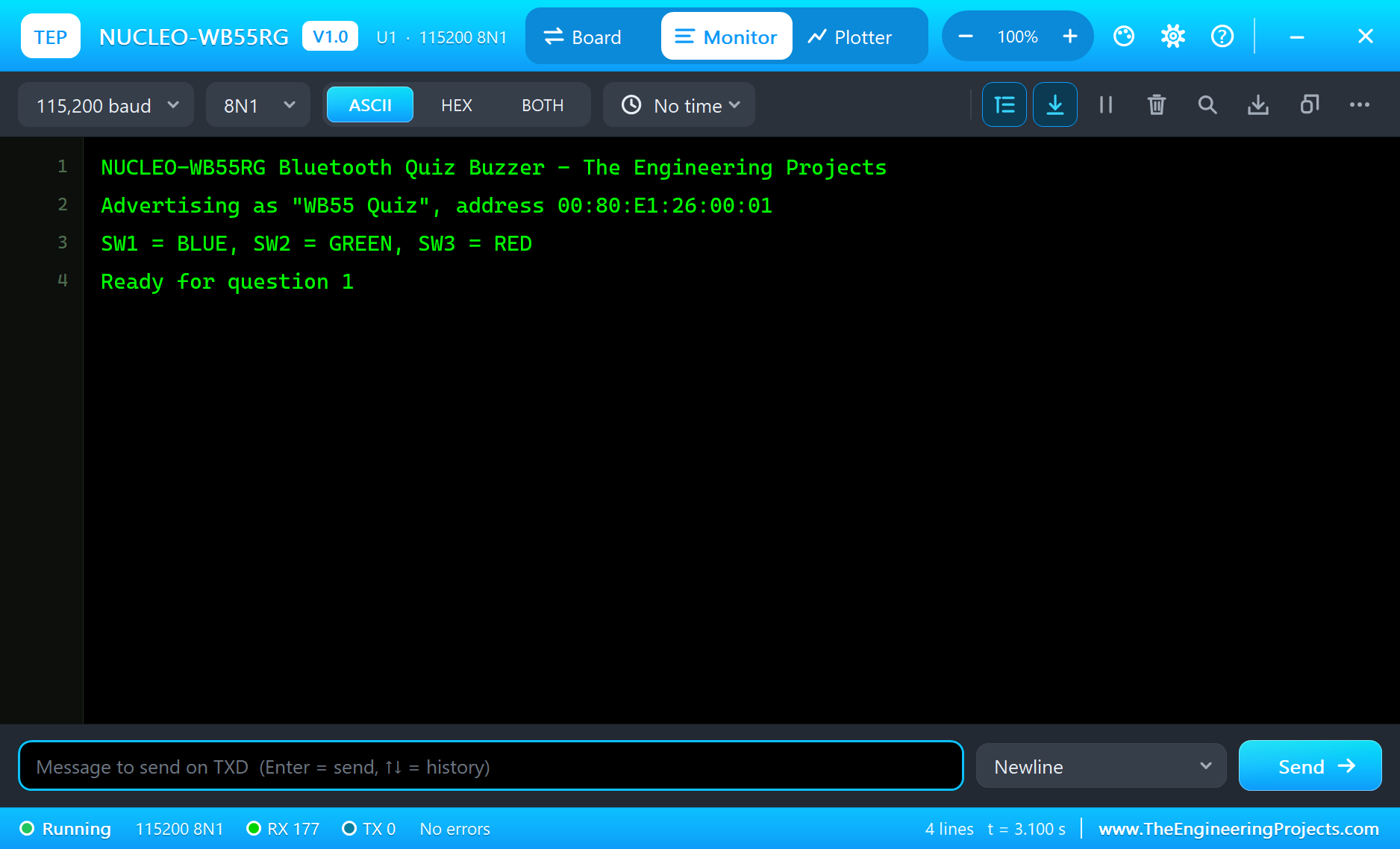
Connect the Quiz Master's Phone
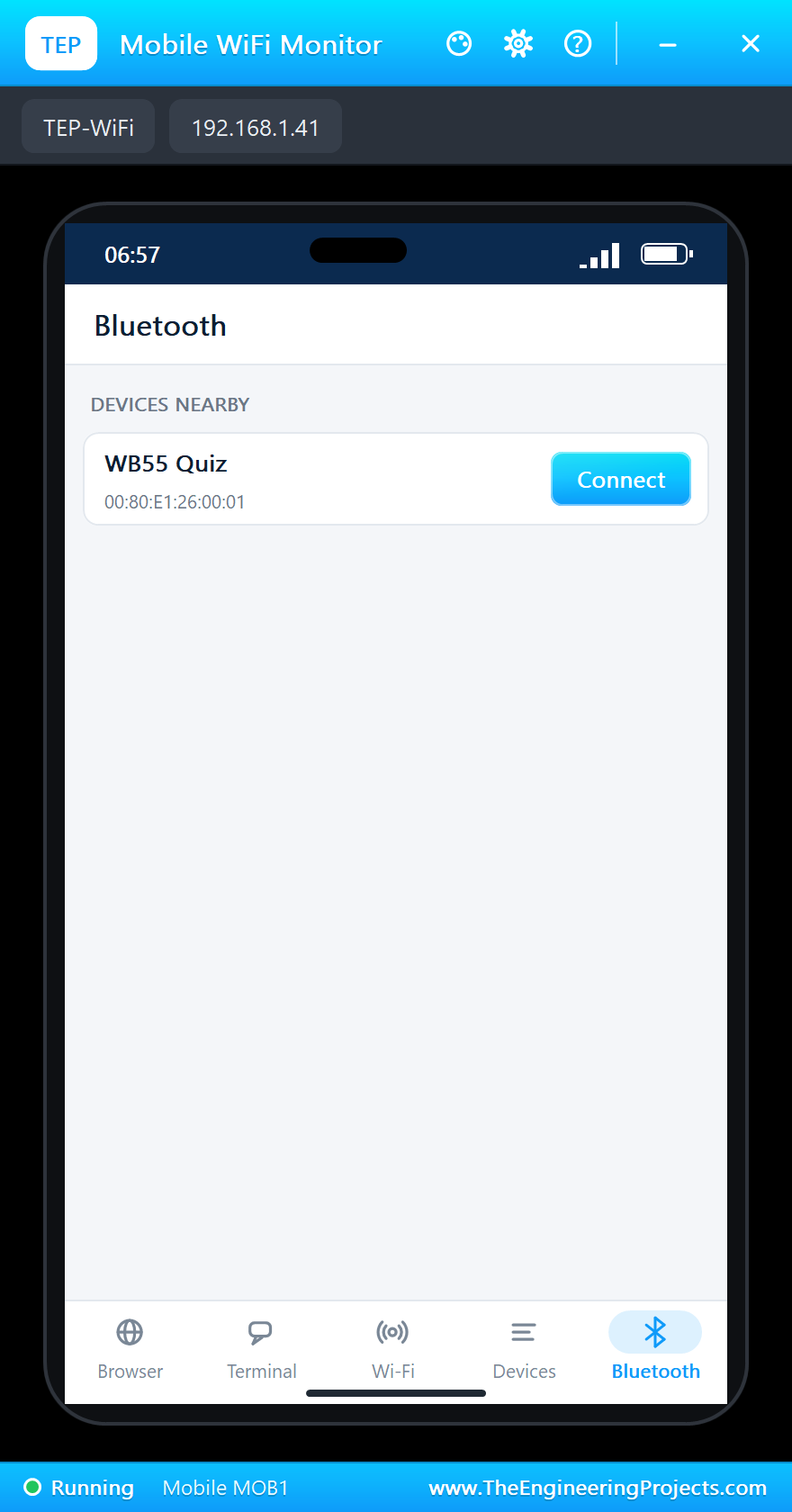
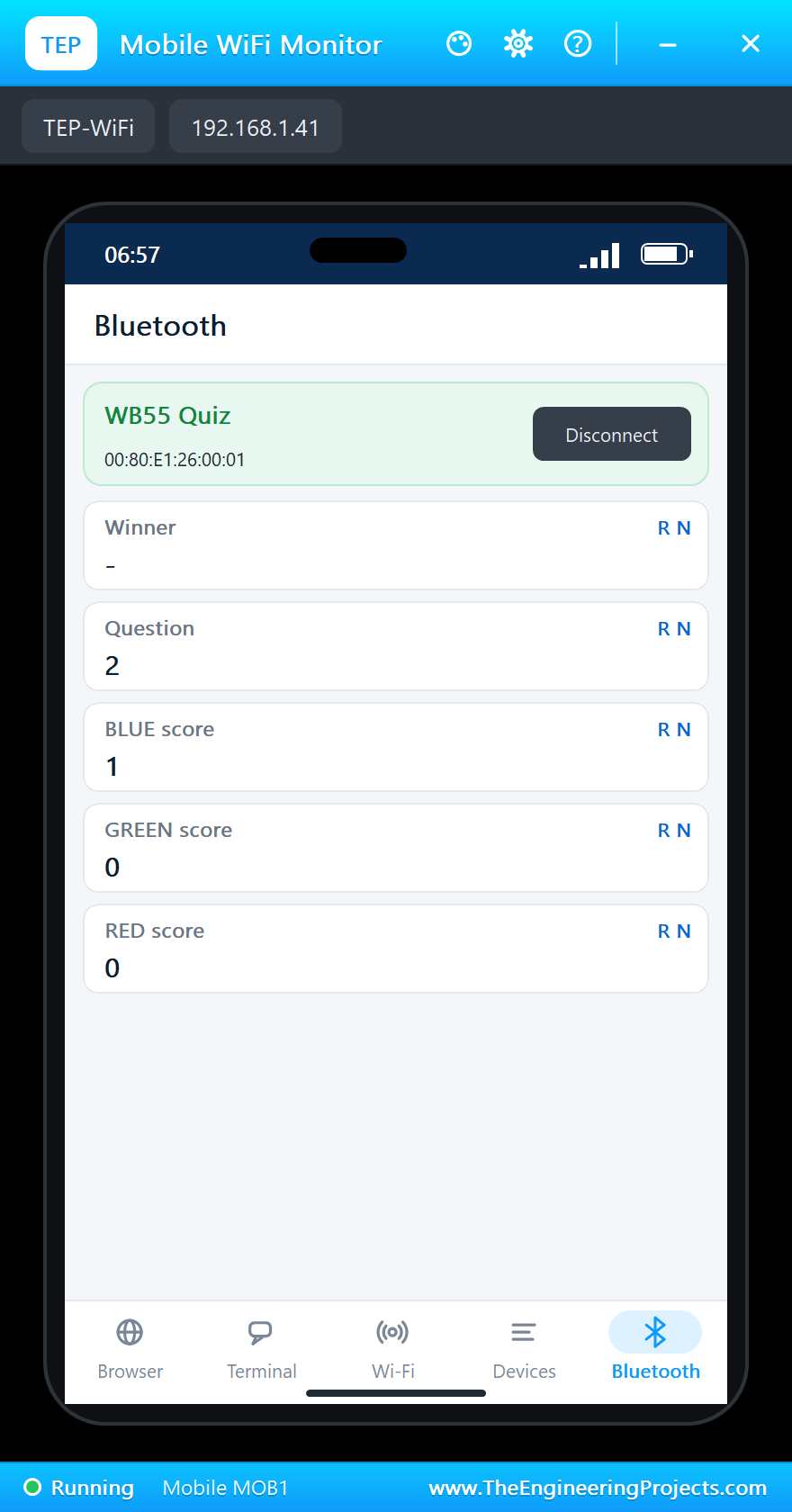
Click the phone, open its Bluetooth app, press SCAN and then Connect to "WB55 Quiz":
Question 1
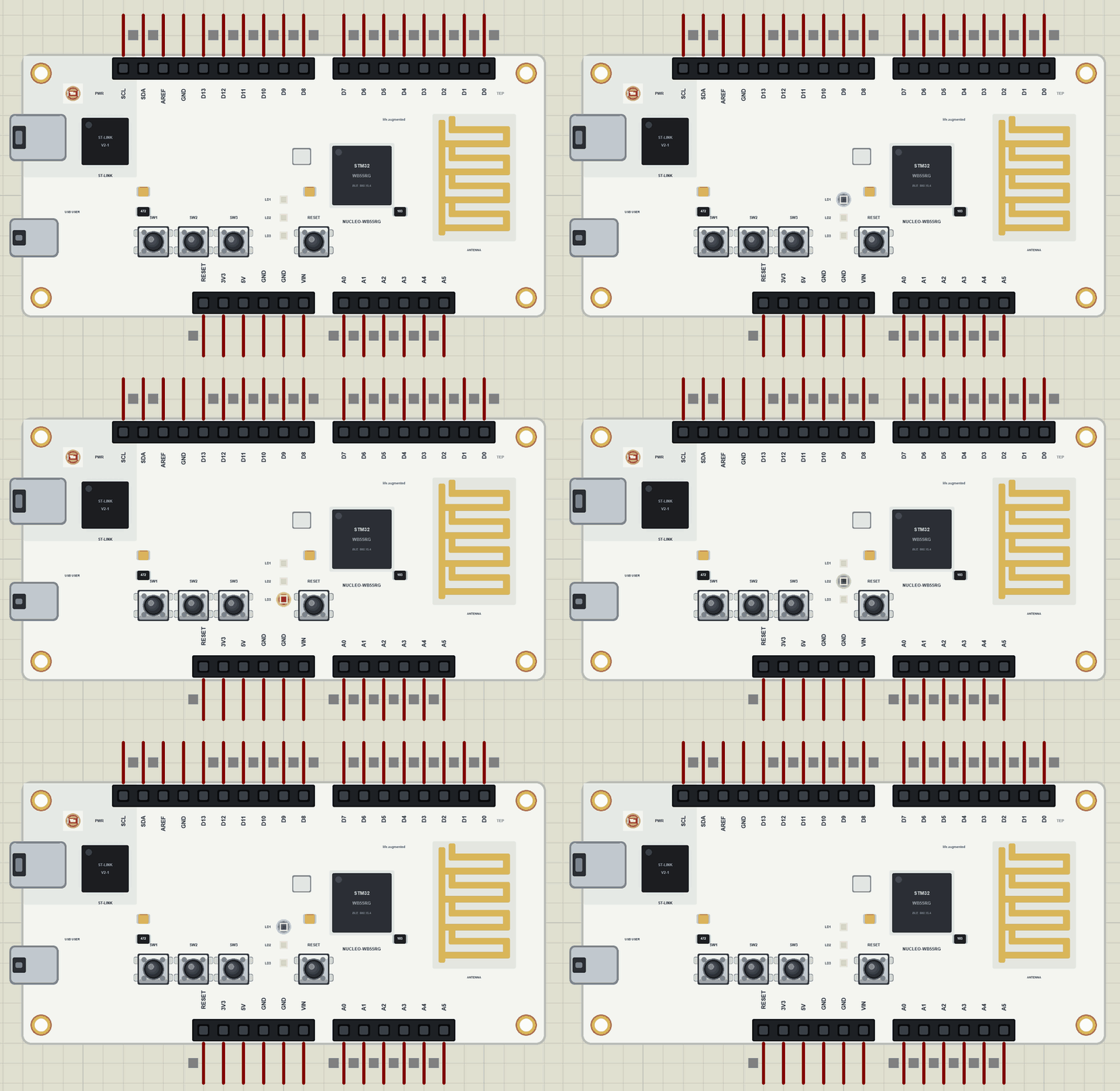
Click SW1: BLUE buzzed first and LD1 lights. Click SW3 right after it: RED is too late, the question is already won:
>> Quiz master connected: a4:c3:f0:85:1b:01
>> Question 1: BLUE buzzed first!  Score BLUE 1  GREEN 0  RED 0
>> RED pressed too late
Ready for question 2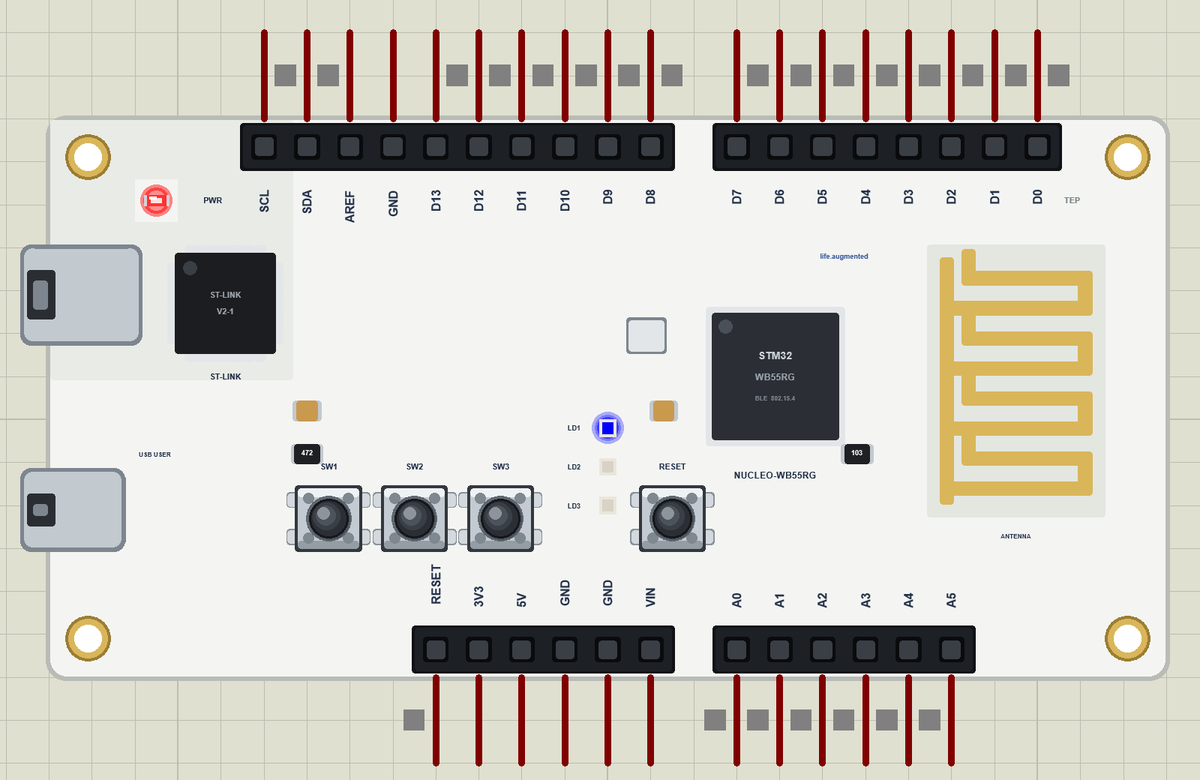
More Questions
After three seconds the board is ready again. RED wins question 2 with SW3, GREEN question 3 with SW2, and BLUE question 4:
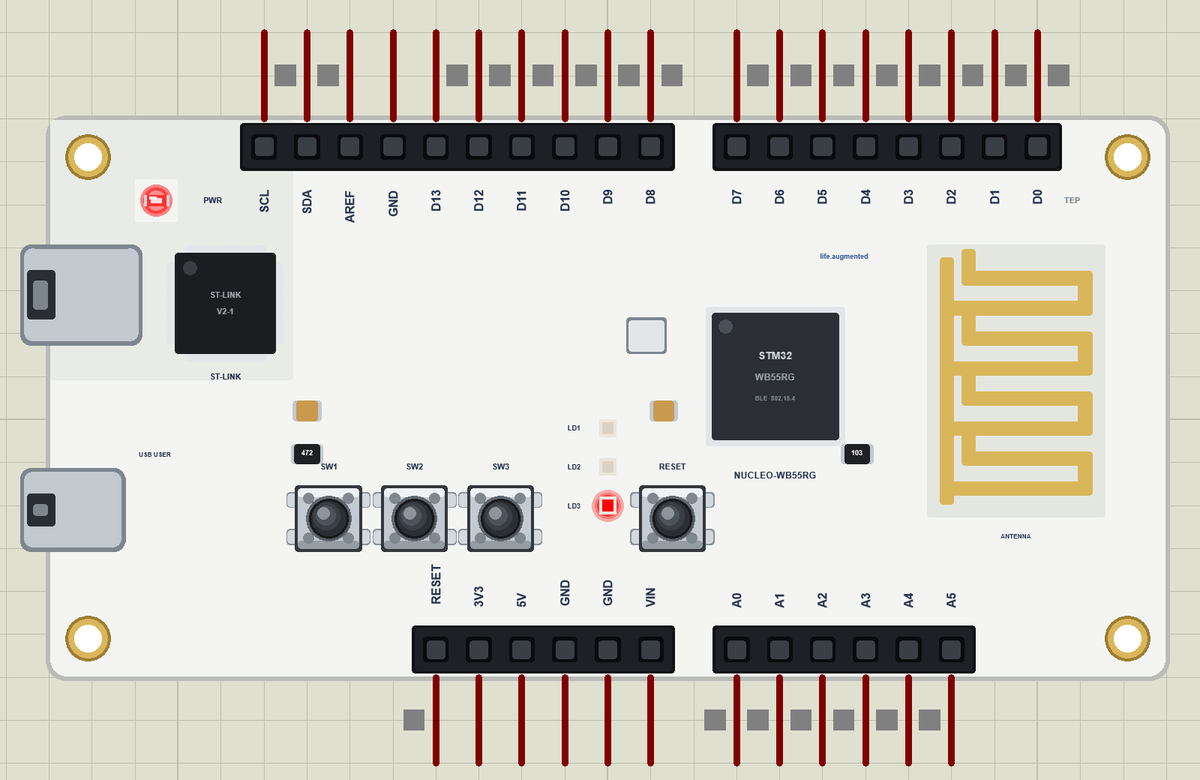
Here is the complete circuit while the simulation runs:
>> Question 2: RED buzzed first!  Score BLUE 1  GREEN 0  RED 1
Ready for question 3
>> Question 3: GREEN buzzed first!  Score BLUE 1  GREEN 1  RED 1
Ready for question 4
>> Question 4: BLUE buzzed first!  Score BLUE 2  GREEN 1  RED 1
Ready for question 5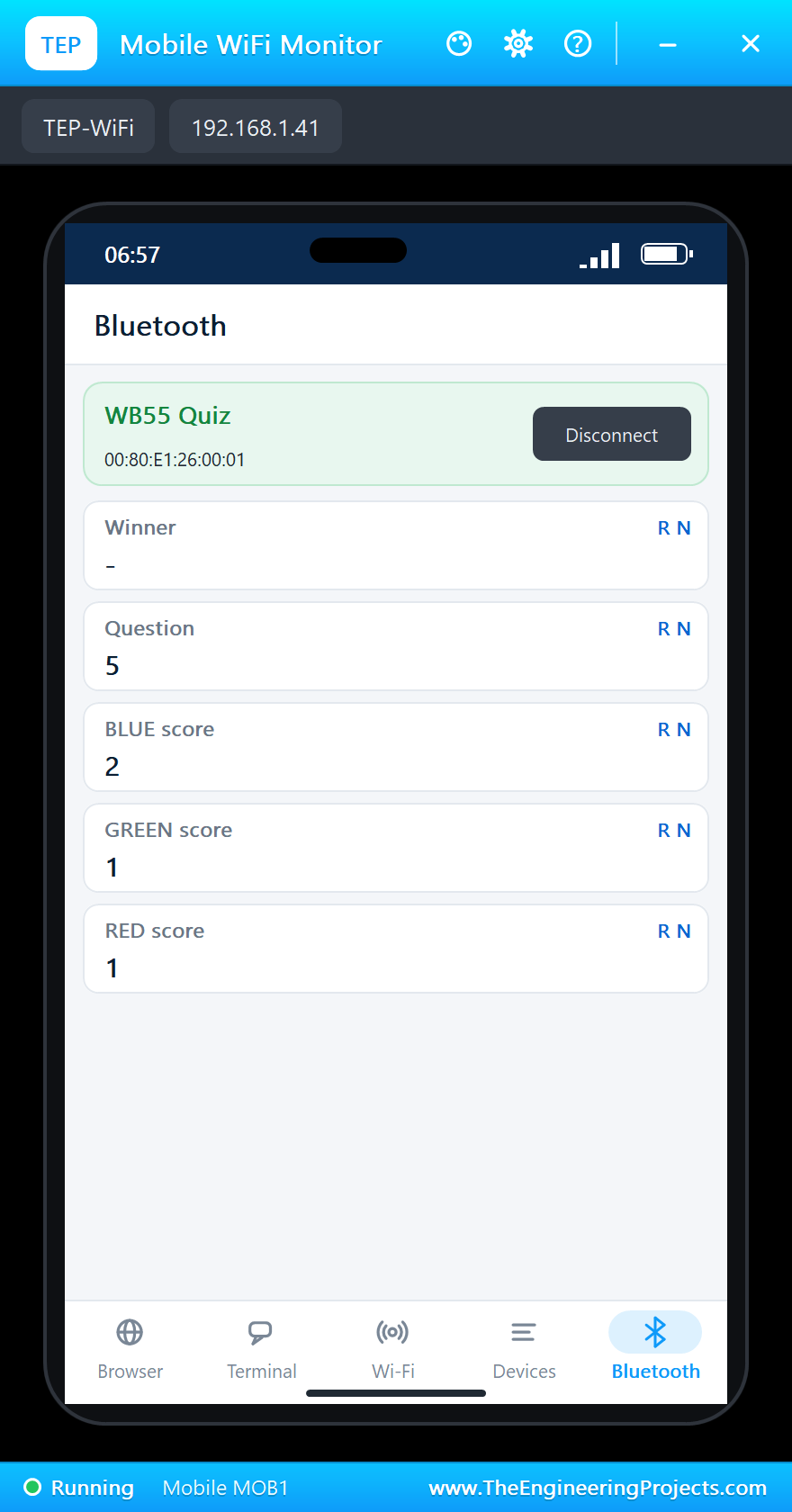
Try It Yourself
- Change
LOCK_MSto 5000 to give the winner more time to answer. - Blink the winner's lamp three times instead of keeping it on.
- Add a buzzer on D9 with
tone()that plays a different note for each player. - Add a writable characteristic so the quiz master can give a point back for a wrong answer.
Using the Quiz in a Classroom
Teachers use buzzers like this one to keep a revision lesson lively: three teams, one button each, and the scores on the screen. With the phone as the score board, the quiz master can walk around the room, and a projector can show the phone's screen to everybody. The same sketch also works as a reaction game for two or three friends.
Ideas to Extend the Quiz
- Add more players with buttons on the Arduino header pins.
- Measure each player's reaction time in milliseconds and send it to the phone.
- Use a second board as a wireless player button over Bluetooth LE.
- Keep the best scores of the day in the flash memory.
Your Own Sketches
Write the sketch in the Arduino IDE with the board ST NUCLEO-WB55RG (TEP Proteus), use Sketch > Export Compiled Binary and set the part's PROGRAM property to the .hex. On a real board, the STM32duino core with STM32duinoBLE, or STM32CubeIDE with ST's STM32WB package and its wireless firmware for the radio core, does the same work; the structure of your program stays the same.
Moving the Quiz to a Real NUCLEO-WB55RG
- Update the radio core's wireless stack with STM32CubeProgrammer, as ST describes for the P-NUCLEO-WB55 pack.
- Install the STM32duino core in the Arduino IDE and select the board Nucleo-68, NUCLEO-WB55RG.
- Install STM32duinoBLE and include it in place of ArduinoBLE; its classes and methods have the same names.
- Keep the names LED_BLUE, LED_GREEN, LED_RED and USER_BTN to USER_BTN3: the board package maps them to the right pins.
- Upload, open the Serial Monitor at 115200 and connect a Bluetooth app on your phone to "WB55 Quiz".
The quiz logic, the timing and the Bluetooth service move across without changes, which is the point of trying it in the simulation first: the parts that can go wrong are already tested, and only the setup of the real board is left.
Things to Know Before Using a Real NUCLEO-WB55RG
- The radio core needs its firmware: the Cortex-M0+ runs a wireless stack that ST provides; update it with STM32CubeProgrammer before you start.
- 3.3 V logic: the Arduino headers are 3.3 V; check a 5 V shield before you plug it in.
- Power jumpers: the board can run from the ST-LINK USB, the user USB or a coin cell; set the jumper for the source.
- Keep the antenna free: do not cover the printed antenna end with a shield or a metal case.
- Fair buttons: real buttons bounce; read them in a loop and act on the first edge, as the demo does.
Properties of the NUCLEO-WB55RG
| Property | What it does |
|---|---|
| PROGRAM | the sketch: a .hex from TEP Boards for Proteus (board "ST NUCLEO-WB55RG") |
| MONITOR, BAUD, AUTOOPEN | the built-in serial monitor: on, its baud rate (115200), open at Run |
Troubleshooting
- The phone finds nothing: press SCAN after "Advertising as" is printed; the sketch must call
BLE.advertise(). - A button seems dead: use
INPUT_PULLUPand act on the change to LOW. - The LEDs look inverted: on this board they light when the pin is HIGH.
- A number goes wrong above 32767: int is 16 bits in the simulation - use long.
Limitations of the Simulation
- Bluetooth LE works as a peripheral only. Thread and Zigbee are not modelled, and your sketch is one program: the two cores are not split.
- The user USB, the coin-cell power and the morpho headers are left out or drawn, not modelled.
- Your sketch gets 8 KB of RAM in the simulation, and int is 16 bits there.
- STM32, Nucleo and ST are names of STMicroelectronics, Arduino of Arduino, and the Bluetooth word mark belongs to Bluetooth SIG; this library is not made or endorsed by them or by Labcenter.
- Tested in Proteus 8.5 in November 2026 (the demo as shipped, about 26 s of simulation). Proteus 7 is not supported.
So, that was all about the NUCLEO-WB55RG Library for Proteus. I hope it helps you try your Bluetooth ideas on an STM32WB in a simulation before you buy the board - the buttons, the lamps and the phone, all on one sheet. If you have any questions, ask in the comments and I will help you out. Till the next tutorial, take care and have fun!

Comments
0