Hello friends, I hope you all are doing great. Today, I am going to share the ESP32-C3 SuperMini Library for Proteus. It is the fourth board of our Wi-Fi series, after the ESP32 DevKit V1 Library for Proteus V2.0, the ESP32-DevKitC V4 Library for Proteus and the ESP32-S3 DevKitC-1 Library for Proteus: the tiny ESP32-C3 SuperMini, a board smaller than a postage stamp with sixteen pins, a USB-C port, two buttons and a blue LED - the cheapest way to put a Wi-Fi chip into a small project.
ESP32-C3 SuperMini Library for Proteus
Latest version: V1.0 (October 2026, this tutorial)
Other ESP32 boards: ESP32 DevKit V1 · ESP32-DevKitC V4 · ESP32-S3 DevKitC-1 · TTGO T-Display
ESP8266 modules: ESP-01 · ESP-01S · ESP-07 · ESP-01 Adapter · WiFi Shield · NodeMCU
Helping Tools
- Laptop WiFi Monitor: a laptop on the Wi-Fi of your design: a browser, a TCP / UDP terminal and ping
- Mobile WiFi Monitor: a smartphone that opens the pages of your ESP32 and sends it commands
- Serial Monitor Advance: a serial terminal window for the UART of your board
Let us be clear from the first line: this is not a real ESP32-C3 chip. Proteus 8 has no model of the C3's RISC-V core, so our board runs your sketch on a hidden ATmega2560 - Proteus's own AVR model - and our board model wraps it with the C3's pins, its LEDs, its buttons and Wi-Fi. You write a normal ESP32-C3 Arduino sketch (GPIO numbers 0 to 10, 20 and 21, LED_BUILTIN on GPIO8, analogRead() from 0 to 4095, attachInterrupt() on any pin, WiFi, WebServer, HTTPClient) and compile it with our free Arduino IDE add-on, TEP Boards for Proteus. The price is the AVR inside: 16 MHz, 8 KB of RAM, no FreeRTOS tasks, no Bluetooth and no native USB - we list every limit below.
NOTICE: the real SuperMini has no RESET pin, so this board taught our model and our Arduino add-on a new trick: its RST button restarts the hidden processor through the watchdog - TEP Boards for Proteus is now version 1.3.0. Your feedback is the fuel that keeps us going, so please tell us what you think in the comments below or in the ESP32-C3 SuperMini board of our forum. And if our free libraries help you, you can buy us a coffee. So, let's get started with the ESP32-C3 SuperMini Library for Proteus:
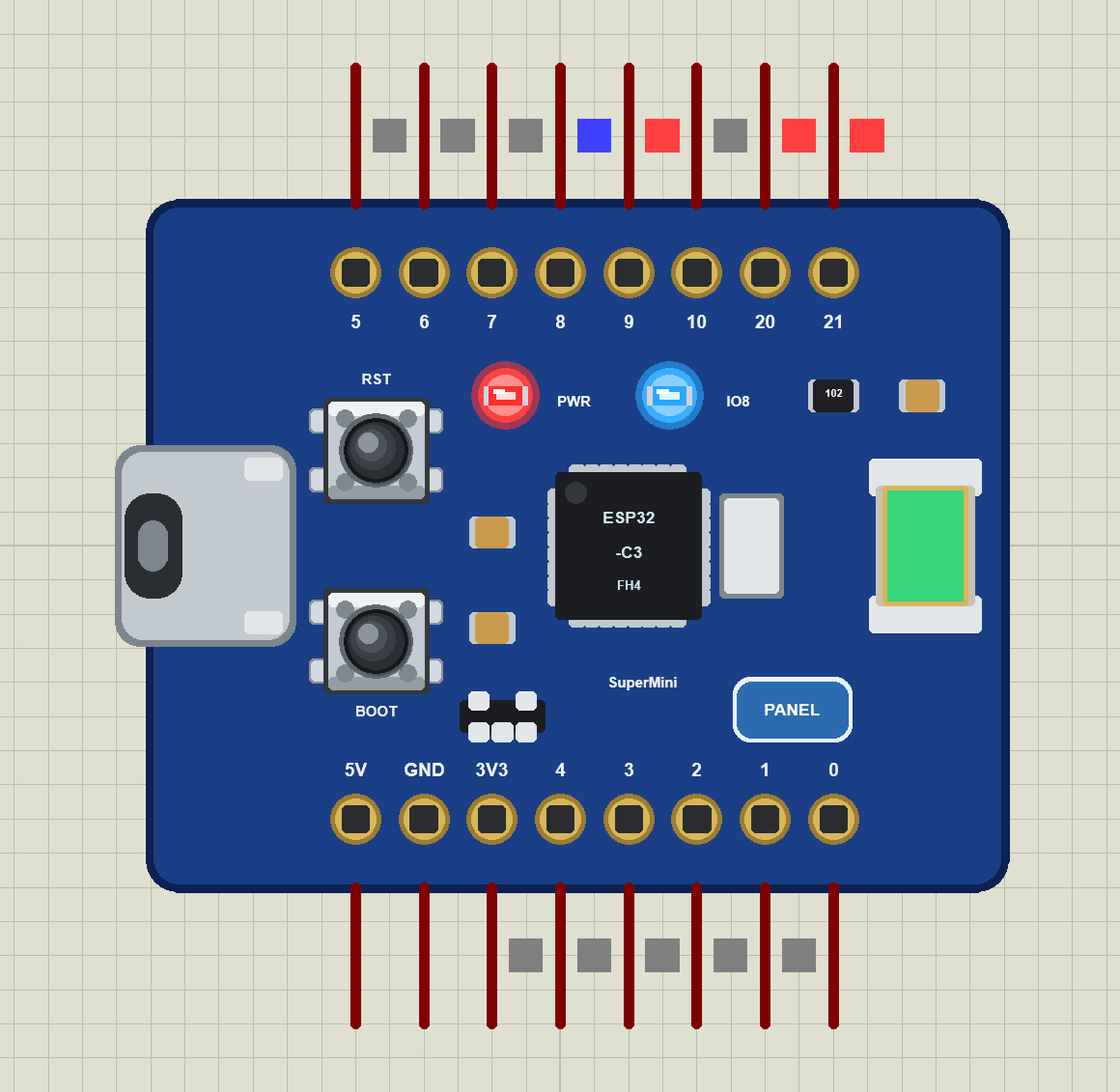
What is the ESP32-C3 SuperMini?
The ESP32-C3 SuperMini is a tiny development board, about 22.5 x 18 mm, built around Espressif's ESP32-C3: a single RISC-V core at 160 MHz with 400 KB of RAM, 4 MB of flash inside the chip, Wi-Fi 802.11 b/g/n and Bluetooth LE 5. Around the chip sit a USB-C port wired straight to the C3's own USB, a 3.3 V regulator, the BOOT and RST buttons, a red power LED, a blue LED on GPIO8, a ceramic chip antenna and two rows of eight pins. There is no USB-to-UART chip and no RESET pin - the board is as small as it can be.
| Real ESP32-C3 SuperMini | This library in Proteus | |
|---|---|---|
| Processor | ESP32-C3, one RISC-V core, 160 MHz | Proteus's ATmega2560 model at 16 MHz, inside the board |
| Memory | 400 KB SRAM, 4 MB flash | 8 KB of RAM, 256 KB of flash |
| Wi-Fi / Bluetooth | 802.11 b/g/n, Bluetooth LE 5 | a virtual router, DHCP, TCP, UDP, mDNS, NTP, an internet host / no |
| Pins | 16 (13 GPIOs: 0 - 10, 20, 21) | the same 16 pins with their GPIO numbers |
| LEDs | red power LED, blue LED on GPIO8 (lit when LOW) | the same, the blue LED lit when GPIO8 is LOW |
| Buttons | BOOT (GPIO9) and RST | the same - RST restarts the hidden processor through its watchdog |
| USB | native USB (CDC, JTAG) on USB-C | a click target that opens the serial monitor |
| Programming | Arduino-ESP32 core ("Nologo ESP32C3 Super Mini") | TEP Boards for Proteus, the HEX file in the board's properties |
ESP32-C3 or ESP32?
The C3 is the small member of the family. Instead of the classic ESP32's two Xtensa cores it has one RISC-V core, it keeps Wi-Fi and has Bluetooth LE only (no Bluetooth Classic), it has fewer pins - 22 GPIOs on the chip, 13 on this board - and no DAC and no touch pads. In exchange it costs less, needs less power and is easy to put on a tiny board. For an Arduino sketch the differences are mostly pin numbers: I2C on GPIO8 and GPIO9, SPI on GPIO4 to GPIO7, Serial on GPIO21 (TX) and GPIO20 (RX), the analog pins A0 to A5 on GPIO0 to GPIO5, and the LED on GPIO8. That is exactly what this board gives your sketch in Proteus.
How Can an ESP32-C3 Sketch Run in Proteus?
The board you place is our part; inside it sits Proteus's own ATmega2560 model, which runs the HEX file of your sketch exactly as Proteus runs any AVR. The HEX comes from our Arduino IDE add-on TEP Boards for Proteus, now version 1.3.0 with the C3 SuperMini in its board list. Each of the C3's 13 GPIOs is one of the AVR's pins, and whatever the AVR cannot do itself - PWM and interrupts on any pin, the Wi-Fi radio, reading an analog voltage - the core asks the board model (TEPNET.DLL) through a small mailbox in RAM. One DLL knows all our ESP32 boards, so the C3 shares one Wi-Fi network with the DevKit V1, the DevKitC V4 and the S3.
A Board Without a RESET Pin
Our other ESP32 boards have an EN or RST pin, and the model pulls the hidden AVR's reset line when you press the button. The SuperMini has no such pin, and we did not want to add one that the real board does not have. So the C3 resets itself: when you press RST, the model raises a flag in the mailbox, the core sees it within a millisecond, lets the AVR's watchdog restart the chip, and waits at boot until you release the button. ESP.restart() and deep sleep work the same way. To the sketch it looks exactly like a reset: setup() runs again from the start.
Features of the ESP32-C3 SuperMini Library for Proteus
- The SuperMini's 16 pins: 5, 6, 7, 8, 9, 10, 20, 21 on one side, 5V, GND, 3V3, 4, 3, 2, 1, 0 on the other, as printed on the real board.
- The blue LED on GPIO8:
digitalWrite(LED_BUILTIN, LOW)lights it, as on the real board, and PWM dims it. - Your ESP32-C3 sketch runs: GPIO numbers as on the C3, 12-bit
analogRead()read by the board model on GPIO0 - 3, ledc PWM,attachInterrupt()on every pin, Serial, Wire and SPI on the C3's default pins. - Working buttons: BOOT on GPIO9 (a header pin too) and RST, which restarts the board through the watchdog.
- Wi-Fi in Proteus: a virtual router with DHCP, RSSI, mDNS names, TCP and UDP, NTP time and an internet host that answers HTTP.
- A phone in the panel: it opens your sketch's web page and taps its links.
- A real-looking board: the SuperMini at its real proportions, far smaller than the UNO, with the USB-C port, the chip and its crystal, the PWR LED and a chip antenna that changes colour with the Wi-Fi.
- The panel and the built-in serial monitor of our ESP32 boards: Wi-Fi, Pins (13 GPIOs) and Test pages, a Board tab with every pin.
- Three demo projects: blink and the cloud, a tank level web page with an alarm LED, and a C3 level node talking to our S3 over a plain TCP connection.
- A compact package: about 1.69 MB, without the C++ source code of the models.
The ESP32-C3 SuperMini Part in Proteus
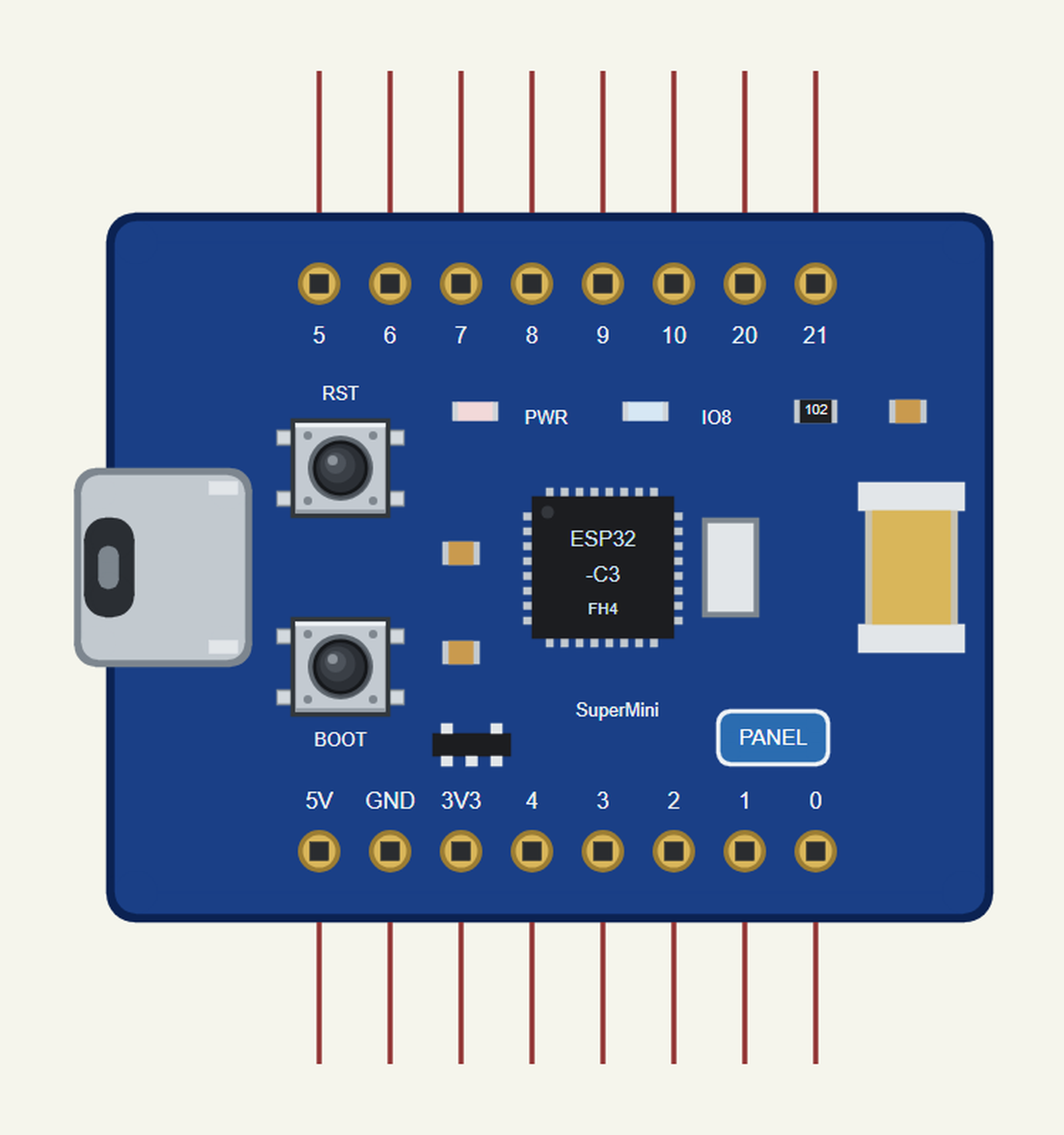
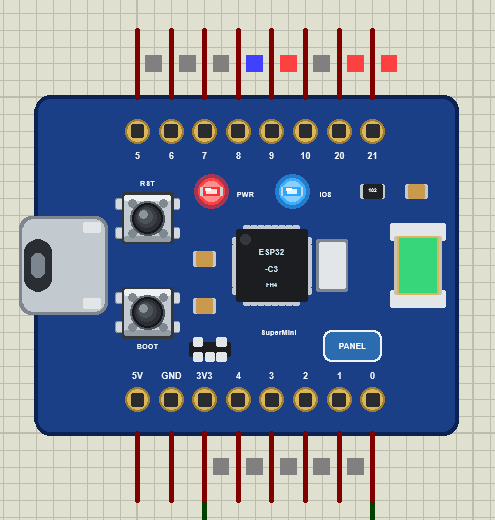
The part is the real board turned on its side, the USB-C end on the left, at its real proportions - far smaller than the Arduino UNO. The top row of pins is the real board's right column, the bottom row its left column, with the same labels: 8 is GPIO8, 20 and 21 are RX and TX. Search ESP32 in Pick Devices; the device is ESP32-C3 SUPERMINI in TEPESP32C3.LIB. The USB-C port opens the serial monitor, the PANEL pad (or the chip) the board's panel; RST holds the C3 in reset, BOOT pulls GPIO9 LOW.
The Blue LED on GPIO8
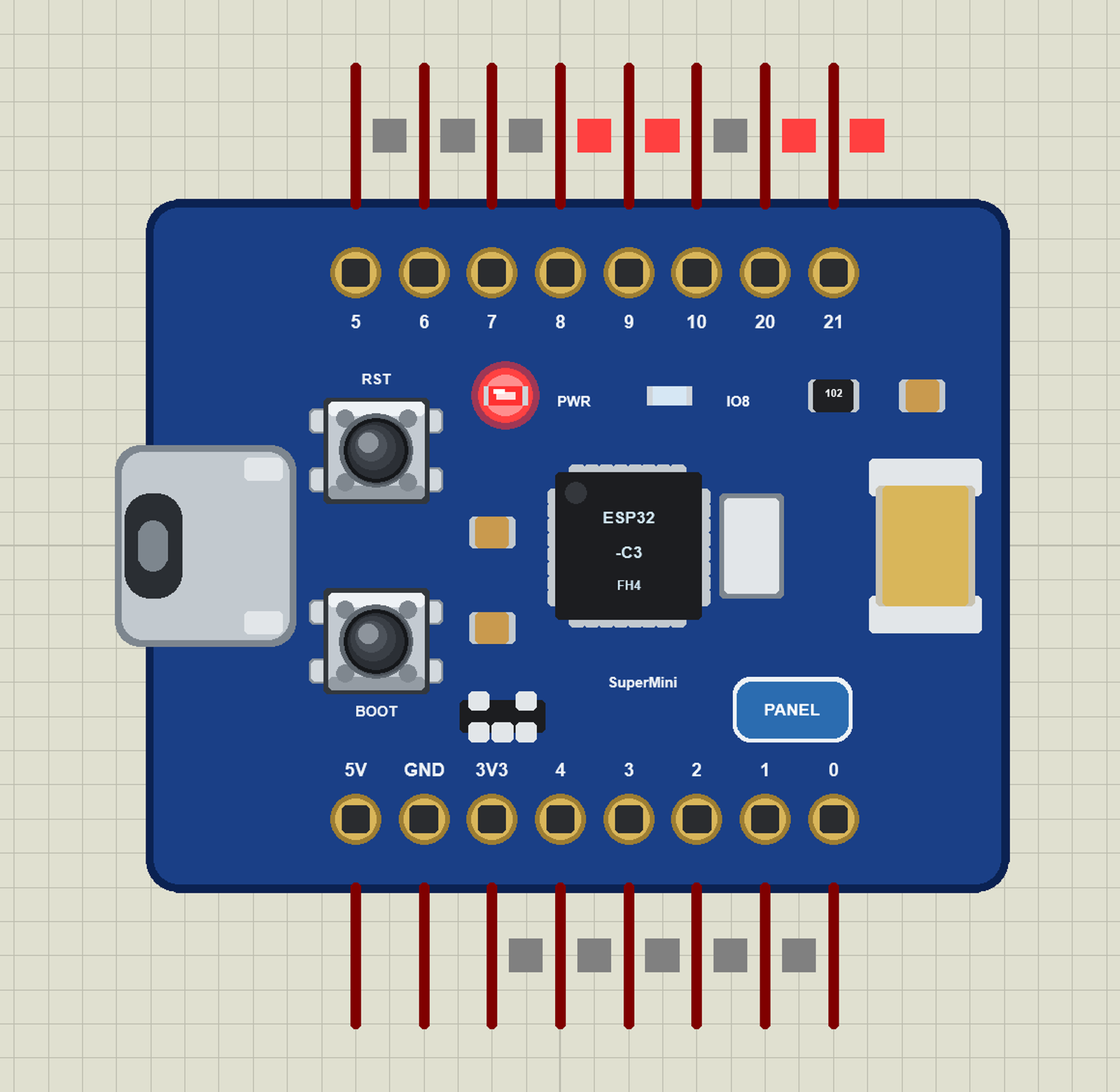
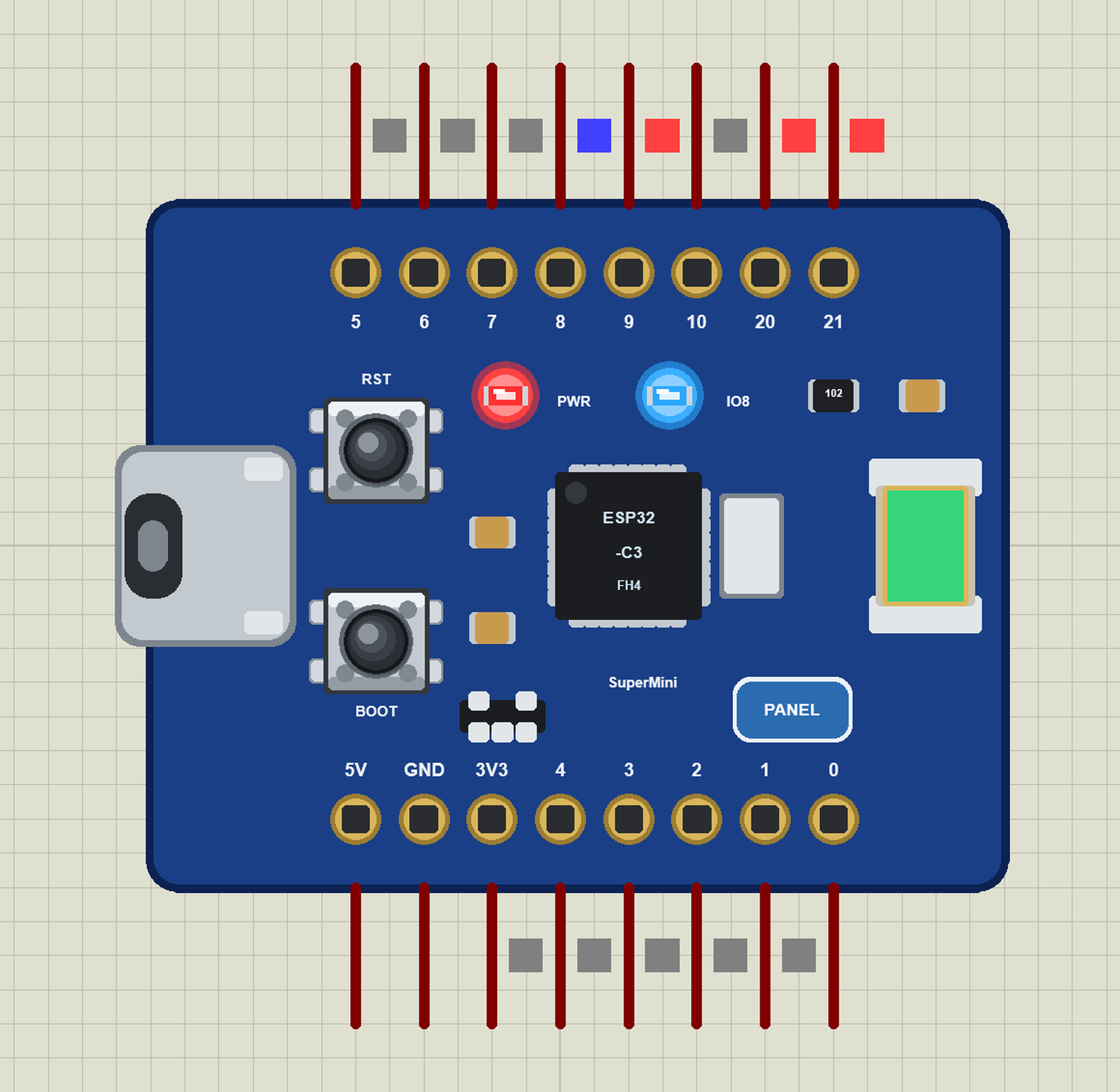
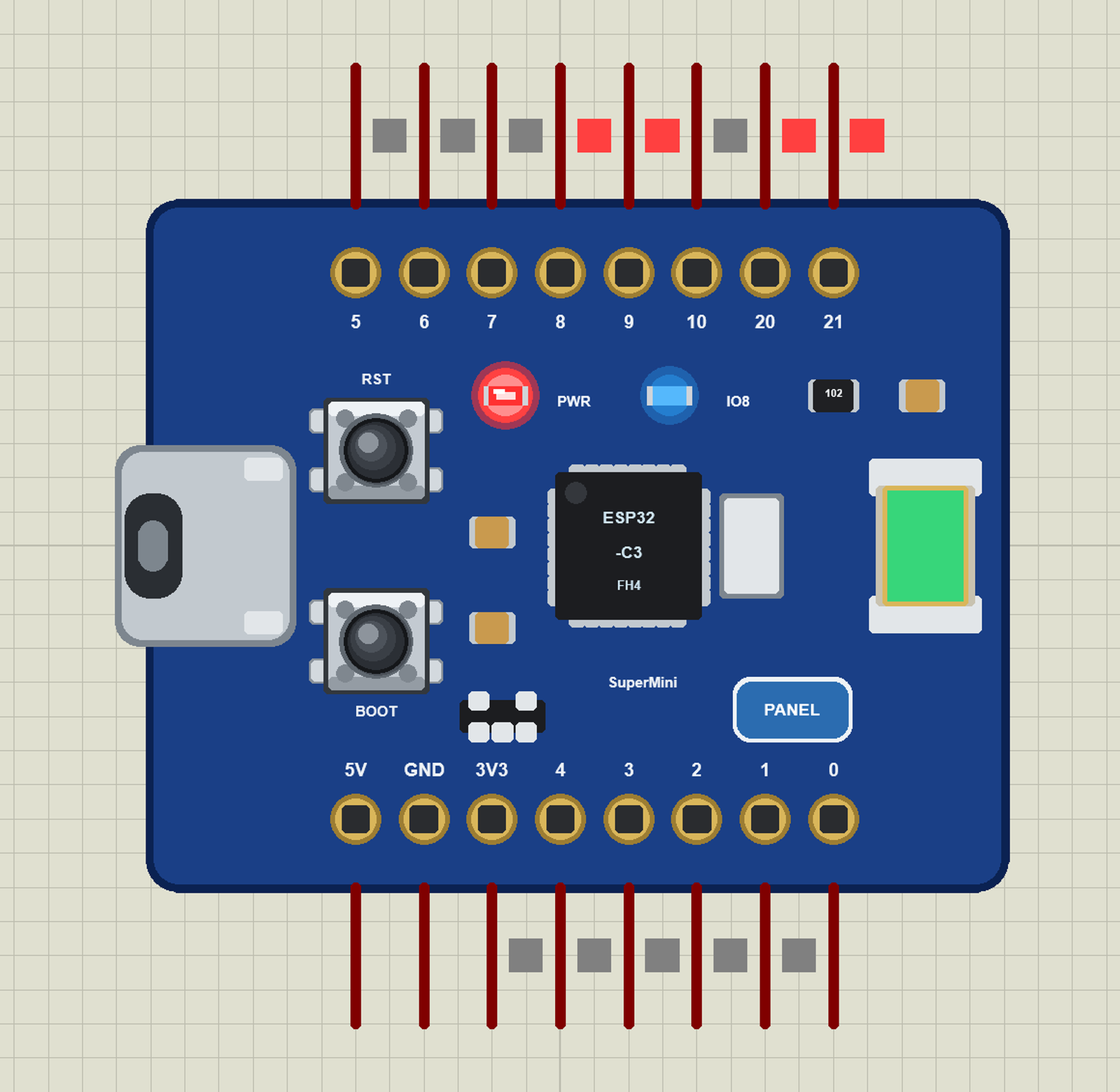
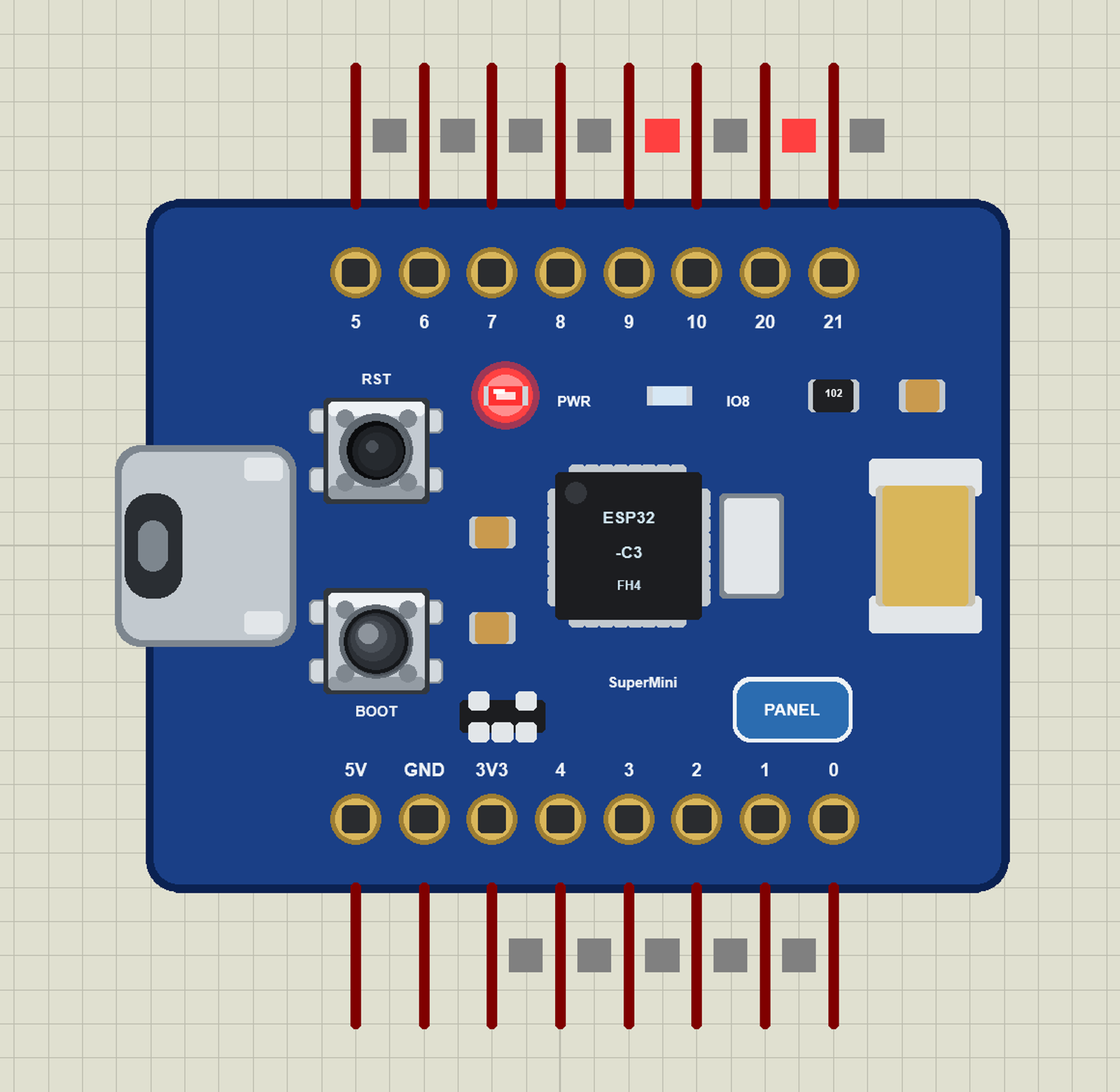
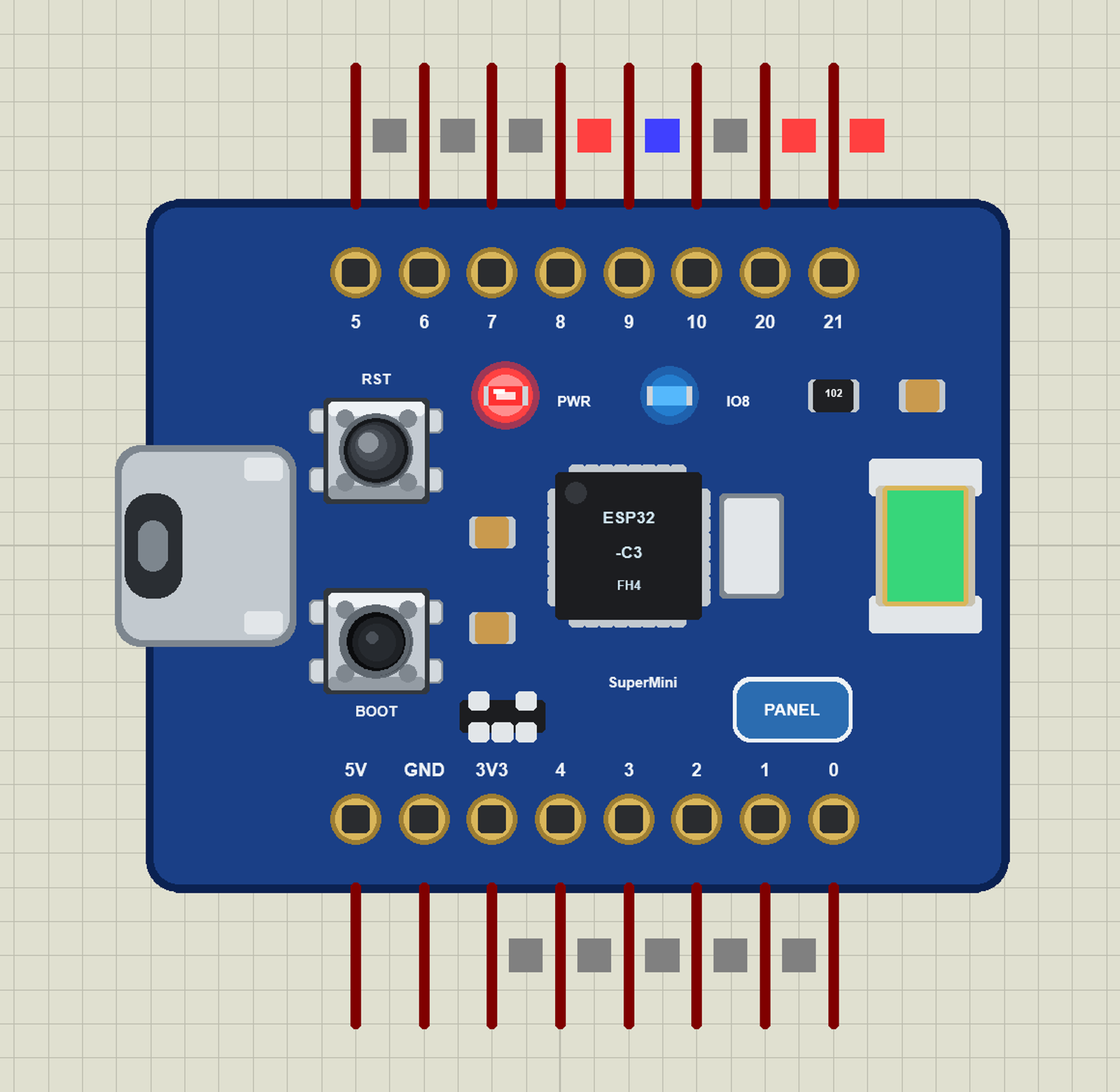
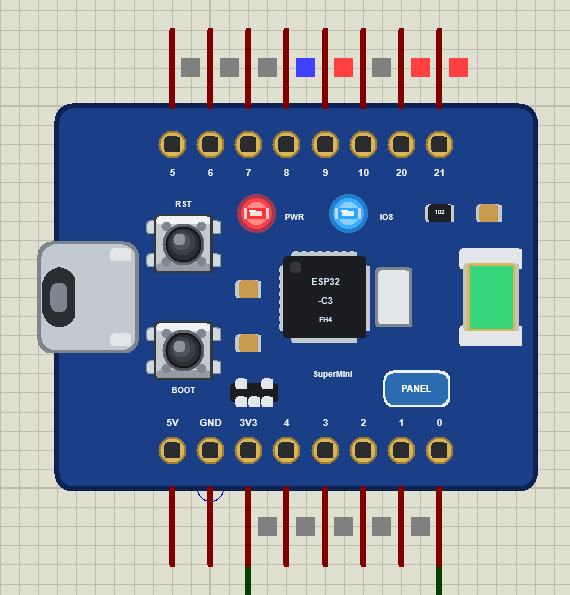
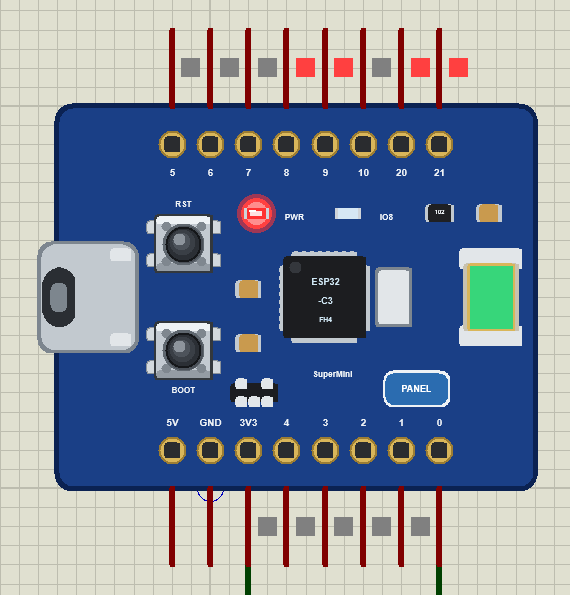
On the real SuperMini the blue LED sits between 3.3 V and GPIO8, so it lights when the pin goes LOW - the opposite of most Arduino boards. Our board does the same. The first demo blinks it; we paused the simulation with the LED on and off:
The Antenna and the Buttons
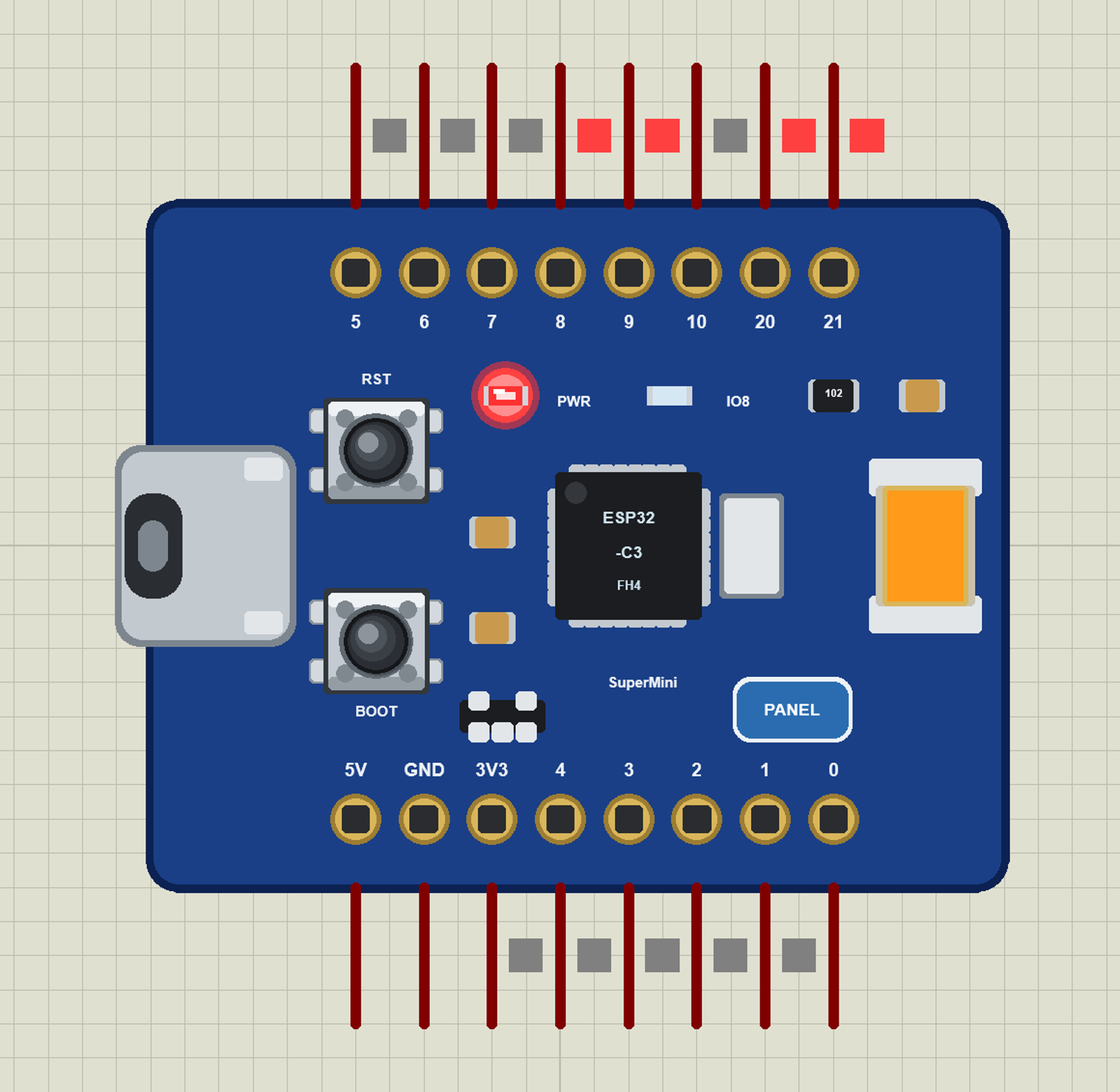
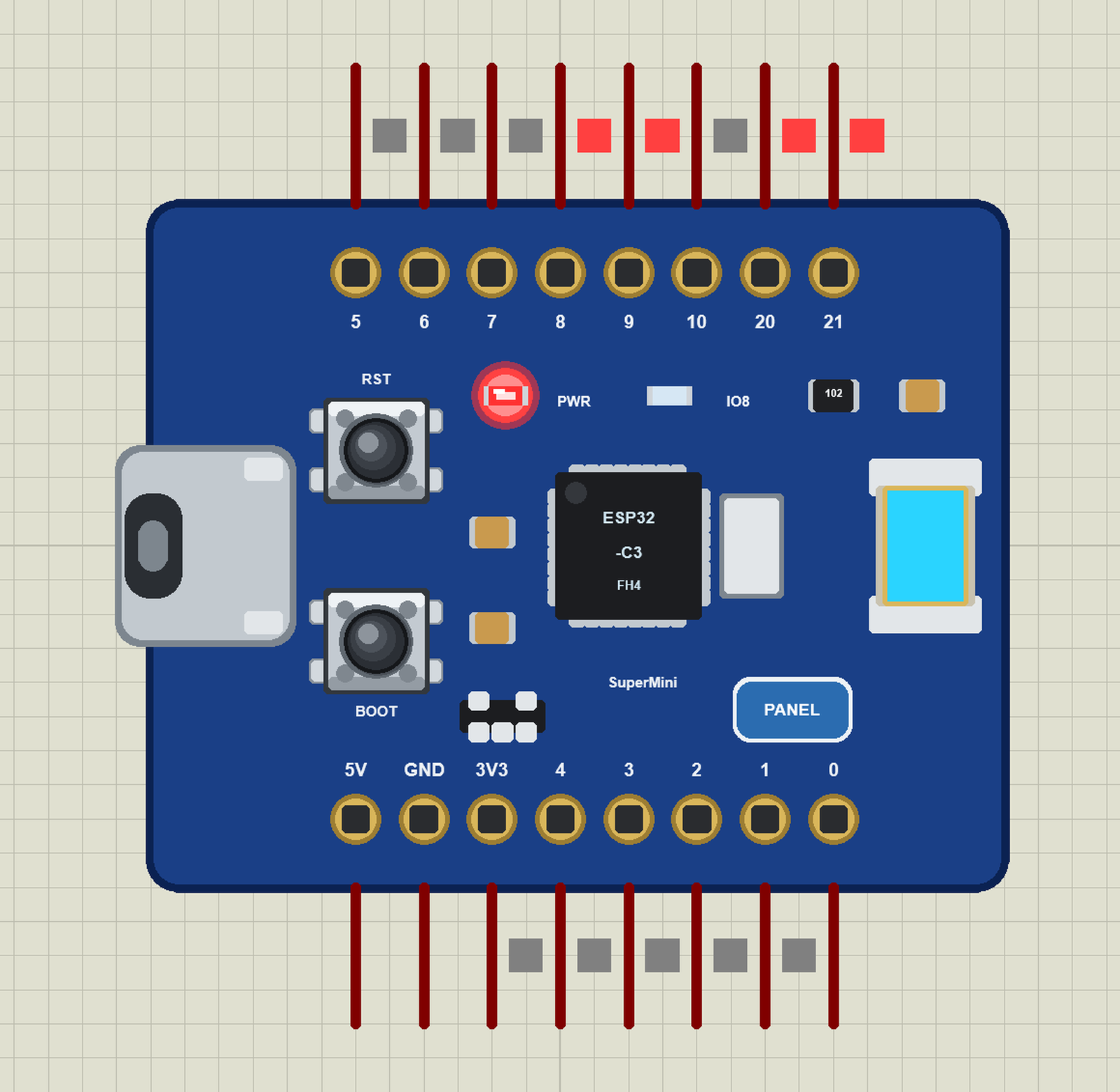
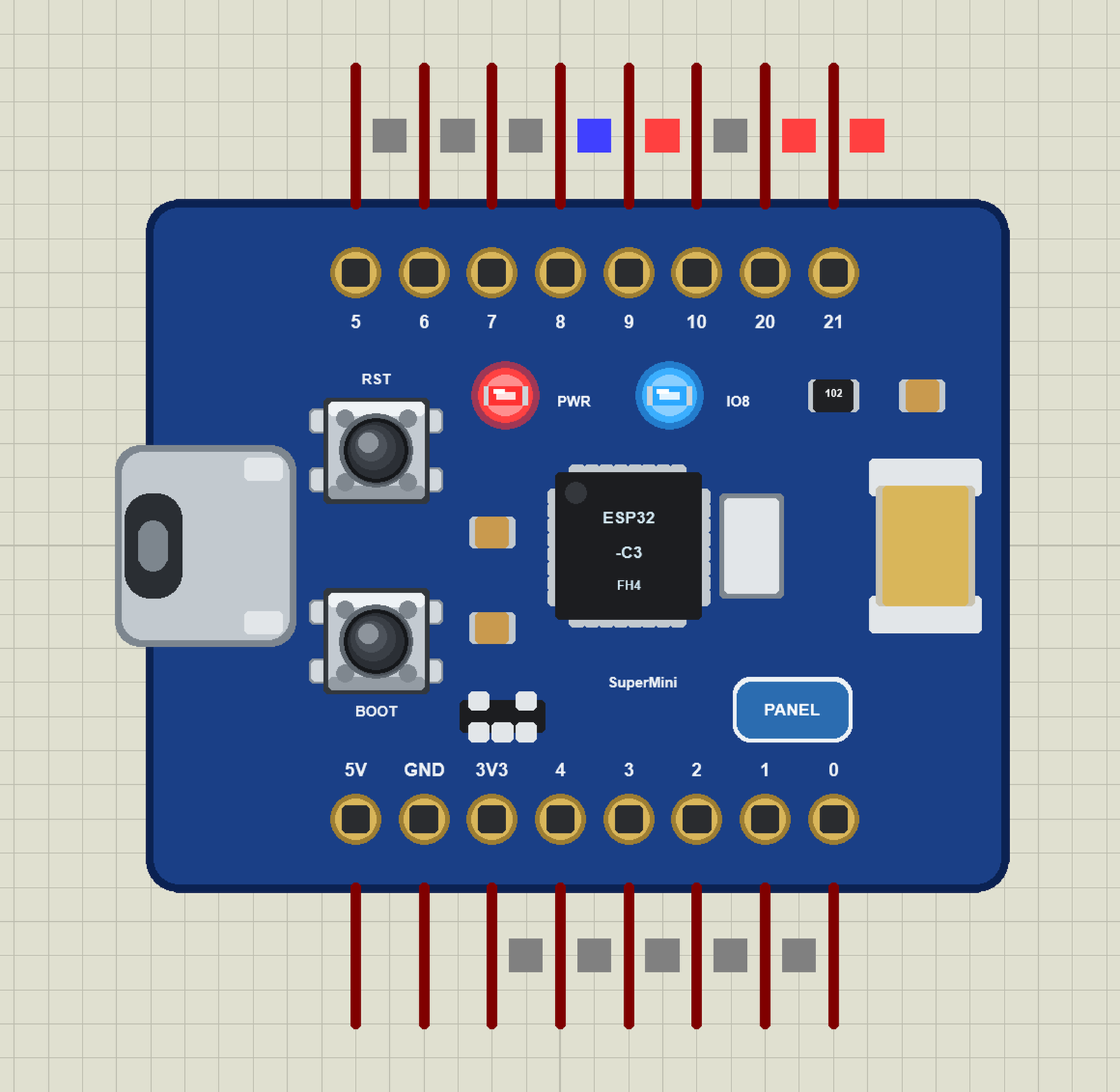
The ceramic chip antenna shows the Wi-Fi: gold while the board is not on Wi-Fi, green once it joined, orange for a moment when it sends, cyan when it receives:
The two buttons work with the mouse. We held each one for a picture:
Download ESP32-C3 SuperMini Library for Proteus
Click the button below to download ESP32-C3-SuperMini-Library-for-Proteus-v1.0.zip (about 1.69 MB, without the C++ source code of the models):
ESP32-C3 SuperMini Library for Proteus V1.0- README.txt: the device, installation, the three demos, the pins, the properties, troubleshooting and the limits.
- Proteus Library Files:
TEPESP32C3.LIB(the board) andTEPESP32S3.LIBfrom our ESP32-S3 DevKitC-1 library - used by the third demo. - Proteus Model Files:
TEPNET.DLL- the ESP32 boards and the Wi-Fi network. - Proteus Simulation: the three demo projects, their HEX files and a copy of the DLL.
- Arduino Code: the four sketches and the TEP Boards for Proteus add-on 1.3.0 for the Arduino IDE.
No Proteus yet? Read How to Download and Install Proteus 7 and 8. New to libraries? Follow How to Install a New Library in Proteus.
How to Install ESP32-C3 SuperMini Library for Proteus
- Close Proteus and extract the whole zip file, for example to your Desktop.
- Copy the two files from Proteus Library Files into the LIBRARY folder of Proteus (usually
C:\Program Files (x86)\Labcenter Electronics\Proteus 8 Professional\LIBRARY). - Copy
TEPNET.DLLfrom Proteus Model Files into the MODELS folder - it replaces an older TEPNET.DLL (the new one runs all our ESP32 boards). - Delete
TEPESP32C3.IDXandTEPESP32S3.IDXfrom the LIBRARY folder if they are there. - Start Proteus, press P and search for ESP32.
Install TEP Boards for Proteus in the Arduino IDE
You only need this to compile your own sketches - the demos come with their HEX files.
- The Arduino AVR Boards platform must be installed: it comes with the Arduino IDE 1.8.x; in IDE 2.x install "Arduino AVR Boards" from the Boards Manager once. The add-on uses its compiler.
- Copy the folder
Arduino Code\TEP Boards for Proteus\hardwareinto your sketchbook folder, normallyDocuments\Arduino, so thatDocuments\Arduino\hardware\tep\avr\boards.txtexists - replace an older copy (the C3 needs version 1.3.0). - Restart the IDE and select Tools > Board > TEP Boards for Proteus > ESP32-C3 SuperMini (TEP Proteus).
- Write your sketch and use Sketch > Export Compiled Binary. Double-click the board in Proteus and set Program File to the exported HEX (see How to get the HEX file from Arduino).
The same sketch compiles for a real board with the "Nologo ESP32C3 Super Mini" board of the Arduino-ESP32 core. LED_BUILTIN (8), SDA, SCL, SCK, MISO, MOSI, SS and A0 to A5 are defined as there.
Demo 1: Blink and the Cloud
Open ESP32-C3-SuperMini-Board.pdsprj: the board alone with ESP32C3_Blink_Cloud.hex. The sketch joins the Wi-Fi, blinks the blue LED once a second and sends the blink count and the chip temperature to an IoT channel every 20 seconds. Because the LED lights on LOW, the sketch keeps the logic in one small function:
void setLed(bool on) {
  ledOn = on;
  digitalWrite(LED_PIN, on ? LOW : HIGH);    // the SuperMini's LED sits between 3V3 and GPIO8
}
The loop toggles it every half second - or every 100 ms after a BOOT press - and counts the blinks:
  if (millis() - lastBlink >= (fast ? 100UL : 500UL)) {
    lastBlink = millis();
    setLed(!ledOn);
    if (ledOn) ++blinks;
  }
BOOT (GPIO9) switches between slow and fast through an interrupt:
attachInterrupt(digitalPinToInterrupt(BOOT_PIN), onBoot, FALLING);The upload is a ThingSpeak-style HTTP GET; ThingSpeak answers 0 to an update that comes less than 15 seconds after the last one, and the sketch says so:
  if (code == 200) {
    String body = http.getString();
    if (body == "0") Serial.println("refused (less than 15 s)");
    else Serial.println("stored as entry " + body);
  }
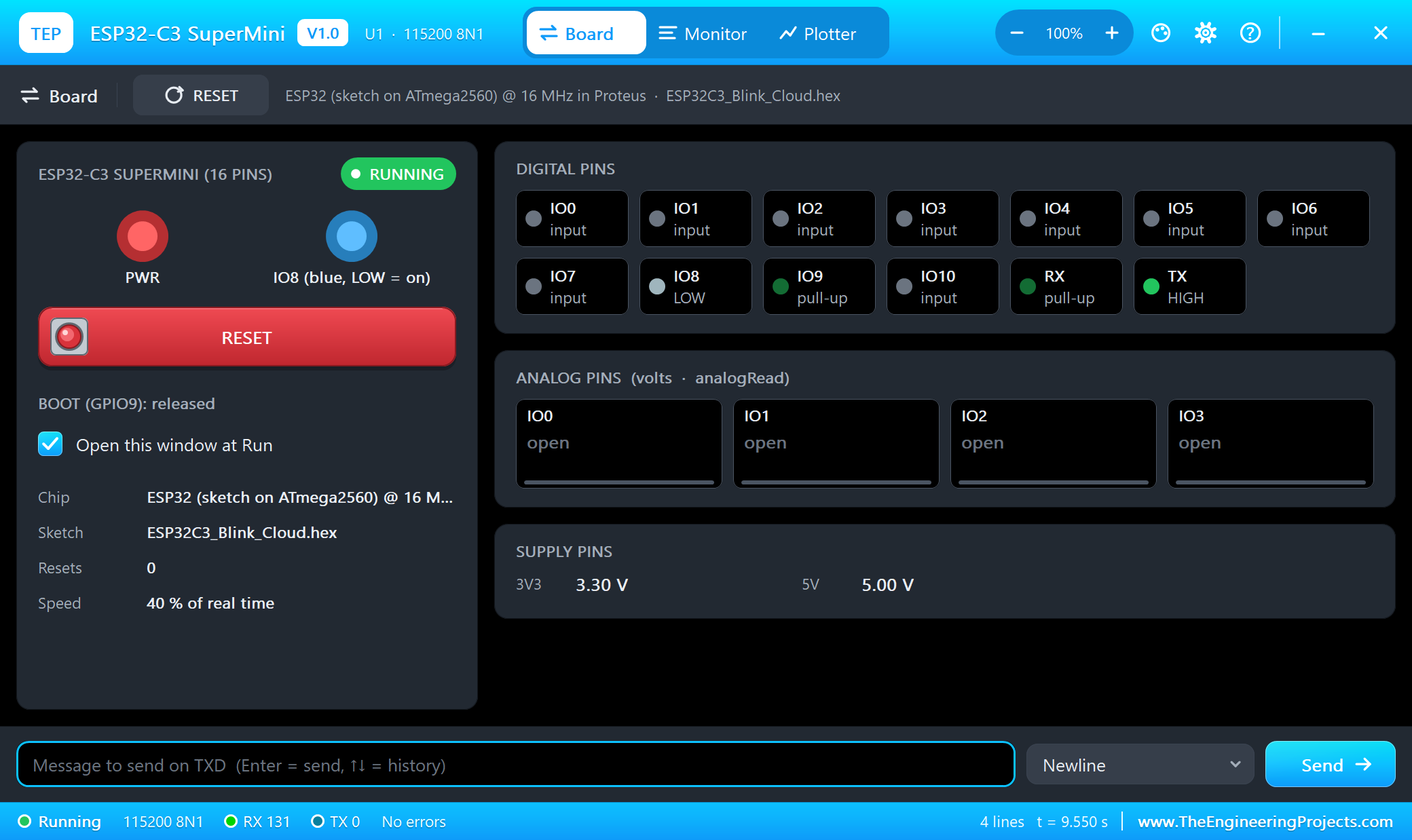
Press Run. The serial monitor (115200 baud) and the board's panel open; move them aside. We let the board upload, then held RST and pressed BOOT:
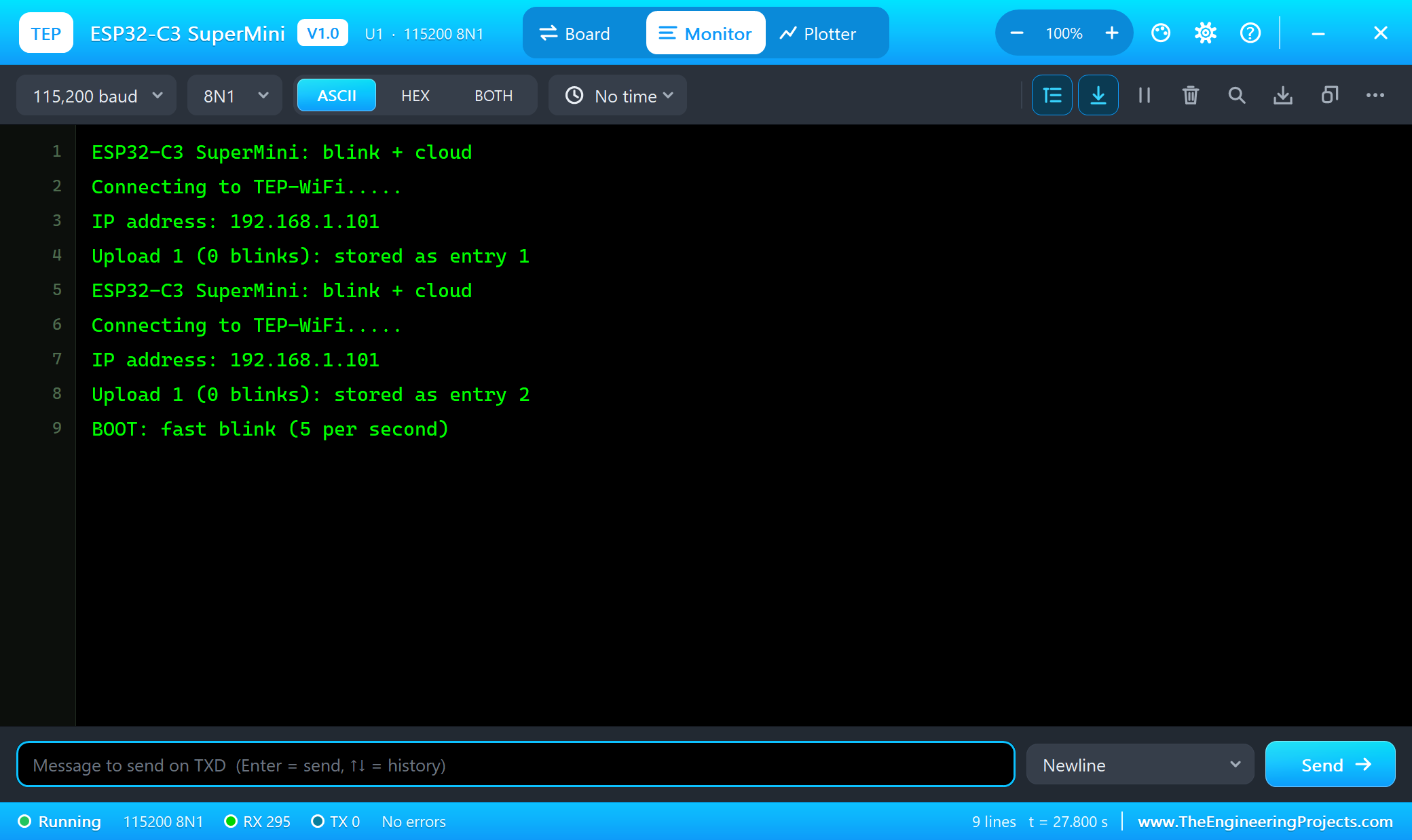
ESP32-C3 SuperMini: blink + cloud
Connecting to TEP-WiFi.....
IP address: 192.168.1.101
Upload 1 (0 blinks): stored as entry 1
ESP32-C3 SuperMini: blink + cloud
Connecting to TEP-WiFi.....
IP address: 192.168.1.101
Upload 1 (0 blinks): stored as entry 2
BOOT: fast blink (5 per second)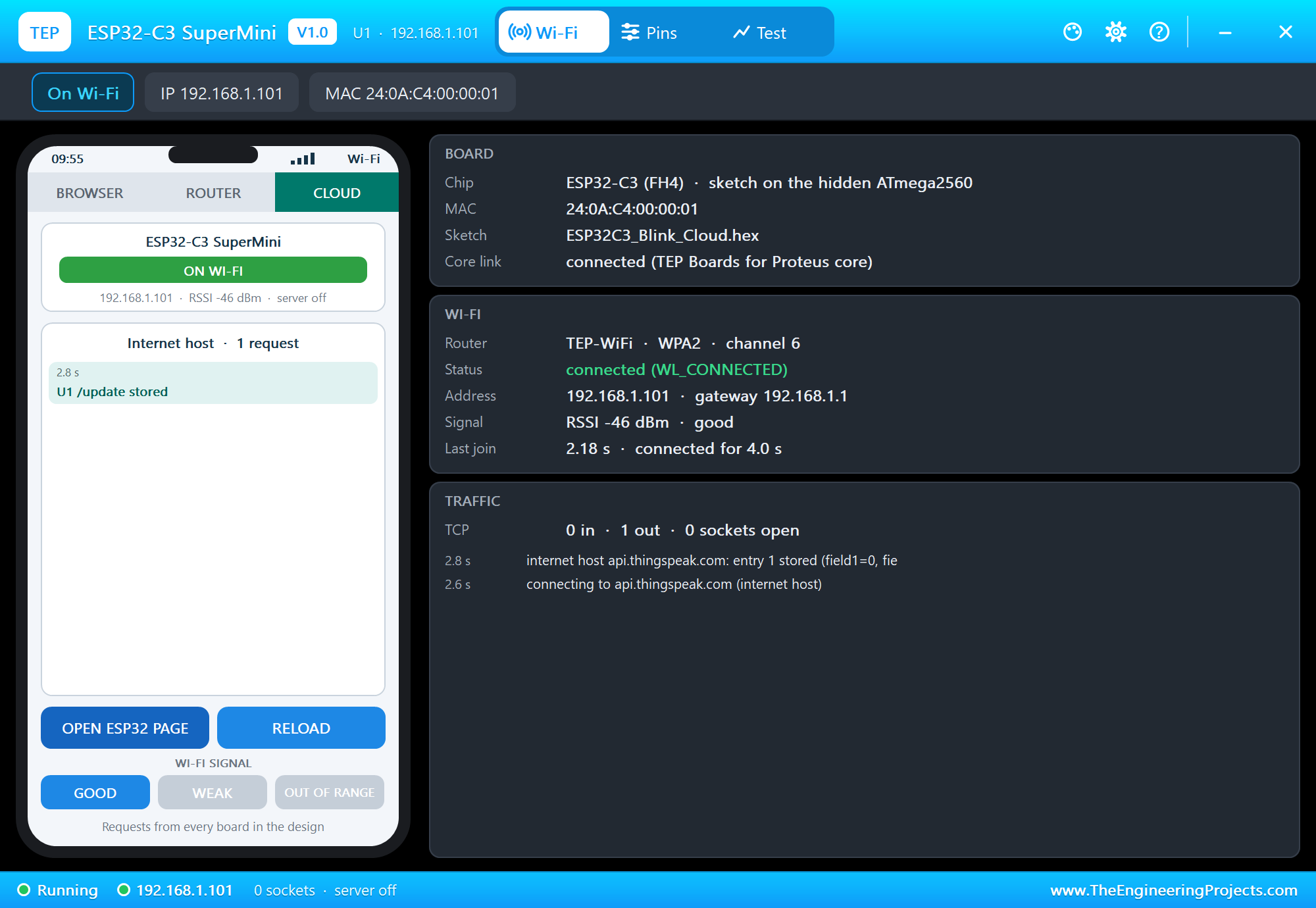
The Board's Panel
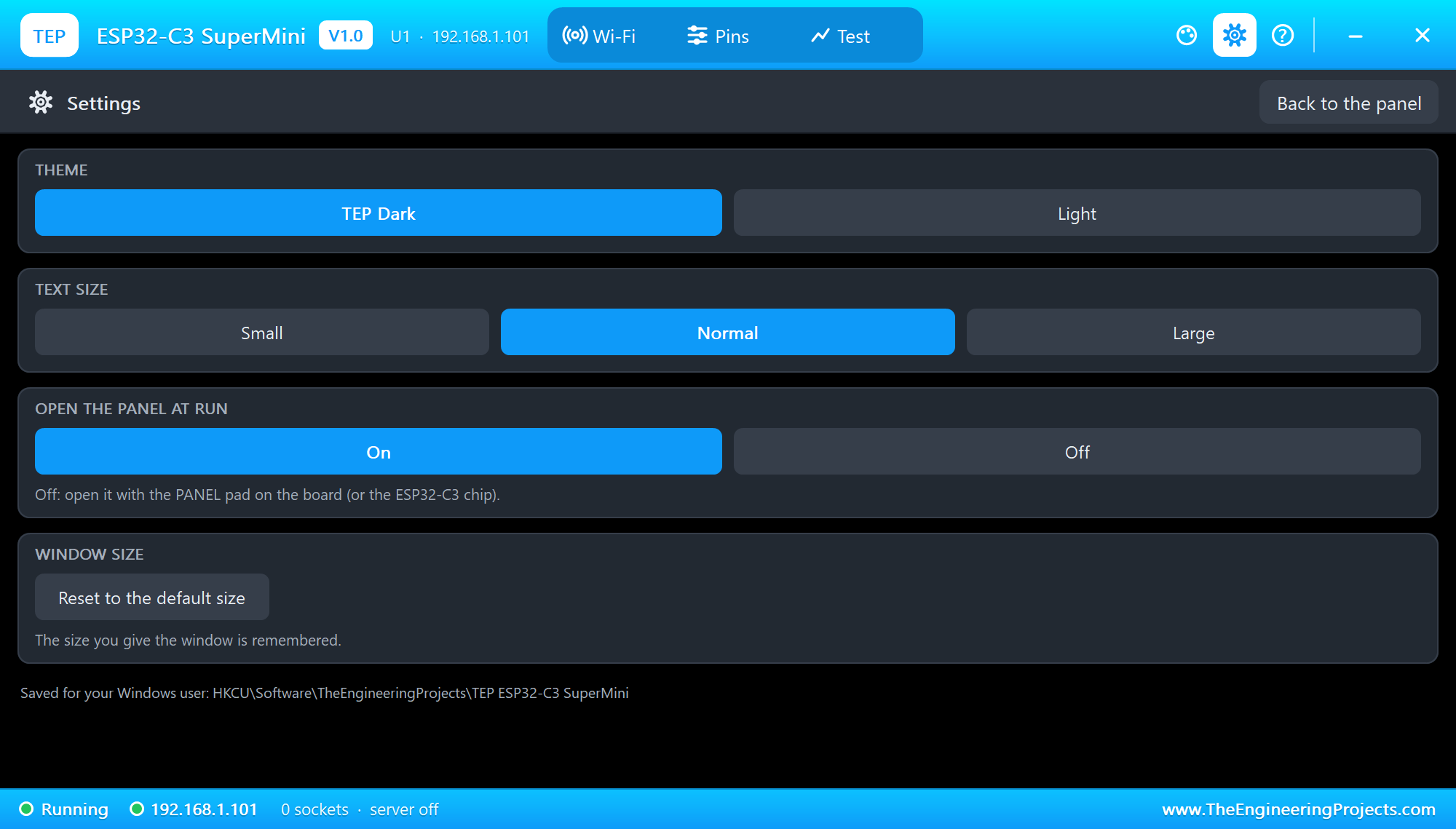
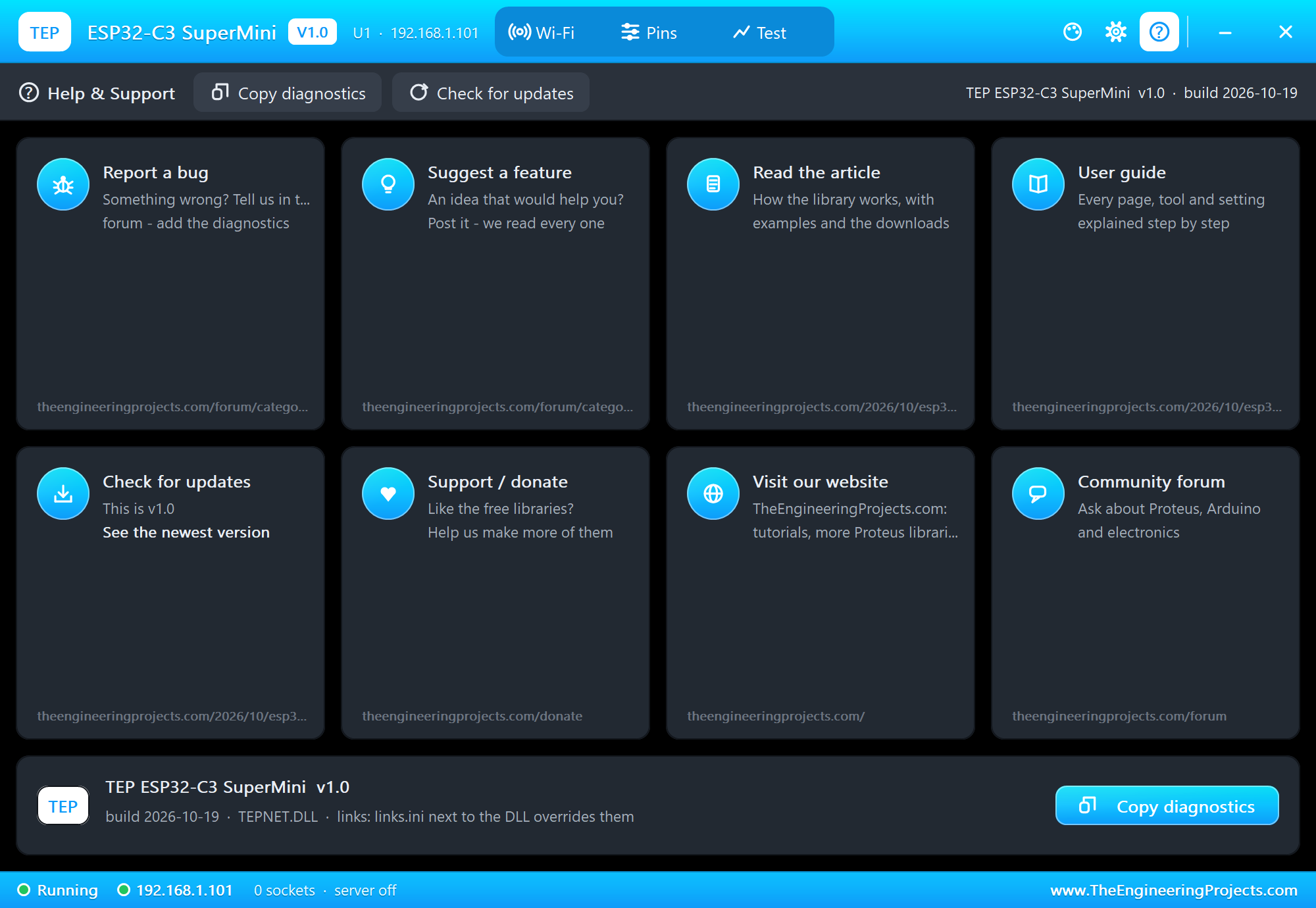
The panel opens at Run, in the look of our TEP Serial Monitor Advance for Proteus: Wi-Fi (a phone, the WI-FI SIGNAL buttons and three cards), Pins and Test, with Settings and Help on the right.
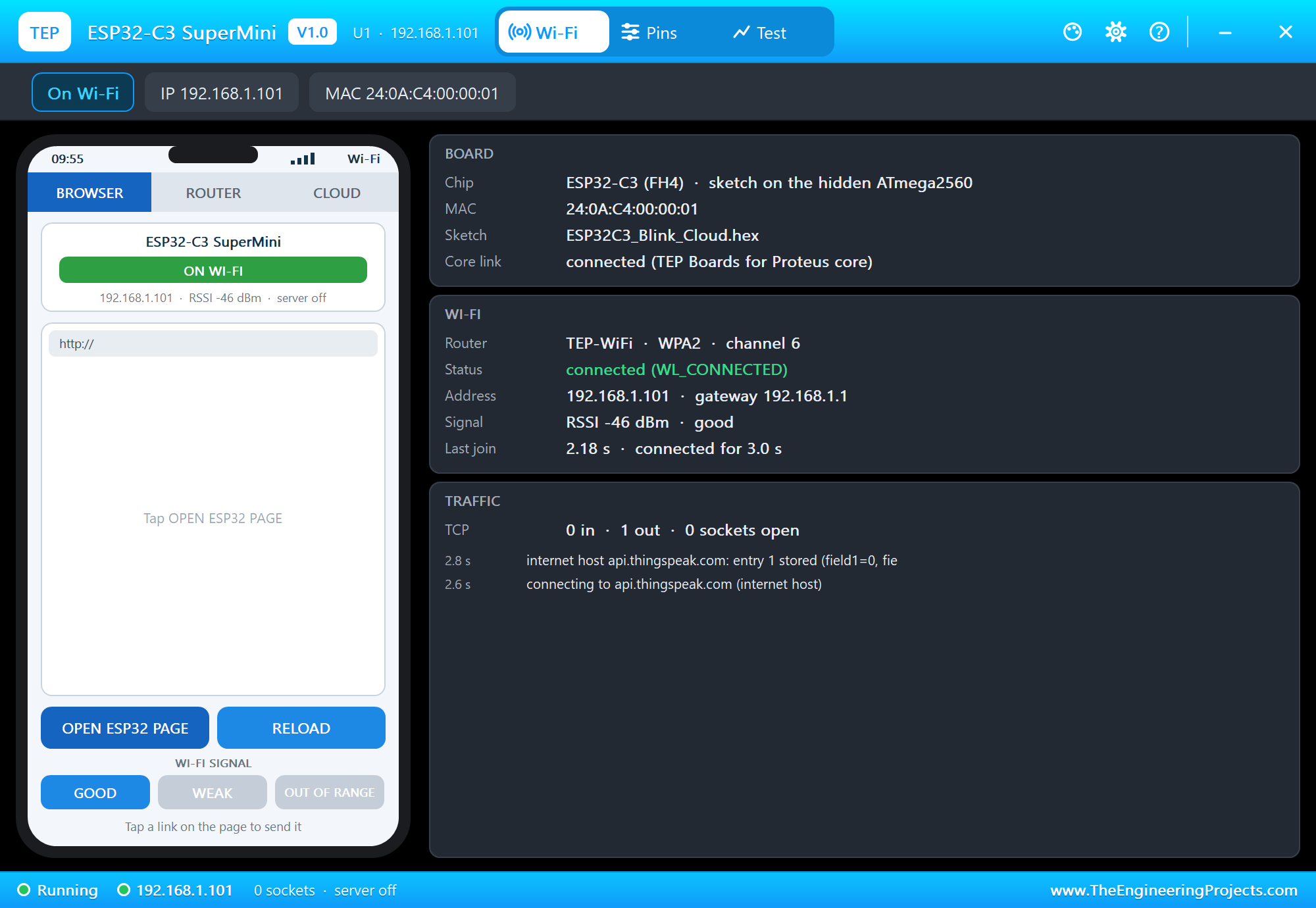
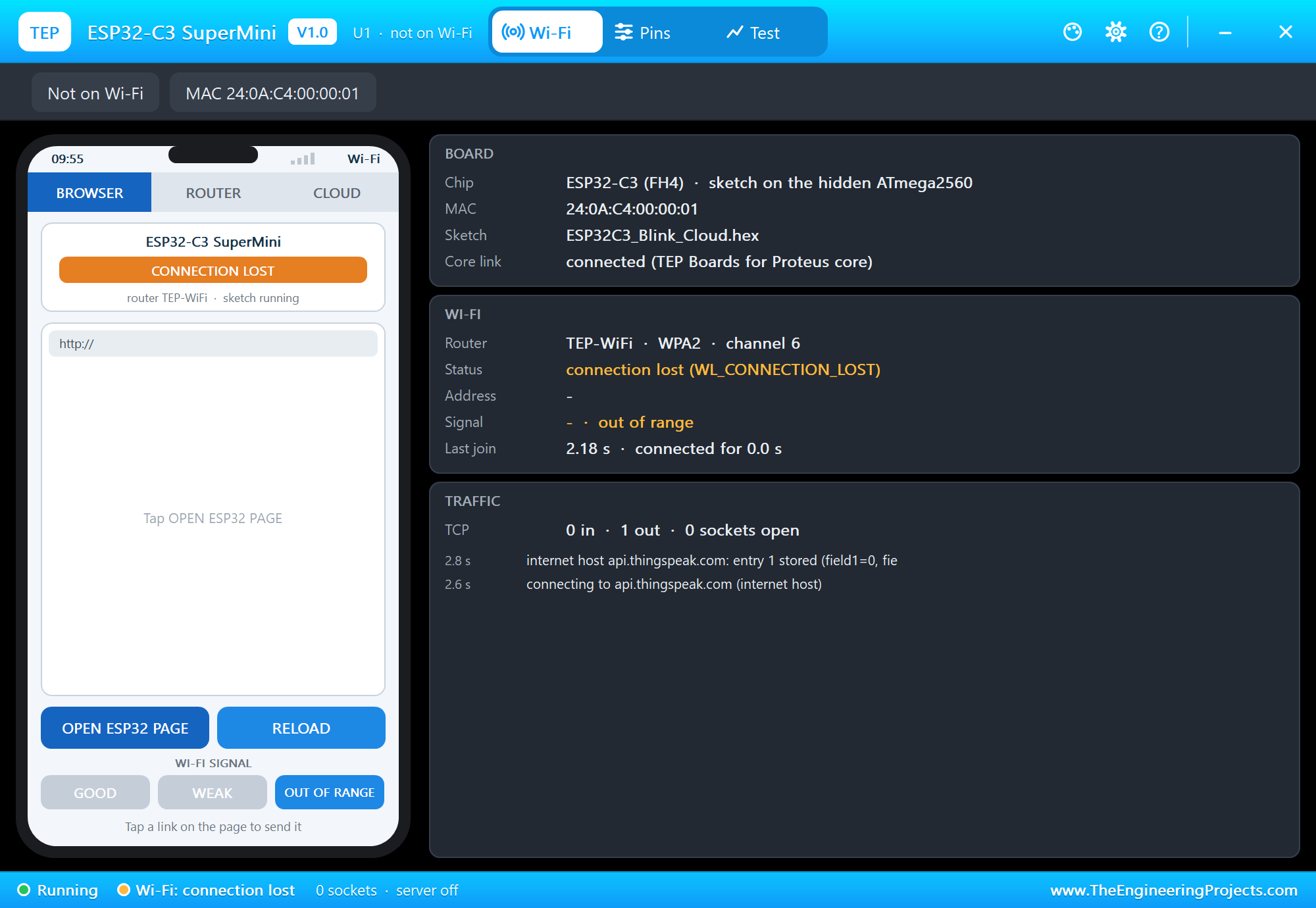
The phone's WI-FI SIGNAL buttons move the router: OUT OF RANGE drops the board off the Wi-Fi, GOOD brings it back - the way to test what your sketch does when the network goes away:
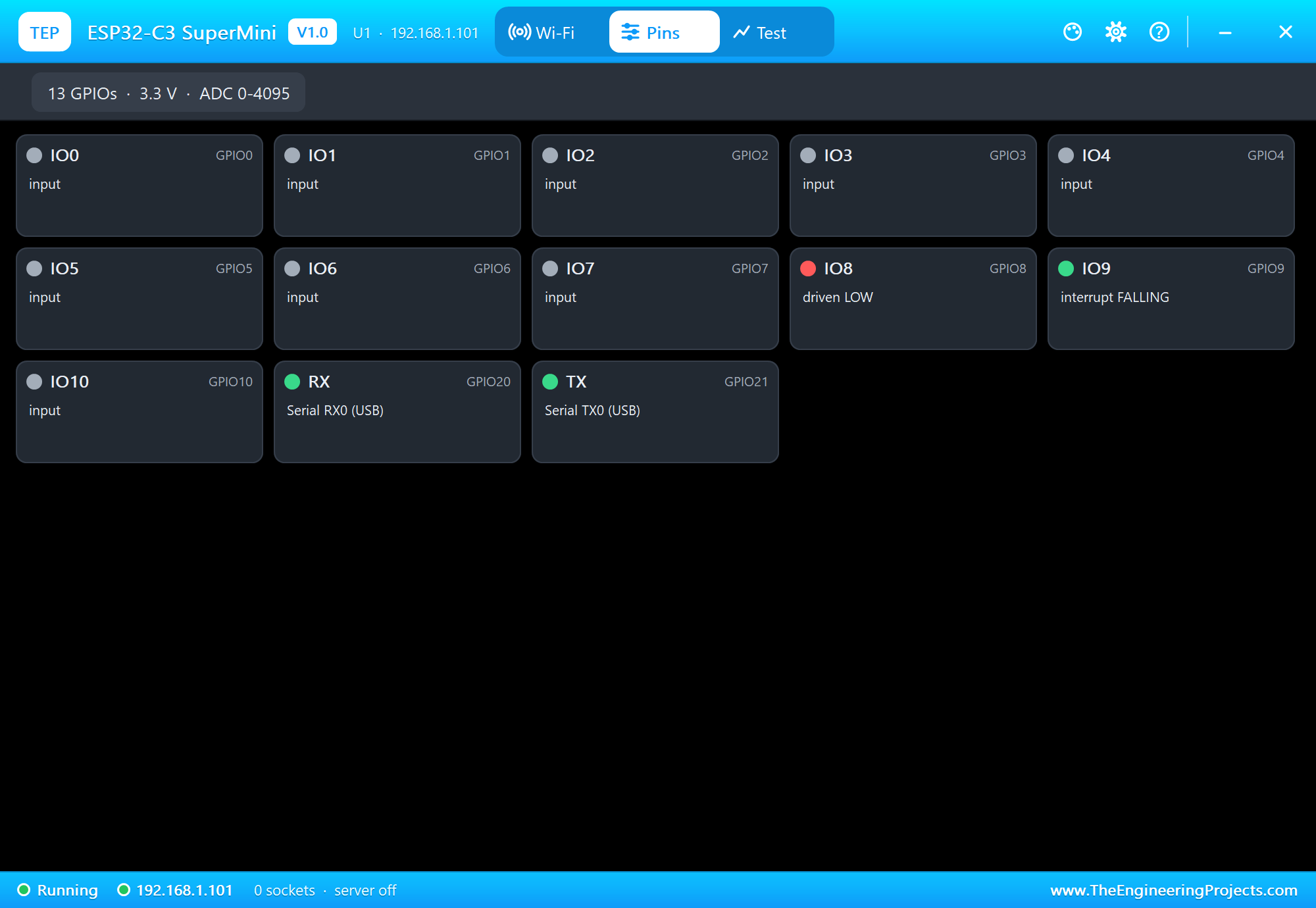
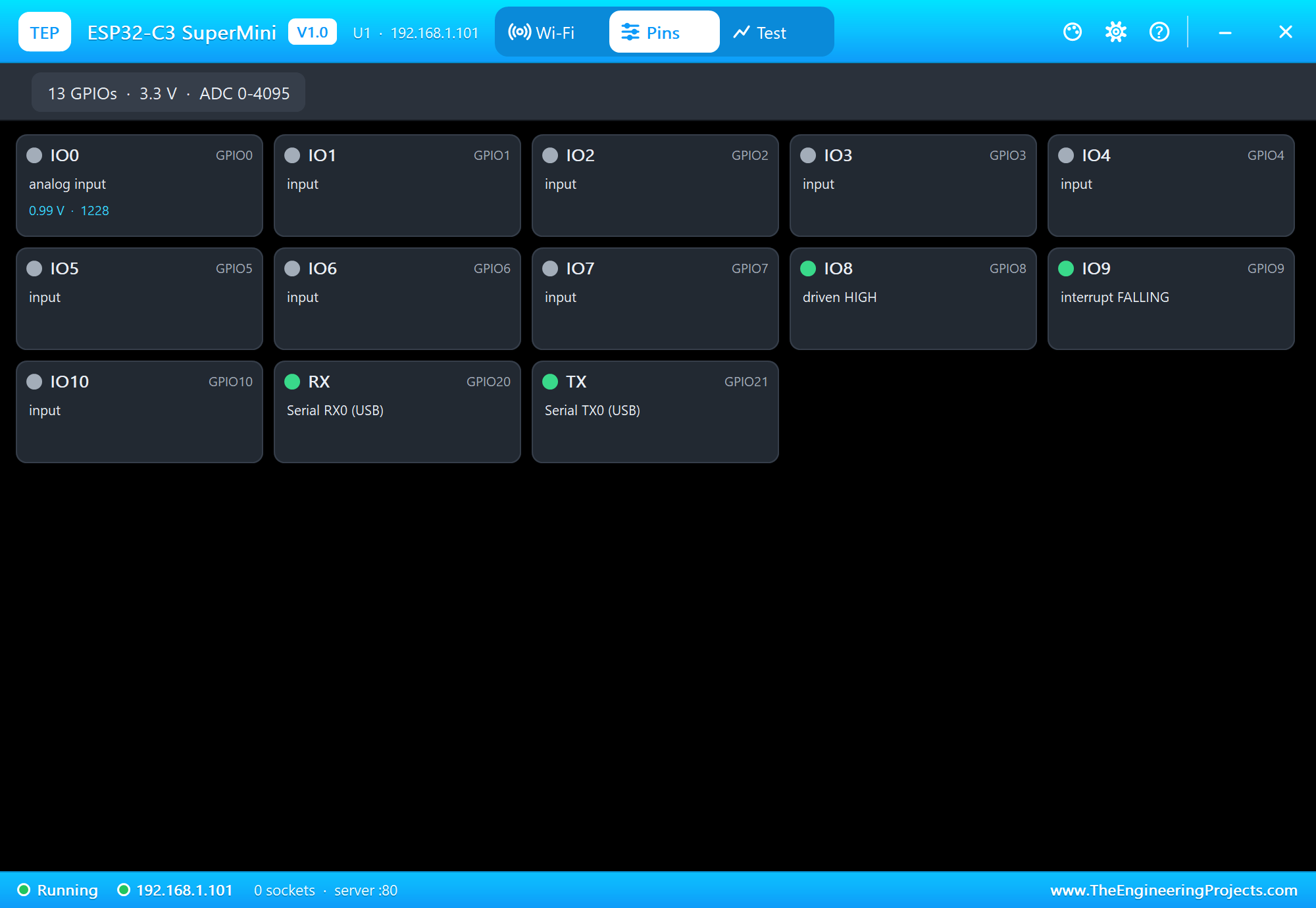
The Pins page shows all 13 GPIOs live - driven HIGH or LOW, PWM, an interrupt and its mode, input, analog with its voltage:
Demo 2: ESP32-C3 Tank Level Web Page
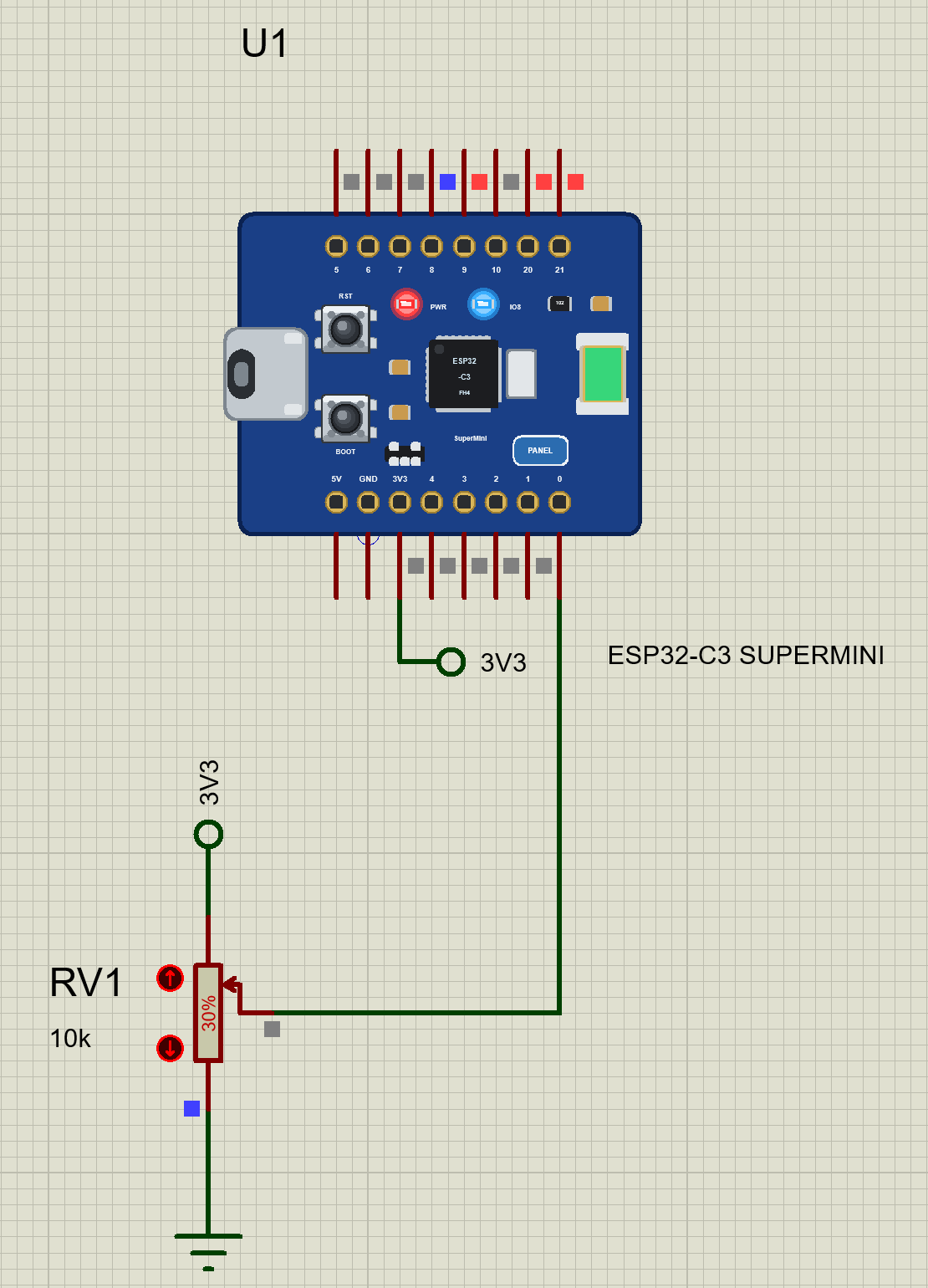
ESP32-C3-SuperMini-Web-Level.pdsprj adds one 10k pot RV1 on GPIO0 - A0 - between the board's 3V3 pin and ground. It stands for a level sensor in a water tank: 0 % at the bottom, 100 % at the top. The sketch, ESP32C3_Web_Level.ino, reads it four times a second:
int l = (analogRead(LEVEL_PIN) * 100L + 2047) / 4095;...serves a page with the level, a text bar and four alarm points, and lights the blue LED while the level is at or above the alarm point:
void update() {
  bool on = level >= alarmAt;
  digitalWrite(LED_PIN, on ? LOW : HIGH);
  if (on != alarmOn) {
    alarmOn = on;
    Serial.printf(on ? "ALARM: level %d %% at or above %d %% - LED on\n" : "Level %d %% below %d %% - LED off\n", level, alarmAt);
  }
}
void handleAlarm() {
int at = server.arg("at").toInt();
if (at < 10 || at > 100) {
server.send(400, "text/plain", "at: 10 .. 100");
return;
}
alarmAt = at;
Serial.printf("Alarm point %d %% (phone)\n", alarmAt);
update();
sendPage();
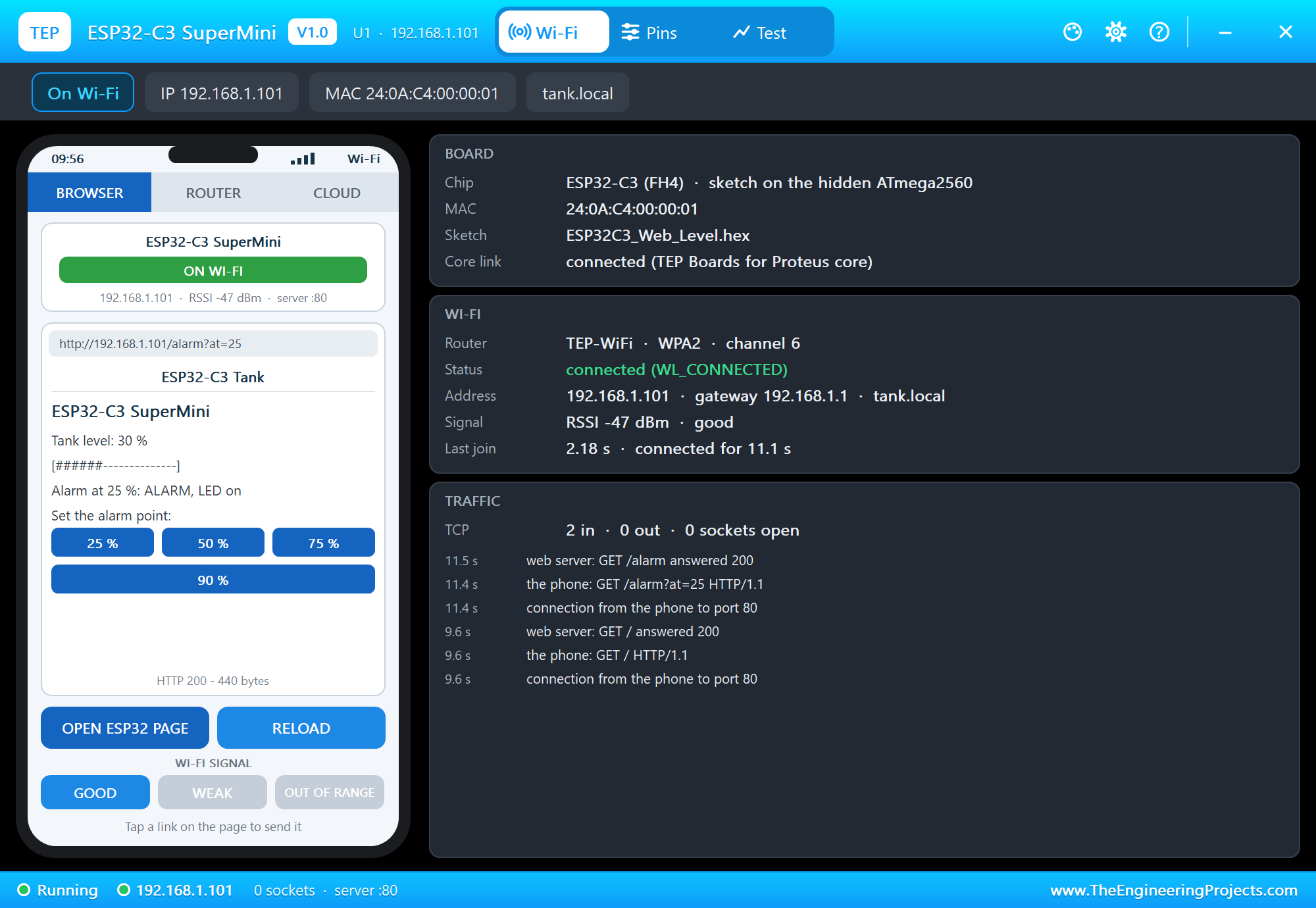
}Press Run, then OPEN ESP32 PAGE on the panel. The level is 30 %, the alarm point 75 % - the LED is off:
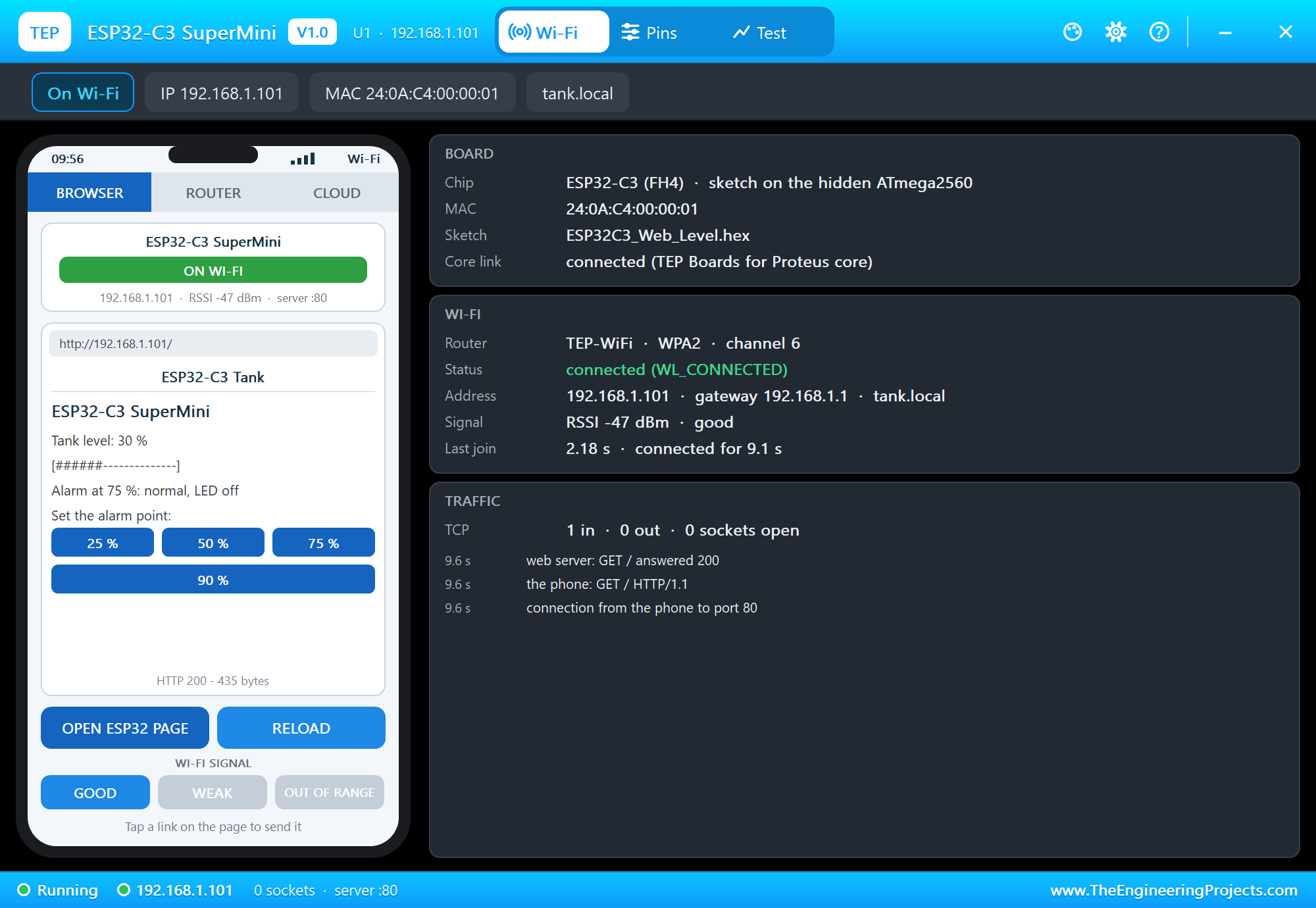
Tap 25 %: the phone sends GET /alarm?at=25, the level is above the new alarm point and the blue LED lights at once:
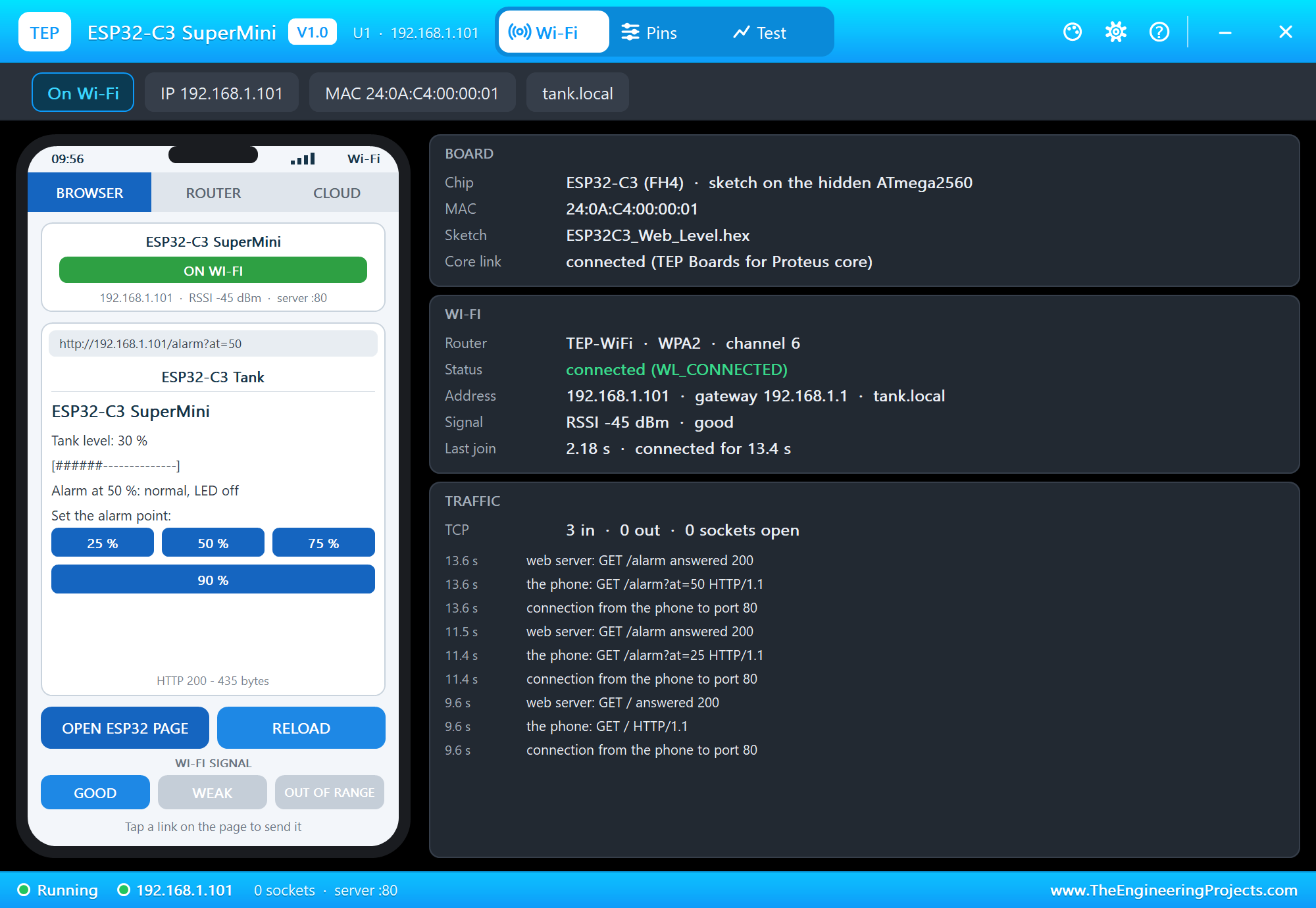
Tap 50 %: the level is below the alarm point again and the LED goes out:
The Pins page shows the pot on IO0 as an analog input with its voltage and value, and IO8 driven by the alarm:
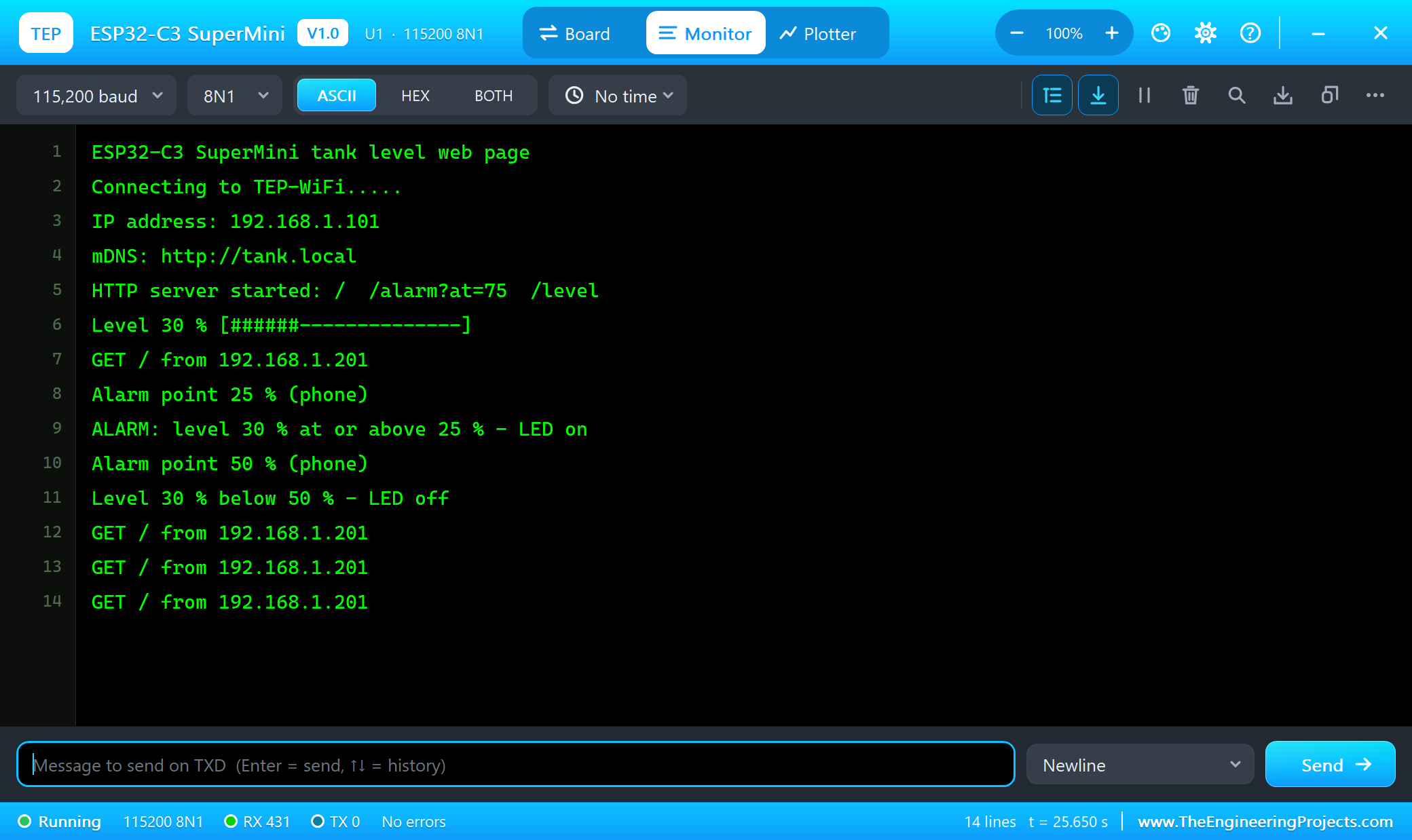
ESP32-C3 SuperMini tank level web page
Connecting to TEP-WiFi.....
IP address: 192.168.1.101
mDNS: http://tank.local
HTTP server started: /  /alarm?at=75  /level
Level 30 % [######--------------]
GET / from 192.168.1.201
Alarm point 25 % (phone)
ALARM: level 30 % at or above 25 % - LED on
Alarm point 50 % (phone)
Level 30 % below 50 % - LED off
GET / from 192.168.1.201
GET / from 192.168.1.201
GET / from 192.168.1.201
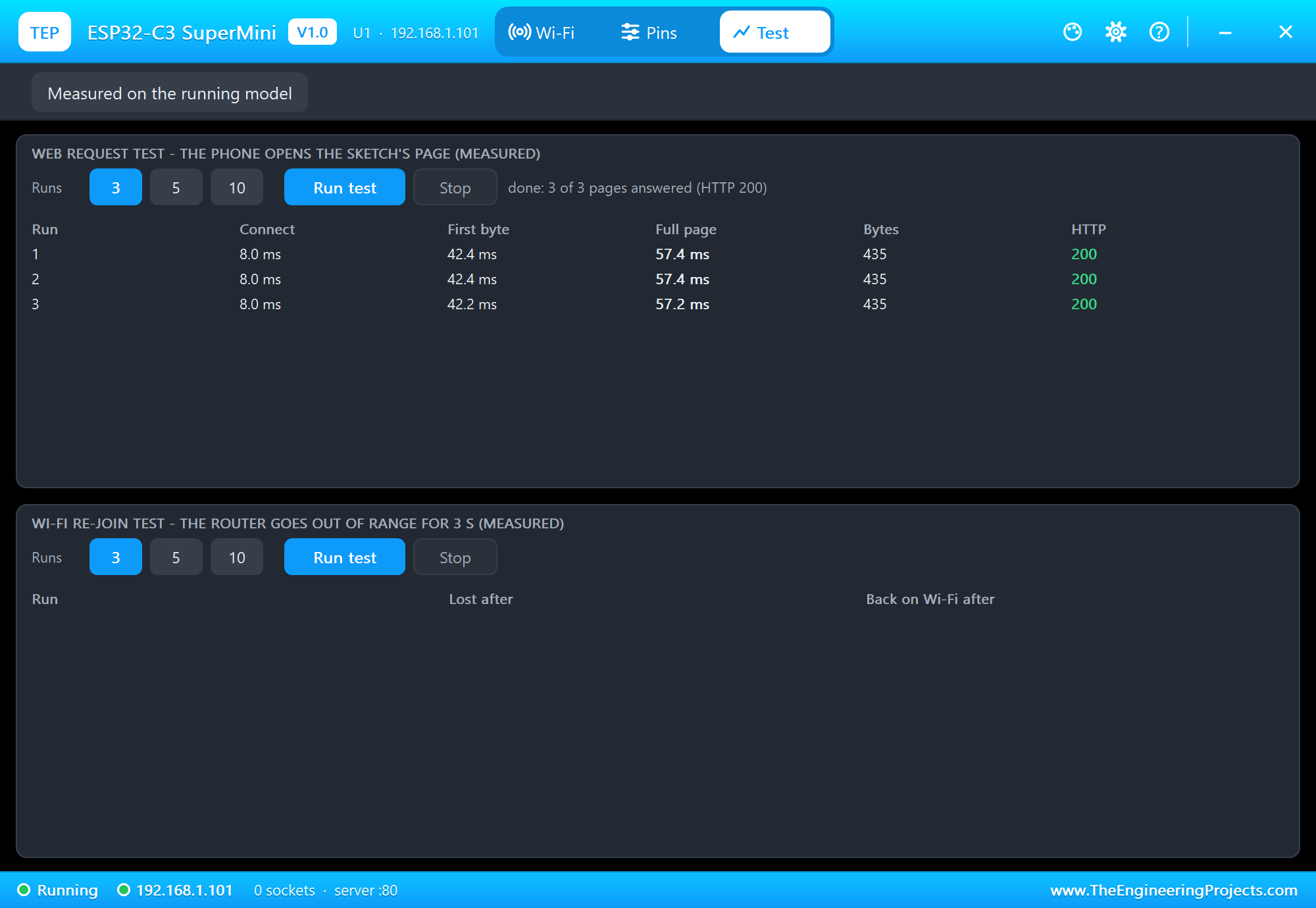
The Web Request Test
The Test page measures the running model: the phone opened the page three times.
analogRead on the ESP32-C3 SuperMini
On this board analogRead() is answered by the board model: it reads the pin's voltage and returns a true 12-bit value from 0 to 4095 for 0 to 3.3 V. It works on GPIO0 to GPIO3; the C3's other ADC pins, GPIO4 and GPIO5, are also its default SPI pins and sit on the hidden AVR's SPI pins here, so they read 0. Keep your analog sensors on GPIO0 - 3 and SPI parts on GPIO4 - 7.
Demo 3: C3 Level Node and S3 Display over TCP
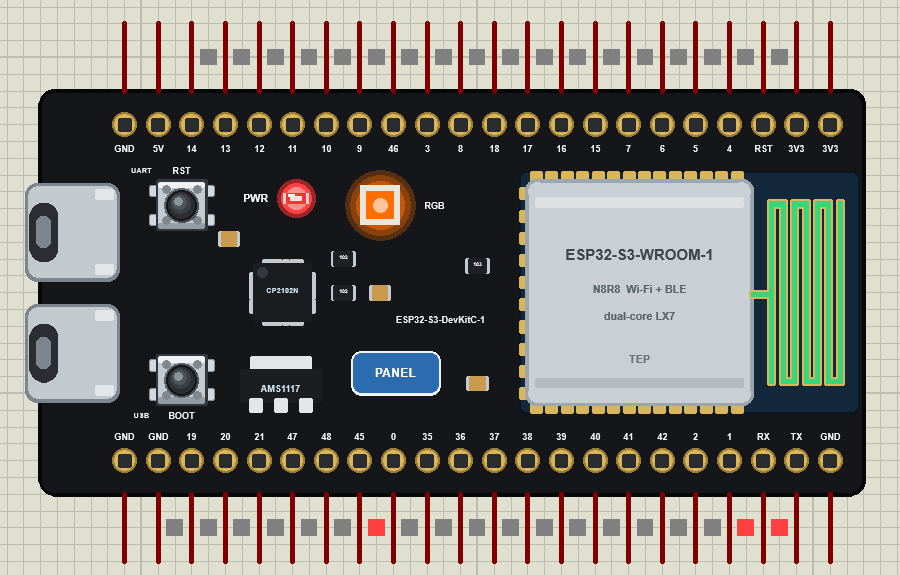
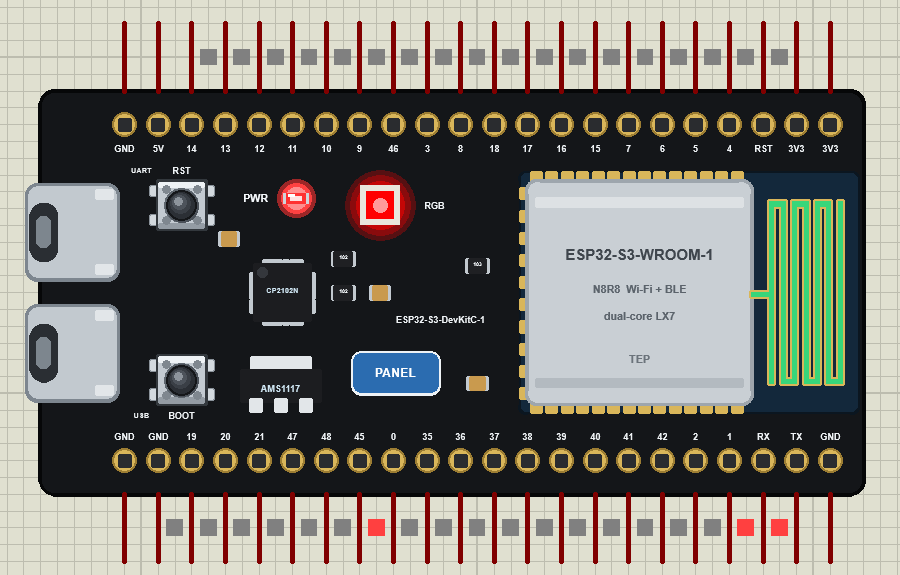
Now the C3 meets the previous board of the series. In ESP32-C3-and-S3-Level-Link.pdsprj the C3 (U1) is a small level node: it reads its pot and streams the level to the ESP32-S3 DevKitC-1 (U2) of our ESP32-S3 DevKitC-1 Library for Proteus, which shows it on its RGB LED - green, amber or red - and answers each reading.
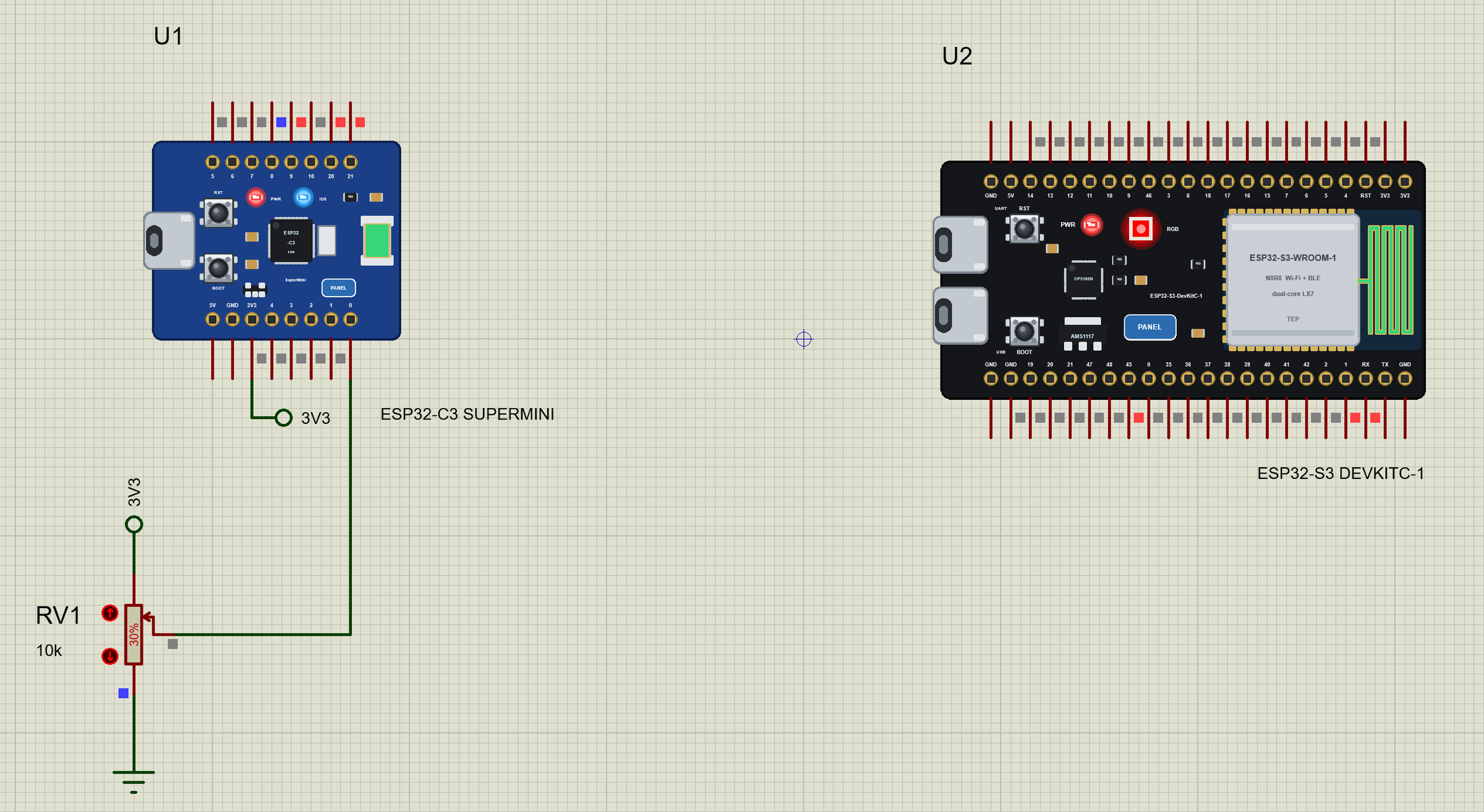
This time there is no web page and no HTTP: the two boards talk over a plain TCP connection, one line of text at a time. The C3 opens the connection to the S3's port 5000 and keeps it open; if the S3 is not there yet, it tries again every two seconds:
  if (!link.connected()) {
    if (millis() - lastTry >= 2000) {
      lastTry = millis();
      if (link.connect(display, PORT)) {
        Serial.print("Connected to the S3 at ");
        Serial.print(display);
        Serial.printf(":%u\n", PORT);
        sent = -1;
      }
      else Serial.println("The S3 is not answering yet");
    }
    return;
  }
Each new level - and every five seconds anyway - goes out as one line:
  if (level != sent || millis() - lastSend >= 5000) {
    link.print("LEVEL ");
    link.println(level);
    Serial.printf("Sent LEVEL %d\n", level);
    sent = level;
    lastSend = millis();
  }
On the S3 a WiFiServer waits on port 5000. Each LEVEL line picks the colour and the answer:
void handleLine() {
  line.trim();
  if (!line.startsWith("LEVEL ")) { line = ""; return; }
  int level = constrain(line.substring(6).toInt(), 0, 100);
  line = "";
  const char *answer;
  if (level < 50) { rgbLedWrite(RGB_BUILTIN, 0, 160, 0); answer = "OK GREEN"; }
  else if (level < 80) { rgbLedWrite(RGB_BUILTIN, 255, 110, 0); answer = "OK AMBER"; }
  else { rgbLedWrite(RGB_BUILTIN, 255, 0, 0); answer = "ALARM RED"; }
  node.println(answer);
  Serial.printf("Level %d %% - %s\n", level, answer);
}
...and the C3 lights its blue LED when the answer starts with ALARM:
void handleReply() {
  reply.trim();
  if (!reply.length()) return;
  bool alarm = reply.startsWith("ALARM");
  digitalWrite(LED_PIN, alarm ? LOW : HIGH);
  Serial.print("S3: ");
  Serial.print(reply);
  Serial.println(alarm ? " - LED on" : "");
  reply = "";
}
Our DevKitC V4 demo sent UDP datagrams and our S3 demo used HTTP; this one uses raw TCP on purpose. A TCP connection is opened once and stays up, so each reading costs only a few bytes, both sides know at once when the other one is gone, and the same idea fits any line-based protocol - a sensor node, a small gateway or a status display in another room.
Press Run. The C3 joins as 192.168.1.101, the S3 as 192.168.1.102. The C3 is faster to the router and tries once before the S3 listens, then connects; the pot at 30 % turns the S3's LED green. Then we typed 65 and 90 in the C3's monitor - test levels without touching the pot:
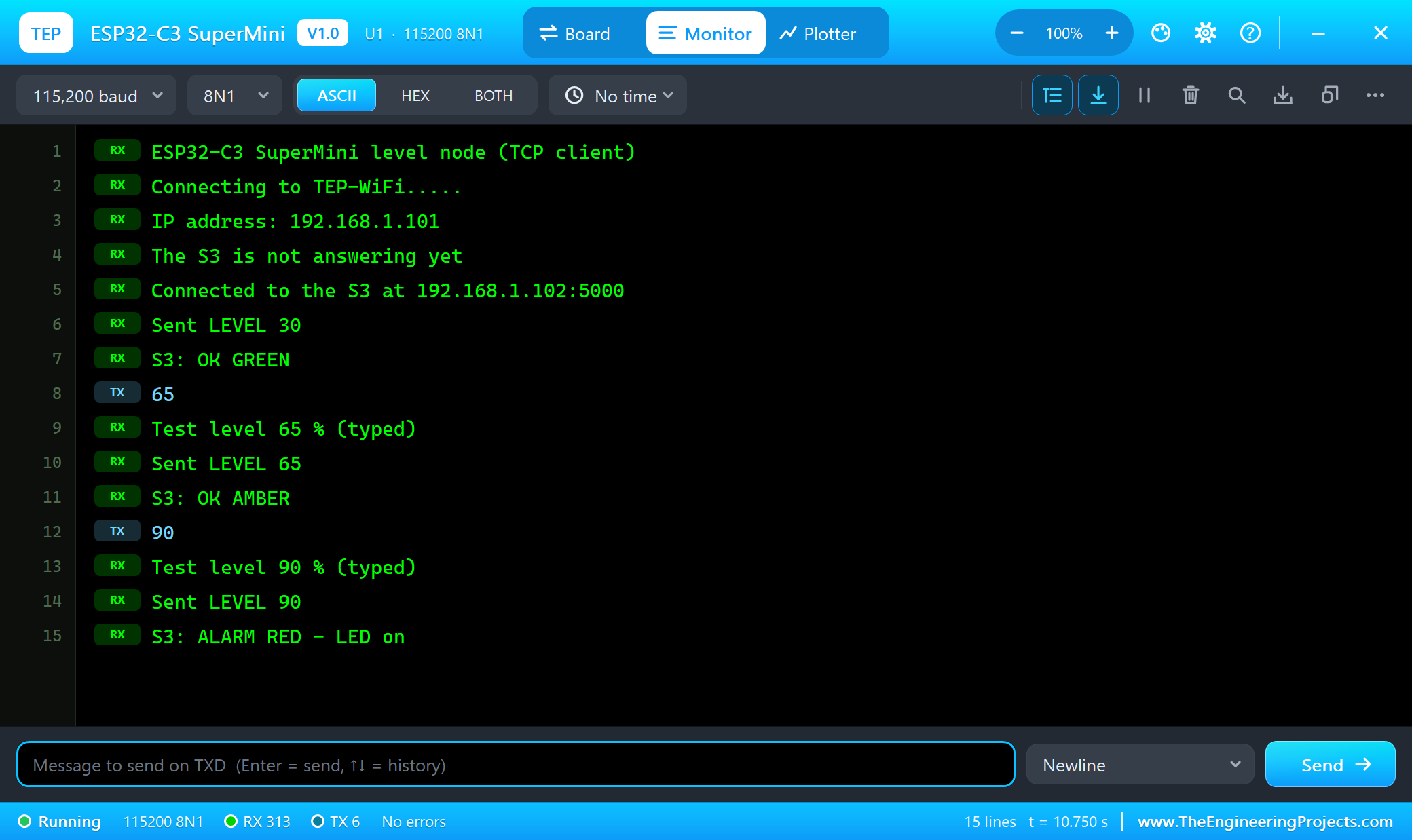
ESP32-C3 SuperMini level node (TCP client)
Connecting to TEP-WiFi.....
IP address: 192.168.1.101
The S3 is not answering yet
Connected to the S3 at 192.168.1.102:5000
Sent LEVEL 30
S3: OK GREEN
65
Test level 65 % (typed)
Sent LEVEL 65
S3: OK AMBER
90
Test level 90 % (typed)
Sent LEVEL 90
S3: ALARM RED - LED on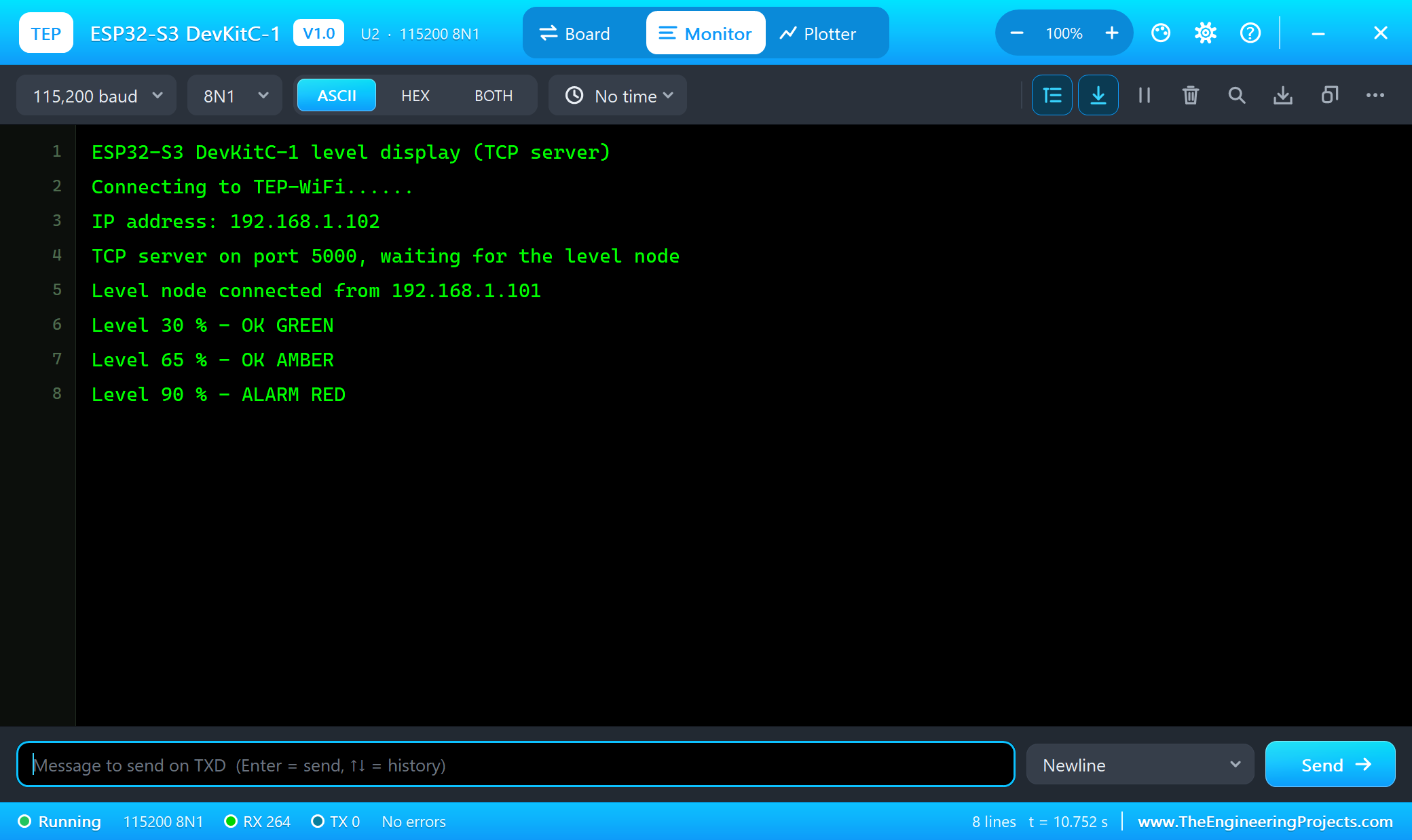
ESP32-S3 DevKitC-1 level display (TCP server)
Connecting to TEP-WiFi......
IP address: 192.168.1.102
TCP server on port 5000, waiting for the level node
Level node connected from 192.168.1.101
Level 30 % - OK GREEN
Level 65 % - OK AMBER
Level 90 % - ALARM RED
The S3's TRAFFIC card shows the connection from the C3 - one socket, kept open:
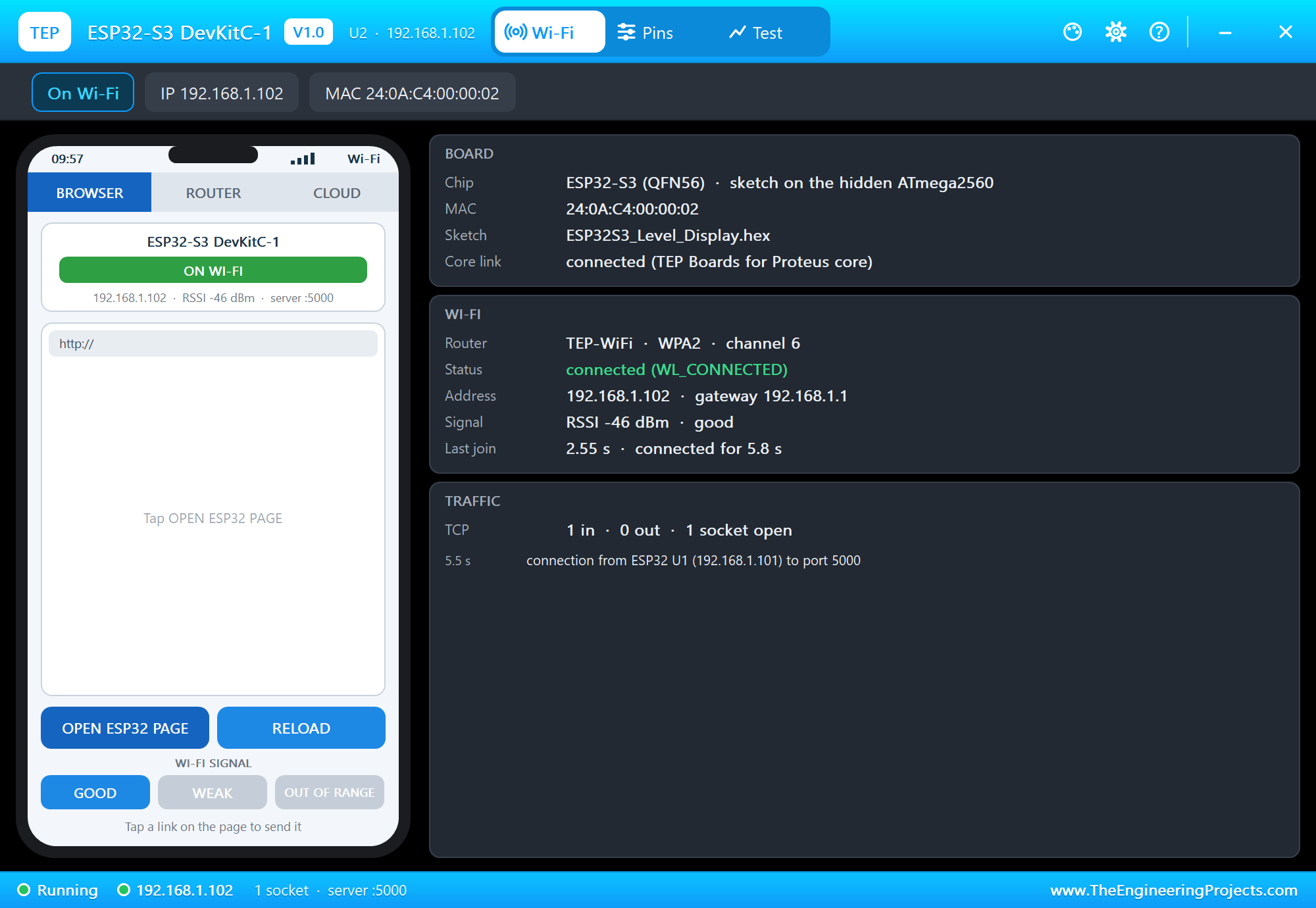
Type pot in the C3's monitor and the pot takes over again. Turn RV1 with its arrows during the simulation and the S3 follows within a quarter of a second.
Pins of the ESP32-C3 SuperMini
| Pins | What they can do in the simulation |
|---|---|
| 0 - 3 | GPIO, PWM, analogRead (12 bits) |
| 4 / 5 / 6 / 7 | SPI (SCK / MISO / MOSI / SS), GPIO, PWM into digital parts |
| 8 | the blue LED (LED_BUILTIN, lit when LOW); Wire SDA, GPIO |
| 9 | the BOOT button (LOW while pressed, 10k pull-up); Wire SCL, GPIO |
| 10 | GPIO, PWM |
| 20 / 21 | Serial RX / TX - the built-in monitor |
| 3V3, 5V, GND | 3.3 V out, 5 V, ground |
Properties of the Board
| Property | What it does |
|---|---|
| PROGRAM | the sketch's HEX from TEP Boards for Proteus |
| WIFISSID / WIFIPASS | the router in range (TEP-WiFi / 12345678) |
| MONITOR | YES: the built-in serial monitor on TX / RX |
| BAUD | the monitor's speed (115200, or AUTO) |
| AUTOOPEN | YES: the monitor opens at Run (the demos) |
| TIME | the clock NTP gives: PC (the PC's clock) or a fixed start time in UTC |
Troubleshooting
- Nothing happens at Run: the HEX was not built with TEP Boards for Proteus - select ESP32-C3 SuperMini (TEP Proteus) and export the binary again.
- RST does nothing: the HEX was built with an older add-on - update TEP Boards for Proteus to 1.3.0 and export again.
- The blue LED stays dark: it lights when GPIO8 is LOW, as on the real board.
- analogRead returns 0: use GPIO0 - 3, and wire something analog to the pin.
- "Serial1 is not wired" in the log: use Serial on GPIO21 / GPIO20.
- Stuck at "Connecting...": the SSID or password in the sketch differ from the WIFISSID / WIFIPASS properties, or the phone's WI-FI SIGNAL is OUT OF RANGE.
- printf shows -1 or odd numbers:
intis 16 bits here - cast 32-bit values toint. - Two boards with the same address: they have the same part number - renumber one.
- No monitor or no panel: click the USB-C port or the PANEL pad; or turn "Open the panel at Run" back on in Settings.
Things to Know Before Moving to a Real ESP32-C3 SuperMini
- The board: select "Nologo ESP32C3 Super Mini" (or "ESP32C3 Dev Module") and enable "USB CDC On Boot" - the SuperMini's only USB port is the C3's own, so Serial goes over it.
- Uploading: if the board does not show up, hold BOOT, press RST, release BOOT and upload again.
- The blue LED lights on LOW; GPIO8 and GPIO9 are also strapping pins - keep them HIGH at reset.
- Memory: the real C3 has 400 KB of RAM - a sketch that fits in 8 KB here has room to grow.
- The antenna: the tiny ceramic antenna has a short range; some SuperMini boards work better with a lower Wi-Fi transmit power (
WiFi.setTxPower()). - 3.3 V logic: the pins are not 5 V tolerant.
Limitations of the Simulation
- It is not a real ESP32-C3 chip: the sketch runs on Proteus's ATmega2560 model at 16 MHz with 8 KB of RAM and 256 KB of flash;
intis 16 bits. - Not modelled: the native USB (CDC / JTAG), Serial1, FreeRTOS tasks, Bluetooth LE, ESP-IDF calls, the soft access point, real TLS, OTA updates, SPIFFS / LittleFS, the radio itself - the join and network times are realistic values, not a radio simulation.
- analogRead works on GPIO0 - 3; a fast PWM into an analog part is shown as its average voltage; RST is a watchdog restart of the hidden processor (sketches need TEP Boards for Proteus 1.3.0).
- The antenna colours, the PANEL pad, the panel, its phone, the router and the internet host are TEP additions.
- TEP Boards for Proteus is based on the Arduino AVR core 1.8.6 (LGPL 2.1, the licence text is included); our libraries are MIT. The API follows Espressif's Arduino-ESP32 core - names only. This library is not made or endorsed by Espressif, Arduino or Labcenter.
- Tested in Proteus 8.5 in October 2026 (the three demos as shipped, the board demo 30.8 s of simulation in 66 s with the panel and the monitor open, about 0.5 x real time; the two boards of the level link 14.3 s in 47 s, about 0.3 x). Proteus 7 is not supported.
So, that was all about the ESP32-C3 SuperMini Library for Proteus. I hope you enjoy putting this tiny board into your simulations and linking it with our other ESP32 boards. If you use the ESP32-C3 SuperMini Library for Proteus in a project, please share it in the comments or in our forum, and if you have any questions, ask in the comments and I will help you out. Till the next tutorial, take care and have fun!