Hello friends, I hope you all are doing great. Today, I am going to share the ESP32-S3 DevKitC-1 Library for Proteus. It is the third board of our Wi-Fi series, after the ESP32 DevKit V1 Library for Proteus V2.0 and the ESP32-DevKitC V4 Library for Proteus: Espressif's newer ESP32-S3 on its official 44-pin development board, with the feature everybody loves on it - the addressable RGB LED on GPIO48.
ESP32-S3 DevKitC-1 Library for Proteus
Latest version: V1.0 (October 2026, this tutorial)
Other ESP32 boards: ESP32 DevKit V1 · ESP32-DevKitC V4 · ESP32-C3 SuperMini · TTGO T-Display
ESP8266 modules: ESP-01 · ESP-01S · ESP-07 · ESP-01 Adapter · WiFi Shield · NodeMCU
Helping Tools
- Laptop WiFi Monitor: a laptop on the Wi-Fi of your design: a browser, a TCP / UDP terminal and ping
- Mobile WiFi Monitor: a smartphone that opens the pages of your ESP32 and sends it commands
- Serial Monitor Advance: a serial terminal window for the UART of your board
Let us be clear from the first line: this is not a real ESP32-S3 chip. Proteus 8 has no model of the S3's Xtensa LX7 cores, so our board runs your sketch on a hidden ATmega2560 - Proteus's own AVR model - and our board model wraps it with the S3's pins, its RGB LED and Wi-Fi. You write a normal ESP32-S3 Arduino sketch (GPIO numbers up to 48, rgbLedWrite(), analogRead() from 0 to 4095, attachInterrupt() on any pin, WiFi, WebServer, HTTPClient) and compile it with our free Arduino IDE add-on, TEP Boards for Proteus. The price is the AVR inside: 16 MHz, 8 KB of RAM, no FreeRTOS tasks, no Bluetooth and no native USB - we list every limit below.
NOTICE: the S3 numbers its GPIOs up to 48 and carries an RGB LED, so this board taught our model and our Arduino add-on new things: GPIO numbers beyond 39, rgbLedWrite() and neopixelWrite(), and analog readings taken by the board model itself. Your feedback is the fuel that keeps us going, so please tell us what you think in the comments below or in the ESP32-S3 DevKitC-1 board of our forum. And if our free libraries help you, you can buy us a coffee. So, let's get started with the ESP32-S3 DevKitC-1 Library for Proteus:
What is the ESP32-S3 DevKitC-1?
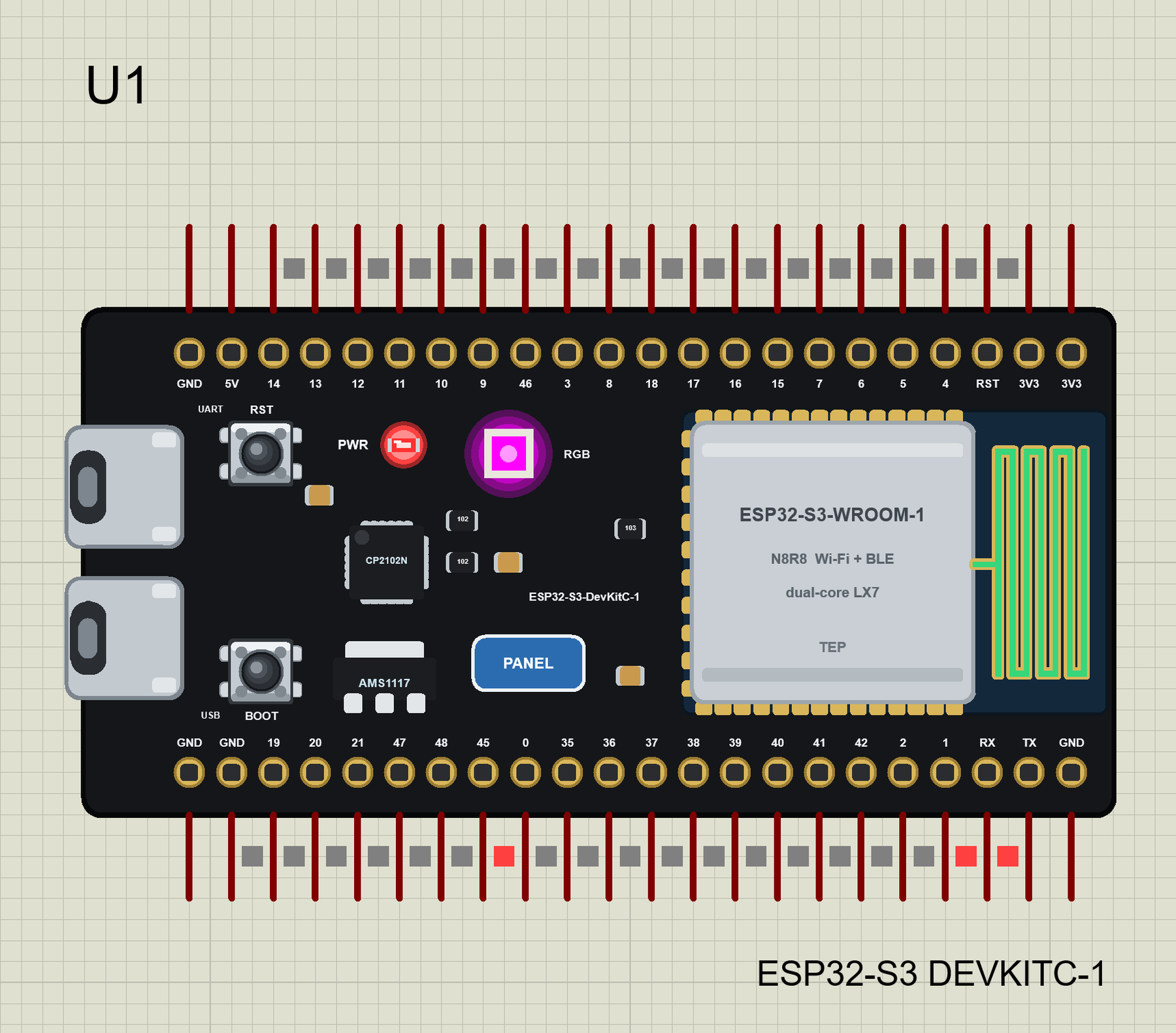
The ESP32-S3-DevKitC-1 is Espressif's development board for the ESP32-S3: an ESP32-S3-WROOM-1 module with its PCB antenna, two USB-C ports (one through a CP2102N USB-to-UART chip, one on the S3's own USB), an AMS1117 3.3 V regulator, the RST and BOOT buttons, a red power LED, an addressable RGB LED and two rows of 22 header pins. The S3 itself adds AI vector instructions, Bluetooth LE 5 and native USB to the classic ESP32.
| Real ESP32-S3 DevKitC-1 | This library in Proteus | |
|---|---|---|
| Processor | ESP32-S3, two Xtensa LX7 cores, up to 240 MHz | Proteus's ATmega2560 model at 16 MHz, inside the board |
| Memory | 512 KB SRAM, 8 MB flash, 8 MB PSRAM (N8R8) | 8 KB of RAM, 256 KB of flash |
| Wi-Fi / Bluetooth | 802.11 b/g/n, Bluetooth LE 5 | a virtual router, DHCP, TCP, UDP, mDNS, NTP, an internet host / no |
| Pins | 44 (36 GPIOs, numbers 0 - 21 and 35 - 48) | the same 44 pins with their GPIO numbers |
| LEDs | red power LED, RGB LED on GPIO48 | the same - the RGB LED in its real colour |
| USB | USB-to-UART and native USB (CDC, JTAG) | the UART port; both ports open the monitor |
| Programming | Arduino-ESP32 core ("ESP32S3 Dev Module") | TEP Boards for Proteus, the HEX file in the board's properties |
ESP32-S3 or ESP32?
The S3 keeps the ESP32's Wi-Fi and its Arduino API, and changes the rest. Its two LX7 cores add vector instructions for small AI models, it has native USB (a board can be a keyboard or a serial port without a USB-to-UART chip), more GPIOs (up to GPIO48) and twenty ADC channels, but no DAC and no Bluetooth Classic - only Bluetooth LE. For an Arduino sketch the differences are mostly pin numbers: I2C on GPIO8 and GPIO9, SPI on GPIO10 to GPIO13, Serial on GPIO43 and GPIO44, and the RGB LED on GPIO48. That is exactly what this board gives your sketch in Proteus.
How Can an ESP32-S3 Sketch Run in Proteus?
The board you place is our part; inside it sits Proteus's own ATmega2560 model, which runs the HEX file of your sketch exactly as Proteus runs any AVR. The HEX comes from our Arduino IDE add-on TEP Boards for Proteus, now version 1.2.0 with the S3 in its board list. Each of the S3's 36 GPIOs is one of the AVR's pins, and whatever the AVR cannot do itself - PWM and interrupts on any pin, the RGB LED, the Wi-Fi radio, the touch pads - the core asks the board model (TEPNET.DLL) through a small mailbox in RAM. One DLL knows all our ESP32 boards, so the S3 shares one Wi-Fi network with the DevKit V1 and the DevKitC V4.
Features of the ESP32-S3 DevKitC-1 Library for Proteus
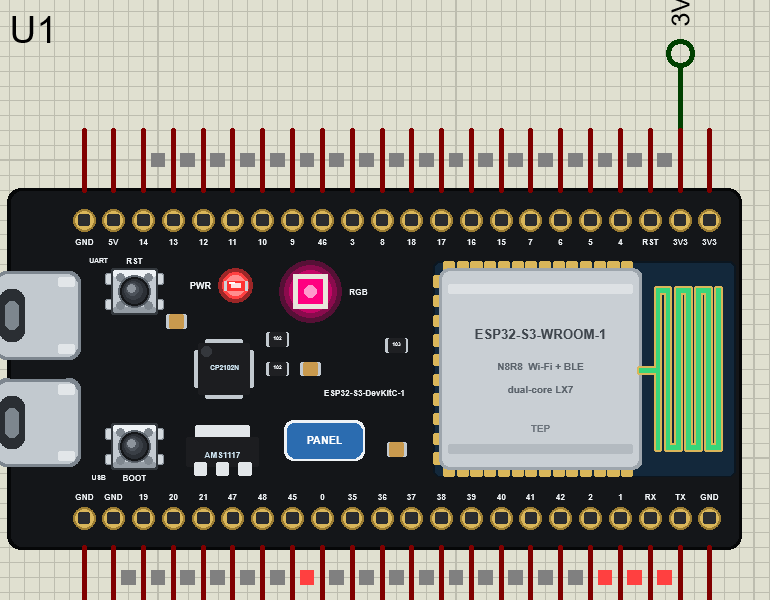
- Espressif's 44-pin layout: 3V3, 3V3, RST, 4, 5, 6, 7 ... 5V, GND on one side, GND, TX, RX, 1, 2, 42 ... GND on the other, as printed on the real board.
- The RGB LED on GPIO48:
rgbLedWrite(RGB_BUILTIN, r, g, b),neopixelWrite()anddigitalWrite(RGB_BUILTIN, HIGH)- our model paints it in the colour you send, with a glow. - Your ESP32-S3 sketch runs: GPIO numbers up to 48, 12-bit
analogRead()read by the board model, ledc PWM,attachInterrupt()on every pin,touchRead()on T1 - T14, Serial, Serial1, Wire and SPI on the S3's default pins. - Wi-Fi in Proteus: a virtual router with DHCP, RSSI, mDNS names, TCP and UDP, NTP time and an internet host that answers HTTP.
- A phone in the panel: it opens your sketch's web page and taps its links.
- A real-looking board: the S3 DevKitC-1 at its real proportions, two USB-C ports, a working PWR LED, the RST and BOOT buttons and a PCB antenna that changes colour with the Wi-Fi.
- The panel and the built-in serial monitor of our ESP32 boards: Wi-Fi, Pins (36 GPIOs, the RGB colour) and Test pages, a Board tab with every pin.
- Three demo projects: seven colours and the cloud, an RGB web server with a brightness pot, and our DevKitC V4 setting the S3's colour over HTTP.
- A compact package: about 1.69 MB, without the C++ source code of the models.
The ESP32-S3 DevKitC-1 Part in Proteus
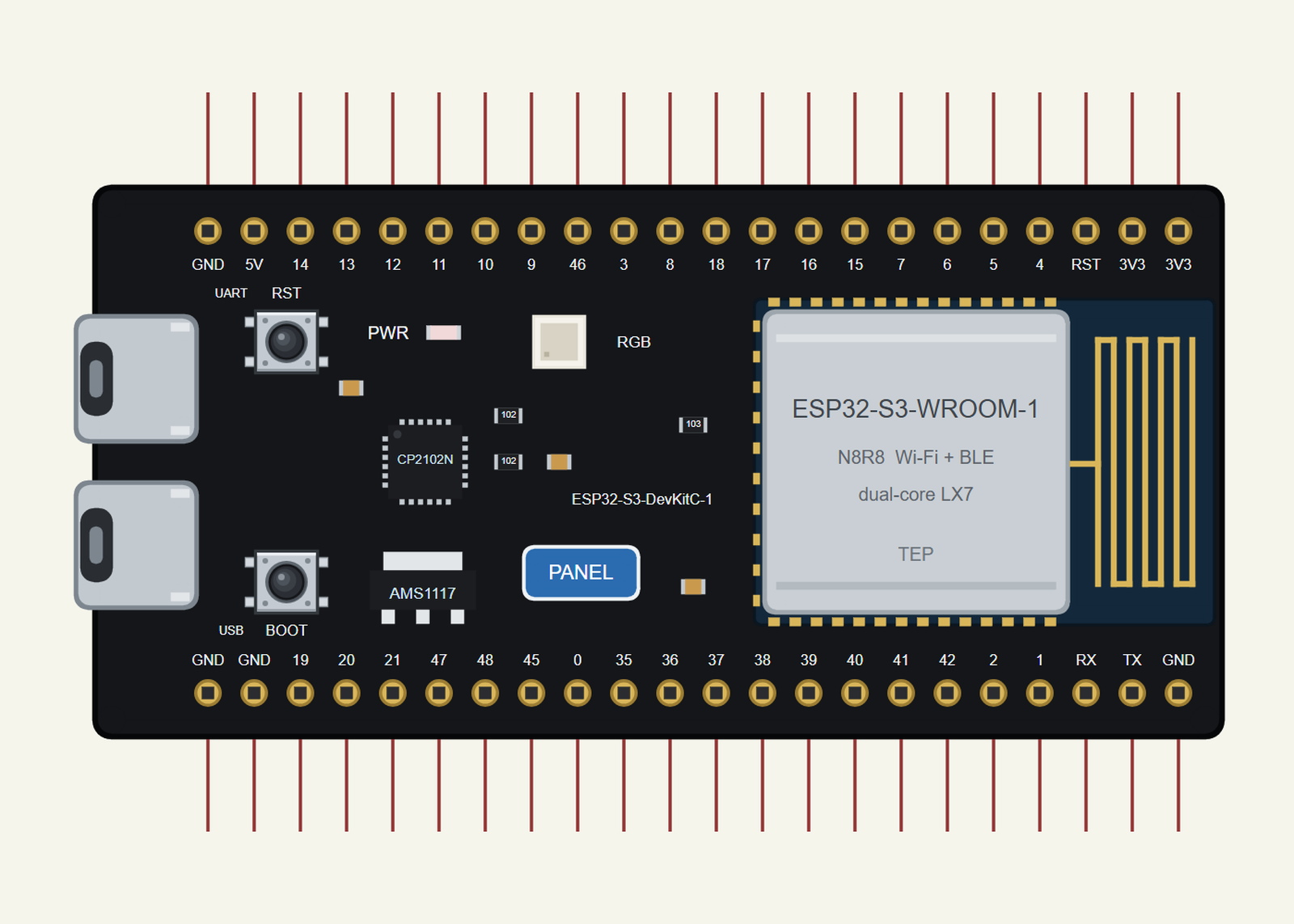
The part is the real board turned on its side, the USB end on the left, at its real proportions - smaller than the Arduino UNO. The top row of pins is the real board's left header J1, the bottom row its right header J3, with the same labels: 48 is GPIO48, TX GPIO43, RX GPIO44. Search ESP32 in Pick Devices; the device is ESP32-S3 DEVKITC-1 in TEPESP32S3.LIB. A USB port opens the serial monitor, the PANEL pad (or the module) the board's panel; RST holds the S3 in reset, BOOT pulls GPIO0 LOW.
How the Addressable RGB LED Works
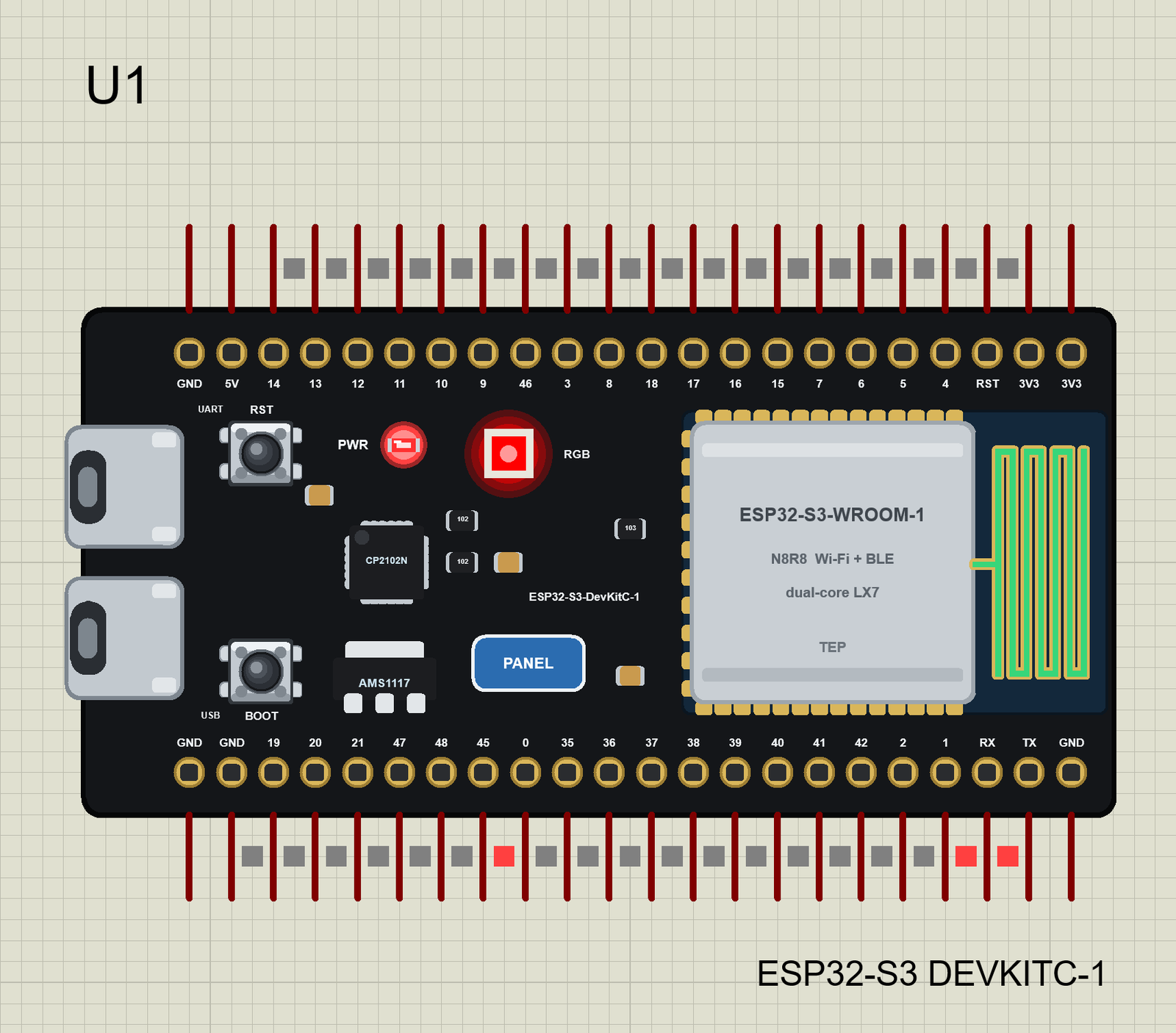
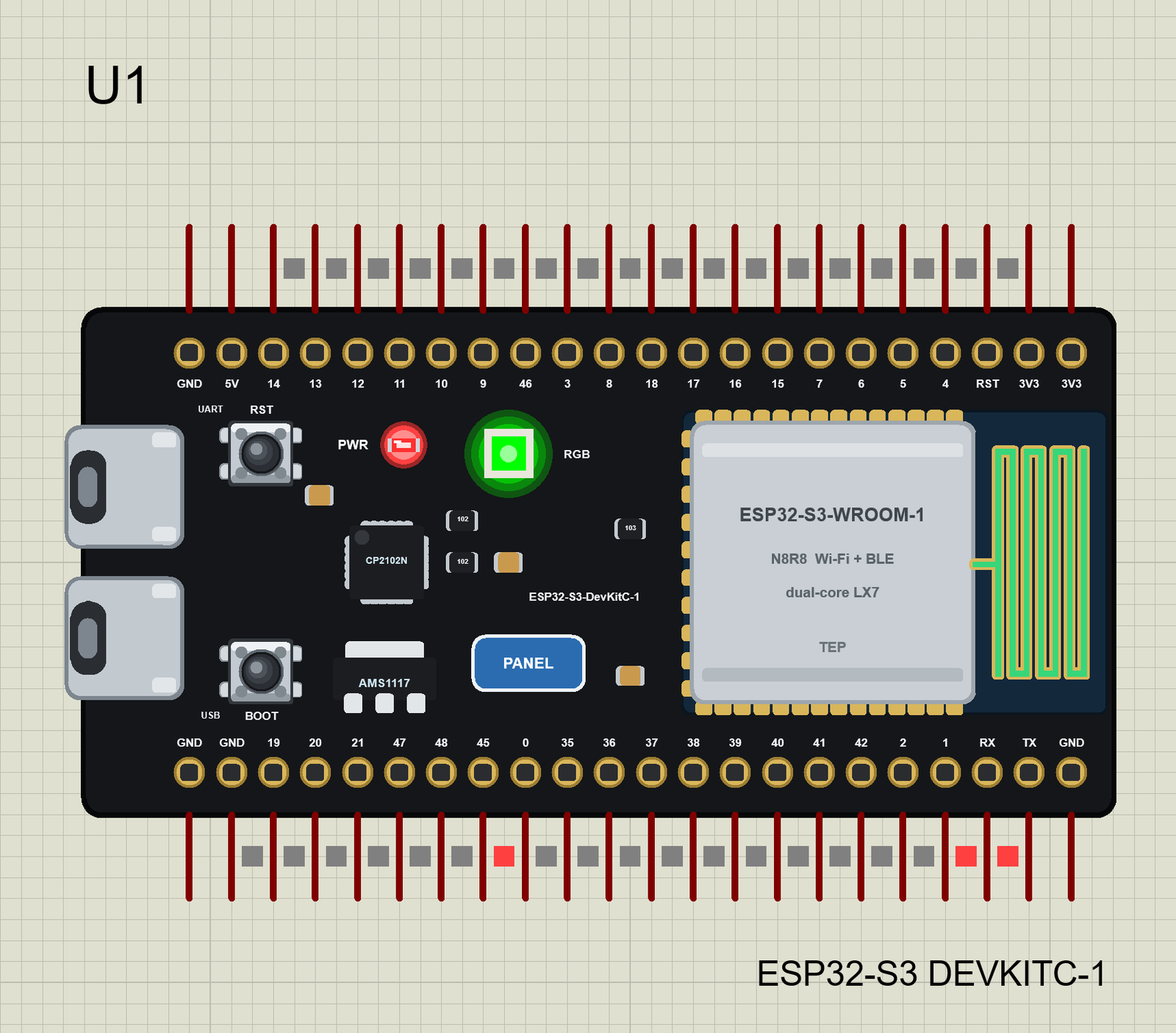
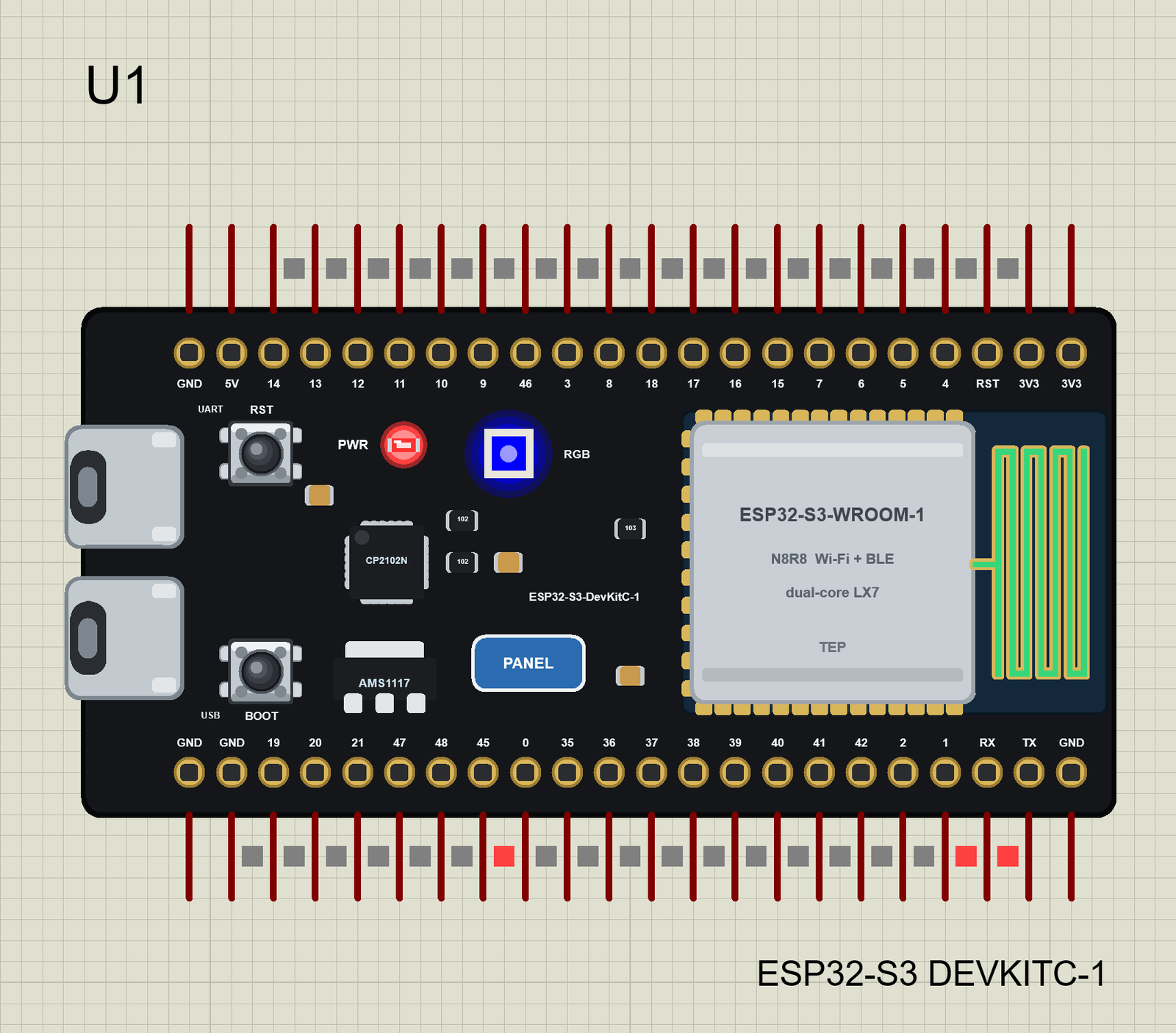
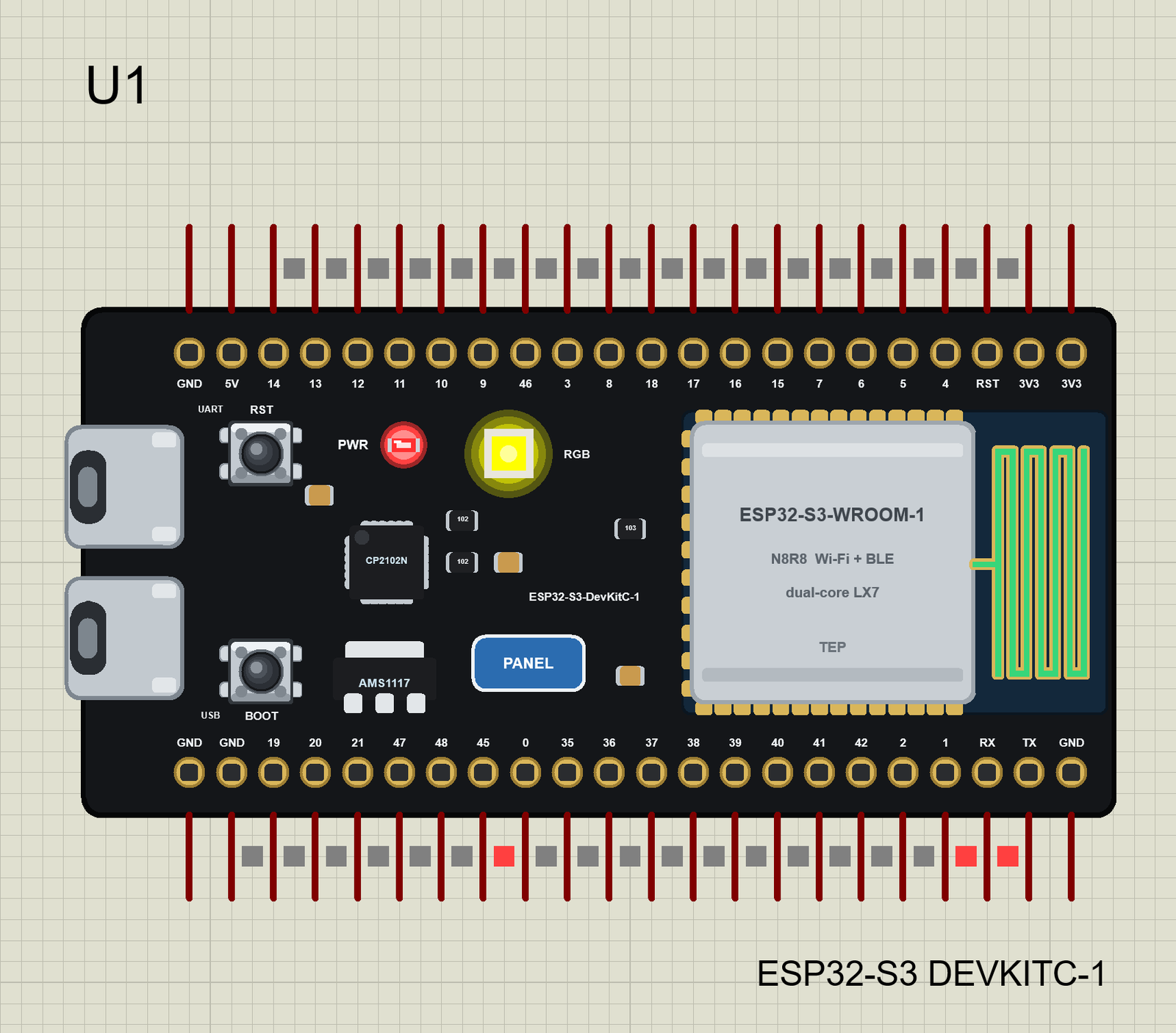
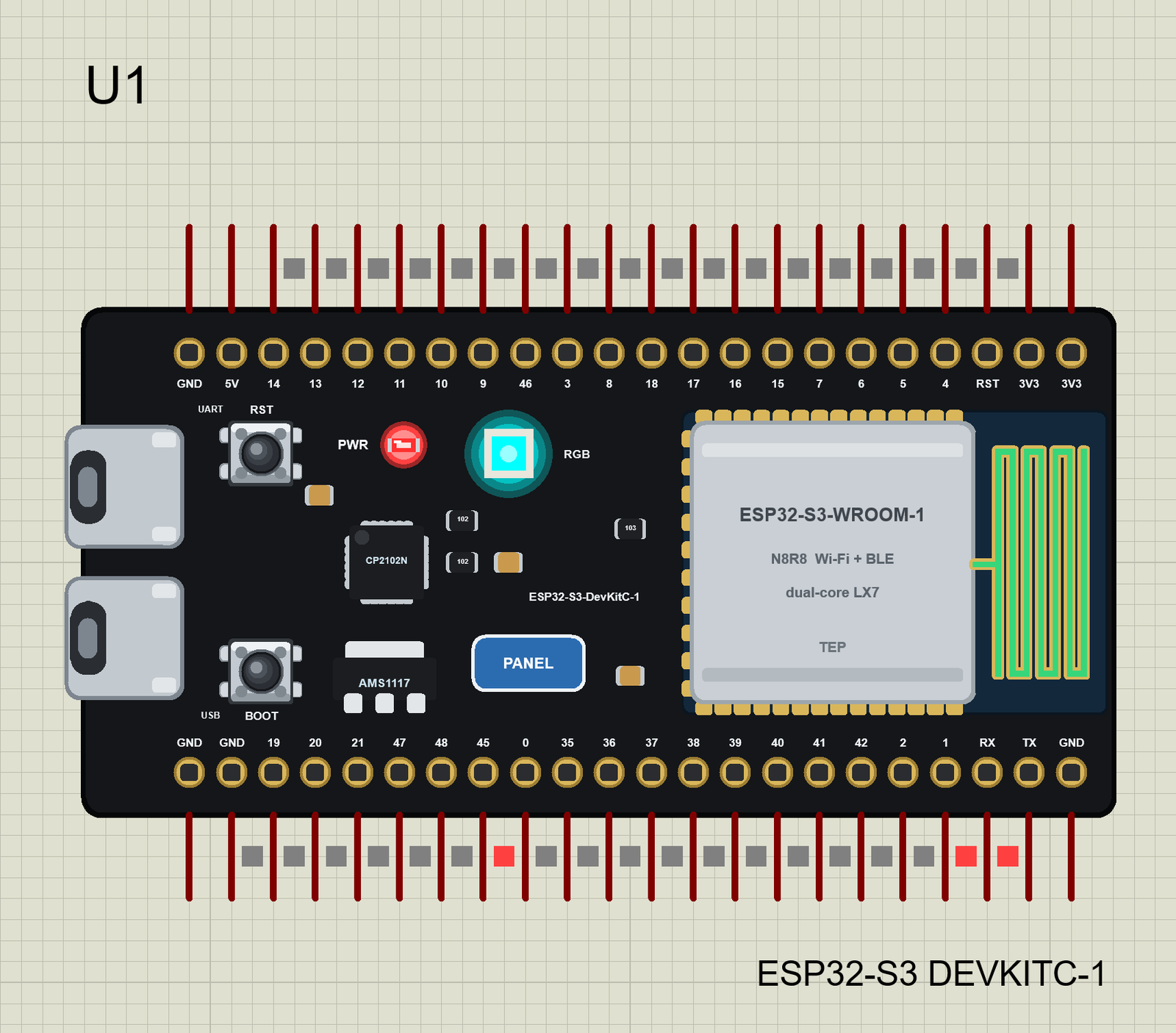
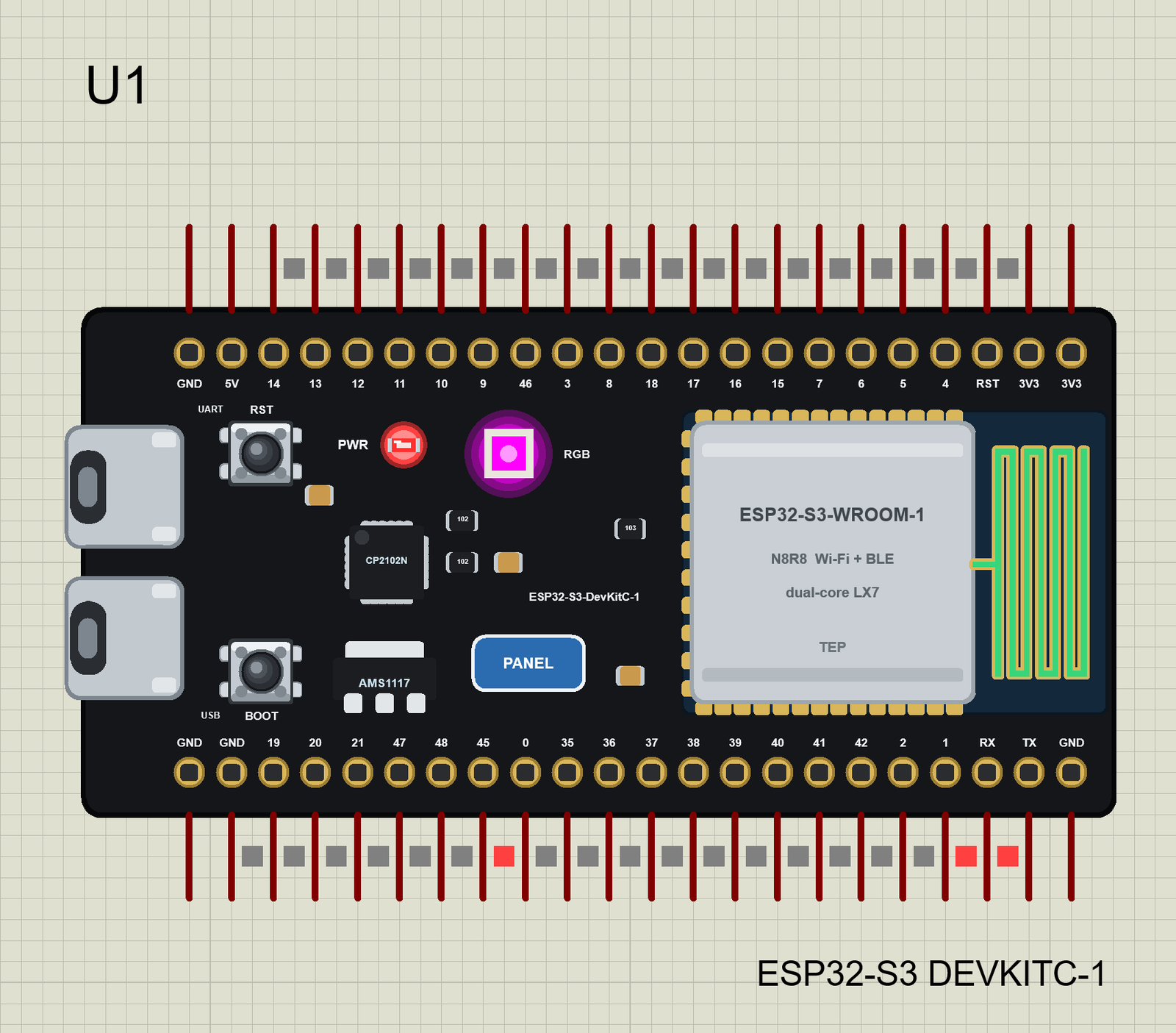
The RGB LED of the DevKitC-1 is not three plain LEDs on three pins. It is a tiny addressable LED with its own controller - the WS2812 family: one data wire carries 24 bits, eight for green, eight for red and eight for blue, and the LED keeps that colour until it gets a new one, even when the ESP32-S3 resets. The Arduino-ESP32 core drives it with rgbLedWrite(pin, red, green, blue) (neopixelWrite() in older versions). In Proteus our core sends the three values to the board model, and the model paints the LED in that colour with a glow that grows with the brightness.
The RGB LED in Seven Colours
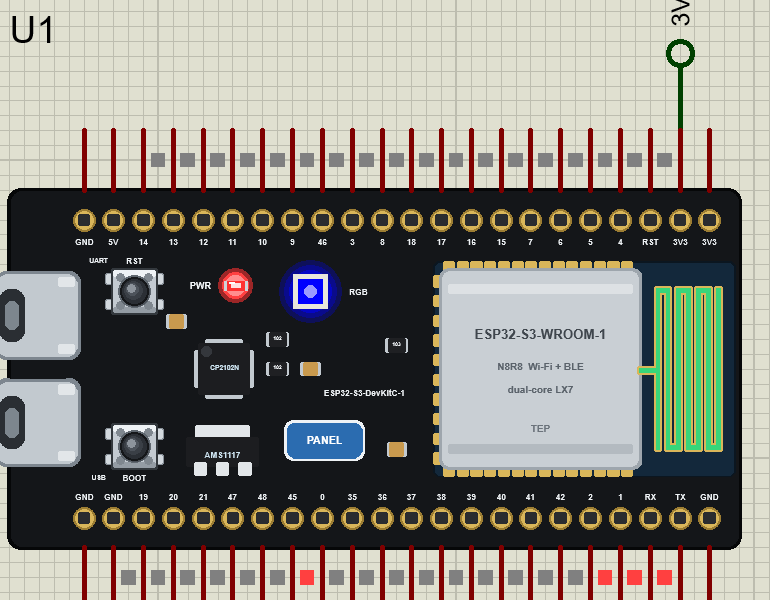
Our first demo's sketch steps the RGB LED through seven colours, one a second. We paused the simulation for each one - this is how the board shows rgbLedWrite():
The Antenna and the Buttons
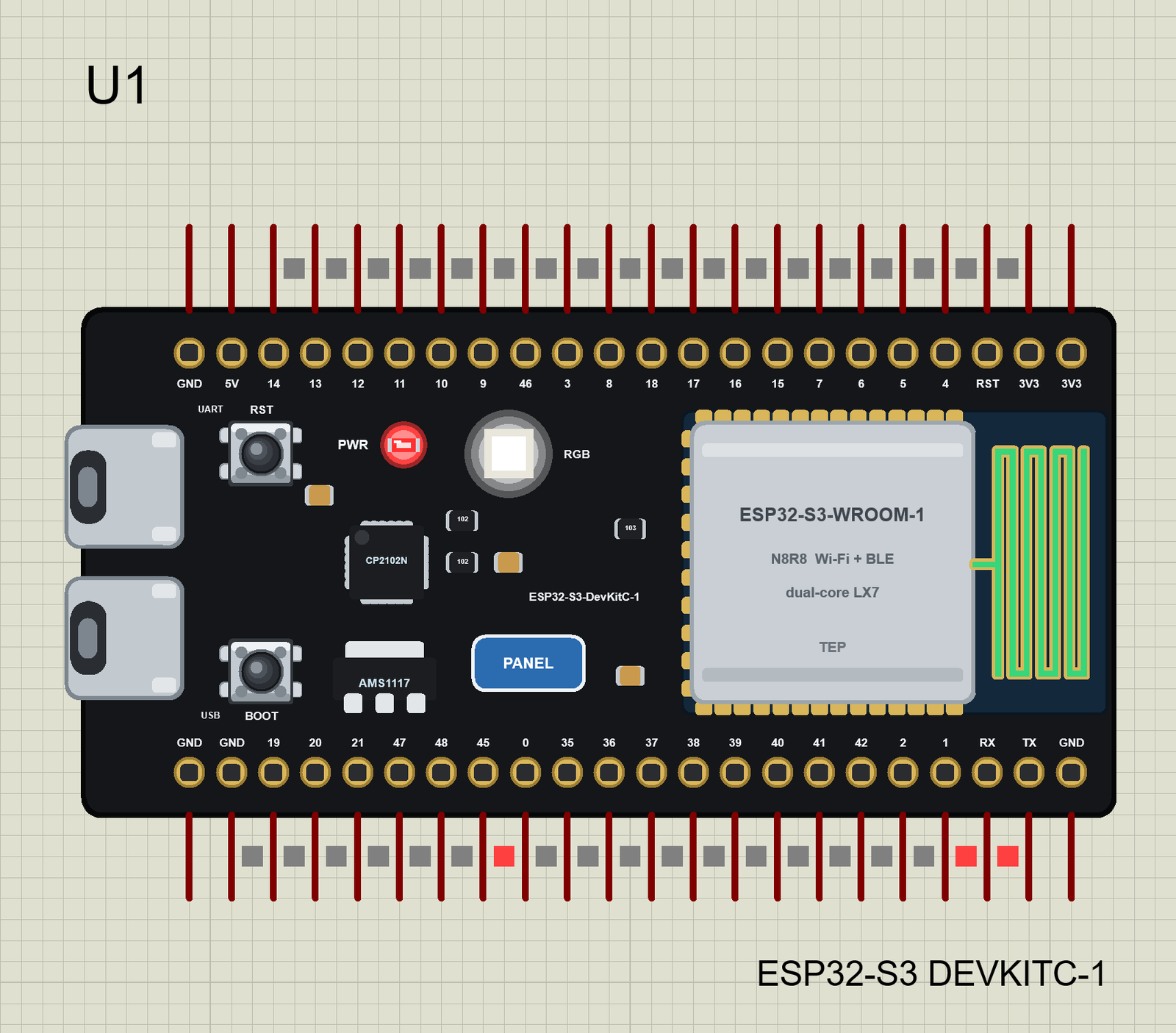
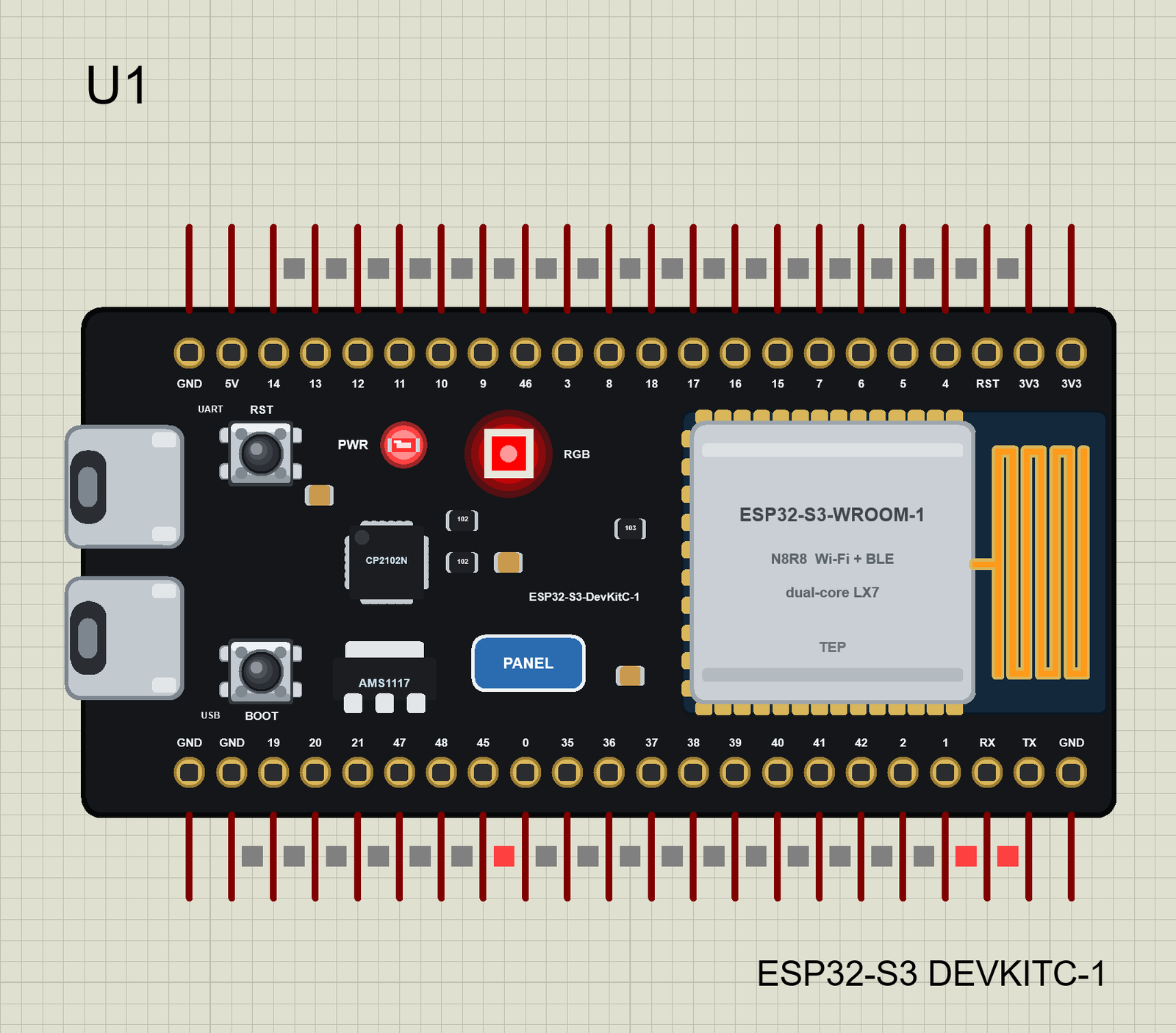
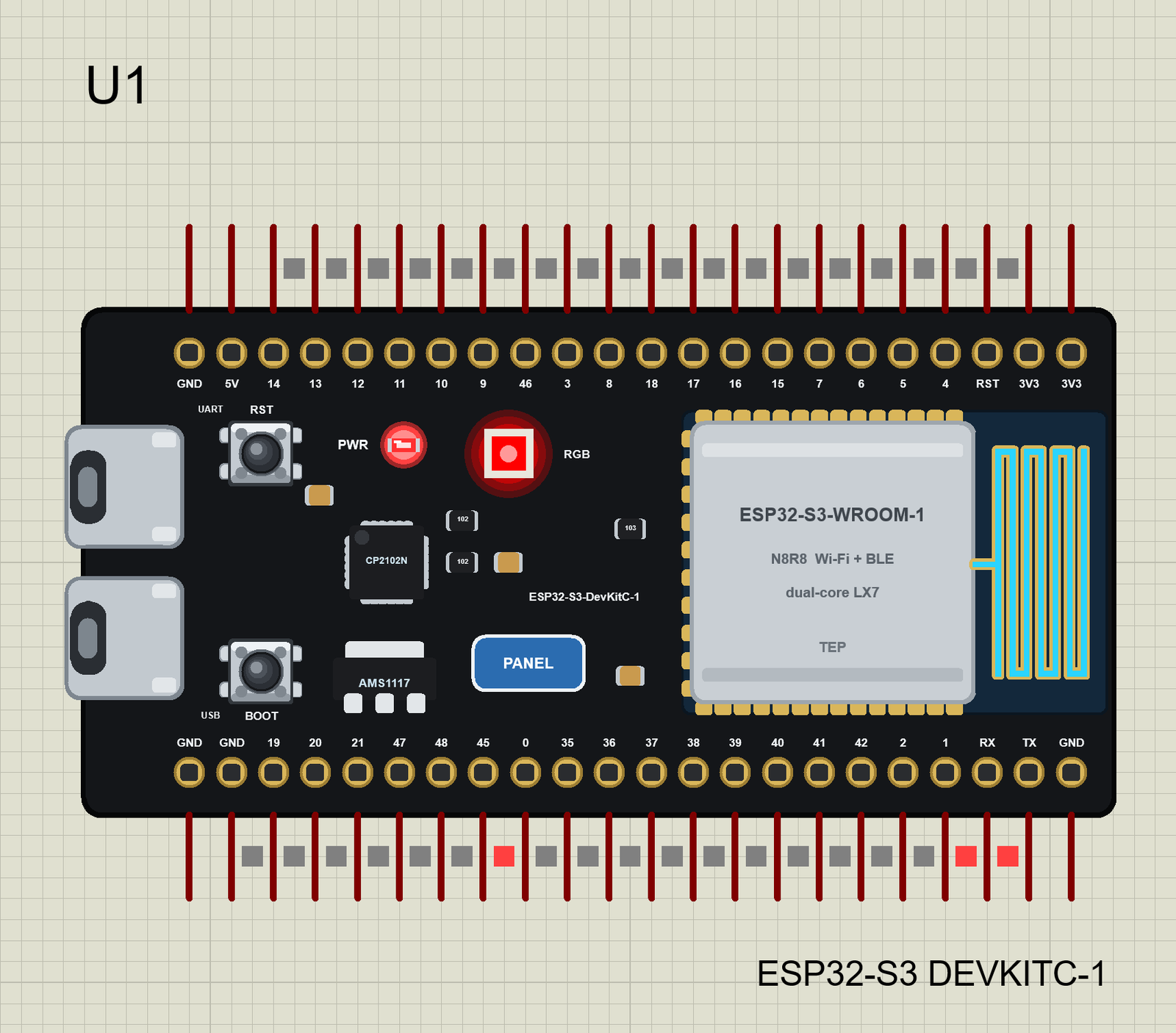
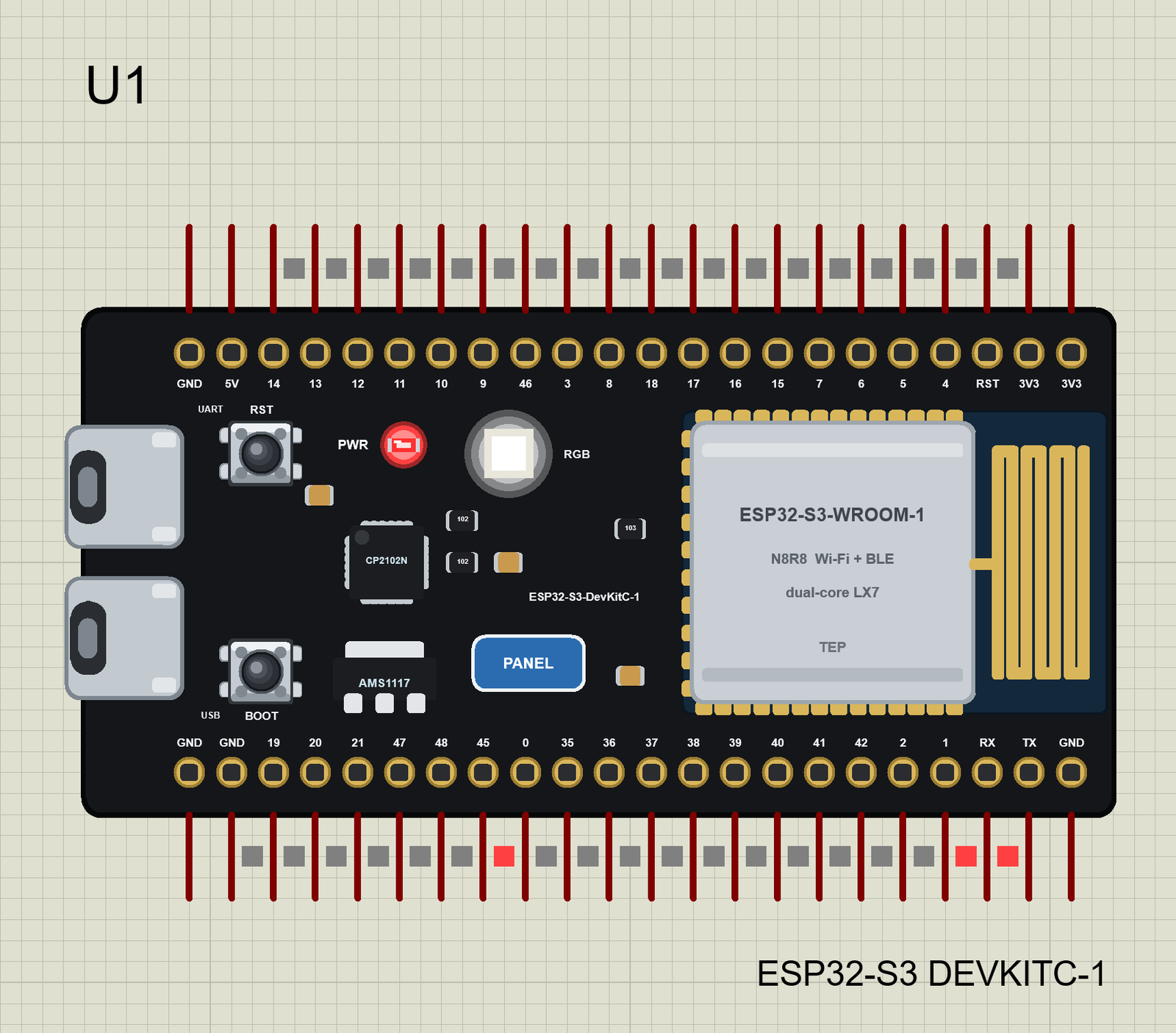
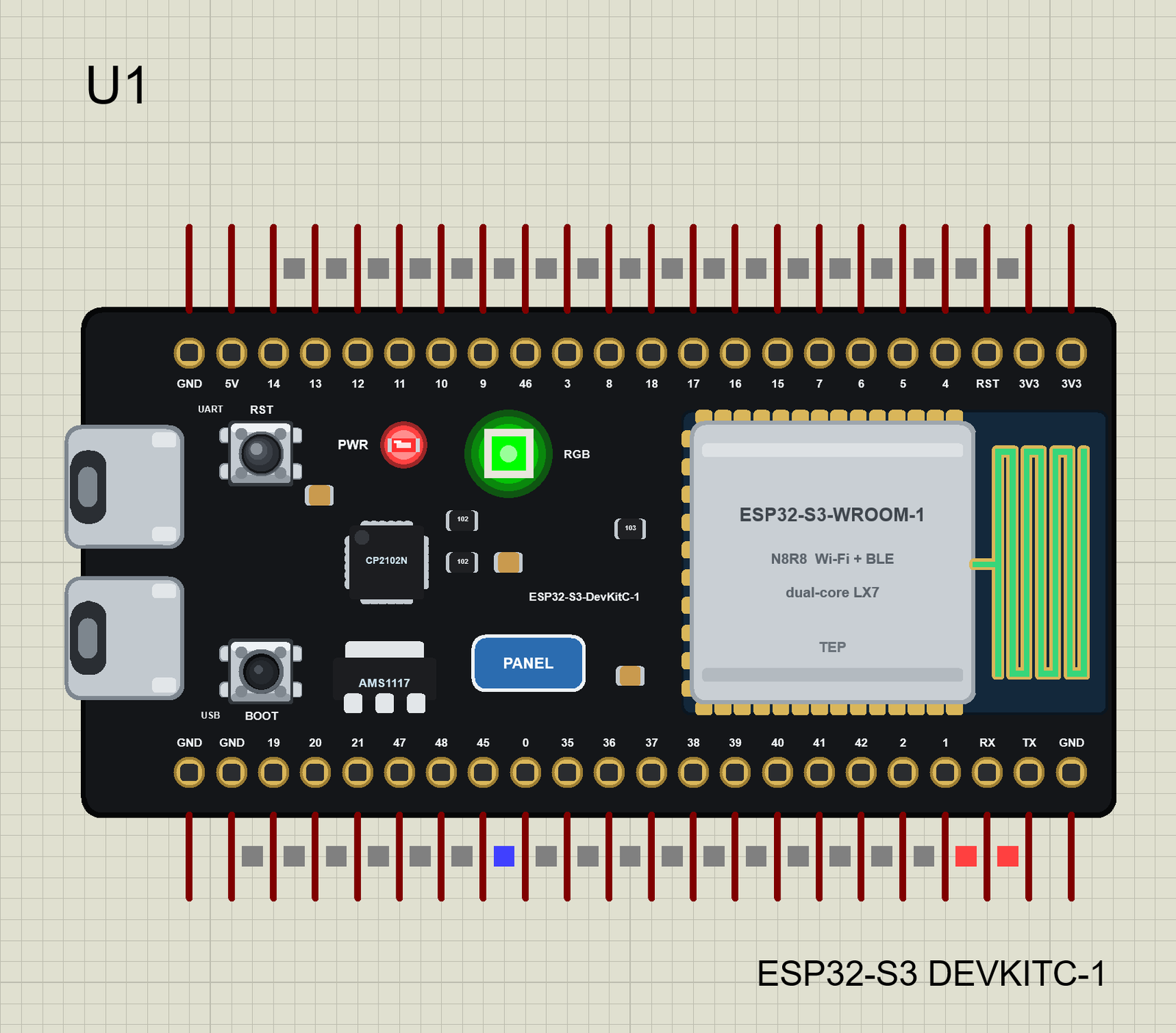
The gold PCB antenna shows the Wi-Fi: gold while the board is not on Wi-Fi, green once it joined, orange for a moment when it sends, cyan when it receives:
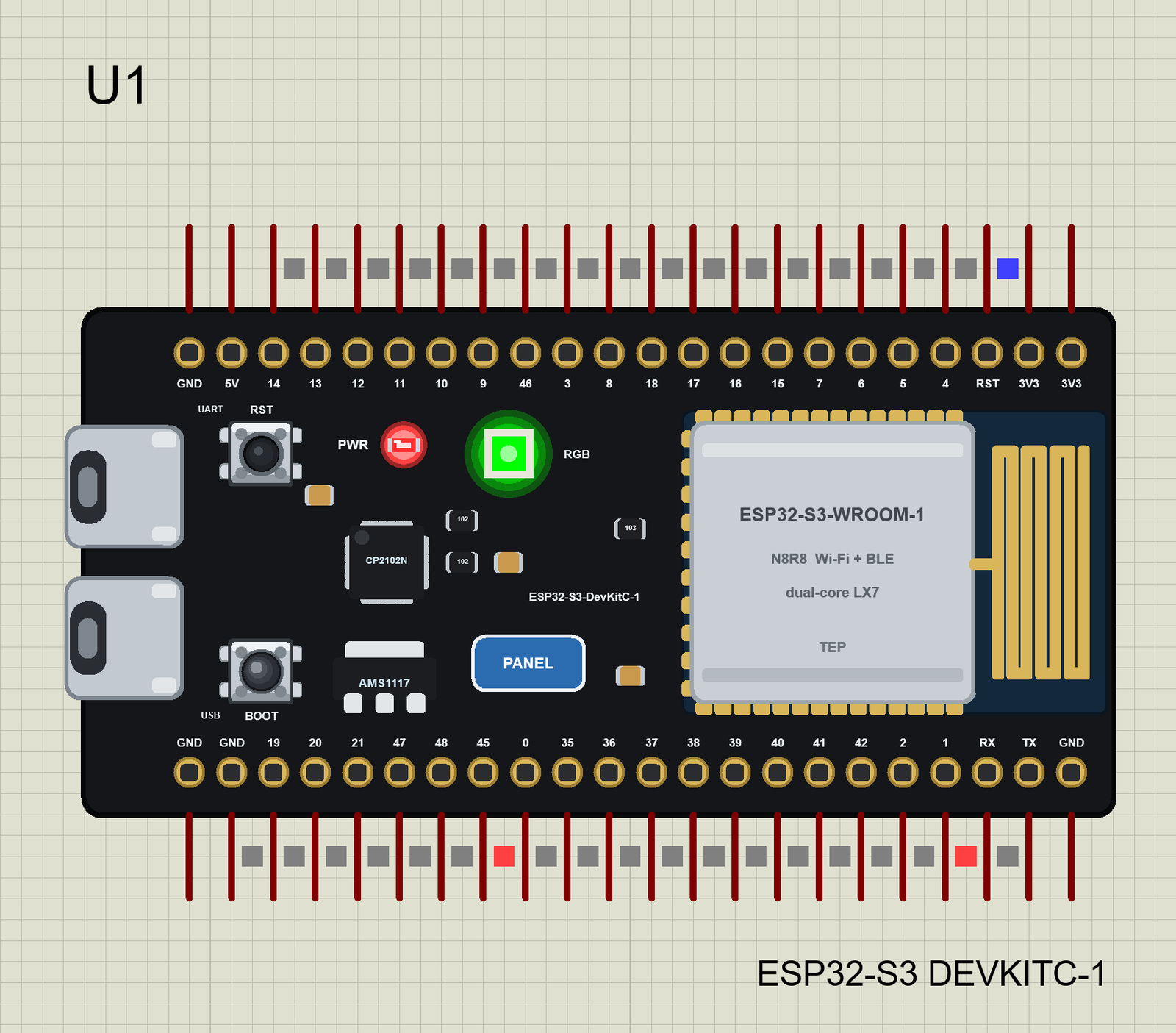
The two buttons work with the mouse. We held each one for a picture:
Download ESP32-S3 DevKitC-1 Library for Proteus
Click the button below to download ESP32-S3-DevKitC-1-Library-for-Proteus-v1.0.zip (about 1.69 MB, without the C++ source code of the models):
ESP32-S3 DevKitC-1 Library for Proteus V1.0- README.txt: the device, installation, the three demos, the pins, the properties, troubleshooting and the limits.
- Proteus Library Files:
TEPESP32S3.LIB(the board) andTEPESP32DEVKITC.LIBfrom our ESP32-DevKitC V4 library - used by the third demo. - Proteus Model Files:
TEPNET.DLL- the ESP32 boards and the Wi-Fi network. - Proteus Simulation: the three demo projects, their HEX files and a copy of the DLL.
- Arduino Code: the three sketches and the TEP Boards for Proteus add-on 1.2.0 for the Arduino IDE.
No Proteus yet? Read How to Download and Install Proteus 7 and 8. New to libraries? Follow How to Install a New Library in Proteus.
How to Install ESP32-S3 DevKitC-1 Library for Proteus
- Close Proteus and extract the whole zip file, for example to your Desktop.
- Copy the two files from Proteus Library Files into the LIBRARY folder of Proteus (usually
C:\Program Files (x86)\Labcenter Electronics\Proteus 8 Professional\LIBRARY). - Copy
TEPNET.DLLfrom Proteus Model Files into the MODELS folder - it replaces an older TEPNET.DLL (the new one runs all our ESP32 boards). - Delete
TEPESP32S3.IDXandTEPESP32DEVKITC.IDXfrom the LIBRARY folder if they are there. - Start Proteus, press P and search for ESP32.
Install TEP Boards for Proteus in the Arduino IDE
You only need this to compile your own sketches - the demos come with their HEX files.
- The Arduino AVR Boards platform must be installed: it comes with the Arduino IDE 1.8.x; in IDE 2.x install "Arduino AVR Boards" from the Boards Manager once. The add-on uses its compiler.
- Copy the folder
Arduino Code\TEP Boards for Proteus\hardwareinto your sketchbook folder, normallyDocuments\Arduino, so thatDocuments\Arduino\hardware\tep\avr\boards.txtexists - replace an older copy. - Restart the IDE and select Tools > Board > TEP Boards for Proteus > ESP32-S3 DevKitC-1 (TEP Proteus).
- Write your sketch and use Sketch > Export Compiled Binary. Double-click the board in Proteus and set Program File to the exported HEX (see How to get the HEX file from Arduino).
The same sketch compiles for a real board with Espressif's "ESP32S3 Dev Module". RGB_BUILTIN, LED_BUILTIN and RGB_BRIGHTNESS are defined as in the Arduino-ESP32 core.
Demo 1: Seven Colours and the Cloud
Open ESP32-S3-DevKitC-1-Board.pdsprj: the board alone with ESP32S3_RGB_Cloud.hex. The sketch joins the Wi-Fi, steps the RGB LED through seven colours and sends the colour number and the chip temperature to an IoT channel every 20 seconds. The colours are a small table:
const Colour colours[] = {{"red", 1, 0, 0}, {"green", 0, 1, 0}, {"blue", 0, 0, 1}, {"yellow", 1, 1, 0},
                          {"cyan", 0, 1, 1}, {"magenta", 1, 0, 1}, {"white", 1, 1, 1}};
void showColour(int i) {
current = i % N_COLOURS;
const Colour &c = colours[current];
rgbLedWrite(RGB_BUILTIN, c.r * LEVEL, c.g * LEVEL, c.b * LEVEL);
}BOOT (GPIO0) jumps to the next colour through an interrupt:
attachInterrupt(digitalPinToInterrupt(BOOT_PIN), onBoot, FALLING);The upload is a ThingSpeak-style HTTP GET; ThingSpeak answers 0 to an update that comes less than 15 seconds after the last one, and the sketch says so:
  if (code == 200) {
    String body = http.getString();
    if (body == "0") Serial.println("refused (less than 15 s)");
    else Serial.println("stored as entry " + body);
  }
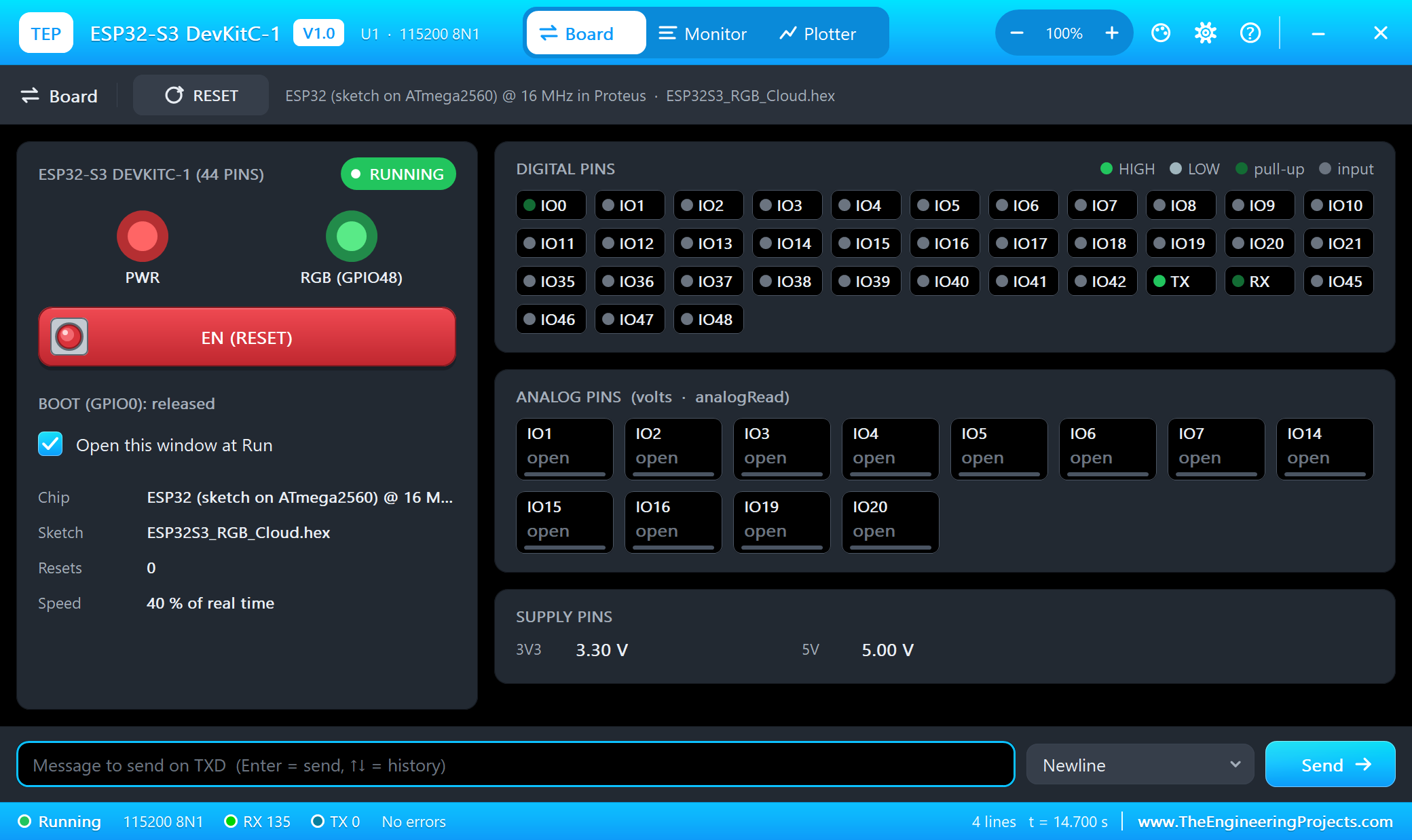
Press Run. The serial monitor (115200 baud) and the board's panel open; move them aside. We let the board upload twice, then held RST and pressed BOOT:
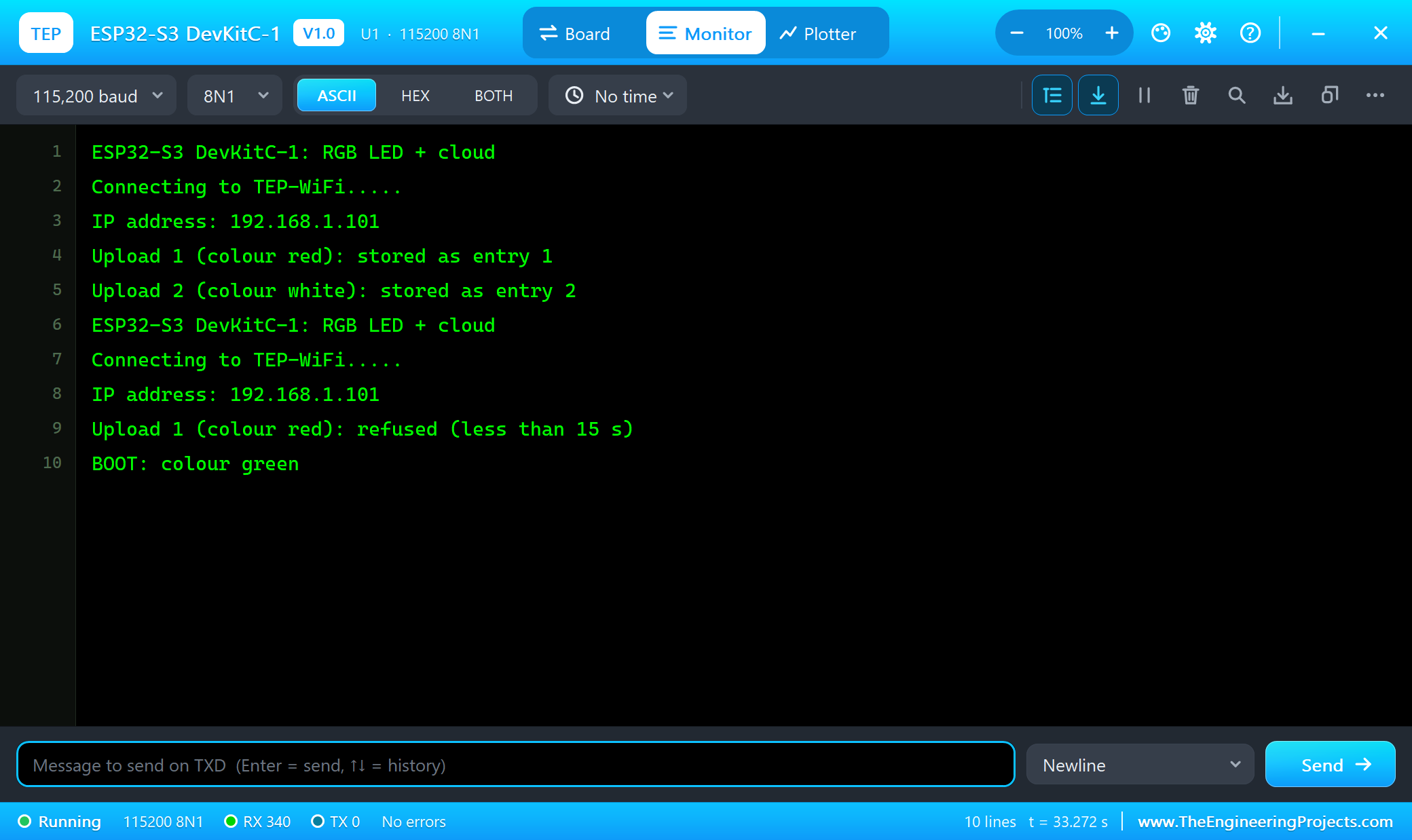
ESP32-S3 DevKitC-1: RGB LED + cloud
Connecting to TEP-WiFi.....
IP address: 192.168.1.101
Upload 1 (colour red): stored as entry 1
Upload 2 (colour white): stored as entry 2
ESP32-S3 DevKitC-1: RGB LED + cloud
Connecting to TEP-WiFi.....
IP address: 192.168.1.101
Upload 1 (colour red): refused (less than 15 s)
BOOT: colour green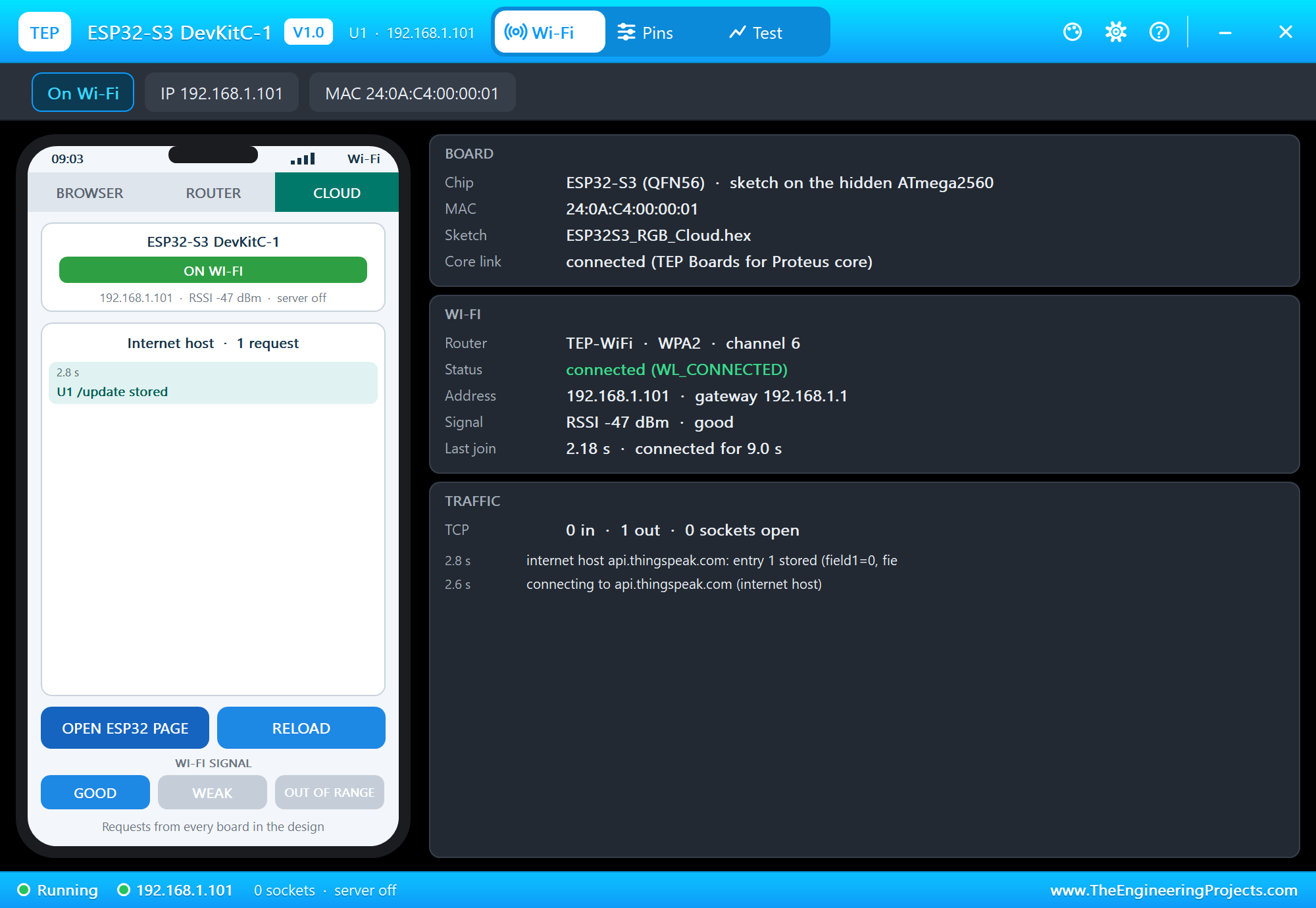
The Board's Panel
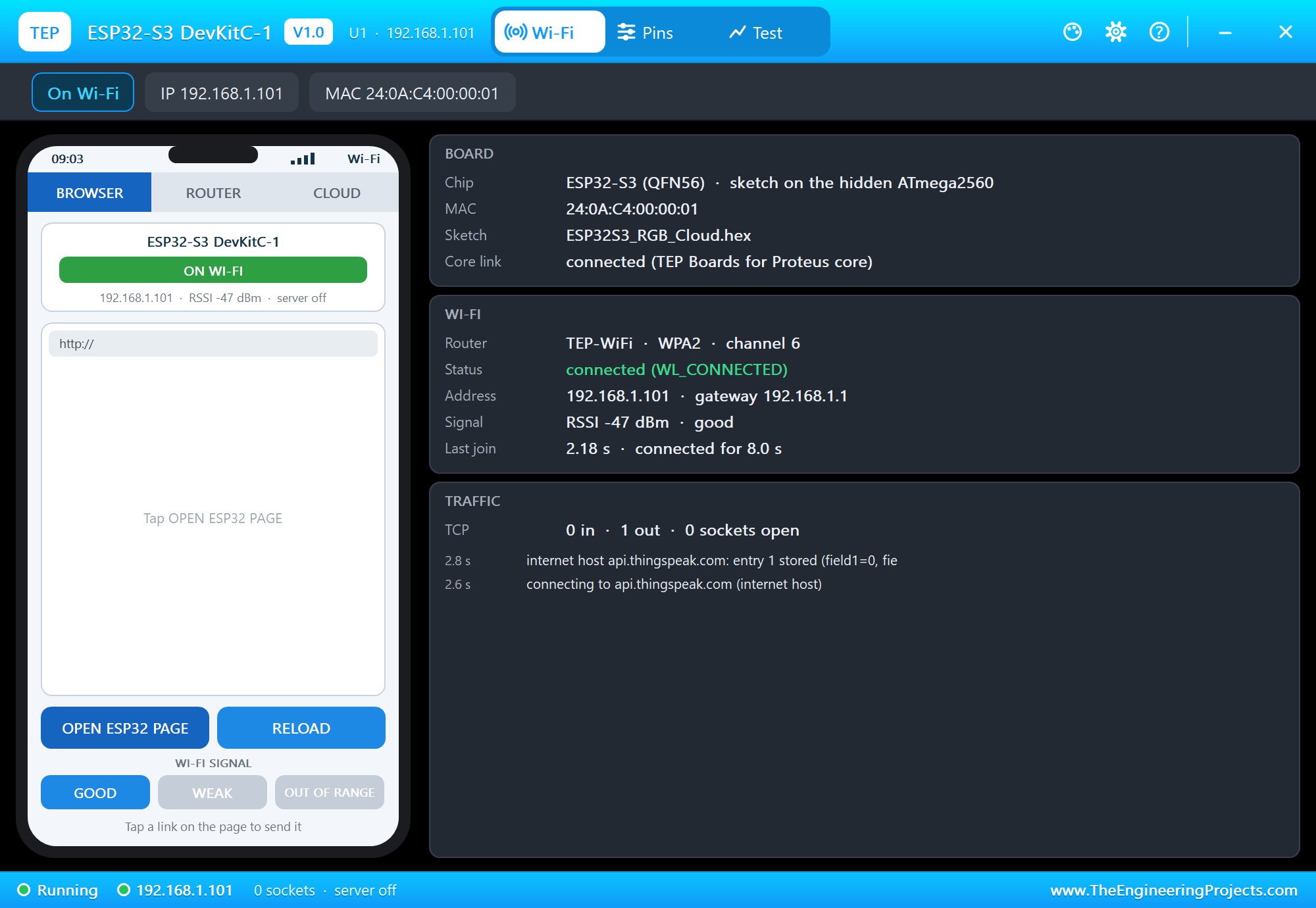
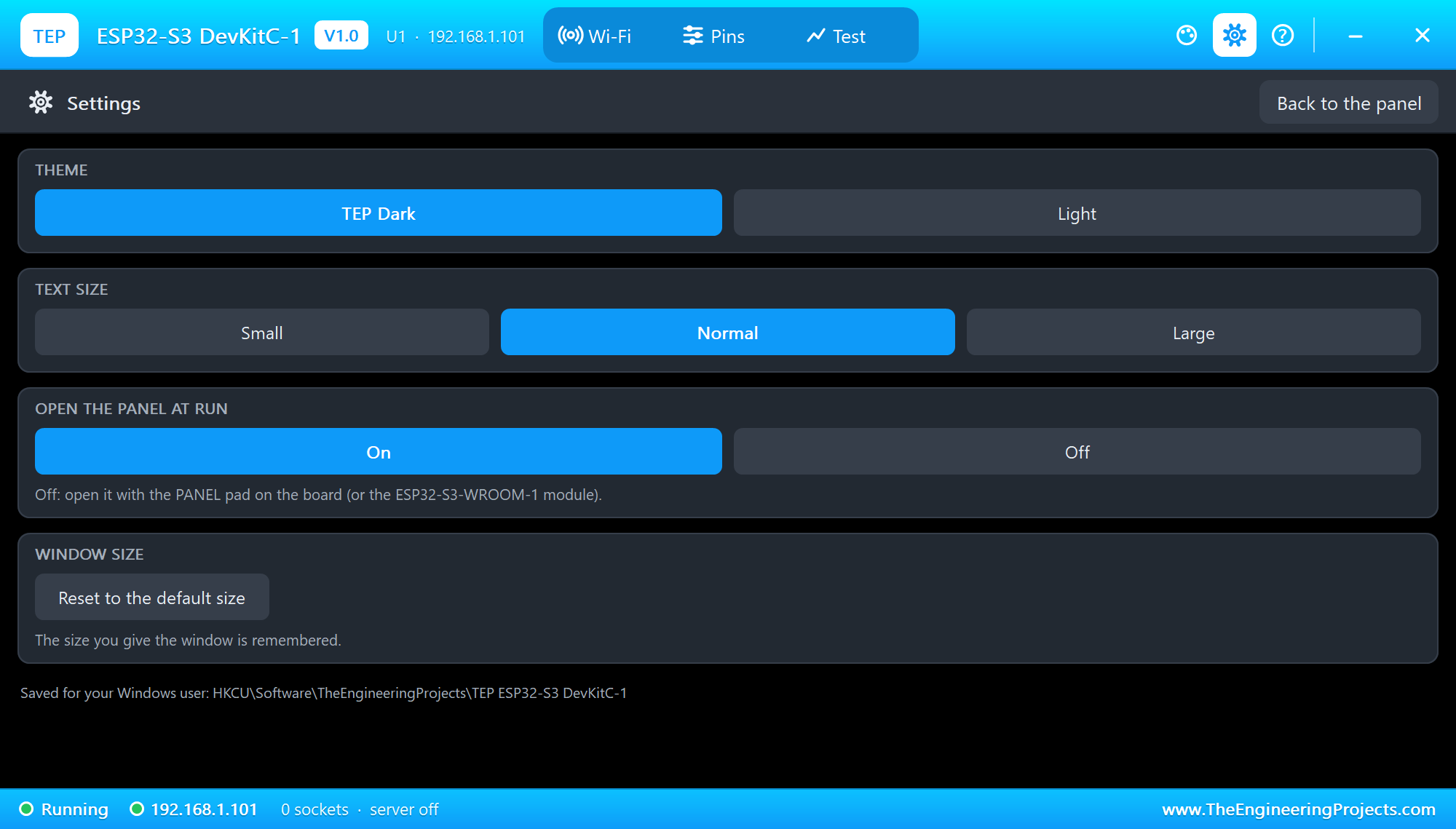
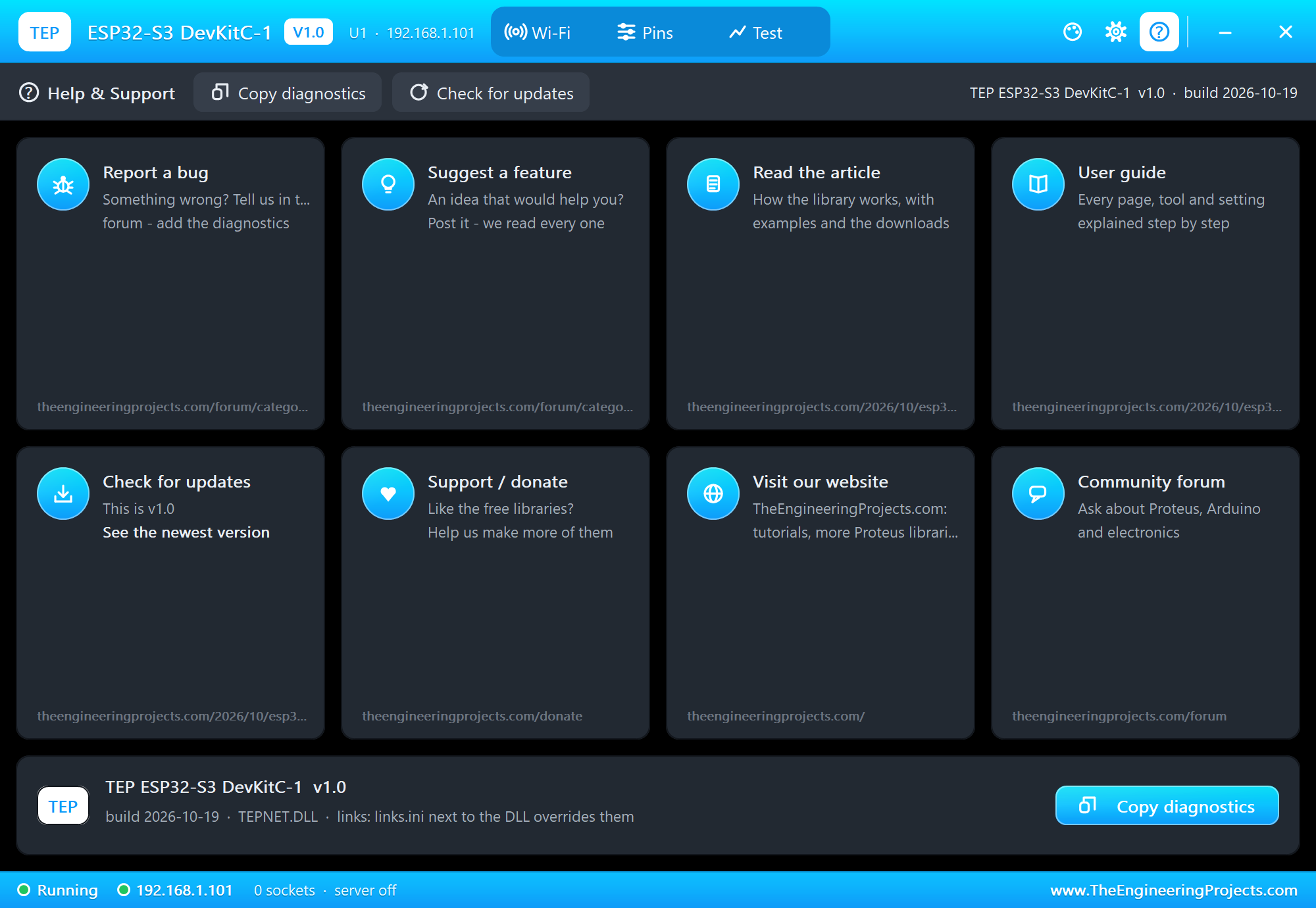
The panel opens at Run, in the look of our TEP Serial Monitor Advance for Proteus: Wi-Fi (a phone, the WI-FI SIGNAL buttons and three cards), Pins and Test, with Settings and Help on the right.
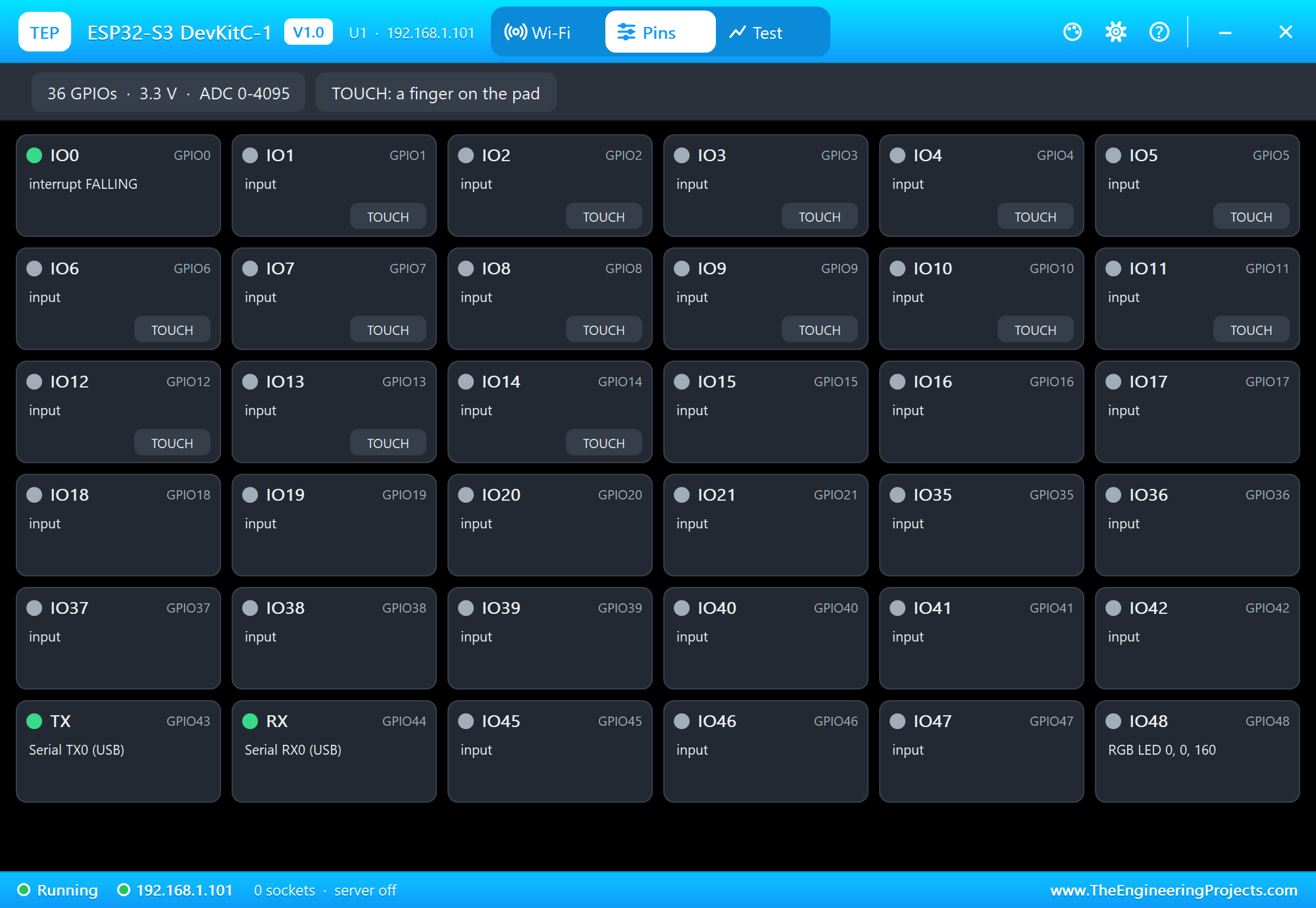
The Pins page shows all 36 GPIOs live in six columns - driven HIGH or LOW, PWM, an interrupt and its mode, input, analog with its voltage - a TOUCH button on T1 - T14, and on IO48 the RGB LED's colour:
Demo 2: ESP32-S3 RGB Web Server
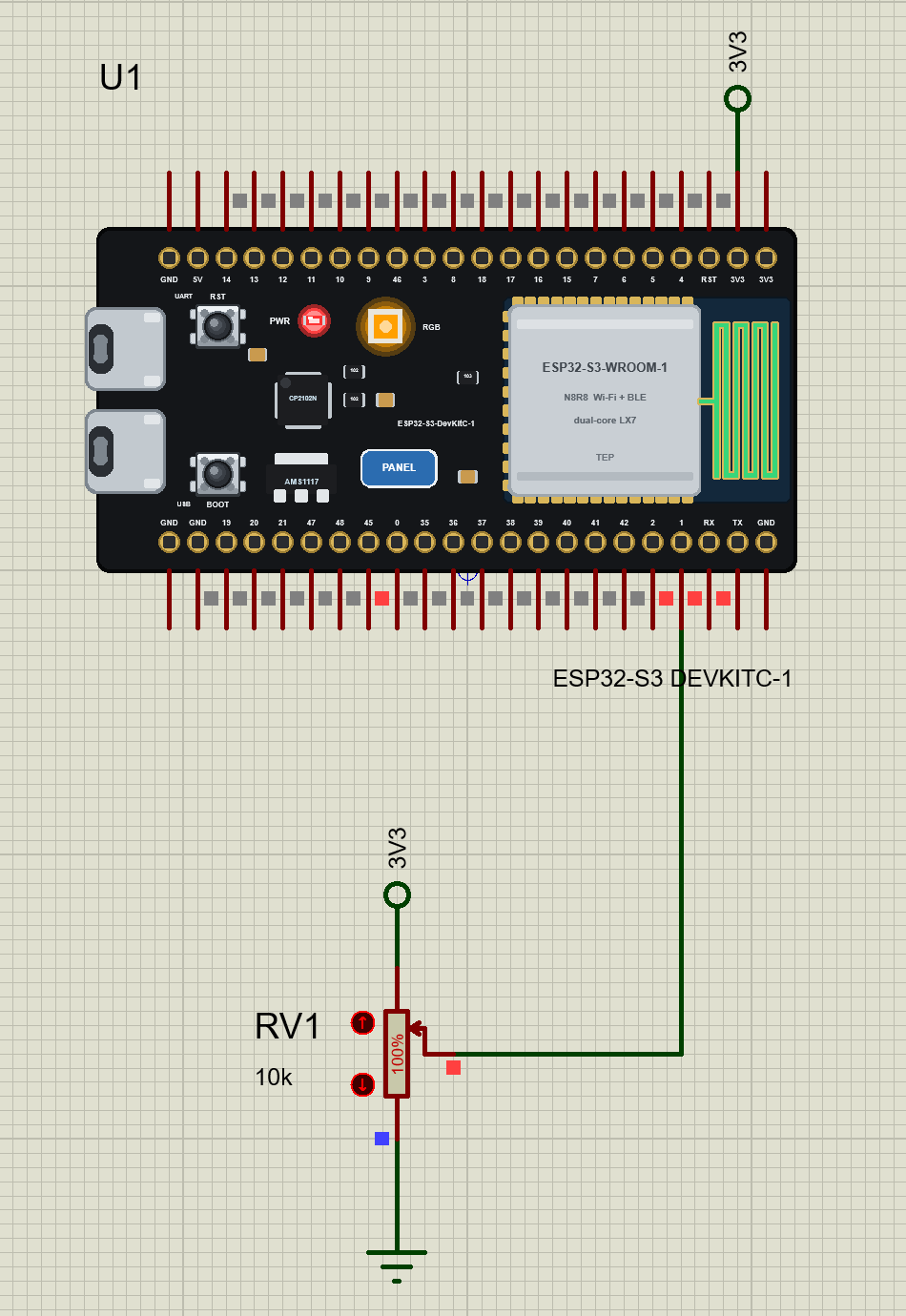
ESP32-S3-DevKitC-1-RGB-Web.pdsprj adds one 10k pot RV1 on GPIO1 - ADC1 channel 0 - between the board's 3V3 pin and ground. The sketch, ESP32S3_RGB_Web.ino, serves a page with six colour links, a /set address for other boards, and scales the colour with the pot:
void show() {
  rgbLedWrite(RGB_BUILTIN, red * brightness / 100, green * brightness / 100, blue * brightness / 100);
}
server.on("/", handleRoot);
server.on("/color", handleColor);
server.on("/set", handleSet);The pot is read every 200 ms; a change of 2 % or more updates the LED. Press Run, then OPEN ESP32 PAGE on the panel:
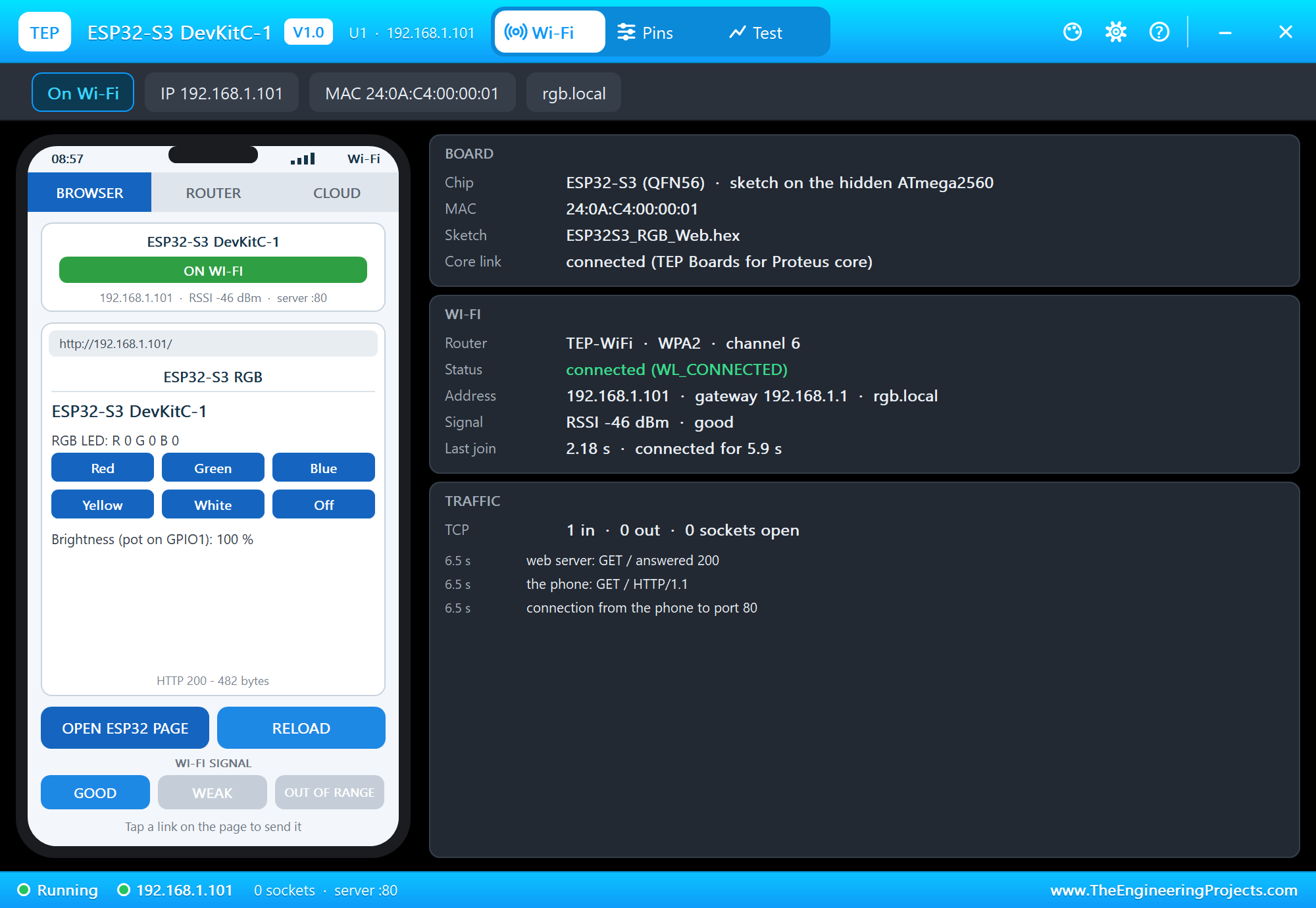
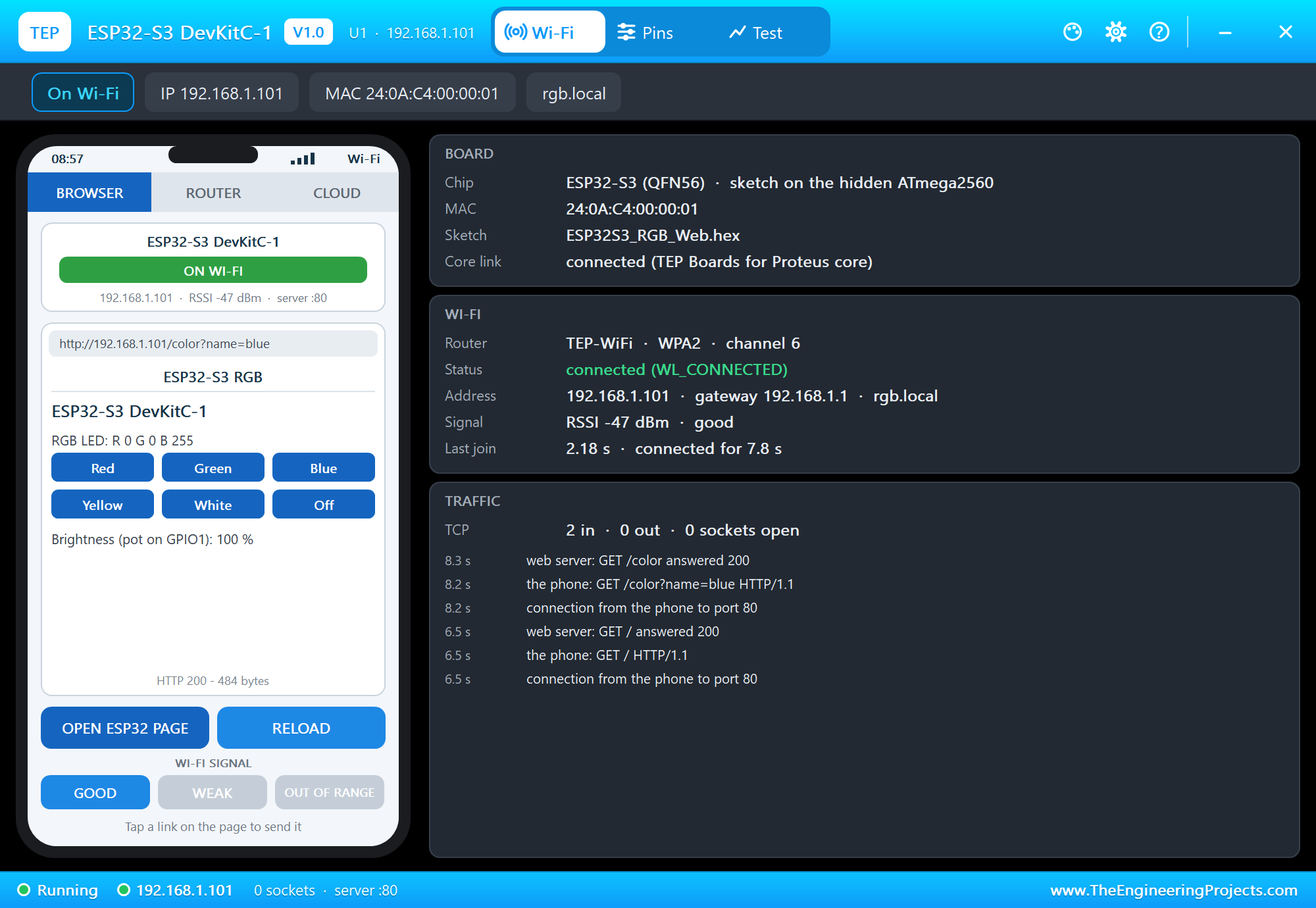
Tap Blue, then Yellow: the phone sends GET /color?name=... and the LED changes at once:
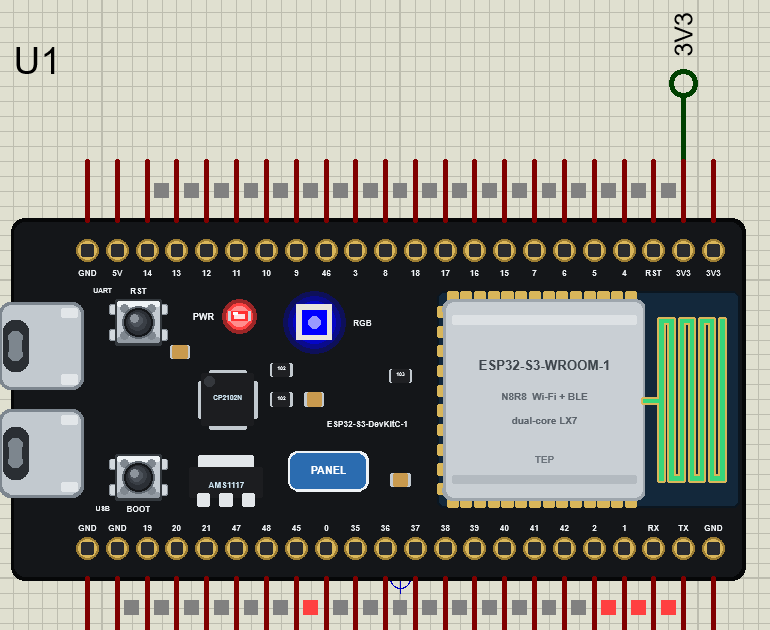
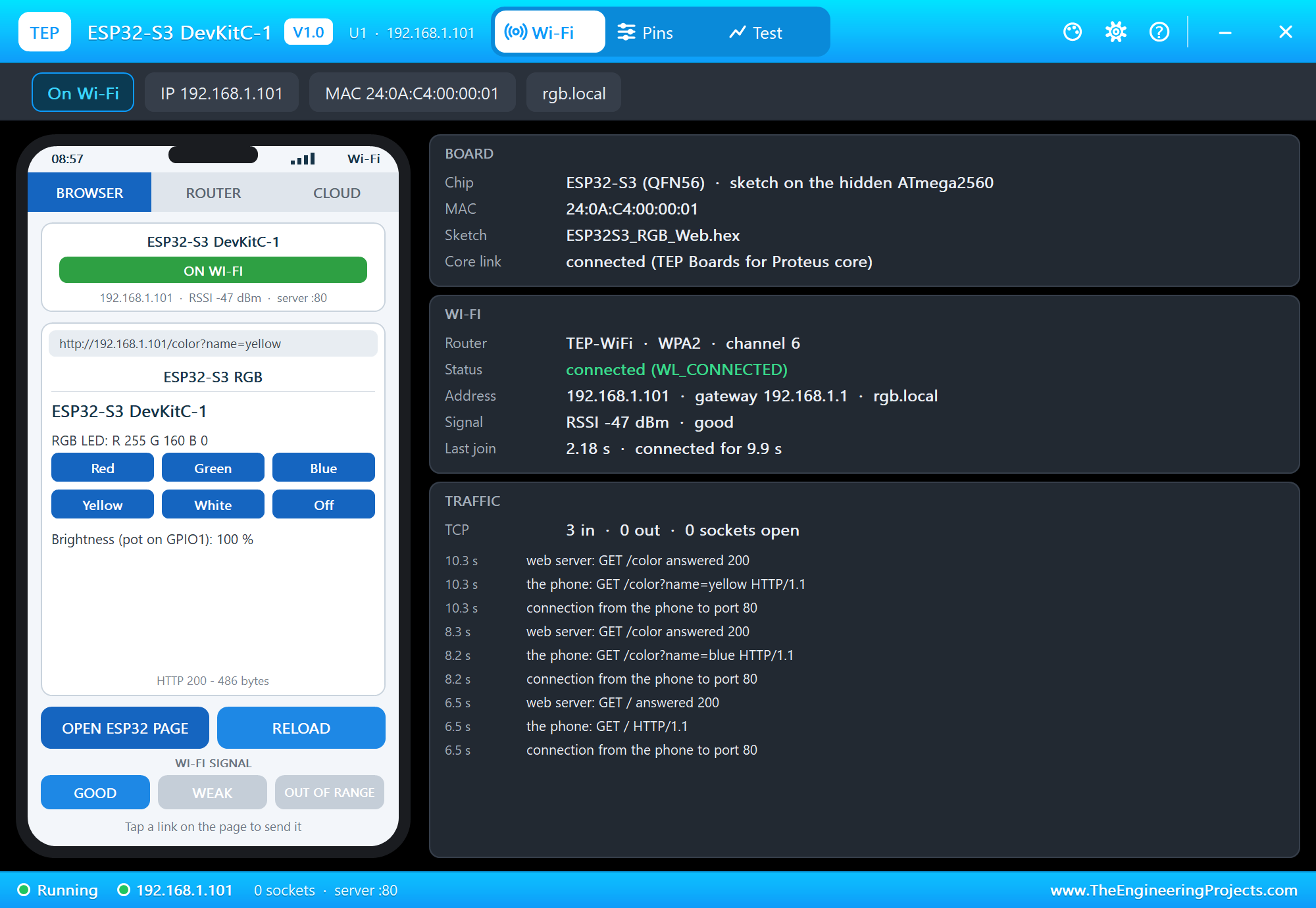
The Pins page shows the pot on IO1 at 3.30 V and the colour on IO48:
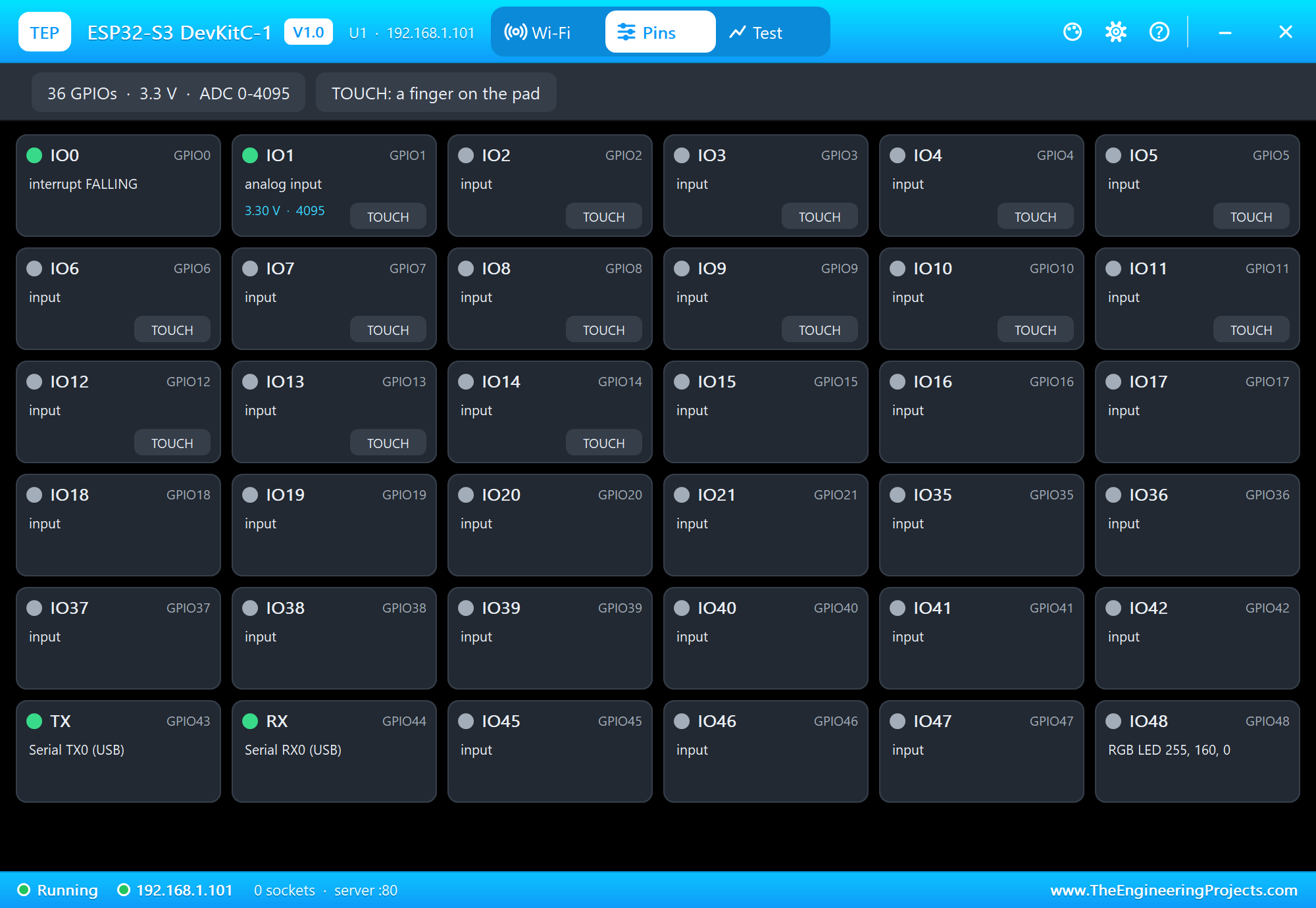
Last we tapped White:
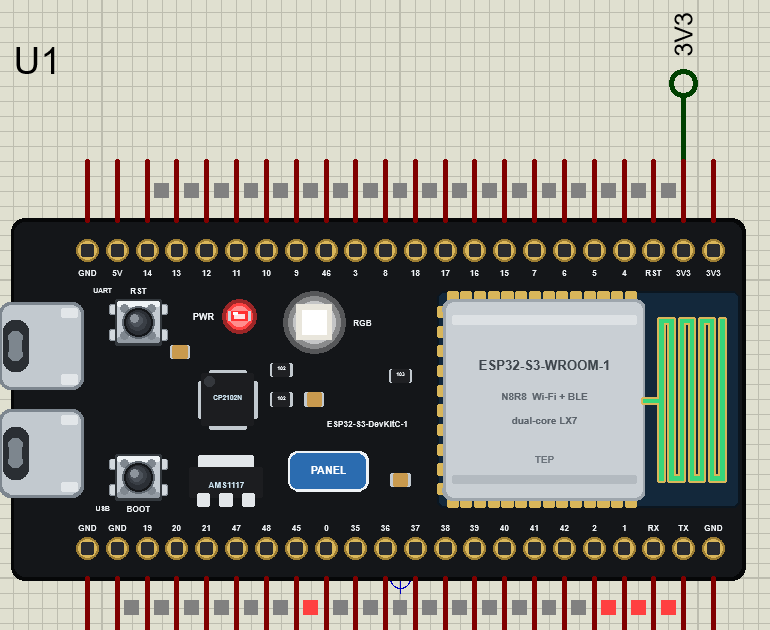
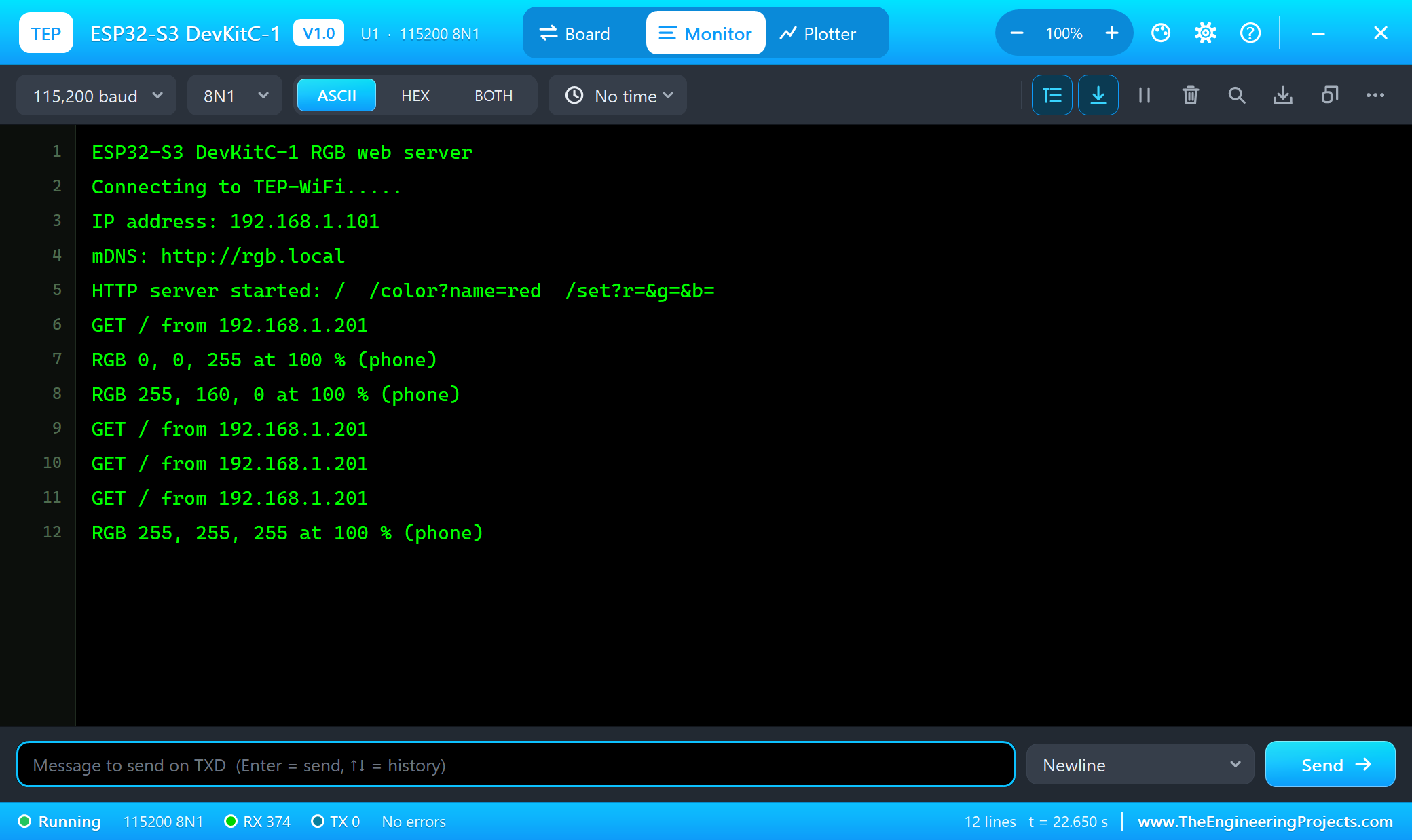
ESP32-S3 DevKitC-1 RGB web server
Connecting to TEP-WiFi.....
IP address: 192.168.1.101
mDNS: http://rgb.local
HTTP server started: /  /color?name=red  /set?r=&g=&b=
GET / from 192.168.1.201
RGB 0, 0, 255 at 100 % (phone)
RGB 255, 160, 0 at 100 % (phone)
GET / from 192.168.1.201
GET / from 192.168.1.201
GET / from 192.168.1.201
RGB 255, 255, 255 at 100 % (phone)
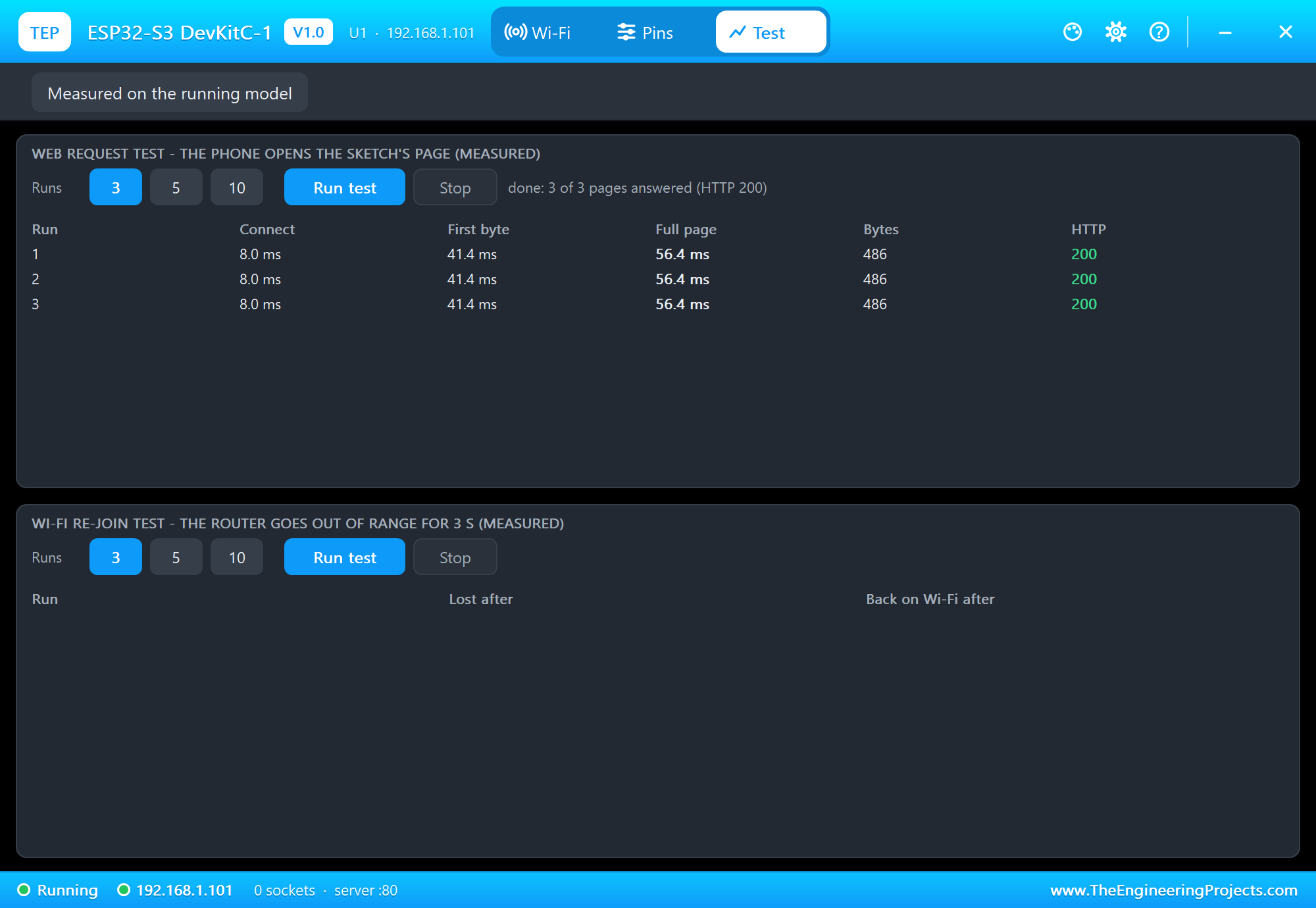
The Web Request Test
The Test page measures the running model: the phone opened the page three times.
analogRead on the ESP32-S3 Board
On this board analogRead() is answered by the board model: it reads the pin's voltage and returns a true 12-bit value from 0 to 4095 for 0 to 3.3 V. It works on GPIO 1 - 7, 14, 15, 16, 19 and 20; the S3's other ADC pins (8 - 13, 17, 18) sit on the hidden AVR's I2C, SPI and UART pins and read 0 here.
Demo 3: DevKitC V4 Sets the S3's Colour over HTTP
Now the S3 meets the previous board of the series. In ESP32-S3-and-DevKitC-V4-RGB-Link.pdsprj the S3 (U1) runs the same RGB web server, and the ESP32-DevKitC V4 (U2) of our ESP32-DevKitC V4 Library for Proteus is a colour remote: its pot is a colour wheel, and it sends each colour with an HTTP GET to the S3's /set address.
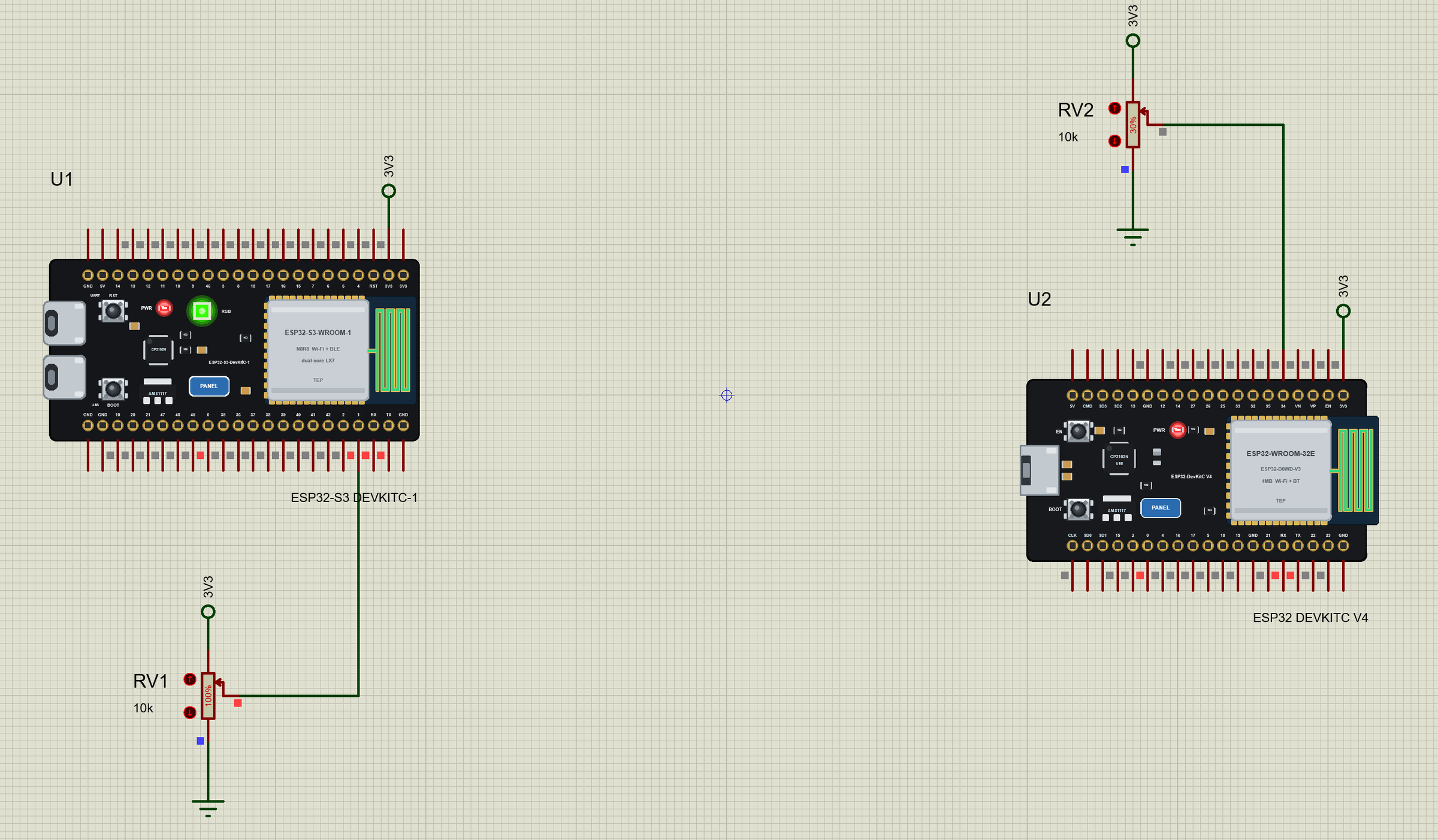
U2 turns the pot's position into a hue from 0 to 359 degrees and the hue into red, green and blue:
void hueToRgb(int hue, int &r, int &g, int &b) {   // hue 0 .. 359, full colour
  int x = (long)(hue % 60) * 255 / 60;
  switch (hue / 60) {
    case 0: r = 255; g = x; b = 0; break;
    case 1: r = 255 - x; g = 255; b = 0; break;
    case 2: r = 0; g = 255; b = x; break;
    case 3: r = 0; g = 255 - x; b = 255; break;
    case 4: r = x; g = 0; b = 255; break;
    default: r = 255; g = 0; b = 255 - x; break;
  }
}
...and sends it with HTTPClient - the S3 answers with JSON:
void sendColour(int r, int g, int b, const char *why) {
  HTTPClient http;
  String url = String(s3) + "/set?r=" + r + "&g=" + g + "&b=" + b;
  http.begin(url);
  int code = http.GET();
  Serial.printf("RGB %d, %d, %d (%s): ", r, g, b, why);
  if (code == 200) Serial.println(http.getString());
  else Serial.printf("HTTP error %d\n", code);
  http.end();
}
Our DevKitC V4 demo sent short UDP datagrams; this one uses HTTP on purpose. Every colour gets an answer - the S3's JSON with the colour it now shows and its brightness - so the remote knows the request arrived, and the same address works from a browser, a phone app or a script on your PC.
Press Run. The S3 joins as 192.168.1.101, the DevKitC V4 as 192.168.1.102. RV2 starts at 30 %: hue 107, the colour 56, 255, 0, and the S3's LED turns green-yellow. Then we typed 0 0 255 and 255 0 128 in U2's monitor:
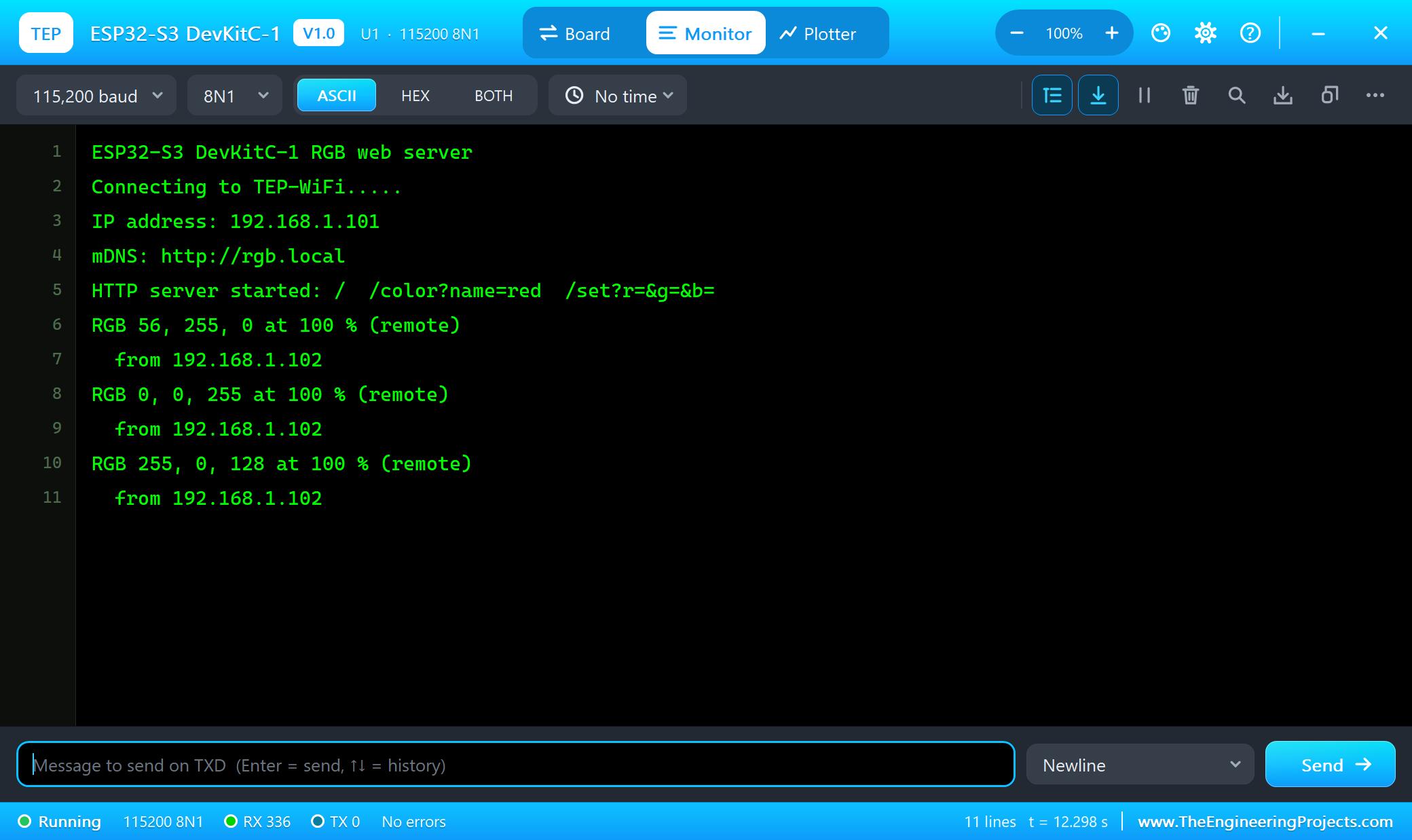
ESP32-S3 DevKitC-1 RGB web server
Connecting to TEP-WiFi.....
IP address: 192.168.1.101
mDNS: http://rgb.local
HTTP server started: /  /color?name=red  /set?r=&g=&b=
RGB 56, 255, 0 at 100 % (remote)
  from 192.168.1.102
RGB 0, 0, 255 at 100 % (remote)
  from 192.168.1.102
RGB 255, 0, 128 at 100 % (remote)
  from 192.168.1.102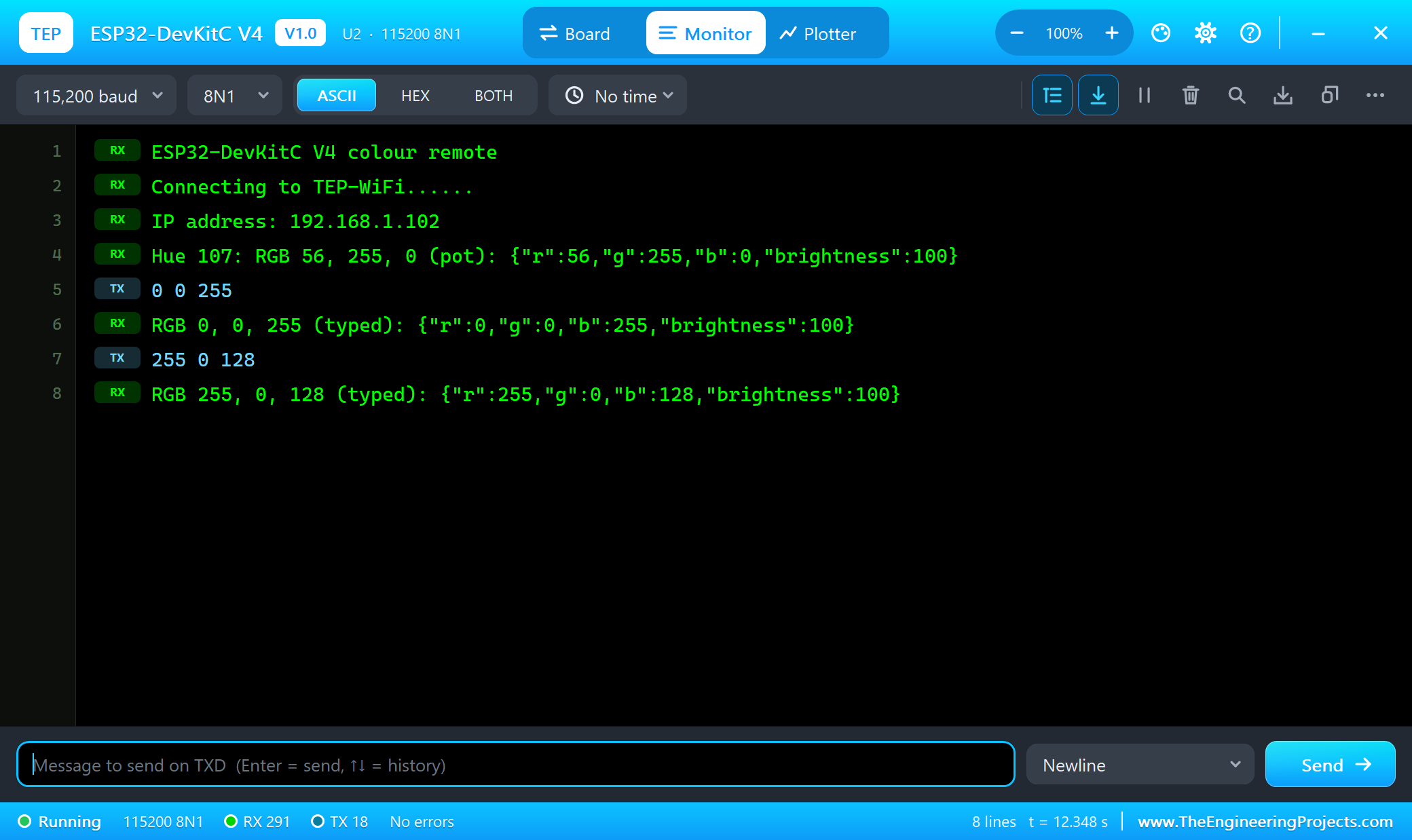
The S3's TRAFFIC card shows the other side - the connection from the DevKitC V4 and its request:
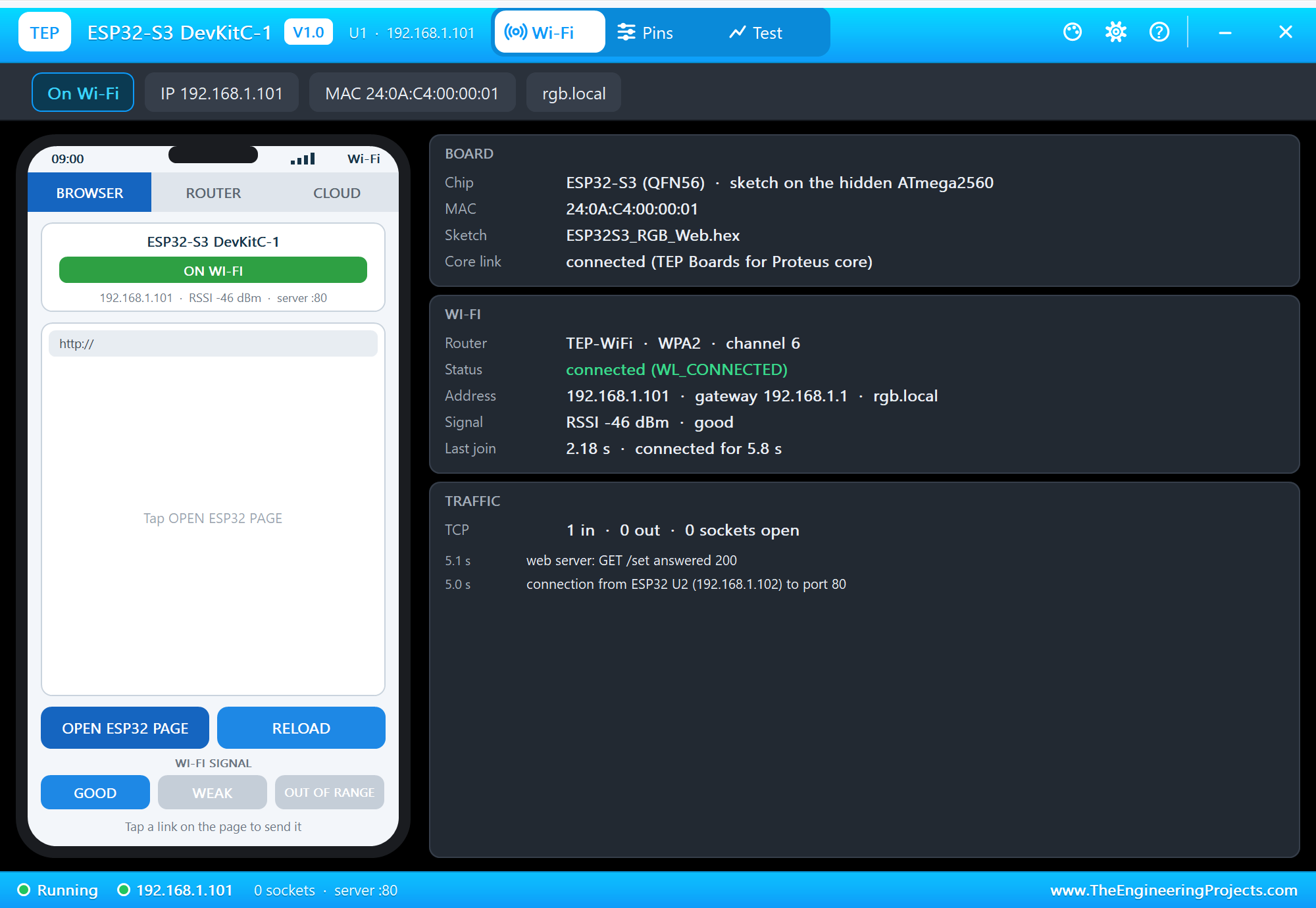
One board measures, the other shows - here a knob and a lamp, in a real project a sensor node and a status light in another room. The same /set address works from any browser or app on the network.
Pins of the ESP32-S3 DevKitC-1
| Pins | What they can do in the simulation |
|---|---|
| 48 | the RGB LED (RGB_BUILTIN) - also a header pin |
| 0 | the BOOT button (LOW while pressed, 10k pull-up), GPIO |
| 1 - 7, 14, 15, 16, 19, 20 | GPIO, PWM, analogRead (12 bits); 1 - 14 touch |
| 8 / 9 | Wire (SDA / SCL), GPIO, PWM into digital parts |
| 10 / 11 / 12 / 13 | SPI (SS / MOSI / SCK / MISO), GPIO, PWM into digital parts |
| 17 / 18 | Serial1 (TX / RX) |
| TX / RX (43 / 44) | Serial - the built-in monitor |
| 21, 35 - 42, 45 - 47 | GPIO, PWM into digital parts |
| RST | reset (the RST button) |
| 3V3, 5V, GND | 3.3 V out (both 3V3 pins), 5 V, ground |
Properties of the Board
| Property | What it does |
|---|---|
| PROGRAM | the sketch's HEX from TEP Boards for Proteus |
| WIFISSID / WIFIPASS | the router in range (TEP-WiFi / 12345678) |
| MONITOR | YES: the built-in serial monitor on TX / RX |
| BAUD | the monitor's speed (115200, or AUTO) |
| AUTOOPEN | YES: the monitor opens at Run (the demos) |
| TIME | the clock NTP gives: PC (the PC's clock) or a fixed start time in UTC |
Troubleshooting
- Nothing happens at Run: the HEX was not built with TEP Boards for Proteus - select ESP32-S3 DevKitC-1 (TEP Proteus) and export the binary again.
- The RGB LED stays dark: call
rgbLedWrite(RGB_BUILTIN, r, g, b);digitalWrite(RGB_BUILTIN, HIGH)makes it white at RGB_BRIGHTNESS (64). - analogRead returns 0: the pin is not an analog pin here, or nothing analog is wired to it.
- Stuck at "Connecting...": the SSID or password in the sketch differ from the WIFISSID / WIFIPASS properties, or the phone's WI-FI SIGNAL is OUT OF RANGE.
- printf shows -1 or odd numbers:
intis 16 bits here - cast 32-bit values toint. - Two boards with the same address: they have the same part number - renumber one.
- No monitor or no panel: click a USB port or the PANEL pad; or turn "Open the panel at Run" back on in Settings.
Things to Know Before Moving to a Real ESP32-S3
- The board: select Espressif's "ESP32S3 Dev Module"; for the monitor over the S3's own USB port enable "USB CDC On Boot".
- The RGB LED is on GPIO48 on the DevKitC-1 v1.0 and on GPIO38 on v1.1 - check your board's silkscreen.
- Octal PSRAM: on N8R8 modules GPIO35 - 37 belong to the PSRAM and cannot be used.
- Memory: the real S3 has 512 KB of RAM and often 8 MB of PSRAM - a sketch that fits in 8 KB here has room to grow.
- Strapping pins: GPIO0, GPIO3, GPIO45 and GPIO46 decide the boot mode at reset.
- 3.3 V logic: the pins are not 5 V tolerant.
Limitations of the Simulation
- It is not a real ESP32-S3 chip: the sketch runs on Proteus's ATmega2560 model at 16 MHz with 8 KB of RAM and 256 KB of flash;
intis 16 bits. - Not modelled: the native USB (CDC / JTAG), the PSRAM, FreeRTOS tasks, Bluetooth LE, ESP-IDF calls, the soft access point, real TLS, OTA updates, SPIFFS / LittleFS, the camera and LCD interfaces, the radio itself - the join and network times are realistic values, not a radio simulation.
- analogRead works on twelve of the S3's ADC pins; a fast PWM into an analog part is shown as its average voltage; an external WS2812 strip needs a NeoPixel library on the hidden AVR.
- The antenna colours, the PANEL pad, the panel, its phone, the router and the internet host are TEP additions.
- TEP Boards for Proteus is based on the Arduino AVR core 1.8.6 (LGPL 2.1, the licence text is included); our libraries are MIT. The API follows Espressif's Arduino-ESP32 core - names only. This library is not made or endorsed by Espressif, Arduino or Labcenter.
- Tested in Proteus 8.5 in October 2026 (the three demos as shipped, the board demo 36.2 s of simulation in 79 s with the panel and the monitor open, about 0.5 x real time; the two boards of the RGB link 12.3 s in 41 s, about 0.3 x). Proteus 7 is not supported.
So, that was all about the ESP32-S3 DevKitC-1 Library for Proteus. I hope you enjoy painting the RGB LED from your sketches and linking the S3 with our other ESP32 boards. If you use the ESP32-S3 DevKitC-1 Library for Proteus in a project, please share it in the comments or in our forum, and if you have any questions, ask in the comments and I will help you out. Till the next tutorial, take care and have fun!