Hello friends, I hope you all are doing great. Today, I am going to share the Laptop WiFi Monitor Library for Proteus. You know our Serial Monitor: you place it next to a board and see everything the board says on its UART. The Laptop WiFi Monitor does the same job for Wi-Fi. It is a laptop - we call it the TEP NoteBook - that joins the Wi-Fi network inside your Proteus simulation, so you can open the web pages of your ESP32 and ESP8266 sketches in its browser, talk to them over TCP and UDP in its terminal, see every device on the network and ping them. No wires: you place it on the sheet, press Run, and it is online.
Laptop WiFi Monitor Library for Proteus
Latest version: V1.0 (October 2026, this tutorial)
ESP32 boards: ESP32 DevKit V1 · ESP32-DevKitC V4 · ESP32-S3 DevKitC-1 · ESP32-C3 SuperMini · TTGO T-Display
ESP8266 modules: ESP-01 · ESP-01S · ESP-07 · ESP-01 Adapter · WiFi Shield · NodeMCU
Helping Tools
- Mobile WiFi Monitor: a smartphone that opens the pages of your ESP32 and sends it commands
- Serial Monitor Advance: a serial terminal window for the UART of your board
- Serial Monitor Expert: the serial monitor with extra debugging tools
So far, testing a Wi-Fi project in Proteus meant reading the board's serial prints and using the small phone on its panel. Now you can test it the way you test a real IoT project on your desk: with a laptop on the same network. In this article we connect it to our new ESP32 DevKit V1 Library for Proteus V2.0: the ESP32 serves a web page, sends a report to the laptop every 3 seconds, and switches an LED when you type a command on the laptop.
NOTICE: the TEP NoteBook is a simulated laptop: its browser shows the text and the links of a page, not pictures or JavaScript, and it lives only on the TEP Wi-Fi network of the simulation - it does not use the network card of your PC. Your feedback is the fuel that keeps us going, so please tell us what you think in the comments below or in the Laptop WiFi Monitor board of our forum. And if our free libraries help you, you can buy us a coffee. So, let's get started with the Laptop WiFi Monitor Library for Proteus:
What is the Laptop WiFi Monitor?
When you build a Wi-Fi project for real, your laptop is your most important tool. You open the board's web page in a browser to see if the server works. You run a TCP terminal (like Hercules, PuTTY or netcat) to send commands to the board or to receive its data. You ping the board to check that it is on the network at all. The Laptop WiFi Monitor brings exactly these tools into Proteus. It is a part with no pins to wire, it gets its own IP address from the virtual router, and it talks to every TEP Wi-Fi part in your design: our ESP32 boards and our ESP8266 modules.
| On your real desk | In Proteus with this library | |
|---|---|---|
| The laptop | your PC on the same Wi-Fi as the board | the TEP NoteBook, PC1 at 192.168.1.21 |
| Web pages | Chrome or Firefox | the Browser page: links, Back, Reload, View source |
| TCP / UDP | Hercules, PuTTY, netcat | the Terminal page: TCP client, TCP server, UDP |
| Network check | the Wi-Fi settings, ping, an IP scanner | the Network page: Wi-Fi card, devices, ping |
| Wiring | none - it is wireless | none - one hidden pin, nothing to connect |
Why We Designed the WiFi Monitors First
A little background. These days we are working on our Wi-Fi libraries for Proteus: the ESP32 boards and the ESP8266 modules of our Wi-Fi series. All of them join the same network that we built inside Proteus - our own TEP Wi-Fi network, with its router, its addresses and its internet host. While we were designing those modules, one question kept coming back: how will a user see what all these modules are doing on that network? A module talking to another module is fine, but on a real desk there is always a laptop and a phone in the picture. So, before going on with the next Wi-Fi modules, we thought: why not first design the viewers - devices that live in our own network and show it to you, just like the Serial Monitor shows the UART? That is how the TEP NoteBook and the TEP SmartPhone were born, and this article is about the first of them.
Why a Laptop in a Simulation?
A web server, a TCP client or a UDP sender in your sketch is only half of a project; the other half is whoever talks to it. Without a partner the sketch has nobody to serve, and you cannot see whether your page, your reports or your commands really work. With the Laptop WiFi Monitor the partner is there: the page is opened by a real HTTP request, the reports arrive at a real TCP server, and your commands travel back on the same link - with the timing and the errors of a network (refused connections, wrong ports, a server that is not up yet). Later you can add the Mobile WiFi Monitor Library for Proteus, the phone version of this tool, to the same design.
Features of the Laptop WiFi Monitor Library for Proteus
- The TEP NoteBook: a laptop seen from the front, with a glossy black bezel, a silver deck, black keys, the touchpad and two LEDs on the front edge - power and Wi-Fi.
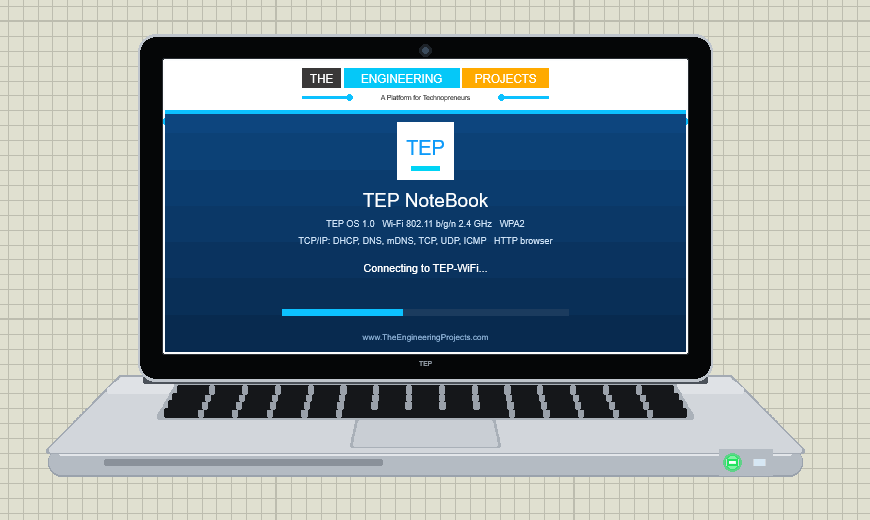
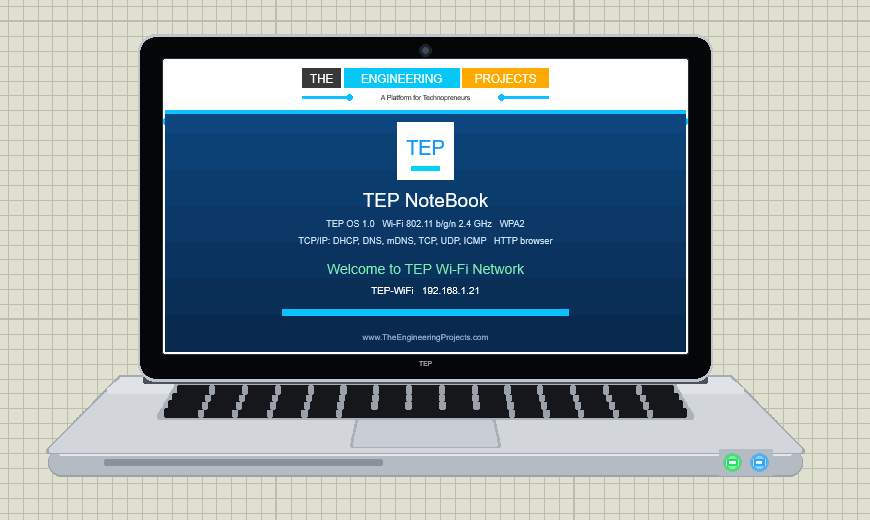
- A real start-up: our logo on the first screen, TEP OS starting with its technical data, the join to TEP-WiFi, then "Welcome to TEP Wi-Fi Network" and the browser.
- Browser: opens the pages of your sketches over HTTP; a start page lists the devices with a web server; links work; Back, Reload and View source (the status line, the headers and the HTML).
- Terminal: TCP Client, TCP Server (up to 4 clients) and UDP (send, receive, broadcast), with the time, TX / RX and the sender of every line; long lines wrap; line end CR LF, LF, CR or none.
- Network: the Wi-Fi card (network, address, gateway, MAC, signal, join time), the networks in range with Join and Disconnect, the devices on the network with Ping, Open and Chat, and ping with its times and loss.
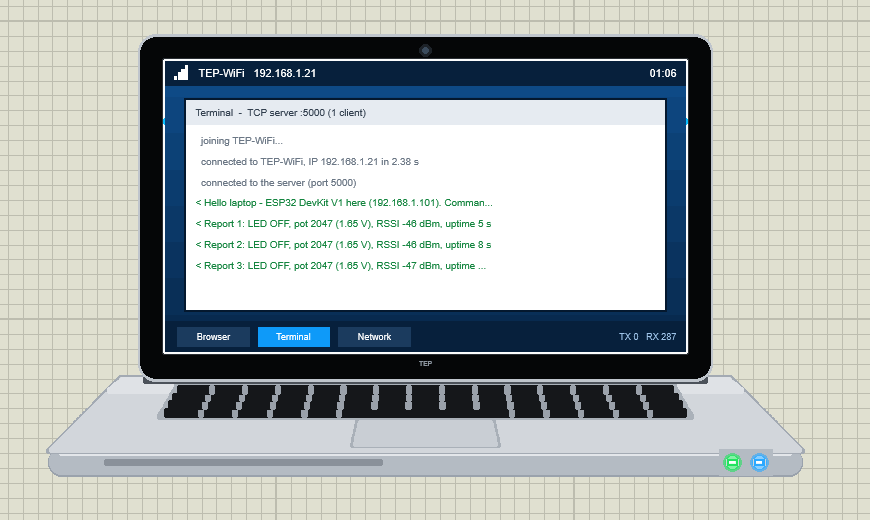
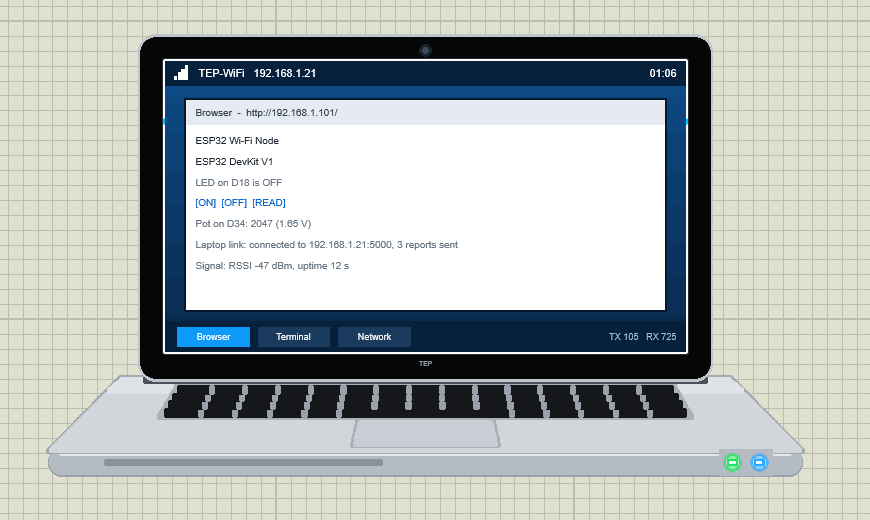
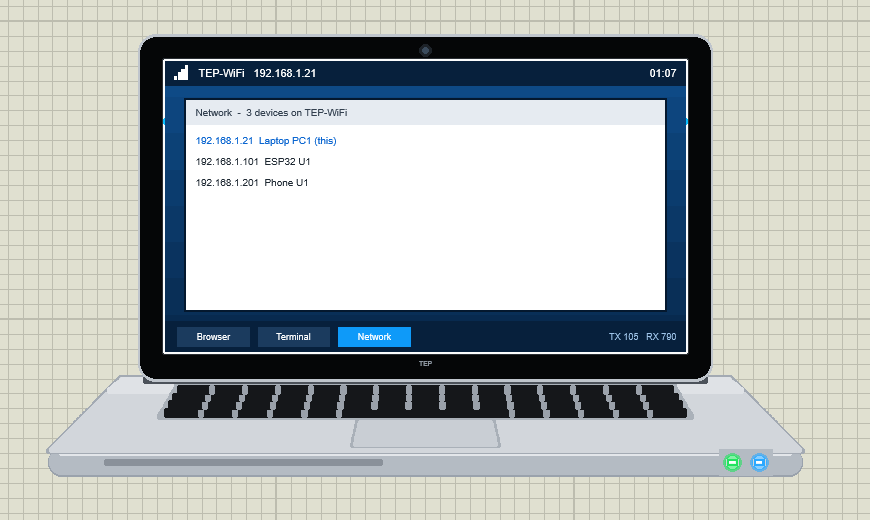
- A live screen on the sheet: the laptop's screen in Proteus shows the app in use, the page and the last terminal lines while the simulation runs.
- Our pop-up window in the look of the Serial Monitor, with Settings (theme, text size, open at Run) and Help.
- Works with every TEP Wi-Fi part: our ESP32 boards, the ESP-01, ESP-01S, ESP-07, the ESP-01 adapter and the ESP8266 WiFi Shield all share one virtual router.
- A demo with our ESP32 DevKit V1: a web page, reports to the laptop and commands back, with a pot and an LED.
- A compact package: about 1.88 MB, without the C++ source code of the models.
The Laptop WiFi Monitor Part in Proteus
Press P in Proteus and search for WiFi Monitor or Laptop; the device LAPTOP WIFI MONITOR is in TEPLAPTOP.LIB, with the prefix PC. It has one hidden pin and nothing to wire. Its number sets its address: PC1 is 192.168.1.21, PC2 is 192.168.1.22, and so on; the ESP32 and ESP8266 parts get 192.168.1.101 for U1, .102 for U2. Before Run the screen shows the first screen with our logo and the hint to click it:
The Start-Up of the TEP NoteBook
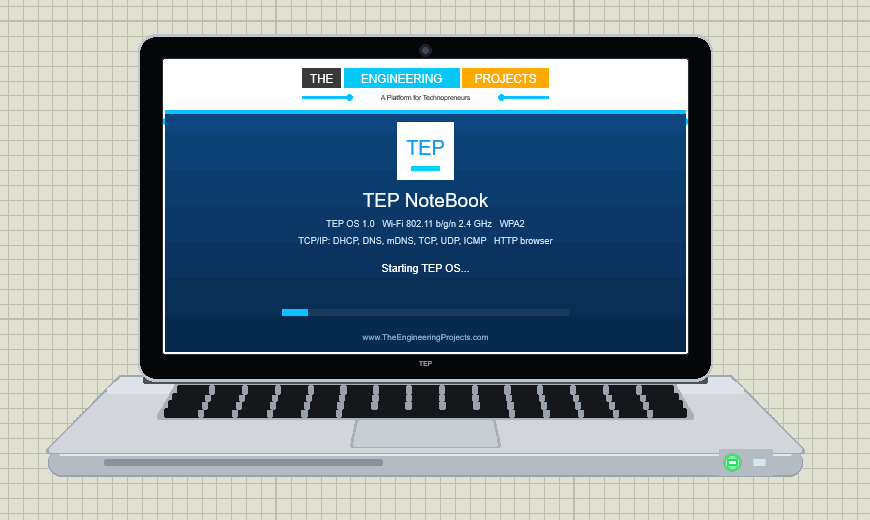
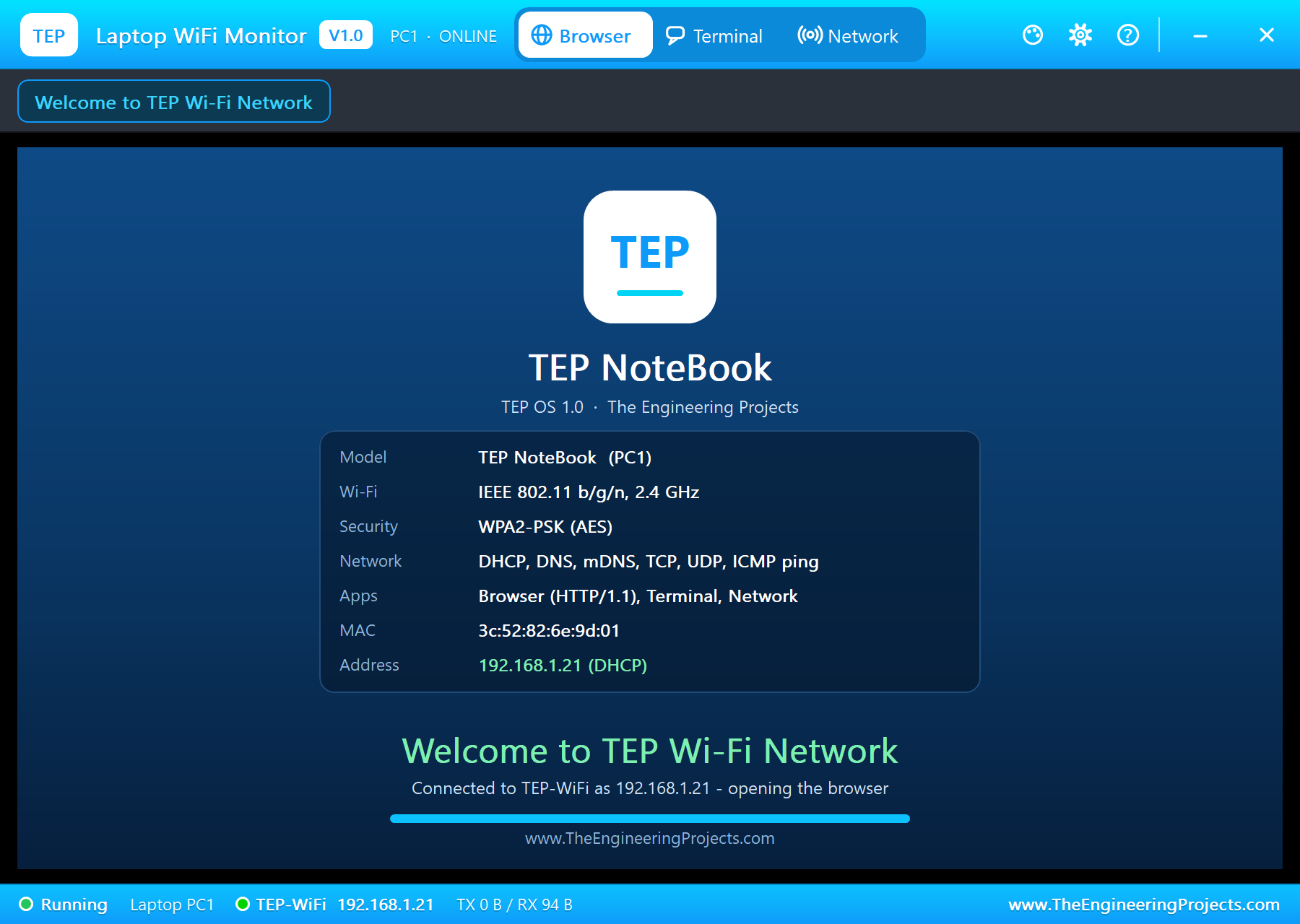
Press Run and the laptop starts like a real one. We paused the simulation at every step. First TEP OS starts, with the model, the Wi-Fi standard, the security and the network features on the screen:
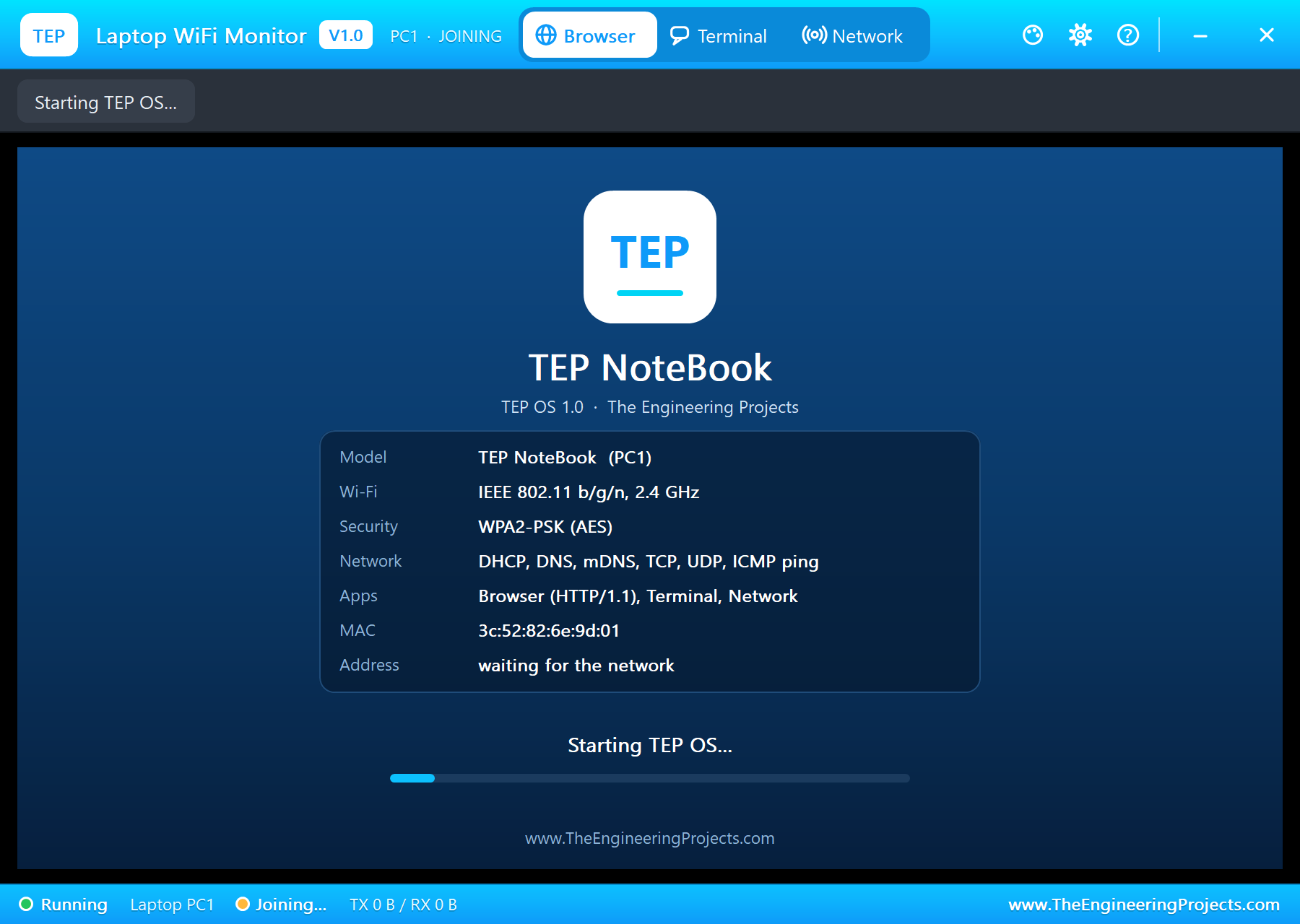
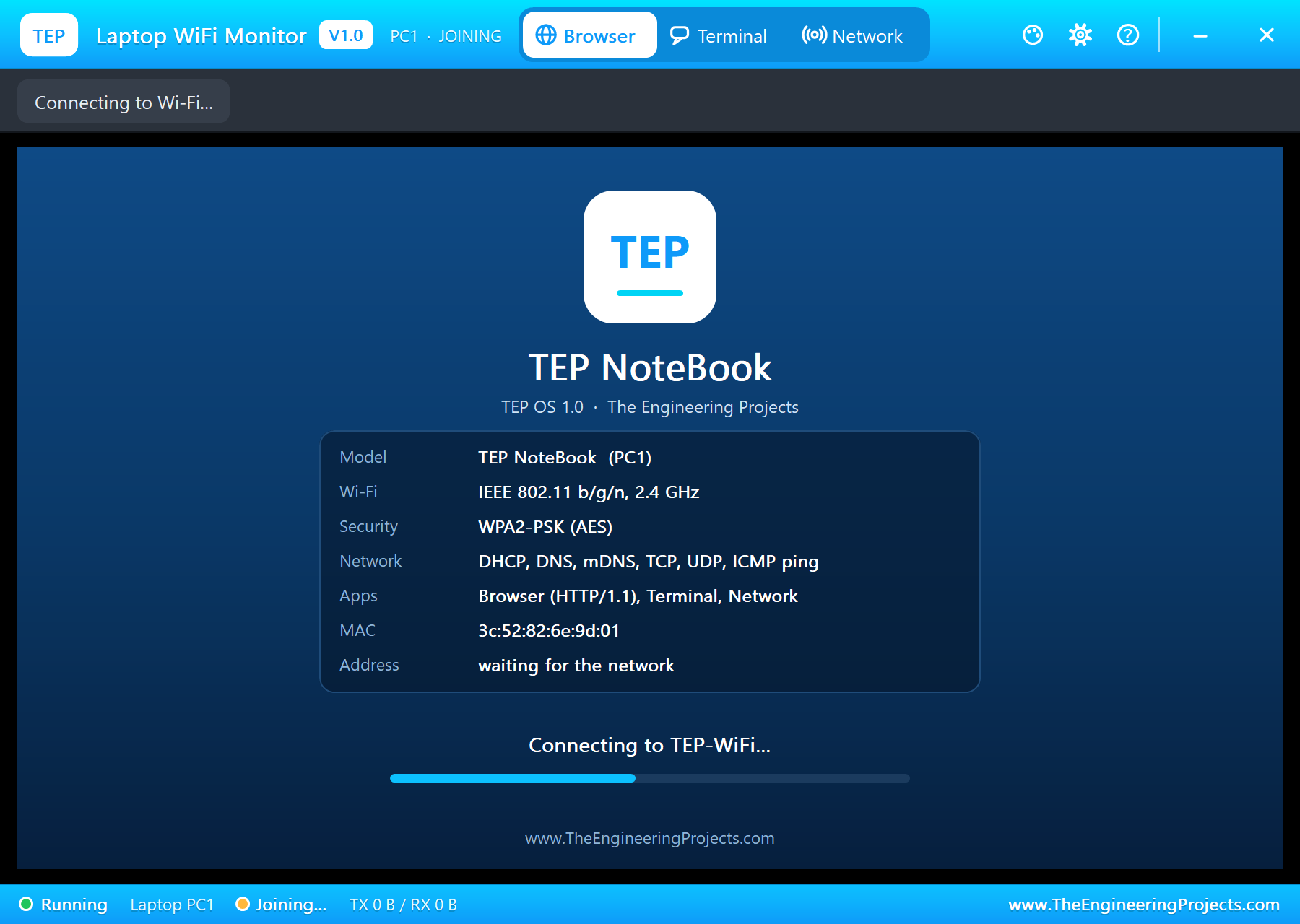
The pop-up window opens at the same time and shows the same steps in a bigger size, with the technical data of the TEP NoteBook - the model, IEEE 802.11 b/g/n at 2.4 GHz, WPA2-PSK, the network protocols, the apps, its MAC and its address:
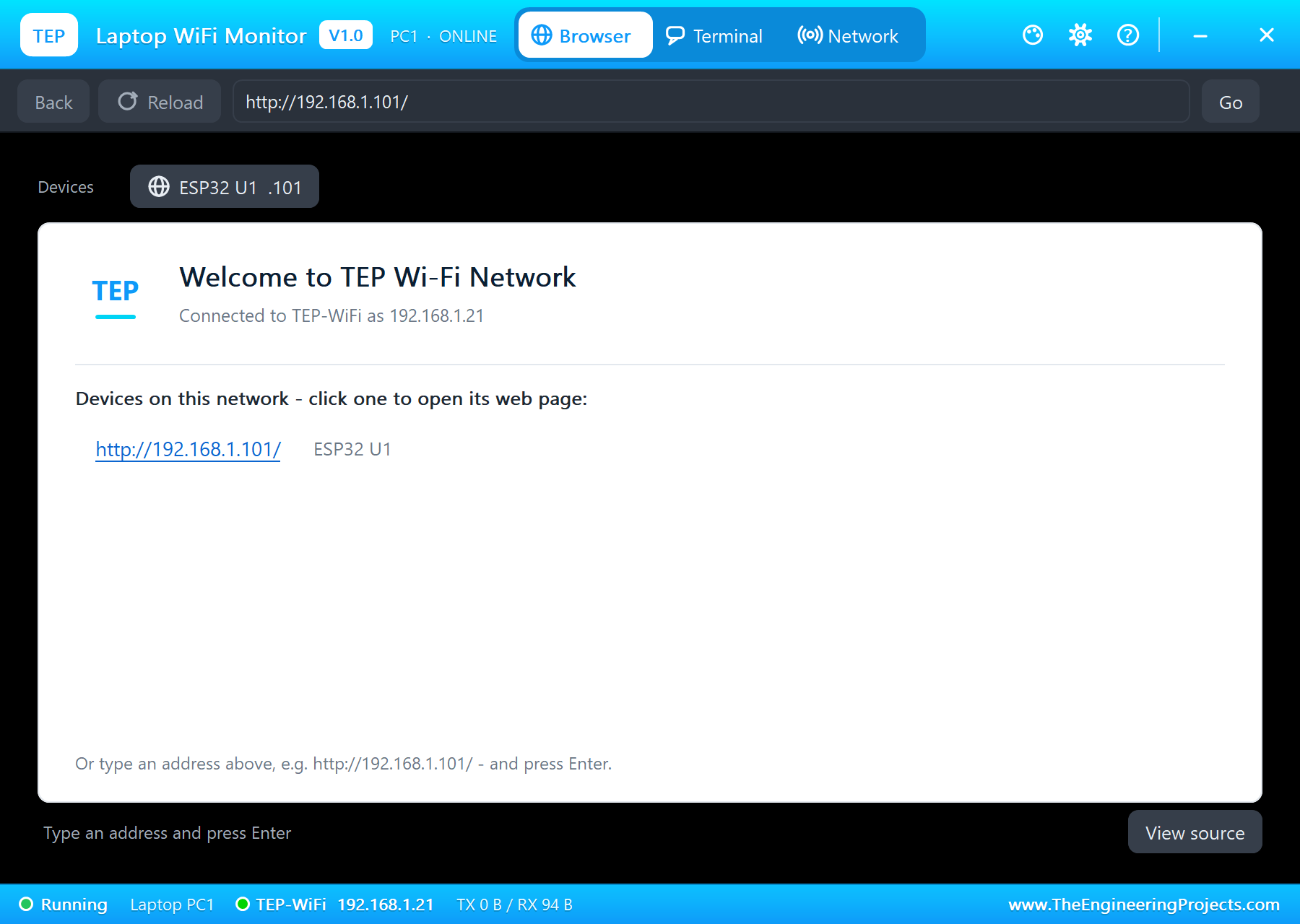
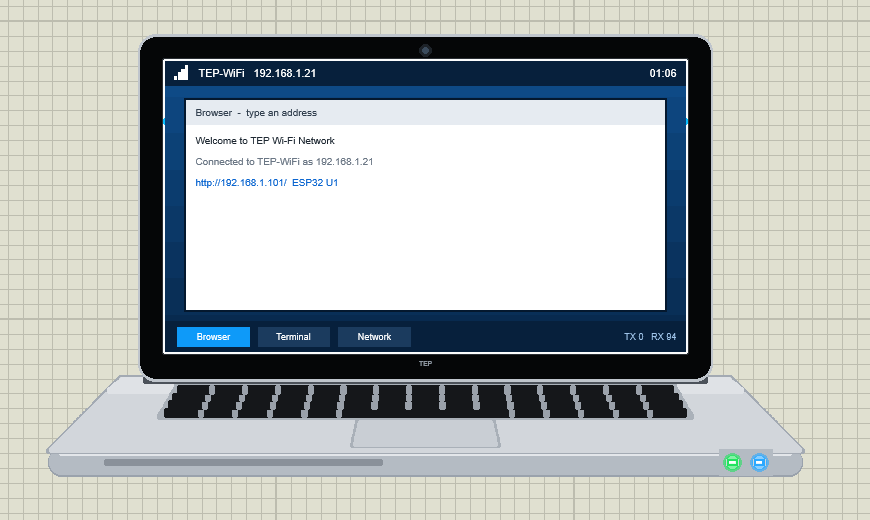
Then the browser opens on its start page. It lists every device on the network that has a web server, so you can open the page of your board with one click instead of typing its address:
Download Laptop WiFi Monitor Library for Proteus
Click the button below to download Laptop-WiFi-Monitor-Library-for-Proteus-v1.0.zip (about 1.88 MB, without the C++ source code of the models):
Laptop WiFi Monitor Library for Proteus V1.0- README.txt: the device, installation, the demo, the properties, troubleshooting and the limits.
- Proteus Library Files:
TEPLAPTOP.LIB(the Laptop WiFi Monitor) andTEPESP32V1.LIB(our ESP32 DevKit V1, the board of the demo). - Proteus Model Files:
TEPNET.DLL- the laptop, the ESP32 boards and the Wi-Fi network. - Proteus Simulation: the demo project, its HEX file and a copy of the DLL.
- Arduino Code: the demo sketch and TEP Boards for Proteus, the Arduino IDE add-on that compiles sketches for our ESP32 boards.
No Proteus yet? Read How to Download and Install Proteus 7 and 8. New to libraries? Follow How to Install a New Library in Proteus.
How to Install Laptop WiFi Monitor Library for Proteus
- Close Proteus and extract the whole zip file, for example to your Desktop.
- Copy the two files from Proteus Library Files into the LIBRARY folder of Proteus (usually
C:\Program Files (x86)\Labcenter Electronics\Proteus 8 Professional\LIBRARY). - Copy
TEPNET.DLLfrom Proteus Model Files into the MODELS folder and replace the older copy - it still runs all our ESP32 boards and ESP8266 modules. - Delete
TEPLAPTOP.IDXandTEPESP32V1.IDXfrom the LIBRARY folder if they are there. - Start Proteus, press P and search for WiFi Monitor.
To compile your own ESP32 sketches, copy Arduino Code\TEP Boards for Proteus\hardware into your sketchbook folder (normally Documents\Arduino), restart the Arduino IDE and select ESP32 DevKit V1 (TEP Proteus) under Tools > Board > TEP Boards for Proteus. Then use Sketch > Export Compiled Binary and set the board's Program File to the HEX (see How to get the HEX file from Arduino).
Demo: The ESP32 DevKit V1 Reports to the Laptop
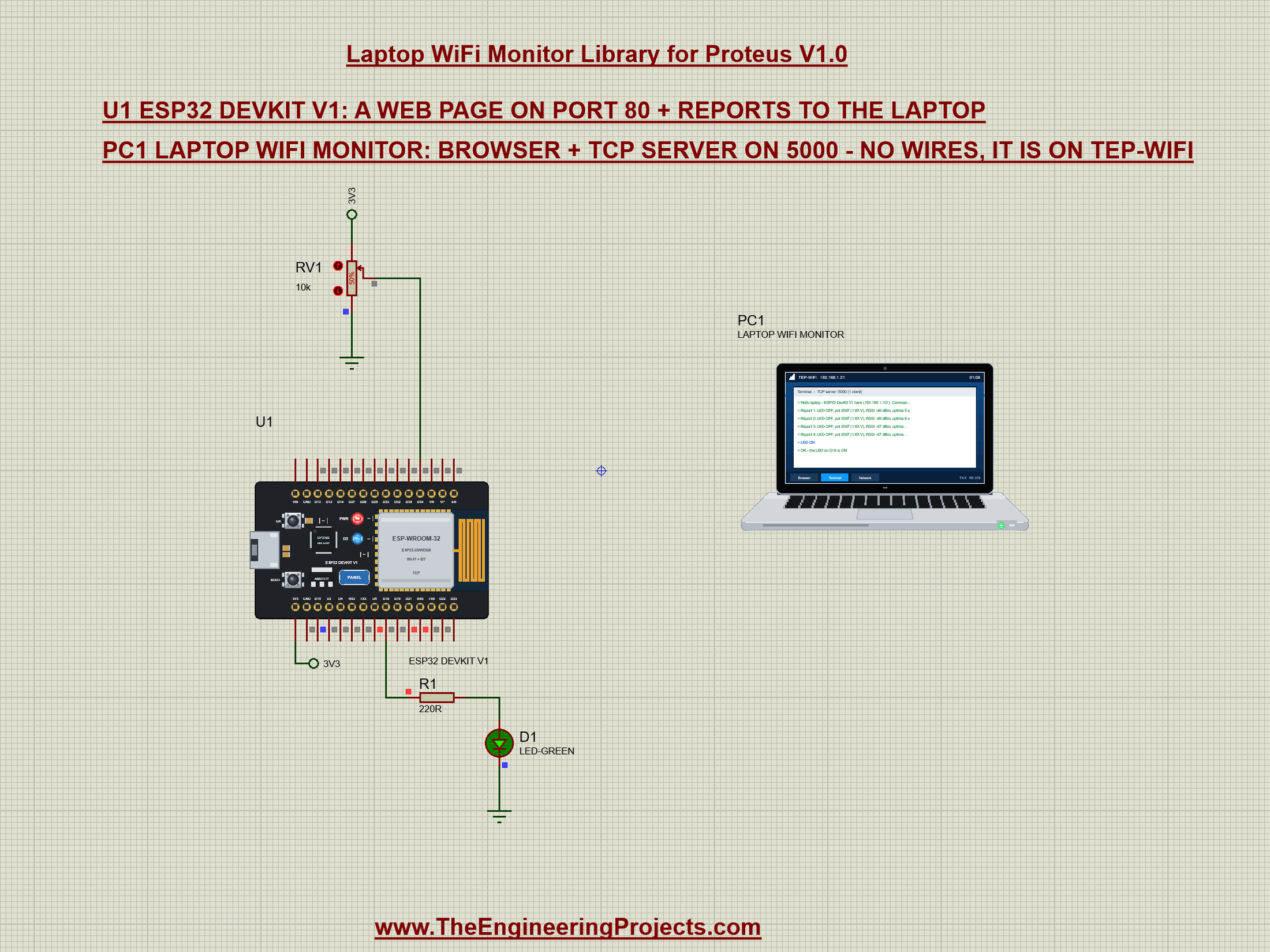
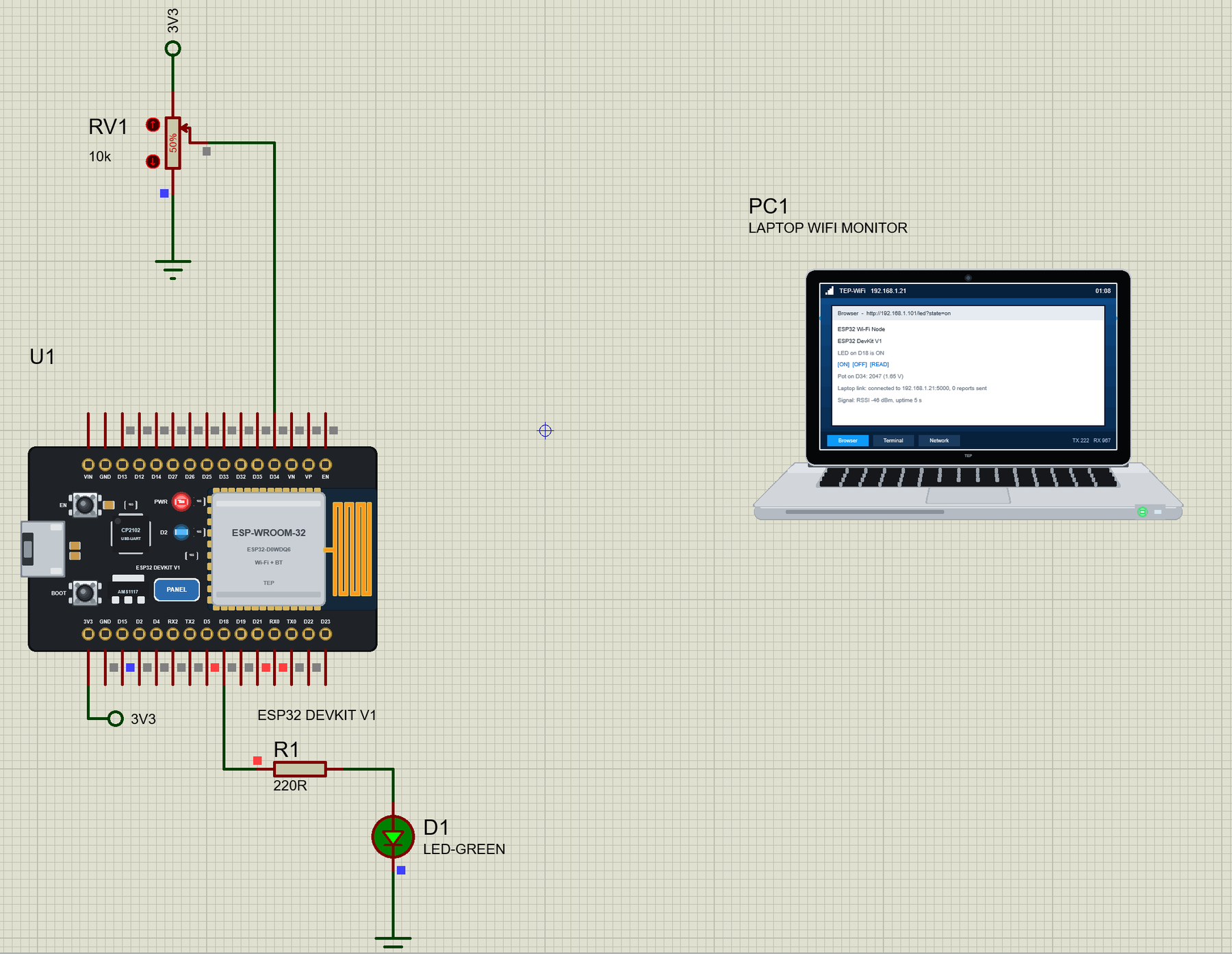
Open Laptop-WiFi-Monitor-with-ESP32.pdsprj. On the left is the circuit of our ESP32 DevKit V1 Library for Proteus V2.0: a 10k pot on D34 between 3V3 and ground, and a green LED with a 220R resistor on D18. On the right is the laptop, PC1. Its properties start the terminal's TCP server on port 5000, point the TCP client at the ESP32 (192.168.1.101, port 23) and set the browser's home page. The sketch on the ESP32, ESP32_Laptop_Link, does three jobs at once:
- It serves a web page on port 80 with the LED, the pot and three links: ON, OFF and READ.
- It opens a TCP link to the laptop's server and sends a report every 3 seconds; the laptop can type commands back on the same link.
- It listens on port 23 for commands from any other device - the laptop's TCP client here, the phone of the Mobile WiFi Monitor in the next article.
The link to the laptop is a normal WiFiClient. The sketch connects to the laptop's address and port, says hello and remembers that it is linked; if the laptop's server is not up yet, it tries again 5 seconds later:
void connectLaptop() {
  lastTry = millis();
  if (laptop.connect(LAPTOP_IP, LAPTOP_PORT)) {
    Serial.printf("Connected to the laptop (%s:%u)\n", LAPTOP_IP, LAPTOP_PORT);
    laptop.print("Hello laptop - ESP32 DevKit V1 here (");
    laptop.print(myIp);
    laptop.print("). Commands: LED ON, LED OFF, STATUS, HELP\r\n");
    linked = true;
    lastReport = millis();
  } else {
    Serial.println("The laptop's server does not answer yet - trying again in 5 s");
  }
}
Every report is one line ending with CR LF. It carries the state of the LED, the pot, the signal and the time since the start:
void report() {
  ++reports;
  String s = "Report ";
  s += reports;
  s += ": ";
  s += status();
  laptop.print(s);
  laptop.print("\r\n");
  Serial.println(s);
}
The commands come back on the same link. A small function collects the bytes of any stream into lines; when a line is complete it is answered on the same link - so the very same code serves the laptop, port 23 and the serial monitor:
void readLines(Stream &link, String &buffer, const char *who) {
  while (link.available()) {
    char c = link.read();
    if (c == '\r' || c == '\n') {
      if (!buffer.length()) continue;
      String reply = answer(buffer, who);
      buffer = "";
      link.print(reply);
      link.print("\r\n");
      if (&link != &Serial) {
        Serial.print("  reply: ");
        Serial.println(reply);
      }
    } else if (buffer.length() < 60) {
      buffer += c;
    }
  }
}
And the commands themselves are a few comparisons. LED ON and LED OFF switch D18 and confirm it:
  if (up == "LED ON" || up == "ON") { setLed(true); return "OK - the LED on D18 is ON"; }
  if (up == "LED OFF" || up == "OFF") { setLed(false); return "OK - the LED on D18 is OFF"; }
Reports and Commands on the Terminal Page
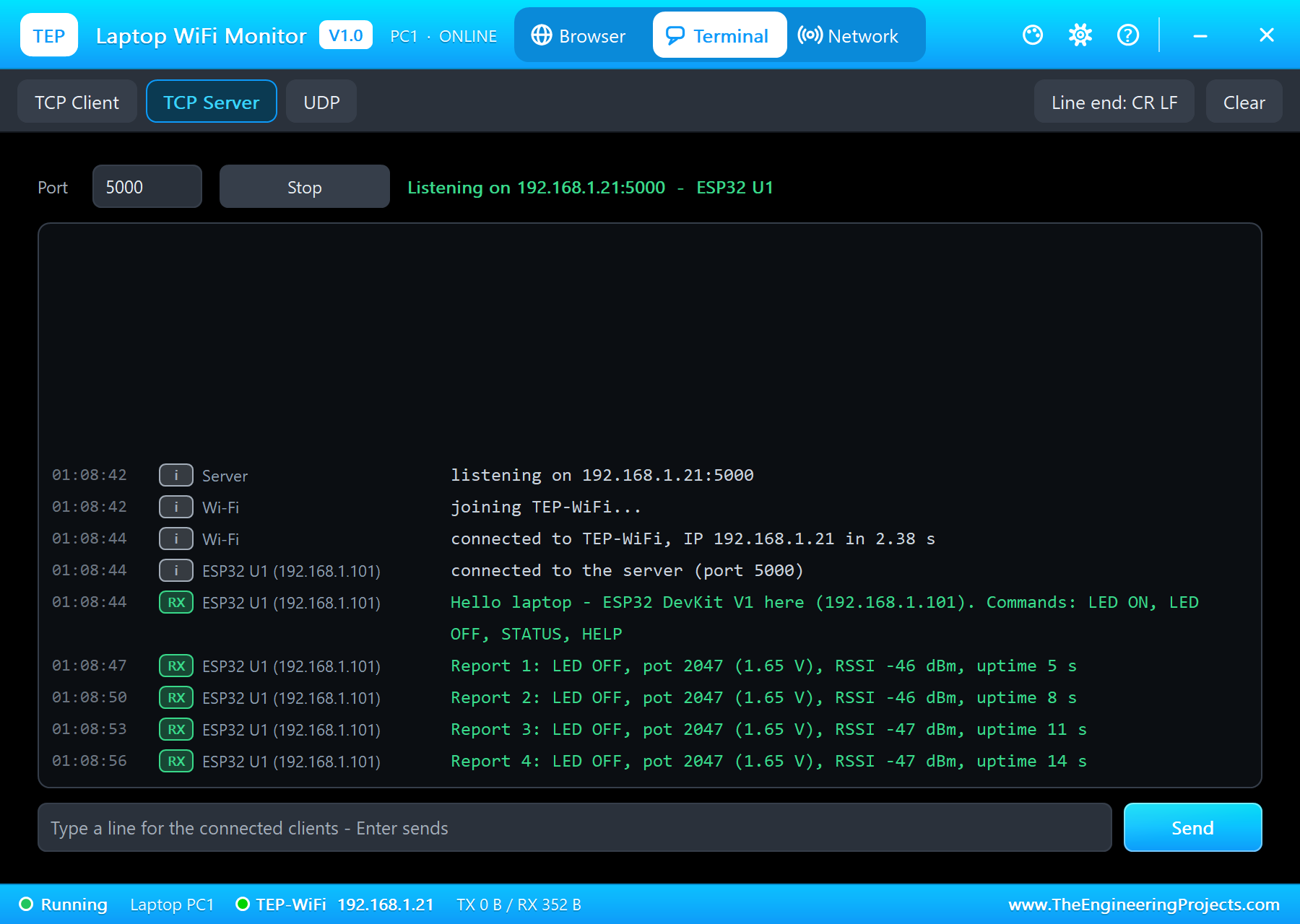
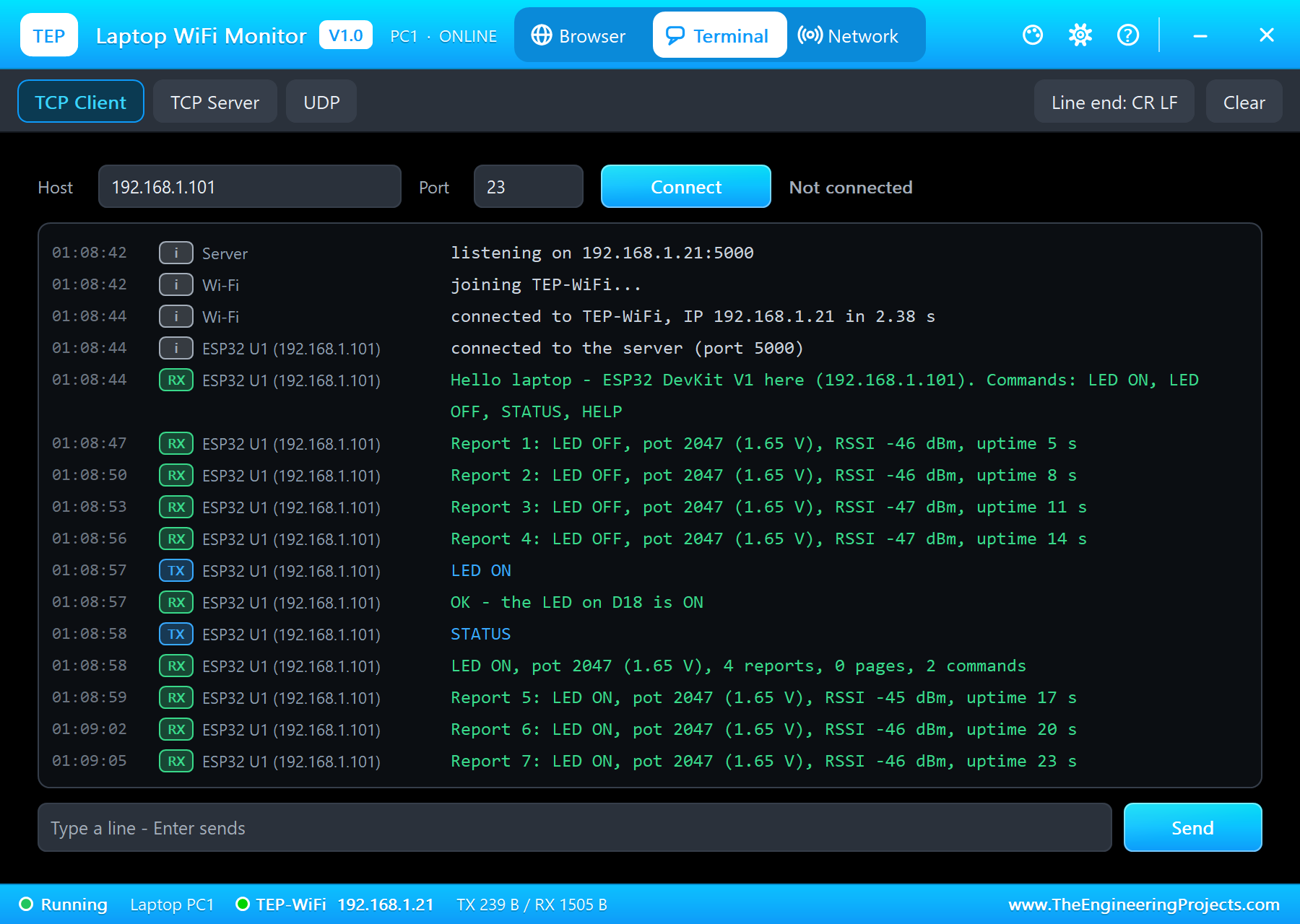
Press Run. Both the ESP32 and the laptop join TEP-WiFi, the ESP32 connects to the laptop's server, and the reports start to arrive. Open the Terminal page: TCP Server is selected, the status line says Listening on 192.168.1.21:5000 with the ESP32 as its client, and every line shows its time, RX or TX, and who sent it:
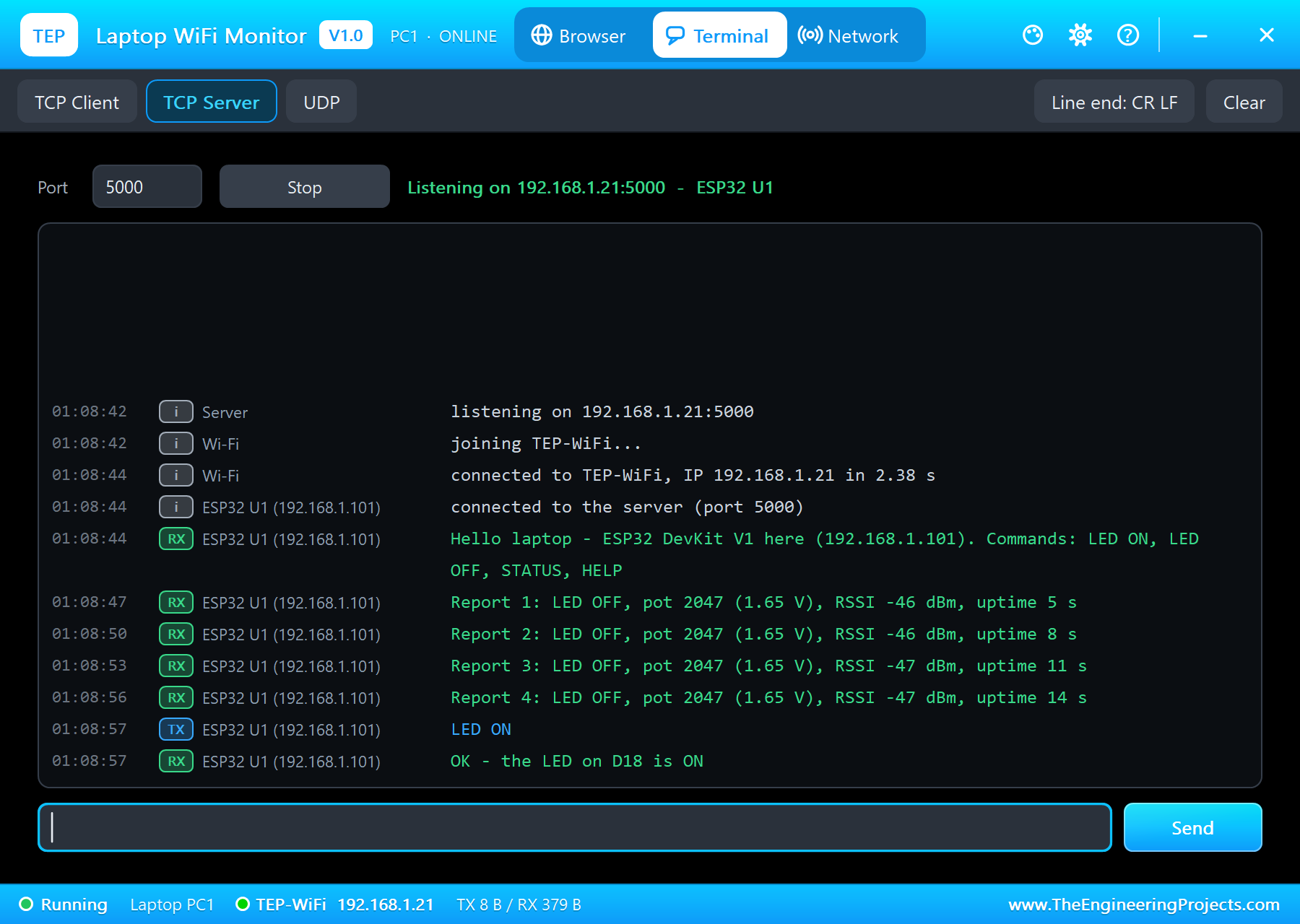
Now click the message field, type LED ON and press Enter. The line goes to the ESP32 (a blue TX line), the ESP32 answers OK - the LED on D18 is ON, and the LED in the circuit lights. The next reports say LED ON too:
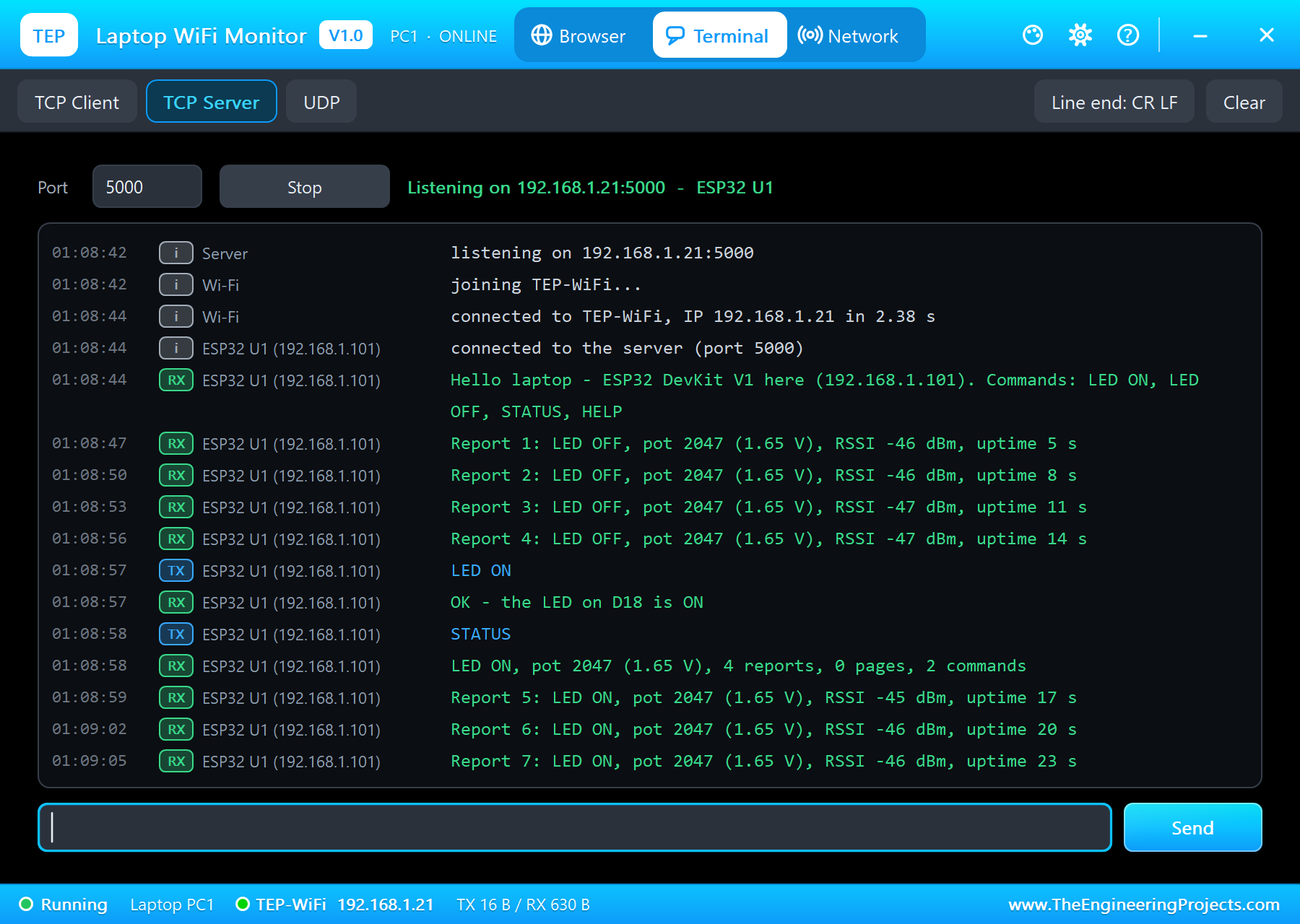
Type STATUS and the ESP32 sends a summary: the LED, the pot, and how many reports, pages and commands it has handled so far. HELP lists the commands, and anything else gets "Unknown command":
Opening the ESP32 Page in the Browser
Click Browser and then the ESP32 on the start page. The laptop sends a real HTTP GET to 192.168.1.101 and shows the page: its title, the LED state, the three links and the lines below them. The status line under the page tells you the HTTP code, the size and the time of the answer:
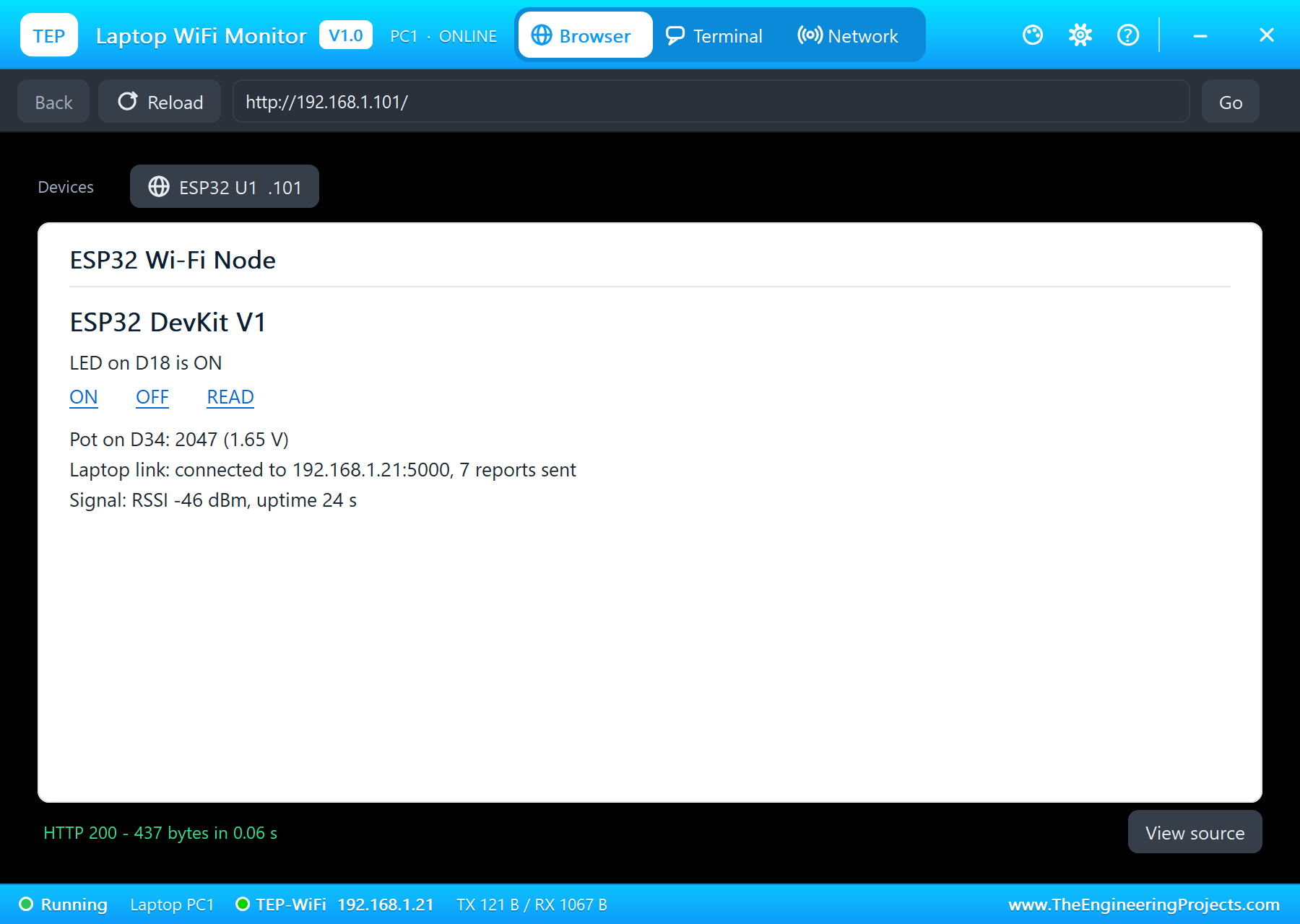
This is the part of the sketch that builds the links. ON and OFF are plain links to /led?state=on and /led?state=off, and READ simply loads the page again:
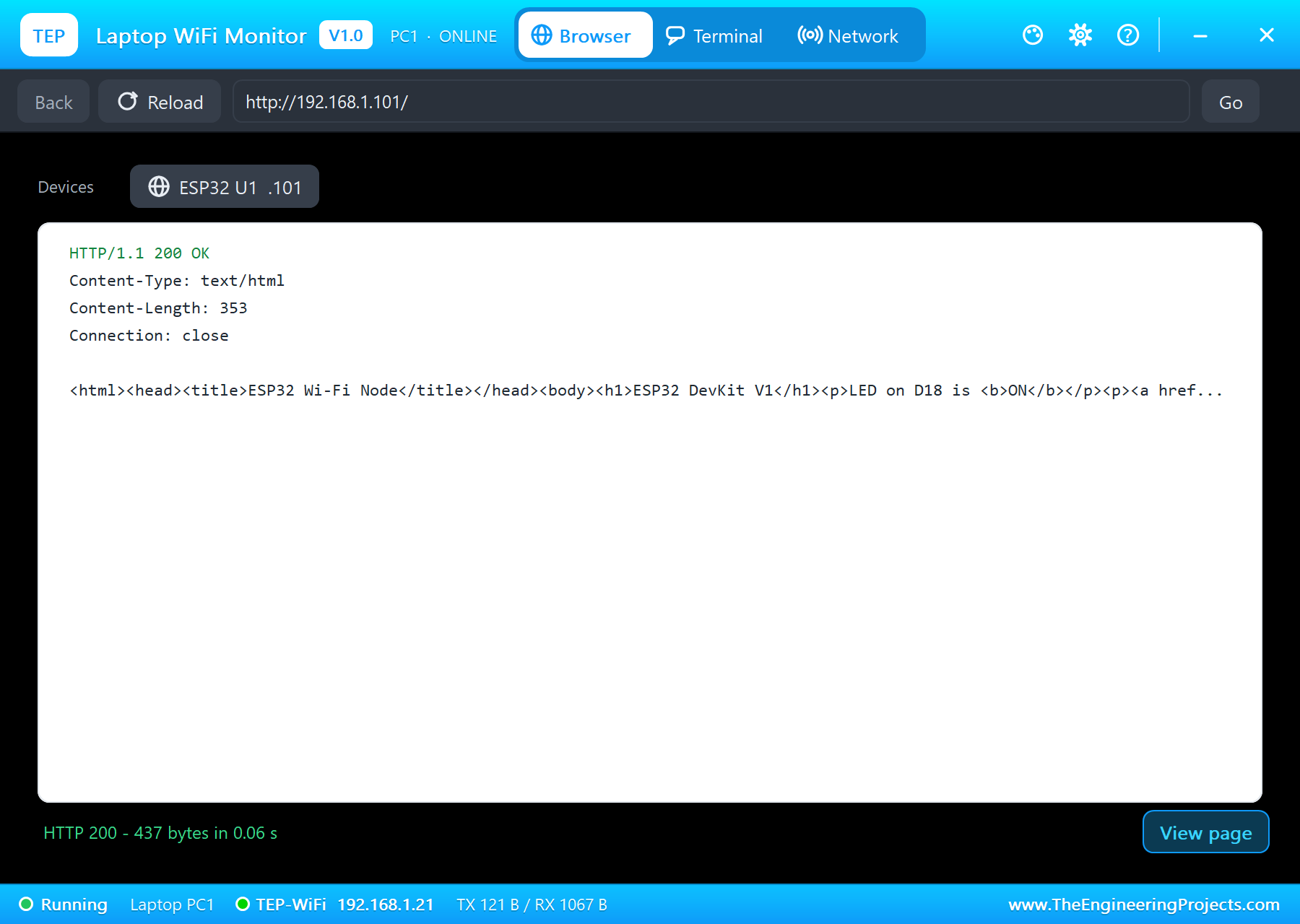
html += F("</b></p><p><a href=\"/led?state=on\">ON</a> <a href=\"/led?state=off\">OFF</a> <a href=\"/\">READ</a></p><p>Pot on D34: ");Click View source to see what the ESP32 really sent: the status line HTTP/1.1 200 OK, the headers and the HTML. This is very useful when a page does not look the way you expected:
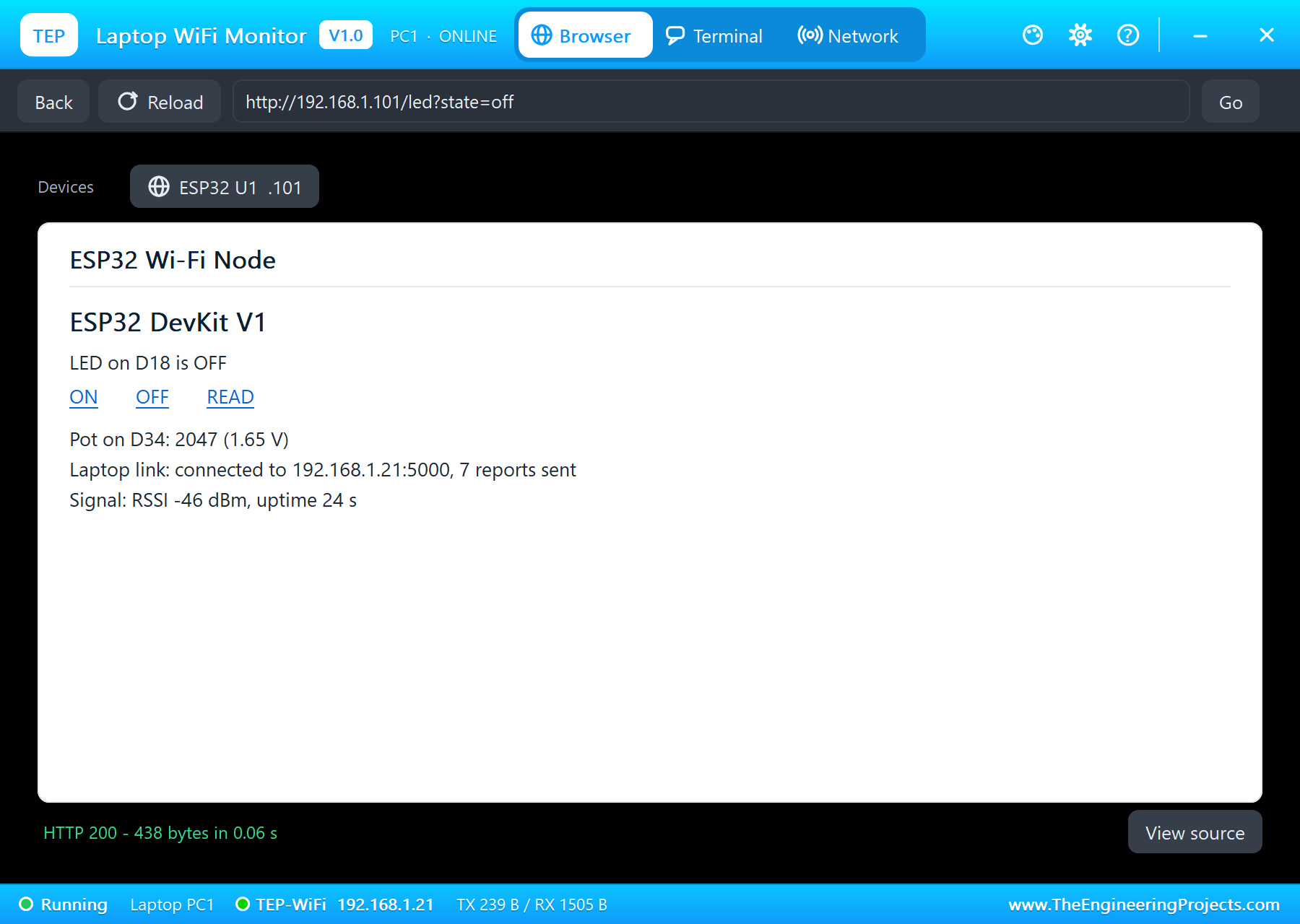
Click OFF. The browser requests /led?state=off, the address bar follows the link, the LED goes out and the page comes back with the new state:
void handleLed() {
  String state = server.arg("state");
  if (state == "on") setLed(true);
  else if (state == "off") setLed(false);
  else { server.send(400, "text/plain", "state must be on or off"); return; }
  blink();
  Serial.print(ledOn ? "LED ON" : "LED OFF");
  Serial.print(" from ");
  Serial.println(server.client().remoteIP());
  sendPage();
}
The Laptop as a TCP Client
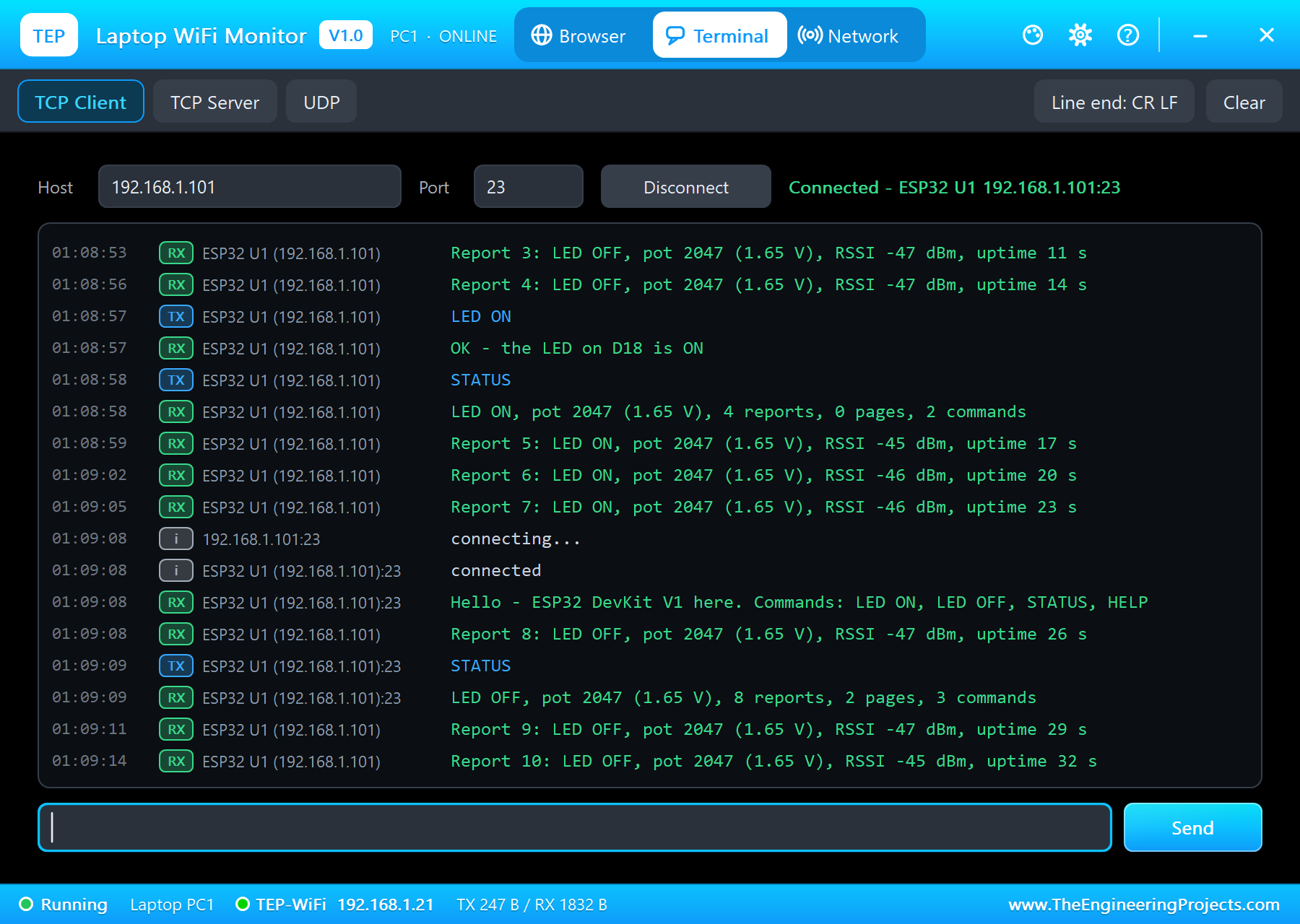
The laptop can also call a board. Click TCP Client on the Terminal page: the host and the port come from the TCPHOST and TCPPORT properties (192.168.1.101 and 23 in the demo), and Connect opens the link:
Port 23 is the ESP32's second door: a WiFiServer that greets every new client and takes the same commands:
  WiFiClient fresh = door.available();  // a new device on port 23 (the phone's terminal)
  if (fresh) {
    if (phone.connected()) phone.stop();
    phone = fresh;
    fromPhone = "";
    Serial.print("Port 23: ");
    Serial.print(phone.remoteIP());
    Serial.println(" connected");
    phone.print("Hello - ESP32 DevKit V1 here. Commands: LED ON, LED OFF, STATUS, HELP\r\n");
  }
After Connect, the ESP32 says hello on port 23; we typed STATUS there too, while the reports of the first link kept arriving:
The Network Page and Ping
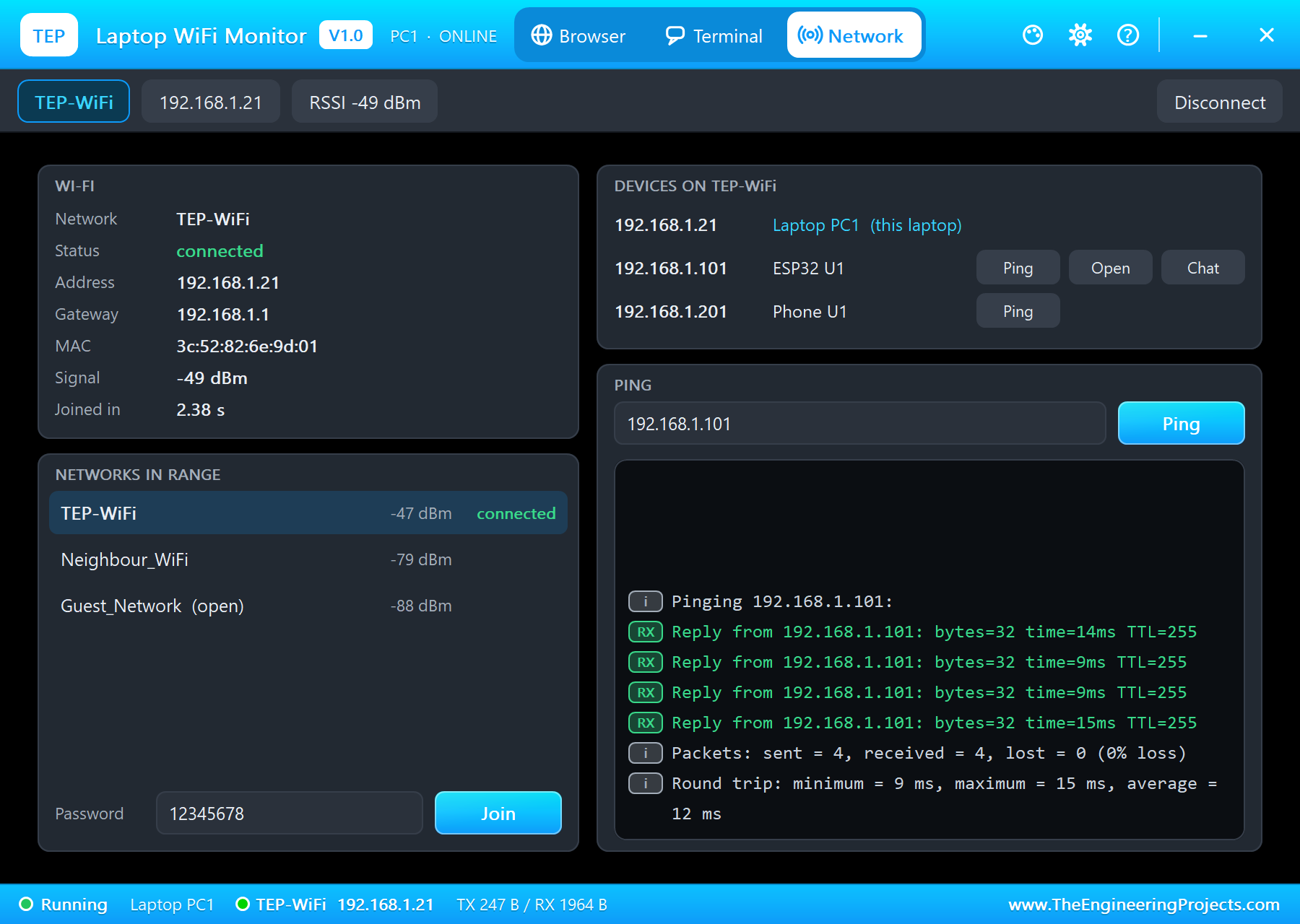
The Network page shows the laptop's own Wi-Fi: the network, the status, its address, the gateway, its MAC, the signal and how long the join took. Below it are the networks in range - with a password field and Join, so you can test what your project does when the laptop moves to another network. On the right are the devices on TEP-WiFi, each with Ping, and Open and Chat for the ones with a server. Here we pinged the ESP32 four times:
The Same Story on the ESP32 Side
Everything the ESP32 receives is also printed on its own serial monitor at 115200 baud, so you can follow both ends of the link. Here are the lines of the ESP32 while we used the laptop:
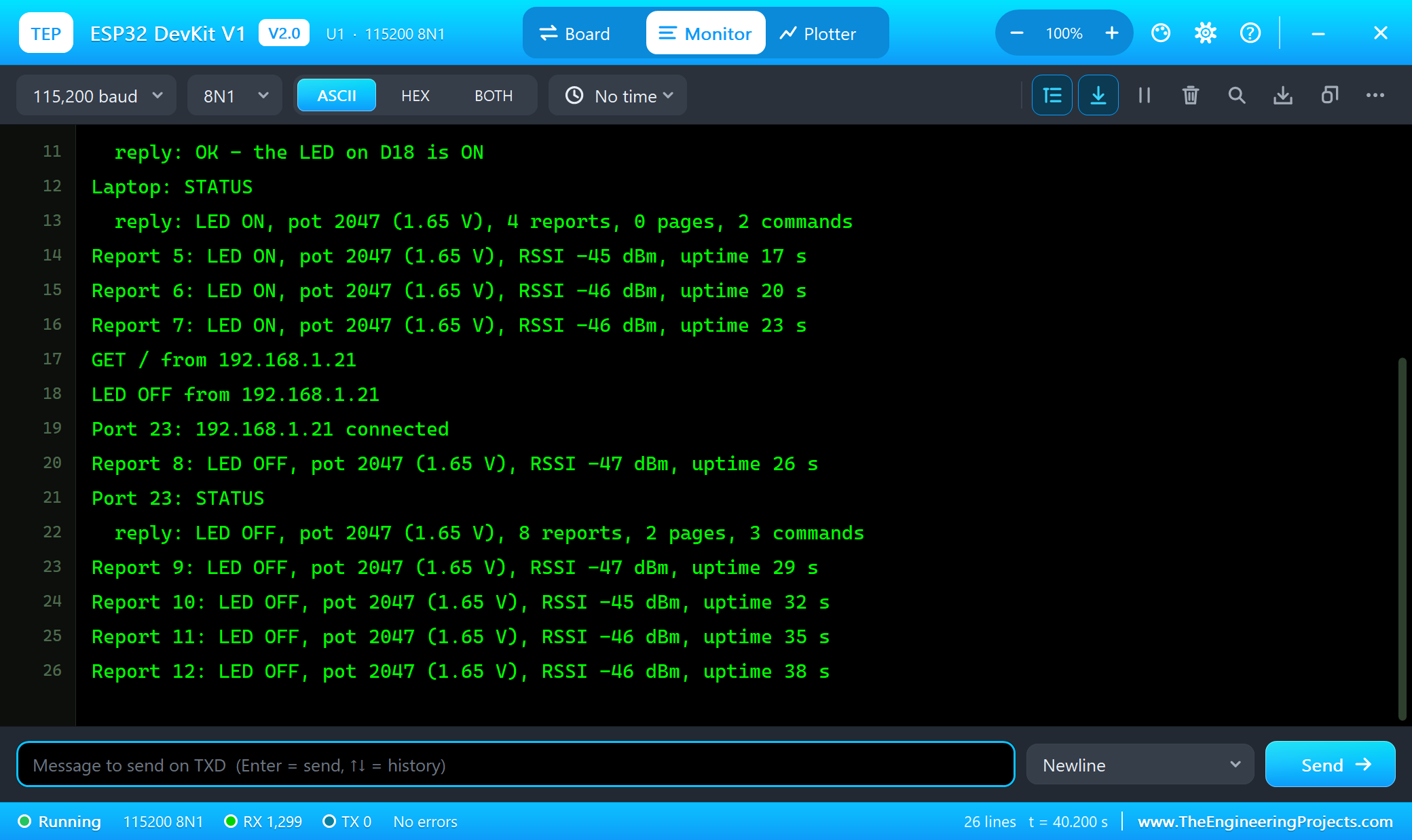
  reply: OK - the LED on D18 is ON
Laptop: STATUS
  reply: LED ON, pot 2047 (1.65 V), 4 reports, 0 pages, 2 commands
Report 5: LED ON, pot 2047 (1.65 V), RSSI -45 dBm, uptime 17 s
Report 6: LED ON, pot 2047 (1.65 V), RSSI -46 dBm, uptime 20 s
Report 7: LED ON, pot 2047 (1.65 V), RSSI -46 dBm, uptime 23 s
GET / from 192.168.1.21
LED OFF from 192.168.1.21
Port 23: 192.168.1.21 connected
Report 8: LED OFF, pot 2047 (1.65 V), RSSI -47 dBm, uptime 26 s
Port 23: STATUS
  reply: LED OFF, pot 2047 (1.65 V), 8 reports, 2 pages, 3 commands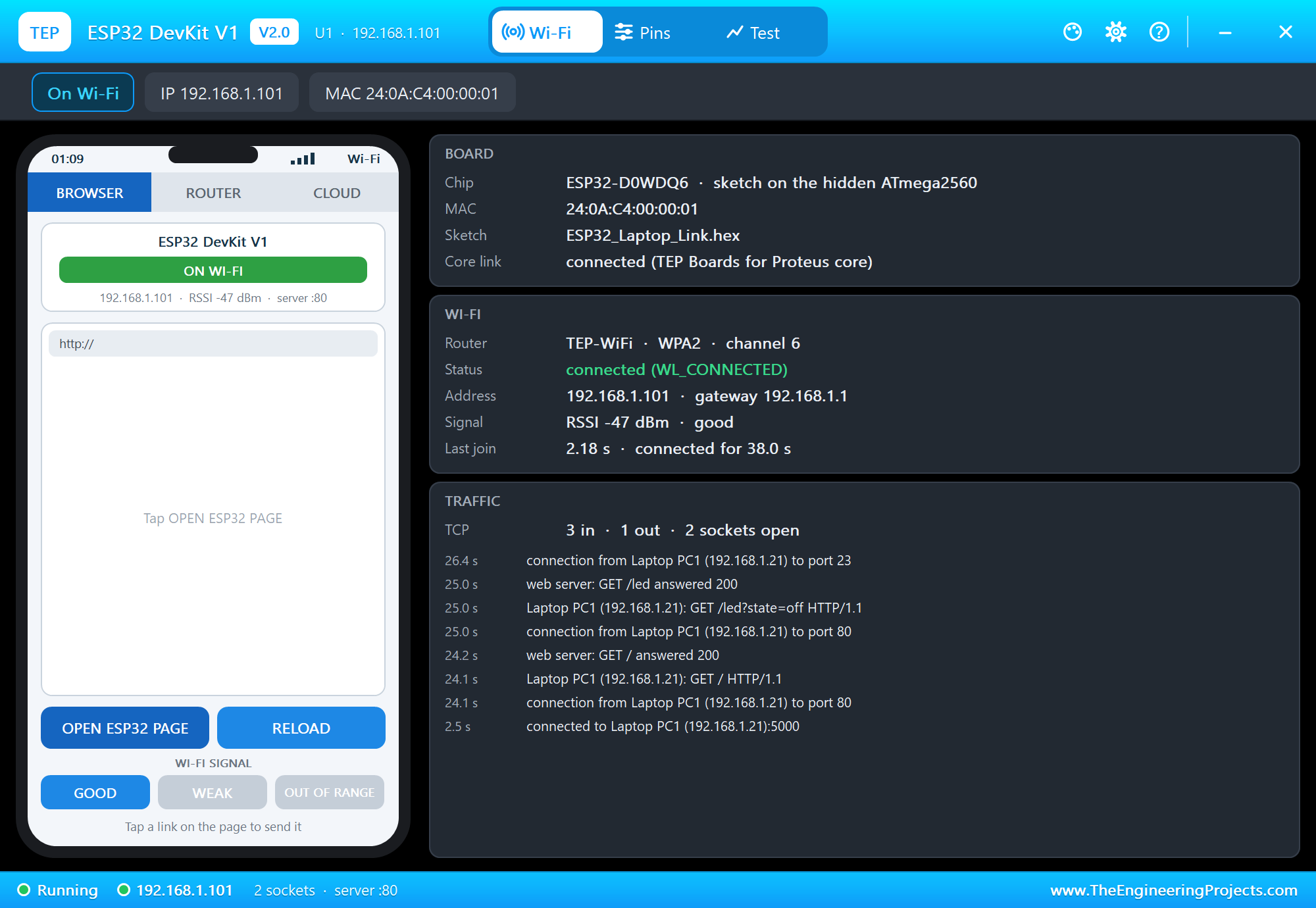
Settings and Help
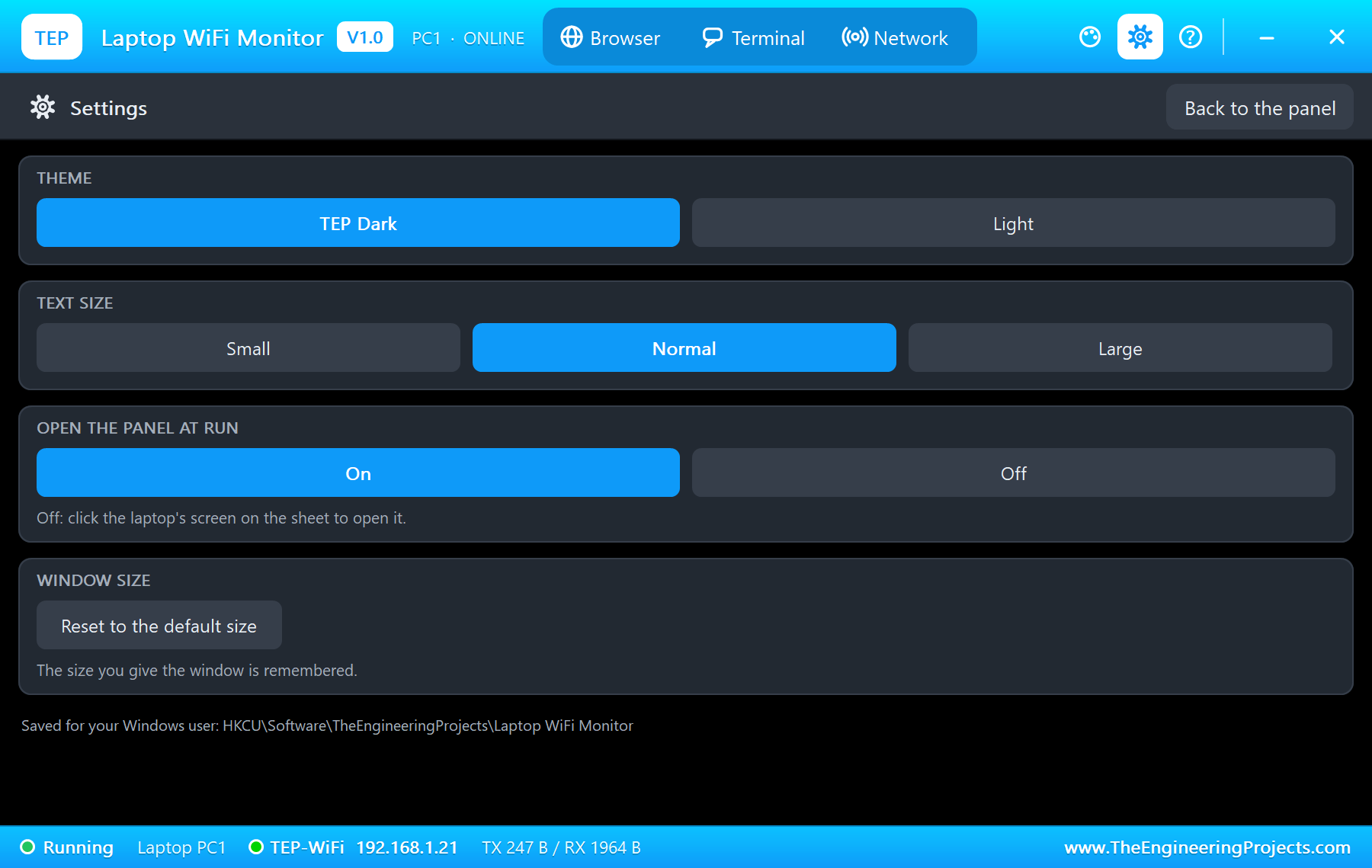
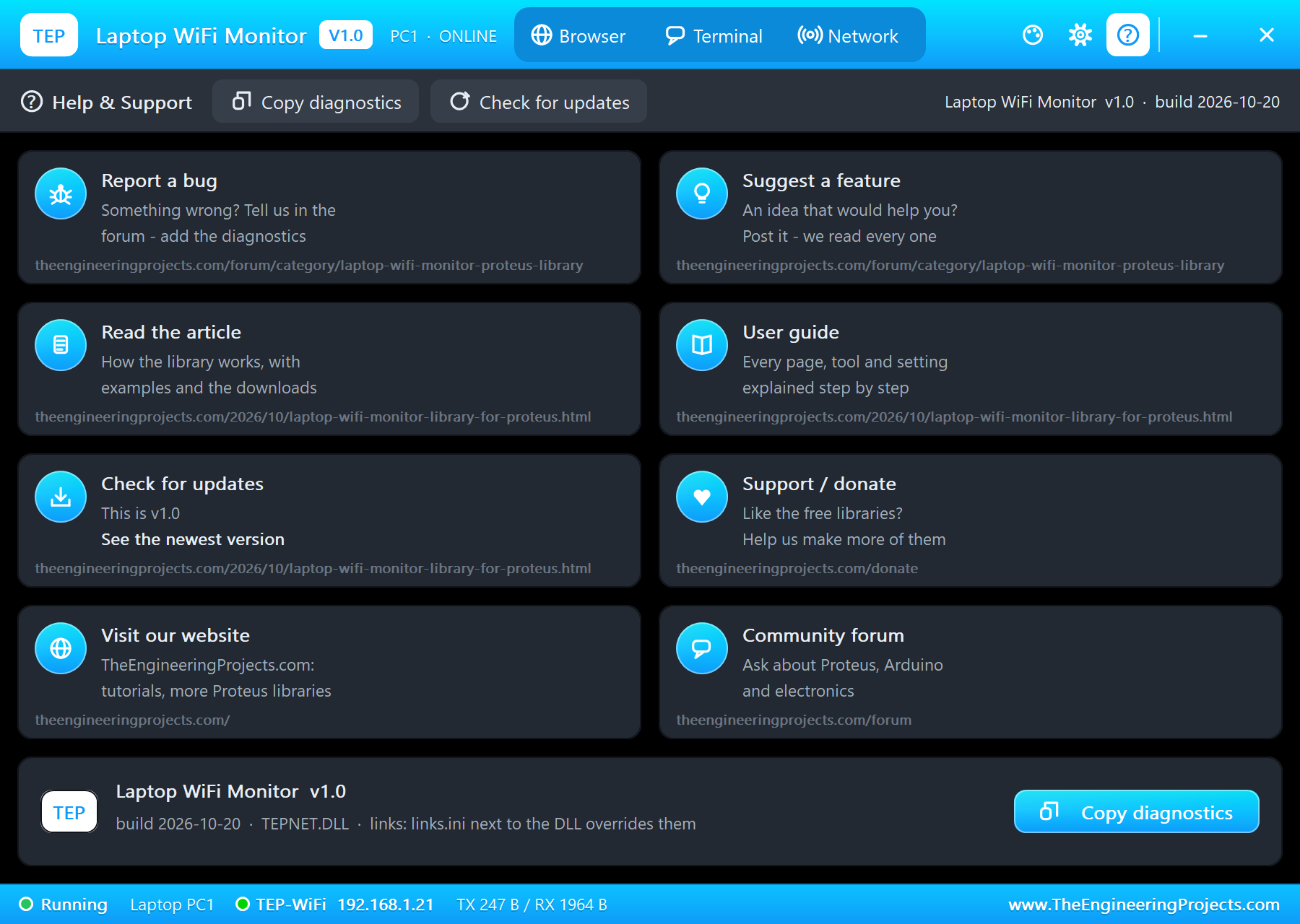
The window has the same header buttons as our TEP Serial Monitor Advance for Proteus: the theme, Settings and Help. In Settings you choose TEP Dark or Light, the text size, whether the window opens at Run, and you can reset the window size. Help links the article, the forum, a bug report, a feature request and updates, and Copy diagnostics puts the version and the state of the laptop on the clipboard for a bug report:
Properties of the Laptop WiFi Monitor
| Property | What it does |
|---|---|
| WIFISSID / WIFIPASS | the network it joins at Run (TEP-WiFi / 12345678) |
| HOMEPAGE | the browser's address at Run (http://192.168.1.101/) |
| TCPHOST / TCPPORT | the host and the port of the Terminal's TCP client (the demo: 192.168.1.101, 23) |
| SERVERPORT | the Terminal's TCP server port at Run, 0 = off (the demo: 5000) |
| UDPPORT | the Terminal's UDP port at Run, 0 = off |
| LINEEND | the end of a sent line: CRLF, LF, CR or NONE |
| CLOCK | the clock on the screen and in the window: PC or a fixed start time |
Using the Same Sketch with a Real Laptop
- Same network: put your laptop and the ESP32 on the same Wi-Fi, and write your network's name and password in the sketch.
- LAPTOP_IP: replace 192.168.1.21 with your laptop's address (ipconfig on Windows shows it).
- A TCP server on port 5000: any TCP terminal works - Hercules, PacketSender or
nc -l 5000- and you type LED ON there just as in Proteus. - The firewall: Windows may block the incoming connection on port 5000 the first time; allow it on private networks.
- The board: select ESP32 Dev Module of the Espressif core - the sketch uses only WiFi, WebServer and standard Arduino functions.
Troubleshooting
- No window at Run: click the laptop's screen on the sheet, or turn "Open the panel at Run" back on in Settings.
- "connection refused (no server on that port)": the board's server is not running yet, or the port is wrong; the board must be on Wi-Fi first.
- The ESP32 prints "The laptop's server does not answer yet": the laptop needs SERVERPORT 5000 (or Listen on the TCP Server page); the sketch tries again every 5 seconds.
- A page does not open: the board must serve HTTP on port 80, or type the port in the address; https pages are refused.
- Typing does nothing: click the text field first - it gets a blue frame.
- Two laptops: give them different numbers (PC1, PC2) - the number sets the address.
Limitations of the Simulation
- The browser shows the text, the headings and the links of a page; pictures, CSS, JavaScript and forms with POST are not shown or sent.
- There is no HTTPS: the simulated network has no TLS, so https addresses are refused.
- The laptop lives only on the TEP Wi-Fi network of the simulation; it cannot reach the network card of your PC or the real internet (the TEP internet host answers instead).
- The join, ping and network times are realistic values of our network model, not a radio simulation.
- Bluetooth is not in this version - it will come later.
- The TEP NoteBook, its look, the TEP OS screens, the router and the internet host are TEP additions; this library is not made or endorsed by Espressif, Arduino or Labcenter.
- Tested in Proteus 8.5 in October 2026 (the demo as shipped, the laptop and the ESP32 about 0.35 x real time). Proteus 7 is not supported.
So, that was all about the Laptop WiFi Monitor Library for Proteus. I hope the TEP NoteBook makes your Wi-Fi projects in Proteus much easier to test - open their pages, read their reports, send them commands and ping them, just like on your desk. In the Mobile WiFi Monitor Library for Proteus the same tools come in a smartphone, and you can try the laptop with the ESP-07 Library for Proteus and the other modules of our Wi-Fi series too. If you use the Laptop WiFi Monitor in a project, please share it in the comments or in our forum, and if you have any questions, ask in the comments and I will help you out. Till the next tutorial, take care and have fun!