Hello friends! In the previous lesson, we discussed what an XBee module does and how it transfers serial data between devices. Now we will connect two modules to a computer, configure their addresses, and send messages in both directions. This gives us a working radio link before we introduce Arduino code.
XBee Simulation Libraries
Latest library: XBee Library for Proteus V1.0 (January 2016)
Other RF modules: nRF24L01 · nRF24L01 PA LNA · CC1101 · RFM69HCW · HC-12 · 433MHz RF
Helping Tools
- Serial Monitor Advance: a serial terminal window for the UART of your board
- Serial Monitor Expert: the serial monitor with extra debugging tools
- LCD Library for Proteus V3.0: 16x2, 20x4 and I2C LCDs to show your readings
We will keep the original tutorial's simple addressing exercise: the first module uses address 1111, and the second uses 2222. The detailed command example is for classic XBee S1 modules running 802.15.4 firmware. If your module uses Zigbee or DigiMesh, identify it in XCTU and use that firmware's configuration procedure. Matching the case shape does not make these command settings interchangeable.
By the end, you should understand the difference between a computer's serial port and a radio address, why the electrical adapter matters, and how to locate a problem when the modules do not communicate. We will then use the same working pair in XBee Arduino Interfacing.
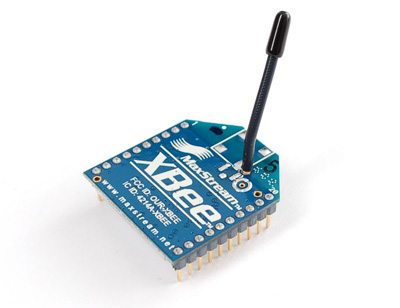
What We Need for This Exercise
| Item | Quantity | Purpose |
|---|---|---|
| Compatible XBee S1 802.15.4 modules | 2 | Wireless endpoints for this command example |
| Suitable XBee USB adapters | 2 | Power and serial access for both radios |
| USB data cables | As required | Connect the adapters to the computer |
| Computer with Digi XCTU | 1 or 2 | Configure the modules and exchange messages |
| Module and adapter documentation | For each model | Confirm voltage, current, and pin assignments |
Two computers are convenient, but one computer with two adapters also works. Each adapter should appear as a separate serial port. One adapter is sufficient to configure the radios in turn, but a two-way computer demonstration needs serial access to both powered endpoints.
Label the radios A and B before you begin. Record which serial port belongs to each one. An address written in software and a label attached to the physical board prevent confusion when you move the modules between adapters.
Understand the Adapter Before Connecting Anything
A bare XBee exposes a logic-level UART. A computer normally offers USB, or sometimes a true RS-232 serial port. These interfaces use different electrical signaling, so we need an adapter that provides the correct conversion.
Using an XBee USB Adapter
A suitable USB adapter handles the USB connection, presents a serial interface to the operating system, and provides the radio socket. Check its schematic to confirm that the module receives the correct supply and that its UART signals use compatible levels.
Some inexpensive USB-to-UART boards have a jumper that changes the power-output pin without changing the TX signal voltage. Others have limited current available from their 3.3 V output. Read the board documentation instead of relying on the jumper label or the presence of a 3.3 V terminal.
Insert or remove the radio with power disconnected. Align the module outline and pin 1 with the socket marking. The antenna end alone is not a reliable orientation guide across every adapter design.
Using a True RS-232 Port
The original version of this tutorial used a serial-port circuit based on MAX232. That historical circuit is retained below as a reference, but a 5 V MAX232 circuit must not be treated as a direct 3.3 V XBee interface. The MAX232 documentation specifies its 5 V supply arrangement.
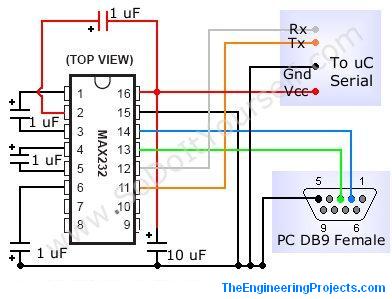
About the original diagram: its microcontroller-side connections need an electrically compatible interface before they can connect to a bare XBee. Do not connect the RS-232 side to DIN or DOUT. For a new RS-232 design, a suitable MAX3232 circuit operated at 3.3 V can provide the required conversion; use its specified capacitors and wiring. See the TI MAX3232 datasheet.
For this lesson, a purpose-built USB adapter is the simplest way to keep the focus on radio configuration. If you assemble an interface yourself, establish its serial operation and electrical levels before installing the radio.
Basic Logic-Level UART Wiring
| Adapter connection | XBee connection | Reason |
|---|---|---|
| Suitable regulated supply | Pin 1, VCC | Power within the module's specified limits |
| Ground | Pin 10, GND | Common signal reference |
| TX output at compatible logic level | Pin 3, DIN | Commands and payload entering the radio |
| RX input with compatible threshold | Pin 2, DOUT | Responses and received payload leaving the radio |
Never join two transmit outputs together. If the adapter provides additional reset or flow-control signals, follow its documented XBee connections rather than connecting unused pins arbitrarily.
Install XCTU and Identify the Serial Ports
Download XCTU through Digi's official XCTU page. The screenshots preserved in this article show an older X-CTU interface. They remain useful for understanding the original exercise, but current controls and layouts can differ.
- Install XCTU and the driver required by your USB adapter.
- Connect adapter A using a cable that carries data.
- On Windows, identify the new entry under Ports in Device Manager.
- Record that port as radio A, then repeat for radio B.
- Close any other terminal or Serial Monitor using either port.
The original screenshot uses COM9. Your computer may assign COM3, COM12, or another number; there is no requirement to use COM1. A COM number identifies the computer connection. It does not set the radio's MY address or destination.
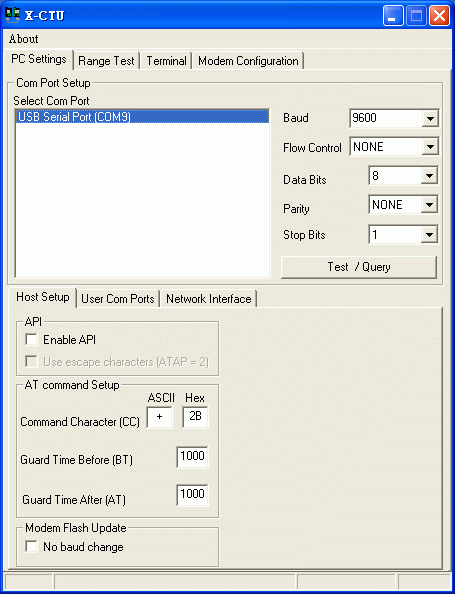
If you cannot distinguish the two ports, disconnect one adapter and observe which entry disappears, then reconnect it. Keep track of the physical USB socket as well, because moving an adapter can sometimes change how the operating system presents it.
Discover and Read Each Radio
In XCTU, use the local radio discovery function, select the relevant serial ports, and include the serial settings you want it to search. Once a radio is found, add it to the device list. Digi documents this workflow in Discover local radio modules.
For an unmodified classic S1, 9600 baud with eight data bits, no parity, and one stop bit is the usual starting point. A used module may have different settings. Searching its possible baud rates is more useful than repeatedly trying a single wrong value.
The old software used a Test/Query button. A successful response, illustrated below, establishes that the computer can communicate with the attached local radio. It does not yet demonstrate that the second radio receives wireless data.
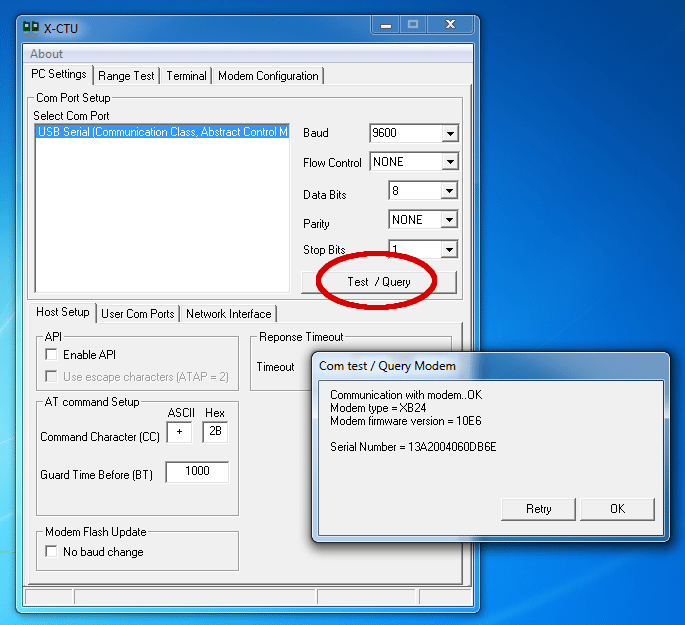
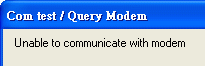
A failed local query is illustrated in the next original screenshot. Before changing radio-network settings, investigate the adapter, port selection, supply, serial settings, and whether the module is sleeping.
Read and record the hardware type, firmware function, firmware version, and existing configuration. If you discover Zigbee firmware, stop applying the S1 address example below and follow the appropriate product guide. Firmware updates and factory resets are not prerequisites for a basic terminal exercise.
Plan the Two Addresses
Think of the local address as the name of a mailbox and the destination address as the mailbox you intend to reach. For our classic S1 short-address exercise, radio A identifies itself as 1111 and sends to 2222. Radio B identifies itself as 2222 and sends to 1111.
| Parameter | Radio A | Radio B |
|---|---|---|
| AP, serial mode | 0, transparent | 0, transparent |
| BD, baud-rate code | 3, meaning 9600 baud | 3, meaning 9600 baud |
| ID, PAN identifier | 1234 | 1234 |
| CH, radio channel | C | C |
| CE, coordinator enable | 0 | 0 |
| A1, association options | 0 | 0 |
| SM, sleep mode | 0, awake | 0, awake |
| MY, local short address | 1111 | 2222 |
| DH, destination high | 0 | 0 |
| DL, destination low | 2222 | 1111 |
These numeric command parameters are hexadecimal. Channel C means hexadecimal 0C, which is decimal 12. Keep the same MAC-mode setting at both ends; the normal Digi mode is MM=0. Security settings must also be compatible. If encryption is enabled, both radios need the same intended key; this tutorial does not supply or require a public example key.
The explicit non-associating settings keep this exercise independent of a coordinator. The S1 user guide documents peer-to-peer operation and its parameter definitions. This arrangement should not be copied into a Zigbee network, where joining and network addresses work differently.
Why Both Destination Addresses Matter
If A sends to B correctly but B sends to another address, A's messages can arrive while replies disappear. That one-way behavior often looks like a damaged receiver even though the configuration explains it.
For example, leave A at MY=1111, DL=2222, but change B's destination to 3333. B can still receive A's traffic addressed to 2222. Its replies now target 3333. Restore B's destination to 1111 to restore the intended return path.
For clarity, these addresses are configuration identifiers, not passwords. Selecting an unusual PAN identifier helps separate projects but does not provide confidentiality or authorize commands.
Enter Command Mode Correctly
In transparent mode, ordinary serial characters are payload to transmit. To change the local radio's settings, first enter its command mode. With the default guard-time settings, leave the serial input silent for at least one second, send exactly +++, and then leave it silent for at least another second.
Do not add spaces between the plus signs, and do not press Enter after them. An automatically appended carriage return interrupts the required silence. The expected response is OK. Digi explains this sequence in its command-mode tutorial.
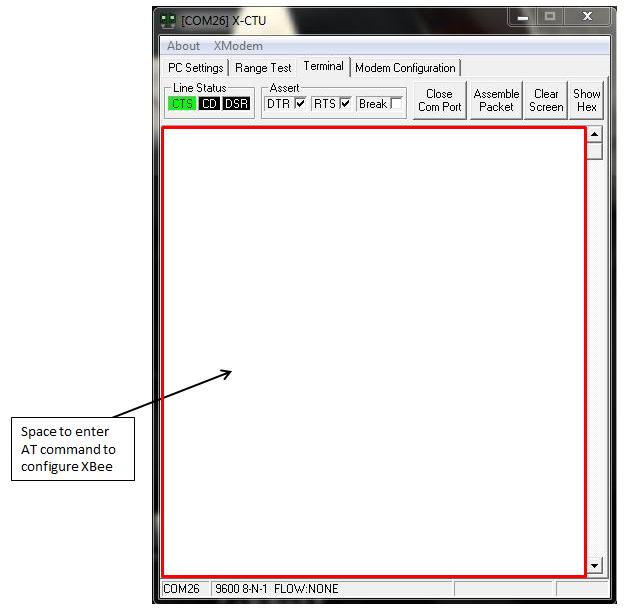
Use XCTU's serial console for the selected radio. Its packet composer or an equivalent terminal feature can send a precise sequence without appending a newline. The older screenshot above calls this area the Terminal tab.
Once you receive OK, send each AT command followed by a carriage return, byte 0x0D. Pressing Enter works only when the terminal is configured to send that character. The three plus signs and the subsequent AT commands therefore use different line-ending rules.
Configure Radio A
You can enter the values through XCTU's configuration interface and write them to the radio, or use the terminal commands below to understand the process. Begin with a radio already configured for a 9600-baud transparent serial connection. If discovery found a different baud rate or API mode, use XCTU's configuration interface to change it and reconnect first.
After entering command mode and receiving OK, send these commands individually. Wait for a response after each line. The code block excludes the +++ sequence because it must be sent separately with guard times.
ATAP0
ATBD3
ATCE0
ATA10
ATSM0
ATMM0
ATID1234
ATCHC
ATMY1111
ATDH0
ATDL2222
ATWR
ATCN
ATA10 can look confusing at first: its two-character command is A1, and its value is 0. Similarly, ATBD3 selects baud-rate code 3; it does not set a speed of three bits per second.
ATWR stores the configuration in nonvolatile memory. ATCN leaves command mode and applies pending settings. Writing settings once during configuration is appropriate; repeatedly writing them in a program's normal message loop is unnecessary.
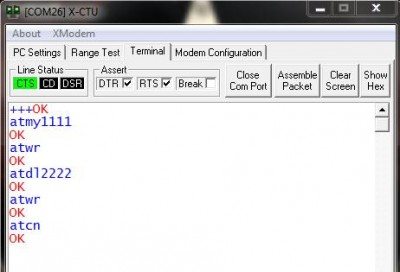
The original screenshot shows the same local and destination address pairing used here. It is a historical record of that setup, rather than evidence that a different module family accepts the same commands.
Configure Radio B
Select radio B's console, enter command mode, and apply the same shared settings. Reverse the local and destination addresses:
ATAP0
ATBD3
ATCE0
ATA10
ATSM0
ATMM0
ATID1234
ATCHC
ATMY2222
ATDH0
ATDL1111
ATWR
ATCN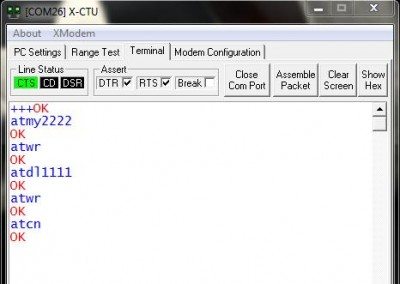
Notice that this is the second radio: its own address is 2222, and its destination is 1111. Labeling the modules is especially helpful if you are configuring them sequentially through one adapter.
If a command returns ERROR, do not continue by assuming it took effect. Recheck its spelling, the supported parameter range, and the identified firmware. If you pause too long while reading the tutorial, command mode can time out; re-enter it before continuing.
Send Data Between the Two Computers or Ports
After both radios leave command mode, open their serial consoles. Keep the modules separated by a modest distance on the bench rather than placing the antennas directly against one another.
- Send
Hello from radio Athrough A's console. - Look for the same payload in B's received-data display.
- Send
Hello from radio Bthrough B's console. - Look for that reply in A's received-data display.
- Repeat with numbered messages such as
TEST,1,TEST,2, andTEST,3.
Distinguish locally transmitted text from received data. A terminal's local echo can display what you typed even when no remote radio exists. Receiving the message in the other console is the useful observation.
A newline is convenient for displaying text, but transparent serial data is a stream of bytes. Your later microcontroller program should deliberately define how a message ends. Sending a newline does not guarantee that the radio uses exactly one RF packet for that application message.
How Long Should a Message Take?
At 9600 baud using 8N1, each transmitted byte occupies ten bit periods. If a test message contains 20 bytes including its line ending, its UART serialization time is:
t = 20 × 10 / 9600 = 0.02083 s = 20.83 ms
The wireless transfer adds packetization and radio timing. USB buffering and terminal display updates also contribute. Therefore, a stopwatch reading from a terminal window is not a clean measurement of RF latency.
For a simple delivery exercise, send a known number of numbered messages at a comfortable interval. If you send 100 and the receiver records 98 unique numbers, the observed delivery fraction is 98 / 100 × 100 = 98%. That is an example calculation, not a test result for these modules. Count unique messages so duplicates do not hide missing data.
Troubleshooting in a Useful Order
| Problem | Investigate | Next action |
|---|---|---|
| No serial port appears | Cable, USB socket, adapter driver | Try a known data cable and inspect Device Manager |
| Port exists but XCTU cannot open it | Another program owns the port | Close its terminal or Serial Monitor |
| XCTU opens the port but finds no radio | Power, orientation, UART wiring, sleep, serial settings | Check hardware and run discovery with plausible baud rates |
| No OK after +++ | Guard times, line endings, mode, baud rate | Send only the three characters between silent intervals |
| OK appears, but commands fail | Syntax or firmware mismatch | Check the command in the identified product's guide |
| Both local radios respond, but no data crosses | Protocol, channel, PAN, addressing, security | Compare both saved configurations |
| Only one direction works | Return destination and receiving UART path | Check the address pairing and reverse-direction wiring |
| Characters become corrupted | Serial framing or voltage levels | Compare 9600/8N1 settings and inspect the interface |
Digi's XCTU troubleshooting reference covers additional discovery and connection failures. Work from the local computer connection outward. Increasing radio power is not a useful response when the USB serial port cannot open.
Practical Review of the Computer Interface
The useful outcome of this exercise is a pair of radios with known configuration and a demonstrated route in each direction. Keep a short configuration record containing module labels, firmware family, serial settings, and addresses. You can then move the radios to microcontroller boards without guessing which part previously worked.
A USB adapter is convenient for configuration and diagnosis. A properly designed RS-232 adapter remains useful with equipment that provides a true serial port, but it introduces electrical conversion details that must be handled correctly. Either interface should leave the radio with a suitable supply, compatible logic levels, and an unambiguous transmit/receive connection.
You can explore program behavior using our XBee Library for Proteus, while keeping the simulation model's limitations in mind. Real firmware compatibility, power transients, and antenna performance still need to be established with the actual hardware.
Frequently Asked Questions
Can I use one computer for both XBee modules?
Yes. Connect two suitable adapters and open a separate serial connection for each. Identify the ports carefully so that transmitted data and received data are not confused.
Can I configure both modules with one USB adapter?
Yes. Configure one, disconnect power, exchange modules, and configure the other. You still need two powered radio endpoints for a wireless exchange; each endpoint also needs whatever host interface the demonstration requires.
Why does +++ fail when I press Enter?
The entry sequence needs a silent interval after the three plus characters. Enter usually sends another byte, which breaks that interval. Send subsequent AT commands with carriage returns only after command mode responds.
Will the 1111 and 2222 example work on Zigbee firmware?
Do not assume so. This example configures classic S1 short-address communication without association. Zigbee network formation and address assignment require the instructions for that firmware.
Why do my settings disappear when power is removed?
Check that you wrote them to nonvolatile memory using the appropriate XCTU write action or ATWR. Also confirm that you are reading the same physical module afterward.
Does a successful local query prove that wireless communication works?
No. It proves that the computer and its attached radio can exchange configuration traffic. Send payload to the other endpoint and receive a reply to establish the complete two-way path.