Hello friends! In our previous tutorial, we installed the Arduino LilyPad library for Proteus. Now we will use that board in a small circuit with three LEDs and a pushbutton, then extend the same project to an analog level indicator.
Libraries used in this tutorial
Arduino Lilypad Library for Proteus: V1.0 (2014, used in this tutorial)
Newer Arduino boards: UNO · Mega 2560 · Mega 1280 · Nano · Pro Mini · Mini (V4.0)
Helping Tools
- Serial Monitor Advance: a serial terminal window for the UART of your board
- Serial Monitor Expert: the serial monitor with extra debugging tools
- LCD Library for Proteus V3.0: 16x2, 20x4 and I2C LCDs to show your readings
The basic behaviour is easy to observe: when the button is released, all three LEDs are on; when it is pressed, they turn off. This gives us a useful first exercise in input configuration, output arrays and the relationship between a circuit and its program.
The original article described a button demonstration but supplied code that read an analog input and mapped it to an LED count. We will explain that difference and provide separate versions for the two behaviours. The original screenshots and project download are retained, with the revised wiring and code identified below.
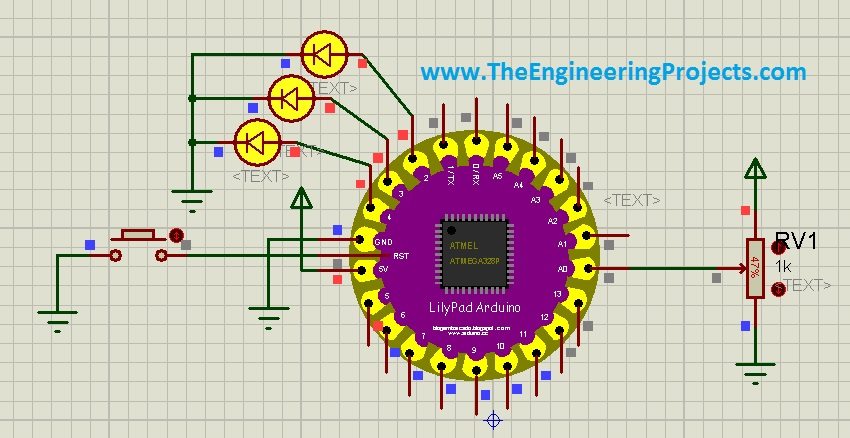
Prepare the LilyPad Simulation
Install the historical library before opening the project. This package was credited to blogembarcado in the library tutorial. Select its classic LilyPad component and identify the processor and clock represented by the model. Do not assume it represents a LilyPad USB board.
Use a matching Arduino AVR board configuration when compiling. The classic LilyPad options in the official Arduino board definitions use an 8 MHz build clock, with processor selection depending on the particular variant. Your Proteus model must agree with that choice.
The simulation does not require a physical LilyPad connected to the computer. Arduino IDE produces the machine-code image, and Proteus loads that image into the simulated microcontroller. Physical uploading and simulation program loading are separate operations.
Components for the Button Demonstration
- The installed LilyPad board component.
- Three LEDs, each with its own series resistor.
- One normally open momentary pushbutton.
- A suitable DC supply and a ground reference.
- Voltage probes or a logic analyser if available.
- A potentiometer only for the later analog version.
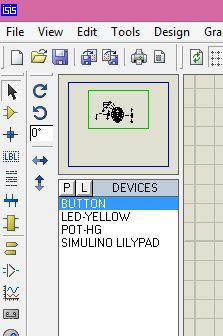
Choose LED colours that are easy to distinguish, but remember that different colours can have different forward voltages. A component's appearance does not define its current rating. Configure the circuit using the selected model's supply requirements and choose resistors accordingly.
Connect the Three LEDs and Button
We will retain digital pins D2, D3 and D4 for the LEDs. Connect each output through its own resistor to the corresponding LED anode, and connect the cathodes to ground. Connect the button between A0 and ground.
| LilyPad connection | External connection | Purpose |
|---|---|---|
| D2 | Series resistor and LED 1 | First indicator output |
| D3 | Series resistor and LED 2 | Second indicator output |
| D4 | Series resistor and LED 3 | Third indicator output |
| A0 | Normally open button to ground | Digital input with internal pull-up |
| Ground | LED cathodes and button return | Common voltage reference |
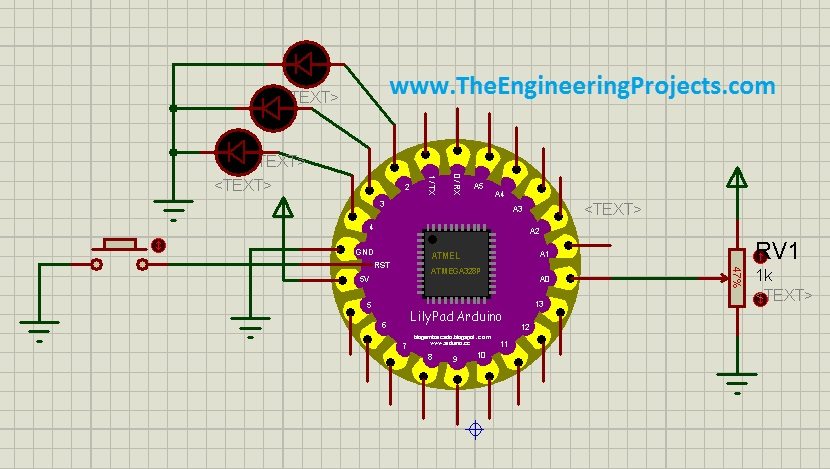
The original circuit illustration is preserved above. For the revised button program, use the connection table rather than assuming every detail of an older schematic matches the new sketch. In particular, do not connect A0 directly to the positive supply while also placing a button directly between that node and ground.
Why the Input Needs a Defined State
An open switch does not automatically produce a logic HIGH or LOW. Without a bias path, the input can float. The INPUT_PULLUP mode connects an internal pull-up so a released button reads HIGH, while pressing the button connects the input to ground and produces LOW.
This makes the button active-low: LOW means pressed. Arduino's InputPullupSerial example demonstrates that arrangement. On the classic AVR board, A0 can be used as a digital input, which is what we need for this version.
If the particular model does not implement the internal pull-up as expected, a suitable external pull-up, such as 10 kilohms to the logic supply, can define the same released state. Confirm its connection and voltage; it is not the same component as an LED's series resistor.
Calculate the LED Current
For an illustrative 3.3 V circuit and a red LED with a 2 V forward drop, a 470-ohm resistor gives approximately (3.3 - 2)/470 = 2.8 mA. Three such LEDs draw about 8.3 mA through their output paths when all are on, before counting the board's own consumption.
At 5 V, the same assumed LED and resistor would draw about 6.4 mA per output. These are approximate calculations; check output-voltage behaviour and the selected LED. Use a supply permitted by the exact board and model rather than treating either example voltage as universal.
Each LED needs its own resistor. Sharing one resistor across parallel LEDs can divide current unevenly and makes the result depend on their forward-voltage differences. Keeping three separate branches also makes debugging much easier.
Program the Button-Controlled LEDs
This first sketch implements the stated button behaviour directly. It does not need an ADC reading or a mapping function. The output pin list is stored in an array so we can configure and update all three LEDs with a short loop.
const byte buttonPin = A0;
const byte ledPins[] = {2, 3, 4};
const byte ledCount = sizeof(ledPins) / sizeof(ledPins[0]);

void setup() {
  pinMode(buttonPin, INPUT_PULLUP);
  for (byte i = 0; i < ledCount; ++i) {
    digitalWrite(ledPins[i], LOW);
    pinMode(ledPins[i], OUTPUT);
  }
}

void loop() {
  bool pressed = digitalRead(buttonPin) == LOW;
  for (byte i = 0; i < ledCount; ++i) {
    digitalWrite(ledPins[i], pressed ? LOW : HIGH);
  }
}
In setup, each LED output starts LOW. Once loop begins, a released button makes the outputs HIGH. Pressing the button makes them LOW. The small startup interval is different from a requirement that outputs must remain on continuously during reset; hardware startup behaviour needs separate consideration.
The array indices are 0, 1 and 2, while the physical Arduino labels are D2, D3 and D4. The loop index selects an entry from the array; it is not itself the output pin number. Keeping that distinction clear helps when you later rearrange the wiring.
Compile and Load the Program
- Save the sketch in Arduino IDE.
- Select the classic LilyPad board and the processor matching the Proteus model.
- Compile and resolve any errors.
- Use Sketch and Export Compiled Binary to produce the output image.
- Stop the Proteus simulation and open the LilyPad properties.
- Select the freshly generated application HEX file as Program File.
- Check the simulated clock, supply and ground before starting.
Arduino's platform specification explains how exported build files are produced. Use the actual output location from your installed IDE rather than a temporary folder copied from an old screenshot.
If multiple HEX files exist, confirm which belongs to the latest source and selected board. An application compiled for another clock can appear to execute while timing functions are wrong. A program compiled for a different processor can fail in less obvious ways.
Observe the Released and Pressed States
Start the simulation with the button released. All three LEDs should light under the updated wiring and button sketch. Measure A0 relative to ground if the output does not match your expectation; the input should be held near the logic supply by its pull-up.
Press the button. A0 should move near ground, the sketch should read LOW and all three outputs should turn off. Release the button and confirm that the LEDs return to their previous on state.
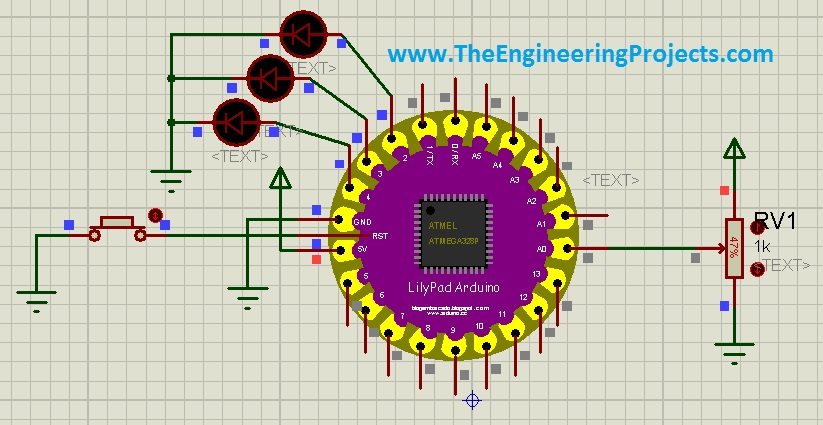
These original images show the intended visible states, not a newly recorded run of the revised code. They remain useful for understanding the exercise, but a fresh hardware or Proteus execution of the replacement sketches is not claimed here.
| Button | A0 reading | D2, D3 and D4 | LEDs |
|---|---|---|---|
| Released | HIGH | HIGH | On |
| Pressed | LOW | LOW | Off |
Understand the Analog Code in the Original Project
The original sketch used analogRead(A0), followed by map(sensorReading, 0, 1023, 0, 3). It then illuminated LEDs whose array indices were lower than the mapped value. That is an analog bar-graph algorithm, even if a button circuit happens to drive the input between its two extremes.
For the classic AVR's default 10-bit reading, the input code ranges from 0 to 1023. Integer mapping to 0 through 3 produces four output counts, but they are not four equally wide bins: the third LED only joins the first two at the top input code, 1023.
The mapping calculation is effectively floor(3 × reading/1023) for these nonnegative inputs. Thus, a reading of 512 gives 1, not 2, and a reading of 1022 gives 2, not 3. That explains why the original algorithm may look satisfactory with a rail-to-rail button but behave unexpectedly with a potentiometer.
Extend the Circuit Into an Analog Level Indicator
For the analog version, stop the simulation and remove the button connection. Connect a potentiometer across the permitted logic supply and ground, with its wiper connected to A0. Use a normal input configuration rather than INPUT_PULLUP, so the pull-up does not alter the intended analog source.
We will divide the 1024 possible ADC codes into four equal groups. Integer division by 256 gives counts 0, 1, 2 and 3. This is a display rule chosen for the exercise; it does not mean the sensor measures four physically distinct conditions.
const byte analogPin = A0;
const byte ledPins[] = {2, 3, 4};
const byte ledCount = sizeof(ledPins) / sizeof(ledPins[0]);

void setup() {
  pinMode(analogPin, INPUT);
  digitalWrite(analogPin, LOW); // Leave the AVR pull-up disabled.
  for (byte i = 0; i < ledCount; ++i) {
    pinMode(ledPins[i], OUTPUT);
  }
}

void loop() {
  int reading = analogRead(analogPin);
  byte level = reading / 256;
  for (byte i = 0; i < ledCount; ++i) {
    digitalWrite(ledPins[i], i < level ? HIGH : LOW);
  }
}
Use this as a separate sketch, replacing the button version rather than pasting two setup and loop functions into one file. Recompile and reload the program image after changing versions. The two circuits and programs demonstrate different input behaviour.
| ADC code | LED count | Outputs on |
|---|---|---|
| 0 to 255 | 0 | None |
| 256 to 511 | 1 | D2 |
| 512 to 767 | 2 | D2 and D3 |
| 768 to 1023 | 3 | D2, D3 and D4 |
Relate ADC Codes to Voltage
For an ideal 10-bit conversion, one code step is approximately Vref/1024. With a 3.3 V reference, that is about 3.22 mV. The boundaries at 256, 512 and 768 correspond approximately to one-quarter, one-half and three-quarters of the reference voltage.
Do not assume the ADC reference equals a number written beside a battery symbol. Check the processor's reference configuration and power connections. The input voltage must remain within the permitted range, and a numerical conversion resolution does not guarantee equivalent absolute measurement accuracy.
Arduino documents the function in its analogRead reference. Other Arduino families can offer different resolutions or reference options, so the thresholds in this example belong to the stated 10-bit configuration.
Improve Input Stability
A real mechanical switch can bounce between open and closed before settling. In our level-following demonstration, that may cause a brief flicker. In a toggle or counting application, the same bounce can create multiple unwanted events, so a debounce rule becomes important.
One approach is to record when the raw input last changed and accept a new stable state only after it remains unchanged for a chosen interval, such as 30 milliseconds. Implement that interval using elapsed time rather than a long blocking delay if the program must continue handling other tasks.
The potentiometer version has a different issue: noise close to a threshold can switch an LED repeatedly. Hysteresis uses separate upward and downward thresholds. For example, a boundary near 512 might turn the second LED on at 520 and off below 504. The selected gap must suit the measurement noise and required sensitivity.
Averaging several readings can reduce some random variation, but it also delays the display response. Hysteresis and averaging solve related but different problems. Begin with the unfiltered sketch so you can see the raw behaviour before adding either technique.
Use a Repeatable Test Sequence
For the button version, begin with the button released before starting the simulation. Record the input level and the three output states. Press and hold the button, then release it. Finally, restart the simulation while holding it down. The last case checks that the program reads the actual input after startup instead of assuming every start begins with a released button.
For the analog version, move the potentiometer slowly from its minimum to maximum position and then back again. Observe the transitions in both directions. At minimum, no LEDs should be on; at maximum, all three should be on. Intermediate positions should produce one and two illuminated branches in order.
To inspect a boundary more carefully, monitor the ADC result rather than relying only on the potentiometer's visual position. Values 255 and 256 should produce different counts, as should 511 and 512, and 767 and 768. These adjacent-code checks demonstrate the exact integer rule implemented in the sketch.
If you add diagnostic serial output, print at a modest interval so the messages remain readable and do not dominate the simulation. Confirm the serial baud rate and model clock together. A garbled terminal does not automatically mean that the ADC or LED logic is wrong.
Keep observations tied to the program version. A result produced by the original map-based HEX file should not be compared against the equal-bin table as though both implement the same rule. Save the sketch name, build target and selected program-file path alongside your schematic.
Once the baseline behaves consistently, introduce one improvement at a time. Add debounce to the button project or hysteresis to the analog project, then repeat the same sequence. This shows what the improvement changes and whether it introduces an unwanted delay or a different threshold.
Download the Original Simulation
The historical project and HEX download remain available below. They correspond to the original implementation and may contain the analog-reading behaviour described earlier. The archive has not been replaced with the revised sketches in this article.
If you use the archive, inspect its wiring, program-file path and processor settings before running it. To use the updated button or analog version, compile the selected sketch yourself and explicitly load that new HEX file. Keeping old and revised files in separate folders avoids accidental comparisons between different implementations.
Troubleshooting and Review
| Problem | Useful check |
|---|---|
| All LEDs stay off | Program file, supply, LED polarity and output pin mapping |
| Button operation is reversed | Active-low logic and actual pull-up or pull-down wiring |
| Input changes without touching the button | Floating input or incorrect ground reference |
| Only two LEDs light with the old analog sketch | The original integer mapping reaches level 3 only at code 1023 |
| New code seems to have no effect | Old HEX file still selected or compilation failed |
Test each output separately if one branch behaves differently. A program that drives D2 correctly does not prove D3's resistor or LED is connected properly. Likewise, measure the input before changing code; a wiring fault can produce exactly the same visible symptom as an incorrect condition.
Frequently Asked Questions
Is this a blinking-LED program?
The main sketch follows a button state rather than blinking periodically. The analog extension displays an input level. A timed blink requires a separate timing rule.
Why is A0 used with digitalRead?
The classic AVR board allows that analog-labelled pin to act as a digital input. We only need to distinguish pressed from released in the button version.
Can I connect all three LEDs through one resistor?
Use one series resistor per LED branch. That defines each branch's current and makes the circuit easier to diagnose.
Does the original download include these revised sketches?
No. It remains the historical archive. Compile the code shown here when you want the revised behaviour.
What should I add next?
Try a debounced toggle, an adjustable threshold or a sensor with a documented output range. Define the expected input and output states before changing the circuit.