Hello friends, I hope you all are doing great. Today, I am going to share the Arduino UNO Q Library for Proteus. The Arduino UNO Q is a board with two processors in the UNO's shape: a Qualcomm QRB2210 that runs Debian Linux and your Python program, and an STM32U585 microcontroller that runs your Arduino sketch. The two call each other's functions through the Bridge. With this library both halves of a UNO Q app run in Proteus 8.5, on our virtual Wi-Fi network.
Arduino UNO Q Library for Proteus
Latest version: V1.0 (October 2026, this tutorial)
Other Arduino Wi-Fi boards: UNO R4 WiFi · Nano ESP32 · UNO WiFi Rev2 · Nano 33 IoT
Raspberry Pi boards: Pico · Pico W · Pico 2 W · Pi Model B · Pi 1 B+ · Pi 2 Model B · Pi 3 Model B · Pi 3 Model B+ · Pi 3 Model A+ · Pi 4 Model B · Pi 5 · Pi Zero W · Pi Zero 2 W · Pi 400 · Pi 2 · Pi 3 · Pi 4 · Zero W
Temperature and weather sensors: DHT11 / DHT22 · DS18B20 · BME280 · BMP280 · SHT31 · AHT20 · BME680 · MLX90614 · MAX6675
Water and soil sensors: Soil Moisture · Capacitive Soil · Rain Sensor · Water Level · TDS Meter · Turbidity · YF-S201 Flow · pH Sensor
Helping Tools
- Laptop WiFi Monitor: a laptop on the Wi-Fi of your design: a browser, a TCP / UDP terminal and ping
- Mobile WiFi Monitor: a smartphone that opens the pages of your board and sends it commands
- Serial Monitor Advance: a serial terminal window for the UART of your board
After our eleven Raspberry Pi boards, the Jetson Nano and the BeagleBone Black Library for Proteus, this is the next board of our series, and like every library of the series it connects the board to different modules and serves a web page. The UNO Q is made for apps that need both worlds, so this time it is a smart greenhouse: the sketch reads a DHT22 and a capacitive soil moisture probe and drives a WS2812B grow light and a pump's relay; the Python program decides when to water and serves a page on a laptop and a phone; the LED matrix, the four RGB LEDs and the power LED show it all on the board.
NOTICE: this library does not run Debian or an STM32. It runs your Python program, with the Python library of a UNO Q app, and your sketch, compiled for our UNO Q board, in step with the simulation. Your feedback is the fuel that keeps us going, so please tell us what you think in the comments below or in the Arduino UNO Q board of our forum. And if our free libraries help you, you can buy us a coffee. So, let's get started with the Arduino UNO Q Library for Proteus:
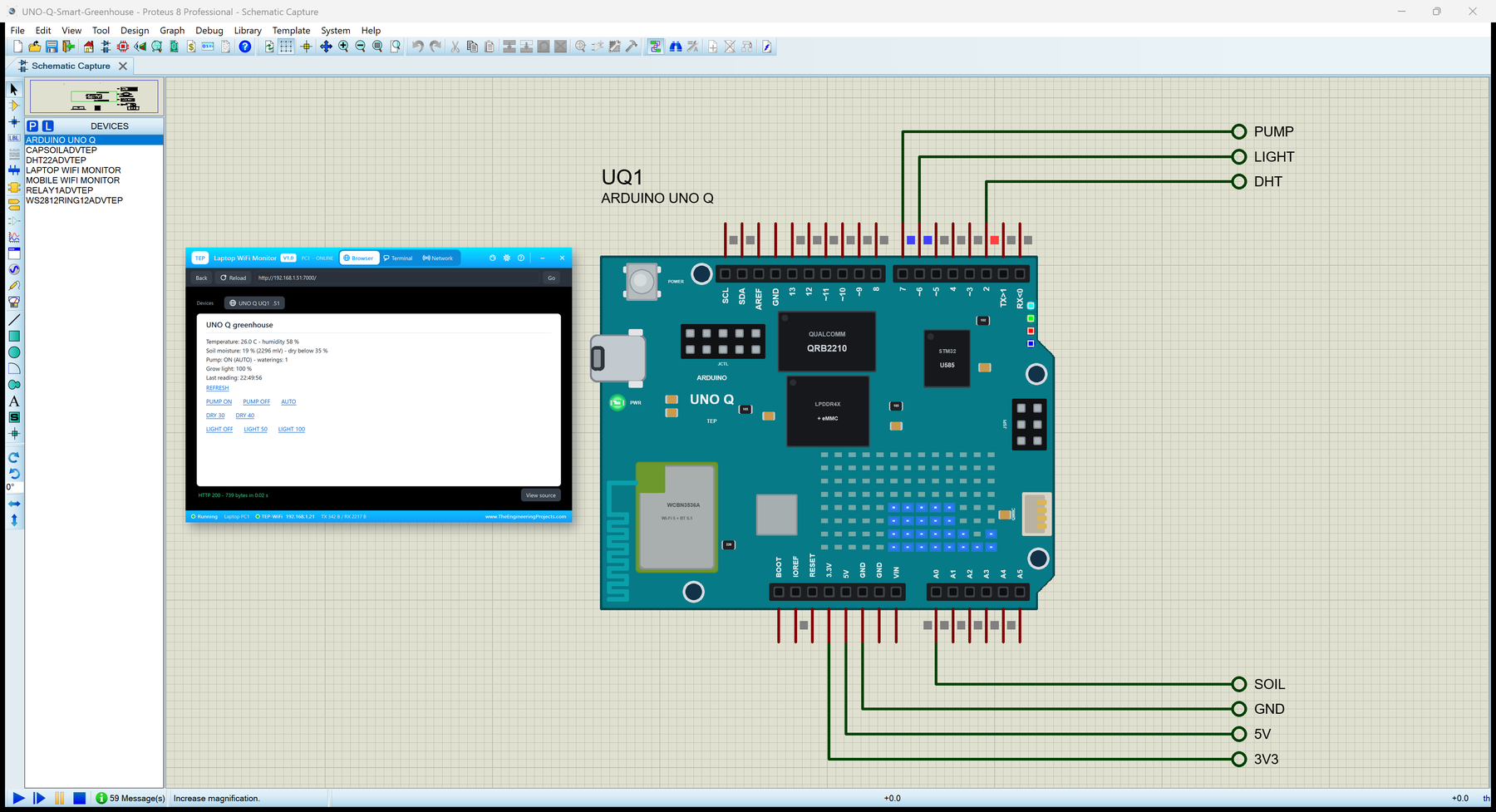
What is the Arduino UNO Q?
Arduino and Qualcomm released the UNO Q in October 2025. It keeps the UNO's size, outline and headers, so UNO shields fit, but it is a small computer too: the Qualcomm Dragonwing QRB2210 - four Cortex-A53 cores at 2.0 GHz with 2 GB or 4 GB of RAM and 16 GB or 32 GB of eMMC - runs Debian, with dual-band Wi-Fi 5 and Bluetooth 5.1. Beside it sits an ST STM32U585, a Cortex-M33 at 160 MHz, which owns the 3.3 V headers, the ADC, PWM and the LED matrix.
A UNO Q program is an app, made in Arduino App Lab: python/main.py runs on Linux and sketch/sketch.ino on the microcontroller. The sketch does what must happen on time - reading sensors, driving pins - and the Python program does what needs a computer - the network, the decisions, a web page. The Bridge joins them: either side provides functions and calls the other's.
| Arduino UNO R4 WiFi (2023) | Arduino UNO Q (2025) | |
|---|---|---|
| Processor | RA4M1 (Cortex-M4, 48 MHz) + ESP32-S3 for Wi-Fi | QRB2210 (four Cortex-A53, 2.0 GHz) + STM32U585 (Cortex-M33, 160 MHz) |
| Programs | one sketch | a Python program on Linux and a sketch |
| RAM, storage | 32 kB SRAM, 256 kB flash | 2 or 4 GB LPDDR4X, 16 or 32 GB eMMC; 786 kB SRAM, 2 MB flash |
| Logic level | 5 V | 3.3 V |
| LED matrix | 12 x 8, red | 8 x 13, blue |
| Network | Wi-Fi 4, Bluetooth | Wi-Fi 5 dual-band, Bluetooth 5.1 |
| Size | 68.6 x 53.4 mm | 68.58 x 53.34 mm |
In Proteus, our Raspberry Pi Model B Library for Proteus covers how a board runs a Python program in lockstep with the simulation, our Raspberry Pi 4 Model B library how such a program serves a web page, and our Arduino UNO R4 WiFi Library for Proteus how a board runs your sketch with our TEP Boards for Proteus add-on. The UNO Q puts the two together on one part, with the Bridge between them.
Features of the Arduino UNO Q Library for Proteus
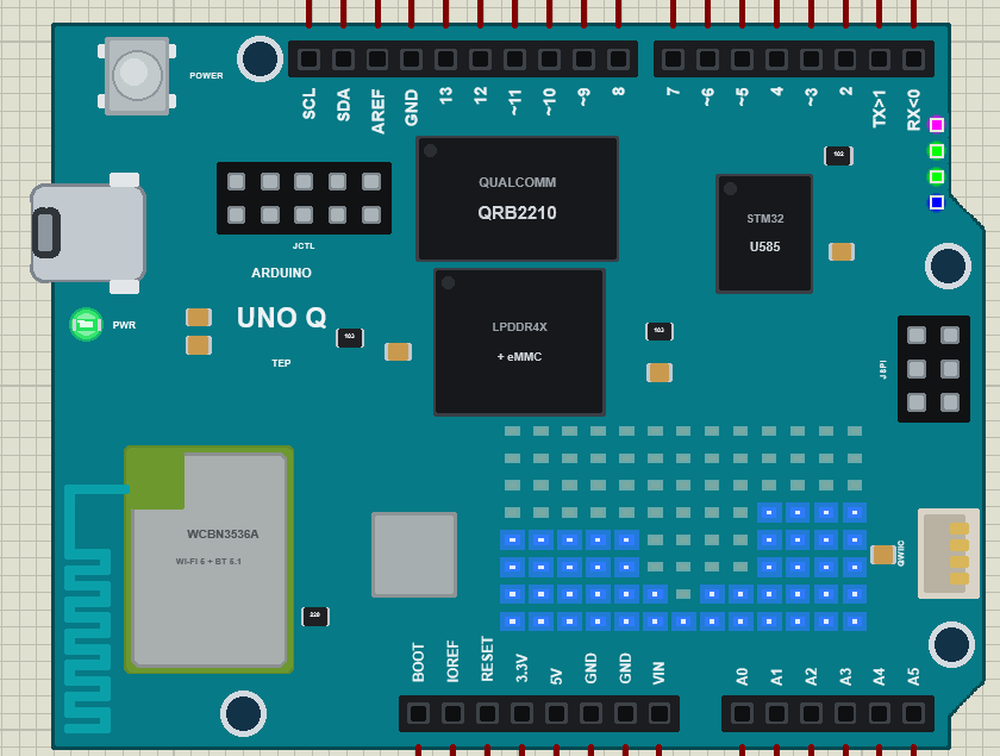
- The board as it looks: the teal UNO board at its real size of 68.58 x 53.34 mm - the USB-C port, the power button, the Wi-Fi module and its antenna, the QRB2210 and its memory, the STM32U585, the JCTL and JSPI headers, the Qwiic connector, the 8 x 13 blue LED matrix, the four RGB LEDs and the green power LED.
- Your sketch: a .hex compiled for "Arduino UNO Q (TEP Proteus)" runs on the board's pins - D0 to D13, A0 to A5, SDA and SCL - with digitalWrite, analogRead, analogWrite, attachInterrupt, Serial1, Wire, SPI and libraries such as DHT and Adafruit NeoPixel.
- Your Python program: any .py file in the MAINPY property, in Python 3.11 with its standard library, in step with the simulation.
- The Bridge: Bridge.call, Bridge.notify and Bridge.provide on both sides - arduino.app_utils in Python, Arduino_RouterBridge in the sketch - with the names of Arduino's libraries.
- The LEDs: the matrix with Arduino_LED_Matrix, RGB LED 3 and 4 on the sketch's pins, RGB LED 1 and 2 from Linux, and the power LED.
- Wi-Fi: wlan0 joins our router at 192.168.1.51, uno-q.local; sockets and http.server work on it.
- Two windows: the Linux terminal for the Python program and the sketch's serial monitor for Monitor and Serial, each with a Board tab - with our TEP header, no Windows title bar.
- A complete package: about 14.8 MB with the board, Python, the runtime, the add-on, the DHT22, soil, WS2812B, relay and monitor libraries and two demo apps, without the source code of the models.
The Arduino UNO Q in Proteus
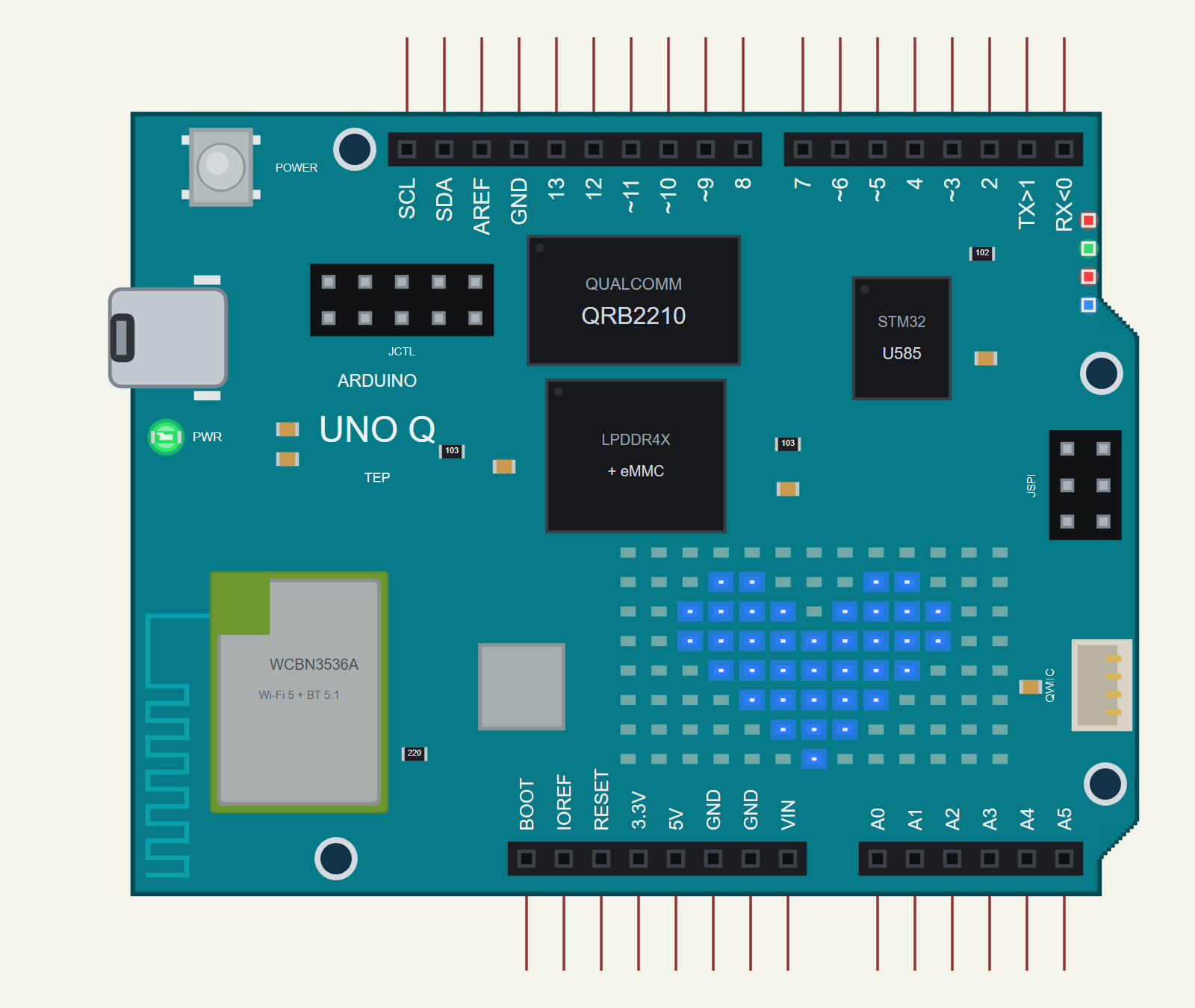
Search UNO Q in Pick Devices; the device ARDUINO UNO Q is in TEPUNOQ.LIB (Microprocessor ICs, Arduino UNO Q), with the prefix UQ. The board is drawn at its real size from Arduino's own top view of it: the USB-C port on the left, the digital header along the top, the power and analog headers along the bottom, with the UNO's vertical pin labels beside them. Click the QRB2210 to open the Linux terminal, the USB-C port to open the sketch's monitor, and the power button to restart the Python program.
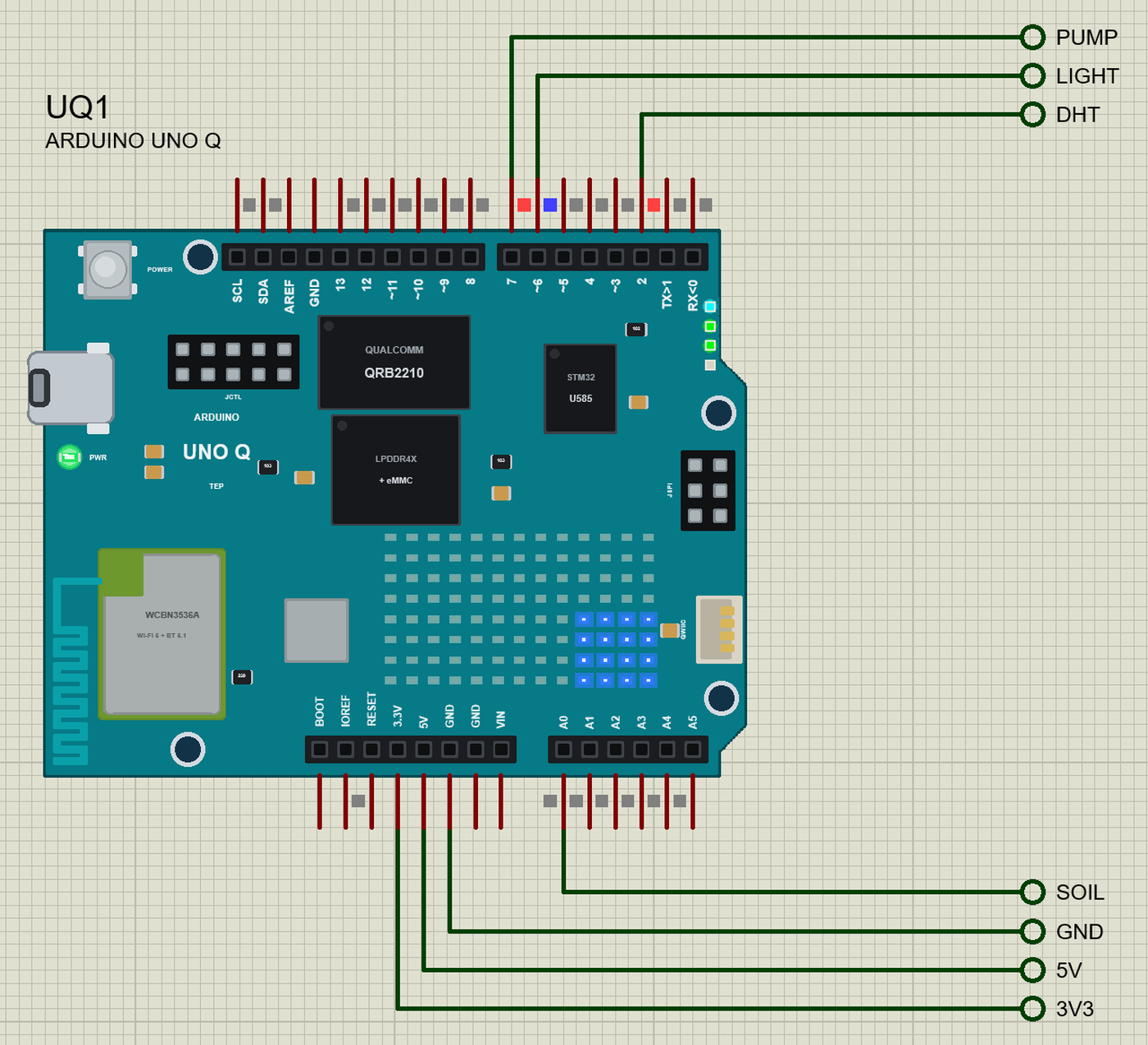
The Headers
| Pins | What the library does with them |
|---|---|
| D0 to D13 | GPIO; D0 / D1 = Serial1; D10 to D13 = SPI; ~3, ~5, ~6, ~9, ~10, ~11 marked for PWM (any pin gives PWM) |
| A0 to A5 (D14 to D19) | analogRead, 0 to 3.3 V (10 bits by default), or GPIO |
| SDA, SCL (D20, D21) | Wire (I2C) |
| 3.3V, IOREF | 3.3 V |
| 5V | 5 V for 5 V modules |
| RESET | resets the sketch |
| AREF, BOOT, VIN | drawn, not modelled |
The UNO Q is a 3.3 V board: a module with a 5 V output needs a divider or a level shifter on a real board, and A0, A1 and D3 are not 5 V tolerant at all.
The LEDs
The 8 x 13 matrix belongs to the sketch: Arduino_LED_Matrix with begin, draw and setGrayscaleBits, loadFrame and loadSequence. RGB LED 3 and 4 are the sketch's too, on the pins LED3_R, LED3_G, LED3_B and LED4_R, LED4_G, LED4_B; they light when the pin is LOW, and LED_BUILTIN is LED 3's red. RGB LED 1 and 2 belong to Linux: a program writes /sys/class/leds/red:user/brightness and the others, or calls Leds.set_led1_color(); until it does, LED 2's green shows the Wi-Fi.
The Bridge
Each side provides functions by name and calls the other's. A call waits for the answer, a notification does not:
| Python (arduino.app_utils) | Sketch (Arduino_RouterBridge) | |
|---|---|---|
| Start | App.run(user_loop=loop) | Bridge.begin(); |
| Let the other side call fn | Bridge.provide("name", fn) | Bridge.provide("name", fn); or provide_safe |
| Call and get the answer | x = Bridge.call("name", args) | Bridge.call("name", args).result(x); |
| Call without an answer | Bridge.notify("name", args) | Bridge.notify("name", args); |
| print() | Monitor.println() |
Arguments and answers are numbers, true / false and text. If the other side does not provide the name, Python raises ValueError and the sketch's result() returns false; a call without an answer in 10 s raises TimeoutError. In the sketch a provided function runs between two loop()s or while the sketch waits in delay(). Never call Bridge.call inside a provided function - set a flag and act in your loop, as on the real board.
Wi-Fi
The Linux side's wlan0 joins the network in the WIFISSID property - our router TEP-WiFi, the router of our Wi-Fi parts and of the Laptop WiFi Monitor and the Mobile WiFi Monitor. The UNO Q is 192.168.1.51, named uno-q.local.
Download Arduino UNO Q Library for Proteus
Click the button below to download Arduino-UNO-Q-Library-for-Proteus-v1.0.zip (about 14.8 MB with Python included, without the source code of the models):
Arduino UNO Q Library for Proteus V1.0- README.txt: the device, the Bridge, the LEDs, installation, the demos, the headers, the properties, troubleshooting and the limits.
- Proteus Library Files:
TEPUNOQ.LIB(the Arduino UNO Q) and the demo's parts:TEPDHT.LIB,TEPCAPSOIL.LIB,TEPWS2812.LIB,TEPRELAY.LIB,TEPLAPTOP.LIBandTEPMOBILE.LIB. - Proteus Model Files:
TEPNET.DLL(the board, the laptop, the phone and the network), the parts' DLLs, and the TEPPi folder - Python 3.11 and the TEP runtime with arduino.app_utils. - Arduino Code: the two apps, each with sketch\sketch.ino and python\main.py, and the TEP Boards for Proteus add-on 1.16.0 for the Arduino IDE.
- Proteus Simulation: the greenhouse and the Blink projects, their programs and HEX files, and copies of the DLLs.
No Proteus yet? Read How to Download and Install Proteus 7 and 8. New to libraries? Follow How to Install a New Library in Proteus.
How to Install Arduino UNO Q Library for Proteus
- Close Proteus and extract the whole zip file, for example to your Desktop.
- Copy the files from Proteus Library Files into the LIBRARY folder of Proteus (usually
C:\Program Files (x86)\Labcenter Electronics\Proteus 8 Professional\LIBRARY). - Copy everything from Proteus Model Files - the DLLs and the TEPPi folder - into the MODELS folder, replacing an older TEPNET.DLL and TEPPi folder (these are the newest; they also run our Raspberry Pi boards, the Jetson Nano, the BeagleBone Black and our Wi-Fi boards).
- Delete
TEPUNOQ.IDXfrom the LIBRARY folder if it is there. - For your own sketches, copy Arduino Code\TEP Boards for Proteus\hardware into your Arduino sketchbook (Documents\Arduino) and restart the Arduino IDE; the board is Arduino UNO Q (TEP Proteus).
- Start Proteus, press P and search for UNO Q.
Python comes in the TEPPi folder, so you need no Python on your PC. The add-on uses the compiler of the Arduino AVR Boards platform that comes with the Arduino IDE.
Demo: a Smart Greenhouse
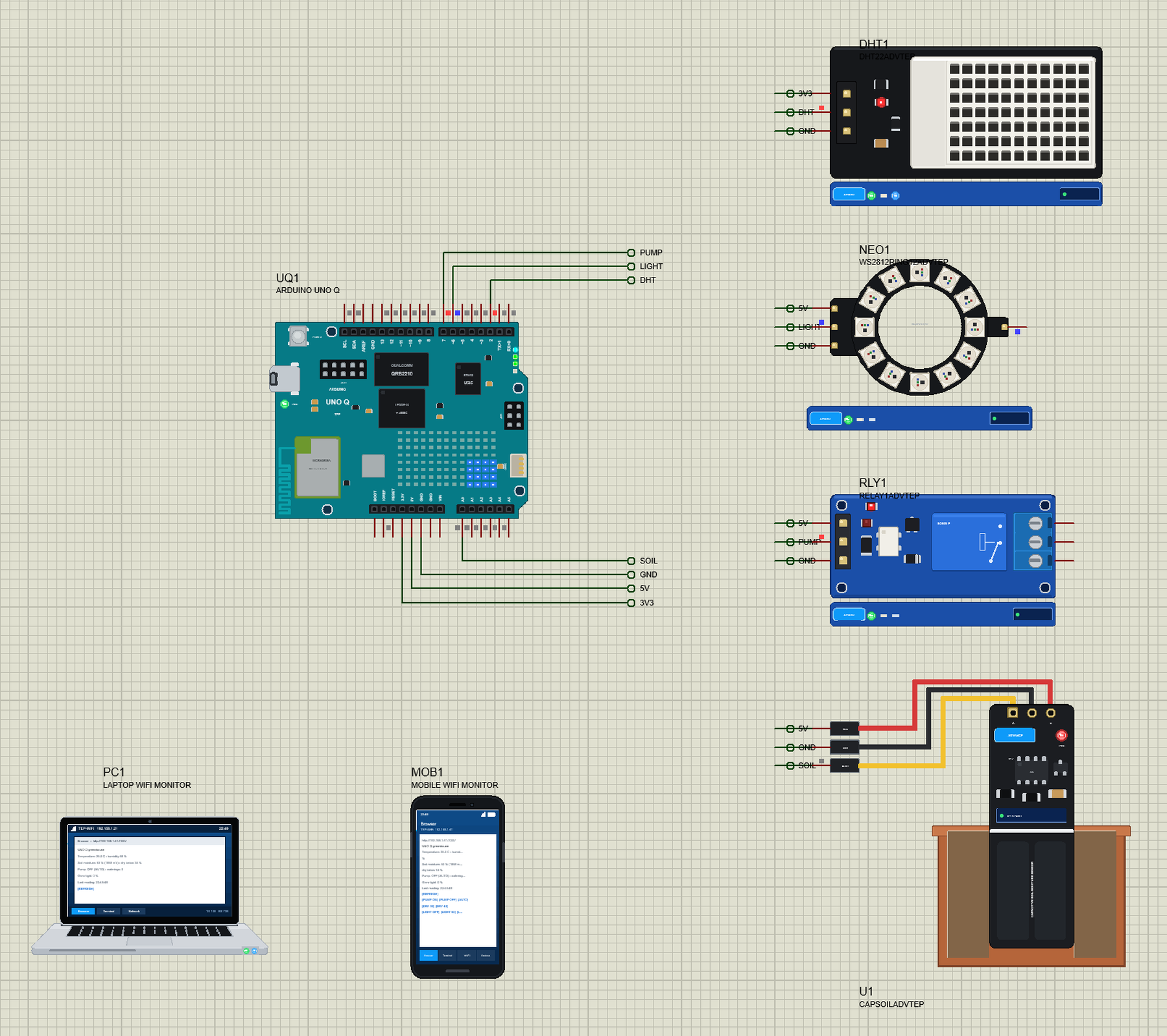
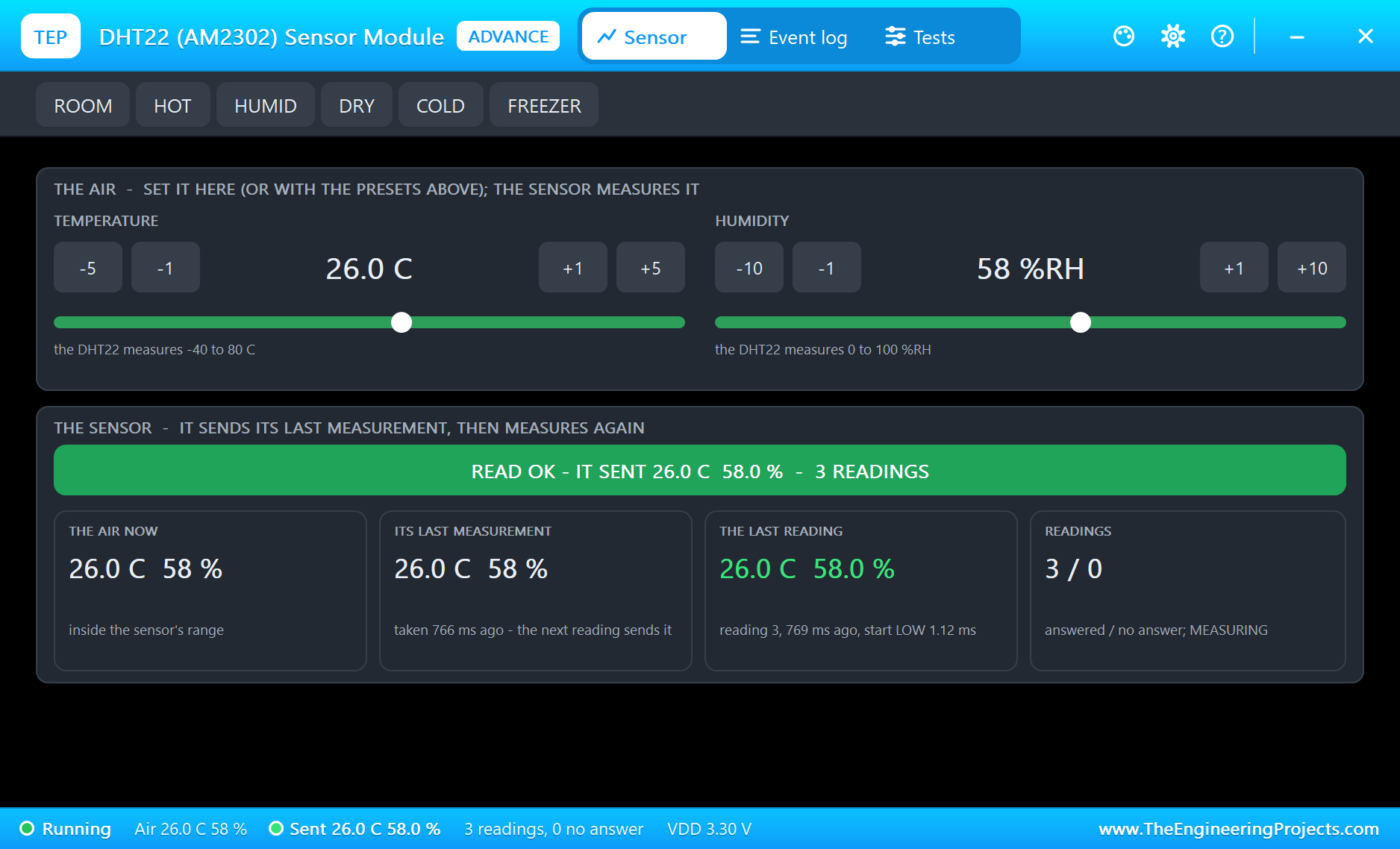
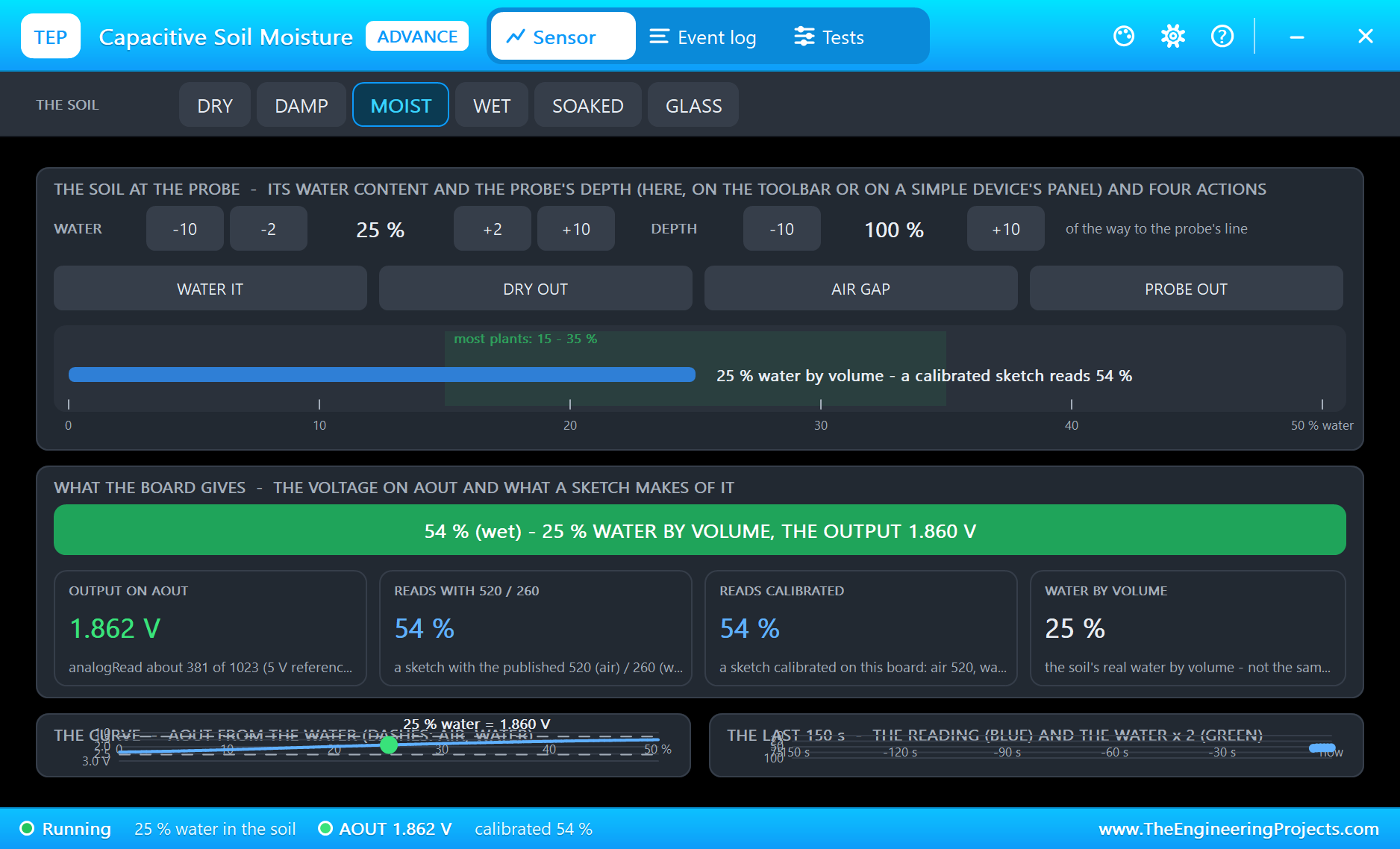
Open UNO-Q-Smart-Greenhouse.pdsprj. UQ1 runs sketch.hex and main.py on Wi-Fi. The parts come from our own libraries, each with its article: DHT1 from the DHT11 / DHT22 Library for Proteus, U1 from the Capacitive Soil Moisture Sensor Library for Proteus, NEO1 from the WS2812B NeoPixel Library for Proteus and RLY1 from the Relay Module Library for Proteus. All four are the Advance versions: each opens a pop-up window at Run. PC1 is the Laptop WiFi Monitor and MOB1 the Mobile WiFi Monitor.
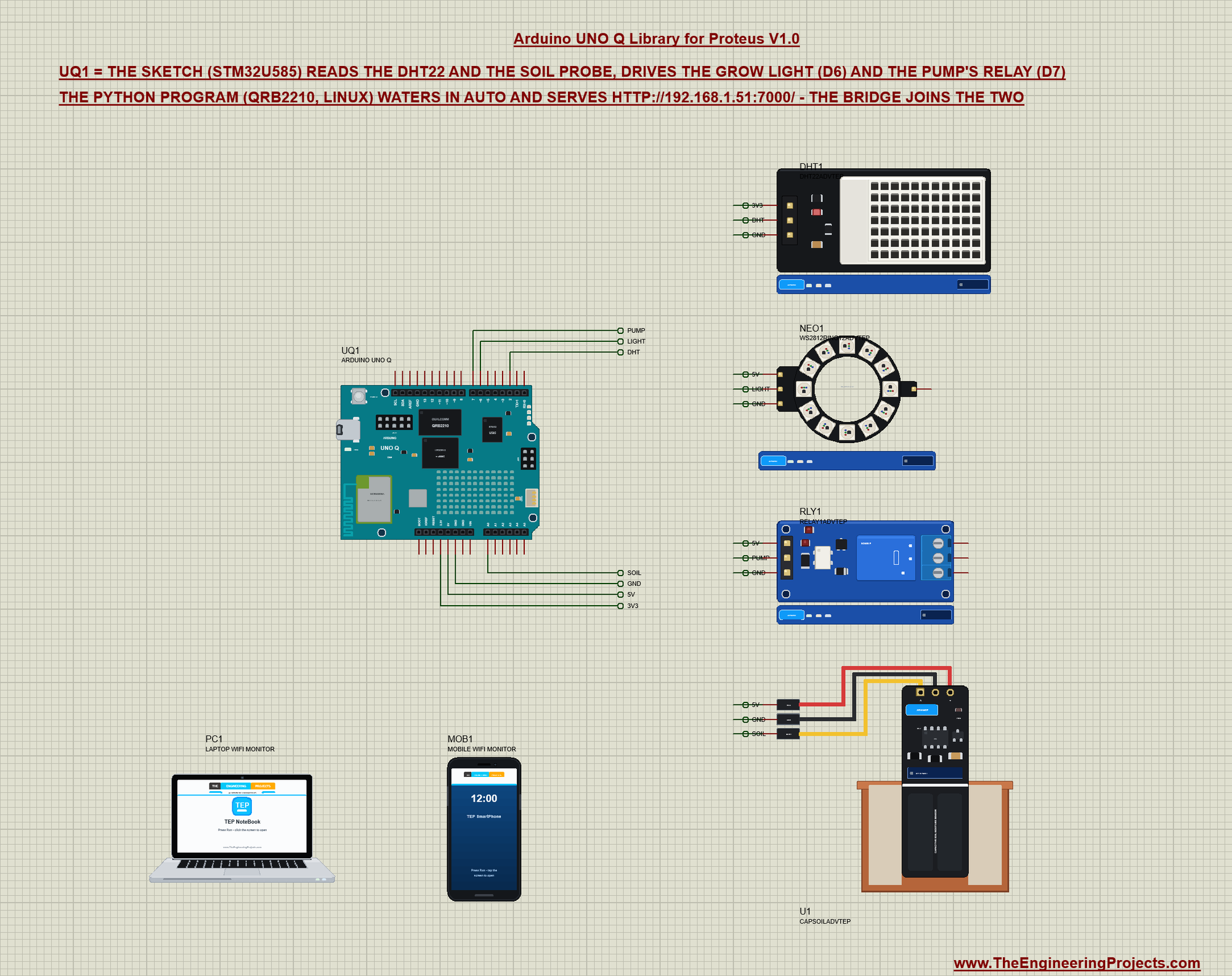
| Part pin | Net label | UNO Q pin | What it does |
|---|---|---|---|
| DHT22 VCC, DATA, GND | 3V3, DHT, GND | 3.3V, D2, GND | temperature and humidity |
| Soil probe VCC, AOUT, GND | 5V, SOIL, GND | 5V, A0, GND | the soil's moisture as a voltage |
| WS2812B ring 5V, DIN, GND | 5V, LIGHT, GND | 5V, D6, GND | the grow light |
| Relay VCC, IN, GND | 5V, PUMP, GND | 5V, D7, GND | the pump (the relay is active LOW) |
The probe runs on 5 V: its regulator drops out at 3.3 V, while its output stays under 3 V - in range of the 3.3 V analog input. The wetter the soil, the lower the voltage: 2.54 V in air, 1.27 V in water.
The Sketch
Every 2 s the sketch reads the DHT22 and the probe, turns the probe's voltage into a moisture in percent, shows the last 13 readings on the matrix, sets LED 3, and sends the reading to Python with a notification:
void loop() {
  delay(2000);                                              // (a reading every 2 s - the DHT22's first needs 2 s after power-up)
  float t = dht.readTemperature();
  float h = dht.readHumidity();
  int mv = analogRead(SOIL_PIN) * 3300L / 1023;
  int soil = constrain((AIR_MV - mv) * 100L / (AIR_MV - WATER_MV), 0, 100);
  for (int c = 0; c < 12; ++c) history[c] = history[c + 1];
  history[12] = soil;
  showHistory();
  bool dry = soil < dryLimit;
  digitalWrite(LED3_R, dry ? LOW : HIGH);
  digitalWrite(LED3_G, dry ? HIGH : LOW);
  if (isnan(t) || isnan(h)) Monitor.println("DHT22: no answer");
  else Bridge.notify("readings", t, h, soil, mv);           // (to the Python program: it waters and serves the page)
Each of the 13 columns of the matrix is one reading, its height the moisture - 8 rows for 100 %:
void showHistory() {
  for (int c = 0; c < 13; ++c) {
    int h = (history[c] * 8 + 50) / 100;
    for (int r = 0; r < 8; ++r) frame[r * 13 + c] = (7 - r) < h ? 7 : 0;
  }
  matrix.draw(frame);
}
The sketch provides three functions to Python. set_pump switches the relay - LOW for on, as the module is active LOW - and LED 4's blue:
bool set_pump(bool on) {
  pumpOn = on;
  digitalWrite(PUMP_PIN, on ? LOW : HIGH);                  // (active LOW: LOW = the coil on)
  digitalWrite(LED4_B, on ? LOW : HIGH);                    // (the RGB LEDs light when LOW)
  Monitor.println(on ? "pump ON" : "pump OFF");
  return on;
}
Bridge.begin();
Bridge.provide("set_pump", set_pump);
Bridge.provide("set_light", set_light);
Bridge.provide("set_dry_limit", set_dry_limit);The Python Program
The program provides readings to the sketch and keeps each reading:
def readings(temp, hum, soil, mv):
    """The sketch's reading (Bridge.notify from the MCU): keep it, the loop acts on it."""
    with lock:
        state.update(temp='%.1f' % temp, hum='%.0f' % hum, soil=soil, mv=mv, at=time.strftime('%H:%M:%S'))
Its loop waters in AUTO: the pump on when the soil is drier than the limit, off again 15 points above it, through the sketch's set_pump:
    if state['mode'] == 'AUTO' and soil is not None:        # AUTO: water below the limit, stop 15 points above it
        if not state['pump'] and soil < state['dry']:
            pump(True, 'soil %d %% < %d %%' % (soil, state['dry']))
        elif state['pump'] and soil >= state['dry'] + HYSTERESIS:
            pump(False, 'soil %d %%' % soil)
def pump(on, why):
Bridge.call('set_pump', on)
with lock:
if on and not state['pump']:
state['waterings'] += 1
state['pump'] = on
print('%s pump %s - %s' % (time.strftime('%H:%M:%S'), 'ON' if on else 'OFF', why))The page's links do not call the sketch themselves: the web server's thread leaves a command for the loop, which calls set_pump, set_light or set_dry_limit - so only the loop talks to the sketch:
    for kind, value in todo:                                # the page's commands
        if kind == 'pump':
            state['mode'] = 'MANUAL'; show_mode(); pump(value, 'by hand')
        elif kind == 'auto':
            state['mode'] = 'AUTO'; show_mode(); print('%s  AUTO' % time.strftime('%H:%M:%S'))
        elif kind == 'dry':
            state['dry'] = value; Bridge.call('set_dry_limit', value); print('%s  dry below %d %%' % (time.strftime('%H:%M:%S'), value))
        elif kind == 'light':
            state['light'] = Bridge.call('set_light', value)
LED 1 shows the mode - cyan in AUTO, magenta when you drive the pump by hand:
def show_mode():
    if state['mode'] == 'AUTO':
        Leds.set_led1_color(False, True, True)
    else:
        Leds.set_led1_color(True, False, True)
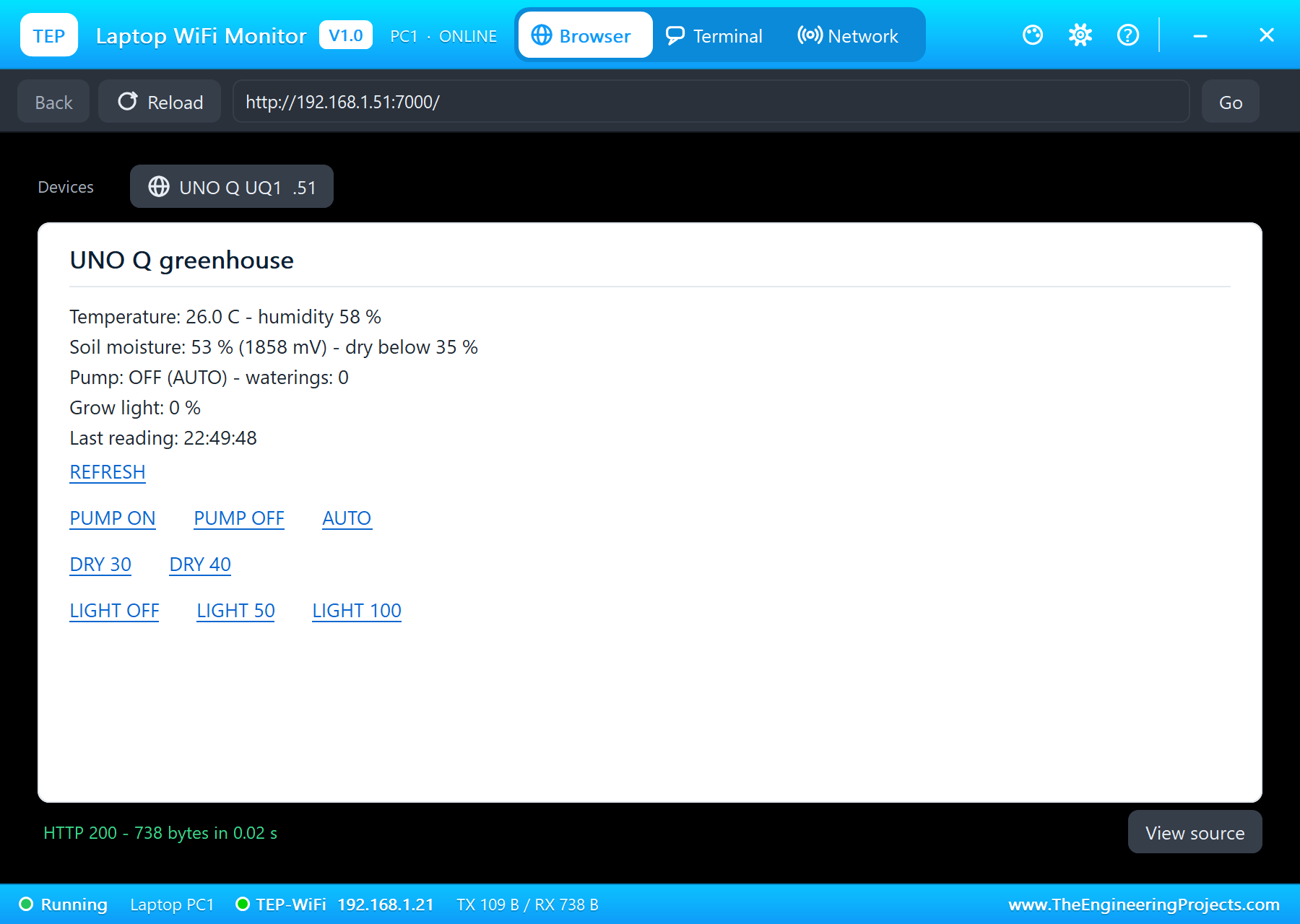
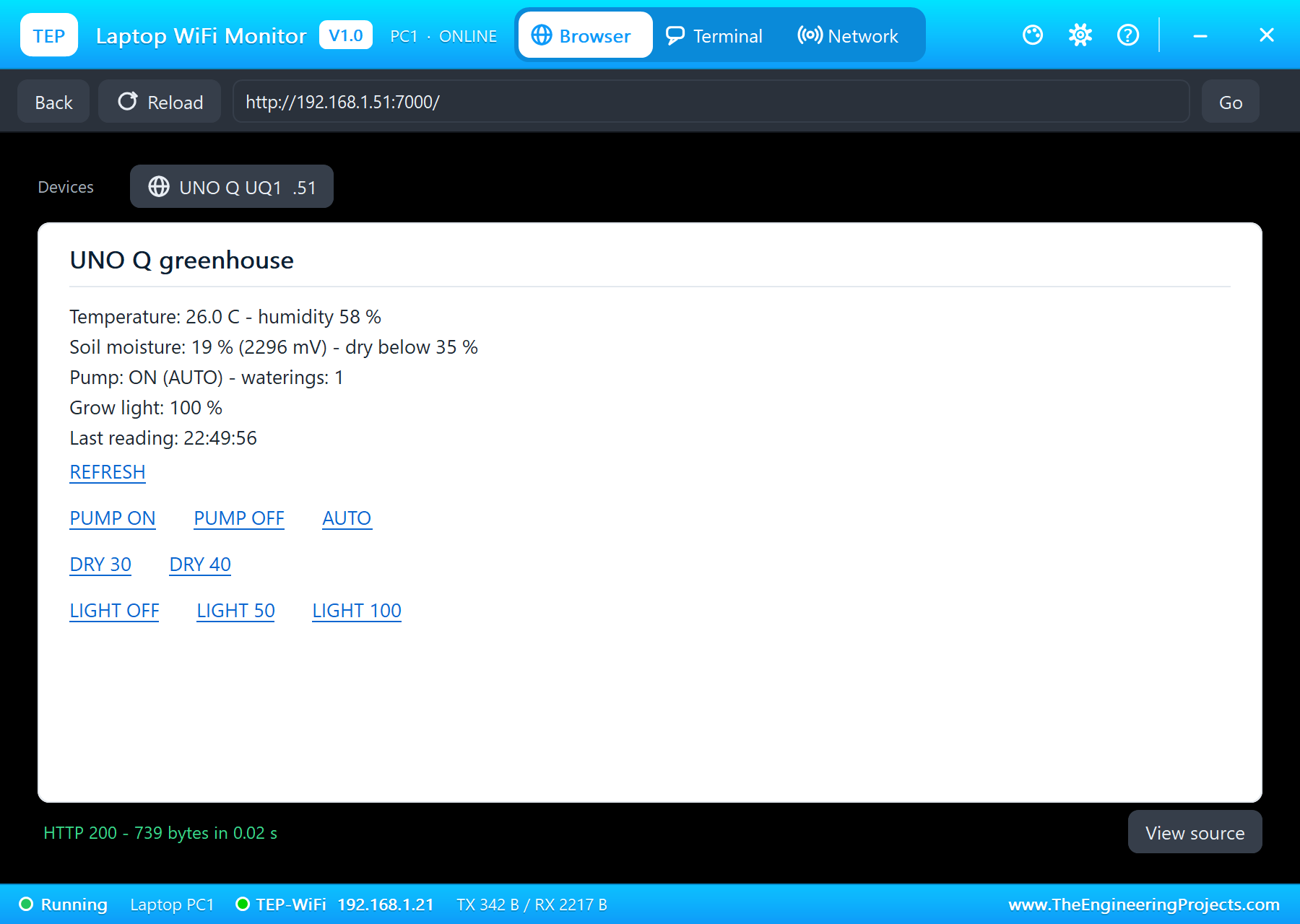
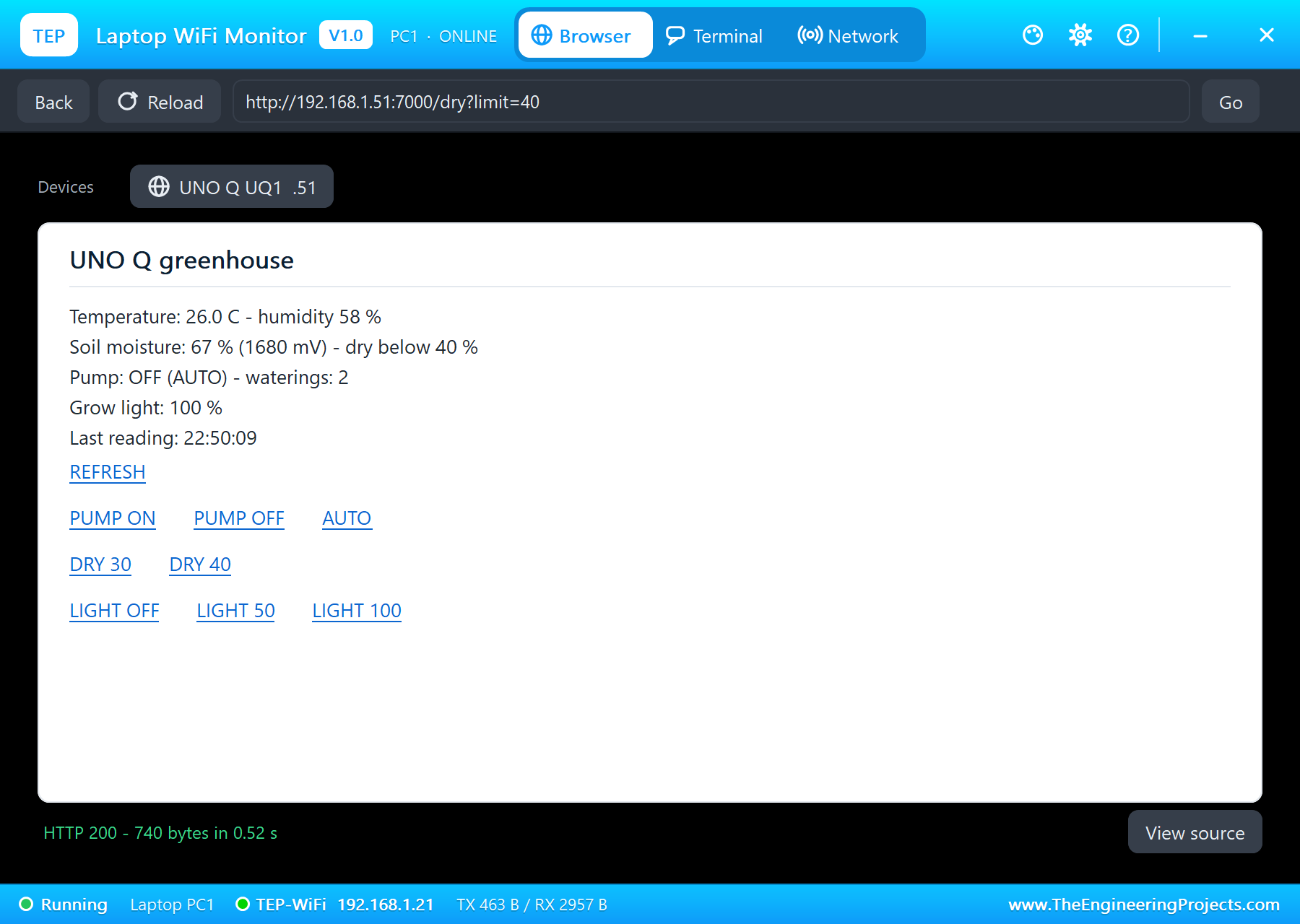
The page shows the readings, the pump and the grow light, with REFRESH and links for the pump, the dry limit and the light:
PAGE = """<html><head><title>UNO Q greenhouse</title></head><body>
<p>Temperature: {temp} C - humidity {hum} %</p>
<p>Soil moisture: {soil} % ({mv} mV) - dry below {dry} %</p>
<p>Pump: <b>{pump}</b> ({mode}) - waterings: {waterings}</p>
<p>Grow light: {light} %</p>
<p>Last reading: {at}</p>
<p><a href="/">REFRESH</a></p>
<p><a href="/pump?on=1">PUMP ON</a> <a href="/pump?on=0">PUMP OFF</a> <a href="/auto">AUTO</a></p>
<p><a href="/dry?limit=30">DRY 30</a> <a href="/dry?limit=40">DRY 40</a></p>
<p><a href="/light?level=0">LIGHT OFF</a> <a href="/light?level=50">LIGHT 50</a> <a href="/light?level=100">LIGHT 100</a></p>
</body></html>"""
At the start the program provides readings, sets LED 1, waits for Wi-Fi, serves the page on port 7000 and runs the loop:
print('main.py - the greenhouse on the UNO Q: the sketch reads, Python waters and serves the page')
Bridge.provide('readings', readings)
show_mode()
print('waiting for Wi-Fi ...')
while my_ip() == '0.0.0.0':
    time.sleep(0.5)
server = HTTPServer(('', PORT), Handler)
threading.Thread(target=server.serve_forever, daemon=True).start()
print('serving on http://%s:%d/' % (my_ip(), PORT))
App.run(user_loop=loop)
Run the Demo
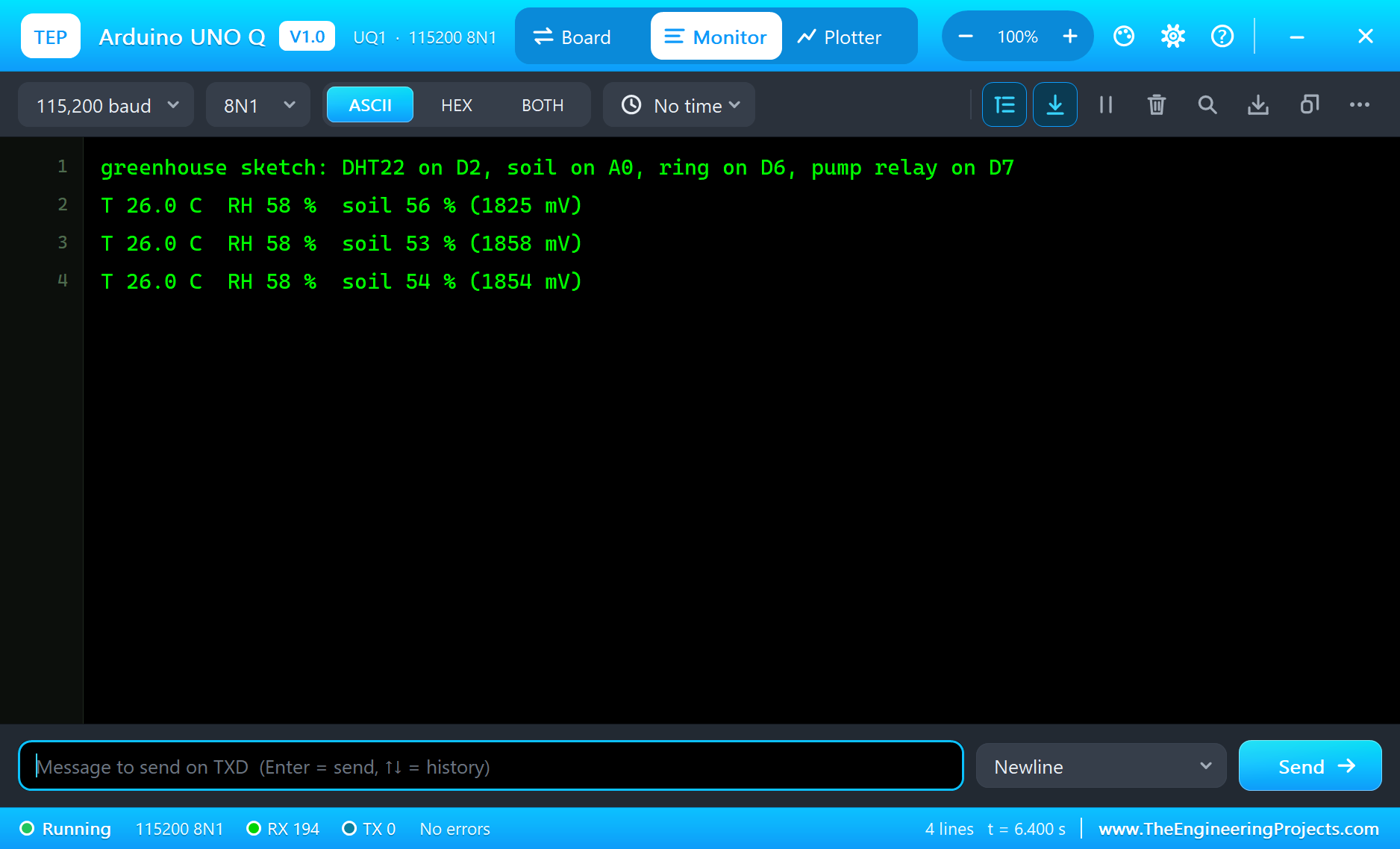
Press Run. Two windows open: the Linux terminal with the Python program, and the sketch's monitor. The program joins Wi-Fi and serves the page; the soil is moist, the air 26.0 C and 58 %, and LED 3 is green:
arduino@uno-q:~$ python3 main.py
main.py - the greenhouse on the UNO Q: the sketch reads, Python waters and serves the page
waiting for Wi-Fi ...
serving on http://192.168.1.51:7000/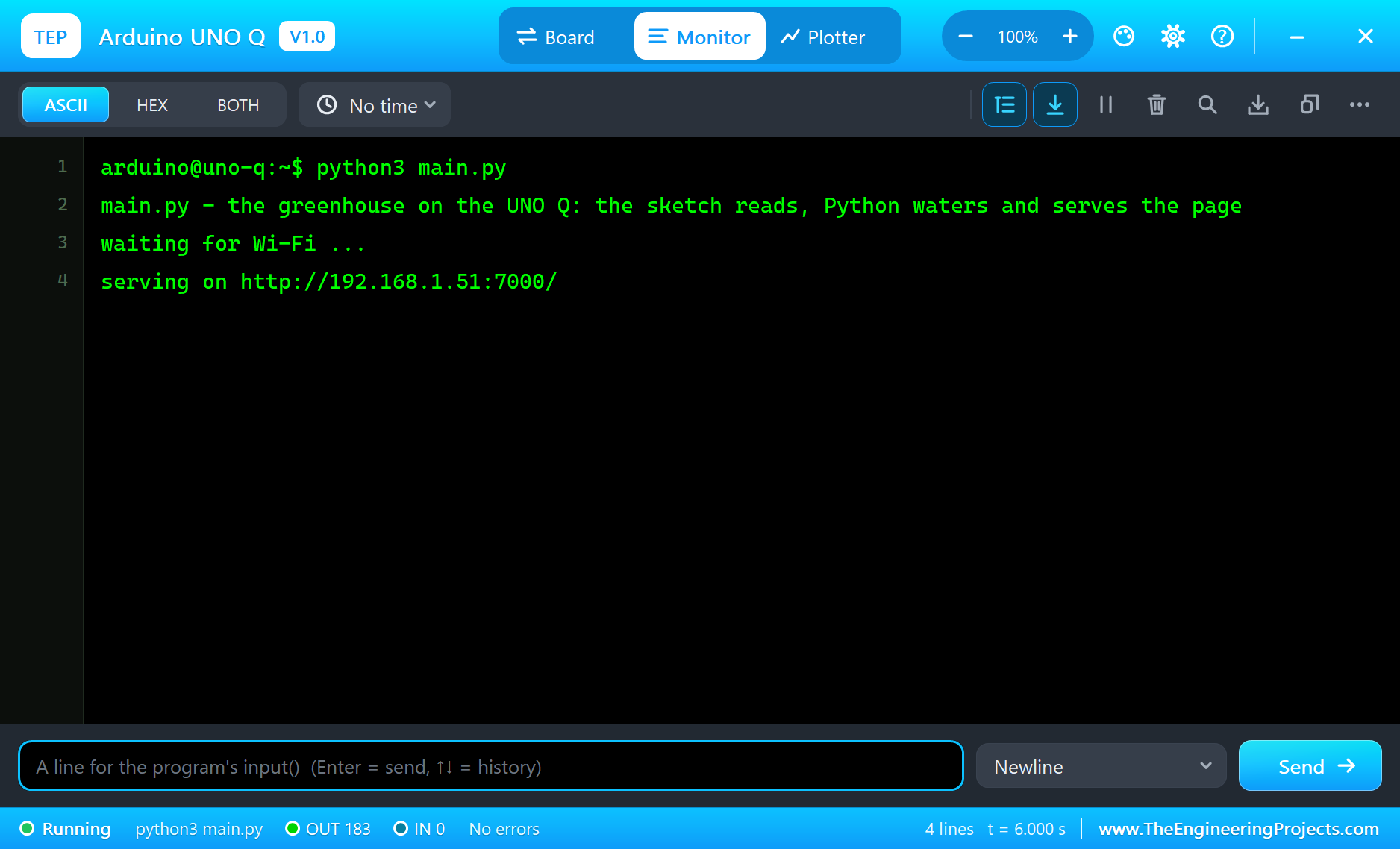
Open the Page
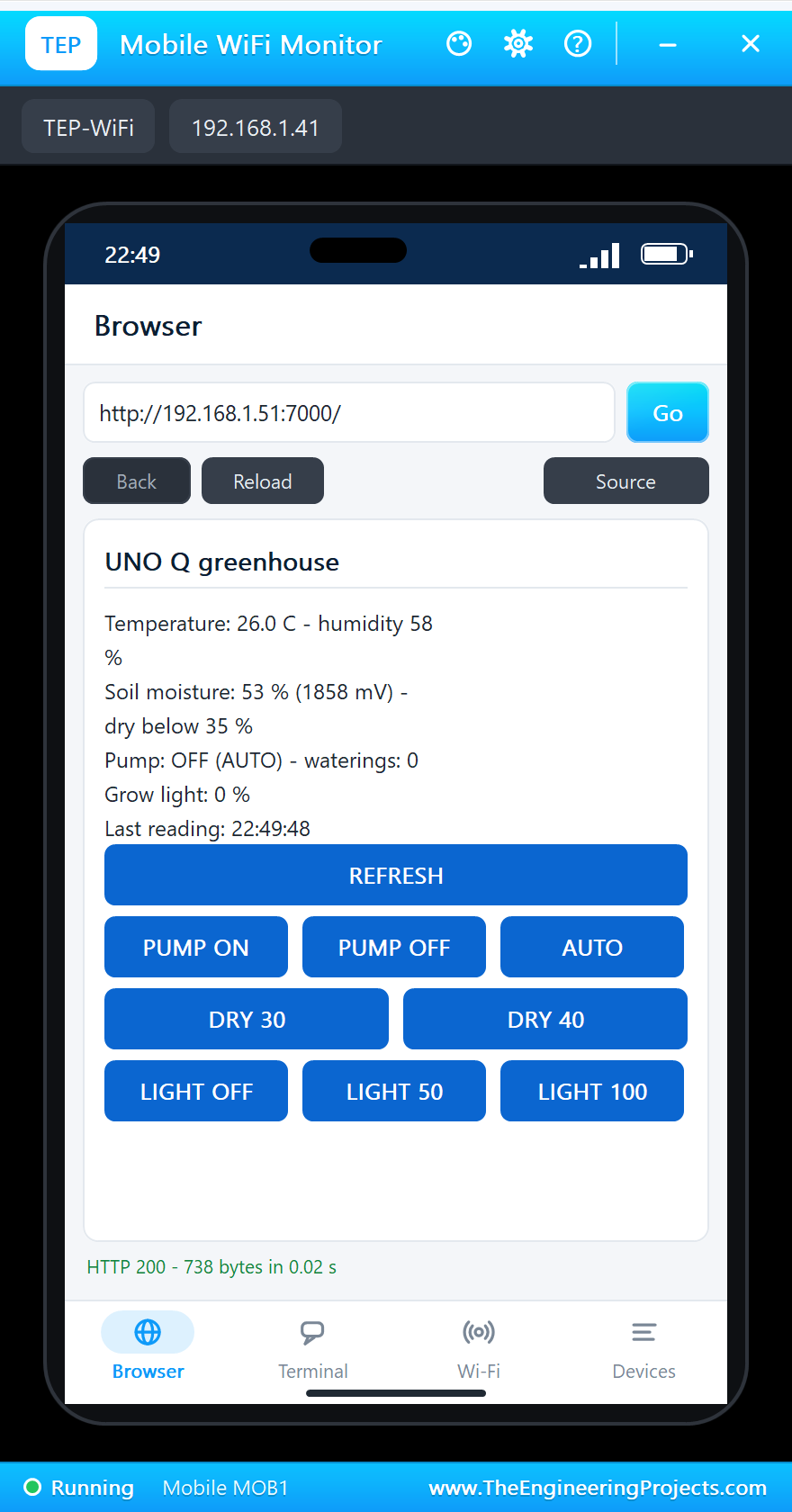
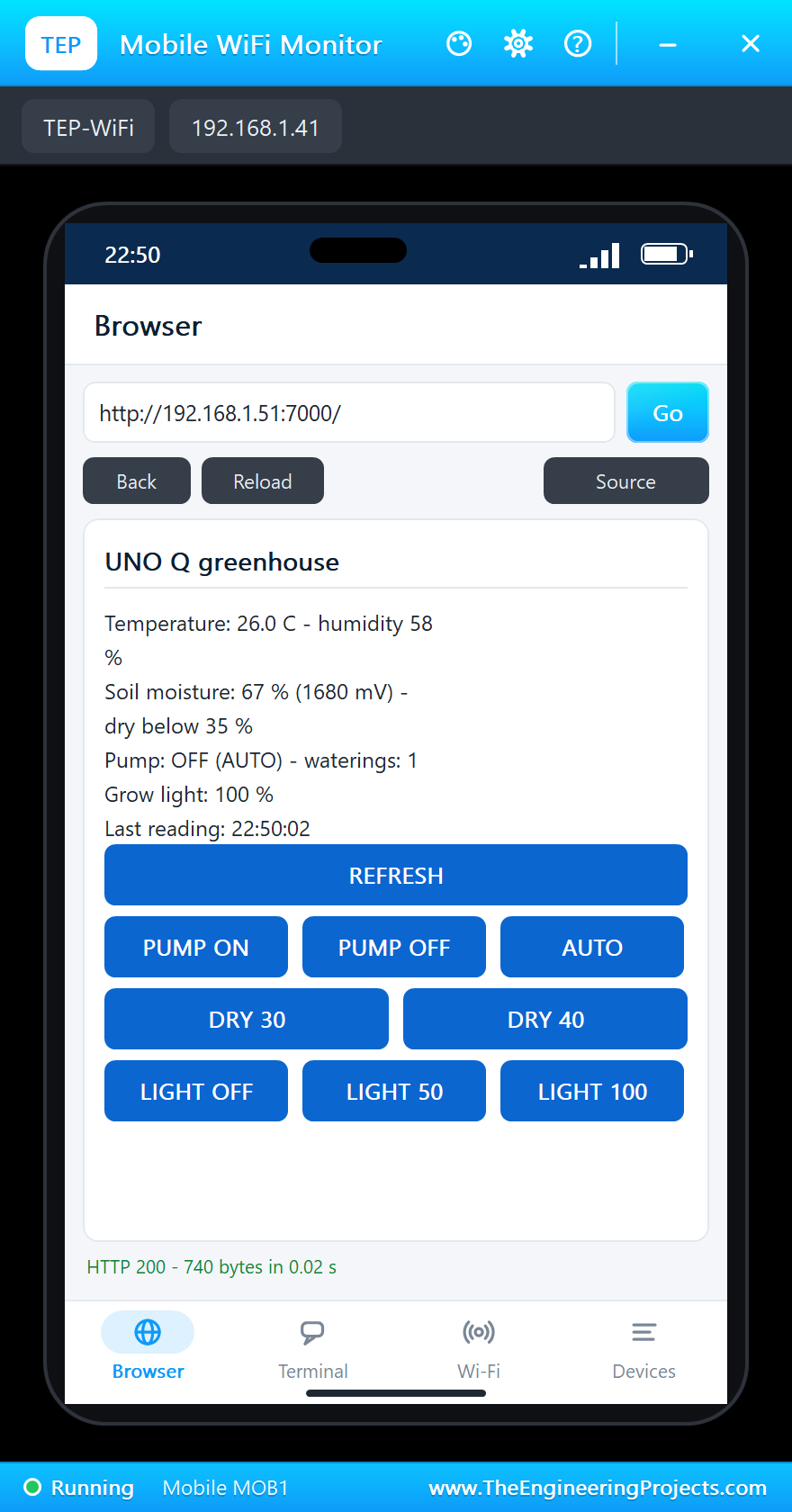
On the laptop click Browser, check the address http://192.168.1.51:7000/ and click Go; on the phone the same. The laptop shows the links as text, the phone as buttons:
The Grow Light
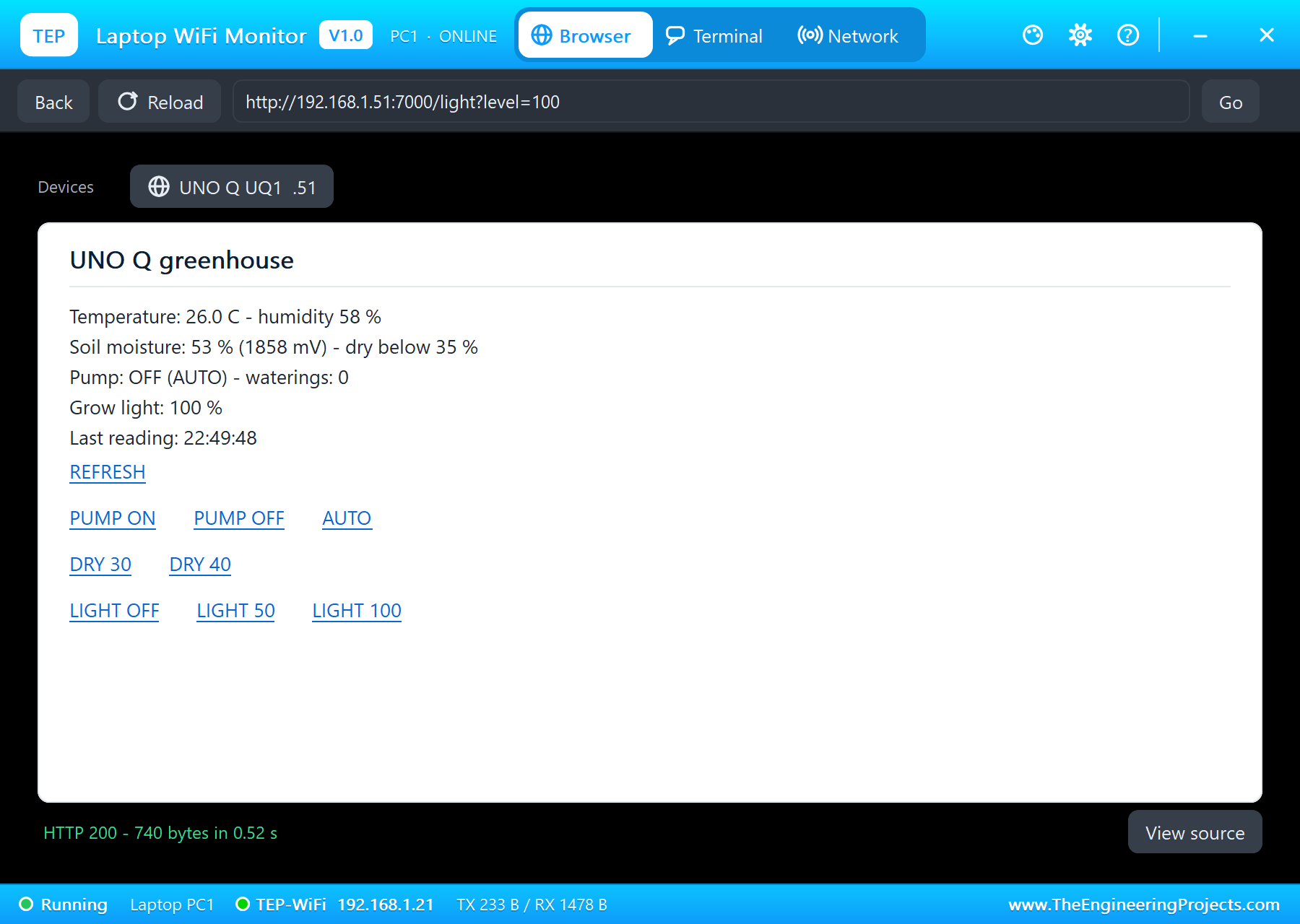
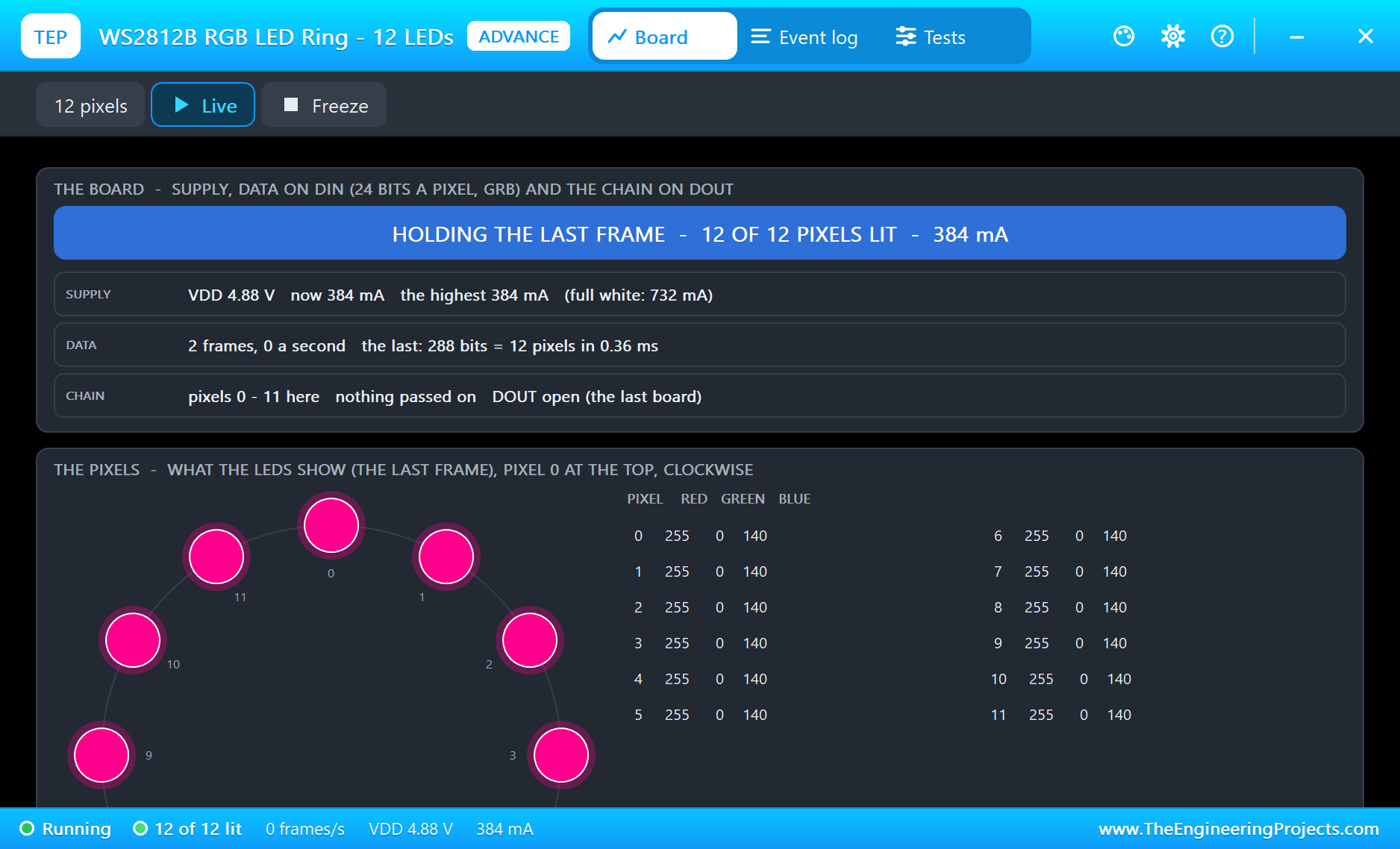
Click LIGHT 100 on the laptop. The loop calls the sketch's set_light through the Bridge, and the ring lights red and blue at full brightness:
Dry Soil: Every LED On
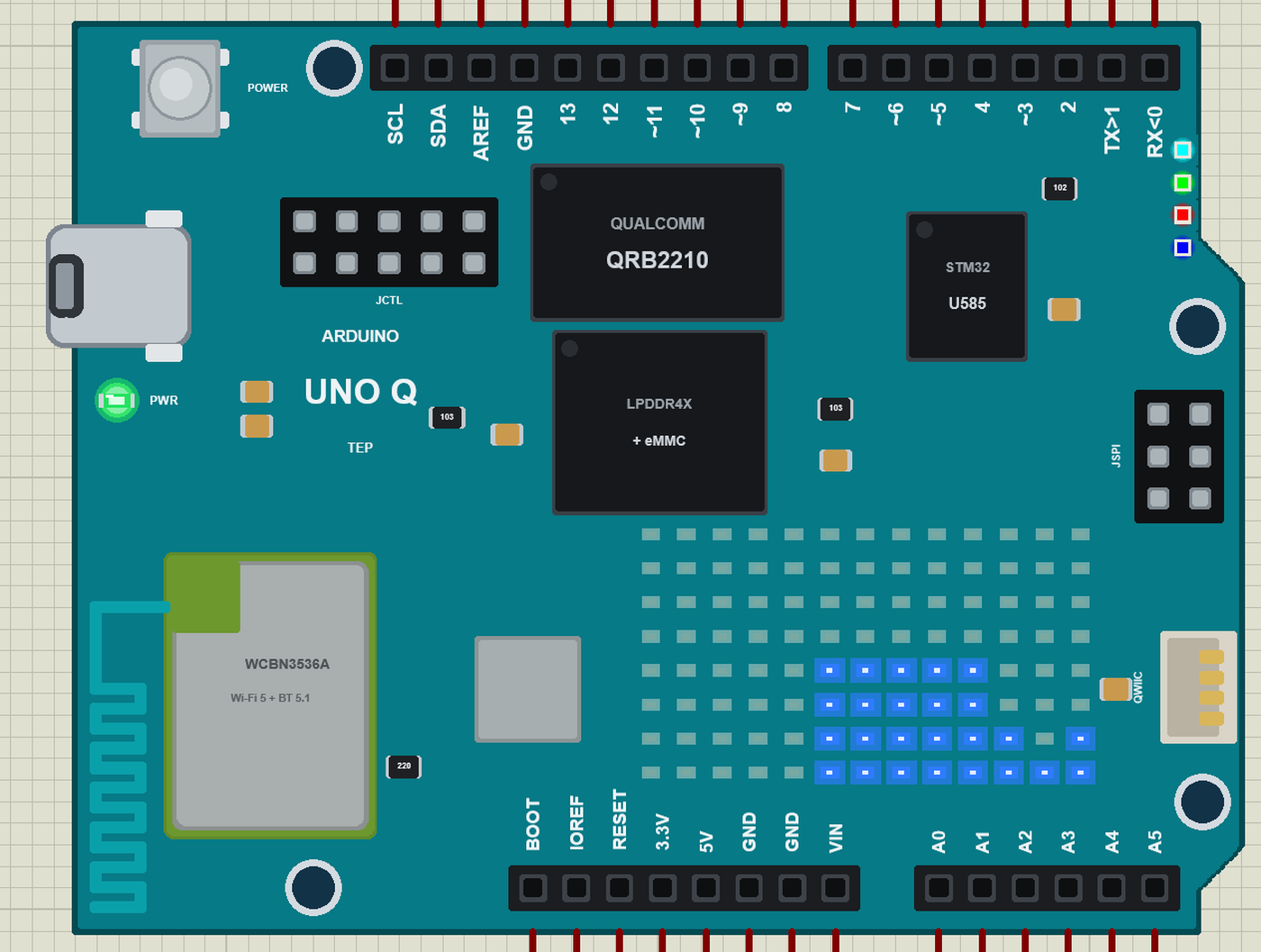
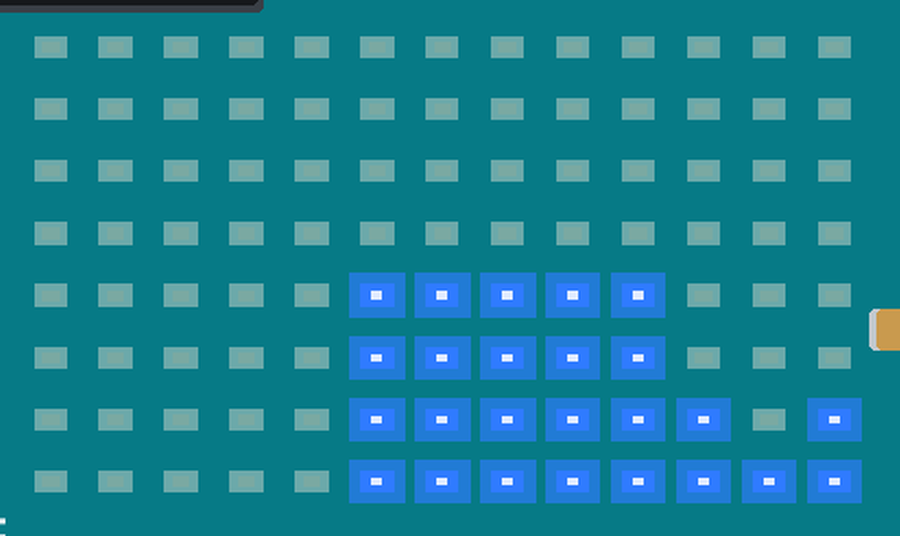
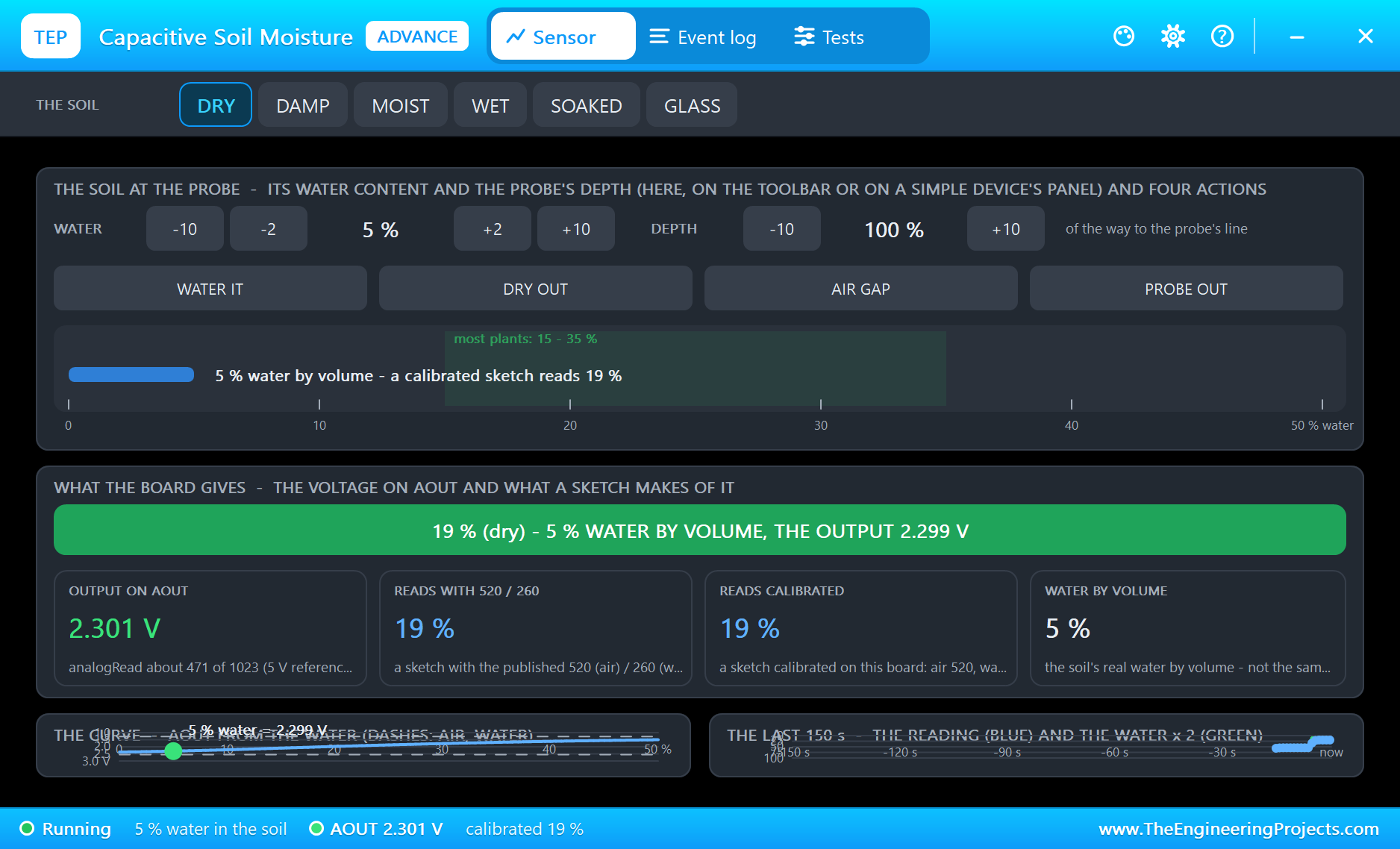
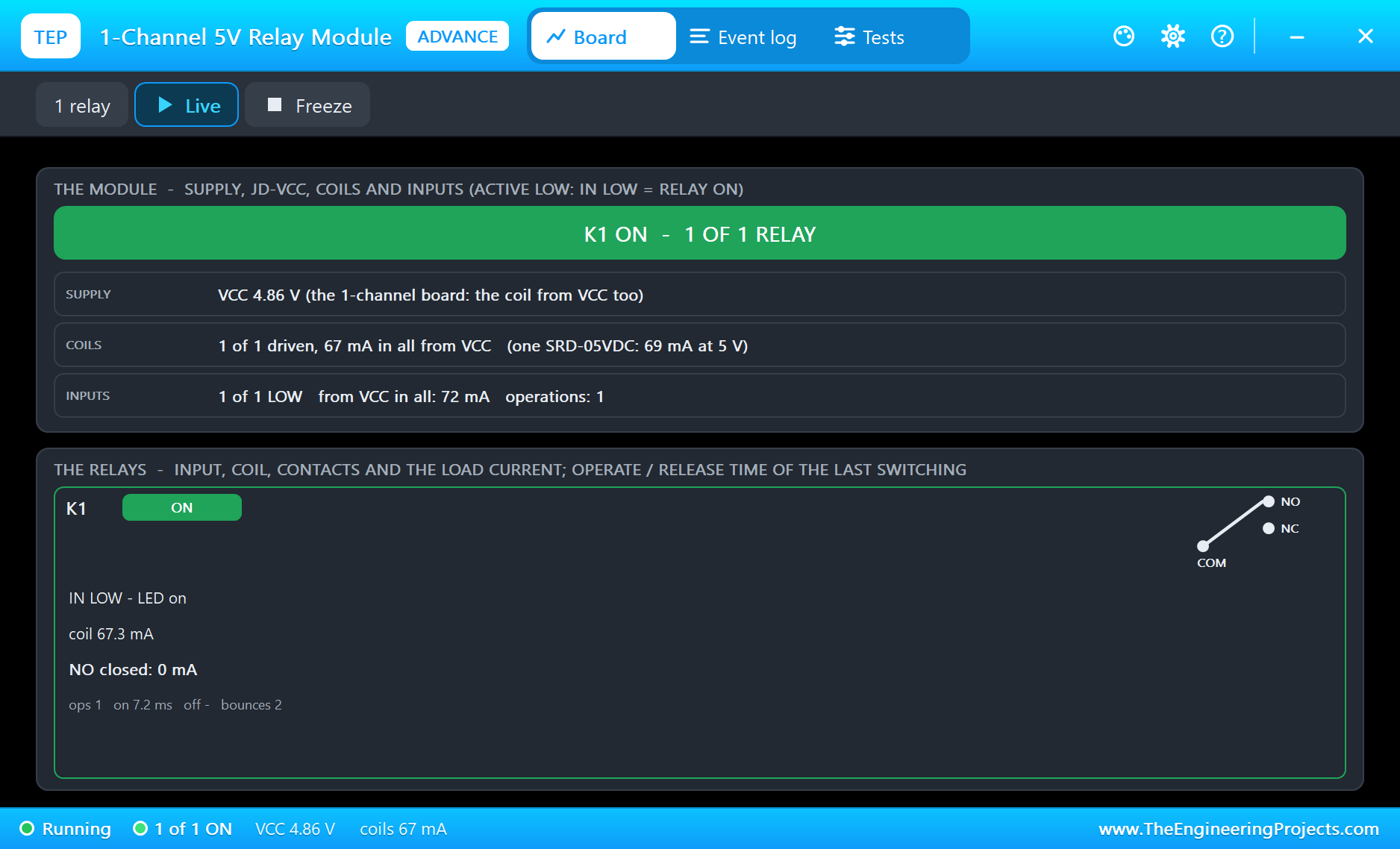
In the soil probe's pop-up click DRY. The next readings fall below the 35 % limit: the sketch turns LED 3 red, the program's AUTO calls set_pump, and the relay clicks on with LED 4 blue. LED 1 is cyan, LED 2 green and the power LED green - every LED of the board is lit, and the matrix's columns step down with the soil:
Watered
Now click WET. The moisture climbs past 50 %, AUTO switches the pump off, and LED 3 turns green again:
By Hand, Then AUTO
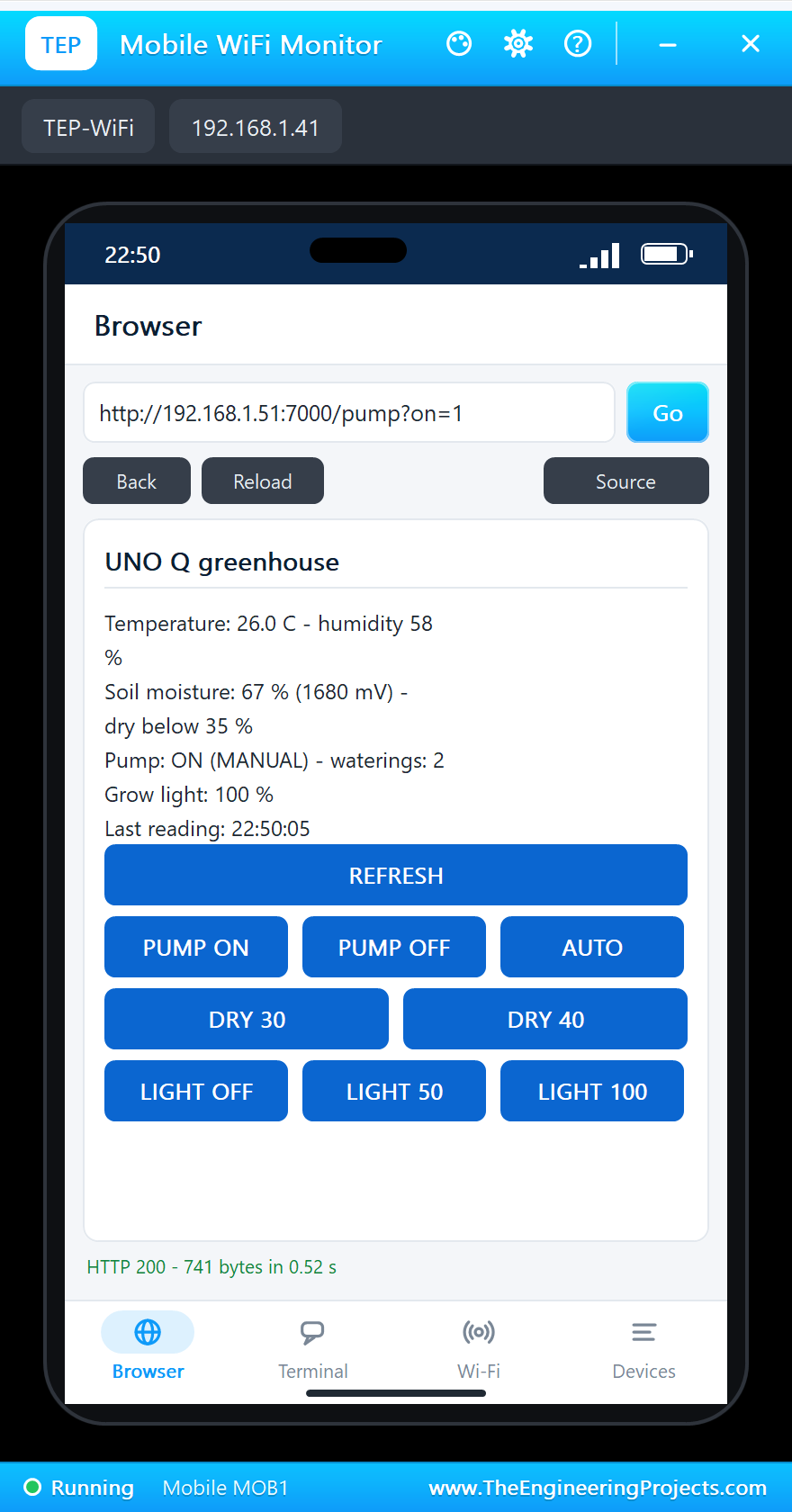
Tap PUMP ON on the phone: the program switches to MANUAL, LED 1 turns magenta, and the pump runs although the soil is wet. AUTO hands it back to the program, which stops the pump at once. Finally DRY 40 on the laptop raises the limit - the program passes it to the sketch with set_dry_limit:
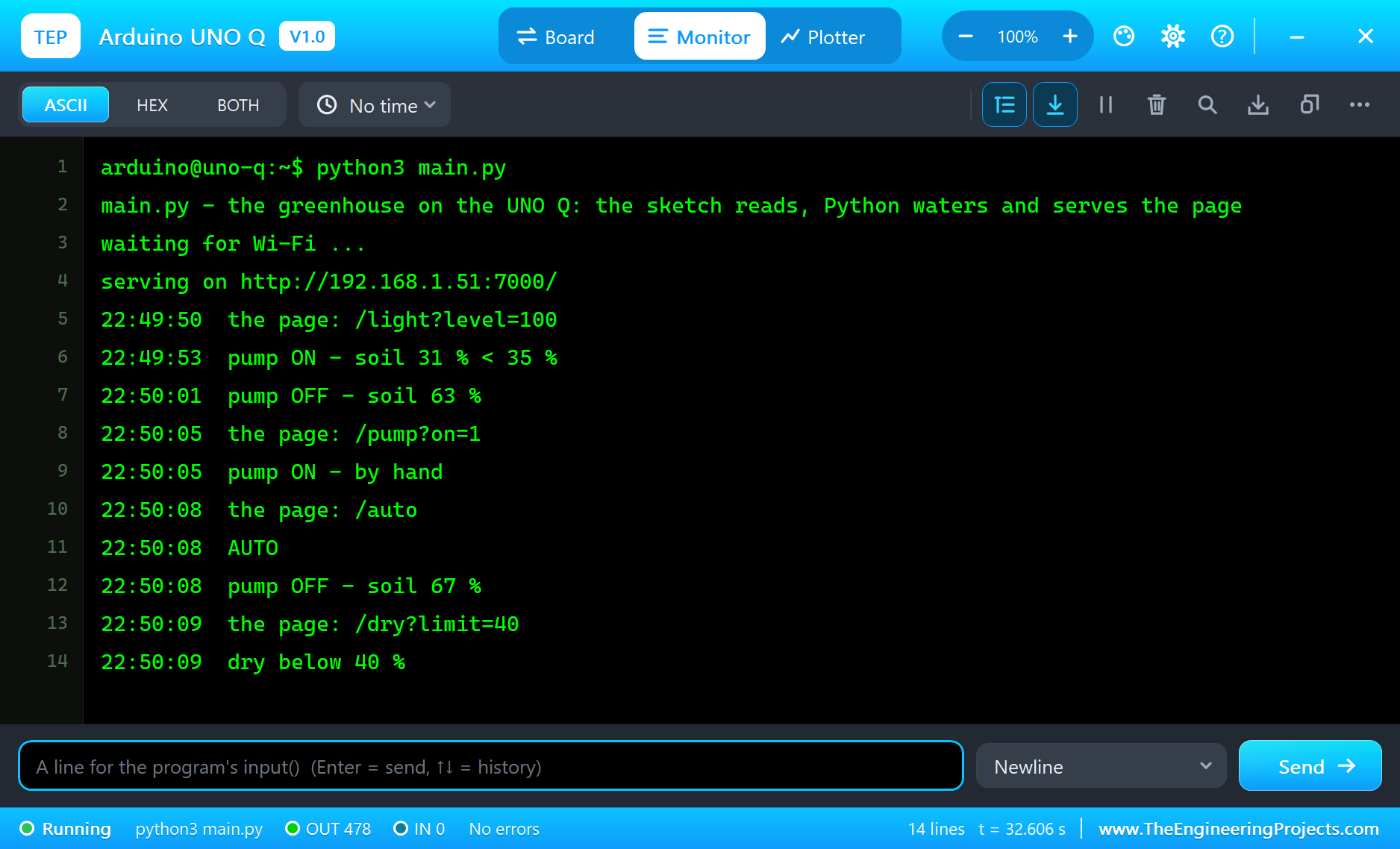
The Linux terminal logs the program's decisions and every click on the page:
22:49:50  the page: /light?level=100
22:49:53  pump ON - soil 31 % < 35 %
22:50:01  pump OFF - soil 63 %
22:50:05  the page: /pump?on=1
22:50:05  pump ON - by hand
22:50:08  the page: /auto
22:50:08  AUTO
22:50:08  pump OFF - soil 67 %
22:50:09  the page: /dry?limit=40
22:50:09  dry below 40 %
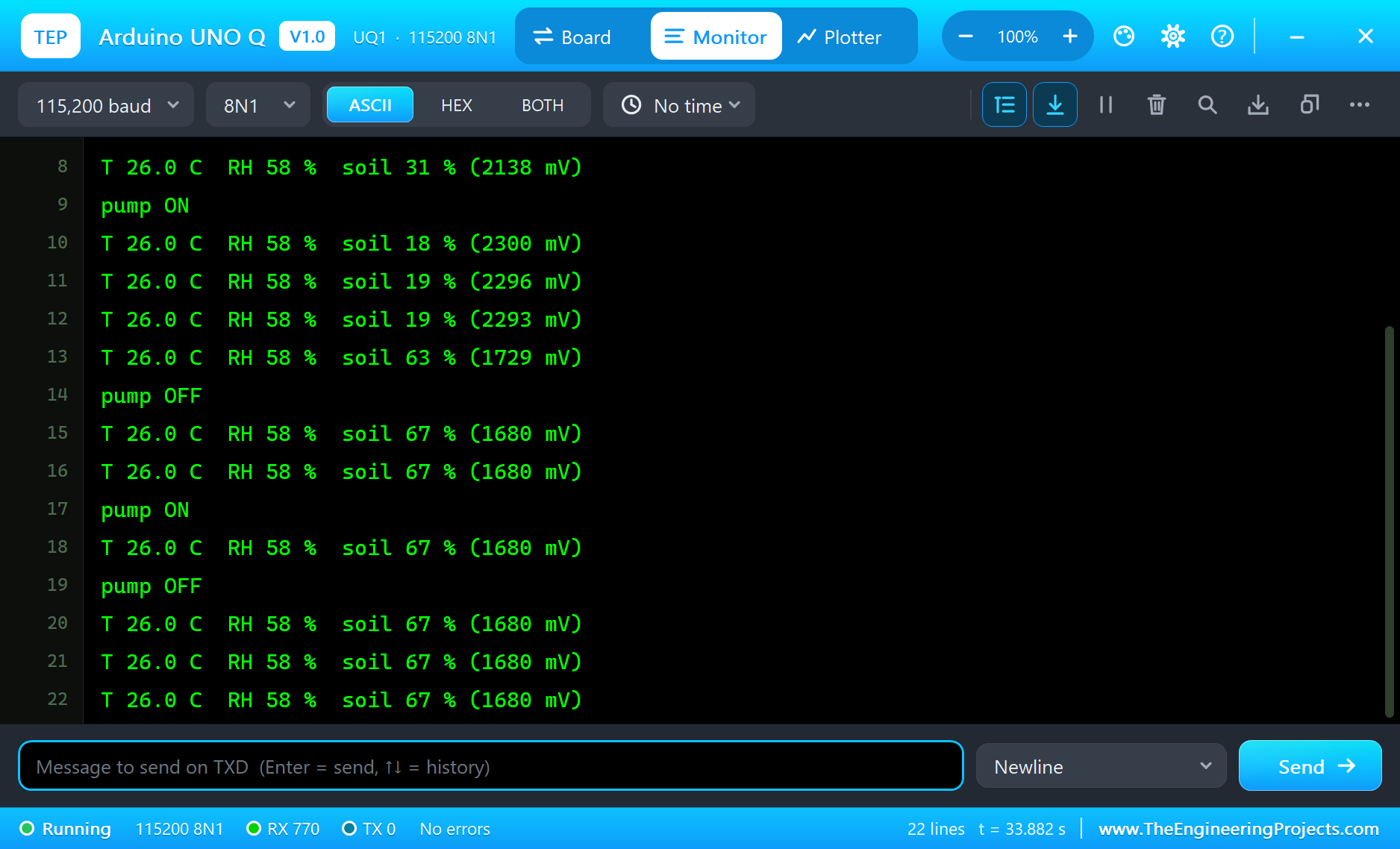
The sketch's monitor shows each reading and every call from Python:
T 26.0 C  RH 58 %  soil 31 % (2138 mV)
pump ON
T 26.0 C  RH 58 %  soil 18 % (2300 mV)
T 26.0 C  RH 58 %  soil 19 % (2296 mV)
T 26.0 C  RH 58 %  soil 19 % (2293 mV)
T 26.0 C  RH 58 %  soil 63 % (1729 mV)
pump OFF
T 26.0 C  RH 58 %  soil 67 % (1680 mV)
T 26.0 C  RH 58 %  soil 67 % (1680 mV)
pump ON
T 26.0 C  RH 58 %  soil 67 % (1680 mV)
pump OFF
The Two Windows
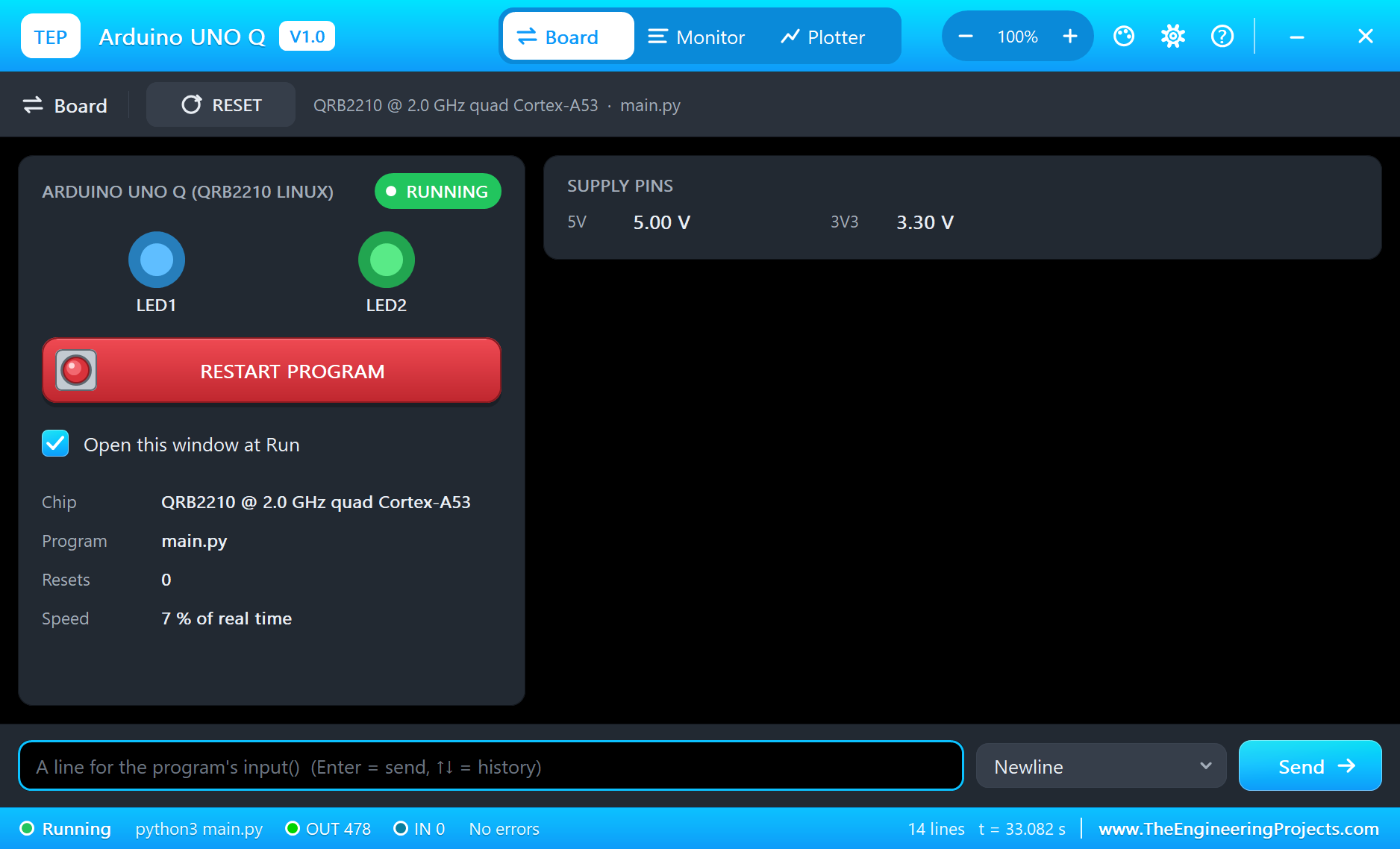
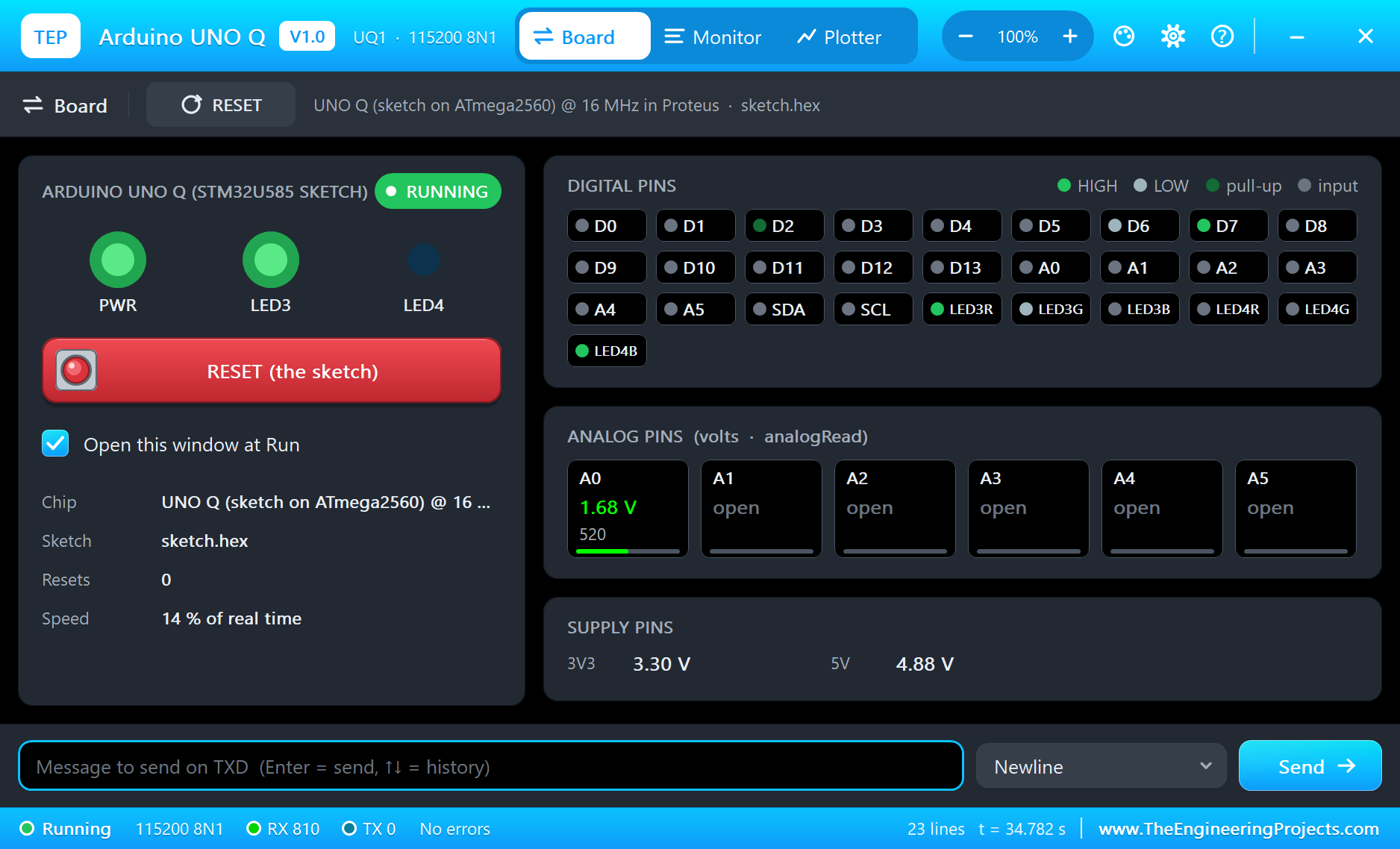
Both windows are in the look of our TEP Serial Monitor Advance for Proteus - our own TEP header, no Windows title bar. The Linux terminal shows the Python program's output (OUT), errors (ERR) and the lines you type for input() (IN); its Board tab shows LED 1 and 2 and RESTART PROGRAM. The sketch's monitor shows Monitor and Serial; its Board tab shows every pin, A0 in volts, LED 3 and 4 and RESET:
The Blink App
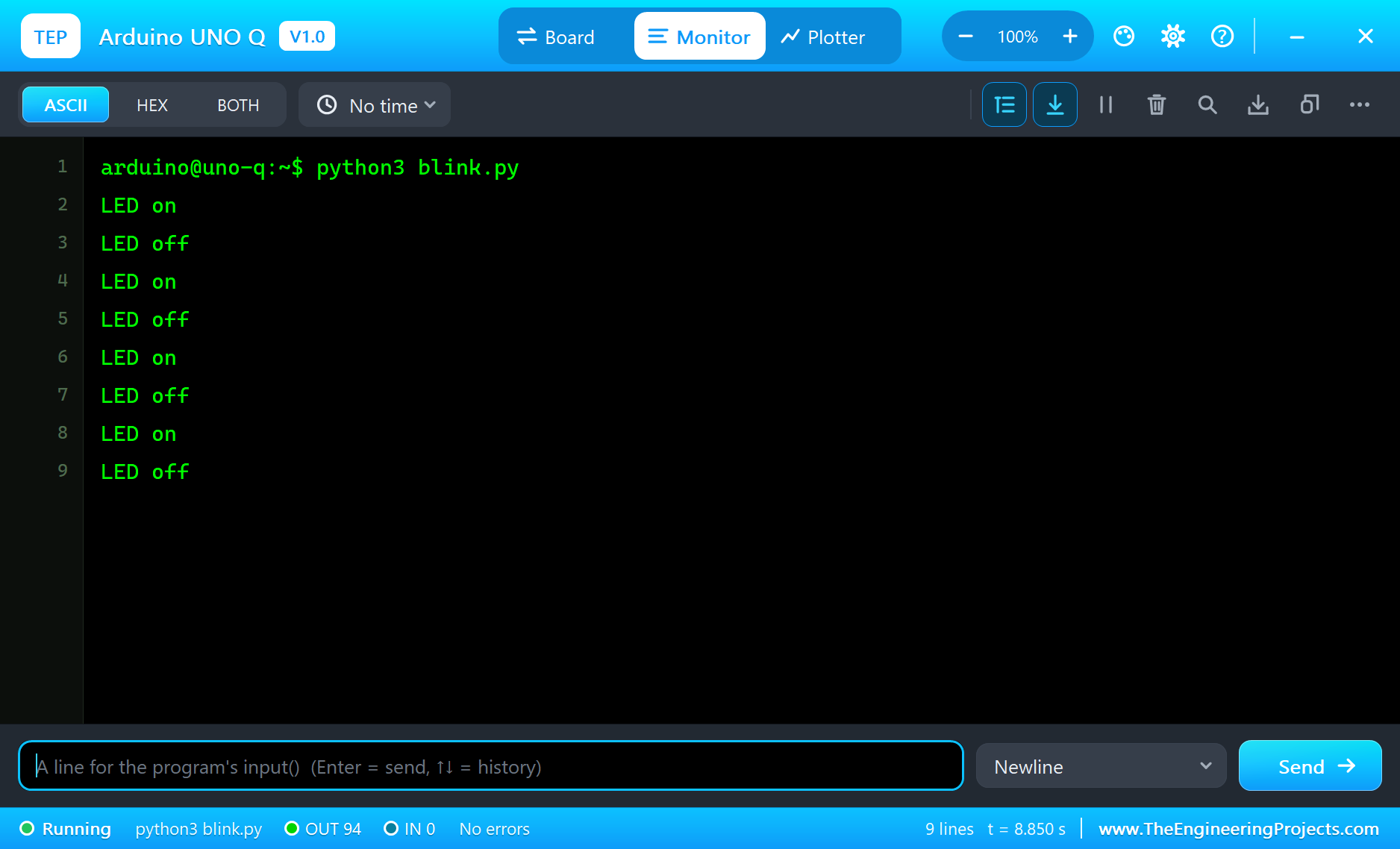
UNO-Q-Blink.pdsprj is the board alone with App Lab's classic first app: the sketch provides set_led_state, and the Python program calls it every second. LED 3's red blinks:
void set_led_state(bool state) {
  digitalWrite(LED_BUILTIN, state ? LOW : HIGH);
}
def loop():
global led_state
time.sleep(1)
led_state = not led_state
Bridge.call('set_led_state', led_state)
print('LED', 'on' if led_state else 'off')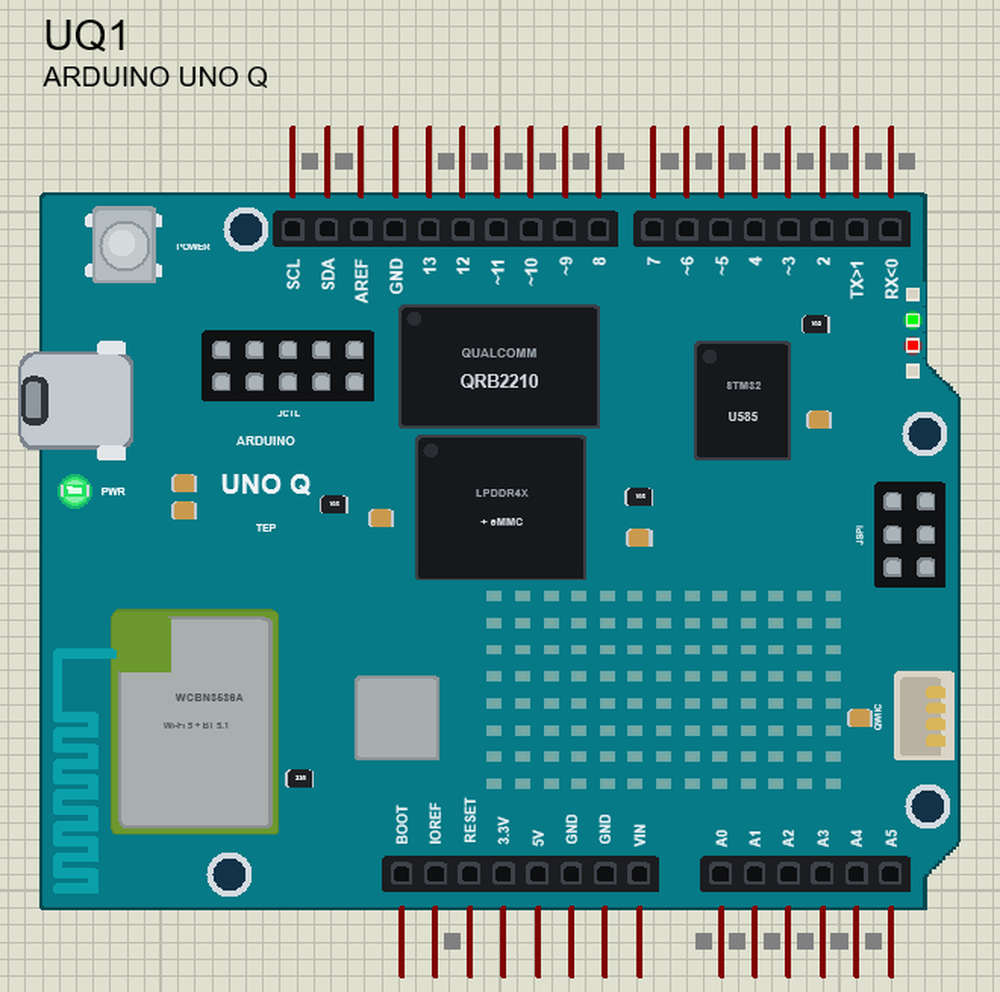
Properties of the Arduino UNO Q
| Property | What it does |
|---|---|
| PROGRAM | the sketch: a .hex from TEP Boards for Proteus (board "Arduino UNO Q") |
| MAINPY | the Python program (default main.py; a name next to the project or a full path) |
| WIFISSID, WIFIPASS | the Wi-Fi network wlan0 joins (TEP-WiFi) |
| LINUXAUTOOPEN | the Linux terminal at Run: YES (default) or NO |
| MONITOR, BAUD, AUTOOPEN | the sketch's monitor: on, its baud rate (115200), open at Run |
| PYTHON, RUNTIME | a python.exe and a runtime folder of your own (empty: the TEPPi folder) |
Your Own Apps
Write the sketch in the Arduino IDE with the board Arduino UNO Q (TEP Proteus), then Sketch > Export Compiled Binary, and set PROGRAM to the .hex. Put the Python program next to your project and set MAINPY to its name. The same sketch.ino and main.py run on a real UNO Q in Arduino App Lab.
Troubleshooting
- ValueError: Request set_pump failed: method not available - the sketch does not provide that name: check its Bridge.provide, and that Bridge.begin() runs in setup().
- TimeoutError - the sketch did not answer in time: it must spend time in loop() or delay(), where provided functions run.
- RuntimeError: Bridge.call() inside a provided handler - set a flag in the handler and call from your loop.
- No module named 'RPi': RPi.GPIO and gpiozero are Raspberry Pi libraries - on a UNO Q the pins are the sketch's.
- The soil reads drier than its pop-up: calibrate AIR_MV and WATER_MV in the sketch, and run the probe on 5 V.
- The page does not open: the address is http://192.168.1.51:7000/ and the program must have printed "serving on". A monitor sometimes needs Go a second time. Use the page's REFRESH link to see new values.
- The TEPPi folder was not found: copy it from Proteus Model Files into MODELS, or next to your project.
Things to Know Before Using a Real Arduino UNO Q
- 3.3 V: the headers are 3.3 V logic. A0, A1 and D3 must never see 5 V; give 5 V modules a level shifter.
- The relay: a relay module's coil and a pump take more current than a pin gives - power them from 5V or a separate supply, never from a GPIO.
- App Lab: an app is a folder with python/main.py and sketch/sketch.ino; App Lab compiles the sketch, flashes the microcontroller and starts the Python program in one go.
- Bricks: App Lab's Web UI brick serves a page with its own API; our demo uses Python's http.server, which works on the real board too.
- The boot: Linux takes 20 to 30 s to start; a sketch that calls Python at once must wait for it or handle the error.
- The power: use a 5 V / 3 A USB-C supply, or 7 to 24 V on VIN.
Limitations of the Simulation
- The board does not run Debian: there is no desktop, no shell commands, no apt. It runs one Python program.
- The sketch runs on an ATmega2560 at 16 MHz inside the part, not on a 160 MHz Cortex-M33: heavy sketches are slower.
- App Lab's Bricks, Bluetooth, the camera, display and audio interfaces, USB-C and the Qwiic, JMISC, JMEDIA, JCTL and JSPI connectors are not modelled.
- C programs and Python packages with C code do not run on the Linux side. Pure Python code takes no simulation time.
- The router, the board's address, the boot time and the windows are TEP additions.
- Arduino and UNO are trademarks of Arduino S.r.l.; this library is not made or endorsed by Arduino, Qualcomm, STMicroelectronics or Labcenter.
- Tested in Proteus 8.5 in October 2026 (the demos as shipped, about 35 s of simulation). Proteus 7 is not supported.
So, that was all about the Arduino UNO Q Library for Proteus. I hope it helps you try UNO Q apps before you touch the hardware - a sketch on the board's pins, a Python program on its Linux side, the Bridge between them, and a web page that waters the greenhouse from a laptop or a phone. If you use the library in a project, please share it in the comments or in our forum, and if you have any questions, ask in the comments and I will help you out. Till the next tutorial, take care and have fun!