


How to Send Email in Microsoft Visual Studio 2010


Hello friends! In this tutorial, we will create a small Visual Basic application that sends an email when you click a button. We will begin with a fixed recipient, subject and message so that you can understand the complete sending process before adding more controls.
This is the first part of our Visual Studio 2010 email series. In part two, Sending Email in Microsoft Visual Studio 2010, we will let the user enter the recipient, subject and message in a Windows Forms interface. Here, our main concern is understanding the mail settings and building a clear first example.
The original tutorial used a Gmail account password directly in the source code. That is no longer a suitable general instruction. We will keep the original Visual Basic teaching flow, explain which parts are legacy, and use separately supplied mail settings instead of embedding a real password in the program.
Understand What the Application Will Do
Our program creates a message and submits it to an SMTP server. SMTP stands for Simple Mail Transfer Protocol. The server handles the next stage of delivery; our Windows form does not directly place text inside another person's inbox.
Keep three identities separate: the account used to authenticate, the sender address shown on the message, and the recipient address. For a first test, use your own permitted sender account and another mailbox you control. This makes it easier to check the result without sending experimental messages to other people.
| Setting | Meaning | Example or requirement |
|---|---|---|
| SMTP host | The server receiving the submission. | A hostname supplied by your provider. |
| SMTP port | The server's submission endpoint. | Often 587 for STARTTLS. |
| Authentication account | The identity allowed to submit mail. | Often a complete email address. |
| Sender address | The message's From address. | An address or alias permitted for that account. |
| Recipient address | The destination mailbox. | A mailbox you control during development. |
| Credential | The secret accepted by the chosen authentication method. | A provider-approved application credential where supported. |
A recipient can use a different provider from the sender. You normally select the SMTP server for the account submitting the message, not the recipient's mail service. Changing the destination from one domain to another does not by itself require changing your SMTP host.
Check the Legacy Platform and Mail Provider
The screenshots show Visual Studio 2010 and a Visual Basic Windows Forms project. The code below uses the traditional System.Net.Mail API so that the lesson remains understandable for readers maintaining that project. It is not a recommendation to begin a new internet-facing application on a 2010 development environment.
Microsoft states in the SmtpClient documentation that this API is not recommended for new development because it lacks support for many modern protocols. For a new application, choose a supported platform and an email library or service API that supports the provider's required authentication.
In particular, a username and password passed to NetworkCredential do not implement OAuth. If your provider requires OAuth for this application, the example's authentication mechanism is not compatible. Adding more text boxes or changing the password will not solve that mismatch.
Using Gmail as an Example
Google's published mail-client settings identify smtp.gmail.com and port 587 for TLS/STARTTLS submission. Account eligibility and authentication still matter. Some accounts can use an app password after enabling two-step verification; others have restrictions that make this option unavailable. Consult Google's app-password guidance for the account you intend to use.
Do not follow old instructions to enable “less secure apps,” and do not assume an ordinary account password belongs in this sample. A school or company account can also have administrator-controlled requirements. Obtain the approved configuration before investigating the Visual Basic code.
Understand STARTTLS and Runtime Compatibility
For this particular API, EnableSsl enables the STARTTLS upgrade of an SMTP connection. It is not a switch that makes every encrypted SMTP endpoint interchangeable. The EnableSsl reference distinguishes STARTTLS from implicit TLS, commonly associated with port 465. Use the mode supported by both the client and server.
An old Windows installation or .NET Framework target may also fail a modern TLS negotiation. Upgrade the maintained application to a supported environment using Microsoft's TLS guidance. Do not fix a handshake error by disabling certificate checks or turning encryption off.
Create the Visual Basic Windows Forms Project
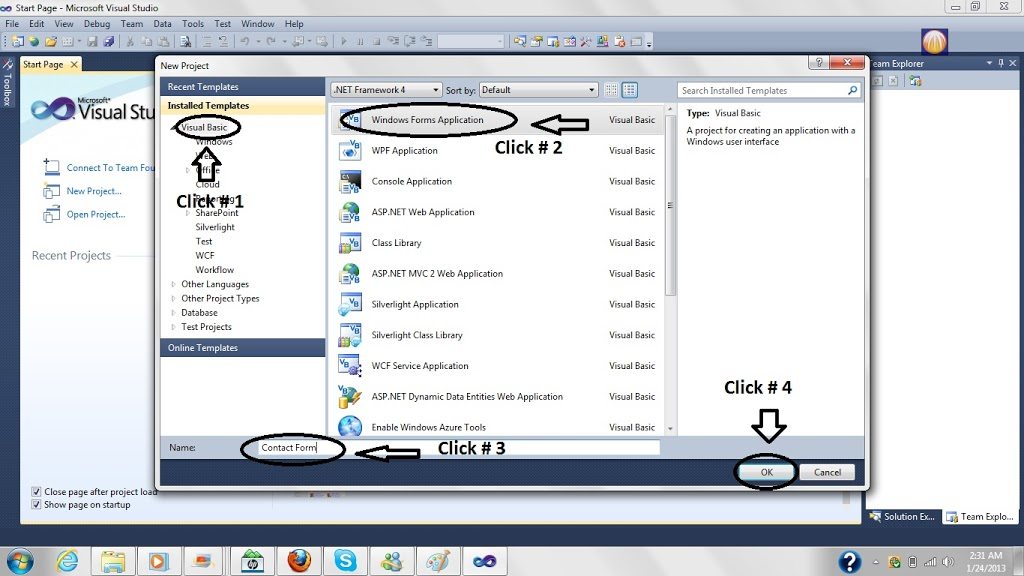
Open Visual Studio and create a new project. The first screenshot preserves the original starting point of this tutorial.

Choose Visual Basic and the Windows Forms Application template. Give the project a useful name, such as EmailDemo, and select a folder where you keep your learning projects. If you are maintaining the original solution, open that solution instead of creating another copy.
- Open Form1 in the designer.
- Add one Button control from the Toolbox.
- Set its Name property to
SendEmail. - Set its Text property to
Send Email. - Double-click the button to create its Click event handler.
Name and Text serve different purposes. Name is the identifier referenced by the Handles clause in our code. Text is the caption shown on the button. Changing only the caption does not create a control named SendEmail.
Keep the designer-generated file intact. Add the imports above the existing form class and place the methods inside that class. If Visual Studio already created SendEmail_Click, replace that handler rather than keeping two handlers that both send a message.
Supply Mail Settings Outside the Source Code
For this local demonstration, the program reads its settings from environment variables. This avoids placing a real password inside an example that might later be copied, shared or committed to source control. Environment variables are not encrypted secret storage; use an appropriate credential store or server-side mail service in a distributed application.
| Variable | Value to provide |
|---|---|
TEP_SMTP_HOST | Your provider's approved SMTP hostname. |
TEP_SMTP_PORT | The STARTTLS port, such as 587. |
TEP_SMTP_USER | Your submission account. |
TEP_SMTP_SECRET | The application credential accepted by that account. |
TEP_SMTP_FROM | Your permitted sender address. |
TEP_SMTP_TO | A test recipient you control. |
Use your normal development environment to provide these variables before launching the application. A running process inherits an environment when it starts, so changing a user variable does not necessarily update an already-running Visual Studio process. Restart the relevant development process if it still reads an old value.
Keep the configured sender consistent with the authenticated account unless your provider explicitly permits an alias. The From field is not permission to impersonate another mailbox. A provider may reject an unauthorized sender or replace it with an account it recognizes.
Add the Email-Sending Code
The following example sends one plain-text message. It validates the port, constructs email addresses through MailAddress, uses STARTTLS and disposes the message and SMTP client after the operation.
Imports System.Net
Imports System.Net.Mail
Imports System.Text

Public Class Form1
    Private Function RequiredSetting(ByVal name As String) As String
        Dim value As String = Environment.GetEnvironmentVariable(name)
        If String.IsNullOrWhiteSpace(value) Then
            Throw New InvalidOperationException("Missing setting: " & name)
        End If
        Return value
    End Function

    Private Sub SendEmail_Click(ByVal sender As Object,
                                ByVal e As EventArgs) Handles SendEmail.Click
        SendEmail.Enabled = False
        Me.UseWaitCursor = True

        Try
            Dim host As String = RequiredSetting("TEP_SMTP_HOST").Trim()
            Dim port As Integer
            If Not Integer.TryParse(RequiredSetting("TEP_SMTP_PORT"), port) _
                OrElse port < 1 OrElse port > 65535 Then
                Throw New InvalidOperationException("Invalid SMTP port.")
            End If

            Dim user As String = RequiredSetting("TEP_SMTP_USER").Trim()
            Dim secret As String = RequiredSetting("TEP_SMTP_SECRET")
            Dim fromAddress As New MailAddress(RequiredSetting("TEP_SMTP_FROM").Trim())
            Dim toAddress As New MailAddress(RequiredSetting("TEP_SMTP_TO").Trim())

            Using mail As New MailMessage()
                mail.From = fromAddress
                mail.To.Add(toAddress)
                mail.Subject = "First email from Visual Basic"
                mail.Body = "Hello! This is a test from my Visual Basic application."
                mail.IsBodyHtml = False
                mail.SubjectEncoding = Encoding.UTF8
                mail.BodyEncoding = Encoding.UTF8

                Using smtp As New SmtpClient(host, port)
                    smtp.UseDefaultCredentials = False
                    smtp.Credentials = New NetworkCredential(user, secret)
                    smtp.EnableSsl = True
                    smtp.Timeout = 20000
                    smtp.Send(mail)
                End Using
            End Using

            MessageBox.Show("The SMTP server accepted the test message.")
        Catch ex As FormatException
            MessageBox.Show("Check the sender and recipient addresses.")
        Catch ex As SmtpFailedRecipientException
            MessageBox.Show("The SMTP server rejected the recipient.")
        Catch ex As SmtpException
            MessageBox.Show("Submission failed. Check the server, account and TLS settings.")
        Catch ex As InvalidOperationException
            MessageBox.Show(ex.Message)
        Finally
            SendEmail.Enabled = True
            Me.UseWaitCursor = False
        End Try
    End Sub
End Class
The names in this example match the button configuration above. If your form class has another name, retain that name. The recipient is fixed through configuration in this first lesson; the next tutorial obtains it from a text box.
Walk Through the Code
Create the Message
MailMessage holds the sender, recipients, subject and body. Our example deliberately uses plain text, which keeps the first exercise focused on sending rather than on HTML email layout. UTF-8 encoding lets the message carry text beyond the basic English character set.
The To property is a collection because an email can have multiple recipients. We add only one MailAddress here. Address parsing catches formatting problems; it does not prove that a mailbox exists, belongs to a particular person or will accept delivery.
Configure the Connection
SmtpClient receives the host and port as separate values. The port is an integer, not a quoted string that relies on an implicit conversion. UseDefaultCredentials is false because this example supplies the mail account explicitly rather than using the current Windows identity.
The timeout value is expressed in milliseconds: 20,000 ms is 20 seconds. It bounds the synchronous send operation according to the API's behavior. It is not a promise that a message will reach an inbox within 20 seconds.
Release Resources and Restore the Form
The Using blocks dispose the client and message even if sending raises an exception. The Finally block restores the button and cursor after either success or failure. Without that cleanup, a failed first attempt can leave the demonstration looking permanently busy.
This first example uses synchronous Send to keep the sequence easy to follow. The form can become unresponsive while that call waits. Part two moves the operation into a background worker and prevents concurrent submissions. Do not add Application.DoEvents inside the send handler as a substitute for a clear asynchronous design.
Test the First Message Carefully
- Confirm the account, sender and recipient settings before running the program.
- Start the application and click Send Email once.
- Read the result shown by the form.
- Inspect your test mailbox, including any junk or filtering folders.
- If necessary, inspect the sender account's delivery notices or provider logs.
The success text says that the SMTP server accepted the message. That wording matters. Submission can succeed while a later delivery stage fails, a filter moves the message, or the recipient's server generates a bounce.
When a connection breaks near the end of submission, the application may not know whether the server accepted the message. Repeated clicks can therefore create duplicates. For a learning exercise, check the mailbox before retrying an uncertain result. A production notification system needs its own record of submission attempts and retry decisions.
Understand the Conversation Behind Send
The Send call hides several stages. The client opens a connection, learns the server's capabilities, establishes the required transport security, authenticates when required and submits a message. The server can refuse the operation at different stages, which is why a single description such as “email is not working” is difficult to diagnose.
SMTP uses an envelope to identify the sender and recipients for the transaction, followed by the message data. The server's final acceptance of that data is a different event from a person receiving or reading the message. The SMTP specification defines this transaction model; our example delegates its protocol details to the library.
You do not need to construct protocol commands yourself for this exercise. Understanding the stages is enough to choose the right next question. If the hostname cannot be resolved, changing the message body is unlikely to help. If authentication succeeds but the recipient is rejected, reinstalling the form designer is also unlikely to solve the problem.
Keep a Small Development Record
For each deliberate test, record a local test number, the start time, the configured host and port, the outcome category and the approximate elapsed time. Use a harmless subject containing that test number so that you can distinguish a newly received message from an earlier attempt. Keep the recipient details private if the record will be shared.
For example, test 01 might stop immediately because a required variable is absent. Test 02 might reach the server but fail authentication. Test 03 might be accepted and appear in your test inbox. Those three observations describe actual progress; three screenshots saying “failed” would not.
Change one setting at a time when the cause is uncertain. If you simultaneously change the server, credential, port and runtime, a successful result will not tell you which change mattered. Once you establish a working approved configuration, record the nonsecret settings and keep the credential managed separately.
Separate Message Problems from Connection Problems
After basic submission works, try a short message containing ordinary line breaks and a few non-ASCII characters. Confirm that the received text matches what the application generated. This exercises message construction and encoding without changing the account or transport settings.
Then keep that message constant while investigating any connection problem. This gives you a known small input and avoids confusing an account restriction with a large-message or attachment issue. Our first exercise intentionally has no attachments, so file paths, open file handles and attachment sizes cannot be the cause of its failure.
Finally, remember that encryption of the SMTP connection describes one transport link. It does not mean the body is encrypted separately for the recipient or that every later system handles it identically. Keep test messages free of sensitive content until you have established the complete delivery requirements for the application.
Troubleshoot the Correct Stage
| Problem | What it suggests | Next check |
|---|---|---|
| A missing-setting message appears. | The process did not receive the required configuration. | The variable name and when the application was launched. |
| An address is rejected before connecting. | The sender or recipient string cannot be parsed. | Whitespace, spelling and accidental extra text. |
| The server cannot be reached. | Host, port, network or firewall configuration may be wrong. | The provider's approved submission endpoint. |
| Authentication fails. | The account credential or authentication method is unacceptable. | App-password eligibility, account policy or an OAuth requirement. |
| TLS negotiation fails. | The runtime, operating system, certificate trust or connection mode may be incompatible. | Supported runtime settings and STARTTLS compatibility. |
| Submission succeeds but no inbox message appears. | The failure may be after SMTP acceptance. | Filtering, bounces, recipient spelling and provider records. |
In development, record enough diagnostic information to distinguish these stages. Keep credentials and message contents out of ordinary logs. A password should never appear in a screenshot posted for troubleshooting, and a connection string containing a secret should not be copied into a public comment.
Do not guess another provider's configuration from the Gmail example. Obtain its host, port, encryption mode and authentication requirements as a group. A correct hostname combined with the wrong connection mode can fail before the server even checks your username.
Review the Design Before Extending It
We now have a single-purpose sender: one configured account submits a known message to a configured recipient. That small scope is useful because each failure has fewer possible causes. Once this path works in your supported environment, add user-editable fields one at a time.
For a desktop application used by other people, do not distribute a shared mailbox password inside the executable. A compiled program does not make embedded credentials secret. Depending on the project, let users authenticate their own approved accounts or send an authorized request to a server that manages mail delivery.
An equipment notification feature also needs an event policy. Decide which condition triggers mail, how frequently it may repeat, and how the application records a failed attempt. Sending an email inside every sensor-reading loop can overwhelm both the operator and the provider.
Frequently Asked Questions
Can I use my ordinary Gmail password?
Do not assume so. Use the account's supported authentication method. Where an app password is permitted, it is a separate credential; an OAuth-only setup requires a different implementation.
Does EnableSsl mean I should select port 465?
Not for this example. This SmtpClient workflow uses STARTTLS. Select the provider's compatible STARTTLS endpoint instead of treating implicit TLS and STARTTLS as interchangeable.
Why is the form briefly frozen?
The basic example sends synchronously on the UI thread. That makes the first lesson easier to inspect, but a usable interface should perform network work without blocking the form. The second part demonstrates that change.
Do I need Outlook installed?
No. This code talks to the configured SMTP service through System.Net.Mail. It does not automate the Outlook desktop application.
Can this code read incoming emails?
No. This tutorial covers outgoing SMTP submission only. Reading mail requires an appropriate service API or incoming-mail protocol and its own authentication and data-handling logic.
Where is the next part?
Continue with Sending Email in Microsoft Visual Studio 2010 to add recipient, subject and message controls while keeping the interface responsive.

Tags


please send the full code for this as the given code is giving error
sayantangupta999@gmail.com
thank you
Comments
2