



Sending Email in Microsoft Visual Studio 2010


Hello friends! In this second part of our Visual Basic email tutorial, we will turn the simple sender into a usable Windows Forms application. You will enter the recipient, subject and message on the form instead of changing those values inside the source code.
If you have not completed How to Send Email in Microsoft Visual Studio 2010, start there. That lesson explains SMTP settings, permitted sender accounts, STARTTLS and the limitations of the legacy System.Net.Mail API. Here we will concentrate on the form, input validation and the send operation.
We will retain the original controls and the step-by-step teaching flow, then improve the application so that a slow mail server does not freeze its interface. The sender account remains configured separately; allowing someone to type a destination address is different from letting them sign in to any email account.
Decide What the Form Can Change
The first application used a fixed recipient and message. Our new form accepts those values from the user. The SMTP hostname, port, authenticated account and permitted From address remain application settings, using the same environment-variable convention as part one.
This separation keeps the first extension manageable. A typing mistake in the recipient field should not also change the server that receives the account credential. If you later add account settings, put them in a deliberate configuration workflow and explain which providers and authentication methods the application supports.
| Value | Where it comes from | Who should control it? |
|---|---|---|
| Recipient | The txtSend text box. | The person composing the message. |
| Subject | The txtSubject text box. | The person composing the message. |
| Body | The rtbMessage rich text box's Text property. | The person composing the message. |
| Server and account | Approved application settings. | The account owner or application administrator. |
| Sender address | An address permitted for the sending account. | The account owner, subject to provider policy. |
We will support one recipient per submission and plain-text messages. Attachments, HTML composition, mailing lists and receiving mail are separate features. Keeping them outside this example makes the validation and lifetime of each send operation easier to follow.
Add the Controls in Visual Studio
Open the project from part one and switch to the Form1 designer. Add three labels, two text boxes and one RichTextBox. Keep the Send Email button and add a small status label so that the application can show its current state.
| Control | Name | Text or purpose |
|---|---|---|
| Label | Label1 | Send Email To |
| TextBox | txtSend | One recipient address. |
| Label | Label2 | Subject |
| TextBox | txtSubject | A short message subject. |
| Label | Label3 | Message |
| RichTextBox | rtbMessage | The plain-text message body. |
| Button | SendEmail | Send Email |
| Label | lblStatus | Ready |
The original screenshot shows the basic composing form. You may arrange the controls differently, but keep the names consistent with the code. The extra status label can sit below the message area or beside the button.
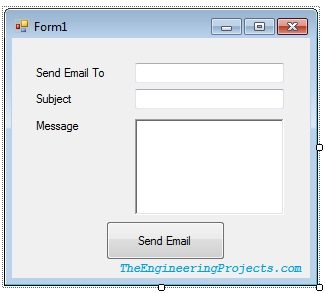
Set a sensible tab order: recipient, subject, message and Send Email. Let the message box expand when the form is resized by choosing suitable anchors. Leave the recipient and subject controls single-line. These small choices make keyboard entry much easier without changing the sending logic.
We will read rtbMessage.Text, not rtbMessage.Rtf. A RichTextBox can hold formatted content, but this tutorial sends the plain text of that content. Passing its RTF document text as the email body would expose formatting commands instead of producing the intended message.
Plan the Sending Operation
The original code called smtp.Send directly from the button handler. That blocks the UI thread until the network operation returns. Even if the message is short, connecting, negotiating TLS and authenticating can take long enough for the form to appear stuck.
Our revised example uses BackgroundWorker, which fits the original Visual Basic 2010 programming model without requiring Async and Await syntax. The button handler validates and captures the values. The worker performs the network operation. Its completion handler restores the interface and reports the outcome.
Microsoft's BackgroundWorker overview describes this separation between background work and completion handling. The crucial rule for our example is simple: the worker receives a prepared request and does not read or modify the text-box controls.
- Reject a second click while an operation is active.
- Validate the current form values.
- Copy the values and configured account settings into one request.
- Disable the composing controls while that request is being sent.
- Send on the worker thread and report completion back on the form.
Copying the values first matters. If the worker repeatedly reads controls while the operator edits them, it can build a message from inconsistent versions of the recipient, subject and body. One send operation should have one clearly defined set of inputs.
Use the Same Approved Account Settings
The example expects TEP_SMTP_HOST, TEP_SMTP_PORT, TEP_SMTP_USER, TEP_SMTP_SECRET and TEP_SMTP_FROM. Part one explains how these settings relate to the provider. TEP_SMTP_TO is no longer needed because the recipient now comes from txtSend.
This remains a legacy username-and-credential SMTP example. It does not implement OAuth. An account that requires modern token-based authentication needs a compatible mail library or service API, not an extra password text box.
Google's app-password instructions describe the restricted circumstances in which that type of credential is available. Use it only when permitted for your account; do not use the obsolete “less secure apps” approach. For a new application, follow Microsoft's recommendation to consider alternatives to SmtpClient.
Add the Complete Form Code
Keep the designer-generated controls. Replace the previous form-code implementation with the following code, retaining your actual form class name if it differs from Form1. This version creates the BackgroundWorker in code, so you do not also need to add one from the Toolbox.
Imports System.ComponentModel
Imports System.Net
Imports System.Net.Mail
Imports System.Text

Public Class Form1
    Private WithEvents mailWorker As New BackgroundWorker()

    Private Class MailRequest
        Public Host As String
        Public Port As Integer
        Public User As String
        Public Secret As String
        Public FromAddress As String
        Public ToAddress As String
        Public Subject As String
        Public Body As String
    End Class

    Private Function RequiredSetting(ByVal name As String) As String
        Dim value As String = Environment.GetEnvironmentVariable(name)
        If String.IsNullOrWhiteSpace(value) Then
            Throw New InvalidOperationException("Missing setting: " & name)
        End If
        Return value
    End Function

    Private Sub SetSending(ByVal sending As Boolean)
        SendEmail.Enabled = Not sending
        txtSend.Enabled = Not sending
        txtSubject.Enabled = Not sending
        rtbMessage.Enabled = Not sending
        Me.UseWaitCursor = sending
    End Sub

    Private Sub SendEmail_Click(ByVal sender As Object,
                                ByVal e As EventArgs) Handles SendEmail.Click
        If mailWorker.IsBusy Then Return

        Try
            Dim recipient As New MailAddress(txtSend.Text.Trim())
            Dim subject As String = txtSubject.Text.Trim()
            Dim body As String = rtbMessage.Text
            If subject.Length = 0 OrElse subject.Length > 200 _
                OrElse subject.Contains(vbCr) OrElse subject.Contains(vbLf) Then
                Throw New ArgumentException("Enter a single-line subject of 1 to 200 characters.")
            End If
            If String.IsNullOrWhiteSpace(body) OrElse body.Length > 50000 Then
                Throw New ArgumentException("Enter a message of up to 50,000 characters.")
            End If

            Dim port As Integer
            If Not Integer.TryParse(RequiredSetting("TEP_SMTP_PORT"), port) _
                OrElse port < 1 OrElse port > 65535 Then
                Throw New InvalidOperationException("Invalid SMTP port.")
            End If

            Dim fromAddress As New MailAddress(RequiredSetting("TEP_SMTP_FROM").Trim())
            Dim request As New MailRequest With {
                .Host = RequiredSetting("TEP_SMTP_HOST").Trim(),
                .Port = port,
                .User = RequiredSetting("TEP_SMTP_USER").Trim(),
                .Secret = RequiredSetting("TEP_SMTP_SECRET"),
                .FromAddress = fromAddress.Address,
                .ToAddress = recipient.Address,
                .Subject = subject,
                .Body = body
            }

            SetSending(True)
            lblStatus.Text = "Submitting message..."
            mailWorker.RunWorkerAsync(request)
        Catch ex As FormatException
            MessageBox.Show("Enter a valid single recipient and check the configured sender.")
        Catch ex As ArgumentException
            MessageBox.Show(ex.Message)
        Catch ex As InvalidOperationException
            SetSending(False)
            lblStatus.Text = "Not submitted."
            MessageBox.Show(ex.Message)
        End Try
    End Sub

    Private Sub mailWorker_DoWork(ByVal sender As Object,
                                 ByVal e As DoWorkEventArgs) Handles mailWorker.DoWork
        Dim request As MailRequest = DirectCast(e.Argument, MailRequest)
        Try
            Using mail As New MailMessage()
                mail.From = New MailAddress(request.FromAddress)
                mail.To.Add(New MailAddress(request.ToAddress))
                mail.Subject = request.Subject
                mail.Body = request.Body
                mail.IsBodyHtml = False
                mail.SubjectEncoding = Encoding.UTF8
                mail.BodyEncoding = Encoding.UTF8

                Using smtp As New SmtpClient(request.Host, request.Port)
                    smtp.UseDefaultCredentials = False
                    smtp.Credentials = New NetworkCredential(request.User, request.Secret)
                    smtp.EnableSsl = True
                    smtp.Timeout = 20000
                    smtp.Send(mail)
                End Using
            End Using
        Finally
            request.Secret = Nothing
        End Try
    End Sub

    Private Sub mailWorker_RunWorkerCompleted(ByVal sender As Object,
                    ByVal e As RunWorkerCompletedEventArgs) Handles mailWorker.RunWorkerCompleted
        SetSending(False)
        If e.Error IsNot Nothing Then
            lblStatus.Text = "Submission failed or could not be confirmed."
            If TypeOf e.Error Is SmtpFailedRecipientException Then
                MessageBox.Show("The mail server rejected the recipient.")
            Else
                MessageBox.Show("Check the mail settings and connection before retrying.")
            End If
        Else
            lblStatus.Text = "The SMTP server accepted the message."
        End If
    End Sub

    Private Sub Form1_FormClosing(ByVal sender As Object,
                    ByVal e As FormClosingEventArgs) Handles Me.FormClosing
        If mailWorker.IsBusy Then
            e.Cancel = True
            MessageBox.Show("Wait for the current submission to finish before closing.")
        End If
    End Sub
End Class
The character limits are deliberate application rules for this demonstration. They are not universal SMTP limits. Choose limits that suit your product, and measure actual encoded message size when dealing with provider size restrictions or attachments.
Understand the Validation
Recipient Address
MailAddress parses one mailbox address. It is better suited to this example than a homemade rule that merely checks for an at sign. Parsing still does not establish that the destination exists or that delivery will succeed.
If you later support several recipients, give that feature a clear interface and validate each address individually. Do not quietly reinterpret arbitrary pasted text as a mailing list. The first version should make it obvious which mailbox will receive the message.
Subject and Body
We require a subject and nonblank body as a usability choice. The subject check rejects carriage returns and line feeds. The body can contain normal line breaks, because it represents the message text rather than a single header field.
We trim the subject and recipient to remove accidental surrounding whitespace. We do not trim the body because leading spaces and trailing line breaks can be intentional. This illustrates why validation should reflect the meaning of each field rather than applying the same transformation everywhere.
Configured Sender and Credential
The sender is parsed separately from the recipient and comes from approved configuration. The account secret is never displayed on the form. Clearing the request's Secret reference after use reduces unnecessary retention by that object, but it does not securely erase an immutable .NET string or the process environment.
Use a suitable credential store for an application beyond this exercise. Do not save account secrets in ordinary application settings, screenshots or diagnostic text that users might share.
Understand Background Work and Completion
The DoWork handler creates and disposes its own MailMessage and SmtpClient. It receives only the captured request, so it does not need to access any Windows Forms control. Unhandled worker exceptions are delivered to the completion event through its Error property.
The RunWorkerCompleted reference explains how completion reports success, errors and cancellation. Our example does not enable cancellation, so it only evaluates the error result. Do not inspect a worker's result as though it succeeded before checking for an error.
The form remains responsive, but composing controls are disabled until completion. That prevents a second submission and makes the displayed message correspond to the request currently in flight. The fields remain populated afterward, letting the user review or correct them.
Closing is temporarily blocked while a submission is active. This avoids disposing the form while its worker still needs to report completion. It is a simple policy for a small utility. A larger application might move queued submissions into a separate service whose lifetime does not depend on the window.
Do not add a Cancel button that merely closes the form and claim it retracts the email. Once a server has accepted a message, closing a window cannot reliably recall it. Cancellation, submission uncertainty and delivery status are separate concerns.
Run a Useful Test Sequence
- Try an empty recipient and confirm that no submission starts.
- Enter one test mailbox you control, a short subject and a plain-text body.
- Click Send Email once and observe the submitting status.
- Move the window while waiting to confirm that the UI is not blocked by the network call.
- Check the completion status and inspect the recipient mailbox.
- Repeat with an intentionally invalid local setting, then restore it before continuing.
Keep tests small and deliberate. A successful provider submission is not proof of inbox delivery, and an uncertain network failure is not proof that nothing was sent. Check the destination before repeatedly retrying the same message.
For a system that sends equipment alerts, add a notification identifier and record each attempt. Decide when a failed submission may be retried and when it needs operator attention. Treating every timer tick as permission to resend can produce many duplicate messages during an outage.
Give the Interface Clear States
A responsive form should communicate more than whether its Send button is clickable. Think of the operation as a small set of states. The code above implements a simple version through validation, the busy flag and the status label.
| State | What the user can do | What the application knows |
|---|---|---|
| Ready | Edit and submit a message. | No submission is active. |
| Invalid input | Correct the highlighted problem and try again. | No network operation was started. |
| Submitting | Wait while the window remains responsive. | A captured request is in progress. |
| Accepted | Review the text or compose another message. | The configured server accepted the submission. |
| Failed or uncertain | Investigate before deliberately retrying. | The operation did not return confirmed success. |
The distinction between invalid input and an uncertain submission is especially useful. An invalid local field can be corrected safely before any message has left the application. A broken connection after sending begins may require checking the mailbox or provider record before retrying.
A status label is not a durable audit record. Closing the program loses that text. If the application sends important operational notifications, keep an appropriate record outside the form and give each notification a stable identifier. Do not use the subject alone as a unique identifier when users can edit it.
Preserve Drafts Without Accidentally Resending Them
This example leaves the fields populated after completion. That is convenient for reviewing a test, but a production interface should make it clear whether the visible text is a draft or a message that has already been submitted. A separate New Message action can clear the fields deliberately.
If you add draft persistence, store composition data separately from submission state. Reloading an unfinished draft should not automatically send it. Likewise, reopening the application should not replay every message whose previous status happened to be displayed as “Submitting.” Recovery needs an explicit policy for uncertain attempts.
Keep Background Work Bounded
Moving a slow operation to a worker does not make the server faster. It lets the form continue processing window events while that operation waits. Keep the single-operation limit until you have designed a queue and a clear policy for several messages.
For example, suppose an operator clicks three times because the first submission takes several seconds. With the busy check and disabled button, the example captures one request. Without them, three workers could submit three copies. That difference is observable behavior, not merely an improvement in how the interface looks.
If mail is triggered by equipment rather than a person, apply the same principle at the event level. A continuously active alarm should not create a new notification on every display refresh. Decide when the alarm becomes a new event, when a reminder is due and how successful notification is recorded.
Troubleshooting the Updated Form
| Symptom | What to check |
|---|---|
| The code cannot find txtSend or rtbMessage. | The controls' Name properties, not their visible captions. |
| One click sends two messages. | Duplicate Click handlers or old sending code left in the project. |
| The form still freezes. | Whether an old synchronous Send call remains in the button handler. |
| A cross-thread control exception occurs. | Code added to DoWork that touches the form or its controls. |
| The server rejects authentication. | Account policy, credential type and whether the provider requires OAuth. |
| The server rejects the sender. | Whether the From address is permitted for the authenticated account. |
| The message arrives as formatting commands. | Whether Rtf was used instead of the RichTextBox Text property. |
Collect exception details in a private development log when diagnosis requires them. Keep the normal interface concise, and never display or log the secret. If you ask for help, share the failure stage and relevant exception type with account information removed.
Review: What Changed from Part One?
The recipient, subject and body now come from controls, while the sending account remains configured. We validate the inputs, capture a consistent request, submit it in the background and restore the form after completion. Those changes make the original simple idea more practical without turning the tutorial into a full mail client.
A login screen alone would not create a universal email application. Different services have different authentication requirements, token flows and policies. Add account management only after selecting and implementing those requirements explicitly.
Frequently Asked Questions
Can I send to any email provider?
You can enter a recipient at another provider, subject to your sending service's rules. The SMTP configuration still belongs to the sending account.
Why use BackgroundWorker instead of Async and Await?
This tutorial preserves the Visual Basic 2010 workflow. A modern supported project can use contemporary asynchronous APIs, but adding newer syntax directly to the original project would make the example misleading.
Does a successful completion mean the email was read?
No. It indicates successful submission to the configured SMTP server. Delivery, filtering and whether a person opens the message are later events.
Can I add attachments now?
Yes, as a separate extension. Define file selection, size limits and disposal carefully. Keep the message and attachment streams alive until sending has finished, then release them together.
Should the application remember the password?
Only through an appropriate credential-management design. Do not add a plain-text password file merely to avoid asking for configuration during development.
Where can I learn the related Visual Basic techniques?
The serial-port tutorial and contact-database tutorial show other ways a Windows Forms application interacts with external systems. Keep the same distinction between UI work, external operations and confirmed results.


Comments
2