Hello friends! Today we will interface a PIR sensor with Arduino and build a motion indicator that reports when activity starts and when the sensor has been quiet for a selected time. We will begin with the sensing principle, connect the module, and then write a sketch that separates sensor startup, motion detection and the delay before switching an output off.
PIR Sensor Simulation Libraries
Latest library: PIR Sensor Library for Proteus V4.0 (October 2026): HC-SR501 with time delay, the H / L jumper, warm-up, Simple and Advance devices and an Arduino demo
Other distance and motion sensors: Ultrasonic HC-SR04 · JSN-SR04T · Sharp IR · TF-Luna LiDAR · VL53L0X · RCWL-0516 · IR Obstacle FC-51
Helping Tools
- Serial Monitor Advance: a serial terminal window for the UART of your board
- Serial Monitor Expert: the serial monitor with extra debugging tools
- LCD Library for Proteus V3.0: 16x2, 20x4 and I2C LCDs to show your readings
A PIR module makes this project approachable because its onboard circuit converts a small detector signal into a digital output. However, a digital output is not a guarantee that a room is occupied or empty. Understanding what the sensor actually measures will help you avoid a light that switches off while somebody is sitting still, or an alarm that responds to a changing heat source.
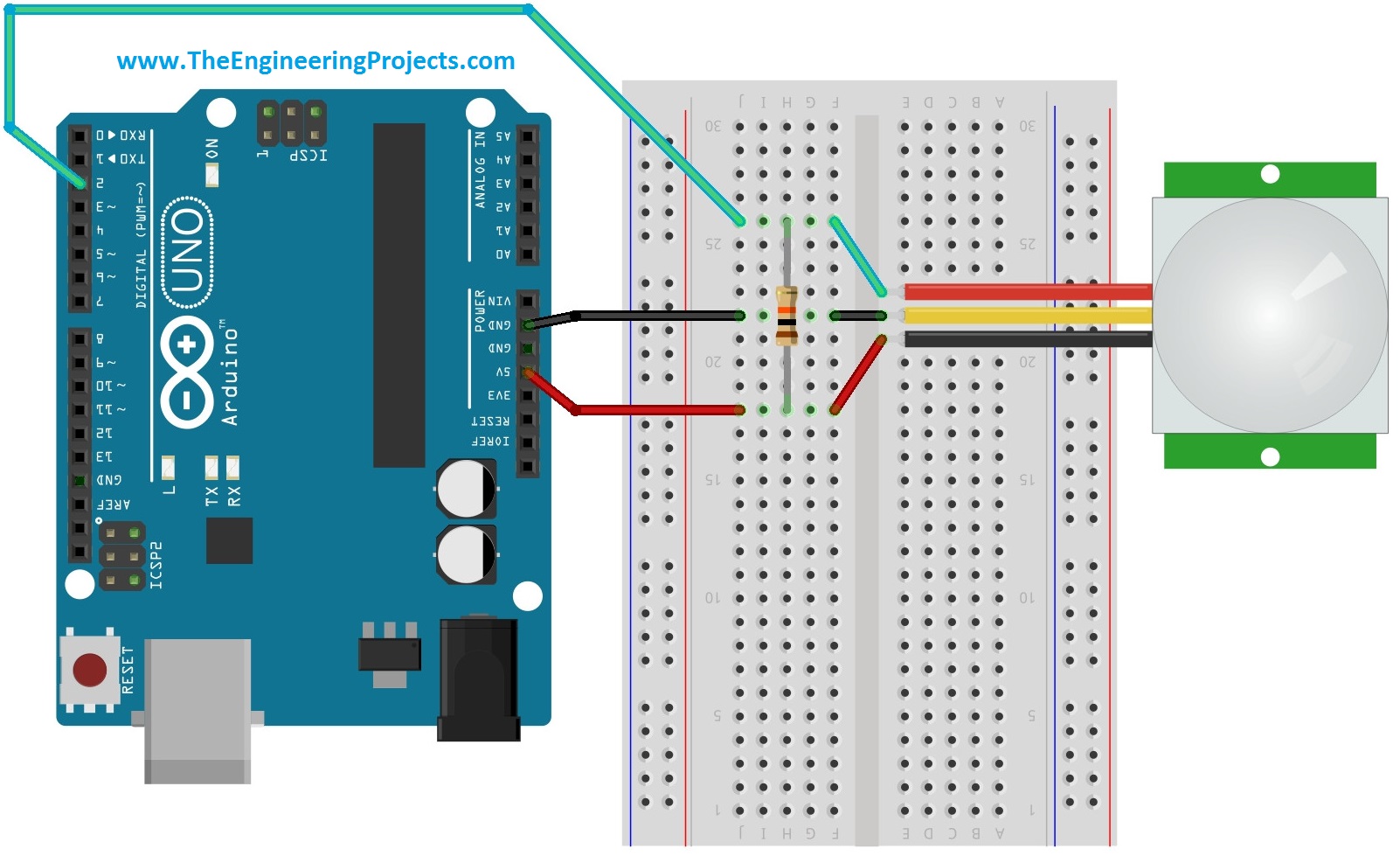
We will use an Arduino Uno R3 and a three-wire digital PIR module of the commonly used HC-SR501 style. Check your module's markings and supplier specifications before applying power because pin order and supply requirements vary. The original connection images remain below, while the revised program adds a real startup interval and avoids blocking delays during normal operation.
What Does a PIR Sensor Detect?
PIR means passive infrared. Here, passive means that the detector receives infrared radiation from its surroundings instead of transmitting a probing beam. It does not mean that a complete module can operate without an electrical supply. The amplifier, threshold circuit and output driver still need power.
The sensing element is pyroelectric: a change in its temperature produces a small electrical response. In a typical motion detector, paired sensing areas respond differently as a warm target crosses the zones formed by the lens. Electronics amplify that changing signal and decide whether it exceeds the detection threshold. Adafruit's explanation of PIR operation illustrates this differential arrangement.
The white cover is usually a segmented Fresnel lens. It directs infrared energy from different regions toward the detector. Consequently, walking across the sensing zones can produce a stronger response than moving directly toward the sensor along a particular line. The useful detection pattern belongs to the lens and detector combination, so a single advertised distance does not describe every installation.
A PIR output does not identify a person, measure body temperature or report distance. It can respond to other moving heat sources, including animals. A stationary person may stop producing enough change to trigger it. These limitations matter more than the apparent simplicity of connecting three wires.
Motion Detection and Occupancy Are Different
Suppose a person walks into a workshop and then sits at a bench. The initial movement may generate a HIGH output, but later the output can return LOW even though the person is still present. Your program should interpret LOW as no current motion indication, not as proof that the workshop is empty.
For a demonstration, an LED can follow recent activity. For room lighting, you may choose a longer timeout or combine motion with another source of information. Door state, a manual override or a suitable presence sensor can help, but each addition requires its own operating assumptions. Do not turn a motion detector into a people counter merely by counting output transitions.
Components and Pin Connections
You need an Uno R3, a compatible digital PIR module, jumper wires and a USB cable. The built-in Arduino LED provides an output indicator without requiring an external lamp driver. A breadboard is useful for arranging the supply and ground connections clearly.
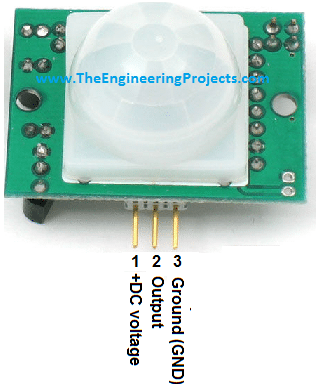
Read VCC, OUT and GND on the actual board. The left-to-right order in a photograph changes when a module is turned around, and different products can use different arrangements. The following table describes signal names rather than a universal physical pin numbering scheme.
| PIR connection | Arduino connection | Purpose |
|---|---|---|
| VCC | 5 V, only for a module specified for this supply | Powers the module electronics |
| GND | GND | Provides a shared voltage reference |
| OUT | Digital pin 2 | Carries the module's motion indication |
| No external indicator connection | LED_BUILTIN | Shows the application's active state |
Common modules accept a 5 V supply while producing an output near 3.3 V. Supply voltage and signal voltage are separate specifications. Confirm that the output meets the input requirements of your controller; do not assume that every module outputs its supply voltage. Likewise, a module suitable for an Uno is not automatically safe for every 3.3 V board.
Disconnect power while wiring. Start with the sensor close to the Arduino and use short leads. A poor ground connection can make an otherwise correct program appear unreliable. If you later extend the wiring, check the waveform and supply at the module instead of assuming that a longer cable behaves exactly like the short bench connection.
Understand the Module Adjustments
HC-SR501-style boards commonly provide sensitivity and output-duration adjustments, plus a retrigger selection. Their direction, range and labeling depend on the supplied board. Begin with the manufacturer's recommended settings and change one adjustment at a time.
In retriggering operation, further detected movement can extend the HIGH output. In non-retriggering operation, the output may complete its pulse and pass through a blocking interval before responding again. Therefore, the width of the output pulse is not necessarily the time a person spent moving. Adafruit's PIR testing guide demonstrates these modes and the initial stabilization period.
Build the Program Around Three States
Our application has three useful states: warming up, ready with no recent activity, and active. During warm-up, the program ignores motion indications. Afterward, any HIGH output activates the indicator. The indicator turns off only after the input has remained LOW for five seconds.
The original sketch declared a calibration time but did not use it to delay acceptance of the sensor output. Merely creating a variable does not change program behavior. In this revision, startup handling is explicit, and the message describes stabilization rather than claiming to calibrate the detector's optics or sensitivity.
Sixty seconds is a starting value for this example, not a specification for every PIR. Use the stabilization requirement for your module and increase the interval if your observations show that startup takes longer. Keep the detection area reasonably still during that interval so you can distinguish startup behavior from actual movement.
constexpr byte PIR_PIN = 2;
constexpr unsigned long WARMUP_MS = 60000UL;
constexpr unsigned long QUIET_MS = 5000UL;

unsigned long startupAt;
unsigned long lowStartedAt;
bool ready = false;
bool active = false;
bool timingLow = false;

void setup() {
  pinMode(PIR_PIN, INPUT);
  pinMode(LED_BUILTIN, OUTPUT);
  digitalWrite(LED_BUILTIN, LOW);
  Serial.begin(9600);
  startupAt = millis();
  Serial.println(F("PIR stabilizing; output ignored for 60 seconds."));
}

void loop() {
  const unsigned long now = millis();

  if (!ready) {
    if (now - startupAt < WARMUP_MS) return;
    ready = true;
    Serial.println(F("PIR ready."));
  }

  const bool motionSignal = digitalRead(PIR_PIN) == HIGH;
  if (motionSignal) {
    timingLow = false;
    if (!active) {
      active = true;
      digitalWrite(LED_BUILTIN, HIGH);
      Serial.println(F("Motion indicated; activity output ON."));
    }
  } else if (active) {
    if (!timingLow) {
      lowStartedAt = now;
      timingLow = true;
    }
    if (now - lowStartedAt >= QUIET_MS) {
      active = false;
      timingLow = false;
      digitalWrite(LED_BUILTIN, LOW);
      Serial.println(F("Sensor quiet for 5 seconds; output OFF."));
    }
  }
}
How the Sketch Works
The input uses INPUT because this example assumes a module with a driven digital output. INPUT_PULLUP is not a universal cure for noisy wiring and should not be added without checking the output circuit. The Arduino reads the logic level using digitalRead; it does not measure infrared intensity through this pin.
The ready flag changes once after startup. When activity first appears, the active flag changes and a message is printed. Further HIGH readings keep the indicator on without repeatedly printing the same message. This makes the Serial Monitor easier to interpret and avoids filling the serial buffer with unnecessary output.
When the input becomes LOW, timingLow records the beginning of a quiet interval. A HIGH reading cancels that interval. A later LOW therefore starts a new complete five-second wait, rather than continuing an old countdown. This behavior is important when a person briefly crosses multiple sensing zones.
The elapsed-time expression subtracts two unsigned timestamps. On the Uno, millis uses an unsigned long counter that eventually wraps. Subtraction remains suitable for these short intervals across a wrap, provided the program continues checking regularly. Avoid replacing it with a simple comparison against a future timestamp. Arduino documents the counter in its millis reference.
Upload and Observe the Motion Indicator
- Select the Uno board and its connected port in Arduino IDE.
- Paste the sketch into a new project and save it with a meaningful name.
- Use Verify to compile, then Upload to program the connected board.
- Open Serial Monitor at 9600 baud and allow startup stabilization to finish. Opening the port can reset an Uno, restarting that interval.
- Move across the sensor's field of view and watch for the activity message and LED.
- Move away, then wait for the module's output to become LOW and for the software quiet interval to finish.
- Repeat with a brief movement during the quiet interval to check that the off timer restarts.
These are steps for checking your own assembly; the revised sketch is not presented as a newly measured hardware result. Record the module version and adjustment positions with your observations. Otherwise, two people can use identical code and obtain different timing because their module settings differ.
Calculate the Effective Turn-Off Delay
There are two delays to consider. The module can keep OUT high after its last detected event, and our software waits after OUT becomes LOW. If the module holds its output high for approximately three seconds after the final trigger, the additional five-second software interval produces roughly eight seconds before the activity indicator switches off.
Approximate off delay = module hold time + software quiet time.
This addition assumes no later retrigger and ignores the comparatively small polling delay. If further motion extends the module output, the total interval becomes longer. Measuring only the LED therefore does not tell you the module's own pulse duration; observe OUT separately when investigating timing.
For a more specific example, suppose OUT falls at 12,400 ms. The program may turn the indicator off at the first loop iteration at or after 17,400 ms. If OUT becomes HIGH at 16,900 ms, that pending shutdown is cancelled. After OUT next falls, a new interval begins. Writing these timestamps down is often clearer than trying to reason from a flashing LED alone.
Improve Placement Before Changing the Code
Mount the module firmly with the lens unobstructed. A moving sensor sees a changing scene even when the scene itself is stationary. For initial experiments, choose an indoor location away from directly changing sunlight and rapidly heated surfaces. Test walking across the coverage area at several positions rather than assuming a perfect cone of detection.
Ordinary glass and acrylic can interfere with the infrared wavelengths used for this purpose, even when you can see through them. A transparent enclosure is therefore not automatically a suitable optical window. Panasonic's PIR application FAQ discusses window materials, thermal contrast and installation limitations.
Room conditions also matter. Reduced contrast between a target and its background can make detection harder. Heating and cooling equipment may change nearby surfaces or the sensor lens temperature. Treat unexplained triggers as observations to investigate: record their timing, check the supply and compare behavior at a different mounting position.
A Small, Repeatable Test Plan
| Test | What to record | What it tells you |
|---|---|---|
| Power up without deliberate movement | Time until output becomes stable | Whether startup masking is long enough |
| Walk across the lens | Position and response | Which parts of the intended area are covered |
| Remain seated and still | Whether the output eventually goes LOW | Why motion is not continuous occupancy |
| Move during the quiet countdown | Whether the application stays active | Whether timeout cancellation behaves correctly |
| Change one module adjustment | Before and after pulse timing | Which behavior belongs to hardware settings |
Troubleshooting Common Problems
The output never changes: verify the pin labels, supply voltage and common ground. Then measure OUT while somebody moves across the lens. If OUT changes electrically but the program does not respond, check the selected Arduino pin and whether the uploaded sketch matches the one on screen.
The LED stays on: reduce the module's hold setting for testing and remove continuing movement from the scene. Retrigger mode can keep OUT high. Also remember that the application adds its own five seconds after the module goes LOW; that is intentional behavior, not a stuck output.
Messages restart unexpectedly: investigate power interruptions, a loose USB cable or opening software that resets the Uno through its serial connection. A repeated stabilization message means setup has run again. Increasing the quiet interval will not repair a reset problem.
False indications appear when another load switches: first test the sensor and Arduino without that load. Check supply dips, shared return wiring and electrical interference before adding software filtering. A timer can hide a symptom while leaving the underlying power problem unchanged.
Simulation, Applications and Practical Review
There is one more limitation to keep in mind when extending the project: a single digital signal cannot describe every possible sensor failure. A disconnected output wire can float, while a failed module might remain LOW or HIGH. Neither condition can reliably be distinguished from a legitimate state using this sketch alone. If detecting a wiring fault matters, choose an interface or circuit that provides explicit supervision rather than treating a long quiet interval as a health check.
For a classroom build, label the three wires and make the startup message visible before testing. For a permanent installation, document how the system behaves after a power interruption and whether its controlled output should remain off during initialization. Those decisions belong to the application, not to the PIR module's sensitivity adjustment.
If you want to explore the program in a schematic environment, see our PIR Sensor Library for Proteus and the Proteus ISIS and ARES introduction. A controllable simulated output is useful for checking state changes and timing. It does not reproduce your room's infrared scene, lens coverage or susceptibility to environmental changes.
For the simulation, apply a HIGH interval after startup, then LOW for less than five seconds, then HIGH again. Finally hold LOW for longer than five seconds. That sequence exercises the cancellation logic without needing a physical person. Keep a separate record of those software checks and any later hardware observations.
PIR modules are useful for demonstration alarms, activity logging and automatic lighting experiments. Their advantages are a simple interface and low processing demand. Their weaknesses are equally relevant: no direct distance measurement, no reliable identity information and limited evidence about a stationary target. Review the requirements before assigning the sensor a job it cannot perform.
An Arduino output pin must not directly power a relay coil or a room lamp. Add an appropriately rated driver and protection for an actual load. Start with the built-in LED until detection and timing behave as intended. You can find related introductory projects in our Arduino projects collection.
Frequently Asked Questions
Can a PIR detect somebody who is not moving?
It may detect small movements, but a basic PIR should not be relied on to confirm continuous stationary presence. The application needs a suitable occupancy strategy if switching off while somebody is still present would be unacceptable.
Do I need an Arduino library?
No additional library is needed for this three-wire digital-output example. The sketch uses the standard digital input, timing and serial functions already provided by the Arduino core.
Why does motion appear immediately after power-up?
The module's electronics need time to settle. Ignore startup activity for the period specified for your module, then check whether the output stabilizes under quiet conditions.
Can the same program control a light?
Its activity state can command a suitable driver, but the LED example does not include load switching hardware. Match the driver, power supply and protection to the actual light, and decide how a manual override should behave.
Why do two modules have different range and timing?
Lens design, component tolerances, adjustment positions and operating conditions all affect the result. Check each product's specifications and test the installed arrangement rather than treating the example settings as universal values.