Hello friends! Today, I am sharing the original Arduino UNO Library for Proteus and explaining how to install it, load a compiled Arduino program and run a simple LED simulation. This library gives us a recognizable UNO board inside the schematic, making it easier to connect circuits using the board's familiar pin labels.
Arduino UNO Library for Proteus
Latest version: Arduino UNO Library for Proteus V4.0 (October 2026), with working LEDs, a RESET button and a built-in serial monitor
Earlier versions: V3.0 (2023) · V2.0 (2021) · V1.0 (2015, this tutorial)
Other boards: Mega 2560 · Mega 1280 · Nano · Pro Mini · Mini (V4.0)
All six V4.0 boards in one package: Arduino Library for Proteus V4.0
Helping Tools
- Serial Monitor Advance: a serial terminal window for the UART of your board
- Serial Monitor Expert: the serial monitor with extra debugging tools
- LCD Library for Proteus V3.0: 16x2, 20x4 and I2C LCDs to show your readings
We will follow the same practical sequence used throughout our Proteus tutorials: understand the component, install the library, place it in a circuit, prepare the program and observe the result. Along the way, I will explain the difference between the Proteus library files and the firmware that the simulated microcontroller executes.
This page documents the original V1.0 library from 2015. The newer version links added in October 2026 are retained below, so you can choose between reproducing this historical example and following the instructions for a newer board model.
Arduino UNO Library Versions
For the newer release with working LEDs, a RESET button and a built-in serial monitor, see Arduino UNO Library for Proteus V4.0. Follow that release's own package instructions; its features and files should not be assumed to exist in this older download.
| Version | Reference |
|---|---|
| V4.0, October 2026 | UNO V4.0 tutorial |
| V3.0, 2023 | UNO V3.0 tutorial |
| V2.0, 2021 | UNO V2.0 tutorial |
| V1.0, 2015 | The original library and demonstration on this page |
The combined Arduino V4.0 package covers six boards. Individual references are available for Mega 2560, Mega 1280, Nano, Pro Mini and Mini.
Related tools include Serial Monitor Advance, Serial Monitor Expert and LCD Library for Proteus V3.0. Choose them according to the interface needed by your project.
What Does the Proteus Library Provide?
The library provides the board component used in the schematic. Your Arduino sketch supplies the application behavior. Installing the board library does not automatically create an LED program, a temperature monitor or any other finished project.
There are therefore two separate tasks. First, Proteus must be able to find and place the board component. Second, the simulated processor must receive a compatible compiled program. A component appearing in the selection window confirms only the first part.
Simulation also depends on the relevant processor-model support in your Proteus installation. A drawing with pin labels is not enough by itself to execute firmware. Labcenter's VSM model information provides context for the simulation models used by the software.
Understanding the Classic Arduino UNO
This example concerns the classic ATmega328P-based UNO, not a UNO R4 or another board that shares the UNO name. Select the matching classic UNO target when compiling the sketch. A firmware file built for a different processor cannot be made compatible by renaming it.
| Feature | Classic UNO reference |
|---|---|
| Main microcontroller | ATmega328P |
| Clock | 16 MHz |
| Logic operating voltage | 5 V |
| Digital pins | 14, numbered 0 through 13 |
| PWM-capable digital pins | 6 |
| Analog inputs | 6, labeled A0 through A5 |
| Processor memory | 32 KB flash, 2 KB SRAM and 1 KB EEPROM |
These hardware characteristics are described in Arduino's UNO Rev3 documentation. They describe the real board family; a particular third-party simulation library may not model every board-level feature or electrical effect.
The small SRAM capacity matters when a sketch grows. Large arrays, display buffers and dynamically assembled strings can consume memory even when the compiled program still fits in flash. A successful Blink example is a starting point, not proof that every larger application has sufficient resources.
Download the Original UNO Library
Use the attachment below for the original library covered by this tutorial. Extract the ZIP before copying its contents into Proteus. Do not ask the Arduino IDE's library manager to install this archive; it is a Proteus component library, not an Arduino source-code library.
Arduino UNO Library for Proteus
The supplied archive contains an Arduino UNO Library for Proteus folder with these files:
ArduinoUnoTEP.LIBArduinoUnoTEP.IDX
The older wording on this page referred to a DLL, but the actual attachment contains the LIB and IDX pair listed above. Keep their filenames intact. Changing a file extension does not convert a library into a simulation model.
Installing the Library in Proteus
- Close any active simulation and extract the downloaded ZIP into a normal folder.
- Locate the library directory used by your Proteus installation.
- Copy
ArduinoUnoTEP.LIBandArduinoUnoTEP.IDXinto a configured library location. - Restart Proteus if it was already open so it can discover the files.
- Open the component-selection window and search for the Arduino UNO entry.
- Select the component and place it in a new schematic.
Proteus installations can use different directory locations. A commonly encountered Proteus 8 path is under C:\ProgramData\Labcenter Electronics\Proteus 8 Professional\LIBRARY, but use your installation's configured path rather than assuming that example is universal. ProgramData may also be hidden in Windows Explorer.
Our guide to adding a new Proteus library provides additional installation context. If you have multiple Proteus versions installed, make sure you are copying files into the version you actually launch.
Do not mix files from different library releases just because their names look similar. Keep a copy of the original package and use a consistent set. When replacing an older version, record which package the project depends on so that another computer can reproduce the same setup.
Placing the UNO Board
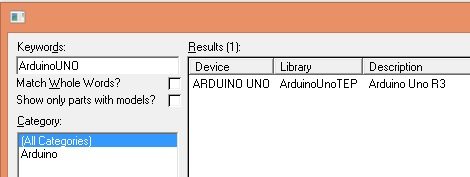
The first image on this page shows the original component-search workflow. After installation, select the UNO component and click in the workspace to place it. The board artwork identifies the digital and analog headers used by the simulation.
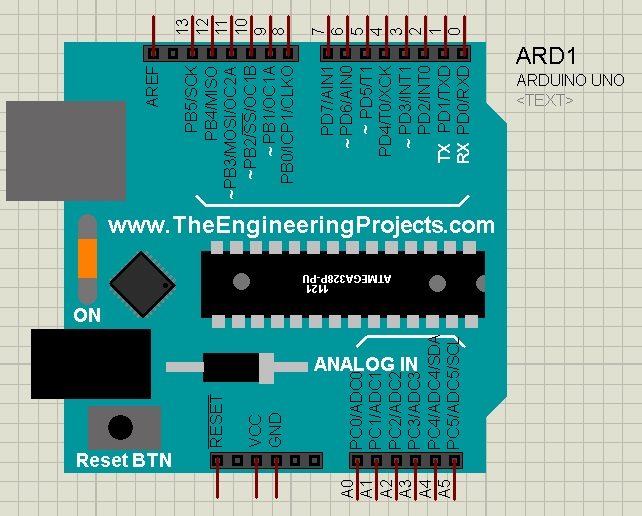
Read the Arduino pin labels rather than counting positions in the drawing. For example, D13 is a board-level signal name, not the thirteenth physical pin of the ATmega328P package. Confusing those two numbering systems can connect a program to the wrong circuit net.
The board's appearance also does not imply that every drawn switch or LED is interactive in this original version. Use the features documented for the selected release. The V4.0 article separately describes the later working indicators and reset controls.
Preparing the Arduino Program
Open the Arduino IDE, select the classic Arduino UNO board and create a small sketch. The following program drives an external LED connected from the positive supply toward D13, matching the active-low arrangement in the historical circuit.
const byte externalLed = 13;

void setup() {
  digitalWrite(externalLed, HIGH);
  pinMode(externalLed, OUTPUT);
}

void loop() {
  digitalWrite(externalLed, LOW);
  delay(1000);
  digitalWrite(externalLed, HIGH);
  delay(1000);
}
In this wiring, LOW turns the external LED on because the output sinks current. HIGH turns it off. The real UNO's onboard LED uses its own board circuitry, so do not assume that its visible state must match this external active-low branch.
The two delays produce an approximate two-second cycle: one second on and one second off. The corresponding blink frequency is 1 / 2 s = 0.5 Hz, and the on-time duty cycle is approximately 50%.
Exporting the HEX File
- Save the sketch in a named project folder.
- Confirm that Arduino UNO is the selected board.
- Compile the sketch and resolve any errors.
- Use Sketch, Export Compiled Binary to produce the firmware output.
- Locate the resulting HEX file in the exported sketch build output.
- Use the application HEX file for this direct firmware-loading example.
Depending on the IDE and platform version, the output may be placed in a build subfolder. Use the build output or the sketch-folder view to locate it. Arduino's platform specification explains how export filenames and locations are defined by the board platform.
An AVR export may include both an application-only HEX and a file whose name includes with_bootloader. This tutorial loads the application directly into the simulated processor; it is not demonstrating USB upload through a bootloader. Keep those two workflows separate.
No physical UNO or COM port is required merely to compile and export a sketch. If the IDE asks for a port during an upload attempt, return to compilation/export rather than trying to make the Proteus drawing appear as a USB board.
Loading Firmware into the Proteus Board
Double-click the placed UNO component to open its properties. Find the Program File setting and choose the exported HEX file. Check the processor clock and keep it at 16 MHz for a sketch compiled for the classic UNO.
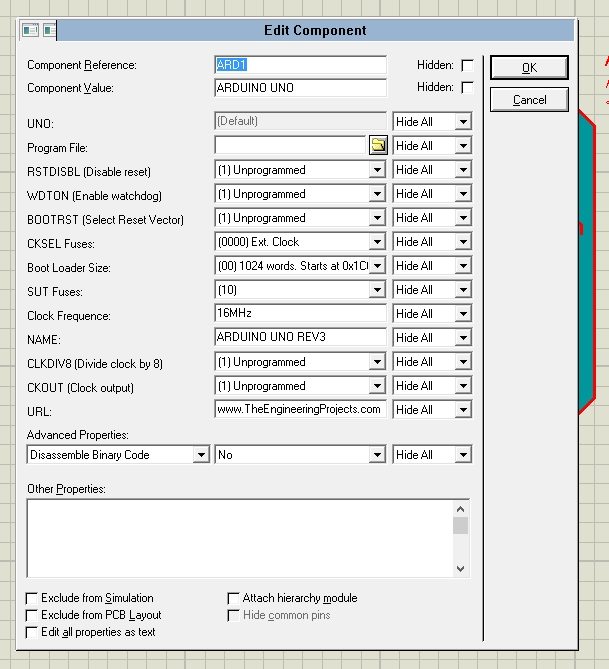
The program-file path must point to a file that exists on the computer running the simulation. A temporary compiler directory can disappear later, so an exported copy stored with the project is more convenient for repeated use.
After changing a sketch, rebuild and export it again. Then ensure Proteus uses that new file. Editing the source does not change an already exported HEX file, and selecting the wrong copy can make a correct code change appear ineffective.
A clock mismatch affects software timing. If firmware assumes 16 MHz but the simulated CPU runs at a different frequency, delays and serial communication can behave incorrectly even though the program loads without an obvious error.
Building the LED Circuit
The historical screenshot connects an external LED to D13 and a positive supply terminal. It omits a visible series resistor, which should be added when constructing the teaching circuit or transferring it to hardware.
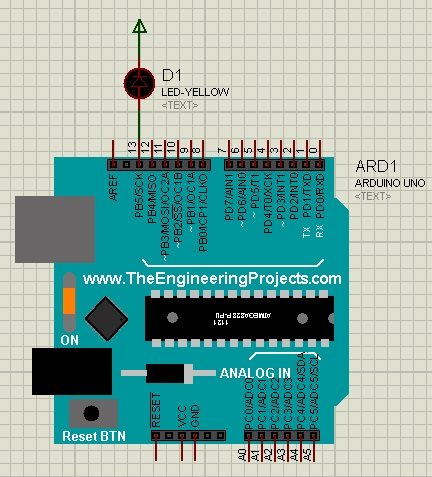
For the active-low arrangement used by our sketch, connect the supply through a resistor to the LED anode, then connect the LED cathode to D13. Use an appropriate common ground and supply configuration. The resistor limits current when the output drives low.
As an example, with 5 V supply, a 2 V LED forward drop and an approximate 0.2 V output-low drop, a 330 Ω resistor gives I ≈ (5 − 2 − 0.2) / 330 ≈ 8.5 mA. Actual current depends on the LED and output characteristics; check the hardware limits rather than treating this estimate as a measurement.
If you prefer the more familiar active-high connection from D13 through a resistor and LED to ground, reverse the on/off logic in the explanation. The same alternating sketch still blinks, but HIGH and LOW exchange their meanings for the external LED.
Running and Interpreting the Simulation
- Confirm that the board component was found through the installed library.
- Confirm that the HEX file was compiled for the UNO.
- Check the 16 MHz processor setting and LED polarity.
- Start the simulation and observe the repeated change.
- Use simulation time or an instrument to examine the interval if needed.
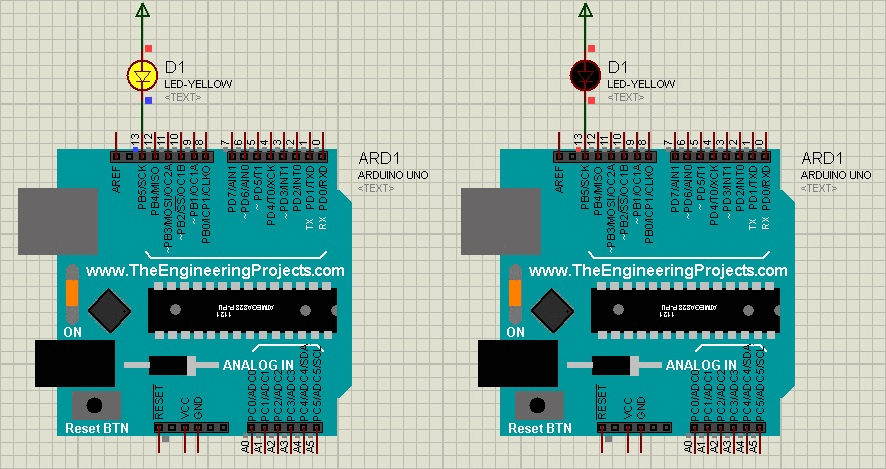
The original animation demonstrates the intended blink behavior. Browser playback speed and the simulator's wall-clock performance are not precise timing instruments. A simulated two-second cycle should be assessed using simulated time when timing accuracy matters.
If the LED stays on or off, inspect the pin state separately from the LED. A toggling D13 with no visible LED change suggests a wiring or polarity issue. A static D13 suggests that the firmware, clock or execution setup needs attention.
Useful Next Steps after Blink
Once the basic program works, add one peripheral at a time. A button can introduce input pull-ups, an analog source can exercise A0, and a serial terminal can help inspect program values. Keep the first extension small enough that a failure has only a few possible causes.
For a classic ten-bit ADC using an ideal 5 V reference, the nominal step size is approximately 5 / 1024 = 4.88 mV. That describes quantization resolution, not total measurement accuracy. Reference error, input conditions and the model's behavior still matter.
Similarly, analogWrite on a PWM-capable UNO pin produces a pulse-width-modulated signal. It is not a general-purpose analog voltage output. A meter or filtered load may respond to an average, but the pin waveform still switches between logic states.
For communication, remember that D0/D1 are used for the main UART, A4/A5 are the classic UNO I2C signals, and D11/D12/D13 participate in SPI. Reusing those pins for an LED or another function can conflict with a later peripheral.
Troubleshooting Installation and Simulation
| Problem | What to check |
|---|---|
| UNO does not appear in component search | Extracted LIB/IDX files, configured directory and Proteus restart |
| Board appears but simulation cannot start | Relevant processor-model support and the exact error message |
| Program file is rejected | Actual HEX output, selected board and file path |
| Blink timing is wrong | Processor clock and compiled target |
| New code seems ignored | Re-export and check which HEX copy Proteus loads |
| External LED behavior is inverted | Active-low versus active-high wiring |
When reporting a problem, include the Proteus version, the library version, the selected Arduino board and the exact simulation message. “It does not work” does not distinguish a missing component from a firmware-load error or a reversed LED.
Keep the Simulation Project Reproducible
Store the Proteus design, Arduino source and exported HEX file together, with a short note identifying the library release and selected board. The source explains how the program was written, while the HEX file records what the simulated processor actually executes. Keeping only one of them makes later troubleshooting harder.
When moving the project to another computer, check the program-file path again. An absolute path into your own Downloads folder will not normally exist on someone else's machine. Copying the schematic alone also does not install a third-party component library on the receiving computer.
Make one change at a time during the first experiments. For example, change the on-time from 1000 to 250 milliseconds, rebuild and confirm that the duty cycle changes as expected. Keep the wiring fixed for that experiment. Then return to the original timing before moving the LED to another digital pin and updating its declaration.
This sequence separates firmware changes from wiring changes. If both are altered at once, a result that looks correct can conceal two compensating mistakes, such as an inverted connection and inverted logic. Once the small examples behave consistently, record the final configuration and use it as the starting point for the next peripheral.
Video Demonstration
The original video walks through the early library and LED example. Use it to understand the historical workflow, while applying the corrected file list, current export procedure and series-resistor guidance in the written instructions.
Library Review and Limitations
The original UNO library is useful for learning board-level wiring and running small firmware examples in a familiar schematic representation. It preserves the starting point of the TEP Arduino library series and remains relevant when reproducing projects that depend on that version.
Simulation does not replace electrical checks on physical hardware. It also does not automatically model USB behavior, regulator heating, real sensor noise or every shield. A board symbol used for simulation should not be assumed to provide a validated PCB footprint.
For a new project, compare the documented features of the newer release with what you need. Preserve a working project copy before changing libraries, and follow the selected version's installation instructions rather than mixing old and new package files.
Frequently Asked Questions
Does this ZIP contain an ArduinoUnoTEP DLL?
No. The supplied original archive contains ArduinoUnoTEP.LIB and ArduinoUnoTEP.IDX. Use those actual files.
Can I load the INO file directly into Proteus?
Use the compiled program file expected by the model. For this example, export the UNO application's HEX file from the Arduino build.
Do I need to connect a physical UNO?
No physical board is required for the compile-and-simulate workflow. Hardware upload is a separate operation.
Will a UNO R4 program work with this library?
No. This tutorial targets the classic ATmega328P-based UNO. Select the matching board platform when compiling.
Why does the newer version have different controls?
The library has evolved across releases. Use the version links above and follow the documentation for the package you actually installed.