Hello friends! In this tutorial, we will install the XBee Library for Proteus and build a simple two-way serial communication demonstration. We will begin with the library installation, connect two simulated modules to Virtual Terminals and configure the Windows serial-port connection that carries the data between them.
XBee Library for Proteus
Latest version: V1.0 (January 2016, this tutorial)
Other RF modules: nRF24L01 · nRF24L01 PA LNA · CC1101 · RFM69HCW · HC-12 · 433MHz RF
LoRa modules: SX1278 Ra-02 · RFM95W · SX1262
Helping Tools
- Serial Monitor Advance: a serial terminal window for the UART of your board
- Serial Monitor Expert: the serial monitor with extra debugging tools
- LCD Library for Proteus V3.0: 16x2, 20x4 and I2C LCDs to show your readings
This original library demonstrates a serial communication path using paired virtual COM ports. It does not calculate radio propagation, ZigBee routing or the distance between antennas. Understanding that boundary will help you use the model for the right part of your project.
We will keep the first experiment simple: type a message at one terminal and observe it at the other. After that works in both directions, we will discuss message framing, timing, acknowledgments and the checks needed before moving a similar application onto physical XBee hardware.
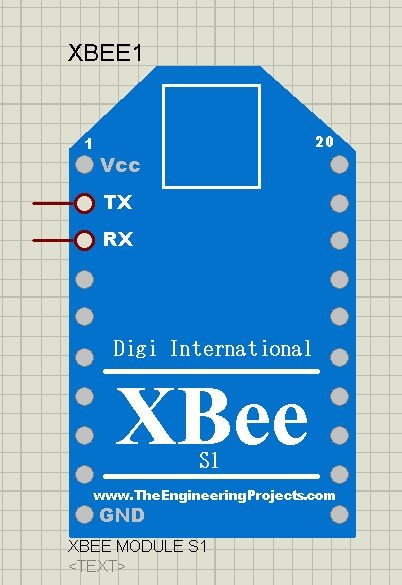
What Does This XBee Library Provide?
The supplied component exposes transmit and receive connections for a serial-data demonstration. Its communication depends on the configured host COM ports and the virtual null-modem connection between those ports. Placing two symbols on a schematic is therefore only one part of the setup.
Think of the example as two simulated serial endpoints connected through a Windows transport. You can use it to understand TX and RX wiring, inspect application messages and develop a microcontroller's serial interface. It does not prove that two physical radios will form a network with the same settings.
| Experiment | Suitable for this tutorial? | Reason |
|---|---|---|
| Send readable text between terminals | Yes | The paired COM ports carry serial bytes |
| Develop an application message format | Yes | The receiver can process the transferred text |
| Measure RF range or antenna gain | No | No radio propagation calculation is described |
| Validate ZigBee mesh routing | No | The virtual cable is not a mesh network |
| Exercise XBee analog-input sampling | No | This original example covers TX/RX communication |
| Assume AT commands or API frames are implemented | No | Passing bytes is different from emulating radio firmware |
If you are new to the hardware, start with our introduction to XBee modules. The XBee and Arduino interfacing tutorial and computer interfacing example provide further context for the serial connection.
Download and Install the XBee Library
Download the original library package below and extract it. This tutorial uses the files XBeeTEP.LIB and XBeeTEP.IDX. Unlike some of our sensor libraries, this installation does not require assigning a separate sensor HEX file.
- Close Proteus before copying library files.
- Find the library directory used by your installed Proteus version.
- Copy both the LIB and IDX files into that directory.
- Restart Proteus and open a new schematic.
- Use Pick Devices to search for the XBee component.
- Add the component to your project and place two instances on the sheet.
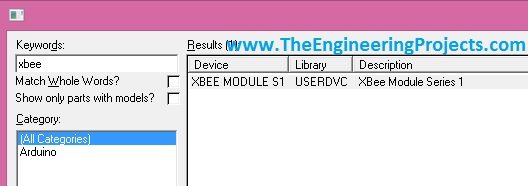
If the search produces no result, confirm that both files reached the active library directory. An old installation folder may still exist on the computer even though you are launching a newer version. Copying files into that unused folder will not affect the program you currently have open.
Give the two instances distinct references, such as XB1 and XB2, so that their properties are easy to distinguish. Keep the first schematic uncluttered. We will add only the two modules and their terminal instruments before introducing a microcontroller or an application protocol.
Create a Pair of Virtual COM Ports
The original demonstration uses Eltima Virtual Serial Port Driver, now provided by Electronic Team. Its role is to create two Windows COM ports connected by a virtual null-modem link. Data written to one endpoint becomes available at the other endpoint.
The vendor's port-pair documentation explains how to create such a pair. Install and configure the driver using the vendor's current instructions for your Windows version. Check its licensing terms separately rather than assuming that a downloadable installer is an unrestricted free license.
- Open the virtual serial-port utility.
- Create a simple pair of linked virtual ports.
- Choose two port names that are available on your computer.
- Record the pair exactly as displayed by the utility.
- Confirm that the pair exists before starting the Proteus simulation.
- Close other terminal programs that might already have either endpoint open.
The original screenshots use COM1 and COM2. Those names are examples, not mandatory values. If your computer already uses them, select another available pair and use those same names in the XBee component properties. Do not replace an occupied physical port merely to reproduce the screenshot labels.
For an ordinary two-endpoint test, avoid advanced port splitting or sharing features. They add extra paths and ownership rules that can obscure a simple wiring error. First establish one working pair; only extend the topology when a later experiment actually requires it.
Understand the two serial configuration layers
There are simulated serial signals on the Proteus sheet and Windows serial-port settings outside it. Both must be configured coherently. A correctly paired Windows connection will not fix a simulated terminal that decodes the signal at the wrong baud rate.
Use a common starting configuration such as 9600 baud, eight data bits, no parity and one stop bit, and match the corresponding settings exposed by your model and terminal. Disable flow control for a TX/RX-only demonstration unless the particular connection explicitly implements the required handshake signals.
The driver's port-settings documentation also describes strict baud-rate emulation. Host transport speed and simulated UART speed are not automatically identical. Consequently, a fast virtual transfer is not evidence that the same application can exceed the data rate of a physical serial link.
Wire the Two XBee Terminals
Place one Virtual Terminal next to each XBee component. Connect the module's TX output to its terminal's RXD input. Connect that terminal's TXD output to the module's RX input. Repeat the same arrangement for the second module.
| Endpoint | Transmit connection | Receive connection |
|---|---|---|
| XB1 and Terminal 1 | XB1 TX to Terminal 1 RXD | Terminal 1 TXD to XB1 RX |
| XB2 and Terminal 2 | XB2 TX to Terminal 2 RXD | Terminal 2 TXD to XB2 RX |
| Windows connection | XB1 uses the first paired COM port | XB2 uses the second paired COM port |
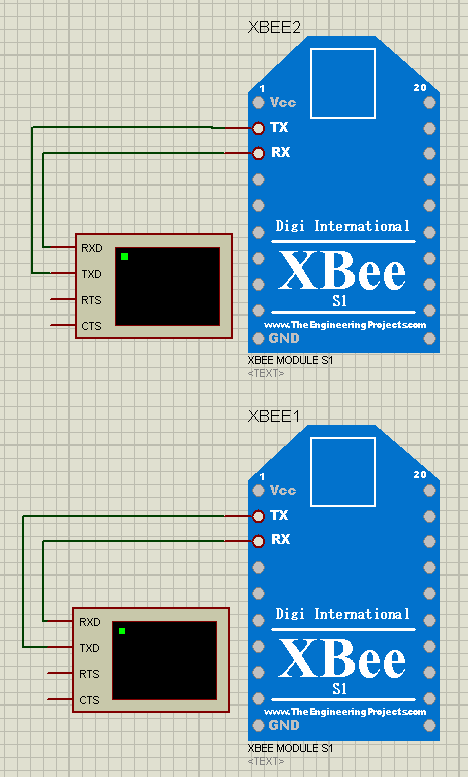
Do not connect the two module TX pins directly together. Each TX pin is an output, and the intended transfer between these instances takes place through the host port pair. Likewise, a terminal wired TX-to-TX and RX-to-RX will not form the local transmit/receive path we need.
Next, open XB1's properties and select the first endpoint in its Physical Port setting. Open XB2's properties and choose the other endpoint. The property name does not require the endpoint to be a physical connector on the computer; a suitable virtual COM port can be selected there.
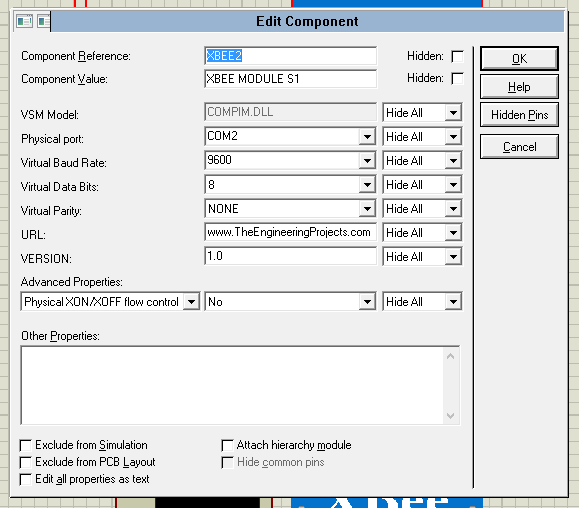
Save the schematic after configuring both components. It is useful to add a short schematic note recording the required port pair and baud settings. A person opening the same design on another computer can then recreate the external connection rather than assuming that it is stored entirely inside the schematic.
Run the First Two-Way Communication Test
- Confirm that the virtual COM pair exists and neither port is occupied by another program.
- Start the Proteus simulation.
- Open both Virtual Terminal windows.
- Click inside Terminal 1 and type a distinctive message such as
FROM_A_001. - Look for that message at Terminal 2.
- Type a different message, such as
FROM_B_001, at Terminal 2. - Confirm that the second message arrives at Terminal 1.
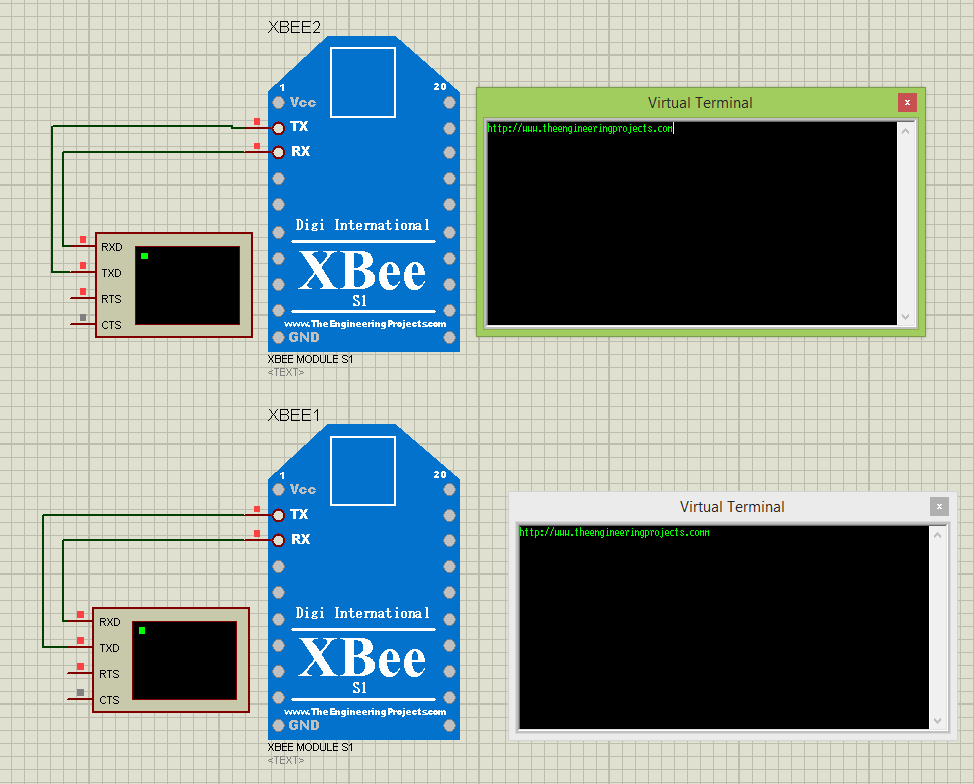
Distinctive messages make the direction of communication obvious. A single repeated character can hide a local-echo setting or an accidental loopback. If the terminal supports local echo, remember that seeing your own typed characters in the same window does not prove they reached the remote endpoint.
Start with short messages and observe whether they arrive exactly once. Then include spaces, digits and line endings. If your application will later send numeric measurements, test a sample such as TEMP,23.5 rather than assuming that a successful letter transfer proves the complete parser works.
Calculate the useful data rate
With 8N1 serial framing, a byte consumes ten transmitted bits. At 9600 baud, the maximum continuous byte rate is approximately 9600 / 10 = 960 bytes per second. A 32-byte message therefore takes about 32 × 10 / 9600 = 33.3 milliseconds to transmit on that UART.
If a sensor application sends ten 32-byte messages per second, it uses 320 bytes per second before acknowledgments, separators and other traffic are counted. This fits within the simple UART budget, but the calculation says nothing about the throughput of a particular RF network. Radio framing, retries and scheduling introduce their own constraints.
A more useful experiment than typing as fast as possible is to number each message. Send messages 001 through 020 and compare the received sequence. Missing numbers indicate a lost message somewhere in the test path; repeated numbers suggest duplicate application processing or an echo path that needs investigation.
Develop an Application Protocol
A serial connection delivers a sequence of bytes, not complete application commands. One write operation at the sender does not guarantee one matching read operation at the receiver. A receiver might obtain a message in several pieces, or receive the end of one message together with the start of the next.
For a beginner project, newline-delimited text is easy to inspect. For example, a complete record could contain a message type, a sequence number and a value: TEMP,42,23.5, followed by a newline. Define the separators and units before writing the receiving code.
- Set a maximum accepted line length.
- Accumulate characters until the delimiter arrives.
- Reject incomplete or malformed fields.
- Check that numeric values are within the application's expected range.
- Keep command parsing separate from the serial receive routine.
- Specify what happens when the connection becomes silent.
A fixed-size receive buffer is often easier to reason about on a small microcontroller than an indefinitely growing string. When the buffer fills, discard the oversized record and wait for the next delimiter. Do not continue writing past the end of the allocated memory.
Acknowledgments and duplicate commands
Suppose your sender transmits a command to switch an output and waits for a reply. If the reply is lost, the sender may retry even though the receiver already performed the action. Include a sequence number so the receiver can recognize a repeated request and return its previous result without performing a nonrepeatable action again.
This distinction matters more for a command such as INCREMENT than for SET_OUTPUT,1. Repeating an increment changes the state again; repeating a request to set the same state can be designed to leave it unchanged. Choose command semantics deliberately instead of relying only on a successful serial demonstration.
An application acknowledgment should also be defined precisely. It might mean that a message was received, parsed, accepted or physically executed. These are different milestones. Your interface should not report an actuator operation as complete merely because the command text reached the receiving UART.
Test reconnect behavior
After normal transfers work, stop the simulation while one endpoint has only part of a message. Restart it and observe whether your application discards the partial record or accidentally combines it with the next message. A fresh session should have a defined receive-buffer state.
Repeat the exercise with the virtual link temporarily disconnected through the driver's supported controls. Your application should report a communication timeout instead of continuing to treat an old measurement as current. When communication returns, require a complete new record before clearing that timeout. This is an application recovery exercise; it does not reproduce the timing or failure causes of a real radio link.
How This Differs from Real XBee Operating Modes
Physical XBee devices can expose transparent serial operation or a structured API interface, depending on the product and firmware. Digi's operating-mode documentation explains that transparent operation transfers serial payloads, while API operation exchanges defined frames with the host.
The virtual COM demonstration does not establish that this component implements either radio firmware interface in full. Sending an API-looking byte sequence through a virtual cable only demonstrates byte transfer. It does not prove that the model interprets an address, generates a transmit-status frame or participates in a wireless network.
When moving to hardware, identify the exact XBee family and firmware first. Then verify its supply requirements, logic levels, serial configuration, network parameters and intended operating mode. Use the manufacturer's documentation for that specific module rather than treating all products carrying the XBee name as interchangeable.
Troubleshooting the Complete Connection
| Problem | Check first |
|---|---|
| Proteus cannot open a COM port | The selected port exists and is not already held by another program |
| Neither direction works | Both endpoints belong to the same virtual pair and each component uses a different endpoint |
| Only one direction works | The TX/RX wiring on both local terminal connections |
| Characters are corrupted | Baud rate, data bits, parity and stop bits throughout the path |
| Typed text appears only locally | Local echo versus actual reception at the other terminal |
| Messages repeat continuously | An echo loop between two automatic forwarding routines |
| Project fails on another computer | The required virtual pair and matching port names were recreated |
The driver's Bundle Panel can show port ownership, configuration and sent/received byte counts. These observations help separate a host-port problem from a schematic connection problem. A growing transmit count with no corresponding receive activity suggests a different fault from two completely inactive endpoints.
Change one setting at a time while troubleshooting. If you simultaneously rename ports, alter baud rates and swap wires, a successful result will not tell you which change mattered. Keep a known working terminal-only schematic before replacing either terminal with a microcontroller.
Library Review and Related Communication Models
This original XBee library is most useful for learning serial data flow and developing small application protocols. Its external port-pair requirement adds a setup step, but also makes the transport visible and inspectable. Its main limitation is that successful communication does not validate RF behavior or a complete XBee network configuration.
For other communication projects, explore our nRF24L01 library, HC-12 library and SX1278 LoRa library. Choose according to the actual interface and supported simulation behavior; these devices are not drop-in replacements for an XBee application.
The original video remains available below. Follow the terminal and port-configuration steps carefully, then use your own short, numbered messages to understand the connection rather than relying only on the appearance of the completed schematic.
Frequently Asked Questions
Do I have to use COM1 and COM2?
No. Use an available paired set and select those exact names in the two component properties. The screenshot names are illustrative.
Does this library require an XBee HEX file?
No separate XBee support HEX is part of the installation described here. A microcontroller added later still needs its own compiled program.
Can I test wireless range by moving the symbols apart?
No. Their distance on the schematic does not represent antenna separation or RF path loss. The configured virtual serial connection carries the data.
Why can I type text but not see it at the other terminal?
Check the remote window, local-echo behavior, paired port assignments and TX/RX connections. Characters displayed by local echo are not evidence of successful transfer.
Can I replace a terminal with an Arduino or PIC?
Yes, as an application-interface exercise, provided its simulated UART uses matching settings and the program handles reception correctly. Establish the terminal-only connection first so that later faults can be traced to the added firmware.