


Project Files of XBee Library for Proteus
 Libraries
 Code
Code Projects
 Simulation
XBee Library for Proteus.rar
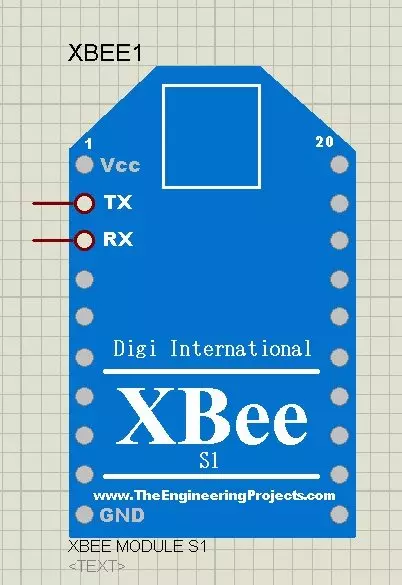
XBee Library for Proteus
XBee Library for Proteus comes as a RAR archive of 2 files (2.4 KB, 22.1 KB unpacked) holding Proteus library files.
- LIBProteus library
- IDXProteus library index
Description
Looking for the files of XBee Library for Proteus? XBee Library for Proteus is the RAR package (2.4 KB) you need. It holds the Proteus library files (LIB and IDX). Below are the file structure, the README and the installation steps, so you can go from download to a working Proteus simulation in a few minutes.
What this library is
XBee Library for Proteus adds XBee to Proteus as a schematic component: once installed, the part appears in the Pick Devices list under its own name, with its real pin layout, and can be placed and wired like any built-in device. It is a symbol-and-footprint library: it draws and routes the part; to see it work in simulation, pair it with the HEX file or the controller model as the tutorial shows.
The tutorial opens with: “Hello everyone, today I am going to share a new XBee Library for Proteus.” That article is the detailed guide; the sections below cover the files.
What is inside the RAR file
- XBeeTEP.LIB – Proteus library, 22 KB
- XBeeTEP.IDX – Library index, 115 B
The archive unpacks to 22.1 KB; there is no README inside, so the steps below stand in for it.
How to download
Use the download panel at the top of this page: after the counter (30 seconds for guests, 10 for members) the black button unlocks and XBee Library for Proteus.rar comes straight from our content network. If the browser opens it instead of saving, use Save as; extract the whole archive before using anything inside it.
How to install
- Step 1: Extract XBee Library for Proteus.rar with Windows (Extract All), 7-Zip or WinRAR.
- Step 2: Close Proteus and copy XBeeTEP.LIB and XBeeTEP.IDX into its LIBRARY folder (Proteus 8: C:\Program Files (x86)\Labcenter Electronics\Proteus 8 Professional\LIBRARY).
- Step 3: Start Proteus, press P and search for "XBeeTEP"; place and wire it as in the tutorial.
Read the detailed guide
This page is for the files. The tutorial above explains the circuit and the code step by step and shows the working results; read it before you build. Questions about the download or the installation go in the comments below; more Proteus downloads are listed further down this page.
The package is free for personal, educational and research projects; credit The Engineering Projects and link to this page when you share it rather than re-uploading the file.

File Structure
 File Structure
115 B22 KBGallery6 images from the tutorialOpen the tutorial
 Gallery6 images from the tutorial
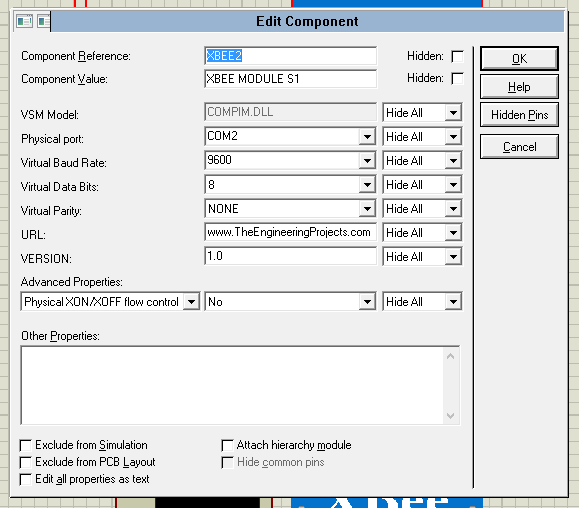
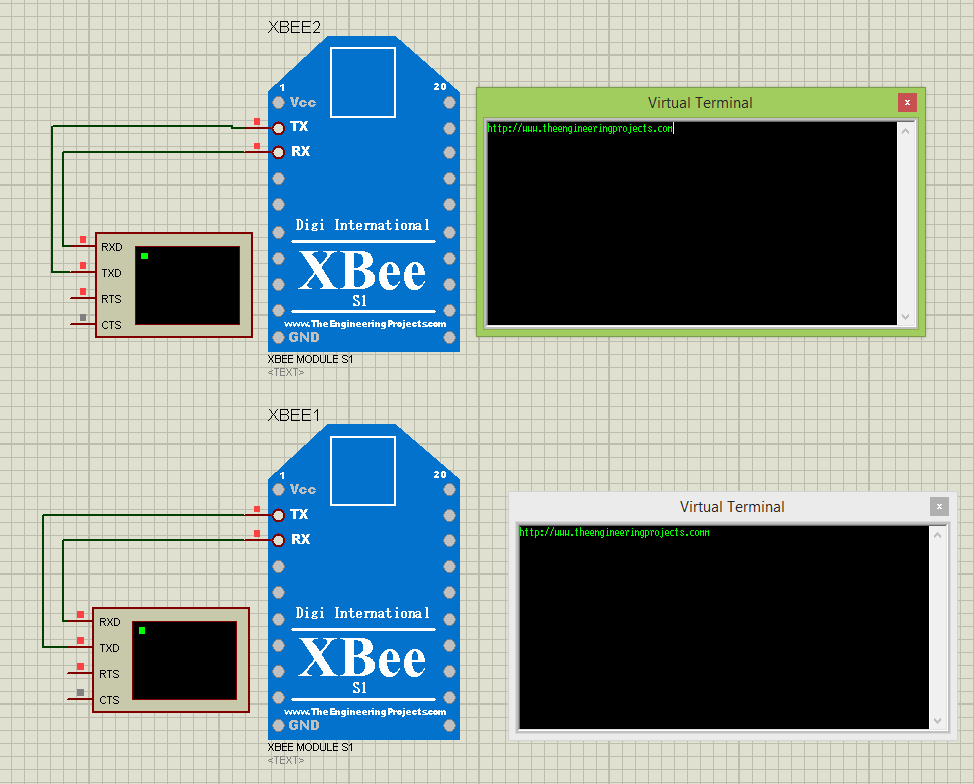
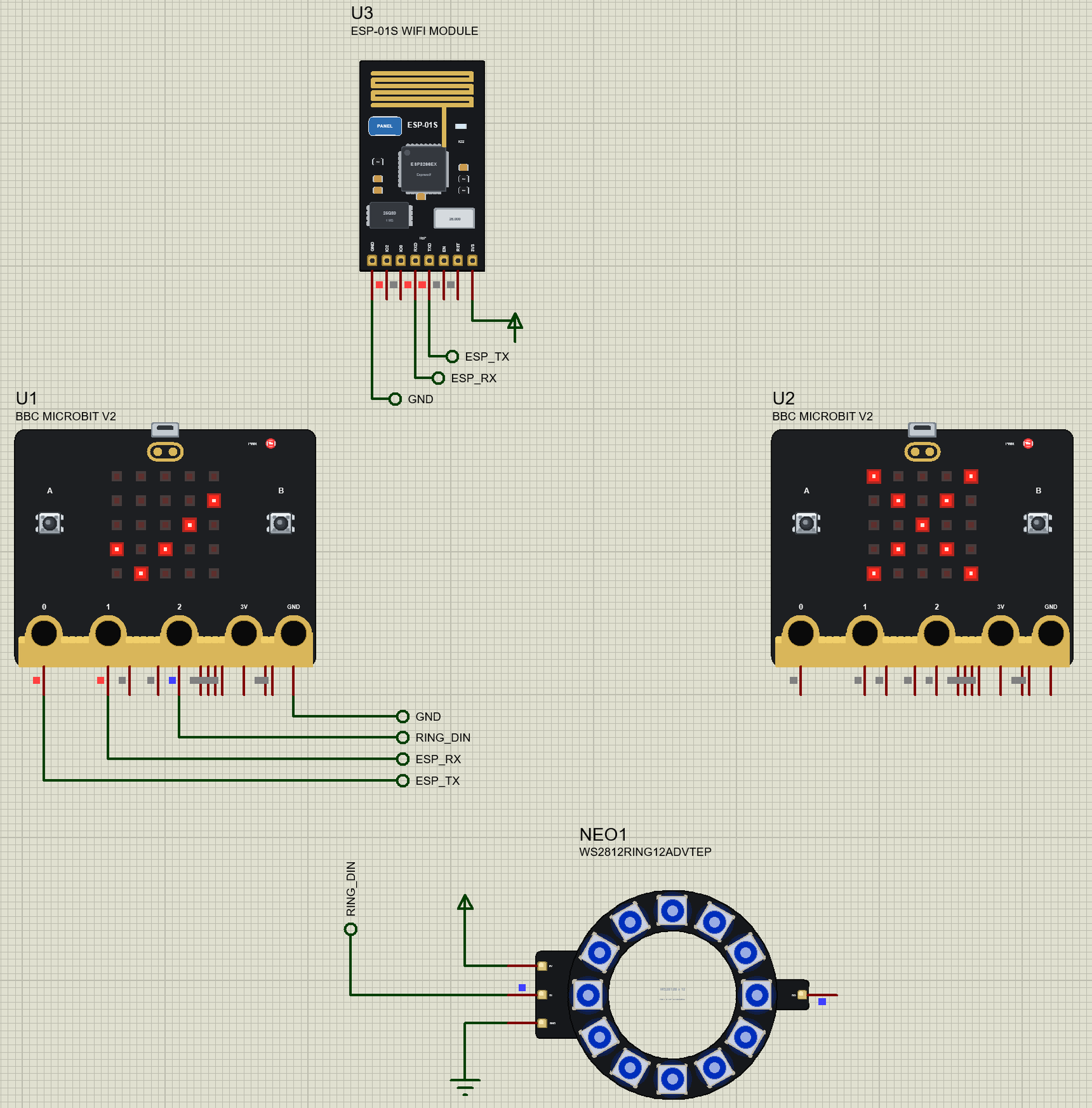
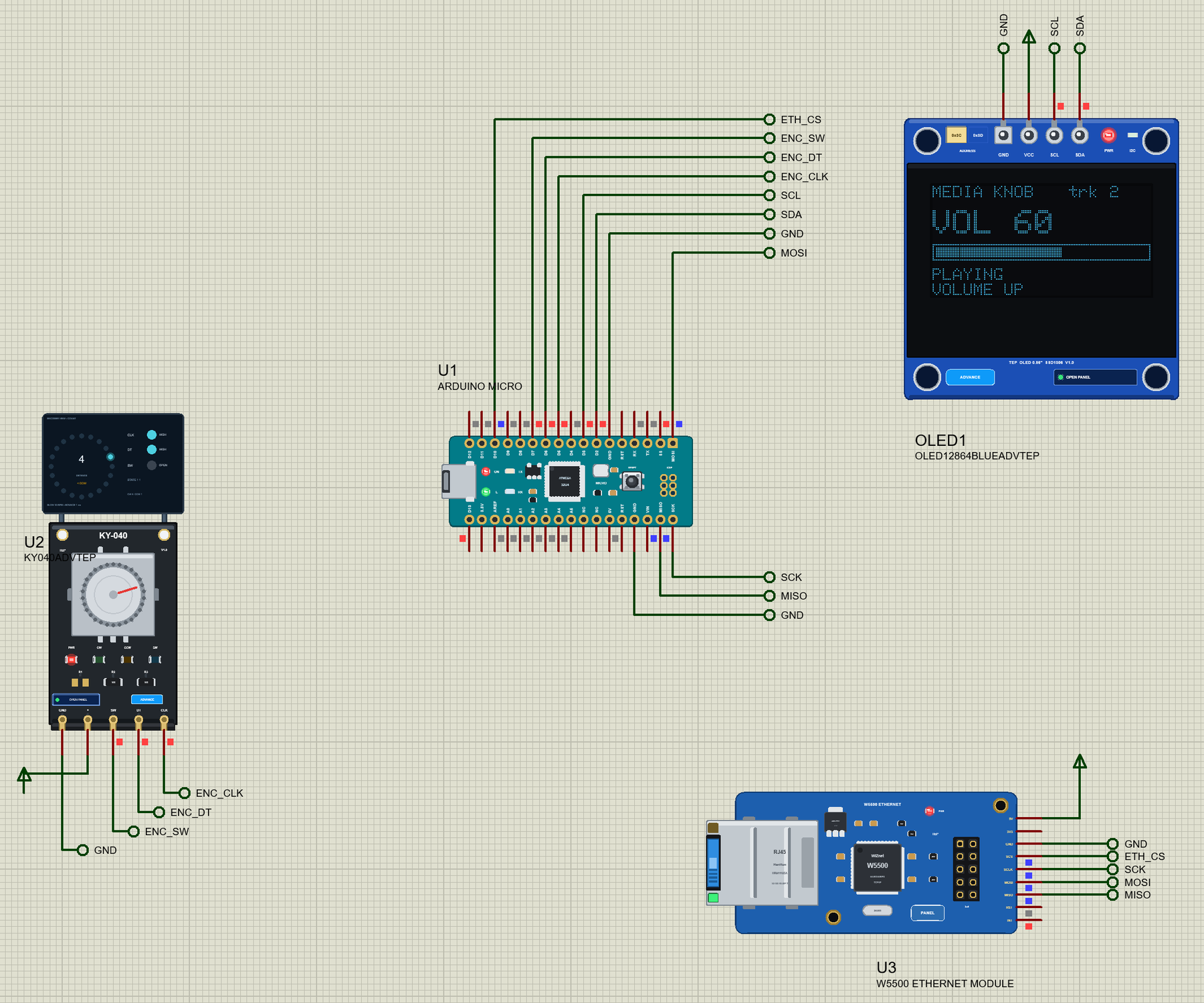
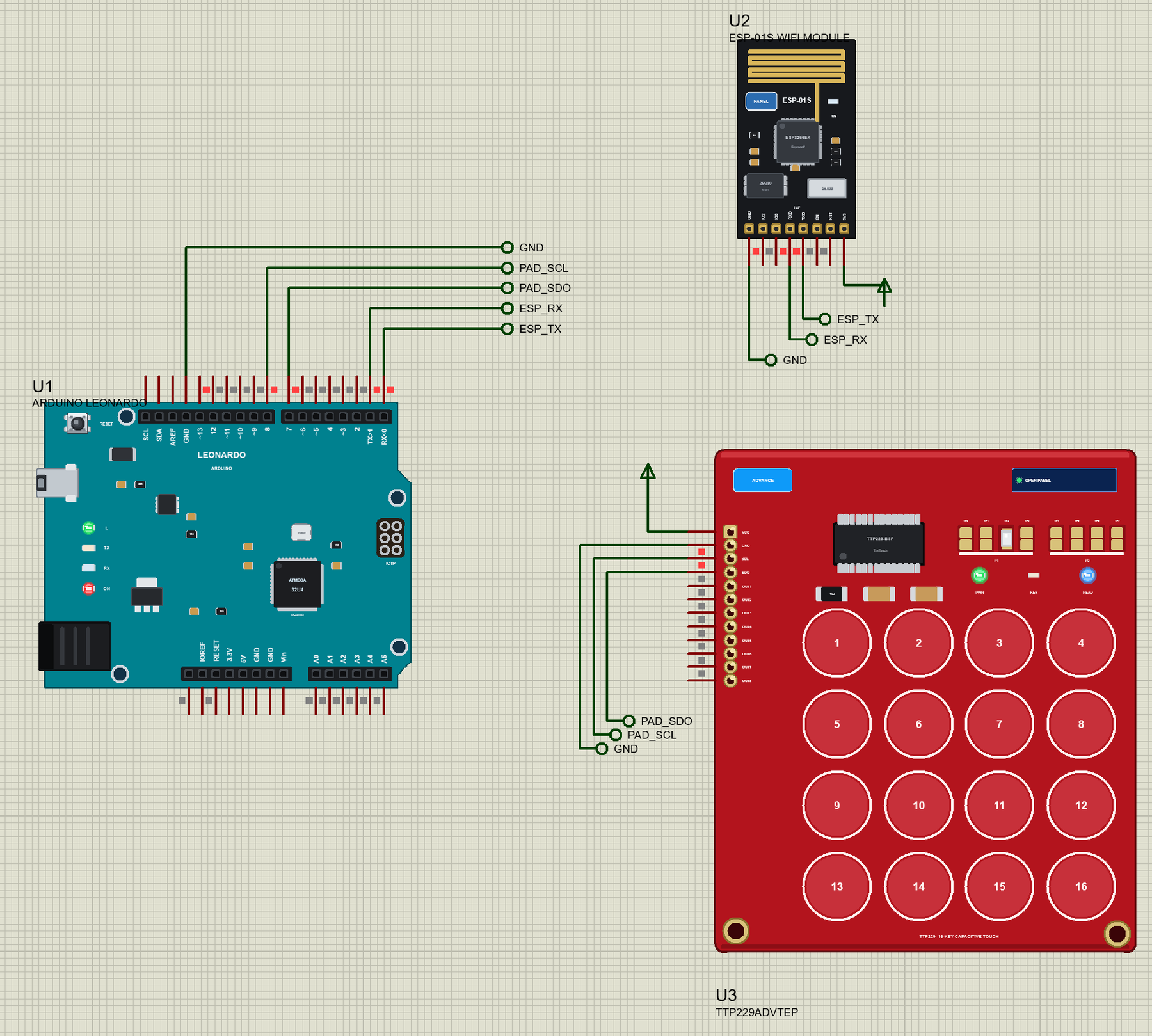
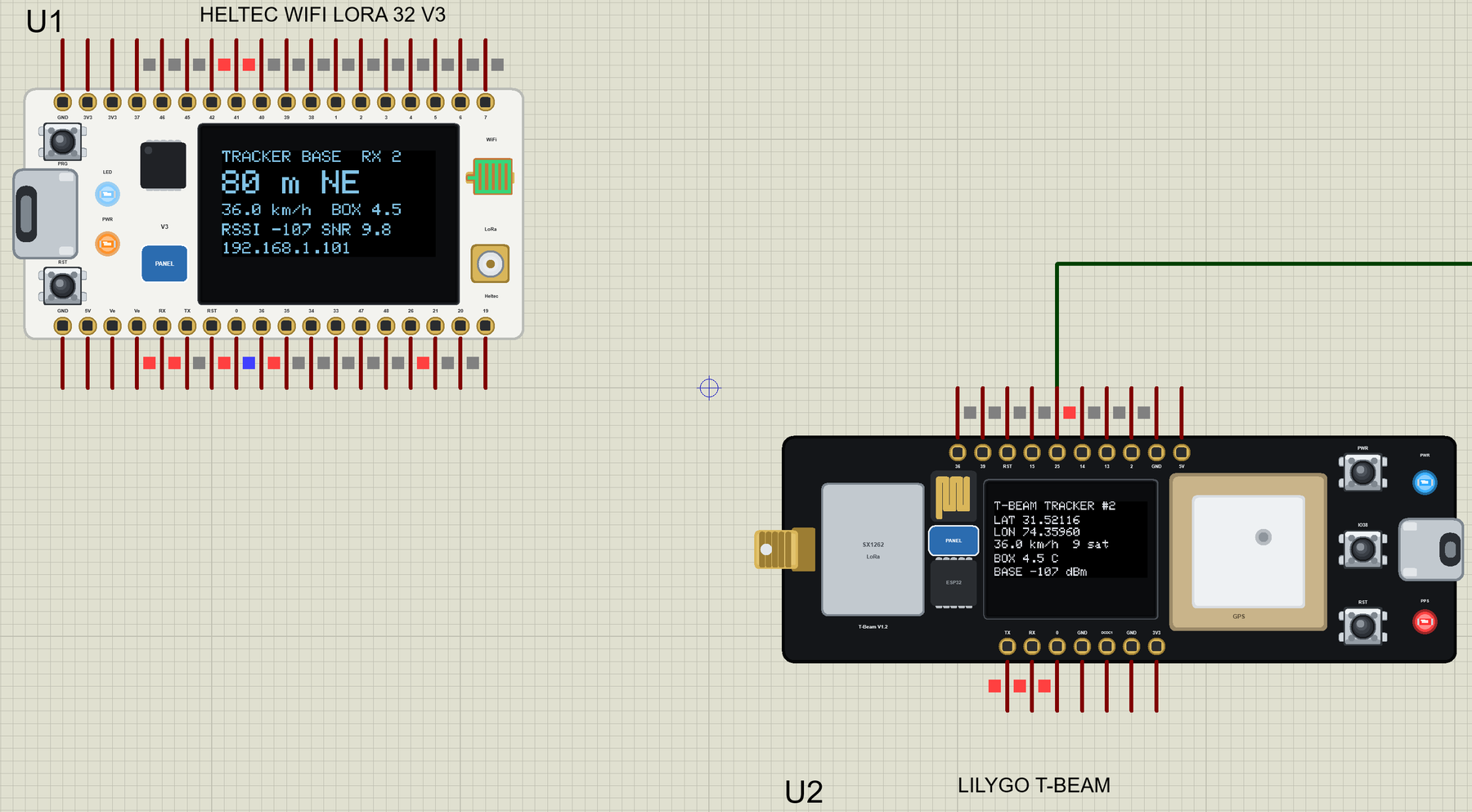
The circuit, the board and the results as they appear in XBee Library for Proteus. Open an image for its full size.
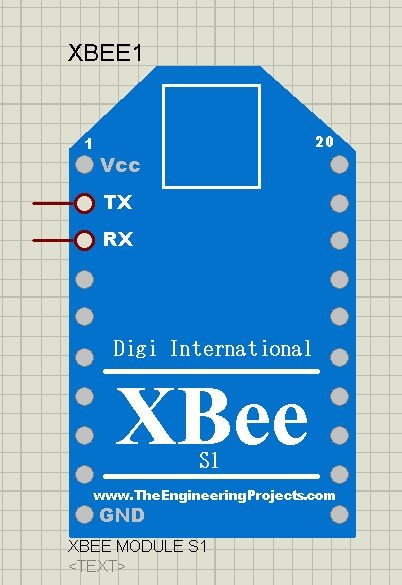
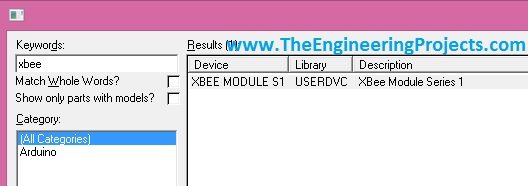
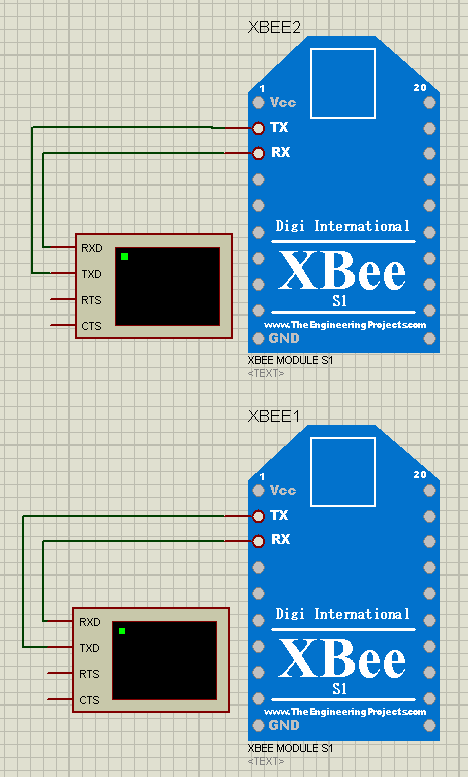
Videofrom the tutorial
Watch the project run before you download. The player loads only when you press play.
XBee Library for ProteusWatch on YouTube
README
 README
Development1 release
 Development1 release
-
XBee Library for Proteusthis page
The only release of this package so far. When a newer version is published, it appears above with its own download page.
Installation4 steps
 Installation4 steps
From the download to a working project, in order. The steps follow what the package contains.
You will need
- Proteus Design SuiteProteus 8 or newer (Labcenter), on Windows
- WinRAR or 7-ZipWindows cannot open RAR archives on its own
Steps
- 1
Extract the archive
Right-click XBee Library for Proteus.rar and choose Extract All (or open it with 7-Zip or WinRAR) into a folder you can find again.
- 2
Copy the library files into Proteus
Move XBeeTEP.LIB and XBeeTEP.IDX into the LIBRARY folder of your Proteus installation: C:\Program Files (x86)\Labcenter Electronics\Proteus 8 Professional\LIBRARY for Proteus 8, or the matching Proteus 7 folder. Older versions keep it under ProgramData\Labcenter Electronics. If Proteus is open, close it first.
- 3
Restart Proteus and place the component
Start Proteus, open a schematic, press P (Pick Devices) and search for the component by the name used in the tutorial. It appears with its pins ready to wire.
- 4
Follow the tutorial
XBee Library for Proteus explains every connection and setting in order; keep it open beside the files while you build.
FAQs9 questionsContact TEP
 FAQs9 questions
How do I download XBee Library for Proteus?
Wait for the 30-second guest countdown on this page, then press the download button; the file comes straight from our storage. Members who are logged in skip the wait. If the browser opens the file instead of saving it, use its Save as option. The download link is made for you when the countdown ends and works for 15 minutes; a saved or shared link stops working, so share this page instead.
What is inside the archive?
XBee Library for Proteus comes as a RAR archive of 2 files (2.4 KB, 22.1 KB unpacked) holding Proteus library files. Open the File Structure tab for the full list of 2 files.
What should I do if the download does not start?
Check the browser's download list first; an ad blocker or a company firewall can also hold it back, so try another browser or network. If the file arrives incomplete, download it again. For an installation problem, read the Install tab or tell us in the comments with your software version and the exact error message.
Is this file free?
Yes. Every file in the TEP Download Center is free for learning, personal and student projects. If you share it, link back to this page or the tutorial so others find the latest version.
How do I check that the file arrived complete?
Compare its SHA-256 with the one on this page, 4198fe89c234928d9ff41b1dd5bca9d7fee657a193d2b4e29e6df2b44a570312. In PowerShell run Get-FileHash "XBee Library for Proteus.rar"; on macOS or Linux run shasum -a 256 "XBee Library for Proteus.rar". The same value means the file is exactly the one in our storage; a different one means the download broke off, so download it again.
Do I need WinRAR to open the RAR file?
RAR archives need WinRAR, 7-Zip or another RAR-capable tool; Windows cannot open them on its own. Extract the whole archive before using the files.
Where do I put the LIB and IDX files?
Both files go into the LIBRARY folder of your Proteus installation (Proteus 8: C:\Program Files (x86)\Labcenter Electronics\Proteus 8 Professional\LIBRARY; Proteus 7 has the same folder under its own name). Restart Proteus afterwards and search for the component with P.
Which Proteus version does the library need?
The tutorial names the Proteus version the library was made and tested with. Most TEP libraries work in Proteus 7 and Proteus 8; if the component does not appear after a restart, check that both the LIB and the IDX file were copied and that Proteus was fully closed while copying.
Why does the component show but not simulate?
A library without a model file (DLL) gives you the symbol and the pins for drawing and PCB design; the simulation needs the matching model or a HEX file on the controller, exactly as the tutorial describes.
Members skip the wait. Log in or join TEP.

- 20,671Total downloads
- 17%Popularity
- ProteusCategory
- 0Comments
- ssyedzainnasirUploaded by
- 5 Jan 2016Uploaded at


 SHA-256
4198fe89c234928d9ff41b1dd5bca9d7fee657a193d2b4e29e6df2b44a570312


 Need help with this file?
 Tags
TagsRelated Proteus
All Proteus tutorials




Comments
0