Hello everyone, I hope you all are doing great. In today's tutorial, I am going to show you How to add new Library in Proteus 8 software. As we all know that Proteus doesn't have all the components in its database so if you want to add a new component in Proteus and want to use it in your simulation, then you have to add or install the Proteus library first.
How to Add a New Library in Proteus
Make your own library: How a Proteus Library Works (part 1 of our 20-part course Proteus Component Designing)
Library lists: 30 New Libraries (2026) · 35 Sensor Libraries · Wireless Modules · Microcontroller Boards · Must-Have Libraries
Helping Tools
- Serial Monitor Advance: a serial terminal window for the UART of your board
- Serial Monitor Expert: the serial monitor with extra debugging tools
- LCD Library for Proteus V3.0: 16x2, 20x4 and I2C LCDs to show your readings
On our blog, we have posted many Proteus Libraries for Engineering Students, I have given Proteus library zip file download link in each post and I hope you guys have enjoyed those libraries. But I was constantly getting this complaint from students that they are unable to add Proteus Library, especially in Proteus 8 software. So, that's why I thought of writing this tutorial, although it says Proteus 8 but I will also show you How to add library in Proteus 7. I have shown the same procedure in the below video, so must watch it.
So, let's get started with How to add or install Proteus Library:
How to add new Library in Proteus 8
Step1: Download Proteus Library Files
- First of all, download any Proteus Library from our site, let's use Vibration Sensor Library for Proteus.
- Proteus Library zip file download link is given in the post, so simply click on the Download link in order to download Proteus Library zip file.
- Open this Proteus Library .zip file and you will get three files in it, named:
- VibrationSensorTEP.LIB
- VibrationSensorTEP.IDX
- VibrationSensorTEP.HEX
- These are the Proteus library files of the vibration sensor and need to be placed in the Library folder of Proteus software.
Step2: Install Proteus Library
We have downloaded the Proteus Library zip file in Step 1 and now we need to install it in Proteus software. For installation, we don't need to execute any file, instead, we simply need to copy & paste these Proteus Library Files into the library folder of Proteus.
- If you are using Windows 7, 8 or 10, normally Proteus software is installed in the Program File (x86) folder, but it could be in the Program File folder as well.
- So, go to your C drive and then in both of these Program File folders, search for Labcenter Electronics.
- This Labcenter Electronics folder is automatically generated by Proteus setup.
- If you have installed Proteus 7 or Proteus 8 or both, they will be present here. Here's a screenshot of my Labcenter Electronics folder:

- Once you are here, now if you want to add Library in Proteus 8, click on Proteus 8 software as shown in the below figure:
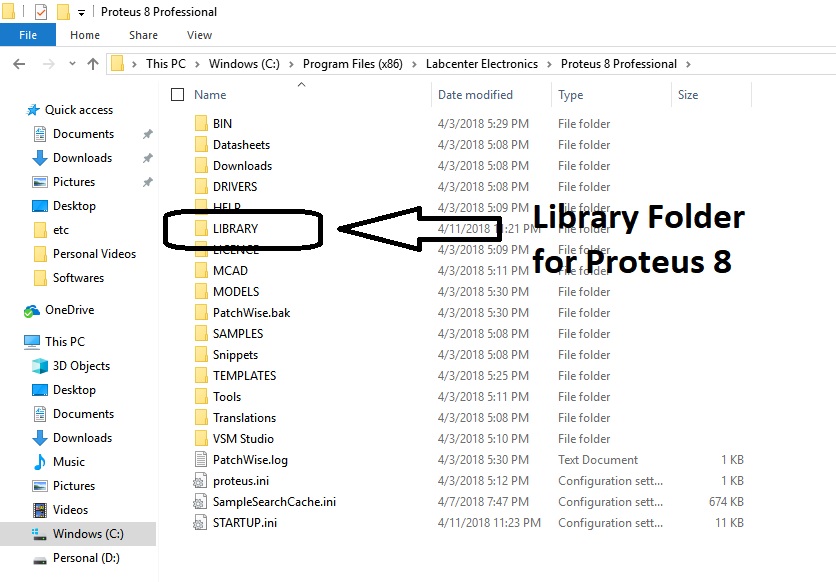
- You can see the Library folder in the above image, so simply paste your Proteus Library files into this Library folder.
- Here's the complete link to Proteus 8 Library folder: C:\Program Files (x86)\Labcenter Electronics\Proteus 8 Professional\LIBRARY.
- In some Proteus 8 Installations, you may find the Library folder at this link: C:\ProgramData\Labcenter Electronics\Proteus 8 Professional\LIBRARY.
- After adding these Proteus Library files, restart your Proteus software. You have to restart it otherwise it won't update its components' database.
- Now in the components search box, type vibration sensor and you will get the results.
- Similarly, if you want to install Proteus Library in Proteus 7, open your Proteus 7 Professional and you will find the Library folder in it as well. Here's the screenshot:

- Here's the complete link to Proteus 7 Library folder: C:\Program Files (x86)\Labcenter Electronics\Proteus 7 Professional\LIBRARY
- Let's open this Library folder and have a look at our Vibration Sensor Library files. Here's the screenshot:

- You can see our Vibration Sensor Library Files in the above image, I have encircled them as well. :P
Step3: Simulate Proteus Library
- After adding Proteus Library Files, open Proteus software or restart it(if it's already open).
- In the components database, search for Vibration Sensor & you will get results, as shown in the below figure:

- Place it in your workspace and you are now ready to simulate it in Proteus.
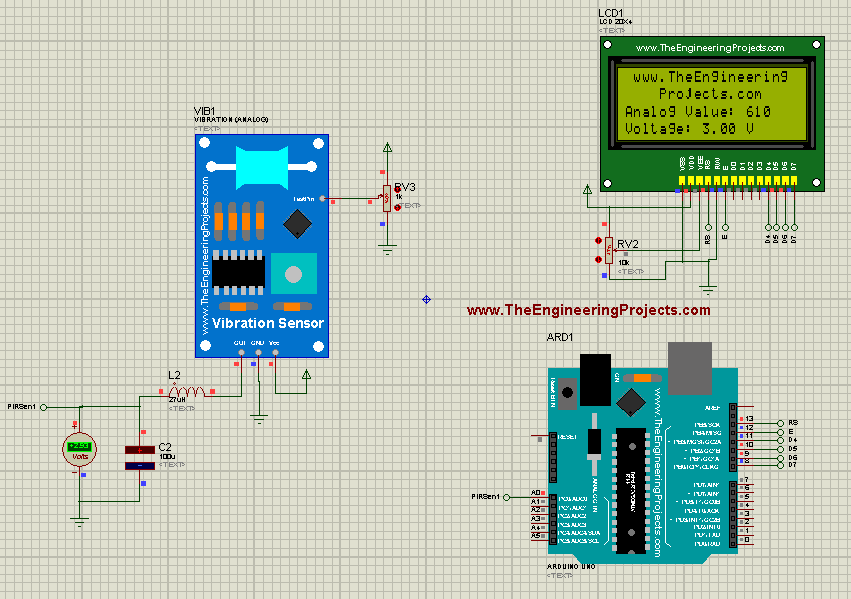
- Here's a working simulation of the vibration sensor in Proteus:
Note:
- Sometimes, it happens that the Library folder is hidden, so if you are unable to find the Proteus Library folder then check your hidden folders too.
So, that was all for today. I hope now you can quite easily add new Library in Proteus 8. If you have any questions, then ask in comments. I will try to help you out. :)