Hello friends, I hope you all are doing great. Today, I am going to share the WiFi Shield 101 Library for Proteus. The WiFi Shield 101 is the Arduino shield with the ATWINC1500 Wi-Fi network controller from Microchip (Atmel before). Your Arduino keeps its own sketch and talks to the WINC1500 over SPI with the WiFi101 library: WiFi.begin(), WiFi.scanNetworks(), WiFi.ping(), WiFiServer, WiFiClient and the rest. With this library you can place the shield in Proteus, wire it to our Arduino Mega and run a WiFi101 sketch as it is.
WiFi Shield 101 Library for Proteus
Latest version: V1.0 (October 2026, this tutorial)
The same ATWINC1500 chip: ATWINC1500 WiFi Breakout
Other Wi-Fi shields: AirLift WiFi Shield · Arduino WiFi Shield
ESP32 boards and modules: ESP32 DevKit V1 · ESP32-DevKitC V4 · ESP32-S3 DevKitC-1 · ESP32-C3 SuperMini · TTGO T-Display · ESP32-WROOM-32 · AirLift ESP32 Breakout
ESP8266 modules: ESP-01 · ESP-01S · ESP-07 · ESP-07S · ESP-12E · ESP-12F · ESP-01 Adapter · WiFi Shield · NodeMCU · NodeMCU V2 · D1 Mini
Helping Tools
- Laptop WiFi Monitor: a laptop on the Wi-Fi of your design: a browser, a TCP / UDP terminal and ping
- Mobile WiFi Monitor: a smartphone that opens the pages of your ESP32 and sends it commands
- Serial Monitor Advance: a serial terminal window for the UART of your board
This is the sixteenth library of our Wi-Fi series. Unlike our AirLift WiFi Shield Library for Proteus, there is no ESP32 inside: the WINC1500 is a dedicated Wi-Fi chip with its own SPI protocol, registers and interrupt line, and our model speaks that protocol byte by byte. Its demo is a small network monitor: every 30 seconds it scans the networks in range and pings the router, the laptop, the phone and an internet name, and it serves a status page with a CHECK NOW link to our Laptop WiFi Monitor and Mobile WiFi Monitor. The shield's push button and its four LEDs work too.
NOTICE: the PANEL pad and the antenna colours of our shield are TEP additions; the access point mode, real TLS and the ATECC508A crypto chip are not simulated (see the limits at the end). In Proteus, use the shield with a Mega - the article explains why. Your feedback is the fuel that keeps us going, so please tell us what you think in the comments below or in the WiFi Shield 101 board of our forum. And if our free libraries help you, you can buy us a coffee. So, let's get started with the WiFi Shield 101 Library for Proteus:
What is the WiFi Shield 101?
The Arduino WiFi Shield 101 came out in 2015 as the Wi-Fi shield for the whole Arduino range and is retired now; the same chip lives on in Adafruit's ATWINC1500 boards and on the Arduino MKR1000. On the shield sit the ATWINC1500-MR210PB module (the WINC1500 chip, its flash and a printed antenna under one can), an ATECC508A crypto chip on I2C, a 3.3 V regulator, a level shifter, a push button and a few LEDs. The WINC1500 runs the whole Wi-Fi and TCP/IP stack itself; the Arduino only sends requests and reads the answers.
| Real WiFi Shield 101 | This library in Proteus | |
|---|---|---|
| Wi-Fi chip | ATWINC1500-MR210PB, firmware 19.x | our WINC1500 model (firmware 19.6.1, a property) |
| Link | SPI from the ICSP header + CS D10, IRQ D7, RST D5 | the same pins; SCK, MISO, MOSI leave the part at its ICSP socket |
| Arduino library | WiFi101 | the same library, unchanged (0.16.1 in the demo) |
| LEDs | power and the WINC1500's GPIO LEDs | ON, WIFI, NETWORK and ERROR, switched by WiFi101 as on the shield |
| Button | on D6 | on D6 - click it, or PRESS in the panel |
| Crypto chip | ATECC508A on I2C | drawn only (WiFi101 does not use it) |
| Boards | UNO, Mega and others | the Mega in Proteus (the UNO needs a pin-change interrupt) |
The WINC1500 on SPI
The WINC1500 does not take text commands like our AT modules. WiFi101 reads and writes the chip's registers over SPI: first the chip ID and the boot ROM, then it starts the firmware and checks its version. After that every call is a request - a group, an opcode and a small structure written into the chip's memory - and the chip answers with a message when it is ready. A message is announced on the IRQ line: the chip pulls it LOW, the library reads the message, tells the chip it has it and IRQ goes HIGH again. A scan, a DNS look-up or a ping is one request and one or a few messages; a web page is a handful of socket requests.
The Pins of the Shield
Arduino's guide for the shield lists its pins: SPI comes from the ICSP header (so the same shield fits the UNO and the Mega, where SPI sits on different pins), the WINC1500's chip select is D10, D7 is its handshake (the IRQ line), D5 its reset and D6 the shield's button. WiFi101 uses exactly these pins by default, so a sketch does not have to set them.
Why the Demo Uses a Mega
This is the one thing to know before you start. On an UNO, D7 has no external interrupt, so WiFi101 watches it with a pin-change interrupt. Proteus 8's AVR model does not run pin-change interrupts: on an UNO in Proteus the library would never hear the IRQ, and the sketch would stop at the first WiFi call. On a Mega, D7 has no pin-change interrupt either, so WiFi101 looks at D7 from Timer4's overflow, every 0.255 ms - and that works in Proteus. So our demo uses our Arduino Mega 2560 Library for Proteus V4.0, and our model keeps IRQ HIGH for 2 ms between two messages so that the polling sees every one. On real hardware the shield works on both boards.
Features of the WiFi Shield 101 Library for Proteus
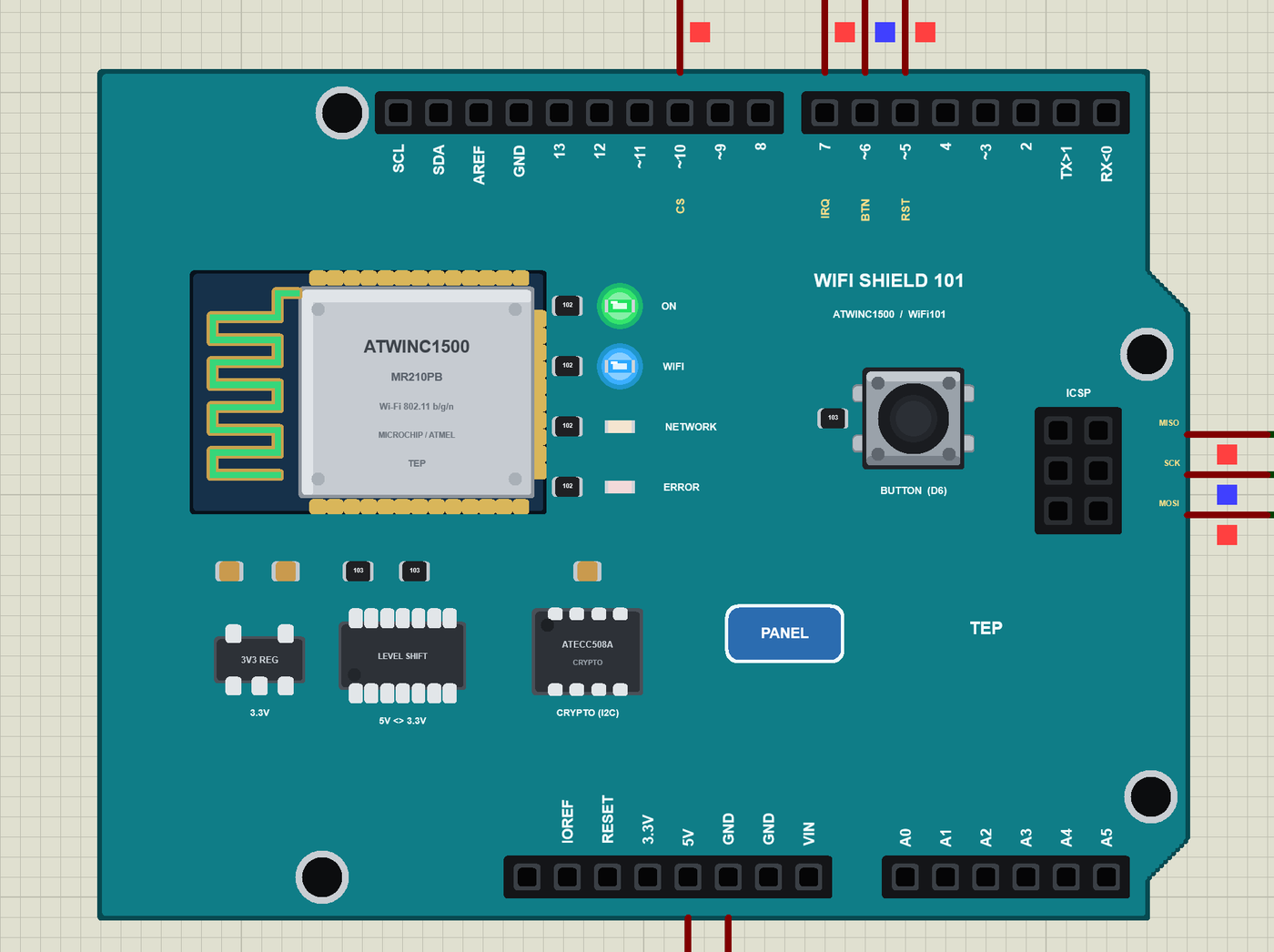
- The WiFi Shield 101 as it looks: the teal shield with the ATWINC1500 module and its printed antenna, the ATECC508A, the button, the four LEDs, the regulator, the level shifter, the ICSP socket and the header names.
- The real WiFi101 library: our model answers the chip's registers and requests exactly as the library expects - we ran the library and the demo sketch unchanged against the model on the PC (27 checks) and in Proteus.
- The boot and the IRQ handshake as on the real chip: the chip ID, the firmware start and version, the MAC, the messages announced on IRQ, the reset on D5.
- Wi-Fi and sockets: join, status, IP, RSSI, scan with SSID, RSSI, channel and encryption, DNS and ping; TCP sockets 0 - 6 for WiFiClient, WiFiServer and WiFiSSLClient, UDP sockets 7 - 10 for WiFiUDP.
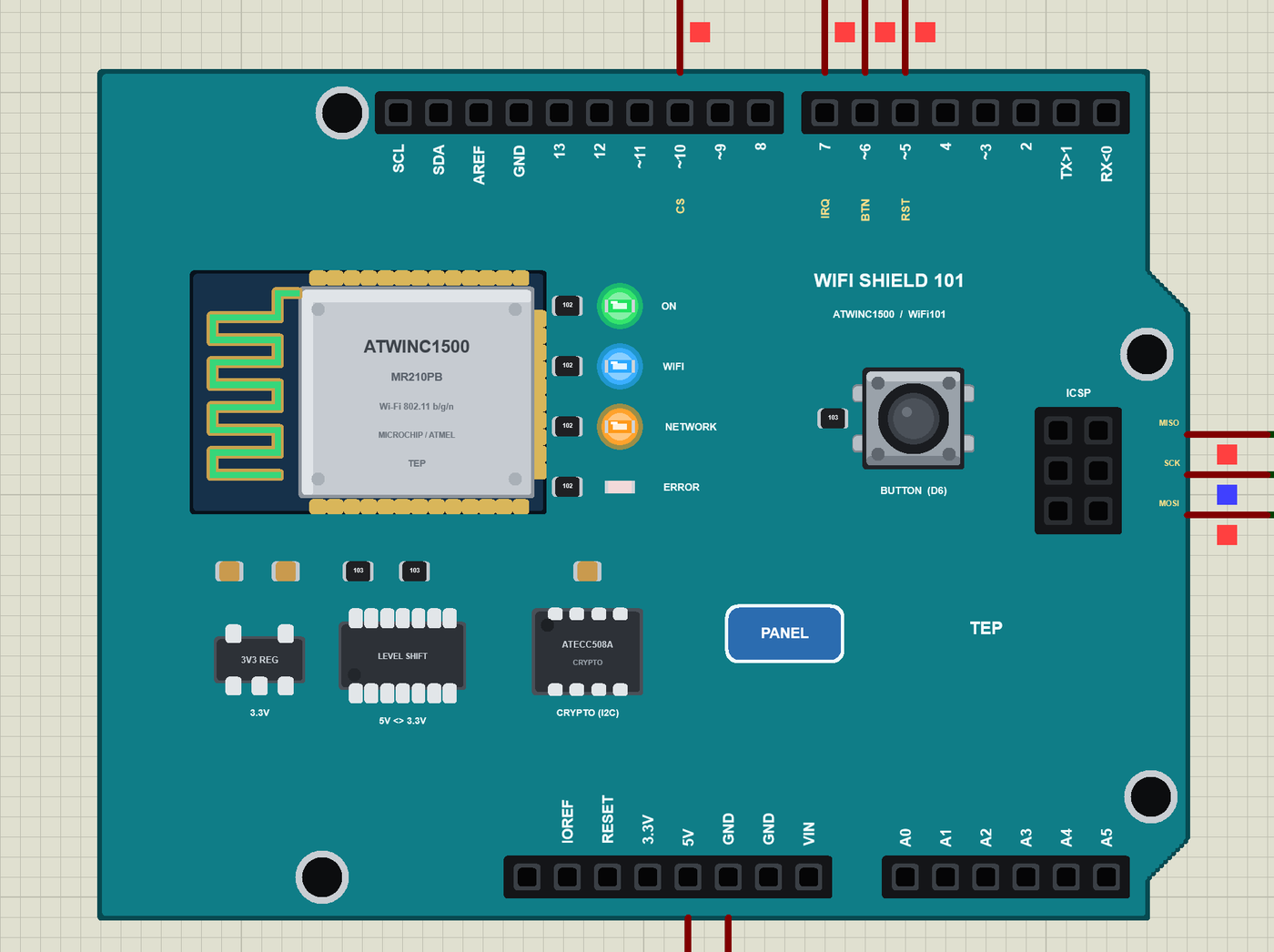
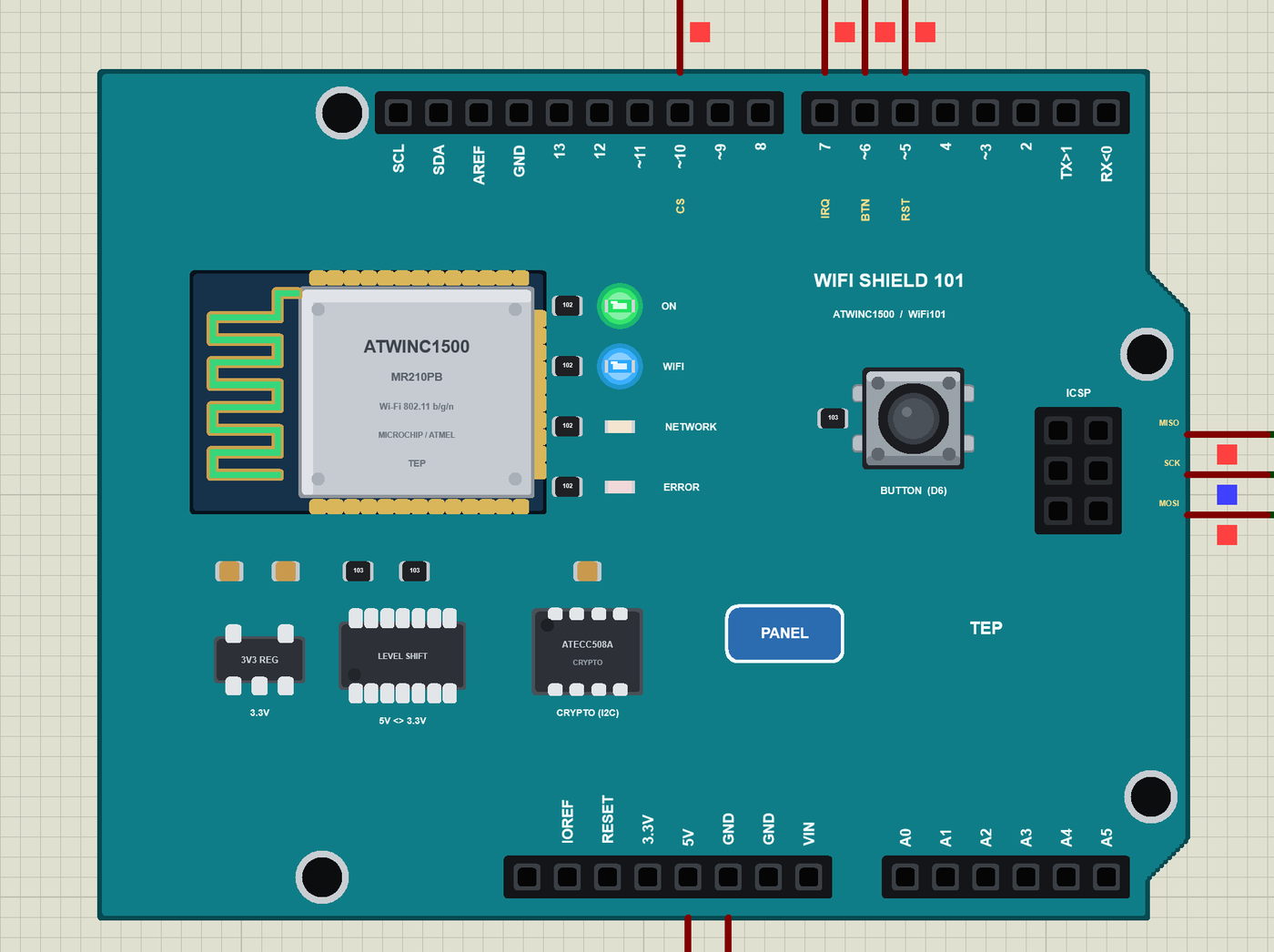
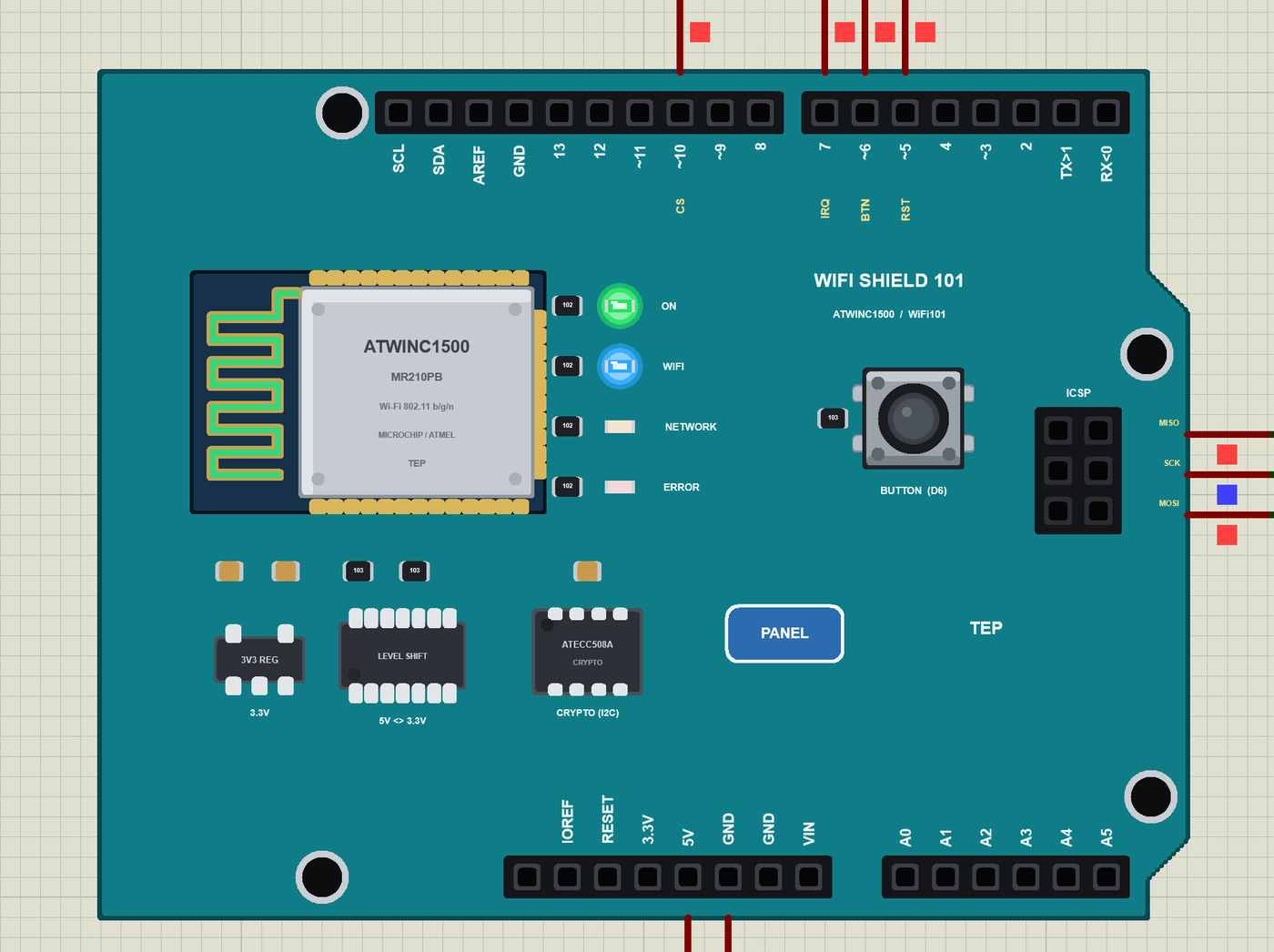
- The LEDs WiFi101 switches: WIFI while joined, NETWORK during DNS, ping and socket writes, ERROR for the library's errors - and ON for the power.
- The button on D6, clickable on the schematic or from the panel, and an antenna that turns green on Wi-Fi, orange while the chip sends and blue while it receives.
- Wi-Fi in Proteus: a virtual router with DHCP and two neighbours for scans, a phone in the panel, an internet host, and TCP / UDP to every TEP Wi-Fi part in the design.
- Our Laptop and Mobile WiFi Monitors: a laptop and a phone on the same network, with a browser, TCP terminals and ping - included in the package.
- Our pop-up panel: the phone, the shield card, an SPI page with every WiFi101 request and the chip's answers, the sockets and the button, a Test page, Settings and Help.
- A compact package: about 2.81 MB, without the C++ source code of the models.
The WiFi Shield 101 in Proteus
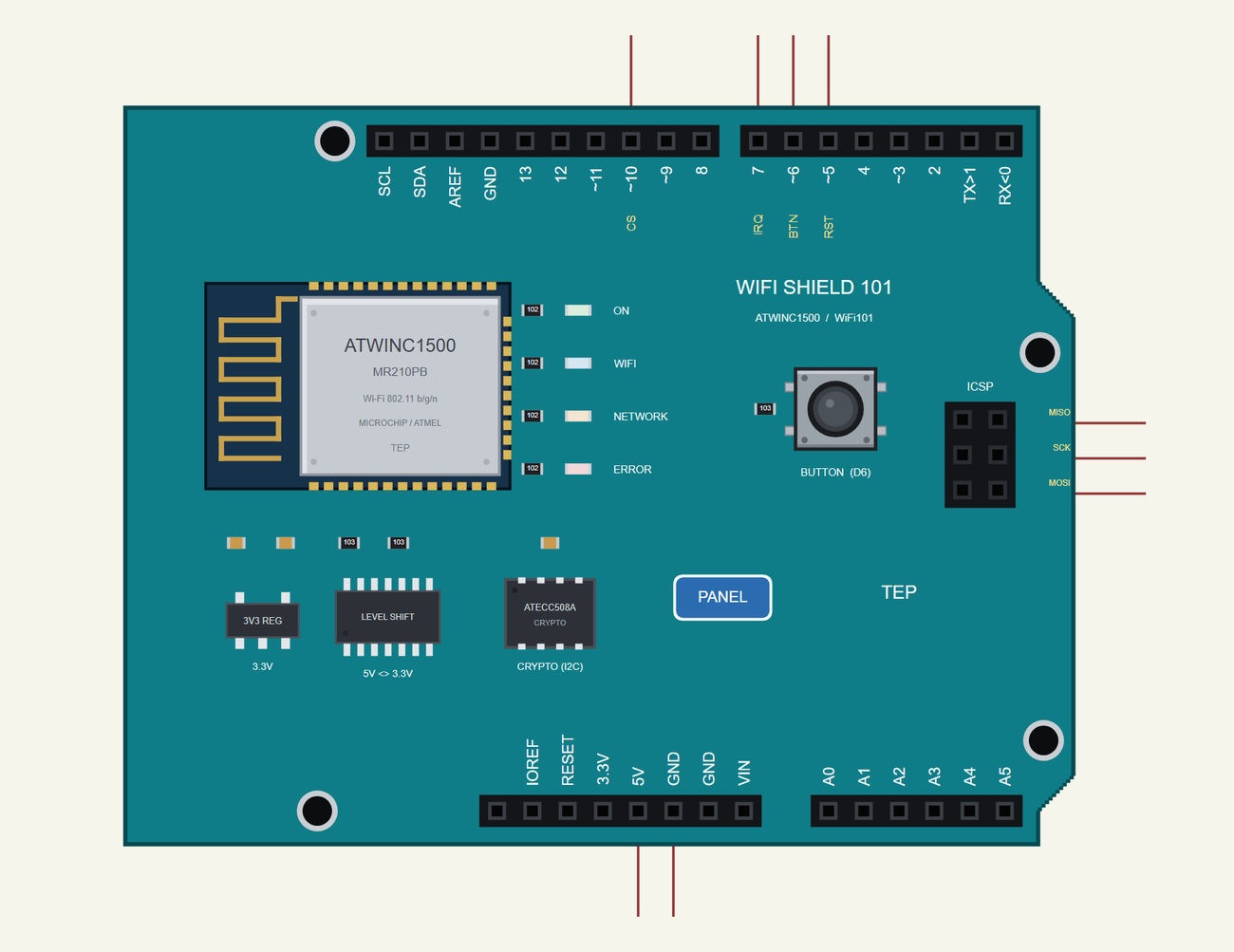
Search SHIELD 101 in Pick Devices; the device WIFI SHIELD 101 is in TEPWIFI101.LIB. Its header pins sit where a shield's pins sit on our boards, with the shield's own names under the four it uses. Click the PANEL pad or the WINC1500 module to open the panel, and the button to press it.
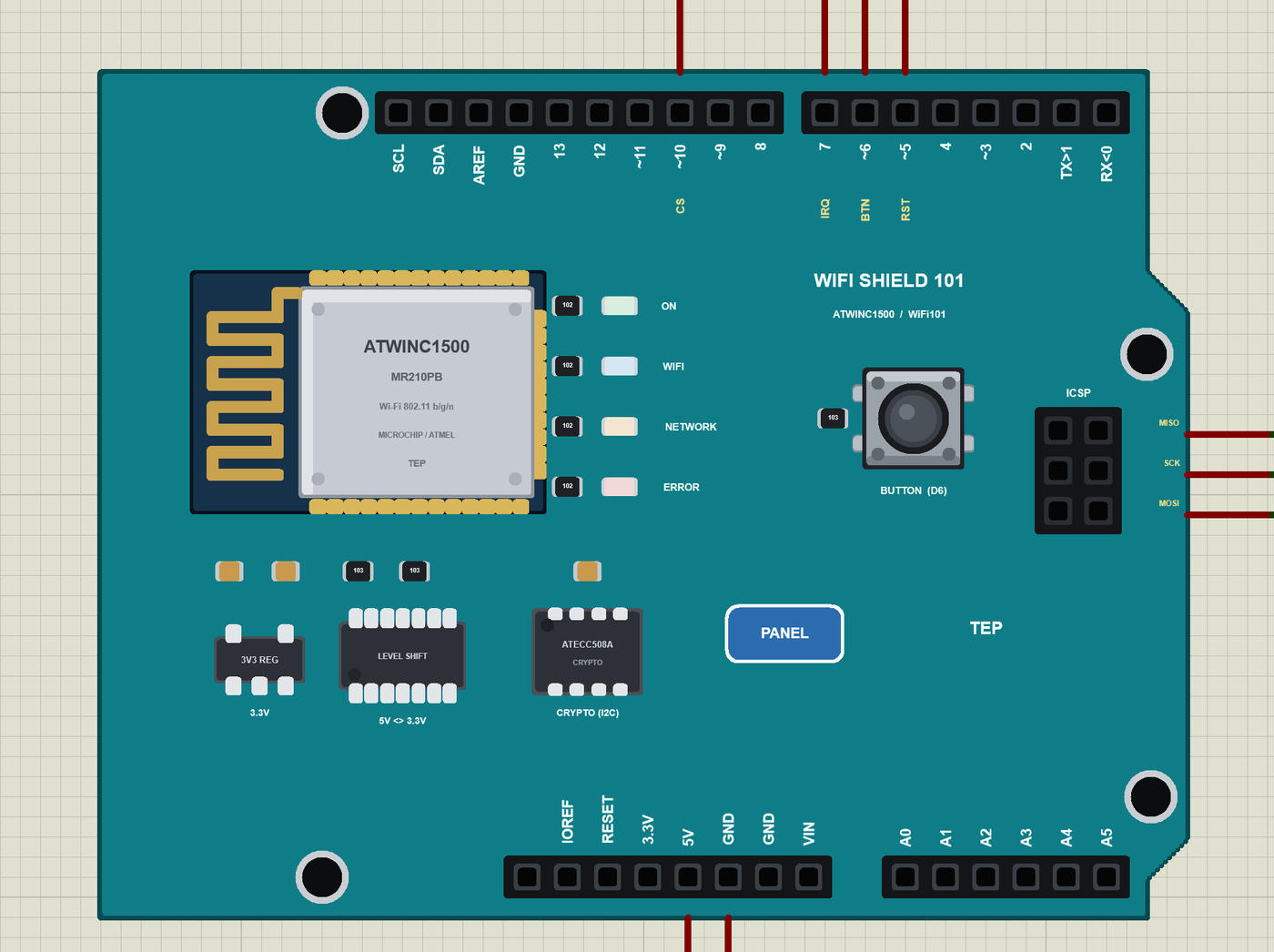
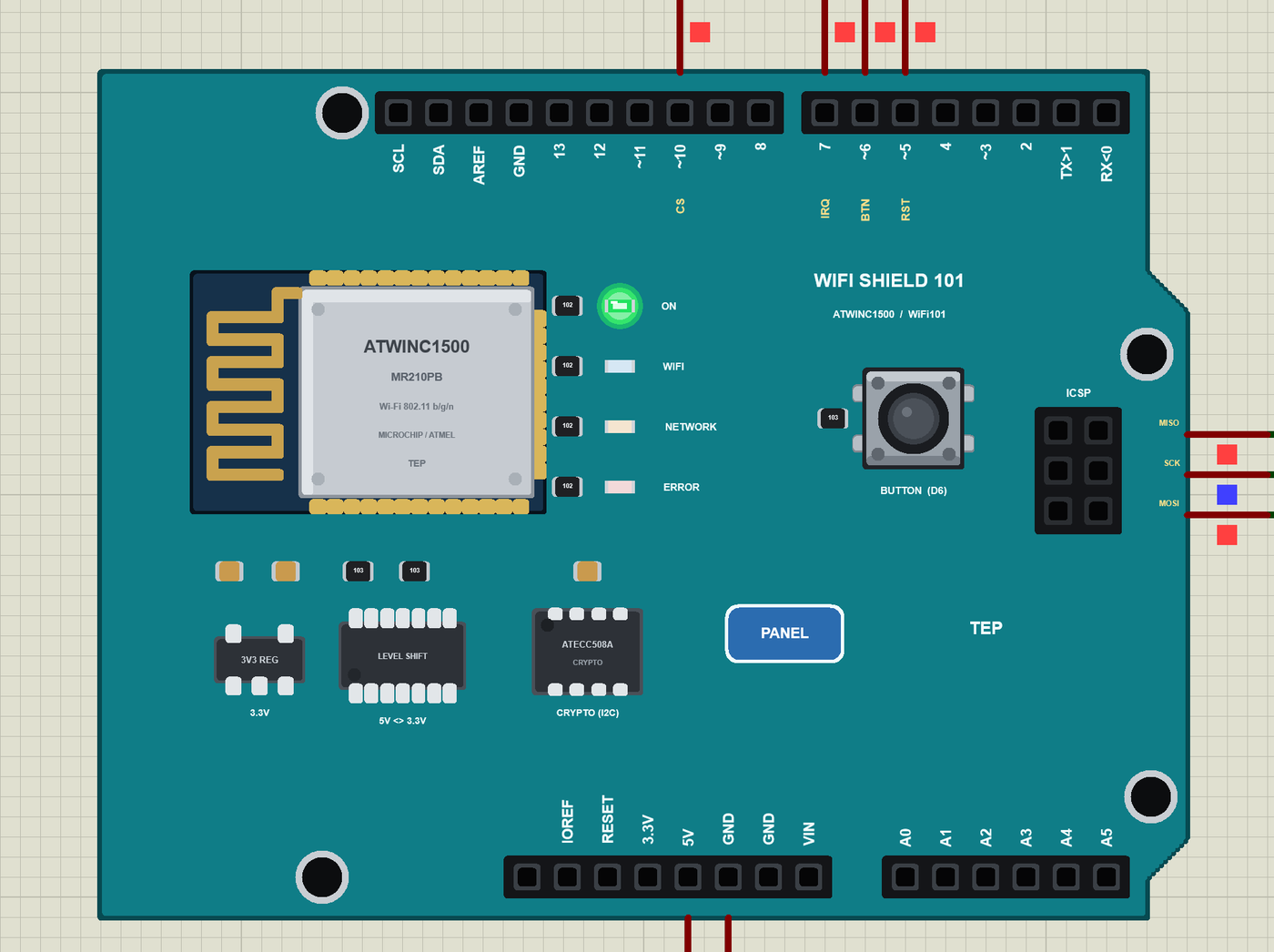
Every State of the WiFi Shield 101
We ran the demo and paused the simulation for each picture. At Run the shield gets its supply and ON lights; the Mega resets the WINC1500 with D5, starts its firmware and calls WiFi.begin():
Download WiFi Shield 101 Library for Proteus
Click the button below to download WiFi-Shield-101-Library-for-Proteus-v1.0.zip (about 2.81 MB, without the C++ source code of the models):
WiFi Shield 101 Library for Proteus V1.0- README.txt: the device, installation, the demo, the pins, the properties, troubleshooting and the limits.
- Proteus Library Files:
TEPWIFI101.LIB(the shield),ArduinoV4TEP.LIB(our Arduino boards V4.0 - the Mega 2560 of the demo),TEPLAPTOP.LIBandTEPMOBILE.LIB(our Laptop and Mobile WiFi Monitors). - Proteus Model Files:
TEPNET.DLL(the shield, the two monitors and the Wi-Fi network) andTEPARDUINO.DLL(the Arduino boards). - Proteus Simulation: the demo project, its HEX file and copies of the DLLs.
- Arduino Code: the demo sketch. WiFi101 is not included - install it from the Library Manager.
No Proteus yet? Read How to Download and Install Proteus 7 and 8. New to libraries? Follow How to Install a New Library in Proteus.
How to Install WiFi Shield 101 Library for Proteus
- Close Proteus and extract the whole zip file, for example to your Desktop.
- Copy the four files from Proteus Library Files into the LIBRARY folder of Proteus (usually
C:\Program Files (x86)\Labcenter Electronics\Proteus 8 Professional\LIBRARY). - Copy
TEPNET.DLLandTEPARDUINO.DLLfrom Proteus Model Files into the MODELS folder - replace older copies (this TEPNET.DLL is the first one that knows the WiFi Shield 101, and it still runs the AirLift boards, all our ESP32 boards, the ESP8266 and ESP32 modules and the two monitors). - Delete
TEPWIFI101.IDX,ArduinoV4TEP.IDX,TEPLAPTOP.IDXandTEPMOBILE.IDXfrom the LIBRARY folder if they are there. - Start Proteus, press P and search for SHIELD 101.
The sketch is a normal Mega sketch: select Arduino Mega or Mega 2560 in the Arduino IDE, install WiFi101, write your sketch and use Sketch > Export Compiled Binary; then double-click the Mega in Proteus and set its Program File to the HEX (see How to get the HEX file from Arduino).
Demo: A Network Monitor with the Laptop and the Phone
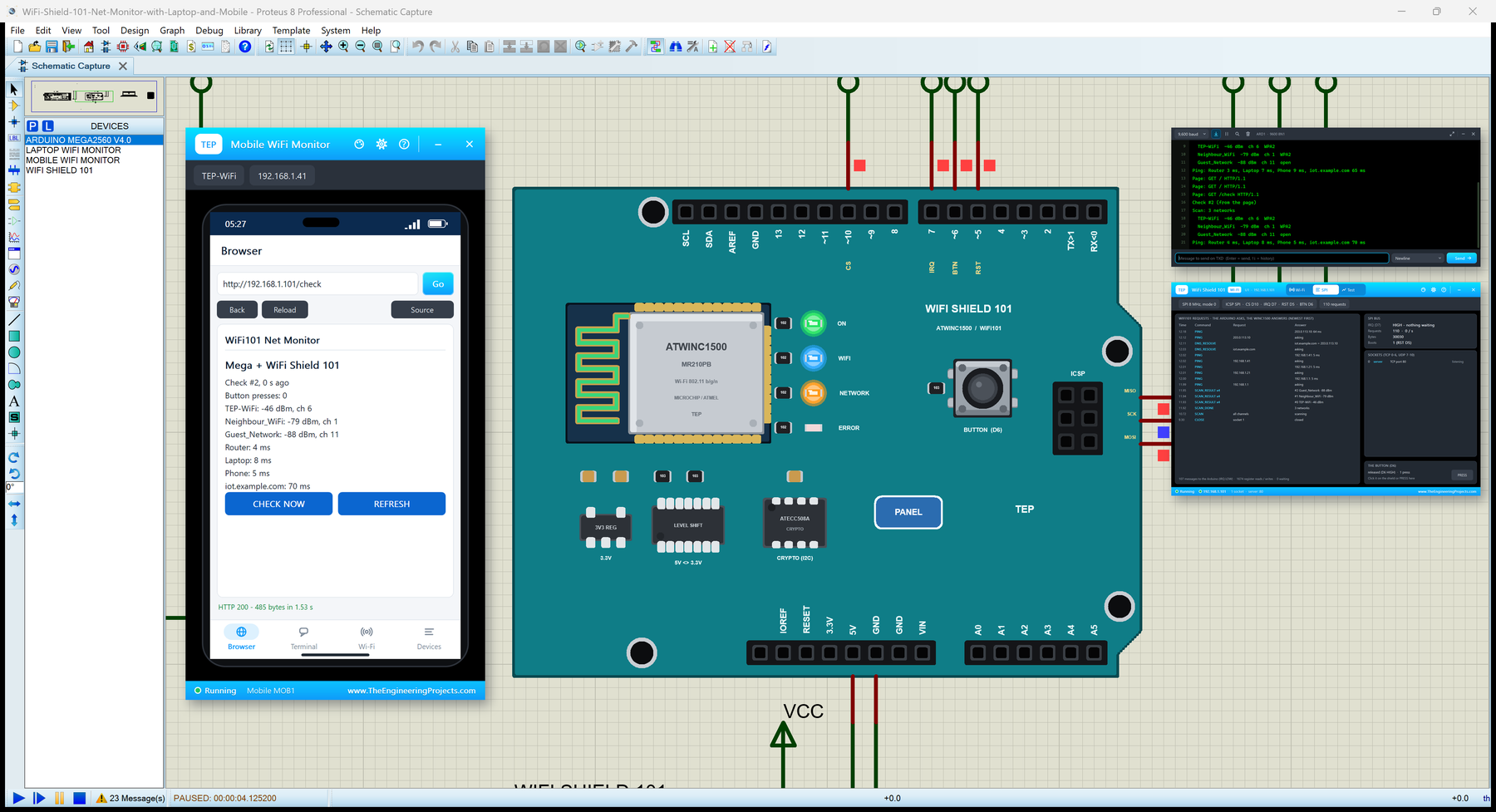
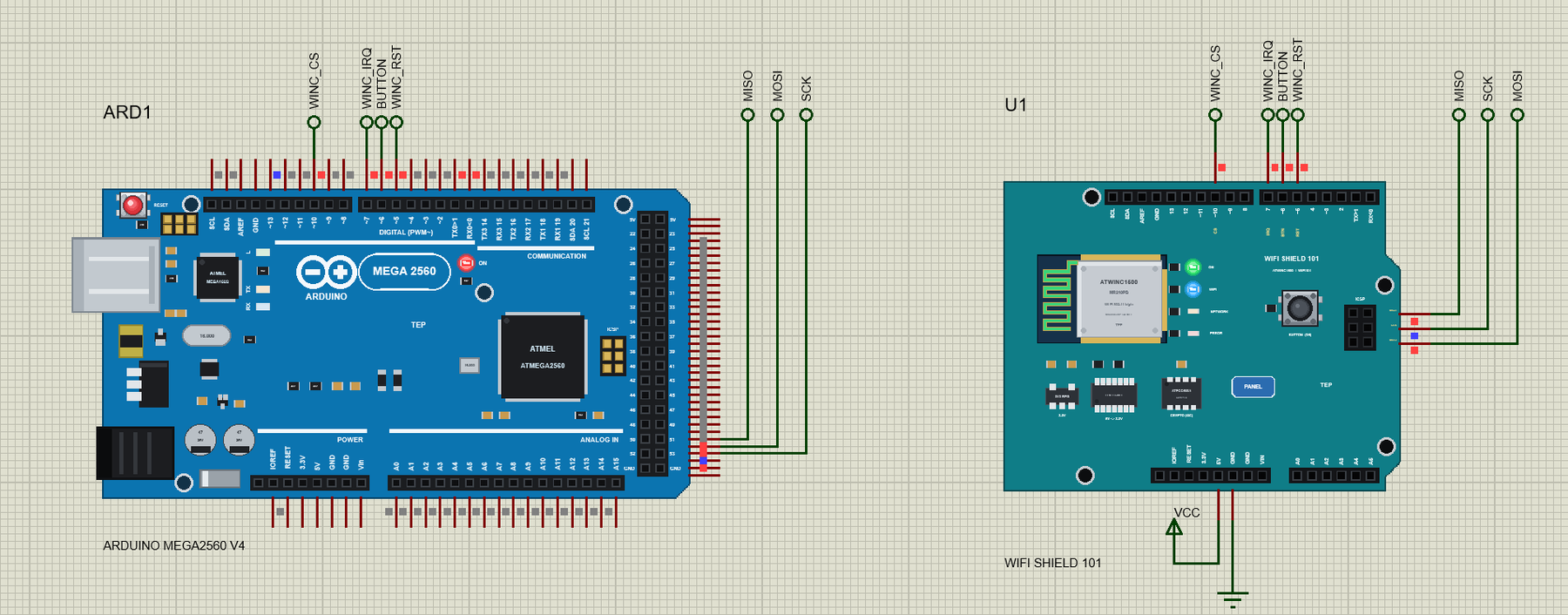
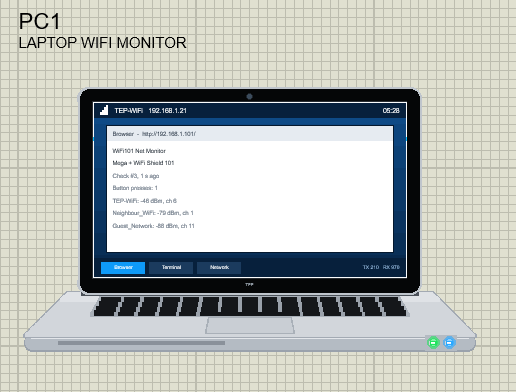
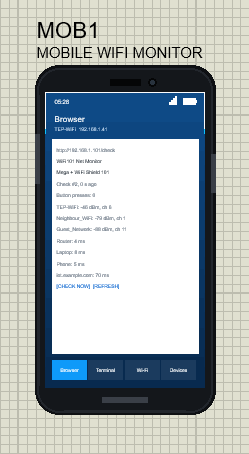
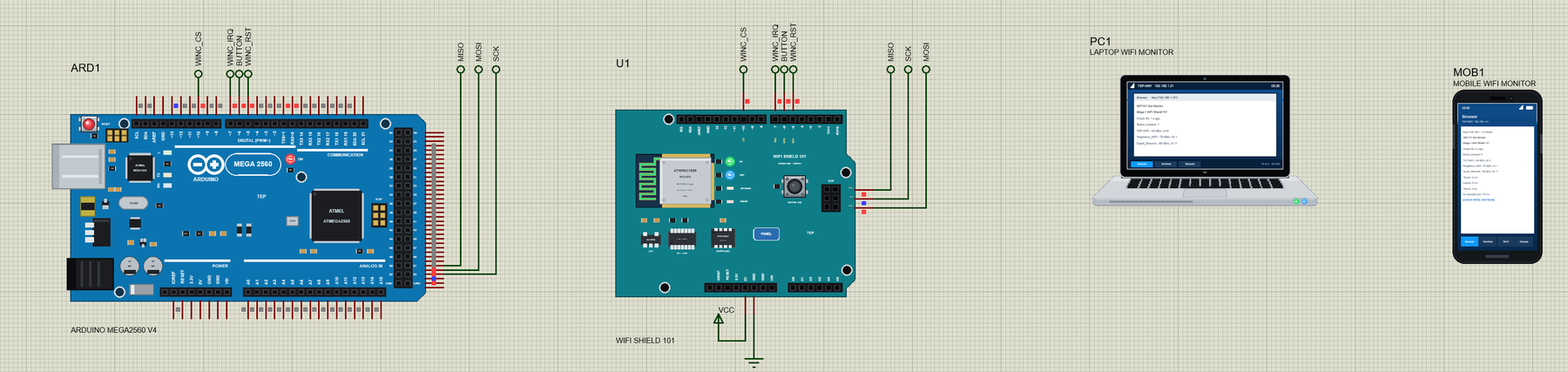
Open WiFi-Shield-101-Net-Monitor-with-Laptop-and-Mobile.pdsprj. On the left is our Mega 2560 V4.0 (ARD1) with its built-in serial monitor, in the middle the WiFi Shield 101 (U1), and on the right the laptop (PC1) and the phone (MOB1) - no wires to them, they are on the TEP-WiFi network like the real ones.
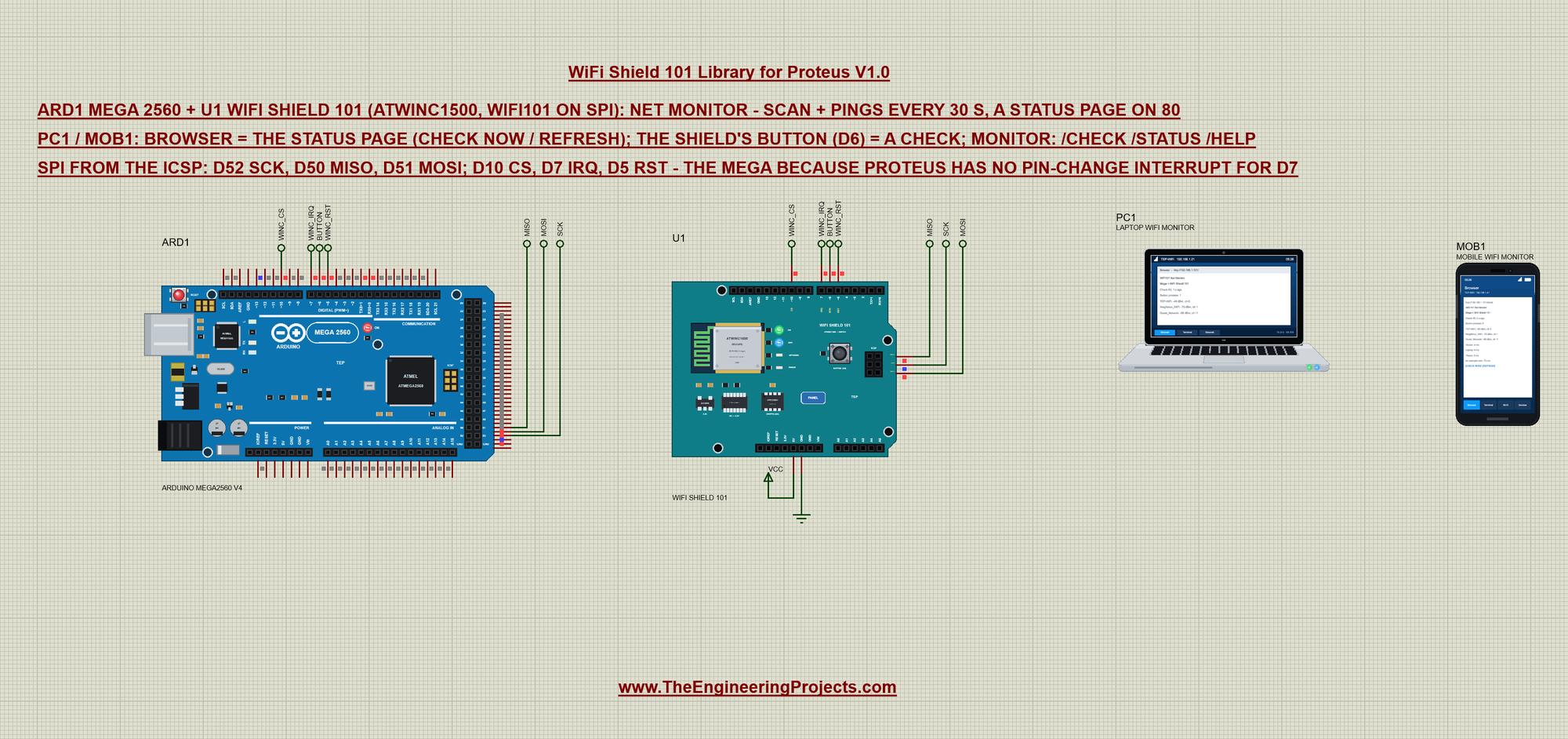
Seven net labels join the Mega and the shield. SCK, MISO and MOSI come from the Mega's D52, D50 and D51 - the pins its ICSP header carries - and go to the shield's ICSP pins on its right edge. WINC_CS (D10), WINC_IRQ (D7), BUTTON (D6) and WINC_RST (D5) go to the header pins. 5V goes to VCC and GND to ground:
The two tools come from our Laptop WiFi Monitor Library for Proteus and Mobile WiFi Monitor Library for Proteus. In this project their browsers open http://192.168.1.101/; you only press Go. The laptop is 192.168.1.21 and the phone 192.168.1.41 - and the sketch pings both:
The Sketch: WiFi101 on the Shield
WiFi101 knows the shield's pins, so the sketch starts with the network, the button and the time between two checks:
const char ssid[] = "TEP-WiFi";
const char pass[] = "12345678";
const int BUTTON = 6;                                              // the shield's button (LOW = pressed)
const unsigned long EVERY = 30000;                                 // ms between two checks
WiFi.status() answers WL_NO_SHIELD when the chip does not answer on SPI - the first thing to test:
  if (WiFi.status() == WL_NO_SHIELD) {
    Serial.println(F("No WiFi Shield 101 found - check SPI (ICSP), CS D10, IRQ D7, RST D5"));
    while (true) delay(1000);
  }
Then the firmware version and the MAC address. WiFi.macAddress() fills the bytes in reverse order, so the sketch prints them from the last one:
  Serial.print(F("WINC1500 firmware ")); Serial.println(WiFi.firmwareVersion());
  byte mac[6];
  WiFi.macAddress(mac);
  snprintf(msg, sizeof msg, "MAC %02X:%02X:%02X:%02X:%02X:%02X", mac[5], mac[4], mac[3], mac[2], mac[1], mac[0]);
  Serial.println(msg);
WiFi.begin() blocks until the shield has joined or given up. One detail of WiFi101: WiFi.localIP() returns a plain number, so the sketch puts it into an IPAddress before printing:
while (WiFi.begin(ssid, pass) != WL_CONNECTED) { Serial.print('.'); delay(2000); } IPAddress ip = WiFi.localIP(); // (WiFi101 gives the address as a number)The Check: a Scan and Four Pings
WiFi.scanNetworks() asks the chip for a scan and waits for it; then the sketch reads the SSID, RSSI, channel and encryption of each network by its index:
  const int n = WiFi.scanNetworks();
  netCount = n < 6 ? n : 6;
  Serial.print(F("Scan: ")); Serial.print(n); Serial.println(F(" networks"));
  for (int i = 0; i < netCount; i++) {
    strncpy(nets[i].ssid, WiFi.SSID(i), 16); nets[i].ssid[16] = 0;
    nets[i].rssi = WiFi.RSSI(i);
    nets[i].channel = WiFi.channel(i);
    nets[i].enc = WiFi.encryptionType(i);
    snprintf(msg, sizeof msg, "  %s  %d dBm  ch %d  %s", nets[i].ssid, nets[i].rssi, nets[i].channel, encName(nets[i].enc));
    Serial.println(msg);
  }
The devices to ping are a small table - three addresses on TEP-WiFi and one internet name:
Dev devs[] = {{"Router", "192.168.1.1", IPAddress(), -1}, {"Laptop", "192.168.1.21", IPAddress(), -1},
              {"Phone", "192.168.1.41", IPAddress(), -1}, {"iot.example.com", "iot.example.com", IPAddress(), -1}};
WiFi.hostByName() turns a name (or an address in text) into an IPAddress, and WiFi.ping() returns the round-trip time in milliseconds or a negative number. WiFi101 switches the NETWORK LED on while it waits:
    devs[i].ms = -1;
    if (WiFi.hostByName(devs[i].host, devs[i].ip)) devs[i].ms = WiFi.ping(devs[i].ip);
Press Run and watch the Mega's monitor: the firmware version, the MAC, the join, the page address, the signal and the first check:
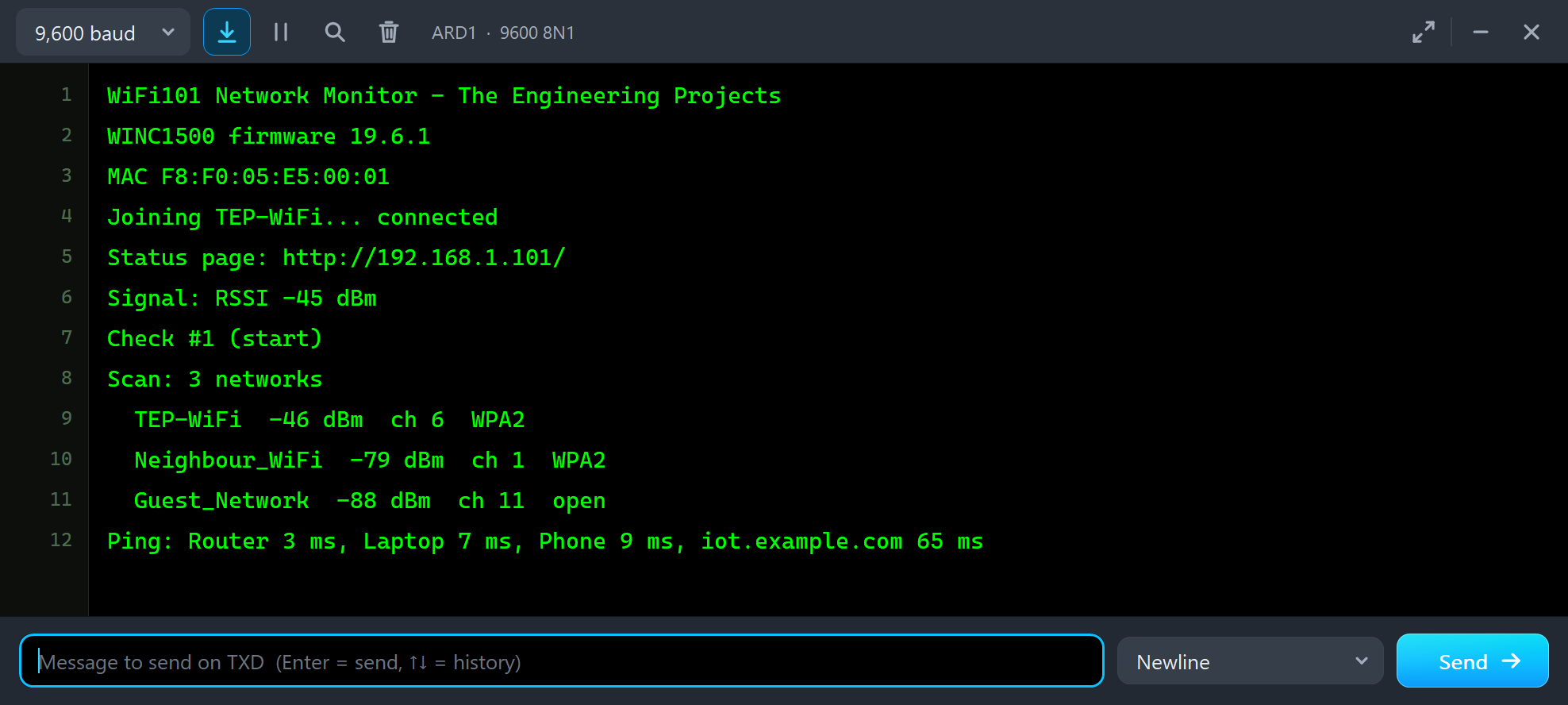
WiFi101 Network Monitor - The Engineering Projects
WINC1500 firmware 19.6.1
MAC F8:F0:05:E5:00:01
Joining TEP-WiFi... connected
Status page: http://192.168.1.101/
Signal: RSSI -45 dBm
Check #1 (start)
Scan: 3 networks
  TEP-WiFi  -46 dBm  ch 6  WPA2
  Neighbour_WiFi  -79 dBm  ch 1  WPA2
  Guest_Network  -88 dBm  ch 11  open
Ping: Router 3 ms, Laptop 7 ms, Phone 9 ms, iot.example.com 65 ms
The firmware is up 0.55 s after Run and the shield is on Wi-Fi at about 2.8 s of simulation time. The scan takes 1.2 s like the real chip's; the pings take a few milliseconds on the LAN and about 65 ms to the internet host.
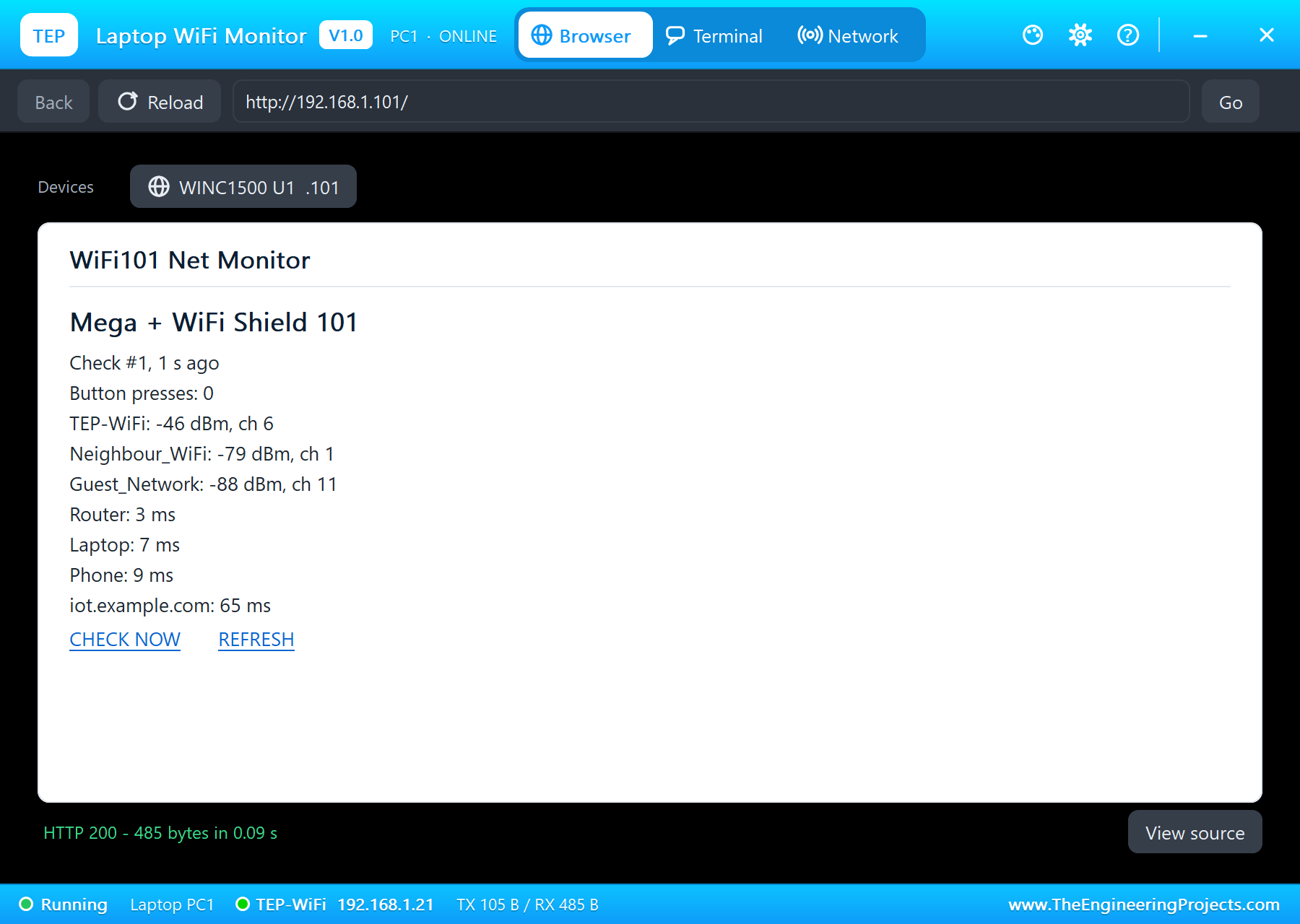
The Status Page
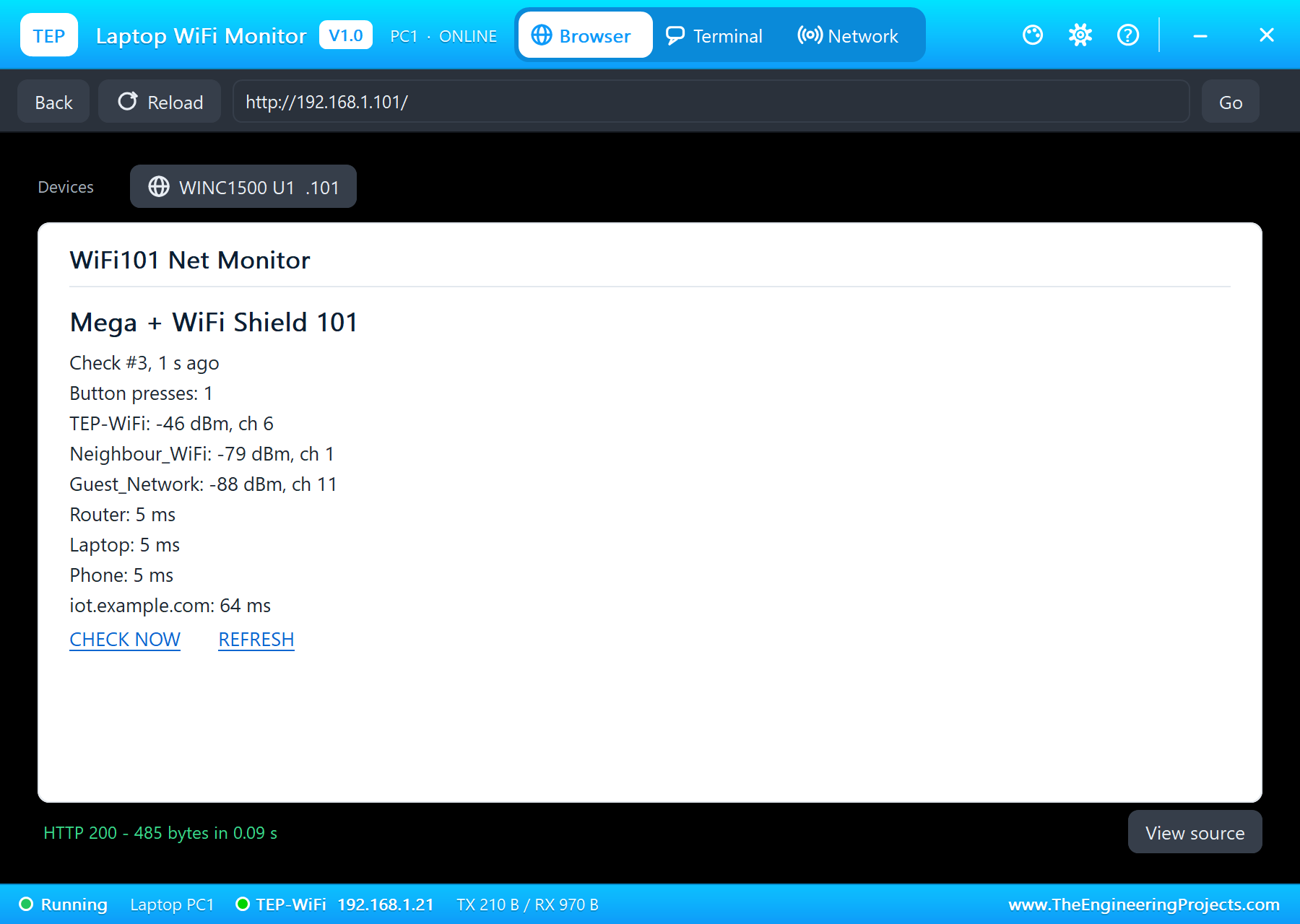
In the laptop's Browser the address bar already holds http://192.168.1.101/ - click Go. The page shows the last check, the button presses, the networks and the pings, with two links:
The sketch reads the request line, skips the headers up to the blank line and then answers:
  while (c.connected() && millis() - t0 < 3000) {                  // the request line, then the headers up to the blank line
    if (!c.available()) continue;
    const char ch = c.read();
    if (first && ch != '\r' && ch != '\n' && n < sizeof req - 1) req[n++] = ch;
    if (ch == '\n') { if (blank) break; first = false; blank = true; }
    else if (ch != '\r') blank = false;
  }
Text in flash goes out in 64-byte pieces. With WiFi101, print(F("...")) on a client sends one byte per socket request; this small helper sends whole pieces instead:
void sendP(Print& p, const __FlashStringHelper* s) {
  PGM_P q = reinterpret_cast<PGM_P>(s);
  char buf[64];
  for (;;) {
    size_t n = 0; char ch;
    while (n < sizeof buf && (ch = pgm_read_byte(q + n)) != 0) buf[n++] = ch;
    if (n) p.write((const uint8_t*)buf, n);
    if (n < sizeof buf) return;
    q += n;
  }
}
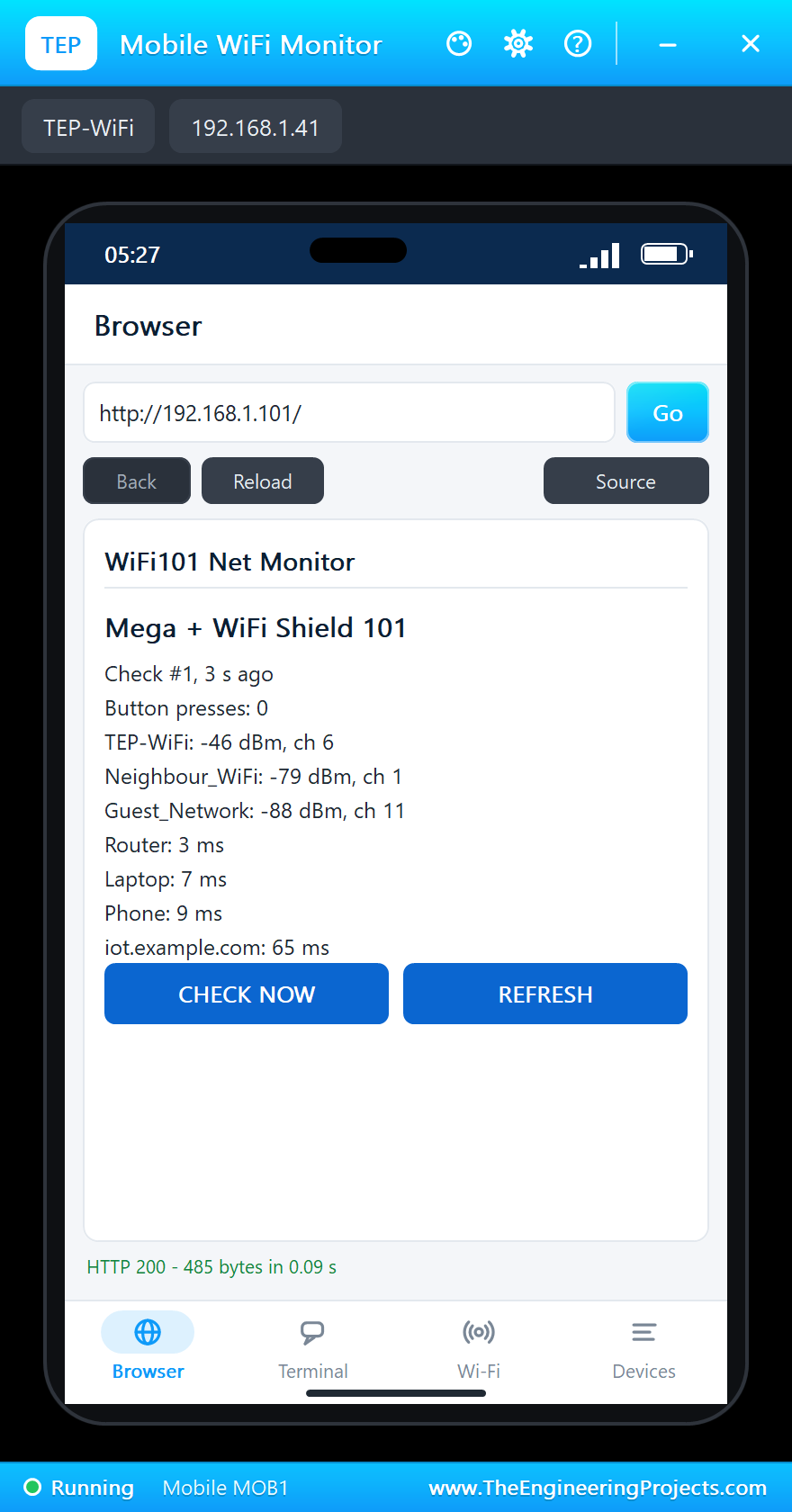
On the phone, the same page with buttons for a finger:
CHECK NOW
CHECK NOW asks for /check; the sketch runs a whole check - the scan and the four pings - before it answers, so the page comes back with the new results after about two seconds:
if (!strncmp(req, "GET /check", 10)) check("from the page");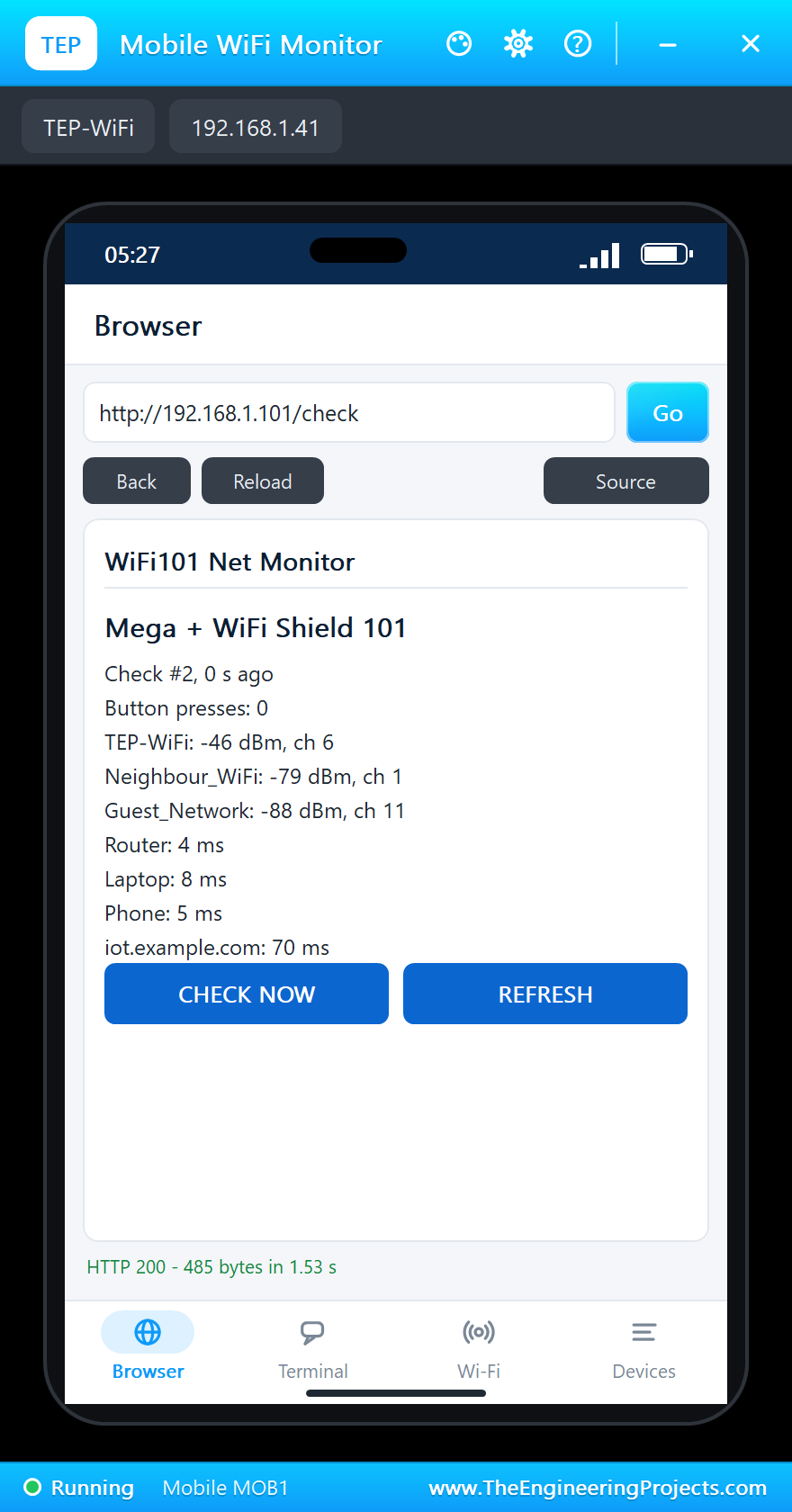
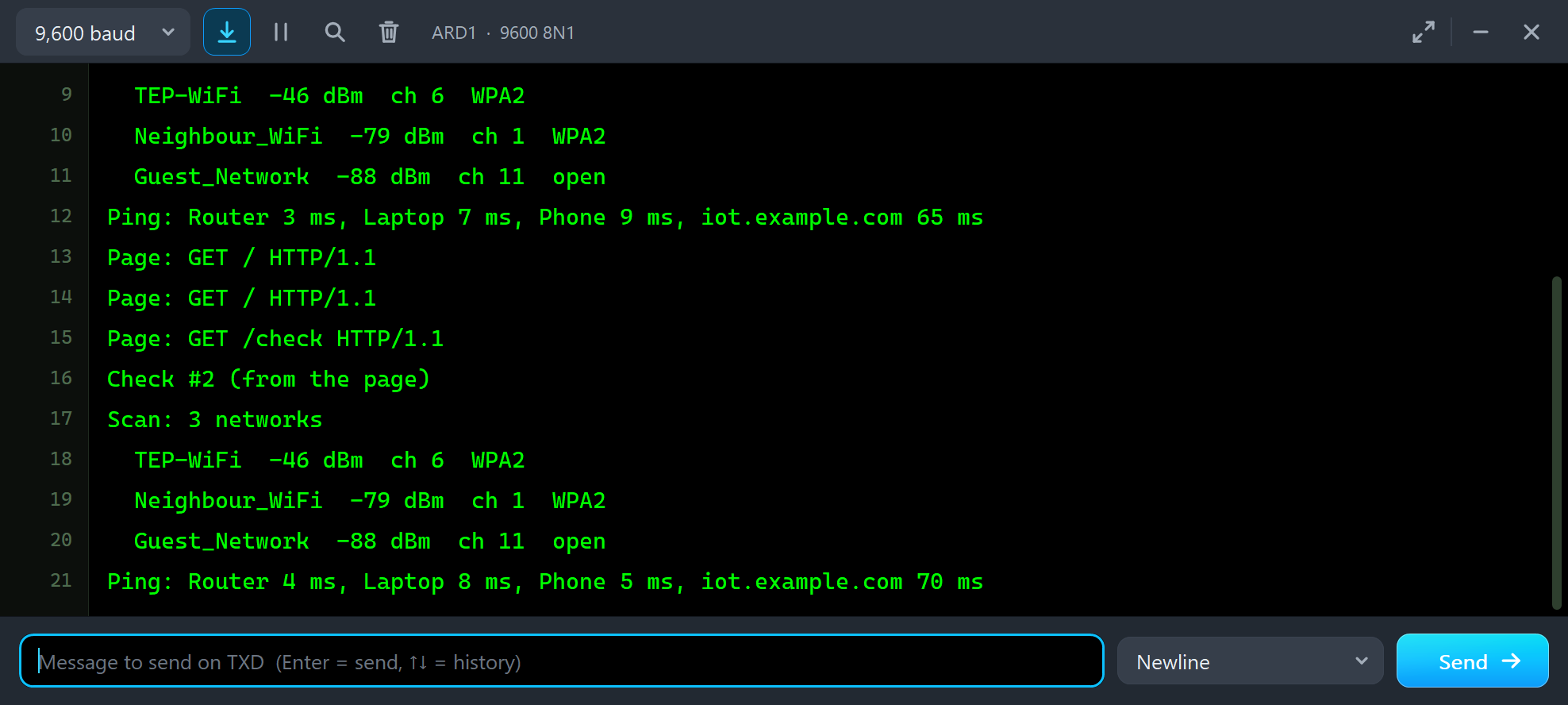
Page: GET / HTTP/1.1
Page: GET / HTTP/1.1
Page: GET /check HTTP/1.1
Check #2 (from the page)
Scan: 3 networks
  TEP-WiFi  -46 dBm  ch 6  WPA2
  Neighbour_WiFi  -79 dBm  ch 1  WPA2
  Guest_Network  -88 dBm  ch 11  open
Ping: Router 4 ms, Laptop 8 ms, Phone 5 ms, iot.example.com 70 ms
The Shield's Button
The button on the shield pulls D6 LOW. The sketch turns on the Mega's pull-up and looks for the HIGH to LOW change in every pass of loop():
pinMode(BUTTON, INPUT_PULLUP); if (b == LOW && lastButton == HIGH) { // the shield's button
presses++;
Serial.println(F("Button (D6) pressed"));
check("button");
}Click the button on the schematic (or PRESS on the panel's SPI page) - a click is a press of a quarter second. The cap goes down and D6 is LOW:
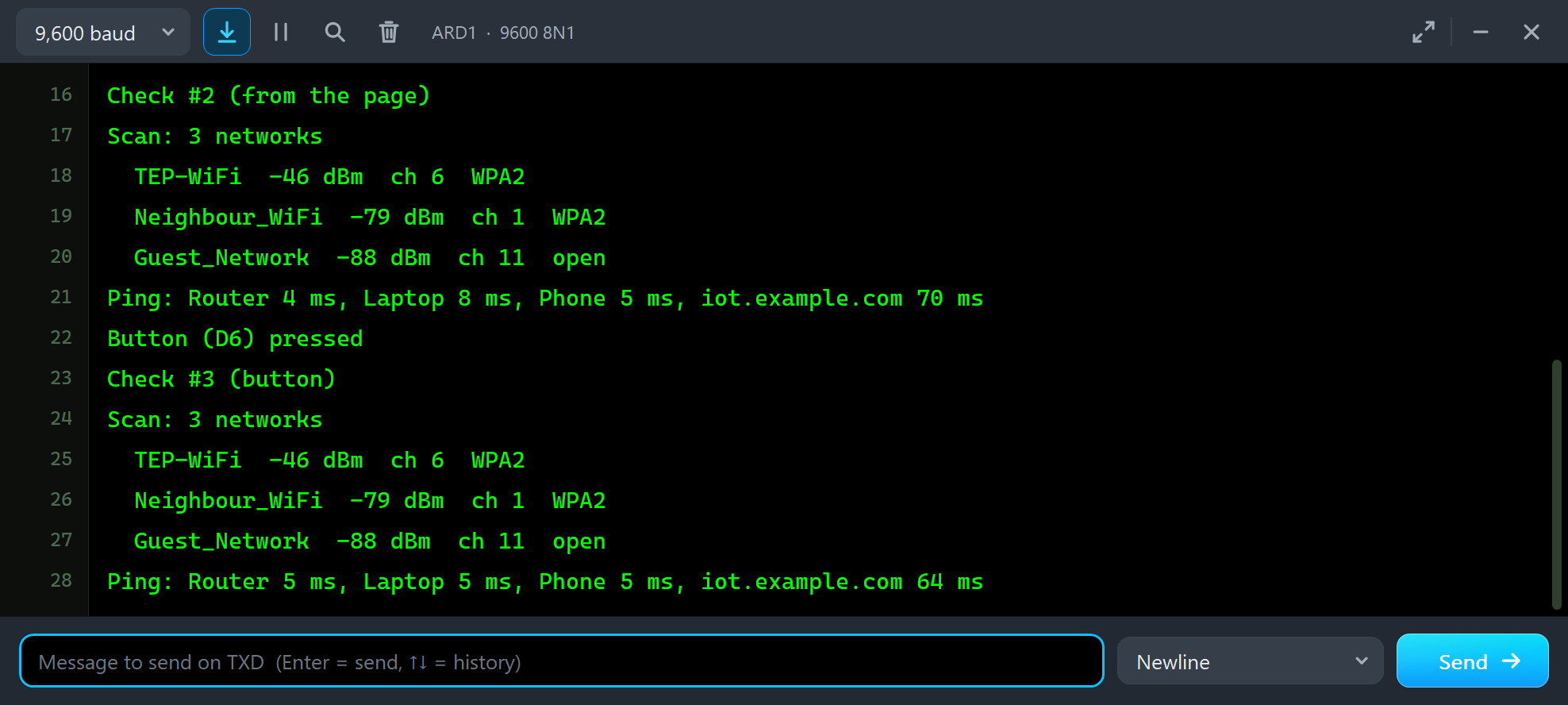
Button (D6) pressed
Check #3 (button)
Scan: 3 networks
  TEP-WiFi  -46 dBm  ch 6  WPA2
  Neighbour_WiFi  -79 dBm  ch 1  WPA2
  Guest_Network  -88 dBm  ch 11  open
Ping: Router 5 ms, Laptop 5 ms, Phone 5 ms, iot.example.com 64 ms
REFRESH on the laptop shows the new check and the press:
The loop also runs a check every 30 seconds:
if (millis() - lastCheck >= EVERY) check("every 30 s");The Serial Monitor
The monitor takes commands too: /check, /status and /help:
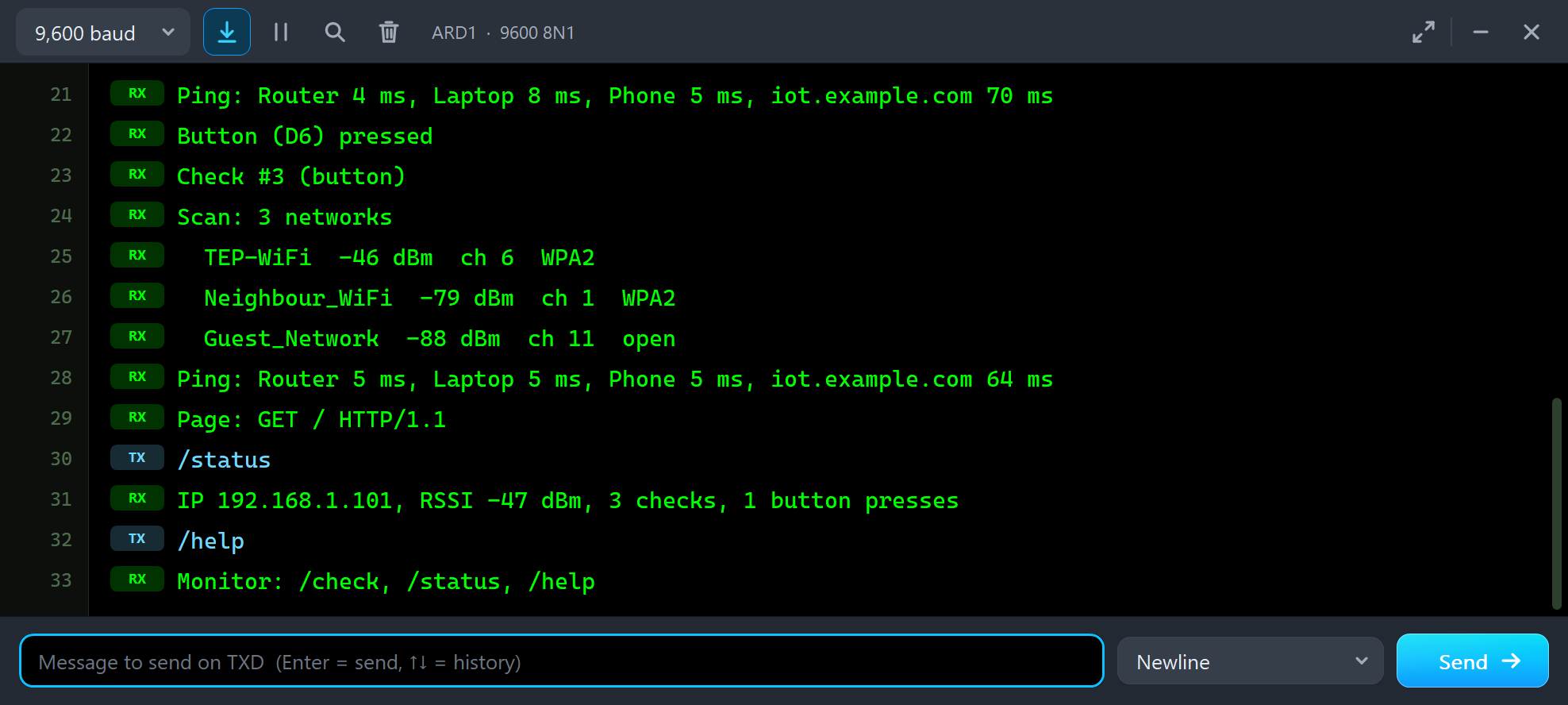
/status
IP 192.168.1.101, RSSI -47 dBm, 3 checks, 1 button presses
/help
Monitor: /check, /status, /help
And the whole demo running:
The WiFi Shield 101 Panel
The panel opens at Run, in the look of our TEP Serial Monitor Advance for Proteus. Its Wi-Fi page has a small phone of its own and three cards: the SHIELD card with the chip and firmware, the MAC address, the host link with its request rate and the LEDs, the WI-FI card and the TRAFFIC card:
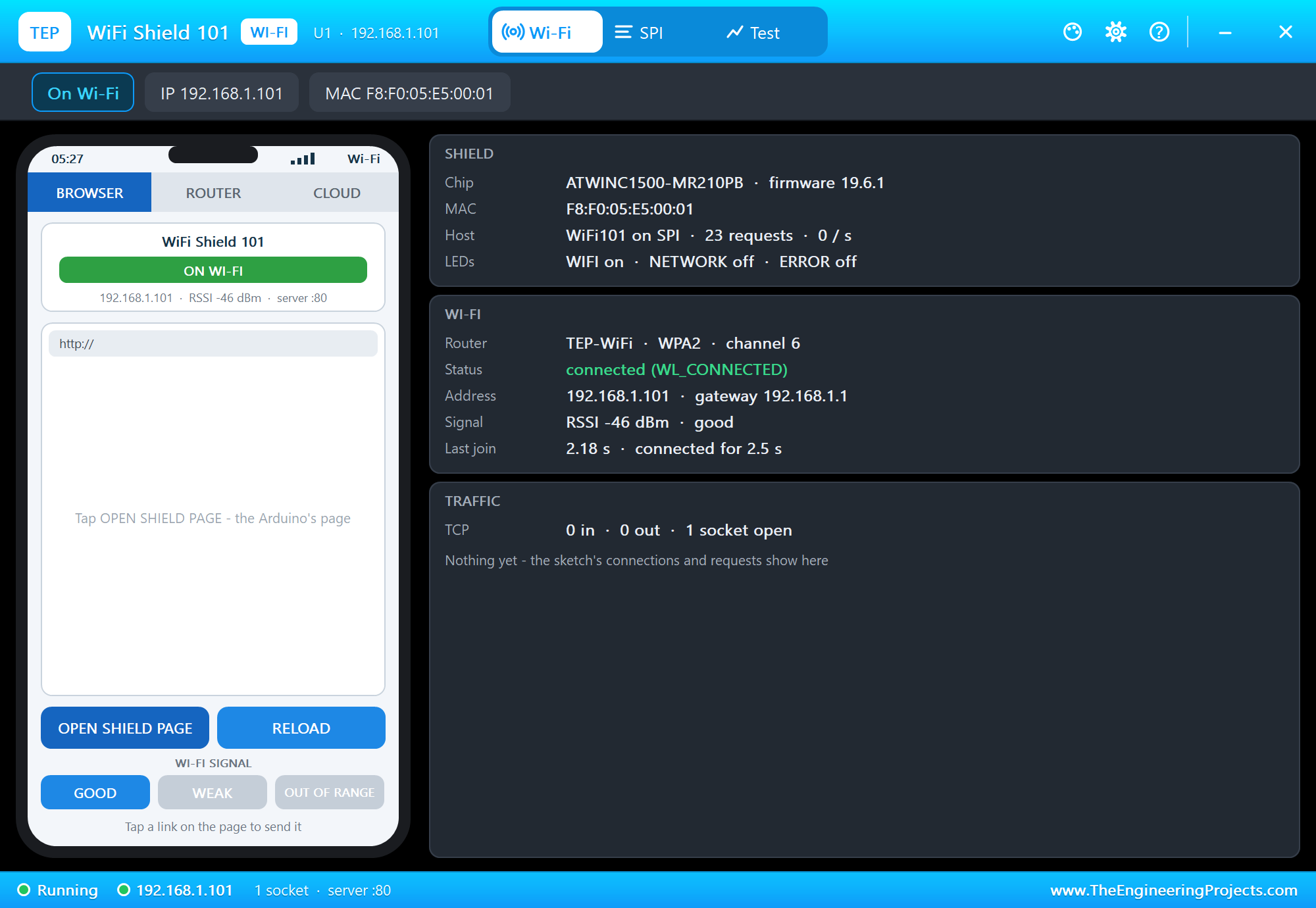
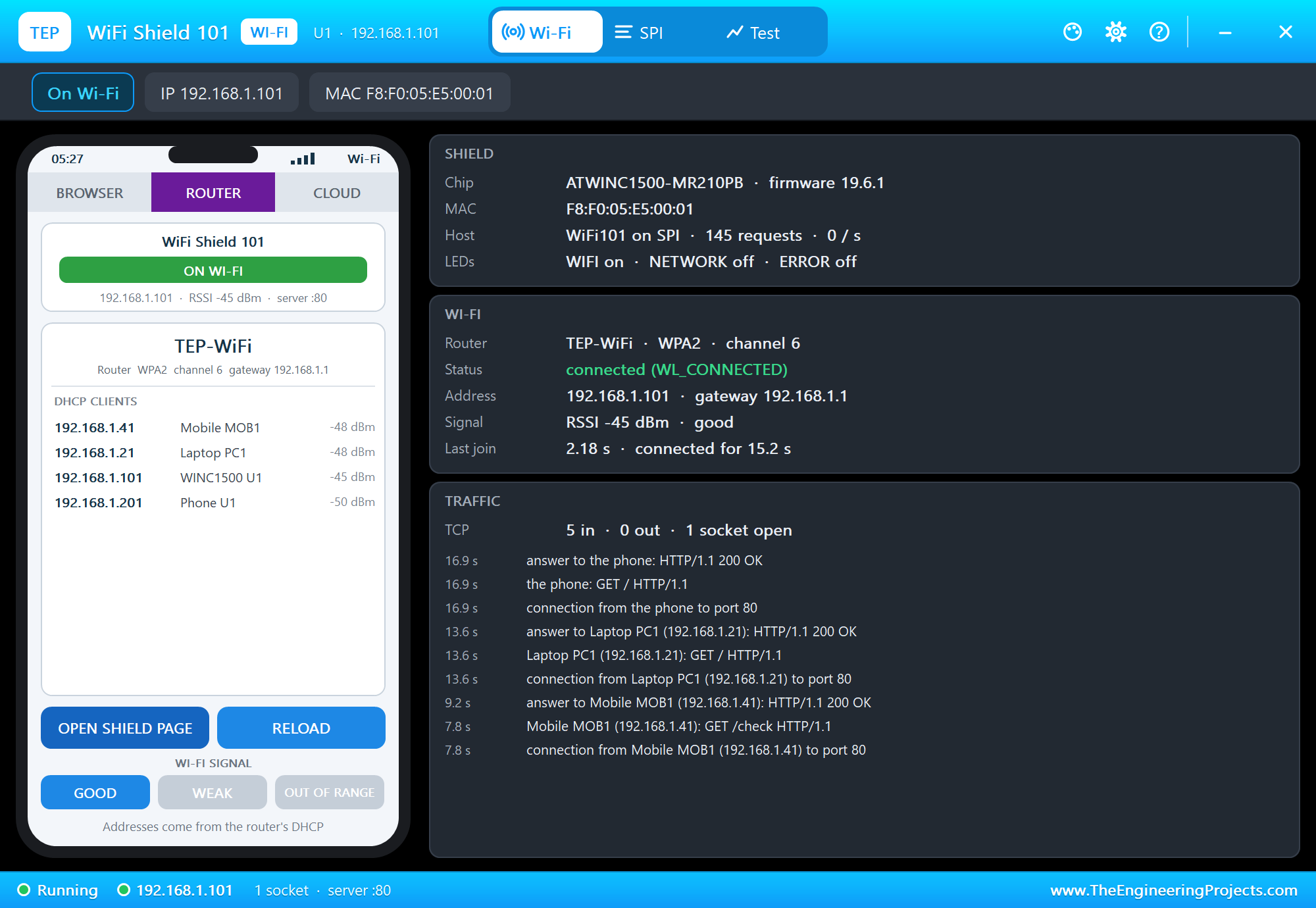
OPEN SHIELD PAGE asks the shield for the page the Mega serves; its links work on the phone too. The ROUTER tab lists the DHCP clients:
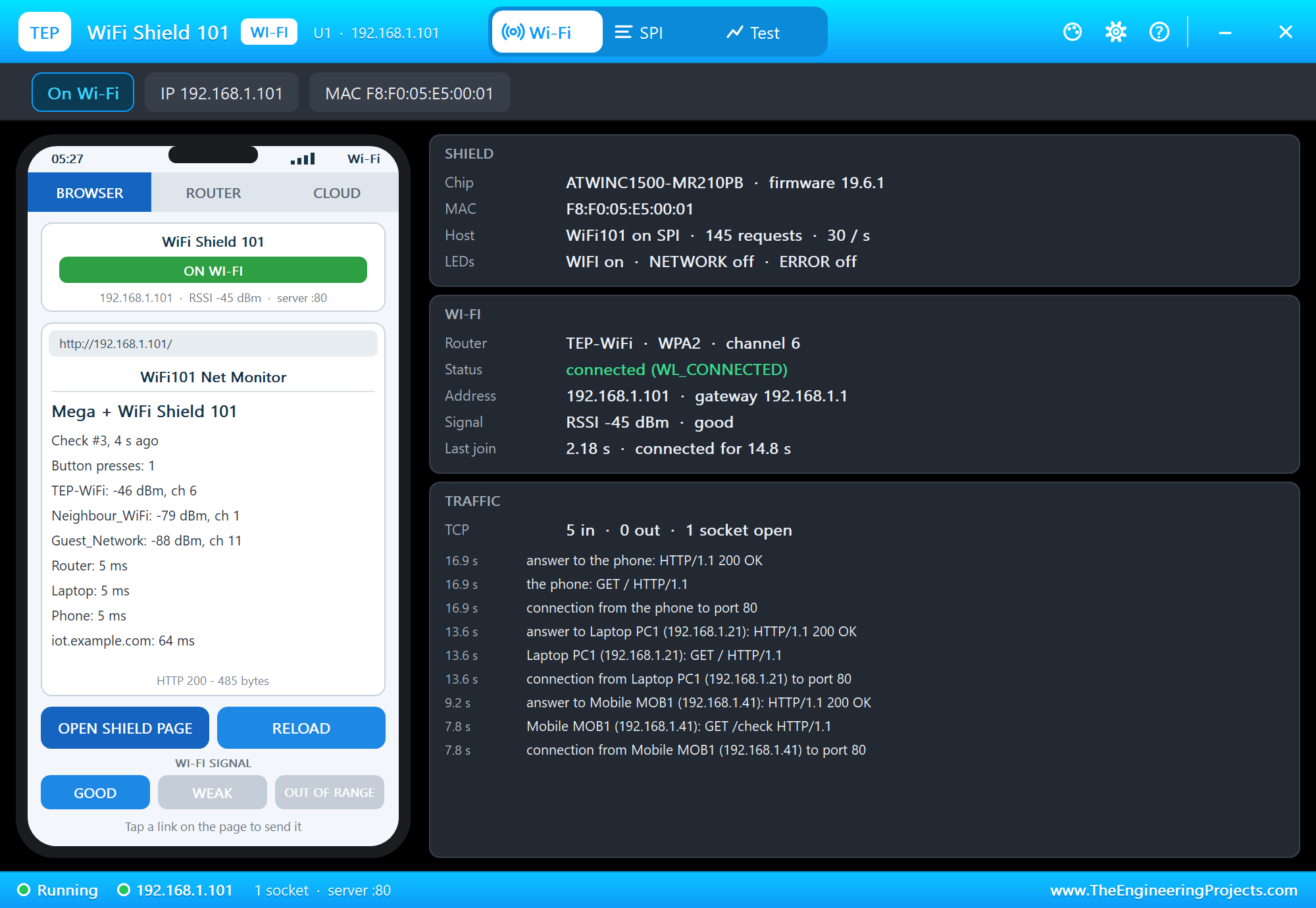
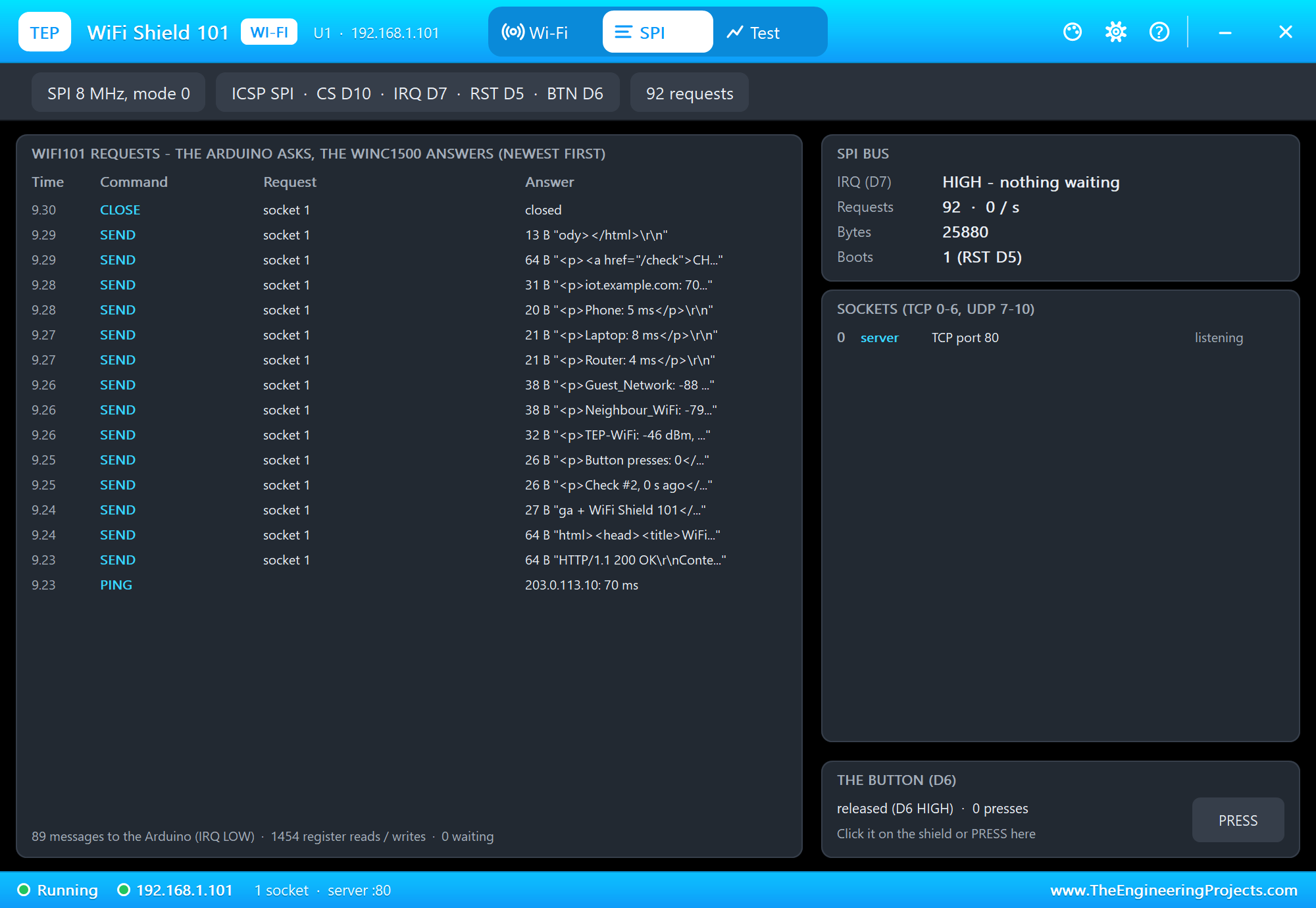
The SPI page is the place to learn the WINC1500. It lists the WiFi101 requests and the chip's messages, newest first; on the right are the bus with the IRQ line, the sockets and the button with its PRESS key. Here the Mega sends the page to the phone after CHECK NOW - one SEND per line of the page, then CLOSE:
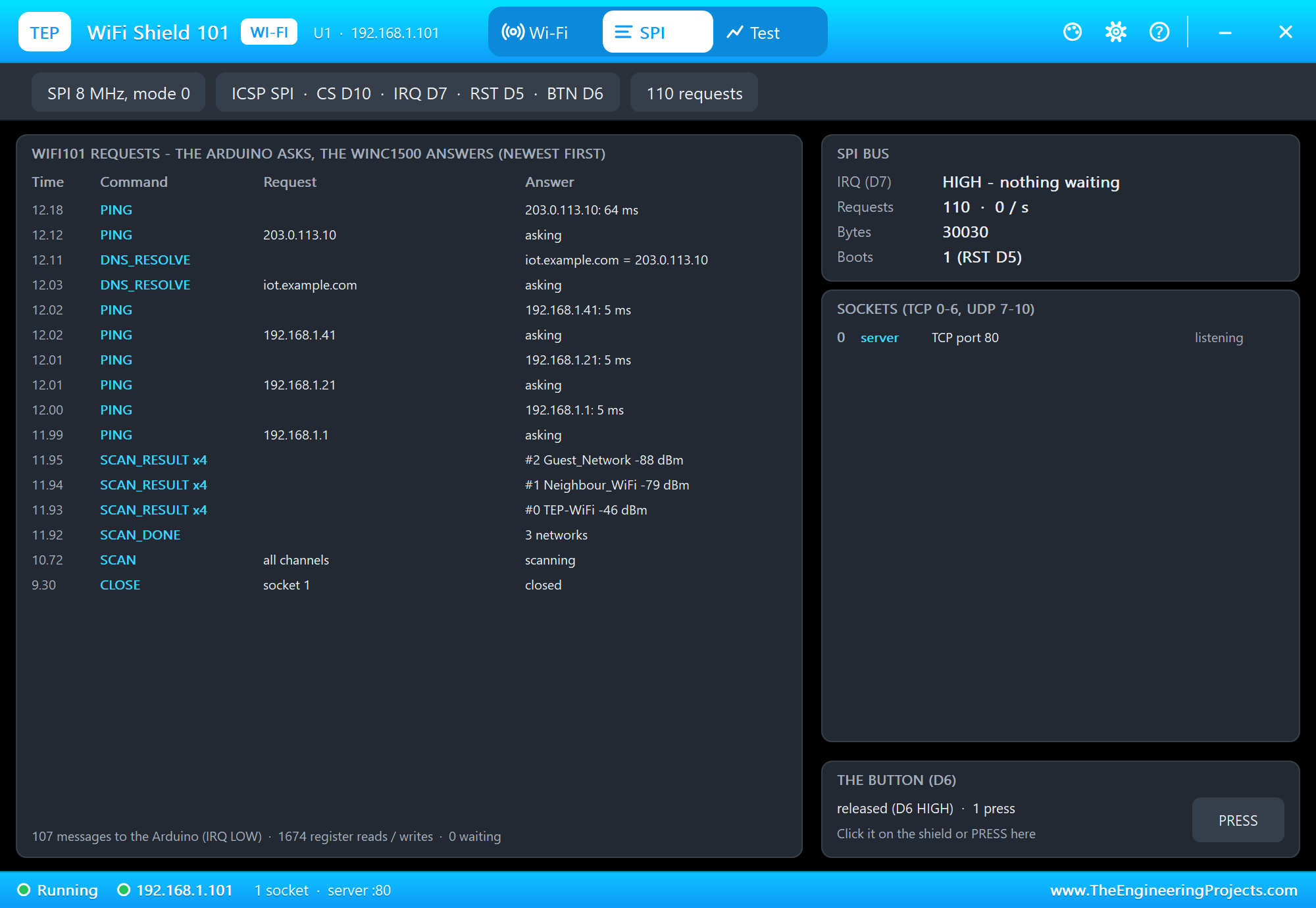
A check on the same page: SCAN, then SCAN_DONE and one SCAN_RESULT per network when the scan is over, then PING and DNS_RESOLVE with their answers:
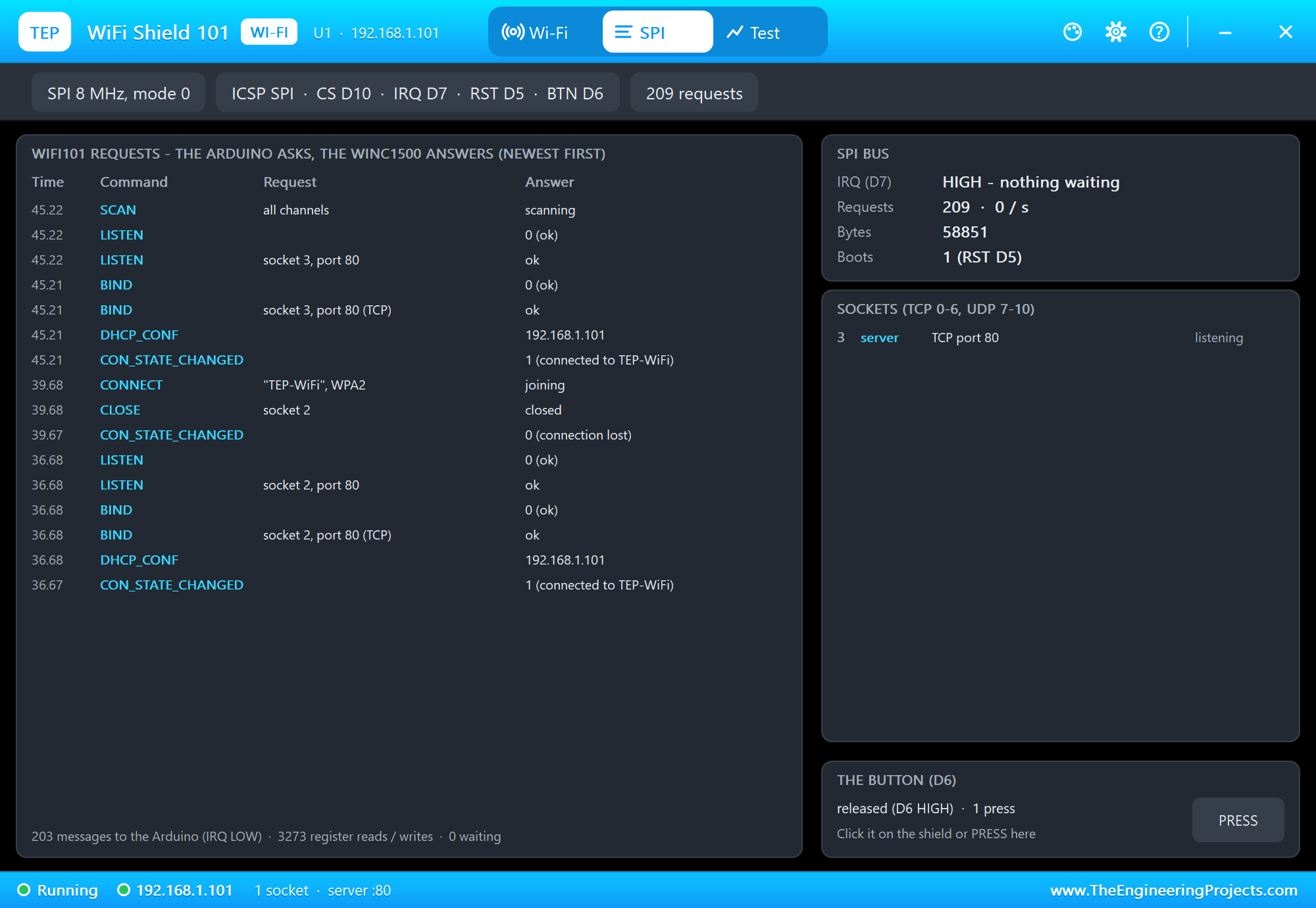
After the re-join test the list shows how WiFi101 joins: CONNECT with the network and its security, CON_STATE_CHANGED and DHCP_CONF with the address, then BIND and LISTEN for the sketch's server - after each loss of the router:
OUT OF RANGE on the phone takes the router away; WiFi.status() stops saying WL_CONNECTED, so the sketch joins again and is back once GOOD returns the router:
  if (WiFi.status() != WL_CONNECTED) {                              // lost the router: join again
    Serial.println(F("Wi-Fi lost - joining again"));
    while (WiFi.begin(ssid, pass) != WL_CONNECTED) delay(2000);
    web.begin();
    Serial.println(F("Back on Wi-Fi"));
  }
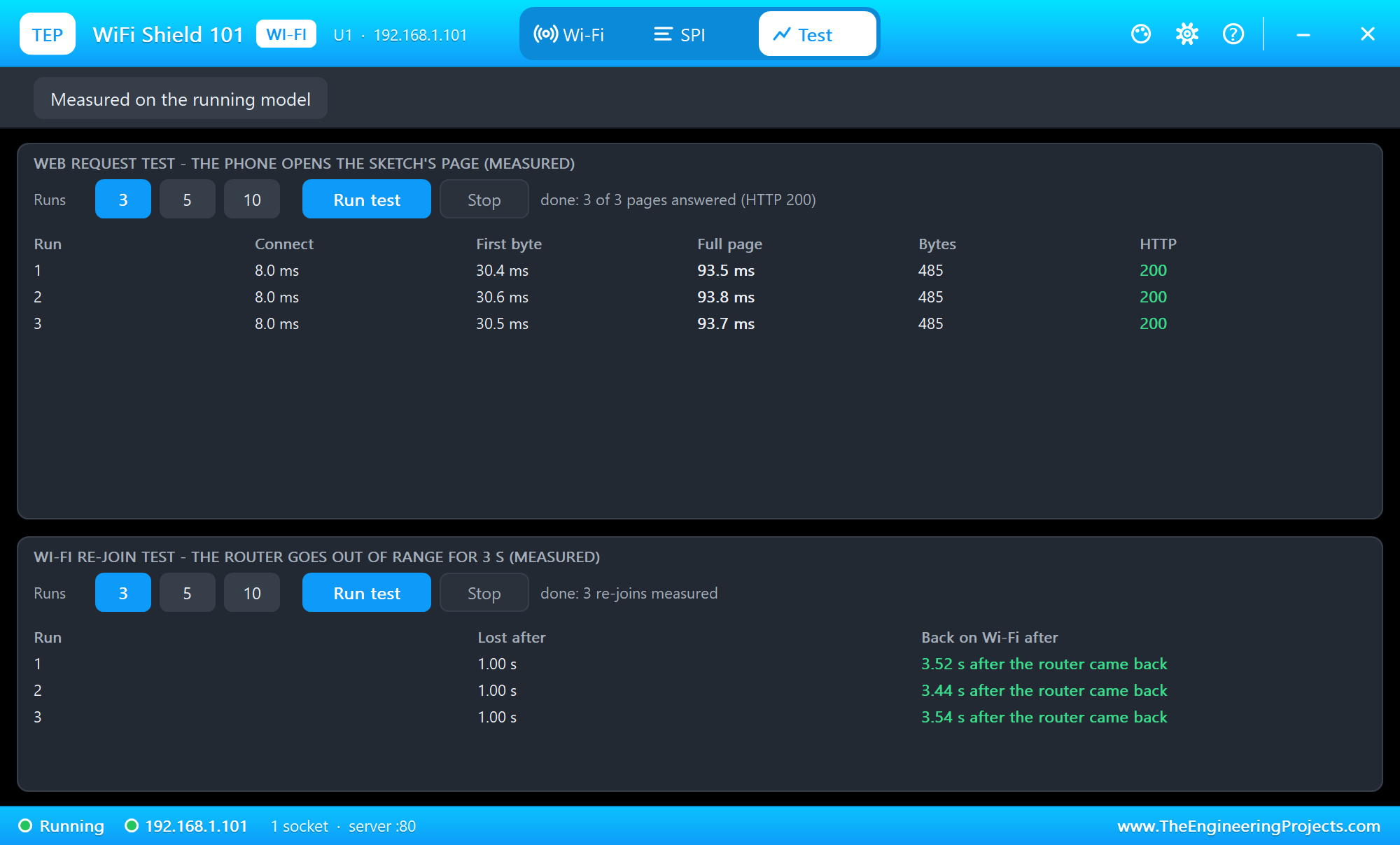
The Test page measures the running model: the phone opens the page several times, and the router goes out of range for 3 seconds to time the re-join:
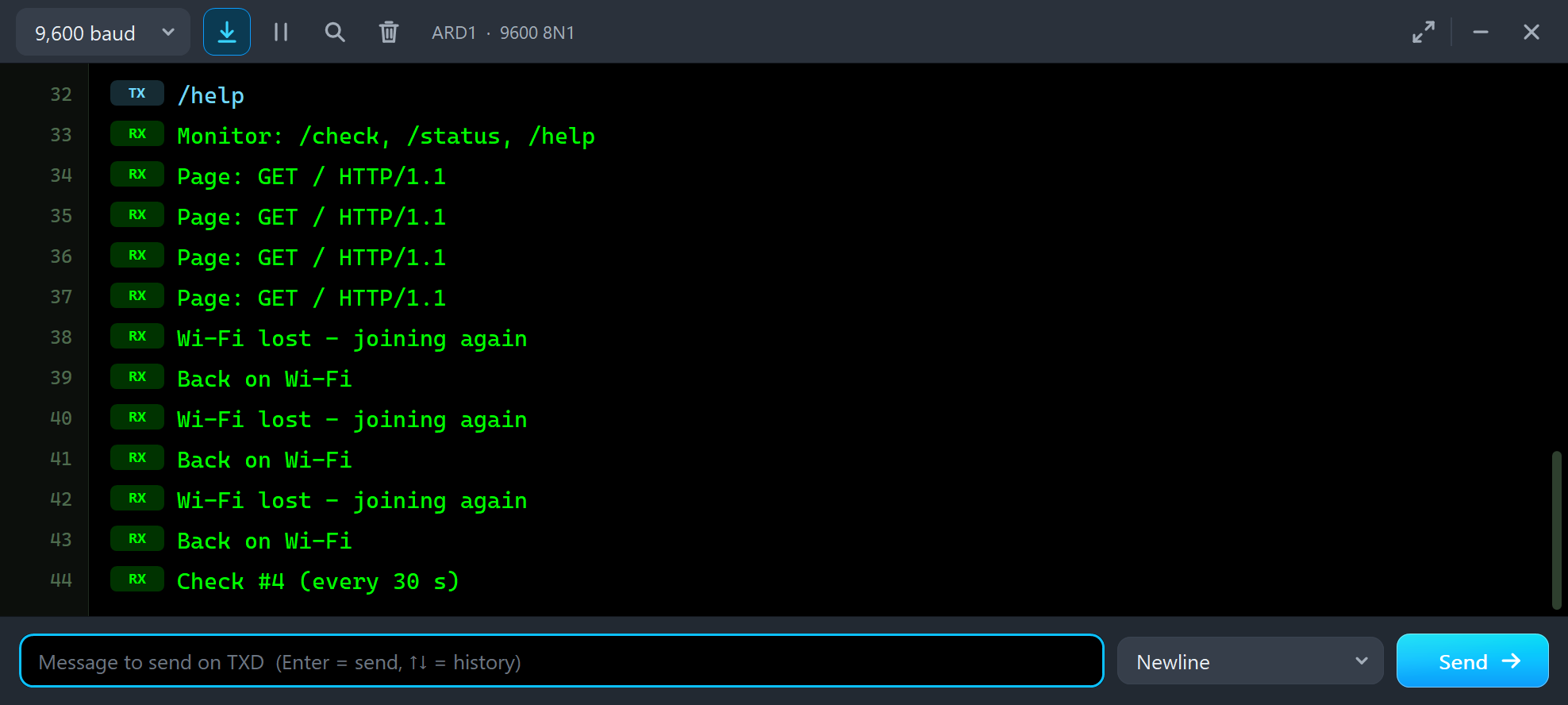
Wi-Fi lost - joining again
Back on Wi-Fi
Wi-Fi lost - joining again
Back on Wi-Fi
Wi-Fi lost - joining again
Back on Wi-Fi
Check #4 (every 30 s)
Pins of the WiFi Shield 101
| Pin | In the demo | What it does |
|---|---|---|
| CS | D10 | the WINC1500's chip select (LOW = selected) |
| IRQ | D7 | the WINC1500's interrupt line: LOW = a message waits for the Arduino |
| BTN | D6 | the push button: LOW while pressed |
| RST | D5 | the WINC1500's reset: LOW = reset, open = running |
| SCK | D52 (ICSP) | the SPI clock |
| MISO | D50 (ICSP) | data to the Arduino, driven while CS is LOW |
| MOSI | D51 (ICSP) | data from the Arduino |
| 5V | VCC | the supply - without it the shield is off |
| GND | ground | ground |
Properties of the WiFi Shield 101
| Property | What it does |
|---|---|
| WIFISSID / WIFIPASS | the router in range (TEP-WiFi / 12345678) |
| FIRMWARE | the version WiFi.firmwareVersion() reports (19.6.1) |
| PANEL | the phone's tab at start (BROWSER, ROUTER, CLOUD) |
| PAGEPORT | the port OPEN SHIELD PAGE opens (80) |
| CLOCK | the clock of the panel and of the firmware's system time: PC or a start time |
The IP address follows the part's number: U1 gets 192.168.1.101, U2 .102 and so on, so give every Wi-Fi part its own number. The laptop is always 192.168.1.21 and the phone 192.168.1.41.
Troubleshooting
- "No WiFi Shield 101 found" (WL_NO_SHIELD): check SCK, MISO and MOSI (D52 / D50 / D51 on the Mega, D13 / D12 / D11 on an UNO), CS D10, IRQ D7, RST D5 and 5V / GND.
- The sketch stops at the first WiFi call on an UNO: the library waits for the IRQ through a pin-change interrupt, which Proteus does not run - use a Mega.
- WiFi.localIP() prints a number: put it in an
IPAddressfirst. - A paused simulation shows the log: the AVR model notes "Clock frequency changed while in the Master mode" when WiFi101 sets its SPI speed - harmless; click the Schematic Capture tab.
- Slow pages: send whole lines, not
print(F("..."))- see sendP() in the demo. - No panel: click the PANEL pad or the WINC1500 module, or turn "Open the panel at Run" back on in Settings.
Things to Know Before Using a Real WiFi Shield 101
- The library: install WiFi101 from the Library Manager; the shield is retired, so look for a used one or use a board with the same chip (Adafruit's ATWINC1500 breakout and shield, the MKR1000) - the sketch stays the same, with
WiFi.setPins()for other wiring. - The firmware: WiFi101 checks the chip's firmware version; update an old shield with the firmware updater of the Arduino IDE.
- D7, D5, D6 and D10: keep them free for the shield; on an UNO, SPI also takes D11 - D13 through the ICSP header.
- RAM: this demo takes about 2.4 KB of RAM on the Mega (WiFi101 and its buffers included); an UNO has 2 KB, so keep UNO sketches small and their text in flash.
- TLS: the real WINC1500 checks a server's certificate against the root certificates in its flash; add yours with the certificate updater.
Limitations of the Simulation
- The WINC1500 runs our model of its firmware as WiFi101 (0.16.x) uses it - not the real firmware.
- Not modelled: the access point and provisioning modes (
WiFi.beginAP()is not simulated), WEP and WPA2-Enterprise (joined as WPA2), real TLS (WiFiSSLClient connects as plain TCP), the ATECC508A, firmware updates and the SPI flash, power saving, the supply's voltage and current, the radio itself - the join and network times are realistic values, not a radio simulation. - The internet host is a stand-in for the internet: every internet name is 203.0.113.10, and it answers HTTP, pings and the time.
- The antenna colours, the PANEL pad, the PRESS key, the panel, its phone, the router, the two neighbour networks, the internet host and the two monitors are TEP additions.
- Arduino and WiFi Shield 101 are names of Arduino, ATWINC1500 and ATECC508A of Microchip Technology; this library is not made or endorsed by Arduino, Microchip or Labcenter.
- Tested in Proteus 8.5 in October 2026 (the demo as shipped, the Mega, the shield, the laptop and the phone together at about 0.4 x real time on our PC). Proteus 7 is not supported.
So, that was all about the WiFi Shield 101 Library for Proteus. I hope it helps you try WiFi101 sketches in Proteus before you plug in the real shield - the scan, DNS, ping, a web server, the button and the LEDs included - and watch every request to the WINC1500 on the panel while you do. The Laptop and Mobile WiFi Monitors talk to every one of our Wi-Fi boards and modules, and the AirLift ESP32 Breakout Library for Proteus and the AirLift shield are there if you prefer an ESP32 co-processor. If you use the WiFi Shield 101 Library for Proteus in a project, please share it in the comments or in our forum, and if you have any questions, ask in the comments and I will help you out. Till the next tutorial, take care and have fun!