Hello friends, I hope you all are doing great. Today, I am going to share the Arduino Nano 33 IoT Library for Proteus. The Nano 33 IoT is Arduino's small Wi-Fi board for connected projects: the Nano's size and its 2 x 15 pins, a Microchip SAMD21 (Arm Cortex-M0+) as the processor and a u-blox NINA-W102 module for Wi-Fi, programmed with Arduino's WiFiNINA library. With this library it runs your Nano 33 IoT sketch in Proteus - WiFi.begin, WiFiUDP, WiFiServer, WiFiClient, WiFi.getTime() and WiFi.ping() - with the L LED, the RESET button and our serial monitor.
Arduino Nano 33 IoT Library for Proteus
Latest version: V1.0 (October 2026, this tutorial)
Other Arduino Wi-Fi boards: UNO R4 WiFi · Nano ESP32 · UNO WiFi Rev2
ESP32 boards and modules: ESP32 DevKit V1 · ESP32-DevKitC V4 · ESP32-S3 DevKitC-1 · ESP32-C3 SuperMini · TTGO T-Display · ESP32-WROOM-32 · AirLift WiFi Shield · AirLift ESP32 Breakout · WT32-ETH01
ESP8266 modules: ESP-01 · ESP-01S · ESP-07 · ESP-07S · ESP-12E · ESP-12F · ESP-01 Adapter · WiFi Shield · NodeMCU · NodeMCU V2 · D1 Mini · D1 R2
Arduino boards: UNO · Mega 2560 · Mega 1280 · Nano · Pro Mini · Mini (V4.0)
Helping Tools
- Laptop WiFi Monitor: a laptop on the Wi-Fi of your design: a browser, a TCP / UDP terminal and ping
- Mobile WiFi Monitor: a smartphone that opens the pages of your ESP32 and sends it commands
- Serial Monitor Advance: a serial terminal window for the UART of your board
This is the twenty-sixth library of our Wi-Fi series and the fourth Arduino Wi-Fi board, after our Arduino UNO WiFi Rev2 Library for Proteus, which has the same Wi-Fi module. Its demo shows the side of WiFiNINA the Rev2 demo did not: UDP. The board sends a heartbeat to our Laptop WiFi Monitor every 5 seconds, the laptop sends LED commands back by UDP and gets an answer to each one, and our Mobile WiFi Monitor controls the same LED from a web page.
NOTICE: Proteus has no SAMD21 and no ESP32 (the heart of the NINA-W102), so this is not a real SAMD21: your sketch is compiled for a hidden ATmega2560 inside the board (16 MHz, 8 KB of RAM). The WiFiNINA API, the L LED and the Wi-Fi are our model. The antenna colours, the PANEL pad and the panel are TEP additions. Your feedback is the fuel that keeps us going, so please tell us what you think in the comments below or in the Nano 33 IoT board of our forum. And if our free libraries help you, you can buy us a coffee. So, let's get started with the Arduino Nano 33 IoT Library for Proteus:
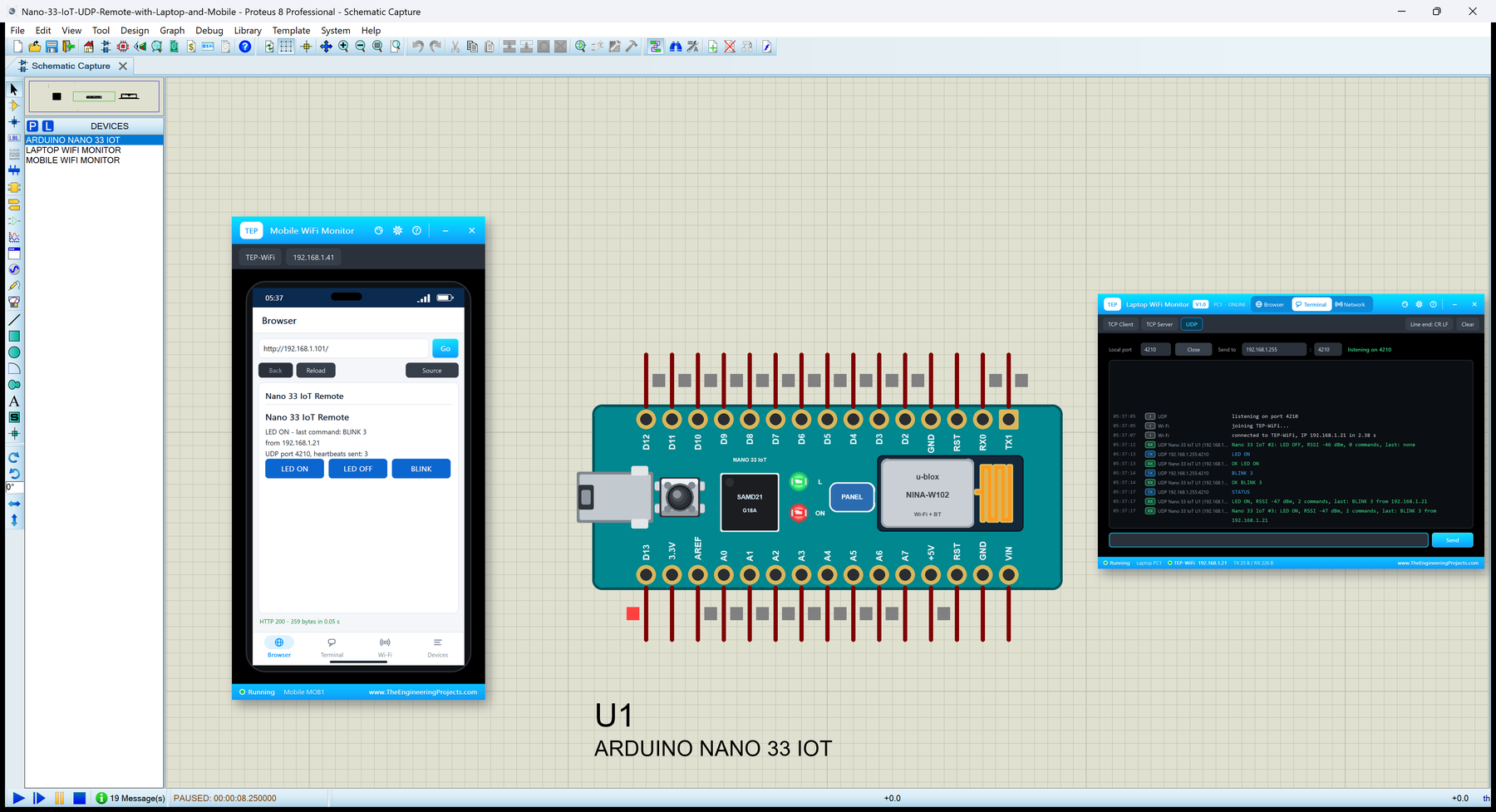
What is Arduino Nano 33 IoT?
The Nano 33 IoT keeps the Nano's footprint - 45 x 18 mm, two rows of 15 pins, the same pin names - but works at 3.3 V. Its processor is the SAMD21G18A: a 32-bit Arm Cortex-M0+ at 48 MHz with 256 KB of flash and 32 KB of RAM. Wi-Fi comes from the NINA-W102, the same u-blox module as on the UNO WiFi Rev2 (an ESP32 inside, running Arduino's NINA firmware); the board also carries an LSM6DS3 IMU and a crypto chip. Because it is 3.3 V, its pins must not see 5 V signals. For the classic Nano in Proteus, see our Arduino Nano Library for Proteus V4.0, and for the other Wi-Fi Nano, our Arduino Nano ESP32 Library for Proteus.
| Real Arduino Nano 33 IoT | This library in Proteus | |
|---|---|---|
| Processor | SAMD21G18A (Cortex-M0+), 48 MHz, 32 KB RAM | a hidden ATmega2560 at 16 MHz, 8 KB RAM |
| Wi-Fi | u-blox NINA-W102 (ESP32), firmware 1.5.0 | our model: a router, DHCP, TCP, UDP, NTP, ping, an internet host |
| Sketch API | WiFiNINA | the same names from our board package TEP Boards for Proteus 1.12.0 |
| Pins | D0 to D13, A0 to A7, 3.3 V logic | the same |
| A0 to A7 | 10 bits by default, 0 to 3.3 V | 0 to 1023 for 0 to 3.3 V |
| int | 32 bits | 16 bits (use long for big numbers) |
| Serial | Serial on the USB, Serial1 on RX0 / TX1 | the same: Serial is the built-in monitor |
| LEDs | ON, L (D13) | the same, live |
| IMU | LSM6DS3 | not modelled |
| Buttons | RESET | RESET, clickable |
How Your Nano 33 IoT Sketch Runs in Proteus
Proteus 8 simulates many processors, but not the SAMD21 and not the ESP32 of the NINA module. So, as for our other sketch boards, the Nano 33 IoT in Proteus has a hidden ATmega2560 inside, and our board package for the Arduino IDE compiles your sketch for it. The package gives the sketch the Nano 33 IoT's pin numbers - D0 to D13, A0 to A7 as 14 to 21 - and the same WiFiNINA library as our UNO WiFi Rev2, which talks to our model in TEPNET.DLL. The model plays the NINA module: it joins the router, keeps the TCP and UDP sockets, answers the time and the ping round trips.
Know the price before you start: the sketch runs at 16 MHz with 8 KB of RAM instead of 48 MHz and 32 KB, and an int is 16 bits here but 32 bits on the real SAMD21 - use long above 32767 and your sketch is right on both. For web pages, sockets, UDP, sensors and LEDs it is plenty, and the same sketch compiles for a real Nano 33 IoT without a change.
Features of the Arduino Nano 33 IoT Library for Proteus
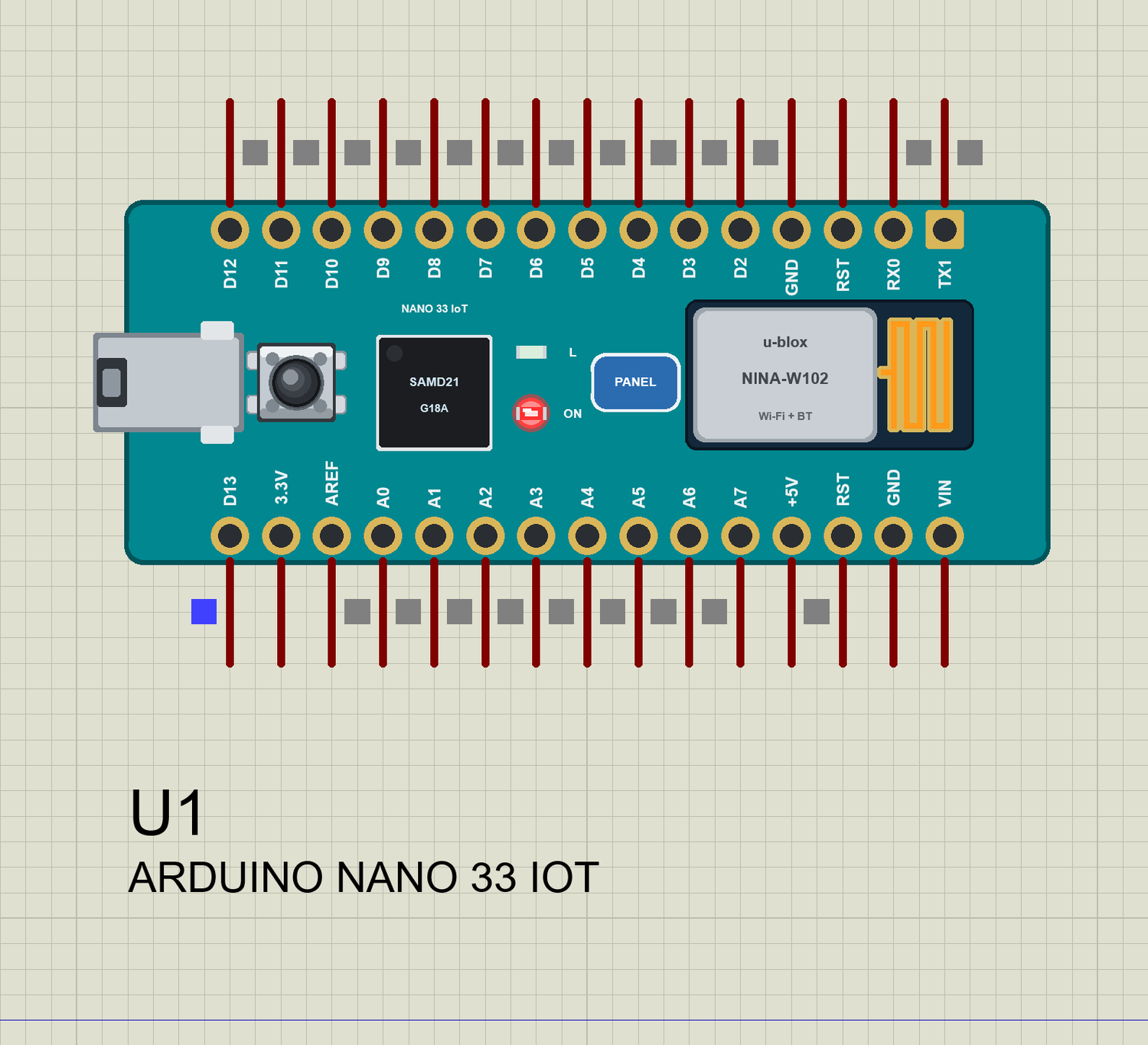
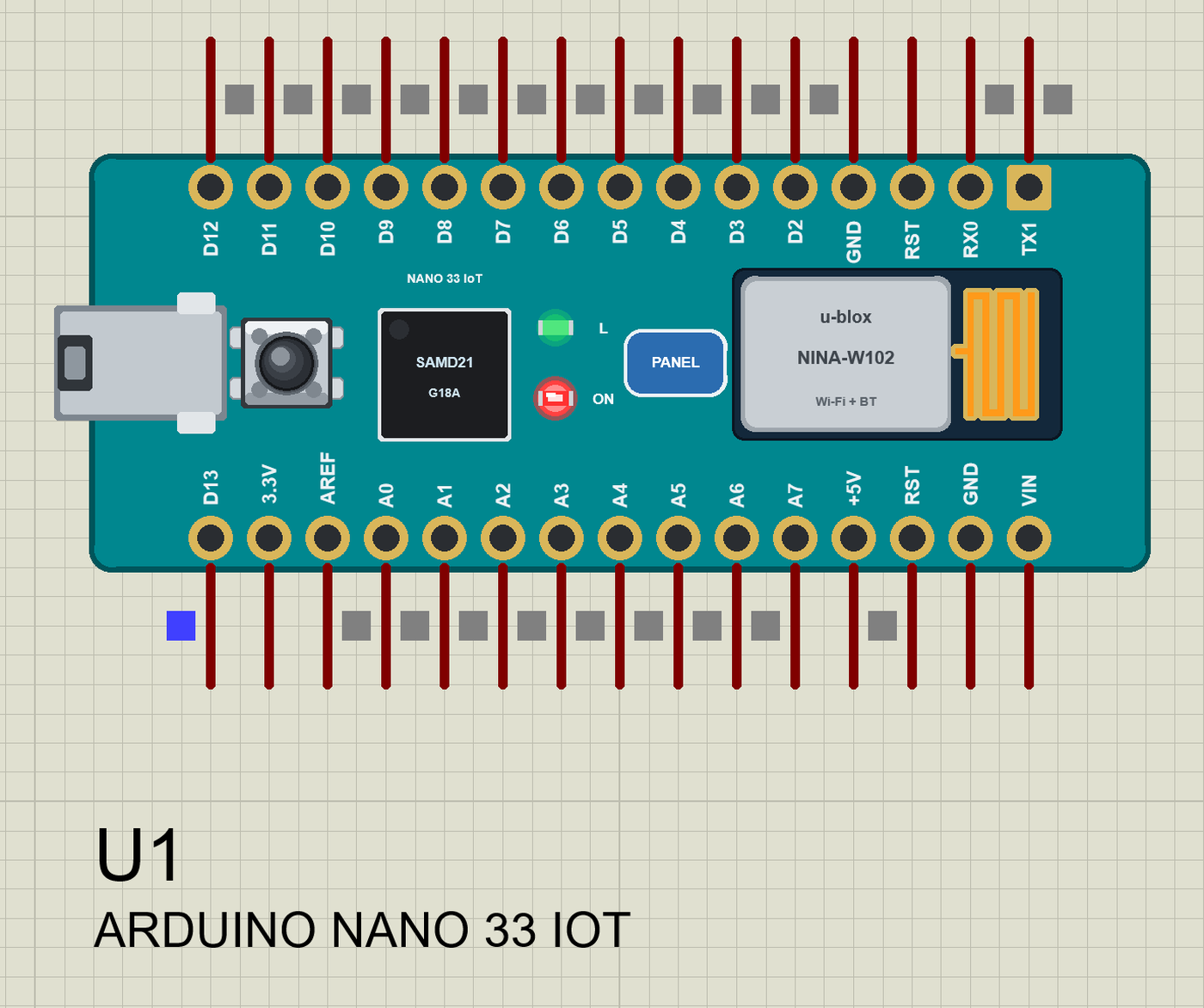
- The Nano 33 IoT as it looks: the teal Nano board with micro-USB on the left, RESET, the SAMD21, the ON and L LEDs, the NINA-W102 with its antenna at the right end, and the two rows of 15 pins with their labels.
- WiFiNINA:
WiFi.begin()waits for the join as on the real module,WiFi.getTime()gives UTC from NTP andWiFi.ping()measures round trips. - UDP:
WiFiUDPwithparsePacket,remoteIP/remotePortand answers to the sender; broadcasts to 192.168.1.255 reach every TEP device listening on that port. - TCP: WiFiServer and WiFiClient between every TEP Wi-Fi part in the design, plus an internet host that answers HTTP and ping.
- The Nano's pins: D0 to D13, A0 to A7 (0 to 1023 for 0 to 3.3 V), PWM, Serial1 on RX0 / TX1, Wire and SPI.
- The L LED on D13, the ON LED, the RESET button and an antenna that changes colour with the traffic.
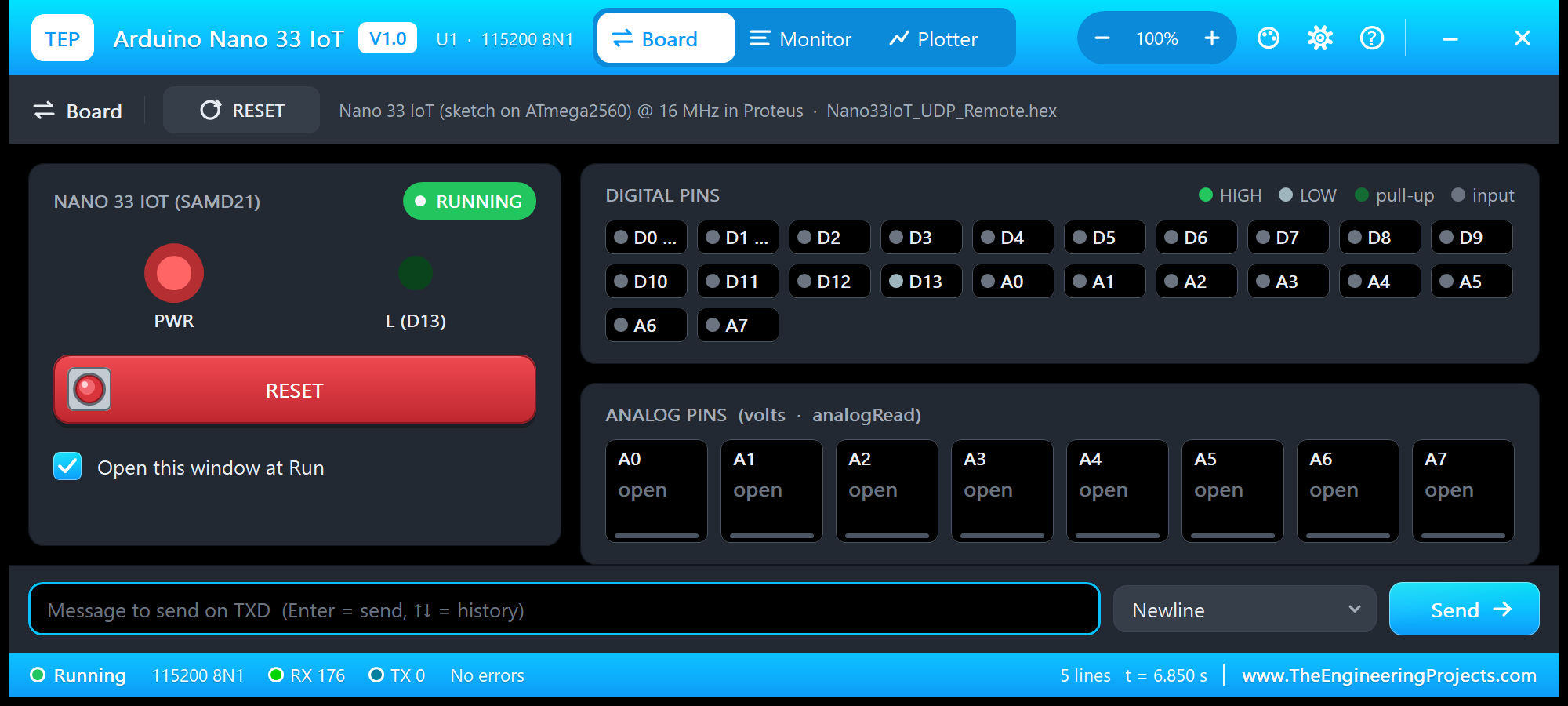
- A built-in serial monitor on the USB (Serial) at 115200 baud with Monitor, Plotter and Board tabs.
- Our pop-up panel: a phone with a browser, the router list and the cloud requests, the board, Wi-Fi and traffic cards, every pin live, a Test page, Settings and Help - with our TEP header, not a Windows title bar.
- A compact package: about 2.19 MB with the board package for the Arduino IDE and our Laptop and Mobile WiFi Monitors, without the C++ source code of the models.
The Arduino Nano 33 IoT in Proteus
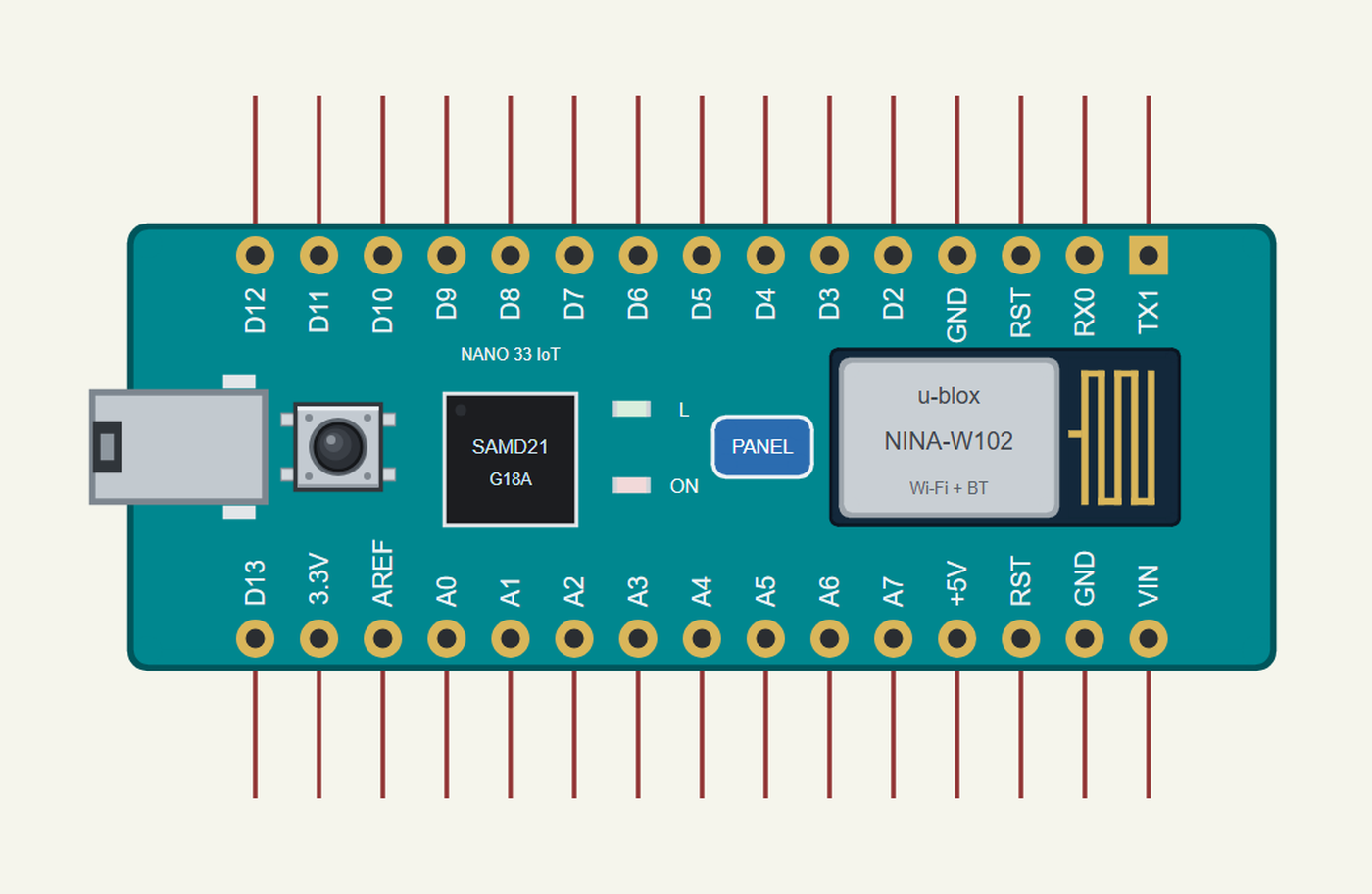
Search NANO 33 in Pick Devices; the device ARDUINO NANO 33 IOT is in TEPNANO33IOT.LIB (Microprocessor ICs, Arduino Wi-Fi Boards). Click the micro-USB to open the serial monitor and the PANEL pad or the NINA module to open the panel.
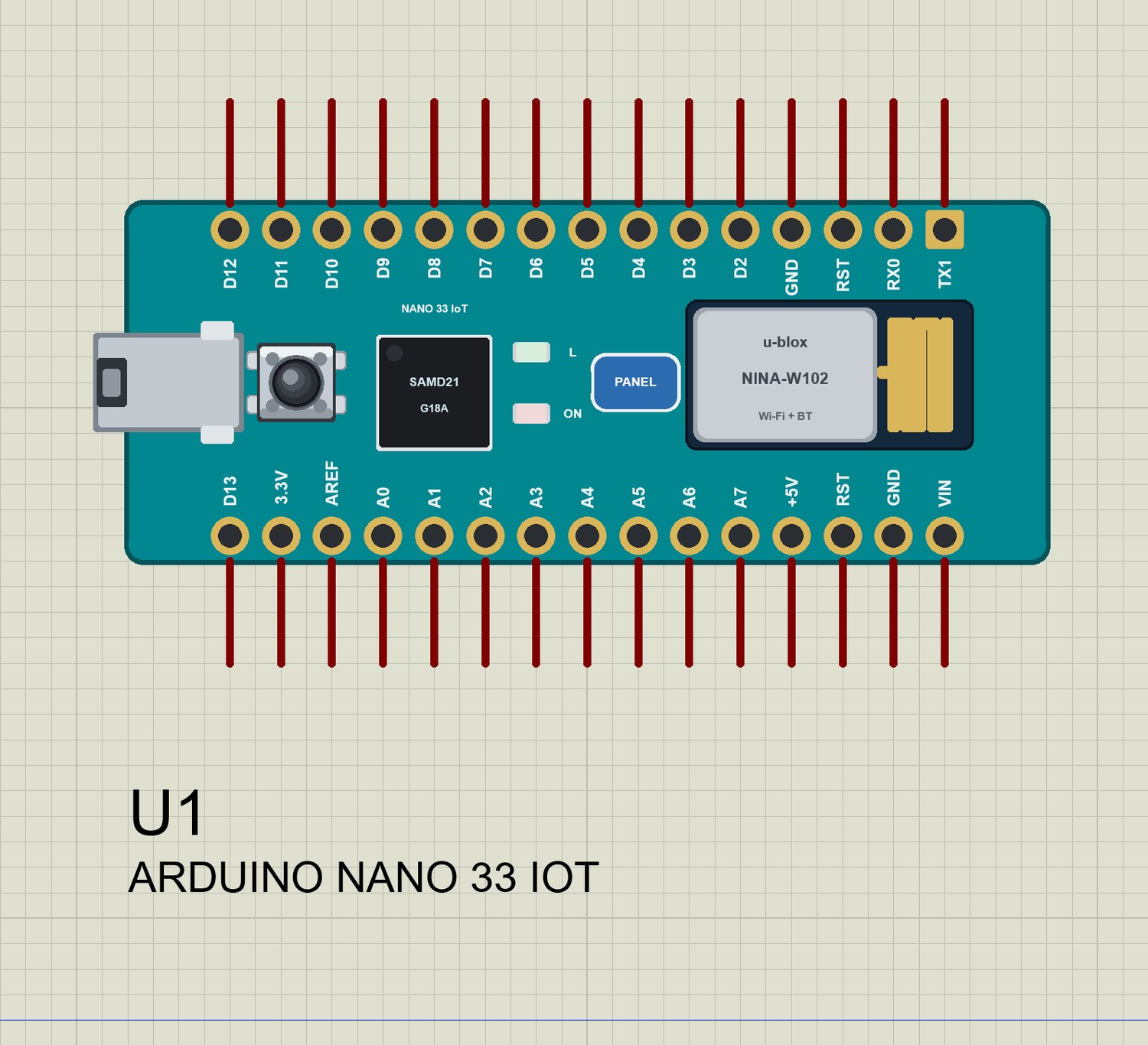
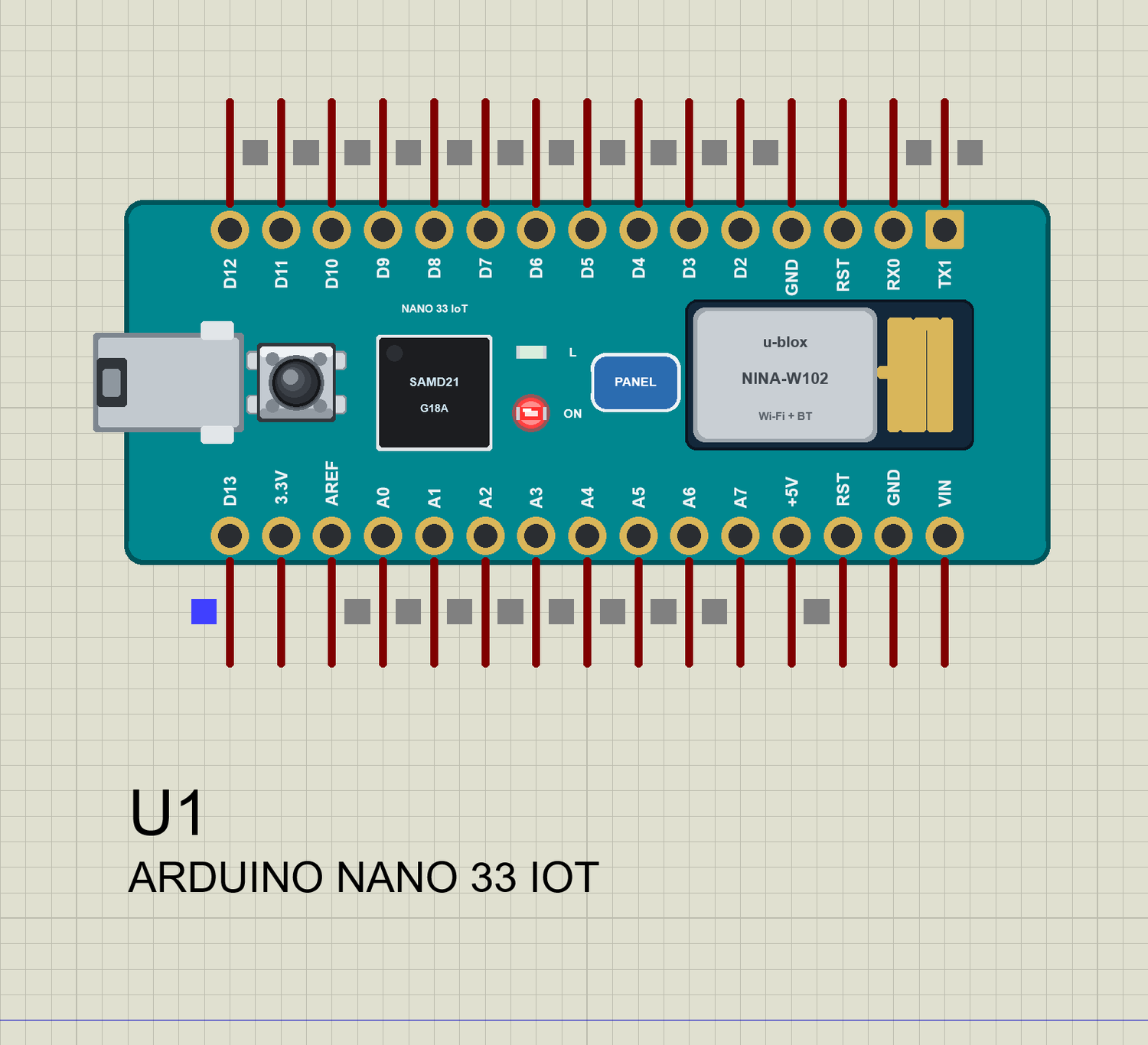
Every State of the Nano 33 IoT
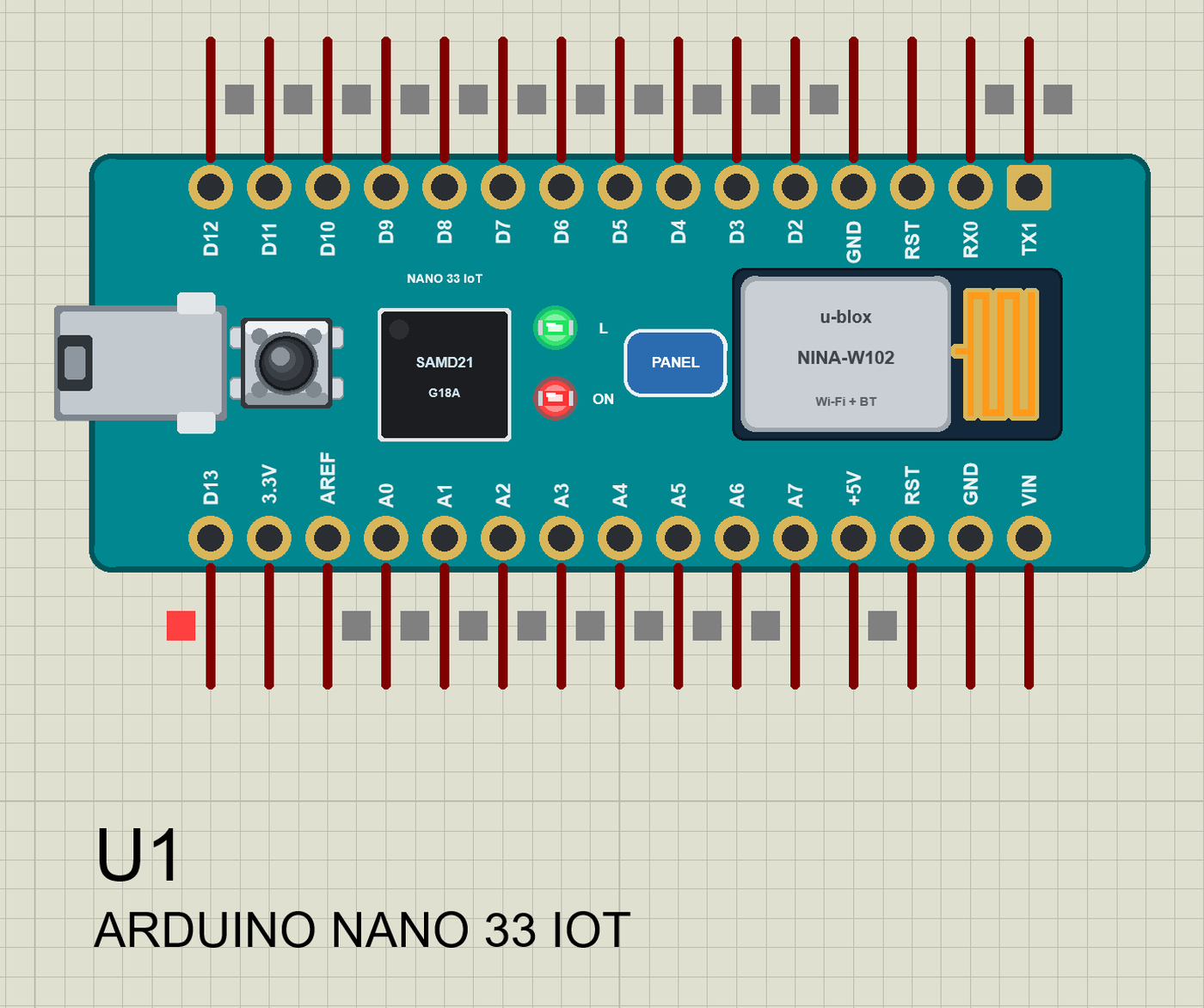
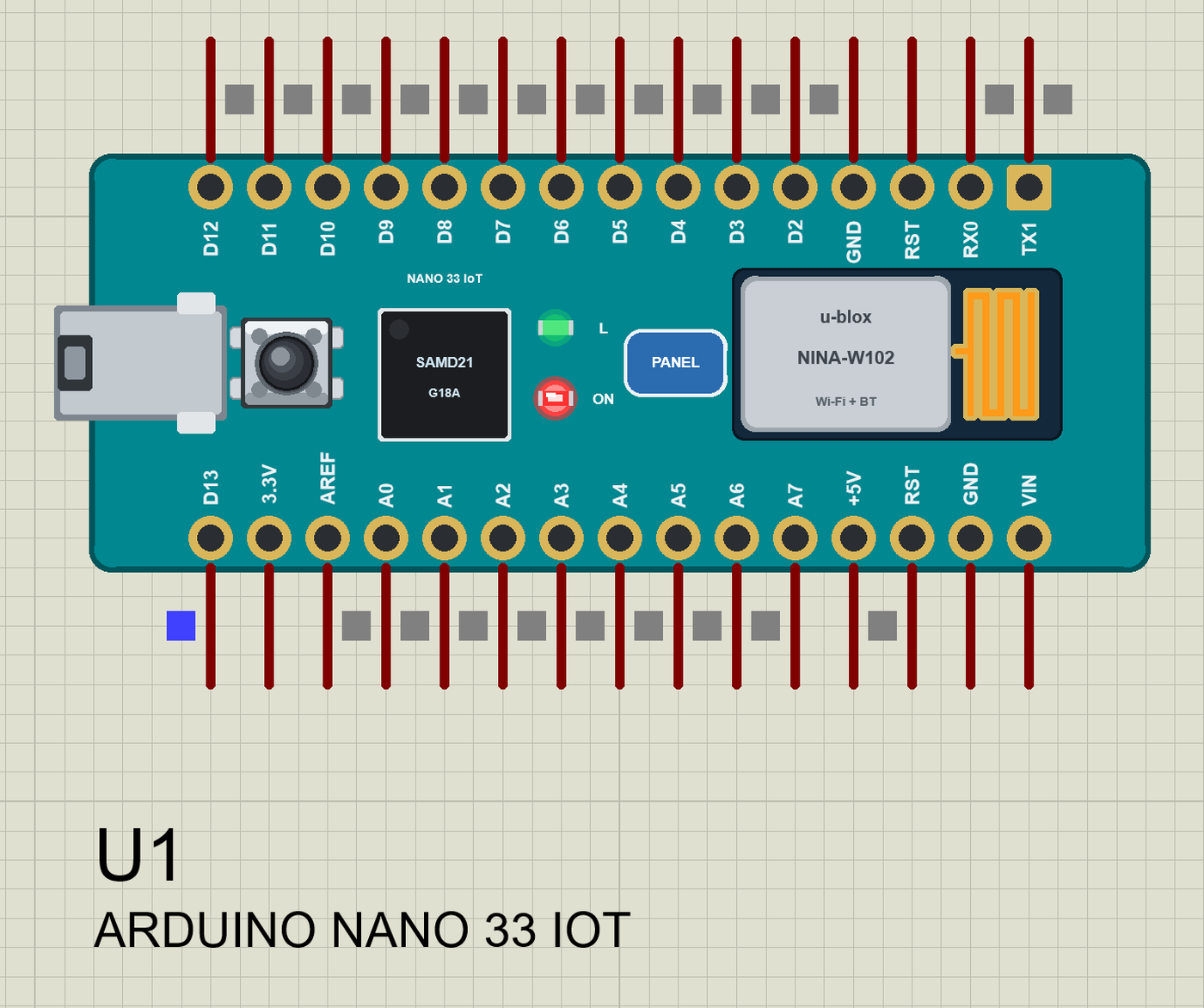
We ran the board with the demo sketch and paused the simulation for each picture. In this sketch L is the remote-controlled LED, so it stays off until a command lights it; the antenna shows the Wi-Fi:
Download Arduino Nano 33 IoT Library for Proteus
Click the button below to download Arduino-Nano-33-IoT-Library-for-Proteus-v1.0.zip (about 2.19 MB, without the C++ source code of the models):
Arduino Nano 33 IoT Library for Proteus V1.0- README.txt: the device, installation, the demos, the pins, WiFiNINA, the properties, troubleshooting and the limits.
- Proteus Library Files:
TEPNANO33IOT.LIB(the board),TEPLAPTOP.LIBandTEPMOBILE.LIB(our Laptop and Mobile WiFi Monitors). - Proteus Model Files:
TEPNET.DLL(the board, the two monitors and the Wi-Fi network). - Proteus Simulation: the two demo projects, the HEX file and a copy of the DLL.
- Arduino Code: the demo sketch and TEP Boards for Proteus 1.12.0, our board package for the Arduino IDE with its WiFiNINA library.
No Proteus yet? Read How to Download and Install Proteus 7 and 8. New to libraries? Follow How to Install a New Library in Proteus.
How to Install Arduino Nano 33 IoT Library for Proteus
- Close Proteus and extract the whole zip file, for example to your Desktop.
- Copy the three files from Proteus Library Files into the LIBRARY folder of Proteus (usually
C:\Program Files (x86)\Labcenter Electronics\Proteus 8 Professional\LIBRARY). - Copy
TEPNET.DLLfrom Proteus Model Files into the MODELS folder - replace an older copy (this one is the first that knows the Nano 33 IoT, and it still runs every earlier board, the modules, the shields and the two monitors). - Delete
TEPNANO33IOT.IDX,TEPLAPTOP.IDXandTEPMOBILE.IDXfrom the LIBRARY folder if they are there. - Start Proteus, press P and search for NANO 33.
The Board Package for the Arduino IDE
The demo has its HEX file, so you need the Arduino IDE only for your own sketches. Copy the folder Arduino Code\TEP Boards for Proteus\hardware into your sketchbook folder (normally Documents\Arduino), so that Documents\Arduino\hardware\tep\avr\boards.txt exists, and restart the IDE; the Arduino AVR Boards platform must be installed. Version 1.12.0 adds the Nano 33 IoT and replaces 1.11.0 (it still has every earlier board). Choose Tools > Board > TEP Boards for Proteus > Arduino Nano 33 IoT (TEP Proteus), write your sketch and use Sketch > Export Compiled Binary; double-click the board in Proteus and set its Program File to the HEX (see How to get the HEX file from Arduino). WiFiNINA is inside the package.
Demo: A Nano 33 IoT UDP Remote
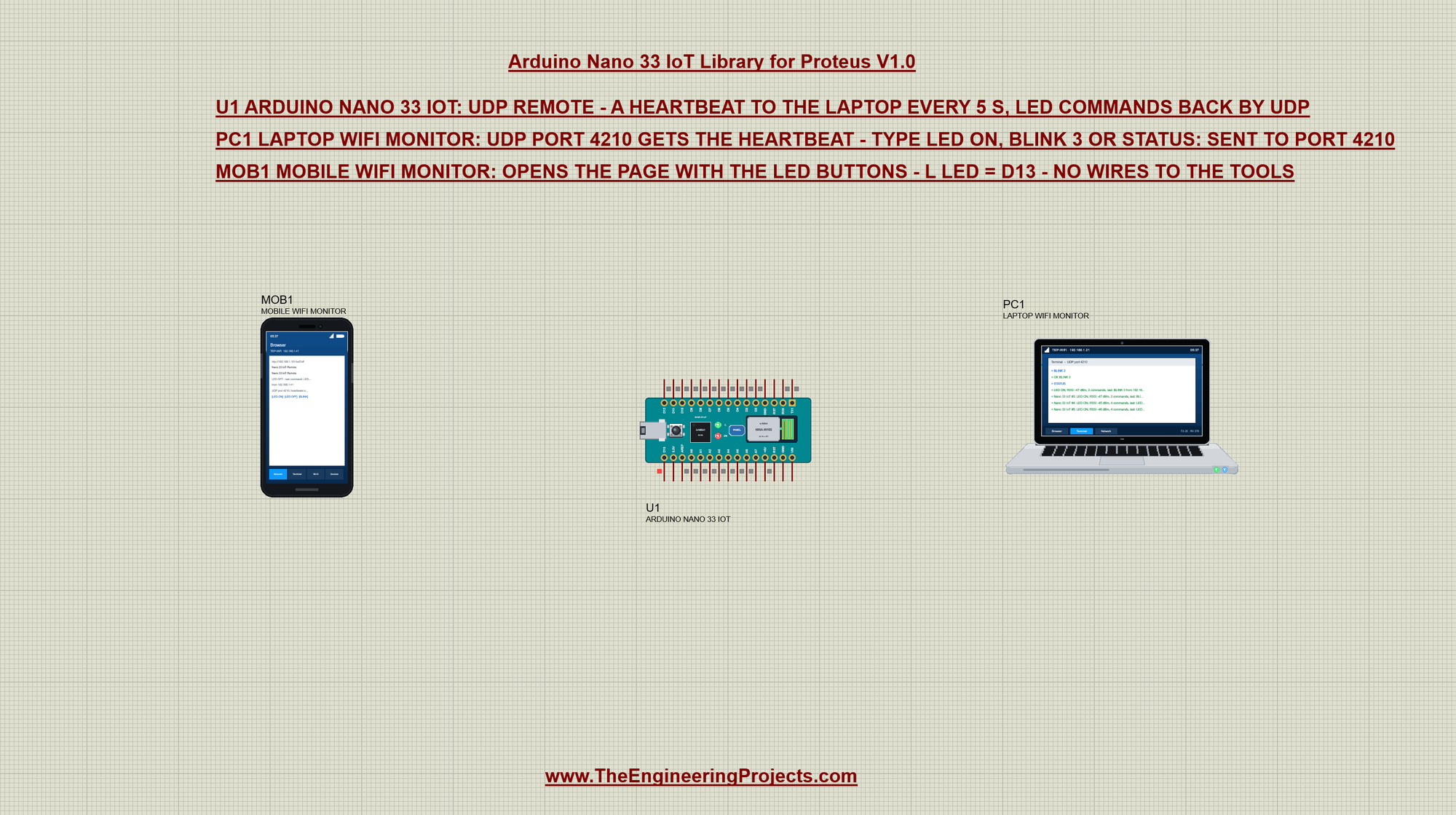
Open Nano-33-IoT-UDP-Remote-with-Laptop-and-Mobile.pdsprj. In the middle is the Nano 33 IoT (U1), on the left our phone (MOB1) and on the right our laptop (PC1). There are no wires: the three are on the TEP-WiFi network. The package also has Arduino-Nano-33-IoT-Board.pdsprj, the board alone with the same sketch.
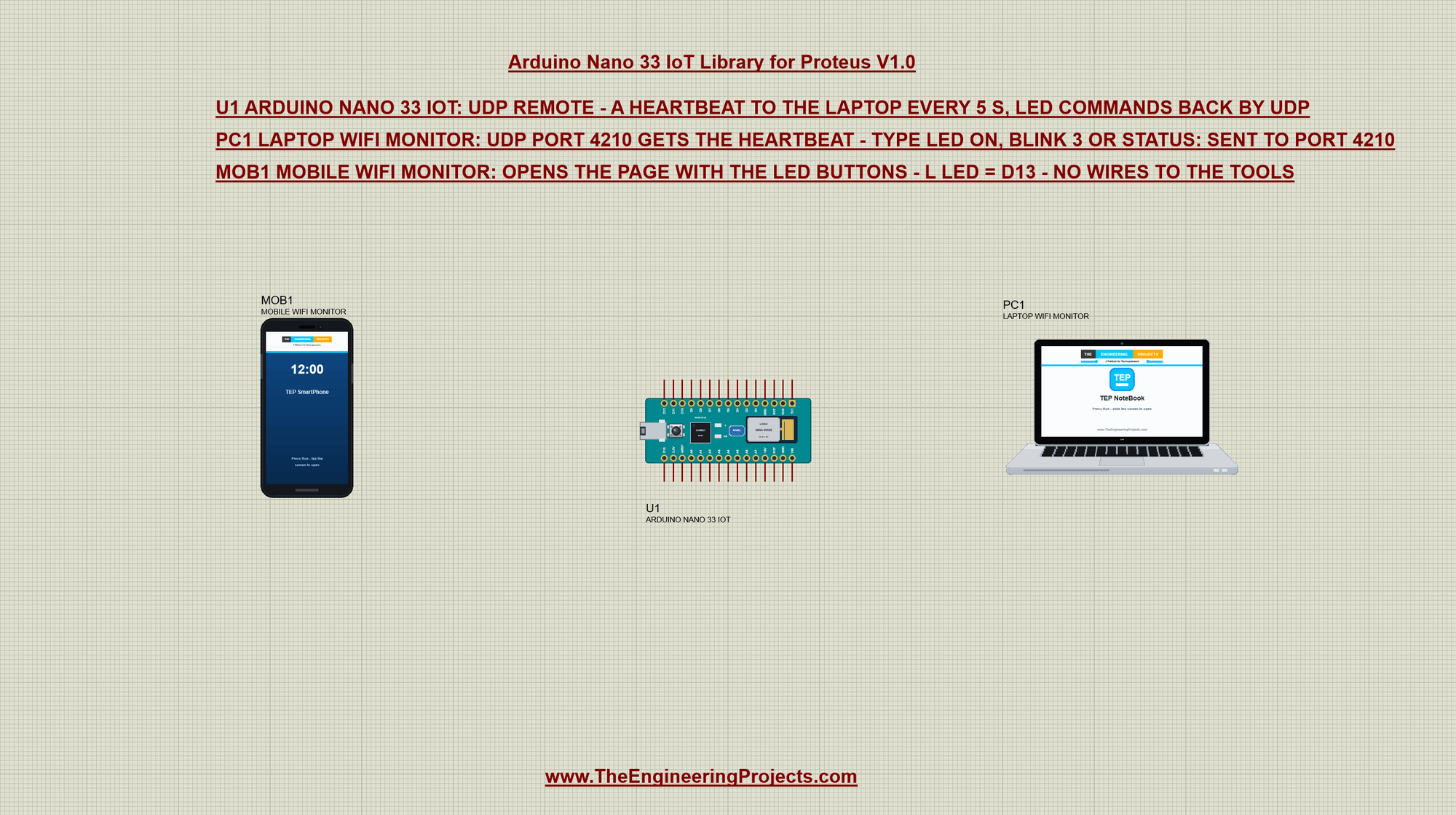
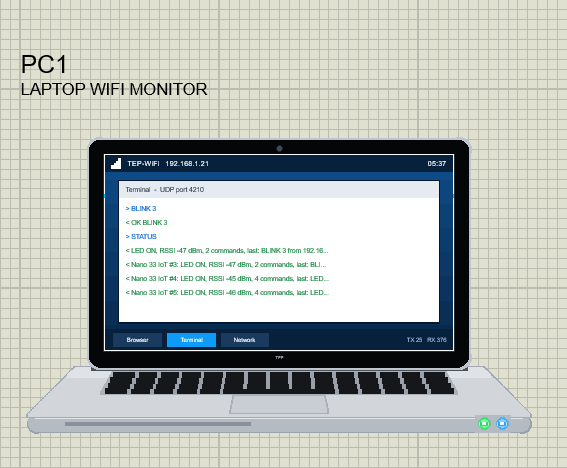
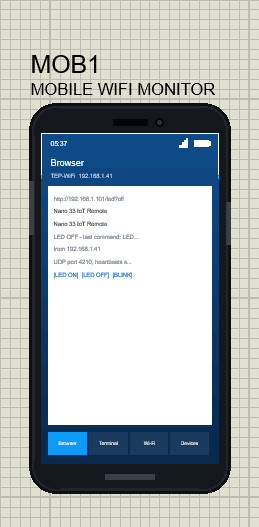
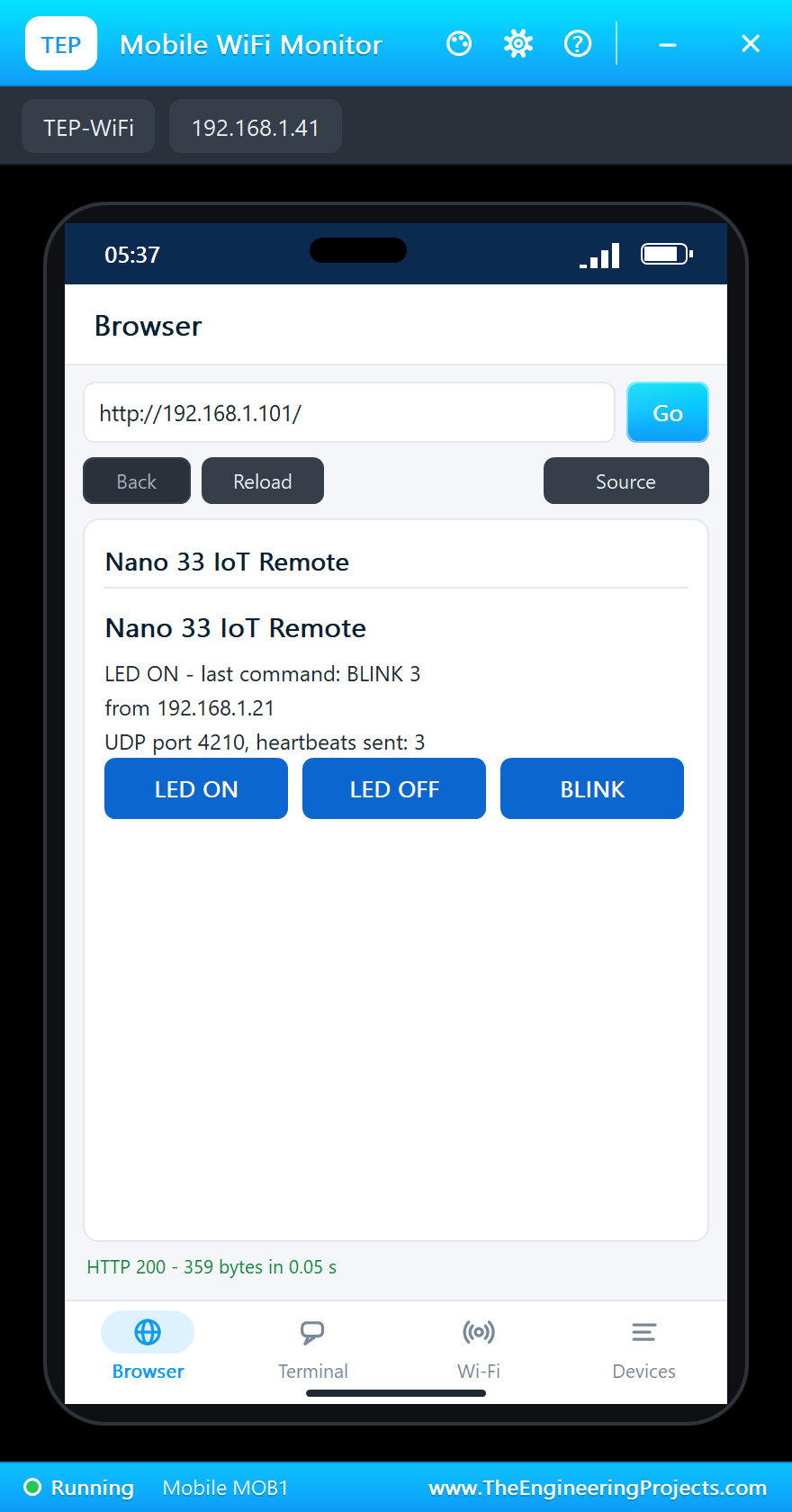
The two tools come from our Laptop WiFi Monitor Library for Proteus and Mobile WiFi Monitor Library for Proteus. The laptop is 192.168.1.21; its property UDPPORT is 4210, so its UDP terminal listens on port 4210 from the start, and what we type there goes to 192.168.1.255:4210 - every device on the network that listens on port 4210. The phone is 192.168.1.41 and opens the board's page:
The Sketch: WiFiNINA and WiFiUDP
The sketch includes WiFiNINA and its UDP class, and names the laptop and the UDP port - 4210 for both, so the laptop's broadcasts reach the board:
#include <WiFiNINA.h>
#include <WiFiUdp.h>
const IPAddress laptop(192, 168, 1, 21); // the Laptop WiFi Monitor's UDP terminal
const unsigned int laptopPort = 4210;
const unsigned int localPort = 4210; // the board's UDP port (the laptop's too: its commands go to port 4210)With WiFiNINA, WiFi.begin() waits until the module has joined or given up, so the sketch simply calls it in a loop. Then it opens its UDP port and the web server:
  while (WiFi.begin(ssid, pass) != WL_CONNECTED) {
    Serial.println("Not joined yet - trying again");
    delay(2000);
  }
udp.begin(localPort);
server.begin();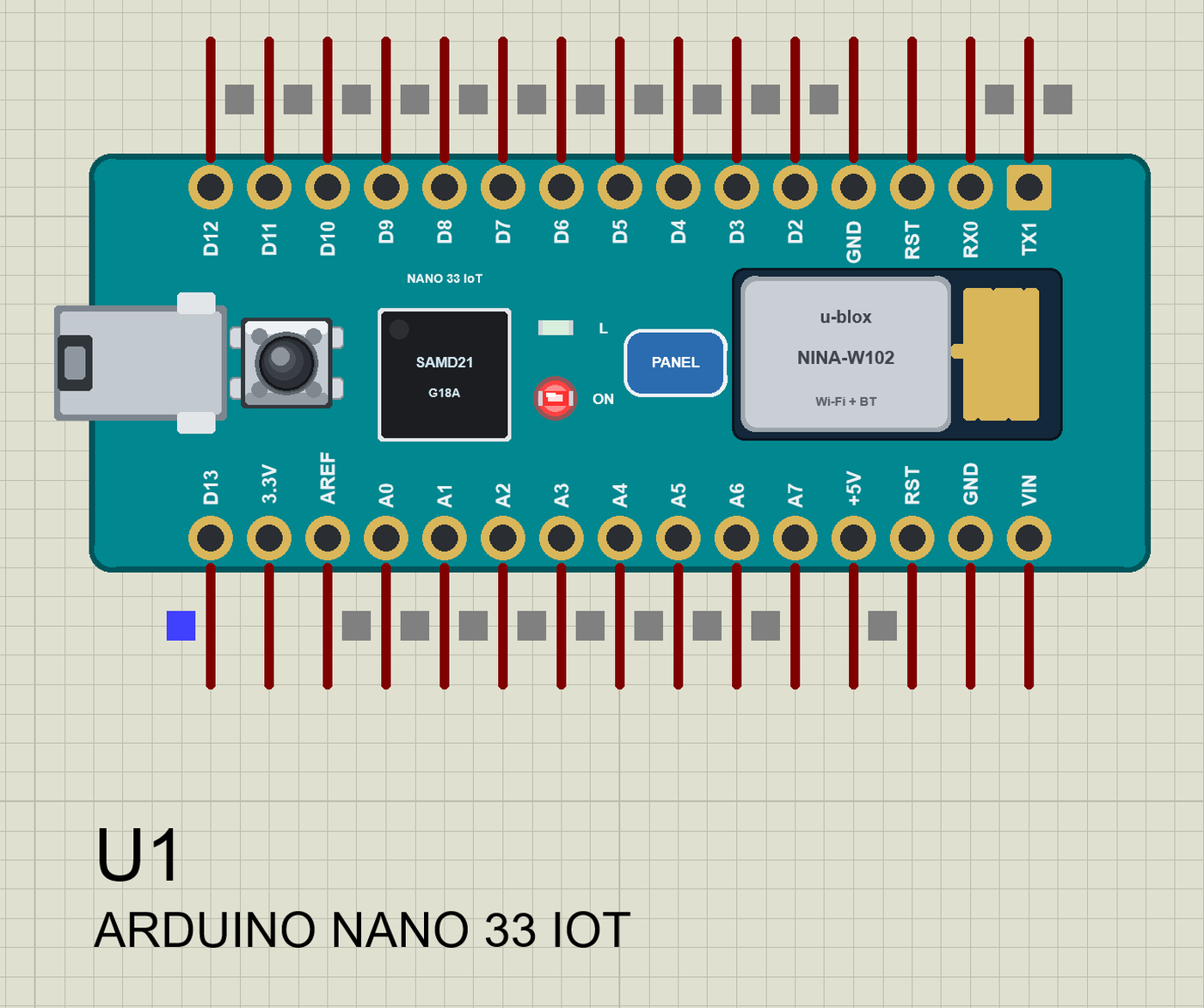
Press Run and watch the monitor (115200 baud):
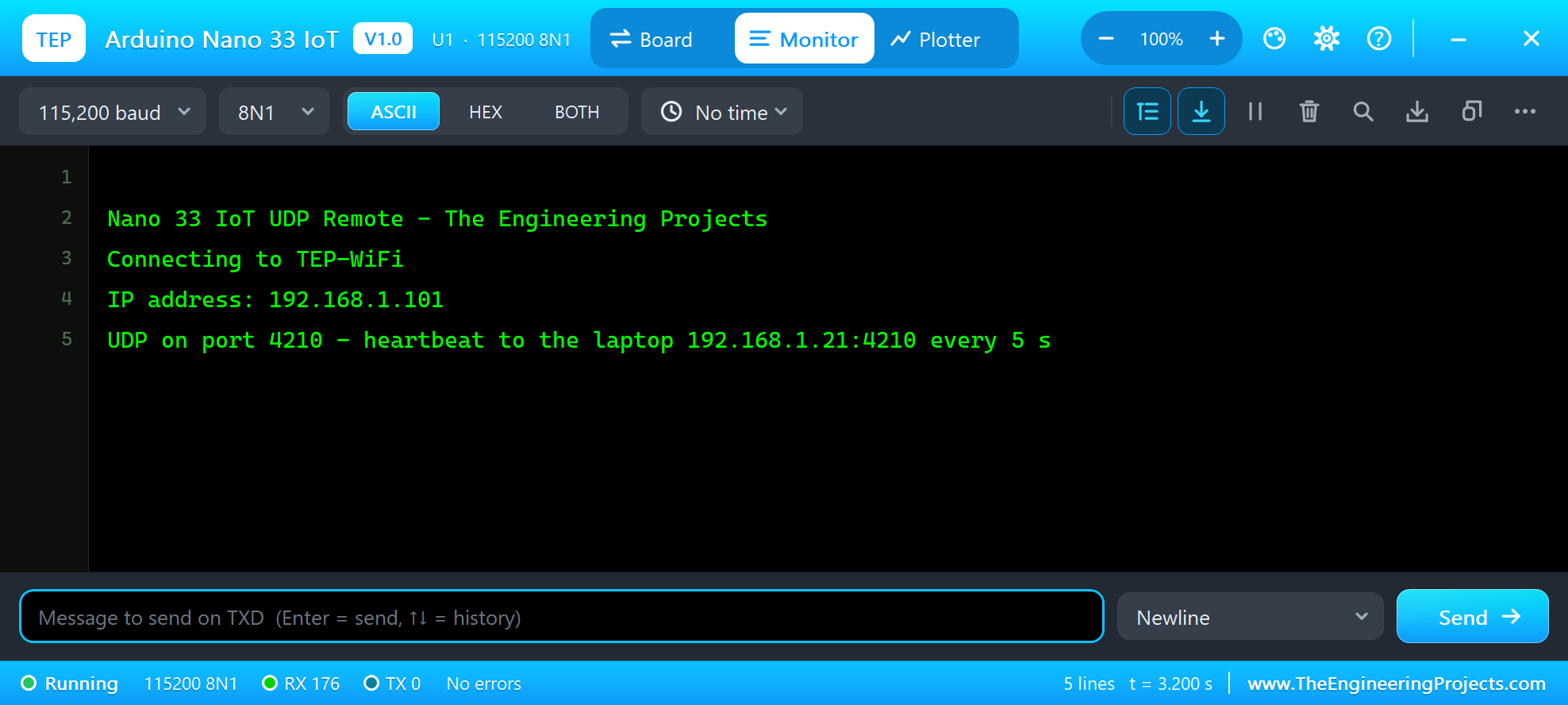
Nano 33 IoT UDP Remote - The Engineering Projects
Connecting to TEP-WiFi
IP address: 192.168.1.101
UDP on port 4210 - heartbeat to the laptop 192.168.1.21:4210 every 5 s
The Heartbeat
Every 5 seconds the board sends one UDP packet to the laptop: a number, the LED, the signal and the last command. beginPacket(), print() and endPacket() build and send it:
void heartbeat() {
  if ((long)(millis() - nextBeat) < 0) return;
  nextBeat = millis() + 5000;
  beats++;
  udp.beginPacket(laptop, laptopPort);
  udp.print(String("Nano 33 IoT #") + beats + ": " + status());
  udp.endPacket();
}
The status text is one line built with the String class:
String status() {
  return String("LED ") + (ledOn ? "ON" : "OFF") + ", RSSI " + WiFi.RSSI() + " dBm, " + commands + " commands, last: " + lastCommand;
}
On the laptop, open Terminal and its UDP tab - the heartbeats arrive one by one:
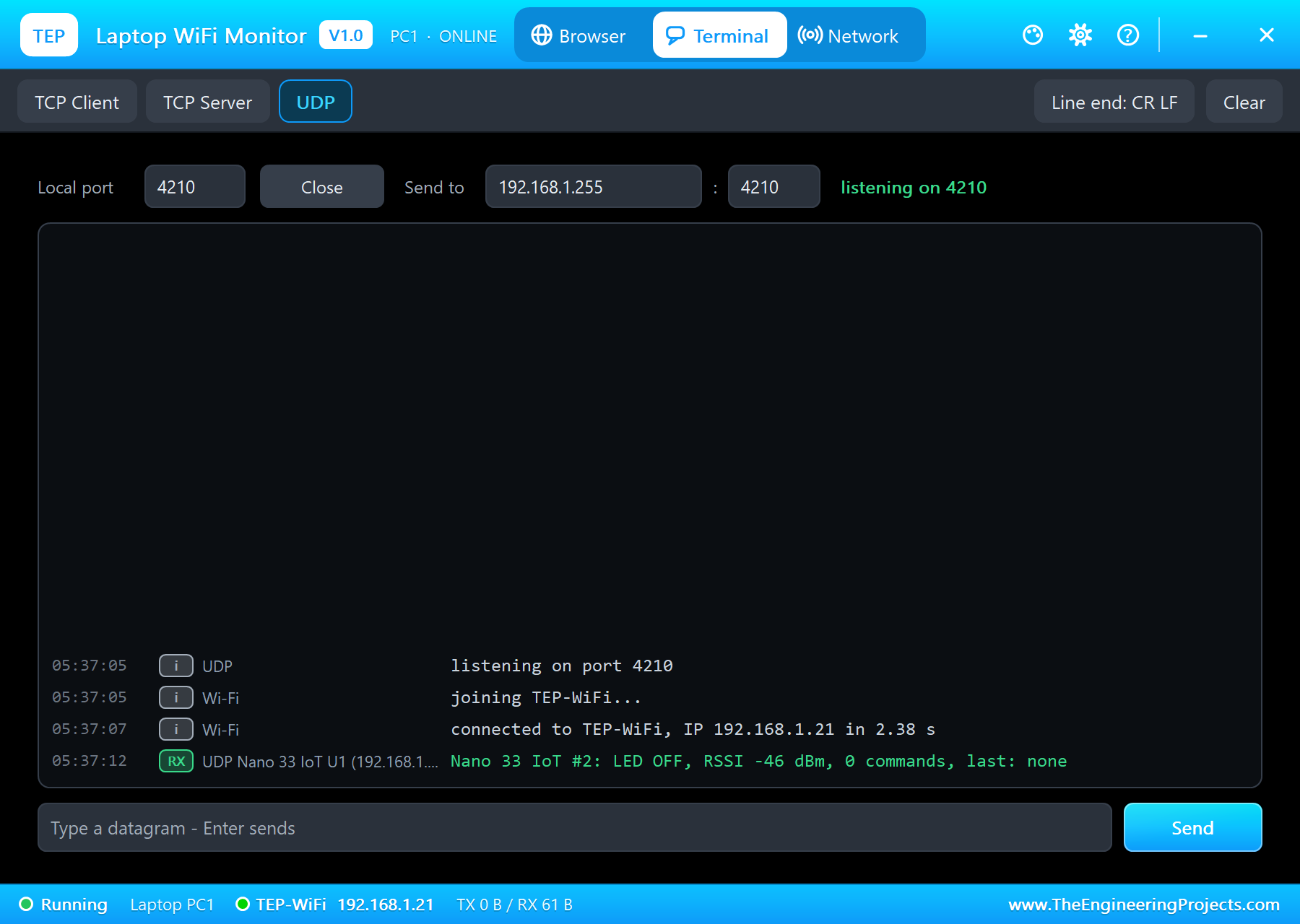
Nano 33 IoT #2: LED OFF, RSSI -46 dBm, 0 commands, last: noneLED Commands by UDP: the Laptop
The other direction: readUdp() checks for a packet with parsePacket(), reads it, runs it as a command and sends the answer straight back to the sender's address and port - remoteIP() and remotePort(). The laptop ends its lines with CR LF, so the text is trimmed first:
void readUdp() {
  int size = udp.parsePacket();
  if (!size) return;
  int n = udp.read(packet, sizeof packet - 1);
  packet[n > 0 ? n : 0] = 0;
  String text = packet;
  text.trim();                             // (the laptop ends its lines with CR LF)
  String from = udp.remoteIP().toString();
  String answer = command(text, from);
  udp.beginPacket(udp.remoteIP(), udp.remotePort());
  udp.print(answer);
  udp.endPacket();
  Serial.println("UDP from " + from + ":" + udp.remotePort() + ": " + text + " - " + answer);
}
The commands are one function, shared by UDP, the page and the monitor. BLINK 3 starts three blinks, which blinkStep() plays from loop() without blocking:
String command(String cmd, String from) {
  cmd.trim();
  cmd.toUpperCase();
  if (cmd == "STATUS") return status();
  if (cmd == "LED ON") { blinksLeft = 0; setLed(true); }
  else if (cmd == "LED OFF") { blinksLeft = 0; setLed(false); }
  else if (cmd.startsWith("BLINK")) {
    int n = cmd.length() > 5 ? cmd.substring(6).toInt() : 3;
    blinksLeft = 2 * constrain(n, 1, 10);
    nextBlink = millis();
  } else return "Commands: LED ON, LED OFF, BLINK <n>, STATUS, HELP";
  commands++;
  lastCommand = cmd + " from " + from;
  return "OK " + cmd;
}
void blinkStep() {
if (!blinksLeft || (long)(millis() - nextBlink) < 0) return;
nextBlink = millis() + 250;
setLed(!ledOn);
blinksLeft--;
}void setLed(bool on) {
ledOn = on;
digitalWrite(LED_BUILTIN, on ? HIGH : LOW);
}In the laptop's UDP terminal we typed LED ON, BLINK 3 and STATUS; each line went to 192.168.1.255:4210 and the board answered:
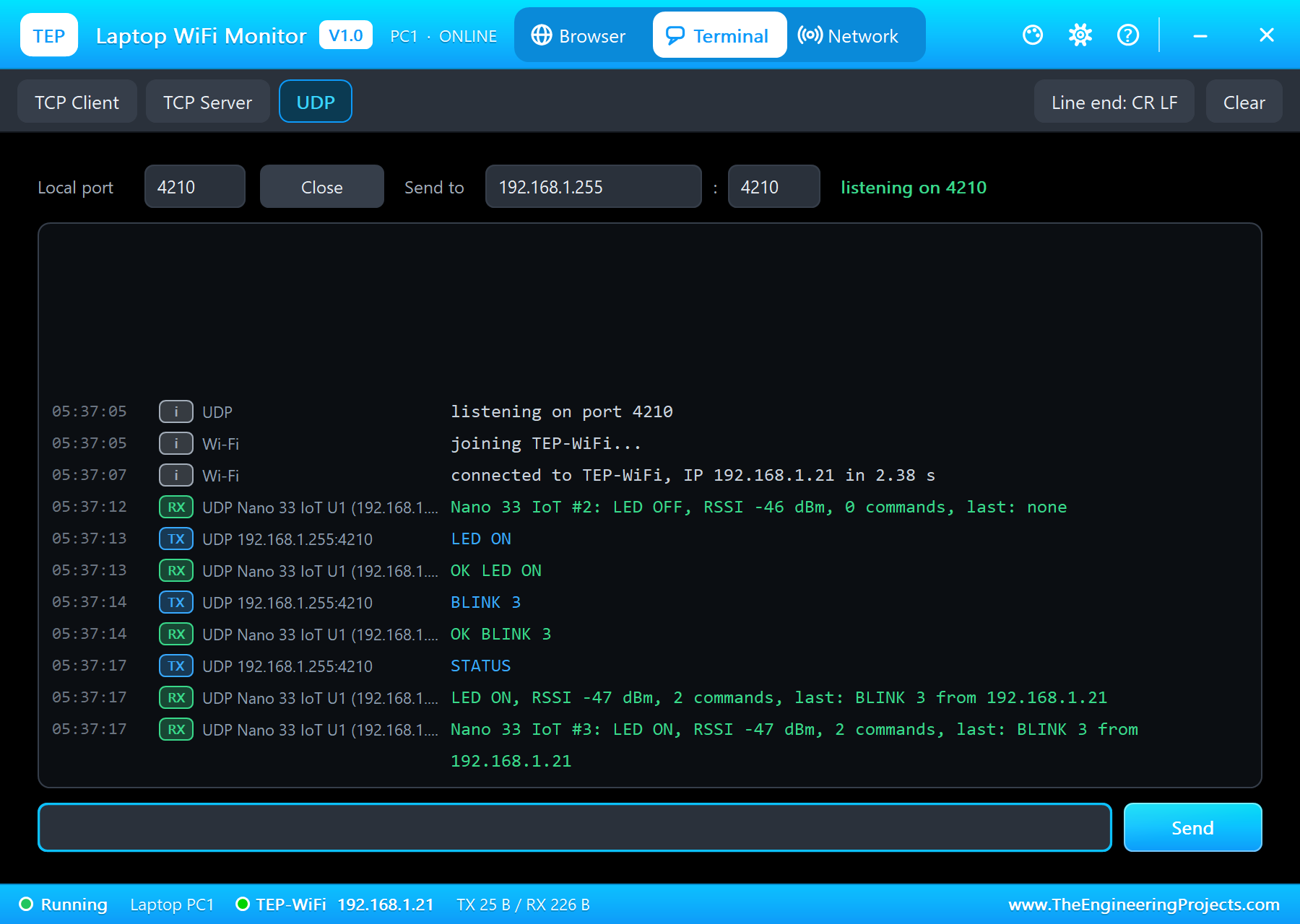
The board's monitor logs every packet with its sender and the answer:
UDP from 192.168.1.21:4210: LED ON - OK LED ON
UDP from 192.168.1.21:4210: BLINK 3 - OK BLINK 3
UDP from 192.168.1.21:4210: STATUS - LED ON, RSSI -47 dBm, 2 commands, last: BLINK 3 from 192.168.1.21
The Same LED from the Phone
The board also serves a small page. As WiFiNINA has no WebServer class, the sketch reads the request line itself and turns the paths into the same commands:
void handle(String path, WiFiClient &client) {
  String from = client.remoteIP().toString();
  if (path == "/led?on") command("LED ON", from);
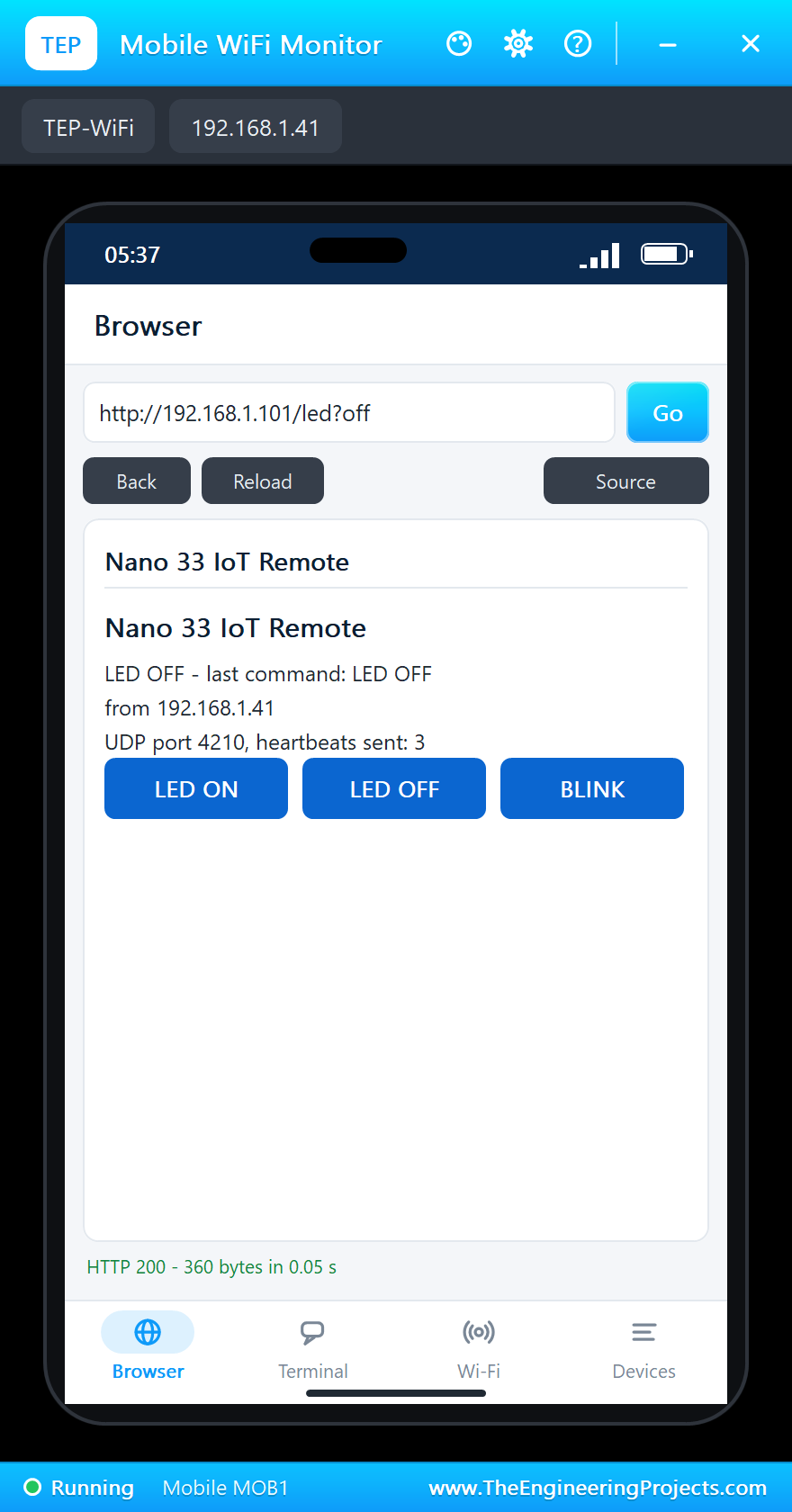
  else if (path == "/led?off") command("LED OFF", from);
  else if (path == "/blink") command("BLINK 3", from);
  Serial.println("Page " + path + " for " + from);
  sendPage(client);
}
In the phone, open the Browser and press Go - http://192.168.1.101/:
We tapped LED OFF:
The Serial Monitor Commands
The monitor takes the same commands, plus HELP. We typed LED ON, STATUS and HELP:
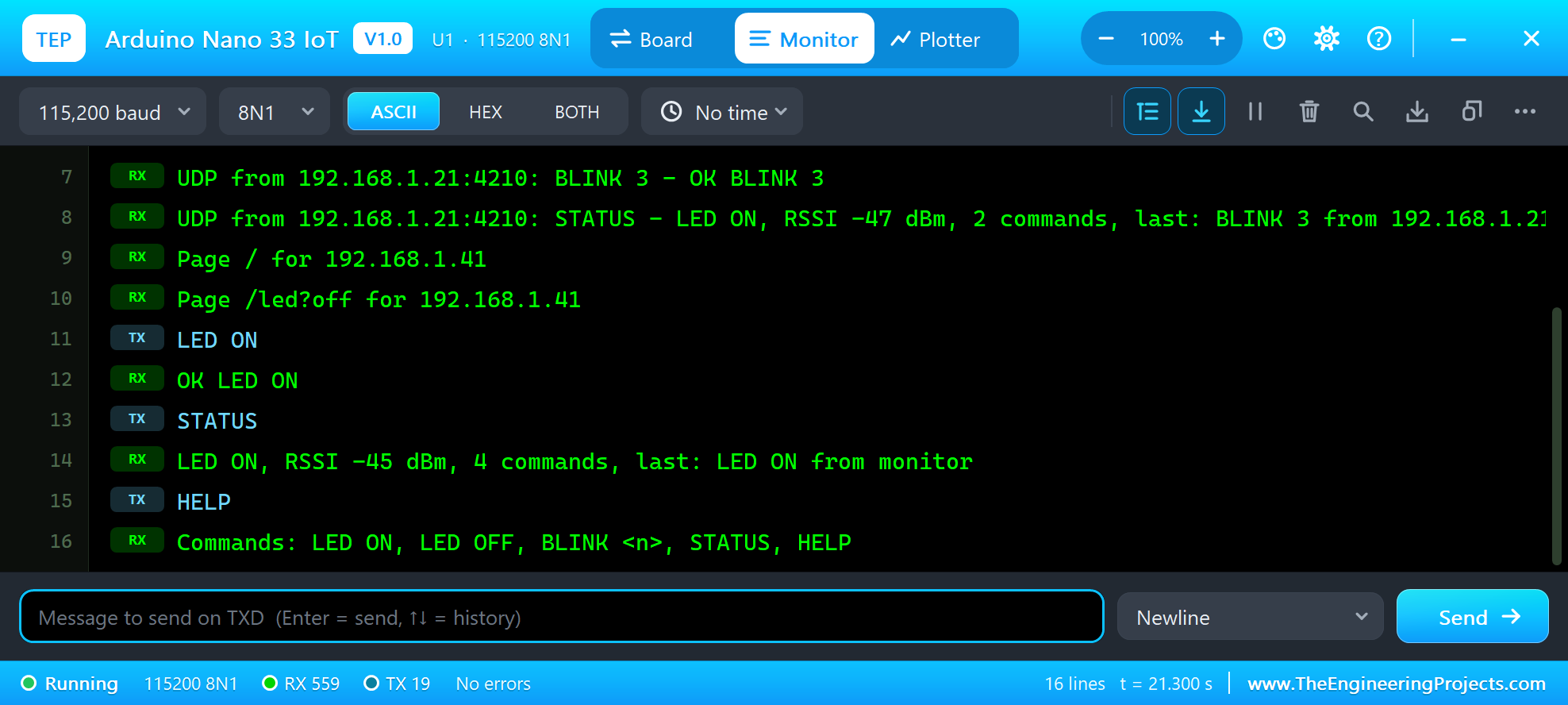
LED ON
OK LED ON
STATUS
LED ON, RSSI -45 dBm, 4 commands, last: LED ON from monitor
HELP
Commands: LED ON, LED OFF, BLINK <n>, STATUS, HELP
loop() is short - every part runs a little on each pass, so UDP, the page and the blinks never wait for each other:
void loop() {
  readUdp();
  heartbeat();
  blinkStep();
  serveClients();
  readMonitor();
}
And the whole demo after the run:
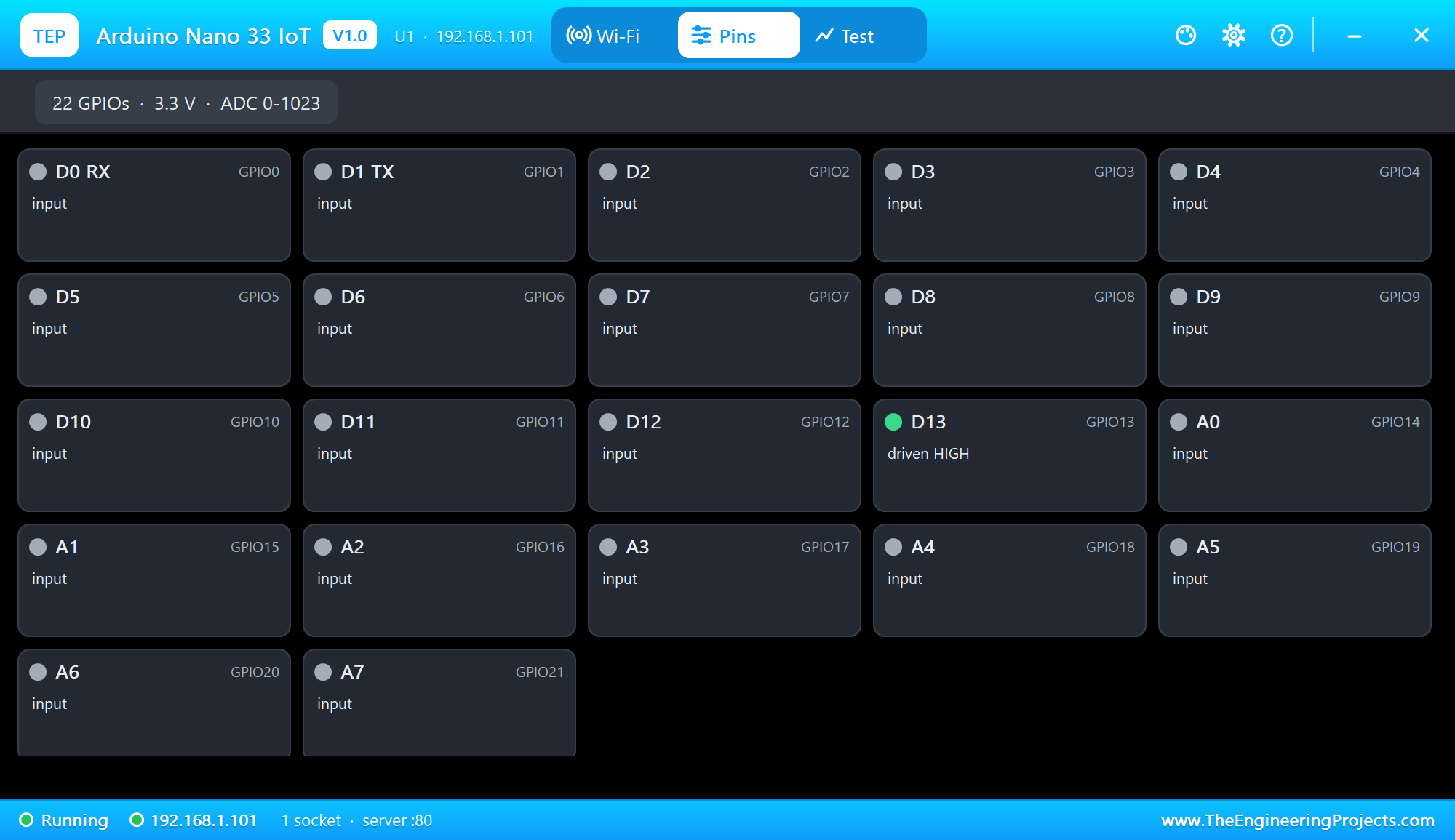
The Nano 33 IoT Panel
The panel opens at Run, in the look of our TEP Serial Monitor Advance for Proteus - our own TEP header, no Windows title bar. Its Wi-Fi page has a small phone and three cards: BOARD, WI-FI and TRAFFIC. OPEN NANO PAGE opens the sketch's page on the panel's phone:
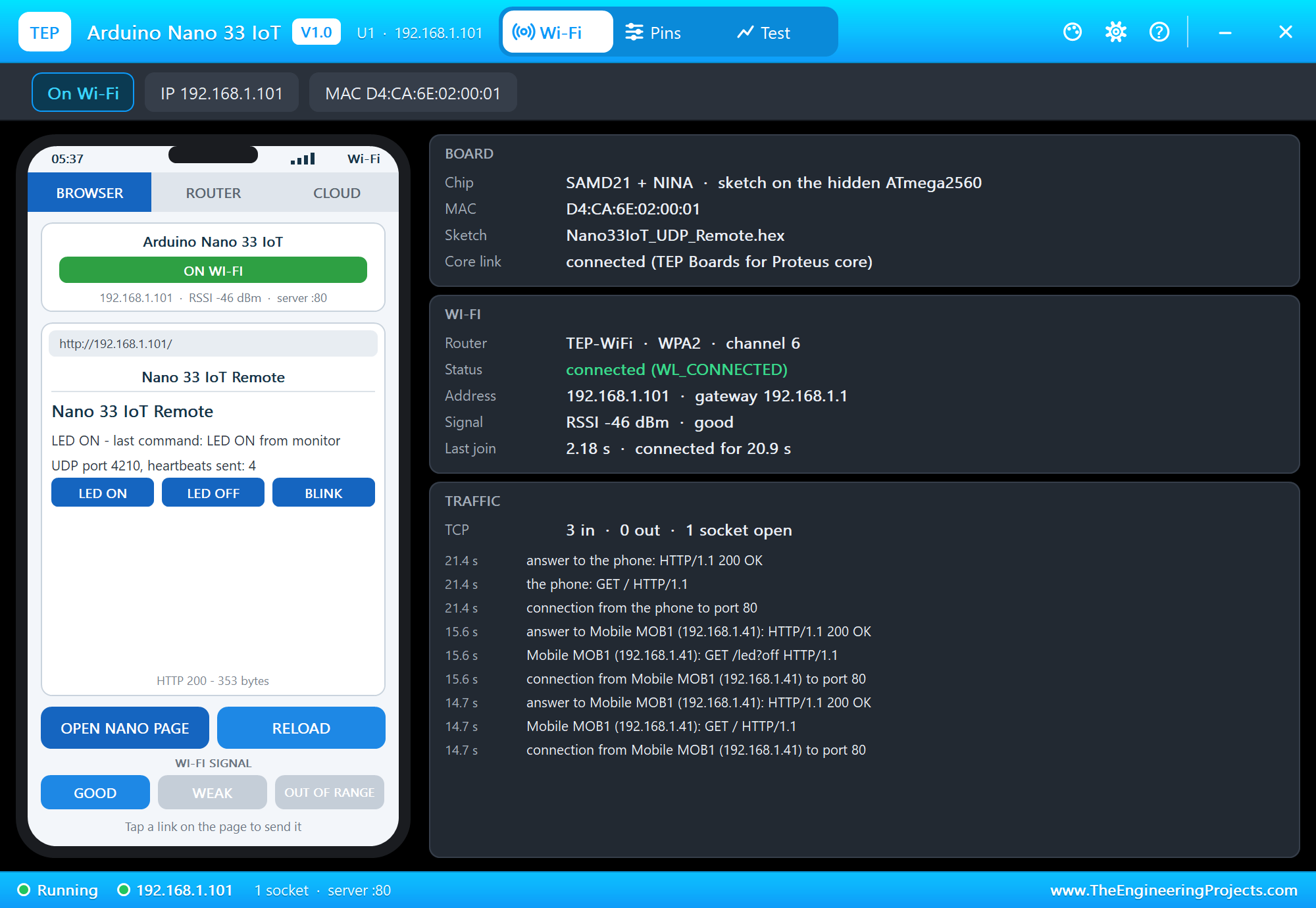
The Pins page shows every pin live:
The monitor's Board tab shows the ON and L LEDs, the RESET button you can click there too, and every pin:
Pins of the Arduino Nano 33 IoT
| Pin | Number | What it does in the simulation |
|---|---|---|
| RX0, TX1 | 0, 1 | Serial1 (as on the Nano 33 IoT), GPIO, interrupt |
| D2 to D13 | 2 to 13 | GPIO, interrupt, PWM; D13 drives the L LED |
| D10 to D13 | 10 to 13 | also SPI SS, MOSI, MISO, SCK |
| A0 to A7 | 14 to 21 | analogRead 0 to 1023 for 0 to 3.3 V (analogRead(0) is A0 too); also GPIO; A4 / A5 = Wire |
| 3.3V, +5V | 3.3 V logic supply, 5 V from USB | |
| GND, RST | ground; reset (LOW holds the board in reset, as the RESET button) | |
| AREF, VIN | drawn, not modelled |
Serial is the USB - the board's monitor - and Serial1 is on RX0 / TX1, as on the real Nano 33 IoT. All pins are 3.3 V logic.
Properties of the Arduino Nano 33 IoT
| Property | What it does |
|---|---|
| PROGRAM | the sketch's HEX (Export Compiled Binary with the board Arduino Nano 33 IoT (TEP Proteus)) |
| WIFISSID / WIFIPASS | the router in range (TEP-WiFi / 12345678) |
| MONITOR | YES = the built-in serial monitor on the USB (Serial) |
| BAUD | the monitor's speed (115200, or AUTO) |
| AUTOOPEN | YES = the monitor opens at Run (the demos: YES) |
| TIME | the clock NTP gives the sketch: PC, or a start time in UTC |
The IP address follows the part's number: U1 gets 192.168.1.101, U2 .102 and so on. Use one Nano 33 IoT per design: its USB serial lines are hidden pins, and Proteus joins hidden pins of the same name across parts.
Your Own Sketch on the Nano 33 IoT
Any sketch written for the real Nano 33 IoT with WiFiNINA runs the same way. A first sketch of your own takes five minutes:
- In the Arduino IDE, choose Arduino Nano 33 IoT (TEP Proteus) and start a new sketch - or open one of Arduino's WiFiNINA examples, such as WiFiUdpSendReceiveString.
- Keep the Nano names:
D2,A0,LED_BUILTIN,Serial1. A potentiometer between 3.3V and GND on A0 reads 0 to 1023. - Use Sketch > Export Compiled Binary; the HEX file lands in the sketch's folder.
- In Proteus, place ARDUINO NANO 33 IOT, wire your parts to its pins (3.3 V logic), double-click it and set the Program File to the HEX.
- Press Run: the board joins TEP-WiFi, and the monitor shows what your sketch prints on
Serial.
For more UDP between a module and our laptop, see the UDP meter of our ESP-12E Library for Proteus.
Troubleshooting
- Nothing happens at Run: the HEX was not built with our board package - choose Arduino Nano 33 IoT (TEP Proteus) and export it again.
- "WiFiNINA.h: No such file": an older copy of the board package is installed - 1.12.0 adds the Nano 33 IoT.
- The board gets no UDP from the laptop: the laptop sends to the port in its Send to box (4210) - the sketch must listen there with
udp.begin(4210). - The laptop sees no heartbeat: its UDPPORT must be the port the sketch sends to (4210), and the laptop must be on Wi-Fi.
- The board does not join: the network name or password differs from WIFISSID / WIFIPASS, or the panel's WI-FI SIGNAL is OUT OF RANGE.
- A number goes wrong above 32767: an int is 16 bits on the hidden AVR (32 on the real SAMD21) - use long.
Things to Know Before Using a Real Nano 33 IoT
- 3.3 V only: the pins are not 5 V tolerant. A 5 V sensor output needs a level shifter or a divider.
- The board package: the real board needs Arduino SAMD Boards in the Boards Manager and Arduino's WiFiNINA library from the Library Manager.
- The +5V pad: on the real board it is not connected by default; a solder jumper links it to the USB's 5 V.
- The IMU: the LSM6DS3 is read with Arduino's Arduino_LSM6DS3 library.
- Analog resolution: the real board reads 10 bits by default, as here;
analogReadResolution(12)gives 0 to 4095 on the SAMD21. - The same sketch: the demo compiles for the real board without a change.
Limitations of the Simulation
- The board runs your sketch on a hidden ATmega2560 at 16 MHz with 8 KB of RAM - not on the SAMD21. Big buffers that fit in the SAMD21's 32 KB may not fit here, and an int is 16 bits.
- Not modelled: the LSM6DS3 IMU, the crypto chip, the SAMD21's DAC, Bluetooth, the soft AP, the NINA's own pins, its firmware updates, real TLS, the radio itself - the join and network times are realistic values, not a radio simulation.
- The antenna colours, the PANEL pad, the panel, its phone, the router, the internet host and the two monitors are TEP additions; the MAC address is a TEP address.
- Arduino and Nano are trademarks of Arduino SA, SAMD21 a name of Microchip Technology, NINA-W102 of u-blox, LSM6DS3 of STMicroelectronics; this library is not made or endorsed by them or by Labcenter.
- Tested in Proteus 8.5 in October 2026 (the demos as shipped, the Nano 33 IoT, the laptop and the phone together at about 0.4 x real time on our PC). Proteus 7 is not supported.
So, that was all about the Arduino Nano 33 IoT Library for Proteus. I hope it lets you try WiFiNINA and UDP on the Nano 33 IoT before the real board is on your desk - heartbeats, remote commands, web pages, sensors - with the same sketch that runs on the hardware. If you use the Arduino Nano 33 IoT Library for Proteus in a project, please share it in the comments or in our forum, and if you have any questions, ask in the comments and I will help you out. Till the next tutorial, take care and have fun!